
If your forms collect leads, orders or survey answers, the decision to migrate Typeform to Tally usually comes down to one test. Do you pay mainly for response volume, or do you pay for a one question at a time experience that lifts completion rates enough to justify the bill. Teams that collect hundreds of responses a month and use plain, practical forms save real money on Tally. Teams that sell a high touch service through a polished, conversational funnel may lose more in dropped completions than they save on subscription fees.
This guide shows how to move forms with the free one click importer, check every question and logic rule by hand, keep old response data safe, and reconnect integrations before anyone notices a change. Prices quoted here reflect publicly listed October 2026 figures. Check official pricing and checkout before you pay.
Before You Import, Take a Full Inventory
Most failed migrations start with a guess about form counts. Open Typeform and list every live form, every draft you still intend to publish, and every form embedded on a website, in an email sequence or in a landing page. For each form, note its purpose, volume, owner, and the tools it feeds. A contact form sending three leads a week to a spreadsheet is a different job from an application form that feeds a CRM, triggers a Slack alert and charges a payment.
Next, document what the importer cannot see at a glance. Screenshot or write down the welcome screen, the thank you screen, ending screens for disqualified respondents, and every logic jump. A form can look complete while sending the wrong people down the wrong path. Note calculated scores, hidden fields that carry campaign or source data, and questions that show only to a subset of respondents.
Then hunt for edge cases. VideoAsk, video questions, complex payment questions, and recall features piping an earlier answer into a later question need a decision before import. Check file upload limits, and preserve consent wording word for word on any form collecting personal data. Finally, check sharing, because an import moves structure, not team access.
A short inventory sheet prevents the most common migration error, discovering a live form two weeks after you thought the move was finished. Keep that sheet open and tick each form off only after it has been imported, tested, linked from its live location and watched for real submissions. Use the same sheet each time you migrate Typeform to Tally, so no form slips through untested.
How to migrate Typeform to Tally Without Losing Logic
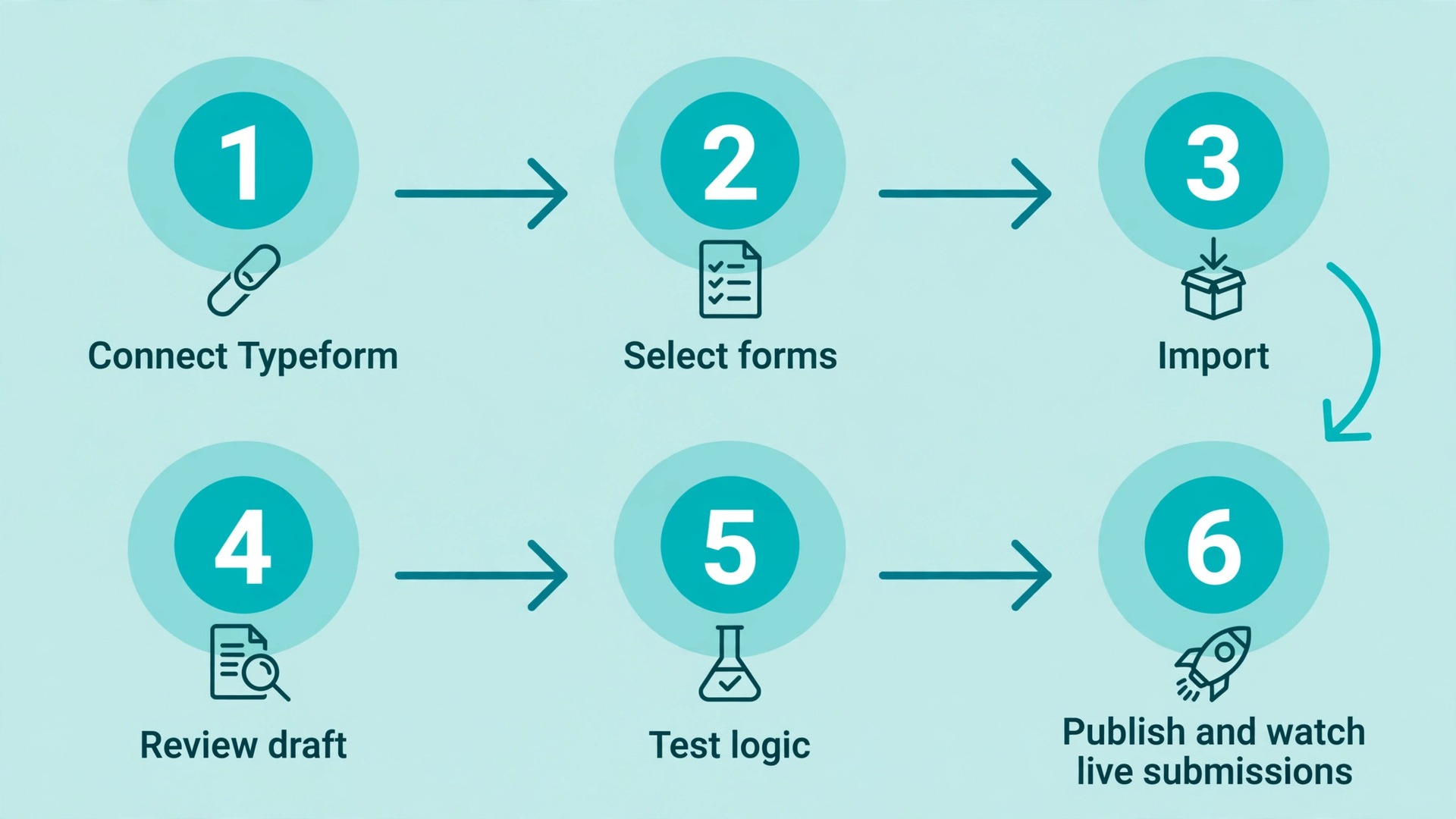
Tally offers a built in Typeform importer that is free for all Tally users, and it is the right starting point for almost every move. In your Tally workspace, click the new form button, select the import option and choose Typeform. You will be sent to Typeform to log in and approve access through OAuth, which means you never hand Tally your Typeform password. Once connected, select one form or several forms at once and click Import. Imported forms arrive as drafts, ready to review and publish.
A single form usually imports in a few seconds. You do not need to wait with the tab open. Importing does not touch your Typeform account, and your original forms keep working until you turn them off, so you can run both tools side by side and compare real behaviour before you commit.
The importer transfers form structure, not historical submissions. That single sentence shapes the whole project, and it is the reason this guide treats response data as a separate job with its own steps later on. For now, follow this sequence for each form.
- Import one small, low risk form first, with 10 to 20 questions, a few logic rules and no payments.
- Open the draft in Tally and compare it question by question against the original, using the next section’s mapping table.
- Test every logic path with a real submission for each branch.
- Fix design, wording and logic in Tally, then retest.
- Connect the form to its destination, such as a spreadsheet or CRM, and send a test submission end to end.
- Only then publish the Tally form, update the link or embed on your site, and watch the first ten live submissions before moving the next form.
Working form by form keeps failures small. A batch import of twenty forms feels fast until three of them share the same broken logic rule and you can no longer remember which test covered which form.
Question Type Mapping, Field by Field
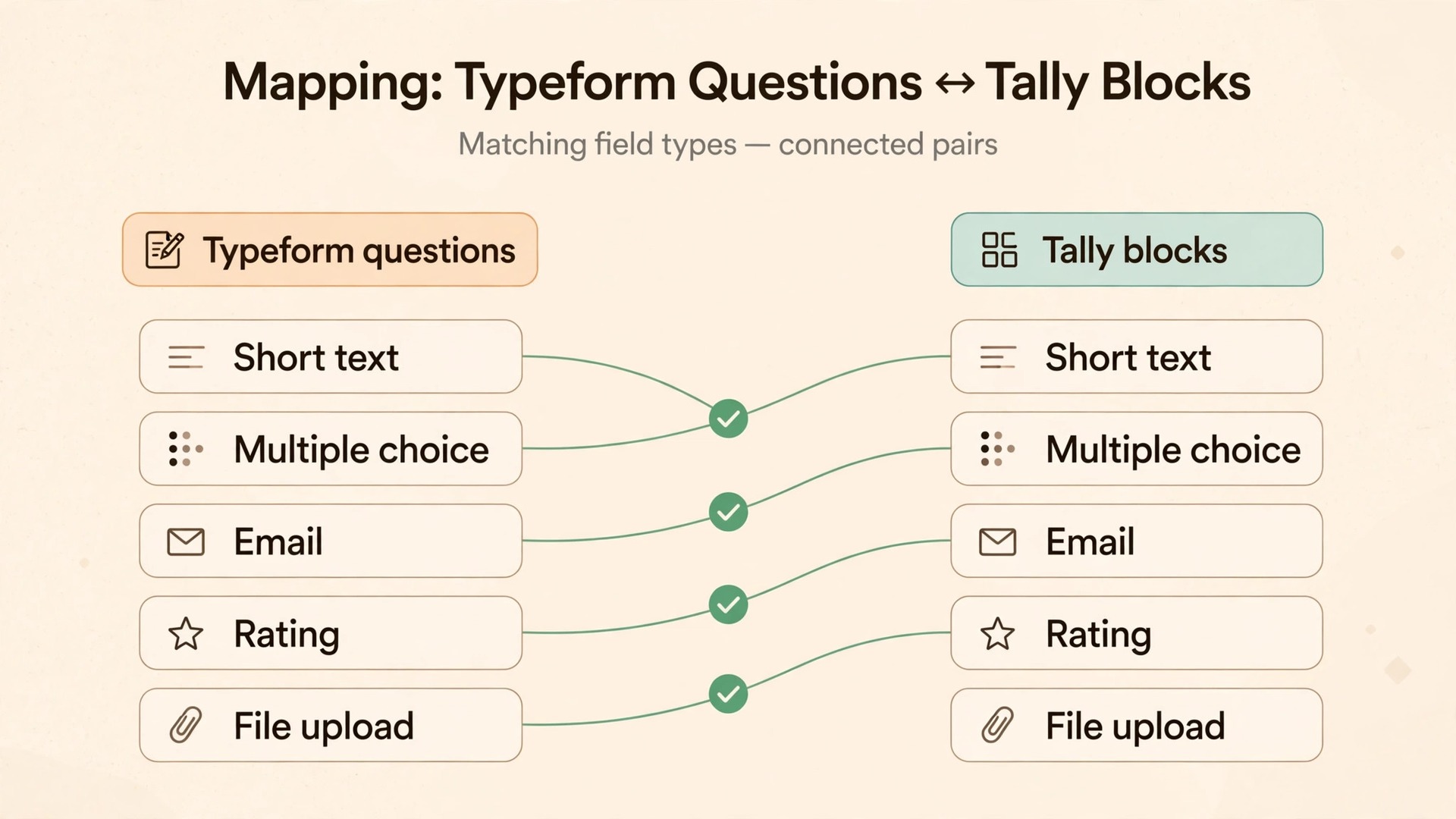
Tally translates your Typeform structure into native Tally blocks. The importer covers short text, long text, multiple choice, dropdowns, email, number, date, rating, opinion scale, yes or no questions, and file upload. It also carries titles, descriptions, answer options, required and optional settings, welcome and thank you screens, and multi page structure. Design is matched as closely as possible, but matched is not identical, so check the result.
| Typeform question | Tally equivalent | What to check after import |
|---|---|---|
| Short text | Short text input | Placeholder text, character expectations and required setting |
| Long text | Long text input | Whether long answers still wrap and display cleanly |
| Multiple choice, single answer | Multiple choice | Option order, the other option, and required setting |
| Multiple choice, multiple answers | Checkboxes | Whether respondents can still pick more than one option |
| Dropdown | Dropdown | Default option, option order and required setting |
| Email input | Validation message and whether the field still blocks bad addresses | |
| Number | Number input | Minimum, maximum and decimal handling |
| Date | Date input | Date format shown to respondents and stored in exports |
| Rating and opinion scale | Rating or linear scale | Scale labels, start value and end value |
| Yes or no | Yes or no toggle or choice | Wording of both answers and any logic tied to each one |
| File upload | File upload block | File types allowed, size limit and where files land |
| Picture choice | Multiple choice with images | Whether images carried across or need re-uploading |
| Payment | Payment block | Product, price, currency and Stripe connection |
| Statement and text screens | Text blocks | Headings, body text and any links inside the text |
| Welcome screen | Cover or heading block | Title, subtitle and button text |
| Thank you screen | Thank you page | Confirmation text, redirect link and follow up action |
Three checks catch most mapping problems. First, check required settings, because a question that was optional in Typeform and becomes required in Tally will block real respondents, while a required question that becomes optional will let incomplete leads through. Second, check option wording, because one changed word can change what an answer means in your reports. Third, check picture choice and payment questions in particular, because these most often need manual rebuilding after import.
If a question type has no clean equivalent, do not force it into the nearest block and hope nobody notices. When you migrate Typeform to Tally, rebuild that question deliberately in Tally, test it with the exact answers a real respondent would give, and note the change in your inventory sheet so your reports stay comparable over time.
Logic Jumps in Typeform Become Conditional Logic in Tally
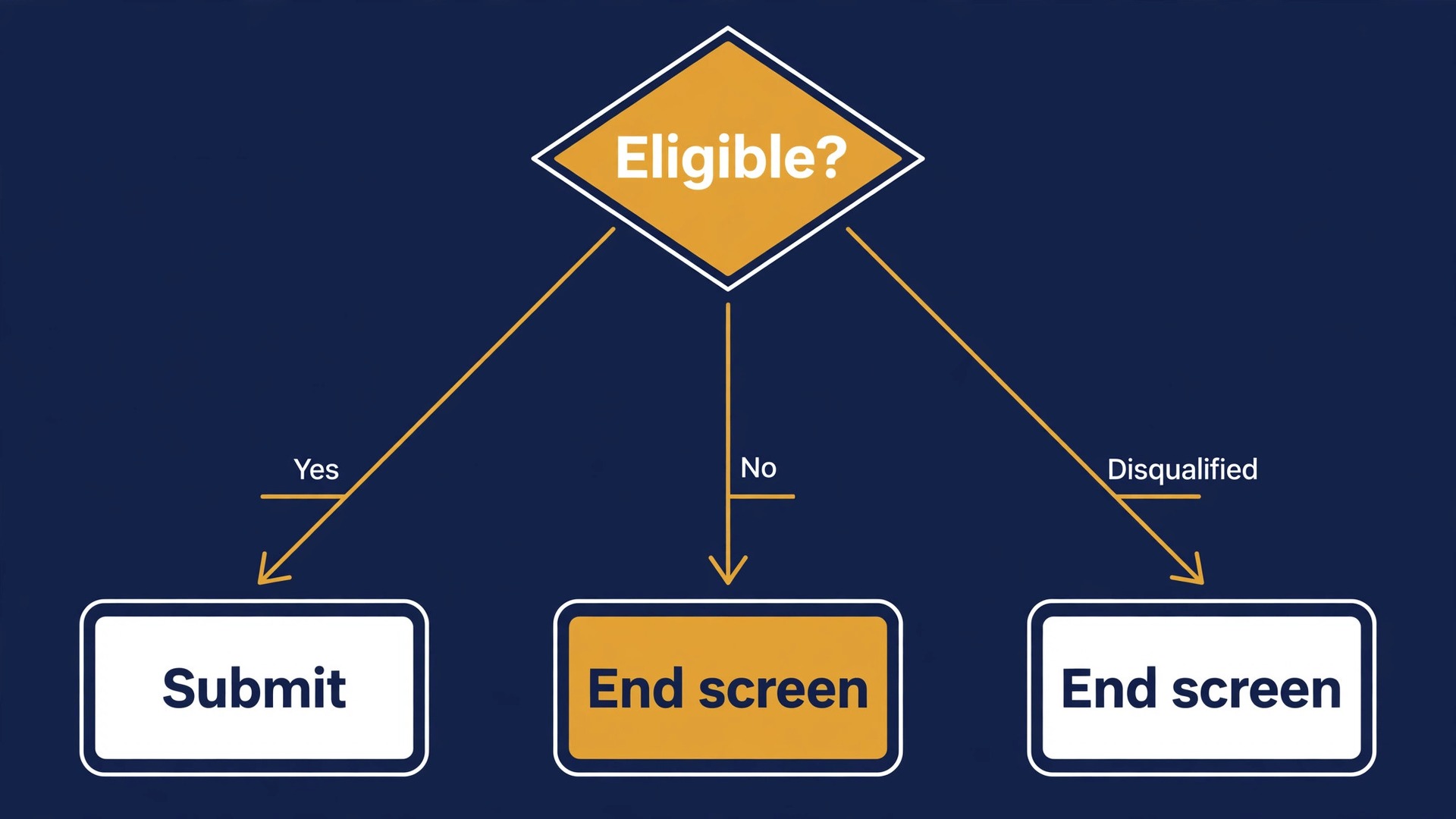
Tally imports conditional logic, but Typeform logic jumps do not always map one to one, and this is the section to read twice. In Typeform, a logic jump sends a respondent to a different question, ending or outcome based on an answer. In Tally, conditional logic shows or hides blocks based on answers, and the same outcome can look different in the builder even when it behaves the same for the respondent. The behaviour is what matters, not the visual shape of the rule.
Draw each form’s logic on paper before you test the imported version. For a short form, a list of rules is enough. For a longer form, draw branches with the triggering answer and the next question. This map becomes your test script. Without it, you will test the path you remember and miss the branch only five percent of respondents take, often the branch carrying the most valuable leads.
Test each branch with a real submission. Submit as a respondent who answers yes, then again as one who answers no, then with each multiple choice option that triggers a jump, and with a blank optional question where logic depends on an answer being present. After each test, check which question appeared next and whether the final submission landed in the right place with the right values. A rule can show the right next question and still store the wrong value if a hidden field was not carried across.
Watch for four logic traps. Logic tied to a score or calculation may need rebuilding, because calculations do not always survive import in the same form. Logic that pipes an earlier answer into later wording needs checking in the live form, not just the builder preview. Ending screens for disqualified respondents need a separate test, because a broken rule can send unqualified leads into your pipeline or reject qualified ones. Logic that ends a form early must still record the partial answers you expect, so check what lands in your spreadsheet for an early exit.
When a rule does not behave, rebuild it in Tally by hand rather than patching it repeatedly. Delete the imported rule, create a fresh conditional rule from the answer that triggers it, and test the branch again. Keep the old Typeform open in another tab while you migrate Typeform to Tally branch by branch, so you copy each rule as it actually ran, not as you remember it.
Design and Branding, What Changes When You Switch
Typeform sells a one question at a time experience, with large type, generous spacing and a strong visual identity. Tally takes a different approach. It lets you keep a conversational flow, group multiple questions on one page, build multi column sections, or mix content and inputs freely. That flexibility helps long application forms and surveys, where respondents want to see progress and move back and forth, but it can feel like a step back for a brand led funnel where the form itself is part of the pitch.
After import, review the form on a phone, not just on a desktop builder screen. Check the cover page, spacing, headings and thank you page, then set brand colours and logo. Tally matches your Typeform design as closely as possible, but fonts, colours and button styles may need adjusting. Test on a small phone screen, because a form that looks elegant on a laptop can feel cramped on mobile if images are large.
Branding rules differ by plan, and many teams misjudge the cost here. On Typeform, removing Typeform branding starts at Plus. On Tally, removing Tally branding requires Pro. If your forms sit on a client facing site, price that upgrade in rather than assuming the free plan covers it. A custom domain also sits behind the paid tier on Tally, so budget for Pro from the start if you publish forms at your own domain.

Response Data, Export from Typeform and Store It Safely
The importer moves form structure, not responses, so your history needs its own workflow. Once you cancel Typeform, recovering old responses becomes far harder. Export every form you care about before you switch any link, even if you plan to keep Typeform open for a month.
Follow these steps for each form in Typeform, on a desktop browser, since response export is not available from the mobile builder. The steps below use the official export flow.
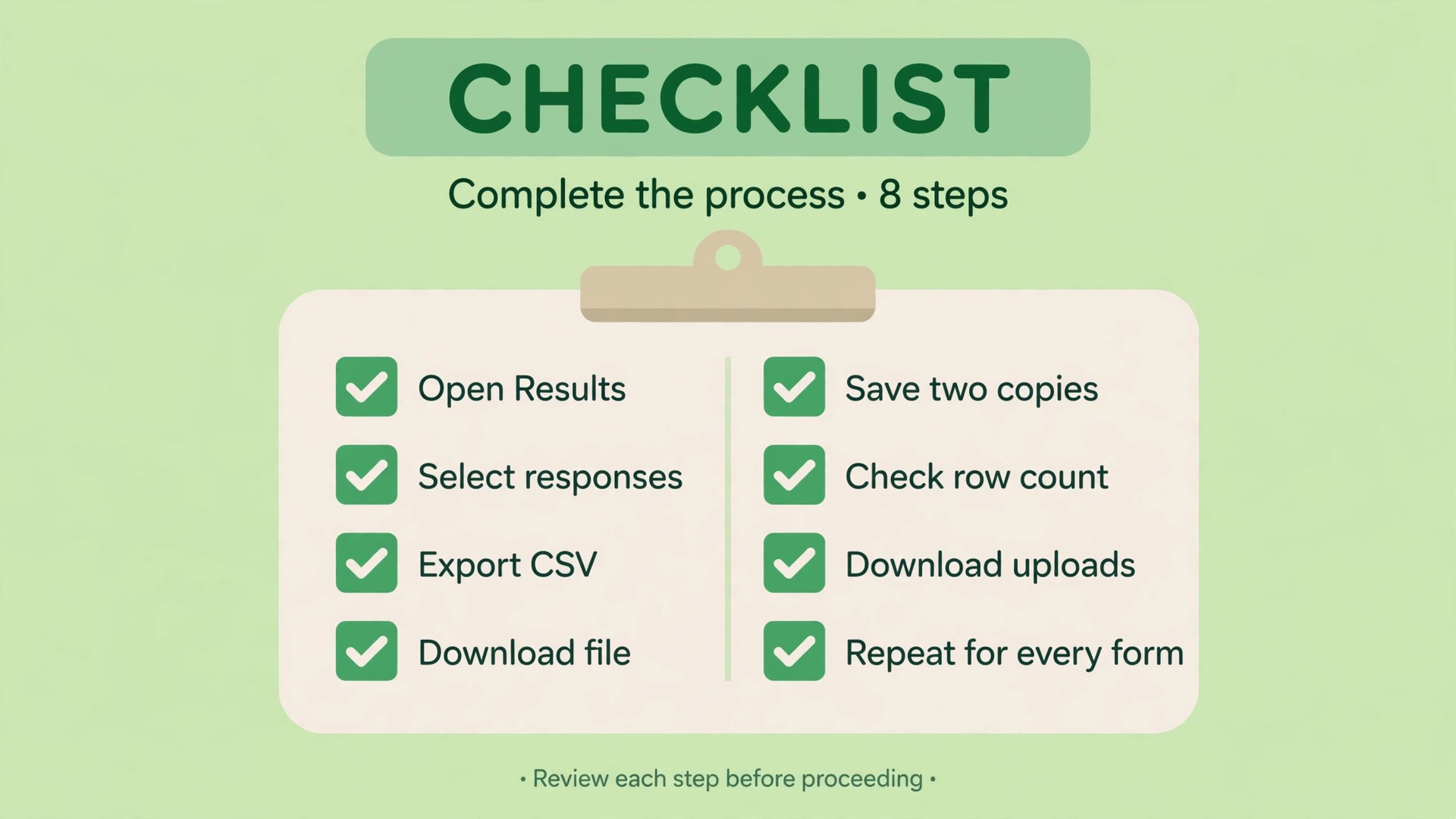
- Open the form from your workspace, then click Results and then Responses.
- Use the checkbox in the header row to select all responses, or tick individual responses if you only need a subset. You can also search responses and export only the matches.
- Click the Export icon, either at the bottom of the table or at the top right, and choose CSV or XLSX format. The export window shows how many responses are included, so check that number against the total you expect.
- Click Export and download the file. For large exports, Typeform prepares the file and emails you a download link, so wait for that email before you assume the export is complete.
- Save the file with a clear name that includes the form name and export date, and store a second copy separate from your main drive, such as cloud storage.
- Open the file and check it before you move on. Confirm the row count, confirm column headings match your questions, and scan for blank columns that should hold answers.
- Download uploaded files separately, because file uploads are not always bundled into the CSV or spreadsheet export in usable form. Check one file per question type to be sure you have actual files, not just file names.
- Repeat the export for every form, including low volume forms you might forget, and record each export with its file name and row count.
Once you have the exports, decide where the history will live. Tally does not import old responses into a new form’s results table, so when you migrate Typeform to Tally do not expect your Tally dashboard to show last year’s answers alongside this week’s. Practical options are a spreadsheet or database your team already uses, a CRM record where each response becomes or updates a contact, or an archive folder with one file per form. For lead forms, a spreadsheet connected to Tally going forward, with the old export pasted in as a clearly labelled historical block, keeps reporting continuous.
Clean the data before you merge it anywhere. Multiple choice questions with multiple selections can behave oddly in a CSV export, with answer choices shown in separate columns rather than the question shown as a single column, so check those columns before import. Normalise date formats, strip stray line breaks from long text answers if your destination tool chokes on them, and keep the original export untouched as backup while you work on a copy. If a response carries a tag that matters for segmentation, add it as its own column before import, because tags applied inside Typeform do not always travel with the export.
Keep Typeform open in read only mode for at least a month after the switch. If a historical answer turns out missing, if a client disputes a submission date, or if a report does not reconcile, you can still open the original results and check. Cancel only after totals reconcile and you have lived with Tally for a few real weeks.
Integrations and Webhooks, Reconnect Everything Before You Switch Links
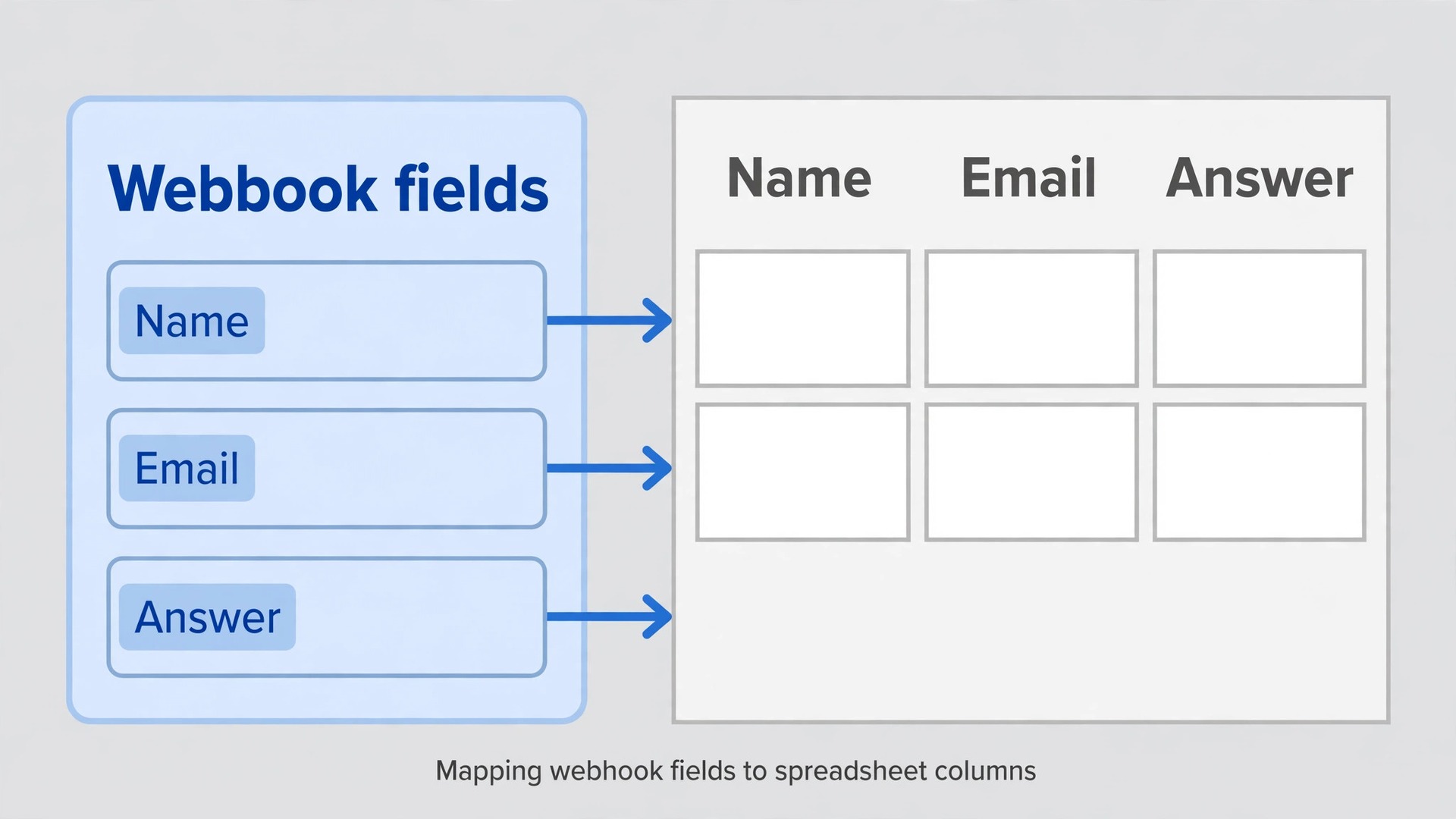
Tally imports Google Analytics and Meta Pixels, but other integrations need reconnecting inside the imported form’s settings, including Slack, Notion, Google Sheets, Zapier and similar tools. This is the step that causes the most silent failures, because a form can collect submissions perfectly while nobody notices that the spreadsheet stopped updating or the sales alert stopped firing.
List every integration on each Typeform before import, including native integrations, Zapier or Make workflows, webhooks, email notifications, and any tool that reads responses through an API. For each one, note what triggers it, what data it receives, and what happens downstream. A webhook that creates a CRM deal is not the same job as a channel notification, and they need different tests.
In Tally, reconnect integrations one at a time and test each with a real submission. For a spreadsheet, check that a new row appears with the right values in the right columns, including hidden fields and calculated values. For a Slack notification, check that the message carries the fields your team actually reads. For a CRM workflow, check that the record is created or updated, duplicates are handled as you want, and the source field marks the new form, so migrated submissions stay distinguishable from old ones.
Webhooks deserve extra care. Typeform and Tally webhooks do not send identical payloads, so any code or automation that parses the payload field by field will need updating. If you use Zapier or Make, build a fresh workflow triggered by the new Tally form and test it alongside the old one, rather than editing the old workflow in place and losing the working version. Keep the old workflow running until the new one has processed at least ten real submissions without error, then retire it.
Payments need a separate pass. Reconnect Stripe in Tally, confirm the product and price for each payment question, test in test mode where available, and check that receipts and confirmation messages still read correctly. A payment form that collects money but sends the wrong confirmation is worse than a form that fails loudly.
Pricing Comparison, Where the Saving Actually Comes From
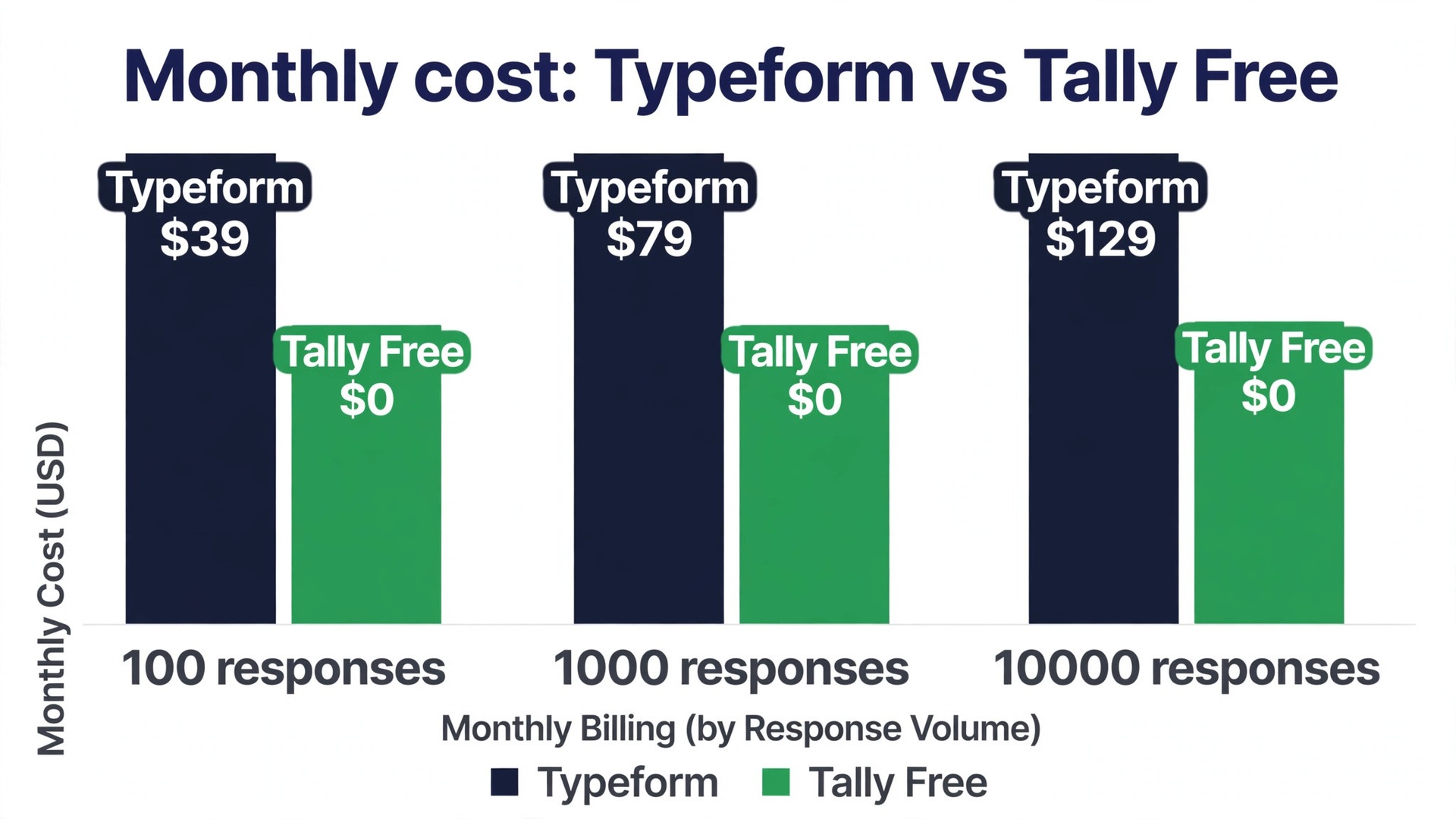
The headline saving is large, but it depends on response volume and on which paid features you actually need. Typeform prices by responses per month. Its free plan allows 10 responses a month, Basic costs 39 dollars a month on monthly billing or 28 dollars a month on annual billing for 100 responses a month, Plus costs 79 dollars a month or 56 dollars a month on annual billing for 1,000 responses a month, and Business costs 129 dollars a month or 91 dollars a month on annual billing for 10,000 responses a month. Users rise with the tier, from one on Basic to three on Plus and five on Business.
Tally prices by features, not by response volume. Its free plan allows unlimited forms and unlimited submissions within fair usage, with conditional logic, calculations, file uploads, payments and integrations included. Pro costs 29 dollars a month on monthly billing or 24 dollars a month on annual billing, and adds branding removal, custom domains, unlimited team members, partial submissions, advanced customisation, visit analytics, drop off analytics and version history. Business costs 89 dollars a month on monthly billing or 74 dollars a month on annual billing, and adds further team and data controls.
| Setup | Monthly cost, monthly billing | Monthly cost, annual billing | Response allowance |
|---|---|---|---|
| Typeform Free | 0 dollars | 0 dollars | 10 responses a month |
| Typeform Basic | 39 dollars | 28 dollars | 100 responses a month |
| Typeform Plus | 79 dollars | 56 dollars | 1,000 responses a month |
| Typeform Business | 129 dollars | 91 dollars | 10,000 responses a month |
| Tally Free | 0 dollars | 0 dollars | Unlimited within fair usage |
| Tally Pro | 29 dollars | 24 dollars | Unlimited within fair usage |
| Tally Business | 89 dollars | 74 dollars | Unlimited within fair usage |
Work the maths for your own volume before you decide to migrate Typeform to Tally. A form collecting 800 responses a month needs Typeform Plus at 79 dollars a month on monthly billing, while the same volume on Tally Free costs nothing unless you need branding removal or a custom domain, in which case Pro at 29 dollars a month still saves 50 dollars a month. A form collecting 8,000 responses a month needs Typeform Business at 129 dollars a month, while Tally Pro at 29 dollars a month saves 100 dollars a month. Over a year, that gap can exceed 1,000 dollars for a single high volume form.
The saving shrinks in two cases. If you need Typeform’s advanced analytics, contact enrichment, lead routing or email and SMS follow ups from its higher specialist plans, Tally may not replace those directly, and you may need another tool to fill the gap. If your form is a brand led funnel where a small drop in completion rate costs more than the subscription saving, the cheaper tool is not the cheaper outcome. Judge the migration on revenue per visitor, not on subscription cost alone.
Also count the overlap month. Keeping Typeform paid for one extra month while you verify Tally is far cheaper than losing a month of leads because a webhook failed silently. Cancel only after the verification period ends and totals reconcile.
Per-Form Migration Order, Which Form Moves First
Migrate in order of risk, not alphabetically and not all at once. You learn on forms that can afford a mistake and apply the lessons to forms that cannot.
- Move a low traffic internal form first, such as a team feedback form. Use it to learn the importer, logic check and integration test without customer impact.
- Move a low traffic public form next, such as a contact form or newsletter signup. Watch its first real submissions and integration behaviour for a week.
- Move medium volume lead forms one at a time, with a few days between each move so you can watch submissions before the next form goes live.
- Move survey and research forms, where historical comparability matters. Keep question wording identical, note any layout change in your reports, and avoid changing a question in the same week you change the tool.
- Move payment and application forms last, after every other form has proved the process. Test payments, file uploads and every logic branch, and run old and new forms in parallel briefly if traffic allows it.
- Move embedded forms with extra care, because an embed lives on a page you may not control directly. Update the embed code, clear caching, and load the live page on desktop and mobile to confirm the new form renders.
For each form, the handover moment follows the same pattern when you migrate Typeform to Tally. Publish the Tally form, update the link or embed where respondents actually find it, send a test submission through the live link, confirm it lands in the destination tool, and only then pause the Typeform version. Do not delete the Typeform version at handover. Pause it and delete it only after your retention period has passed.
If a form feeds a paid campaign, time the switch for a quiet period, not the morning a campaign launches. Combining a migration with a launch day means any problem gets blamed on the new tool whether it caused it or not.
Testing Checklist Before You Turn Off Typeform
Run this checklist for each form, and do not mark a form as migrated until every item passes. It is short on purpose, because a long checklist gets skipped, while a short one gets used.
- Every question appears in the right order with the right wording and the right required setting.
- Every logic branch has been tested with a real submission, including disqualification and early exit paths.
- Every calculated value, hidden field and piped answer has been checked in a live submission.
- The thank you page and any redirect work, and the confirmation message reads correctly.
- Submissions land in the spreadsheet, CRM or inbox they are supposed to reach, with the right field values.
- Notifications, webhooks and automations fire for new submissions and do not fire twice.
- Payment questions charge the right amount in the right currency, where the form takes payments.
- The form renders cleanly on a phone and on a desktop, and file uploads work from both.
- The first ten live submissions have been reviewed, not just test submissions.
- Old response exports are saved, named and stored in two places.
If any item fails, fix it in Tally, test again, and update your inventory sheet with what changed. A migration that passes this checklist form by form is one you can defend six months later, when nobody remembers the details but everyone relies on the data.
For a wider comparison, this site’s best AI form builders guide places Tally and Typeform among the wider field, and Typeform alternatives covers other builders worth shortlisting if Tally does not fit a particular form.
Frequently Asked Questions
Does the Tally importer move my old Typeform responses?
No. The importer rebuilds form structure, including questions, options, logic, welcome screens and thank you screens, but it does not transfer historical submissions. Export responses as a CSV or XLSX file before you switch off the old form, and store the export as your archive.
Is the Typeform importer free?
Yes. Importing from Typeform is free for all Tally users, and you can import unlimited forms. Forms stay free with unlimited responses within fair usage, although branding removal, custom domains and some analytics sit on paid plans.
Will my logic jumps work exactly as they did in Typeform?
They should behave the same for respondents, but you must test them, because Typeform logic jumps do not always map one to one onto Tally conditional logic. Test every branch with a real submission, including disqualification paths and early exits, and rebuild any rule that does not behave by hand. Do not assume a rule works because it looks right in the builder.
What happens to my Typeform forms after I import them?
Nothing changes in Typeform. Your original forms keep working until you turn them off, so you can run both tools side by side during the transition. Pause a Typeform version only after its Tally replacement has collected real submissions correctly.
Do I need to reconnect integrations after import?
Yes, apart from Google Analytics and Meta Pixels, which the importer carries across. Reconnect tools such as Slack, Notion, Google Sheets and Zapier inside the imported form’s settings, and test each one with a real submission. Webhook payloads differ between the two tools, so automation that parses responses field by field will need updating.
Should every team move from Typeform to Tally?
No. Tally is the better default for teams that collect steady or spiky volume on practical forms and want to stop paying per response. Typeform remains worth its price when the one question at a time experience is central to the offer, when completion rate on a high value funnel justifies a premium, or when a specialist feature such as contact enrichment has no good replacement in your stack. Judge the move on completion rate and revenue per visitor, not on subscription cost alone.
Make the Switch on Evidence, Not on Price Alone
A good migration is boring in the best sense. You audit, you back up, you import one small form, you test every branch, you reconnect every integration, you export every old response, and you keep the old tool open until the new one has earned your trust.
Start with the inventory this week, even if you do not import anything yet. List your forms, note their volumes and integrations, export one form’s responses, and take the first step to migrate Typeform to Tally with one low risk form as a test. Those steps take an afternoon and they remove most of the risk from everything that follows. Then move form by form in risk order, watch the first live submissions on each one, and cancel Typeform only when the evidence says Tally is doing the job. The saving is real, but only if the forms keep working, the logic keeps routing people correctly, and the data keeps landing where your team expects it.