

Students who take notes on paper often end up with folders that are hard to search, easy to lose, and painful to revise from, while students who type everything often end up with transcripts they never reread. When you use iPad for digital note-taking students, handwriting, typing, diagrams, and recordings can live in one searchable notebook, organised by subject and week, that can be revised anywhere. That combination, handwriting for understanding plus digital organisation for revision, is why the iPad has become a serious study tool rather than just a large phone.
This guide builds a student note system on iPad from scratch. You will choose the right iPad and stylus, compare note apps, set up a notebook structure, develop a lecture note routine, build a revision workflow, and protect your notes with backups. iPad prices vary by model, storage, and region, and note apps range from free to subscription, so confirm current prices on official Apple and app pages before buying, rather than relying on a single quoted figure.
Why This Approach Works
Digital notes help students in three specific ways that paper cannot match easily. First, notes become searchable, so a term, a diagram label, or a date can be found in seconds across a whole semester, instead of by flipping through folders. Second, notes become flexible, because a page can be reorganised, a diagram can be moved, and a summary can be inserted without rewriting the whole set. Third, notes become connected, because a lecture note can link to a reading, a recording, or a practice question, which supports revision that moves between sources instead of staying in one notebook. Those three advantages matter most in subjects with large, cumulative syllabuses, where revision depends on finding and connecting material quickly.
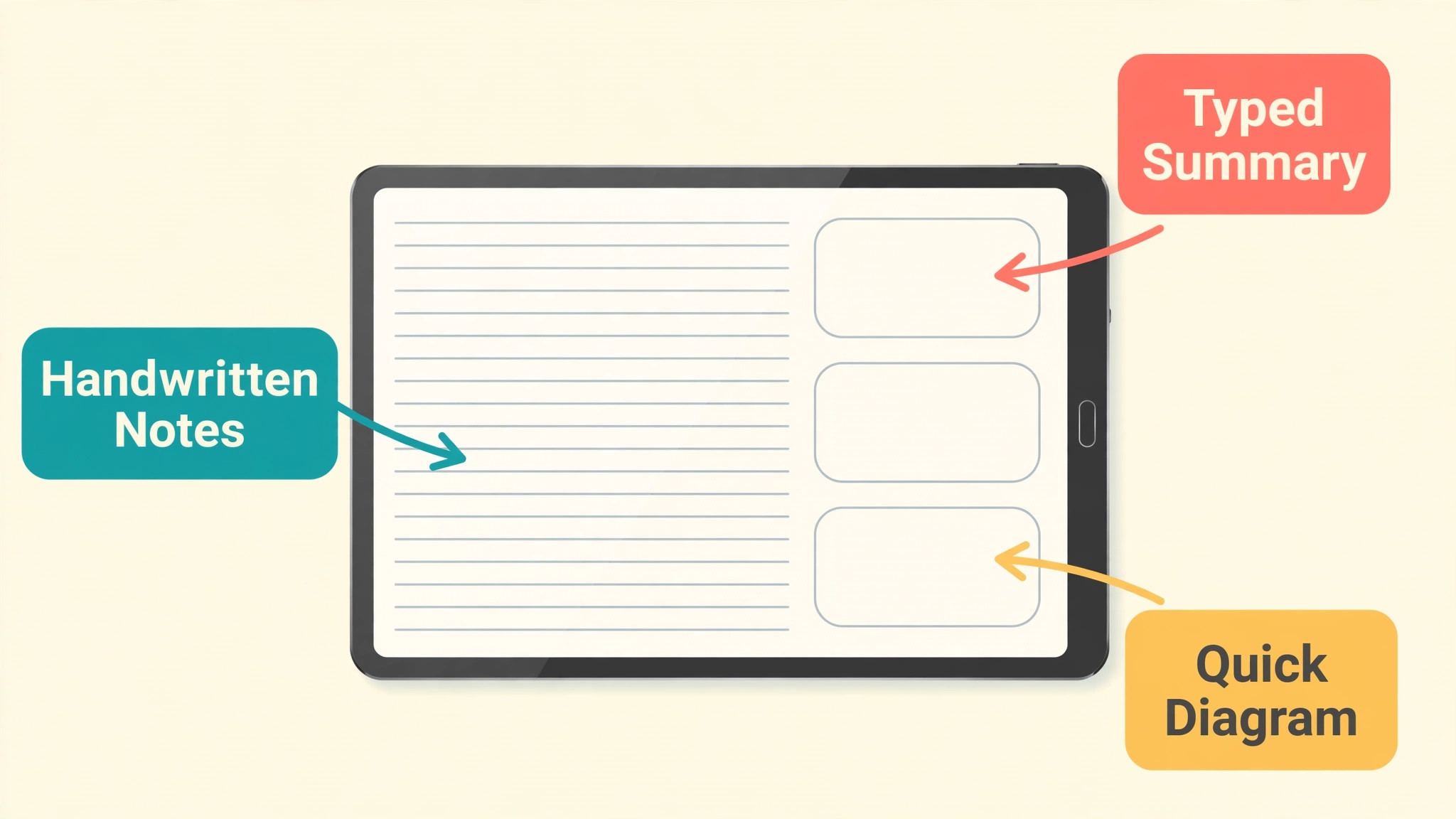
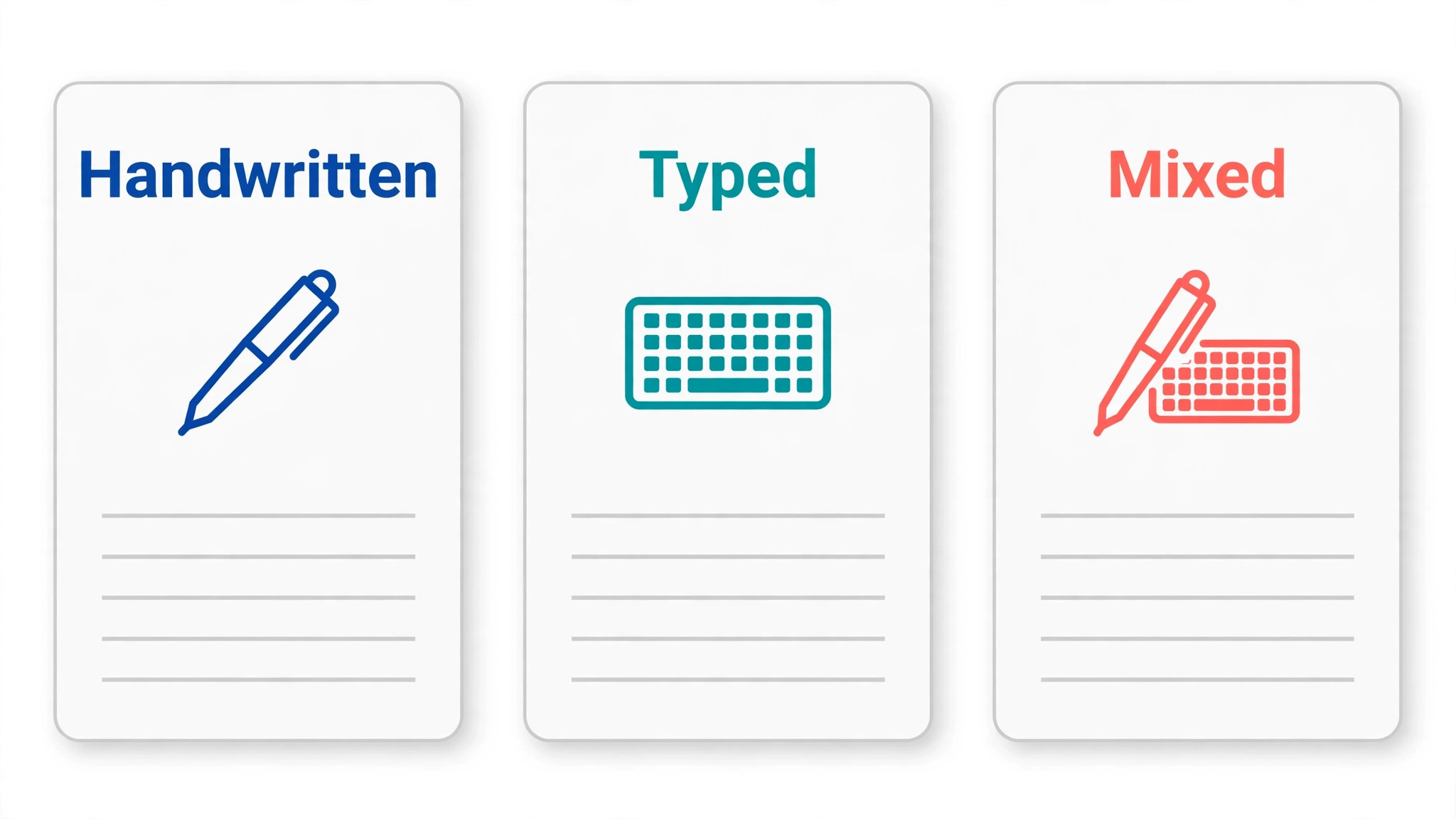
The iPad adds handwriting to those advantages, which matters because writing by hand, even on a screen, forces slower, more selective note taking than typing everything verbatim. Students who write key points in their own words, draw diagrams, and annotate slides tend to understand lectures better than students who transcribe them, because selection requires thinking. A good iPad system therefore protects handwriting time during lectures, and uses typing, search, and organisation after lectures, when notes are cleaned, summarised, and linked to revision tasks. That split, handwrite to learn, organise to revise, is the core habit this guide builds.
How to use iPad for digital note-taking students Step by Step
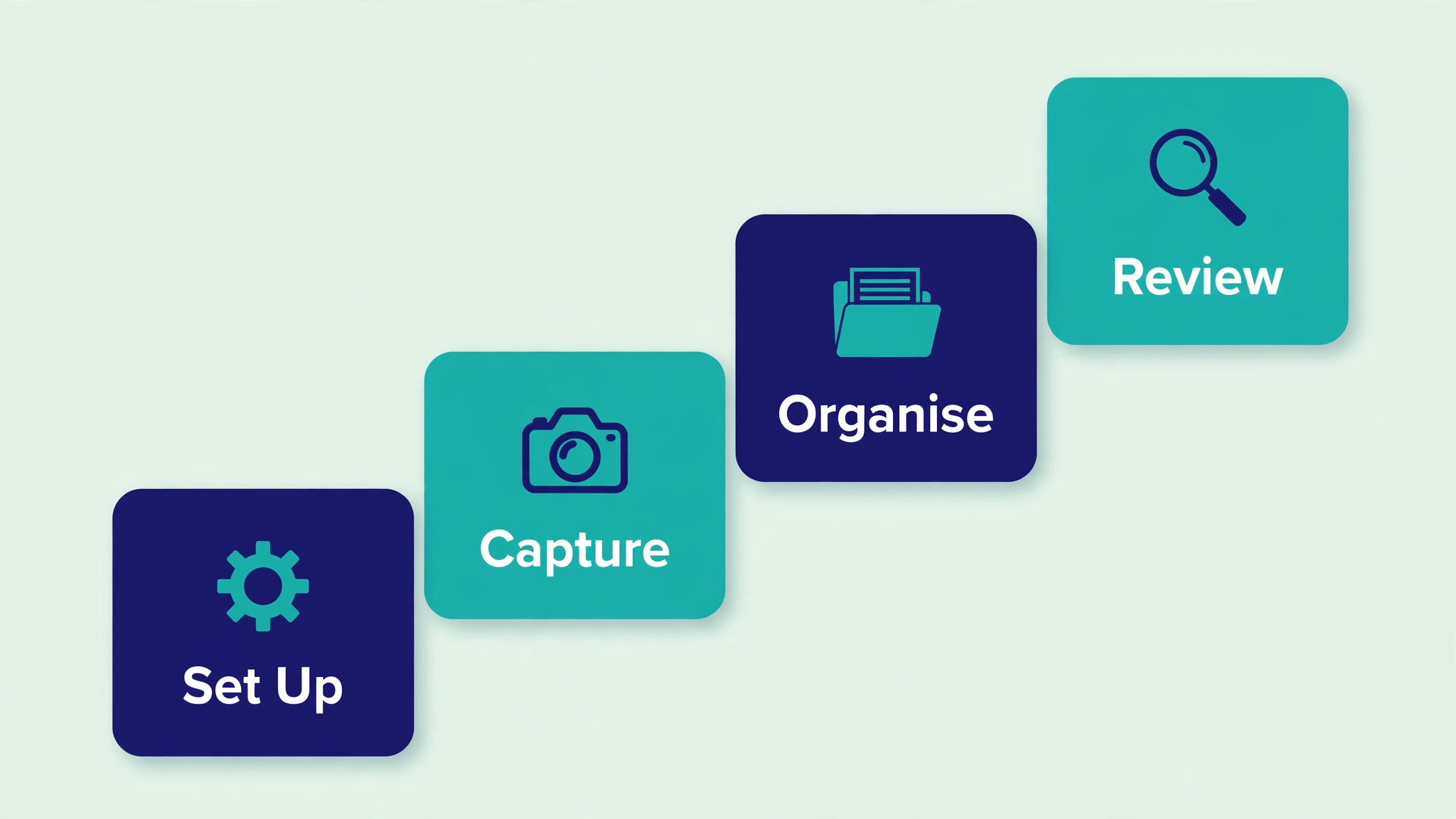
Set up the system in the order below, starting with device and app choice, not with note taking itself. When you use iPad for digital note-taking students, a stable app and folder structure prevents the most common student failure, which is notes scattered across several apps, with no single place to revise from when exams approach.
- **Choose the iPad and stylus for study.** Choose an iPad that supports a stylus and your chosen note app, with enough storage for a semester of notes, PDFs, and recordings, and a screen size you can carry daily. Add a stylus, such as Apple Pencil where supported, and a matte screen protector if handwriting feel matters to you. Test handwriting in the shop or during a return window, because stylus feel varies and a stylus that feels wrong will not be used.
- **Compare note apps before committing.** Compare the main note apps on handwriting, PDF annotation, organisation, search, and export, using free trials where available, before importing a semester of notes. Test handwriting latency, palm rejection, and PDF handling with a real lecture slide set, not only with a blank page. Committing to an app after a real test prevents a painful migration mid semester, when notes are most needed.
- **Set up notebooks by subject and week.** Create one notebook per subject, with sections or folders by week or topic, matching your course structure, and use a consistent page title format, such as date, topic, and lecture number. Keep a separate notebook for revision summaries, so original lecture notes stay intact while summaries evolve. A structure that matches the course makes revision targeting easy, because weak topics can be found by subject and week.
- **Develop a lecture note routine.** During lectures, write key points, diagrams, and questions in your own words, leaving space for additions, and mark anything you did not understand with a clear symbol. After lectures, spend fifteen minutes cleaning notes, adding headings, answering marked questions from readings, and writing a three line summary at the top of the page. That short after lecture routine turns raw notes into revision material, while the lecture is still fresh.
- **Annotate readings and slides directly.** Import lecture slides and readings as PDFs into your note app, annotate them with handwritten notes, highlights, and questions, and link annotations back to your lecture notes where the app supports it. Annotating the source itself, rather than copying it into separate notes, keeps context intact and saves duplication. Use a consistent highlight colour system, such as one colour for definitions, one for examples, and one for exam hints, and write the system on the first page of each notebook.
- **Build a revision workflow from notes.** Each week, review the week’s notes, create summary pages for key topics, and turn difficult points into practice questions or flashcards in a separate tool where helpful. Use spaced review for summary pages, revisiting them after a day, a week, and a month, rather than only before exams. Weekly revision prevents the end of term pile up that makes revision feel impossible, because material is already familiar when exam season starts.
- **Use audio and recordings wisely.** Where lectures are recorded and recording is permitted, link or note the recording time beside difficult sections, so you can replay exactly the part you missed instead of rewatching a whole lecture. Do not rely on recordings as a substitute for notes, because rewatching everything takes far longer than reviewing cleaned notes. Recordings are a backup for gaps, not a primary study method, and they should be used selectively.
- **Back up notes automatically and test restore.** Turn on automatic backup or sync for your note app, and test restoring a notebook on another device at least once per term, so you know the backup actually works. Export important notebooks as PDF at the end of each term as an additional archive, stored separately from the app. A backup that has never been tested is only a hope, while a tested backup protects a semester of work from a lost, broken, or stolen device.
After the first month, review the system honestly, asking whether notes are findable, whether summaries are being made, and whether revision is happening weekly. Adjust one element, such as notebook structure or after lecture routine, rather than switching apps, because app switching resets organisation and loses revision momentum. A system that improves gradually will serve a whole degree, while a system that is rebuilt every term will never mature.
Options Compared
Note apps differ in handwriting, PDF handling, organisation, and price, and the right choice depends on how you study. When you use iPad for digital note-taking students, the table below compares the main approaches, so you can choose an app that fits your subjects and habits rather than copying a recommendation made for a different course.
| Note app approach | Strength | Watch out for |
|---|---|---|
| GoodNotes style notebooks | Paper like notebooks, good handwriting | Organisation by notebook only |
| Notability style notes | Audio linked to notes, simple use | Fewer advanced organisation tools |
| Freeform and whiteboard apps | Diagrams and brainstorming | Weak for long structured notes |
| Typed notes in docs apps | Fast typing, easy search | Weak for diagrams and handwriting |
| PDF annotation apps | Reading and slide annotation | Not a full notebook system |
Test two apps with real lecture material before committing, and judge them on handwriting feel, PDF annotation, search, and export, in that order for most students. An app that feels good for handwriting but exports poorly will trap notes, while an app that exports well but feels bad to write in will not be used. Choose the app you will actually open every day, because the best app is the one that becomes a habit, not the one with the longest feature list.
Costs and Tools to Budget For
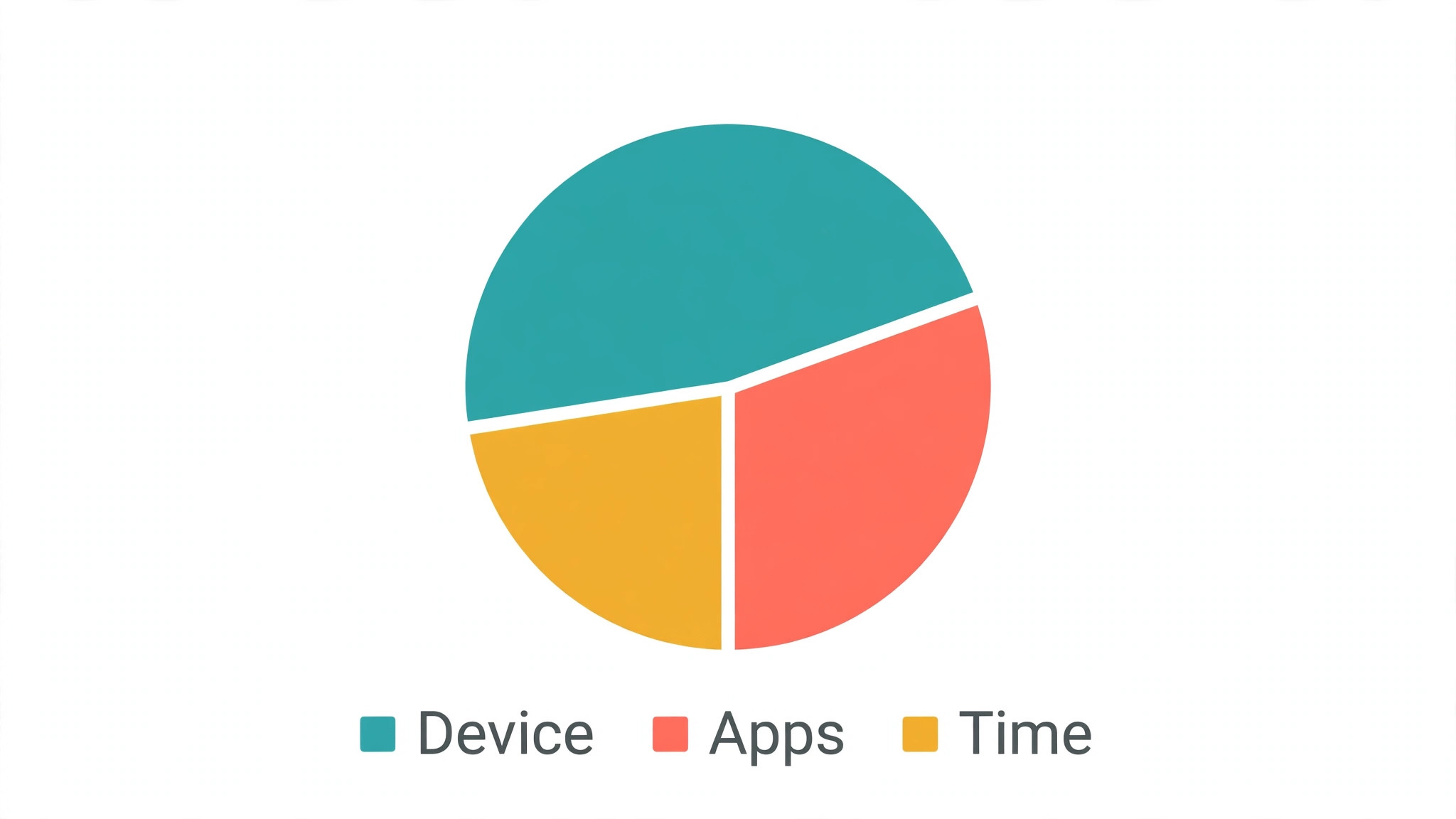
Budget for student notes in device, stylus, app, and accessory costs. iPad prices vary widely by model, from entry level models suitable for notes to Pro models with larger screens and faster chips, and storage choice affects price significantly, so confirm current Apple pricing for your region and education discounts where available. Note apps range from free or one off purchase to subscription, and a stylus adds further cost, so total the full system before buying, rather than budgeting for the iPad alone and discovering app and accessory costs later.
Time budgeting matters as much as money, because a note system that requires an hour of organisation per day will be abandoned during busy weeks. Budget fifteen minutes after each lecture for cleaning and summarising, plus a weekly revision session, and protect those times in your timetable. A system that fits into normal study hours will survive exam pressure, while a system that needs extra hours on top of coursework will be the first thing dropped when deadlines pile up.
Template and Checklist
Run this checklist after setup and again at the start of each term. When you use iPad for digital note-taking students, the checklist is the gate that stops notes scattering across apps, backups failing, and revision summaries never being made.
- An iPad and stylus are chosen that support handwriting and the chosen note app.
- Note apps are compared with real lecture material before committing.
- Notebooks are structured by subject and week, matching course structure.
- A lecture routine exists, with handwriting during lectures and cleaning after.
- Readings and slides are annotated directly, with a consistent highlight system.
- A weekly revision workflow creates summaries and practice questions.
- Recordings are linked selectively to difficult sections, where permitted.
- Automatic backup is on, with a restore test completed at least once per term.
- Term end PDF exports are archived separately from the note app.
- A revision summary notebook is kept separate from original lecture notes.
- Weak topics can be found quickly by subject, week, and tag where available.
- A monthly system review is scheduled, to adjust structure without switching apps.
Keep the completed checklist with your notebook structure note, so a new term starts from a proven system rather than from scratch. When you change courses or devices, the checklist lets you rebuild the system quickly, with the same habits that worked before. A documented system survives device changes, while an undocumented system must be reinvented each time.
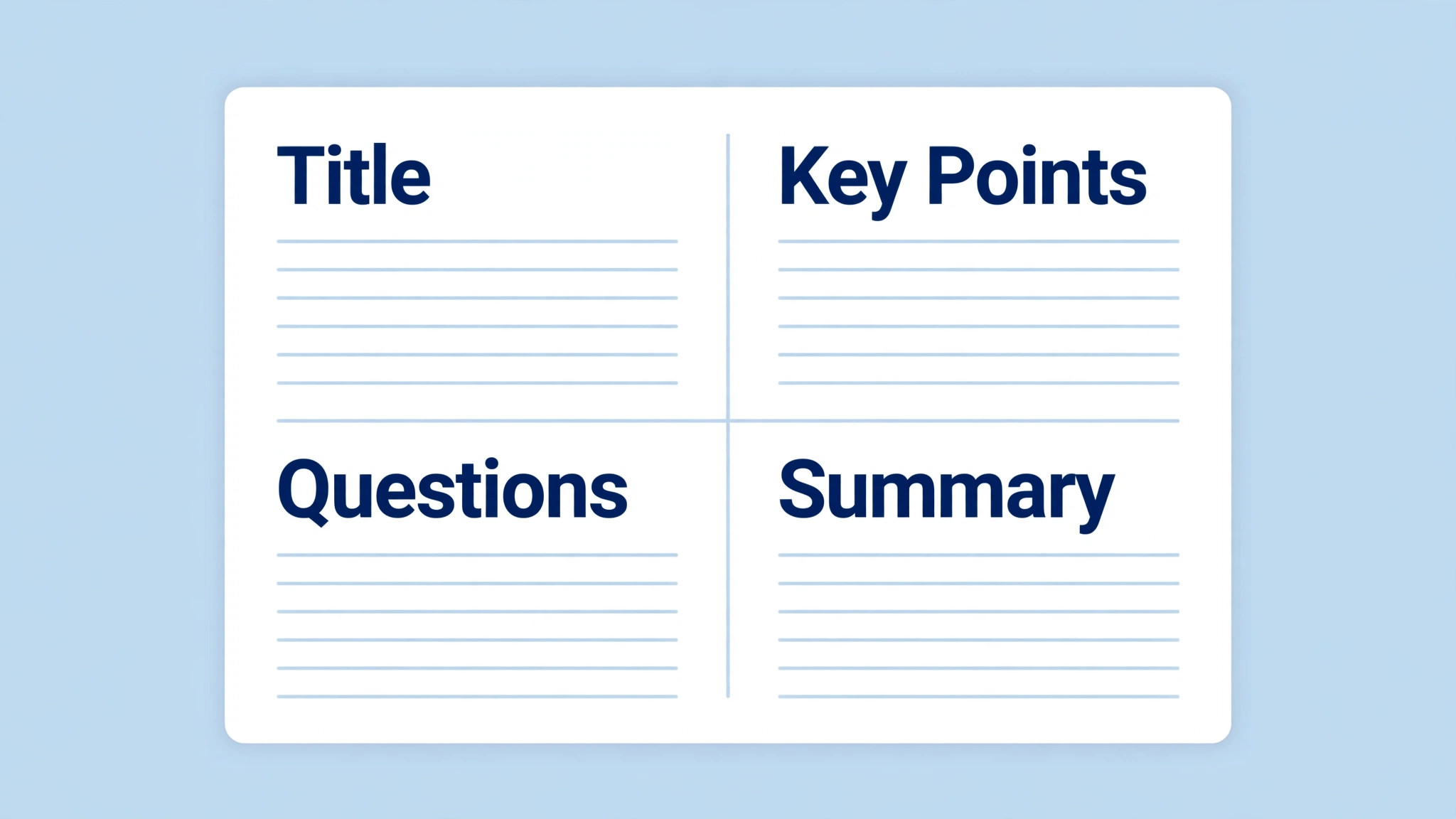
Mistakes to Avoid
Student note systems fail in predictable ways, usually because the system is too complex or too scattered. When you use iPad for digital note-taking students, watch for these five mistakes, because each one wastes study time while feeling like good organisation.
- **Collecting notes in several apps.** Notes scattered across several apps cannot be searched or revised together, so exam revision becomes a hunt across platforms. Choose one primary note app for lecture notes, and use other apps only for specific jobs, such as flashcards, with clear links between them. One home for notes is the foundation of a usable system.
- **Transcribing lectures verbatim.** Typing or writing everything the lecturer says creates a transcript that is rarely reread and poorly understood, because transcription requires little thinking. Write key points in your own words, draw diagrams, and mark questions, so notes reflect understanding rather than dictation. Selective notes are shorter, clearer, and far more useful for revision.
- **Skipping the after lecture clean up.** Raw lecture notes decay quickly, because abbreviations are forgotten, questions remain unanswered, and structure fades from memory. Spend fifteen minutes after each lecture cleaning notes, adding headings, and writing a short summary, while the lecture is still fresh. That short routine is what turns notes into revision material.
- **Never testing backups.** A backup that has never been restored may fail when it is needed most, after a device loss or failure. Test restoring a notebook on another device at least once per term, and export term end PDFs as an additional archive. A tested backup protects a semester of work, while an untested backup only provides false comfort.
- **Revising only before exams.** Leaving revision until exam season creates a pile of unfamiliar material that cannot be learned in a few weeks, no matter how good the notes are. Review weekly, create summaries as you go, and use spaced review for summary pages, so exam season becomes a review of familiar material rather than a first encounter with it.
If the system feels overwhelming, simplify it immediately, by reducing notebooks, dropping an app, or shortening the after lecture routine, rather than abandoning digital notes entirely. A simple system that is used daily will beat a complex system that is abandoned in week three. Simplify to the habits that actually happen, then build back gradually as those habits become automatic.
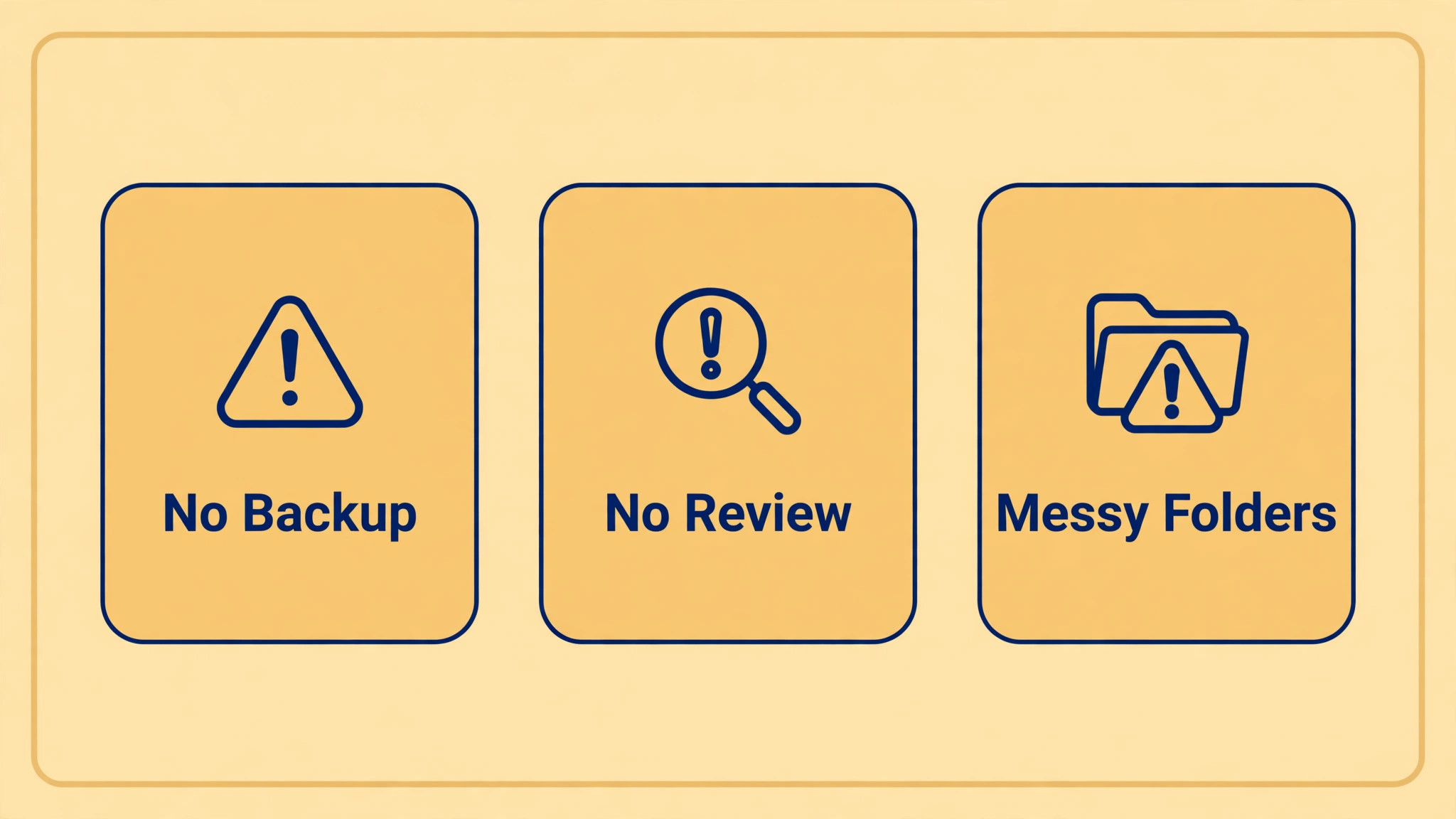
A Worked Example
A student facing a heavy week in the weakest subject can test the whole system on a single lecture before trusting it for an exam term. Before the lecture, the slide set for that session goes into the note app as a PDF, a fresh page is titled with the date, the topic and the lecture number, and the highlight system is already written on the first page of the notebook, with one colour for definitions, one for examples and one for exam hints. During the lecture, handwriting carries the work.
Key points go down in the student’s own words, a diagram is sketched where the lecturer draws one, and anything not understood is marked with a clear symbol instead of being copied blindly or left blank. The point is a page that shows thinking, not a transcript, and the gaps are visible at a glance.
Within the same day, the fifteen minute clean up turns that raw page into revision material. Headings are added, the marked questions are answered from the reading or the slide set, and a three line summary is written at the top of the page so the lecture can be revisited without rereading every line. If the lecture was recorded and recording was permitted, the time beside a difficult section is noted, so only that part needs replaying later. That evening, the summary is copied into the separate revision notebook, leaving the original lecture page intact, and two or three difficult points become practice questions.
Over the following week, the summary is revisited after a day, then after a week, following the spaced pattern in the guide, and any point that still resists recall goes back onto the weekly review list. By the end of that week, the student can judge the system on evidence. Was the page findable by subject and week. Were the marked questions answered. Did the summary survive a second reading without the original page beside it. If the answer to any of those questions is no, the fix is small and specific, such as a clearer page title, a shorter clean up routine, or a different highlight colour, rather than a new app.
A system that passes on one ordinary lecture, with its gaps and rushed moments included, is a system worth keeping for the rest of the term.
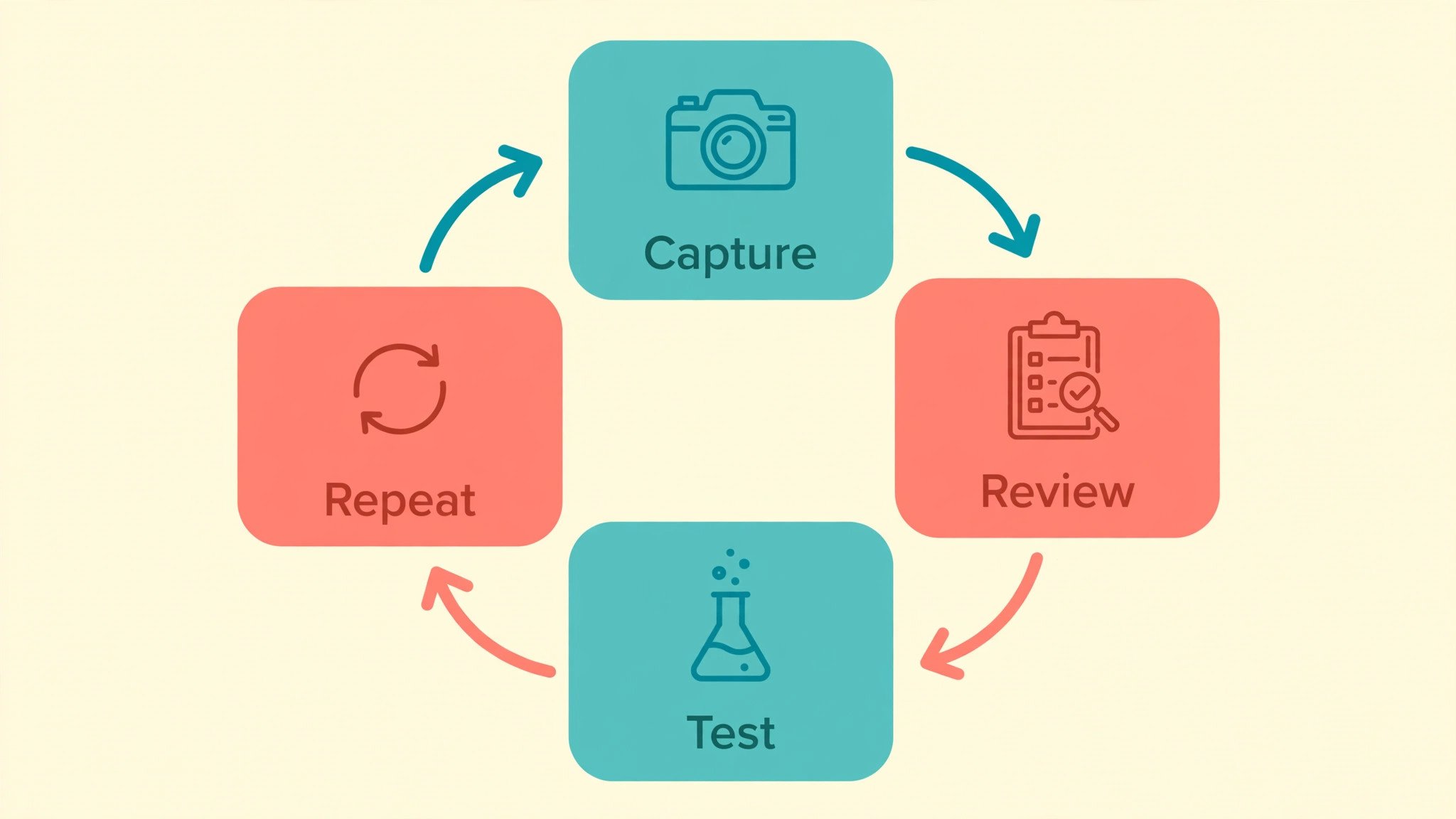
Advanced Tips Worth Trying
Once the weekly routine is steady, the biggest gains come from preparing material before lectures rather than tidying it afterwards. Slide sets and readings can be imported as PDFs at the start of each week, already filed under the right subject and week, so lecture time starts with annotation instead of file hunting. A duplicate of a clean weekly template page, with space for the three line summary, the marked questions and the practice questions, saves the same setup work every session and keeps page titles consistent across subjects.
Where the app supports tags, a tag for each weak topic makes a later search by subject, week and tag return exactly the pages that need extra revision, without opening every notebook in turn.
A second gain comes from treating the revision notebook as a living document rather than a copy of lecture notes. Each summary page can carry a short line at the foot recording what was still unclear after the first spaced review, so the next review starts from the difficulty rather than from the beginning. Difficult points that keep returning can be moved into practice questions sooner, while points that are solid after a week can be left alone until the monthly review. Audio timestamps deserve the same discipline, with a short index of difficult sections kept beside the lecture page, so a replay means opening one timestamp rather than scanning a whole recording.
Finally, the backup routine can be tested without drama by restoring a single notebook on another device early in the term, then exporting that term’s notebooks as PDF at the end of the term and storing the archive separately from the app. A routine that is prepared in advance, tagged for searching, and backed up in a tested way will hold up when deadlines arrive together, which is precisely when a fragile system fails.
How to Measure Success
Success for a student note system is visible in retrieval, completion and retention, and each of those can be checked without guessing. Retrieval can be measured by timing how long it takes to find a past topic using search by subject and week, starting the count when the search begins and stopping when the correct page is open. Completion can be measured with two simple rates. The first is summaries made divided by lectures attended in that week, and the second is marked questions answered divided by marked questions raised, with both counted from the notebooks themselves rather than from memory.
A week where summaries are missing or questions stay unanswered has a clear cause to fix, such as a clean up routine that ran too long or a reading that was never imported.
Retention can be checked through the spaced reviews already built into the routine. After a summary has been revisited after a day, a week and a month, the student can record whether its main points were recalled without opening the original lecture page, giving a recalled count and a missed count for that summary. The backup measure is deliberately binary, because a backup either restores or it does not, and it should be recorded as a pass or a fail after each restore test, with the date noted.
Review these measures together at the monthly system review, and change only one element at a time, such as the page title format or the length of the clean up routine, so any change in retrieval time, summary completion or question clearance can be linked to that single change. Measures that are counted from the notebooks, timed in the same way and reviewed monthly will show whether the system is genuinely helping revision or merely looking organised.
Review and Next Steps
The monthly review should start with the notebooks themselves, not with intentions. Open the weakest subject first and try to find a topic from three weeks earlier by subject and week, then check whether its summary exists in the revision notebook and whether its marked questions were answered. If finding takes minutes, the structure needs attention, perhaps a renamed section or a stricter page title format, while if summaries are missing, the fifteen minute clean up after lectures is the place to look, because that routine is what creates summaries in the first place.
Record the retrieval result, the summary count for the month and the number of questions still open, so next month has a comparison rather than a vague impression. When you use iPad for digital note-taking students through a full term, that monthly record becomes the clearest evidence of whether study habits are improving or merely repeating.
The next step after the monthly check is to plan the coming month around the weak topics the review exposed. Weak topics earn an extra spaced review and a fresh set of practice questions, while strong topics are left to the normal day, week and month pattern rather than being reread for comfort. At the end of each term, the routine widens to an archive step, with the term’s notebooks exported as PDF and stored separately from the app, and the revision notebook carried forward as the starting point for the next term’s summaries.
A new term is also the right moment to adjust the structure, such as adding a section for a new course or retiring a highlight colour that was never used, while keeping the primary app unchanged, because switching apps resets organisation and loses revision momentum.
Before the next term begins, run the full checklist once, including a restore test on another device, a check that recordings are linked only where permitted, and a confirmation that the highlight system is still written on the first page of each notebook. Any change made during that review should be written into the notebook structure note, so the system does not depend on memory across a break. A student system that is reviewed monthly, archived each term and adjusted by one element at a time will grow steadier across a degree, and it will do so without demanding a rebuild whenever a new subject, a new device or a new timetable arrives.
For related reading on Stratilyze, the guide to using iPad as a second monitor shows another iPad use for study desks, and the guide to budget tablets for note taking helps compare devices before buying. Read the second monitor guide first if your desk setup needs more screen space, because study workflows often combine notes and readings, and the method here for use iPad for digital note-taking students pairs well with that desk routine.
Frequently Asked Questions
Which note app is best for students on iPad?
The best app depends on your subjects and habits, so test two apps with real lecture slides before committing. Judge handwriting feel, PDF annotation, search, and export, in that order for most students. An app that feels good to write in and exports reliably will serve a whole degree better than an app with many features that you rarely open.
Is handwriting on iPad better than typing notes?
Handwriting forces slower, more selective notes, which often improves understanding, while typing is faster for long, structured material. Many students benefit from handwriting key points and diagrams during lectures, then typing summaries and organising notes afterwards. Use each method where it excels, rather than forcing one method for every task.
How should I organise iPad notes by subject?
Create one notebook per subject, with sections by week or topic matching your course structure, and use consistent page titles with date, topic, and lecture number. Keep a separate notebook for revision summaries, so original notes stay intact while summaries evolve. A structure that matches the course makes weak topics easy to find and revise.
How do I back up iPad notes safely?
Turn on automatic sync or backup for your note app, test restoring a notebook on another device at least once per term, and export term end notebooks as PDF stored separately from the app. A tested backup plus a PDF archive protects notes from device loss, app problems, and account issues. Never rely on a single copy of a semester of work.
Can iPad notes replace paper notes completely?
For many students, yes, provided the app supports handwriting, PDF annotation, search, and reliable export, and backups are tested. Some students still prefer paper for certain tasks, such as quick sketches or exam practice under timed conditions, and a mixed system is fine if paper notes are scanned or summarised into the digital system for revision.
How do I use iPad for digital note-taking students for exam revision specifically?
Build revision summaries weekly from lecture notes, turn difficult points into practice questions, and review summaries on a spaced schedule, after a day, a week, and a month. In exam season, use filtered reviews of weak topics and timed practice questions, rather than rereading all notes from the start. A revision system built during term makes exam season a review, not a rescue.
Notes That Survive Exam Week
A student note system that survives exam week has one primary app, notebooks organised by subject and week, handwriting during lectures, a short after lecture clean up, weekly summaries, and tested backups. Choose the app by testing with real lectures, protect handwriting time for understanding, and let organisation and search carry revision. When you use iPad for digital note-taking students in that disciplined way, notes become a searchable, connected study asset that makes revision faster, clearer, and far less stressful when exams arrive.