

A television without a working remote is a very different device from a television with one. The TV itself may be perfect, but without the remote you cannot change inputs, adjust volume, open apps, or navigate menus, and the handful of buttons on the TV itself, if it has any, rarely cover what you need. Compare that with a phone problem, where a second device or a web version often fills the gap. A dead remote leaves you standing in front of a screen you cannot control, and when you fix smart TV remote not working, the job feels urgent in a way most tech problems do not.
If you want to fix smart TV remote not working, start by learning which kind of remote you own, because infrared remotes and Bluetooth smart remotes fail in completely different ways, and the test for one will mislead you on the other.
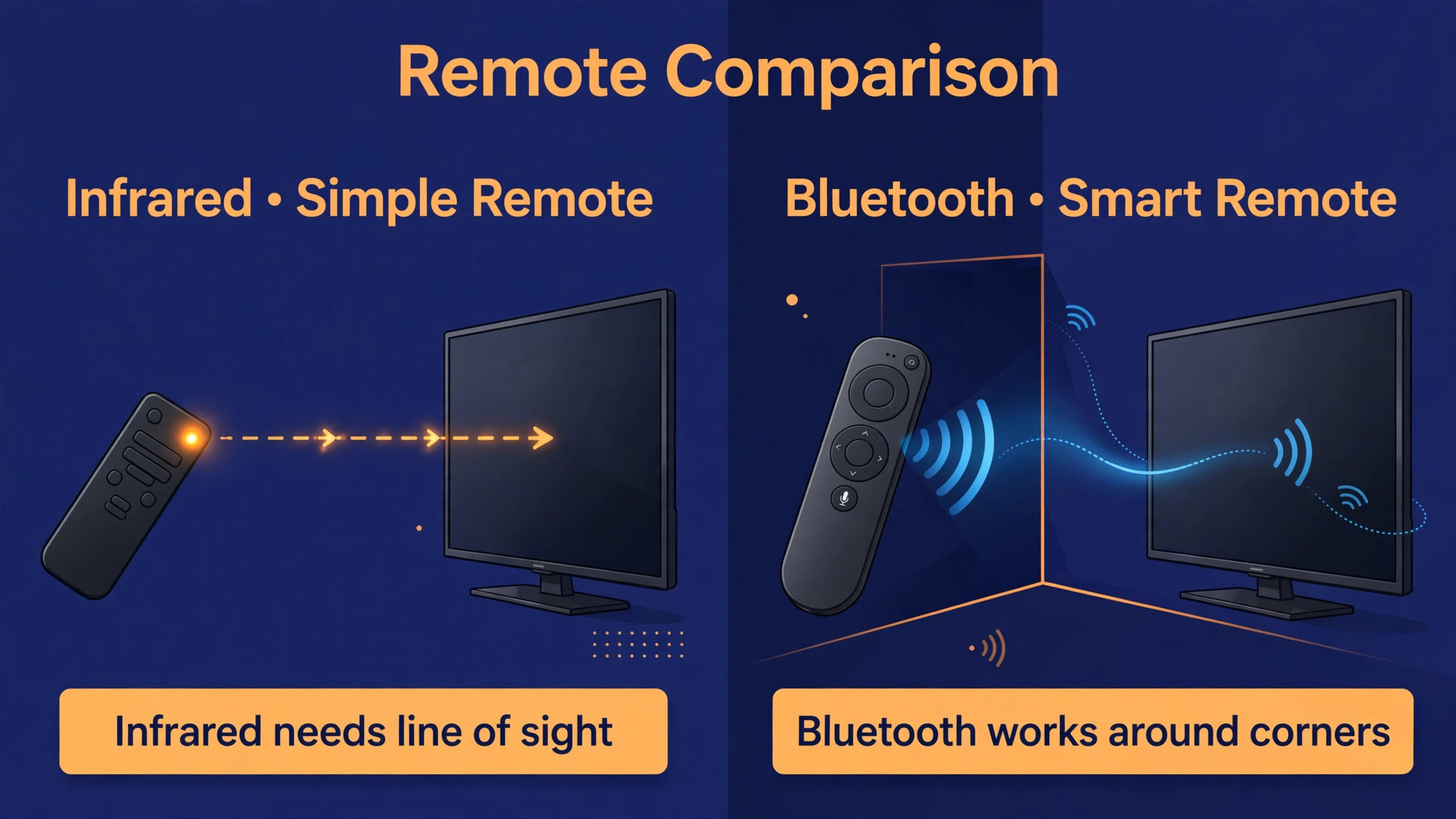
Most homes now have both kinds, sometimes for the same TV. A traditional infrared remote sends an invisible light signal in a straight line to a sensor on the TV, and it needs fresh batteries, a clear path, and a working light emitter. A smart remote, such as a Samsung Smart Remote or an LG Magic Remote, uses Bluetooth for most functions, including voice and pointer control, while still using infrared for power and volume on some models. Bluetooth remotes need pairing, they can lose that pairing, and they can suffer interference, while infrared remotes cannot lose pairing because they never had it.
Knowing which kind you hold decides whether your next step is a battery swap, a camera test, or a pairing sequence.
Infrared Versus Bluetooth, and How to Tell Which You Have
Look at the remote first. An infrared remote has a small dark plastic window at the front tip, which is the emitter, and it usually works only when pointed at the TV. A Bluetooth smart remote often has a microphone button for voice, a pointer or wheel control, and fewer buttons overall, and it can work without pointing directly at the TV once paired. Check the TV manual or the maker support pages for your model if you are unsure, since the pairing steps differ by brand and year, and using the wrong brand sequence wastes time.
Test the type directly. Point the remote away from the TV, behind your back, and press volume or navigation. If the TV still responds, the remote is using Bluetooth for that function. If it only responds when pointed at the TV sensor, it is infrared for that function. Many smart remotes mix both, using Bluetooth for navigation and voice, and infrared for power and volume, so test several buttons, not just one. A remote that navigates fine but will not change volume may have a working Bluetooth link and a failed infrared emitter, which is a different fault from a fully dead remote.
The TV sensor location matters for infrared remotes. On many Samsung models it sits on the lower right side or the bottom centre of the TV, and on other brands it sits in a similar lower edge position. Obstructions in front of that spot, such as a soundbar, a decoration, or a closed cabinet door, block infrared completely, while Bluetooth remotes pass through most obstructions. If your remote worked before you moved a soundbar or rearranged the stand, check the sensor line of sight first, because a new obstruction is a common and embarrassing cause.
Batteries, Contacts, and the Camera Test
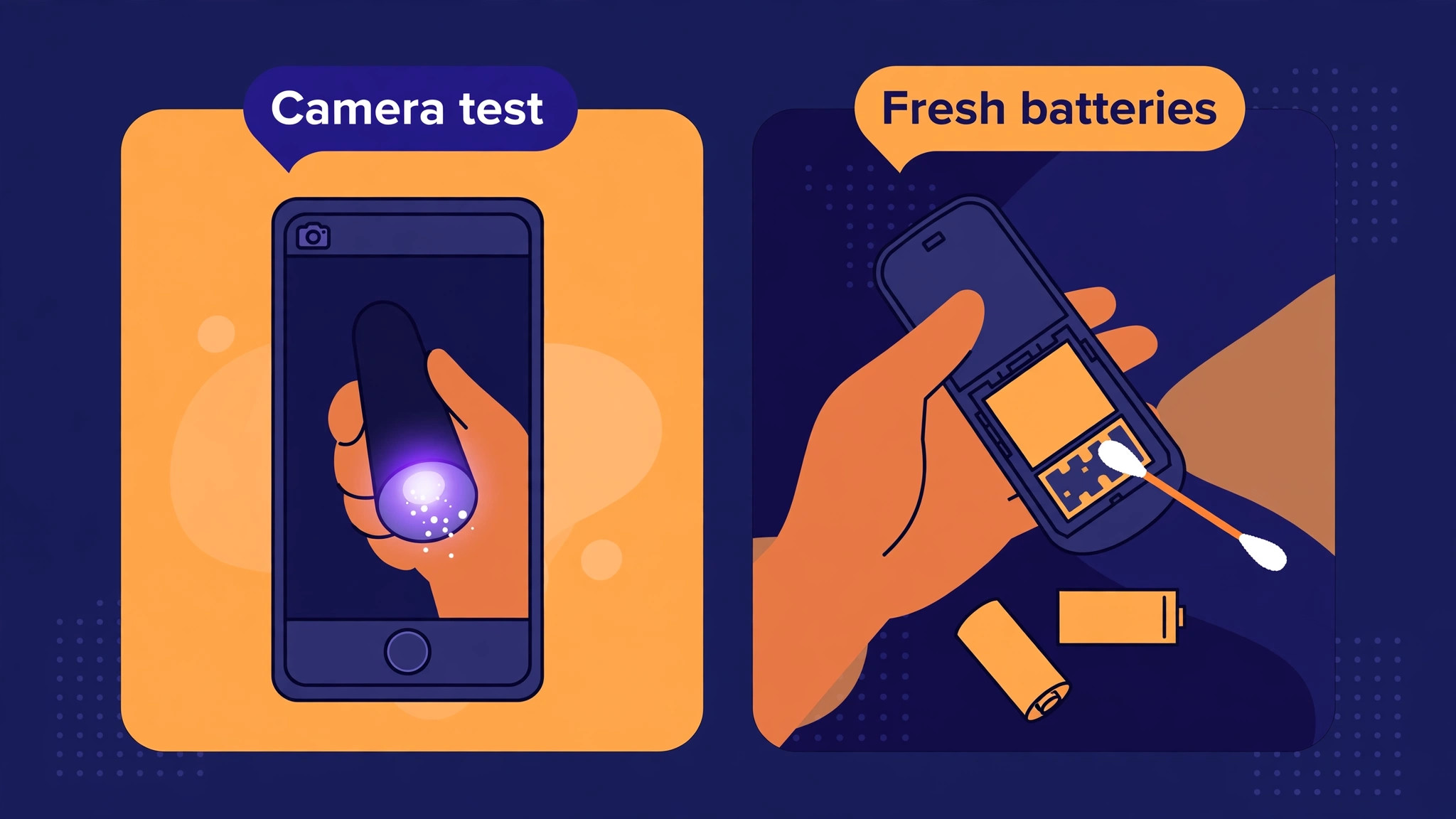
Batteries are the most common cause, and they deserve a proper test, not a shake. Remove both batteries, check for corrosion, white or green crust on the contacts, or leaked fluid, and clean the contacts gently with a dry cloth if corrosion is light. Replace both batteries together with a fresh pair of the correct type, usually alkaline AA or AAA, and check polarity against the markings inside the compartment. Samsung guidance stresses replacing batteries in pairs, not individually, and using the correct polarity, because a single old battery in a pair can drag the voltage down enough to make the remote unreliable even though one battery is new.
Rechargeable batteries can also behave differently from alkaline in some remotes, so test with fresh alkaline if rechargeables fail.
For remotes with built in rechargeable batteries, such as some Samsung solar remotes, charging is the equivalent step. Charge the remote through its USB port, or place it face down in light if it uses a solar cell, and check the remaining battery level in TV settings under General, then Power and Energy Saving, then Available Remote Battery where that menu exists. A solar remote left face up in a dark room for months can simply be flat, and an hour on charge restores it. Do not assume a rechargeable remote is broken when it has never been charged.
The camera test proves whether an infrared remote emits at all. Open the camera app on a phone, point the front tip of the remote at the camera lens, press and hold the power button, and watch the phone screen for a flash or light from the remote tip. Phone cameras can see infrared light that your eyes cannot, so a flash means the emitter works and the problem is batteries, pairing, or the TV sensor. No flash after fresh batteries means the remote emitter or circuit is faulty, and further pairing steps will not help an infrared remote that emits nothing.
Test with a phone camera that shows infrared, since some rear cameras filter it more strongly, and try the front camera if the rear shows nothing.
Fix Smart TV Remote Not Working in Order
Work this list top to bottom, testing the remote after each step. Test several buttons, including power, volume, and navigation, since different buttons can use different signals.
- Replace both batteries with a fresh alkaline pair, checking polarity, or charge a rechargeable remote fully.
- Remove obstructions between remote and TV, move electronics and bright lights away from the sensor area, and stand within a few metres.
- Run the camera test for infrared remotes. No flash after fresh batteries means a faulty remote.
- Remove batteries for thirty seconds, press every button once with batteries out to discharge the remote, then refit fresh batteries.
- Restart the TV fully by unplugging it for thirty seconds, then plugging it back in, rather than using standby.
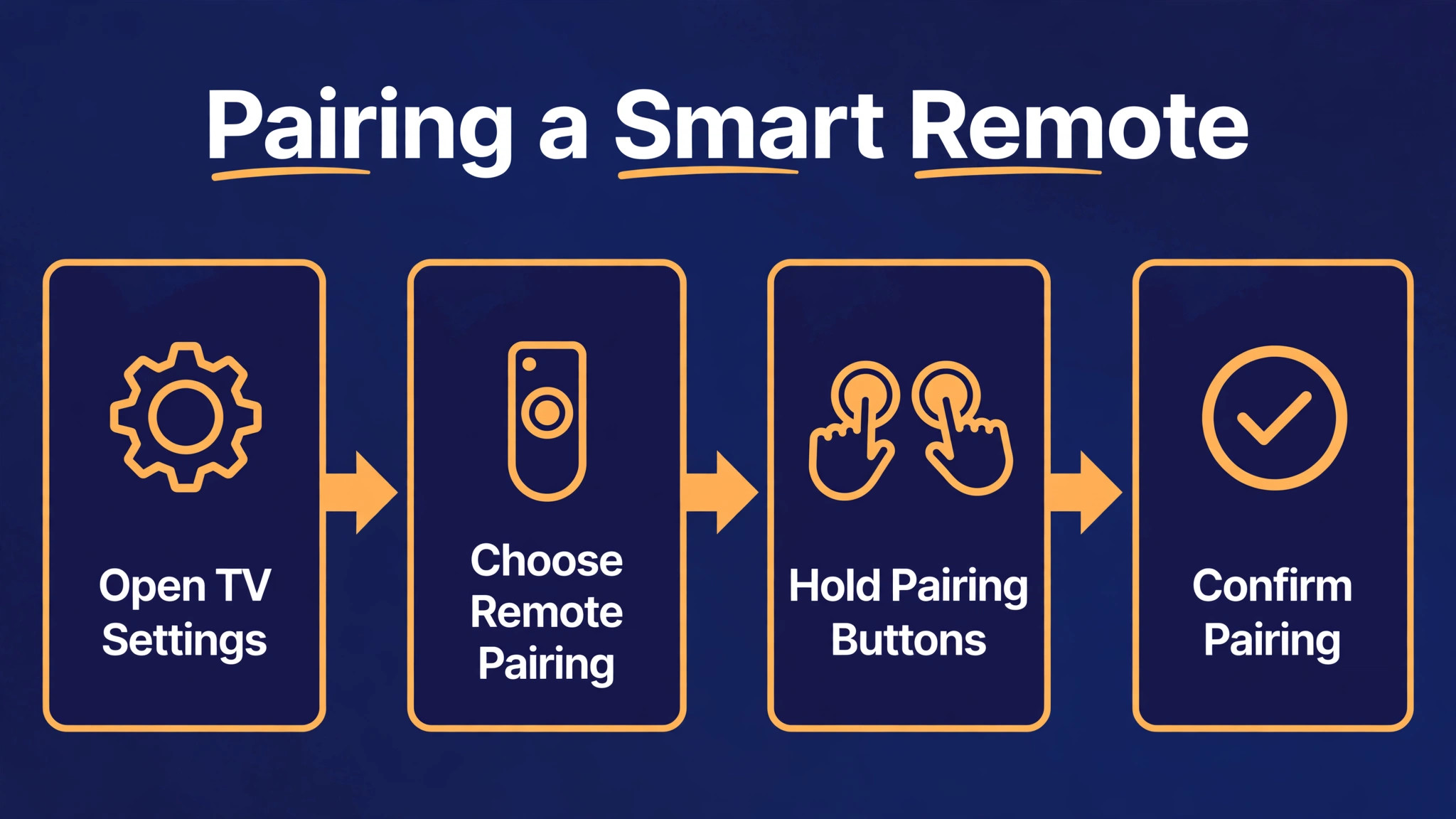
- For a Bluetooth smart remote, re-pair it using the maker sequence for your model, standing close to the TV.
- For Samsung, hold Return and Play Pause together for at least three seconds until the TV shows a pairing message.
- For LG Magic Remote, press the wheel or OK button while pointing at the TV after waiting for the TV to start, following on screen prompts.
- Update the TV software, since remote and Bluetooth behaviour can improve with a firmware update.
- Test with a phone remote app or a universal remote to separate a remote fault from a TV sensor fault.
The order starts with power and path, because those are free and common, then proves the emitter, then resets both remote and TV, then pairs, and finally isolates the fault with a second controller. Pairing before batteries wastes a pairing on a flat remote, and replacing a remote before a TV restart wastes money on a TV that only needed a full power cycle.

Pairing Samsung, LG, Roku, and Other Smart Remotes
Pairing sequences vary by brand, model, and year, so use the maker sequence for your exact remote and check the manual when a generic sequence fails. Samsung Smart Remote pairing is well documented. Point the remote at the TV sensor, press and hold Return and Play Pause together for three seconds or more, and wait for a message that the remote has connected. Samsung also documents a reboot for the remote itself, holding Return and Enter together for ten seconds or more, and a reset sequence holding Return and Voice together for three seconds or more, followed by pairing again. If your Samsung remote uses batteries, removing and refitting them can serve as the reboot step.
LG Magic Remote registration follows a different pattern. Turn the TV on, wait about twenty seconds, point the remote at the TV, and press the wheel or OK button. A message confirms registration. If a Magic Remote was registered to another TV, hold Back and Home together for more than five seconds to cancel the old registration, indicated by a blinking light, then register to the new TV. If the pointer disappears later, aiming at the TV and holding Home and Settings together for more than five seconds can register it again, though exact sequences vary by model year, so confirm yours in the manual.
Roku voice remotes use a pairing button on the back of the remote, held for five seconds until the light flashes, after choosing Pair new remote in TV settings under Remotes and Devices. Models without a pairing button may use Back plus Home for five seconds instead. Other brands, including Sony, TCL, and Hisense, each have their own sequences, often involving holding a pair button or a combination near the TV during startup. The principle is the same across brands, which is to put the TV in a listening state, put the remote in pairing mode close to the TV, and wait for an on screen confirmation before testing navigation.
If pairing fails repeatedly, check for interference and distance. Bluetooth remotes work best within about 30 feet of the TV, away from Wi-Fi routers and microwaves that share the 2.4 GHz band. Move closer, stand directly in front of the TV, turn off nearby Bluetooth devices temporarily, and try again. A remote that pairs at one metre but not at four metres is showing a range or interference limit, not a broken pairing process, and a closer permanent seating position or a relocated router may be the practical fix.
Sensor, Interference, and TV Faults
The TV sensor itself can fail, and the phone app test separates a sensor fault from a remote fault. If a phone remote app, connected over Wi-Fi, controls the TV fully while the physical remote does nothing after fresh batteries and pairing, the TV software and network path work, and the fault lies in the remote or the infrared sensor. If the phone app also fails, or the TV does not respond to its own buttons, the TV itself needs attention, including a full power cycle, a software update, and possibly service. Do not buy a replacement remote until the phone app test tells you the TV can be controlled at all.
Interference affects infrared and Bluetooth differently. Infrared is blocked by objects and confused by bright sunlight or strong fluorescent light shining directly on the sensor, which can swamp the signal. Move lamps, close curtains over a sunny window behind the seating position, and clear the sensor line of sight. Bluetooth is affected by other 2.4 GHz devices, including routers, microwaves, and nearby Bluetooth gear, and by distance and walls. If a Bluetooth remote works in the evening but fails when the microwave runs or when many devices are active, interference is the pattern, and relocating the router or the seating position helps more than repeated pairing.
Physical damage is the last common cause, and it is worth inspecting for. A remote dropped repeatedly, exposed to liquid, or with sticky buttons from a spill can have a cracked board, corroded contacts, or a stuck button that blocks other signals. Open the battery compartment and look for corrosion, shake the remote gently and listen for loose parts, and press each button to feel for sticking or mushiness. A single stuck button can make a remote appear dead, because the stuck signal dominates the receiver. Cleaning sticky buttons carefully, or replacing a damaged remote, is the answer there, and no pairing sequence will fix a physically stuck button.

Symptom Guide for TV Remote Failures
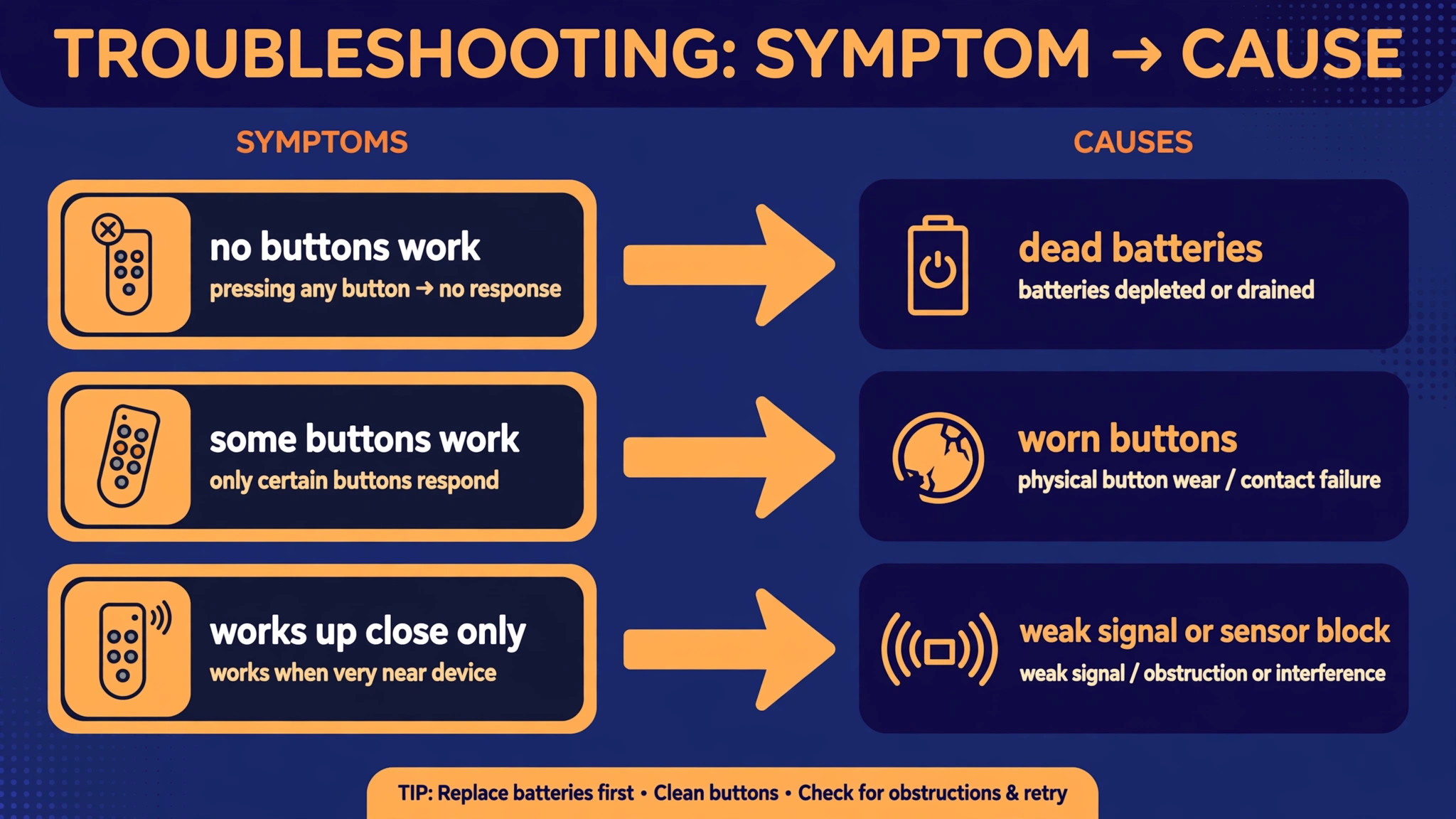
| What you see | Most likely cause | First move |
|---|---|---|
| No buttons work, no camera flash | Flat batteries or dead emitter | Fresh battery pair, camera test |
| Some buttons work, others do not | Mixed infrared and Bluetooth fault, or worn buttons | Test each button type, clean contacts |
| Navigation works, volume and power do not | Infrared part failed on a smart remote | Camera test, check sensor line of sight |
| Remote worked, then stopped after a move | Obstruction or lost pairing | Clear sensor path, re-pair close to TV |
| Remote works close, fails from the sofa | Range, interference, or weak batteries | Fresh batteries, move closer, reduce interference |
| Phone app works, physical remote does not | Remote or sensor fault, TV is fine | Pairing, replacement remote test |
| Nothing works, including TV buttons and app | TV fault or power fault | Full unplug restart, software update, service |
Use the table to avoid the classic waste, which is buying a new remote for a TV sensor fault, or re-pairing an infrared remote that never paired in the first place. Note which buttons fail, whether the camera test flashes, and whether the phone app works, because those three facts diagnose almost every case.
Replacement Remotes, Universal Remotes, and Phone Apps
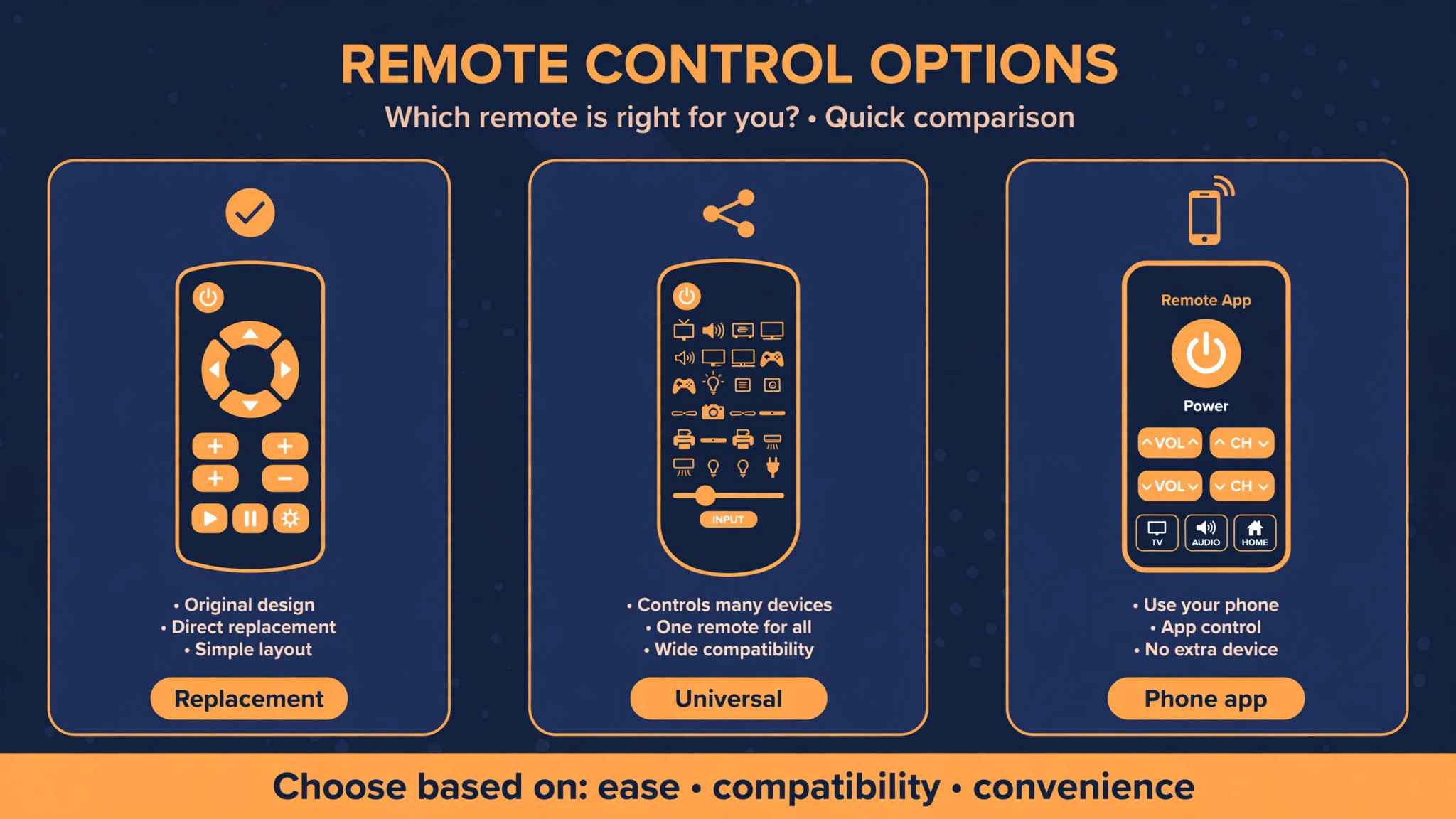
When the original remote is genuinely dead, you have three good options, and the best one depends on how you use the TV. An original replacement from the TV maker guarantees full function, including voice, pointer, and smart features, but it costs the most and may take time to arrive. A universal remote costs less and covers basic functions across many brands, but it may not support voice, pointer, or app shortcut buttons, and it needs a brand code or a search routine to program.
A phone app from the TV maker gives full control over Wi-Fi for free, and it is the best stopgap while a replacement ships, though it needs the phone charged and on the same network, and it is clumsy for channel surfing compared with a physical remote.
Choose a universal remote carefully if you go that route. Check that it lists your exact TV brand and model, that it supports the functions you use daily, and that it can be programmed without the original remote, since some programming methods need the original to learn codes. Keep the universal remote code list and the programming steps with the TV manual, because a battery change should not erase programming on a good universal, but a reset can, and reprogramming without notes is frustrating. Test every daily function after programming, including power, volume, input, home, back, and voice if supported, before discarding the old remote packaging.
Phone apps deserve a permanent place in your troubleshooting kit even after the physical remote works again. Install the maker app, connect it once while the remote works, and confirm it controls the TV. That setup takes five minutes when nothing is broken, and it saves an evening when the remote later dies, because you already have a working controller in your pocket. Keep the app updated, and keep the TV and phone on the same Wi-Fi network, since most maker apps need that local network path to work.
Mistakes That Keep a Remote Dead
The first mistake is replacing only one battery. A pair with one old and one new battery delivers uneven voltage, and the remote may work intermittently or fail under load, which looks like a pairing fault. Always replace both batteries together, with the same type and brand, and check polarity each time, since a reversed battery in the dark is an easy error.
The second mistake is pairing an infrared remote. Infrared remotes do not pair, so holding pairing buttons on an infrared remote does nothing, and the time spent pairing would have been better spent on batteries, the camera test, and the sensor path. Learn which kind you own first, and pair only Bluetooth smart remotes.
The third mistake is using standby instead of a full restart. Turning a TV off with the remote, or with a standby button, leaves much of the TV software running, and a Bluetooth pairing fault can survive standby. Unplug the TV for thirty seconds, plug it back in, and let it start fully before pairing. A full power cycle clears states that standby preserves.
The fourth mistake is ignoring a stuck button or a new obstruction. A soundbar moved in front of the sensor, a decoration placed on the stand, or a button stuck down after a spill can each kill a remote completely, and none of them respond to batteries or pairing. Inspect the remote and the sensor path physically before ordering parts, because a visual check is free and often decisive.
Keep the Remote Working After the Fix
Keep spare batteries near the TV, and replace them at the first sign of weak response, such as needing multiple presses or a shorter range, rather than waiting for total failure. Weak batteries cause intermittent faults that look like pairing problems, and early replacement prevents that confusion. Clean the battery contacts when you change batteries, and wipe the remote tip and the TV sensor area gently with a dry cloth during normal cleaning, since dust on either end weakens infrared signals over time.
Store the remote where it will not fall, get wet, or slide between cushions for weeks, and keep it out of direct sunlight on a windowsill, since heat and light degrade batteries and plastics. If you use a rechargeable solar remote, leave it face down in a lit room periodically so the solar cell charges, and check its battery level in TV settings every few months. A remote that is stored well, powered well, and paired once properly will usually outlast the TV habits that break it, and a phone app backup means even a failure becomes a minor inconvenience rather than a lost evening.
Remotes for Soundbars, Streaming Boxes, and Multiple Devices
Many living rooms now have three remotes, one for the TV, one for a soundbar, and one for a streaming box, and confusion between them causes failures that look like a dead TV remote. A TV remote that changes TV volume but not soundbar volume is not broken, it is simply controlling the wrong device, because soundbar volume usually needs the soundbar remote, a universal remote programmed for the soundbar, or a TV audio setting that routes volume commands to the external speaker. Check which device the volume should control, confirm the soundbar input and connection, and test the soundbar remote separately before concluding the TV remote has failed.
Streaming boxes add a similar trap. A box remote pairs with the box, not the TV, and it may control TV power and volume through a separate infrared or CEC link that can break while box navigation still works. If box navigation works but TV power does not, check the CEC setting on the TV, which lets connected devices control each other over HDMI, and check that the box remote TV control setup completed for your TV brand. Re-running the box remote TV setup, which usually asks for the TV brand and tests power and volume codes, often restores the link without touching the TV remote at all.
Universal and multi device remotes solve the three remote problem but introduce their own failure mode, which is losing programming for one device while keeping it for others. If a universal remote controls the TV but not the soundbar after a battery change, reprogram the soundbar device slot rather than resetting the whole remote. Keep a note of which device slot controls which piece of gear, and which brand code each slot uses, so a battery change or a child pressing buttons does not turn into an evening of reprogramming from scratch.
When you fix smart TV remote not working in a multi device room, first name the device each button should control, then test each remote against its own device, because a remote that is fine for its own device only looks broken when it is aimed at the wrong one. That naming step will fix smart TV remote not working complaints that are really soundbar, box, or CEC setup issues, and it keeps a good TV remote from being replaced for a problem it never had.
More Reading for Everyday Tech Fixes
If the remote works again, the wider fix guides on Stratilyze cover the next living room and phone problem in the same order. The guide to fixing Bluetooth that will not turn on covers the phone radio behind many smart remotes, the guide to fixing a smartwatch that will not sync applies the same pairing logic to wearables, the guide to fixing Netflix subtitles out of sync helps when the show itself misbehaves, and the guide to fixing a Bluetooth speaker that will not connect covers larger Bluetooth audio. Read the Netflix guide next if the remote works but the stream does not, since that problem needs a different checklist.
Frequently Asked Questions
Why does my Samsung smart remote need pairing when my old remote did not?
Old remotes used infrared only, which needs no pairing, because the TV sensor simply receives light signals. That difference is the first thing to learn when you fix smart TV remote not working on a modern set. Smart remotes use Bluetooth for navigation, voice, and pointer control, and Bluetooth devices must pair to recognise each other securely. That pairing can be lost after a TV update, a full power loss, or a remote reset, and re-pairing restores it. Power and volume on some smart remotes still use infrared, which is why those buttons can work while navigation does not, or the reverse.
How do I fix smart TV remote not working after changing batteries?
Check polarity and replace both batteries together with a fresh alkaline pair, since one old battery can drag the pair down. Battery pairs are a routine cause when you fix smart TV remote not working after a battery change that seemed correct. Remove batteries for thirty seconds, press every button once with batteries out, refit fresh batteries, and restart the TV by unplugging it for thirty seconds. For a Bluetooth smart remote, re-pair close to the TV using the maker sequence. If an infrared remote still shows no flash on the camera test after fresh batteries, the remote emitter is likely faulty and needs replacement.
What is the phone camera test for a TV remote?
Point the front tip of an infrared remote at a phone camera lens, press and hold a button, and watch the phone screen for a flash from the remote tip. The camera test is the fastest proof when you fix smart TV remote not working on an infrared model. Phone cameras can see infrared light that eyes cannot, so a flash proves the emitter works. No flash after fresh batteries points at a dead emitter or circuit. Try the front camera if the rear camera filters infrared strongly. This test only applies to infrared signals, so a Bluetooth smart remote may show no flash for navigation buttons even when its Bluetooth link works.
Why does my remote work close to the TV but not from the sofa?
Weak batteries, distance, interference, and obstructions all shrink effective range. Replace both batteries, clear the sensor path, move Wi-Fi routers and microwaves further from the TV path, and test from the sofa again. Bluetooth remotes should work within about 30 feet under good conditions, but walls, bodies, and 2.4 GHz congestion reduce that. A remote that only works at one metre after fresh batteries and a clear path may have a weakening emitter or a TV sensor fault, and a phone app test will help separate those two.
Can I use my phone as a TV remote permanently?
Yes, maker phone apps control most smart TVs over Wi-Fi, including navigation, volume, and app launching, and they are a good permanent backup. They are less convenient than a physical remote for rapid channel changes, they need the phone charged and on the same network, and they lack tactile buttons you can press without looking. Keep a physical remote as the daily controller and the phone app as the backup, installed and tested before you need it, rather than discovering setup steps during a remote failure.
When should I replace a TV remote instead of fixing it?
Replace it when fresh batteries and a camera test show no infrared emission, when physical damage, corrosion, or a stuck button persists after cleaning, when pairing fails repeatedly after a TV restart and software update, or when a phone app controls the TV fine but no pairing sequence revives the physical remote. Try an original replacement for full smart features, or a universal remote for basic functions, and keep the phone app as a stopgap while the replacement arrives.
Getting Control Back
A dead remote feels bigger than it is, because it blocks everything else the TV can do. Most cases end at batteries, a clear sensor path, a full TV restart, or a maker pairing sequence, and each of those steps costs minutes, not money. When you fix smart TV remote not working by first learning whether your remote is infrared or Bluetooth, then testing batteries and emission before pairing, you avoid the two classic wastes, which are pairing a remote that never paired and replacing a remote for a TV that only needed a restart.
Keep spare batteries by the TV, keep the phone app installed as a backup, and note your pairing sequence with the TV manual. The next time the remote stops, you will know in a minute whether it is power, path, pairing, or a genuinely dead remote, and you will have control back before the show you wanted to watch has finished its opening credits.