
To fix Netflix app crashing smart TV, start with the fix that works most often, which is to restart the television fully, not just to put it to sleep, because a full restart clears the temporary states that cause most app crashes. A Netflix app that closes on launch, freezes mid episode, or returns to the home screen without warning usually suffers from a temporary app state, a full cache, an outdated app, or a weak connection, and each of those has a quick check before any reinstall.
When you fix Netflix app crashing smart TV, the order matters, because a restart and an update can solve the problem in minutes, while a reinstall and a factory reset cost far more time and should come only after simpler steps.
This guide covers crashes on all major smart TV brands, with brand specific steps where menus differ, plus the network, storage, and account checks that apply to every TV. It explains what each step deletes, so you never clear data or reset a TV blindly, and it gives the signs that point to an app outage, a TV fault, or a network problem instead. Follow the steps in order, test with a short episode after each step, and stop as soon as playback stays stable.
What Kind of Crash You Have
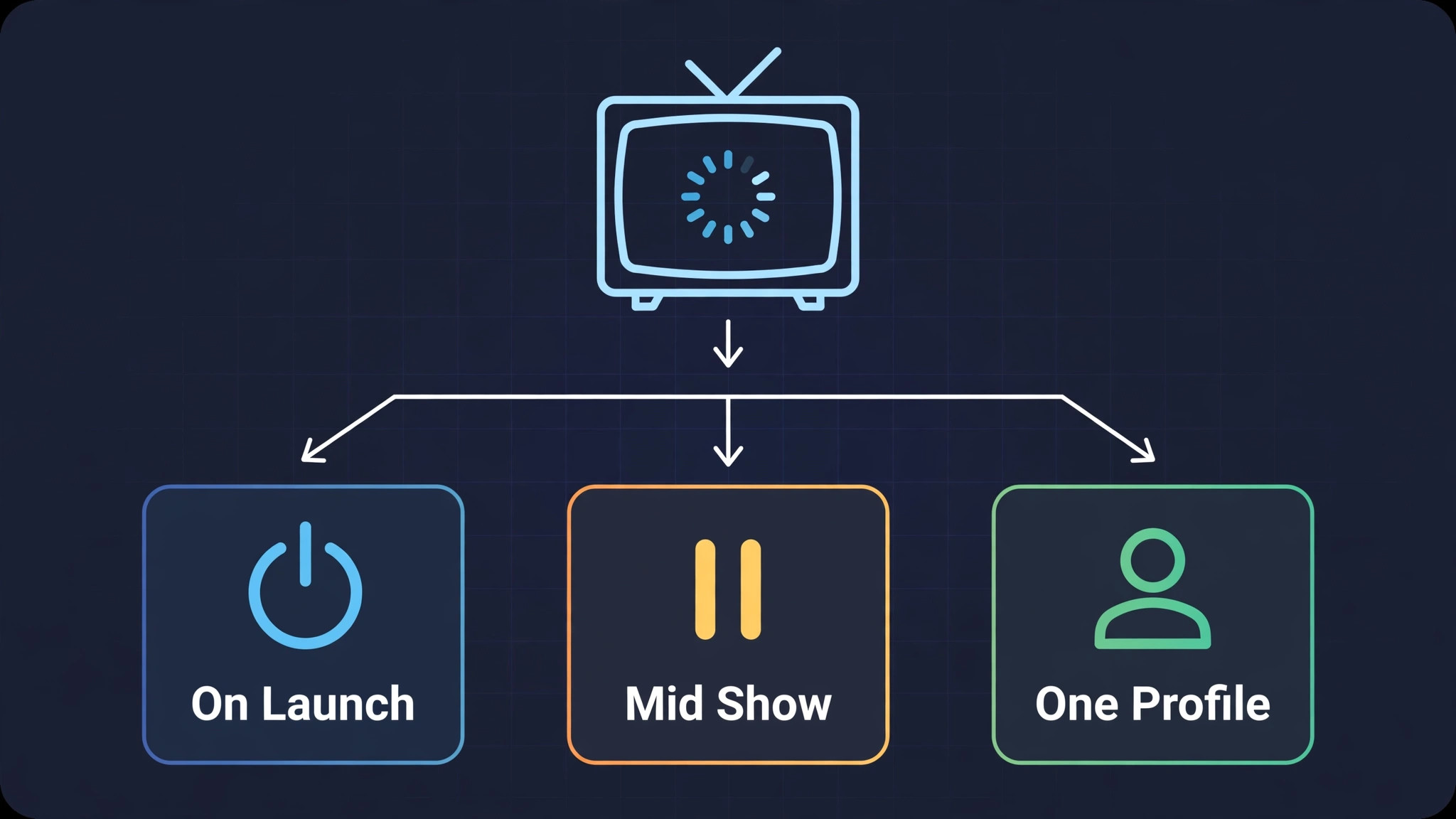
The pattern of crashing narrows the cause faster than any single fix, so note exactly when and how Netflix fails before changing settings. If Netflix closes immediately on launch, every time, the cause is more likely a corrupt app state, a full cache, or an outdated app version, because the app cannot even reach its home screen. If Netflix opens but crashes mid episode, especially at the same point or after a similar time, the cause is more likely a network interruption, a memory shortage, or a specific title’s stream, and testing another title separates a title problem from an app problem.
If Netflix crashes only on one profile, while other profiles work, the cause is more likely that profile’s data or settings, and switching profiles becomes a useful diagnostic step.
Check whether other apps crash too, because that single check splits the problem in half. If every streaming app crashes, the TV itself, its memory, its software, or its network is more likely at fault, and Netflix specific steps will not help until the TV side is addressed. If only Netflix crashes while other apps play normally, focus on Netflix, its cache, its version, and its account, because the TV and network are healthy enough for other apps.
Also check whether the failure started after an app update, a TV software update, or a network change, because that timing often names the cause directly, and undoing that change, such as updating again or restarting the network equipment, becomes the obvious first fix.
Also note whether the TV itself restarts, freezes, or only the app closes, because a TV that restarts points to a TV software or power problem, while an app that closes to the home screen points to the app itself. A TV that freezes entirely may need a power cycle by unplugging, not just a remote restart, because a frozen TV cannot process a restart command. That distinction matters, because a power cycle fixes a frozen TV in a way that a remote restart cannot, and mistaking one for the other wastes steps that cannot help. Note the pattern first when you fix Netflix app crashing smart TV, before changing settings.
How to fix Netflix app crashing smart TV in Order
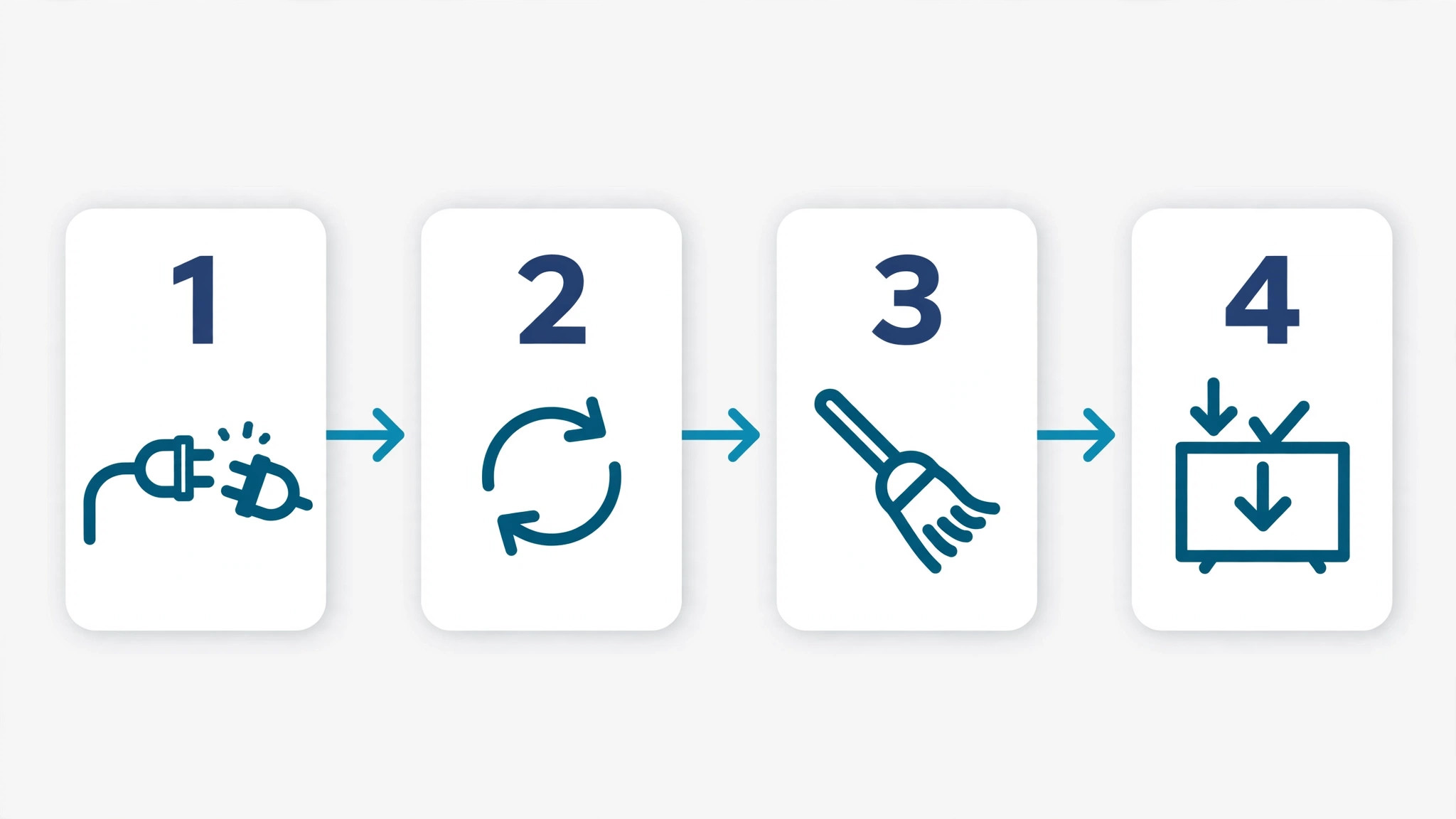
Work through this order, testing with a short episode after each step, and stop when playback stays stable for at least ten minutes. The order runs from quick and harmless to slow and disruptive, so a restart and an update can solve the problem before any data is cleared, and a factory reset, if it ever becomes necessary, comes only after every other step has failed. Keep your Netflix login details handy from step seven onward, because reinstall and reset steps require signing in again.
- Close Netflix fully, reopen it, and try a short episode, to clear a temporary app state.
- Restart the television fully through its menu, then test again, because a menu restart clears deeper states than sleep and wake.
- Power cycle the television by unplugging it for a full minute, plugging it back in, and testing again, especially if the TV froze or the menu restart did not help.
- Check the connection by opening another streaming app and a web service on another device, and restart the router and modem if nothing connects well.
- Check for a Netflix app update in the TV’s app store, and for a TV software update in settings, install either if available, restart, and test again.
- Clear the Netflix app cache in the TV’s app settings, where the brand allows it, and test again, because cache is safe and often the cause.
- Clear Netflix app data, where the brand allows it separately, knowing it signs you out and resets app settings, then sign in and test again.
- Uninstall and reinstall Netflix from the TV’s app store, sign in again, and test, as a stronger step when cache and update steps have failed.
- Free storage on the TV by uninstalling unused apps, because a full TV stalls apps that need working room for streams.
- Test Netflix on another device on the same network, to split TV causes from account and server causes, before any factory reset.
- Reset the television to factory settings only as a last resort, after backing up TV settings and noting logins, because a reset erases every app and setting.
That order protects your setup, because early steps change nothing permanent, cache steps delete only temporary files, and reinstall and reset steps, which cost time and logins, come only after simpler fixes have failed. A full restart deserves emphasis, because many users mistake sleep for a restart, and a TV that has not truly restarted in weeks accumulates temporary states that cause crashes across apps, not just Netflix. A power cycle deserves emphasis as well, because unplugging clears states that even a menu restart can miss, especially on TVs that stay in a low power standby rather than fully off.
When you fix Netflix app crashing smart TV, test with a different title and a different profile after a crash, because a title specific stream fault and a profile specific data fault can both look like an app fault, and those two tests separate them in minutes. If another title plays normally, the original title’s stream or its cached data is suspect, and clearing cache or waiting for a stream fix becomes the priority. If another profile plays normally, the original profile’s data is suspect, and signing out and back into that profile, or clearing its data where the TV allows, becomes the priority.
An app that plays other titles on other profiles is a healthy app, and the remaining problem belongs to the specific title or profile, not to Netflix as a whole.
Fixes by TV Brand
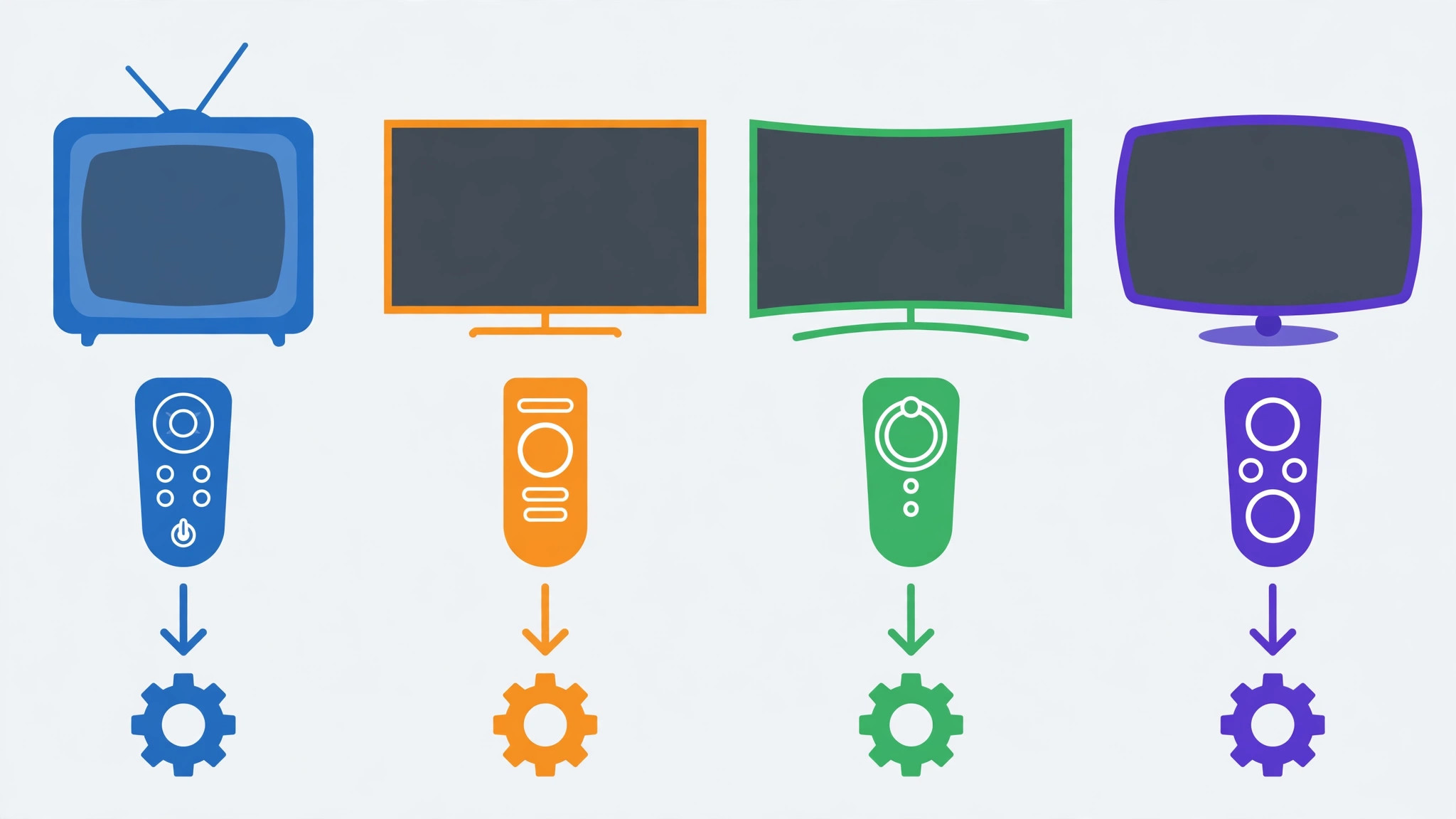
Menus differ by brand, and the table below gives the starting point for each major brand, so you can find cache, update, and reinstall options without hunting through unrelated menus. Brand steps change with software versions, so if a menu name differs on your TV, look for the closest match rather than abandoning the step, and check the brand’s support pages for your exact model when a menu proves hard to find.
| TV brand or platform | Where to update the app | Where to clear cache or data | Reinstall path |
|---|---|---|---|
| Samsung Tizen | Apps, then Settings, then Auto Update or manual update | Settings, Support, Device Care, Manage Storage, then Netflix | Apps, then delete Netflix, then reinstall from Apps |
| LG webOS | LG Content Store, then My Apps, then update | Settings, General, Storage, or app settings where offered | Home, edit app list, delete Netflix, reinstall from store |
| Sony Android TV or Google TV | Google Play Store on TV, then My Apps, then update | Settings, Apps, Netflix, then Clear Cache and Clear Data | Settings, Apps, Netflix, then Uninstall, then reinstall |
| TCL or other Android TV | Google Play Store on TV, then My Apps, then update | Settings, Apps, Netflix, then Clear Cache and Clear Data | Settings, Apps, Netflix, then Uninstall, then reinstall |
| Roku TV or Roku device | Home, highlight Netflix, check for updates | No separate cache clear, restart or reinstall instead | Home, remove channel, restart, add channel again |
| Amazon Fire TV | Appstore, then My Apps, then update | Settings, Applications, Manage Installed Applications, Netflix, Clear Cache | Same applications menu, Uninstall, then reinstall |
Samsung and LG TVs vary most, because cache options depend on model and software version, and some models offer no separate Netflix cache clear at all, in which case a restart, an update, and a reinstall become the main steps, in that order. Android TV and Google TV models offer the clearest cache and data controls, through Settings and Apps, and those controls should be used before reinstalling, because cache clearing is faster and safer than a full reinstall. Roku models offer no separate cache clear, so the Roku routine is to remove the channel, restart the TV, and add the channel again, which achieves a fresh app state without a cache menu.
Fire TV models offer cache and data controls in the applications menu, and those should be tried before uninstalling, for the same reason.
When you fix Netflix app crashing smart TV on a brand not listed here, follow the same order with that brand’s equivalents, which are a full restart, an app update, a TV software update, a cache clear where offered, a data clear where offered separately, and a reinstall. Note your TV’s brand, model, and software version before seeking brand help, because support will ask for those details, and a clear note speeds diagnosis considerably. If a brand step fails repeatedly, such as an update that will not install, check TV storage and network first, because a full TV or a weak connection blocks updates that would otherwise fix the crash.
Network, Storage and Account Checks
Network checks matter for mid episode crashes, because a stream that starts normally and then fails often suffers from a connection that cannot sustain video, rather than from an app fault. Test the TV’s connection speed in its network settings, if offered, and compare it with another device in the same room, because a TV far from the router, behind thick walls, or sharing a weak signal will stall streams that a closer device plays normally. Restart the router and modem properly, by unplugging for a full minute, plugging the modem back first, then the router, and waiting for lights to settle, then test Netflix again, because a router restart clears temporary states that cause intermittent streaming failures.
If Wi-Fi remains weak at the TV, consider moving the router, using a wired connection where the TV offers an Ethernet port, or adding a network extender near the TV, because a stable stream needs a stable connection more than it needs a fast headline speed.
Storage checks matter because smart TVs have limited internal storage, and a full TV stalls apps that need working room. Uninstall apps you no longer use, delete downloaded content you no longer need, and check storage in TV settings, aiming to keep some free space, because a TV with almost no free space will crash apps that other TVs run normally. Also check whether the TV has many apps running in the background, and close unused apps before starting Netflix, because background apps consume memory that Netflix needs for smooth playback, especially on older or lower memory TVs.
A TV that plays Netflix normally after closing background apps and freeing storage had a resource problem, not a Netflix problem, and that distinction saves a needless reinstall.
Account checks complete the picture, because a Netflix account problem can look like an app crash, especially when playback fails on one profile or after a plan, payment, or password change. Sign out and back into Netflix on the TV, test another profile, and test Netflix on another device with the same account, because those three tests together separate TV, profile, and account causes. If Netflix fails on every device for the same account, check the account status, payment, and any verification request, and contact Netflix help with a note of steps tried, because an account hold cannot be fixed by TV steps.
If Netflix works on other devices but not on the TV, the TV, its app, or its network remains the fault, and TV steps deserve another pass. Test the network first when you fix Netflix app crashing smart TV with mid episode crashes.
Cause Table for Netflix Crashes
Use this table to match what you see with the most likely cause and the first fix, so a clear symptom leads straight to the relevant section without working blindly. The table does not replace the full order, but it speeds diagnosis when a pattern is distinctive.
| Symptom | Most likely cause | First fix to try |
|---|---|---|
| Closes immediately on launch | Corrupt app state, cache, or old version | Restart TV, update app, clear cache |
| Crashes mid episode, same point | Title stream fault or cached title data | Try another title, clear cache, test profile |
| Crashes mid episode, random points | Network, memory, or storage shortage | Restart router, close background apps, free storage |
| Only one profile crashes | That profile’s data or settings | Test another profile, sign out and back in |
| Every streaming app crashes | TV software, memory, or network fault | Restart TV, update TV software, check network |
| Crashes after a TV software update | Update incompatibility or changed setting | Check for a further update, reinstall Netflix |
| TV itself restarts or freezes | TV power or software fault | Power cycle by unplugging, check TV software |
| Works on other devices, fails on TV | TV app, storage, or TV network fault | Cache, reinstall, wired or closer network test |
A symptom that changes after a step is useful, even when the step does not fully fix the problem, so note what changed. If a restart turns an immediate crash into a mid episode crash, the app state was part of the problem and a network or memory cause remains. Use the table first when you fix Netflix app crashing smart TV and the pattern is clear. If a reinstall fixes launch crashes but mid episode crashes persist, the app itself is healthy and the network or storage deserves the next step. Troubleshooting is narrowing, not magic, and a short note of symptoms, steps, and changes makes that narrowing fast, especially if you later seek help.
When a Factory Reset Is Worth Considering
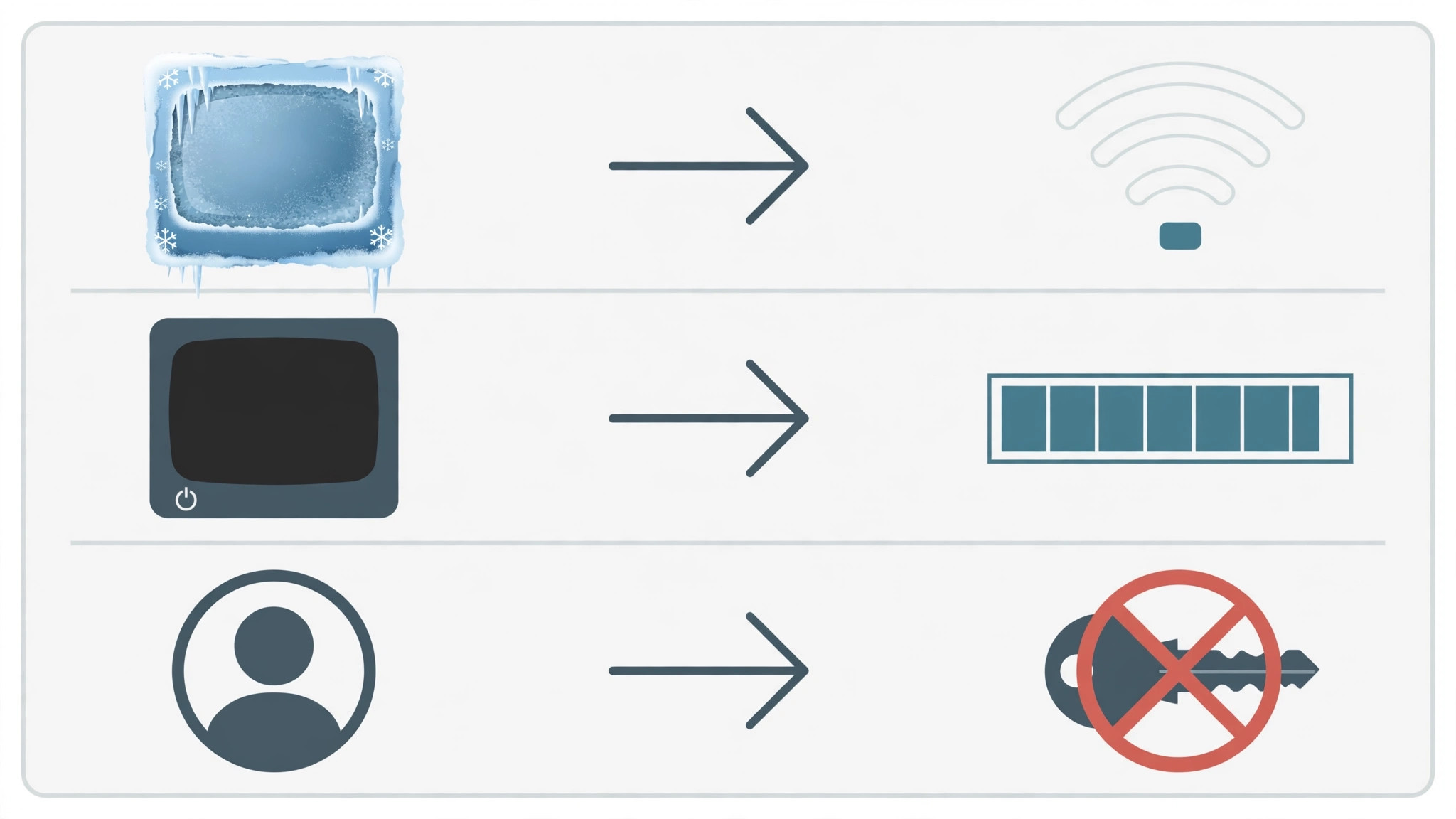
A factory reset should be considered only after restart, power cycle, updates, cache, data, reinstall, storage, network, and other device tests have all failed, because a reset erases every app, setting, and login on the TV, and restoring them takes considerable time. Reset only as a last resort when you fix Netflix app crashing smart TV, after every other step. Before resetting, note all logins, picture settings, network details, and app lists, and photograph settings screens where helpful, because a reset without that note turns a TV problem into a full reconfiguration project.
Back up any TV settings that the brand allows to back up, and confirm that Netflix and other app logins are known, because a reset that cannot be followed by sign in leaves the TV worse than before.
After a reset, set up the TV step by step, testing Netflix early, before reinstalling every other app, because a TV that plays Netflix cleanly after a reset, but crashes again after other apps return, points to a conflicting app or a storage shortage caused by reinstalling everything at once. Reinstall apps gradually, testing Netflix after each major app, so any app that reintroduces crashes is identified immediately.
If Netflix still crashes on a clean, reset TV, with a stable network and no other apps installed, the fault is more likely TV hardware, a persistent software fault, or a Netflix server issue for that TV model, and brand support, with a note of steps tried, becomes the next step, rather than repeating a reset that already failed once.
A reset that fails should not be repeated several times hoping for a different result, because a reset that does not fix a crash once rarely fixes it on repetition, and the remaining causes need diagnosis, not repetition. If the TV is old and repair costs approach replacement value, a streaming device, such as a separate stick or box, can be a cheaper path than TV repair, because it bypasses the TV’s own apps entirely while keeping the screen. That decision should be made with a repair quote or a streaming device trial in hand, not by guessing at costs.
Mistakes That Waste Time on TV App Crashes
The first mistake is mistaking sleep for a restart, because a TV that has not truly restarted in weeks keeps the temporary states that cause crashes, while a full restart would have cleared them. The second mistake is reinstalling before updating and clearing cache, which costs a download and a sign in for a problem that often needs only an update or a cache clear. The third mistake is resetting the TV to factory settings early, before network, storage, and other device tests, which erases every setting for a problem that often lies elsewhere.
The fourth mistake is testing only with the title that first crashed, instead of with another title and profile, because a title specific stream fault cannot be fixed by app steps, and it sends troubleshooting down the wrong path. The fifth mistake is ignoring storage, because a full TV stalls apps that need working room, and freeing space is the only fix that helps in that case. The sixth mistake is changing several settings at once, such as network, app data, and TV settings together, which makes it impossible to know which change helped, and can leave the TV in a worse state than before. Change one thing, test a short episode, and note the result, before changing another.
Preventing the Next Netflix Crash
Prevention for TV app crashes is mostly about restarts, updates, and storage awareness, because most crashes come from a TV that has not restarted, an app that has not updated, or a TV that has filled up quietly. Restart the TV fully weekly, or whenever apps feel slow, because a regular restart clears temporary states before they cause crashes, and it costs nothing. Restart weekly when you fix Netflix app crashing smart TV through a prevention routine. Keep Netflix and TV software updated, because updates fix known app and playback bugs, and check for updates after any crash, because a fix may already be available.
Keep some TV storage free by reviewing installed apps monthly and removing those no longer used, because a TV with breathing room runs apps more reliably.
Keep network equipment healthy as well, by restarting the router monthly, or whenever streaming degrades, and by keeping the TV’s network connection as stable as possible, whether wired or well placed wireless. Note the TV brand, model, and software version, and keep Netflix login details in a secure place, so a future reinstall or reset does not become a hunt for passwords. A few minutes of restart, update, and storage care each month keeps Netflix playing smoothly, which is exactly how a television should work, and it means the next crash, if it comes, will be a quick restart instead of a factory reset.
More Reading on Stratilyze
If this guide helps Netflix play again, the wider Stratilyze guides cover the TV problems around it. The guide to YouTube app not working on TV helps when another video app fails, the guide to smart TV apps crashing covers crashes across apps, and the guide to Netflix subtitles out of sync helps when playback works but subtitles do not. Read the smart TV crashing guide next if every app crashes, because a TV wide fault needs a different approach.
Frequently Asked Questions
Why does Netflix keep crashing on my smart TV when you fix Netflix app crashing smart TV?
The most common causes are a TV that has not truly restarted, a corrupt app cache, an outdated app or TV software version, a weak network, or a full TV storage. Restart the TV fully, power cycle by unplugging for a minute if needed, update Netflix and TV software, clear the app cache where the brand allows it, and test with another title and profile. A crash that affects only Netflix, while other apps play normally, points to Netflix itself, while crashes across apps point to the TV or network.
Should I uninstall Netflix or clear its cache first?
Clear cache first where your TV brand allows it, because cache clearing is faster and safer than reinstalling, and it fixes many launch and mid episode crashes caused by corrupt temporary files. Clear data separately only if cache steps fail, knowing it signs you out, and uninstall and reinstall only after cache, data, and update steps have failed. Keep login details handy before data clearing or reinstalling, because both require signing in again.
Why does Netflix crash on my TV but work on my phone?
That pattern points to the TV, its app version, its storage, or its network connection, rather than to the Netflix account or server, because the same account works elsewhere. Test the TV’s network, free TV storage, update the TV app and software, and try a wired connection or a closer network position if Wi-Fi is weak at the TV. If Netflix works on other devices on the same network, the TV side deserves the focus, and a reinstall on the TV becomes a sensible step after cache and update steps.
Do I need to factory reset my TV if Netflix keeps crashing?
No, a factory reset should be a last resort, after restart, power cycle, updates, cache, data, reinstall, storage, network, and other device tests have all failed, because a reset erases every app and setting on the TV. Note all logins and picture settings before resetting, test Netflix early after a reset before reinstalling every other app, and seek brand support if a clean reset TV still crashes, because a reset that fails once rarely succeeds on repetition.
Why does Netflix crash only on one profile?
A single profile crash points to that profile’s data, settings, or viewing history, rather than to the app as a whole, because other profiles prove the app itself works. Sign out and back into that profile, test another profile for comparison, and clear app data where the brand allows it if the profile fault persists. If the profile works on another device but not on the TV, the TV’s cached data for that profile is suspect, and a reinstall on the TV becomes the next step after cache steps.
Can a weak Wi-Fi signal cause Netflix to crash?
Yes, a weak or unstable Wi-Fi signal causes mid episode crashes, buffering, and returns to the home screen, because a stream that cannot sustain video will fail, especially at higher quality settings. Test the TV’s connection, restart the router properly, and try a wired connection or a network extender near the TV if Wi-Fi remains weak. A stream that plays normally on a stable connection had a network problem, not an app problem, and no reinstall can fix a signal that drops mid episode.
Netflix Running Again on the Big Screen
A Netflix crash on a smart TV resolves fastest when the pattern is read first, because launch crashes point to app state and cache, mid episode crashes point to network or storage, and single profile crashes point to profile data. Restart the TV fully, power cycle by unplugging if needed, update the app and TV software, clear cache before data, and reinstall only after those steps fail, testing another title and profile along the way. Keep storage free, close background apps, and keep network equipment healthy, and reserve a factory reset for the rare case where every other step has failed on a clean test.
Done that way, Netflix returns to steady playback on the big screen, and the next crash will be a quick restart instead of a reset.