
Finding the best monitor for home office under 300 in 2026 is a solved problem in a way it was not three years ago. Three years ago this price bought mediocre panels with yellow tints, 60 Hz refresh rates, and flimsy stands. Now the same money buys a 27 inch 1440p IPS display at high refresh rates, or a decent 4K panel near 300 dollars, with good colour and a stand that actually adjusts. The trick is choosing the right trade off, because no monitor under 300 dollars does everything, and the best choice for documents differs from the best choice for photo work or for mixed work and gaming.
If you are looking for the best monitor for home office under 300, start with size, resolution, and stand, because those three decisions affect every hour you spend at the desk, while refresh rate and HDR badges matter far less for office work than marketing suggests.
Size first. A 27 inch monitor is the sweet spot for most home offices, offering room for two documents side by side without dominating a normal desk. A 24 inch monitor suits small desks and tight spaces, but it feels cramped for side by side work once you have used 27 inches. A 34 inch ultrawide offers even more side by side room, but good ultrawides rarely stay under 300 dollars with USB-C and a good stand, so they are a stretch goal rather than a core pick here.
Measure your desk depth before choosing, since a 27 inch screen on a shallow desk sits too close and strains eyes, while a monitor arm can solve depth and stand problems for a modest extra cost.
Resolution second. At 27 inches, 1440p, which is 2560 by 1440, is the sweet spot for office work, offering sharper text and more desktop space than 1080p without the scaling and graphics demands of 4K. At 24 inches, 1080p is sufficient and sharp enough for documents. At 27 inches, 1080p text looks softer, and many buyers regret it after a week, even though the price is lower. Four K at 27 inches, which is 3840 by 2160, offers the sharpest text of all, but it demands more graphics power, benefits from scaling settings that some apps handle poorly, and often sacrifices refresh rate or stand quality to hit the price.
For pure office work, 1440p at 27 inches is the rational default, with 4K as a specialist choice for detail work.
How to Choose a Home Office Monitor Under 300 Dollars
Panel type matters for office comfort. IPS panels offer wide viewing angles, accurate colours, and consistent brightness across the screen, which is why they dominate office recommendations. Panel consistency is a key test when you judge the best monitor for home office under 300, since a panel that shifts colour at angles frustrates shared screen work. VA panels offer higher contrast, often near 3000 to 1, which makes dark scenes look deeper, but they can smear in fast motion and shift colour at angles. TN panels are fast but have poor angles and colour, and they have largely disappeared from office picks.
For documents, spreadsheets, and video calls, IPS is the safe choice, and every model in this guide except one uses IPS for that reason. Check contrast and brightness figures with care, since manufacturers measure them differently, and prioritise independent comments on text clarity over headline contrast ratios.
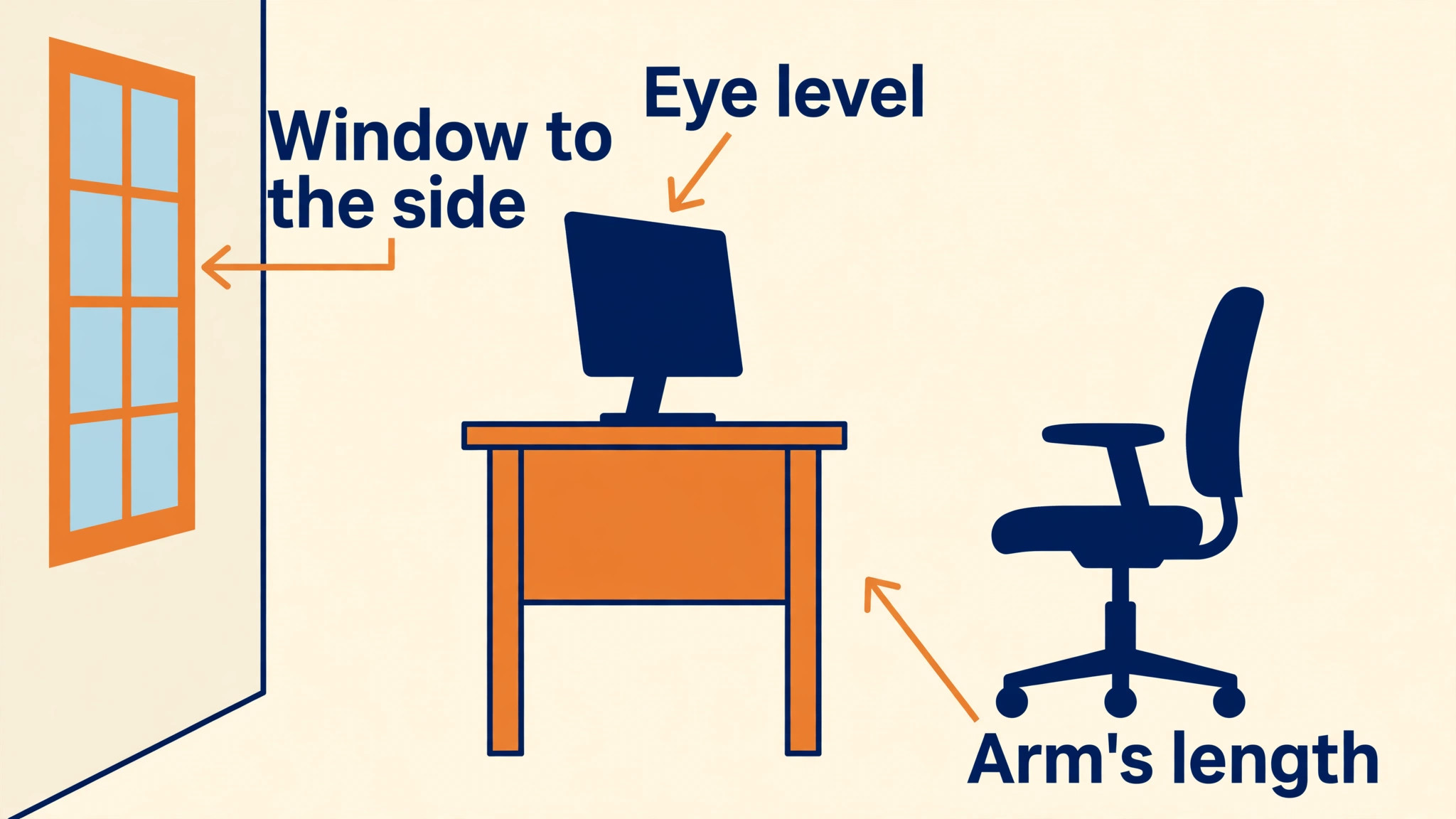
Stand adjustment is the most common source of regret at this price, and it deserves as much attention as panel specs. A tilt only stand forces you to stack books or buy an arm to reach eye level, while a fully adjustable stand with height, tilt, swivel, and pivot lets you position the screen correctly in minutes. Eye level positioning, with the top of the screen at or slightly below eye height and the screen about an arm length away, reduces neck strain over long days, and no panel quality compensates for a screen stuck too low.
If a monitor you love has a tilt only stand, budget 30 to 50 dollars for a basic monitor arm, and check VESA mount compatibility before buying. A good arm also frees desk space, which matters on smaller desks.
Connectivity decides daily convenience. HDMI and DisplayPort cover most desktops, while USB-C with power delivery lets a laptop user connect with one cable that carries video, data, and charging. USB-C charging near 65 watts suits most ultrabooks, while 90 watts suits larger laptops, and a monitor without USB-C can still work well with a separate charger, just less elegantly. Built in speakers, where present, are convenient for calls and casual video, but they rarely replace even modest external speakers for music, so treat them as a bonus, not a deciding feature. Check port counts against your devices, including a second monitor, a dock, or a console, before buying, since a missing port creates daily friction.
Eye comfort features help over long days, but they should not override panel and stand quality. Low blue light modes, flicker free backlights, and matte anti glare coatings all reduce fatigue, and several models here carry eye comfort certifications. Matte screens suit bright rooms with windows, since they diffuse reflections, while glossy screens look punchier but catch reflections badly. If your desk faces a window, prioritise matte, and position the monitor perpendicular to the window rather than facing it or backing onto it, since position matters as much as coating for glare control.
Best Monitor for Home Office Under 300 Compared in Five Models
| Monitor | Size and resolution | Panel and refresh | Stand and extras | Price noted |
|---|---|---|---|---|
| Dell 27 Plus 4K S2725QS | 27 inch, 3840 by 2160 | IPS, 120 Hz, HDMI 2.1 | Fully adjustable, built in speakers | Around 300 dollars, check current price |
| Dell 27 Plus QHD S2725DSM | 27 inch, 2560 by 1440 | IPS, 144 Hz, 350 nits, 1500 to 1 contrast | Height, tilt, pivot, swivel, dual 3 watt speakers | 170 dollars on sale, was 220 dollars |
| LG 27UP650K-W | 27 inch, 3840 by 2160 | IPS, DisplayHDR 400, 95 percent DCI-P3 | Tilt adjustable, reader mode | Around 250 to 300 dollars range |
| ASUS TUF VG27AQ3A | 27 inch, 2560 by 1440 | Fast IPS, 180 Hz, 1 ms response | Good ergonomics, FreeSync Premium | Around 250 to 300 dollars range |
| LG 27GP850-B | 27 inch, 2560 by 1440 | Nano IPS, 180 Hz, 1 ms, HDR400 | Height, tilt, pivot stand | Around 250 to 280 dollars, near 220 dollars on sale |
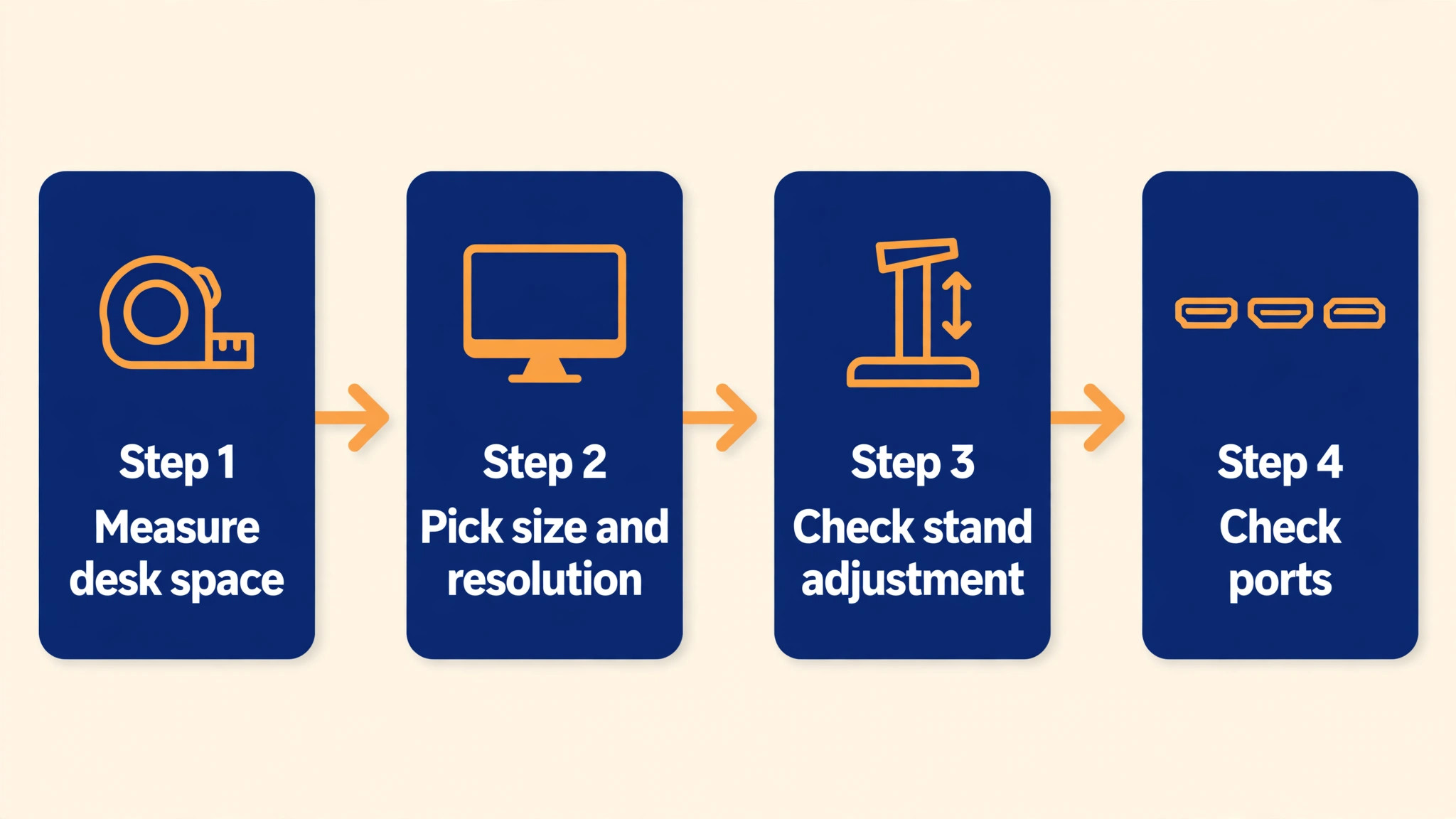
Prices move with sales, and several models drift above 300 dollars outside sales, so check the current price before ordering. The Dell QHD model at 170 dollars on sale is the value outlier, while the 4K Dell near 300 dollars is the sharpness pick at the cap. The two LG models and the ASUS model cluster near 250 to 300 dollars, with differences in colour, refresh rate, and stand rather than in core office suitability. All five are 27 inch models, because 27 inches is the office sweet spot, and smaller or ultrawide models were left out to keep the comparison focused on the size most buyers actually choose.
Dell 27 Plus 4K S2725QS, the Sharpest Office Pick
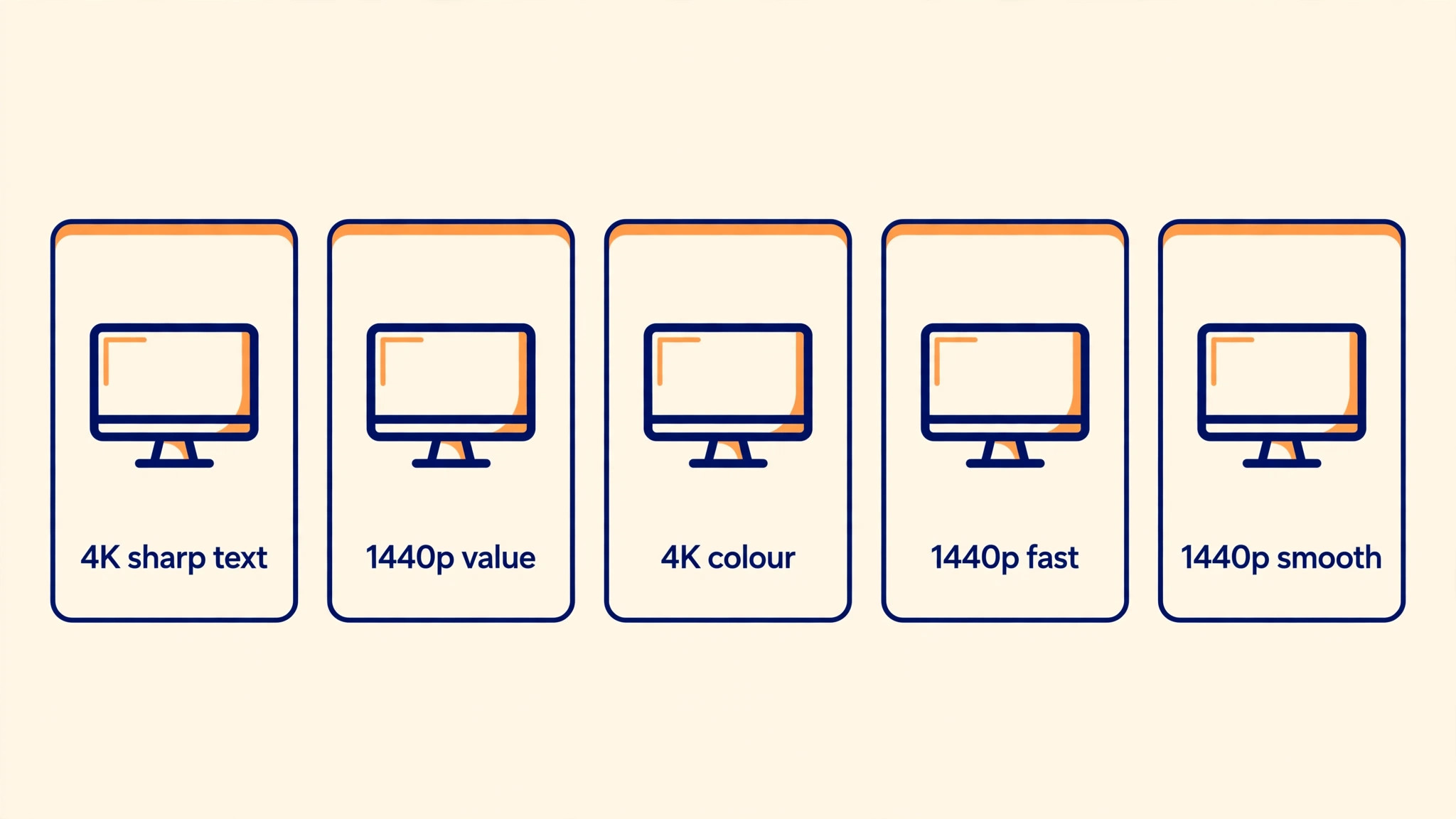
The Dell 27 Plus 4K, model S2725QS, pairs a sharp 3840 by 2160 IPS panel with a 120 Hz refresh rate, HDMI 2.1, a fully adjustable stand, and built in speakers, a combination that is rare at this price. For document work, coding, and detail reading, 4K sharpness is immediately visible, with text that stays crisp at small sizes and spreadsheets that show more rows clearly. Sharpness at small text sizes is a strong reason to choose 4K when hunting for the best monitor for home office under 300 for detail heavy work. The fully adjustable stand means eye level positioning without an extra arm purchase, and built in speakers handle calls without desk clutter.
If your work is text heavy and your computer handles 4K scaling well, this is the best monitor for home office under 300 for sharpness alone.
Skip it if your computer struggles with 4K, if you need USB-C charging, or if the price drifts above 300 dollars outside a sale. The twin model S2725QC adds USB-C with 65 watt charging for laptop users, and it is the better pick if single cable laptop connection matters more than the last dollar of price. Also note that 4K at 27 inches benefits from scaling settings, and some older apps handle scaling poorly, so test your key apps at 4K scaling before committing if you rely on legacy software.
Gamers who want higher refresh rates should look at the 1440p high refresh models instead, since 120 Hz at 4K is smooth for office work but not the fastest gaming option here.
Dell 27 Plus QHD S2725DSM, the Value Pick
The Dell 27 Plus QHD, model S2725DSM, is the value standout in this guide, with a 27 inch IPS panel at 2560 by 1440 resolution, 178 degree viewing angles, a matte anti glare screen, 350 nits brightness, 1500 to 1 contrast, a 144 Hz refresh rate, and dual 3 watt speakers, all with height, tilt, pivot, and swivel adjustment. At 170 dollars on a reported sale, down from 220 dollars, it delivers the office sweet spot of 27 inch 1440p IPS with a proper stand for barely more than half the budget cap. Its eye comfort certification and reduced blue light emissions help long days, and its matte screen suits bright rooms.
Skip it if you need 4K sharpness for fine detail work, USB-C charging, or a premium colour gamut for photo editing, since this is a workhorse office panel, not a colour critical display. Its speakers are convenient for calls but modest for music, and its 144 Hz refresh rate, while smooth, is not the fastest here. Buy it when value and a proper stand matter most, and spend the saving on a monitor arm, a good chair, or lighting, which will improve the office more than a sharper panel would for most document work.
LG 27UP650K-W, the Colour and HDR Pick
The LG 27UP650K-W offers a 27 inch 4K IPS panel with DisplayHDR 400 and 95 percent DCI-P3 colour coverage, which suits photo editing, HDR video viewing, and colour aware work better than standard office panels. Its reader mode lowers blue light for comfortable reading, and its IPS panel keeps colours consistent from angles, which helps when sharing the screen with a colleague. For a home office that mixes documents with photo or video work, this colour strength is a genuine advantage, and 4K sharpness helps detail work as the Dell 4K does.
Skip it if stand adjustment matters more than colour, since this model is primarily tilt adjustable rather than fully adjustable, so eye level positioning may need books or an arm. Also skip it if your computer handles 4K poorly or if you prefer high refresh rates for mixed gaming, since this is a colour and sharpness pick, not a speed pick. Check current price carefully, since 4K LG models drift above 300 dollars outside sales, and a price above cap changes the value calculation against the Dell 4K, which includes a better stand at a similar price.
ASUS TUF VG27AQ3A, the Fast 1440p Pick
The ASUS TUF Gaming VG27AQ3A runs a 2560 by 1440 Fast IPS panel at 180 Hz with a 1 ms response time, FreeSync Premium, G-Sync compatible mode, and AdaptiveSync, making it the fastest office capable monitor in this guide. For a home office that doubles as a gaming setup, or for work that involves fast scrolling, video timelines, or motion, 180 Hz smoothness is noticeable, with less blur and a more responsive feel than 60 Hz or 120 Hz panels. Its 1440p resolution keeps text sharp at 27 inches without 4K scaling demands, and its colour and contrast suit mixed work well.
Skip it if you need USB-C charging, built in speakers, or a fully adjustable stand as standard, since gaming focused models sometimes trade those office conveniences for speed. Also skip it if your work is purely documents and you will never game, since the 180 Hz advantage, while pleasant, adds little to document productivity over a 120 Hz or 144 Hz office panel, and the Dell QHD value pick delivers similar office quality for less. Buy the ASUS when mixed work and gaming share one desk and one monitor must serve both well.
LG 27GP850-B, the Balanced High Refresh Pick
The LG 27GP850-B, with a 27 inch 1440p Nano IPS panel at 180 Hz, 1 ms response, DisplayHDR 400, and a height, tilt, and pivot stand, is the balanced high refresh pick that many reviewers recommend as a best overall under 300 dollars. Nano IPS colour is accurate with a wide gamut, motion is smooth, and the stand adjusts properly for office ergonomics, which together make it a monitor that serves documents by day and games by evening without compromise in either role. At around 250 to 280 dollars, and near 220 dollars on sale, it sits in the middle of the price range while delivering near top performance in most categories.
Skip it if you need 4K sharpness for fine detail, USB-C power delivery for a laptop, or built in speakers, since this model prioritises panel speed and colour over those conveniences. Also check current price, since it drifts near the cap, and a sale price on the Dell QHD may offer similar office quality for substantially less if gaming speed is not a priority. Buy the LG when you want one monitor that does office and gaming equally well, with a proper stand, and without paying a premium for 4K.
Rejection Reasons and What We Left Out
Each model has a clear skip reason, and those reasons prevent the most common monitor regret, which is buying for a headline spec while ignoring daily ergonomics. Skip the Dell 4K if USB-C or price above cap matters more than sharpness. Skip the Dell QHD if colour critical work or 4K detail matters more than value. Skip the LG 4K if stand adjustment matters more than colour. Skip the ASUS if office conveniences matter more than gaming speed. Skip the LG 27GP850-B if 4K, USB-C, or speakers matter more than balanced speed and colour. A monitor chosen against its skip reason will disappoint, even if its headline specs impressed in a review.
Models left out were excluded for office specific reasons. Ultrawide monitors were left out because good models with USB-C and proper stands rarely stay under 300 dollars, and a compromised ultrawide with a tilt only stand is worse than a good 27 inch monitor. Twenty four inch 1080p models were left out because, while cheaper, they feel cramped for side by side office work at the desk sizes most buyers use. VA curved gaming monitors were left out because, while contrast impresses for media, colour shift and smearing hurt document and spreadsheet work for some users, and IPS consistency serves office work better.
Cheap 27 inch 1080p models were left out because text softness at that size and resolution disappoints after a week, even at a low price.
Buying Checklist, Setup, and Ergonomics
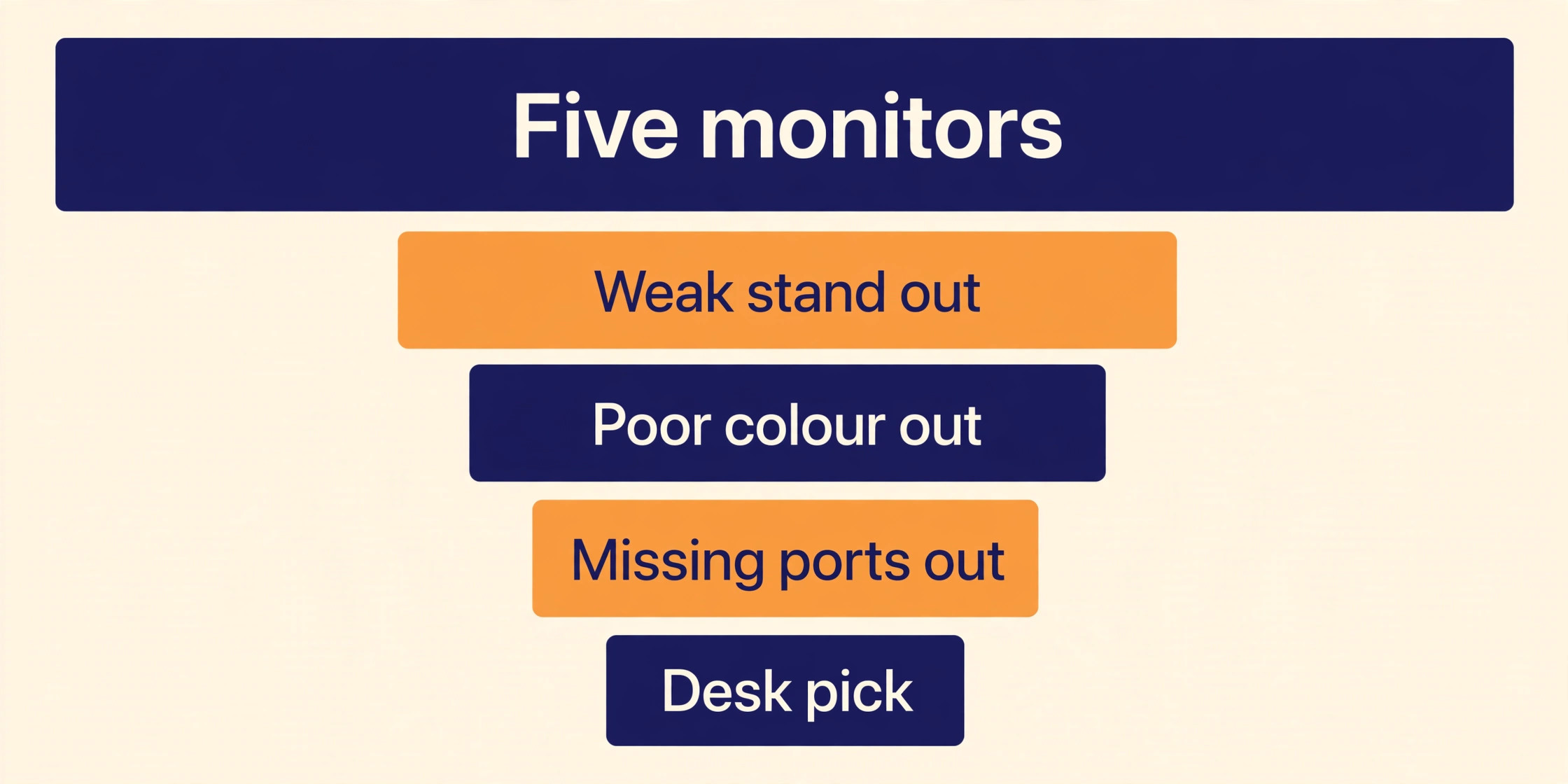
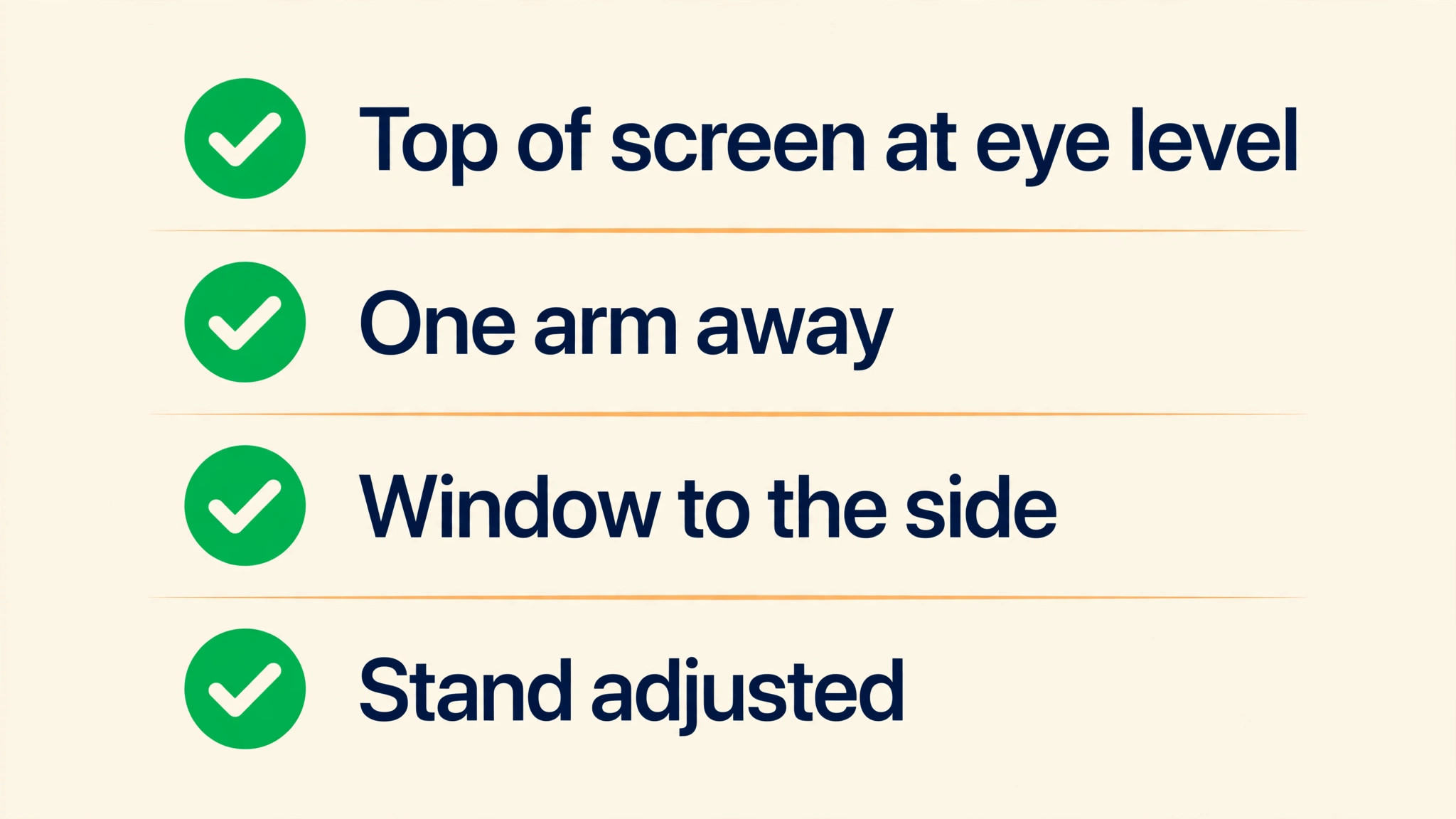
- Measure desk depth and width, and confirm a 27 inch screen fits with an arm length viewing distance. Desk fit is a practical filter for the best monitor for home office under 300, since a screen that sits too close strains eyes no matter how good its panel is.
- Choose 1440p at 27 inches for office work, 4K only for detail work with a computer that handles scaling.
- Require IPS for colour consistency, and check matte coating if the desk faces bright light.
- Require height adjustment, or budget for a VESA monitor arm, and confirm VESA compatibility.
- Check ports against your devices, including HDMI, DisplayPort, and USB-C with charging wattage where needed.
- Confirm current price and exact model, since similar model numbers differ in stand, ports, and panel.
- Set the monitor top at or slightly below eye level, about an arm length away, after unboxing.
- Calibrate brightness to room light, use low blue light mode in the evening, and take regular screen breaks.
Setup matters as much as purchase. Position the monitor perpendicular to windows to reduce glare, set brightness to match room light rather than maximum, and use the operating system scaling that keeps text readable without shrinking workspace excessively. At 1440p, 100 percent scaling usually works well, while at 4K, 125 percent or 150 percent scaling keeps text readable while preserving sharpness. Test your key apps at the chosen scaling for a day, since a scaling setting that breaks one critical app outweighs a sharper panel for that workflow.
Dual monitor buyers should think differently. Two 24 inch 1080p monitors can cost less than one premium 27 inch 1440p monitor and offer more total width, but they add bezel interruption, cable clutter, and stand complexity. A single 27 inch 1440p monitor plus a laptop screen often beats dual 24 inch monitors for focus, since the main task stays central and reference material sits on the laptop. If you already own a good laptop screen, a single external 27 inch monitor is usually the better upgrade than a dual monitor pair, and it leaves desk space for notebooks and reference material.
Mistakes Home Office Buyers Make
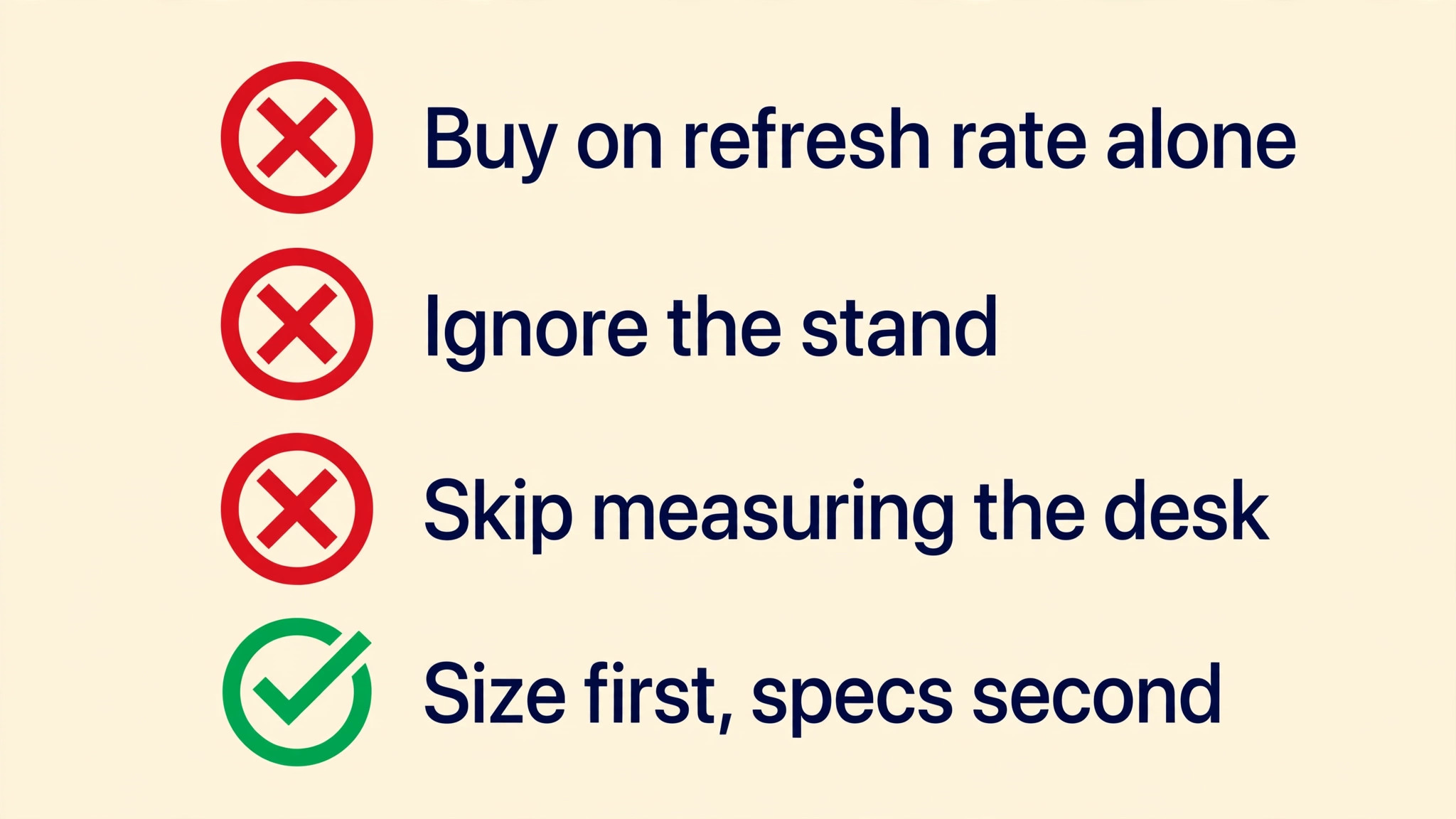
The first mistake is buying 1080p at 27 inches to save money, then living with soft text for years. The saving, often 50 to 100 dollars, costs daily eye comfort and productivity, and it cannot be fixed without replacing the monitor. Spend the difference on 1440p at 27 inches from the start, or choose a smaller 24 inch screen where 1080p stays sharp.
The second mistake is ignoring the stand. A tilt only stand on a low desk forces a poor neck angle, and buyers who ignore it often spend months with neck pain before buying an arm they should have budgeted from the start. Require height adjustment or budget an arm explicitly, and set eye level on day one, not after pain appears. Ergonomics is not a luxury feature, it is the feature that determines whether a monitor helps or harms over a working year.
The third mistake is chasing HDR badges for office work. DisplayHDR 400, the common badge under 300 dollars, improves video viewing modestly but does not transform office work, and it should not override panel quality, resolution, or stand. HDR matters for photo and video work, where the LG models here earn their place, but for documents and spreadsheets, a good SDR IPS panel with a proper stand beats a HDR badge on a poor stand every time.
The fourth mistake is buying on headline refresh rate alone. A 180 Hz panel feels smoother than 60 Hz, but for documents, the jump from 60 Hz to 120 Hz matters more than the jump from 120 Hz to 180 Hz, and a 180 Hz panel with poor colour or a poor stand is a worse office monitor than a 120 Hz panel with good colour and adjustment. Balance refresh rate against panel, resolution, stand, and ports, rather than maximising any single number.
More Reading for Home Office Gear
If a monitor choice is clearer now, the wider gear guides on Stratilyze cover the rest of the desk. The guide to a desk lamp for eye strain helps you light the desk without glare, the guide to a chair for long study sessions covers seating for long days, and the guide to a webcam for online tutoring helps you look good on calls on the new screen. Read the desk lamp guide next if glare or evening eye strain affects your work, since lighting and monitor position together decide comfort more than either alone.
Frequently Asked Questions
What is the best monitor for home office under 300 overall?
For most home offices, a 27 inch 1440p IPS monitor with a fully adjustable stand is the best overall choice, and the Dell 27 Plus QHD at sale prices near 170 dollars offers that combination at exceptional value, while the LG 27GP850-B near 250 to 280 dollars offers balanced high refresh performance for mixed work and gaming. Those two models frame the choice for the best monitor for home office under 300 for most buyers. For sharpest text, the Dell 27 Plus 4K near 300 dollars is the best pick, provided your computer handles 4K scaling and the price stays under cap. Choose by sharpness, value, or mixed use, using the buying checklist, rather than by a single best label.
Is 27 inch too big for a home office desk?
A 27 inch monitor suits most desks with at least 60 centimetres of depth, allowing an arm length viewing distance with the screen top at eye level. On a shallow desk under 50 centimetres deep, a 27 inch screen can feel too close and strain eyes, in which case a 24 inch monitor, a monitor arm that pushes the screen back, or a deeper desk arrangement works better. Measure desk depth before buying, and remember that a monitor arm can reclaim depth and improve positioning on smaller desks.
Is 4K worth it for office work under 300 dollars?
Four K is worth it for detail work, such as small text, spreadsheets with many rows, photo editing, and code, where sharpness is immediately visible, provided your computer handles 4K scaling well and the price stays under cap. Scaling compatibility should be tested before you commit to 4K as the best monitor for home office under 300 for your workflow. For general documents and email, 1440p at 27 inches offers most of the benefit at lower cost and lower graphics demand, and many office buyers prefer it. Test your key apps at 4K scaling for a day if possible, since scaling problems in one critical app can outweigh sharpness gains elsewhere.
Do I need USB-C on a home office monitor?
USB-C with power delivery is convenient for laptop users, since one cable carries video, data, and charging, and it reduces desk clutter. It is not essential for desktop users, who can use HDMI or DisplayPort plus a separate charger or power supply without inconvenience. If you dock a laptop daily, prioritise USB-C with at least 65 watts charging, and check the exact wattage, since a monitor that charges at low wattage may not keep up with a larger laptop under load. Desktop buyers can safely choose a monitor without USB-C and spend the saving elsewhere.
What refresh rate do I need for office work?
Sixty Hz is sufficient for documents, but 120 Hz or higher feels smoother for scrolling, window movement, and video, and most buyers notice the improvement immediately. The jump from 60 Hz to 120 Hz matters more for office comfort than the jump from 120 Hz to 180 Hz, so do not pay a large premium for 180 Hz for documents alone. Mixed work and gaming setups benefit more from 144 Hz or 180 Hz, while pure office buyers should prioritise panel quality, resolution, and stand over maximum refresh rate.
How do I set up a new monitor ergonomically?
Place the screen about an arm length away, with the top of the screen at or slightly below eye level, perpendicular to windows to reduce glare. Use height adjustment or a monitor arm to reach that position, set brightness to match room light, and use scaling that keeps text readable, commonly 100 percent at 1440p and 125 to 150 percent at 4K. Take regular breaks, blink often, and adjust chair height so feet rest flat and arms rest comfortably, since monitor position alone cannot fix a poor chair or desk height.
The Screen Worth Your Desk Space
A monitor is the surface you stare at for thousands of hours a year, and the right one under 300 dollars is no longer a compromise, it is a genuinely good office tool. Size, resolution, panel, and stand decide daily comfort, while refresh rate, HDR, and speakers are bonuses that should not override those core choices. When you judge the best monitor for home office under 300 by 27 inch 1440p IPS quality, a proper stand, and ports that match your devices, you buy a screen that will serve documents, calls, and mixed work for years without regret.
Measure the desk, confirm the exact model and price, set eye level on day one, and let the monitor disappear into work rather than demanding attention. That disappearing act is the real test of a home office monitor, and the models in this guide pass it for different buyers, whether they prioritise sharpness, value, colour, speed, or balance.