A beginner mouse hurts design work in quiet ways. A stiff scroll wheel makes zooming feel like a chore, a light sensor skips on fast strokes, and a shape that ignores your hand turns a two hour practice session into a sore wrist. The best mouse for graphic design beginners fixes those three things before it worries about extra buttons or lighting, and the right pick depends on your hand size and the software you open most. This guide compares five mice on sensor, scroll, shape and price, with one honest reason to skip each.
This guide compares five mice across sensor, scroll, ergonomics, and price, and gives an honest rejection reason for each one. Prices were checked against published 2026 listings in October 2026. Confirm current street prices before you buy, since Logitech models move with promotions.
How to Choose in Five Minutes
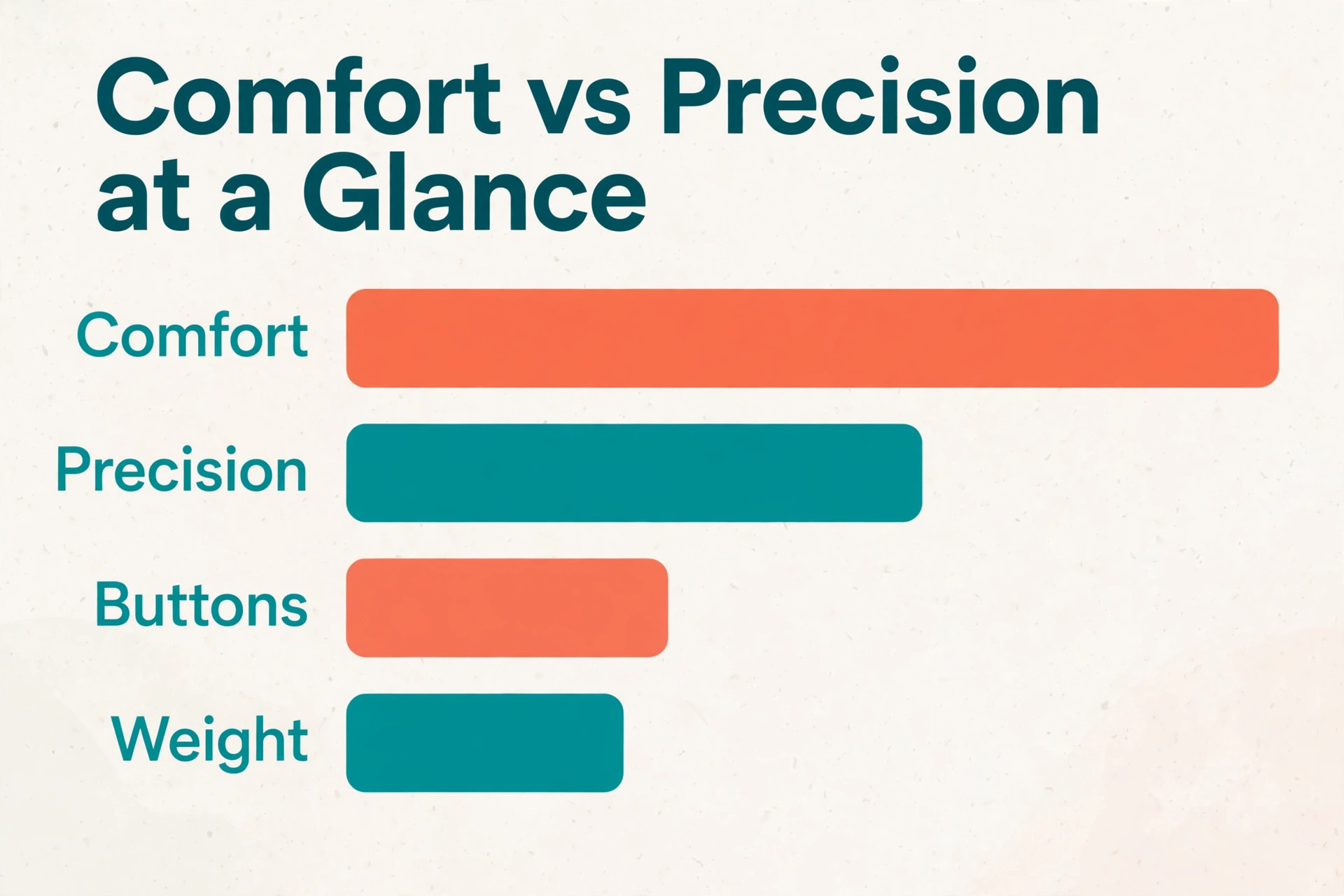
Start with your hand and your session length. Design work means hours of small, precise movements, so comfort beats maximum DPI for most beginners. A mouse that fits the hand and supports the wrist will improve work faster than a sensor upgrade, because a tired hand makes imprecise moves no sensor can fix.
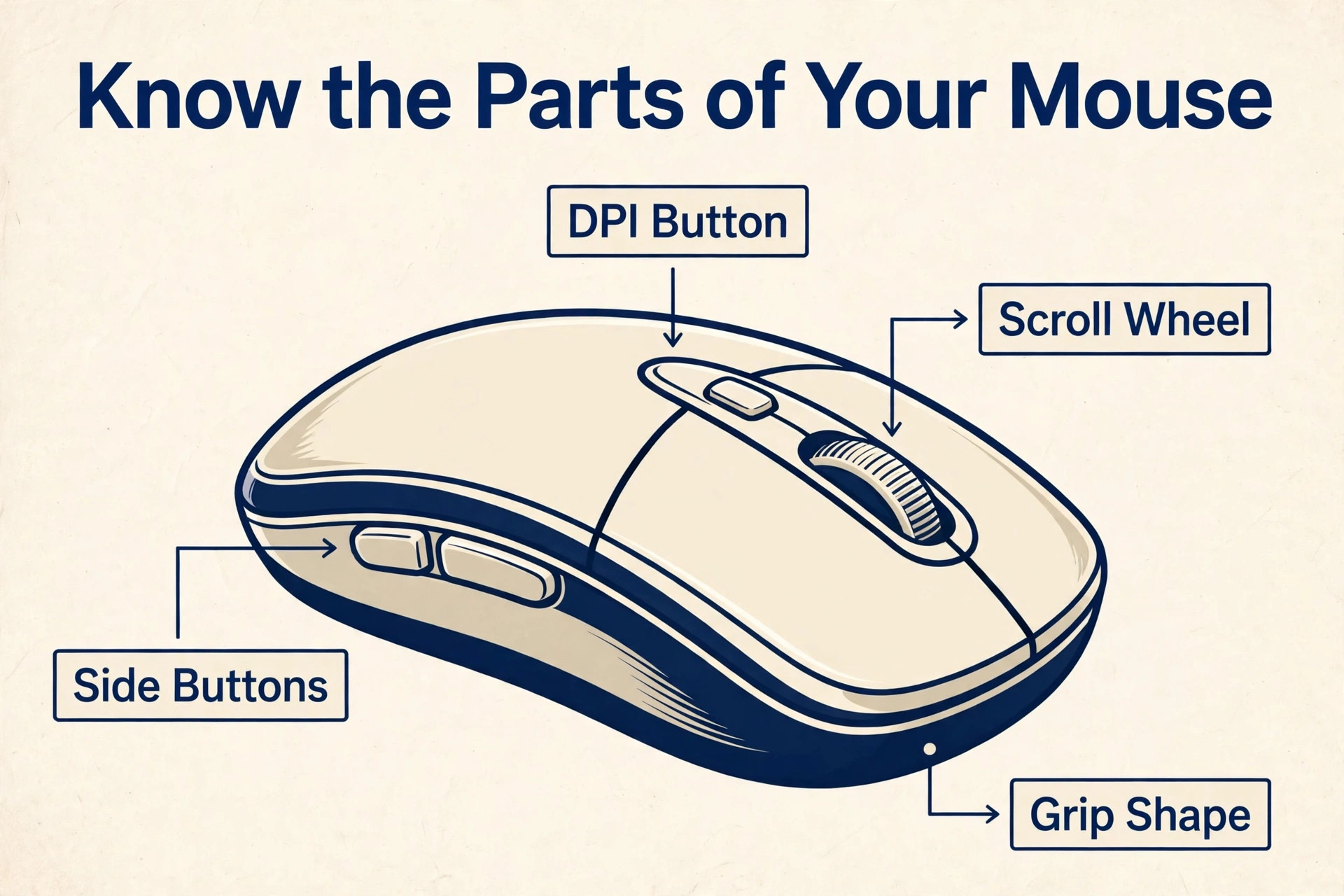
Next, check the scroll and buttons. A free-spinning scroll wheel moves through long canvases fast, a thumb wheel scrolls horizontally through timelines, and two or three programmable buttons carry undo, zoom, and brush size. The best mouse for graphic design beginners for your desk is the one whose controls match the tools you open daily.
The best mouse for graphic design beginners Shortlist, Compared
The table below compares the five shortlisted mice on the lines that matter for design work. The best mouse for graphic design beginners comparison rewards usable precision and comfort over headline DPI, since beginners rarely benefit from extreme sensitivity.
| Mouse | Sensor | Scroll | Ergonomics | Approx price | Best for |
|---|---|---|---|---|---|
| Logitech MX Master 4 | Up to 8,000 DPI | SmartWheel plus thumb wheel | Sculpted right-hand | About 120 dollars | All-round design work |
| Logitech Lift | 4,000 DPI | SmartWheel | Vertical 57-degree, small to medium hands | About 70 to 80 dollars | Wrist comfort |
| Logitech MX Anywhere 3S | Up to 8,000 DPI | MagSpeed wheel | Compact, travel friendly | About 85 to 90 dollars | Laptop and travel design |
| Logitech MX Vertical | 4,000 DPI | Standard wheel | Vertical 57-degree, larger hands | About 78 to 120 dollars | Larger hands, vertical shape |
| Logitech M720 Triathlon | 1,000 DPI | Hyper-fast wheel | Full-size right-hand | About 40 dollars | Budget multi-device work |
The Specs That Matter Most, Explained
DPI measures sensitivity, or how far the cursor moves per inch of mouse movement. That range is the practical heart of the best mouse for graphic design beginners. For design work, 800 to 1,600 DPI suits most canvas work, while higher DPI helps on large or multi-monitor setups where the cursor must cross wide distances. A mouse that adjusts DPI in steps is more useful than one with a huge maximum, because beginners change sensitivity as they learn.
Scroll design matters more than buyers expect. A ratchet wheel gives precise line-by-line control for timelines and layers, while a free-spinning wheel flies through long documents and canvases. A thumb wheel adds horizontal scrolling, which matters in video timelines and wide design canvases. Test the wheel feel before judging any mouse on sensor alone.
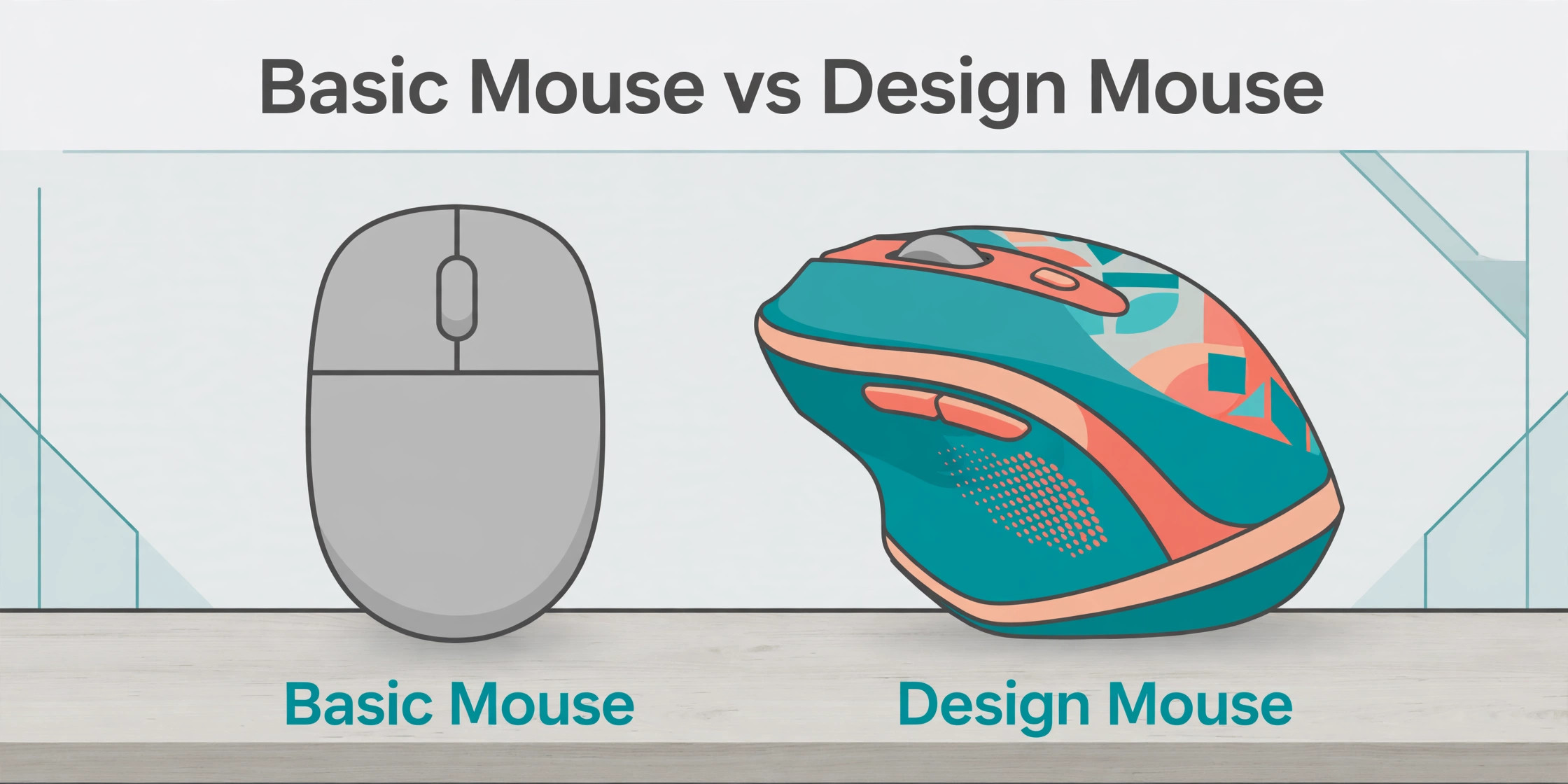
Ergonomics is the long game. A sculpted mouse supports the palm during long sessions, a vertical mouse holds the hand in a handshake position that reduces forearm rotation, and a compact mouse suits travel but tires a large hand over hours. Hand size decides this more than brand, so measure your hand and compare it with the maker’s sizing guidance.
The Five Mice in Detail
Logitech MX Master 4
The MX Master 4 is the all-round pick, with an 8,000 DPI sensor, Bluetooth LE and Logi Bolt connectivity, up to 70 days of rated battery, and a sculpted shape built for long sessions. The thumb wheel and programmable buttons map naturally to design tools, and multi-device pairing suits a desk with a laptop and a desktop. Why you might skip it. At about 120 dollars it is the priciest pick here, and its size suits medium to large hands better than small ones.
Logitech Lift
The Lift is the vertical pick for small to medium hands, holding the hand at a 57-degree angle with quiet clicks, a SmartWheel, and up to 24 months of battery from a single AA cell. It pairs with up to three devices over Bluetooth or the Logi Bolt receiver, and it comes in right-handed and left-handed versions. Why you might skip it. The 4,000 DPI sensor and vertical shape feel slower for fast precision work at first, and large hands will find it cramped.
Logitech MX Anywhere 3S
The Anywhere 3S is the travel pick, packing an 8,000 DPI sensor into a compact body that works on more surfaces, including glass, with quiet clicks and multi-device pairing. For a beginner who designs on a laptop in different rooms or cafes, it is the easiest serious mouse to carry. Why you might skip it. The compact shape tires a large hand during long desktop sessions, and it lacks the thumb wheel that makes the Master series so strong for timelines.
Logitech MX Vertical
The MX Vertical is the larger vertical pick, with the same 57-degree handshake angle as the Lift in a bigger, heavier body with a dedicated cursor speed switch and USB-C charging. For large hands that want vertical ergonomics without the Lift’s smaller footprint, it is the natural choice. Why you might skip it. It is right-handed only, heavier than the Lift, and street prices swing widely, so check the current offer before paying near full price.
Logitech M720 Triathlon
The M720 is the budget multi-device pick, pairing a full-size comfortable shape with hyper-fast scrolling, multi-device pairing, and a long battery life at roughly 40 dollars. For a beginner who wants a capable mouse without a premium price, it covers the basics well. Why you might skip it. The 1,000 DPI sensor and simpler buttons limit precision and shortcut depth as design skills grow, so it is a starter, not a long-term design tool.
What to Check Before You Buy
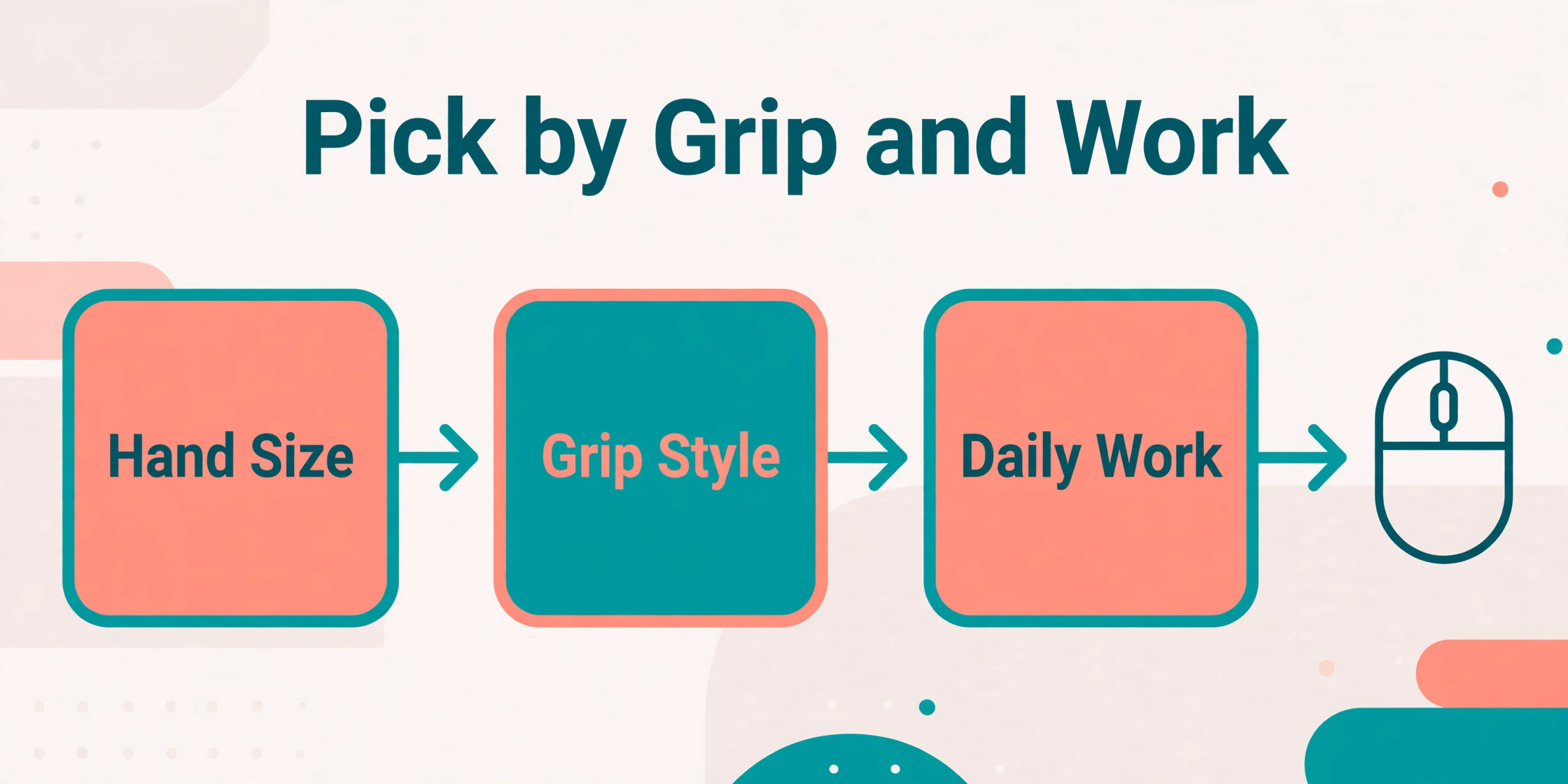
Run this checklist before ordering, because the best mouse for graphic design beginners decision is personal and hard to judge from photos alone. Hand size, grip style, and desk setup decide more than any spec sheet, so measure first and buy second.
- Hand size and grip style, including palm versus claw grip and hours per session.
- Desk space and surface, including whether the sensor must track on glass or a rough mat.
- Monitor count and size, since larger setups benefit from higher DPI and thumb scrolling.
- Software support, including whether button customization works on your operating system.
- Connectivity, including Bluetooth, receiver, and multi-device switching needs.
- Battery type, including rechargeable versus AA cells and how you prefer to charge.
- Return window, because ergonomics can only be judged after a few days of real use.

Mistakes That Waste Money
The most common mistake is buying maximum DPI for beginner work, because a 25,000 DPI gaming sensor adds nothing to canvas precision at beginner level and often causes overshoot. The best mouse for graphic design beginners for a beginner is a comfortable, precise tool, not a spec sheet champion.
- Buying a gaming mouse for design work, which prioritizes weight and speed over comfort and scroll control.
- Ignoring hand size, which turns a well-reviewed mouse into a cramp after two hours.
- Paying for a vertical mouse without a trial period, since some hands never adjust to the angle.
- Choosing a compact travel mouse as a full-time desk mouse, which tires larger hands over long sessions.
- Skipping button customization, which leaves the most useful design shortcuts unused.
The fix is a hand measurement, a return window, and a week of real design work before judging. A mouse that feels fine for ten minutes in a store can still fail on day three of a project, so buy where returns are easy.
Setup Costs Beyond the Box
Budget a small amount beyond the mouse itself, because the best mouse for graphic design beginners total includes the surface and the software setup. A decent mouse mat improves tracking and wrist comfort for little money, and a mat sized for design work beats a small novelty mat quickly. Logi Options+ software is free and unlocks button customization, so install it before judging the mouse, since default buttons hide half the value.
For vertical mice, allow an adjustment week. The handshake angle feels strange for the first days, and judging it on day one misleads. Use it for real project work, not just browsing, and decide at the end of the week whether the wrist feels better or merely different.
Prices checked against published 2026 listings in October 2026. Confirm current street prices before you buy, since Logitech models move with promotions and bundle deals.
Reading Reviews Like a Skeptic
Reviews are the most useful and the most misleading source in any buying decision, because they mix genuine experience with launch hype, sponsored enthusiasm, and competitor noise. The trick is not to ignore reviews, but to read them in a way that filters for the information that actually predicts your experience. Start by reading the three-star and four-star reviews first, since they usually contain both praise and complaint, while five-star reviews often describe arrival condition and one-star reviews often describe shipping damage rather than product quality.
Look for failure reports and long-term updates, because they reveal what breaks and when. A product with many reviews mentioning the same failure after six months has a pattern, while a product with scattered, unrelated complaints usually has normal variance. Updates that say still working after a year, or battery faded after eight months, are worth more than ten launch-week reviews combined, since durability only shows with time.
Check sample size and timing before trusting any average. A product with fifty reviews averaging 4.8 stars tells you less than a product with two thousand reviews averaging 4.4 stars, because small samples swing wildly. Reviews clustered around a launch or a sale often reflect excitement and discounting rather than settled opinion, so weight recent, steady reviews more heavily than a launch spike.
Treat sponsored and affiliate content as advertising with useful information inside, not as independent testing. A creator paid through affiliate links can still give an honest review, but their incentive favors enthusiasm, and their testing rarely covers months of use. Cross-check any single glowing review against two independent sources, and be suspicious when every review uses the same phrases, which often signals a shared brief.
End with three questions for any product you are considering. What breaks first, and how did support handle it. Would the reviewer buy it again at full price. And does the complaint pattern match your own use case, or does it describe a use you will never attempt. A product whose complaints all concern a feature you will never use is a better buy than its average suggests, while a product whose praise all concerns a feature you will never use is worse.
Which Pick Fits Your Actual Week
Most buying regret comes from choosing for an imagined week rather than a real one. The imagined week is busy, demanding, and full of advanced use, while the real week is usually lighter, with a few heavy days and several quiet ones. A product bought for the imagined week costs more, weighs more, or complicates more than the real week ever needs, while a product bought for the quiet week fails on the first busy day. Buy for the typical week with room for the busy one, and the choice usually becomes obvious.
Sketch the real week before shopping, in three lines. The typical day, including hours of use and the main task. The busy day, including what peaks and how often it happens. And the travel or shared-use day, including whether the product leaves the desk or serves more than one person. That sketch takes five minutes and prevents the most common error, which is buying a heavy, expensive solution for a light, stationary routine.
Light users should buy for comfort and simplicity, since an advanced product adds settings and weight they will never use. Heavy users should buy for durability and repairability, since daily use finds every weak point within months. Travelers should buy for size, battery, and toughness, since a product that stays home during trips is a wasted purchase. Shared users should buy for adjustability and easy handover, since a product tuned for one person frustrates everyone else.
Skill growth changes the answer over time, and the honest question is how fast you will grow. A beginner who will practice weekly outgrows a starter product within a year, while a casual user may never outgrow it. Buy a product with one step of headroom above your current skill, not three steps, since three steps of headroom usually means a year of paying for features you cannot yet use.
The decision rule that ties this together is simple. List the three tasks you will do most, check each shortlisted product against those three tasks only, and ignore every other feature until the top three are satisfied. A product that wins on your real tasks and loses on imaginary ones is the right buy, while a product that wins on imaginary tasks and loses on real ones is a regret waiting for delivery day.
What Lasts, What Breaks, and Who Fixes It
Purchase price is only the first cost of any product, because batteries fade, buttons wear, moving parts loosen, and software support ends. A cheap product that lasts one year costs more per year than a pricier product that lasts four, and the difference grows when replacement means relearning settings, migrating data, or rebuying accessories. Longevity deserves the same attention as launch specs, even though it rarely appears in a headline comparison.
Batteries are the most common wear item, and their decline follows a predictable curve. A battery rated for hundreds of cycles will hold less charge after a year of daily use, and a product with a sealed battery becomes a replacement decision when the battery fades. Check whether the battery is replaceable, what a replacement costs, and whether the product remains usable while plugged in, since those answers decide the real lifespan.
Warranty terms reveal what a maker expects to break. A one-year warranty covering defects is standard, while longer warranties on specific parts suggest confidence in those parts. Read the exclusions, since wear items, batteries, and accidental damage are commonly excluded, and check whether warranty service is local, mail-in, or depot-based, because a three-week mail-in repair feels very different from a local swap.
Software and firmware support matter as much as hardware, especially for connected products. A product whose app stops receiving updates loses features, security fixes, and compatibility with new phones and operating systems, even while the hardware still works. Check the maker’s update history for older models, since a maker that supports three-year-old products will likely support yours, while a maker that abandons last year’s model will abandon yours too.
Total cost over the expected lifespan is the number that settles most comparisons. Add purchase price, likely accessories, and one probable repair or replacement, then divide by expected years of service. A product that looks expensive at purchase often wins that calculation, while a product that looks cheap often loses it. Buy the lowest yearly cost that meets your real needs, not the lowest sticker price on the page.
The Upgrade Path From Here
Outgrowing a product is a good sign, because it means skills or needs grew, but the upgrade decision still deserves care. The signs are consistent. You hit the same limit weekly, you work around the product rather than with it, or you spend more time compensating than creating. A single frustrating day is not outgrowth, but a weekly pattern is, and confusing the two leads to premature upgrades that solve nothing.
Before upgrading, list what carries over, since ecosystem lock-in changes the upgrade math. Accessories, mounts, batteries, software settings, and learned skills may transfer to the next tier or may not, and a product line that preserves accessories is cheaper to upgrade within than a line that replaces everything. Check compatibility before assuming the upgrade path is smooth, because a new connector or mount standard can erase the saving.
The next tier usually buys one of three things, namely more capacity, more precision, or more durability, and the right one depends on which limit you hit. Capacity upgrades suit growing volume, precision upgrades suit growing quality demands, and durability upgrades suit growing daily use. An upgrade that buys a different strength than the one you lack is an expensive sideways move, so name the limit before shopping for the solution.
Sometimes the bottleneck is not the product at all, and upgrading it wastes money. A slow workflow may need better lighting, better audio, better organization, or more practice rather than better hardware, and those fixes cost less and help more. Test the bottleneck by borrowing or renting the upgrade first, or by fixing the surrounding setup, and upgrade only when the product itself remains the limit after those fixes.
When the upgrade is justified, plan the old product’s next life rather than binning it. A starter product makes a good travel spare, a shared household backup, or a gift to a beginner, and selling it recovers part of the upgrade cost. A product that serves a second life was a better purchase than its price suggested, and that framing makes the original buy feel wiser in hindsight.
The Small Extras That Make Day One Work
Every product in this guide works out of the box, but a few small accessories decide whether day one feels smooth or frustrating. The pattern is consistent across categories. Power, protection, storage, and connection are the four accessory groups that matter, and buying the right one from each group beats buying a drawer full of gadgets that never get used.
Power comes first, because a dead battery or a missing charger ends use at the worst moment. A spare battery, a longer cable, or a charger that lives where the product is used will prevent more frustration than any other accessory. Check what the box includes before ordering extras, since many products ship with a short cable or no spare, and the missing item is usually cheap.
Protection and storage come second, especially for products that travel or sit in shared spaces. A case, a cover, or a screen protector costs little and prevents the damage that leads to early replacement. For desk products, protection means a mat, a stand, or a mount that keeps the product stable and clean, which extends life just as surely as a case does.
Connection accessories come third, including cables, adapters, and mounts that link the product to the rest of your setup. A product that cannot connect to your laptop, your speaker, or your wall is a product that gathers dust, so confirm every connection in advance and buy the one adapter that closes the gap. One well-chosen adapter beats three speculative ones.
Buy accessories in that order, namely power, protection, then connection, and stop when the product works smoothly for a full week. Accessories bought after a week of real use solve real problems, while accessories bought before delivery solve imagined ones. The cheapest accessory strategy is patience plus a short list written from experience.
First-Week Mistakes That Spoil a Good Buy
The first week decides whether a new product earns its place or gathers dust, and the errors that spoil it are rarely about the product itself. Skipping updates is the first, because makers ship fixes for known issues in the first months, and an unpatched product misbehaves in ways that look like hardware faults. Update firmware and software on day one, then test again before judging anything.
Wrong settings are the second error, because default settings suit a general buyer, not your specific use. Display modes, audio profiles, sensitivity levels, and power settings all ship at middle values that please nobody fully. Spend twenty minutes adjusting the three settings you will use most, and the product often feels like a different, better device afterward.
Poor placement is the third error, and it affects every category, from a monitor at the wrong height to a speaker facing a wall to a sensor blocked by a case. Placement decides comfort, accuracy, and sound more than most buyers expect, so test two or three positions before settling, and measure rather than guessing where the product should sit.
Ignoring the manual is the fourth error, not because manuals are exciting, but because they contain the one feature that changes daily use, such as a shortcut, a mode, or a maintenance step. Skim the manual for headings, note the three features you did not know existed, and try each one during the first week. That habit alone rescues many products from an unfair early verdict.
Judging too fast is the final error, because hands, ears, and eyes need days to adjust to a new shape, sound, or screen. A product that feels strange on day one often feels natural by day seven, while a product that feels perfect on day one can reveal flaws by day fourteen. Use the full return window, test in real conditions, and decide on evidence from a week of use rather than an hour of unboxing.
More Reading on Stratilyze
More Reading on Stratilyze. Read the home office monitor guide under 300 dollars and the dual monitor desk productivity setup for the rest of the design desk.
Frequently Asked Questions
What is the best mouse for graphic design beginners?
For most beginners, the Logitech MX Master 4 is the safest first serious mouse, with an 8,000 DPI sensor, a thumb wheel, and a sculpted shape for long sessions. The best mouse for graphic design beginners depends on hand size and wrist comfort, so vertical options suit sore wrists better.
How much DPI do I need for graphic design?
Most design work suits 800 to 1,600 DPI, with higher DPI helping on large or multi-monitor setups. A mouse that adjusts DPI in steps matters more than a huge maximum, because beginners change sensitivity as they learn.
Is a vertical mouse better for design work?
A vertical mouse can reduce forearm rotation during long sessions, which helps some users, but it feels slower for fast precision work at first. Try one with a good return window, and judge it after a week of real project work.
Do I need a thumb wheel for design?
It helps for horizontal scrolling in timelines and wide canvases, and it is a strong reason to pick the Master series. It is not essential for beginners, but it becomes valuable quickly as projects grow wider.
Should beginners buy a gaming mouse for design?
Usually not. Gaming mice prioritize light weight and extreme speed, while design work rewards comfort, scroll control, and programmable buttons. A productivity mouse fits design workflows better at the same price.
How long should a design mouse battery last?
Rated battery ranges from weeks to months depending on model, with the MX Master 4 near 70 days and the Lift near 24 months on an AA cell. Real life varies with use, but any of these easily covers a working week without charging anxiety.
Measure your hand, pick the shape that fits it, and learn the buttons before judging the sensor. That order keeps the best mouse for graphic design beginners honest, because comfort decides how long you can design well, and shortcuts decide how fast you work.
Start with the Master series for all-round work, the Lift for wrist comfort, or the Anywhere for travel, and give the pick a full week of real projects. A mouse that survives that week is the right one, whatever the spec sheet says.