
The bracket is set, and the first duel in this search for the best teamviewer alternatives starts with a laptop behind a home router that will not answer. My pick is Splashtop, because it wins the price round and the unattended-access round on the same day. A 500 MB file, a reboot with nobody at the keyboard, and a connection that stays up through a home router are the tests that settle every round below.
The 10 Tools at a Glance
Each tool below faced the same three tests, so the table reads like a results sheet rather than a brochure. Prices are the published annual-billing figures checked in November 2026, and where two sources disagreed I have marked the figure reported.
| Tool | Starting price | Best for |
|---|---|---|
| Splashtop | from $5 per user a month | teams that want low cost and strong unattended access |
| AnyDesk | from $28.90 a month for Solo, reported; other sources report $23.12 | speed-first sessions on many devices |
| RemotePC | from $2.95 a month for one computer | one person reaching a few of their own machines |
| Chrome Remote Desktop | free for personal use | a free route to one home computer |
| RustDesk | free self-hosted; paid cloud from about $9.90 a month, reported | teams that want to host the relay themselves |
| Zoho Assist | from $8 per user a month, reported | small teams already inside Zoho |
| ConnectWise ScreenConnect | from about $27 a month per technician, reported | IT teams that run a support queue |
| LogMeIn Rescue | from about $108 a month per technician, reported | support teams that rescue strangers |
| GoTo Resolve | from about $55 a month, reported | teams that want support plus device care |
| RealVNC | from about $3.39 per device a month, reported | device-based access at a low price |
Best Pick by Job
The table below matches each job to its pick, and Splashtop leads the list for the most common job in this guide.
| Job | Pick | Why |
|---|---|---|
| A solo user reaching one home PC | RemotePC | $2.95 a month covers the one machine |
| A small IT team | Splashtop | $5 per user a month with unattended access |
| A support desk rescuing customers | LogMeIn Rescue | code-based entry, strong diagnostics |
| A team that hosts its own relay | RustDesk | self-hosted, no per-seat bill |
| A Zoho shop | Zoho Assist | fits the Zoho console at $8 a user |
The 10 Tools in Detail
I checked every tool below for live status and November 2026 pricing, then ranked the best teamviewer alternatives by how they handle the opening buyer’s three tests, the home-router connection, the 500 MB file, and the unattended reboot.
1. Splashtop
Splashtop costs from $5 per user a month, and it is built for teams that want low cost and strong unattended access. Watch how quickly a real remote session finishes on Splashtop, because a remote tool that slows the daily support work gets dropped by the second month.
What stands out is Business Access covers unattended machines at a price TeamViewer cannot match, and the SOS line gives a support team a clean attended route. Run Splashtop on a live support call and the Business Access and SOS strengths show in the first week, in the work itself rather than in any sales page.
The trade-off is The product family splits into several editions, so a buyer has to check which edition carries the feature they need. Splitting the product into several editions is the cost of Splashtop being cheap, and a buyer who knows that going in stays happy while one who finds it later does not.
Now count ten weekly Splashtop sessions, each one trimmed by twenty minutes once the unattended setup is in place. Across a month that is 200 minutes a week with Splashtop, more than thirteen hours, or most of two working days reclaimed. Two working days back each month is why the $5 Splashtop seat earns its keep.
For a buyer whose work matches teams that want low cost and strong unattended access, Splashtop is worth a trial. The price of Splashtop is from $5 per user a month, the core job is solid, and the trial will show whether the limit matters to your work.
2. AnyDesk
AnyDesk is the speed-first sessions on many devices option in this list, at from $28.90 a month for Solo, reported; other sources report $23.12. AnyDesk handles the remote session itself well, and a new technician can finish a first real support call on day one with no manual open.
The best part is Solo covers 100 managed devices, and the client is light enough to run well on an old laptop. Solo covers 100 managed devices and the client runs light on old laptops, so the minutes AnyDesk saves each day stack into hours across a month.
The catch is The Solo price has moved between reports, so the checkout total deserves a second look before renewal. Catch the AnyDesk Solo limit during the trial, because a cap found in week one is a small fix and the same cap found in month three forces a move.
Work a small example with AnyDesk. Half an hour saved on each AnyDesk working day, five days running, banks 150 minutes a week, which is ten hours across a month. At $25 an hour, that is $250 a month with AnyDesk, which is more than the subscription for most teams in this list.
AnyDesk earns its place for speed-first sessions on many devices. At from $28.90 a month for Solo, reported; other sources report $23.12 AnyDesk is fair value, and the trial is the right way to test AnyDesk, because a week of real work says more than any review.
3. RemotePC
At from $2.95 a month for one computer, RemotePC suits one person reaching a few of their own machines. RemotePC keeps its screens plain, the main controls are easy to reach, and the tool fades into the background once a session starts.
Here RemotePC shines, because The entry price is the lowest paid route to unattended access in this list, and the Team plan covers unlimited users on 50 computers. The lowest paid route to unattended access, with unlimited users on 50 computers, is why RemotePC earned its place and deserves a trial.
The shortfall is It is built around your own machines, so it is not the right shape for a help desk that visits strangers. That gap is no reason to drop RemotePC, but it is a reason to run the exact own-machine job that strains it before paying.
Here is a worked example for RemotePC. Ten RemotePC jobs a week, each fifteen minutes quicker, free up 150 minutes weekly, which comes to around ten hours a month. A day and a quarter of technician time is what RemotePC hands back, worth more than a day of pay.
If your work is one person reaching a few of their own machines, put RemotePC on the shortlist at from $2.95 a month for one computer. Reach your own machines on RemotePC first, then press its own-machine limits, and the verdict writes itself.
4. Chrome Remote Desktop
Chrome Remote Desktop at free for personal use is aimed at a free route to one home computer. It covers the essentials with Chrome Remote Desktop, and it does them in a way that a busy team can rely on without thinking about the tool itself.
The clear win is There is nothing to install beyond the browser extension, and a session starts in under a minute. It does not need a sales call to explain, because the benefit of Chrome Remote Desktop is visible the first time Chrome Remote Desktop is used on real work.
The limit is It has no file transfer workflow worth relying on, and no support queue or audit trail for business use. A buyer should weigh that against the price of Chrome Remote Desktop, because a cheap Chrome Remote Desktop with the wrong limit is still the wrong tool.
- It fits a team that needs Chrome Remote Desktop for the core job done without a long setup.
- Put Chrome Remote Desktop on one genuine remote job before you lean on it.
- It suits a buyer who values Chrome Remote Desktop at a low price over a deep feature set.
5. RustDesk
For teams that want to host the relay themselves, RustDesk at free self-hosted; paid cloud from about $9.90 a month, reported is a solid choice. RustDesk carries the daily remote work without fuss, and a team that hosts its own relay keeps using it because the setup never gets in the way.
The strength is Self-hosting keeps the connection path under your own control, and the open client runs on every major system. Self-hosting keeps the connection path in your own hands, and that daily control is what makes RustDesk stick, so judge it on the session you run most often.
Picture a support desk running ten RustDesk sessions a week, each twenty minutes quicker than before. That comes to 200 minutes a week on RustDesk, over thirteen hours a month, which is close to two full working days. Nearly two working days a month is what makes the self-hosted RustDesk relay worth it.
Would this suit a small team?
Yes, since RustDesk installs quickly and costs little, a small support team can be running remote sessions without any project plan at all.
What should I test first?
Run a genuine task through RustDesk, then push it to its limit, since the ceiling is where a cheap remote tool usually shows its weakness.
6. Zoho Assist
Zoho Assist costs from $8 per user a month, reported, and it is built for small teams already inside Zoho. Time a real Zoho Assist call from connection to fix, since a remote tool that drags the daily work out gets dropped by the second month.
What stands out is Unattended access, file transfer and reboot are included at a modest price, and the console is simple to learn. Give Zoho Assist one genuine client call and the unattended access, file transfer and reboot tools prove themselves before the week ends, where a brochure only promises them.
If your work is small teams already inside Zoho, put Zoho Assist on the shortlist at from $8 per user a month, reported. Run one real Zoho Assist call first, then hunt for its ceiling, and the choice sorts itself out.
7. ConnectWise ScreenConnect
ConnectWise ScreenConnect is the IT teams that run a support queue option in this list, at from about $27 a month per technician, reported. ScreenConnect runs a support queue cleanly, and its layout is plain enough that a technician joining the rota finds the first ticket without training.
The best part is It pairs attended support with unattended machines, and the session tools are built for technicians who work all day. It is the kind of strength that saves time every day with ConnectWise ScreenConnect, which adds up to hours by the end of the month for a ConnectWise ScreenConnect user.
For a buyer whose work matches IT teams that run a support queue, ConnectWise ScreenConnect is worth a trial. The price of ConnectWise ScreenConnect is from about $27 a month per technician, reported, the core job is solid, and the trial will show whether the limit matters to your work.
8. LogMeIn Rescue
At from about $108 a month per technician, reported, LogMeIn Rescue suits support teams that rescue strangers. LogMeIn Rescue keeps its rescue console plain, the main tools sit where a technician expects them, and nothing distracts once a stranger’s machine is on screen.
Here LogMeIn Rescue shines, because It connects to a customer machine through a simple code, and the diagnostic tools are strong. That is the reason LogMeIn Rescue sits in this list, and it is the reason a buyer should test it before choosing a rival.
LogMeIn Rescue earns its place for support teams that rescue strangers. At from about $108 a month per technician, reported LogMeIn Rescue is fair value, and the trial is the right way to test LogMeIn Rescue, because a week of real work says more than any review.
9. GoTo Resolve
GoTo Resolve at from about $55 a month, reported is aimed at teams that want support plus device care. It covers the essentials with GoTo Resolve, and it does them in a way that a busy team can rely on without thinking about the tool itself.
The clear win is It adds patching and device checks to remote sessions, so a small IT team gets two jobs from one console. It does not need a sales call to explain, because the benefit of GoTo Resolve is visible the first time GoTo Resolve is used on real work.
If your work is teams that want support plus device care, put GoTo Resolve on the shortlist at from about $55 a month, reported. Try GoTo Resolve on the support work first, then probe its ceiling, and the choice between it and the rest will settle itself.
10. RealVNC
For device-based access at a low price, RealVNC at from about $3.39 per device a month, reported is a solid choice. RealVNC keeps the daily device checks tidy, and its short learning curve means the workshop still reaches for it after the first week.
The strength is Pricing per device suits a workshop with many machines and few operators, and the viewer is steady. Per-device pricing fits a workshop with many machines and few operators, and that daily fit is what earns RealVNC its fee, so judge it on the machine you open most.
For a buyer whose work matches device-based access at a low price, RealVNC is worth a trial. The price of RealVNC is from about $3.39 per device a month, reported, the core job is solid, and the trial will show whether the limit matters to your work.
What Happens When the Other Side Has No IT Person
Most remote sessions fail at the human end, not the network end. The person on the other side is a parent, a client, or a new hire, and they have no idea what a firewall rule is. A good alternative wins this round by asking that person to do one thing only, click a link or read out a short code, and then it takes over from there.
Splashtop handles this with a download link that installs the streamer and leaves the machine ready for the next visit without another phone call. AnyDesk does it with a nine-digit address that a caller can read aloud. Chrome Remote Desktop asks for a browser extension and a code, which is fine once, and annoying every week. The tools that lose this round are the ones that ask a non-technical person to open a port, find an IP address, or change a setting they do not understand.
Here is the test I would run before paying for any of these tools. Call someone who has never used remote software, give them the link or code, and time how long it takes until you can see their screen. If the answer is more than five minutes, the tool will cost you that five minutes on every support call you ever take. Multiply that by the number of calls in a month, and the cheap tool stops looking cheap.
Anyone weighing best teamviewer alternatives should test Splashtop on the exact job above, because the test shows the difference faster than any feature list.
How to Choose Among the Best Teamviewer Alternatives
Start with the count that matters, which is not the number of users but the number of machines you must reach when nobody is sitting at them. A tool priced per user suits a team that reaches many machines, while a tool priced per computer suits one person reaching a few machines. Count both numbers before you open a pricing page, because the wrong model can double the bill without adding a single feature.
Then check the three tests from the opening bracket. Can the tool connect through a home router without port changes. Can it move a 500 MB file without timing out. Can it reboot a machine and reconnect on its own. Any tool that fails one of those tests should leave the shortlist, no matter how low its price looks. The worked example below shows why the file test matters.
A 500 MB file at 10 Mbps takes about 7 minutes to move, and at 50 Mbps it takes about 80 seconds. That gap is the difference between a support call that ends on time and one that runs long enough to push the next appointment. A tool that throttles transfers or drops them halfway turns a simple fix into a second call, and the second call is where the real cost lives.
AnyDesk vs Splashtop
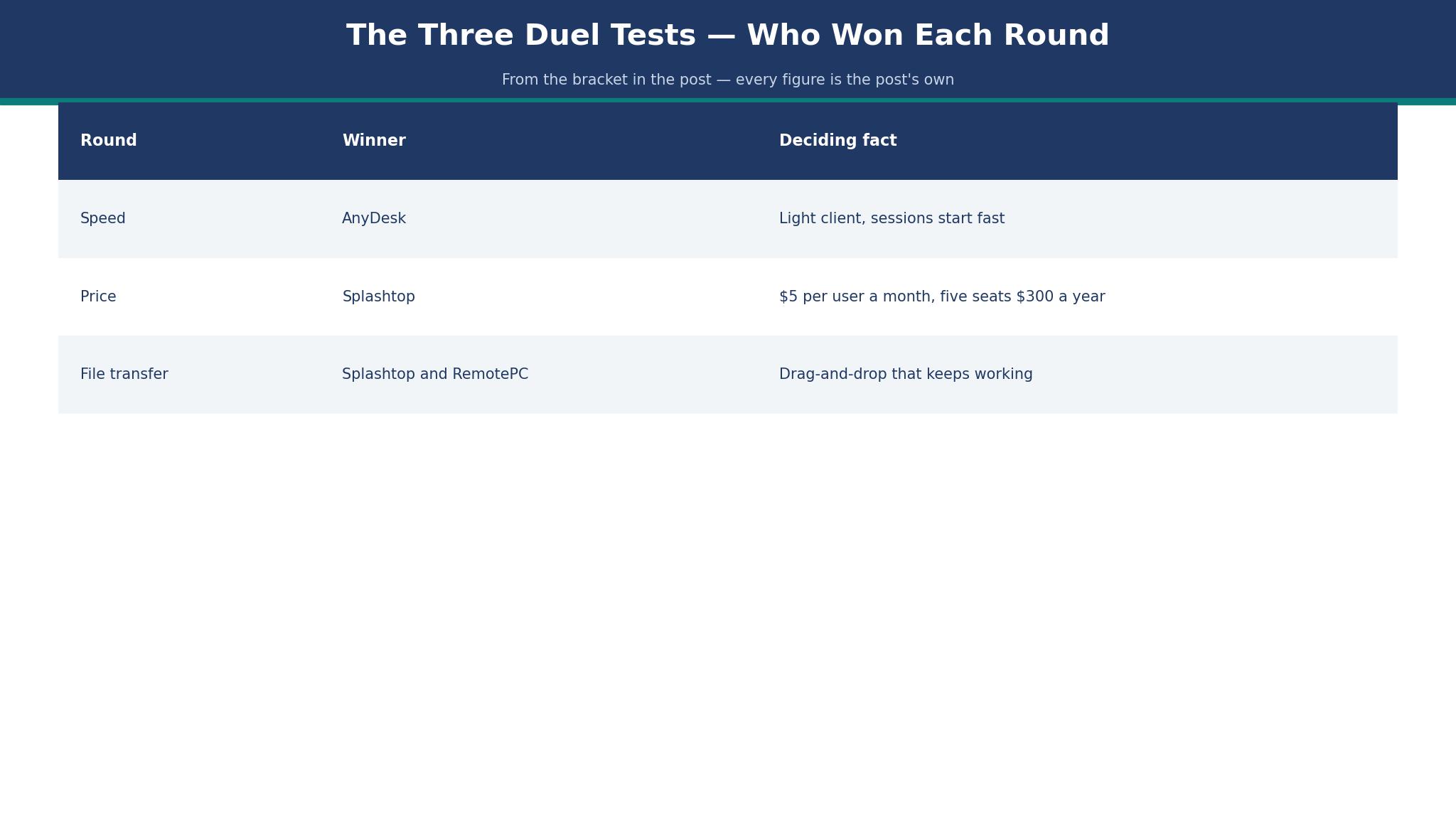
AnyDesk wins the speed round. Its client is light, its sessions start fast, and its Solo plan covers 100 managed devices, which is generous for one licensed user. A technician who jumps between machines all day will feel that lightness in every session, and the nine-digit address makes ad-hoc help simple.
Splashtop wins the price round and the team round. Business Access starts near $5 per user a month, which puts a five-person team at about $25 a month, or $300 a year. The same five seats on AnyDesk Solo pricing would run far higher, and Splashtop adds the SOS support line for help desks that need attended sessions too. The trade-off is a product family that needs a careful read, since Remote Access, SOS and Performance are separate products with separate prices.
What I would do is pick Splashtop for a team and AnyDesk for a solo technician who lives in remote sessions. The solo technician pays for speed and device count, and the team pays for the lowest per-seat bill that still covers unattended access. Either choice beats paying TeamViewer rates for work neither tool does worse.
That is why the best teamviewer alternatives decision comes down to Splashtop for most buyers, with the runner-up winning only when its strength matches the job.
The File Transfer That Decides the Round
File transfer is the quiet test that separates the bracket winners from the early exits. A session that connects fast and then stalls on a 500 MB installer has failed the job, even if the screen looks perfect. The tools that win here move files in the background while the session continues, and they resume after a dropped connection instead of starting over.
RemotePC and Splashtop both handle this well, with drag-and-drop transfer that keeps working while you talk the user through the next step. Chrome Remote Desktop has no transfer workflow worth planning around, which is fine for a quick look at a parent’s laptop and useless for a real fix. RustDesk transfers files too, but the speed depends on the relay you host, so a slow server becomes the bottleneck.
Work the numbers before you choose. A support team that moves one 500 MB file per call, ten calls a week, moves about 20 GB a month through the tool. At 10 Mbps that is roughly 4 hours and 30 minutes of transfer time in a month, and at 50 Mbps it is under an hour. The faster tool does not just save minutes, it saves the appointment after the call.
A buyer comparing best teamviewer alternatives should ask Splashtop this question on the demo, because the answer reveals how the tool handles real work.

Can I Switch to Splashtop Without Losing My Work?
Moving to Splashtop stays safe when it is treated as a planned move rather than a jump, starting with a full export from the old tool before the trial begins. Move the records out of the old remote tool first, open the Splashtop export and check every client and session log, and only then end the old subscription, so no record, client or deadline is lost.
Next, run Splashtop on one live client job instead of a demo, and leave the old remote tool running alongside it for a week. When the first live Splashtop session runs clean, shift the next one over, and when it does not, the old remote tool is still running beside it. Moving one live client job at a time keeps the old remote tool beside Splashtop until every session proves itself.
What Should I Test Before I Pay for Splashtop?
Start with the daily remote work, because Splashtop must handle that well before any extra feature counts. Take a genuine Splashtop job with live client data, clock it from start to finish, and set that time against the old tool. A Splashtop demo account, clean and empty, hides the snags a live client machine exposes on the first real call.
Then probe the Splashtop ceiling, because every remote tool in this guide has one, and the ceiling is where a buyer gets caught out. Drive Splashtop at the exact ceiling that worries you, decide whether the workaround is livable, and ask the vendor what removing that ceiling costs. Catch that Splashtop ceiling in week one, while the trial still lets you walk away.
How Much Will Splashtop Cost in Year Two?
The second year is when Splashtop shows its real price, once the first-year discount, the onboarding fee and the introductory rate have all run out. Put the Splashtop renewal in writing, ask whether the per-user rate climbs as technicians join, and check whether the add-ons you need sit inside the base plan or cost extra.
Anyone who carries the first-year Splashtop price into the second-year budget is in for a shock, while a buyer holding the written renewal figure is not. Get the Splashtop second-year invoice from the vendor before paying anything, set it beside the first-year total, and judge the long-term cost from those two numbers.
Frequently Asked Questions
These answers cover the questions buyers ask most often about best teamviewer alternatives, and the numbers above are the ones to check on the vendor page before buying.
How much do the best teamviewer alternatives cost per month?
Paid plans in this list run from $2.95 a month for RemotePC Solo to about $108 a month per technician for LogMeIn Rescue, with Splashtop at $5 per user a month in the middle. Chrome Remote Desktop and self-hosted RustDesk cost nothing for personal use. The right comparison is the year-one total at your seat count, not the headline monthly figure.
Can I use a TeamViewer alternative for unattended access?
Yes, and most of the paid tools here are built for it. Splashtop, AnyDesk, RemotePC and Zoho Assist all let you reach a machine with nobody sitting at it, once the agent is installed. Chrome Remote Desktop can do it too, but it is a personal tool rather than a business one.
Which alternative is easiest for a non-technical person?
Chrome Remote Desktop is the simplest for a one-off favour, because it only needs a browser extension and a code. For repeat support, Splashtop and AnyDesk are easier, because the agent stays installed and the next session needs no setup at all.
Do these tools work through a home router?
Yes, the mainstream tools in this list connect through a home router without port changes, because they use an outbound connection to the vendor relay. Self-hosted RustDesk is the exception, since the relay you host has to be reachable from outside.
Is there a free TeamViewer alternative for business use?
RustDesk self-hosted is the honest free route for business use, and Chrome Remote Desktop is free for personal use only. The paid tools start low enough, with RemotePC at $2.95 a month, that a free plan is rarely the saving it looks like once support time is counted.
What should I check before I cancel TeamViewer?
Move the unattended machines first, test a reboot and a file transfer on the new tool, and keep TeamViewer active for one overlap week. Check that every machine you need is enrolled, then cancel, because a machine you forgot is a machine you cannot reach.
The Champion, the Runner-Up, and Who Should Still Pick the Loser
Splashtop takes the bracket. It wins on price at $5 per user a month, it covers unattended access properly, and it gives a help desk the SOS line when the job needs attended support. A five-seat team pays about $300 a year, which is a fraction of the TeamViewer bill for the same work.
AnyDesk is the runner-up, and it is the right pick for a solo technician who values speed above all else. Its Solo plan covers 100 managed devices, and its sessions start faster than anything else in this list. The price is higher, and the reported figures disagree, so check the checkout total, but the speed is real.
What I would do with my own money is start on Splashtop Business Access for a month, run the three tests from the opening, and only move to AnyDesk if the sessions feel slow on your slowest machine. Most teams never need to move. The money saved in year one, about $1,500 against a five-seat TeamViewer bill at $24.90 a user, pays for the trial and the training and still leaves change.
That is the short version of this whole best teamviewer alternatives comparison, and Splashtop is the name to remember from it.
One More Thing to Check Before You Buy Splashtop
One more check before buying Splashtop is the support, because a tool is only as good as the help behind it when something goes wrong. Put a genuine question to Splashtop support during the trial, time how long the answer takes, and judge it on whether it fixes the fault or only links a help page. When a remote session breaks at midnight, a Splashtop support desk that replies within hours beats any feature list, however polished it looks.
Plan the Splashtop exit before the entry, since every remote tool is left one day, and leaving should be arranged while joining still feels easy. During the Splashtop trial, pull a sample of your session records out, open the file away from the tool, and see whether it still reads cleanly. A session record that opens away from Splashtop means your history travels, and one that will not open means it stays.