
The best video editing software for youtubers is DaVinci Resolve for most creators, because the full professional editor is free, exports 4K with no watermark and costs nothing until the 295 dollar one time Studio upgrade is needed. A YouTuber who edits every week needs an editor that does not charge rent on the work, and Resolve is the only professional tool in this guide that does that.
A YouTube channel lives or dies on upload rhythm, and the editor is the bottleneck. A tool that is powerful but slow to learn costs a video a week, a tool that is easy but limited costs quality on every upload, and a subscription that rises every year costs money whether the channel grows or not. The right editor is the one that matches the channel size today and still fits when the channel doubles.
This guide compares eight editors on the price over two years, the learning curve, the export quality and the feature that matters most for YouTube, which is captions, Shorts export and long form cutting. The list runs from free tools that are genuinely enough to professional suites worth their subscription.
The 8 Tools at a Glance
Prices below are US list rates checked in October and November 2026. Adobe renamed Premiere Pro to simply Premiere in early 2026, and the software is the same professional editor that cuts a large share of top YouTube channels.
| Tool | Main job | Best for | Starting price |
|---|---|---|---|
| DaVinci Resolve | Professional editing | Creators who want pro tools free | Free, Studio $295 one time |
| Adobe Premiere Pro | Professional editing | Teams and Adobe users | $22.99/mo, annual plan billed monthly |
| Final Cut Pro | Mac editing | Mac creators | $299.99 one time, or $12.99/mo via Apple Creator Studio |
| CapCut | Short form editing | Shorts and beginners | Free, Pro $19.99/mo or $179.99/yr |
| Filmora | Beginner editing | Template driven beginners | Basic $49.99/yr, Advanced $59.99/yr |
| Descript | Transcript editing | Long form talking head creators | Hobbyist $16/mo billed annually |
| Clipchamp | Browser and desktop editing | Windows creators | Premium $9.99/mo via Microsoft 365 Personal |
| Shotcut | Open source editing | Creators who want free and open | Free |
Best Pick by Job
| Job type | First pick | Second tool | Why this pair works |
|---|---|---|---|
| Starting out free | DaVinci Resolve | CapCut | Resolve leads on professional tools for free and CapCut adds the easiest Shorts workflow |
| Shorts and quick edits | CapCut | Filmora | CapCut leads on free captions and vertical export and Filmora adds templates for beginners |
| Long form talking head | Descript | DaVinci Resolve | Descript leads on transcript editing and Resolve adds colour and finishing tools |
| Mac creators | Final Cut Pro | DaVinci Resolve | Final Cut Pro leads on speed on Apple hardware and Resolve adds a free start |
| Professional client work | Adobe Premiere Pro | DaVinci Resolve | Premiere Pro leads on team workflows and Resolve adds a one time price |
The best video editing software for youtubers that fit a YouTuber are the ones that keep the upload schedule, not the ones with the longest feature list. A creator who uploads three times a week needs fast cutting, reliable captions and a one click Shorts export, while a creator who uploads once a month can afford a slower, deeper tool. The tools in this guide are ranked on the weekly workflow first.
Cost over two years separates the free tools from the subscriptions fast. DaVinci Resolve costs 0 dollars, Final Cut Pro costs 299.99 dollars once, Premiere Pro costs about 552 dollars over two years at 22.99 dollars a month, and CapCut Pro costs about 360 dollars over two years at 179.99 dollars a year. A channel that earns little should not rent its editor.
Which video editor is best for a beginner YouTuber?
CapCut is the best pick for a beginner, because the free plan covers captions, templates and a one click vertical export for Shorts, and the Pro plan at 19.99 dollars a month or 179.99 dollars a year adds storage and effects. A new creator can publish a first video the same day, which matters more than colour grading when the channel has ten subscribers. The best video editing software for youtubers that win for beginners are the ones that get a video published, and CapCut does that fastest.
Filmora is the better pick for a beginner who wants a desktop editor with templates. Basic at 49.99 dollars a year is the cheapest paid start in this guide, Advanced at 59.99 dollars a year adds AI tools, and the free version exports with a watermark. A creator who finds CapCut too simple and Resolve too deep will feel at home in Filmora within a week.
DaVinci Resolve is the pick for a beginner who is willing to learn. The free version is a complete professional editor with no watermark and 4K export, and the learning curve is the price. A creator who plans to edit for years should start here, because the skills transfer to paid work, while a creator who wants a video today should start with CapCut.
A buyer who shortlists DaVinci Resolve and Adobe Premiere Pro should run the same test on both, using one real job from last week rather than a demo. Price the test on DaVinci Resolve and Adobe Premiere Pro at the same volume, time the work from start to finish, and ask the person who will use DaVinci Resolve every day which one felt easier. The answer from that test on DaVinci Resolve and Adobe Premiere Pro is worth more than any feature list, because a tool that is easy in a demo can be slow on a real job.

How to Choose the Best Best Video Editing Software For Youtubers
Answer four questions before you pick, because the best video editing software for youtubers that look alike on a download page serve very different channels. Write down your upload frequency, your video length, your computer and your budget, then match the editor to those four facts.
How often do you upload. Three uploads a week needs fast cutting and templates, while one upload a month can use a deeper tool.
How long are your videos. Talking head videos over ten minutes suit Descript transcript editing, while Shorts under a minute suit CapCut.
What computer do you edit on. Mac creators get the fastest export from Final Cut Pro, while Windows and Linux creators get the best free editor in Resolve.
What is your budget over two years. Free tools cost nothing, a one time purchase costs about 300 dollars, and a subscription costs 360 to 550 dollars over two years.
The 8 Tools in Detail
The eight editors below are ordered from the best free professional tool to the free open source option. Prices are US list rates from October 2026.
1. DaVinci Resolve
DaVinci Resolve handles editing, colour grading, Fusion effects and Fairlight audio in one free app with 4K export and no watermark. Free, Studio $295 one time.
The trade off with DaVinci Resolve is the learning curve is steep and the interface can overwhelm a first time editor.
If you are creators who want professional tools without a subscription, DaVinci Resolve is a sensible shortlist entry.
Download the free version and edit one full video in it before considering the Studio upgrade.
Before paying for DaVinci Resolve, run one real job through editing, colour grading, Fusion effects and Fairlight audio in one free app with 4K export and no watermark and check the result against the old way of working.
The value of DaVinci Resolve at free, Studio $295 one time depends on whether the learning curve is steep and the interface can overwhelm a first time editor affects your daily work or only a rare edge case.
Check that creators who want professional tools without a subscription matches the team that will use DaVinci Resolve every day, because a tool that fits the wrong team will sit unused.
2. Adobe Premiere Pro
Adobe Premiere Pro is known for the industry standard editor with team workflows, After Effects and Photoshop integration, and $22.99/mo, annual plan billed monthly.
the subscription costs about 552 dollars over two years and never ends, with no free plan beyond a 7 day trial is the part buyers most often mention after the first month.
Adobe Premiere Pro works best for creators who need room to grow and client work.
Start the 7 day free trial and cut one client video in it before committing to the annual plan.
The first test for Adobe Premiere Pro is a real job that uses the industry standard editor with team workflows, After Effects and Photoshop integration, not a demo with sample data that hides the rough edges.
Adobe Premiere Pro at $22.99/mo, annual plan billed monthly is worth the money only when the subscription costs about 552 dollars over two years and never ends, with no free plan beyond a 7 day trial does not block the workflow you actually run.
The fit for Adobe Premiere Pro is creators who need room to grow and client work, and a buyer outside that group should shortlist a different tool from this guide.
3. Final Cut Pro
For mac editing, Final Cut Pro covers the fastest export on Apple hardware with a magnetic timeline and no subscription. $299.99 one time, or $12.99/mo via Apple Creator Studio.
The weak spot is it runs only on Mac and iPad, so Windows creators cannot use it at all, so check it against your own workflow before paying.
Final Cut Pro suits Mac creators who want a one time purchase.
Use the 90 day free trial on a Mac and export a 4K video to feel the speed before buying.
Try Final Cut Pro on the job you do most often, because the fastest export on Apple hardware with a magnetic timeline and no subscription only earns its price when it is used every day.
At $299.99 one time, or $12.99/mo via Apple Creator Studio, Final Cut Pro is a fair price when it runs only on Mac and iPad, so Windows creators cannot use it at all is a limit you can live with, and a poor price when it is not.
If you are Mac creators who want a one time purchase, Final Cut Pro will feel like it was made for the job, while a buyer outside that group will fight it daily.
4. CapCut
CapCut puts free auto captions, templates and one click vertical export for Shorts at the centre of the product. Free, Pro $19.99/mo or $179.99/yr.
One cost to weigh is the free plan limits storage and effects, and the Pro price varies by platform and region.
The best fit for CapCut is new and growing channels that need free captions and Shorts export.
Use the free plan for a week of Shorts and upgrade to Pro only when storage runs out.
A team that picks CapCut should test free auto captions, templates and one click vertical export for Shorts on a real job in the first week, because that feature is what the price is paying for.
Weigh free, Pro $19.99/mo or $179.99/yr against the free plan limits storage and effects, and the Pro price varies by platform and region before choosing CapCut, because the limit matters more than the headline price.
Check that new and growing channels that need free captions and Shorts export matches the team that will use CapCut every day, because a tool that fits the wrong team will sit unused.
5. Filmora
The core of Filmora is an easy timeline with AI effects and templates for beginners. basic $49.99/yr, Advanced $59.99/yr.
The limit to watch is the free version exports with a watermark and the colour tools are thinner than Resolve.
Buyers who match beginners who want an easy editor with templates get the most from Filmora.
Download the free version and export one video to see the watermark before paying.
Before paying for Filmora, run one real job through an easy timeline with AI effects and templates for beginners and check the result against the old way of working.
The value of Filmora at basic $49.99/yr, Advanced $59.99/yr depends on whether the free version exports with a watermark and the colour tools are thinner than Resolve affects your daily work or only a rare edge case.
The fit for Filmora is beginners who want an easy editor with templates, and a buyer outside that group should shortlist a different tool from this guide.
6. Descript
Choose Descript when editing video by editing a transcript, with Studio Sound cleaning up voice audio matters most to the job. Hobbyist $16/mo billed annually.
Where Descript falls short is the free plan allows one media hour a month at 720p with a watermark, and the price rises fast on higher tiers.
YouTubers editing long form talking head video is where Descript earns its keep.
Use the free plan to edit one talking head video from its transcript and check the time saved.
The first test for Descript is a real job that uses editing video by editing a transcript, with Studio Sound cleaning up voice audio, not a demo with sample data that hides the rough edges.
Descript at hobbyist $16/mo billed annually is worth the money only when the free plan allows one media hour a month at 720p with a watermark, and the price rises fast on higher tiers does not block the workflow you actually run.
If you are YouTubers editing long form talking head video, Descript will feel like it was made for the job, while a buyer outside that group will fight it daily.
7. Clipchamp
Clipchamp handles a simple editor from Microsoft with templates, stock media and cloud export. Premium $9.99/mo via Microsoft 365 Personal.
The trade off with Clipchamp is the best features sit inside a Microsoft 365 subscription, so the standalone value is thinner.
If you are Windows creators who already pay for Microsoft 365, Clipchamp is a sensible shortlist entry.
Try Clipchamp free in the browser and export one video before adding the Premium plan.
Try Clipchamp on the job you do most often, because a simple editor from Microsoft with templates, stock media and cloud export only earns its price when it is used every day.
At premium $9.99/mo via Microsoft 365 Personal, Clipchamp is a fair price when the best features sit inside a Microsoft 365 subscription, so the standalone value is thinner is a limit you can live with, and a poor price when it is not.
Check that Windows creators who already pay for Microsoft 365 matches the team that will use Clipchamp every day, because a tool that fits the wrong team will sit unused.
8. Shotcut
Shotcut is known for a free open source editor with no watermark, no subscription and no account, and free.
the interface is plain, the effects are fewer and support comes from the community rather than a vendor is the part buyers most often mention after the first month.
Shotcut works best for creators who want a free editor with no strings attached.
Download Shotcut free and cut one video in it to see whether the plain interface suits you.
A team that picks Shotcut should test a free open source editor with no watermark, no subscription and no account on a real job in the first week, because that feature is what the price is paying for.
Weigh free against the interface is plain, the effects are fewer and support comes from the community rather than a vendor before choosing Shotcut, because the limit matters more than the headline price.
The fit for Shotcut is creators who want a free editor with no strings attached, and a buyer outside that group should shortlist a different tool from this guide.
DaVinci Resolve vs Premiere Pro: which one should a YouTuber choose?
DaVinci Resolve and Premiere Pro are the two professional editors most YouTubers compare, and the choice turns on price and ecosystem. Resolve is free with a 295 dollar one time Studio upgrade, exports 4K with no watermark and includes colour, effects and audio in one app, while Premiere Pro costs 22.99 dollars a month on an annual plan, about 552 dollars over two years, and sits inside the Adobe ecosystem with After Effects and Photoshop.
The best video editing software for youtubers that fit a YouTuber are the ones that keep the channel profitable. A creator who earns 500 dollars a month from YouTube pays 22.99 dollars of it to Adobe every month, while the same creator pays nothing to Blackmagic Design after the one time Studio purchase. Premiere Pro earns its price when the channel needs team editing, shared projects or an Adobe workflow that a client demands.
Pick Resolve when the channel is solo, the budget is tight and colour quality matters, pick Premiere Pro when the work involves a team, a client who uses Adobe or a workflow that already runs on Creative Cloud, and pick Final Cut Pro when the edit happens on a Mac and speed matters most. Try the free version of Resolve first, because it costs nothing to find out whether it fits.
Is DaVinci Resolve really free for YouTube?
Yes, the free version of DaVinci Resolve is a complete professional editor with no watermark and 4K export, and it covers editing, colour, effects and audio in one app. The best video editing software for youtubers that claim to be free often watermark exports or cap resolution, but Resolve does neither, which is why it is the best value in this guide.
The Studio upgrade at 295 dollars one time adds AI tools, noise reduction, HDR tools and multi GPU rendering, plus 8K export. Most YouTubers never need those features, because 4K export and the free colour tools already exceed what YouTube viewers can see. Buy Studio only when a specific feature on its list is missing from a real project.
The cost that remains is the computer. Resolve needs a capable machine for 4K editing, and a slow computer will feel slower in Resolve than in CapCut or Filmora. Check the system requirements against your machine before downloading, because the editor is free but the hardware is not.
The second test on DaVinci Resolve and Adobe Premiere Pro is the bill at your real volume. Take the price of DaVinci Resolve and the price of Adobe Premiere Pro, multiply each by the users, clients or parcels you actually have, and add the add ons that the job needs. A tool such as DaVinci Resolve that is cheaper at one user can be more expensive at ten, and Adobe Premiere Pro that looks expensive can be cheaper once the add ons are counted. Run the numbers for DaVinci Resolve and Adobe Premiere Pro for three months, not one, because the first month often hides a setup fee or a free trial.
What is the cheapest good video editor for YouTube?
Filmora Basic at 49.99 dollars a year is the cheapest paid start in this guide, followed by Clipchamp Premium at 9.99 dollars a month through Microsoft 365 Personal and Descript Hobbyist at 16 dollars a month billed annually. DaVinci Resolve and Shotcut cost nothing at all, and CapCut is free for most everyday edits.
The cheapest paid editor is not always the cheapest way to publish. A creator who pays 49.99 dollars a year for Filmora and then pays again for captions or stock media can spend more than a creator who uses Resolve free and CapCut free together. Add up every tool the channel uses before choosing the cheapest one.
For a new channel, the best value is Resolve free for long form videos and CapCut free for Shorts. That pair costs nothing, covers every format YouTube needs and leaves the whole budget for a microphone, which improves a video more than any editor upgrade.
The third test on DaVinci Resolve and Adobe Premiere Pro is the exit. Ask how the data leaves DaVinci Resolve and how it leaves Adobe Premiere Pro, whether the export keeps the full history, and what happens to the price of DaVinci Resolve when the team grows by half. A tool such as Adobe Premiere Pro that locks the data in is a tool that will cost more to leave than to join, and a buyer who checks the exit on DaVinci Resolve before signing never has to pay that cost. Keep the old tool running for a month after the switch to Adobe Premiere Pro, so a failed migration has somewhere to go.
A weekly upload workflow that keeps a channel on schedule
A channel that uploads on schedule grows faster than a channel that uploads when it feels ready, and the workflow below protects the schedule. Record on Monday, cut the rough edit on Tuesday, add captions and the thumbnail on Wednesday, and publish on Thursday with the Shorts cut the same day. The best video editing software for youtubers that keep a schedule are the ones with a fixed day for each job, because a video without a deadline slips by a week.
Batch the repetitive work. Cut three Shorts from one long video in the same session, write the titles and descriptions for the week in one sitting, and keep a template project with the intro, the outro and the caption style already set. A template saves an hour on every video, and an hour a week is 52 hours a year.
Review the numbers every month, not every video. Watch time, click through rate and subscriber growth over four weeks tell the truth, while one video that underperforms tells nothing. Change one thing at a time, the thumbnail, the title or the opening thirty seconds, and keep the change for a month before judging it.
The final check on DaVinci Resolve and Adobe Premiere Pro is support when something breaks. Send a question to DaVinci Resolve and the same question to Adobe Premiere Pro on a normal working day, and time the reply from each. A tool such as DaVinci Resolve with a slow reply will cost a day of work when the system fails at the worst moment, while Adobe Premiere Pro with a fast reply will cost an hour. Support quality on DaVinci Resolve and Adobe Premiere Pro is part of the price, even when it is not printed on the pricing page.
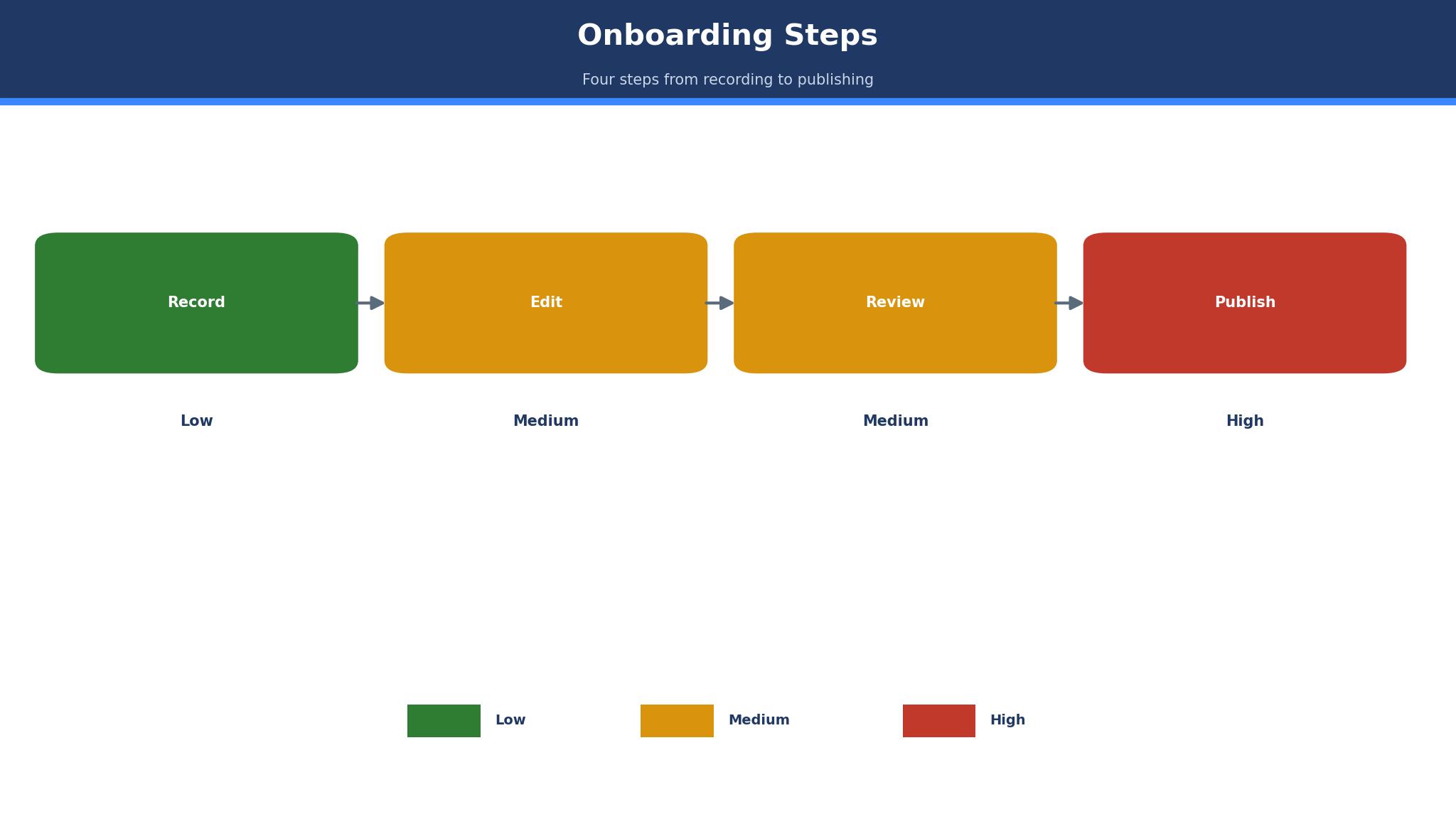
- Record on Monday, cut on Tuesday, add captions and thumbnail on Wednesday, publish on Thursday
- Cut three Shorts from each long video in the same editing session
- Keep a template project with intro, outro and caption style already set
- Review watch time and click through rate monthly, not after every video
- Change one thing at a time and keep it for a month before judging the result
Frequently Asked Questions
Which video editor do most YouTubers use?
For the best video editing software for youtubers, DaVinci Resolve and Adobe Premiere Pro are the two most used professional editors, with CapCut the most used for Shorts. Resolve is free, Premiere Pro is 22.99 dollars a month, and CapCut Pro is 19.99 dollars a month.
Is Final Cut Pro better than Premiere Pro?
Final Cut Pro is faster on a Mac and costs 299.99 dollars once, while Premiere Pro costs 22.99 dollars a month and works on Windows and Mac with team features. Mac only creators usually pick Final Cut Pro, and cross platform teams pick Premiere Pro.
Can I edit YouTube videos for free?
Yes. DaVinci Resolve is free with 4K export and no watermark, CapCut is free for most edits, and Shotcut is free and open source. A new channel can publish professional videos without paying for an editor.
Does CapCut put a watermark on videos?
No, CapCut exports without a watermark on the free plan for most edits. Some premium templates and effects need the Pro plan at 19.99 dollars a month, but the core editor and captions are free.
What editor is best for YouTube Shorts?
CapCut is the best editor for Shorts, because the free plan covers auto captions, templates and a one click vertical export. Filmora is the next best pick for beginners who want a desktop editor with templates.
Is Descript good for YouTube?
Yes, for long form talking head videos. Descript Hobbyist is 16 dollars a month billed annually and lets you edit video by editing a transcript, with Studio Sound cleaning up voice audio. The free plan allows one media hour a month at 720p with a watermark.
The editor to start with
DaVinci Resolve is the best video editing software for youtubers for most creators, because the free version is a complete professional editor and the 295 dollar Studio upgrade is a one time payment. The best video editing software for youtubers that win are the ones that do not charge rent on the work, and Resolve is the only professional tool in this guide that does that.
CapCut is the pick for Shorts, Descript is the pick for long talking head videos, and Final Cut Pro is the pick for Mac creators who want speed. Start with Resolve free and CapCut free together, publish for a month, and only pay for an editor when a specific feature is missing from a real video.