
A 60 dollar webcam with good lighting beats a 300 dollar webcam with terrible lighting. That sentence, repeated by reviewers who test webcams daily, is the most useful buying advice for the best webcam for remote work meetings, because meetings are judged by clarity, framing, and light, not by resolution numbers alone. Zoom and Teams both cap most meeting video at 1080p, which means a 4K webcam sensor is downscaled for most calls, and its advantage appears mainly when video is cropped, recorded, or reused for content.
A sharp 1080p webcam, placed at eye level, facing a window or a soft light, with a clean background and a decent microphone or a separate mic, will look more professional than a 4K camera placed below chin level in a dark room. If you are looking for the best webcam for remote work meetings, start with light, position, and framing, and let the camera choice follow those basics, not replace them.
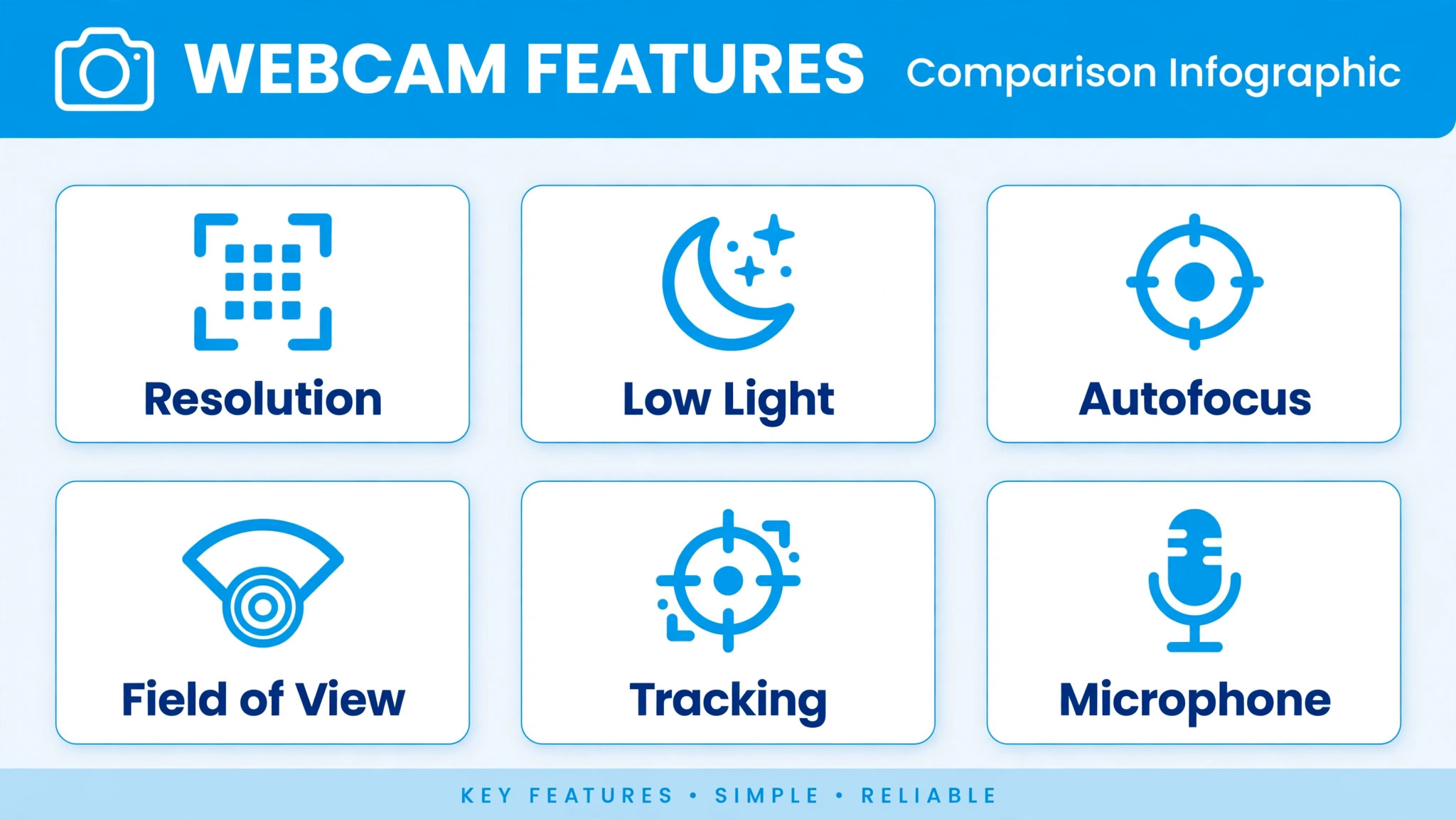
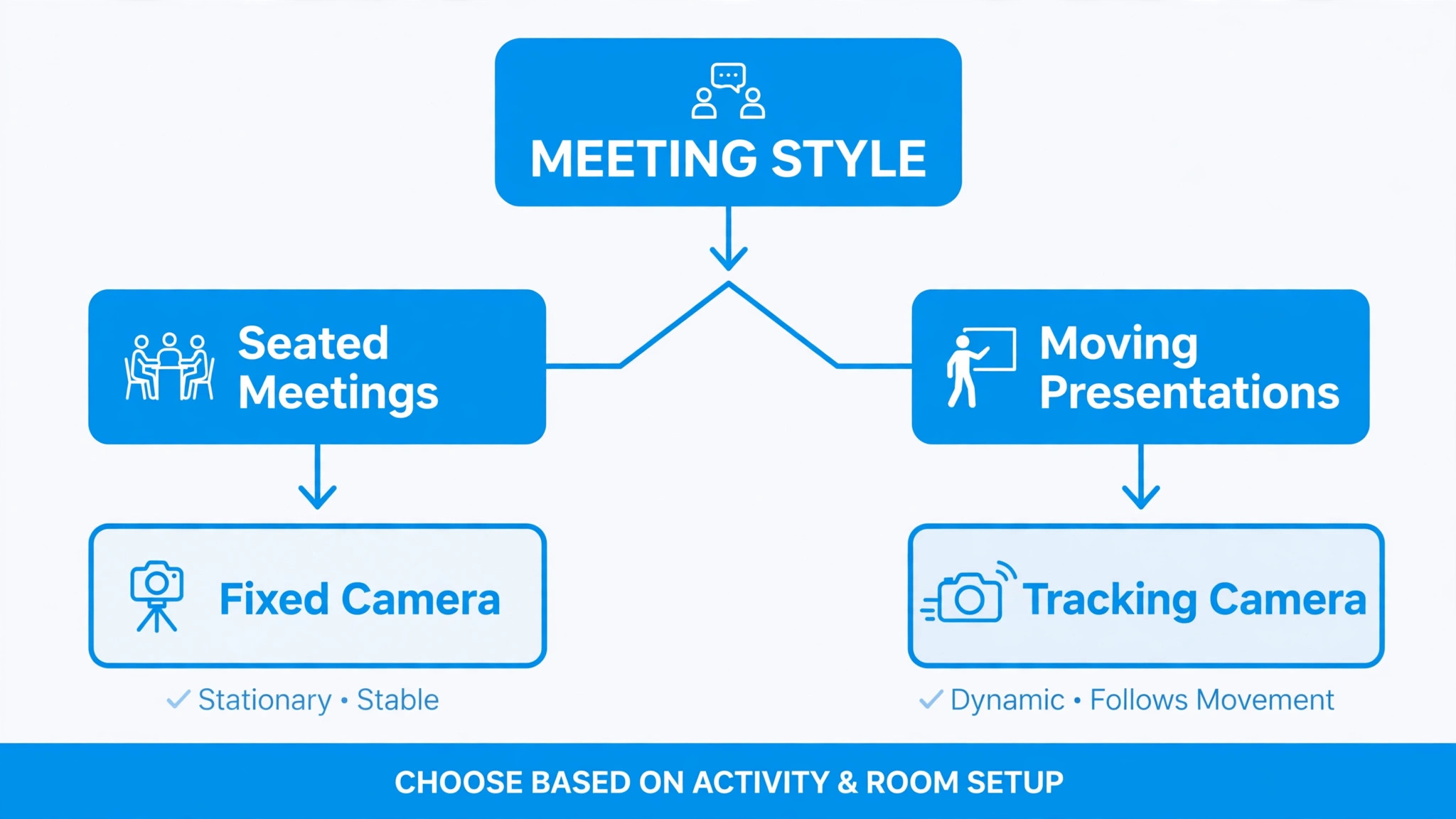
Webcam choice still matters, because sensor size, autofocus, low light performance, field of view, and software control decide how forgiving the camera is when light and position are imperfect. A larger sensor gathers more light in dim rooms, autofocus keeps a moving presenter sharp, a wider field of view fits a whiteboard or a second person, and a narrower field keeps focus on one presenter without showing a messy room. AI framing and tracking, found on newer smart cameras, keep a moving presenter centred, which helps trainers, interviewers, and presenters who stand and move, but which can distract in a standard seated meeting if tracking is jumpy.
This guide compares eight webcams across budgets, with real prices and specs from published 2026 comparisons, and a specific reason to skip each one, so you can match camera to meeting style rather than to a resolution badge.
How to Choose a Webcam for Remote Meetings
Resolution is the least important number for most meetings, once 1080p is reached. A 1080p webcam at 30 frames per second is sufficient for Zoom and Teams, which cap meeting video near 1080p, and higher frame rates matter mainly for fast movement or content recording. A 4K webcam helps when you record meetings for reuse, crop the frame for a tighter shot, or present in a large room where detail matters, but it does not make a standard call look four times better, because the meeting platform compresses video heavily anyway. Spend on sensor quality, low light performance, and autofocus before spending on 4K, unless recording and cropping are core to your work.
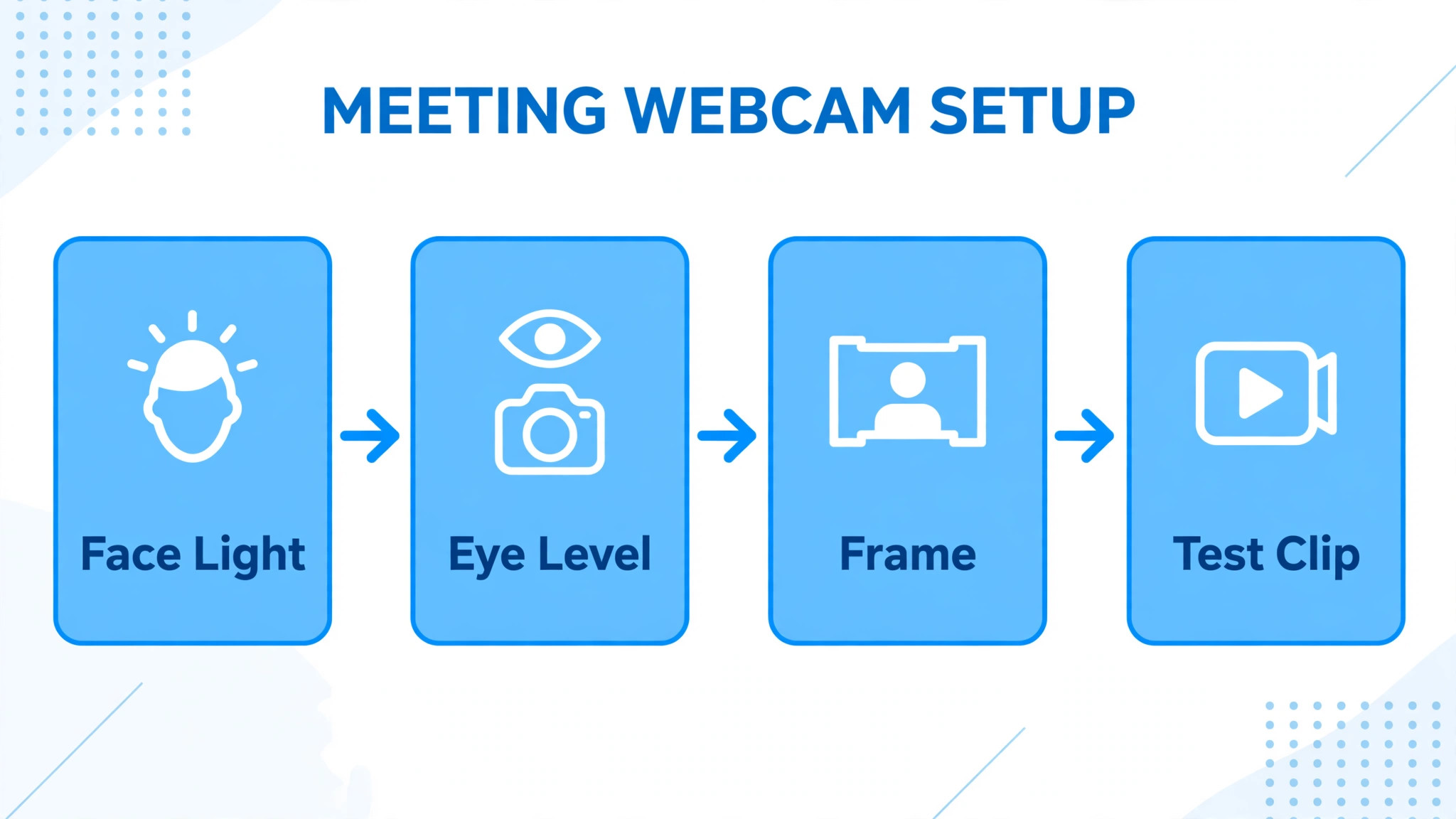
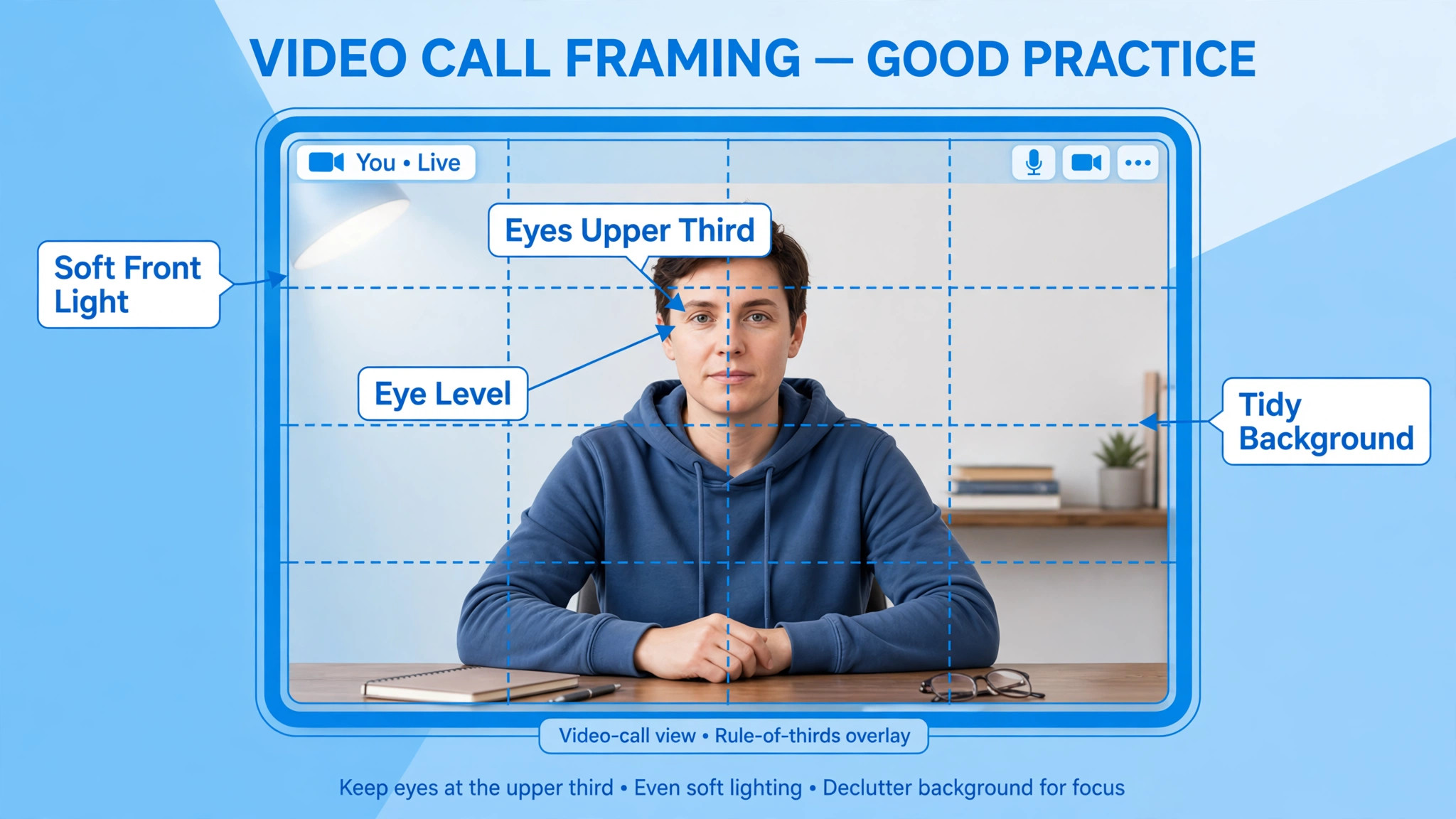
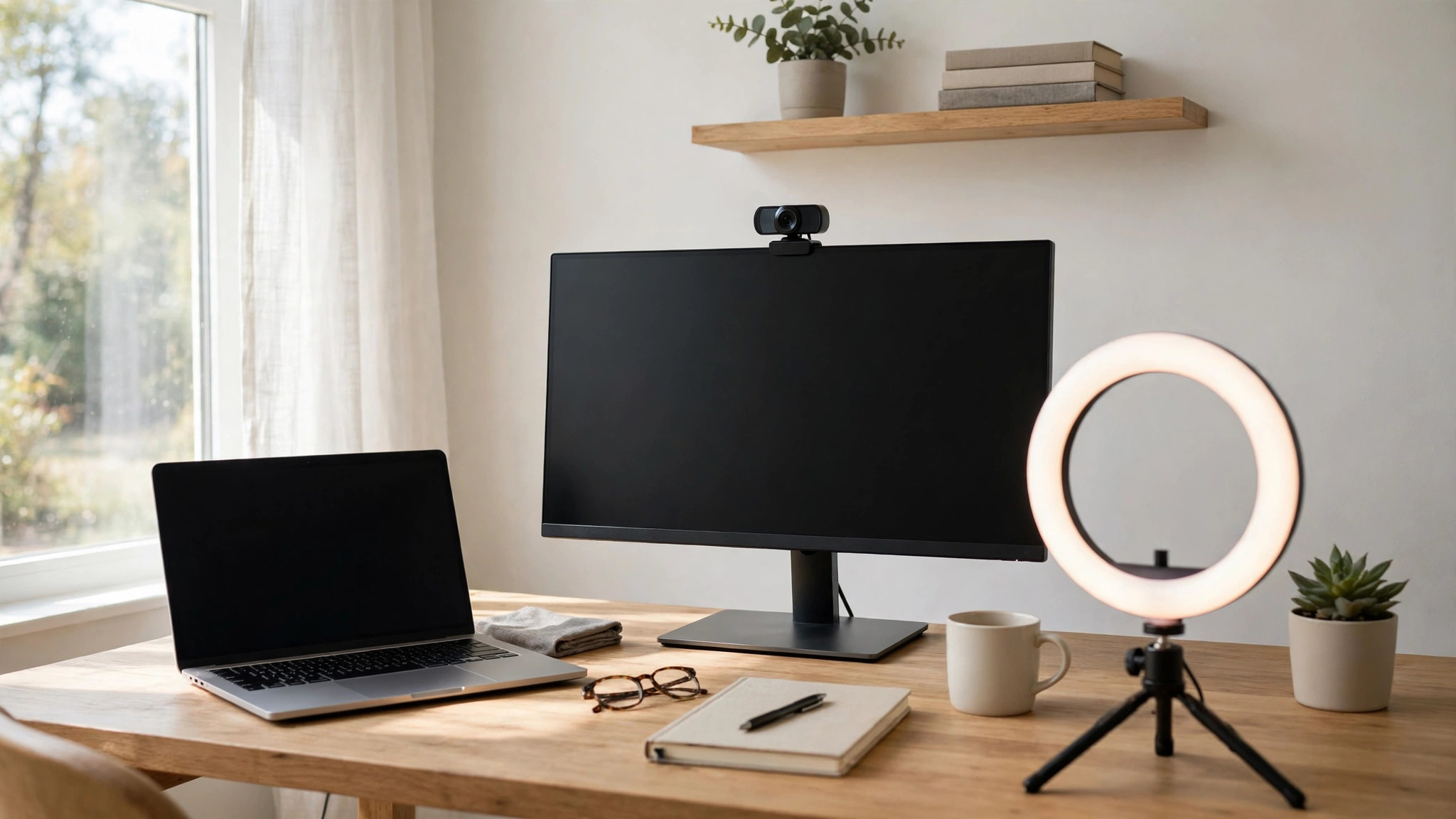
Lighting is the highest return investment, and it costs less than most webcam upgrades. Sit facing a window for soft natural light, or place a soft lamp or ring light in front of you, slightly above eye level, so light falls on your face rather than from behind you. Avoid a bright window behind you, which turns you into a silhouette, and avoid overhead only lighting, which casts shadows under eyes. A 20 to 40 dollar light, positioned correctly, will improve a 60 dollar webcam more than a 200 dollar webcam upgrade will improve a dark room.
Test lighting by recording a short clip and watching it on a phone, since a clip reveals shadows and colour problems that a mirror hides.
Position and framing complete the basics. Place the camera at eye level or slightly above, not below chin level looking up, since a low angle is unflattering and distracting. Frame from mid chest to just above the head, with eyes near the upper third of the frame, and leave a little headroom without showing excessive ceiling. Look at the camera when speaking, not at faces on screen, since eye contact with the camera reads as eye contact to viewers. A stack of books under a laptop, a monitor arm, or a small tripod can raise a camera to eye level cheaply, and that positioning change alone often improves perceived professionalism more than any camera upgrade.
Field of view, autofocus, and microphone quality are the camera features that matter daily, and they separate a good choice for the best webcam for remote work meetings from a camera that merely lists a high resolution. A field of view near 78 degrees suits a single presenter at a desk, while 90 degrees and wider suits two people or a whiteboard, but also shows more room mess. Autofocus keeps you sharp when you lean forward and back, while fixed focus suits a presenter who sits still at a fixed distance. Webcam microphones, even good ones, rarely match a dedicated microphone, so budget for a separate mic or headset if audio matters, which it does for every meeting.
A webcam with a good mic is a bonus, not a replacement for a proper audio setup, and reviewers consistently note that even excellent webcam mics sound thinner than a dedicated mic.
Best Webcam for Remote Work Meetings Compared in Eight Models
| Webcam | Resolution and frame rate | Sensor and field | Price noted | Best for |
|---|---|---|---|---|
| Logitech C920x | 1080p at 30 fps | Autofocus, 78 degree field | 60 to 70 dollars | Everyday conferencing, reliable default |
| OBSBOT Meet SE | 1080p up to 100 fps | 1 over 2.8 inch sensor, AI framing | 69 dollars | Budget AI framing, compact design |
| Anker PowerConf C200 | 2K at 30 fps | 1 over 2.7 inch sensor, adjustable field | 60 to 70 dollars | Adjustable framing, great value |
| Logitech Brio 300 | 1080p at 30 fps | Simple design, USB-C | 70 dollars | No frills simplicity, sustainable design |
| Logitech Brio 500 | 1080p at 30 fps | Auto framing, RightLight 4, Show Mode | 129 dollars | Show Mode, upgraded 1080p |
| Insta360 Link 2 | 4K at 30 fps | 1 over 2 inch sensor, gimbal tracking | 199 dollars | Presenters, gimbal tracking |
| Logitech MX Brio | 4K at 30 fps | Large sensor, low light strength | 199 dollars | Low light, recording, premium 1080p calls |
| OBSBOT Tiny 3 | 4K at 30 fps, 1080p at 120 fps | 1 over 1.28 inch sensor, AI tracking, tri mic | 349 dollars | AI tracking, best tracking and audio |
Prices are published 2026 comparison snapshots and move with sales, so confirm the current price and exact model before ordering. Several models have close variants, such as C920, C920x, and C920s, or Brio 100, 300, and 500, which differ in shutter, mount, software, or bundle, so check the exact model number, not just the family name. A webcam bought under a similar name with different features can disappoint, even when reviews praised the family in general.
Logitech C920x, the Reliable Default
The Logitech C920x, at 60 to 70 dollars, is the reliable default that works with everything, with 1080p video at 30 frames per second, autofocus, dual microphones, a 78 degree field of view, and a privacy shutter on some variants. Its out of box colour balance and exposure are consistently praised, its autofocus is fast enough for seated meetings, and its articulating stand fits monitors and tripods. For a remote worker who wants a plug and play camera that simply works on Zoom, Teams, Meet, and every other platform, without app fuss, this is the best webcam for remote work meetings on reliability alone.
Skip it if you need 4K recording, AI framing, a wider field, or the latest low light performance, since the C920x sensor and feature set date from an earlier generation and newer budget models now beat it on image quality for similar money. Reviewers in 2026 note that the OBSBOT Meet SE significantly outperforms the similarly priced C920 on image quality, features, and compact design, which makes the C920x a safe choice rather than a leading choice. Buy it when compatibility and simplicity matter most, when you already know its software, or when it appears at a clear discount below newer rivals.
OBSBOT Meet SE, the Budget Image Quality Leader
The OBSBOT Meet SE, at 69 dollars, offers 1080p video up to 100 frames per second, a 1 over 2.8 inch sensor, AI autofocus and auto framing, gesture controls, and a compact design in three colours, delivering image quality that reviewers rank above the C920 at a similar price. Its low light performance, colour, and framing features make it feel like a newer generation camera, and its small size sits unobtrusively on a monitor. For a remote worker who wants the best image per dollar in 2026, without paying for 4K, this is a compelling new default, and TechRadar style testing ranks it as the best webcam overall for value.
Skip it if you need 4K resolution, since it is fixed at 1080p and loses to 4K rivals for recorded or cropped video, and skip it if gesture controls annoy you, though they can be turned off in OBSBOT software. Also skip it if you want the absolute cheapest reliable option, since cheaper Brio models and older C920 variants undercut it on sale, even if image quality is lower. Buy the Meet SE when image quality per dollar matters most, when you present seated or with light movement, and when you are comfortable installing maker software to access framing features.
Anker PowerConf C200, the Adjustable Value Pick
The Anker PowerConf C200, at 60 to 70 dollars, offers 2K resolution at 30 frames per second, a 1 over 2.7 inch sensor, adjustable field of view, and autofocus, giving flexible framing for single presenters and small groups alike. Its 2K sensor provides extra detail over 1080p for calls that support it, and its adjustable field lets you tighten framing for solo work or widen it for a whiteboard or a colleague beside you. For a remote worker who wants versatility without paying for 4K or AI tracking, this is a strong value pick that covers more meeting situations than a fixed field camera.
Skip it if you need AI tracking, gimbal movement, or premium low light performance, since the C200 is a fixed position camera with good but not leading sensor performance. Also check software and firmware support for your platform, since Anker camera software varies by model and region, and some features need the maker app to configure. Buy it when adjustable framing and 2K detail matter, when you work in varied meeting setups, and when you want a step up from basic 1080p without stepping up to 150 dollars and beyond.
Logitech Brio 300, the Simple 1080p Pick
The Logitech Brio 300, at 70 dollars, offers 1080p video at 30 frames per second, USB-C, a simple design, and sustainable materials, with a focus on straightforward conferencing without app complexity. Its image quality is solid for everyday calls, its USB-C connection suits modern laptops, and its privacy shutter gives confidence when the camera is not in use. For a remote worker who wants a modern, no fuss 1080p camera at a fair price, with no interest in AI features or 4K, this is a clean choice that avoids feature overload.
Skip it if you need the best image quality at this price, since the OBSBOT Meet SE beats it on sensor and features for similar money, and skip it if you need auto framing or Show Mode, which belong to the Brio 500 at a higher price. Also skip it if you need a tripod mount flexibility beyond the standard clip, and check shutter and mount details for the exact variant, since Brio family models differ in those details. Buy the Brio 300 when simplicity, USB-C, and Logitech compatibility matter, and when you prefer a camera that works without extra software.
Logitech Brio 500, the Upgraded 1080p Pick
The Logitech Brio 500, at 129 dollars, upgrades 1080p conferencing with auto framing, RightLight 4 low light correction, Show Mode for desk documents, and a privacy shutter, while keeping 1080p resolution for standard meetings. Show Mode, which tilts the camera down to show documents or objects on a desk, is genuinely useful for trainers, teachers, and anyone who demonstrates objects or handwriting during calls, and it is a distinctive reason to consider this model when hunting for the best webcam for remote work meetings. Auto framing keeps a moving presenter centred, and RightLight improves dim room performance, which together make the Brio 500 a smarter 1080p camera than its cheaper siblings, even without 4K.
Skip it if you need 4K recording or the best low light performance, since 4K rivals at 199 dollars beat it for recorded video, and skip it if Show Mode and auto framing do not match your meeting style, since you would pay a premium for features you rarely use. Also skip it if budget is tight, since the Meet SE and C200 deliver similar call quality for about half the price. Buy the Brio 500 when Show Mode is a daily need, when auto framing helps your presentation style, or when you want a premium 1080p experience without paying for 4K you will not use.
Insta360 Link 2, the Gimbal Presenter Camera
The Insta360 Link 2, at 199 dollars, brings gimbal tracking to remote meetings, with a 4K sensor at 30 frames per second, a 1 over 2 inch sensor, AI tracking, gesture control, and a compact gimbal design that follows a moving presenter smoothly. For trainers, teachers, and presenters who stand, move, gesture, and demonstrate, gimbal tracking keeps them framed without a camera operator, which transforms presentation quality compared with a fixed camera. Its image quality in good light is strong, its tracking is smooth rather than jumpy, and its desk and tripod mounting options suit varied presentation setups.
Skip it if you sit still for standard seated meetings, since gimbal tracking adds little to a seated call and can distract if it moves unnecessarily, and skip it if budget is tight, since fixed cameras at half the price serve seated meetings equally well. Also check software compatibility and privacy preferences, since AI tracking and gesture features need maker software and raise questions for some workplaces about camera movement and data. Buy the Link 2 when presentation movement is core to your work, when you teach or train live, and when smooth tracking will be used daily rather than occasionally.
The Logitech MX Brio, at 199 dollars, is a 4K webcam built for low light and recording, with a large sensor, 4K at 30 frames per second, and strong low light performance that reviewers rank among the best for dim home offices. Its image quality in good light is excellent, its low light noise handling beats most rivals, and its 4K recording quality suits creators who reuse meeting video for content. For a remote worker in a dim room, or a creator who records calls for content, the MX Brio justifies its premium over 1080p models with sensor quality that survives compression and low light better than smaller sensor rivals.
Skip it if your meetings are standard seated calls in good light, since a 60 to 70 dollar webcam plus a light will look nearly as good for a fraction of the price, and skip it if you need AI tracking or gimbal movement, which belong to Insta360 and OBSBOT tracking models. Also skip it if your computer struggles with 4K processing, since 4K video taxes older machines, and most meetings downscale it to 1080p anyway. Buy the MX Brio when low light, recording quality, or premium image consistency matters daily, and when budget allows a sensor upgrade over a lighting upgrade alone.
OBSBOT Tiny 3, the AI Tracking Flagship
The OBSBOT Tiny 3, at 349 dollars, is the AI tracking flagship, with 4K at 30 frames per second, 1080p at 120 frames per second, a 1 over 1.28 inch sensor, AI tracking, gesture control, and a tri microphone array, delivering the most capable meeting camera in this guide for presenters and content creators. Its large sensor handles low light well, its tracking follows movement smoothly, its slow motion and high frame rate options suit content recording, and its microphone array, while still behind a dedicated mic, is among the best built into a webcam.
For a professional presenter, trainer, or creator who needs tracking, 4K, and premium image in one device, the Tiny 3 is the most complete package available.
Skip it if you sit for standard meetings, since tracking, 4K, and high frame rates add little to a seated call and the price is five times a good budget webcam. Also skip it if your workplace restricts AI camera features or maker software, and check that your computer and meeting platform support its modes, since some features need OBSBOT software to configure. Buy the Tiny 3 when presenting and recording are your job, when tracking will be used daily, and when a single premium camera must replace a multi camera setup for movement, detail, and audio.
Rejection Reasons and Lighting First Buying
Each webcam has a clear skip reason, and those reasons prevent the most common meeting camera regret, which is paying for resolution while ignoring light, position, and sensor quality. Skip the C920x if image leadership matters more than reliability. Skip the Meet SE if 4K recording matters. Skip the C200 if tracking or premium low light matters. Skip the Brio 300 if image leadership at the price matters. Skip the Brio 500 if 4K or budget matters more than Show Mode. Skip the Link 2 if you sit still. Skip the MX Brio if good light and standard calls are your norm. Skip the Tiny 3 if seated meetings are your norm and budget matters.
A webcam bought against its skip reason will disappoint, even if reviewers praised it for a different meeting style.
Lighting setup for remote work is simple and repeatable. Face a window or a soft light, place the light slightly above eye level and in front of you, avoid backlight, and test with a recorded clip before important meetings. A ring light or panel light, costing 20 to 40 dollars, placed at arm length, with adjustable brightness and colour temperature, will transform most webcams. Set colour temperature to match room light, avoid mixing warm and cool lights that create colour casts, and keep the background simple and uncluttered, since a busy background distracts more than a slightly softer camera ever will.
Lighting and background together decide perceived professionalism more than resolution, and they cost less than any webcam upgrade in this guide.
Setup Checklist, Background, and Mistakes
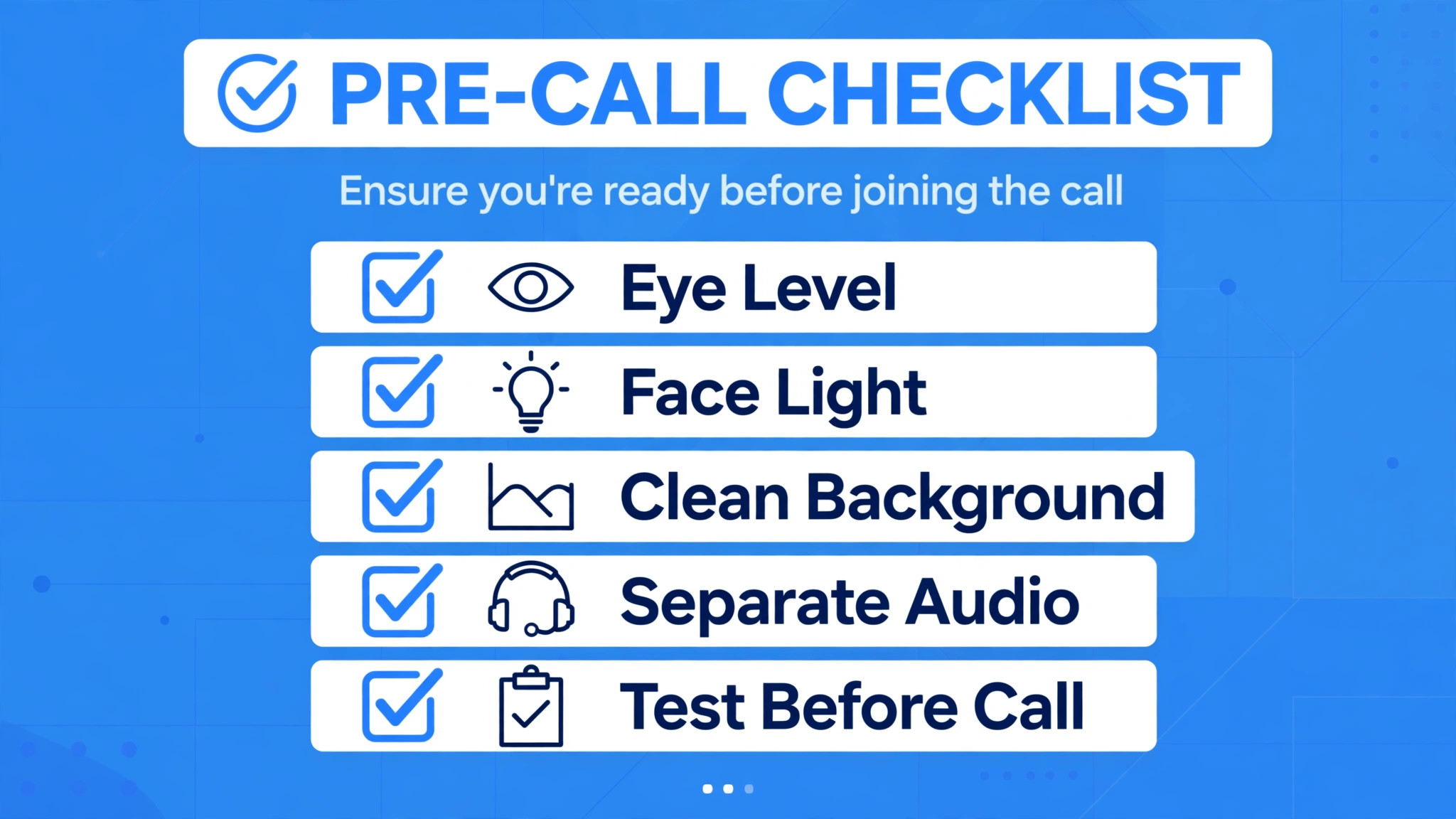
- Place the camera at eye level, frame mid chest to just above head, eyes near upper third.
- Face a window or soft light, avoid backlight, test with a recorded clip before important calls.
- Choose a clean background, or a subtle virtual background if the room cannot be tidied, and test virtual background edge quality.
- Use a separate microphone or headset for important calls, since webcam mics sound thinner than dedicated mics.
- Close bandwidth heavy apps during calls, use a wired connection where possible, and test audio and video before the meeting starts.
- Update webcam firmware and maker software, and check privacy shutter use between meetings for confidence.
- Look at the camera when speaking, and keep notes near the camera so eye movement stays natural.
Background choices deserve the same care as camera choice. A plain wall, a bookshelf, or a tidy office background looks professional and distracts least, while a messy room, a bright window behind you, or a virtual background with poor edge detection distracts viewers and undermines credibility. If a virtual background is necessary, choose a simple office image, test edge quality with movement, and ensure lighting is even, since uneven light breaks virtual background detection. A physical background that you can control beats a virtual background that glitches, and a few minutes tidying before a call pays off for every meeting that week.
Mistakes remote workers make with webcams follow a pattern. The first mistake is placing the camera below chin level, looking up, which is unflattering and distracting, and which a book stack or tripod fixes in seconds. The second mistake is sitting with a bright window behind, creating a silhouette, which facing the window or closing curtains fixes immediately. The third mistake is buying 4K for standard calls, then discovering meetings cap at 1080p and the upgrade made little visible difference, while a light would have transformed the image. The fourth mistake is ignoring audio, assuming a webcam mic suffices for important calls, when a dedicated mic or headset improves perceived professionalism more than any camera upgrade.
Fix light, position, background, and audio first, then choose a camera to match the improved setup.
More Reading for Remote Work Gear
If a webcam choice is clearer now, the wider remote work guides on Stratilyze cover the rest of the desk. The guide to a desk lamp for eye strain helps you light the desk without glare, the guide to headphones for online teaching helps you choose meeting audio, the guide to a keyboard for programming beginners covers comfortable typing for long days, and the guide to a chair for long study sessions covers seating for long calls. Read the headphones guide next if meeting audio affects your calls, since audio quality influences perceived professionalism as much as video, and a good headset often matters more than a camera upgrade.
Frequently Asked Questions
What is the best webcam for remote work meetings overall?
For most remote workers, a sharp 1080p webcam with good low light performance and autofocus, such as the OBSBOT Meet SE at 69 dollars or the Logitech C920x at 60 to 70 dollars, is the best overall value, because meetings cap at 1080p and both deliver reliable call quality. For presenters who move, the Insta360 Link 2 at 199 dollars with gimbal tracking is a strong upgrade, while the best webcam for remote work meetings for low light and recording is the Logitech MX Brio at 199 dollars. Choose by meeting style, using the setup checklist, rather than by resolution alone.
Do I need a 4K webcam for Zoom or Teams meetings?
No, not for standard calls. Zoom and Teams cap most meeting video near 1080p, so a 4K webcam is downscaled for live calls, and its advantage appears mainly for recorded video, cropped framing, or content reuse. That cap is central to choosing the best webcam for remote work meetings, since it shifts value from resolution to sensor and light. A good 1080p webcam with a light and correct position will look better on a live call than a 4K webcam in a dark room. Buy 4K only if you record meetings for content, crop the frame regularly, or need premium low light sensor quality for a dim room.
How do I improve webcam quality without buying a new camera?
Face a window or a soft light, raise the camera to eye level, frame mid chest to just above head, clean the background, and test with a recorded clip. A 20 to 40 dollar light, a book stack to raise a laptop, and a tidy background will improve most webcams more than a camera upgrade. Also close bandwidth heavy apps, use a wired connection where possible, and update firmware, since network and software problems often masquerade as camera quality problems.
Is AI tracking worth it for remote meetings?
AI tracking is worth it for presenters, trainers, and teachers who stand and move during live sessions, since it keeps them framed without a camera operator. For standard seated meetings, tracking adds little and can distract if it moves unnecessarily, so a fixed camera at lower cost serves seated work better. Choose tracking when movement is daily and core to your work, and choose a fixed camera when you sit still for most calls, since budget saved can fund lighting and audio instead.
Should I use a webcam microphone or a separate microphone?
Use a separate microphone or headset for important calls, since webcam microphones, even good ones, sound thinner and pick up more room noise than a dedicated microphone. Webcam mics suffice for casual calls, quick check ins, and backup audio, but they should not carry client meetings, interviews, or presentations where audio credibility matters. A dedicated mic or headset is often a better investment than a webcam upgrade, and it improves perceived professionalism immediately.
How do I stop looking dark on video calls?
Sit facing a light source, not with a bright window behind you, which creates a silhouette. Place a soft lamp or ring light in front of you, slightly above eye level, and set brightness to match room light, so your face is lit evenly. Close curtains behind you if backlight cannot be avoided, and test with a recorded clip, since a clip reveals silhouette and shadow problems that a mirror hides. If the room is very dark, a larger sensor webcam such as the MX Brio helps, but lighting fixes the problem more cheaply and reliably.
The Camera That Keeps You Present
A webcam is a presence tool, not a resolution trophy. The Meet SE proves that 69 dollars buys excellent call quality in 2026, the C920x proves that reliability still matters, the Brio 500 proves that Show Mode can transform demonstrations, and the Link 2 and Tiny 3 prove that tracking transforms presentations. When you judge the best webcam for remote work meetings by light, position, sensor quality, and meeting style, you buy a camera that keeps you present, clear, and credible on every call, rather than a camera that impresses on a spec sheet and disappoints in a dark room.
Raise the camera to eye level, face the light, clean the background, and let audio carry credibility alongside video. That setup, with any camera in this guide matched to your meeting style, will make you look like a professional who takes meetings seriously, which is the real purpose of a meeting webcam.