

Your iPhone is in your hand, your Mac is on the desk, and the two devices refuse to see each other. The photo you want to move is stuck on the phone, and the usual advice to just try again does not help. This guide will help you fix AirDrop not working iPhone Mac problems in a sensible order, starting with the fastest checks and moving to the deeper settings only when the fast ones fail.
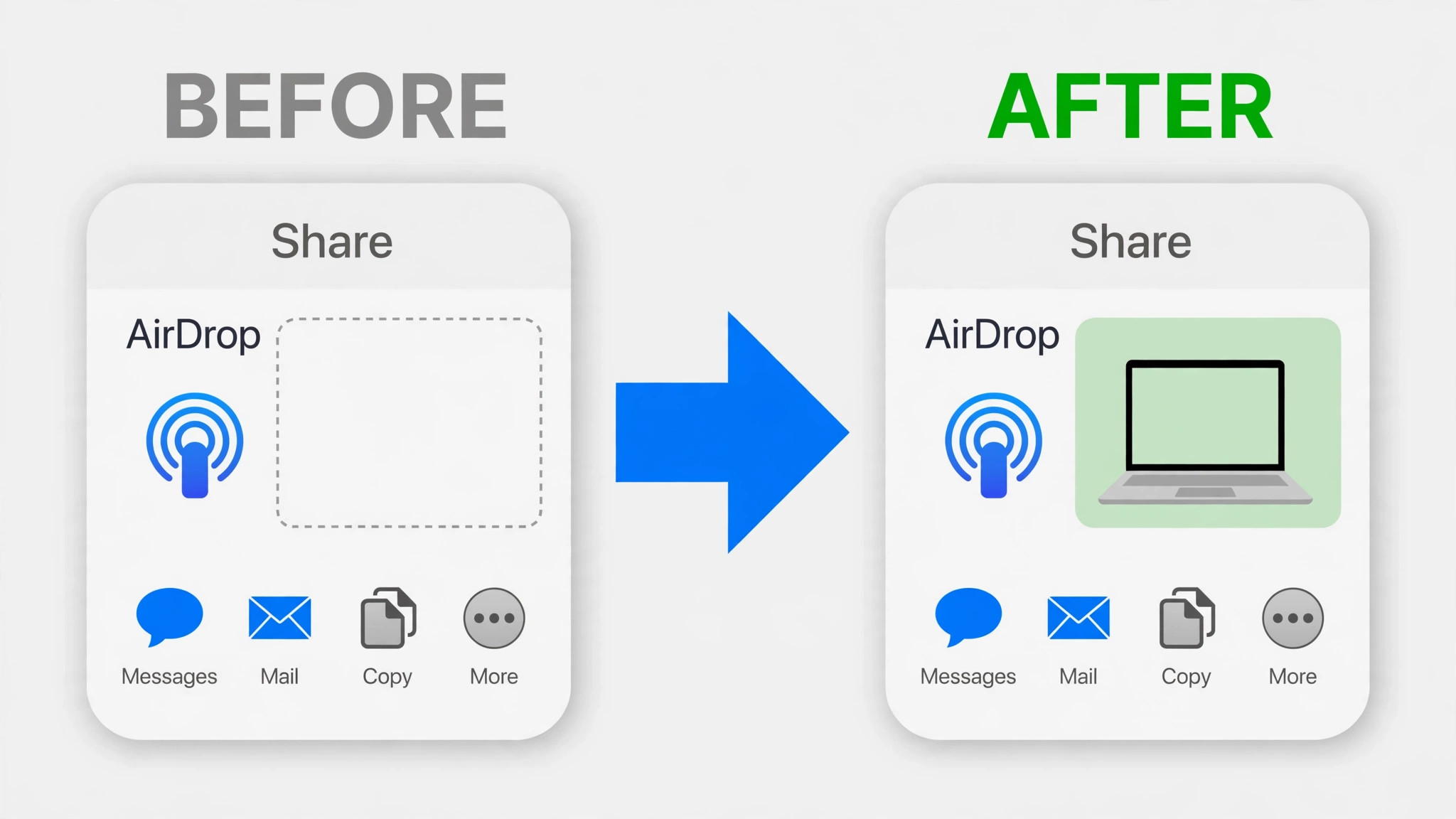
AirDrop looks simple from the outside. You tap Share, you tap a device name, and the file arrives. Underneath that action, several things have to line up at once. Both devices need Wi-Fi and Bluetooth on, the receiver needs a visibility setting that lets the sender find it, both devices need to be close and awake, and nothing can block local discovery. When one condition breaks, AirDrop fails silently. The sender sees no device, or the transfer sits on Waiting, and there is no error message that names the cause.
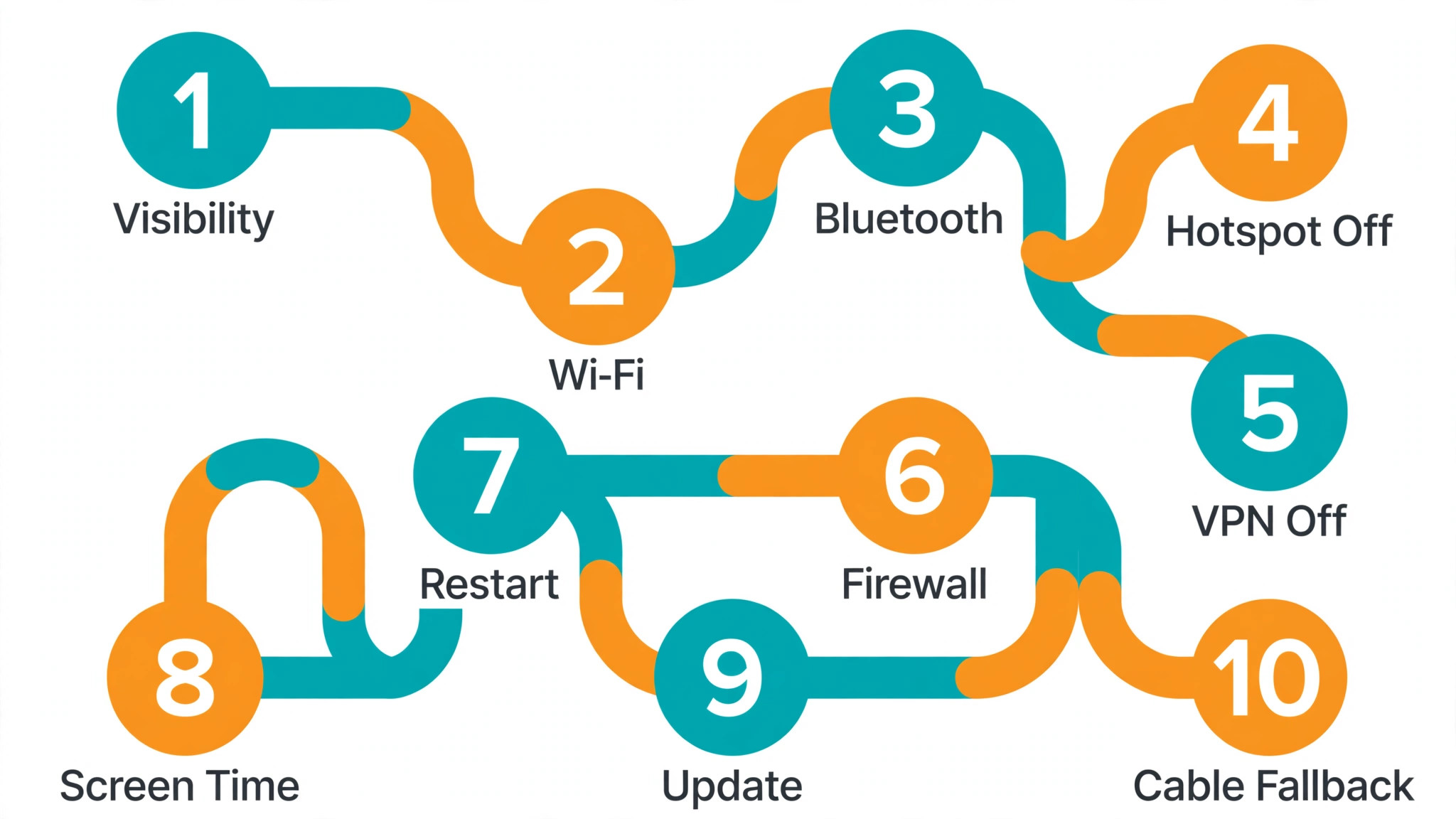
The Fix Order Checklist
Each step rules out one cause, so a failed test still tells you the cause is further down the list.
| Order | Check | What a pass rules out |
|---|---|---|
| 1 | Distance, unlock and visibility | A hidden or sleeping receiver |
| 2 | Wi-Fi and Bluetooth fully on | A radio switched off or stuck |
| 3 | Contacts Only or Everyone for 10 Minutes | A contact matching failure |
| 4 | Personal Hotspot off | A hotspot holding the radios |
| 5 | VPN and Mac firewall | A tool blocking local discovery |
| 6 | Restart both devices | A temporary system fault |
| 7 | Screen Time and Apple Account sign in | A restriction or account mismatch |
| 8 | Software update and network reset | A known bug or corrupt network data |
| 9 | Small test file and storage check | A file or space problem |
| 10 | Cable, Finder or iCloud Drive | The need to wait for AirDrop at all |
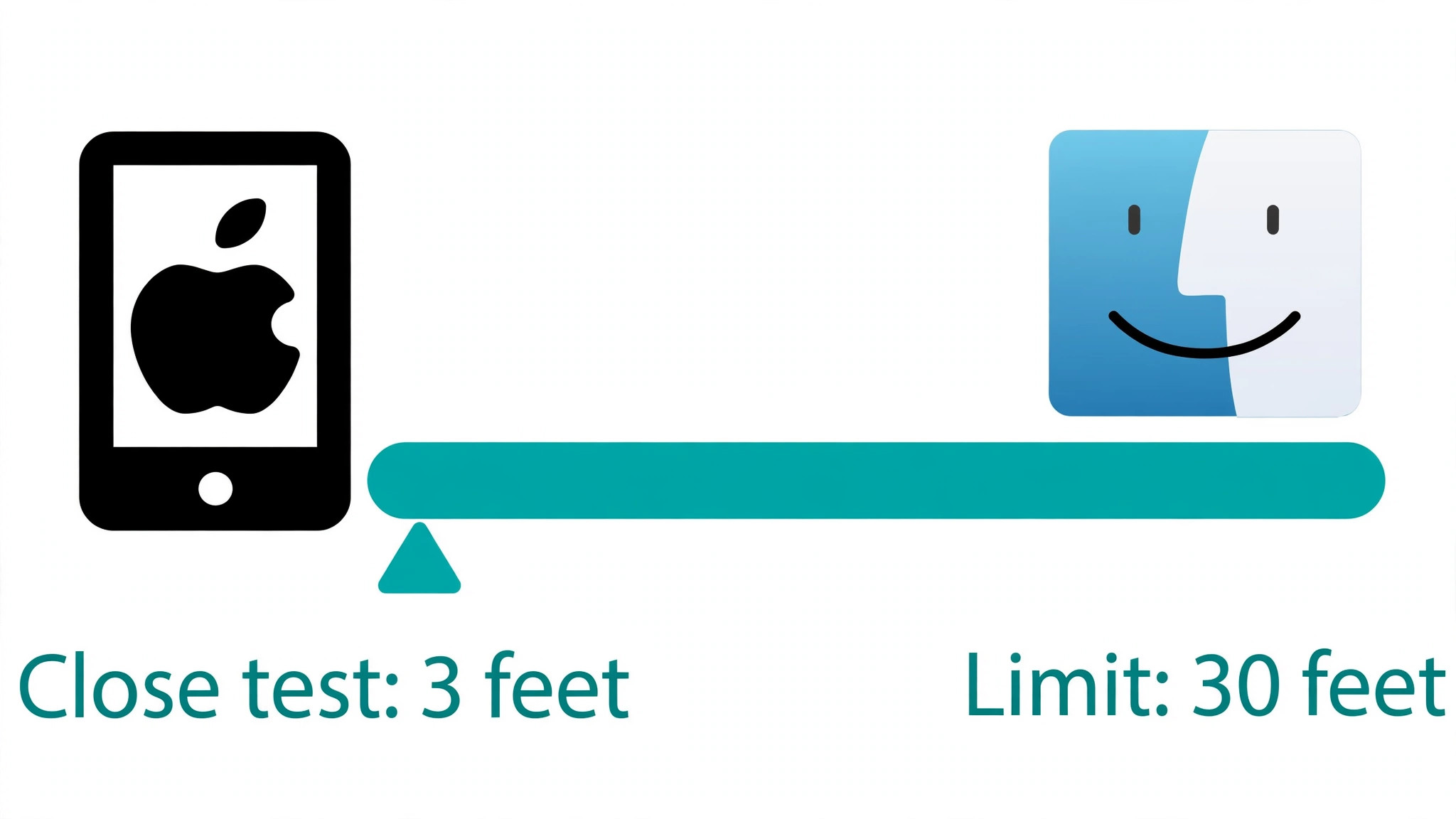
Pick one small photo as your test file. Use it for every test. If you change the file each time, you cannot tell whether a success came from the setting you changed or from the new file being smaller or in a different format. Keep both devices unlocked, awake and within a few feet of each other for every test. Apple states that devices should be within 30 feet, or 10 meters, of each other, but a transfer that fails at 25 feet may work at 3 feet, so test close first and worry about range later.
How to fix AirDrop not working iPhone Mac in order
Work through these steps in order. Do not jump to a network reset before checking visibility, because a reset wipes saved Wi-Fi networks. After each step, send the same test photo and note the result.
Step 1. Bring the devices close, wake them and open AirDrop on the Mac
Start with the physical facts. Put the iPhone next to the Mac, unlock the iPhone, and wake the Mac. On the Mac, open Finder, click AirDrop in the sidebar, and leave that window open while you test. A Mac that is asleep or locked cannot be discovered reliably, and the open window removes one variable from the test. On the iPhone, open Photos, select your test photo, tap Share, and wait ten seconds for the AirDrop row to fill, because tapping Share again too quickly can interrupt the scan.
What this rules out. If the Mac appears after this step, the earlier failure was distance, sleep or a slow scan, not a broken setting. If the Mac still does not appear, move to the radio checks, because the problem is in how the devices announce themselves, not in where they sit.
Step 2. Turn Wi-Fi and Bluetooth fully off and back on on both devices
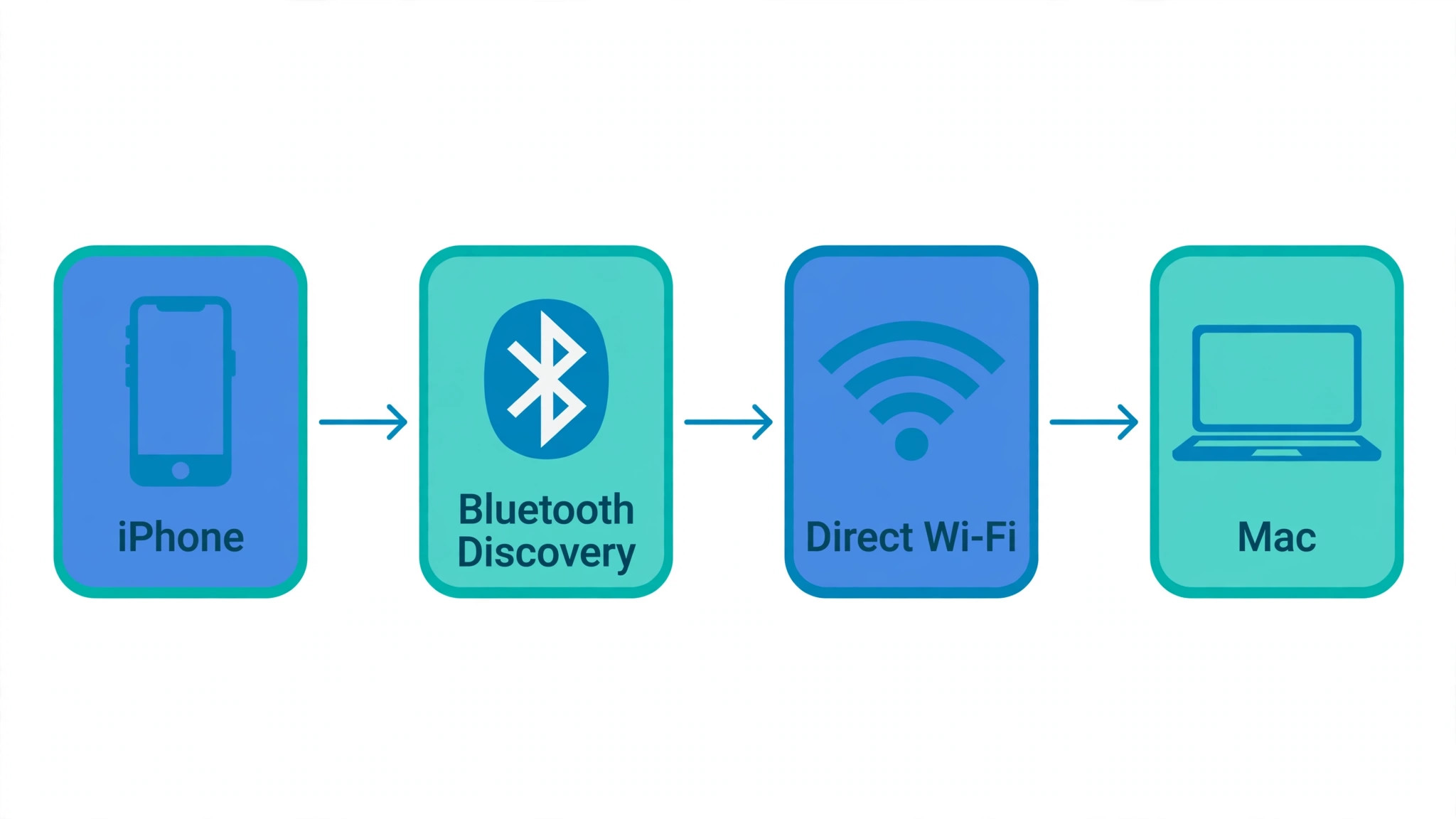
AirDrop needs Wi-Fi and Bluetooth turned on on both devices, even though the two devices do not need to join the same Wi-Fi network. The transfer itself uses a direct peer to peer Wi-Fi connection that AirDrop sets up, with Bluetooth used for discovery. That distinction matters, because being on different home networks, or on no network at all, does not by itself block AirDrop. A radio that looks on but is stuck can block it, though, so toggle both radios properly.
On the iPhone, open Settings, then Wi-Fi, and confirm Wi-Fi is on. Then open Settings, then Bluetooth, and confirm Bluetooth is on. If both are already on, turn each one off, wait ten seconds, and turn it back on. Use Settings for this toggle rather than Control Center alone, because the Settings switches show the true on or off state of each radio. On the Mac, open Control Center from the menu bar, confirm Wi-Fi is on, and confirm Bluetooth is on, then toggle each one off and back on in the same way. Test again with the same photo.

If your home Wi-Fi itself drops often, the guide at https://stratilyze.com/fix-wifi-keeps-dropping-on-laptop/ explains how to separate a router problem from a device problem. For the work to fix AirDrop not working iPhone Mac transfers, what matters is that both radios are on and responsive, not the signal bars on a home network.
What this rules out. If the Mac appears after a clean toggle, one radio was stuck in a half on state. If nothing changes, both radios are at least responding, and the fault sits in visibility, interference or a deeper setting.
Step 3. Set the receiver to Everyone for 10 Minutes for the test
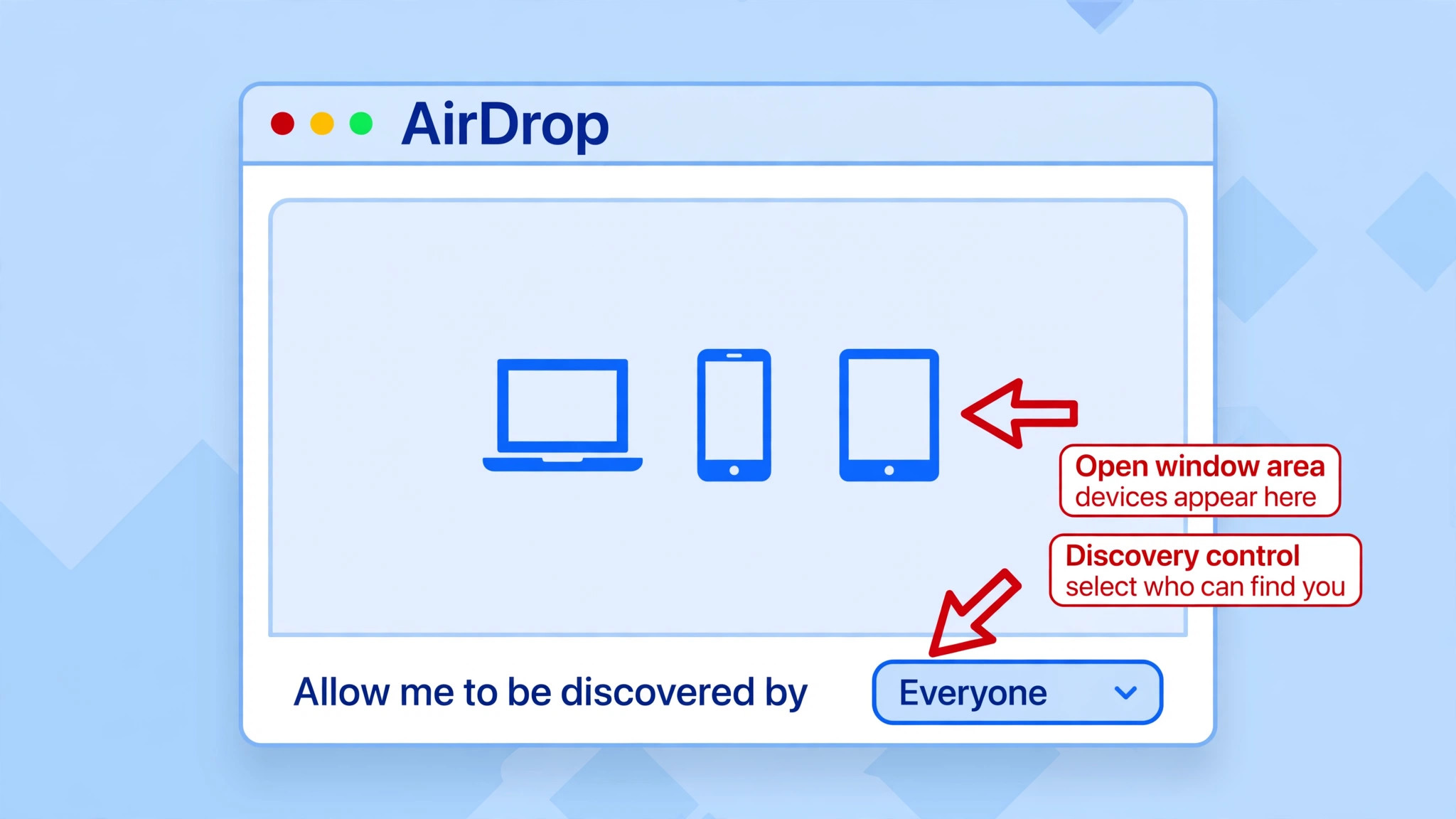
Visibility is the most common cause of an iPhone to Mac failure, and it is also the most misunderstood. AirDrop receiving has three states. Receiving Off hides the device completely. Contacts Only shows the device only to senders whose Apple Account email address or phone number is saved in the receiver’s Contacts. Everyone for 10 Minutes shows the device to any nearby Apple device for ten minutes, then falls back to Contacts Only if the receiver is signed in to an Apple Account, or to Receiving Off if it is not.
For a test, use Everyone for 10 Minutes on the receiving device, even if you plan to use Contacts Only day to day. On the iPhone, open Settings, then General, then AirDrop, and choose Everyone for 10 Minutes. You can also reach the same choice from Control Center by touching and holding the top left group of controls and tapping AirDrop. On the Mac, open Finder, click AirDrop in the sidebar, and use the “Allow me to be discovered by” control at the bottom of the window to choose Everyone, or open Control Center and adjust AirDrop there on current macOS versions. Then send the test photo within the ten minute window.
If the ten minutes expire mid test, set it again before you conclude that the step failed.
If Everyone for 10 Minutes works but Contacts Only does not, the way to fix AirDrop not working iPhone Mac transfers in that case is contact matching, not a radio or system fix. Contacts Only checks the receiver’s Contacts, not the sender’s. The sender’s Apple Account email address or phone number must be saved on the receiver’s contact card, with the exact address or number the sender uses for their Apple Account. A card with an old email address, or with no email address at all, will fail the match. Fix the card on the receiving device, not the sending device, and test again with Contacts Only.
On recent Apple software, a sender who is not in the receiver’s contacts may also see an AirDrop code prompt. When that prompt appears, the receiver taps Get AirDrop Code or Continue, reads the code aloud or shows it to the sender, and the sender enters it on their device. After a code transfer, the sender can share without a new code for 30 days. If a code prompt appears, follow it rather than fighting it by changing other settings, because the prompt is the system asking for the one confirmation it still needs.
What this rules out. A success with Everyone for 10 Minutes proves the radios, distance and transfer path all work, and narrows the fault to contact matching or the code step. A failure even with Everyone for 10 Minutes proves the fault is deeper, in interference, a blocking tool or a system fault.
Step 4. Turn off Personal Hotspot on the iPhone
If the iPhone is sharing its cellular connection, turn Personal Hotspot off before the next test. Apple lists Personal Hotspot as a condition to check before AirDrop, because a phone acting as a hotspot is using its radios for that job. Open Settings, then Personal Hotspot, and turn off Allow Others to Join. On some carriers the control sits under Cellular or Mobile Data instead. Anyone using the hotspot will lose internet until you turn it back on.
Test as soon as the hotspot is off. If the transfer works, use AirDrop with the hotspot off, then turn it back on when done. If it still fails, turn the hotspot back on if you need it and move on.
What this rules out. A success here proves the radios were busy serving the hotspot rather than free for discovery. A failure here clears the hotspot and points to blocking software or a system fault.
Step 5. Pause the VPN and check the Mac firewall
A VPN that blocks local networking can stop AirDrop discovery even when Wi-Fi and Bluetooth look healthy. Apple advises that a VPN configuration that prevents local networking may interfere with Continuity features, and AirDrop discovery is a local networking task. The test is simple. Turn the VPN off completely on both devices, not just disconnect from one server, and test again. If a simple disconnect changes nothing, quit the VPN app entirely for the test. If AirDrop works with the VPN off, open the VPN settings and look for an option that allows local network access, sometimes called LAN access or local device access, and turn that on before you reconnect.
If your VPN has no such option, you will need to pause the VPN for AirDrop transfers.
On the Mac, check the firewall next. Open System Settings, then Network, then Firewall, and look at the firewall options. If the option to block all incoming connections is turned on, turn it off for the test, because that setting can block the incoming AirDrop connection. Keep a note of the setting you changed so you can restore it after the test.
What this rules out. A success here, when you fix AirDrop not working iPhone Mac transfers by pausing the VPN or clearing the block all setting, proves a security tool was filtering local traffic. A failure with both cleared proves the traffic is not being filtered at that layer, and the fault is in the system itself.
Step 6. Restart both devices, then test before reopening other apps
A restart is unglamorous and it fixes a surprising share of AirDrop failures, because it clears stuck discovery processes on both sides at once. Restart the iPhone and restart the Mac, then test before you reopen a VPN, a hotspot or a dozen other apps. Test before reopening other apps, so a success cannot be confused with an app breaking it again. Send the same small test photo from Photos on the iPhone to the Mac with the Finder AirDrop window open.
If the transfer works after a restart, the fault was a temporary process state. If the same failure returns every few days, note what happened just before it returned. A failure that always follows a VPN session or a long Mac sleep points to the trigger even when the restart clears the symptom.
What this rules out. A success after restart proves the settings were correct all along and a process had stalled. A failure after a clean restart proves the fault is persistent, in a restriction, an account mismatch, corrupt network data or a genuine bug.
Step 7. Check Screen Time restrictions and Apple Account sign in
Two quiet settings can remove AirDrop from a device entirely or break the automatic acceptance between your own devices. The first is Screen Time. On the iPhone, open Settings, then Screen Time, then Content and Privacy Restrictions, then Allowed Apps and Features, and check whether AirDrop is allowed. If AirDrop has been restricted, the AirDrop row may be missing from the Share sheet or greyed out, and no amount of toggling Wi-Fi will bring it back. On a managed device you may not have permission to change it, and then the device administrator is the fix.
The second check is Apple Account sign in. AirDrop between two devices signed in to the same Apple Account is normally accepted automatically, without a tap on Accept, and the item is saved directly. If your iPhone and Mac are signed in to different accounts, transfers still work, but they need the accept tap and they depend on the visibility setting in a stricter way. Open Settings on the iPhone and System Settings on the Mac and confirm which account each device uses.
If you expected both devices to share one account and they do not, sign in to the same account on both, or accept that cross account transfers need the manual accept step and the Everyone for 10 Minutes test setting.
What this rules out. A missing AirDrop option that returns after a Screen Time change proves a restriction was hiding the feature. A transfer that starts working after the accounts match proves the fault was account handling, not discovery. A failure with both checks clean moves you to updates and resets.
Step 8. Update both devices, then reset network settings on the iPhone only if needed
Check for software updates on both devices before any reset. On the iPhone, open Settings, then General, then Software Update. On the Mac, open System Settings, then General, then Software Update. Apple ships fixes for discovery and Continuity bugs in point updates, and an iPhone and a Mac on very different software generations can disagree about newer behaviours such as the AirDrop code step. Install any available update, restart if the update asks for it, and test again.
If updates change nothing, the next deep step to fix AirDrop not working iPhone Mac faults is Reset Network Settings on the iPhone. Open Settings, then General, then Transfer or Reset iPhone, then Reset, then Reset Network Settings. This clears saved Wi-Fi networks, saved Wi-Fi passwords and Bluetooth pairings, but it does not delete photos, messages or apps. You will need to rejoin your home Wi-Fi network afterwards and re-pair Bluetooth accessories, so do this step when you have your Wi-Fi password handy and a few minutes to spare. Do not reset the Mac network settings at the same time.
Change one side, test, and only then consider the other side, because changing both at once destroys the evidence about which side held the corrupt data.
If Bluetooth behaves badly across the board, not just for AirDrop, the pairing guide at https://stratilyze.com/fix-bluetooth-headphones-not-pairing/ walks through forget and re-pair steps and the deeper Bluetooth fixes by device. For AirDrop, though, the network reset is the proportionate deep step, and a full device erase is not. If a network reset and updates both fail, you are looking at a hardware or account level fault, and the support section at the end of this guide explains what to take to Apple.
What this rules out. A success after an update proves a known bug. A success after a network reset proves corrupt network or pairing data on the iPhone. A failure after both proves the fault is not in stored network data at all.
Step 9. Test with a small file, check storage and check the file type
Sometimes AirDrop discovery works and the transfer itself fails, and the cause is the file, not the connection. Test with one small photo, then with one small PDF, then with a link from Safari. If the small photo and the link go through but a large video fails, the problem is size, time or space, not discovery. Large videos need a stable connection for longer, so keep both devices awake and close, and send large videos in smaller batches rather than as one huge selection.
Check storage on the receiving Mac as well. Open the Apple menu, then About This Mac, then More Info, then Storage Settings, and confirm free space comfortably larger than the file. A nearly full Mac can accept discovery and then fail the save, which looks like an AirDrop failure but is really a disk problem. If storage is tight, free space first and test again.
What this rules out. A small file that succeeds proves AirDrop itself works and the earlier failure was file size, format or space. A small file that fails the same way proves the fault is still in the connection, and the cable fallback in the next step is the right move for today.
Step 10. Use the cable fallback and the cloud fallback today
You do not have to solve AirDrop today to move the file today. Connect the iPhone to the Mac with a USB cable, open Finder, select the iPhone in the sidebar, and use the file sharing or photo import options Finder offers. For photos and videos, the Photos app on the Mac can also import directly from the connected iPhone. For documents, iCloud Drive is the other fallback. Save the file to iCloud Drive on the iPhone through the Files app, wait for the upload to finish, and open the same file in iCloud Drive on the Mac.
The cloud route needs an internet connection and enough iCloud storage, while the cable route needs neither, so the cable is the better fallback for a large video or a deadline.
The fallback also serves as a diagnostic. If the cable transfer works instantly, the file and the destination are fine, and the fault is specific to wireless discovery. If it also fails, try a second cable before any settings reset.
What this rules out. A working cable transfer proves the file and the destination are sound. A failing cable transfer with a second cable proves the fault is wider than AirDrop.
When AirDrop Works One Way but Not the Other
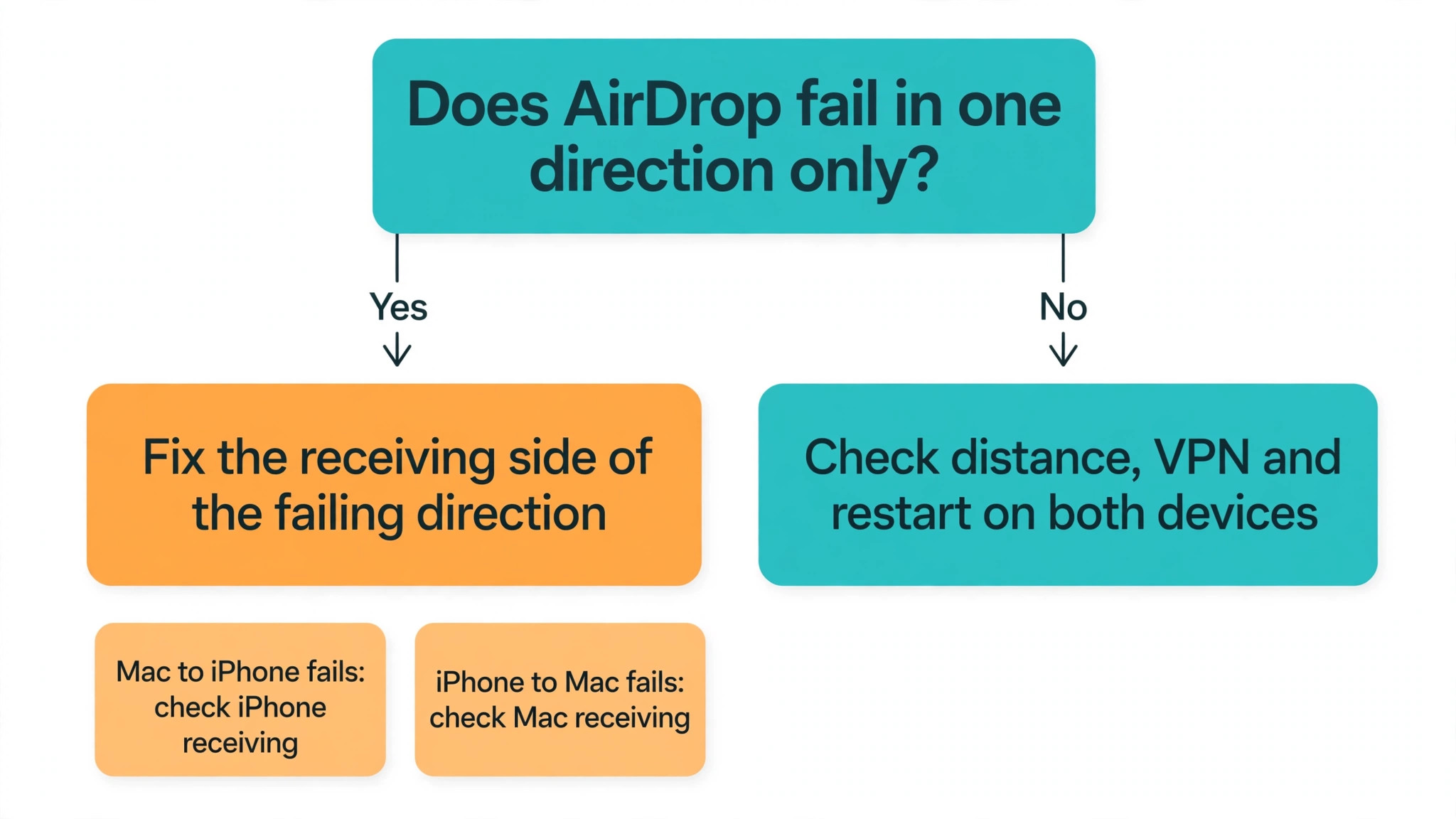
A one way failure is useful evidence when you fix AirDrop not working iPhone Mac transfers, because it tells you exactly which device to fix. If the Mac can send to the iPhone but the iPhone cannot send to the Mac, the Mac receiving side is the suspect. Check the Mac visibility setting, the Mac firewall block all setting, and whether the Mac is awake with the Finder AirDrop window open. If the iPhone can send to the Mac but the Mac cannot send to the iPhone, the iPhone receiving side is the suspect. Check the iPhone visibility setting, the iPhone Personal Hotspot state, and the iPhone Screen Time restriction.
Test both directions with the same small photo, and write down which direction fails. Direction matters for Contacts Only as well. The receiver’s Contacts decide a Contacts Only transfer, so a transfer that works from the Mac to the iPhone can still fail from the iPhone to the Mac if the Mac’s Contacts card for the sender is incomplete. Fix the card on the receiving side for the failing direction, not on the sending side. This is the detail that sends people in circles, because they keep editing the contact card on the phone they are sending from, while the check happens on the device they are sending to.
Restart both devices together even when only one direction fails. If both directions fail after all ten steps, the fault is shared, and the shared causes are distance, a VPN, a software bug or an account problem. If only one direction fails, the fault is local to the receiving device in that direction, and that is where a support appointment should focus.
Mistakes That Waste Time on AirDrop
The first mistake, when you try to fix AirDrop not working iPhone Mac faults, is resetting network settings before checking visibility. A reset costs you every saved Wi-Fi password and every Bluetooth pairing, and it cannot fix a receiver set to Receiving Off or a Contacts Only mismatch. Check visibility first, because it is a ten second change with no side effects.
The second mistake is testing with a huge video. A large transfer that fails after two minutes tells you nothing about discovery, and it wastes the ten minute Everyone window on a single attempt. Test with one small photo, prove discovery works, and only then try the large file.
The third mistake is changing settings on both devices at once. If you toggle the VPN, change visibility, restart both devices and reset the network in one session, a success tells you nothing about which change mattered, and the fault will return the next time the real cause reappears. Change one thing, test, and note the result. Slow testing is faster in total than fast guessing.
The fourth mistake is leaving the VPN on during every test and concluding that AirDrop is broken. A VPN that blocks local networking will defeat every other fix while it runs, so a VPN pause is not an optional extra. It belongs in the early steps, right after visibility and hotspot, not at the end.
The fifth mistake is assuming the Mac is awake because its screen is lit. A Mac with a closed lid, in a long sleep, or locked while its display is lit can all fail discovery. Wake and unlock the Mac fully, open the Finder AirDrop window, and test while you watch it.
For related reading, the Wi-Fi dropout guide at https://stratilyze.com/fix-wifi-keeps-dropping-on-laptop/ helps when the wireless connection is unstable, the Bluetooth pairing guide at https://stratilyze.com/fix-bluetooth-headphones-not-pairing/ covers the Bluetooth side, and the home Wi-Fi mesh guide at https://stratilyze.com/set-up-home-wifi-mesh-network-small-house/ helps when coverage in the room is weak. This approach to fix AirDrop not working iPhone Mac faults works because it treats each symptom as evidence, not as a reason to reset everything at once.
Frequently Asked Questions
Why does my Mac not show up on my iPhone AirDrop list?
The usual causes are visibility, distance and sleep, in that order. Set the Mac to Everyone in the Finder AirDrop window, bring the iPhone within a few feet, wake and unlock the Mac, and leave the Finder AirDrop window open while you test. If the Mac still does not appear, toggle Wi-Fi and Bluetooth off and back on on both devices, turn off Personal Hotspot on the iPhone, and pause any VPN. A Mac set to Receiving Off or Contacts Only with an incomplete contact card will stay invisible no matter how many times you tap Share.
Do both devices need to be on the same Wi-Fi network for AirDrop?
No. Both devices need Wi-Fi turned on, but they do not need to join the same network. AirDrop sets up its own direct peer to peer Wi-Fi connection for the transfer, with Bluetooth handling discovery. That is why AirDrop can work in a cafe, on a plane or at home with no network at all, as long as both radios are on and the devices are close together. A home router problem therefore does not by itself explain an AirDrop failure, though a stuck radio on either device can.
Why does AirDrop stay on Waiting and never finish?
Waiting usually means discovery succeeded but the transfer cannot complete or cannot be accepted. Check that the receiving device is unlocked and awake, that the accept prompt has not appeared in the Finder AirDrop window on the Mac instead of Notification Center, and that the receiving device has enough free storage for the file. For large files, keep both devices close and awake, and try a small photo first.
Does a VPN really block AirDrop?
A VPN can block AirDrop when its configuration prevents local networking, because discovery depends on the devices finding each other on the local network. Turning the VPN off for a test is the fastest way to learn whether you need to fix AirDrop not working iPhone Mac discovery at the VPN layer. If AirDrop works with the VPN off, look for a local network or LAN access option in the VPN settings and turn it on. If the VPN offers no such option, pause the VPN for AirDrop transfers and reconnect afterwards. Quit the VPN app fully for the test if a simple disconnect changes nothing, because some apps keep a network block active after disconnect.
Why does AirDrop work with Everyone for 10 Minutes but not Contacts Only?
Contacts Only checks the receiver’s Contacts for the sender’s Apple Account email address or phone number. If that card is missing, out of date or saved without the right address, the match fails and the receiver stays hidden. Fix the contact card on the receiving device, using the exact Apple Account address or number the sender uses, and test again. On recent software, a sender who is not in the receiver’s contacts may need to enter an AirDrop code that the receiver provides, and after that transfer the sender can share without a new code for 30 days.
Should I reset network settings or erase my iPhone to fix AirDrop?
Reset network settings on the iPhone is a reasonable late step, after visibility, hotspot, VPN, firewall, restart and updates have all been tried. It clears saved Wi-Fi networks and Bluetooth pairings but keeps photos, messages and apps. Erasing the iPhone is not a proportionate AirDrop fix. If a network reset and updates both fail, and the cable fallback works, the fault is more likely a hardware, account or restriction issue, and a support appointment with your test notes will get further than an erase.
Get the File Across, Then Put the Setting Back
Most attempts to fix AirDrop not working iPhone Mac failures end at step 3 or step 5. A visibility setting that was set to Receiving Off, a Contacts Only card that missed one email address, a hotspot holding the radios, or a VPN blocking local discovery accounts for the large majority of cases, and each of those is a ten second change once you know where to look. The deeper steps work best when you reach them with notes from the early tests.
Once a transfer succeeds, put your everyday settings back. Return the receiver to Contacts Only, reconnect the VPN, and turn Personal Hotspot back on if you need it. Keep the test photo habit for the next failure. One small photo, one change at a time, and a note of which direction failed will solve the next problem in minutes. If you are still stuck after all ten steps, the cable fallback keeps your work moving while you book support.