
The short answer is that the right order matters more than the right tool, and starting with the cheapest check saves both time and money. Working out what has gone wrong with Chrome running slowly on a Windows PC is easier when each test rules out one cause, because a test that rules nothing out only adds frustration. This guide explains how to approach fix Chrome running slow Windows step by step, in the order that rules out the cheapest and least disruptive causes first, so you stop at the fix that works instead of working through every possible fix.
Chrome slowdowns usually come from tab memory, an extension misbehaving, or a bloated profile rather than from the internet connection itself, so testing speed in a fresh profile early on separates a browser fault from a network fault.
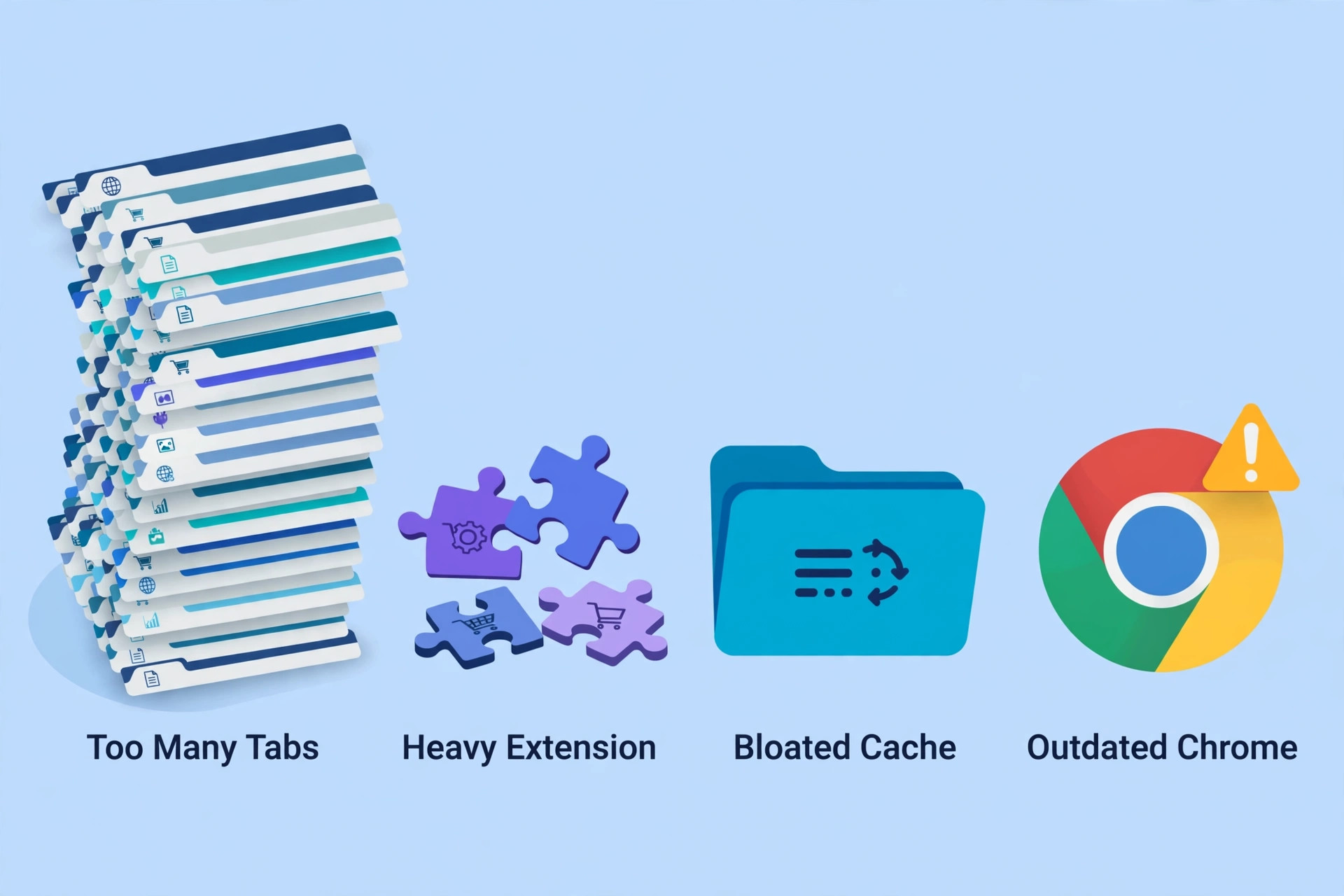
Before the steps, it helps to know that Chrome running slowly on a Windows PC rarely has a single cause, and the table below separates the likely causes by the sign you actually see, so you can start at the row that matches your situation rather than at the top of a generic list.
Read the whole guide once before changing anything, because the order matters, and a step skipped early often returns as a larger problem later. Where a price or a feature is given, check it on the vendor page before you commit, since pricing and features change, and the right choice depends on your volume, your location and your existing setup.
What Usually Causes This
| Likely cause | Sign you will see | First check |
|---|---|---|
| Too many open tabs | Memory usage climbs and typing lags | Close tabs in groups and check Task Manager |
| A heavy extension | Slowness starts after installing an add-on | Disable extensions and re-enable one at a time |
| Bloated cache and cookies | Pages load slowly but other browsers are fine | Clear cached data for a sensible time range |
| Outdated Chrome version | Performance and security both suffer | Update Chrome and restart it |
| Hardware acceleration conflict | Scrolling stutters or video tears | Toggle hardware acceleration and compare |
| A damaged profile | A fresh profile runs fast, the old one does not | Create a new profile and move bookmarks over |
Understanding Chrome running slowly on a Windows PC starts with accepting that the symptom and the cause are rarely the same thing, and a symptom that looks dramatic can have a dull cause, while a quiet symptom can hide a serious one. That is why this guide treats diagnosis as a separate job from repair, and why it asks you to note what changed before the problem began, what still works, and what has already been tried.
A short note on those three points, written before you start, turns a frustrating afternoon into a short sequence of tests, and it also makes any later conversation with support far shorter, because you can describe what you have ruled out instead of repeating the symptom.
One detail that changes the outcome with Chrome running slowly on a Windows PC is timing, because faults that appear after an update, after a move, after a new accessory, or after a long period without use each point in a different direction. An update fault suggests software, a move suggests signal or power, a new accessory suggests interference, and a long idle period suggests a battery or a stale setting. Asking what changed, and when, is therefore not small talk, it is the fastest diagnostic tool available, and it costs nothing, which is why it belongs at the start of every attempt rather than at the end.
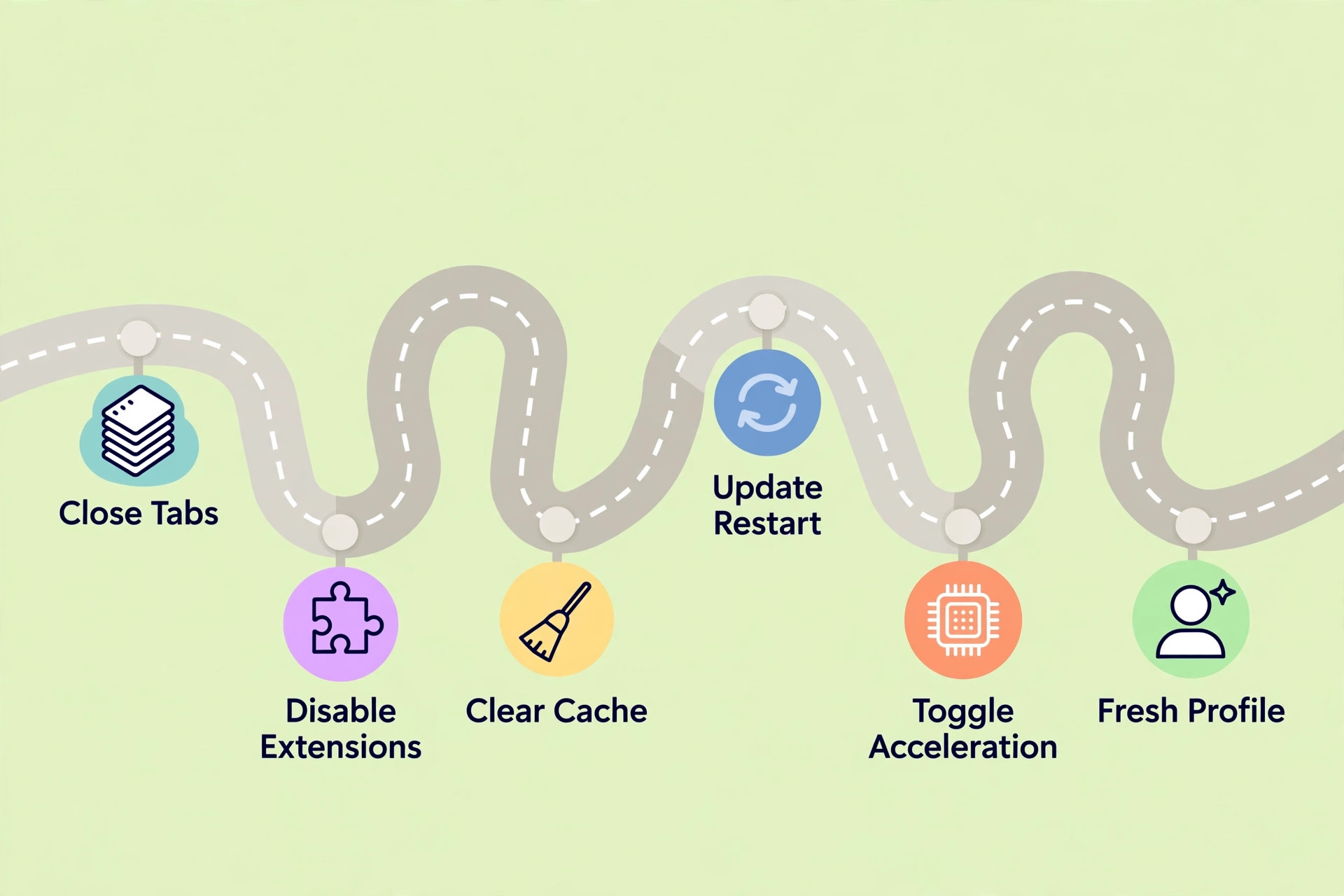
How to fix Chrome running slow Windows in the Right Order
Working through fix Chrome running slow Windows in this order keeps the least disruptive tests first, so a simple settings fault is found before anyone considers a reinstall, a replacement or a repair booking, and each step below ends with what a success looks like, so you know when to stop.
- Close tabs and check the real load. Start here, because open Task Manager inside Chrome, sort by memory, and close the heaviest tabs first, because a handful of video or document tabs can consume more memory than dozens of plain article pages. A success at this step means you stop here and note what worked, because continuing past a working fix only adds risk.
- Disable extensions in one pass. Next, consider turn every extension off, restart Chrome, and only then re-enable them one at a time, because testing extensions one by one from the start wastes the time that a single clean test would save. A success at this step means you stop here and note what worked, because continuing past a working fix only adds risk.
- Clear cache and cookies carefully. Then move to clear cached images and files, keep passwords unless you are sure of them, and test the slowest sites again, because cache corruption slows page building while cookies affect logins. A success at this step means you stop here and note what worked, because continuing past a working fix only adds risk.
- Update Chrome and restart Windows. After that, check an outdated build can carry known performance bugs, and a full Windows restart clears memory pressure from other programs that Chrome gets blamed for. A success at this step means you stop here and note what worked, because continuing past a working fix only adds risk.
- Toggle hardware acceleration. Now test if scrolling or video stutters, turn hardware acceleration off, restart Chrome and compare, then leave it in whichever state is smoother, because the right setting depends on the graphics driver. A success at this step means you stop here and note what worked, because continuing past a working fix only adds risk.
- Test a fresh profile. Following that, review create a new Chrome profile without extensions or history, and if it runs fast, the old profile is the problem, which means a profile repair beats reinstalling the whole browser. A success at this step means you stop here and note what worked, because continuing past a working fix only adds risk.
- Check startup pages and background apps. Before spending money, try pages that reopen at startup and apps that keep Chrome running in the background add load before you even browse, so trim both and measure again. A success at this step means you stop here and note what worked, because continuing past a working fix only adds risk.
- Reset settings as a last software step. Finally, decide on resetting restores defaults without deleting bookmarks, and only if that fails should you uninstall and reinstall, because a reinstall without a profile cleanup often restores the same fault. A success at this step means you stop here and note what worked, because continuing past a working fix only adds risk.
Testing each change properly with Chrome running slowly on a Windows PC means changing one thing, testing, and noting the result before moving on, because changing three things at once and seeing an improvement leaves you unsure which change helped, and the fault returns when the unhelpful changes are undone. Keep a simple log, even a few lines on paper, with the change, the test and the result, because that log is what turns a lucky fix into a repeatable one, and it is what support will ask for if the problem needs outside help.
The Details People Miss
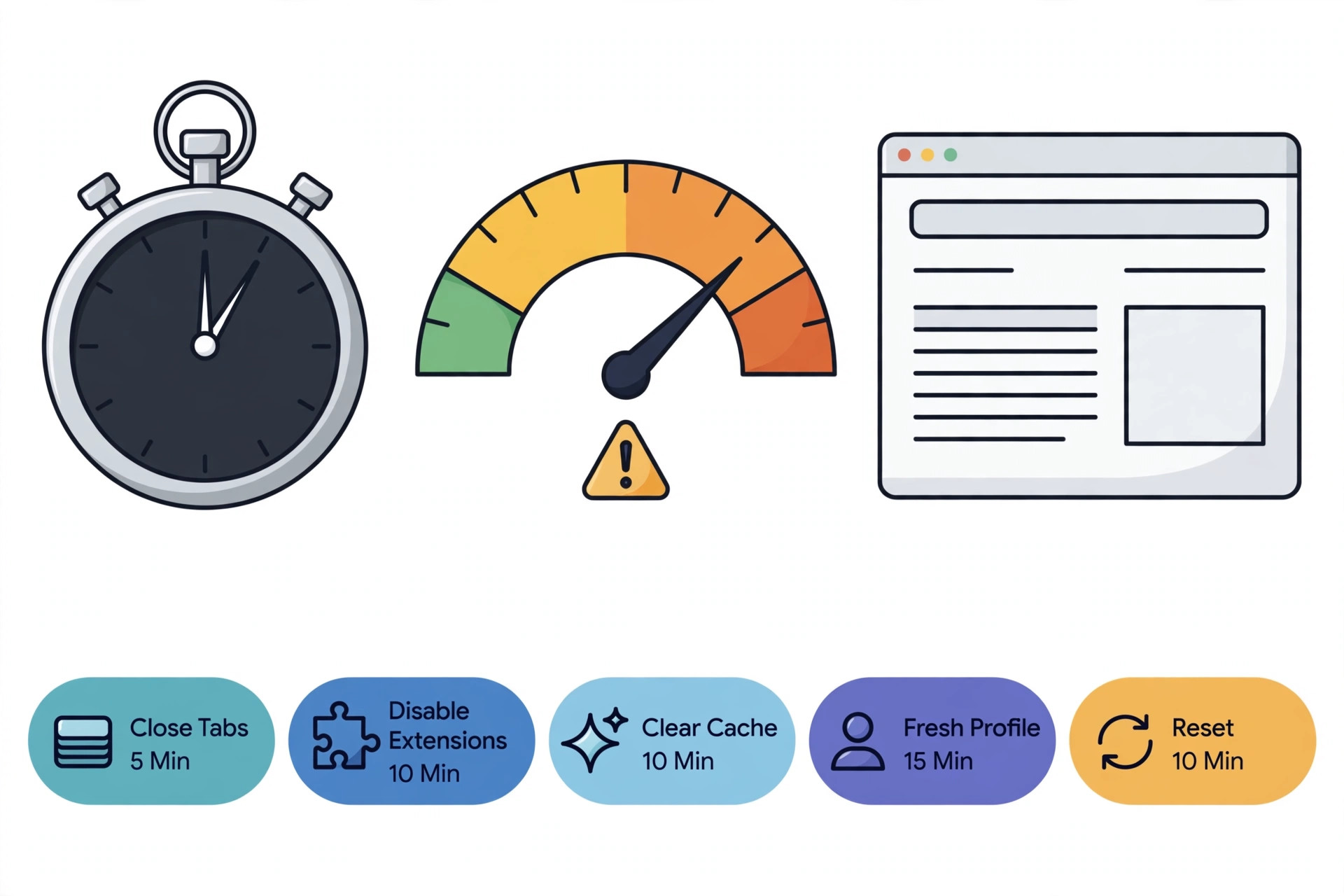
| Step | Time it usually takes | Risk to watch |
|---|---|---|
| Close tabs | 5 minutes | Unsaved form work in closed tabs is lost |
| Disable extensions | 10 minutes | Features pause until re-enabled |
| Clear cache | 10 minutes | Some sites log you out |
| Fresh profile test | 15 minutes | Bookmarks need moving if you switch |
| Reset settings | 10 minutes | Custom settings return to defaults |
One reason people struggle with fix Chrome running slow Windows is that they treat every step as equally risky, while in reality the early steps carry almost no risk and the late steps carry the most, so the table above is worth reading as a risk ladder as well as a time guide, and a step that feels drastic probably belongs later than you first thought.
Choosing well for Chrome running slowly on a Windows PC means matching the solution to the actual workload, not to the largest workload imaginable, because overbuying wastes money every month while underbuying wastes time every week. Write down the typical week, the busy week and the quiet week, and choose for the typical week with room for the busy one, because a choice built for an imagined peak will feel expensive long before that peak ever arrives, and a choice built for the quiet week will fail on the first busy day.
Mistakes That Make It Worse
When working on fix Chrome running slow Windows, the mistakes below are common because each one feels reasonable at the time, and naming them in advance makes them easier to avoid than a vague warning to be careful.
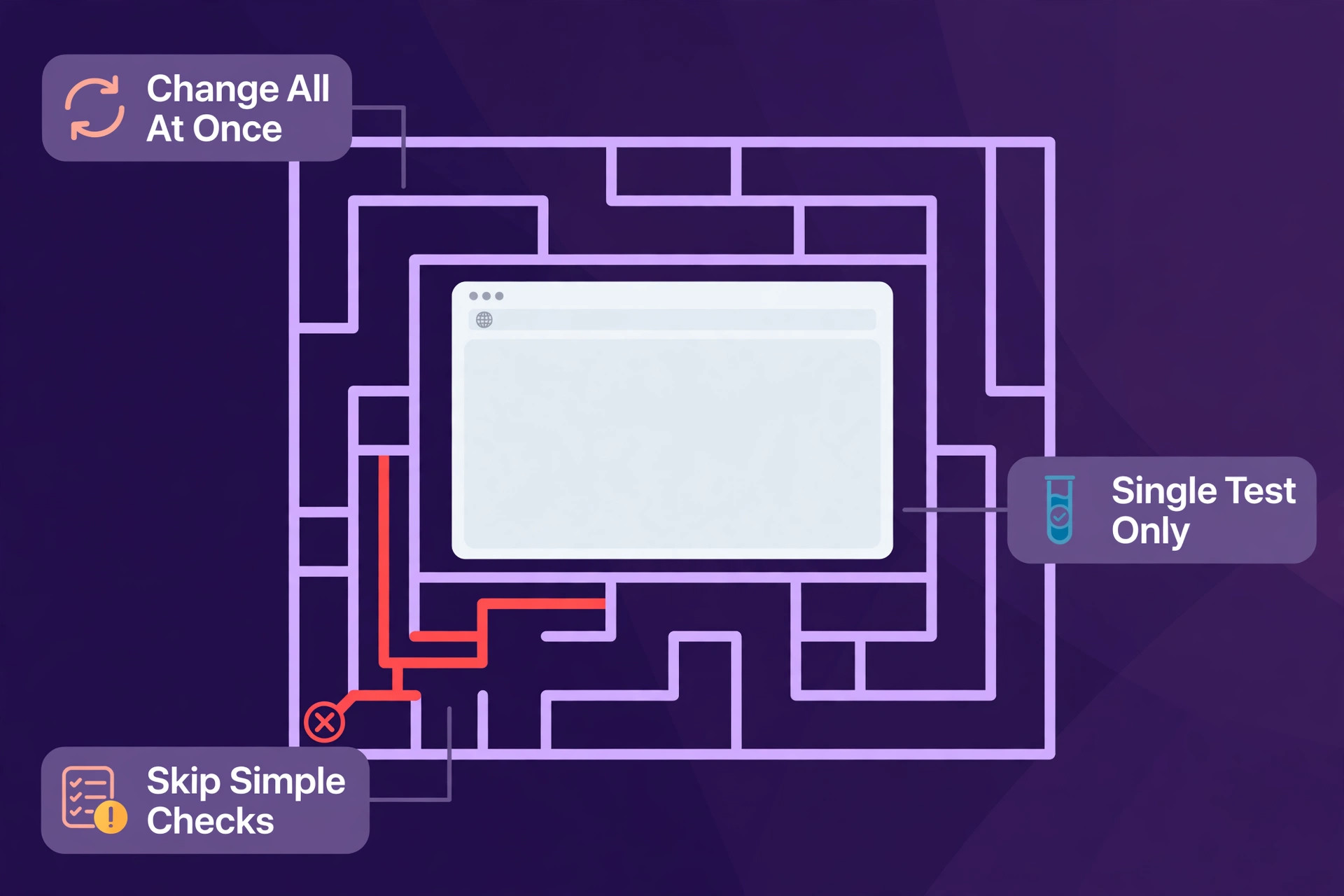
- Changing several things at once, then not knowing which change helped, which means the fault returns when one of those changes is undone.
- Skipping the simple checks because they feel too obvious, which is how a dead cable, a muted mic or a paused sync wastes an afternoon.
- Trusting a single test instead of repeating it, because intermittent faults pass a single test and fail in real use.
- Ignoring what changed before the problem began, even though that change is often the cause in disguise.
- Paying for a replacement or an upgrade before the free tests are done, which turns a settings fault into an unnecessary purchase.
One detail that changes the outcome with Chrome running slowly on a Windows PC is timing, because faults that appear after an update, after a move, after a new accessory, or after a long period without use each point in a different direction. An update fault suggests software, a move suggests signal or power, a new accessory suggests interference, and a long idle period suggests a battery or a stale setting. Asking what changed, and when, is therefore not small talk, it is the fastest diagnostic tool available, and it costs nothing, which is why it belongs at the start of every attempt rather than at the end.
When to Stop and Get Help
Knowing when to stop trying fixes for fix Chrome running slow Windows matters as much as knowing where to start, because further guessing after danger signs, after repeated identical failures, or after data is at risk can turn a repairable fault into a larger one, and a support visit at that point is progress, not defeat.
Book help promptly if you see swelling, heat, a burning smell, liquid damage, a cracked screen with internal damage, or a device that shows no sign of life after the full ordered sequence, and take your notes on what you tried, because a technician who can see the ruled out causes starts closer to the answer.
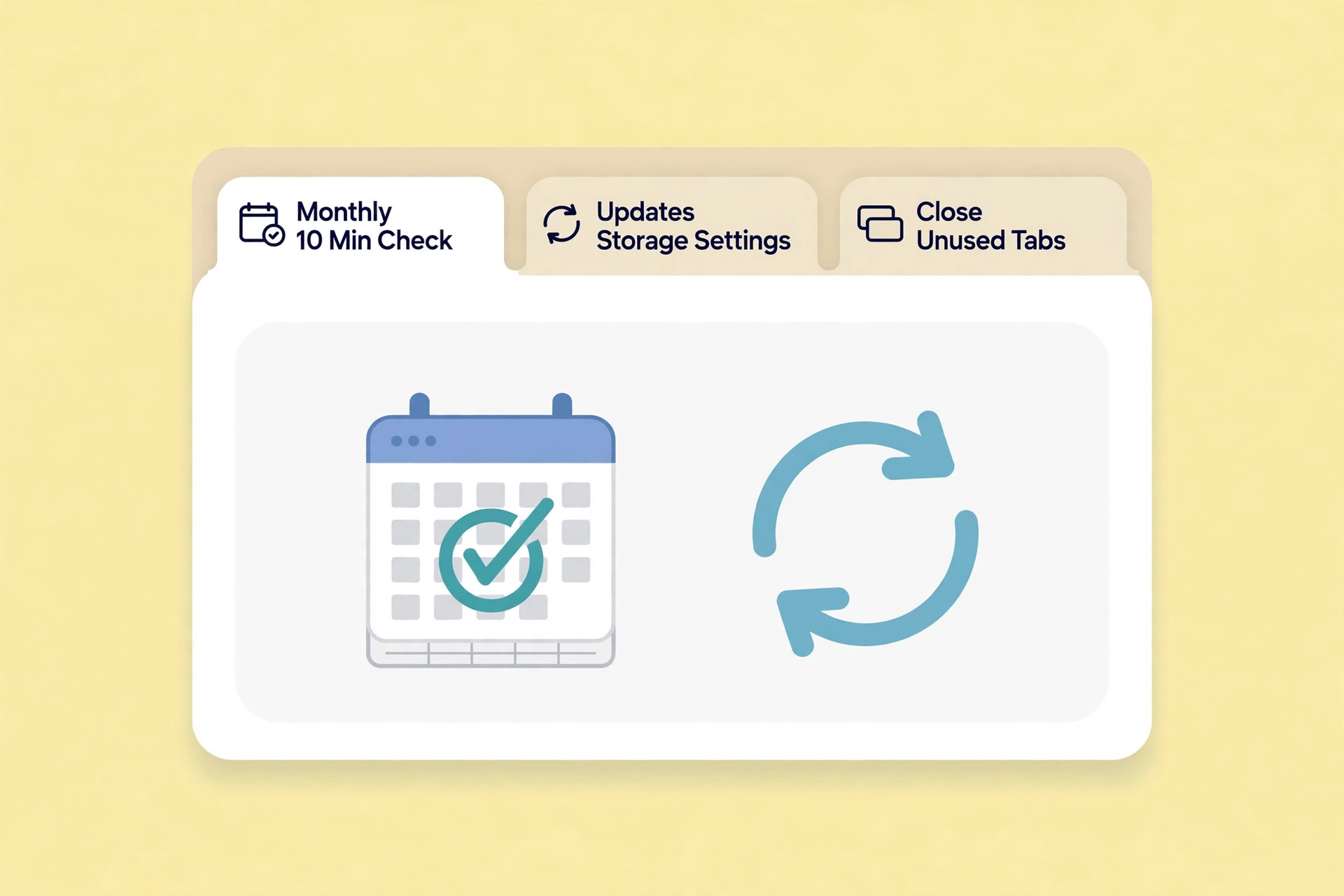
Preventing a repeat with Chrome running slowly on a Windows PC is mostly a matter of keeping the simple things in good order, because updates, free space, clean contacts and a known good cable or adapter prevent a large share of repeat faults. A monthly check that takes ten minutes, looking at updates, storage and the condition of cables and connectors, catches most problems while they are still small, and it also builds a baseline, so a future change stands out immediately instead of blending into a slow decline that nobody notices until it fails.

How to Prevent a Repeat
Once fix Chrome running slow Windows is resolved, a short routine keeps it resolved, because most repeat faults come from the same neglected basics, and a ten minute monthly check on updates, storage, cables and settings catches them while they are still small.
Choosing well for Chrome running slowly on a Windows PC means matching the solution to the actual workload, not to the largest workload imaginable, because overbuying wastes money every month while underbuying wastes time every week. Write down the typical week, the busy week and the quiet week, and choose for the typical week with room for the busy one, because a choice built for an imagined peak will feel expensive long before that peak ever arrives, and a choice built for the quiet week will fail on the first busy day.
Testing each change properly with Chrome running slowly on a Windows PC means changing one thing, testing, and noting the result before moving on, because changing three things at once and seeing an improvement leaves you unsure which change helped, and the fault returns when the unhelpful changes are undone. Keep a simple log, even a few lines on paper, with the change, the test and the result, because that log is what turns a lucky fix into a repeatable one, and it is what support will ask for if the problem needs outside help.
More Reading for This Kind of Problem
For the systems around this one, Stratilyze also covers Chrome pages not loading guide Chrome extensions guide Read the guide that matches your next bottleneck first, because fixing the biggest bottleneck next gives a larger gain than polishing a part of the setup that already works well.
Understanding Chrome running slowly on a Windows PC starts with accepting that the symptom and the cause are rarely the same thing, and a symptom that looks dramatic can have a dull cause, while a quiet symptom can hide a serious one. That is why this guide treats diagnosis as a separate job from repair, and why it asks you to note what changed before the problem began, what still works, and what has already been tried.
A short note on those three points, written before you start, turns a frustrating afternoon into a short sequence of tests, and it also makes any later conversation with support far shorter, because you can describe what you have ruled out instead of repeating the symptom.
One detail that changes the outcome with Chrome running slowly on a Windows PC is timing, because faults that appear after an update, after a move, after a new accessory, or after a long period without use each point in a different direction. An update fault suggests software, a move suggests signal or power, a new accessory suggests interference, and a long idle period suggests a battery or a stale setting. Asking what changed, and when, is therefore not small talk, it is the fastest diagnostic tool available, and it costs nothing, which is why it belongs at the start of every attempt rather than at the end.
Preventing a repeat with Chrome running slowly on a Windows PC is mostly a matter of keeping the simple things in good order, because updates, free space, clean contacts and a known good cable or adapter prevent a large share of repeat faults. A monthly check that takes ten minutes, looking at updates, storage and the condition of cables and connectors, catches most problems while they are still small, and it also builds a baseline, so a future change stands out immediately instead of blending into a slow decline that nobody notices until it fails.
Choosing well for Chrome running slowly on a Windows PC means matching the solution to the actual workload, not to the largest workload imaginable, because overbuying wastes money every month while underbuying wastes time every week. Write down the typical week, the busy week and the quiet week, and choose for the typical week with room for the busy one, because a choice built for an imagined peak will feel expensive long before that peak ever arrives, and a choice built for the quiet week will fail on the first busy day.
Testing each change properly with Chrome running slowly on a Windows PC means changing one thing, testing, and noting the result before moving on, because changing three things at once and seeing an improvement leaves you unsure which change helped, and the fault returns when the unhelpful changes are undone. Keep a simple log, even a few lines on paper, with the change, the test and the result, because that log is what turns a lucky fix into a repeatable one, and it is what support will ask for if the problem needs outside help.
Understanding Chrome running slowly on a Windows PC starts with accepting that the symptom and the cause are rarely the same thing, and a symptom that looks dramatic can have a dull cause, while a quiet symptom can hide a serious one. That is why this guide treats diagnosis as a separate job from repair, and why it asks you to note what changed before the problem began, what still works, and what has already been tried.
A short note on those three points, written before you start, turns a frustrating afternoon into a short sequence of tests, and it also makes any later conversation with support far shorter, because you can describe what you have ruled out instead of repeating the symptom.
One detail that changes the outcome with Chrome running slowly on a Windows PC is timing, because faults that appear after an update, after a move, after a new accessory, or after a long period without use each point in a different direction. An update fault suggests software, a move suggests signal or power, a new accessory suggests interference, and a long idle period suggests a battery or a stale setting. Asking what changed, and when, is therefore not small talk, it is the fastest diagnostic tool available, and it costs nothing, which is why it belongs at the start of every attempt rather than at the end.
Preventing a repeat with Chrome running slowly on a Windows PC is mostly a matter of keeping the simple things in good order, because updates, free space, clean contacts and a known good cable or adapter prevent a large share of repeat faults. A monthly check that takes ten minutes, looking at updates, storage and the condition of cables and connectors, catches most problems while they are still small, and it also builds a baseline, so a future change stands out immediately instead of blending into a slow decline that nobody notices until it fails.
Choosing well for Chrome running slowly on a Windows PC means matching the solution to the actual workload, not to the largest workload imaginable, because overbuying wastes money every month while underbuying wastes time every week. Write down the typical week, the busy week and the quiet week, and choose for the typical week with room for the busy one, because a choice built for an imagined peak will feel expensive long before that peak ever arrives, and a choice built for the quiet week will fail on the first busy day.
Testing each change properly with Chrome running slowly on a Windows PC means changing one thing, testing, and noting the result before moving on, because changing three things at once and seeing an improvement leaves you unsure which change helped, and the fault returns when the unhelpful changes are undone. Keep a simple log, even a few lines on paper, with the change, the test and the result, because that log is what turns a lucky fix into a repeatable one, and it is what support will ask for if the problem needs outside help.
Understanding Chrome running slowly on a Windows PC starts with accepting that the symptom and the cause are rarely the same thing, and a symptom that looks dramatic can have a dull cause, while a quiet symptom can hide a serious one. That is why this guide treats diagnosis as a separate job from repair, and why it asks you to note what changed before the problem began, what still works, and what has already been tried.
A short note on those three points, written before you start, turns a frustrating afternoon into a short sequence of tests, and it also makes any later conversation with support far shorter, because you can describe what you have ruled out instead of repeating the symptom.
Checking Your Work Before You Finish
Return to close tabs and check the real load and confirm it properly before moving on, because a step that was rushed the first time often looks like a failure when it was really an incomplete test. Give it the full time it needs, watch for the result described in the main sequence, and only then move to disable extensions in one pass. This habit of retesting the early steps, rather than jumping to the later and more disruptive ones, saves most of the time that troubleshooting or budgeting usually wastes, and it also builds confidence that the final result rests on a test that actually passed.
The opening table listed Likely cause alongside —, and those two rows deserve a second look once the main steps are done, because a cause that seemed unlikely at the start can become the leading explanation once the obvious ones are ruled out. Compare what you observed with the sign described for each row, and if your observation matches a row you dismissed earlier, work that row again with fresh attention. Diagnosis improves when the table is treated as a checklist to revisit, not as an introduction to skip.
Frequently Asked Questions
Why did this problem start suddenly?
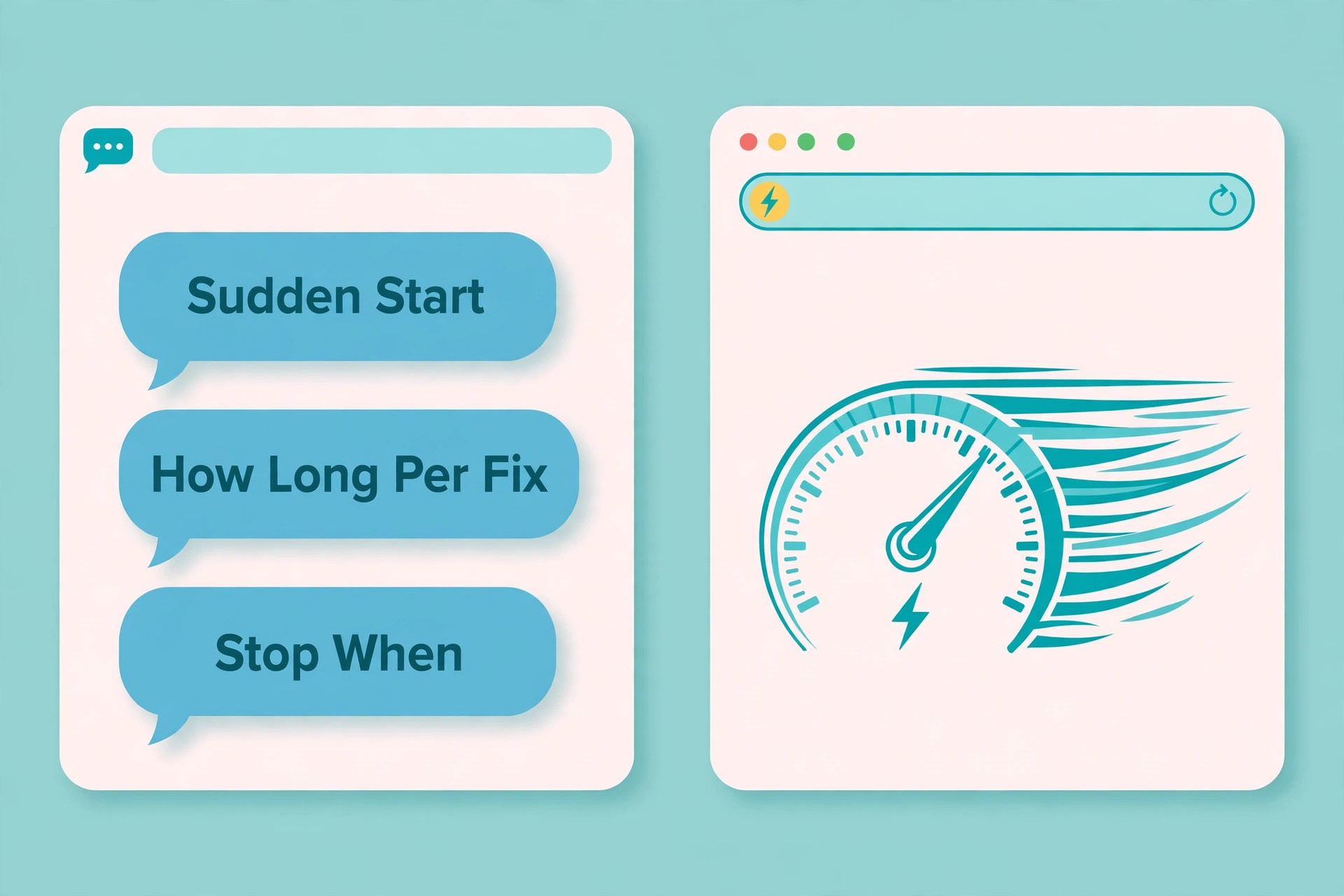
The commonest trigger is a change just before the fault, such as an update, a new accessory, a move, or a period without use, and tracing that change usually points at the cause faster than testing parts at random. Note the last change first, then work through the ordered steps, because a fault with a clear trigger often has a short fix.
How long should each fix take before I move on?
Give each simple step a proper test rather than a glance, because a restart, a cable swap or a permission change needs a minute or two to show its result, while a reinstall or a resync needs longer. If a step shows no change after a fair test, move on and note the result, because the log of failed steps is what narrows the remaining causes.
Will clearing cache or data delete my content?
Clearing cache removes temporary files only, while clearing data or storage signs you out and removes local settings, so check where your content lives before the stronger step. Mail, playlists and cloud files usually live on the server and resync, while local downloads and unsaved work need a backup first.
What if the problem affects only one account or device?
That pattern is useful evidence, because a fault tied to one account points at account settings or sync state, while a fault tied to one device points at that device, and the ordered guide for fix Chrome running slow Windows helps separate those two cases before you change settings everywhere.
When should I contact support instead of trying more fixes?
Contact support after the ordered steps fail, or immediately if you see danger signs such as heat, swelling, liquid damage or a burning smell, and take your notes on what you tried. Support moves faster when you can list the ruled out causes, and continuing to guess after that point risks making a repairable fault worse.
How do I stop this happening again?
Keep updates current, keep comfortable free storage, check cables and permissions monthly, and note any change before a fault appears, because most repeats come from the same neglected basics. A ten minute monthly check is cheaper than another afternoon of troubleshooting, and it builds a baseline that makes future changes obvious.
Final Word
Work through fix Chrome running slow Windows in order, stop at the step that works, and keep the notes on what you tried, because that discipline turns a frustrating fault into a short sequence of tests, and it also means the next fault starts from a known baseline instead of from scratch.
Preventing a repeat with Chrome running slowly on a Windows PC is mostly a matter of keeping the simple things in good order, because updates, free space, clean contacts and a known good cable or adapter prevent a large share of repeat faults. A monthly check that takes ten minutes, looking at updates, storage and the condition of cables and connectors, catches most problems while they are still small, and it also builds a baseline, so a future change stands out immediately instead of blending into a slow decline that nobody notices until it fails.
Start with the first step today, test one change at a time, and let the result of each test decide the next move, because a calm ordered approach beats a fast random one, and the time saved by not repeating failed steps is time you get back for the work itself.