
Start with the test that splits the problem in half, which is to try the same page in an incognito window, because if it loads there, an extension, a cookie, or a profile setting is the cause, and if it fails there too, the cause is more likely connection, DNS, or system related. That single test saves more time than any other step in browser troubleshooting, because it tells you whether to dig into Chrome‘s own settings or to look outward at the network. When you fix Chrome not loading pages, the order in this guide follows that logic, moving from quick Chrome checks to DNS and network steps, and only then to resets that change your setup.
This guide covers every common pattern, from no pages loading at all, to one site failing while others work, to pages loading in other browsers but not in Chrome. It explains cache, cookies, extensions, DNS, proxy and VPN settings, firewall interference, and the settings reset, with what each step deletes, so you never clear data blindly. Follow the steps in order, test with a simple, reliable page after each step, and stop as soon as pages load normally again.
What Kind of Loading Failure You Have
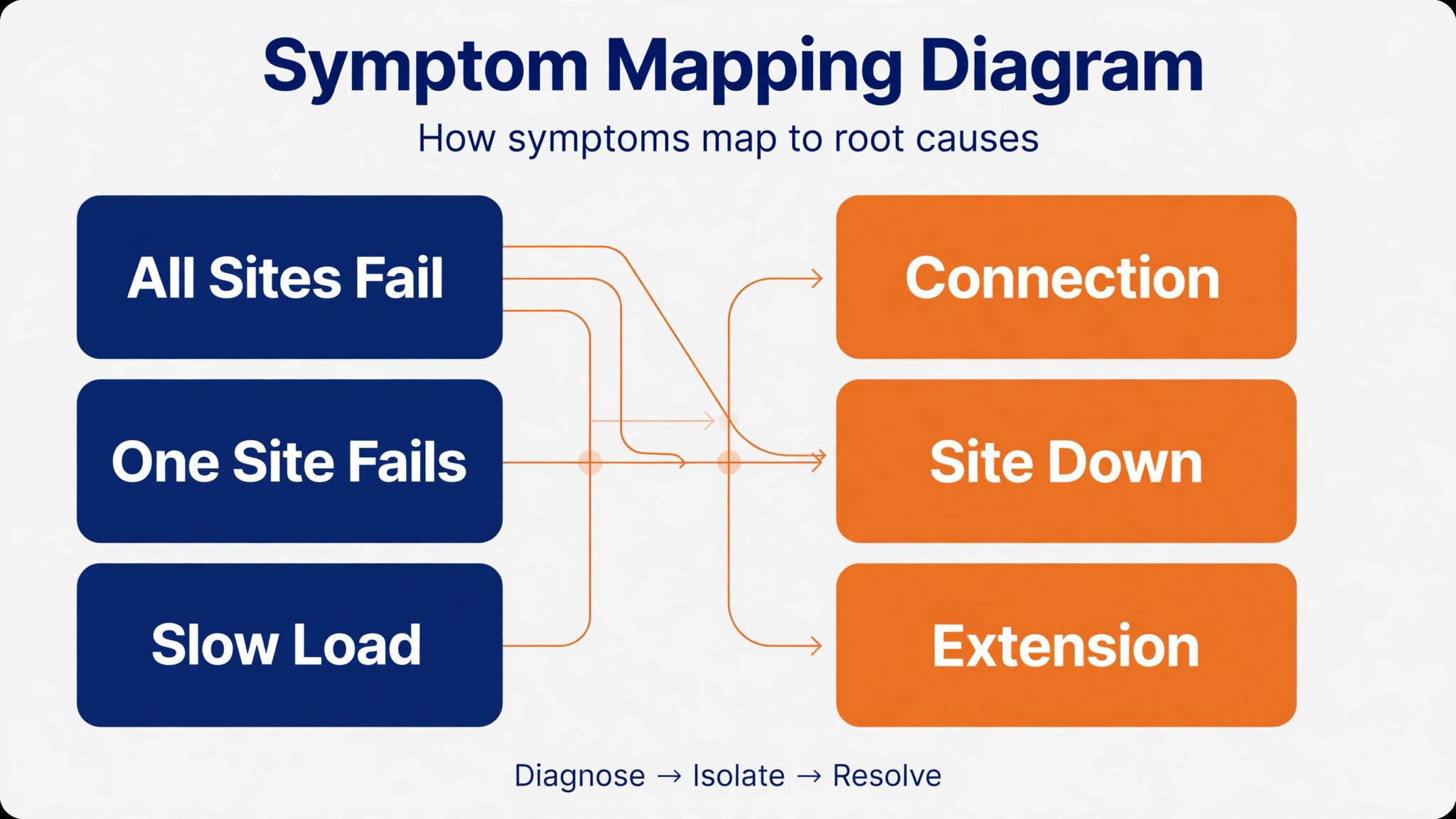
The pattern of failure narrows the cause faster than any single fix, so note exactly what happens before changing settings. If no pages load at all in Chrome, while other browsers or apps on the same computer work, the cause is specific to Chrome, such as a faulty extension, a corrupt profile, a bad proxy setting, or a firewall rule blocking Chrome. If no pages load in any browser and no app connects, the cause is the connection, the router, or the network itself, and Chrome steps will not help until the connection returns.
If one site fails while others load, the cause is more likely that site, its DNS record, or a cached bad version of that site in Chrome, rather than Chrome as a whole.
Error messages help, even when they look cryptic, so note the exact message and code, such as a connection timed out message, a DNS probe message, or a connection reset message, because each points to a different layer. A DNS related message points to name resolution, which is how Chrome turns a web address into a server address, and DNS steps become the priority. A timed out message points to a server or network path problem, which may be temporary, and a reset message points to an interrupted connection, which can come from a proxy, a VPN, or security software.
A page that loads partly, with missing images or broken layout, points to a cache, extension, or content blocking cause, rather than a total connection failure, and clearing cache or disabling blockers becomes the priority.
Also note when the failure started, because timing names the cause in many cases. A failure that started right after installing an extension points to that extension, a failure after a Chrome update points to a profile or compatibility issue, and a failure after installing security software or a VPN points to that software’s filtering. A failure that affects only secure sites, or only one network, such as work Wi-Fi but not home Wi-Fi, points to a proxy, firewall, or network policy rather than to Chrome itself. That timing and pattern check, done before any fixing, prevents the most common waste in browser troubleshooting, which is resetting Chrome for a network problem, or restarting a router for an extension problem.
Note the pattern first when you fix Chrome not loading pages, before changing any setting.

How to fix Chrome not loading pages in Order
Work through this order, testing a simple page after each step, and stop when pages load normally. The order runs from quick and harmless to slow and disruptive, so a restart or an incognito test can solve the problem before any data is cleared, and a settings reset comes only after extension and DNS steps have been tried.
- Restart Chrome fully, closing every window, then reopen it and try the page again, to clear temporary states.
- Check the connection by loading a page in another browser and in another app, and restart the router if nothing connects anywhere.
- Open an incognito window and try the page there, because extensions are off by default in incognito, which splits extension causes from network causes.
- Clear cached images and files for all time in Clear Browsing Data, restart Chrome, and test again, before clearing cookies.
- Clear cookies and site data as well, knowing this signs you out of websites, and test again, because corrupt cookies break specific sites.
- Disable all extensions on the extensions page, restart Chrome, and test, then re-enable extensions one at a time to find the culprit.
- Flush Chrome’s internal DNS cache on the net internals DNS page, using the clear host cache control, and flush socket pools on the sockets page.
- Flush the operating system DNS cache, using the system command for Windows or Mac, restart Chrome, and test again.
- Disable any VPN or proxy, in Chrome settings under System and in the operating system proxy settings, and test again.
- Update Chrome to the latest version, restart, and test, because updates fix known loading bugs.
- Reset Chrome settings to their original defaults, knowing this disables extensions and clears temporary data but keeps bookmarks and saved passwords.
- Check firewall and antivirus settings to confirm Chrome is allowed, and temporarily test with security software paused, following its own guidance, if all else fails.
That order protects your data, because early steps delete nothing, cache steps delete only temporary files, and cookie and reset steps, which sign you out or change settings, come only after simpler fixes have failed. Clearing cache alone fixes a large share of loading failures, because a corrupt cached file can make a page fail every time while the live site works fine, and a fresh cache forces Chrome to fetch the current page.
Clearing cookies is stronger, because it removes login states and site preferences, so it should follow a cache only attempt, not precede it, and the settings reset should follow extension and DNS work, not replace it, because a reset that was unnecessary still costs time restoring extensions and preferences.
When you fix Chrome not loading pages, test with a page you know well, such as a major search engine or news site, rather than only with the failing page, because a known good page proves Chrome itself works, while a failing page may be down for everyone. If the known page loads but one site still fails, focus on that site’s cache, cookies, DNS, and server status, rather than repeating Chrome wide steps. A browser that loads known pages is a healthy browser, and the remaining problem belongs to the single site, its DNS, or its server, not to Chrome as a whole.

DNS Steps Explained
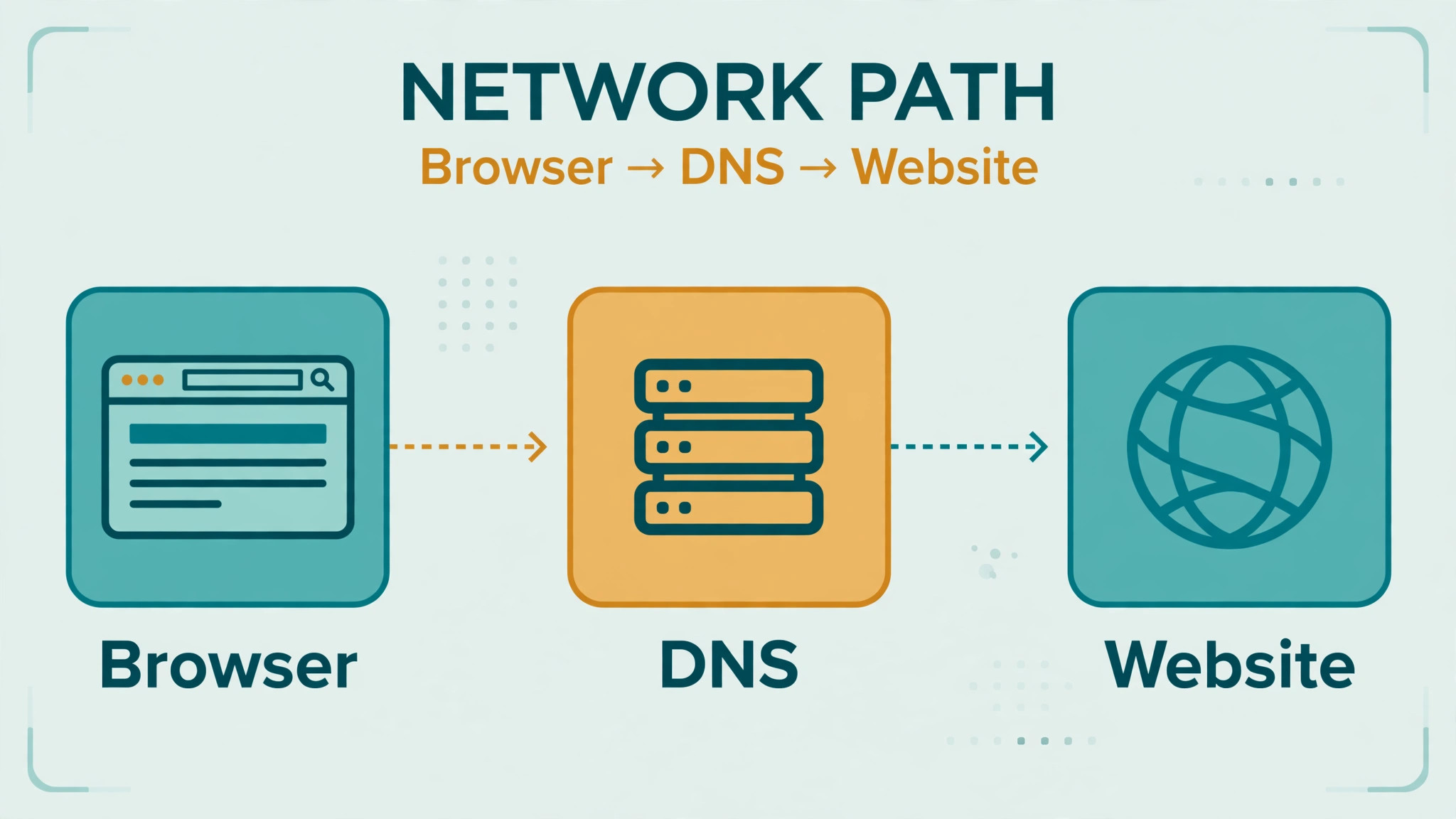
DNS is the system that turns a web address into a server address, and stale or corrupt DNS records are a common, invisible cause of loading failures. Chrome keeps its own DNS cache separate from the operating system’s cache, so both may need clearing, and clearing only one can leave the fault in place. To clear Chrome’s cache, open a new tab, go to the net internals DNS page inside Chrome, and use the clear host cache control, which removes stored DNS entries immediately, so the next visit performs a fresh lookup.
Then visit the net internals sockets page and flush socket pools, because old open connections can continue routing through outdated paths even after DNS is cleared, and flushing them forces new connections against fresh DNS data.
To clear the operating system cache, use the system command for your computer, which on Windows means opening Command Prompt as administrator and running the flush command, and on Mac means using the terminal cache flush command for your macOS version, then restarting Chrome and testing again. If DNS failures persist after both flushes, try a public DNS service in your network settings, such as Google DNS, because an internet provider’s DNS can be slow, faulty, or poisoned by a misconfiguration, and a public DNS often resolves pages that a provider DNS cannot.
Change DNS in the operating system network settings, not in Chrome alone, so every browser and app benefits, and note the original settings before changing them, so you can restore them if needed.
DNS problems have a distinctive pattern, which is that some sites load while others fail, or that a site fails in Chrome but loads in another browser with a different cache, or that a site fails after moving to a new network. If a site loads on mobile data but not on home Wi-Fi, the home network’s DNS is suspect, and a router restart or a DNS change becomes the priority. If a site fails everywhere, on every device and network, the site itself or its DNS record is likely at fault, and waiting, or checking the site’s status, is more sensible than further browser steps.
DNS is invisible when it works and confusing when it fails, but a patient flush of both caches, followed by a public DNS test, resolves most DNS related loading failures. Flush both caches when you fix Chrome not loading pages with a DNS pattern, not just one.
Cause Table for Loading Symptoms
Use this table to match what you see with the most likely cause and the first fix, so a clear symptom leads straight to the relevant section without working blindly. The table does not replace the full order, but it speeds diagnosis when a pattern is distinctive.
| Symptom | Most likely cause | First fix to try |
|---|---|---|
| No pages in Chrome, other browsers work | Extension, profile, proxy, or firewall | Incognito test, disable extensions, check proxy |
| No pages anywhere, no app connects | Connection or router fault | Restart router, check connection, test another device |
| One site fails, others load | Site cache, cookies, DNS, or site down | Clear that site’s data, flush DNS, check site status |
| Page loads partly, images missing | Cache, blocker extension, or content fault | Clear cache, disable blockers, test incognito |
| Pages load slowly, then time out | Network, DNS, or overloaded system | Flush DNS, close heavy tabs, restart router |
| Loads in incognito, fails normally | Extension, cookie, or profile setting | Disable extensions, clear cookies, test one by one |
| Works on mobile data, fails on Wi-Fi | Home network DNS, proxy, or firewall | Flush DNS, try public DNS, check router |
| Secure sites fail, plain sites load | Date and time, certificate, or security software | Check date and time, pause security software test |
A symptom that changes after a step is useful, even when the step does not fully fix the problem, so note what changed. If clearing cache changes a total failure into a partial load, the cache was part of the problem and an extension or blocker is likely the rest. Use the table first when you fix Chrome not loading pages and the pattern is clear. If disabling extensions fixes loading, re-enable them one at a time, reloading the failing page after each, because the extension that breaks the page is the offender, and it should be removed or replaced, not merely left disabled with the rest.
Troubleshooting is narrowing, not magic, and a short note of symptoms, steps, and changes makes that narrowing fast, especially if you later seek help.
Finding the Extension That Breaks Pages
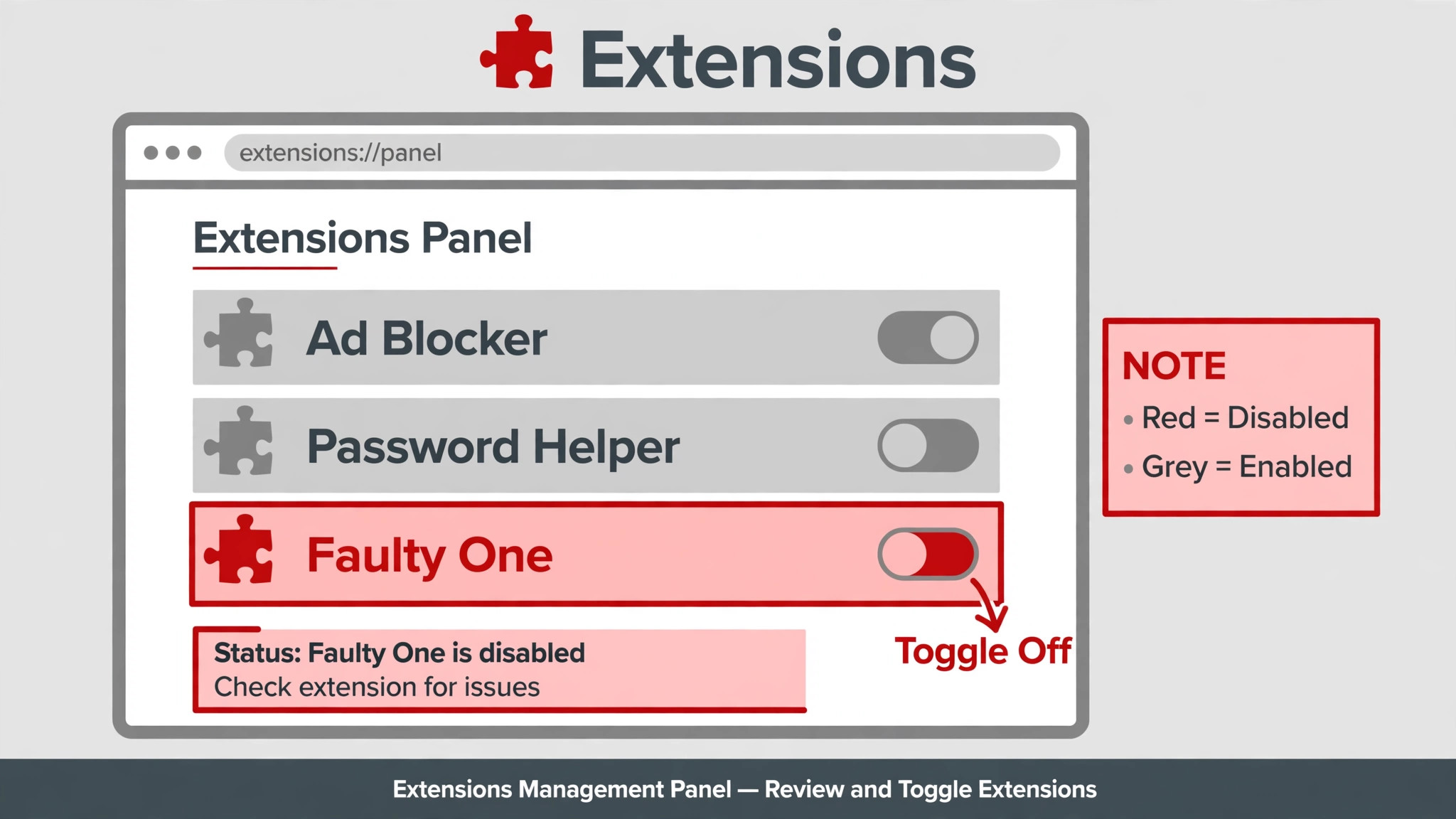
Extensions are the most common Chrome specific cause, because ad blockers, privacy tools, VPN extensions, coupon tools, and developer tools can all rewrite, block, or redirect the traffic a page needs. The detective method is simple, though it takes patience, which is to disable all extensions, confirm pages load, then re-enable extensions one at a time, reloading the failing page after each, until loading breaks again. The extension that breaks the page is the culprit, and it should be removed or replaced, not merely left disabled alongside everything else, because a disabled culprit can be re-enabled accidentally by a future update or a settings sync.
Pay special attention to extensions installed recently, updated recently, or related to privacy, security, or shopping, because those categories interact most with page loading. An extension that worked for months can break after its own update, after a Chrome update, or after a site changes its code, so recent changes matter more than long term reputation. If an extension is essential to your work, check its settings for an allow list or a pause option for the failing site, because many blockers allow a site exception that restores loading without removing the extension entirely.
If no exception helps, look for an alternative extension with the same job, because a single extension should never be allowed to break the browser it is meant to improve.
Also check Chrome’s own site settings, because a site permission, such as blocked JavaScript or blocked cookies for a specific site, can break that site while others load normally. Open site settings for the failing site, reset its permissions to defaults, and test again, before concluding that an extension is at fault. When you fix Chrome not loading pages, extension work comes before a settings reset for a reason, because a reset disables extensions anyway, and finding the culprit first lets you keep the extensions you trust while removing only the one that breaks pages.
When Only One Site Fails
A single site failure needs a different lens, because Chrome wide steps cannot fix a site that is down, blocked, or misconfigured on the server side. Test the site elsewhere first when you fix Chrome not loading pages with a single site failure. First, check whether the site loads on another device and another network, such as a phone on mobile data, because a site that fails everywhere is down or broken for everyone, and waiting or checking its status page is the sensible response.
If the site loads elsewhere but not in your Chrome, clear that site’s data specifically, by opening site settings for that site and clearing its data, rather than clearing all cookies, because targeted clearing preserves logins for every other site while fixing the one that fails.
Check the site address carefully, because a mistyped address, an old bookmark to a moved page, or a redirect loop from a changed site structure can look like a Chrome failure. Try the site’s home page instead of a deep link, try a search for the site name, and check whether the site recently changed its address or its security certificate, because those changes break old links without any fault in Chrome. Check your computer’s date and time, because a wrong date breaks secure site certificates, and secure sites will refuse to load while plain sites still work, which is a distinctive pattern that points directly to the clock.
Check whether security software, a parental control, or a workplace filter blocks that site specifically, because those tools commonly block categories of sites silently, without a clear Chrome error.
If the site still fails after targeted clearing, DNS flushing, and an incognito test, and it loads on other devices, consider a Chrome profile problem, and test with a new Chrome profile, which starts clean without extensions or settings, to see whether the profile itself is corrupt. A new profile that loads the site proves the old profile is at fault, and moving bookmarks and passwords to the new profile becomes the fix, while a new profile that also fails points back to the network, DNS, or system, not to Chrome’s profile. That profile test, done late in the order, separates the last Chrome causes from network causes cleanly.

Mistakes That Waste Time on Chrome Fixes
The first mistake is resetting Chrome settings first, before testing incognito, clearing cache, or disabling extensions, which changes many settings for a problem that often needs only a cache clear or one extension removed. The second mistake is clearing all cookies before trying cache alone, which signs you out of every site for a problem that cache alone might have fixed, and costs time logging back in everywhere. The third mistake is restarting the router for a Chrome only problem, because a router restart cannot fix an extension or profile fault, and it interrupts every device in the house for no benefit.
The fourth mistake is changing several network settings at once, such as DNS, proxy, and firewall rules together, which makes it impossible to know which change helped or harmed, and can leave the computer in a worse state than before. Change one setting, test, and note the result, before changing another. The fifth mistake is ignoring the incognito test, because that single test splits extension causes from network causes in seconds, and skipping it turns a short diagnosis into a long guess.
The sixth mistake is reinstalling Chrome before trying a settings reset and a new profile test, because reinstalling is slow, risks losing profile data if backup is incomplete, and rarely fixes what a reset or a profile test would have revealed.

Preventing the Next Loading Failure
Prevention for Chrome loading is mostly about extension hygiene, cache awareness, and network health, because most failures come from an extension update, a corrupt cache, or a DNS problem that builds up quietly. Keep extensions to those you actually use, remove extensions you no longer need, and review extension permissions after updates, because a smaller, trusted extension set breaks less often and is easier to diagnose when it does. Clear cached images and files occasionally, especially after a site redesign or a period of heavy browsing, because a proactive cache clear costs nothing and prevents the corrupt file that causes a stubborn failure.
Keep Chrome updated, because updates fix known loading bugs and security issues, and keep the operating system date and time set automatically, because a wrong clock breaks secure sites in a confusing way. Review extensions monthly when you fix Chrome not loading pages through a prevention routine, and remove those no longer used. Note the fix that worked in a short browser note, so the next failure can be solved by repeating it. Keep a note of any proxy, VPN, or custom DNS setting you use, so a future failure can be checked against known settings instead of guessed at, and restart the router monthly, or whenever performance degrades, because a healthy router gives every browser a stronger starting point.
A few minutes of extension and cache care each month keeps pages loading quietly, which is exactly how a browser should work, and it means the next loading failure, if it comes, will be a quick incognito test and a cache clear instead of an afternoon of resets.
More Reading on Stratilyze
If this guide helps your pages load again, the wider Stratilyze guides cover the Chrome problems around it. The guide to Chrome extensions not working helps when extensions themselves fail, the guide to Chrome running slow with many tabs covers performance that feels like loading failure, and the guide to Wi-Fi dropping on a laptop helps when the network, not Chrome, is the cause. Read the extensions guide next if one extension keeps breaking pages, because its settings may need a site exception.
Frequently Asked Questions
Why does Chrome not load pages but other browsers do?
That pattern points to a Chrome specific cause, such as an extension, a corrupt cookie or cache, a proxy setting, or a firewall rule blocking Chrome, rather than to the connection itself. Test in an incognito window first, because extensions are off there by default, then clear cached images and files, disable extensions one at a time, and check proxy settings. If incognito loads pages normally, an extension or a profile setting is almost certainly the cause, and finding it beats resetting Chrome blindly.
How do I flush DNS when you fix Chrome not loading pages?
Flush Chrome’s internal DNS cache on the net internals DNS page inside Chrome, using the clear host cache control, then flush socket pools on the sockets page, because old connections can keep using outdated paths. Then flush the operating system DNS cache with the system command for Windows or Mac, restart Chrome, and test again. If failures persist, try a public DNS service in your network settings, because a provider DNS can be slow or faulty, and note original settings before changing them.
Will resetting Chrome delete my bookmarks and passwords?
Resetting Chrome settings to their original defaults disables extensions, clears temporary data, and restores settings, but it keeps bookmarks and saved passwords, which is why it is safer than reinstalling. It does clear some temporary data and may sign you out of sites, so note any custom settings, such as startup pages or search preferences, before resetting. Try cache, cookie, extension, and DNS steps first, because a reset should be a later step, not the first response to a loading failure.
Why does one website not load in Chrome but loads on my phone?
A single site failure usually means that site’s cached data or cookies in Chrome are corrupt, its DNS record is stale on your network, or the site itself blocks or fails for your computer’s network. Clear that site’s data specifically in site settings, flush DNS in Chrome and in the operating system, and test the site on mobile data to see whether your home network is the difference. If the site loads on mobile data but not on home Wi-Fi, your home DNS or router settings are the likely cause.
Can an antivirus or firewall block Chrome from loading pages?
Yes, firewall and antivirus software can block Chrome specifically, especially after an update that changes Chrome’s program file, because the security software may treat the new version as unrecognised. Check the firewall’s allowed apps list to confirm Chrome is allowed, and test briefly with security software paused, following its own guidance, to see whether loading returns. If pausing restores loading, add Chrome as an allowed app properly rather than leaving security software paused, because paused protection leaves the computer exposed.
How do I know if an extension is breaking Chrome pages?
Disable all extensions, confirm pages load, then re-enable extensions one at a time, reloading the failing page after each, until loading breaks again. The extension that breaks the page is the culprit, and it should be removed, replaced, or given a site exception if its settings allow one. Pay special attention to recently installed or updated extensions, especially ad blockers, privacy tools, VPN extensions, and coupon tools, because those categories interact most with page loading.
Pages Loading Again
Most Chrome loading failures resolve with a patient walk through the order in this guide, starting with a restart and an incognito test, moving through cache, cookies, extensions, and DNS flushes, and only then reaching proxy checks, updates, and a settings reset. Test with a known good page after each step, find the culprit extension one at a time instead of resetting blindly, and change one network setting at a time so you know what helped. Keep extensions few and trusted, clear cache occasionally, and keep date, time, and DNS settings noted, and the next loading failure will be a quick test and a clear fix instead of an afternoon of guesswork.
If pages still fail everywhere after the full order, take your note of symptoms and steps tried to network or system support, because a clear history speeds a deeper diagnosis more than repeated resets can. Save a short note of the step that fixed the problem, because browser failures recur, and a note that says cache, extension, or DNS saves the next diagnosis from starting blind, and share that note with anyone else who uses the same computer, so a shared machine stays fixed for everyone.
Keep a bookmark to this guide’s fix order in your browser, so the next loading failure starts from a known order instead of a search, and share the order with anyone who uses the same computer, because a shared fix keeps a shared machine working.