
A team that pays per seat for a password manager feels every renewal twice, once in the invoice and once in the admin work that never quite gets cheaper. When the renewal quote lands higher than last year, or when the security team asks for controls the current plan gates behind a higher tier, the question stops being whether another tool exists and becomes whether a move is worth the disruption. If your team plans to migrate 1Password to Bitwarden, the export and import buttons are the easy part, and they are also the part most guides stop at.
The hard part is everything around those buttons. A shared vault in one product is not the same object as a collection in the other, and a personal item does not become a team item just because it was imported. This guide covers the full team move, from pricing and audit through export security, vault mapping, item conversion, policies, the self-host decision, and a staged cutover with a rollback window.
Why Teams Rethink Their Password Manager Now
Price is usually the trigger, but it is rarely the whole reason. Teams move when three pressures arrive together. The first is a renewal increase that finance notices. The second is a control gap, such as no clean way to stop a departing employee from keeping a copy of shared logins, or no audit trail that satisfies a client questionnaire. The third is growth. A structure that worked for eight people in two shared vaults turns into a tangle at forty people, when everyone can see credentials for systems they never touch.
A team that decides to migrate 1Password to Bitwarden for cost reasons alone should still run the numbers honestly, because the saving depends on team size and on which tier each side needs. At prices reported from vendor pricing pages in October 2026, 1Password Business costs 8.99 dollars per user per month billed annually, while Bitwarden Teams costs 4 dollars per user per month billed annually and Bitwarden Enterprise costs 6 dollars per user per month billed annually. For a 25 person team, that puts 1Password Business at 2,697 dollars a year, Bitwarden Teams at 1,200 dollars a year, and Bitwarden Enterprise at 1,800 dollars a year.
The gap between 1Password Business and Bitwarden Teams is 1,497 dollars a year at that size, and it grows with headcount.
Small teams face a different maths problem. 1Password Teams Starter Pack is a flat 24.95 dollars a month billed annually for up to 10 members, which is a strong deal while a team stays small. Once the team grows past that pack, the whole account moves to per user Business pricing, so user 11 changes the bill for everyone, not just for one seat. A 10 person team comparing the flat pack with Bitwarden Teams should compare 299.40 dollars a year against 480 dollars a year and notice that 1Password is cheaper at that exact size. The Bitwarden case strengthens as the team grows and as the need for granular policy control grows.
| Plan | Price billed annually | Best fit for a team move |
|---|---|---|
| 1Password Teams Starter Pack | 24.95 dollars a month flat for up to 10 members | Very small teams that stay under the cap |
| 1Password Business | 8.99 dollars per user per month | Larger teams that need single sign-on and provisioning |
| Bitwarden Teams | 4 dollars per user per month | Growing teams that need shared collections and directory sync |
| Bitwarden Enterprise | 6 dollars per user per month | Teams that need single sign-on, enterprise policies and self-hosting |
Check the vendor pricing page and checkout before you commit, because vendors adjust prices and promo terms, and the figures above are a snapshot from October 2026, not a quote.

Before You Export Anything, Audit and Freeze
Most failed migrations are not import failures. They are audits that never happened, so a team imports years of dead logins, duplicate passwords, and shared items nobody remembers sharing, then blames the new tool for the mess. Spend a focused half day on this audit before any export, and the rest of the move gets easier.
Start with a count that an admin can defend. List every vault in 1Password, who owns each one, how many items it holds, and how many people have access. Note which vaults are personal, which are shared, and which exist only because one project needed a login years ago.
Next, find the ten accounts that matter most if they were lost or leaked. For most teams that list includes the primary email domain admin account, cloud infrastructure, source code hosting, the finance system, and the single sign-on admin console. Those ten get manual verification after import, and their passwords get rotated during cutover rather than carried across unchanged.
Then clean, but do not delete yet. Remove obvious duplicates, such as three saved logins for the same service with only one current password. Rename vague items now, while someone still remembers what they are. Archive dead accounts instead of deleting them on audit day, because a deleted login cannot be recovered from the export if it was still linked to a billing portal. Finally, freeze the structure. Announce a date after which nobody creates a new shared vault or moves items between vaults until the migration is done.

Export Formats and the Security Rules That Come First
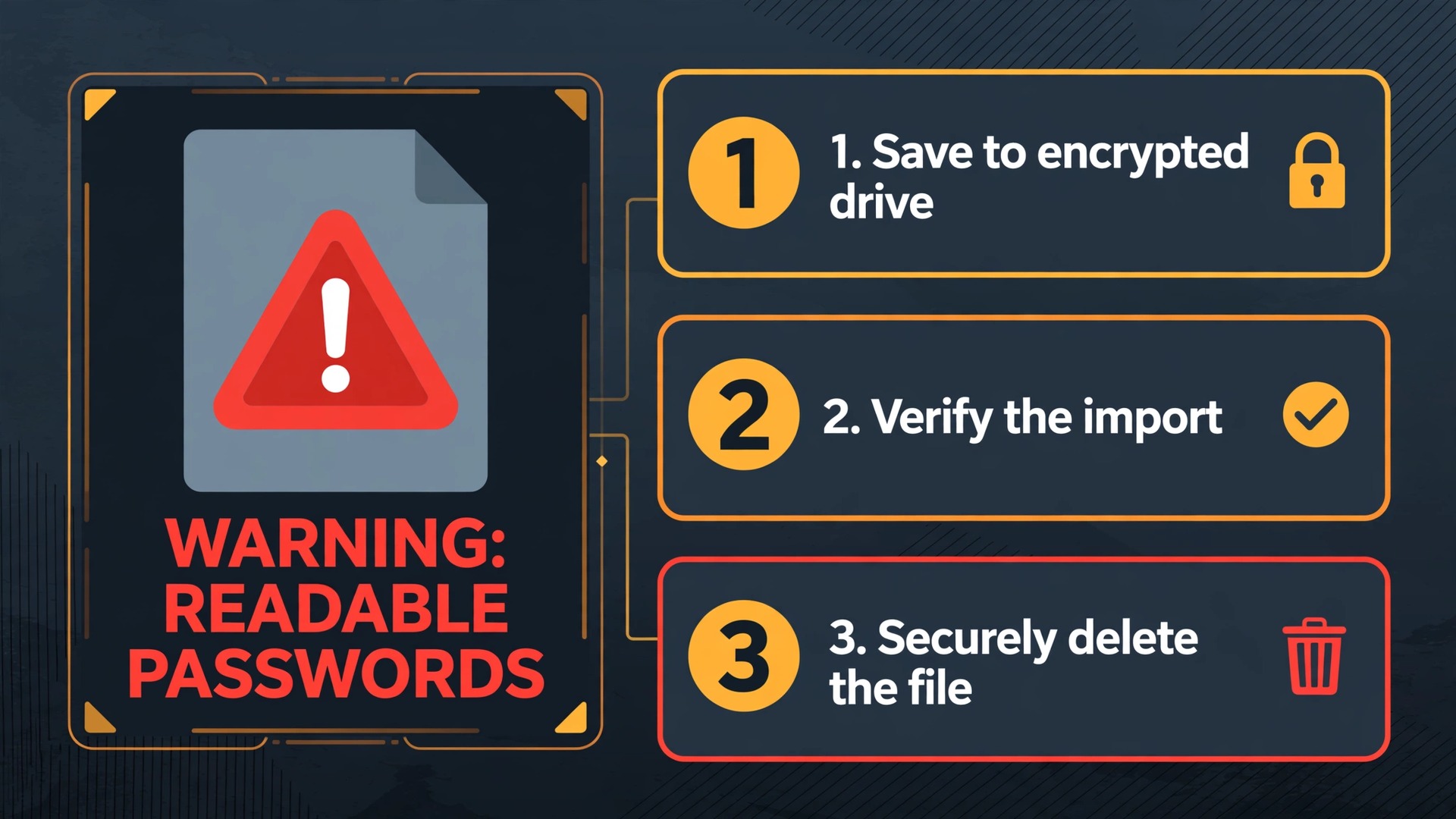
The safest way to migrate 1Password to Bitwarden starts with a rule that sounds dramatic until you see an export file for the first time. An exported file holds your passwords in readable form. Anyone who can open that file can read the credentials inside it. 1Password says this plainly in its own export documentation, and it warns users not to email export files, not to store them online, and to delete them when finished. Treat that warning as the design constraint for the whole export phase, not as fine print.
Export from the 1Password desktop app, because the web app and the browser extension do not offer the same export path. Unlock the app, select the vault you want to export, and choose File, then Export on a Mac, or the three dot menu, then Export, on Windows. You will be asked for the account password again, so do exports on a trusted machine, never on a borrowed device or over a screen share that others can record.
Format choice matters more than most guides admit. 1Password 8 exports to the 1Password Unencrypted Export format, known as .1pux, or to a comma separated values file, known as CSV. The .1pux format preserves more of the original item, including notes, custom fields, and one time password seeds in many cases, and Bitwarden lists .1pux as a supported import format, alongside .1pif from older versions and CSV. CSV supports a limited set of fields and exports Login and Password items only, so secure notes and custom fields can be lost in a CSV move. Export vault by vault in .1pux wherever possible.
That vault by vault point is where team migrations quietly go wrong. A single export that dumps every vault into one file loses the boundary between vaults, and the admin then has to sort hundreds of items by memory after import. Export one vault at a time, name each file for its vault, and import each file into its matching Bitwarden collection before moving to the next vault. Save exports to an encrypted local drive, never to a shared drive, a chat attachment, or a cloud folder that syncs to personal devices. When verification is done, delete the files with a secure delete method, empty the trash, and check that no copy remains in Downloads or in a synced folder.
How to migrate 1Password to Bitwarden in a Controlled Pilot
A pilot is how a team learns what breaks before everyone depends on the new vault. Pick a pilot group of five to ten people who cover the real range of the team, meaning at least one admin, one person who lives in the browser extension, one mobile heavy user, and one person who uses one time password codes daily. A pilot of only admins proves nothing about daily use, and a pilot of only enthusiasts hides the friction that less technical staff will hit on day one.
Set up the Bitwarden organization first, before any import. Create the organization on the plan you intend to keep, because collections and groups do not move cleanly between a personal vault and an organization later. Invite the pilot group, confirm each person can sign in, set a master password that meets the policy you plan to enforce, and turn on two-step login for every pilot account. Importing into a personal vault and then trying to share items afterward creates a second migration inside the first one, and it is entirely avoidable.
Import from the Bitwarden web vault, which is the most reliable place for an organization import. Open Tools, then Import, choose the organization from the vault dropdown, and choose a collection where you have permission to manage items. Bitwarden notes that you can only choose a collection where you hold can manage permission, so the importing admin needs that permission on every target collection. Select the 1Password .1pux format, choose the export file for one vault, and import, repeating vault by vault and checking the item count each time.
Verify the pilot before you invite anyone else. Each pilot member should open their assigned collections, test autofill on three real sites they use daily, confirm that one time password codes generate correctly, and report any item that arrived with a missing password or a wrong username. The admin should compare imported and exported counts for every vault, spot check the ten critical accounts, and log every gap with an owner and a fix. Keep 1Password running throughout the pilot, so members can fall back to the old vault instantly.
Vault to Collection Mapping That Survives Contact With Reality
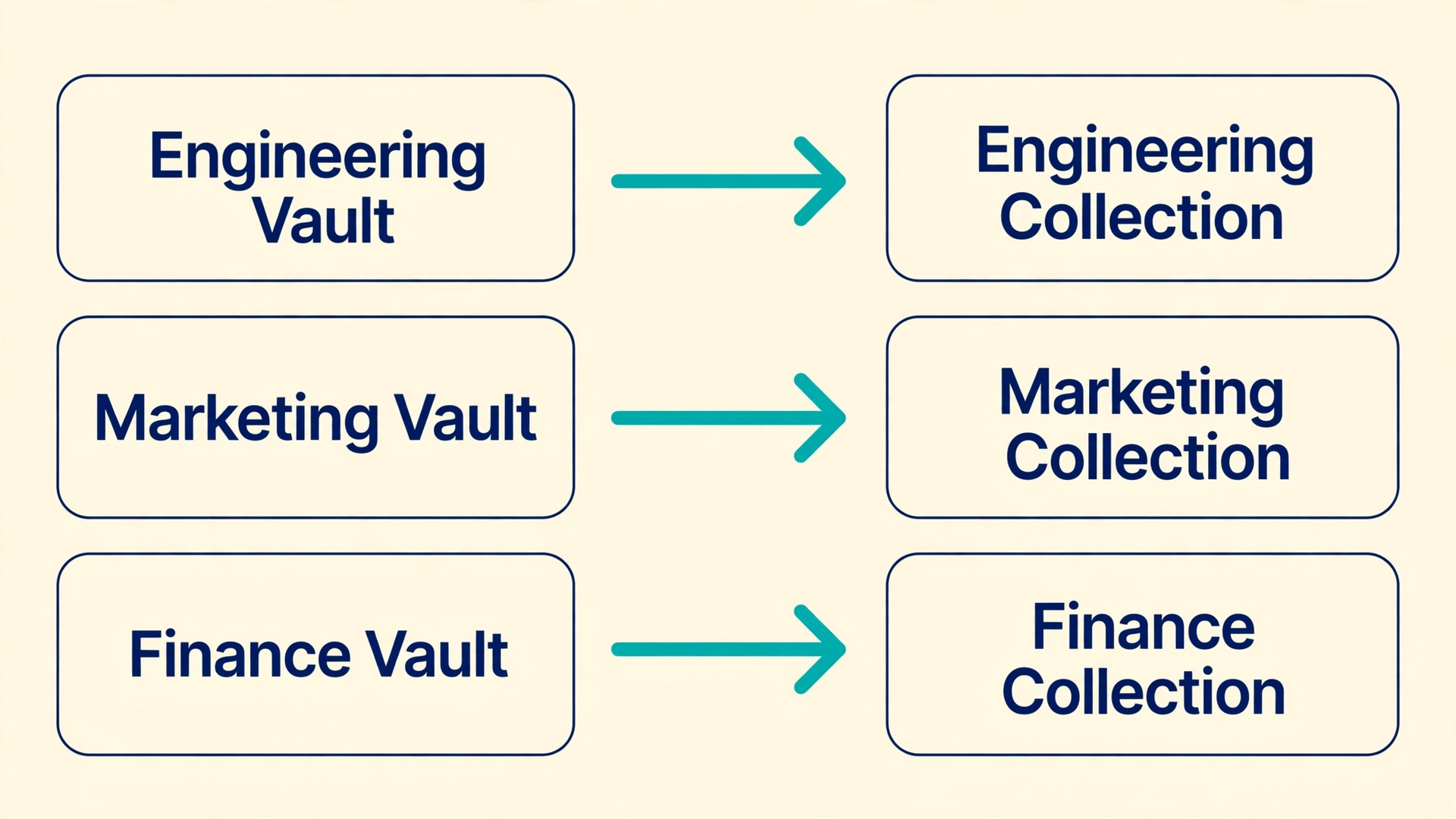
When you migrate 1Password to Bitwarden, a vault does not become a folder, and a folder does not become a vault. Bitwarden has two different organizing objects, and confusing them is the most common structural mistake in a team move. A collection is the shared container inside an organization, and it is what other members can be given access to. A folder is a personal organizing label inside one person’s vault, visible only to that person. Shared access lives in collections. Personal tidiness lives in folders.
An admin who imports shared vaults into personal folders has not migrated sharing at all, and the team will discover that fact the first time a new hire cannot see a login everyone assumed was shared.
Build the mapping table before import, not after, and get each vault owner to sign off their row. The table below is a template with realistic examples. Replace every example row with your own vaults, and keep the finished table as the migration record, because six months later someone will ask why a collection exists, and this table is the answer.
| 1Password vault | Bitwarden destination | Access model | Owner |
|---|---|---|---|
| Engineering shared | Engineering collection | All engineers, read and edit for seniors, read only for juniors | Engineering lead |
| Marketing shared | Marketing collection | Marketing team, read only except for two editors | Marketing lead |
| Finance and billing | Finance collection | Finance team only, passwords hidden for most members | Finance lead |
| Company admin and infrastructure | Infrastructure collection | Admins only, edit access limited to two owners | IT admin |
| Client project logins | One collection per client | Assigned project team only, removed at project close | Project lead |
| Personal vaults of each member | Personal vault, no collection | Owner only, never shared | Each member |
| Former staff and archived vaults | Archive collection, read only | Admins only, for rotation and closure | IT admin |
| Guests and contractors | Contractor collection | Named contractors only, time limited review | IT admin |
Three mapping rules prevent most post migration arguments. First, one vault becomes one collection by default, and a vault is only split when the audit shows it holds two different audiences, such as general team logins mixed with finance credentials. Second, personal vaults stay personal, and no admin should import a personal vault into a shared collection. Third, archived vaults get their own read only collection rather than being merged into an active collection, so old credentials stay visible for reference but cannot be mistaken for current ones.
What Happens to Each Item Type
Not every item survives when you migrate 1Password to Bitwarden intact, and a guide that promises a perfect transfer is selling comfort, not accuracy. Logins transfer best. Usernames, passwords, and URLs generally import cleanly from .1pux, which is why the count check after each vault import catches most problems early. Secure notes also transfer in most cases, but formatting can flatten, so a note that relied on rich formatting for readability may arrive as plain text that needs tidying.
Credit card items transfer as card items, but check expiry dates and cardholder names by hand for the cards the finance team actually uses, because a card with a transposed digit is worse than a missing card, since it fails silently at checkout.
One time password seeds deserve a separate verification pass. In many .1pux imports the seed transfers and codes generate correctly, but in some cases the code item arrives without a working seed. Every pilot member who relies on one time codes should test code generation for their three most used accounts before cutover, and keep the old authenticator available until that test passes. Passkeys are less predictable in file based exports, so plan to re-register passkeys in Bitwarden, and treat any passkey that appears to transfer as unverified until it has been used to sign in successfully.
Custom fields often import as Bitwarden custom fields, but names and types can shift, so decide before import whether tags will be rebuilt as personal folders or dropped in favour of collection structure. Watchtower alerts and password health scores do not transfer at all, so run Bitwarden vault health reports after import to rebuild that picture.
Team Policies and Access Control Worth Setting Before Rollout
Policies are the reason a team migration beats a set of individual migrations, and they are also the part most teams postpone until after everyone has already formed bad habits. Set policies before the wider rollout, while the pilot group is small enough to feel the friction and report it.

Bitwarden enterprise policies, available on the Enterprise plan, let an admin enforce master password length and complexity, require two-step login, restrict personal vault use, control vault export, set password generator rules, require single sign-on where it is in use, manage account recovery enrollment, and limit Send sharing. Teams plan organizations get a subset of these controls, so a team that needs single sign-on enforcement, centralized organization ownership, or account recovery administration should price Enterprise from the start.
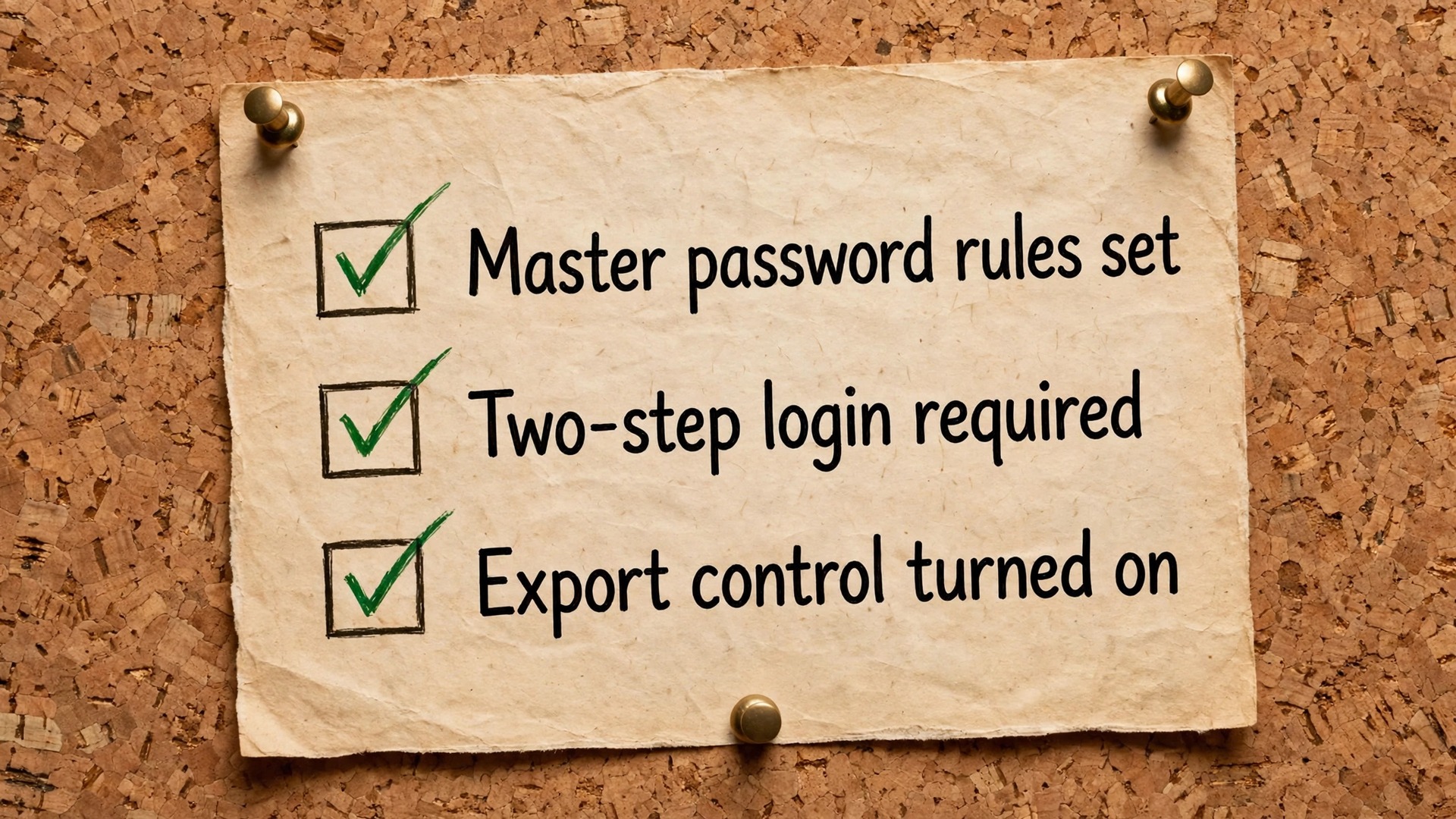
Work through this policy checklist in order, and record the decision for each item, even when the decision is to leave a policy off for now. An explicit not yet is a decision. A policy nobody discussed is an accident waiting for an audit.
- Require a minimum master password length and complexity score for every member, and require members who fall short to change their password at next sign in.
- Require two-step login for every member, unless single sign-on with its own second factor already covers that member, in which case record that exception.
- Restrict vault export for organization members, so a departing employee cannot export the shared vault in one click, and define who may approve an exception.
- Turn on account recovery administration on Enterprise, with automatic enrollment for new members, so an admin can help a locked out member without that member losing the vault.
- Set password generator defaults to a length and character set the team will actually accept, because a rule nobody follows gets bypassed with a memorable weak password.
- Decide the single organization rule, meaning whether members may belong to only one organization, and enforce it if client confidentiality requires that separation.
- Control Bitwarden Send, including whether members may send credentials outside the organization at all, and set expiry limits for any Send that is allowed.
- Require single sign-on on Enterprise where the identity provider is the source of truth for employment status.
- Set vault timeout and lock expectations in onboarding, so staff know the vault locks on a schedule.
- Assign collection permissions by least privilege, using read only access as the default, hide password access where a member needs to use a login without seeing it, and edit access only for collection managers.
Access roles need the same clarity as policies. Bitwarden organization roles run from owner, who controls billing and the organization itself, through admin, who manages members and collections, to manager, who manages assigned collections, and user, who accesses assigned collections. Give the owner role to two people, never one, because a single owner who leaves can strand the whole organization. Review admin membership every quarter, because admin access granted for a migration has a habit of surviving long after the migration ends.
Self-Host or Cloud, Deciding on Evidence Not Preference
Self-hosting is the decision teams argue about most and research least, because both sides can be right for different teams. Bitwarden cloud hosting means Bitwarden runs the servers, applies updates, manages availability, and stores the encrypted vault data. The team pays the per user licence, creates the organization, and starts importing. For most teams, that is the correct choice, because a password manager that is down during an incident is worse than a password manager hosted by a vendor with a strong compliance record, and most internal IT teams already have more servers to maintain than they have people to maintain them.
Self-hosting means the team runs the Bitwarden server on its own infrastructure, controls where encrypted vault data sits, and takes responsibility for server maintenance, security, uptime, backups, and updates. Bitwarden’s own guidance asks teams whether they already self-host other services, whether they have dedicated hardware, whether an IT team will own the server, and whether they are comfortable with Docker or Kubernetes. If several answers are no, the guidance points back to cloud hosting.
Licence rules decide the question before preference gets a vote. A self-hosted organization requires an Enterprise licence file, and Bitwarden documentation states that only Families and Enterprise organizations can be imported to self-hosted servers. A team on the Teams plan that wants official self-hosting must therefore move to Enterprise at 6 dollars per user per month billed annually, plus the server cost. A 25 person team on self-hosted Enterprise pays 1,800 dollars a year in licences before any server cost, against 1,200 dollars a year for cloud Teams, so the extra cost must be justified by a real data control requirement.
The Staged Cutover and the Rollback Window
A cutover that moves everyone on one day is a bet that nothing was missed in the pilot, and pilots always miss something. Stage the cutover by department or by collection, keep the old vault available throughout, and give each wave a clear owner who can answer questions in the team’s normal chat channel. The staged plan below assumes you migrate 1Password to Bitwarden in waves, with a rollback window that stays open until the last wave has proven itself.
Roll out in department waves over the following two to three weeks, one wave at a time, with at least two working days between waves. Each wave follows the same pattern. Export that wave’s vaults one at a time, import into the matching collections, verify counts, test the wave’s critical accounts, and confirm that every member can sign in on desktop and on mobile. Announce each wave in advance, with the date, the collections involved, and the person to contact for help.
Keep 1Password in read only use throughout the rollout. Staff should use Bitwarden as the daily tool, but they should still be able to open the old vault to check an item that looks wrong. That fallback is the rollback window in practice. Set a firm rollback end date, typically 30 days after the final wave, and announce it from the start. Before that date, the team can revert by returning to 1Password as the daily tool, because the old vaults and billing are still intact.
Closing the window is a checklist, not a feeling. Confirm that every wave has verified counts, that critical passwords have been rotated, that exports have been securely deleted, that event logs are recording, and that offboarding has been tested with a test account removal. Only then cancel the 1Password subscription, remove old vault access, and archive the mapping table and verification logs. Cancelling early deletes the fallback before the new system has earned trust.
| Phase | Timing | Done when |
|---|---|---|
| Preparation and freeze | Week 1 | Mapping table signed off, policies set, groups created |
| Pilot wave | Week 2 | Verification log complete, gaps owned and fixed |
| Department waves | Weeks 3 to 5 | Each wave verified, counts match, critical accounts tested |
| Rollback window | 30 days after final wave | Old vault available, new vault in daily use |
| Closure | End of rollback window | Exports deleted, passwords rotated, old subscription cancelled |

After Cutover, Clean Up and Prove It Worked
The week after the final wave is when a migration either becomes the new normal or quietly unravels. Run Bitwarden vault health reports and work through the findings in priority order. Exposed passwords come first, because those accounts need new passwords regardless of which tool stores them. Reused passwords come next, starting with accounts that share a password with email or finance systems. Weak passwords come last, but they still get a deadline.
Rotate the credentials that the old vault touched most broadly. Shared admin accounts, infrastructure logins, and any credential that a departed employee could have seen should get new passwords during cutover, and the rotation should be recorded. Revoke what the migration made redundant. Remove guest and contractor access that the audit flagged as expired, close the archive collection to everyone except admins, and delete duplicate items the import surfaced. Check that no export file remains on any admin machine or in any synced drive, and confirm deletion with the person who performed each export.
Prove the migration with numbers a manager can read. Report the starting and final item counts by collection, the number of verification tests passed, the number of exposed and reused passwords fixed, the number of stale accounts removed, and the new annual licence cost against the old one. Keep that report with the mapping table, because the next audit and the next admin who inherits the system will ask the same questions. Train the team on three habits. Save new logins in Bitwarden at creation. Share through collections, never through chat, email, or screenshots. Report a login that looks wrong instead of working around it with a personal copy.
For teams planning a wider tool change alongside this move, related reading includes migrate LastPass to 1Password family plan for how a household migration handles vault structure differently, migrate Gmail to Outlook business checklist for a business checklist that pairs well with a password cutover, and switch Asana to Monday migration plan for staged rollout lessons that apply well beyond project tools.
Frequently Asked Questions
Can a team import 1Password vaults directly into Bitwarden collections
Yes, when the import is done from the Bitwarden web vault with the organization selected as the destination. Choose Tools, then Import, pick the organization from the vault dropdown, and pick a collection where you hold can manage permission. Import vault by vault, and check the item count after each import. Set up the organization and collections before the first import.
Which export format should a team choose from 1Password
Choose .1pux from 1Password 8 where possible, because it preserves more of the original item than CSV, including notes, custom fields, and one time password seeds in many cases. CSV supports a limited set of fields and exports Login and Password items only. Whichever format you use, export from the desktop app, vault by vault, and treat the file as readable credentials until it is securely deleted.
Do passkeys and one time password codes transfer cleanly
One time password seeds transfer in many .1pux imports, but they need testing, because a code item that arrives without a working seed looks complete until someone tries to sign in. Test code generation for the most used accounts during the pilot. Passkeys are less predictable in file based exports, so plan to re-register passkeys in Bitwarden, and treat any passkey that appears to transfer as unverified until it has been used to sign in.
What is the difference between a Bitwarden collection and a folder
A collection is a shared container inside an organization, and it controls who can access shared items. A folder is a personal organizing label inside one person’s vault, visible only to that person. Shared access must live in collections, while folders help individuals tidy their own view. Importing shared vaults into personal folders does not share them.
Should a small team choose Bitwarden Teams or Enterprise
Choose Teams at 4 dollars per user per month billed annually when the team needs shared collections, directory sync, and event logs without single sign-on enforcement or self-hosting. Choose Enterprise at 6 dollars per user per month billed annually when the team needs single sign-on policies, account recovery administration, centralized organization ownership, custom roles, or an official self-hosted organization. Decide on policy needs, not on the headline price alone.
How long should a team keep 1Password after moving to Bitwarden
Keep 1Password available in read only use for at least 30 days after the final migration wave, and do not cancel the subscription until the closure checklist is complete. That checklist covers verified item counts for every collection, rotation of critical credentials, secure deletion of every export file, working event logs, and a tested offboarding procedure.
A Migration Worth Doing Only If You Finish the Policy Work
If your team is ready to migrate 1Password to Bitwarden, start with the audit and the mapping table, not with the export button. Price the move on real headcount and on the tier that carries the policies you actually need, export vault by vault in .1pux, verify counts and critical accounts at every wave, and keep the old vault open for 30 days after the final wave. Set the policies before rollout, assign collections by least privilege through groups, rotate the credentials that matter most, and delete every export file with verification, not just intent.