

Your team did not set out to build a maze. It just happened. One project got three channels, a client conversation split across two teams, and the file that matters lives in a chat thread nobody can find again. When a new hire asks where decisions live, nobody has a clean answer. That is the moment most small teams decide to switch Teams to Slack, not because Teams is broken, but because their Teams setup has grown past the point where anyone can hold it in their head. A move done well rebuilds the structure on purpose, with fewer channels, clearer names, and files people can find.
This guide is written for a team of roughly five to twenty people, with no dedicated IT department and one person doing the move alongside their normal job. It covers what migrates, what does not, free and paid plan limits, guest handling, and a day by day cutover week you can run without stopping work. Prices change, so check the vendor pricing page before you pay for anything.
Why Small Teams Outgrow Their Teams Setup
Teams organises work around teams, and each team holds channels. That sounds tidy on paper. In practice, a small company often ends up with a team for the company, a team for each client, a team for each project, and a team someone created for a single event and never deleted. Members join some teams and not others, so the same announcement has to be posted twice, and a file shared in one team is invisible to people in another.
Slack organises work around one workspace with channels inside it. That single difference matters more for a small team than any feature list. Everyone sees the same channel list, joins what they need, and leaves what they do not. A channel for each client, a channel for each live project, and a handful of standing team channels is enough.
The move also surfaces habits worth fixing. Decisions often sit in a meeting chat that scrolled away, and files stored in chat end up with four copies, each edited once. A migration forces a choice about each channel and each file.
That said, do not move just because a tool looks newer. Only switch Teams to Slack when you can name the problem in one sentence. Our channels are duplicated and nobody knows where files live is a good reason. Our clients prefer Slack is another. If your only reason is that a competitor uses Slack, keep Teams and spend a week fixing channel names instead.

What Actually Moves When You Switch Teams to Slack
Here is the honest starting point. Slack has no built in button that imports a Teams workspace in one click. There is no Teams export file you drop into Slack and watch turn into channels. For a Teams move, you have three realistic routes, and the right one depends on how much history you actually need.

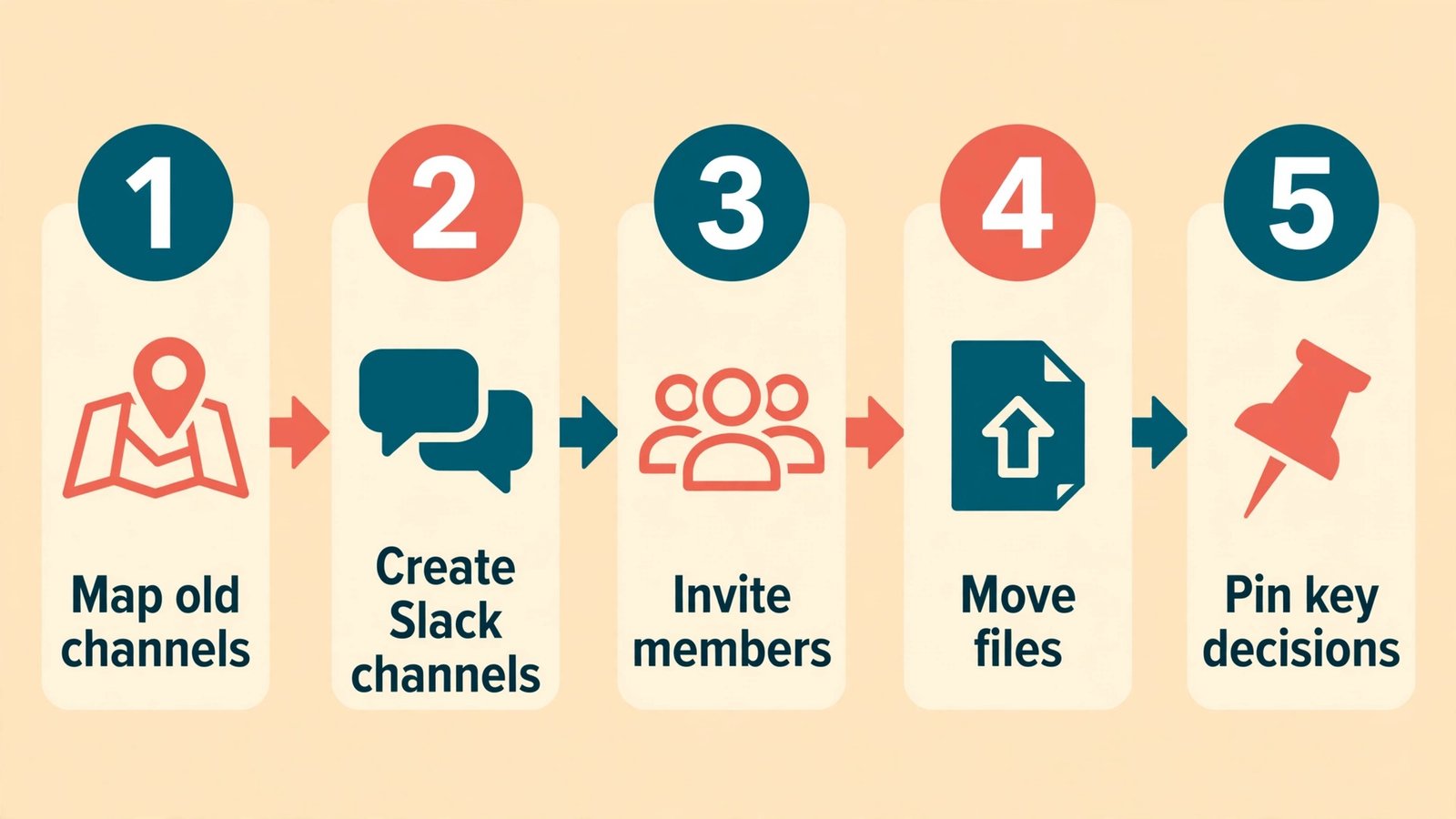
The first route is a manual rebuild, and it suits most teams under twenty people. You create the new Slack channels, invite members, re upload the files that still matter, and pin a short summary of each old channel in its Slack replacement. Old Teams channels stay readable for a reference period, then the workspace is archived. This route moves no message history automatically, but it moves everything people still use.
The second route is a third party migration tool. These tools connect to both systems, read Teams channels, chats, and files, and recreate them in Slack with original authors and timestamps where the platforms allow it. They charge per user or per project, need admin permission on both sides, and need a test run on one channel first. For a team with a legal or client reason to keep full history, this route is worth pricing. For a team that only needs recent decisions, it is usually more money and risk than the manual route justifies.
The third route is a hybrid, and it is the one this guide recommends when you switch Teams to Slack. Migrate the structure and the live files manually, and archive the history instead of moving it. Save the handful of threads that contain real decisions, post them as pinned summaries in Slack, and keep Teams readable for sixty to ninety days as a reference library. After that window, close Teams down.
What moves cleanly in a manual rebuild is the work itself. Channel names and purposes move, because you choose them again. Members move, because you invite the same people. Files move, because you download the ones that still matter and upload them to the matching Slack channel or to a shared drive linked from that channel. Pinned messages move in spirit, because you rewrite the best ones as a pinned post in the new channel. Integrations move only in the sense that you reconnect them, since a Teams connector does not become a Slack app on its own.
Message history is the awkward part. Individual users cannot export their own Teams chat history through a simple download button. Microsoft puts chat export in the hands of administrators, through Content Search and eDiscovery in the Microsoft Purview compliance tools. An admin creates a search across mailboxes and SharePoint sites, exports the results, and downloads them, typically as a PST file. That file is an archive, not a Slack import, so plan on that basis and nobody will be disappointed on cutover day.
The Channel and File Mapping Table
This table is the document your whole move runs from. Fill it in before you create a single Slack channel. Every Teams team and channel gets one row, a decision, and a Slack destination. If a row has no destination, it is a channel you are deliberately dropping, and that choice should be visible, not accidental.
| Teams location | Type of content | Decision | Slack destination |
|---|---|---|---|
| General company announcements | Announcements and policy updates | Keep and rebuild | A channel named announcements, posting restricted to managers |
| Active client projects, one team per client | Project chat and shared files | Keep and rebuild | One channel per live client, plus a shared drive folder linked in the channel topic |
| Finished client projects | Old chat and delivered files | Archive, do not rebuild | No Slack channel. Final files stay in the shared drive archive folder |
| Internal social and random chat | Casual conversation | Keep one, drop the rest | One channel named watercooler, other social channels closed |
| One to one and small group chats | Direct messages | Do not migrate as channels | Members start fresh direct messages in Slack as needed |
| Meeting chats attached to calendar events | Meeting notes and links | Save decisions only | A pinned summary post in the matching project channel |
| Channel files in SharePoint | Documents, spreadsheets, decks | Move live files only | Current versions in the matching Slack channel or linked drive folder |
| Private channels for sensitive work | Restricted discussion | Keep with care | A private Slack channel with the same member list, reviewed name by name |
| Bot and app notifications | Automated posts | Reconnect, do not migrate | The matching Slack app, tested in a private channel first |
Work through the table with the people who actually use each channel, not just the person running the move. Channel owners know which files are live and which are dead. A channel with no owner and no message in ninety days is a candidate for archiving, not rebuilding. Rename messy live channels in the move, since everyone is learning new channel names anyway.
Files deserve a separate pass, because chat history and files live in different places in Teams. Channel files sit in SharePoint, while files shared in one to one chats sit in the sender OneDrive. List the files that more than one person still opens. Those are your live files, usually a small fraction of the total. Copy each live file once, to one place, and link that place from the Slack channel.
What Does Not Move, and What to Do About It
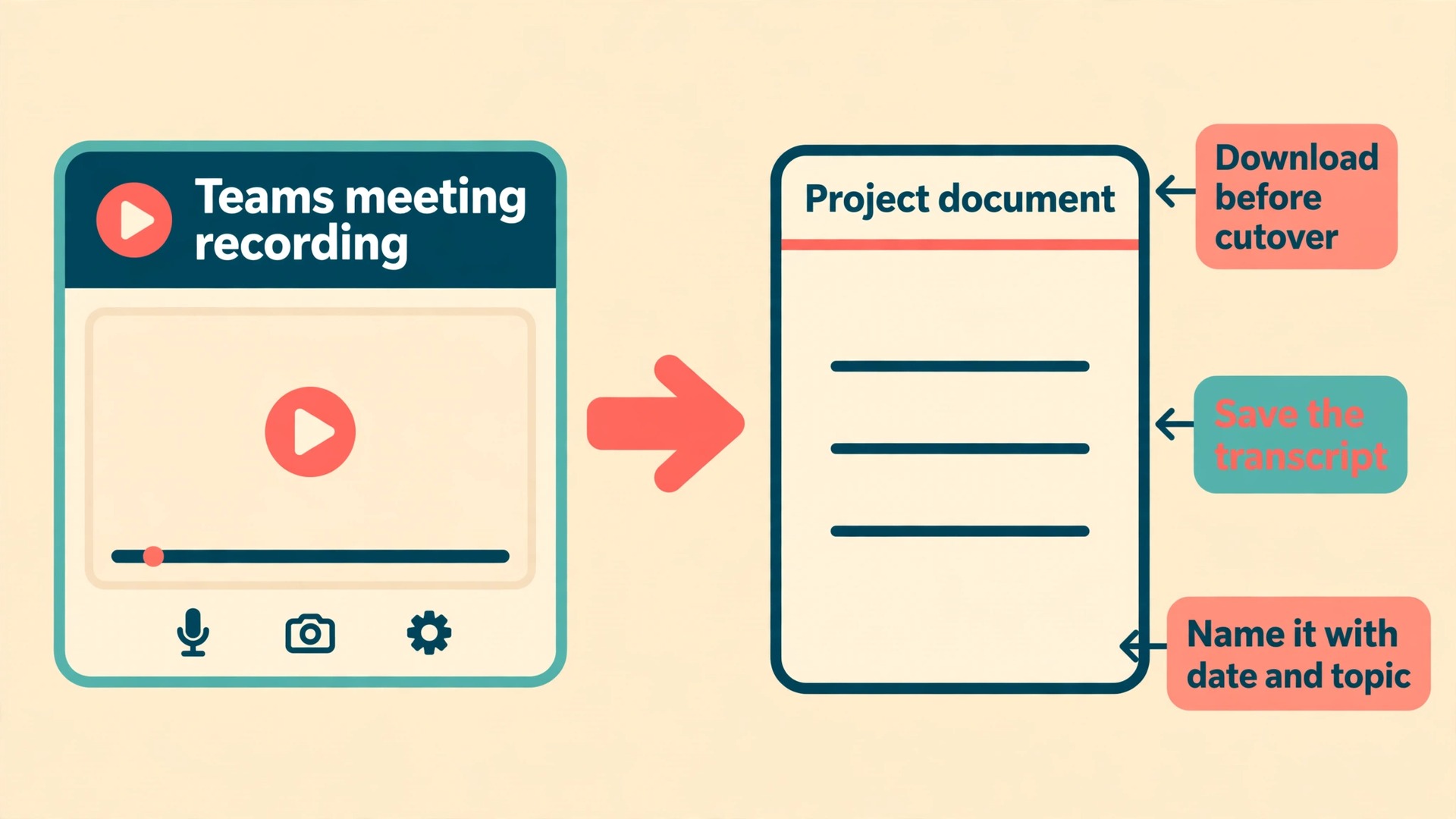
Meeting recordings do not move when you switch Teams to Slack. A Teams recording lives with the meeting and its storage, and no path turns it into a Slack message with the same playback, transcript, and permissions. If a recording matters, download it before cutover, or save its transcript as a document in the project folder with a clear name. Routine standups can usually be deleted. Client decisions, training sessions, and handovers should be saved deliberately, with the date and topic in the filename.
Some Teams apps have no direct Slack equivalent, and some Slack apps work differently from the Teams version with the same name. Planner boards, Forms, and Loop components are tied to Microsoft 365, and they do not become Slack canvases or lists on their own. If your team runs work in Planner, decide before the move whether that work stays in Planner, with a link from Slack, or moves to a Slack list or a separate project tool. Keeping Planner while moving chat is the calmer choice for many small teams, because it avoids rebuilding live task boards in the same week as the chat move. Never assume the board moved because the channel moved.
Reactions, mentions, and thread structure also change shape. A conversation imported by a tool, or rebuilt by hand, will not look exactly like the original. If exact thread fidelity matters for a client record, keep the original in Teams or in the admin export for the reference period, and treat the Slack version as the working copy.
Permissions do not transfer either. A private Teams channel and a private Slack channel are both private, but member lists must be rebuilt and checked name by name. Remove people who left the project or the company, and remove former contractors from anything sensitive. Those accounts are easy to overlook when a channel simply keeps running year after year.
Free Plans, Paid Plans, and What They Really Limit
Plan choice decides how much history your team can see, how many outside people you can work with, and what a month of Slack actually costs. Get this decision right before cutover, because downgrading later can hide history and disconnect outside channels.
Slack Free costs nothing and suits a very small team testing the waters. Its hard limit is message history. Members can search and view only the most recent ninety days of messages and files, and Slack deletes messages and files more than one year old from free workspaces. Messages older than ninety days become hidden until the workspace upgrades, and after a year they are gone for good.
Slack Free also allows up to ten app integrations, and huddles are limited to one to one conversations. For a team of six that mostly chats and shares files, those limits may never bite. For a team that leans on many tools, or holds group calls in Slack, they bite quickly. Count your integrations before you commit, including a calendar app, a drive app, and a notification bot.
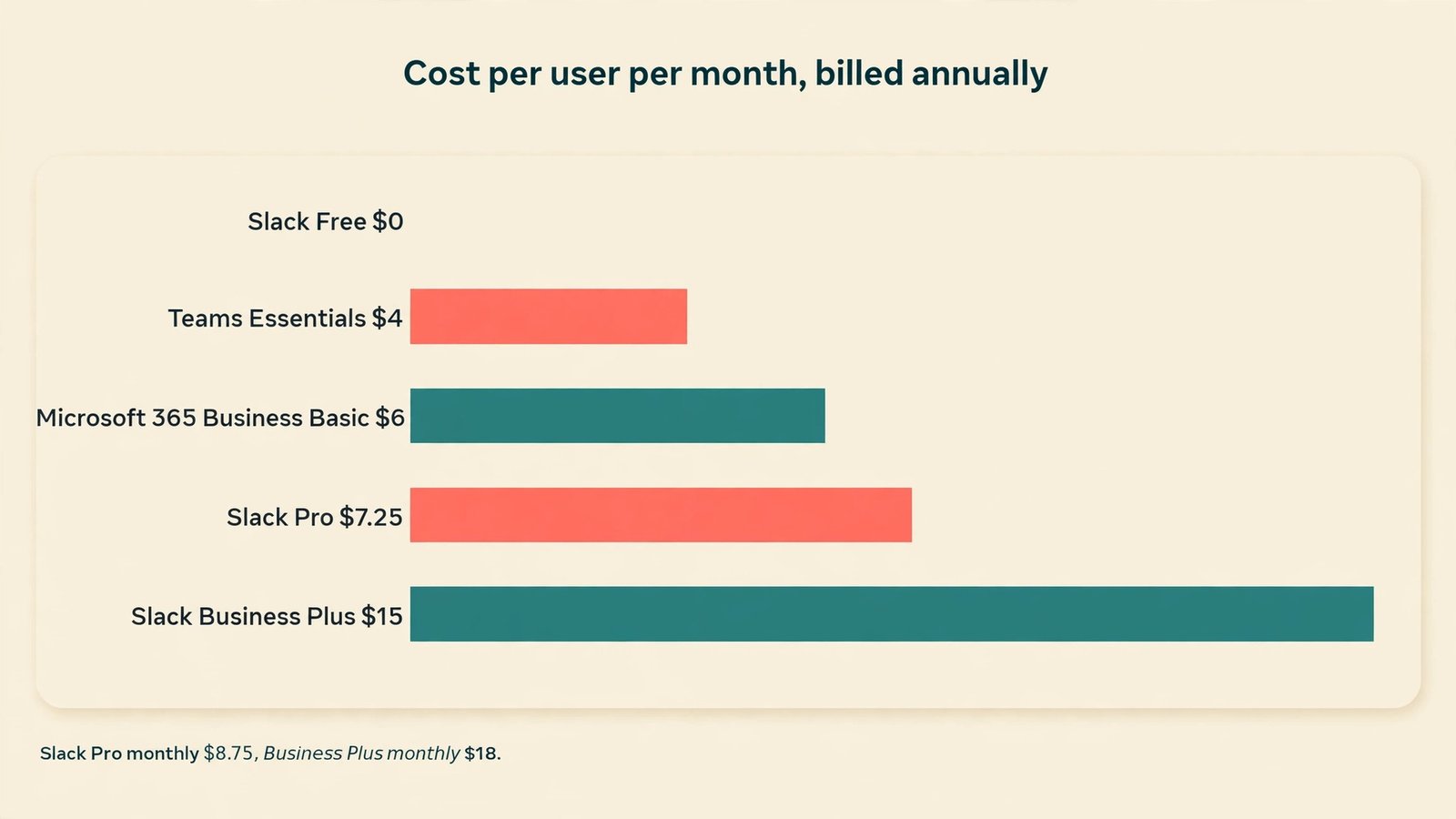
Slack Pro is the plan most small teams land on when they switch Teams to Slack. At the time of writing, standard pricing is 7.25 dollars per user per month billed annually, or 8.75 dollars per user per month billed monthly. Pro removes the history limit, allows unlimited integrations, and opens group huddles and group external collaboration. For a ten person team, annual billing works out to 870 dollars a year before taxes and any promotion.
Slack Business Plus sits above Pro at 15 dollars per user per month billed annually, or 18 dollars billed monthly. It adds single sign on, user provisioning, data exports for all messages, and the fuller set of AI features. Most teams under twenty people do not need Business Plus on day one, unless they have a compliance requirement for full message exports or need single sign on across many tools. If neither applies, start on Pro and review after a quarter.
Teams pricing helps explain why the comparison is not simply free against paid. Teams Free gives unlimited chat, group meetings for up to one hundred people capped at sixty minutes, and 5 GB of storage. Teams Essentials costs 4 dollars per user per month billed annually, with group meetings up to thirty hours and 10 GB of storage per user. Microsoft 365 Business Basic costs 6 dollars per user per month billed annually and adds a custom business email, 1 TB of storage per user, and the web versions of the Office apps. A team already paying for Microsoft 365 is not comparing Slack Pro against zero. It is comparing Slack Pro against a bundle it may keep anyway.
That bundle point shapes the smartest small team setup. Many teams keep Microsoft 365 for email, documents, and calendars, and pay for Slack only for chat. That is a real extra cost, so be honest about it in the budget. The case for paying it is focus. One place for conversation, with channels everyone can see, often saves more staff time than the subscription costs. If your team already works well in Teams and only wants a tidier structure, spend a week tidying Teams instead.
| Plan | Standard price at time of writing | History and storage limit to watch | Best fit for a small team |
|---|---|---|---|
| Slack Free | 0 dollars | Ninety days of searchable history, data over one year old deleted | A tiny team testing Slack before committing |
| Slack Pro | 7.25 dollars per user per month billed annually, 8.75 billed monthly | Unlimited history, unlimited integrations | Most small teams making the move |
| Slack Business Plus | 15 dollars per user per month billed annually, 18 billed monthly | Full message exports, single sign on, advanced admin controls | Teams with compliance or sign on requirements |
| Teams Free | 0 dollars | Sixty minute group meetings, 5 GB of storage | Occasional use, not a growing business |
| Teams Essentials | 4 dollars per user per month billed annually | Thirty hour group meetings, 10 GB per user | Teams only, with Office tools elsewhere |
| Microsoft 365 Business Basic | 6 dollars per user per month billed annually | 1 TB per user, custom business email included | Teams plus email and Office web apps in one bundle |
Prices exclude taxes and promotions, and vendors adjust them during the year. Reconfirm the numbers on the vendor pricing page before you present a budget.
Guests and Outside Collaborators
Small teams rarely work alone. Clients, freelancers, accountants, and suppliers all need some access, and the way each platform handles outsiders is one of the biggest practical differences in a move.
In Slack, outside access comes in two main forms. Slack Connect lets you share a channel with another organisation, so both sides work from their own workspaces and post in a shared channel. On Slack Free, external collaboration is limited to one to one direct messages. On Pro, group external channels open up, which is the version most client facing teams need. Guest accounts are the second form. A single channel guest can join one channel and is free. A multi channel guest can join several channels and counts as a paid seat. A freelancer who only needs one project channel costs nothing extra.
A contractor who needs five channels costs a full Pro seat, and should be budgeted like a team member.
In Teams, guest access works through the wider Microsoft 365 setup, and free Teams does not offer guest access to a team in the same way. Paid Microsoft 365 plans allow guests, but the controls and licensing sit inside Microsoft 365, not inside a single chat setting. If your team works with outside guests today in Teams, list every guest before you switch Teams to Slack, note which channels they can see, and decide their Slack equivalent channel by channel. Do not invite every old guest to every new channel by default.
For each outside collaborator, answer three questions before cutover. Which channels do they genuinely need. Do they need to post, or only to read. And who on your team owns the relationship and can remove their access when the work ends. Write the answers in the mapping table.
Client channels need one extra rule. Keep them separate from internal discussion about that client. A channel named for the client is where you talk with the client. A private internal channel is where your team talks about the work before sharing it.
When the move is done, test outside access before you announce it. Invite one trusted client to a test channel, ask them to post a message and open a file, and confirm they cannot see channels they should not see.
The Cutover Week Plan
A small team does not need a month long migration programme. It needs one focused week, with a named owner, a freeze on new Teams channels, and a clear rule about where each conversation belongs on each day. The plan below assumes a team of about ten people and a manual or hybrid move to switch Teams to Slack. If you hire a migration tool, add a test import in the week before, but keep the same cutover rhythm.

Monday. Freeze, Map, and Announce
Freeze new Teams channels and teams for the week. Finish the mapping table, confirm channel owners, and list every guest and integration. Announce the move in Teams and by email, with three facts and nothing else. The reason for the move, the date Teams becomes read only, and the date Slack becomes the only place for new conversation. People ignore long migration emails. They remember a short one with two dates.
Tuesday. Build Slack and Move Live Files
Create the Slack workspace and the channels from the mapping table, using the new names, not the old messy ones. Set channel topics so each channel states its purpose in one line. Restrict posting in the announcements channel. Move live files to their one home each, and link those homes from the matching channel topics. Invite the team, but tell them Teams is still the place for new messages until Thursday.
Wednesday. Reconnect Tools and Test With One Project
Reconnect integrations one by one, testing each in a private channel before it posts anywhere public. Move one live project end to end as a pilot. Its channel, its files, its members, and its integrations all work in Slack before anything else moves. Ask the pilot members what feels wrong, and fix channel names, notification settings, and file links while the change is still small.
Thursday. Switch New Conversation to Slack
Thursday morning, post a final message in each Teams channel with a link to its Slack replacement and the location of its files. Set Teams channels to read only where your plan allows it, or post a clear banner message if that control is not available to you. From this point, new conversation belongs in Slack, and Teams is reference only. Hold a short live session, thirty minutes at most, where everyone joins Slack, finds their channels, posts a test message, and asks questions.
Friday. Close, Clean, and Review
On Friday, confirm that every live channel has a Slack home, every guest has the right access, and every integration posts to the right place. Archive the Teams channels you deliberately dropped, and note the date Teams will close entirely. Send a short closing message with the Slack channel list, the file locations, and the name of the person to ask for help. Then fix the noisy channels, broken file links, and anyone still posting in Teams out of habit, before the weekend.
After cutover week, keep Teams readable for sixty to ninety days, with the closure date in the calendar and the workspace owner named, so the reference period actually ends. Teams that skip this step often run two chat tools for a year, which is worse than the sprawl they tried to leave.
The Member Checklist
Give every team member this checklist when you switch Teams to Slack, not just a link to Slack. A migration fails in small personal ways, like a missing notification setting or a forgotten password, and a checklist catches those before they become complaints.
- Join the Slack workspace with your work email, and confirm your display name matches the name clients know you by.
- Join your team channels, your live project channels, and the announcements channel. Leave any test or pilot channel you do not need.
- Turn on notifications for direct messages and mentions, and set a sensible notification schedule so evenings stay quiet.
- Open each live file linked from your project channels and report broken links on day one, not week three.
- Post a test message in your main team channel, so others can confirm they see your messages.
- Save or copy any personal notes, links, or draft messages sitting in Teams chats you own, before Teams becomes read only.
- Tell your regular outside contacts that conversation has moved, and invite them to the right Slack channel where needed.
- Learn the three habits that keep Slack tidy. Use threads for replies, pin decisions rather than repeating them, and search before asking a question already answered in the channel.
- Stop posting new conversation in Teams from Thursday onward, and point anyone who still posts there to the matching Slack channel.
Managers get two extra jobs. Watch the new channels for the first two weeks and move conversations that land in the wrong channel, with a note explaining where they belong. Archive channels that go quiet after the move instead of letting them linger.

Mistakes That Undo a Good Move
The most common mistake is moving everything. A team that rebuilds thirty dead channels in Slack has not migrated, it has copied its problem into a new tool. The mapping table exists to force a decision on every channel. If a channel has no owner, no recent message, and no live file, archive it.
The second mistake is moving files twice. A file uploaded to Slack and also kept in a drive folder, with edits happening in both places, creates the exact confusion the move was meant to end. Pick one home per file, link it from Slack, and edit only there. Slack uploads suit small, short lived files. A shared drive suits documents a team edits together over months.
The third mistake is forgetting search habits. Slack search only finds what people wrote clearly. Encourage channel names that describe the work, first lines that state the topic, and pinned summaries for decisions. A channel named general with a thousand messages is unsearchable in practice, whatever the tool promises. A channel named for a client and a project, with decisions pinned, is searchable by any new hire on day one.
The fourth mistake is leaving Teams half alive. If Teams stays writable, some people will keep using it, and the team will split across two tools. Read only mode, a clear closing date, and a named owner for the closure are the difference between a move and a duplication.
Related reading on this site can help with the wider choice. Compare the two platforms in full at Slack vs Microsoft Teams, check other options at Slack alternatives, and see how chat fits the wider stack at best team communication software. For onboarding and handovers, see also best AI tools for HR teams.
Frequently Asked Questions
Can you move Teams messages into Slack automatically?
Not with a built in button. Slack has no native Teams import that recreates channels and message history in one step. Small teams usually rebuild channels by hand and archive history, while teams with a legal need for full history use a third party migration tool. Before paying for a tool, run a test import on one channel and check authors, timestamps, threads, and file links.
What happens to Teams files when you move to Slack?
Channel files live in SharePoint and chat files live in OneDrive, so they do not follow a channel into Slack on their own. Download or copy the live files, place each one in a single home, and link that home from the matching Slack channel. Keep the old locations readable during the reference period, then close them on the planned date, so nobody edits an old copy by mistake.
Do meeting recordings transfer to Slack?
No. Meeting recordings, transcripts, and meeting chats do not transfer as playable Slack content. Save any recording that matters by downloading it or saving its transcript as a document, and store it in the project folder with a clear name and date. Routine recordings can be deleted. Treat the summary of a decision as more valuable than the recording itself, because a summary can be searched and pinned.
How much does Slack cost for a ten person team?
On Slack Pro at standard pricing at the time of writing, 7.25 dollars per user per month billed annually, a ten person team pays 870 dollars a year before taxes, assuming ten billable members. Monthly billing costs 8.75 dollars per user per month. Single channel guests are free, while multi channel guests count as paid seats, so count contractors who need several channels as full seats in your budget.
Can clients and freelancers join your Slack workspace?
Yes, through Slack Connect shared channels or through guest accounts. Slack Connect on Pro allows group external channels with other organisations. Single channel guests join one channel for free, and multi channel guests join several channels as paid seats. Check guest access channel by channel, test it with one trusted outsider before announcing it, and name an owner for each guest relationship so access ends when the work ends.
Should a small team keep Microsoft 365 after moving chat to Slack?
Often yes. Many small teams keep Microsoft 365 for email, documents, calendars, and task boards, and use Slack only for conversation. That means paying for both, so the budget should show both costs honestly. The move still makes sense when one clear place for conversation saves more staff time than the extra subscription costs. If your team works well in Teams already, tidying Teams may be the better spend.
Settle In, Then Keep It Tidy
A move to Slack pays off only if the new workspace stays tidier than the old one. The first month matters more than cutover week. Require a purpose line for every new channel. Move long lived documents to their drive home instead of letting them live only in chat. Review private channel member lists each quarter.
If you take one document from this guide, take the mapping table. Fill it in honestly, drop the dead channels without guilt, move only the live files, and give Teams a closing date. Do that when you switch Teams to Slack, and the move will feel less like a software change and more like a team finally agreeing where work lives.