
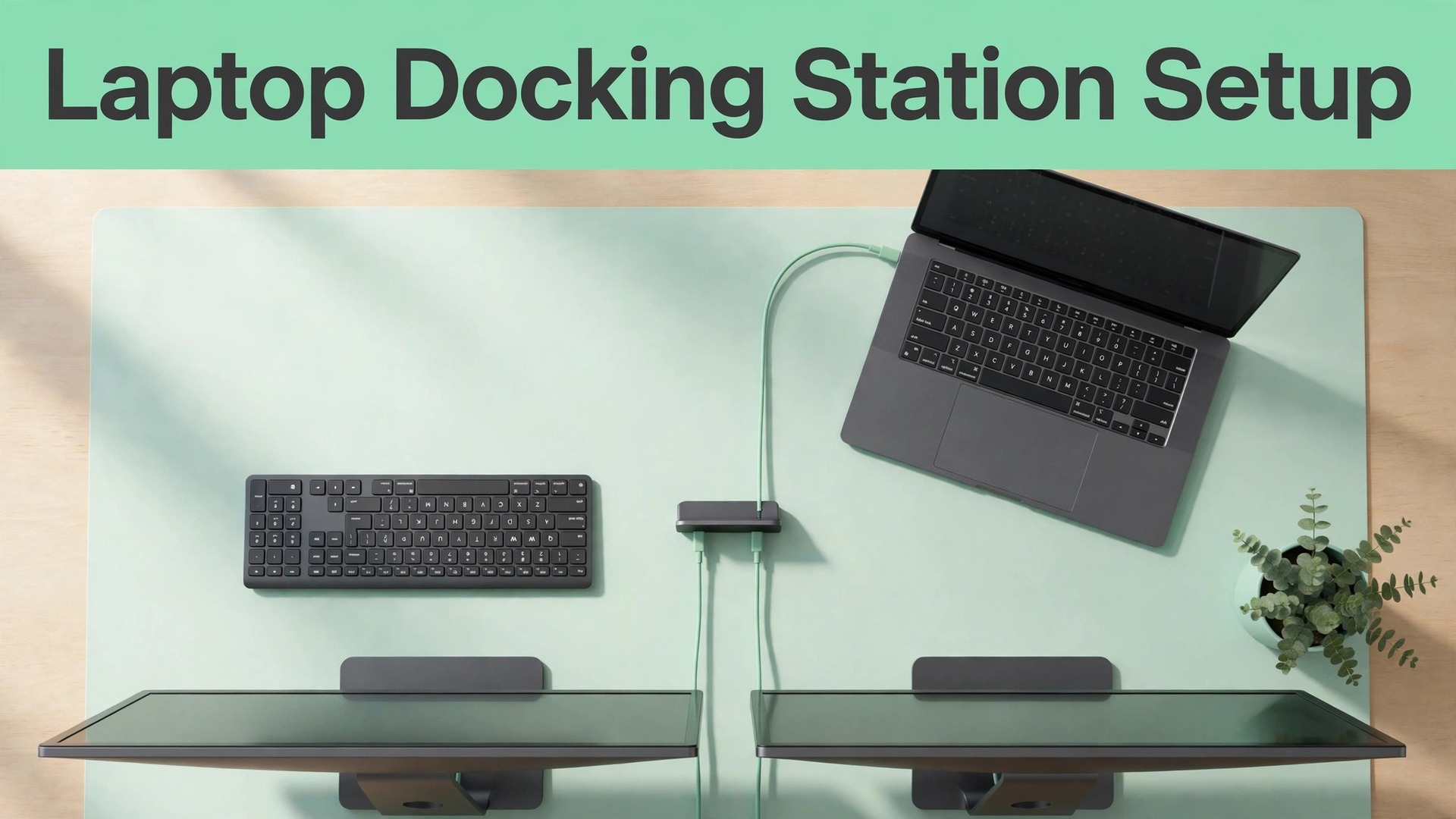
Two external monitors at 4K and 60 frames per second, up to 100 watts of laptop charging, gigabit Ethernet, and four or more USB ports can all travel over a single USB-C connection when the dock and the laptop match. That single cable promise is why docking stations anchor many home offices, and it is also why so many people who set up laptop docking station for home office feel disappointed on the first day. The disappointment usually comes from a mismatch that was easy to miss, such as a laptop port that carries data but not video, a base MacBook that supports only one external display natively, or a dock that needs a driver the user never installed.
If you want to set up laptop docking station for home office use without a week of troubleshooting, start by checking what your laptop port can actually do, then match the dock technology to that port, and only then arrange monitors, cables, and desk layout. This guide follows that order, with a cable and display table, a single-cable desk checklist, monitor arrangement advice, and the fixes for the most common dock problems.
Check Your Laptop Port Before You Buy a Dock
The port on the side of your laptop decides which dock will work, and a quick check here saves more time than any other step. Look for a Thunderbolt symbol, a DisplayPort symbol, or a USB-C port marked with a video or charging icon, and check your laptop manual or maker support page for the exact capability of that port. A USB-C port that supports DisplayPort Alt Mode can send video directly to a dock, while a data-only USB-C port cannot, even though the plug looks identical. Thunderbolt 3 and Thunderbolt 4 ports support video, data, and high power charging, and they work with Thunderbolt docks as well as many USB-C docks.
Base Apple Silicon MacBooks, including many M1, M2, and M3 models, support only one external display natively, which means a second external display needs a DisplayLink dock and its driver, not just a different cable. Windows laptops vary too, with some supporting two external displays over one USB-C port and others supporting only one, so check your exact model rather than assuming a general rule. Note your laptop power need as well, because a dock that delivers 60 watts will slowly lose ground to a laptop that needs 90 watts under load, even if it charges fine when the laptop sleeps. Checking power first is a key step when you set up laptop docking station for home office use.
CalDigit TS4 Thunderbolt Dock and Power Delivery
Thunderbolt docks such as the CalDigit TS4 sit at the top of the home office market because they combine high power charging, multiple display outputs, fast USB ports, Ethernet, and card readers in one unit. A Thunderbolt dock suits a laptop with a Thunderbolt port and a user who wants the most reliable dual monitor setup with the least driver hassle, because Thunderbolt video does not need DisplayLink software. The trade off is price, since Thunderbolt docks cost more than basic USB-C hubs, and they still need a Thunderbolt capable port to deliver their full benefit.
If your laptop has only a standard USB-C Alt Mode port, a Thunderbolt dock may still work in a reduced mode, but you should check compatibility for your exact model before paying a premium. Compare the dock power delivery figure with your laptop charger wattage, and choose a dock that meets or exceeds that figure, because a dock that underpowers a laptop will charge slowly during heavy work and may drain during video calls and large file work. Keep the original laptop charger as a backup, and test the dock under a real workload in the first week, not just at idle.
Plugable DisplayLink Dock for Dual Monitors on a Mac
DisplayLink docks such as the Plugable UD-6950PDH solve a specific problem, which is running two independent external displays on a Mac that natively supports only one. DisplayLink works by compressing video in software and sending it over USB, which lets a single USB-C connection drive two 4K displays at 60 frames per second in extended mode. The cost of that flexibility is a driver you must install and keep updated, plus some CPU use and a limitation on protected video, because services with HDCP protection may show a black screen on DisplayLink displays. For office work, documents, spreadsheets, and video calls, those limits rarely matter, and the benefit of a true second display outweighs them.
For streaming protected video or fast gaming on the external displays, a native Thunderbolt or Alt Mode setup is a better choice. If you choose DisplayLink, install the DisplayLink Manager app from the official source, grant the screen recording permission macOS asks for, and restart after installation, because skipping the permission step is the most common reason a DisplayLink display stays dark.
Cable and Display Table for a Home Office Desk
Use this table to match your laptop, your dock, and your monitors before you buy cables, because cable choice is where many dual monitor setups fail. A cable that looks right can still limit resolution or refresh rate if it is an older version, and a monitor input that looks spare may be the only one that supports the resolution you want.
| Connection | What it carries | Best use on a home desk |
|---|---|---|
| Thunderbolt 4 cable | Video, data, and high power charging in one cable | Laptop to Thunderbolt dock as the single main cable |
| USB-C with DisplayPort Alt Mode | Video and data, with power delivery where supported | Laptop to USB-C dock for one or two displays |
| HDMI 2.0 cable | Video and audio to a monitor or TV | Dock to monitor for 4K at 60 frames per second |
| DisplayPort 1.4 cable | Video and audio, often with higher refresh support | Dock to monitor for high resolution office work |
| USB-A to USB-C cable | Data and charging for accessories | Keyboard, mouse receiver, and phone charging from the dock |
| Ethernet cable Cat 6 | Wired network to the dock | Stable video calls and large file transfers |
| USB-C charging cable from the dock | Power delivery to the laptop | Single cable charging when the dock power matches the laptop |
| DisplayLink over USB-C | Compressed video through software driver | Second display on a base MacBook or data-only port |
Check monitor inputs before you order a dock, because a dock with two HDMI outputs does not help if your monitors have only DisplayPort and USB-C inputs. Buy cables rated for the resolution and refresh rate you plan to use, and keep cable lengths short where you can, because long passive cables are more likely to limit a high resolution signal. Label each cable at the dock end with a small tag, so you can unplug the right cable during troubleshooting without tracing every run behind the desk.
Test each monitor on its own first, then together, because a monitor that works alone but fails in a pair often points to a bandwidth or driver limit rather than a faulty monitor. Testing in stages helps anyone who wants to set up laptop docking station for home office desks without guessing. If a display shows only a mirrored image instead of an extended desktop, check display settings on your computer before blaming the dock, because the extended mode setting is easy to miss after a driver update.

Single-Cable Desk Checklist
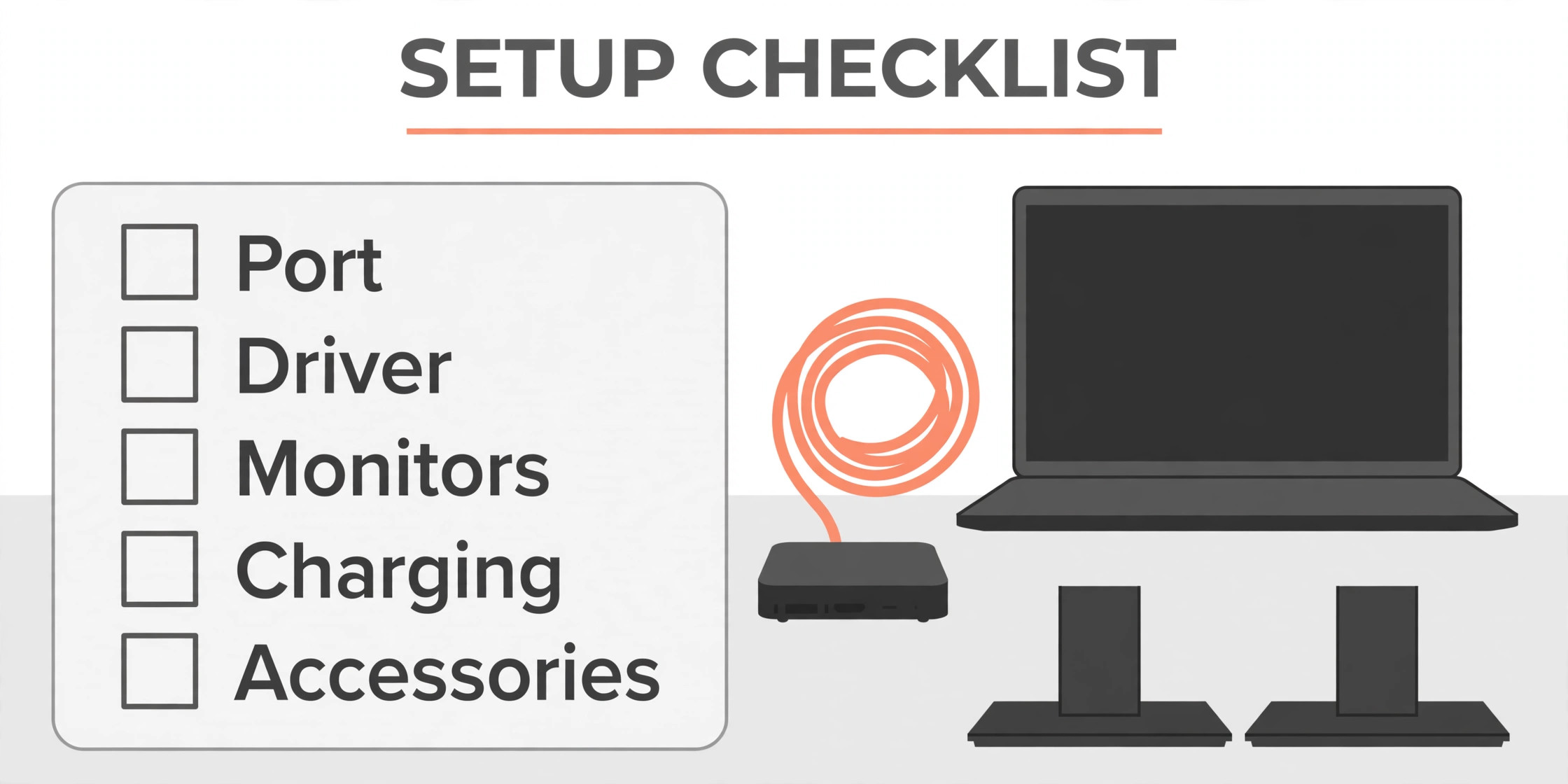
Use this checklist to build a desk where one cable connects the laptop and everything else just works. Work through it in order, testing as you go rather than connecting everything at once and guessing which part failed.
- Confirm your laptop port supports video and power delivery, and note the power wattage your laptop charger provides.
- Choose a dock technology that matches that port, using Thunderbolt for a Thunderbolt laptop, Alt Mode for a capable USB-C laptop, or DisplayLink for a second display on a limited Mac.
- Install any required driver before connecting monitors, granting screen permissions where macOS asks, and restart the laptop after installation.
- Connect the dock power supply first, then Ethernet, then monitors, then USB accessories, and connect the laptop last, so each stage can be tested.
- Connect one monitor, confirm extended mode and correct resolution, then connect the second monitor and confirm it extends rather than mirrors.
- Set the main display, arrange monitors in display settings to match their physical positions, and set scaling so text looks comfortable on each screen.
- Test charging by checking battery status under a normal workload, and confirm the laptop charges rather than slowly draining during video calls.
- Test each USB port with a keyboard, mouse, and storage device, and test Ethernet by running a video call or a large download over the wired connection.
- Arrange cables with a tray or clips under the desk, leaving a service loop so the dock can be pulled out without unplugging everything.
- Test the full setup by undocking and redocking the laptop, confirming monitors, network, and accessories return without a restart.
Monitor Placement, Height, and Scaling That Reduce Strain
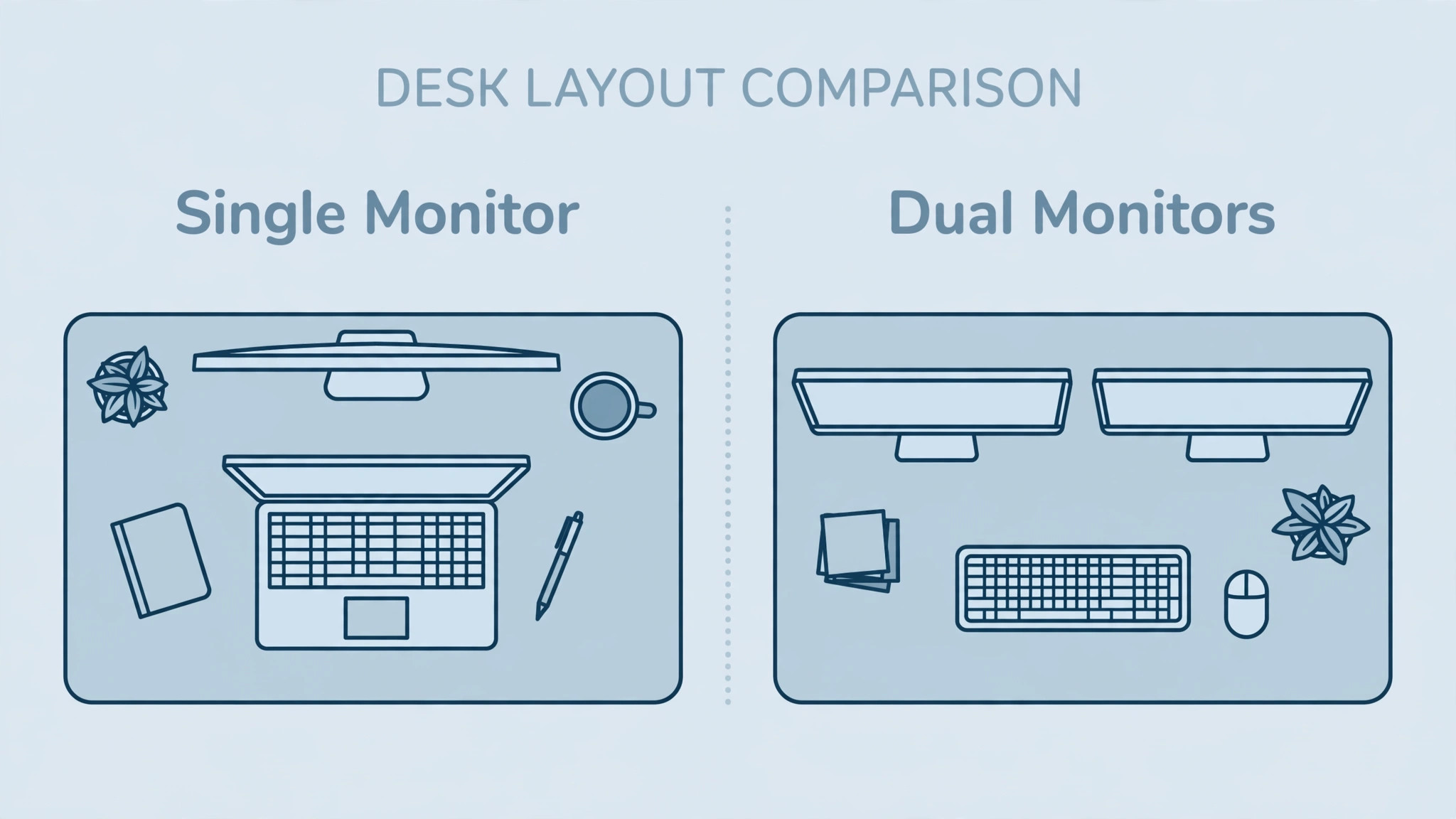
Monitor placement affects comfort more than monitor brand, and a dock setup that looks tidy can still cause neck strain if the screens sit too low or too far apart. Place the main monitor directly in front of you, with the top of the screen at or slightly below eye level, and place a second monitor to the side at a slight angle, close enough that you do not need to turn your head sharply to read it. Keep both monitors at a similar height and distance, because a large height gap forces your neck to adjust every time you glance sideways.
Use a monitor arm or a stand to raise screens to eye level, rather than stacking books that slide, and keep the laptop on a stand if you use its screen as a third display, so you are not looking down at a low laptop screen all day. Set scaling per monitor in display settings, because a 4K monitor at native scaling can make text tiny, while a 1080p monitor at the same scaling can make text look large and coarse. Test text size by reading a normal document on each screen, and adjust scaling until reading feels effortless rather than impressive. Good placement is invisible after a week, which is exactly the point.
Dell Ultrasharp Monitors and Colour Consistency
Dell Ultrasharp monitors are common in home offices because they offer consistent colour, adjustable stands, and a range of inputs that pair well with docks. If you use two monitors from different makers, colours and brightness can differ noticeably, which matters for design work and matters less for documents and email. Match monitors where you can, or calibrate brightness and colour temperature by eye using the same test image on both screens. Set both monitors to the same colour temperature, usually a neutral daylight setting, and reduce brightness to a level that matches your room light rather than leaving both at maximum.
If one monitor looks yellow and the other looks blue, check colour settings before blaming the dock, because a monitor preset can shift colour far more than a cable can. For most office work, matching brightness matters more than perfect colour accuracy, so spend five minutes aligning brightness and temperature before you spend money on calibration tools.
Keyboard, Mouse, Audio, and Webcam Through the Dock
A dock should make peripherals disappear into the desk, so you connect one cable and your keyboard, mouse, headset, and webcam all work. Connect a wired keyboard and mouse to USB-A ports on the dock for the most reliable connection, and connect a wireless receiver to a front USB port where the signal has a clear path, rather than behind a metal dock body. Test a headset through the dock audio jack or USB, and check in your video call app that the correct microphone and speaker are selected, because a call app can keep using the laptop microphone after you dock.
Place a webcam on the main monitor at eye level, and test it in a call before an important meeting, because a webcam that worked on the laptop may need reselection after docking. If a peripheral works when plugged directly into the laptop but not through the dock, try a different dock port, check for a dock firmware update, and test with a shorter cable, because dock port faults and cable limits cause more peripheral problems than faulty peripherals. That methodical test is useful when you set up laptop docking station for home office peripherals.
Keep a spare USB port free for a thumb drive or a phone cable, so a guest device does not force you to unplug a core peripheral.

Logitech Webcam and Headset Selection After Docking
Logitech webcams and headsets are widely used with docks because they work over standard USB and need no special dock support. Choose a webcam with a resolution that matches your call quality needs, and remember that lighting and framing matter more than a higher resolution number, because a well lit 1080p webcam looks better than a poorly lit higher resolution one. Choose a headset with a microphone that sits close to your mouth, and test it in a real call rather than only in a settings preview, because background noise in a home office shows up differently in a live call.
If your headset uses a USB receiver, plug the receiver into the dock rather than the laptop, so docking and undocking does not move the audio device. Check battery level on wireless headsets each morning, and keep a wired headset as a backup for important calls, because a dead headset battery during a client meeting is an avoidable failure.
Network, Power, and Heat in a Docked Setup
A docked laptop runs hotter and draws more power than a laptop on battery, so power and heat deserve a plan rather than an afterthought. Use the dock power supply that came with the dock, not a random charger with a similar plug, because dock power supplies are sized for the dock plus laptop charging together. Keep the dock ventilated, with air space around it, rather than burying it under papers or inside a closed drawer, because heat shortens the life of electronics and can cause throttling during long work sessions.
Use Ethernet for video calls and large transfers where you can, because a wired connection is steadier than Wi-Fi in a home with many devices, and it frees Wi-Fi bandwidth for phones and tablets. If Ethernet is not available near your desk, use a powerline adapter or a mesh node in the same room as a second choice, and test call quality before relying on it for client work. Check laptop temperature during a heavy session, and raise the laptop on a stand for airflow if the base feels very hot, because a laptop that throttles will feel slow even though the dock and monitors are working perfectly.
Troubleshooting Dock Problems in Order
Troubleshoot a dock by changing one thing at a time, starting with the simplest cause. If no monitor wakes, check dock power, cable seating, and monitor input selection before reinstalling drivers, because a monitor set to the wrong input looks identical to a failed dock. If only one monitor works, swap cables and ports to see whether the fault follows the cable, the port, or the monitor, and check display settings for extended mode. If a monitor flickers, try a shorter or higher rated cable, lower the refresh rate for a test, and check whether a nearby power cable is interfering.
If the laptop does not charge, compare dock power delivery with laptop needs, try the original charger to rule out a laptop fault, and check whether the dock power supply is fully seated. If DisplayLink displays stay dark on a Mac, reinstall the driver, grant the screen permission again, and restart, because a macOS update can revoke a permission silently. If USB devices drop out, move the receiver to a front port, update dock firmware, and test the device directly on the laptop to separate a dock fault from a device fault. Write down each test and result, because dock troubleshooting without notes quickly turns into repeated guesses.
Choosing a Dock for Your Budget and Desk
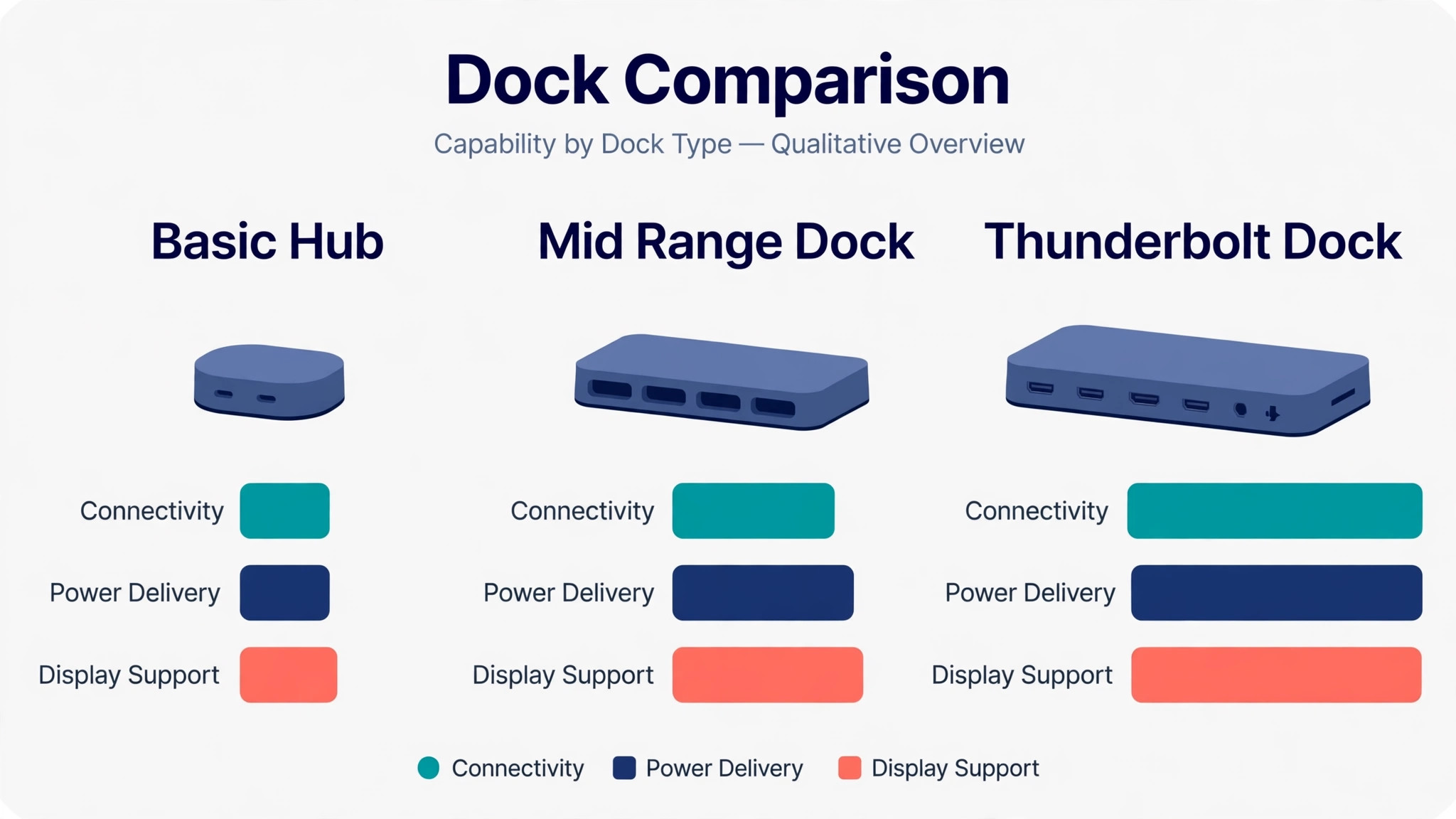
Choose a dock by port match first, display need second, and price third, because a cheap dock that cannot drive your monitors is not a bargain. A basic USB-C hub suits a single monitor desk with a few accessories and a laptop that already supports video over USB-C, and it costs far less than a full dock. A mid range USB-C dock suits dual 1080p or single 4K desks, with Ethernet and enough USB ports for a full office setup, and it is the sweet spot for many home workers.
A Thunderbolt dock suits dual 4K desks, high power laptops, and users who want the most reliable setup with the least driver work, and its higher price is justified if it saves hours of troubleshooting over its life. A DisplayLink dock suits Mac users who need a second display that their laptop cannot provide natively, and it is worth its driver hassle for that specific need. Compare total cost, including cables, a monitor arm if needed, and any driver time, rather than comparing dock prices alone.
Buy from a retailer with a clear return policy, test the dock with your exact laptop and monitors in the first two weeks, and exchange it if a core function fails, because dock compatibility problems rarely fix themselves with patience.
How to Set Up Laptop Docking Station for Home Office Life Daily
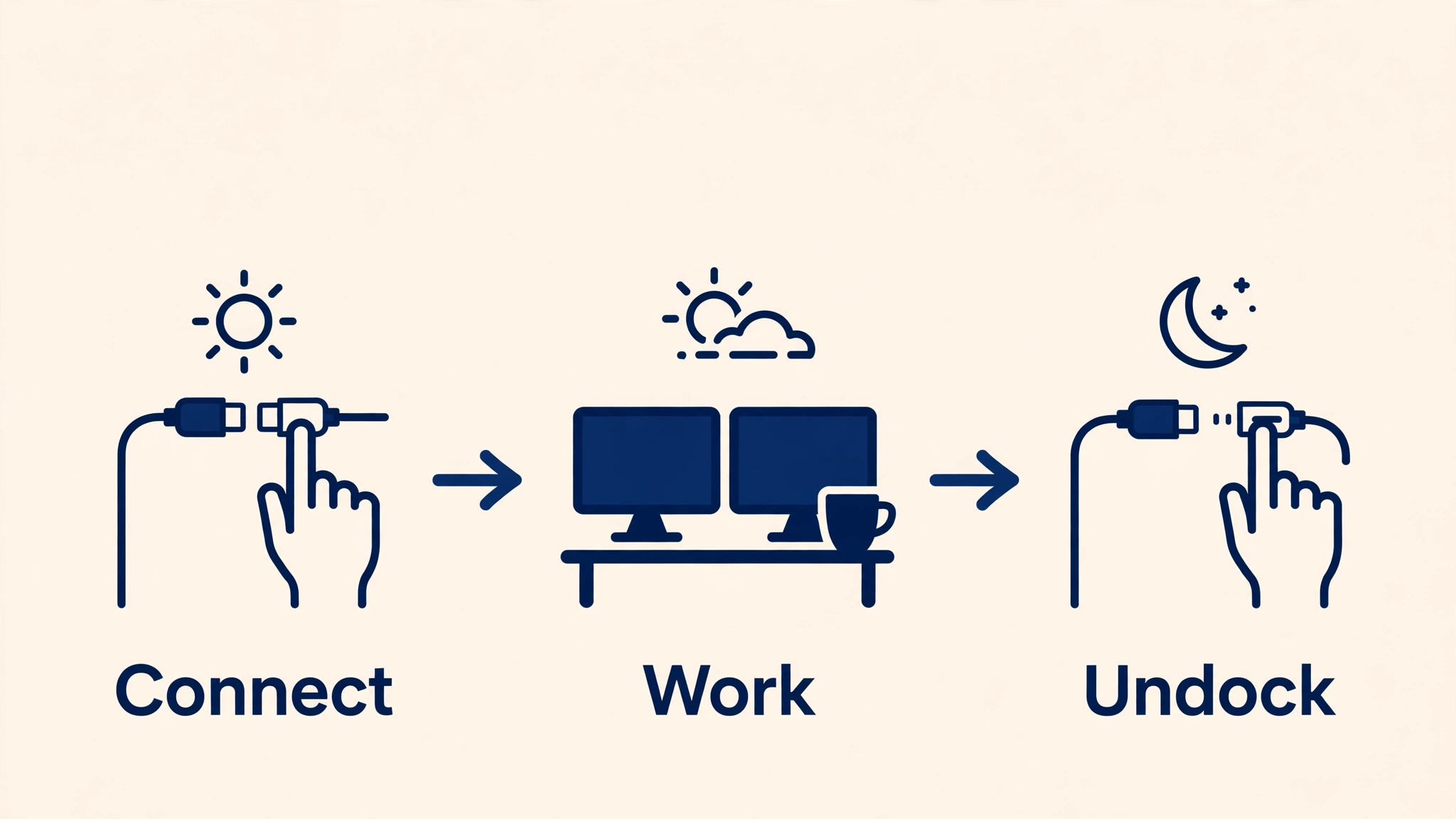
A dock setup earns its keep in daily use, not on installation day. Build a start of day routine that takes less than a minute. Connect the single cable, confirm both monitors wake in extended mode, check that the headset and webcam are selected in your first call app, and glance at battery charging status. Build an end of day routine that is just as short. Undock by ejecting any external drive first, close the laptop lid or shut down as your workflow prefers, and leave the dock powered so the next morning starts instantly.
Once a month, check for dock firmware and driver updates, clean dust from dock vents and monitor stands, and retest Ethernet and USB ports that you rarely use, because a port that fails silently can surprise you on the day you need it. If you move desks or change laptops, recheck port capability and power needs before assuming the old dock still fits, because a new laptop can change the whole calculation. A dock that fits your daily routine, rather than a dock that impresses on a spec sheet, is the one you will still be happy with in a year.
Desk Ergonomics and Cable Tidiness After Docking
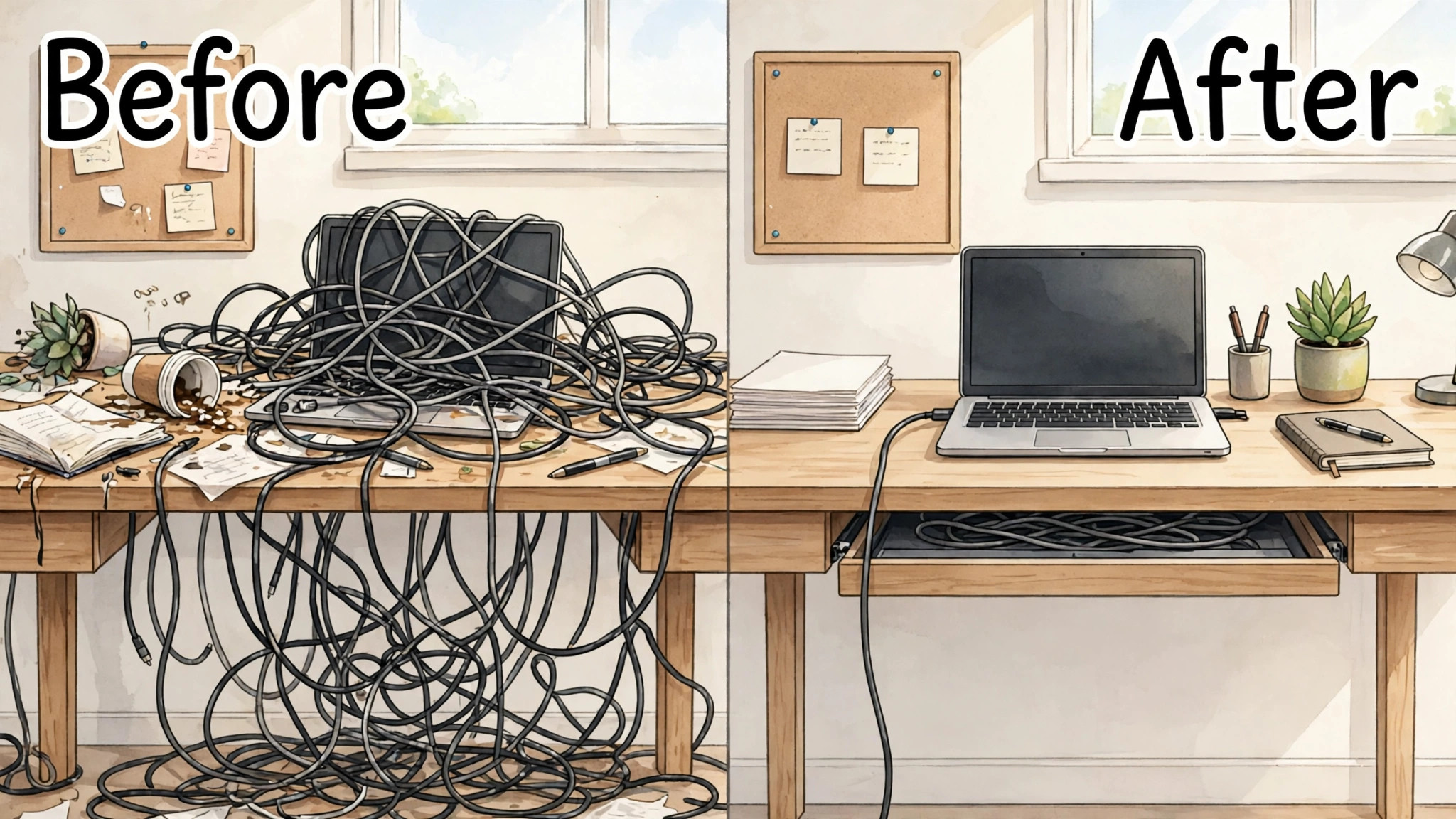
A dock solves the connection problem, but it does not solve the desk problem on its own, because cables, stands, and accessories still need a place. Start by deciding where the dock will live, and choose a spot that is easy to reach for a cable swap but out of the way of your mouse hand and your coffee. Under the desk in a cable tray suits many people, while behind a monitor suits others, and either choice beats a dock sliding around on the desk surface.
Use a cable tray or a set of adhesive clips to guide monitor cables, Ethernet, and power down from the desk in one bundle, and leave a little slack at each end so a monitor adjustment does not tug a connector loose. Keep power cables separate from video cables where you can, because a tight bundle of power and video runs can make troubleshooting harder, even when it looks tidy. A short label on each cable at the dock end saves time later, and a photo of the back of the desk before you tidy the cables gives you a reference if you need to rebuild the setup after a move.
Chair height, desk height, and monitor height work together, so adjust them as a set rather than fixing one in isolation. Sit with feet flat, knees at a comfortable angle, and elbows close to a right angle when typing, then raise monitors so the top of the main screen sits near eye level. If the desk is too high for comfortable typing, a keyboard tray or a lower chair with a footrest can help, and if the desk is too low, monitor arms can raise screens without raising the whole desk. Take a short break each hour to stand, stretch, and look away from the screens, because even a perfect dock setup cannot compensate for sitting still all day.
People who set up laptop docking station for home office use as a whole desk system, rather than as a single device purchase, tend to notice the benefit in comfort as much as in convenience. A tidy desk also makes cleaning easier, reduces dust around vents, and makes it simpler to spot a loose cable before it causes a problem. That attention to the desk around the dock is what turns a working setup into a setup you enjoy using every day, and it is worth an hour of careful arrangement after the technical setup is done.
Anker USB-C Hub and Travel Docking as a Second Setup
Anker USB-C hubs suit a second setup for travel or for a shared desk, because they are smaller, cheaper, and easier to carry than a full dock. A travel hub can drive one external display, charge a laptop at a lower wattage, and connect a keyboard and mouse, which is enough for a hotel desk or a co-working space. Do not expect a small hub to match a full Thunderbolt dock for dual 4K displays or high power charging, and check power delivery before relying on it for a full workday.
Keeping a travel hub in your laptop bag means your home dock routine transfers to other desks with only a cable change, and that consistency helps you set up laptop docking station for home office work and for work away from home without relearning settings each time.
Frequently Asked Questions
Why does only one external monitor work on my MacBook?
Many base Apple Silicon MacBooks support only one external display natively, so a second display needs a DisplayLink dock and driver, or a different Mac model with wider display support. Check your exact Mac model on the maker support page, install the DisplayLink Manager app if you use a DisplayLink dock, grant the screen permission, and restart. If you already use DisplayLink and one display stays dark, check display settings, cable seating, and driver version before replacing hardware.
Can any USB-C port drive two monitors through a dock?
No, because a USB-C port must support video output, and even then the number of displays depends on the laptop graphics, the dock technology, and bandwidth. A data-only USB-C port cannot drive any external display through a dock, while a Thunderbolt port can drive more. Check your laptop manual for DisplayPort Alt Mode or Thunderbolt support, and check the dock maker compatibility list for your exact model before you buy.
Why is my laptop not charging through the dock?
The dock power delivery may be lower than your laptop needs, the dock power supply may not be connected, or the cable may not support power delivery at the required wattage. Compare the dock charging figure with your laptop charger wattage, use the supplied dock power supply, and test with the original charger to rule out a laptop fault. A laptop that charges slowly at idle but drains during heavy work usually needs a higher power dock rather than a new cable.
Do I need to install a driver for a USB-C dock?
Thunderbolt and Alt Mode docks usually need no extra driver on modern systems, while DisplayLink docks always need the DisplayLink driver and a screen permission on macOS. Install the driver before connecting monitors, keep it updated, and restart after major system updates, because an outdated driver is a common cause of a dark second display. If a dock worked before a system update and fails after it, check the driver version first.
Is Ethernet through a dock faster than Wi-Fi for video calls?
Wired Ethernet through a dock is usually steadier than Wi-Fi for video calls, because it avoids wireless interference, signal drops, and competition from other devices in the home. The speed difference matters less than stability, since a steady connection with modest speed gives a better call than a fast connection that drops. Test a call over Ethernet and over Wi-Fi in your room, and use Ethernet for important calls where a cable run is practical.
How do I stop my docked laptop overheating?
Keep the dock ventilated, raise the laptop on a stand for airflow, and avoid blocking vents with papers or a closed drawer. Shorten heavy tasks that run for hours without a break, check for dust in vents, and close unused high power apps during long calls. If the laptop still throttles, check power settings and background tasks, because a dock alone rarely causes overheating without a workload or airflow problem behind it.
A Desk That Works With One Cable
The best home office dock is the one you stop thinking about. One cable, two monitors in the right places, a keyboard and headset that just work, and a laptop that charges while you work, together give you a desk that feels like a proper office without a tangle of cables. Start with your port, match the dock to it, test each part in order, and keep the original charger as a backup. That methodical start takes an extra hour on day one, and it saves many frustrated hours later, which is a good trade for any home worker. It is the patient way to set up laptop docking station for home office work that lasts.
More Reading on Stratilyze
Readers who enjoyed this docking station guide often continue with the webcam setup guide for remote work, the external SSD guide for Mac backup, and the security camera guide for apartment renters, because those guides share the same home office focus on checking compatibility first, using a short checklist, and building a setup that stays reliable day after day.