

A forty minute podcast episode contains perhaps three moments worth sharing as short clips, and finding those moments, cutting them cleanly, captioning them accurately, and exporting them for each platform can easily take longer than recording the episode itself. That time cost is why many creators record good conversations and then post nothing from them, or post one rough clip and stop. The problem is not a lack of good material. It is a workflow that treats every clip as a fresh editing project, with new decisions about length, captions, hooks, and format each time, which is why creators use CapCut for podcast clips creators.
Creators who use CapCut for podcast clips creators can repeat solve that problem with a fixed workflow, because the tool combines cutting, auto captions, and short form export in one place, and this guide builds that workflow step by step.
Why Most Podcast Clips Fail in the First Three Seconds
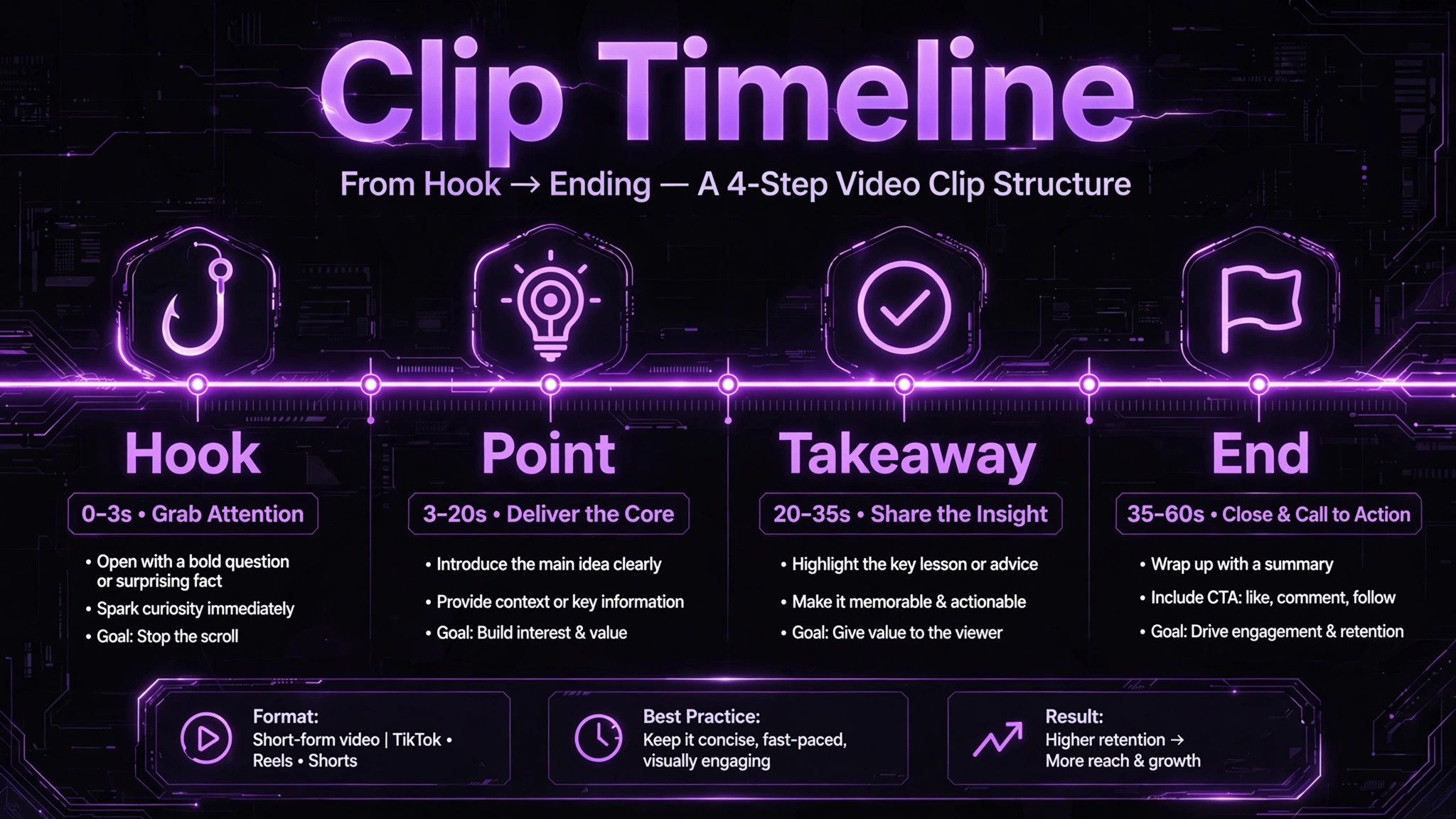
Short form viewers decide in seconds, and they decide with sound off as often as with sound on. A clip that opens with a slow introduction, a long pause, or a speaker settling into a topic will be skipped before the interesting point arrives, no matter how good the later content is. The first three seconds must contain a hook, which is a surprising claim, a clear question, a strong opinion, or a specific result, delivered in the speaker own words. If the hook appears at thirty seconds into the original conversation, the clip must start there, not at the beginning of the segment.
Captions decide the second half of that first impression. Many viewers watch without sound, in public places, at work, or late at night, and they rely on captions to follow the point. A clip without captions loses those viewers immediately. A clip with small, low contrast, or poorly timed captions loses them almost as fast, because reading becomes work. Word by word captions, in a large bold style, positioned away from platform buttons, have become the short form standard for a reason, which is that they make speech readable at a glance and keep attention moving forward.
Length is the third early decision. Most podcast clips that perform well run between thirty and ninety seconds, with a single point, a clear beginning, and a clear end. Clips under twenty seconds often feel incomplete, unless they contain a single punchy quote. Clips over two minutes often lose viewers who expected a quick insight, even if the content is strong. Choosing one point per clip, and cutting everything that does not serve that point, is more important than any effect, transition, or music choice.

Finding Clippable Moments Before You Edit
Good clipping, for creators who use CapCut for podcast clips creators regularly, starts during listening, not during editing. Listen to the episode once, preferably at normal speed for the sections you suspect are strong, and mark moments with a time note and a one line description of the point. A moment is clippable if it meets three tests. It makes one point that can be understood without the rest of the episode. It contains a quotable line, a surprising fact, or a clear opinion. It has a natural start and end, where the speaker begins and finishes a thought without needing long context.
Mark more moments than you need, ideally eight to ten for a forty minute episode, because some moments that sound strong in audio will look weak on video, due to a dull visual, a long pause, or a point that needs context you cannot fit in a clip. Having spare moments lets you choose the strongest five or six, rather than forcing a weak moment into a clip because it is the only one marked. Note the hook line for each moment as you mark it, because that line will become the opening of the clip and often the caption text for the post.
Also note moments to avoid. Avoid moments that depend on a previous question the viewer will not hear, moments that name people or products without explanation, and moments that are funny only if you know the speaker well. Those moments may delight existing listeners, but they confuse new viewers, and short clips are primarily a discovery tool for new audiences. Save inside jokes and long stories for the full episode, where existing listeners have context, and use self contained moments for clips.
How to Use CapCut for Podcast Clips Creators in a Repeatable Workflow
Start by importing the full episode video or the section containing your marked moments into a new project. On desktop, the larger timeline makes long form cutting easier, while on mobile, the app is convenient for quick clips and caption styling. Choose the device that matches the job. A batch of six clips from one episode is usually faster on desktop, while a single urgent clip can be finished on a phone. Do not switch devices mid clip if you can avoid it, because project transfer adds friction and version confusion.
Cut the clip by transcript or by waveform, depending on what is available. Transcript based trimming, where you edit by deleting text, is fast for removing filler words, pauses, and tangents, because you can see the words and cut them like a document. Waveform trimming, where you cut by watching audio peaks and silences, is useful for finding natural pauses and for clips where visual timing matters. Whichever method you use, cut in two passes. The first pass selects the rough segment, from hook to conclusion. The second pass tightens it, removing pauses over half a second, filler words at the start of sentences, and any repetition of the same point.
After cutting, check the clip as a viewer, not as an editor. Watch it once with sound off, reading only the captions, and once with sound on, listening for pacing. If either viewing feels slow, tighten further. A common error is keeping a polite introduction, a thank you, or a transition that made sense in the full episode but wastes seconds in a clip. Cut those ruthlessly. The clip should start with the point, develop it in one or two sentences, and end with a clear closing line, such as a takeaway or a question, not with a fade into the next topic.
| Workflow step | What to do | Time guide |
|---|---|---|
| Mark moments | Note time and one line point | During listening |
| Rough cut | Select hook to conclusion | A few minutes per clip |
| Tighten | Remove pauses and filler | A few minutes per clip |
| Caption | Generate and proofread captions | A few minutes per clip |
| Hook and end | Check first and last three seconds | One minute per clip |
| Export | Export per platform format | A few minutes per batch |
Auto Captions, Proofreading, and Style
Auto captions in CapCut, when you use CapCut for podcast clips creators workflows, can generate word by word captions from speech in well under a minute for a short clip, which is a large time saving compared with typing captions manually. The process is straightforward. Open the captions or text panel, choose auto captions, select the spoken language, and generate. The tool places caption clips on the timeline, one per phrase, which you can then edit, split, or restyle. For podcast clips, where speech is usually clear and continuous, auto captions are generally accurate for common words, but they commonly miss proper names, brand terms, technical terms, and numbers, so proofreading is not optional.
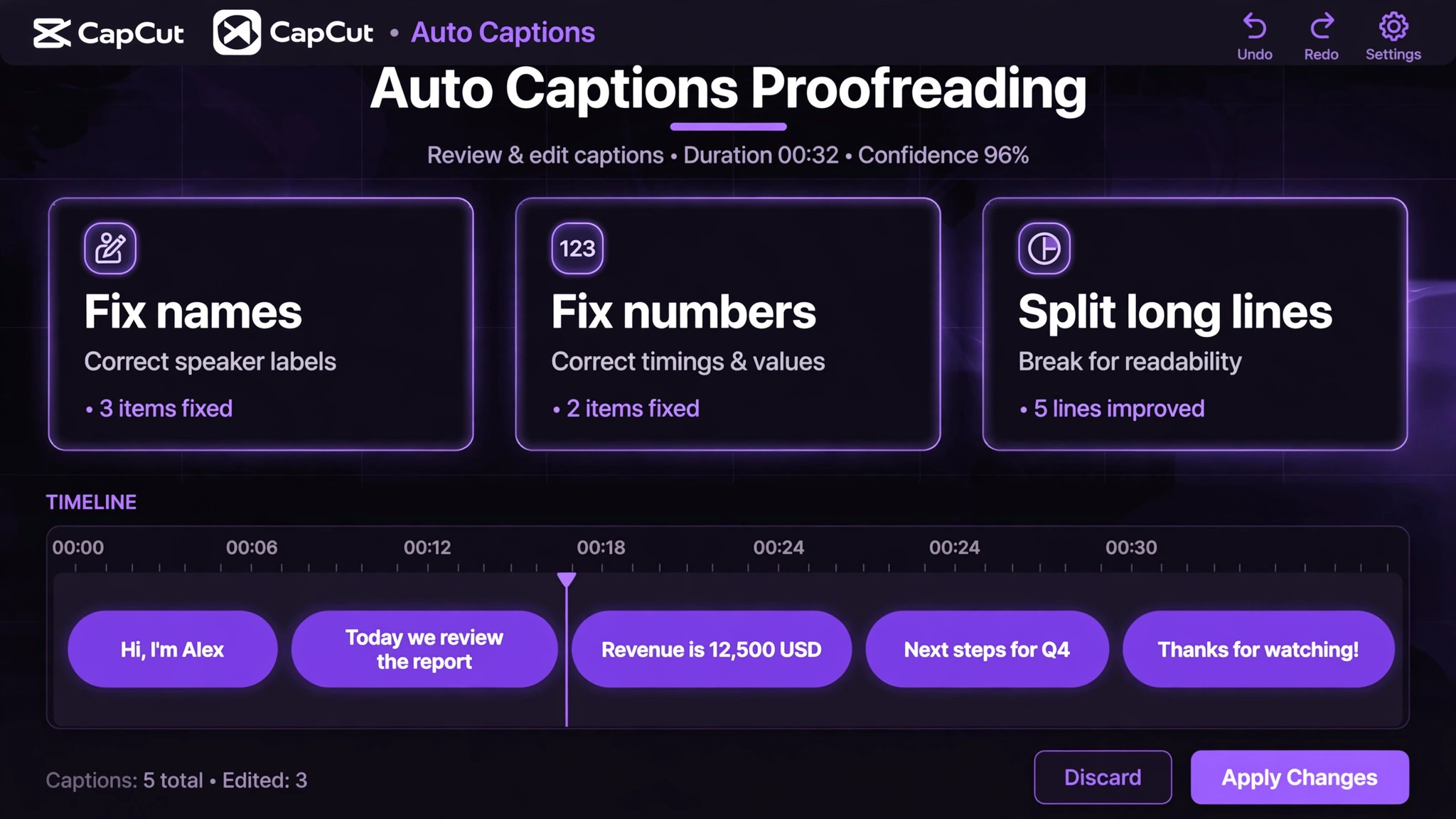
Proofread by watching the clip at normal speed with captions on, and by reading the caption text separately if the tool allows it. Fix names first, because a misspelled guest name or product name undermines credibility more than a minor word error. Fix numbers second, because a wrong price, date, or statistic can mislead viewers. Fix homophones third, such as words that sound alike but mean different things, because those errors change meaning while looking plausible. Split long caption lines at natural pauses, so no more than one or two lines appear on screen at once, and keep text inside the safe zone, away from platform buttons, captions, and profile icons that overlay the video.

Style captions for readability, not decoration. Use a bold, clean font, large enough to read on a phone without zooming, with high contrast against the background, such as white text with a dark outline or background panel. Keep the style consistent across all clips from a show, so viewers recognise your clips and your show builds a visual identity. Avoid changing fonts, colours, or animation styles per clip, because inconsistency makes a feed look unplanned and distracts from the speaker. One style, used well, beats five styles used randomly.
Hooks, Titles, and the First Frame
The first frame matters, when you use CapCut for podcast clips creators publish, because it is what viewers see before pressing play, and in some feeds it is what they see while scrolling. Choose a first frame that shows the speaker mid expression, with captions already visible, rather than a blank screen, a logo, or a title card that delays the point. A title card can work for a series with strong branding, but for discovery clips, a human face and visible words usually outperform a graphic, because they signal that a real person is about to say something specific.
Write the post title or caption text separately from the on screen captions. The post text should contain the hook in written form, plus context the clip cannot carry, such as the episode number, the guest name, or a link to the full episode. Keep it short and specific, and end with one call to action, such as listen to the full episode, follow for more clips, or comment with your view. Multiple calls to action dilute the response, just as multiple points dilute a clip.
Avoid hooks that misrepresent the clip. A hook that promises a secret, a shocking claim, or a result that the clip does not deliver may earn a view, but it creates a disappointed viewer who is less likely to watch the next clip or listen to the full episode. Honest hooks, drawn from the speaker actual words, build trust over time, and trust is what turns a clip viewer into a subscriber. If the strongest honest hook feels weak, the moment may not be clippable, and choosing a different moment is better than exaggerating a weak one.
Export Settings for Each Platform
Export settings should match where the clip will be published, because each platform crops, compresses, and displays video differently. Vertical video, in a nine to sixteen ratio, is the standard for short form feeds, and it should be your default for podcast clips, even if the original episode was recorded horizontally. If the original is horizontal, use a vertical reframing that keeps the speaker face centred and large, with captions below or over a blurred background, rather than shrinking the horizontal frame into a small vertical box surrounded by empty space.
Resolution and file size should balance quality and upload speed. A high resolution export, such as 1080 pixels wide, keeps text crisp on modern phones, while an excessively large file slows uploads and may be compressed heavily by the platform anyway. Export with captions burned in for short form platforms, because many viewers watch without sound and because burned in captions guarantee the style you designed is what viewers see. For platforms that support separate caption tracks, you can also export a caption file, but for short clips, burned in captions are usually the safer choice.
Name exported files clearly, with episode number, clip topic, and platform, so you can find them later without opening each one. A file named episode twelve pricing mistake vertical is far more useful than a file named final version three. Keep a folder per episode, with subfolders or naming for drafts and finals, and delete or archive rough exports promptly, so you do not accidentally publish a draft with unproofed captions. That file discipline sounds minor, but it prevents the most embarrassing publishing errors, which are usually file mix ups, not editing mistakes.
The Caption and Hook Checklist
Use the checklist below for every clip before publishing, because it catches errors that are easy to miss when you have watched the same clip many times. Familiarity makes you blind to errors, and a checklist forces a fresh look at the elements that matter most. Work through it in order, and do not publish a clip that fails the caption accuracy item, because inaccurate captions damage credibility more than a weak hook or a plain visual.
First, check the hook. Does the first three seconds contain a clear point, question, or claim, in the speaker words. Second, check captions for accuracy, fixing names, numbers, and homophones, and confirming timing matches speech. Third, check caption readability, confirming large bold type, high contrast, safe zone placement, and no more than two lines on screen. Fourth, check the ending. Does the clip end on a complete thought, a takeaway, or a question, rather than mid sentence or mid thought. Fifth, check the post text, confirming the hook, guest or episode context, and one call to action. Sixth, check the link or follow prompt, confirming viewers can find the full episode easily.
| Checklist item | Pass test | Fix if failed |
|---|---|---|
| Hook | Clear point in first three seconds | Recut to start at hook line |
| Caption accuracy | Names and numbers correct | Proofread and correct captions |
| Caption readability | Large, high contrast, safe zone | Restyle and reposition captions |
| Ending | Complete thought or takeaway | Extend or recut ending |
| Post text | Hook plus one action | Rewrite post text |
| Full episode link | Easy to find from post | Add link or episode reference |
If a clip fails multiple items, consider whether the moment was the right choice, rather than trying to fix a weak moment with effects. A strong moment with simple captions will outperform a weak moment with elaborate editing, because content, not production, is what viewers remember and share. Effects should support the point, not distract from it, and music should be low enough that speech remains clear, or omitted entirely for talking head clips.

Batching Clips From One Episode
Batching is where a clip workflow becomes sustainable, especially when you use CapCut for podcast clips creators batch several episodes. Instead of editing one clip, publishing it, and then starting the next clip from scratch days later, edit all clips from an episode in one session, using the same caption style, the same export settings, and the same checklist. That session will feel long, but it produces a week or more of content in one block, and it frees the rest of the week for recording, outreach, or rest. Batching also improves consistency, because style decisions made once apply to all clips, rather than drifting per clip.
Schedule clips steadily, not all at once. Publishing six clips in one day overwhelms followers and wastes material that could have sustained a week of posting. A rhythm of one clip per day, or three to four per week, gives each clip time to be seen and gives you time to respond to comments and note which moments resonated. Use the response data to inform the next episode, by noting which topics, guests, or formats produced the most saves, shares, or full episode listens. That feedback loop turns clipping from a promotion chore into audience research.
Keep a clip log for each episode, noting the moment, the hook, the length, the platform, and the result. Over several episodes, the log reveals patterns, such as which types of moments perform best, which lengths work for your audience, and which guests or topics drive full episode listens. Those patterns should influence future episode planning, because a show that regularly produces clippable moments will grow faster than a show that produces long conversations with no clear highlights. Clipping, done well, does not just promote a show. It teaches you what your audience values most.

Mistakes That Waste Editing Time
The first mistake is editing before marking moments. Opening a full episode in an editor and scrubbing randomly for highlights wastes hours and produces clips chosen by chance, not by strength. Mark moments during listening, with time notes, and edit only marked moments. That discipline alone can halve clipping time, because it removes the search phase from the editing phase.
The second mistake is over editing. Transitions, effects, zooms, and music can all help in moderation, but each one adds time and risk. A transition that distracts from a key line, a zoom that cuts off a face, or music that competes with speech all reduce quality, not increase it. For podcast clips, the speaker and the words are the content. Keep effects minimal, consistent, and subordinate to speech, and spend saved time on better moments and better captions.
The third mistake is publishing without proofreading captions. Auto captions are fast, but they are not perfect, and an unproofed caption with a wrong name or number will be noticed by viewers and by guests, who may share the clip with their own audiences. Proofreading takes minutes per clip and protects relationships with guests, whose names and expertise deserve accuracy. Treat caption proofreading as part of publishing, not as an optional polish step.
The fourth mistake is clipping only the most obvious moments. The loudest opinion or the funniest story is not always the most shareable moment. Practical advice, a clear framework, a surprising statistic, or a relatable problem often performs better, because viewers save practical clips to revisit and share them with people facing the same problem. Mark a mix of moment types, including practical, surprising, and personal moments, and test which types your audience actually shares.

Repurposing One Clip Across Formats
A finished clip is not a single use asset. With small changes, the same moment can serve as a vertical short, a square post for a feed that favours square video, and a teaser with a different hook for a different audience. Repurposing in this way multiplies the return on editing time, because the hardest work, which is choosing the moment and cutting it cleanly, is already done. The variations should be deliberate, not automatic, because each format has a different safe zone, a different caption placement, and a different viewer expectation.
Start repurposing from the strongest clips only. A clip that performed well as a vertical short is a good candidate for a square version or a version with a new opening line. A clip that performed poorly is usually not worth reformatting, because reformatting does not fix a weak moment. Choose the top two or three clips from each episode for repurposing, and leave the rest as single format posts. That selection keeps repurposing focused and prevents a feed full of the same moment in slightly different shapes, which viewers notice and dislike.
When you reformat, recheck captions and safe zones for the new shape. Text that was safe in vertical format may sit under a button in square format, and a face that was centred vertically may be cropped in a different ratio. Watch the reformatted version fully before publishing, rather than assuming the original checks still apply. Also consider changing the post text for the repurposed version, by leading with a different angle on the same point, such as a question instead of a claim, so viewers who saw the first version still find the second version interesting. Repurposing works best when it feels like a new doorway into the same idea, not like the same post repeated.
A final repurposing use is internal. Clips that explain a concept clearly can be reused in newsletters, on a show page, or in pitches to future guests, where they demonstrate the show style better than a description can. Keep a small library of your best evergreen clips, labelled by topic, so you can find them months later without searching through episode folders. That library becomes a portfolio for the show, and it is built almost for free from work you already did for social posting.
More Reading on Stratilyze
Readers building a creator workflow often continue with the guides on designing cover art for a show, writing captions for a small business, and designing infographics for marketing, because those pieces cover the visual, verbal, and data sides of promoting audio content.
Frequently Asked Questions
How long should a podcast clip be in CapCut
Thirty to ninety seconds works well for most podcast clips, with one clear point per clip. Shorter clips can work for a single punchy quote, and longer clips can work when the point genuinely needs more time, but clips over two minutes often lose viewers who expected a quick insight. Test lengths with your own audience, and let saves, shares, and full episode listens guide the length you use most.
Can CapCut auto captions handle multiple speakers
Auto captions can transcribe multiple speakers, but they do not reliably label who is speaking in a short clip, and accuracy drops when speakers talk over each other or when audio quality differs between speakers. For interview clips, proofread carefully at speaker changes, and consider adding a simple on screen name label for the guest at the start, so viewers know who is speaking even if caption attribution is unclear.
Should I edit podcast clips on mobile or desktop in CapCut
Desktop is usually faster for batching several clips from one episode, because the larger timeline and keyboard shortcuts make cutting and proofreading easier. Mobile is convenient for a single quick clip, for caption styling on the go, and for publishing directly to a phone based platform. Choose desktop for batches and mobile for urgent single clips, and avoid switching devices mid clip when possible.
How do I use CapCut for podcast clips creators who want consistent branding
Use one caption style, one font, one colour scheme, and one export format across all clips from a show, and save those settings as a template or a repeated project setup if the tool allows it. Consistency builds recognition, so viewers identify your clips quickly in a feed. Change the style only when you deliberately rebrand the show, not per clip, because per clip changes look unplanned and dilute recognition.
What audio quality do I need before clipping
Clear speech with minimal background noise is the main requirement, because auto captions and viewer comprehension both depend on it. Record with a decent microphone in a quiet room, keep speakers at a consistent distance from the microphone, and reduce background music during speech. If the original audio is noisy or muffled, captions will be less accurate and viewers will skip faster, no matter how good the editing is.
Can I reuse the same clip on multiple platforms
Yes, with small adjustments per platform. The core clip, captions, and hook usually transfer well, but post text, hashtags, aspect ratio details, and call to action may need adapting. A clip that drives listeners to a full episode on one platform may need a follow prompt on another, where links are limited. Reuse the video asset, but tailor the surrounding text and publishing details to each platform, rather than pasting identical text everywhere.
Clips That Earn Listeners, Not Just Views
A good clip does more than earn a view. It earns a listener, by giving a new viewer a clear reason to try the full episode, a clear sense of the show voice, and an easy path to find more. That outcome comes from a workflow that respects the viewer time, which means a strong hook, accurate captions, one point per clip, and a clean ending. Effects and trends change monthly, but those fundamentals do not, because they are about communication, not fashion.
Start with your next episode, and use CapCut for podcast clips creators can sustain, as your weekly routine. Mark eight moments, cut the strongest five, caption and proofread them carefully, and schedule them steadily over the following week. Note which moments earned saves and full episode listens, and use that evidence for the next episode. Over a season, that routine turns a podcast from a show that is recorded and forgotten into a show that is discovered daily, one clip at a time.