
Most landing pages fail for a simple reason. Visitors arrive, scan for a few seconds, and leave without understanding what to do next. When you use Figma for landing page design, you can test that first scan before a single line of code is written, because the page exists as a clickable prototype that real people can try. A strong page answers three questions fast, what the product is, who it helps, and what happens after the click, and Figma gives you the fastest way to arrange those answers, check them with others, and fix the weak parts before build costs pile up.
This guide walks through the full page workflow in order. You will set up the file and grid, plan the sections around one conversion goal, design with components and auto layout, prototype the main paths, run a short review, and hand the result to a developer with clear notes. Prices quoted were checked against published plan summaries at draft time, and you should confirm the current price on the official pricing page before you buy.
Why This Approach Works
A landing page is not a brochure. It is a single job done well, and that job is usually one action, such as booking a demo, starting a trial, or joining a list. Figma suits that job because changes are cheap in a design file and expensive after build. Moving a headline, swapping two sections, or trying a shorter form takes minutes on the canvas and can take days once code, content, and tracking are involved. Teams that design first also argue less about taste, because the prototype shows what a visitor actually sees, in order, instead of asking people to imagine it from a brief.
The Starter plan is free for personal drafts and small tests, while a Professional Full seat is listed at 16 dollars per month billed yearly, which makes a one person page project affordable and a team project easy to cost. Start free, and pay only when shared libraries, unlimited version history, or advanced handoff become part of the work.
Designing in Figma also forces decisions that a brief can dodge. You must choose the exact headline, the exact button label, and the exact order of proof, because a blank frame cannot hide behind vague intentions. That discipline helps copywriters, designers, and developers agree earlier, and it gives stakeholders something concrete to react to. A prototype review will surface disagreements about the offer itself, which is the disagreement worth having, while a document review often surfaces arguments about wording that change again after design. Treat the file as the decision record, keep old versions when a direction changes, and the page will reach build with fewer surprises and less rework.
How to use Figma for landing page design Step by Step
The workflow below follows the order that prevents rework. Structure comes before style, copy comes before decoration, and mobile comes before final polish. When you use Figma for landing page design in this order, each step builds on a decision that is already settled, so later changes stay small. Skip the order and you will repaint sections that should have been cut, or polish a hero whose message was never agreed.
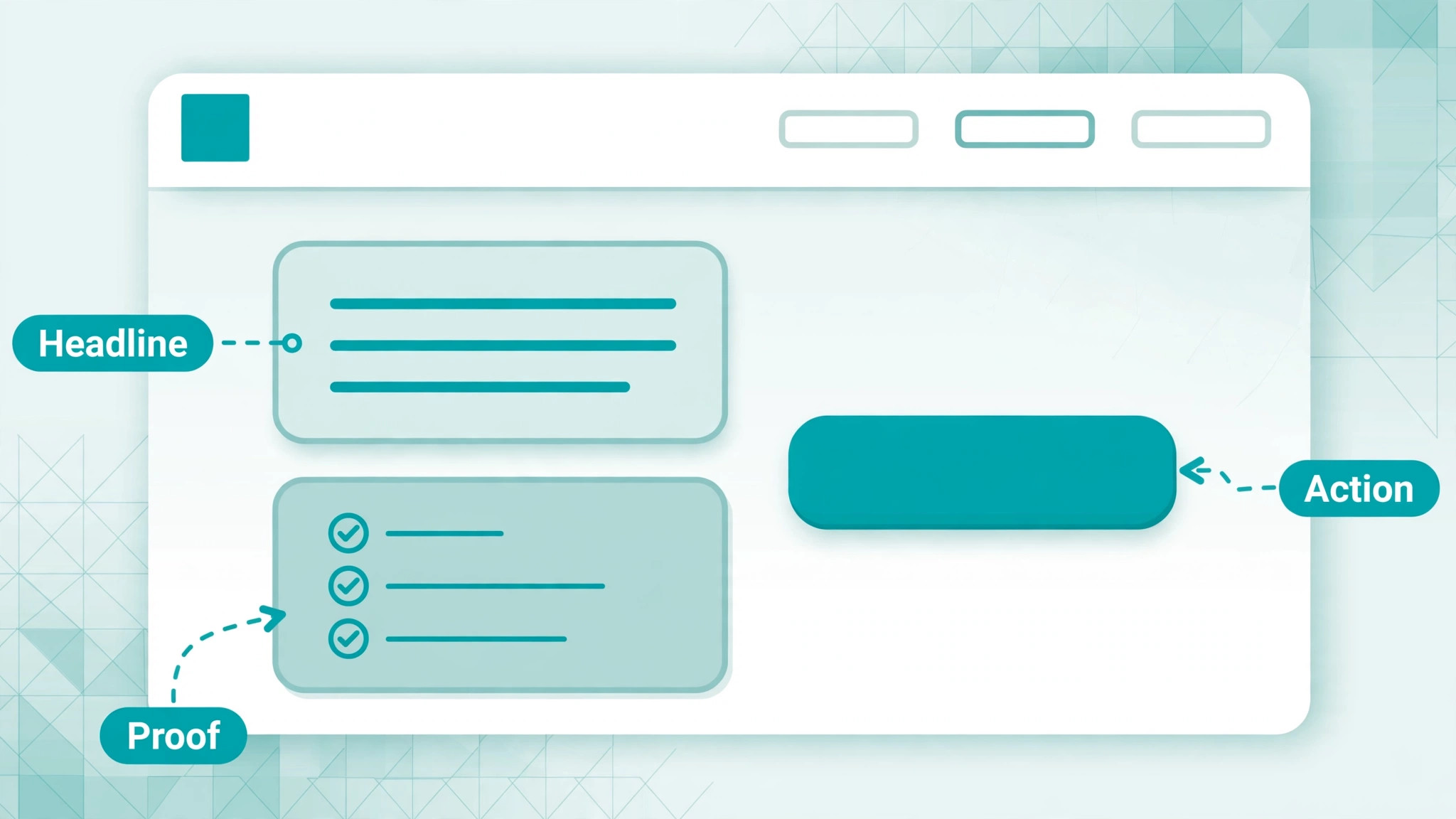
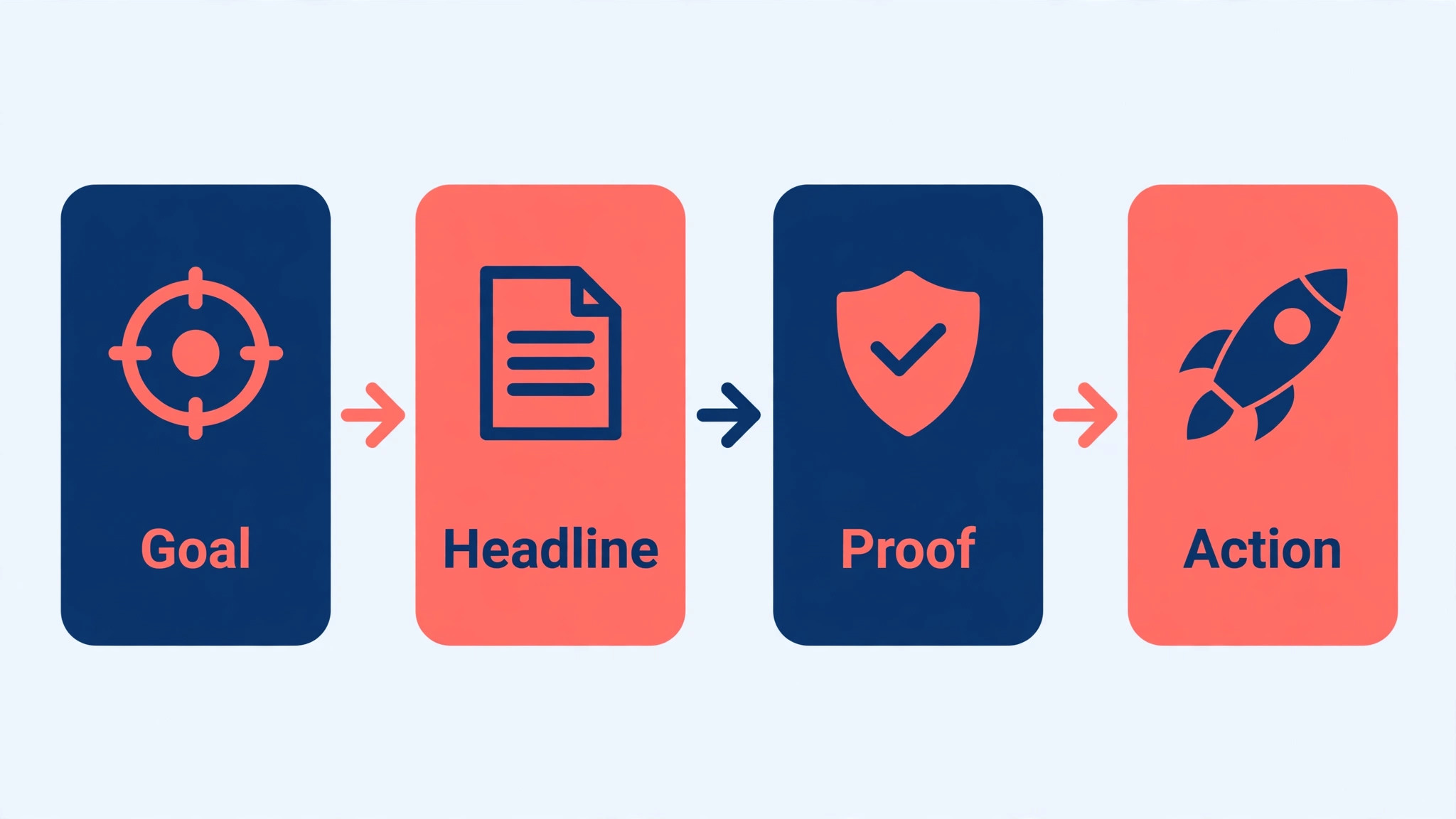
- **Set one goal and one action.** Write the goal on the first frame before you draw anything. A page that asks for a demo, a trial, and a newsletter signup at once will split attention and weaken every ask. Pick the action that matters most, put it in the hero, and repeat it at the end. Every other section must earn its place by supporting that action or removing a doubt about it.
- **Sketch the section order first.** List the sections in reading order, hero, proof, problem, solution, features, pricing or offer, objections, and final action. Keep the list to eight sections or fewer for a first version. A short page that a visitor can finish is better than a long page that nobody scrolls. Number the sections, then build one frame per section in Figma.
- **Set up the file, grid, and type scale.** Create a desktop frame at 1440 pixels wide and a mobile frame at 375 pixels wide, then add a 12 column grid with sensible margins on desktop and a 4 column grid on mobile. Set three text styles, a large headline, a body size near 16 to 18 pixels, and a small caption style. Consistent type and spacing do more for trust than any single illustration.
- **Design the hero around the outcome.** Write the headline as the outcome the visitor wants, not as a feature list. Add one short supporting line, one primary button, and one secondary link for people who need more proof first. Show the product or the result in the hero image, and keep navigation to a few links so the action stays visible.
- **Build proof and objection sections next.** Add logos or short quotes from real customers, with names and roles where you have permission. Follow proof with a section that answers the top three doubts, such as price, setup time, and what happens after signup. Honest answers in plain words convert better than vague claims, because doubt is what stops most visitors.
- **Turn repeated parts into components.** Convert buttons, cards, form fields, and section headers into components with variants for hover, active, and disabled states where relevant. Use auto layout so text changes do not break spacing. A component library makes the second page far faster than the first, and it keeps the whole page consistent when copy changes late.
- **Prototype the two main paths.** Link the hero button to the signup or booking frame, and link the secondary link to the proof or pricing section. Add a simple mobile prototype as well, because most traffic arrives on a phone. Click through both paths yourself, then watch one other person do the same, and fix every point where they hesitate.
- **Run the conversion checklist before handoff.** Check load order, headline clarity, button wording, form length, mobile spacing, and link targets. Export specs through Dev Mode, add notes for spacing, colours, and responsive behaviour, and list any content that is still placeholder. A page with honest placeholder notes ships faster than a page that pretends it is finished.
After the checklist, freeze the file for handoff and record the date of the freeze. Changes after that point should go through a short change note, not a silent edit, because developers build from the version they were given. If a late change is unavoidable, note what changed, why it changed, and which frames it affects, so the build stays aligned with the design instead of drifting apart frame by frame.
Options Compared
Once the structure is set, compare the section options honestly before committing to a layout. When you use Figma for landing page design, the hero and proof sections deserve the most care, because they carry the first impression and the first reason to believe. The table below summarises what each core section must do and the mistake that most often weakens it, so you can review your own page against a fixed standard rather than personal taste.
| Section | What it must do | Common mistake |
|---|---|---|
| Hero | State the outcome and the next action | A clever headline nobody understands |
| Proof | Show real customers or results | Logos with no names or context |
| Problem and solution | Name the pain, then show the fix | Features before the problem |
| Offer and pricing | State price, terms, and what is included | Hidden costs found at checkout |
| Final action | Repeat the action with less friction | A different ask at the bottom |
Review the table against your draft with a second person if possible, because the designer of a page stops seeing its gaps after a few days. Ask the reviewer to state the offer, the proof, and the next action after a thirty second look. If any of those three answers is wrong or vague, the section responsible needs rework, even if it looks polished. Polish without clarity is the most expensive kind of design, because it ships, gets measured, and then has to be rebuilt anyway.
Costs and Tools to Budget For
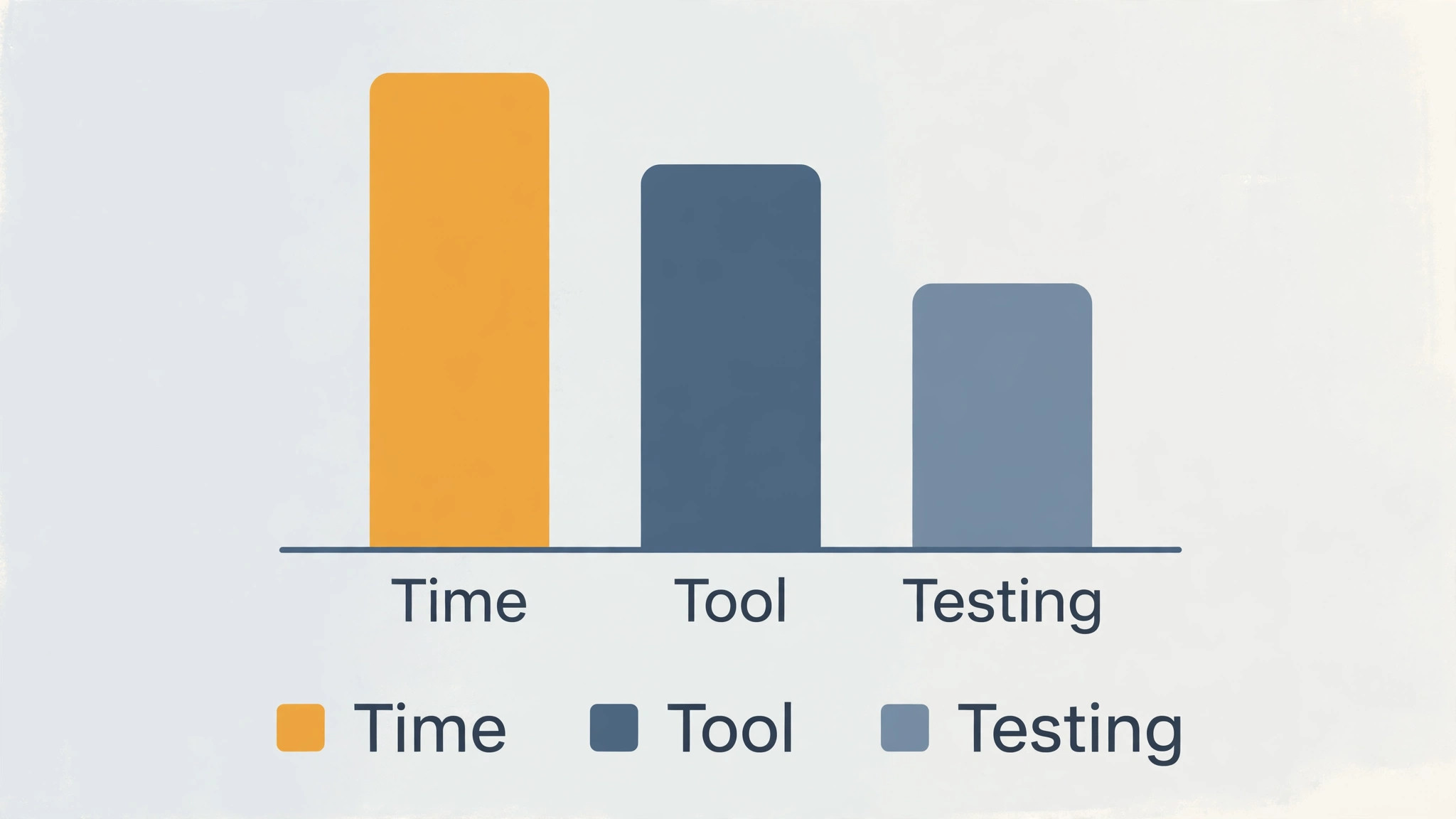
Budget for a landing page in three parts, tool cost, time, and testing. Figma lists a free Starter plan with unlimited personal drafts and a Professional Full seat at 16 dollars per month billed yearly, or 20 dollars billed monthly, so a solo page can start at no tool cost. Time is the larger cost, and a realistic first page needs several days across copy, design, review, and handoff, not a single afternoon. Testing adds a smaller cost in time, for prototype reviews and one round of fixes, and it pays for itself by catching message problems before build.
Do not budget for stock photos, illustrations, or a copywriter until the structure is settled, because those purchases are wasted when a section is cut. Spend first on getting the goal, headline, and proof right, then buy assets that fit the final sections. If a developer will build the page, confirm whether Dev Mode access or a paid seat is needed for handoff, and include that seat in the budget from the start so the handoff is not delayed by a purchase approval at the last moment.
Template and Checklist
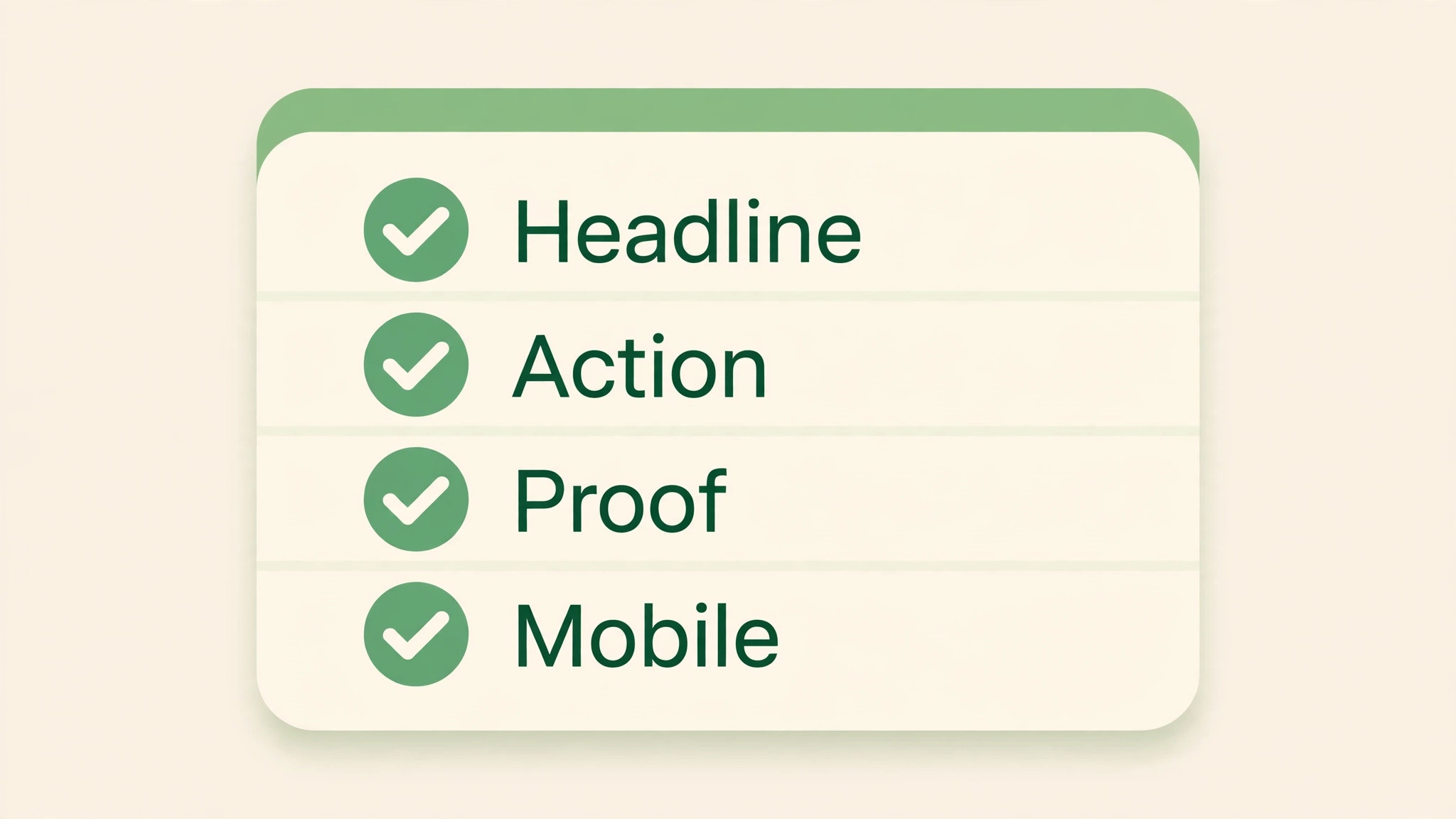
Use this checklist at two points, once after the first full draft and once just before handoff. When you use Figma for landing page design, the checklist is the gate between a design that looks finished and a design that is ready to build. Tick each item honestly, and fix any item that fails before moving on, because a failed item found during build costs far more time than the same item found in the file.
- One primary action is visible in the hero and repeated at the end, with the same wording both times.
- The headline can be understood in five seconds by someone who has never seen the product.
- The page works at 375 pixels wide, with no sideways scrolling and buttons large enough to tap.
- Every button and link has a destination in the prototype, including footer links.
- Form fields ask only for information needed to deliver the next step, nothing extra.
- Proof uses real names, roles, or numbers you can defend, and permission is recorded.
- Images show the product or the result, with alt text written for each one.
- Text contrast passes a basic check, and body text stays readable at small sizes.
- Page sections follow one reading order, with no section that repeats the previous one.
- Loading order puts headline, action, and key image first, with decoration last.
- A second person has clicked the prototype and named any point of confusion.
- Developer notes cover spacing, responsive breaks, and every placeholder item.
Keep the completed checklist with the file, not in a separate chat thread that disappears. When the page is rebuilt or tested later, the checklist shows what was already verified and what was still open, which stops the team from rechecking settled items and missing the ones that were deferred. A checklist that lives with the file becomes part of the page history, and that history is what makes the second page faster than the first.
Mistakes to Avoid
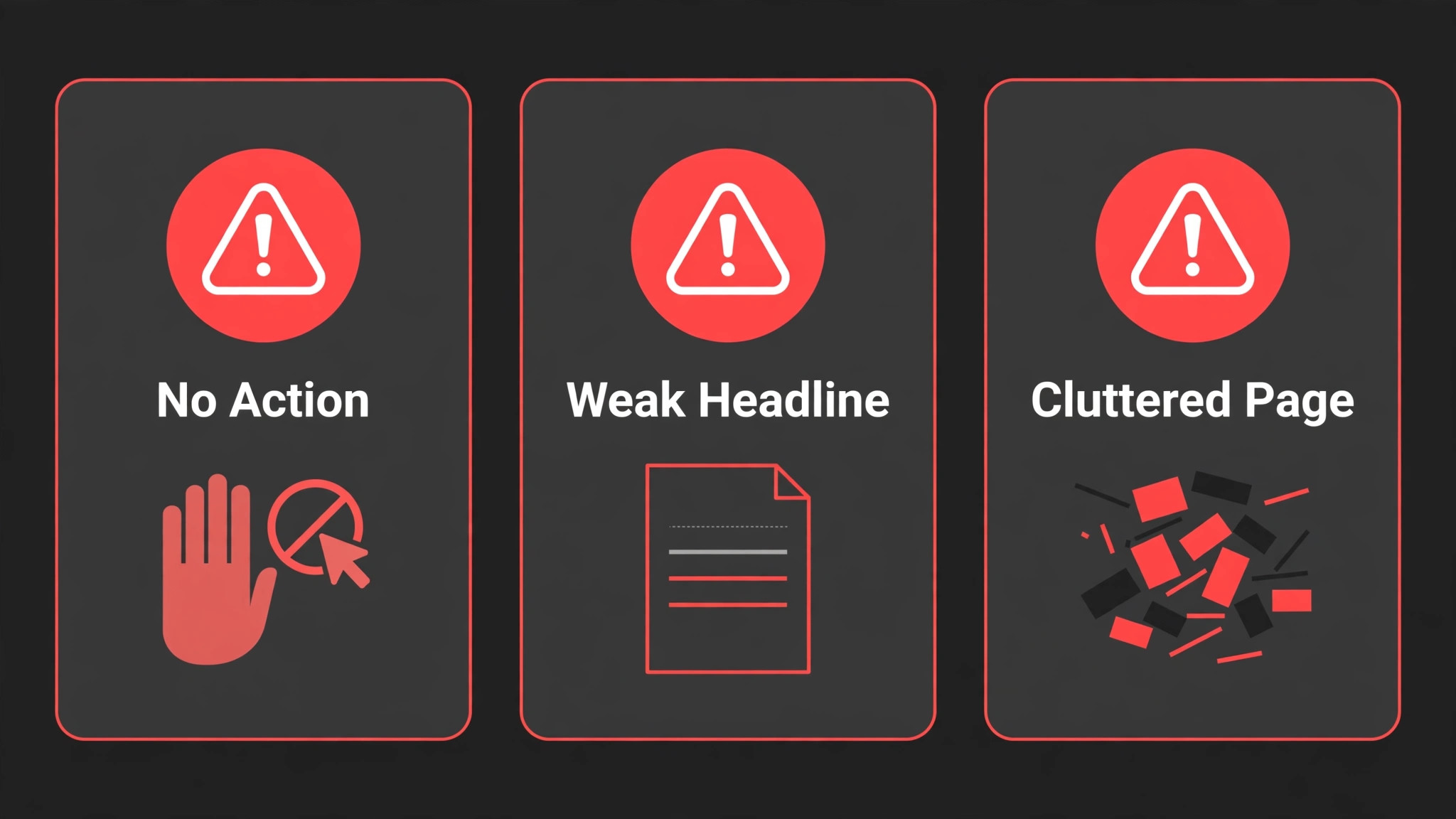
Most landing page failures are not creative failures. They are process failures that show up as design problems. When you use Figma for landing page design, watch for these five mistakes in particular, because each one looks harmless in the file and costly once the page is live and measured.
- **Designing desktop only.** Most visitors arrive on a phone, so a desktop only design hides the real experience. Build mobile frames early, check tap targets and line length, and test the hero on a real phone, not only on a large monitor. A page that feels cramped on mobile will lose visitors before they read the offer.
- **Writing headlines about features.** Visitors care about the result first and the method second. Lead with the outcome, then support it with one or two features that prove it. If the headline could belong to any competitor, rewrite it until it could only belong to this product and this visitor.
- **Adding sections to fill space.** Every extra section costs attention, and attention is the budget that matters. Cut any section that does not support the action or answer a real doubt. A shorter page with a clear path beats a longer page that visitors abandon halfway down.
- **Using placeholder copy at review time.** Reviewers cannot judge a page full of filler text, so they comment on colours instead of meaning. Write real headlines and real button text before the first review, even if the final wording changes later. Real words force real decisions about the offer.
- **Handing over without notes.** A design without notes invites guesswork, and guesswork creates rebuilds. Note spacing rules, responsive behaviour, form behaviour, and error states. Developers build faster and with fewer questions when the decisions are written on the file itself.
If you recognise more than one of these mistakes in your current draft, fix the goal and headline first, because those two decisions shape every other section. A page with a clear goal and an honest headline can survive a weak illustration, while a beautiful page with a vague goal cannot be saved by styling. Fix in that order, goal, headline, proof, then polish, and the rework stays contained.
A Worked Example
A freelance designer took on a rebuild of a trial signup page for a small software company whose existing page asked visitors to book a demo, start a trial, and join a list on the same screen. The designer began by writing one goal on the first frame, which was trial signups, and removed the other two asks from the hero so the page had a single action to judge. Next came a section list in reading order, hero, proof, problem, solution, features, offer, objections, and final action, stopping at eight sections so a longer page would not bury the signup button.
The designer built desktop and mobile frames at 1440 pixels and 375 pixels wide, added a 12 column grid on desktop and a 4 column grid on mobile, and set three text styles with body text near 16 to 18 pixels.
For the hero, the headline stated the outcome a visitor wanted rather than listing features, one short supporting line explained what happened after signup, and the primary button used the same trial wording that would repeat at the end of the page. A secondary link pointed to proof, and the hero image showed the product itself. Proof came from short customer quotes with names and roles where permission had been given, followed by an objections section that answered price, setup time, and what happened after signup in plain words. Buttons, cards, form fields, and section headers became components, and auto layout kept spacing intact when a headline was shortened.
The prototype linked the hero button to signup and the secondary link to pricing, with a mobile version built alongside because most traffic arrived on a phone.
The test that changed the page involved one person new to the product. After a thirty second look at the prototype, that reviewer could state the outcome and the next action but could not explain what was included in the trial offer, which showed that the offer section was weaker than the hero. The designer rewrote the offer section to state price, terms, and inclusions, trimmed the form to fields needed for the next step, and checked that every button and footer link had a destination. A second look on a real phone revealed a button too close to the edge at 375 pixels wide, so its spacing and tap size were increased.
Spacing, colour, and responsive notes went into Dev Mode, placeholder items were listed openly, and the file was frozen with its date recorded. Later changes went through a short note naming what changed, why, and which frames it affected.
Advanced Tips Worth Trying
Treat the component library as the product of the first page, not as a side effect of it. When buttons, cards, and form fields exist as components with hover, active, and disabled variants, the second page starts from tested parts instead of from redrawn rectangles, and a late copy change updates every instance without breaking spacing. Name each component for its job, such as trial button or proof card, and keep one master file for the library, so a fix to a form field can be tested in one place before it spreads.
Use auto layout with intention on sections that change length most often, especially proof quotes, objection answers, and pricing details. Set padding and gaps that survive longer quotes or shorter headlines, and test each component with a much longer string to see whether text wraps or pushes a neighbouring element out of alignment. Check the same components at 375 pixels wide with the longest realistic copy, because a card that looks generous on desktop can become cramped on a phone.
Build the prototype for doubt, not only for the happy path. Link the hero button to signup, link the secondary link to proof or pricing, and also link footer links, pricing details, and objection answers so a reviewer can follow the route a cautious visitor would take. Watch where that reviewer hesitates or taps an element with no destination, treat each hesitation as a design defect, record it beside its frame, fix the strongest one first, and test again with a different reviewer.
Add a handoff layer that a developer can build from without guessing. In Dev Mode, note spacing rules, responsive breaks, form behaviour, and error states, and list placeholder content separately. Check text contrast at small sizes, confirm that headline, action, and key image load first, and verify alt text on images. When the file is frozen, record the date and keep old versions for abandoned directions.
How to Measure Success
Judge the page by whether visitors complete the single action it was built for, and measure that action from analytics once the built page is live. Calculate the signup rate by dividing trial signups by page visitors over the same period and multiplying by 100, and record the period beside the result so a week of traffic is never compared with a month of traffic. Track form completion separately by dividing completed forms by forms started, because a page can attract clicks to the form yet lose visitors inside it, and that split shows whether the hero or the form needs work.
Count prototype task completion during design by dividing reviewers who reach the signup frame without help by all reviewers tested, and note each point where a reviewer hesitated so the number is never read without its context.
Measure clarity before launch with the same tests used during design. Ask a new reviewer to look at the prototype for five seconds and state the headline meaning, then ask after a thirty second look for the offer, the proof, and the next action, and record how many of those three answers were correct. Check mobile behaviour by counting tap errors and sideways scrolling incidents on a real phone at 375 pixels wide, and count every button or link in the prototype that lacks a destination.
After launch, compare sections by scroll depth and by where visitors stop, using the analytics tool attached to the live page, and review those figures weekly while the page is new and monthly once it settles. Change one element at a time, such as a headline, a button label, or a form field, keep the version that performs better, and log the date, the change, the reason, and the result for every test so failed tests are not repeated.
Review and Next Steps
Review the page on a fixed cycle, not only when a stakeholder complains about it. Each week while the page is live, compare the prototype against live analytics and note where visitors stop, whether that stop happens in the hero, in proof, in the offer, or inside the form. Each month, test one change at a time, such as a headline, a button label, or a form field, and keep the version that performs better, because changing several elements together makes it impossible to know which change helped. Record every change in the file with the date and the reason, so the team can see what was tried, what was learned, and what should not be tried again.
Small steps preserve sections that already work, unlike a rebuild from scratch every quarter.
Keep a simple log beside the file with four columns in plain text, covering date, change, reason, and result. When you use Figma for landing page design week after week, that log gives the next redesign its evidence and keeps failed tests from being repeated by a new team. Review the log before any major rebuild to see which sections deserve attention, and update it when the change is made, not at month end from memory.
Treat the component library as a living asset between pages. When a button, card, or form field is improved on one page, decide whether the improvement belongs in the library for the next page, and update the master component with a note about what changed. Prune components that are no longer used, rename components whose names no longer match their job, and check that auto layout still behaves when copy grows longer than the original wording. A maintained library makes the second page faster, while a drifting library becomes near duplicates that slow future pages.
Plan the next page before the current page is forgotten. Carry forward the section order that worked, the proof format that reviewers understood, and the objection answers that removed real doubt, and carry forward the checklist that caught missing link destinations and mobile spacing problems. Start the next brief with goal, headline, and section order frozen early, so copy and design work in parallel from a settled structure. If a new team member joins, hand over the file, checklist, log, and library together, and ask that person to click the prototype and name any confusion, because each question points to a gap to fill before the next handoff.
For related reading on Stratilyze, the guide to Figma templates shows how a shared system speeds up repeat work, the guide to pitch deck design in Figma covers presenting an offer with the same tool, and the guide to moving a design team from Figma explains what changes when a team switches tools. Read the templates guide first if you plan more than one page, because a component habit formed on the first page pays off on every page after it, and the pattern here for use Figma for landing page design transfers directly to that system.
Frequently Asked Questions
How long does a first landing page take in Figma?
A focused first page usually takes a few working days, including copy, design, and one review round. Copy takes longer than most people expect, so write headlines and button text before opening the file. A page with real copy, a clear goal, and eight sections or fewer is a realistic first version.
Do I need a paid Figma plan for one landing page?
No, the free Starter plan covers personal drafts and small tests. Move to a paid seat when you need shared team libraries, unlimited version history, or advanced handoff features. For a solo page, start free and upgrade only when a limit actually blocks the work.
What size should landing page frames be?
Use 1440 pixels wide for desktop and 375 pixels wide for mobile as starting frames, then check how the design behaves between those sizes. The exact frame size matters less than testing real breakpoints, readable text, and tap targets on a phone.
How many sections should a landing page have?
Eight sections or fewer is a good limit for a first version, because each section must earn attention. Hero, proof, problem, solution, features, offer, objections, and a final action cover most pages. Add sections only when visitor questions prove a gap.
Should the hero show the product or a lifestyle image?
Show the product or the result where possible, because visitors need to recognise what they are buying. A lifestyle image can support the message, but it should not replace a clear view of the product, the dashboard, or the outcome.
How do I use Figma for landing page design without slowing the team down?
Freeze the goal, headline, and section order early, then let copy and design work in parallel from that frozen structure. Use components so late copy changes do not break layout, and hold one short prototype review instead of several long document reviews. That routine keeps the page moving while still catching message problems before build.
The Bottom Line for Your First Page
A good landing page is a clear promise, proof that the promise holds, and one easy next step, arranged so a stranger can follow it in under a minute. Build the page around that order, test it on a phone, and let one review round fix the weak parts before handoff. When you use Figma for landing page design in this disciplined way, the file becomes a working test of the offer, not just a picture of it, and the built page inherits every decision that test already proved.