

A freelancer with three unpaid invoices faces a choice that looks simple and turns out to matter. A dedicated invoicing app will send the invoice, chase the payment and record the result, but it charges every month whether work is busy or slow. A Word document looks clean when it leaves your inbox, but it remembers nothing, so you are the tracker, the reminder system and the year end summary. A spreadsheet sits between those two extremes. It costs nothing extra, bends to how you actually bill, and when you use Google Sheets for freelance invoicing, every invoice, payment and client stays in one place you control.
That is why many freelancers choose to use Google Sheets for freelance invoicing, not because it does everything an app does, but because it does the important parts well and never sends a subscription bill in a quiet month.
This guide builds the whole system from scratch. You will set up a tracker that flags overdue invoices on its own, build a printable invoice template you can copy for every job, add payment links without giving up the spreadsheet, run a short weekly chase routine, and close the year with records your accountant can actually use. Prices quoted here reflect publicly listed figures checked in October 2026, and you should check checkout before you pay for any tool mentioned.
Sheets or an App or a Document
Start with what each option really buys. A document gives you a good looking invoice and nothing else. You still need a separate place to record that it was sent, when it is due and whether it was paid, and that place is usually memory, a notes app or sent mail. That works for one client and one invoice a month. It breaks at five clients, at partial payments and at the first dispute about what was agreed, because there is no single record to check.
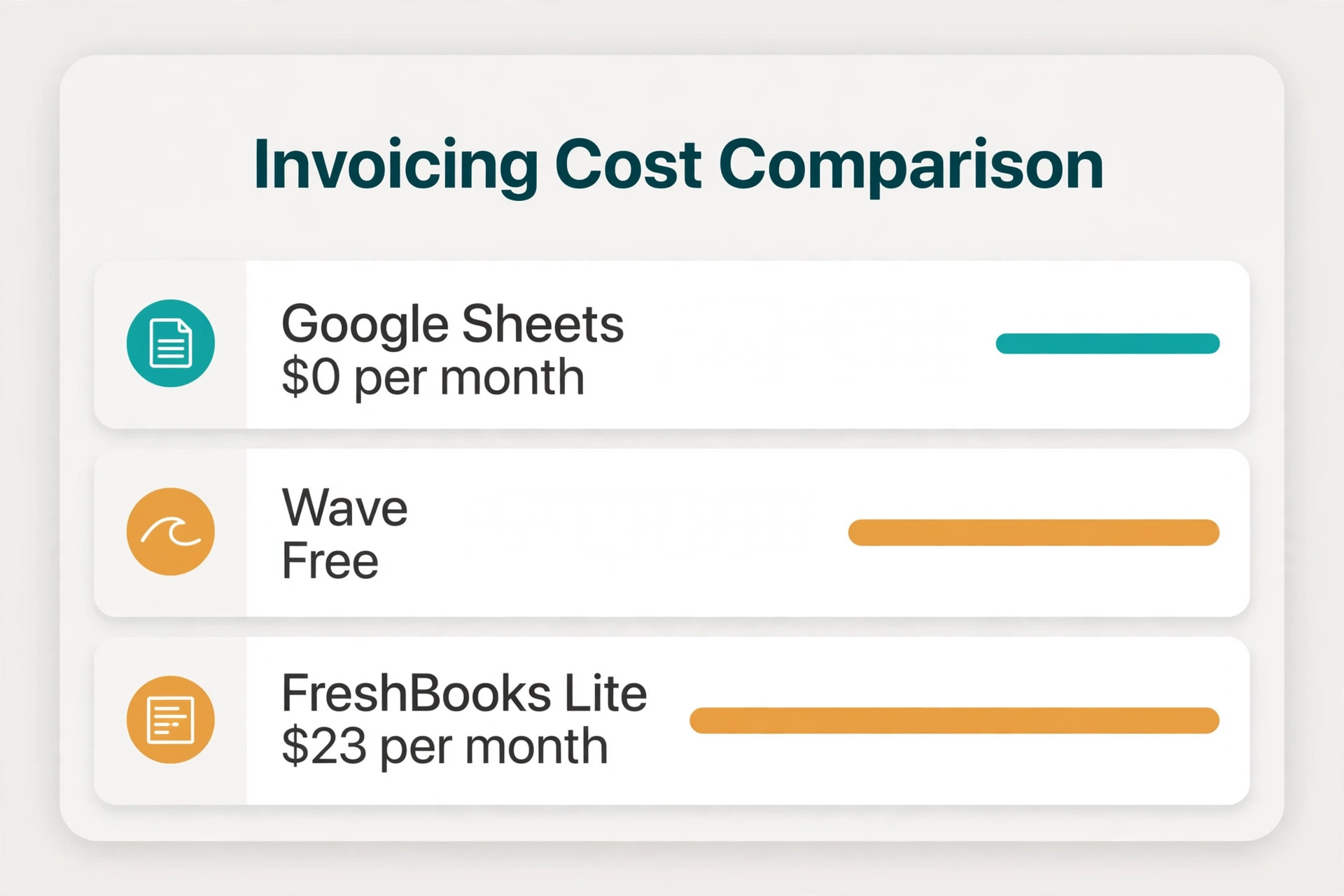
A dedicated app gives you the most automation. FreshBooks lists Lite at 23 dollars a month, Plus at 43 dollars a month and Premium at 70 dollars a month in its 2026 price change notice, with Lite limited to five billable clients and Plus limited to 50. Wave offers invoicing and accounting free, with a Pro plan listed in 2026 roundups at 16 dollars a month on annual billing or 20 dollars month to month, and payment processing charged on top. For a freelancer who bills 20 clients a month, that automation is worth paying for.
For a freelancer who bills four clients a month, 276 to 516 dollars a year for Lite or Plus is a heavy price for reminders you could run in 20 minutes a week.
Sheets gives you control and zero subscription cost, and it asks for setup time in return. Google Sheets is free with a free Google account. If you want a custom business email address and more storage, Google Workspace Starter is listed on the official Google Workspace pricing page at 7 dollars per user a month on annual billing, or 8 dollars and 40 cents on flexible monthly billing, with Standard at 14 dollars and Plus at 22 dollars. You do not need Workspace to invoice. The free account is enough for the tracker and the template in this guide.
The honest test is volume and complexity. Under about 10 invoices a month, with mostly fixed or hourly work for repeat clients, a spreadsheet wins on cost and control. Over that volume, or when you need recurring billing, retainers and client portals, an app starts to repay its price in saved chasing time. Between those points, many freelancers run a hybrid. Sheets holds the record. A payment link collects the money. A short weekly routine does the chasing.
How to use Google Sheets for freelance invoicing without breaking the system
The system in this guide has four tabs and one rule. The tabs are Clients, Invoices, Invoice Template and Tax Summary. The rule is that you never type the same fact in two places. Client details live once in Clients. Invoice numbers, dates, amounts and status live once in Invoices. The Tax Summary adds up what the Invoices tab already says. When a fact changes, you change it once, and every total that depends on it updates.
Set up the file before you need it under pressure. Create a new spreadsheet, name it with the year and add the four tabs. Freeze the header row on each tab, format money and date columns before you type anything, and keep one row per invoice, never one row per line item. Line items belong on the invoice document itself. Protect the formula columns once they work, and monthly make a copy in Drive.
Build the Tracker Tab First
The tracker is the heart of the system, so build it before the pretty invoice. These columns cover almost every freelance billing situation. Invoice number, client, project or job, date sent, payment terms in days, due date, amount invoiced, amount paid, balance due, date paid, payment method, status and notes.
Use a simple invoice numbering habit and never reuse a number. Start at 1001 for the year, and let the number rise by one for each invoice, including cancelled ones. Mark a cancelled invoice as Cancelled and leave the number in place, with a note explaining why. Gaps in numbering look worse than a cancelled invoice at tax time. Credit notes get their own number too, with a negative amount and a note pointing to the original invoice.
Let formulas do the arithmetic and the status work. The due date is the date sent plus the terms in days, so a Net 14 invoice sent on the 5th is due on the 19th. The balance due is the amount invoiced minus the amount paid, so a partial payment shows at once as the amount still owed. The status formula checks the date paid first, then whether today is past the due date, and returns Paid, Overdue or Open in that order. That order matters, because an invoice paid late should read Paid, not Overdue, once the money lands.
The reason many freelancers use Google Sheets for freelance invoicing is exactly this kind of control, because you can see the logic and change it.
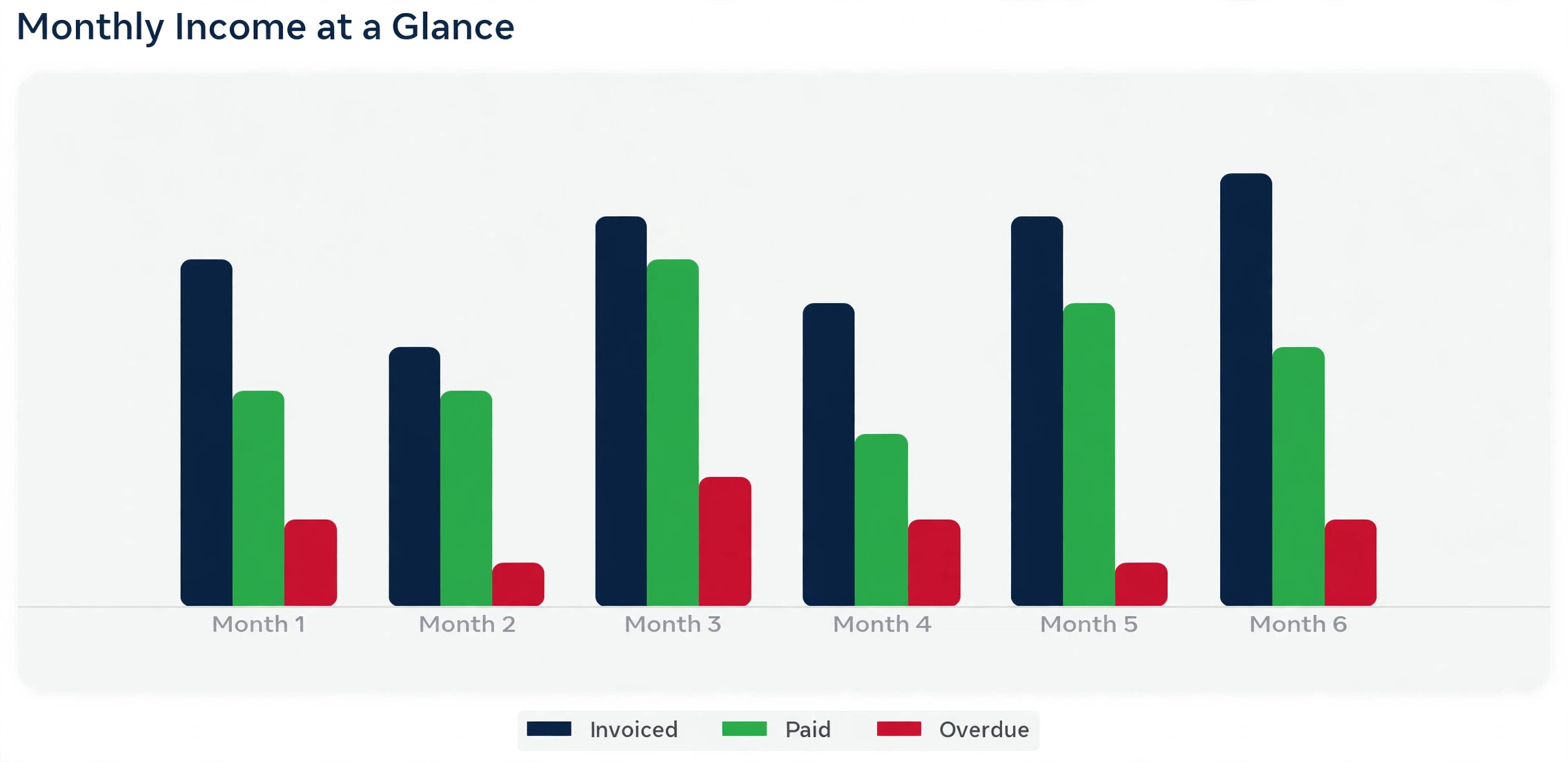
Colour does the scanning work for you. Use conditional formatting to give Overdue rows a light red fill and Paid rows a light green fill, based on the status column. Add a filter to the header row so you can show only one client, only Overdue invoices or only this month, in two clicks. Add a small summary block with totals for amount invoiced this year, amount paid, amount outstanding and amount overdue. Those four numbers are your cash position.

What to record for each client
The Clients tab saves repeated typing and mistakes. Record the client name exactly as it should appear on the invoice, the contact person, the billing email, the payment terms you agreed and any tax ID where relevant, plus a notes column for quirks such as a purchase order number on every invoice. Keep client details out of the tracker row itself, apart from the client name, so a change of billing email means one edit in Clients.
Build the Invoice Template Tab
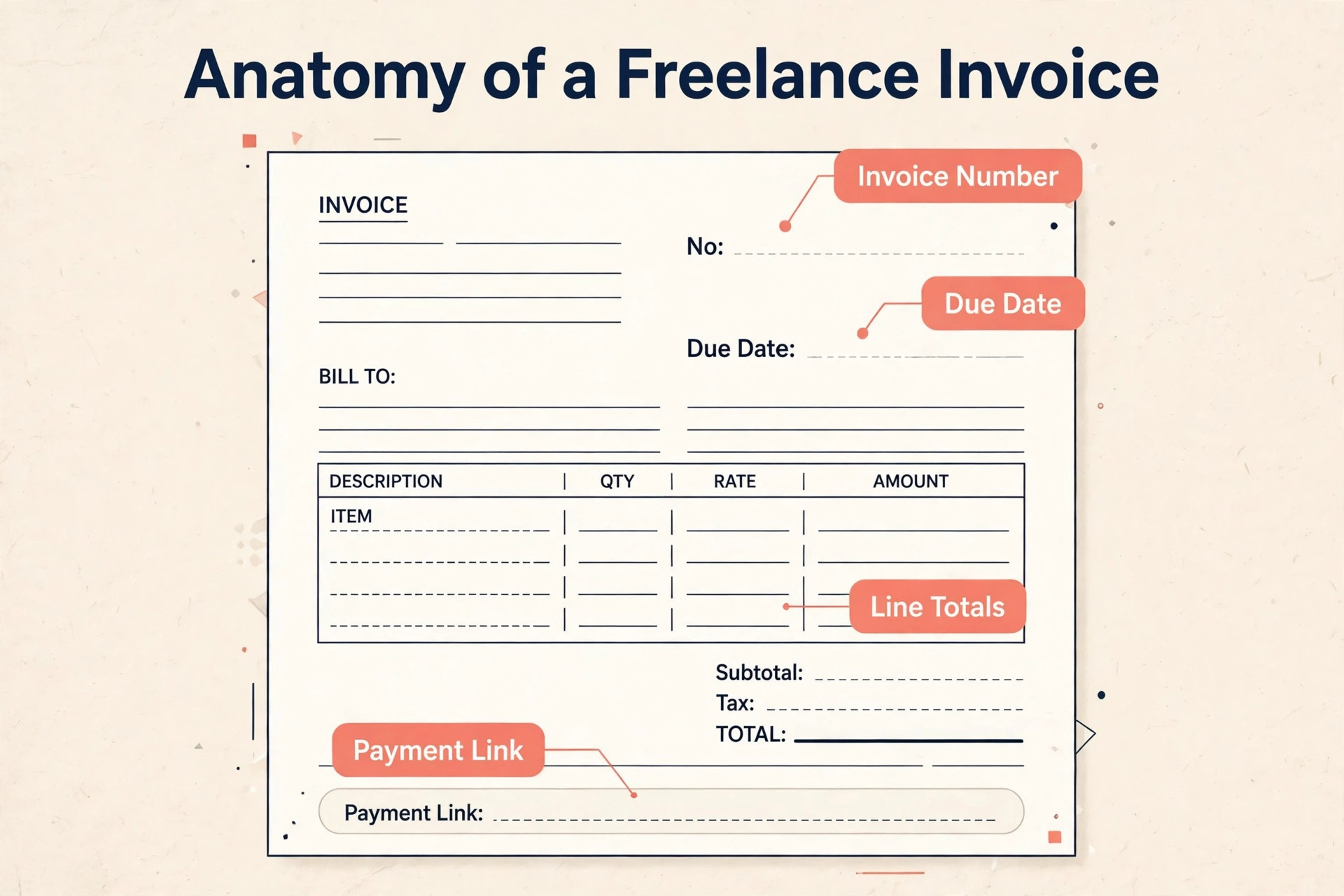
A good invoice answers five questions before the client has to ask them. Who is billing me, what is this for, how much do I owe, when is it due, and how do I pay. Put your business name and payment details at the top, the client name and billing address next, then the invoice number, date sent and due date. Then list the work in lines, each with a description, quantity, rate and line total. Then show the subtotal, any tax, any discount or credit, and the total due in large, unmistakable type. Finish with payment instructions and a short note about late payment terms if you use them.
When you use Google Sheets for freelance invoicing, this template is the document the client actually sees, so it has to be as clear as the tracker behind the scenes.
Design the template to print cleanly, because many clients still file a PDF or pass it to accounts. Keep it to one page where possible, leave white space around the totals, and test it by exporting to PDF and opening it on a phone. If the total is hard to find on a small screen, the client will email you to ask. Put your logo in only if it prints well in black and white too. One line thanking the client and one line stating the due date is enough.
Copy the template for each new invoice, never overwrite it. Duplicate the template tab, rename the copy with the invoice number and client name, fill in the lines, export it as a PDF, and send the PDF. Keep the filled copy in the same spreadsheet or in a Drive folder for that year.
Line items, tax and discounts done right
Write line descriptions a stranger in accounts could understand. “Website work” is vague and invites a query. “Homepage copy, four pages, draft delivered 12 October” is clear, and it matches the work the client approved. For hourly work, show hours and rate separately. For project work, break a large fee into milestones or deliverables where the contract allows it, because a client approves a list of delivered items faster than a single large number with no breakdown.
Handle tax as a separate, visible line, never buried in the rate. If you charge sales tax, VAT or GST, show the rate and the amount, and make sure the rate matches the rules for your location and your client location. If you do not charge tax, a zero tax line with a note that no tax applies is clearer than a missing line. Discounts work the same way. Show the full amount, then the discount as its own line, then the total due. Check the invoice total against the tracker amount before you send, every time.
Sheets does not take card payments, and pretending otherwise is the main reason freelancers abandon it. The fix is to put a payment link on the invoice and let the tracker record the result. Create a payment link in Stripe or PayPal for the invoice amount, paste the link and the payment instructions on the invoice, and when the money arrives, enter the date paid, the amount paid and the method in the tracker. The link does the collecting. Sheets does the remembering. If you use Google Sheets for freelance invoicing, this hybrid turns a good record into a working business system.
Choose the payment method by what the client prefers and what the fee costs you. Stripe lists a standard United States online card rate of 2.9 percent plus 30 cents, with ACH bank debit at 0.8 percent capped at 5 dollars. On a 1,000 dollar invoice, a Stripe card payment costs 29 dollars and 30 cents, while an ACH payment costs 5 dollars. PayPal branded checkout is listed in 2026 comparisons at 3.49 percent plus 49 cents, PayPal invoicing card payments at 2.99 percent plus 49 cents, and PayPal invoicing bank payments at 1 percent capped at 10 dollars.
On that invoice, PayPal branded checkout costs 35 dollars and 39 cents, and PayPal invoicing by card costs 30 dollars and 39 cents. Steer larger invoices toward bank transfer where the client will accept it, and reserve cards for speed.
| Payment route | Typical fee on a 1,000 dollar invoice | When it wins |
|---|---|---|
| Bank transfer, no processor | 0 dollars | Repeat clients, larger invoices, clients with accounts teams |
| Stripe ACH bank debit | 5 dollars, capped | United States clients who will connect a bank account |
| Stripe online card | 29 dollars and 30 cents | Speed, new clients, clients who pay by card habitually |
| PayPal invoicing by card | 30 dollars and 39 cents | Clients who already use PayPal and trust it |
| PayPal branded checkout | 35 dollars and 39 cents | Clients who insist on PayPal checkout rather than an invoice link |
Bank transfer deserves a longer look, because it is free and many freelancers underuse it. Most business clients already pay suppliers by bank transfer, and an invoice with clear bank details and a reference built from the invoice number is often paid faster than a card link. When a transfer lands, confirm the client and invoice number from the reference, and mark it paid the same day.
Decide in advance who bears card fees, and state it before the work starts, not on the invoice after the fact. Some freelancers absorb card fees as a cost of getting paid fast, some add a surcharge where local rules allow it, and some set prices that already allow for a typical card fee. Surcharge rules vary by place and by card type, so check the rules that apply to you before adding one. If you absorb the fee, record the gross amount invoiced and the fee separately, so your income record shows what you billed and what you kept.
The Weekly Chase Routine That Gets Invoices Paid
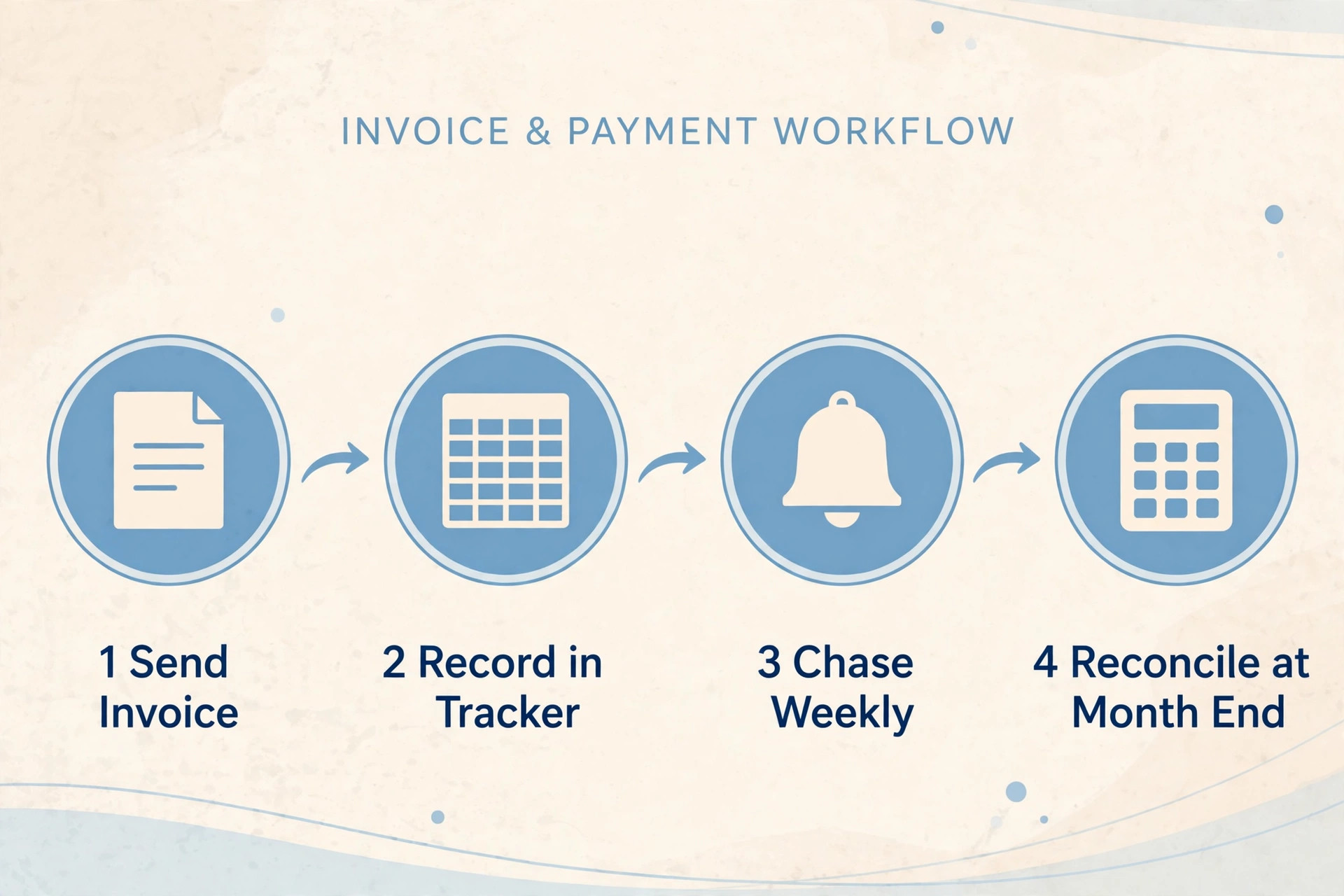
A tracker without a chase routine is a diary, not a billing system. Set a fixed 20 minute slot once a week, on the same day, and work the Overdue filter in order of age. Start with the oldest invoice, because old debt gets harder to collect with every week that passes. For each overdue invoice, send one short message, note the date and the reply in the tracker notes column, and set the next follow up date. One clear message, then a pause, then a firmer message, beats a flood that gets ignored.
Write chase messages in three stages, and keep each stage short. Stage one, just after the due date, assumes a simple slip. It restates the invoice number, the amount and the due date, attaches the PDF again, and asks when payment will land. Stage two, about two weeks overdue, asks for a payment date in plain terms. Stage three, at 30 days or more, states that work pauses until the balance clears, where your contract allows it, and asks for payment or a payment plan by a specific date. Keep every message polite and factual.
Prevent late payment at the contract stage, not at the chase stage. Agree payment terms in writing before work starts, including the due period, the payment method, what happens on late payment, and whether work pauses on overdue balances. Net 14 suits small, fast jobs. Net 30 suits larger clients with monthly payment runs. For new clients, consider a deposit, often 50 percent upfront for project work. A deposit tests whether the client can pay at all, before you have done the full job.
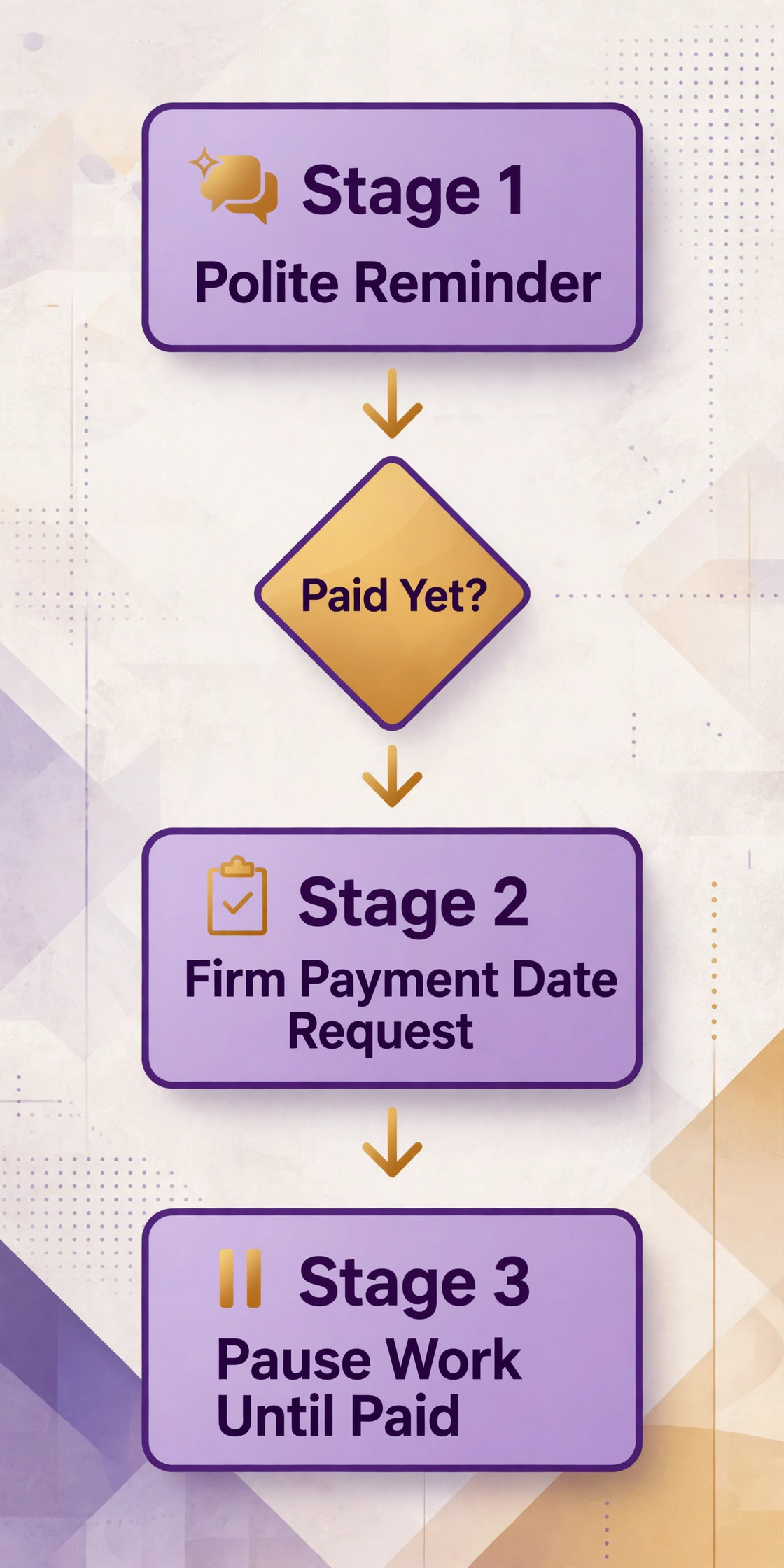
When to stop chasing in Sheets and move on
Sheets can track a debt, but it cannot enforce one. If a client stops replying after three staged messages or a promised payment date passes twice, move the invoice out of the weekly chase list and into a separate action, such as a formal demand letter, a small claims process or a decision to write the amount off. Mark the status clearly, for example Disputed or Written Off, and do not delete the row.
How to Choose Between Sheets, Wave and FreshBooks
Choose by three numbers, not by feature lists. First, your invoices per month. Second, your active clients in a year. Third, the hours you lose to invoicing, chasing and year end tidy up. If you send fewer than 10 invoices a month, serve fewer than 20 active clients a year, and lose less than two hours a month to billing admin, Sheets is the rational choice. If you send more than 20 invoices a month, or you need recurring invoices, retainers and client portals every week, the app starts to win, because the time saved passes the subscription cost at a normal freelance rate.
Run a one month test before you commit either way. If you use Google Sheets for freelance invoicing for that test, build the system in this guide, use it for a full billing cycle, and log the minutes you spend creating invoices, chasing and doing month end totals. Then trial Wave or FreshBooks for the next cycle, with the same clients and volume, and log the same minutes. Compare the time saved against the monthly price, and include processing fees in both cases. Watch for the client count trap.
FreshBooks Lite looks cheap until your sixth billable client pushes you to Plus, and that jump from 23 dollars to 43 dollars a month is caused by client count, not by a feature you wanted. Wave avoids that trap with free core invoicing. If you do move to an app, export your Sheets tracker first and keep it as the archive.
Where a Sheets Invoicing System Quietly Fails
The first mistake is typing totals instead of letting formulas calculate them. A typed total looks right on the day you send the invoice, and it is wrong the day you change a quantity or a partial payment and forget to retype it. The second mistake is keeping two trackers, one in Sheets and one in a notes app or in your head, because the two records will disagree, and you will trust the wrong one when a client disputes a payment. Pick one tracker, put every invoice in it, and let the notes column carry the extra detail.
The third mistake is vague line items and vague client names. A client named “Sarah” is useless when you have three clients called Sarah, and a line that says “work done” is useless when accounts asks what they paid for. Use full business names, and write line items that name the deliverable and the date. The fourth mistake is sending the spreadsheet itself to the client instead of a PDF. A spreadsheet invites the client to see your other invoices, your rates for other clients and your notes, and it can be edited after you send it. Send a PDF, keep the spreadsheet private.
The fifth mistake is ignoring partial payments and overpayments. A client who pays half now and half next month is not Paid. Record the amount paid, leave the balance showing, and note the second payment date when it lands. For an overpayment, record it, tell the client, and agree whether it credits the next invoice or gets refunded. The sixth mistake is mixing personal and business money in the same tracker. The seventh mistake is letting the tracker go stale for a month. Enter each invoice on the day you send it, and mark each payment on the day it lands.
It is the habit, not the tool, that decides whether people who use Google Sheets for freelance invoicing stay in control or drift back to guessing.
Invoice Template You Can Copy Into Your Own File
This section is the copy ready template element of the guide. Create a tab called Invoice Template, set the print area to one page, and lay it out in this order. Top block with your business name and contact details. Client block with client name and billing address. Invoice block with invoice number, date sent, due date and payment terms. Work table with description, quantity, rate and line total. Totals block with subtotal, tax, discount and total due. Payment block with bank details or payment link and the reference to use. Closing line with a thank you and late payment terms if you use them.
Fill in the work table with formulas, not typed totals. Each line total multiplies quantity by rate. The subtotal adds the line totals. The tax line multiplies the subtotal by the tax rate where tax applies, or stays at zero with a note where it does not. The total due adds subtotal and tax and subtracts any discount or credit. Check the total against the tracker before sending, and save the PDF with a clear name, such as Invoice 1042 ClientName October 2026. Keep a blank master copy of the template tab, and duplicate it for each invoice.
Tax Time Checklist for Freelancers on Sheets
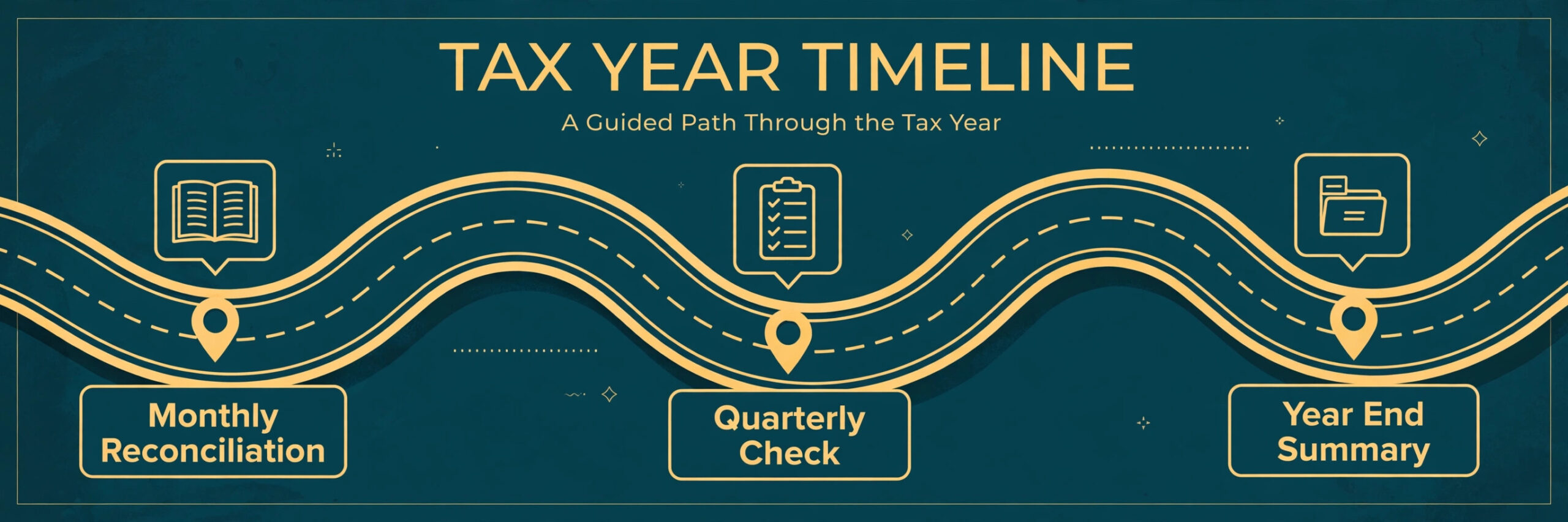
This checklist turns the tracker into a tax file without a last minute scramble. Work through it once a month in small steps, and once fully at year end, and keep the evidence beside the numbers.
First, reconcile the tracker to the bank. For every row marked Paid, confirm a matching deposit for the same amount and from the same client. For every deposit that looks like client income but has no tracker row, add the row or note why it is not invoice income.
Second, list every unpaid invoice at year end separately from paid income. Unpaid invoices are not income in a cash based record, but they still show work done and money owed. Carry open invoices into the next year file with the same invoice numbers, so nothing disappears in the rollover.
Third, gather expenses in the same file, on a separate tab, with date, supplier, description, amount, category and receipt link or file name. Common categories include software, equipment, travel, professional fees, and payment processing fees. Record processing fees as expenses, and show gross invoiced amounts with fees recorded separately, not net amounts that hide the fee. Keep receipts in a Drive folder by year and month.
Fourth, check client tax forms against your tracker. In the United States, clients who paid you 600 dollars or more in a year for services may send a 1099 NEC form, and you should note any mismatch to query, because a form that overstates income will follow you into your tax return if you do not catch it. Rules differ by country, so check the current rules for your location. If you work with clients in other countries, note currency, exchange rate used and any withholding.
Fifth, prepare a one page summary for your accountant from the Tax Summary tab. Total invoiced, total paid, total outstanding at year end, total expenses by category, total processing fees, and any large or unusual items with a note. Sixth, back up and close the year. Make a final copy of the file named with the year, store the PDFs of every invoice in a year folder, and start the new year file with open invoices carried forward.
A note on scope matters here. This guide is general information about organising freelance invoicing records, not tax advice for your situation. Tax rules depend on your country, your business structure and your income. For related reading, freelancers comparing dedicated tools can start with best AI invoice generators and best accounting software for small business, while writers will find best AI tools for freelance writers useful, and best spreadsheet software for small business puts Sheets in context. If payment fees are the deciding factor, Stripe vs PayPal compares the two processors, and best AI tools for Excel and Google Sheets covers add ons for a Sheets workflow.
For the client side, how to get clients as a freelancer with AI covers finding work to invoice.
Frequently Asked Questions
Is Google Sheets really enough for freelance invoicing?
Yes, for many freelancers, especially those sending fewer than about 10 invoices a month to repeat clients. Sheets handles the record, the totals and the tax summary well, and a payment link handles collection. It falls short on automatic reminders, client portals and recurring billing.
Can I use Google Sheets for freelance invoicing full time, or is it only a starter system?
You can use it full time if your volume stays within its strengths, meaning mostly fixed or hourly billing, a manageable client list, and a disciplined weekly update habit. Many established freelancers stay on Sheets for years by choice, because they value control and zero subscription cost. The signal to move is volume, recurring billing needs and hours lost to admin.
Do I need Google Workspace, or is a free Google account enough?
A free Google account is enough for the tracker, the template and sharing PDFs. Workspace adds a custom business email address, more pooled storage and admin controls, with Starter listed at 7 dollars per user a month on annual billing. Buy Workspace for the email and storage if you need them, not for invoicing alone.
How do clients pay an invoice made in Google Sheets?
Put a payment link or clear bank details on the PDF invoice. Clients pay through Stripe, PayPal or bank transfer, and you record the payment in the tracker on the day it lands. Sheets does not process the payment itself, so the link and the tracker together form the system.
What happens if a client disputes an invoice I made in Sheets?
Your defence is the record, so keep the contract or agreed scope, the delivered work, the invoice PDF with the same number and total as the tracker, and the message history about payment terms. Resend the exact PDF, point to the agreed scope and the tracker dates, and keep replies factual and polite.
Should I send the spreadsheet file itself to the client?
No. Send a PDF of the single invoice, never the whole spreadsheet. A spreadsheet can expose other clients, other rates and private notes, and it can be edited after sending. Keep the spreadsheet private, and keep the PDFs in a year folder.
The Verdict for Freelancers Who Want Control Without a Monthly Bill
Sheets will not chase a client for you, and it will not forgive a month of neglect. What it will do, if you build it once and update it weekly, is give you a complete, private and free record of every invoice, every payment and every outstanding balance, with a tax summary that matches the bank. That is enough for a large share of solo freelancers, especially those starting out and those with repeat clients.
The decision to use Google Sheets for freelance invoicing is therefore a decision about habits as much as tools. If you will enter invoices on the day you send them, mark payments on the day they land and run a 20 minute chase slot every week, Sheets will serve you well for years. If you know you will not keep that habit, or your volume has already passed 20 invoices a month with retainers and recurring billing, pay for the automation and let the app do the chasing.
Start this week with the tracker, not with the template. Add your open invoices, your clients and your outstanding balances, even if the first version is rough. Add the template next, send the next invoice as a PDF with a payment link, and run the first chase slot seven days later. A freelancer who knows exactly who owes what, and since when, gets paid faster, argues less and files taxes with less dread.