

The best AI tools for Excel don’t just answer questions about your spreadsheet — they work inside it, writing formulas, cleaning dirty data, and building charts from plain-language instructions. Meanwhile Google Sheets users have Gemini in Sheets built into their suite, plus a marketplace of add-ons that do things the built-ins can’t. The confusion is real: built-in assistants vs add-ons, credit packs vs subscriptions — and which tool actually handles a real-world dataset rather than a demo.
So we built one deliberately messy test file — a sales export with inconsistent date formats, missing values, duplicate rows, and inconsistent product names — and ran it through six AI-first tools: Microsoft 365 Copilot in Excel, Gemini in Google Sheets, OpenAI’s ChatGPT add-in, GPT for Work, Numerous, and SheetAI. We tested the same three jobs each time: generate formulas, clean the data, create a chart. Only AI-first tools qualify — for a comparison of spreadsheet software itself (the non-AI side), see our spreadsheet software guide.
Quick Answer
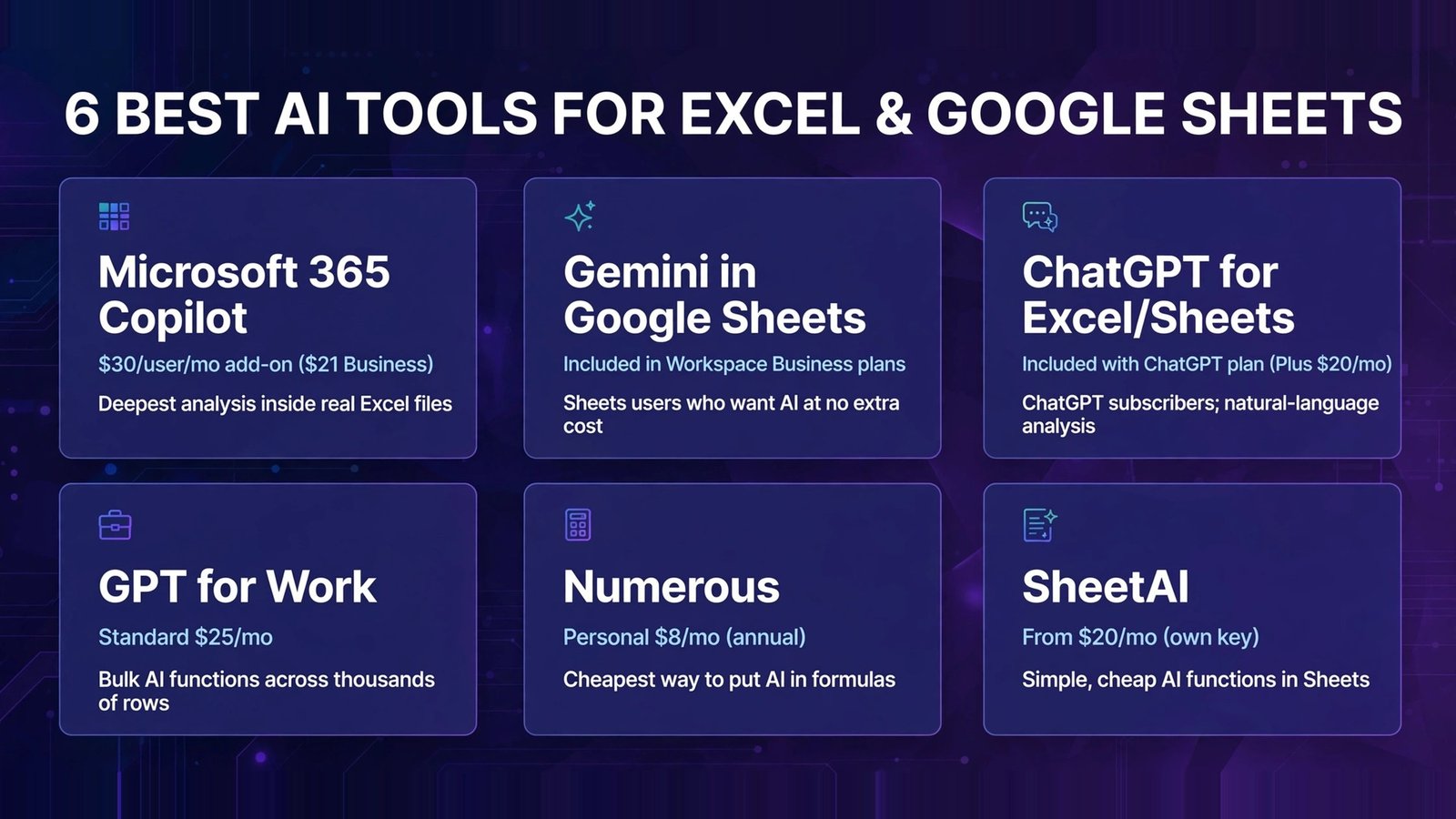
Bottom line: If you already pay for Microsoft 365, Copilot in Excel is the most capable native option. If you live in Google Workspace, Gemini in Sheets costs you nothing extra and covers 80% of jobs. For bulk AI processing across thousands of rows, the add-ons — GPT for Work or Numerous — do what the built-ins can’t.
| Tool | Where it lives | Price (Oct 2026) | Best for |
|---|---|---|---|
| Microsoft 365 Copilot | Inside Excel (native) | $30/user/mo add-on ($21 Business) | Deepest analysis inside real Excel files |
| Gemini in Google Sheets | Inside Sheets (native) | Included in Workspace Business plans | Sheets users who want AI at no extra cost |
| ChatGPT for Excel/Sheets | Add-in, both platforms | Included with ChatGPT plan (Plus $20/mo) | ChatGPT subscribers; natural-language analysis |
| GPT for Work | Add-in, both platforms | Standard $25/mo | Bulk AI functions across thousands of rows |
| Numerous | Add-in, both platforms | Personal $8/mo (annual) | Cheapest way to put AI in formulas |
| SheetAI | Add-on, Sheets only | From $20/mo (own key) | Simple, cheap AI functions in Sheets |
The Test: Three Jobs on One Messy Dataset
Our test file: 1,200 rows of fictional sales data with the defects real exports have — dates mixing “2026-03-15” and “15/03/2026”, three spellings of the same product name, ~8% blank discount cells, 47 duplicate order IDs, and a notes column of unstructured text (“shipped late”, “partial refund”…).
Each tool faced the same three tasks:
- Formula generation: “Add a column computing net revenue after discount, handling blank discounts as zero” and a VLOOKUP/XLOOKUP-style cross-reference between sheets.
- Data cleaning: Standardize the product names and date formats, flag duplicates.
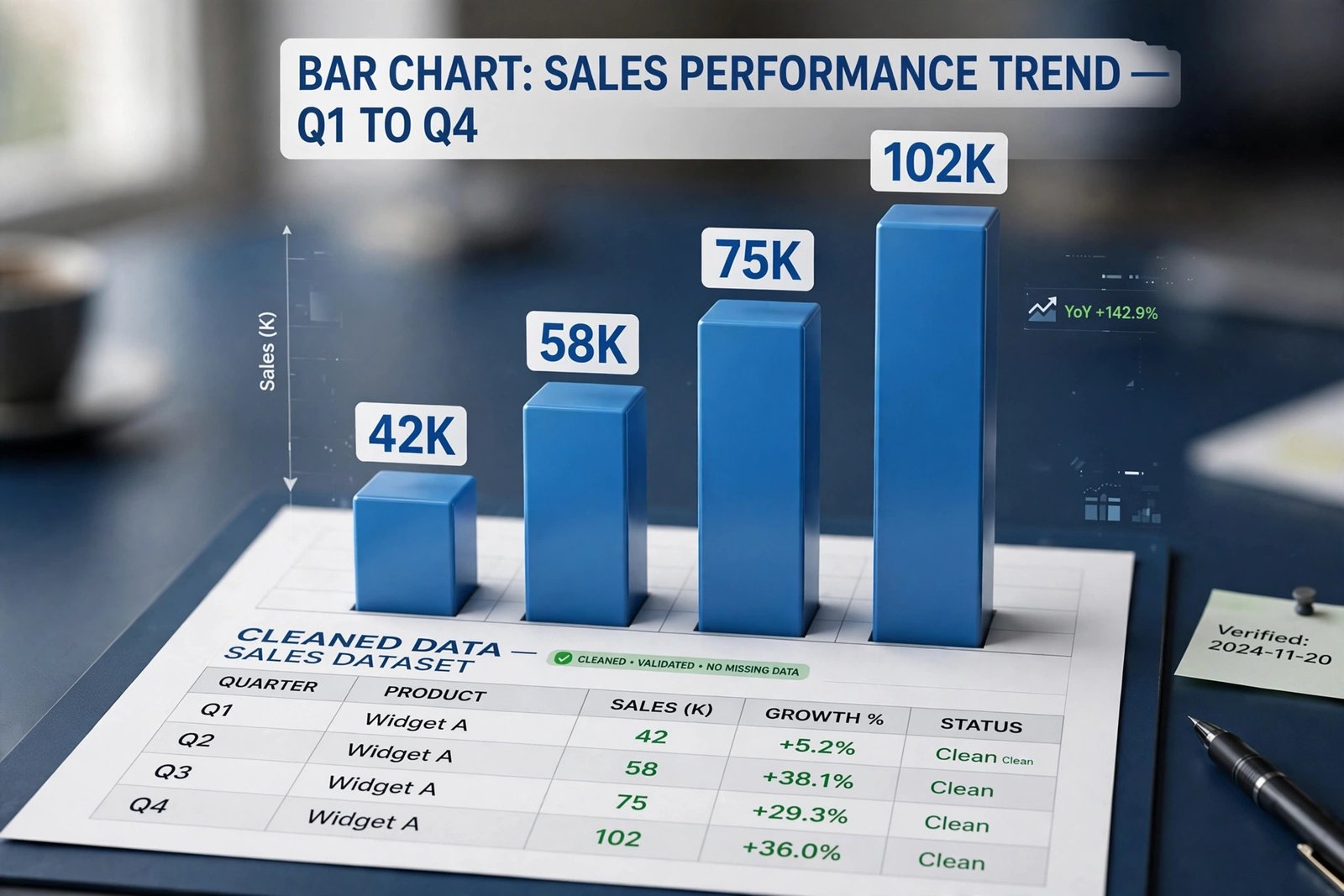
- Chart creation: “Build a chart of monthly revenue by region” and summarize the three biggest trends in plain English.

1. Microsoft 365 Copilot in Excel — The Deepest Native AI
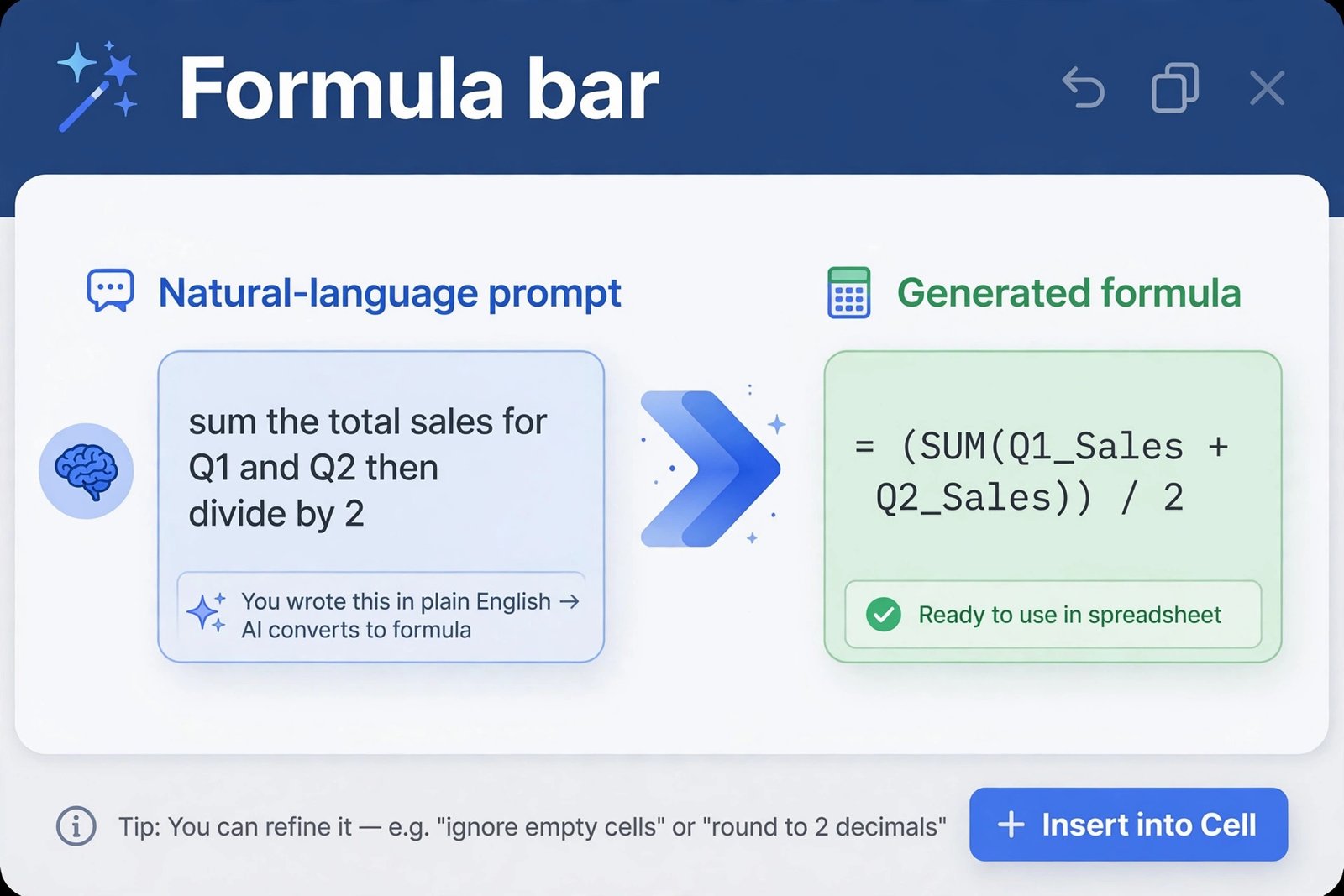
What it is: Copilot’s integration inside Excel itself: a sidebar where you describe analysis in plain language and it builds formulas, cleans data, creates PivotTables, and generates charts against the actual workbook. It also supports Python in Excel workflows for advanced analysis.
2026 pricing (verified): Copilot is a per-user add-on on top of a qualifying Microsoft 365 subscription: $30/user/month on an annual commitment for enterprise plans. For businesses up to 300 users, Copilot Business runs $21/user/month (a promotional $18 rate ended September 30, 2026). Note Microsoft also raised base suite prices on July 1, 2026 — budget for both line items.
Our test: The strongest performer on the hardest task: cleaning. Copilot’s suggestions for standardizing dates and product names were correct on inspection, and its duplicate handling preserved the newest row with an explanation of why. Formula generation was excellent — the net-revenue formula handled the blank-discount edge case with an IF/IFERROR construction a junior analyst would take a while to write. Charts: it built the monthly-revenue-by-region pivot chart and summarized trends accurately, though the written summary repeated one insight. One genuine weakness: very large workbooks push toward context limits.
Pros:
- Best data-cleaning judgment of the six in our test
- Formula output handled edge cases (blanks, errors) correctly
- Deep workbook understanding — works across tabs, builds Pivots
- Enterprise security inherits from your Microsoft 365 tenant
Cons:
- Expensive: $30/user/month on top of an already-raised M365 bill
- Business-tier promo pricing ended; $21 is now the small-business rate
- No bulk row-by-row AI processing at scale — it’s analysis, not automation
- Large workbooks can hit context limits
Verdict: The analyst’s choice — if the Excel work is high-value (finance, forecasting, audits), one saved hour a month pays for the seat. Don’t buy it for everyone; buy it for the people who live in Excel.
2. Gemini in Google Sheets — The AI You Already Pay For
What it is: Google’s AI folded directly into Google Workspace: Gemini sits in the Sheets sidebar (and a side panel across Docs, Gmail, Slides), writes formulas, builds tables, summarizes data, and drafts charts — no add-on, no extra purchase for most business plans.
2026 pricing (verified): Google’s 2025–2026 bet was bundling: Gemini is included in Google Workspace Business plans at no additional charge for most tiers. Workspace Business Starter ($7/user/month) and Business Standard ($14/user/month) both include Gemini features; the AI depth tiers by plan. The economics are the story: Microsoft’s equivalent stacks an add-on on the suite, while Google folds it into the price you were already paying.
Our test: Strong on the everyday jobs: formula generation was quick and correct (the net-revenue formula came back clean), and the side panel’s “help me organize” categorized our messy notes column reasonably well. Data cleaning was good but less judicious than Copilot’s — it standardized product names by majority spelling without flagging the ambiguity, the kind of silent decision that bites later. Chart creation was smooth, but the trend summary was generic — “Q2 was strongest” without the why.
Pros:
- Zero marginal cost for Workspace Business users — it’s already in your plan
- Formula help and chart building are fast and natural in the sidebar
- Huge context window handles large Sheets comfortably
- Available in every seat, so the whole team gets it
Cons:
- Cleaning decisions can be too silent — check its standardizations before trusting them
- Trend analysis is shallower than Copilot’s
- Tied to Sheets — Excel users get nothing here
- AI depth varies by Workspace tier; Starter gets less than Standard
Verdict: The value pick by default for Sheets shops. You don’t even have to decide — it’s there. Learn its formula and clean-up shortcuts and you’ll cover most of what small businesses need from spreadsheet AI.
3. ChatGPT for Excel and Google Sheets — OpenAI’s Native Add-In
What it is: OpenAI’s official add-in (generally available May 2026, powered by recent GPT models): a sidebar inside Excel and Google Sheets where you describe what you want and it builds, edits, and analyzes the spreadsheet in place — creating sheets, cleaning data, writing and fixing formulas, tracing errors, and generating charts, with a confirmation step before it changes anything.
2026 pricing (verified): The add-in is free to install; usage rides on your ChatGPT plan. It works on every plan, including Free and Go with limited agentic usage, Plus ($20/month) and Pro/Business/Enterprise with more headroom. If you’re already paying for ChatGPT Plus, this is effectively a free spreadsheet assistant.
Our test: The conversation quality is the differentiator — you can say “why does this formula return #N/A on row 47?” and get a real diagnosis with a fix, because it sees the workbook. Formula generation was on par with Copilot, and the error-tracing across our 1,200 rows was genuinely impressive, catching the inconsistent date formats as the cause of a failed comparison. Cleaning was solid but slower than Copilot’s single-shot approach. Two limits: no bulk row-by-row processing (classifying 10,000 rows isn’t its job), and large workbooks can hit context limits. Usage counts against your plan’s agentic limits, which run out fast on Free and Go.
Pros:
- Best conversational debugging of spreadsheet errors in our test
- Works in both Excel and Google Sheets
- Explains its plan before changing anything
- Free to install; effectively free for ChatGPT Plus subscribers
Cons:
- No bulk processing — built for interactive analysis, not pipelines
- Agentic usage limits mean Free/Go tiers exhaust it quickly
- Large workbooks can return partial answers at context limits
- Newer product than Copilot/Gemini — fewer enterprise controls
Verdict: If you have ChatGPT Plus, install this before buying anything else. For interactive formula help and error debugging across both Excel and Sheets, it’s the best free-with-your-existing-subscription option.
4. GPT for Work — Bulk AI Functions Across Both Platforms
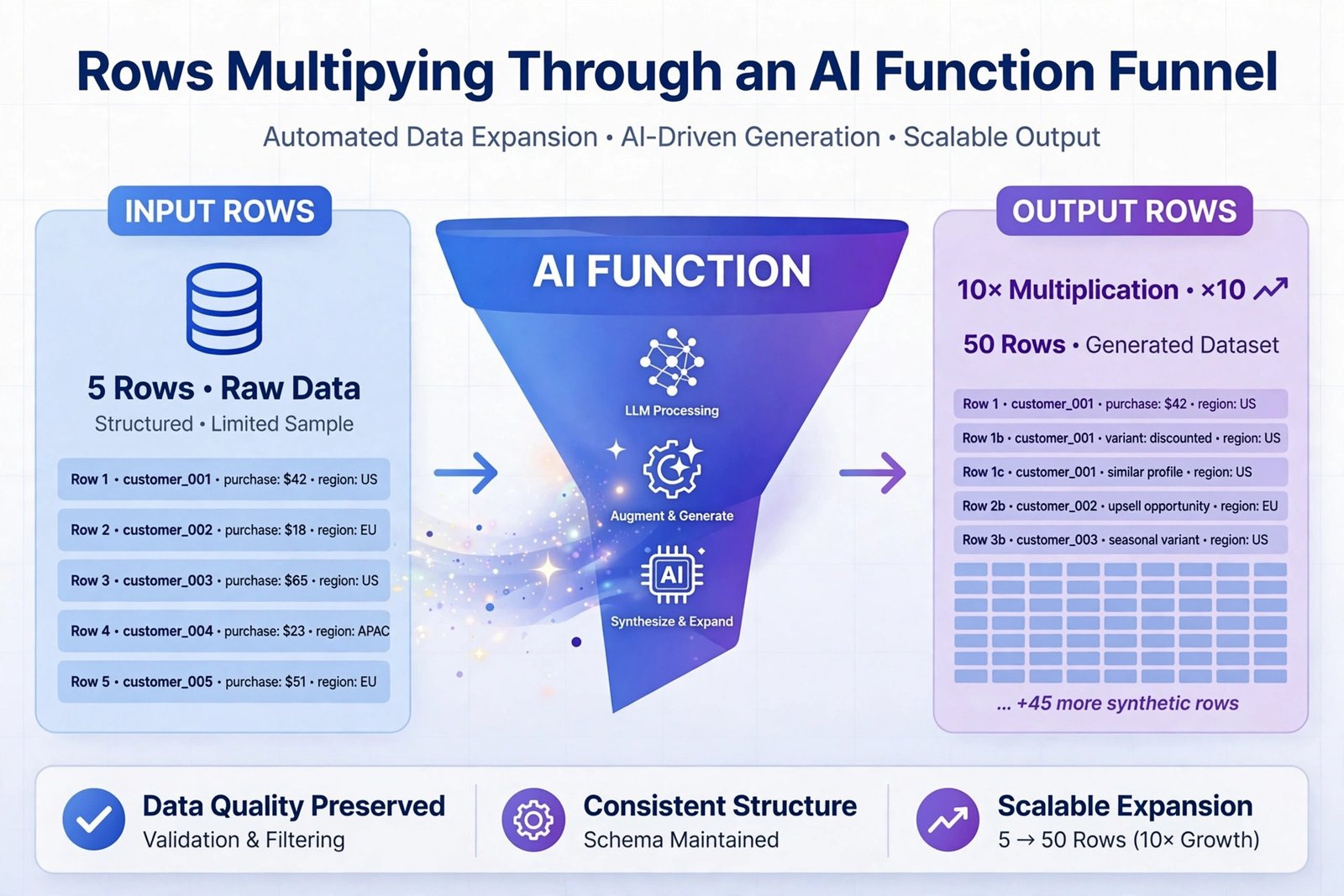
What it is: The product formerly known as “GPT for Sheets and Docs” (by Talarian): an add-in giving you spreadsheet-native AI as cell functions (=GPT(), =GPT_CLASSIFY(), =GPT_EXTRACT(), =GPT_TRANSLATE()) and bulk sidebar tools. Its superpower is scale — one AI operation across thousands of rows.
2026 pricing (verified): Standard: $25/month — $25 of included usage, AI agent, bulk tools and functions, model choice (OpenAI, Anthropic, Azure, and your own keys). Business: $45/seat/month — per-seat usage, team management, centralized AI configuration. Free to install with starter credits. (Older credit-pack pricing from earlier in 2026 — packs from $29 — has been superseded by this plan structure on the current pricing page.)
Our test: The only tool here designed for our whole messy dataset rather than cells at a time. =GPT_CLASSIFY() categorized all 1,200 notes entries in minutes, and =GPT_EXTRACT() standardized dates faster than any built-in’s cleaning flow. Formula generation is fine but not its point — this is a data-processing pipeline that happens to live in a spreadsheet. The catch is cost math: usage is metered, and functions recalculate — an =AI() column referencing live formulas re-spends credits on every sheet refresh unless you paste values. Our 1,200-row job fit comfortably in the Standard plan’s included usage; a 10,000-row job costs real money.
Pros:
- Only tool here that bulk-processes thousands of rows efficiently
- Works in both Sheets and Excel with pooled team credits
- Broad model choice without managing your own API keys
- Usage reporting shows exactly what each job cost
Cons:
- Metered usage plus recalculation behavior needs real cost discipline
- Overkill for everyday formula help — the built-ins are cheaper for that
- $45/seat Business tier is a jump for teams
- LLM outputs vary row to row — validate before reporting
Verdict: The pipeline pick: content operations, lead enrichment, ticket categorization — any job where AI must touch thousands of cells. Pair it with a built-in (Copilot/Gemini) for interactive analysis.
5. Numerous — The Cheapest AI in Your Formulas
What it is: A simple add-in for Google Sheets and Microsoft Excel that puts AI in cell formulas: =AI() for general tasks, =WRITE() for content generation, =INFER() to teach the model a pattern from examples in your sheet. No API keys, no sidebar — just formulas that think.
2026 pricing (verified): Personal: $8/month billed annually. Pro: $24/month billed annually with more usage. Enterprise from $8/user/month. A 7-day free trial on paid plans. By far the cheapest AI-per-formula in this comparison.
Our test: Delightfully simple where it works: =INFER() learned our product-name standardization from a few corrected examples and applied it down the column — the most elegant fix for our messy-names problem of any tool. Formula help via =AI() was competent for standard lookups but weaker than Copilot/ChatGPT on tricky edge cases (blank discounts, error handling). Chart creation isn’t its job at all. And there’s no bulk orchestration like GPT for Work — each cell is its own metered AI call.
Pros:
- Cheapest entry in the category ($8/month annual)
- =INFER() pattern learning is genuinely clever for repetitive cleanup
- Dead simple — formulas, not sidebars or prompts to learn
- Works in both Sheets and Excel
Cons:
- No chart creation, no analysis summaries, no sidebar workflow
- Every cell is a metered call — big columns get expensive on small plans
- AI output in formulas is opaque for auditing (recalc changes things)
- Thinner feature set than every other tool here
Verdict: The budget micro-pick: you want AI inside formulas across both platforms for the price of a coffee. For analysis, charts, or bulk work, graduate to one of the options above.
6. SheetAI — Simple and Cheap, Sheets Only
What it is: A Google Sheets add-on (by IndianAppGuy Tech) offering =SHEETAI() functions for text generation, images, classification, and bulk fill-down, plus formula generation — supporting OpenAI, Claude, Gemini, and other models, including a bring-your-own-key option.
2026 pricing (verified): A free install with limited use; the distinctive option is the bring-your-own-key tier — effectively free, using your own API keys. Paid unlimited tiers run around $20/month ($200/year), plus pay-as-you-go token packs from $29. If you already hold an OpenAI key and want unlimited function calls for a flat fee, the BYOK model is the cheapest serious option in the category.
Our test: Solid where it focuses: formula generation was good (our net-revenue formula came back correct), and fill-down AI content generation across the 1,200-row notes column worked as advertised. It’s Sheets-only, so the Excel half of this comparison doesn’t apply — and the “unlimited with your own key” framing means your true cost is their fee plus your API bill, which on 10,000-row jobs is worth modeling. Cleaning judgment was middle of the pack; chart creation is not its focus (it generated chart data well, left chart-building to Sheets).
Pros:
- BYOK tier is the cheapest real AI-in-Sheets available
- Good formula generation and bulk fill-down content
- Supports multiple model providers
- Simple for Sheets-only teams
Cons:
- Google Sheets only — no Excel support
- “Unlimited” still means you pay your API provider per call
- Thinner cleaning/analysis intelligence than the built-ins
- Support and polish trail the bigger names
Verdict: The cheapest way to put serious AI functions in Google Sheets specifically. If your world is Sheets-only and you have (or will get) an API key, this beats the subscription add-ons on price.
Test Results: Three Jobs, Six Tools
| Job | Copilot (Excel) | Gemini (Sheets) | ChatGPT add-in | GPT for Work | Numerous | SheetAI |
|---|---|---|---|---|---|---|
| Formula generation | Excellent — edge cases handled | Very good | Excellent — best error tracing | Good | Competent | Good |
| Data cleaning | Best — explained its rules | Good — verify silently-made decisions | Good — methodical | Best at scale (bulk) | Elegant via =INFER() examples | Middle |
| Chart creation | Good — Pivot + summary | Good — fastest to chart | Good | Data prep only | Not a feature | Data prep only |
| Scale behavior | Analysis-deep, not bulk | Analysis-solid | Not bulk | Thousands of rows | Cell-by-cell | Bulk fill-down |
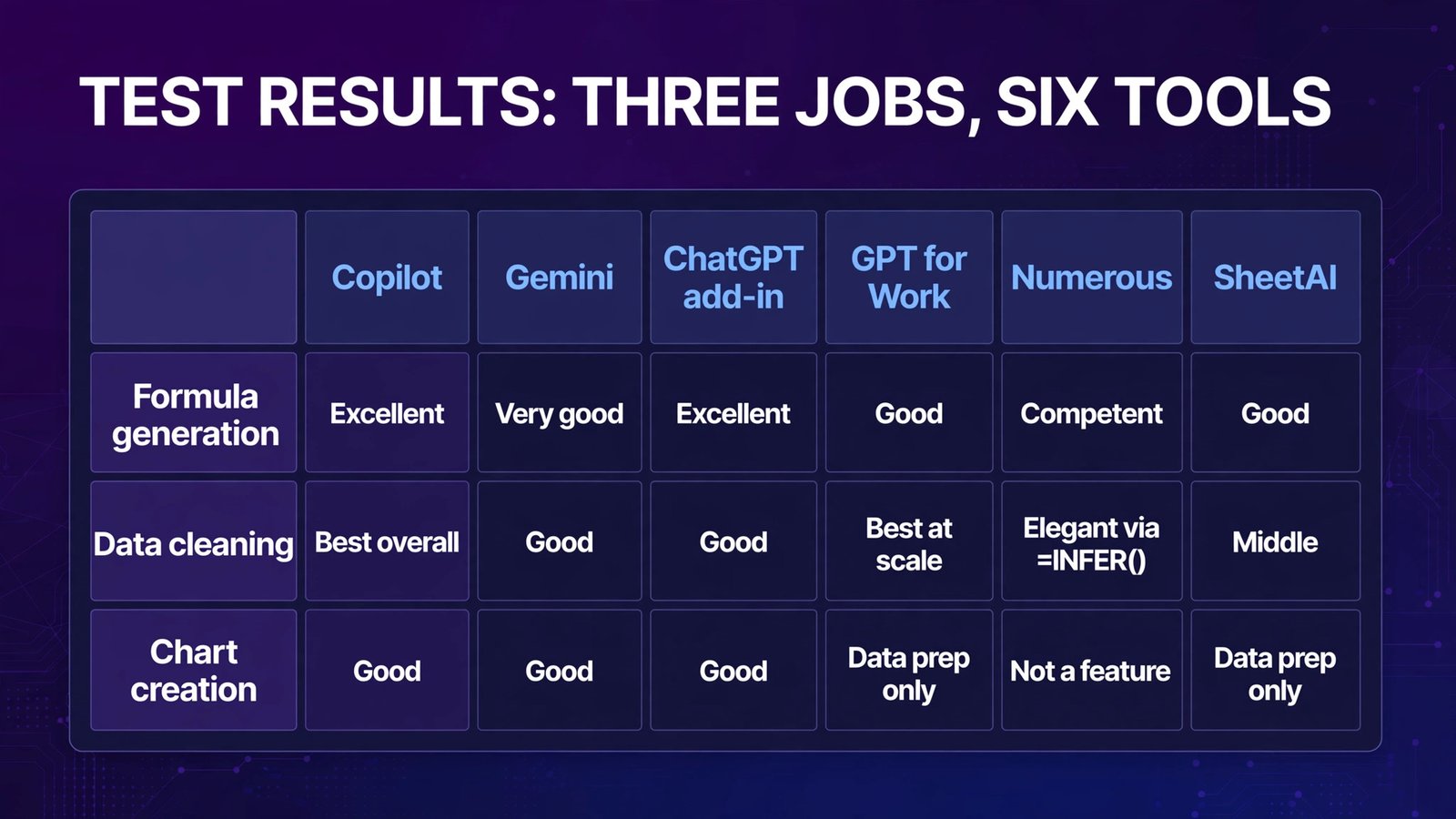
The split is clear: Copilot, Gemini, and ChatGPT are interactive assistants — they analyze, clean, and chart with you. GPT for Work, Numerous, and SheetAI are cell-level automation — they run AI across rows.
Full Comparison Table
| Copilot in Excel | Gemini in Sheets | ChatGPT add-in | GPT for Work | Numerous | SheetAI | |
|---|---|---|---|---|---|---|
| Platforms | Excel | Google Sheets | Both | Both | Both | Sheets only |
| Price (Oct 2026) | $30/user/mo add-on ($21 Business) | Included in Workspace ($7–14/user/mo) | Included w/ ChatGPT plan ($20 Plus) | $25/mo (incl. usage) | $8/mo annual | From $20/mo; BYOK tier free |
| API key needed | No | No | No | No (BYOK optional) | No | BYOK option |
| Bulk row processing | No | Limited | No | Yes — its strength | Cell-by-cell | Yes |
| Formula generation | Top tier | Very good | Top tier | Good | Good | Good |
| Chart building | Yes | Yes | Yes | No (data prep) | No | No |
| Best use | Finance-grade analysis | Everyday Sheets AI | Interactive help & debugging | Content/ops pipelines | Cheap AI formulas | Cheapest Sheets AI |
How to Choose
- Check what you’re already paying for first. Microsoft 365 users: Copilot (add-on). Google Workspace users: Gemini is already included — try it before buying anything. ChatGPT Plus users: install the free OpenAI add-in today.
- Classify your work: analysis vs automation. “Understand this file and make a chart” = an assistant (Copilot/Gemini/ChatGPT). “Run AI down 5,000 rows every week” = an add-on (GPT for Work, Numerous, SheetAI). The built-ins do not bulk-process; pretending they do wastes your afternoon.
- Count your rows before you count your dollars. Metered add-ons look cheap until a recalculating =AI() column re-spends credits on every sheet refresh. Paste values after bulk jobs, and model a 10,000-row run at the provider’s usage rates.
- Verify AI cleaning on a sample before going wide. Gemini standardized our product names silently by majority vote; Copilot explained its rules. On regulated or financial data, the tool that shows its reasoning wins — run 50 rows, audit them, then scale.
- Match the platform you actually run. Excel shops shouldn’t buy Sheets-only add-ons (SheetAI) hoping for parity, and vice versa — the cross-platform picks are GPT for Work, Numerous, and OpenAI’s ChatGPT add-in.
Frequently Asked Questions
What is the best AI tool for Excel?
Microsoft 365 Copilot is the strongest native Excel AI: best formula generation and data-cleaning judgment in our test, deep workbook analysis, and enterprise security. At $30/user/month on top of your Microsoft 365 plan ($21/user/month on Copilot Business), it’s priced for power users — analysts and finance teams get the ROI. Budget alternative: OpenAI’s ChatGPT add-in, included with a $20/month Plus plan.
What is the best AI tool for Google Sheets?
Gemini in Google Sheets for most users — it’s included in Google Workspace Business plans, so the marginal cost is zero, and it covers formulas, cleaning, and charts well. For bulk AI work across thousands of rows, add GPT for Work or SheetAI.
Is Copilot in Excel worth $30/month?
For someone who analyzes in Excel daily, yes — our test showed real time savings on cleaning and formulas, and one saved hour a month clears the bar. For occasional spreadsheet users, no: Gemini (if you’re on Workspace) or the ChatGPT add-in (inside a plan you may already have) covers the need for less.
Can AI write Excel formulas for me?
Yes — all six tools here generate formulas from plain language, and the top tier (Copilot, ChatGPT add-in) handled edge cases like blank cells and error trapping correctly in our test. Always test the formula on a few known rows first; “looks right” is not “is right.”
What’s the difference between Copilot/Gemini and add-ons like GPT for Work?
The built-ins are assistants: conversational, analysis-focused, great at one file at a time. The add-ons are automation: AI functions in cells (=GPT(), =AI(), =SHEETAI()) that process thousands of rows. Copilot can’t classify 10,000 support tickets; GPT for Work can’t give you a conversational trend summary. Many teams run one of each.
Do these tools send my spreadsheet data to train AI models?
Microsoft and Google both commit to not training foundation models on your Workspace/Microsoft 365 data under their enterprise terms. Add-ons route cell data to model providers ( OpenAI, Anthropic, Google) via API — API data isn’t used for training under those providers’ terms, but read each add-on’s privacy policy, and never put regulated data (health, payments) in a consumer-tier tool.
Conclusion
The best AI tools for Excel and Sheets in 2026 split into two jobs. For analysis — formulas, cleaning, charts, understanding a file — the natives lead: Copilot for Microsoft shops, Gemini for Google shops (at zero marginal cost), and OpenAI’s ChatGPT add-in as the cross-platform wildcard. For automation — AI across thousands of rows — the add-ons are the only real option: GPT for Work at scale, Numerous on a budget, SheetAI for Sheets-only BYOK economics.
Our advice: start with what you already own, run the same three test jobs we did on your own messiest file, and only add a paid add-on when you hit the bulk-processing wall. The wall, not the marketing, should decide your spend.
Next step: duplicate your messiest real spreadsheet, install the built-in assistant you already pay for (Gemini, or the free ChatGPT add-in), and run our three test jobs — formula, clean, chart. If a job fails on scale rather than intelligence, that’s your cue to trial GPT for Work.