
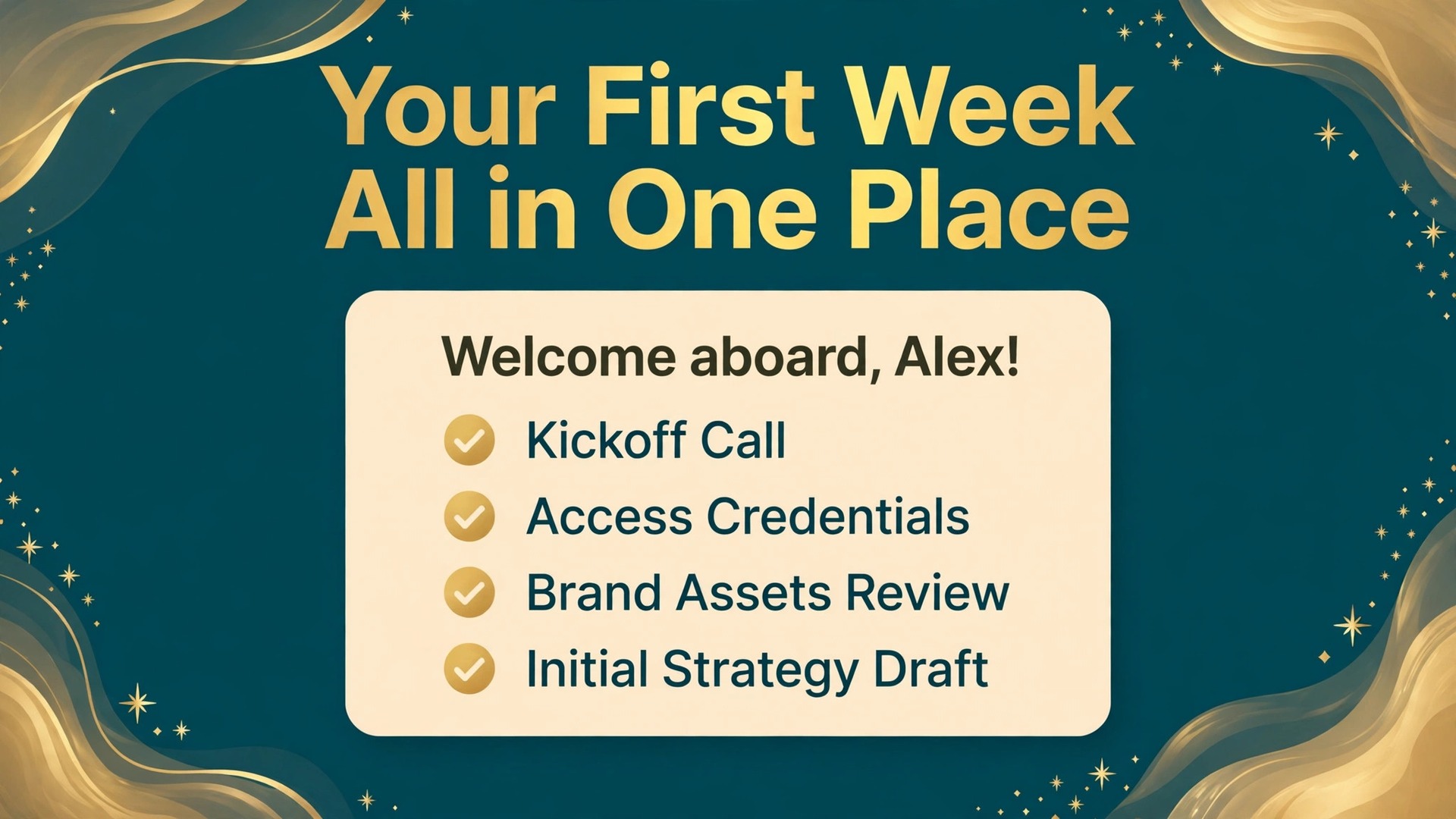
About 90 percent of customers expect onboarding communication within the first week of a new relationship, according to onboarding research summarised in recent industry roundups. That single number explains why so many service businesses lose clients they already won. The work itself is rarely the problem. The first week is. A client who waits days for a welcome message, receives three separate intake forms, and never sees a clear plan starts to doubt the purchase before delivery begins. When you use Notion AI for client onboarding, you can close that gap without hiring an operations manager or buying a separate onboarding platform.
The system in this guide turns a signed proposal into a welcome message, an intake form, a kickoff plan, and a first delivery schedule in days rather than weeks.
This guide gives you the full workflow, not a vague promise that AI will handle it. You will set up three linked databases, build a client hub page that a client can actually follow, write the AI prompts that draft welcome material and summarise intake answers, and run a five stage process from signed proposal to the 30 day review. It also includes a copyable template you can paste into Notion today, honest pricing for the plan you need, and the checks that keep AI drafts from going out with errors. Prices change often, so check the official pricing page and checkout before paying for any plan mentioned here.
Why the First Week Decides Whether a Client Stays
Onboarding is not admin. It is the first delivery. A client judges a service business on how organised the start feels, because that start is the only evidence they have so far. If intake is messy, they assume delivery will be messy too. If the first week is calm, dated, and specific, they relax and give better input, which in turn makes the work better. That loop is the real return on a good onboarding system. It is not about looking polished for its own sake. It is about getting the information, access, and decisions you need while trust is still high.
Most onboarding failures share the same three causes. First, information lives in too many places. The brief is in email, the brand files are in a shared drive, the login details are in a chat thread, and nobody can say which version is current. Second, the client does not know what happens next or when. They were told work would start soon, but soon has no date attached to it. Third, the service provider asks for everything at once. A 40 question form on day one feels like homework, and homework gets postponed. A good workflow fixes all three by giving the client one hub, one dated plan, and small requests spread across the first two weeks.
What Notion AI Actually Does Inside an Onboarding Workflow
Notion AI is not one button. It is a set of features that do different jobs, and knowing which one to use at each stage matters. The chat style assistant, often called Notion Agent, can search your workspace, draft pages, and fill database properties from the pages it can see. Autofill can complete a database column, for example by writing a short project summary from a client brief. The writing tools can shorten, expand, change tone, or translate a draft you already wrote. AI Meeting Notes can transcribe a kickoff call and pull out decisions and next steps, provided the meeting tool is connected and the client has agreed to recording.
The table below maps each feature to the onboarding job it does best and the job it should never do alone.
| Feature | Best onboarding job | Never use it alone for |
|---|---|---|
| Notion Agent chat | Draft a welcome page from proposal details and build a task list from a brief | Sending a contract, a price, or a deadline without a human check |
| Autofill | Summarise intake answers into a one paragraph client brief | Legal wording, payment terms, or compliance statements |
| Writing tools | Tighten a welcome message or turn bullet notes into readable prose | Claims about results, guarantees, or past work you cannot prove |
| AI Meeting Notes | Turn a kickoff call into decisions, owners, and dates | A call where the client has not agreed to transcription |
| Enterprise Search | Find an old proposal, brief, or asset buried in the workspace | Sharing a page with a client before permissions are checked |
What It Costs and Which Plan You Actually Need
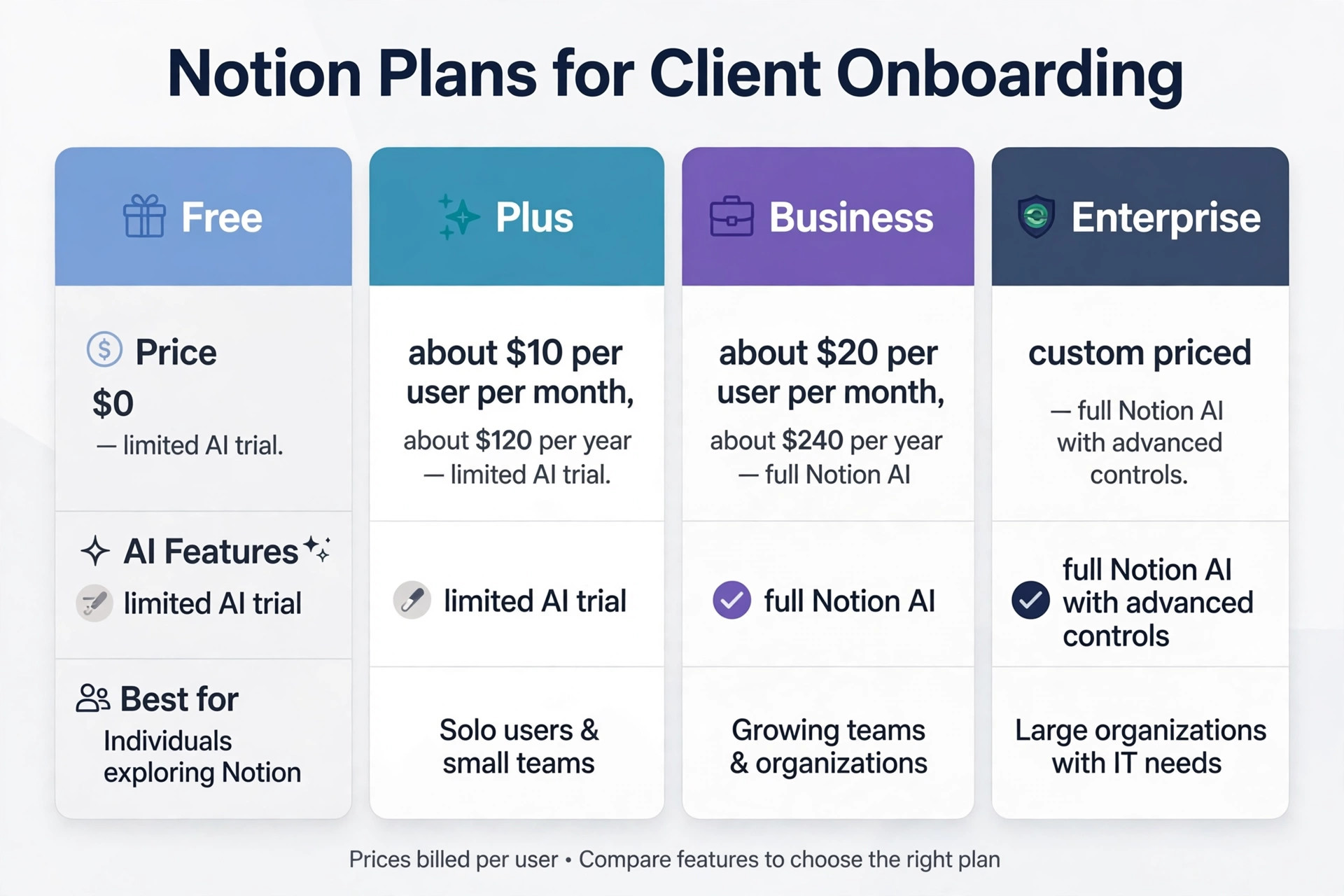
Pricing is where many Notion guides go vague, so here are the figures to plan around. Notion lists four plans. Free costs nothing and includes a limited trial of Notion AI. Plus is listed by third party pricing trackers at about 10 dollars per user per month on annual billing, or about 12 dollars on monthly billing, and it also includes only a limited AI trial. Business is the plan that includes full Notion AI, and trackers list it at about 20 dollars per user per month on annual billing, or about 24 dollars on monthly billing. Enterprise is custom priced and adds controls such as zero data retention with AI providers, SCIM provisioning, and an audit log.
Custom Agents, which run on their own triggers, are free to try and then cost 10 dollars per 1,000 monthly Notion credits, a figure confirmed on the official Notion pricing page.
The table below shows the real cost at three team sizes on annual billing, using the tracker figures above.
| Team size | Plus, annual billing | Business with full AI, annual billing | What changes |
|---|---|---|---|
| 1 person | About 120 dollars per year | About 240 dollars per year | Full AI, private teamspaces, 90 day page history |
| 3 people | About 360 dollars per year | About 720 dollars per year | Same AI access for every seat, granular permissions |
| 5 people | About 600 dollars per year | About 1,200 dollars per year | Same again, plus SAML single sign-on |
Build the Foundation Before You Touch AI
When you use Notion AI for client onboarding, AI drafts are only as good as the structure underneath them. If your workspace is a pile of loose pages, the assistant will summarise the pile. Build three databases first, then connect them. The Clients database holds one row per client, with properties for company, main contact, decision maker, billing contact, start date, service, monthly value, and status. The Projects database holds one row per engagement, linked to the client, with properties for stage, lead, kickoff date, first delivery date, and next review date. The Tasks database holds the onboarding steps, linked to the project, with properties for owner, due date, status, and whether the step needs the client or your team.
Permissions come before the first client invite. Create a private teamspace for internal work and a separate client hub page per client that the client can see. Never invite a client to the whole workspace. Invite them as a guest to their hub page only, and check what that page links to before you send the invite. A linked database view can expose rows for other clients if its filter is wrong, so test the guest view with a second account or a trusted colleague before a real client sees it. This one test prevents the most embarrassing mistake in client onboarding, which is a new client opening their hub and seeing another client’s name.
How to Use Notion AI for Client Onboarding, Stage by Stage
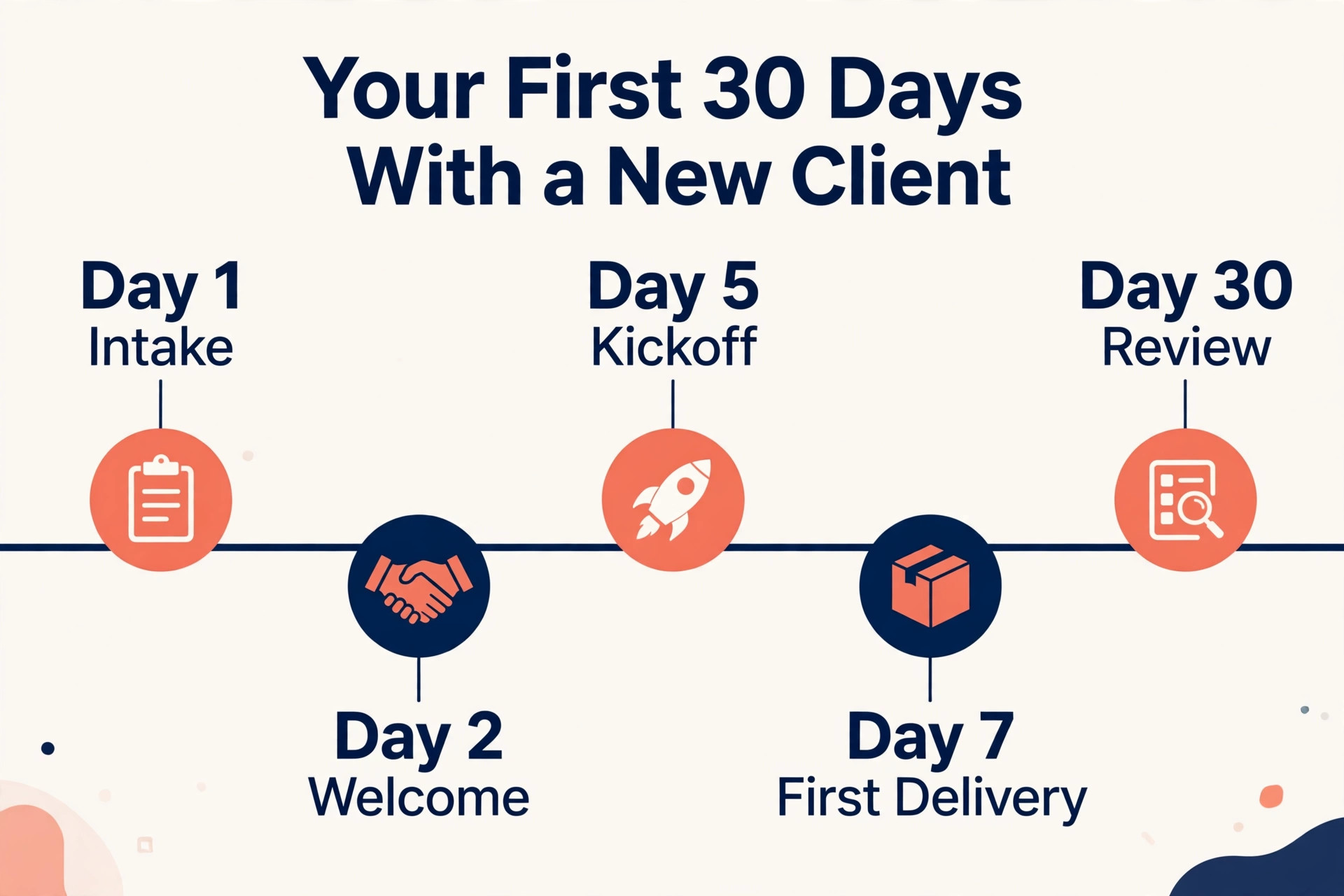
The workflow below runs over roughly 14 days for a typical service engagement, with a review at day 30. Shorter projects can compress stages two and three into one week. Longer projects should not stretch intake, because a long intake is where momentum dies. The rule is simple. No stage waits for a perfect answer. Each stage moves when its minimum is met, and gaps are listed openly as open items rather than hidden until they become blockers.

Stage 1, Intake in Days 1 to 3
Intake starts the day the proposal is signed, not the day someone finds time to write an email. Duplicate the client hub from the template, fill the Clients row, and ask Notion AI to draft the welcome message from the proposal. Give it the client name, the service, the start date, and the first deliverable, and ask for a short message under 200 words that states what happens this week and what you need first. Edit the draft for tone and facts, then send it through your normal email tool. The welcome message should ask for only three things in week one.
Access to the accounts you need, brand files or existing material, and the name of the decision maker plus the day to day contact. Everything else can wait for the kickoff call.
Build the intake form in Notion or your form tool of choice and link it from the hub. Keep it to 12 questions or fewer. Ask what success looks like in 90 days, who signs work off, what the last provider got wrong or right, what deadlines or events are coming up, and what material already exists. Avoid asking for a full brand history on day one. When answers arrive, paste them into the intake page and ask the assistant to summarise them into a one page brief with sections for goal, audience, constraints, and open questions. Read that summary against the raw answers before you share it internally.
AI summaries sometimes smooth over a contradiction, for example a client who wants fast growth and also wants zero risk, and that contradiction is exactly what the kickoff call needs to resolve.
Stage 2, Welcome Pack in Days 2 to 5
The welcome pack is a short page inside the hub, not a PDF that will be out of date by next week. It states how you work, who does what, how feedback and approvals happen, how invoicing works, and what the client should expect in the first month, with dates. When you use Notion AI for client onboarding at this stage, ask the writing tools to tighten a draft you wrote once, then reuse that tightened version as the template for every client, changing only names, dates, and service details. This is the one place where templating is a virtue. Clients do not want a bespoke essay about your process.
They want to know where to send feedback and how long approvals take.
Stage 3, Kickoff Call and Plan in Days 5 to 7
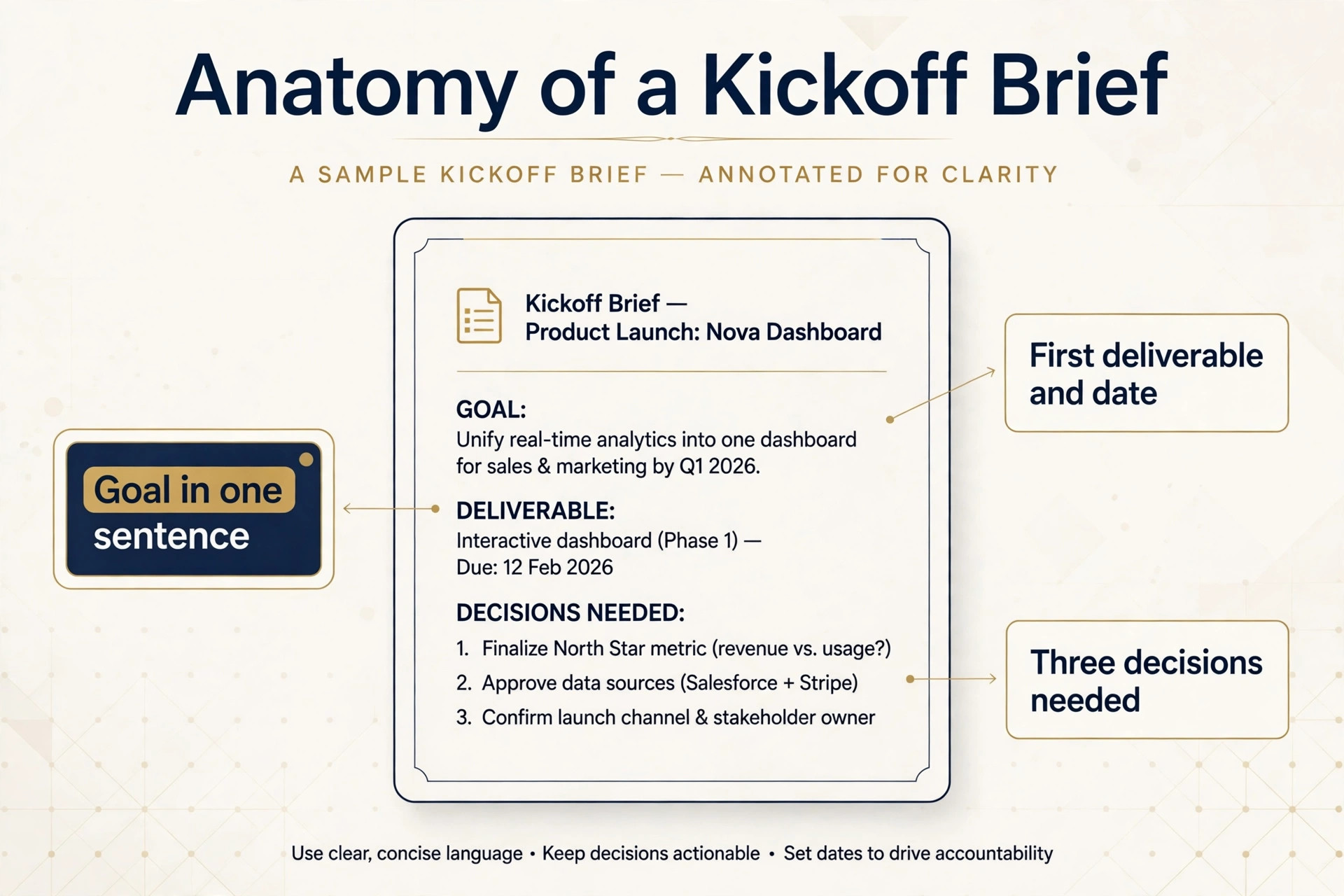
The kickoff call has one job, which is to agree a dated plan the client can see. When you use Notion AI for client onboarding, prepare with the assistant by asking it to turn the intake summary into a kickoff brief. The brief should list the goal in one sentence, the first deliverable and its date, the three decisions needed on the call, and the open questions from intake. Keep the call to 45 minutes. Spend the first ten minutes confirming the goal and the success measure, the next 25 minutes on decisions and the first deliverable, and the last ten minutes confirming dates, owners, and the feedback rhythm.
A kickoff that ends without dates is a chat, not a kickoff.
If the client agrees to recording, use AI Meeting Notes to capture the call, then ask the assistant to extract decisions, owners, and dates into the decisions log and the task list. Check every extracted date against your notes before the tasks go live. Transcription tools mishear numbers more often than they mishear names, and a wrong date in a task list creates a missed deadline that nobody owns. Send the client a short recap within one working day, with the plan, the dates, and the items you need from them before the first delivery. That recap is the document the client will forward to their boss, so write it for that reader.
Short sentences, named owners, and dates beat paragraphs of enthusiasm.
Stage 4, First Delivery and Feedback in Days 7 to 14
When you use Notion AI for client onboarding, the first delivery should be small, dated, and useful, even on a large project. A full website, a full campaign, or a full report is rarely the right first deliverable. A homepage draft, a campaign structure, or a findings summary is. The point of the first delivery is to prove the working rhythm, not to finish the project. When the client sees work on the promised date, in the hub, with a clear request for feedback, they learn how the rest of the engagement will feel. When the first delivery slips without warning, they learn the opposite lesson, and later deliveries will be judged more harshly.
Stage 5, The 30 Day Review
Book the 30 day review during the kickoff, not at day 29. A review that is already in the calendar happens. A review that needs scheduling later gets postponed until the relationship has a problem. Before the review, ask the assistant to summarise the project page into a short progress note. What was delivered, what is in progress, what is blocked, and what decisions are pending. Check that summary against the task list, because an AI summary will present completed tasks confidently and may underplay a blocked item that has sat untouched for two weeks.
The review itself should cover results so far, what is working in the working rhythm, what needs to change, and the plan for the next 30 days.
The Copyable Onboarding Template
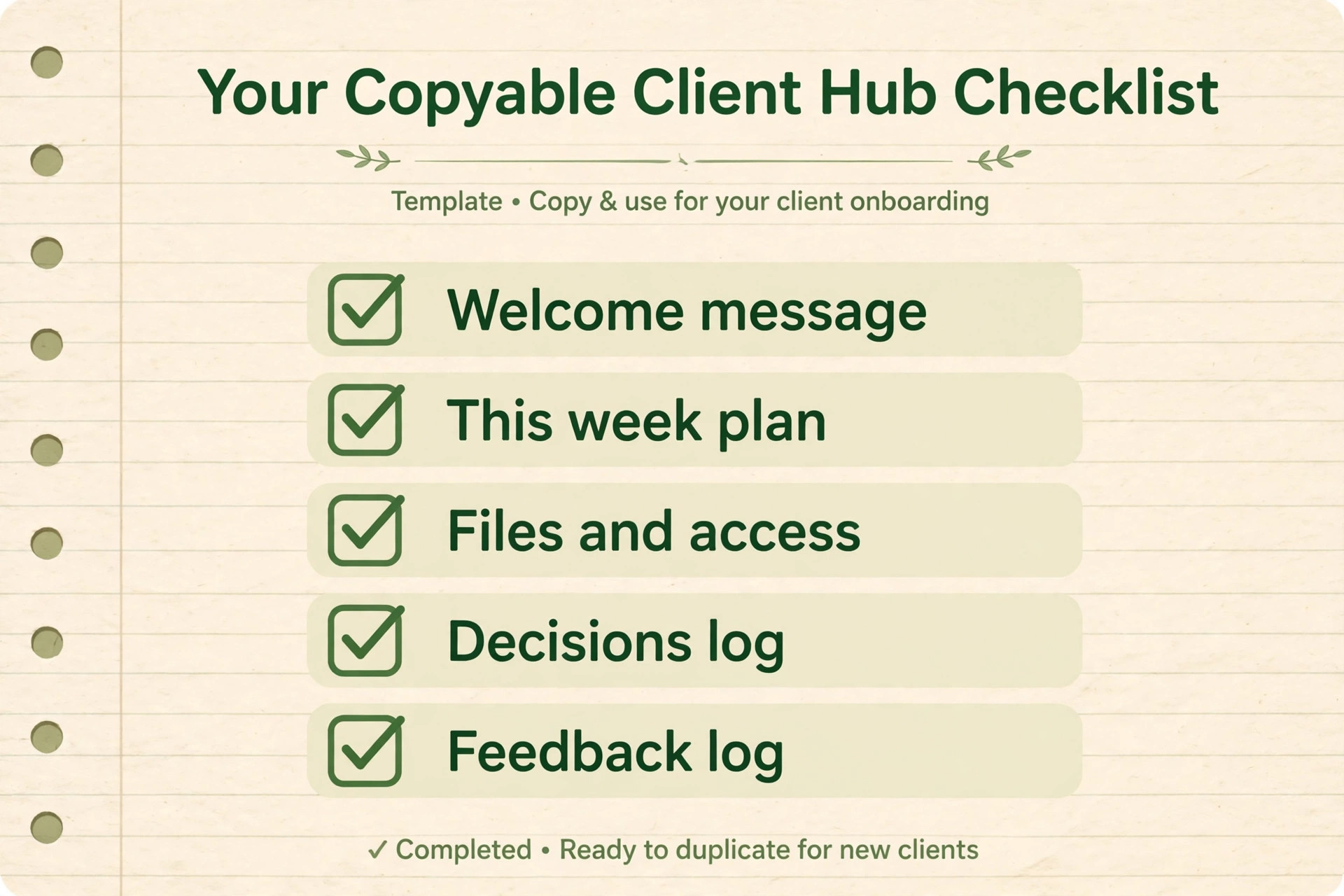
The template below is written so you can copy it into Notion when you use Notion AI for client onboarding, one section at a time, and adapt the bracketed details. It uses tables instead of long forms, because tables are easier to scan and easier for the assistant to summarise. Replace the bracketed text, set the dates, and delete any row that does not fit the engagement. A template with rows you never use teaches your team to ignore the template, so prune it for each client rather than keeping every row out of habit.
| Hub section | What goes in it | Owner |
|---|---|---|
| Welcome | Short welcome message, start date, first deliverable and its date | Your team |
| This week | The three items you need from the client this week, with due dates | Client |
| Plan, first 30 days | Dated stages from intake to review, with owners | Both |
| Files | Links to brand files, assets, and accounts granted | Client |
| Decisions log | Date, decision, approver, and effect on the work | Your team |
| Feedback log | Date, round, what was asked, what changed | Both |
| Stage | Days | Minimum needed to move on | AI job |
|---|---|---|---|
| 1, Intake | 1 to 3 | Signed proposal, welcome sent, three week one items requested | Draft welcome, summarise intake |
| 2, Welcome and access | 2 to 5 | Welcome pack live, access list tracked, blockers named | Draft access request, tighten welcome pack |
| 3, Kickoff and plan | 5 to 7 | Dated plan agreed, first delivery date set, review booked | Kickoff brief, meeting notes summary |
| 4, First delivery | 7 to 14 | First deliverable sent on date, feedback requested, feedback logged | Draft delivery message, tidy feedback notes |
| 5, Review | Day 30 | Progress summary checked, next 30 day plan agreed, hub updated | Summarise project page into progress note |
The intake questions below are the full set for most service engagements. Delete questions that do not fit, but do not add more than 12 without a reason. Each added question costs you completion rate.
– What does success look like in 90 days, in one sentence if possible – Who signs work off, and who should be copied on approvals – Who is the day to day contact, and what is the best way to reach them – What did the last provider get wrong, and what did they get right – What deadlines, launches, or events are coming up in the next 90 days – What material already exists, such as brand files, past reports, or ad accounts – What is out of scope for this engagement, in your words – What does the audience need to believe or do after seeing the work – What constraints should we know about,
such as budget timing, legal review, or internal approvals – What is the one thing you need from us in the first two weeks
Prompts That Work, and Prompts That Fail
Good prompts name the client, the service, and the output format, and they forbid invention. The five prompts below follow that pattern. Copy them, fill the details, and check every output before sending.
| Prompt job | Prompt shape | Check before sending |
|---|---|---|
| Welcome message | Draft a welcome message under 200 words for a client named bracketed name, service bracketed service, start date bracketed date, first deliverable bracketed deliverable. State what happens this week and list the three items needed first. Do not invent dates or prices. | Names, dates, and the three items match the proposal |
| Intake summary | Summarise the intake answers on this page into a brief with headings for goal, audience, constraints, and open questions. Quote any contradiction between answers instead of smoothing it over. | Contradictions are visible, not hidden |
| Kickoff brief | Turn the intake summary into a kickoff brief with the goal in one sentence, the first deliverable and its date, and the three decisions needed on the call. | Decisions are real decisions, not discussion topics |
| Meeting recap | Extract decisions, owners, and dates from the meeting notes into a list. Flag any date or owner that is unclear instead of guessing. | Every date checked against your own notes |
| Weekly update | Summarise this project page into a weekly update under 150 words with shipped work, in progress work, client items needed, and blockers. | Blockers name a person who can unblock them |
How to Choose Your Setup
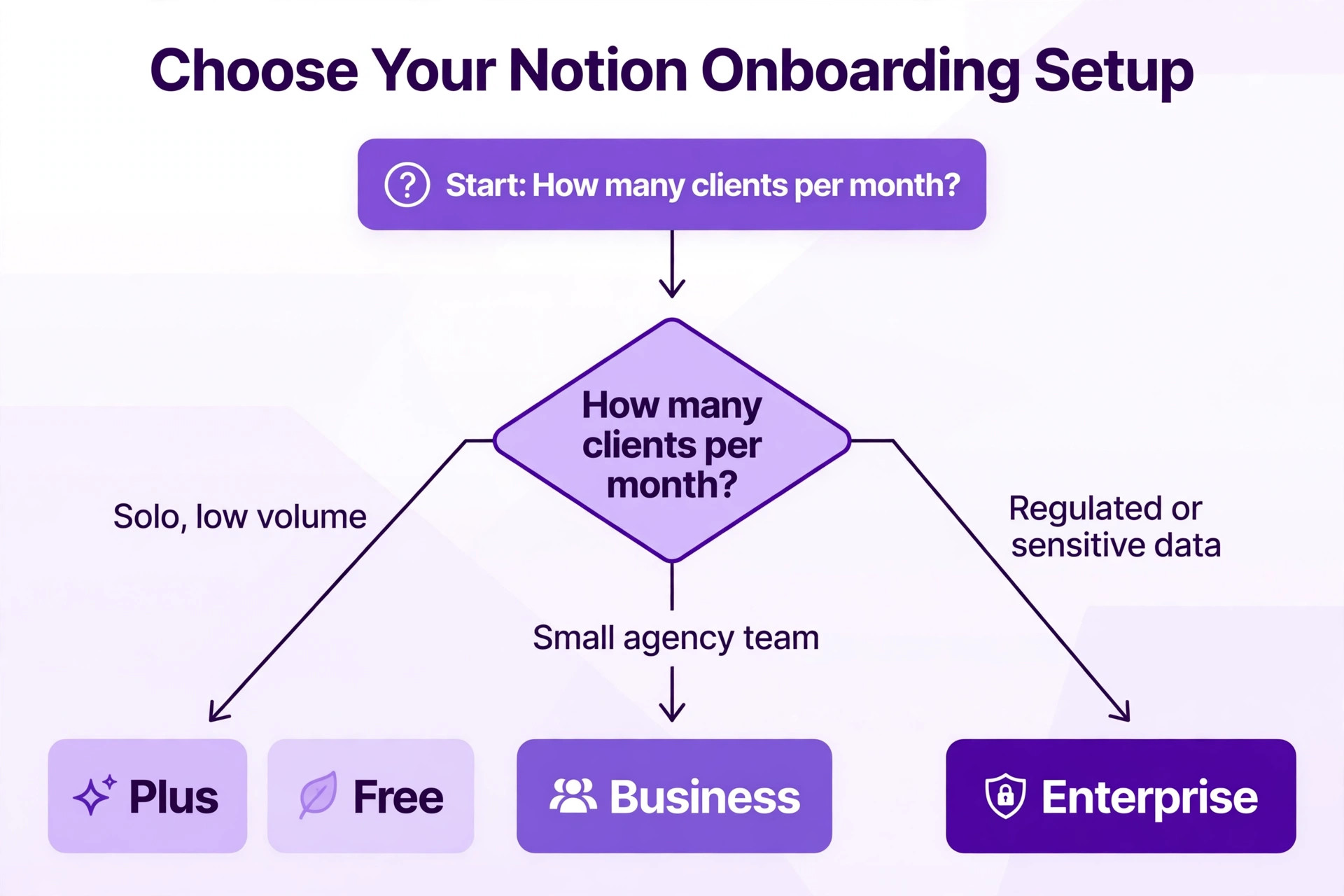
The right setup depends on volume, team size, and how sensitive the client work is. The table below gives a direct recommendation for each common situation, so you can choose without a trial of every plan.
| Situation | Recommended setup | Why |
|---|---|---|
| Solo freelancer, 1 to 2 new clients per month | Business for one seat, template hub, guest invite per client | Full AI pays for itself in saved drafting time at this volume |
| Solo freelancer, 1 new client per quarter | Plus or Free with a manual template, AI trial only | Volume is too low to justify the Business seat for AI alone |
| Small agency, 3 to 10 people | Business for the team, private internal teamspace, one hub per client | Permissions and AI together matter once several people touch onboarding |
| Agency handling regulated clients | Enterprise, or Business plus a separate policy on what AI may summarise | Zero data retention and audit controls matter more than drafting speed |
| Team already on another project tool | Notion hub for client facing onboarding only, linked to the project tool | Clients get one clear hub without forcing a full migration |
Mistakes That Undo a Good First Week
If you use Notion AI for client onboarding, the first mistake is sending an AI draft without reading it. It sounds obvious, yet it happens when onboarding gets busy, which is exactly when accuracy matters most. A welcome message with the wrong service name, a recap with a wrong date, or a summary that invents a deliverable will undo weeks of trust in one email. Build the check into the task list itself. Every AI draft task should have a second step, labelled human check, with the name of the person who does it. If no name is on the check step, the draft does not go out.
The second mistake is inviting the client to too much. A client who can see your internal notes, your pricing for other clients, or a database with every project in it will lose confidence even if nothing sensitive is actually visible. Invite guests to one hub page, test the view, and keep internal discussion in the private teamspace. When a team member wants to mention a client in an internal note, they should do it in the internal space, not in a comment on the client hub where the client may see it later.
The third mistake is letting AI tone replace your voice. Notion AI writes clean, polite, slightly formal prose. If every message sounds the same, clients stop hearing you in it. Edit drafts for your actual voice. Shorten sentences you would never say, remove phrases that sound like a template, and add one specific detail from the client’s business. A single specific sentence, such as a reference to their launch date or their main product, makes a templated message feel personal. That edit takes one minute and is the difference between a system and a mail merge.
The fourth mistake is no owner for waiting items. A task marked waiting on client with no chase date is a task that will sit for three weeks. Every waiting item needs a chase date and a named chaser. When the chase date arrives, the chaser sends the short reminder or books the completion call. Without that rule, onboarding becomes a list of polite hopes, and the client learns that your dates are suggestions rather than commitments.
How to Measure Whether Onboarding Is Working
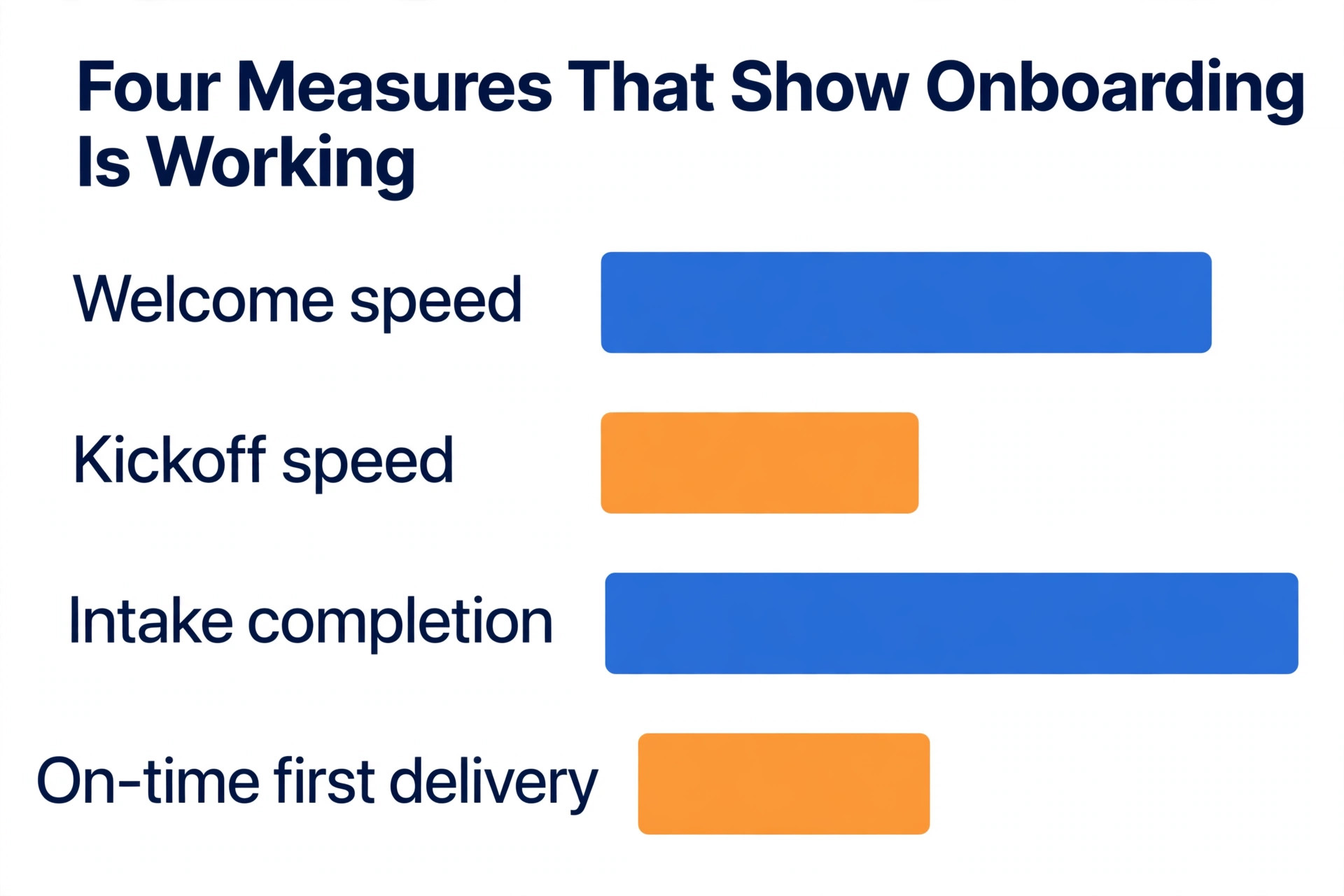
If you use Notion AI for client onboarding, measure four numbers, and ignore the rest until these four are stable. Time from signed proposal to welcome message should be under one working day. Time from signed proposal to kickoff should be under seven days. Intake completion rate should be above 80 percent within five working days. First delivery on the promised date should be above 90 percent. If any of these four slips, the cause is usually visible in the hub. A slow welcome means the template was not duplicated on signing day. A slow kickoff means intake or access is blocked without a named owner.
A low intake rate means the form is too long or the reminder rule is not being followed. A slipped first delivery means the first deliverable was too large or the feedback loop was never agreed.
If this workflow appeals to you but your team also needs help with the wider automation picture, the Stratilyze guide to best AI workflow automation tools for small business covers tools that connect Notion to email, calendars, and invoicing, while the guide on how to get clients as a freelancer with AI covers the step before onboarding, which is winning the client in the first place. Readers weighing Notion against a simpler notes tool may also want the comparison of Notion vs Obsidian, and consultants building a service business around this kind of system can check the roundup of best AI tools for consultants.
Frequently Asked Questions
Can I use Notion AI for client onboarding on the Free plan
You can build the template and the hub on the Free plan, and you can try the limited AI trial, but the trial will not support daily onboarding use. The hub, the databases, and the manual template work without AI. Full AI features, including the assistant and meeting notes, sit on the Business plan. Start on Free to test the structure with one client, then move to Business when onboarding becomes weekly work and the drafting time saved justifies the seat cost.
Do clients need a paid Notion account to see their hub
No. Clients invited as guests to a single page do not need a paid seat and do not take one of your paid seats. On paid plans, guest access to individual pages is unlimited, while the Free plan limits guests to 10. That guest model is what makes this workflow affordable. You pay for your team, not for every client you onboard, and you should still test the guest view before the first real invite.
How long should client onboarding take in Notion
For a typical service engagement, plan on 14 days from signed proposal to first delivery, with a review at day 30. Intake should take days 1 to 3, the welcome pack and access days 2 to 5, the kickoff days 5 to 7, and the first delivery days 7 to 14. Shorter projects can compress the middle stages. Longer projects should keep intake short and put the extra time into delivery, not into a longer form. If onboarding regularly takes more than three weeks, the form is too long or access has no owner.
Is it safe to put client information in Notion AI summaries
Treat AI summaries like any shared document. Do not put passwords, full payment details, or unredacted personal data into a page you plan to summarise, and check permissions before inviting a client. Notion states that it does not use your data to train its models unless you opt in to share it, and Enterprise adds zero data retention with AI providers. For regulated clients, confirm their policy before using AI summaries on their briefs, and use manual notes where their policy requires it.
What happens when a client does not complete intake
Send one short reminder at three working days naming the single item blocking the kickoff, then offer a 15 minute call at five working days to complete intake together. Most clients complete it on that call. If intake still stalls, hold the kickoff with what you have and list the gaps as open items with owners and dates. Do not delay the whole engagement waiting for a perfect form, because a delayed start costs more trust than a kickoff with two open questions.
Can Notion AI replace a dedicated onboarding tool
For freelancers and small agencies, usually yes, provided your needs are a hub, intake, tasks, and drafts. For larger teams that need automatic payment chasing, e signature, complex forms with conditional logic, or deep CRM reporting, a dedicated onboarding or CRM tool may fit better, with Notion as the client hub linked to it. Choose by volume and by the one feature you cannot do without. If that feature is automatic payment reminders, Notion AI alone will not provide it, and you should keep your invoicing tool in the stack.
The 14 Day Test for Your Next Client
Run this workflow on your next new client and judge it by one test. Did the client receive a welcome message within one working day, see a dated plan before the kickoff, and receive a first deliverable on the promised date. If all three happened, the system works, and your job is to repeat it without adding steps. If any of the three missed, fix that stage before adding a new tool or a new template section. Onboarding improves by removing friction at the stage that slipped, not by adding features to stages that already work.