
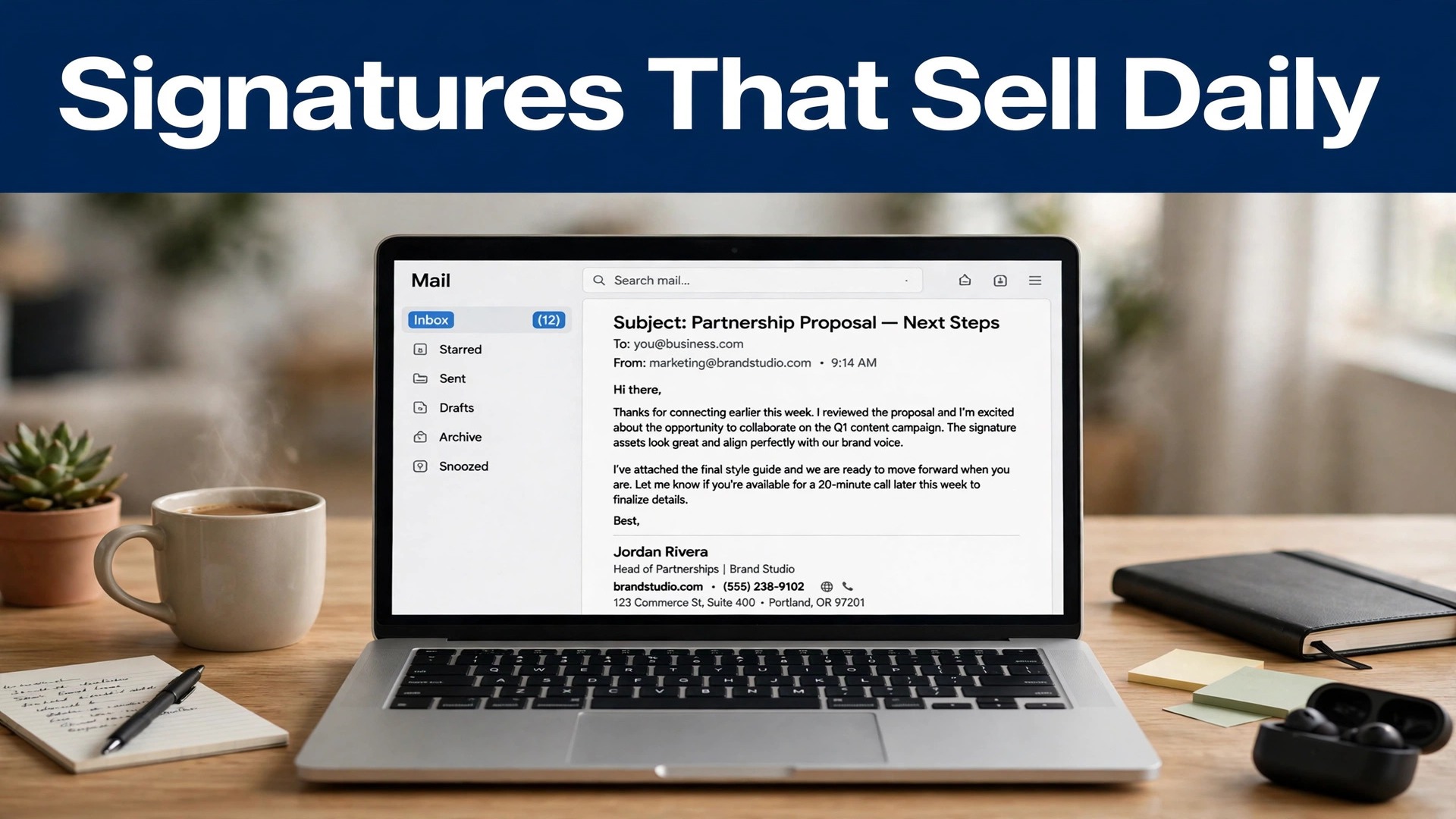
Consider the arithmetic of an ordinary working inbox. A professional who sends just 30 emails a day puts a signature in front of colleagues, clients, and prospects more than 600 times a month, and over 7,000 times a year, without spending a cent on advertising. That quiet repetition is why the best email signature generators deserve more thought than a quick template pick. A signature is not decoration at the bottom of a message. It is a repeated brand impression, a contact card, and, for a team, a marketing channel that reaches people who already opened your email, which is an audience most ads would envy.
This guide compares five generators that cover the real range of needs, from a free one-off signature for a freelancer to a centrally managed system for a whole company. Each review covers what the tool does, who it suits, what it costs, and where it falls short, including the rendering problems that make signatures look broken in Outlook or on a phone. Read the rendering section before you design, because the prettiest signature in a builder can still fail in a recipient’s inbox.
The Best Pick by Job
| Job | Pick | Why it wins |
|---|---|---|
| Free one-off signature | HubSpot | Free generator with no subscription needed |
| Personal branding | WiseStamp | Strong templates with social and banner options |
| Freelancers and small teams | MySignature | Affordable plans with tracking and digital cards |
| Marketing banners | Newoldstamp | Campaign banners and click analytics built in |
| Large team management | Exclaimer | Central control for Google Workspace and Microsoft 365 |
Why Signatures Break in Real Inboxes
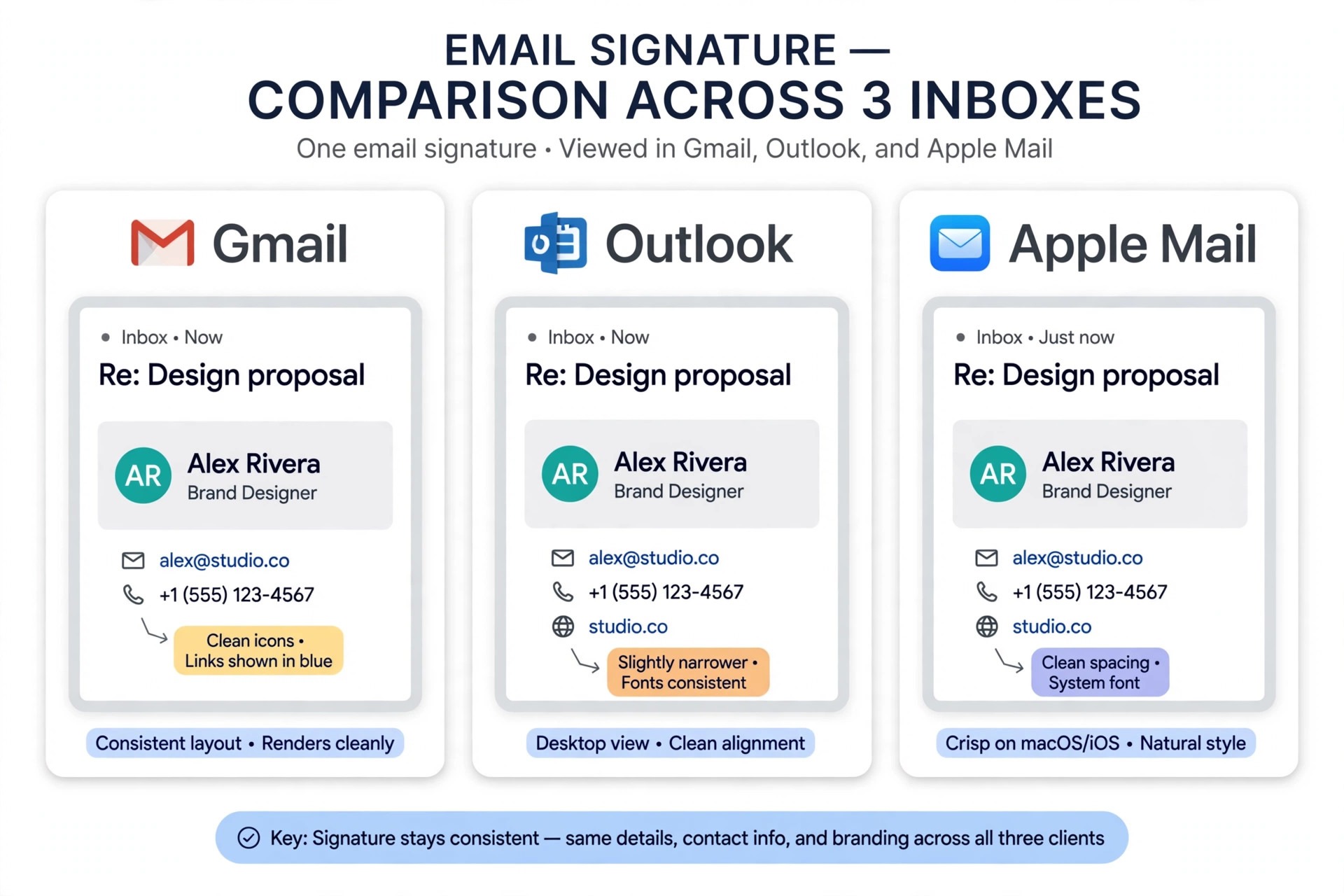
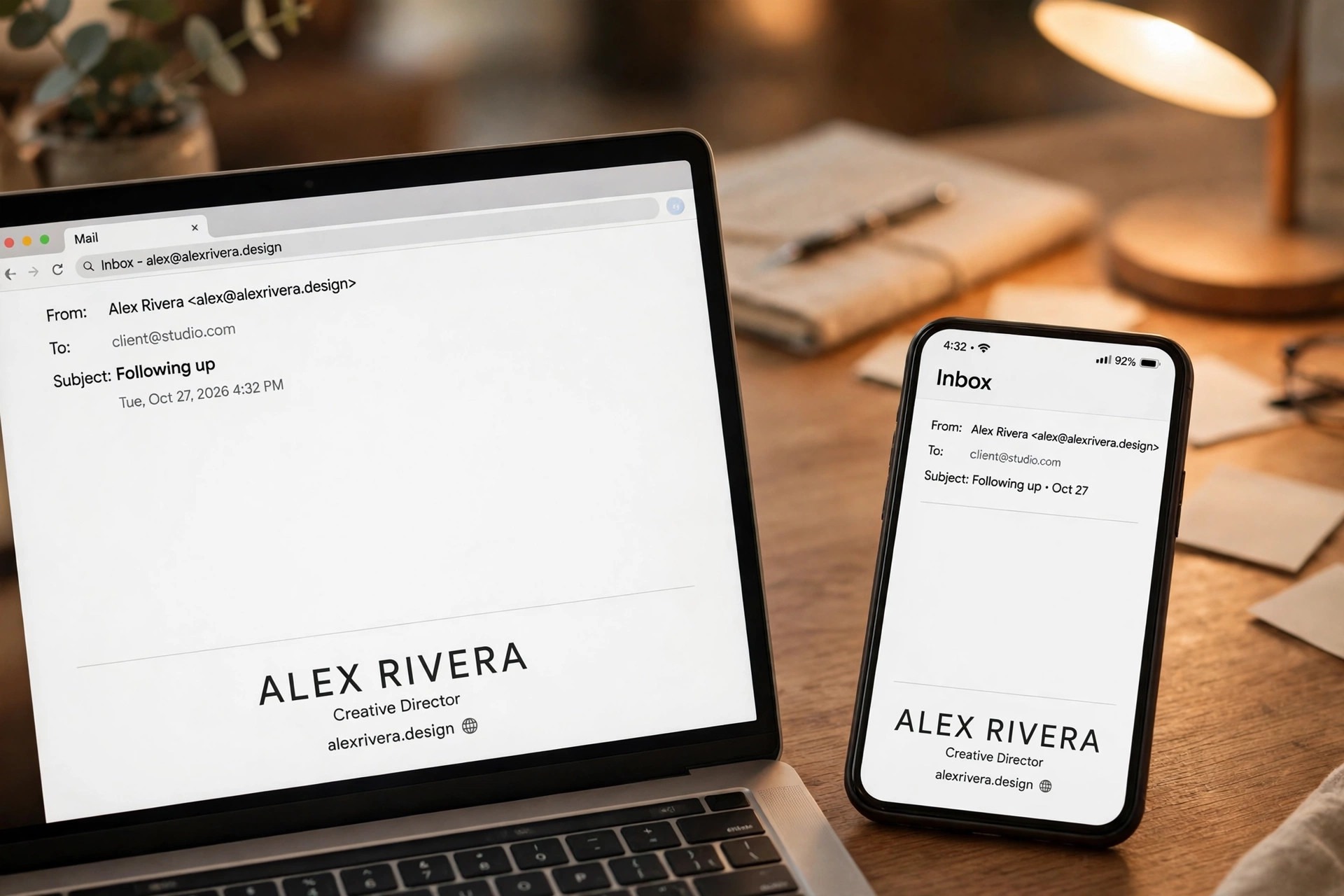
A signature breaks for reasons that have nothing to do with design taste. Email clients render HTML differently, so a signature built with modern web techniques can collapse in Outlook, which uses a word processor engine, or on a phone, where a wide signature forces horizontal scrolling. Images add a second failure mode. Many clients block images by default, so a signature that carries its name, role, and phone number inside a single image becomes blank for those recipients.
The safe rule is to build the signature from real text and small, hosted images, such as a logo and social icons, and to keep the total width narrow, ideally under 600 pixels, so it fits a phone screen and a narrow reply pane.
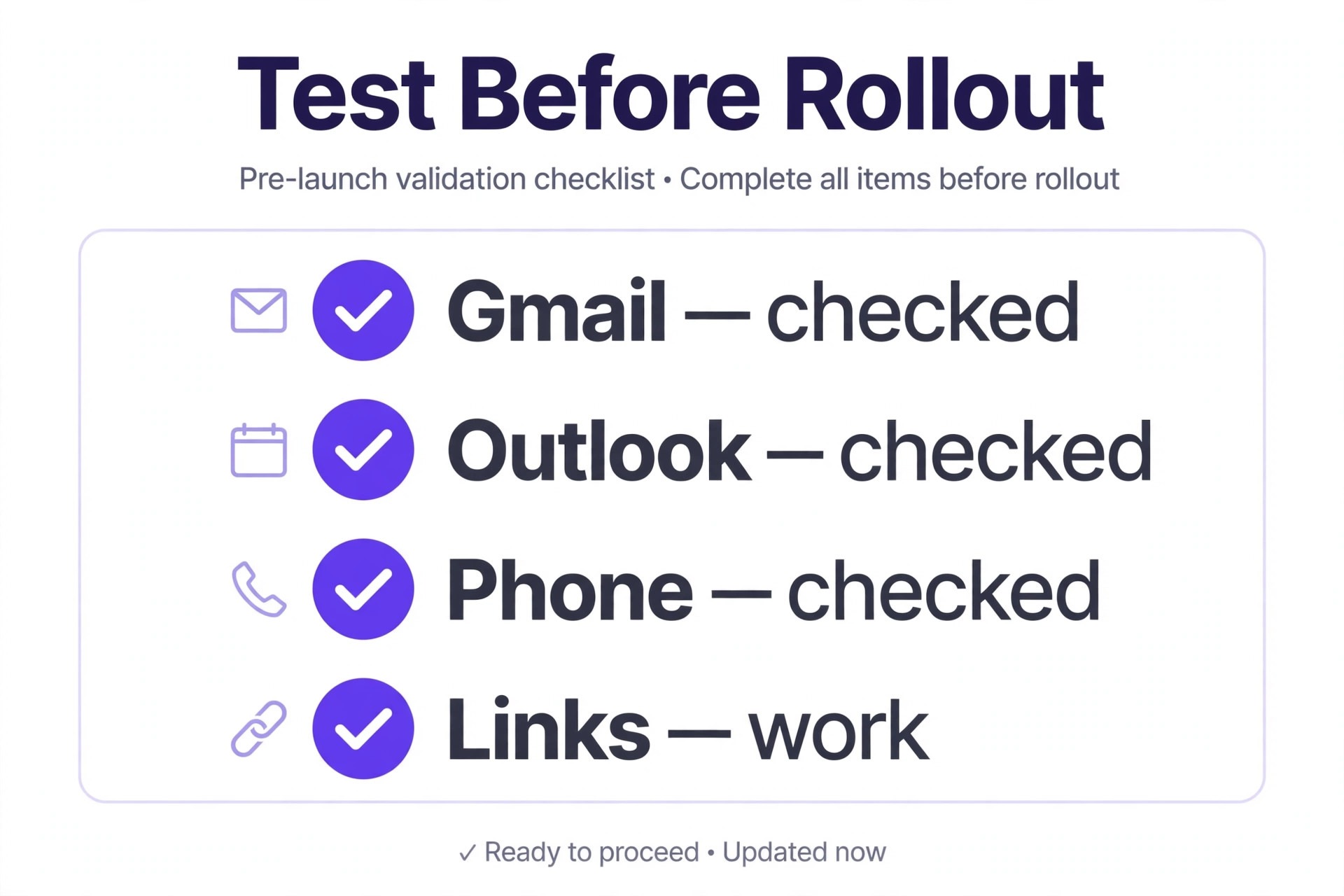
Dark mode adds a third problem. A dark logo or dark text on a transparent background can vanish against a dark inbox theme, while a white box around a logo can look like an ugly block in dark mode. Test your signature in Gmail, Outlook, and Apple Mail, in both light and dark themes, before you roll it out, and ask a colleague on a different client to confirm it reads correctly. The best email signature generators make that testing easier with simple HTML output, but no generator can test your exact inbox for you. Font choice matters too.
Web fonts rarely load in email, so a signature should use system fonts that exist on the recipient’s device, such as Arial, Georgia, or Verdana, rather than a distinctive display font that will be substituted unpredictably. A signature that survives these tests will look slightly plainer in the builder than a flashy design, and far more professional in the inbox where it counts.
The 5 Tools Reviewed
1. HubSpot
HubSpot offers the best free starting point for a single signature, with a drag-and-drop generator that requires no subscription and no HubSpot account for basic use. You fill in your details, choose a template, add social links and a photo or logo, and copy the result into Gmail or Outlook. The templates are clean and businesslike, covering the standard layouts a freelancer or job seeker needs, and the setup guidance for major clients is clear. The limits are scope and management. HubSpot generates one signature at a time, it does not keep a team’s signatures in sync, and it offers no campaign banners, click analytics, or central updates, so a company that needs consistent team signatures will outgrow it quickly.
For an individual who needs one good signature today, for free, HubSpot is the obvious first try, and the absence of a paywall makes it easy to recommend without qualification.
2. WiseStamp
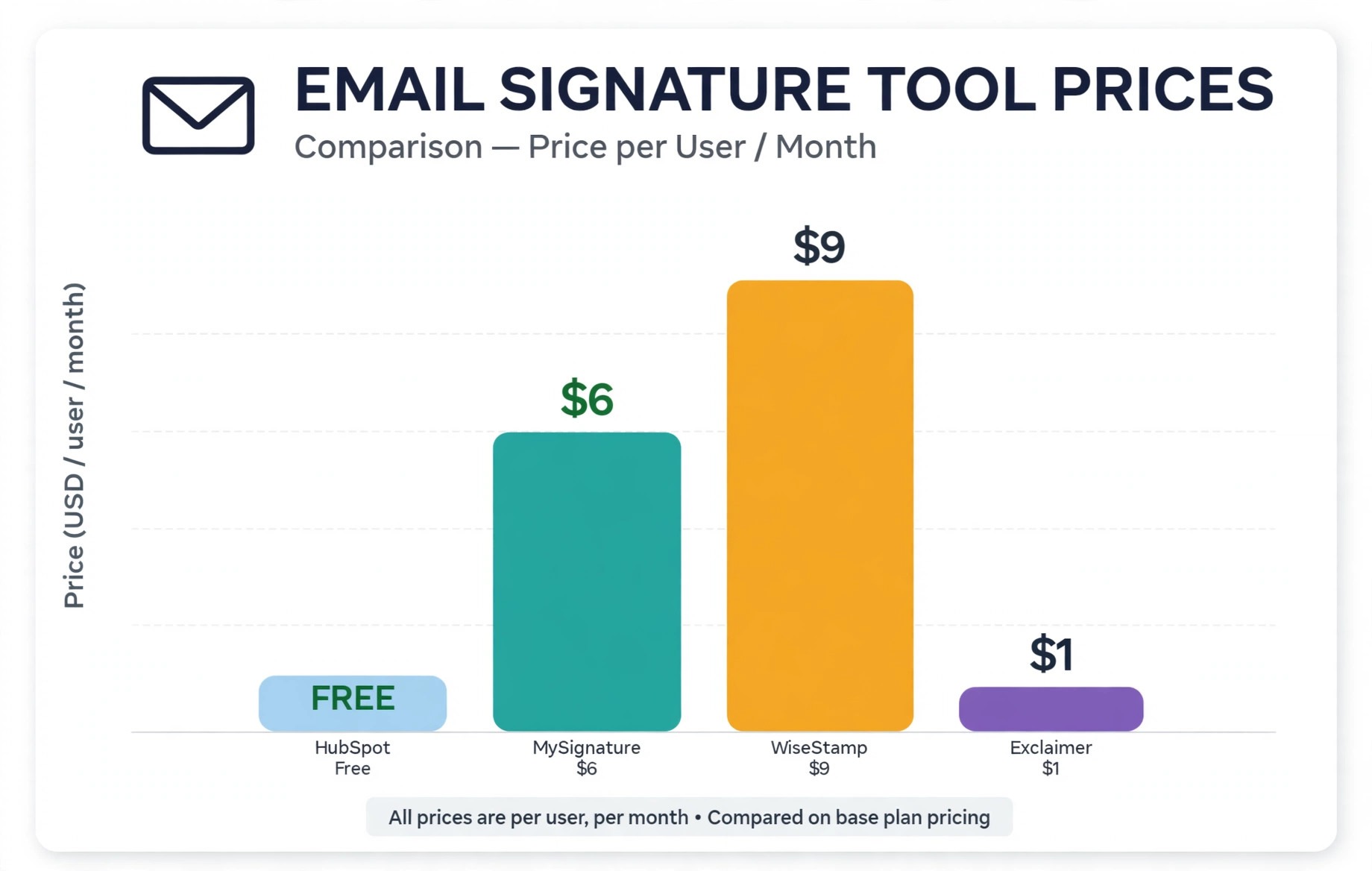
WiseStamp suits professionals who want a signature that also works as personal branding, with templates, social icons, promotional banners, and an email signature add-on for Gmail and other clients. A limited free plan covers one signature with a branding line, while paid plans start at around 9 dollars a month for individuals, with team plans available. The template quality is high, with modern layouts that handle photos, logos, and multiple links gracefully, and the banner feature lets a freelancer promote a new service, a book, or an event directly under every email. The limits are price and team depth.
WiseStamp is pricier than MySignature for a solo user, and its team management, while present, is less centralised than a dedicated platform like Exclaimer. For a consultant, coach, or sales professional whose signature is part of their personal brand, WiseStamp justifies its price with polish and banner flexibility.
3. MySignature
MySignature sits between a free generator and a management platform, which is exactly where freelancers and teams of up to five people usually live. A free tier covers basic generation, while Core costs around 6 dollars per user a month and Connect around 7 dollars, adding a digital business card and a second signature for replies and forwards. Templates are professional and varied, with custom HTML options, legal disclaimers, promotional buttons, and a QR code that links to a saved contact. Email tracking for Gmail shows when a recipient opens a message, which freelancers sending proposals and invoices tend to value highly. The limits are scale and design ceiling.
MySignature is not built for a 500-person company with compliance rules, and its most distinctive templates still follow standard signature layouts. For a small team that wants ongoing editing, tracking, and a reply signature without enterprise cost, it is the best value in this list.
4. Newoldstamp
Newoldstamp is the marketing-led option, built for teams that treat every email as a campaign channel. A free tier exists with a branding line, while paid plans run from around 1.33 dollars to 4.50 dollars per signature a month depending on billing, starting at around 54 dollars a year. Its strength is banner campaigns. A marketing team can run a banner promoting a webinar, a product launch, or a seasonal offer across every employee’s signature, track clicks on those banners, and rotate campaigns without asking each employee to update anything. Templates are customisable, analytics cover banner performance, and the platform suits agencies and startups with a marketing mindset. The limits are simplicity and solo value.
A single user who only needs a static signature will find the campaign features unnecessary, and the per-signature pricing needs checking against team size. For a team that wants signatures to sell, not just sign off, Newoldstamp is the specialist pick.
5. Exclaimer
Exclaimer is the enterprise choice, designed for IT and marketing teams that must control signatures centrally across Google Workspace and Microsoft 365. Pricing starts at around 0.90 dollars per user a month on annual billing for basic plans, with higher tiers adding fuller campaign and analytics features, so large teams get a surprisingly low per-seat cost. Central management is the point. An administrator designs signature templates, applies rules by department, role, or location, and updates every employee’s signature without touching individual inboxes, which solves the consistency problem that plagues growing companies. Engagement analytics and brand kits support campaign use at scale. The limits are complexity and fit.
Exclaimer is overkill for a freelancer, setup requires IT involvement, and small teams may find the admin interface heavier than a simple generator. For a company with dozens or hundreds of email users, it is the only tool in this list built for that job.
A banner under a signature can promote a webinar, a new service, or a seasonal offer to people who already trust you enough to open your email, which is a valuable audience. It becomes annoying when it is large, loud, or irrelevant, or when it changes with every message so recipients learn to ignore the whole signature. The rule is one banner, one message, and one link, with a clear end date for the campaign. Rotate banners monthly at most, not weekly, and keep the banner image small and fast loading, since a heavy banner slows every email and may be blocked as an image.
Measure clicks, not just sends, and retire banners that earn no clicks after a reasonable run, because a banner nobody clicks is visual noise that weakens the contact details above it.
Relevance matters more than design. A banner promoting a webinar suits a recipient who attended a previous event, but not a new prospect who is still deciding whether to reply at all. Team tools like Newoldstamp and Exclaimer allow audience-based rules, so different departments or segments see different banners, which is the professional way to run signature marketing. For an individual, the simpler version is to change the banner when your offer changes, and to remove it entirely during sensitive conversations, such as a complaint or a negotiation, where a promotional banner reads as tone deaf. A signature banner should feel like a helpful postscript, not a billboard stapled to a personal letter.
Rolling Out Signatures Across a Team Without Chaos
A team rollout fails when every employee installs a slightly different signature, with different fonts, logo sizes, and job titles, and the company ends up looking inconsistent to every client it emails. The fix is central control, even if that control is just a shared template and a clear instruction document for a small team. Decide the exact fields every signature must carry, such as name, role, phone, website, and legal disclaimer where required, and decide which fields are optional, such as social links or a booking link.
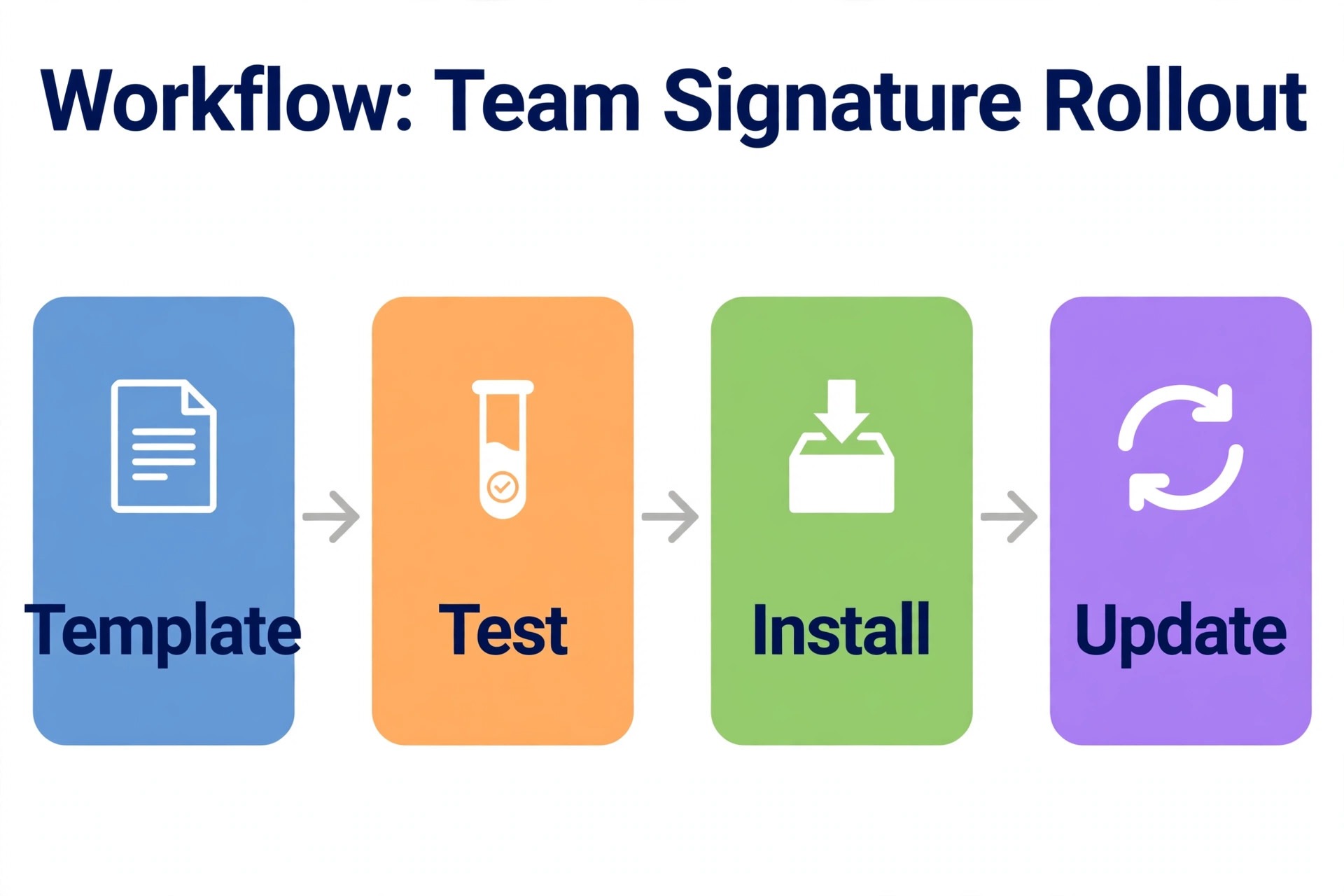
Create one master template, test it in Gmail, Outlook, and Apple Mail, and distribute it with step-by-step install instructions for each client, including screenshots, since install steps differ and employees will otherwise improvise.
For larger teams, a management platform pays for itself by removing that improvisation. An administrator updates the template once, and every signature updates, including banners, disclaimers, and logo changes after a rebrand. That control also helps compliance, since regulated industries often require specific disclaimers, and a central system guarantees they appear on every email. Plan the rollout in stages, starting with one department, gathering feedback on rendering, and then expanding, rather than switching hundreds of signatures on a Friday afternoon. Keep a fallback contact method in the signature, such as a phone number as real text, so a recipient can still reach you if images fail or links break.
Signature Content by Role, From Freelancer to Executive
A freelancer’s signature should make hiring easy. Lead with name and service in plain words, add one phone number, one email address, a portfolio or booking link, and a single social profile where clients can see recent work. A booking link matters more than a list of services, because a prospect who has to reply to ask for availability may never reply at all. Keep the design light and personal, with a headshot if it helps recognition, and avoid corporate disclaimers that make a solo business look like a large firm. The goal is a reply, not an impression of scale.
A sales professional’s signature should make the next step obvious. Add a calendar booking link, a current offer or case study link as a single banner, and a phone number that is answered during working hours. Social proof helps here, such as a link to testimonials or a review profile, but only one such link, since a signature crowded with proof links reads as desperation rather than confidence. Track which banner earns clicks, and change the offer when the campaign ends, because a stale promotion under a sales email undermines the message above it. Sales signatures also benefit from a reply signature, a shorter version without banners for ongoing threads, which keeps long conversations readable.
An executive’s signature should signal authority and restraint. Name, title, company, phone, and website are usually enough, with a logo and perhaps one company link. Avoid banners, quotes, and multiple social icons, since an executive email that carries a marketing banner can feel like a sales message rather than a leadership message. Consistency matters most at this level, because clients and partners compare signatures across a leadership team and notice when one executive’s signature looks different from the rest. A central template, even a simple shared one, prevents that drift.
A support or operations role needs a different signature again. Add a help centre link, a ticket or status page link, and working hours or response times, so a customer knows what to expect after writing. A support signature that only lists a name and a phone number misses the chance to deflect a repeat enquiry with a useful link. For all roles, the test is the same. Could a stranger who receives this email contact you, understand your role, and take the next step without searching for information elsewhere? If yes, the signature works, regardless of how simple it looks.
The best email signature generators support these role differences with multiple templates and reply signatures, rather than forcing every employee into one identical block.
Legal Disclaimers, Privacy, and What Not to Put in a Signature
Legal disclaimers in signatures cause more confusion than any other element. Some industries and companies require a confidentiality notice, a regulatory statement, or an environmental message, while others add long disclaimers out of habit with no legal requirement behind them. Before adding a disclaimer, check what your industry or employer actually requires, and keep the text as short as the requirement allows. A disclaimer that is longer than the email itself annoys recipients, increases the chance the email is flagged as bulky, and is rarely read in full anyway. Where a disclaimer is required on external mail only, a team tool can apply it by rule, keeping internal mail clean while external mail stays compliant.
Privacy deserves equal care. A signature should not include personal phone numbers, home addresses, or personal social profiles unless you genuinely want every recipient to have them forever, since emails are forwarded, archived, and searched long after sending. Use a business number, a business email, and a business website, and keep personal details out entirely. The same caution applies to tracking. Open tracking in a signature or email tool tells the sender when a message was opened, which some recipients consider intrusive, so use tracking only where it serves a clear business purpose, such as following up a proposal, and respect any company policy or regional privacy rules that apply.
Finally, avoid images that carry personal data, such as a scanned handwritten signature, in a marketing signature block. A scanned signature image can be copied and misused, and it adds no value to a business email that a typed name does not already provide.
How to Choose Among the Best Email Signature Generators
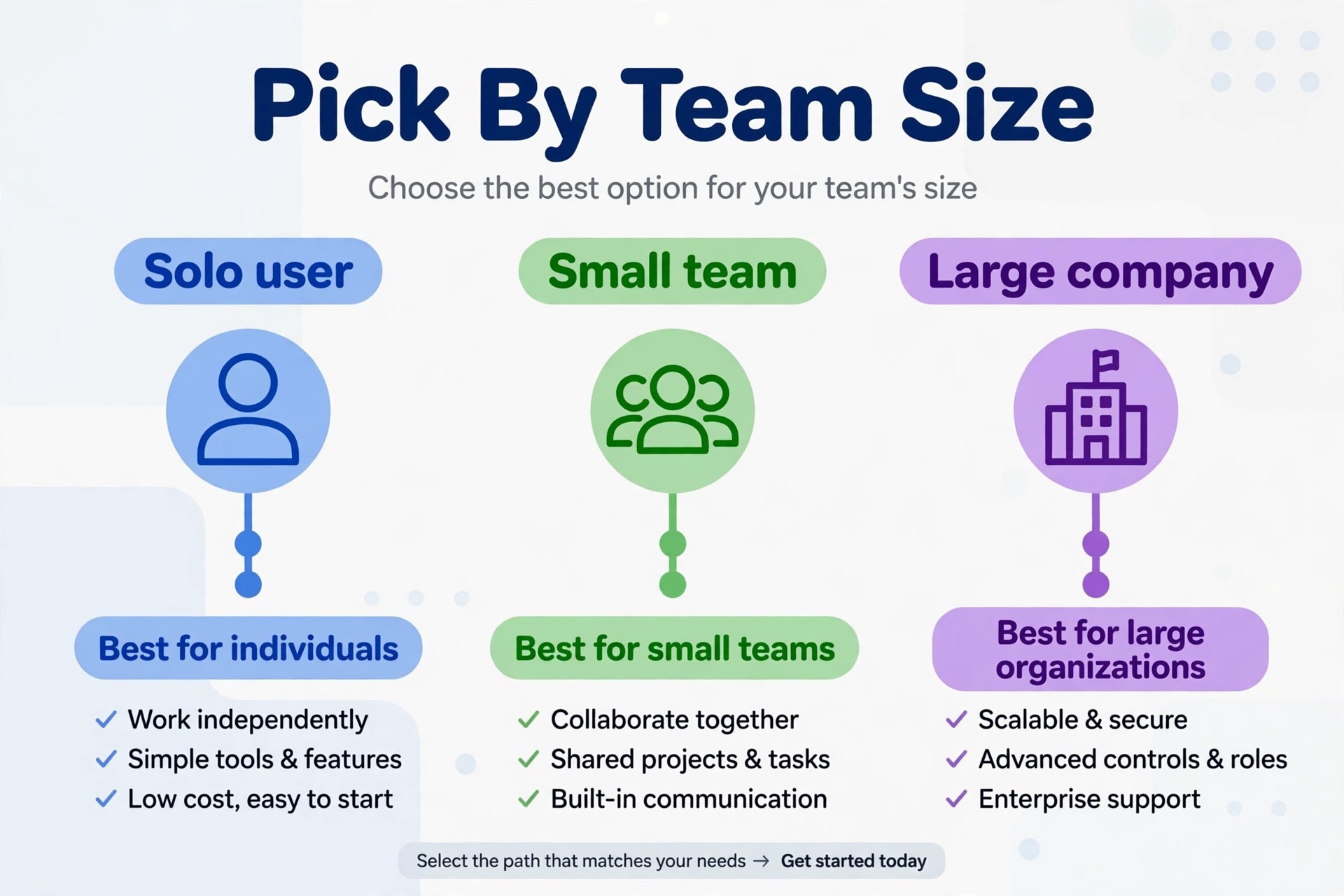
Start with headcount and purpose, not with templates. An individual who needs one signature should start with HubSpot free, and only pay if a banner, tracking, or second reply signature becomes genuinely useful. A freelancer or a team of up to five should compare MySignature and WiseStamp on price, tracking, and design, and pick the one whose templates fit their brand. A marketing-led team should compare Newoldstamp and Exclaimer on banner campaigns and analytics, and a large company should shortlist Exclaimer alone for central control and compliance. The best email signature generators for a solo consultant will frustrate an IT manager, and the reverse is also true, so a single ranking without a headcount filter is misleading.
Then test rendering before you commit. Build a signature with your real details, send it to colleagues on Gmail, Outlook, and Apple Mail, and check it on a phone in both light and dark themes. A tool that produces a beautiful preview but a broken Outlook result has failed the only test that matters. Check installation too, since some generators offer one-click install for Google Workspace or Microsoft 365, while others require manual HTML pasting that non-technical staff will get wrong. Finally, check what happens when you cancel. A signature that stops working or loses its images on cancellation is a trap, so prefer tools that let you keep a copied HTML signature working independently.
For the wider email workflow around signatures, see our guides to AI email management tools and AI tools for email marketing.
Common Signature Mistakes That Cost Replies
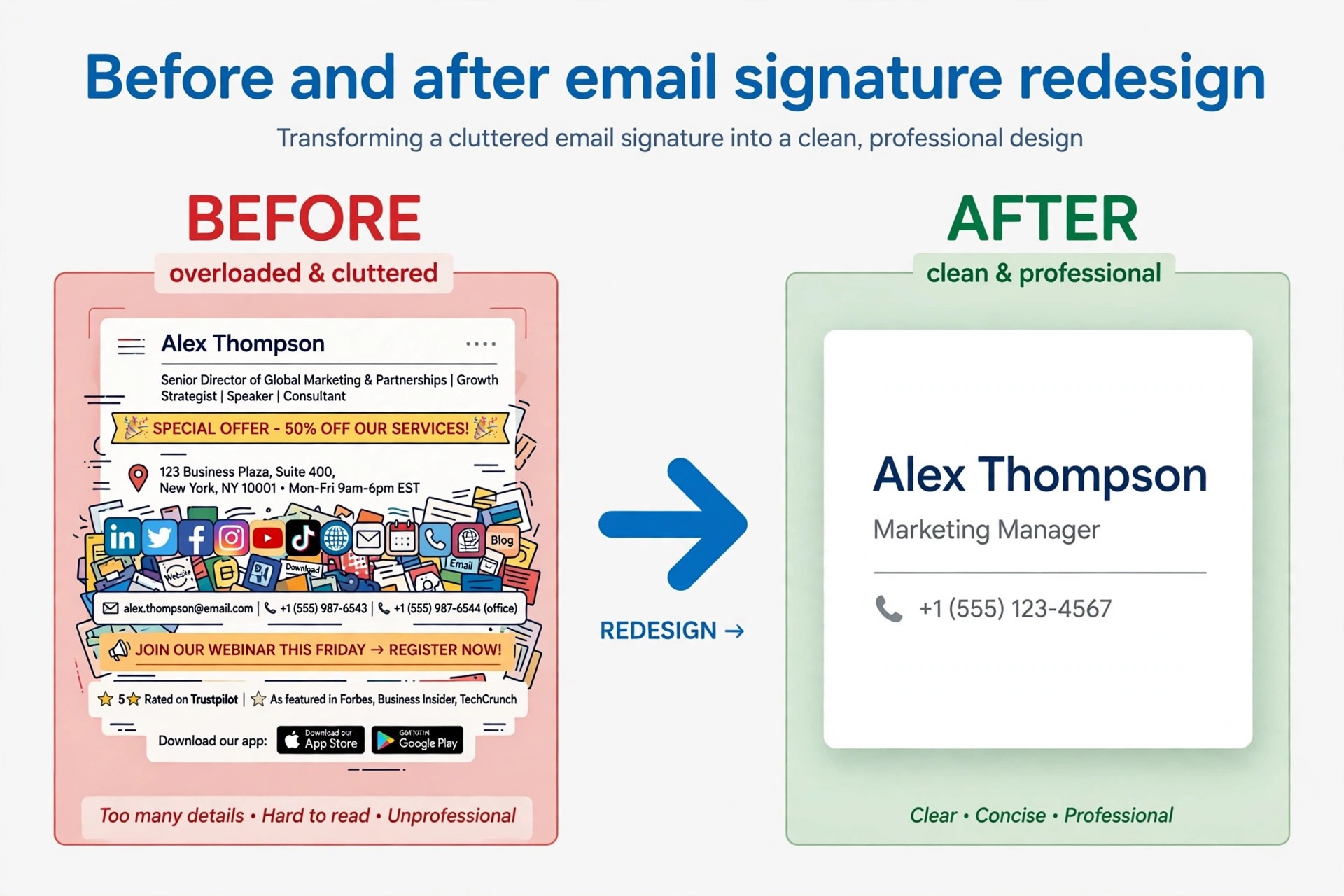
The most damaging mistake is hiding contact details inside an image, which breaks when images are blocked and cannot be copied, searched, or clicked by a recipient who wants to call you quickly. Keep name, phone, email, and website as real text, and use images only for a logo and small icons. The second mistake is overload, with five social icons, two banners, a quote, a disclaimer, and a photo competing for attention. A signature should help a recipient contact you, not showcase your entire online life, so pick the two or three links that actually generate replies.
The third mistake is a disclaimer that dwarfs the signature itself, which happens when legal text is pasted in full under every email. Where a disclaimer is required, keep it as short as the rules allow and in a smaller but still readable size, and consider whether it belongs on every email or only on external mail.
A fourth mistake is never updating the signature. Job titles change, phone numbers change, and promotions expire, yet signatures often carry old details for months because nobody owns them. Review your signature quarterly, and assign ownership for team signatures to one person or team. A fifth mistake is using a signature as an e-signature, meaning a handwritten style signature image for signing documents. The two are different jobs, and a marketing signature generator will not provide the audit trail a document signature needs. Keep them separate, and use a proper document signing tool for contracts. For outreach and follow-up craft, our guides to AI cold email tools and AI sales prospecting tools cover the messages that sit above the signature.
A Quarterly Signature Check That Takes Ten Minutes
Set a calendar reminder every three months to review your signature, because details drift quietly and a stale signature erodes trust. First, check every link by clicking it from a sent email, not from the builder preview, since a link that works in preview can break after an install or a website change. Fix or remove any link that leads to a dead page, an expired campaign, or an old job title. Second, check your photo and logo. Replace a photo that no longer looks like you, update a logo after any rebrand, and confirm the logo still loads quickly and looks sharp on a phone screen. Third, check your contact details against your current role.
A phone number that now goes to voicemail, a booking link that points to a closed calendar, or a title from a previous job all create friction for a recipient who is trying to reach you.
Fourth, review banners and disclaimers. Remove expired promotions, update seasonal offers, and confirm that any legal disclaimer still matches current requirements rather than a template copied years ago. Fifth, send a test email to yourself and to a colleague on a different email client, and view it on a phone in both light and dark themes. Look for broken images, overlapping text, or a signature that is too wide for the screen. If anything looks wrong, fix it in the builder and retest before the next send.
This ten minute routine, done quarterly, keeps a signature accurate for thousands of sends a year, and it costs far less than the lost reply from a prospect who clicked a dead link or called a disconnected number. Keep a short note of what you changed each quarter, so a future update does not repeat an old mistake or restore a banner you already retired. That note also helps a new team member take over signature ownership without guessing at past decisions.
Our Final Recommendation, by Situation
For most individuals, HubSpot free is enough, and spending money before you know what you need is wasteful. For a freelancer building a personal brand, WiseStamp or MySignature earns its price through templates, banners, or tracking, depending on which feature you will actually use weekly. For a marketing team, Newoldstamp turns signatures into a measurable channel, while a large company should adopt Exclaimer for control and consistency. The best email signature generators are not the ones with the most templates, as this guide has shown throughout. They are the ones whose signatures render correctly, stay current, and match the size of the team using them.
Build the signature, test it in real inboxes, and revisit it quarterly, and it will quietly work for you thousands of times a year.
More Reading on Stratilyze. To improve the emails that carry your signature, read our guides to AI cold email tools, AI sales prospecting tools, and AI business name generators, which cover outreach, selling, and the brand identity behind the signature.
Frequently Asked Questions
Will my signature look the same in Gmail, Outlook, and Apple Mail?
Not exactly, because each client renders HTML differently, and Outlook in particular handles spacing and images differently from Gmail, which is the first thing the best email signature generators warn new users about. Build with simple tables, system fonts, and real text, keep the width under 600 pixels, and test in all three clients before rollout. Small differences are normal, but a signature that collapses or loses contact details in one client needs redesigning.
Should I include a photo in my email signature?
A photo helps recipients recognise you and adds a personal feel, especially for sales, coaching, and consulting, but it also adds an image dependency and can look unprofessional if the photo is low quality or outdated. Use a recent, well lit headshot at a modest size, keep contact details as text, and test how the signature looks when images are blocked.
Are free signature generators safe to use?
Reputable free generators from established companies are generally safe, but read the privacy terms before entering personal details, and avoid tools that require excessive permissions or store your data unclearly. A free generator that lets you copy the HTML and use it independently is safer than one that hosts your signature and can change or remove it later.
How do team signature tools update everyone at once?
Team platforms apply templates centrally through Google Workspace or Microsoft 365, so an administrator changes the template once and the update flows to every employee’s signature. That central control also handles banners, disclaimers, and department rules without asking each employee to reinstall anything, which is why large teams prefer platforms like Exclaimer over individual generators.
Can a signature really help marketing?
Yes, when used sparingly. A banner promoting a relevant offer, event, or piece of content reaches people who already opened your email, and team tools can track clicks on those banners. The effect disappears when banners are large, irrelevant, or constantly changing, so run one campaign at a time, measure clicks, and retire banners that earn no response.
Is Design.com a good email signature generator?
Design.com offers email signature templates as part of its wider branding suite, but it is not a specialist signature tool with install management, banner campaigns, or team sync comparable to the five tools reviewed here. For that reason it does not make this top five, though a business already using Design.com for branding may find its templates adequate for a simple static signature.