
Home office workers print less than offices once did, yet the printer remains the device most likely to fail at the worst moment, usually when a contract, a school form, or a boarding pass needs printing in the next ten minutes. Industry support data consistently ranks wireless connection problems as the top printer complaint, ahead of ink and paper faults, which tells a clear story. The hardware usually works, and the network setup is where it breaks. This guide explains how to set up wireless printer for home office use in the order that prevents those failures, from placement and Wi-Fi to pairing every device you actually print from.
A wireless printer connects to your home Wi-Fi network, then receives print jobs from phones, laptops, and tablets on the same network, without a cable between computer and printer. Most modern wireless printers also support direct printing from phones through built in phone printing, maker apps, and email to printer features, plus scanning to a phone or computer over the same connection. The benefit for a home office is placement freedom, since the printer can sit where noise and paper storage suit, not where a cable reaches, and every device in the house can print without moving.
Placement, Power and First Checks
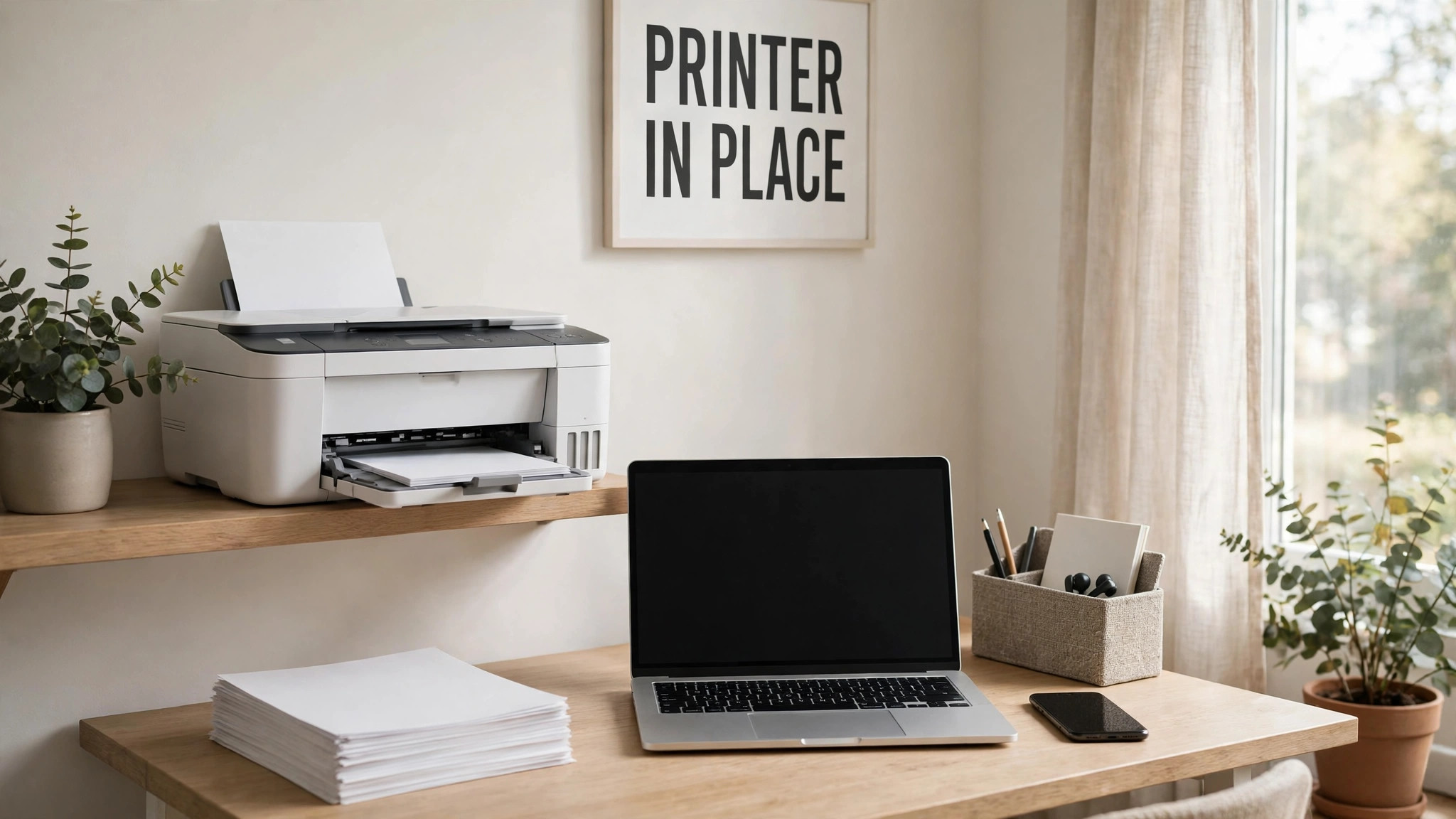
Placement decides wireless reliability before any setting is changed, so choose the spot first. Place the printer within good Wi-Fi range of the router, ideally in the same room or one room away, with no thick metal filing cabinet or fish tank between printer and router, since both block Wi-Fi strongly. Avoid placing the printer on the floor in a corner, inside a closed cupboard, or behind a large monitor, since each of those positions weakens signal and makes paper loading awkward. A sturdy table or shelf at waist height, near a power outlet, with space to open paper trays and ink access doors fully, is the right home for a home office printer.
Power and paper preparation come next, and they are worth doing carefully rather than rushing to Wi-Fi. Plug the printer into a wall outlet that stays on, not a switched outlet tied to a desk lamp, since a printer that loses power overnight may lose its network settings on some models and will certainly miss scheduled maintenance cycles. Load paper correctly, fanning the stack first, aligning it to the guides without forcing it, and setting the paper size in the printer menu if prompted, since a paper size mismatch causes the most common first print fault, where the printer reports the wrong paper and refuses to print.
Install ink or toner before network setup, following the maker guide for your model, and run any initial alignment or cleaning cycle the printer requests, since a printer that prints badly on first use is usually a printer whose alignment was skipped, not a printer with a network fault. Remove all packing tape and protective materials, including tape inside paper trays and on ink cartridges, since leftover tape causes paper jams that look like hardware faults. Keep the quick start guide and the ink or toner model number nearby, since you will need that number for reordering, and a photo of the cartridge label on your phone saves a later search.
Check the printer display and buttons before Wi-Fi, learning where the wireless light, the information button, and the cancel button live on your model. Print a network configuration or information page from the printer menu if offered, since that page shows the current network state, IP address, and signal strength, and it becomes your baseline for diagnosing later faults. A printer whose display is understood before setup is a printer whose error messages make sense afterwards, and that understanding saves support calls.
How to set up wireless printer for home office
The steps below cover the three common Wi-Fi methods, starting with the maker app, which is easiest for most beginners, then the printer panel method, then WPS for routers that support it. Use one method, not all three, and stop when the printer shows connected, since running multiple methods in sequence can create conflicting settings. To set up wireless printer for home office use well, keep the phone on the same Wi-Fi network as the printer will use throughout, since a phone on a different network or on mobile data cannot find the printer during setup.
- Prepare the network details. Write down your Wi-Fi network name and password, and confirm whether your router uses separate names for 2.4 GHz and 5 GHz bands or a single combined name. Most printers connect only to 2.4 GHz, so if your router separates bands, choose the 2.4 GHz network name for the printer, even if your phone and laptop use 5 GHz, since devices on different bands of the same router still print to each other normally.
- Install the maker app on your phone. Download the free app for your printer brand, such as HP Smart, Epson Smart Panel, Canon PRINT, or Brother Mobile Connect, and allow Bluetooth and location permissions during setup, since the app uses Bluetooth to find the printer nearby and location permission is required by phones for Wi-Fi listing during setup. Open the app, choose add printer, and follow its guided Wi-Fi setup, which usually finds the printer automatically when it is in setup mode.
- Put the printer in Wi-Fi setup mode if the app asks. On printers with a display, open the wireless or network setup menu and choose wireless setup wizard, which lists nearby networks. On printers without a display, press and hold the wireless button until the light blinks, which puts the printer in setup mode for a few minutes, during which the app can find it. If setup mode times out, repeat this step rather than assuming the printer is faulty, since timeouts are common on a first attempt.
- Select your network and enter the password. Choose the 2.4 GHz network name, enter the password carefully, checking capitals and symbols, and wait for the printer to confirm connection, which may take a minute. If the password is rejected, retype it slowly, confirm you selected the right network among similar neighbour names, and check for a router setting that blocks new devices, such as MAC filtering, which needs the printer added to the router allowed list.
- Print a test page from the app. Once the app shows the printer as ready, print a test page or a photo from the phone, confirming that the full path, meaning phone to router to printer, works, not just that the printer claims to be connected. A printer that shows connected but never receives jobs usually has a network isolation setting, such as client isolation on a guest network, and the test print reveals that before you need a real document urgently.
- Add the printer to your laptop and desktop. On Windows, open Settings, then Bluetooth and devices, then Printers and scanners, choose Add device, and select your printer when it appears, allowing drivers to download automatically. On a Mac, open System Settings, then Printers and Scanners, and select the printer from the nearby list, confirming the driver offered matches your model. Print a test page from each computer, since a printer added on one device does not automatically appear on another, and each device needs its own pairing.
- Add the printer to tablets and other phones. On an iPhone or iPad, printing uses AirPrint, which needs no app for most printers, since the print option in the share menu lists AirPrint printers on the same network automatically. On Android, printing uses the default print service or the maker app, depending on the model, and the print option in a document or photo share menu lists available printers. Test one print from each device you actually use, since a device never tested is a device that will fail at the moment you need it.
Once every device prints a test page, the core setup is done, and the remaining work is scanning, defaults, and maintenance, covered below. A printer that prints from every device on day one rarely fails later without a clear cause, such as a router change or a password change, both of which are covered in the problems section. To set up wireless printer for home office use in full, testing every device now is the step that prevents the urgent failure later, and it takes ten minutes that pay for themselves many times over.
Network Setup Checklist
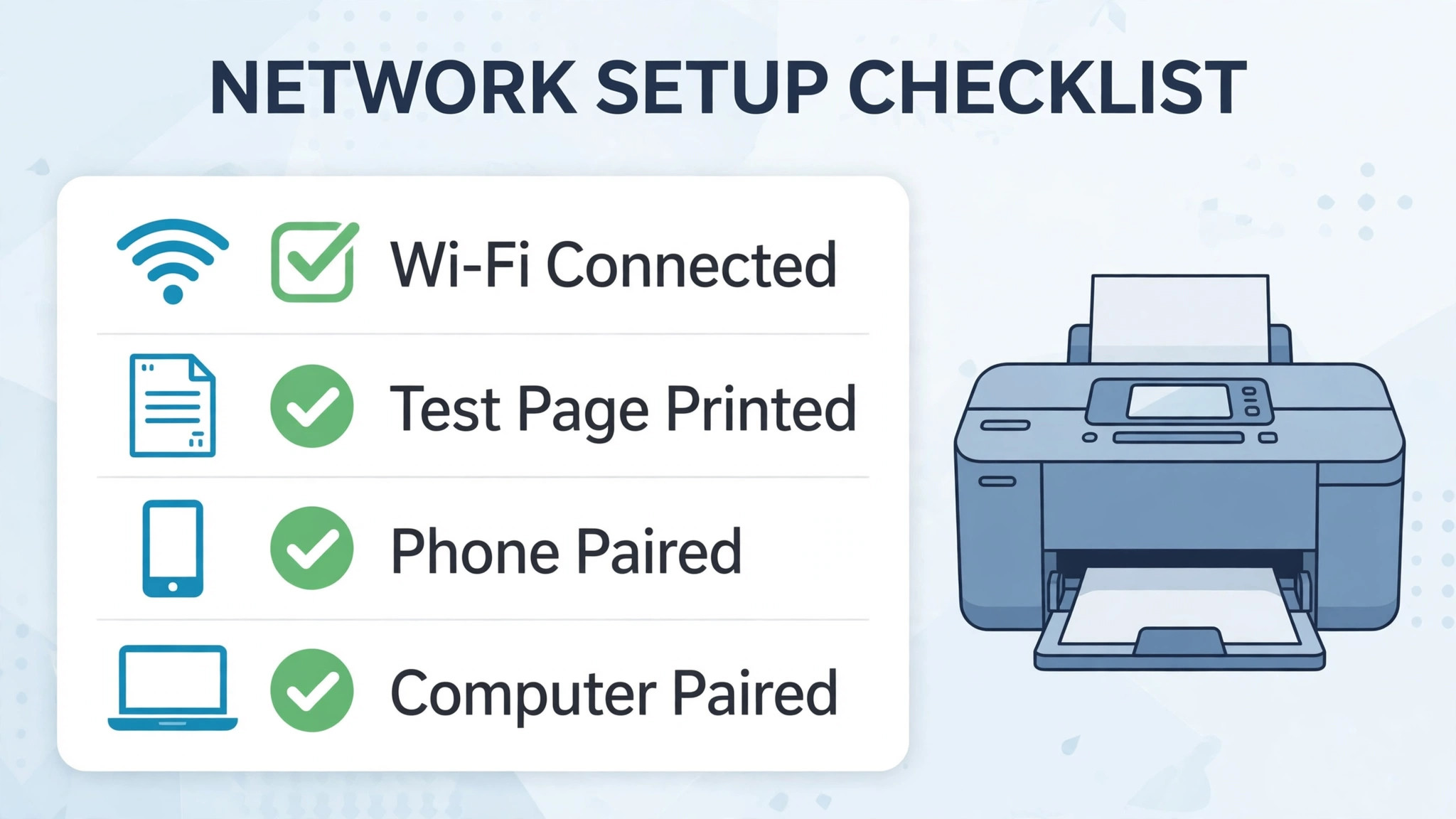
The checklist below is the overview proof companion to the device pairing table in the next section, and it should be run once after setup and again after any router, password, or internet provider change, since those changes break printer connections more often than printer faults do. Tick each item before calling setup complete, and keep the checklist with your home office notes for the next network change.
- Printer placed within good Wi-Fi range, with a clear path to the router and a wall outlet that stays powered.
- Printer connected to the 2.4 GHz network name where applicable, with the wireless light steady or the display showing connected.
- Network configuration page printed and kept, showing IP address and signal strength as a baseline for later diagnosis.
- Maker app installed on the main phone, with the printer shown as ready and a test page printed from the app.
- Windows or Mac computer paired, with a test page printed and the printer set as default if it is the only printer.
- Phone and tablet printing tested, through AirPrint or the maker app as appropriate, with a test page from each device.
- Paper loaded correctly, paper size set in the menu, and ink or toner installed with alignment completed.
- Printer firmware checked for updates in the app or menu, since updates fix Wi-Fi stability and security issues.
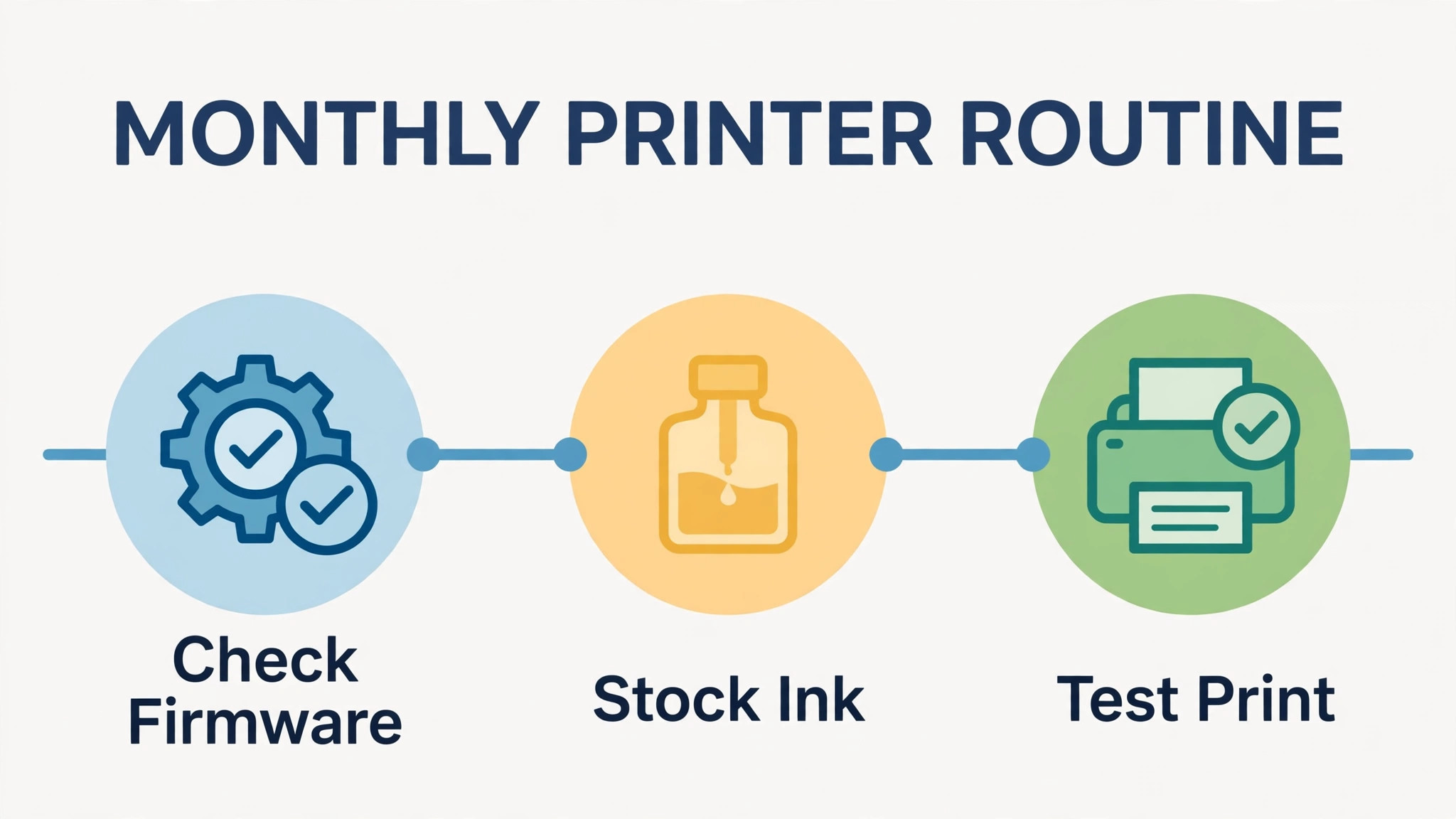
Firmware updates deserve a note, because beginners often skip them and then suffer Wi-Fi faults that an update already fixed. Check for updates in the maker app or printer menu after setup, install them while the printer is idle, and do not switch the printer off during an update, since an interrupted firmware update can leave the printer unusable until recovered. After an update, print a test page again, since an update that changes network settings occasionally needs a reconnection, and a test page confirms the printer survived the update intact.
Device Pairing Table
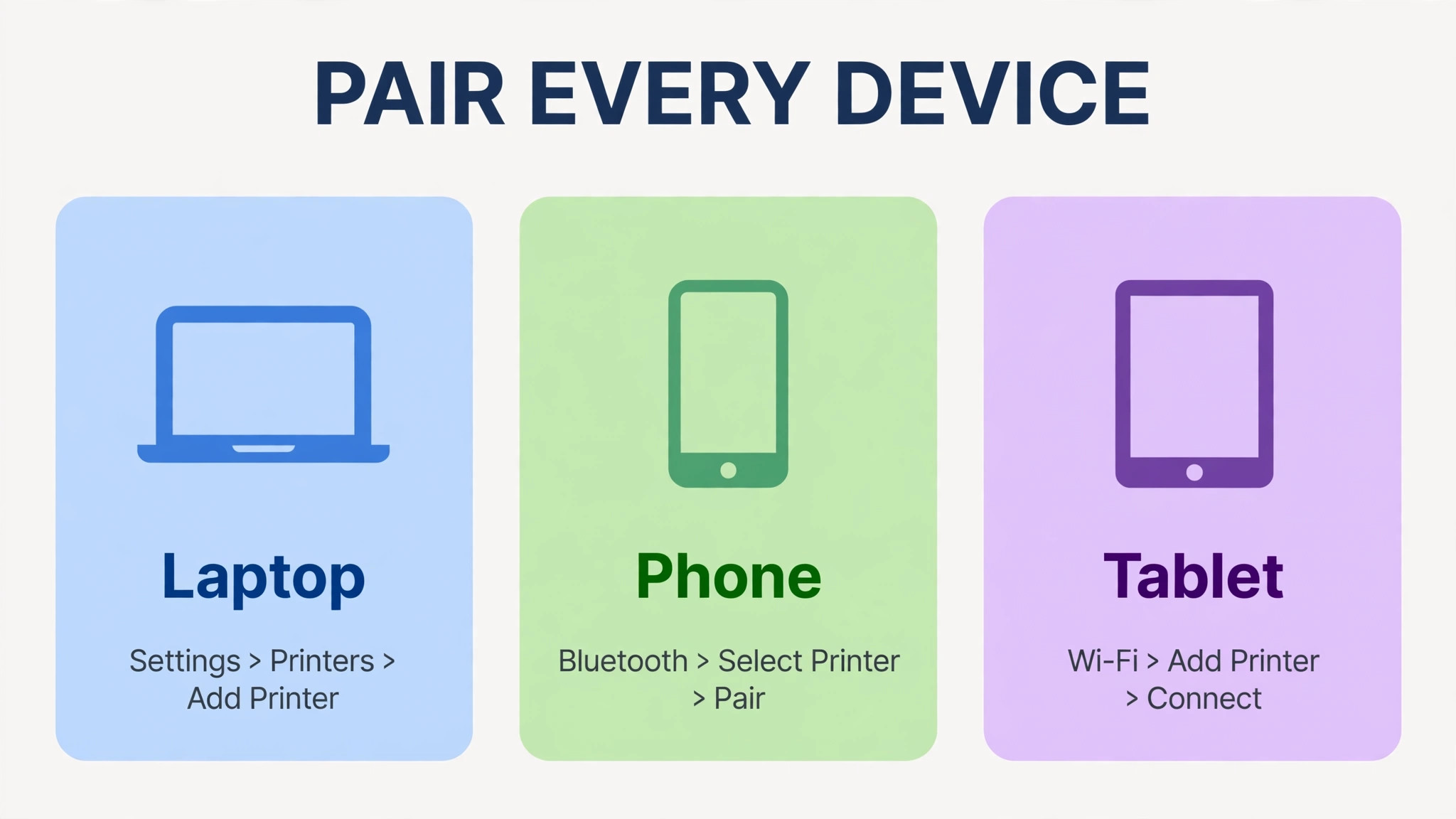
Pairing differs by device, and the table below gives the path for each device type, so you can pair methodically rather than searching menus on each device. The key rule across all rows is that printer and device must be on the same home Wi-Fi network, not a guest network, not mobile data, and not a neighbour network with a similar name, since same network membership is what lets devices discover each other.
| Device | How to add the printer | What to test |
|---|---|---|
| Windows laptop or desktop | Settings, Bluetooth and devices, Printers and scanners, Add device | Test page and a real document |
| Mac laptop or desktop | System Settings, Printers and Scanners, add from nearby list | Test page and a PDF |
| iPhone or iPad | Share menu, Print, choose AirPrint printer | Photo and a document |
| Android phone or tablet | Share menu, Print, choose printer or maker app | Photo and a document |
| Chromebook | Settings, Advanced, Printing, add printer | Test page |
| Second phone in household | Maker app add printer, or AirPrint or Android print service | Test page from that phone |
Default printer settings matter for a home office, since a printer set to the wrong default wastes paper and ink on every job. Set the home office printer as default on each computer if it is the only printer, set default paper size to your local standard, and set default quality to normal rather than best, since best quality uses far more ink for documents that do not need it. Save best quality for photos and final presentations, and use draft or normal quality for everyday documents, since that single default saves more ink over a year than any ink saving mode.
Double sided printing, where the printer supports it, should be the default for everyday documents in a home office, since it halves paper use without affecting readability for most documents. Set double sided as default in the printer preferences on each computer, and override it per job for single sided needs such as forms or letters, rather than the reverse, since a default that saves paper automatically beats a setting you must remember each time. If the printer lacks automatic double sided printing, manual double sided, meaning flipping the stack halfway, works for occasional jobs but is not worth the effort for every document.
Scanning, Copying and Everyday Printing
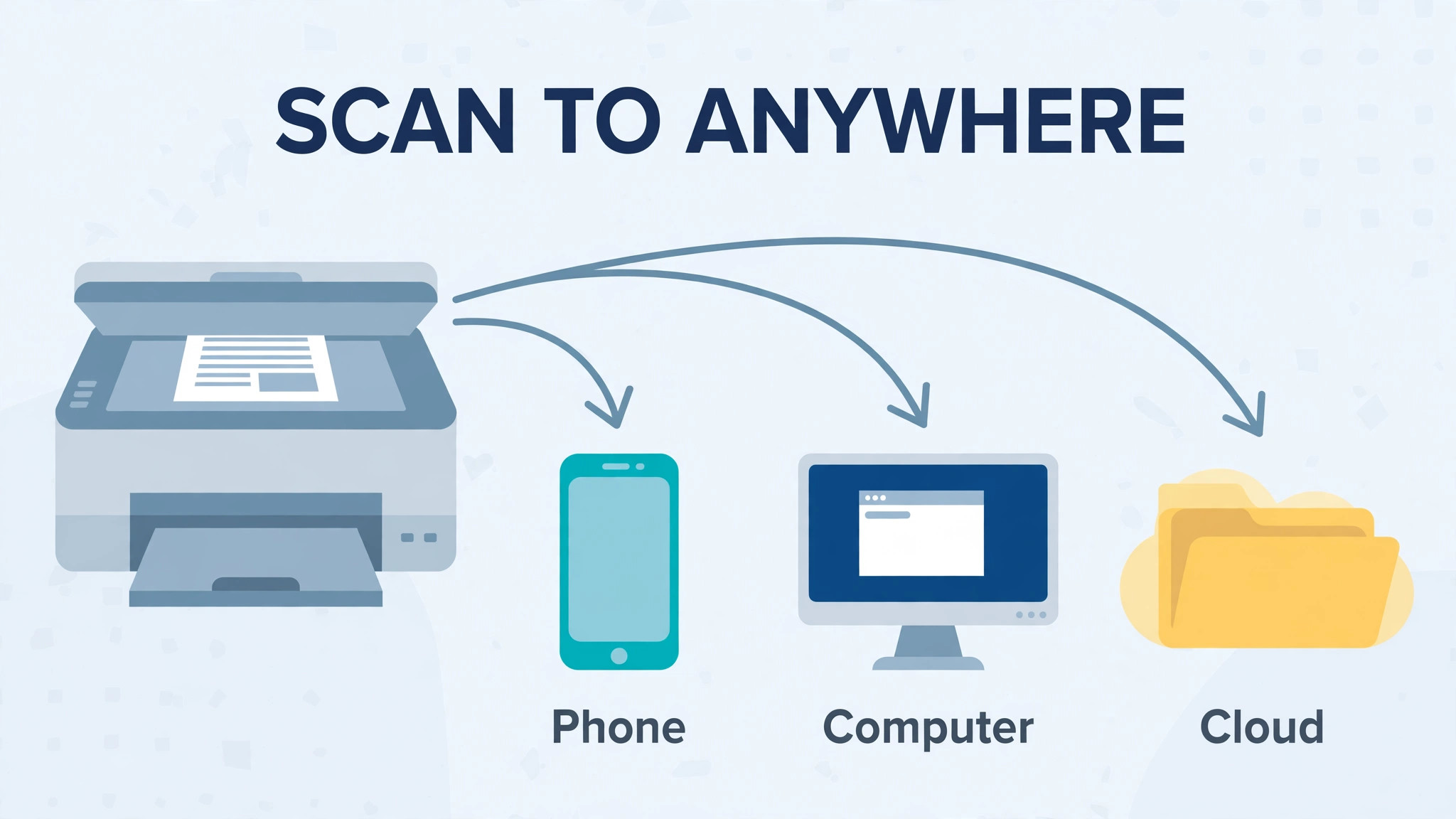
Scanning over Wi-Fi is the feature home office users discover late and then use constantly, once they learn it exists. Place a document face down on the scanner glass or face up in the document feeder where fitted, open the maker app or the computer scan software, choose scan, and save as PDF for documents or JPEG for photos, sending the file to the phone, computer, or cloud folder as needed. Test scanning to each destination you actually use, since scanning to a phone and scanning to a computer use different paths, and a path never tested will fail when a deadline document needs scanning urgently.
Copying without a computer works from the printer panel alone, by placing the document, choosing copy, setting copies and quality, and pressing start, which suits quick copies of forms and IDs. For ID copying, many printers offer an ID copy mode that copies both sides onto one page, which is useful for home office paperwork, though you should handle ID copies securely, storing them safely and deleting scans you no longer need, since identity documents deserve more care than ordinary paperwork. Check copy quality on a test copy before copying a large batch, since a copy setting left on draft from a previous job produces pale copies that need redoing.
Everyday printing habits save ink, paper, and frustration in a home office, and they are part of how you set up wireless printer for home office use for daily work, not just for the setup afternoon, since defaults and preview habits decide real costs over a year. Preview before printing, especially for web pages, since web pages print with banners and ads that waste pages, and use print preview to select only the pages needed. Print in batches where possible, since a printer that warms up for one page at a time wastes more energy and time than a printer that prints a batch once a day, though urgent documents obviously print immediately.
Keep spare paper and ink on hand, since a home office printer that runs out during an urgent job is a problem that a small stock prevents entirely, and note the ink or toner model number in your phone for reordering.
Problems and Fixes in Order
When the printer disappears from devices, work through fixes in order, starting with the printer itself. First, check the printer is powered, awake, and showing connected, since a printer in deep sleep or on a switched outlet looks offline to every device. Second, restart the printer and the router, router first, waiting two minutes between restarts, since a router restart clears network states that a printer restart alone does not. Third, print a network configuration page, checking IP address and signal strength, since a printer with a new IP address after a router restart may need re-adding on computers that cached the old address.
When the printer shows connected but jobs never print, check the print queue on the computer, since a stuck job blocks later jobs silently, and clearing the queue often restores printing immediately. Next, check that device and printer share the same network, since a phone that switched to a guest network or a neighbour network cannot see the home printer, even though both show Wi-Fi connected. Next, remove and re-add the printer on the affected device, since a stale pairing survives restarts and blocks new jobs, and a fresh pairing takes minutes and fixes a large share of such faults.
When print quality fails, with faded text, lines, or blank pages, check ink or toner levels first, then run the printer cleaning or alignment cycle from the menu or app, since clogged nozzles cause faded and lined output that looks like an ink fault. If cleaning does not help, check paper type and quality settings, since photo paper settings on plain paper produce odd results, and plain paper settings on photo paper waste ink. If one colour fails while others work, that colour cartridge or tank is the likely cause, and reseating or replacing it fixes the fault more reliably than repeated cleaning cycles, which waste ink.
When Wi-Fi setup fails repeatedly, try the printer panel method instead of the app method, or vice versa, since one method may succeed where the other stalls on a particular router. Check router settings for MAC filtering, client isolation, and guest network isolation, since each blocks printer discovery in different ways, and a printer on a guest network often cannot be seen by devices on the main network by design. As a last resort, connect the printer by USB temporarily to complete driver installation, then switch to Wi-Fi, since a USB connection proves the printer works and isolates the fault to Wi-Fi alone, which is useful evidence for support if needed.
When you set up wireless printer for home office use with fixes in mind, keep a note of the network name, the printer IP address from the configuration page, and the method that worked for setup. Network changes, such as a new router or a password change, will break the printer connection again, and a note that records the working method turns a frustrating re-setup into a ten minute repeat of a known process.

Printer security matters more in a home office than in a casual home, since printed documents may include contracts, financial forms, and identity documents. Set an administrator password on the printer web interface if offered, so network settings cannot be changed by anyone on the network without authorisation, and disable features you do not use, such as direct Wi-Fi printing from strangers or cloud printing from unknown accounts, since each enabled feature is a potential entry point. Keep printer firmware updated, since updates fix security faults as well as Wi-Fi faults, and a printer left on old firmware for years is a quiet network risk.
Shared household printing needs simple rules to avoid confusion and waste, and agreeing those rules early is part of how you set up wireless printer for home office use in a shared house, since a printer used by everyone without rules quickly becomes a source of friction. Agree who may print large jobs, such as school projects or photo batches, and when, since a large job started during a work video call can slow the network and distract the household. Collect printed documents promptly, especially sensitive ones, since a printer tray left full of documents is a privacy risk in a shared house, and a document left for days may be thrown away by someone tidying.
Use a separate paper tray or a marked output tray for work documents if the printer supports it, though a simple habit of collecting promptly usually suffices.
Guest printing, for visitors who need a quick print, is best handled through the maker app guest flow or AirPrint on the same network, with the guest device forgetting the printer afterwards, rather than sharing your main computer login. If guests print regularly, consider a guest network printer setup only if your router and printer support it securely, since guest network isolation that blocks printing defeats the purpose, and a shared main network printer with prompt collection is often simpler and safer for occasional guest use.
More Reading on Stratilyze
More Reading on Stratilyze. Home office setup continues beyond printing, so the guides on home Wi-Fi mesh networks for a small house and Wi-Fi extenders for a home office cover network strength that printers depend on, and the guide on printers not connecting to Wi-Fi covers deeper Wi-Fi faults. Read the mesh network guide first if the printer sits far from the router, since signal at the printer location affects every print job after setup.
Frequently Asked Questions
Why does my printer need 2.4 GHz Wi-Fi when my phone uses 5 GHz?
Because most printers include only a 2.4 GHz radio, which reaches farther through walls than 5 GHz, suiting a printer that may sit far from the router. Devices on different bands of the same router still communicate normally, since the router bridges bands internally, so a phone on 5 GHz prints to a printer on 2.4 GHz without issue. The problem arises only when bands have separate network names and you choose the wrong name, or when a guest network isolates devices from each other.
What should I do after changing my Wi-Fi password or router?
Run the printer Wi-Fi setup again, using the maker app or the printer panel wizard, entering the new password and selecting the new network name, then re-add the printer on devices that no longer see it and print a test page from each. A router change often changes the printer IP address as well, so a network configuration page after reconnection gives the new baseline. Keep a note of the new network details and the setup method that worked, since the next change will need the same steps.
Can I print from my phone without the maker app?
Yes, on iPhones and iPads through AirPrint, which lists compatible printers on the same network in the share menu print option without an app, and on many Android phones through the built in print service, though the maker app adds scanning, ink levels, and troubleshooting that built in printing lacks. Test built in printing once, and install the maker app as well for scanning and maintenance, since the two methods complement each other rather than competing.
Why does my printer show offline even though it is switched on?
Common causes include deep sleep, a switched outlet losing power, a router restart changing the printer IP address, and a device on a different network, such as a guest network. Wake the printer, restart router then printer, print a network configuration page to confirm connection and IP address, and re-add the printer on the affected device if the old pairing cached the old address. A printer that shows connected on its own display but offline on a computer usually has a pairing or network membership fault, not a power fault.
How do I scan a document to my phone over Wi-Fi?
Open the maker app, choose scan, place the document on the scanner glass or in the feeder, preview the scan, and save as PDF for documents or JPEG for photos, choosing phone storage or a cloud folder as destination. Test scanning to the phone once during setup, since scanning uses a different path from printing and a path never tested may fail when an urgent document needs scanning. Keep the scanner glass clean, since dust on the glass appears as lines on every scan.
Should I leave my wireless printer on all the time?
Yes, in general, since modern printers use little power in sleep mode, stay connected to Wi-Fi for updates and maintenance, and wake quickly for printing, while switching off daily can cause missed maintenance cycles and network reconnection delays. Leave the printer on a wall outlet that stays powered, let it sleep between jobs, and switch it off only for long absences, thunderstorms, or maintenance, since a printer that sleeps is ready, while a printer that is off needs a full startup before every job.
Print Without the Panic
A home office printer earns its place when it simply works, printing the document you need, from the device in your hand, without a settings hunt or a cable search. That reliability comes from placement in good Wi-Fi range, a careful first pairing on every device, a test page from each device, and a short note of network details for the next router change. None of those steps is dramatic, and together they prevent the dramatic failures that make printers infamous.
Run the checklist once, test every device, and keep the configuration page with your home office notes. The next time a document needs printing urgently, the printer will be ready, because you set it up for that moment, not just for the setup afternoon. To set up wireless printer for home office use and keep it reliable, the rule is simple. Place it well, pair every device, test every path, and note the details, so printing stays a background task rather than a recurring emergency.
