Adult beginners quit digital drawing for a reason that has nothing to do with talent. Paper forgives nothing, so a bad line stays visible, while an iPad hides the evidence and that safety changes how bold a beginner dares to be. The trap is opening a professional app first, where a hundred brushes and a wall of menus turn that safety into confusion. Start with one brush, one canvas and one simple subject instead, and the same device that felt overwhelming starts teaching you. This guide shows how to use iPad for drawing beginners in that confidence building order, from stylus setup to a finished first sketch.
Drawing on an iPad differs from drawing on paper in three useful ways. First, layers separate sketch, line work, and colour, so each stage can be fixed without touching the others. Second, undo removes the fear of a wrong line, which frees beginners to try bolder strokes than paper allows. Third, the canvas never runs out, never needs sharpening, and travels everywhere the iPad travels, which makes short daily practice realistic in a way that a sketchbook at home sometimes is not. Paper skills still matter, and many digital artists sketch on paper too, but the iPad removes the practical barriers that stop most beginners before they start.
iPad, Stylus and Accessories That Actually Matter
Start with compatibility, since the most common beginner purchase mistake is a stylus that does not work with the iPad owned. Apple Pencil models pair with specific iPad generations, and the pairing is not interchangeable across all models, so check the Apple compatibility list for your exact iPad model before buying. The Apple Pencil Pro suits newer iPad Pro and Air models, the second generation Pencil suits a wide range of older Pro and Air models, and the USB-C Pencil suits the standard iPad and newer models at a lower price, with fewer features such as pressure sensitivity differences and no wireless charging on some models.
If you already own a stylus, confirm it pairs and draws in a test app before buying another, since a working stylus beats a new stylus that needs returning.
Screen protection and grip divide opinion, and beginners should test cheaply before committing. A matte screen protector adds paper like friction that many drawers prefer, since a bare glass screen feels slippery under a stylus, though it slightly softens the display and wears stylus tips faster. A drawing glove, meaning a two finger glove that covers the pinky and ring fingers, prevents palm friction and accidental touch marks, and it costs little, making it a sensible early purchase for anyone who rests their hand on the screen while drawing.
A case that holds the stylus, a stand that angles the iPad like a drawing board, and spare stylus tips round out the useful accessories, while expensive brush packs and texture screens can wait until basic drawing feels comfortable.
Storage and battery need a brief check before drawing becomes a habit. Drawing apps, especially those that record time lapse videos of every drawing, use storage quickly, so check free space in iPad settings and keep at least a few gigabytes free, offloading finished work to cloud storage or a computer regularly. Charge the stylus as needed, noting that some Pencils charge by attaching magnetically to the iPad, while the USB-C Pencil charges by cable, and a stylus that dies mid drawing is a needless interruption that a charging habit prevents.
Keep the iPad charged too, since a long drawing session on low battery ends with a shutdown warning at the worst moment, and a charger nearby during practice sessions removes that worry entirely.
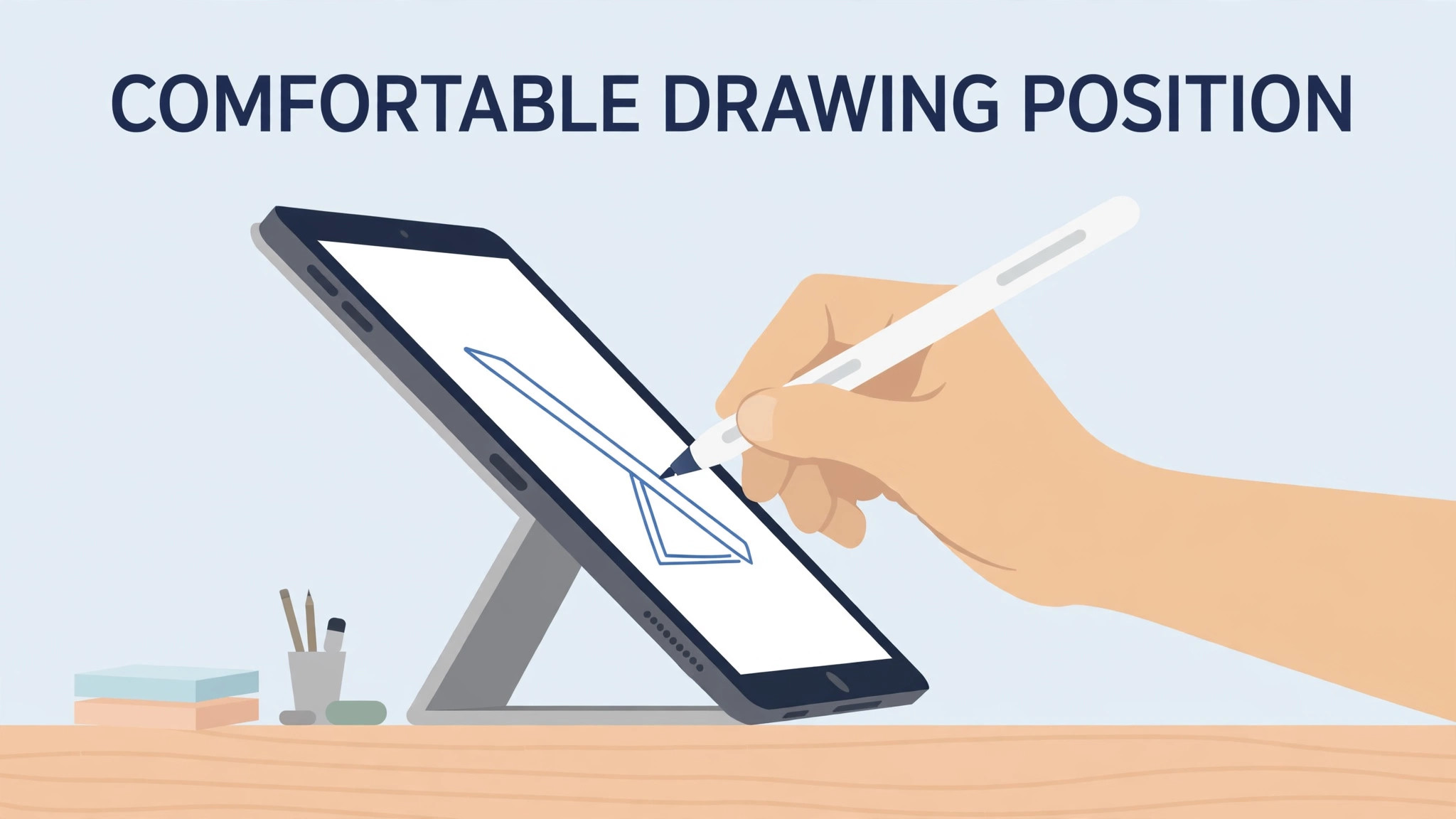
Choose a drawing spot that suits sustained practice, not just a first test. A table at comfortable height, with the iPad angled slightly, good lighting from the side rather than from behind the screen, and a chair that supports upright posture, makes hour long sessions possible, while drawing hunched on a sofa makes short sessions tiring and long sessions painful.
If you draw in bed or on a sofa often, a lap desk or cushion stand that angles the iPad helps posture noticeably, and a regular spot, even a corner of a table left set up, lowers the barrier to daily practice, since a setup that takes ten minutes to assemble gets used far less than a setup that is ready in ten seconds.
How to use iPad for drawing beginners
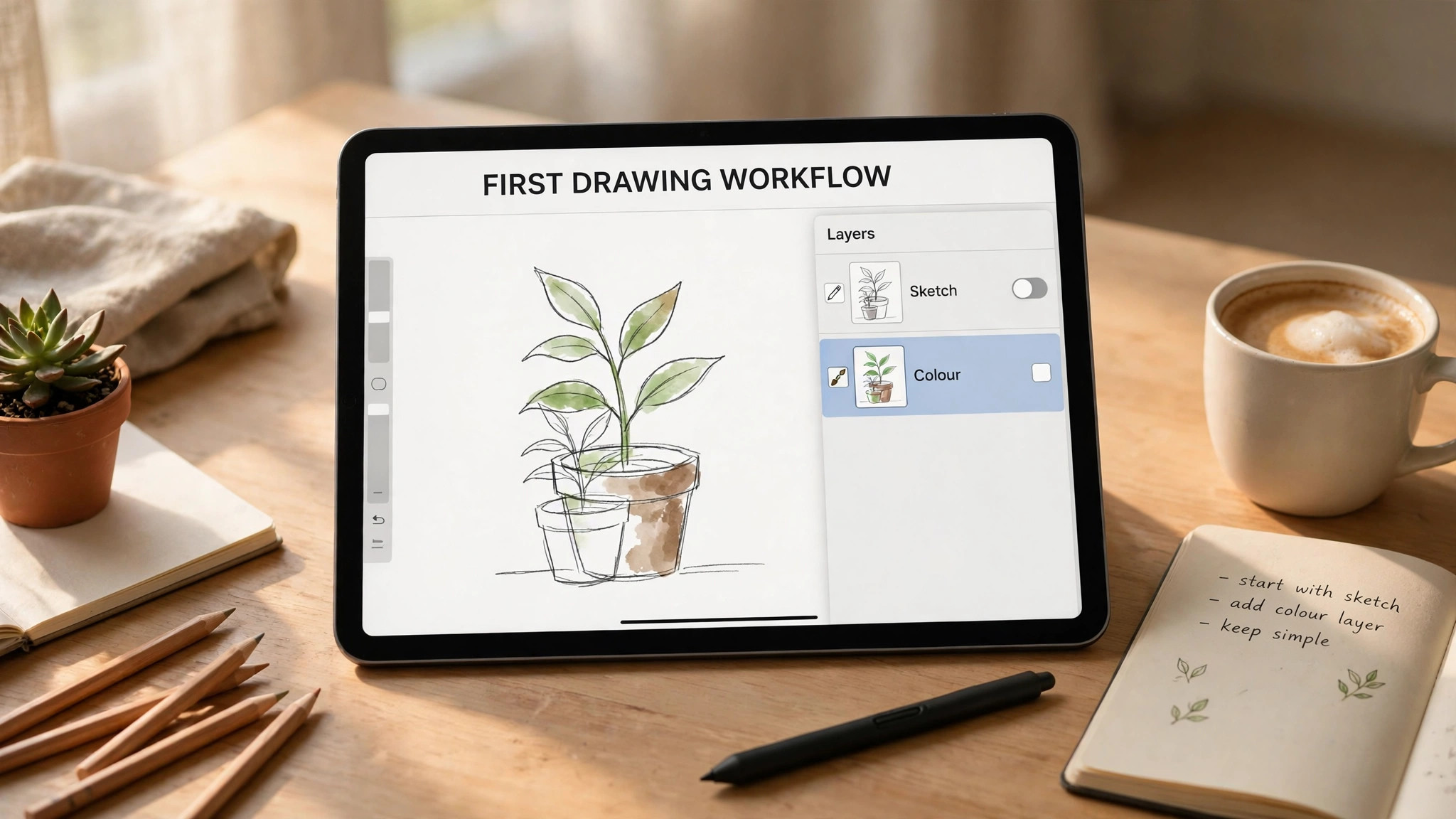
The first drawing workflow below is deliberately small, using one app, one brush, and one subject, so the mechanics of drawing become familiar before style or complexity enters. Work through it slowly, save the result even if you dislike it, and repeat it with a new subject tomorrow, since repetition of a simple workflow builds skill faster than a single ambitious drawing. To use iPad for drawing beginners well, the first workflow should feel easy enough to repeat, because a workflow repeated daily beats a workflow admired once and never used again.
- Pair and test the stylus. Attach or connect the stylus as its model requires, open a notes or drawing app, and draw lines of varying pressure, confirming that harder pressure makes thicker or darker lines and lighter pressure makes thinner lines. If pressure does not vary, check stylus pairing, app brush settings, and iPad compatibility, since a stylus that draws but ignores pressure is often unpaired or set to a brush without pressure sensitivity.
- Set palm rejection and touch settings. In the drawing app settings, confirm palm rejection is on, so your resting hand does not draw stray marks, and confirm touch gestures, such as two finger tap for undo, are enabled, since those gestures speed up drawing enormously once learned. Test palm rejection by resting your hand on the screen and drawing with the stylus, confirming only stylus marks appear, and adjust glove use if palm marks persist despite settings.
- Create a canvas at a sensible size. For a first drawing, choose a canvas around 2000 by 2000 pixels or a standard screen size at 300 dots per inch equivalent where the app offers it, since a very large canvas slows older iPads and a very small canvas limits detail and printing. Name the canvas by subject and date, so a growing gallery stays searchable, and save it before drawing, since a named, saved canvas survives an app crash better than an untitled, unsaved one.
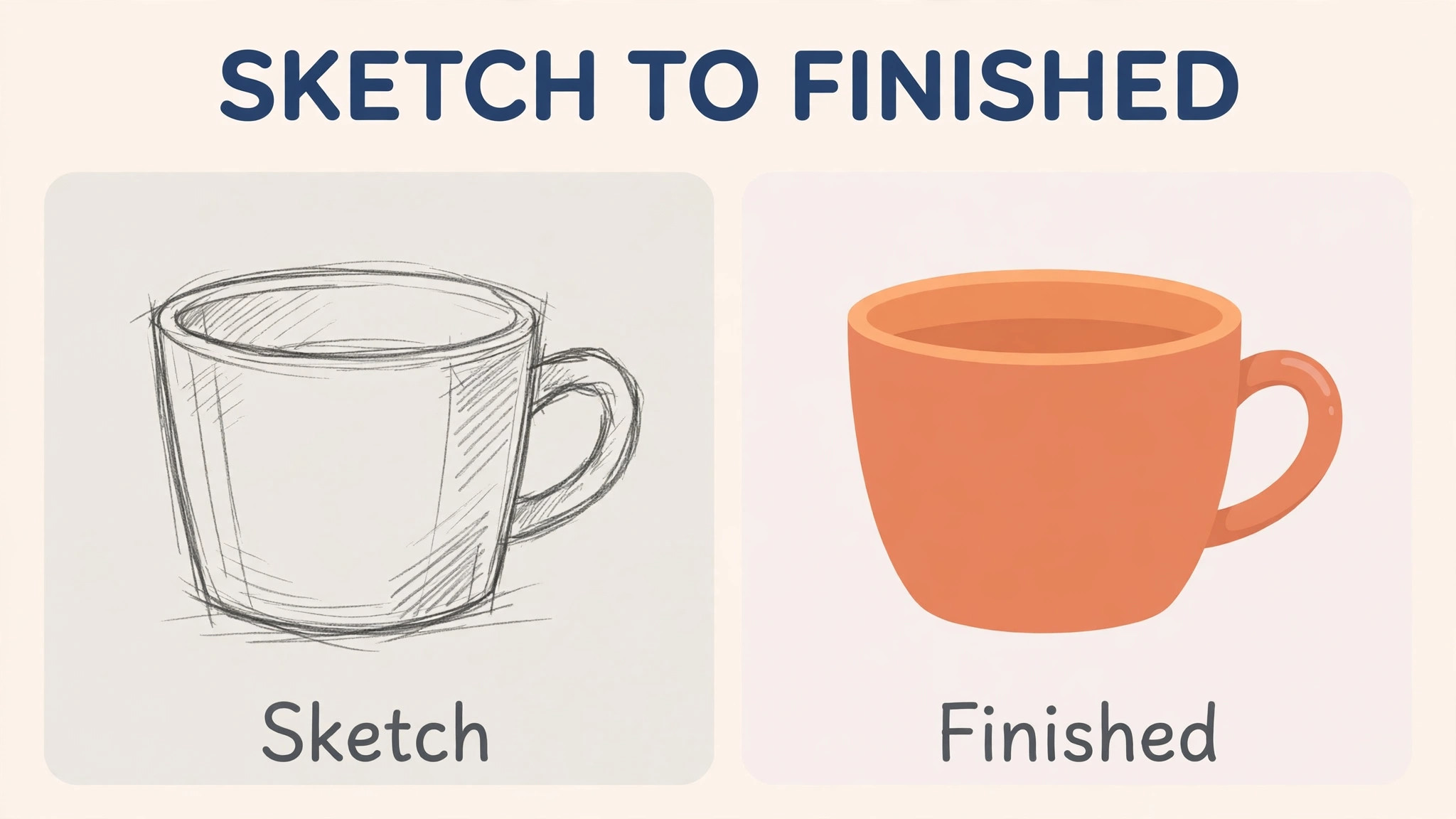
- Sketch loosely on a first layer. Choose a simple pencil or sketch brush, lower its opacity if the app allows, and sketch the subject loosely, focusing on shapes and proportions rather than clean lines, since a loose sketch is a plan, not a final drawing. Use light, quick strokes, undo freely, and flip the canvas horizontally occasionally, since flipping reveals proportion errors that the eye misses in a familiar orientation, a trick paper artists use with mirrors and digital artists use with one tap.
- Add clean line work on a new layer. Create a new layer above the sketch, choose a clean ink or pen brush, and trace the best lines of the sketch, hiding the sketch layer afterwards to check the line work alone. Line work on its own layer means a wobbly line can be erased without harming the sketch, and a line that needs redoing costs only that line, not the whole drawing, which is the layer advantage in action.
- Add flat colour on a layer below the line work. Create a new layer below the line layer, fill large shapes with flat colour, and keep colours simple for a first drawing, using three to five colours rather than a full palette, since limited colour forces better colour choices and keeps the drawing coherent. Use the fill tool carefully, closing gaps in line work first, since a fill that leaks through a gap floods the canvas and needs undoing, a classic beginner lesson learned once and remembered.
- Add shading and highlights on separate layers. Create a clipping layer above the flat colour layer, meaning a layer that only paints where colour already exists, and add simple shading on one side of shapes and highlights on the opposite side, using a soft brush at low opacity. Keep shading subtle for a first drawing, since heavy shading hides line work and flattens forms, while light shading adds depth without overwhelming the drawing. Step back by zooming out frequently, since shading judged only at high zoom often looks uneven at full view.
- Export and review the drawing. Export a copy as a PNG or JPEG for sharing or printing, keep the original layered file for future edits, and review the drawing at full size and at thumbnail size, since a drawing that reads well small usually has strong shapes, while a drawing that only works zoomed in may need bolder lines or simpler colour. Save the layered file with a clear name, and note what worked and what to improve next time, since a short note turns each drawing into a lesson for the next one.
Once this workflow feels familiar, usually after three to five simple drawings, you can add complexity one element at a time, such as a new brush, a texture layer, or a more detailed subject, without relearning the workflow itself. A workflow that grows gradually keeps drawing enjoyable, while a workflow that adds everything at once overwhelms and stalls progress. To use iPad for drawing beginners in full, this repeatable workflow is the core skill, and every later technique, from perspective to colour theory, attaches to it rather than replacing it.
App Comparison Table
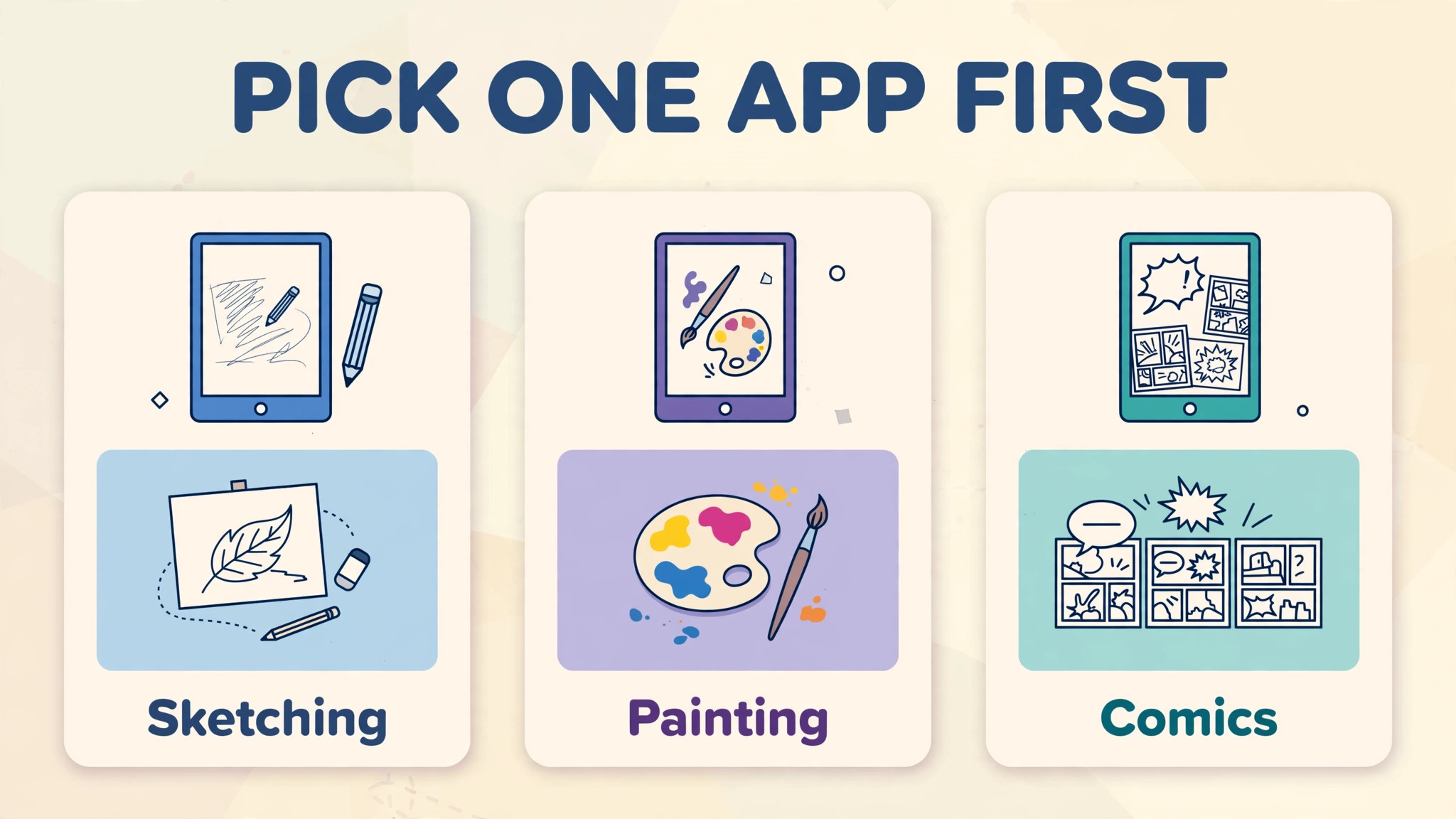
App choice confuses beginners because every app claims to suit everyone, while in practice each app suits a different kind of drawing. The table below is the overview proof element for this guide, paired with the stylus settings checklist in the next section, and it compares the apps most beginners actually start with, so you can pick one and start, rather than collecting apps and starting none.
| App | Best for | Cost model | Beginner friendliness |
|---|---|---|---|
| Procreate | Illustration, painting, sketching, animation | One time purchase, no subscription | High, clean interface, huge brush library |
| Adobe Fresco | Natural painting, oils and watercolours | Free starter, subscription for full features | High, familiar Adobe tools, live brushes |
| Autodesk SketchBook | Sketching, concept art, clean workspace | Free with many features | Very high, minimal interface, easy to learn |
| Clip Studio Paint | Comics, manga, illustration with panels | Subscription, with trial | Medium, powerful but busier interface |
| Adobe Illustrator on iPad | Vector logos, icons, scalable design | Subscription through Creative Cloud | Medium, vector thinking differs from painting |
| Notes app, built in | Quick sketches, testing a stylus | Free, already installed | Very high, but limited brushes and layers |
Procreate suits most beginners who want illustration and painting, because it offers a clean interface, hundreds of brushes, powerful layers, and a one time purchase with no subscription, plus time lapse recording of every drawing that many artists love for sharing progress. Its learning curve is gentle for basic drawing, though its full feature set is deep, and beginners should learn basic brushes, layers, and export first, leaving advanced features such as animation and 3D painting for later, when basic drawing feels solid.
Adobe Fresco suits painters who love natural media, since its live brushes mimic watercolour spreading and oil blending in ways that feel closer to real paint than most digital brushes, and it integrates with other Adobe apps for users already in that ecosystem. SketchBook suits sketchers who want the simplest possible start, with a clean workspace, a small learning curve, and strong free features, making it ideal for a first month of practice before committing to a paid app. Clip Studio Paint suits comic and manga artists specifically, with panel tools, perspective rulers, and screentones that other apps lack, though its interface feels busier to a general beginner.
Start with one app, and commit to it for at least ten drawings before trying another, since switching apps every drawing resets the learning curve and prevents any app from feeling familiar. A beginner who draws ten simple subjects in one app learns that app deeply enough to judge it fairly, while a beginner who tries five apps once each learns only first impressions. After ten drawings, if the app still fights you on a specific need, such as comics or vector work, then a switch is informed, not impulsive, and your drawing skills transfer even when the interface changes.
Stylus Settings Checklist
Stylus settings live in two places, which confuses beginners until the split is clear. iPad system settings control stylus pairing, double tap behaviour where supported, and scribble handwriting features, while drawing app settings control pressure curves, brush behaviour, palm rejection, and gestures. The checklist below covers both, in the order to check, and it pairs with the app table above as the setup proof for this guide.
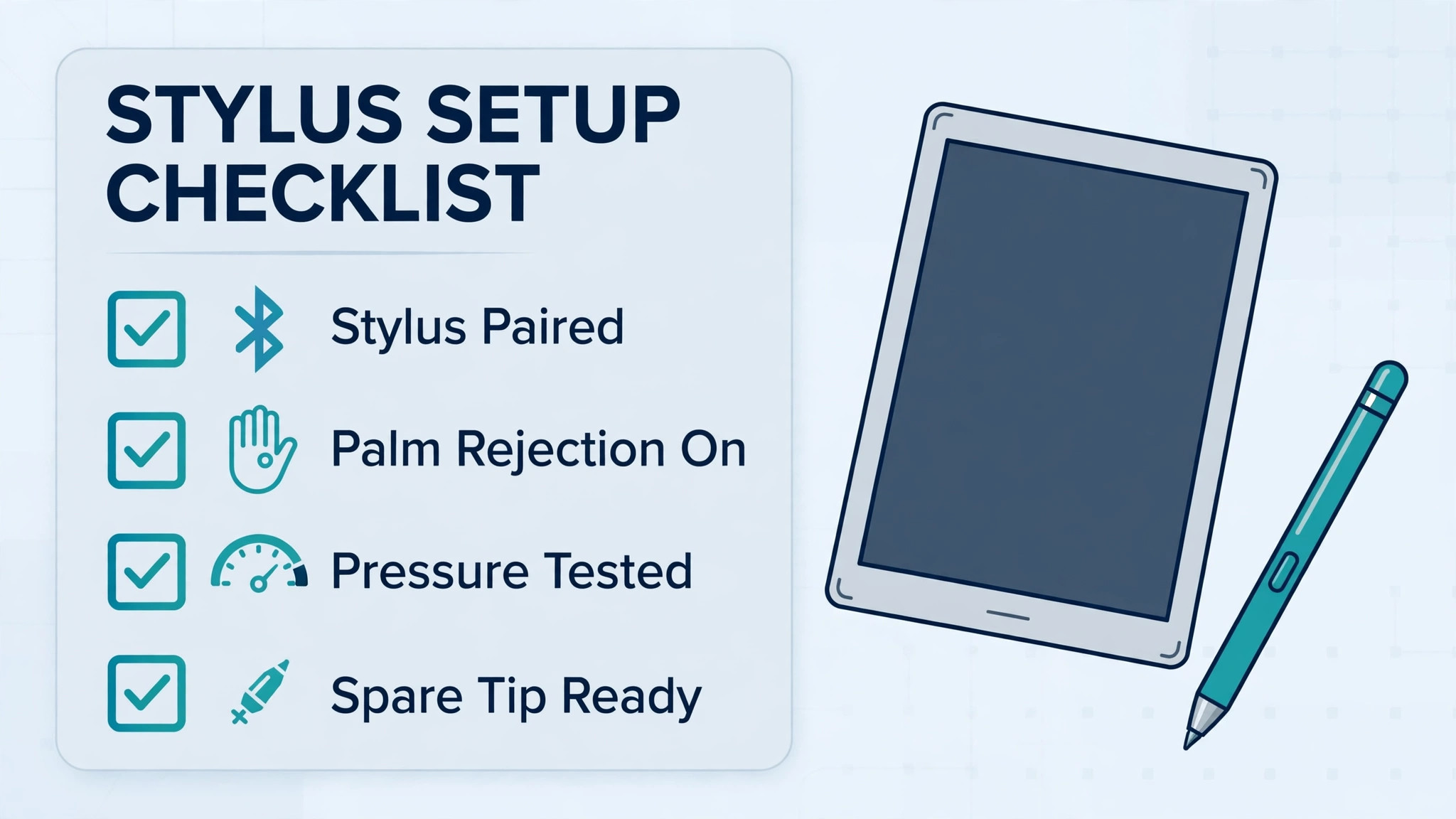
- Stylus paired to the correct iPad model, with pressure variation tested in a sketch app before opening a drawing app.
- Palm rejection on in the drawing app, tested by resting the hand on screen while drawing with the stylus only.
- Pressure curve left at default for week one, adjusted only if lines feel too sensitive or too stiff after several drawings.
- Double tap on the stylus, where supported, set to a useful action such as switch to eraser or show colour picker, and tested.
- Touch gestures learned, including two finger tap for undo, three finger swipe for redo where offered, and pinch for zoom and rotate.
- Brush size and opacity controls located, whether by slider, stylus pressure, or gesture, and practised on a test canvas.
- Canvas gestures checked, including rotate, flip horizontally, and zoom, since flipping reveals proportion errors early.
- Stylus tip checked for wear, with a spare tip available, since a worn tip scratches protectors and draws unevenly.
- Battery or charge state checked for the stylus model, with a charging habit in place for magnetic or cable charging.
Pressure sensitivity deserves a paragraph, because beginners often blame the stylus for lines that feel wrong, when the brush settings are the real cause. A brush with pressure controlling size produces thin to thick lines with pressing harder, a brush with pressure controlling opacity produces light to dark lines, and a brush with no pressure control produces uniform lines regardless of pressure, which feels dead to a beginner expecting variation. Test pressure with a brush known to use it, such as a basic ink or pencil brush, before concluding the stylus is faulty, since a brush choice that ignores pressure mimics a broken stylus perfectly.
Gesture learning repays the small effort quickly. Two finger tap to undo, pinch to zoom, and two finger rotate to turn the canvas are the three gestures most drawers use constantly, and learning them in week one removes the need to hunt through menus for every correction. Practise gestures on a test canvas, not on a real drawing, since a gesture learned under pressure, such as undoing a mistake mid drawing, is a gesture learned with stress attached, while a gesture practised calmly becomes automatic and stress free when needed.
Subjects, Practice and Learning in Order
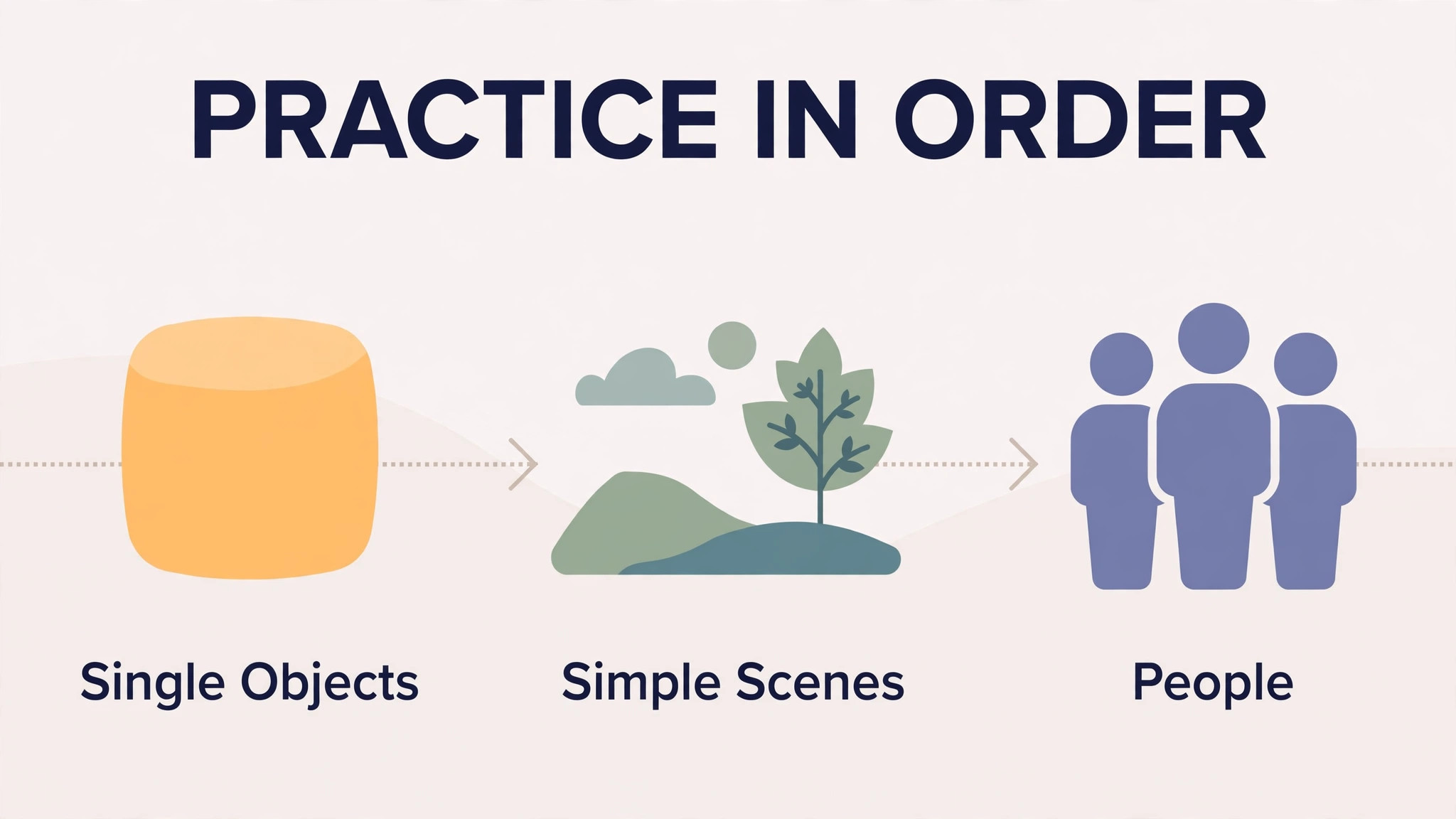
Subject choice shapes beginner progress more than talent, since a subject that is too complex discourages, while a subject that is too simple bores. Start with single objects, such as a cup, a fruit, a leaf, or a shoe, drawn from life or from a clear photo, since single objects teach shape, proportion, and shading without composition complexity. Move to simple scenes, such as a table setting or a street corner, only after several single objects feel comfortable, and move to people and animals after scenes, since living subjects move, change expression, and demand more observation skill than still objects.
Practice structure beats practice volume for beginners, meaning thirty focused minutes daily beats three unfocused hours weekly, because daily practice builds muscle memory and observation habits that weekly practice forgets between sessions. A simple daily structure works well, meaning five minutes of warm up lines and shapes, twenty minutes on the main subject, and five minutes of review, noting one thing that worked and one thing to improve. That structure fits a busy day, produces visible progress within weeks, and avoids the burnout of marathon sessions that feel productive but teach little.
Reference use is a skill, not cheating, and beginners should use references freely, with credit where sharing work based on another photo. Draw from photos for accuracy, from life for observation, and from imagination only after both feel comfortable, since imagination drawing without reference experience usually produces generic shapes rather than observed forms. Keep a reference folder of photos you love, organised by subject, so practice never stalls for lack of a subject, and revisit old references after a month, redrawing the same subject to measure progress visibly, which motivates more than any tutorial.
Learning resources should follow practice, not replace it, meaning a short tutorial watched before a drawing session helps, while hours of tutorials watched without drawing do not. Choose one structured course or book for fundamentals, such as shape, proportion, value, and colour, and work through it in order, rather than collecting random tips that contradict each other. Fundamentals transfer across apps and styles, while app tricks do not, so a beginner who learns value and proportion in Procreate can draw in any app, while a beginner who learns only Procreate tricks struggles when the app changes.
Layers, Colour and Common Beginner Mistakes
Layers are the most powerful beginner concept, and the most misunderstood, because beginners either use one layer for everything, losing the ability to fix stages separately, or use fifty layers with confusing names, losing track of what sits where. A sensible layer structure for a beginner drawing uses five to eight layers, meaning sketch, line work, flat colour, shading, highlights, and background, each named clearly, with sketch hidden at the end. Name layers as you create them, since a layer named Line Work is findable, while a layer named Layer 12 is a mystery a week later, and merge layers only when a stage is truly finished, since merging too early removes the safety that layers provide.
That naming habit matters when you use iPad for drawing beginners.
Colour mistakes follow a pattern for beginners, usually too many colours, too saturated colours, or shading with black, which muddies colour and flattens forms. Limit the palette to three to five main colours for a first drawing, choose muted versions of bright colours for large areas, reserving saturated colour for small accents, and shade by adding a darker, cooler version of the base colour rather than black, since black shading looks dirty on most subjects. Test colour at full view and at thumbnail size, since a palette that looks rich zoomed in can look chaotic small, and a palette that reads clearly small usually works large as well.
Common mistakes beyond layers and colour include drawing too small on the canvas, leaving vast empty margins that waste detail space, and drawing with the canvas zoomed in so far that proportions drift unseen. Counter both by starting with a full canvas composition sketch, zooming out frequently, and flipping the canvas horizontally to check proportions, since those three habits catch most beginner errors before they become finished drawings. Another common mistake is over blending, where shading is smoothed until forms lose structure, so keep some hard edges in shading, especially where light meets shadow, since hard edges define form while soft edges suggest roundness, and both are needed in a convincing drawing.
When you use iPad for drawing beginners with mistakes in mind, remember that every mistake is a lesson with a visible fix, which is the advantage of digital drawing over paper. A wrong colour repaints in seconds, a wrong line erases without a mark, and a wrong proportion flips into view with one gesture, so beginners should experiment boldly, save versions often, and treat each drawing as a step, not as a verdict on talent. Talent in drawing is mostly observed practice, and the iPad makes practice cheaper, faster, and more forgiving than any medium before it.
Sharing work early, with a small trusted group, improves progress faster than sharing only finished work publicly, since trusted feedback catches proportion and colour issues the artist misses, while public feedback on early work can discourage. Share work in progress with a friend, a class, or an online beginner community that welcomes learners, asking for one specific critique, such as proportion or colour, rather than a general opinion, since specific questions produce useful answers while general questions produce polite praise. Keep a private gallery of all work, including early work you dislike, since a dated gallery shows progress over months in a way that memory cannot, and progress visible in a gallery motivates continued practice more than any single compliment.
That gallery habit rewards anyone who can use iPad for drawing beginners daily.
Printing digital drawings deserves a note, since colours on screen differ from colours on paper, and a drawing that looks vibrant on an iPad may print duller or darker. Export at high resolution, check the print preview, and test print a small copy before printing large, since a test print reveals colour shifts cheaply. For work meant for print, choose a canvas size and resolution that suits the intended print size from the start, rather than enlarging a small canvas later, since enlargement softens lines and reveals pixelation that a correctly sized canvas avoids.
Backup habits protect months of work from a single device loss, so enable cloud backup for the drawing app where offered, export finished layered files to cloud storage regularly, and keep a second copy of favourite work on a computer or external drive. A drawing app that stores work only on the device loses everything if the device is lost or reset, while a habit of weekly export protects the gallery with minutes of effort. Treat backup as part of the drawing routine, like cleaning brushes in traditional media, since a routine backup is boring until the day it saves a year of work.
More Reading on Stratilyze
More Reading on Stratilyze. Tablet creativity continues beyond drawing, so the guides on iPad for digital note taking for students and iPad for photo editing for beginners cover related iPad skills, and the guide on best tablets for digital art beginners compares hardware for artists. Read the photo editing guide first if you also edit photos, since layers and colour skills transfer directly between drawing and editing.
Frequently Asked Questions
Do I need an Apple Pencil to draw on an iPad?
It helps greatly, since an Apple Pencil offers pressure sensitivity, tilt, and palm rejection that finger drawing lacks, though finger drawing works for simple sketches and testing an app. Third party styluses vary, with some offering pressure and some acting as simple capacitive tips, so check compatibility and pressure support for your iPad model before buying. For serious practice, a compatible Apple Pencil is the single purchase that most improves the experience.
Which drawing app should a beginner start with?
Start with one app that matches your goal, meaning Procreate for general illustration and painting, SketchBook for the simplest sketching start, Fresco for natural painting, or Clip Studio Paint for comics. Commit to that app for at least ten drawings before judging it, since switching apps constantly resets learning. A beginner who learns one app deeply draws better than a beginner who samples many apps shallowly, and drawing skills transfer when you later switch.
Why do my lines look shaky compared with other artists?
Shaky lines usually come from slow, careful drawing, zoom level, or lack of stabilisation, not from talent. Draw faster, more confident strokes, use the app line stabilisation or streamline setting if offered, and practise long lines and curves as warm ups, since confident strokes look smoother than hesitant strokes even when less accurate. Zoom out to draw long lines, since drawing a long line while zoomed in forces many small segments that join shakily.
How do I stop my palm from drawing stray marks?
Enable palm rejection in the drawing app settings, use a two finger drawing glove, and rest your hand naturally rather than hovering, since hovering causes fatigue and accidental touches. Test palm rejection by resting your hand and drawing with the stylus, and if marks persist, check that the app, not just the system, has palm rejection on, since system settings alone do not guarantee app behaviour. A glove plus app palm rejection together solve almost all stray mark problems.
Can I learn to draw from scratch on an iPad as an adult?
Yes, adults learn drawing well on iPad, because undo, layers, and references lower the fear of mistakes that stops many adult beginners, and daily short practice builds observation and motor skills at any age. Start with single objects, practise thirty focused minutes daily, use references freely, and measure progress by redrawing old subjects monthly, since visible progress motivates continued practice. Talent in drawing is mostly structured practice, and the iPad makes that practice accessible and forgiving.
Export finished work as PNG for sharing online, since PNG preserves quality, or JPEG for smaller files, and keep the original layered file for future edits. For printing, export at high resolution, test print small first to check colours, and choose canvas size for the intended print size from the start. Share work in progress with a trusted group for specific feedback, and share finished work publicly when you feel ready, since early sharing with trusted critics improves faster than waiting for perfection.
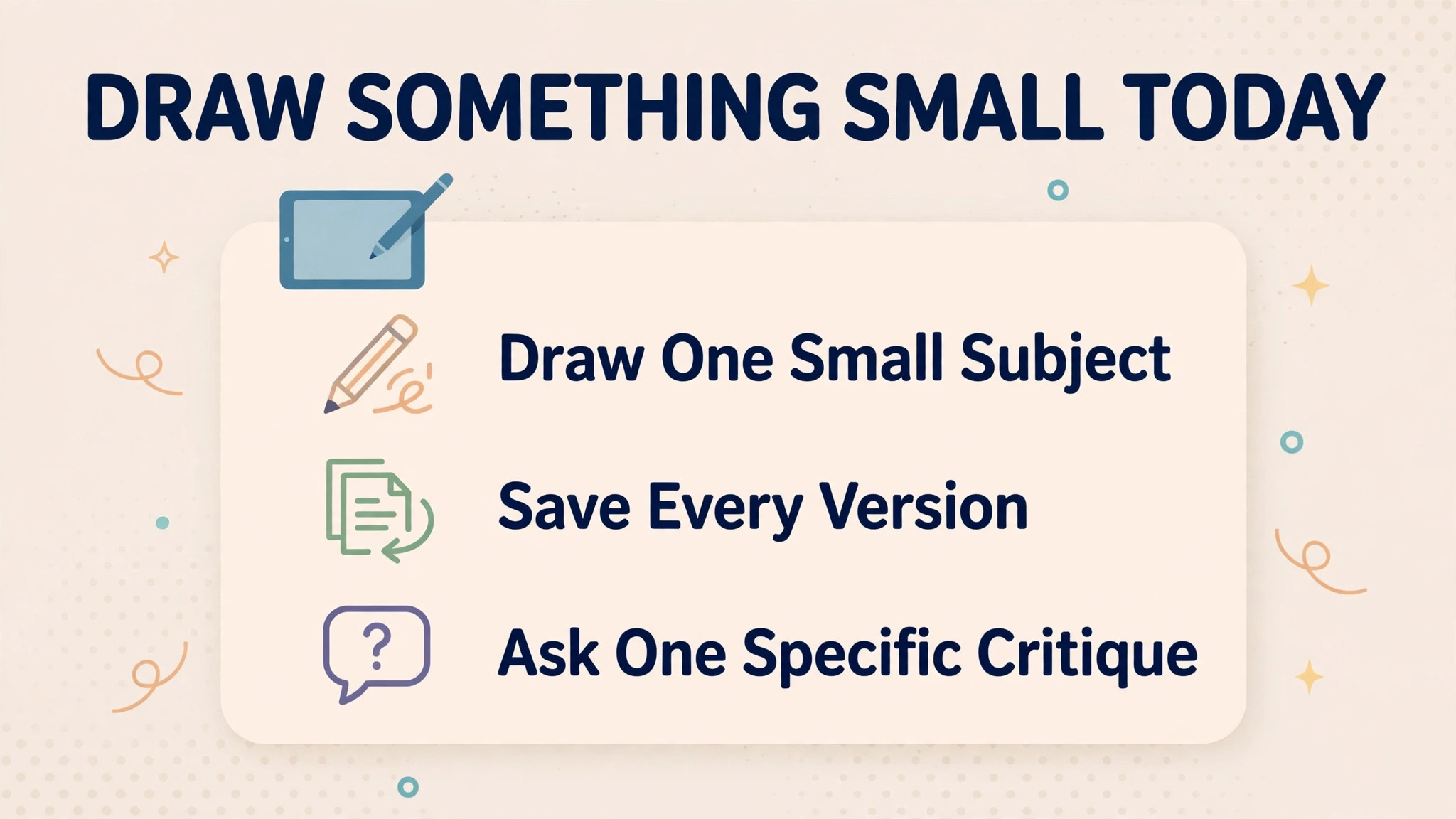
Draw Something Small Today
The best first drawing is the one you actually finish today, not the ambitious drawing you plan for someday. Pick a cup, a fruit, or a shoe, open one app, sketch loosely, ink cleanly, colour simply, and export the result, even if you dislike parts of it. That finished drawing, with all its flaws, teaches more than a perfect drawing imagined and never started, and tomorrow drawing becomes easier because today drawing happened.
Keep the workflow from this guide, practise a little daily, and revisit old subjects monthly to watch progress accumulate. Layers, undo, and references are your allies, not crutches, and a beginner who uses them boldly learns faster than a beginner who avoids them from pride. To use iPad for drawing beginners and keep growing, the rule is simple. Draw one small subject daily, save every version, ask for one specific critique, and let the gallery of small finished drawings become the proof that you can draw, one day at a time.