
A printer that worked yesterday and refuses to join Wi-Fi today feels like a printer problem, while a printer that has never joined a new router feels like a setup problem. Those two cases need different fixes, and the brand on the front of the machine decides which menu, button combination and app you should use first. That is why a single generic reset list often fails. To fix printer not connecting to Wi-Fi, you need to match the fix to the family, then check the router settings that affect every brand in the same way.
This guide does that work in order. It starts with a ten minute sequence that solves the most common cases, then gives a brand family table and reset steps for HP, Brother, Canon and Epson, then covers router, computer and phone causes that survive a printer reset. It also explains when a USB cable or Wi-Fi Direct connection is a sensible workaround, when a weak signal or an old printer is the real cause, and which mistakes turn a five minute fix into an afternoon of repeated resets. Model menus vary, so check your model manual if a menu name below differs by one word on your screen.
How to Fix Printer Not Connecting to Wi-Fi in the First Ten Minutes
Start with power and position, not with a factory reset. Turn the printer off, unplug it for 60 seconds, and do the same for the router if you can do so without cutting off someone else in the middle of important work. Plug the router back in first, wait until its internet light is steady and a phone can load a page, then plug the printer back in and wait for it to finish warming up. This order matters because a printer that boots before the router is ready can store a failed connection attempt and then sit in that failed state.

Next, move the printer closer to the router for testing, even if you plan to move it back later. Ten to 15 feet with no thick wall, metal cabinet or microwave in between is a useful test distance. If the printer connects there and fails in its normal spot, you have a signal problem, not a password problem, and no amount of retyping the password will fix it. If it still fails close to the router, the cause is more likely to be the network name, the band, the security type or a saved setting on the printer.

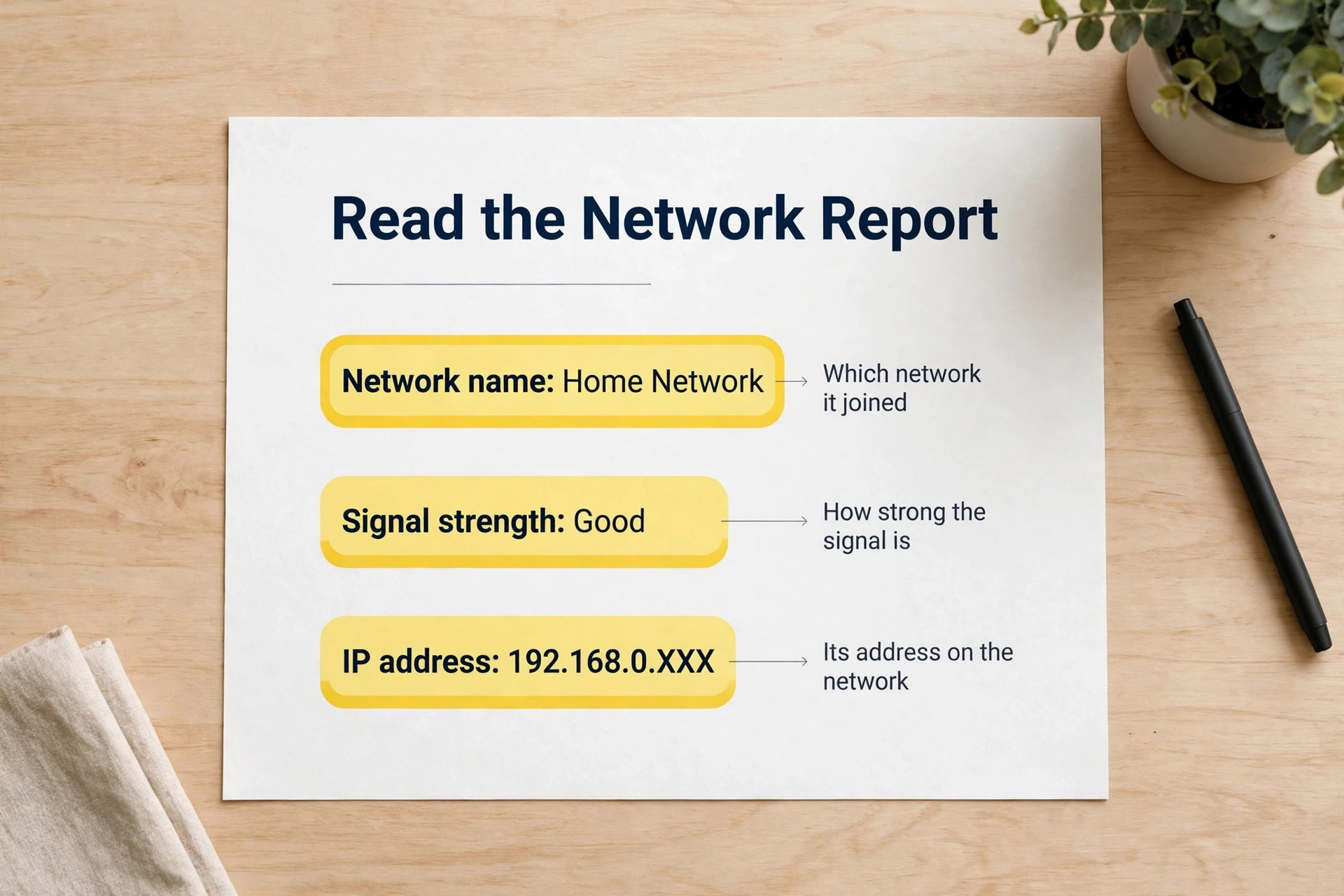
Now check three facts before you touch any reset. First, confirm the exact Wi-Fi name and password on another device, and type the password slowly on the printer, watching for capital letters and similar characters. Second, confirm that the phone or computer you are printing from is on the same home network as the printer, not on a guest network, a mobile hotspot or a work VPN. Third, print a network report from the printer if it offers one. That report shows the network name the printer thinks it is on, its signal strength and its IP address, and those three lines often point straight at the fault. Only then run the brand reset in the table below.
A network reset clears saved Wi-Fi details and puts the printer back into setup mode, which is what you want after a router change, a password change or a long run of failed attempts.
Diagnose the Fault From What the Printer Shows
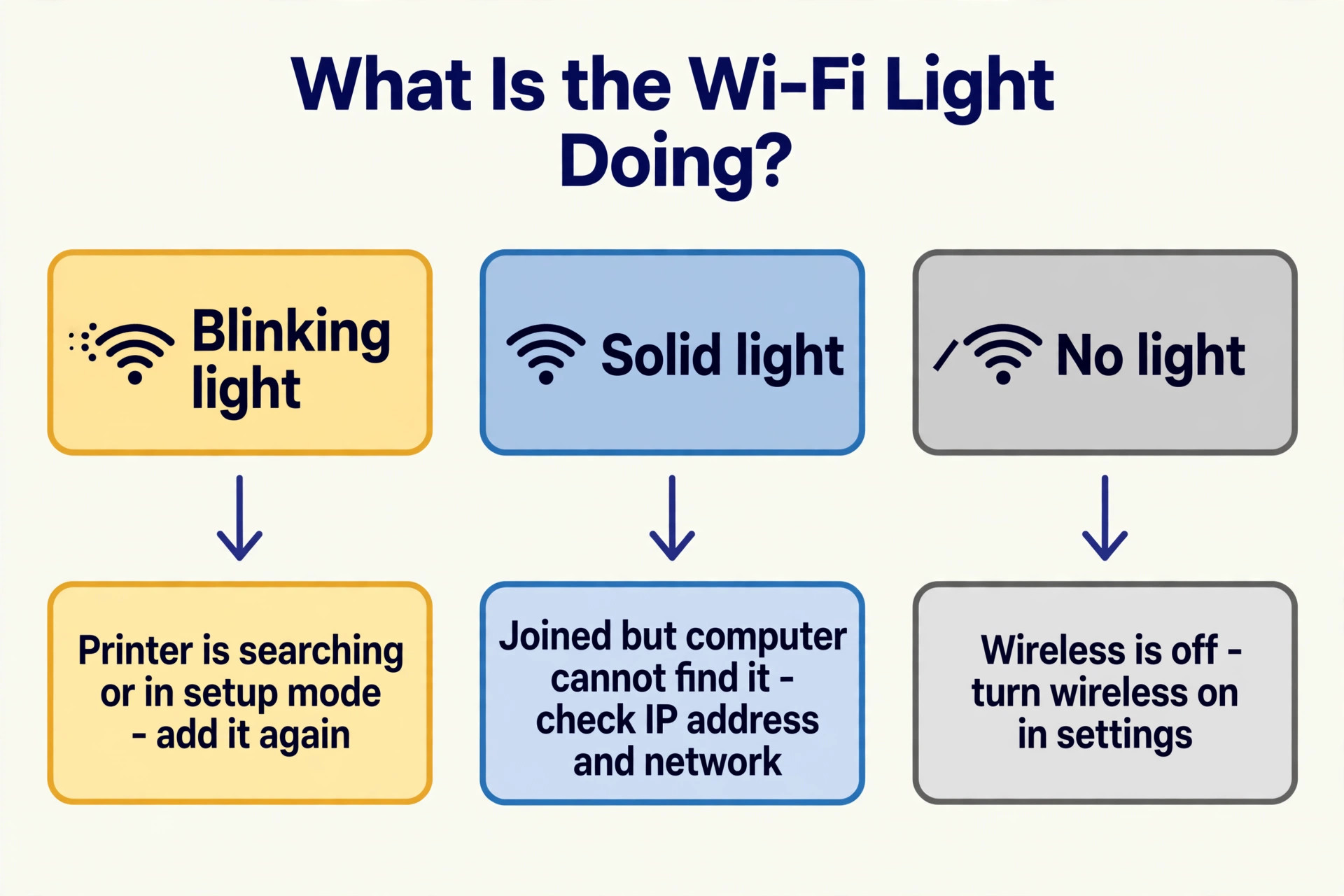
The light and the screen tell you more than the error message on your computer. A blinking wireless light usually means the printer is searching or in setup mode. A solid wireless light with no printing usually means the printer joined the network but the computer cannot find it, which points to an IP address change, a firewall block or a different network on the computer. No wireless light at all points to wireless being turned off in the printer settings, a button that was pressed by accident, or a printer that is in a wired or sleep state.
Check the network report next. If the network name is wrong or blank, the printer never joined the network, so focus on band, password and security settings. If the network name is right but the IP address starts with 169, the printer did not get a valid address from the router, so focus on the router, DHCP and distance. If the IP address looks normal but the signal strength is low, focus on position, interference and a possible extender or a closer router placement. Canon support guidance uses 70 percent signal strength and link quality as a useful reliability threshold, so treat a much lower reading as a warning even if a test page sometimes prints.
Brand Family Fix Table and Reset Steps
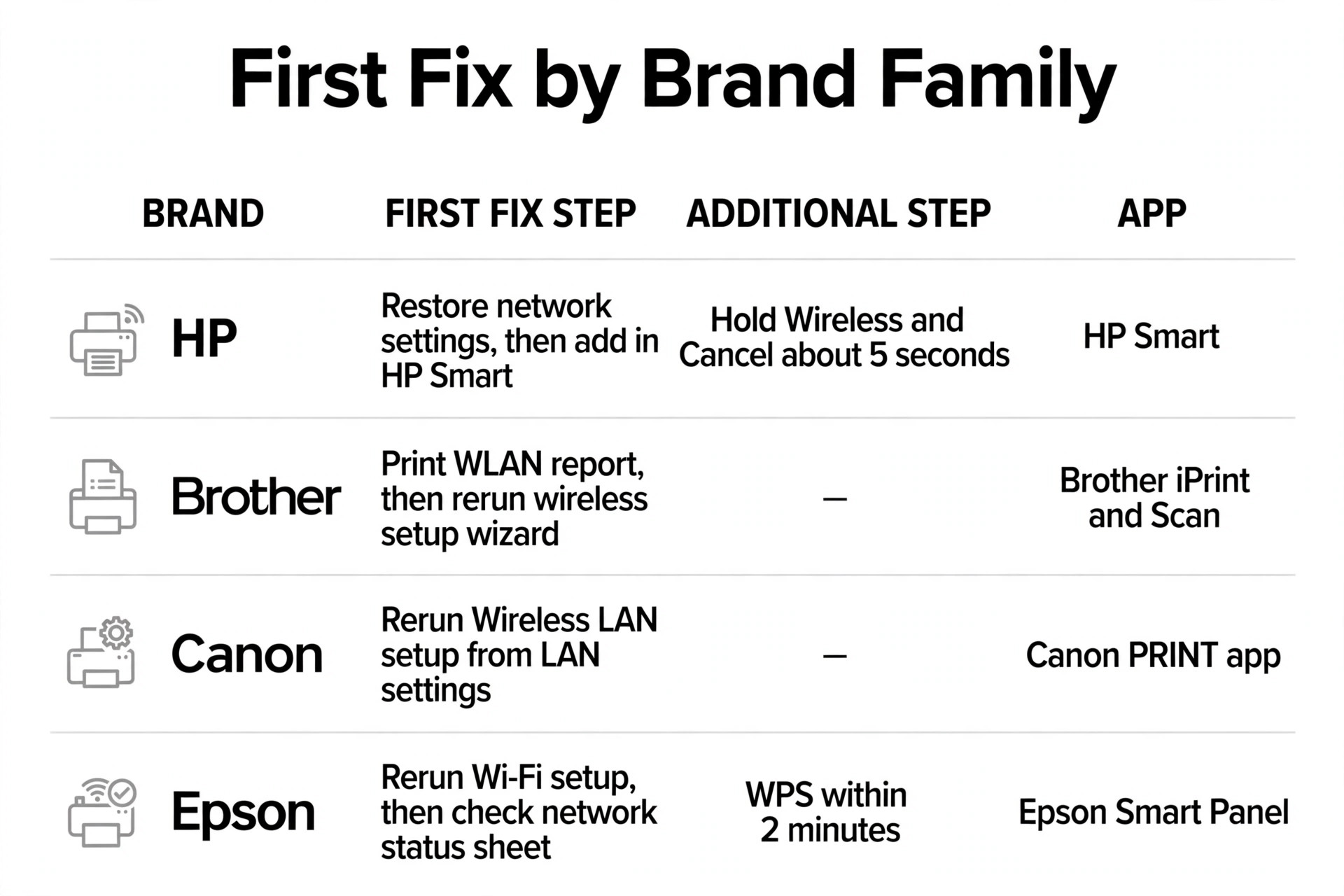
This table is the overview proof element for the whole guide. Find your brand family, use its first fix, and only move to the second fix if the first one fails. The table assumes a home network, not a managed office network with enterprise login, which needs a different setup path and often help from the network owner.
| Brand family | First fix to try | Reset path in plain words | App or tool that helps most |
|---|---|---|---|
| HP | Restore network settings, then add the printer in HP Smart | Touchscreen models use Network Setup and Restore Network Settings. Button models hold Wireless and Cancel together for about 5 seconds until the wireless light blinks | HP Smart |
| Brother | Print the WLAN report, then rerun the wireless setup wizard | Use the Network or WLAN menu to run the wireless setup wizard again, or use WPS if the router supports it | Brother iPrint and Scan, plus the Network Connection Repair Tool on Windows |
| Canon | Rerun Wireless LAN setup from LAN settings, or use the Wi-Fi Connection Assistant on Windows | Go to LAN settings, choose Wireless LAN setup, pick Standard setup, select the network and enter the password | Canon PRINT app, plus Wi-Fi Connection Assistant on Windows |
| Epson | Rerun Wi-Fi setup from the control panel, then check the network status sheet | Use Wi-Fi Setup or Network Settings on the panel, select the Wi-Fi setup wizard, and press the router WPS button within 2 minutes if you use WPS | Epson Smart Panel, plus the network status sheet on the printer |
HP Printers. Restore Setup Mode, Then Use HP Smart
HP printers split into touchscreen models and button only models, and the reset path follows that split. On a touchscreen model, open Settings, then Network Setup, then Restore Network Settings, and confirm. On many button only models, press and hold the Wireless button and the Cancel button together for about 5 seconds until the wireless light starts to blink. That blinking light means the printer is in setup mode and ready to be added again. HP support threads note that setup mode on some models stays active for about 120 minutes, so do not leave the reset for later in the day and then wonder why the app cannot find the printer.
Once the printer is in setup mode, open HP Smart on a phone or computer that is on the same home network, tap Add Printer, and follow the prompts. Keep Bluetooth on during phone setup if the app asks for it, because the app uses it to find the printer before the Wi-Fi details are sent. Enter the 2.4 GHz network name and password by hand if the app offers a manual entry option, and double check the name, because many HP home models support only 2.4 GHz.
Models such as the DeskJet 2710 and ENVY 6420e are examples of printers that need the 2.4 GHz band, and a merged network name that hides which band is in use is a common reason for a failed HP setup. This is the cleanest way to fix printer not connecting to Wi-Fi on HP models that stopped working after a router or password change.
Brother Printers. Read the WLAN Report Before You Reset Anything
Brother printers reward a slower start. Print the WLAN report first, because it shows whether the printer is connected, which network name it is using and whether the signal is weak. If the report shows the old network name after a router change, you know the setup wizard needs to run again. If it shows the right network name but a weak signal, you know to move the printer or improve coverage before you reset anything. Brother support also warns that walls, metal framing, microwaves and other electronics near the printer can break a connection that looks fine on paper, so position is a real diagnostic step here, not a vague tip.
To rerun setup, use the Network or WLAN menu on the panel and choose the wireless setup wizard, then select your 2.4 GHz network and enter the password. If your router has a WPS button, Brother models often support a WPS path from the WLAN menu, but keep the printer close to the router for that attempt and press the router button first, then start WPS on the printer within the window the manual gives. On Windows, Brother offers a Network Connection Repair Tool that can find the printer again after the router gives it a new IP address, and that tool is worth trying before you remove and reinstall the full driver.
It solves the case where the printer is online but the computer still sends jobs to an old address.
Canon Printers. Use LAN Settings, Not Guesswork on the Panel
Canon PIXMA and MAXIFY printers usually hide Wi-Fi setup inside LAN settings rather than behind a single Wi-Fi button, and that is where many owners get stuck. On a touchscreen model, open Settings or Setup, then LAN settings, then Wireless LAN setup, and choose Standard setup. The printer will search for nearby networks, you select your 2.4 GHz network, and you enter the password with the on screen keyboard, taking care with capital letters and symbols. On button only models, a Wi-Fi or Wireless Connect button is often the entry point, and you press and hold it until the lamp flashes, then follow the app or the panel prompts for your model.
Canon support notes that newer models such as the PIXMA TS3720 and TS3722, the MegaTank PIXMA G3270 and the MAXIFY GX2020 support both 2.4 GHz and 5 GHz, while many popular models such as the PIXMA TR4720 support only 2.4 GHz. Check your model wireless specification for 5 GHz or 802.11a and 802.11ac before you assume the printer can use the faster band. If your model supports only 2.4 GHz, give that band its own network name during setup, even if you merge the names again later.
A WPA3 only router can also block older Canon printers, so use WPA2 and WPA3 mixed mode if the printer fails with the correct password, and use manual setup rather than WPS on a WPA3 network, because Canon notes that WPS may not work there.
Epson Printers. Wi-Fi Setup Wizard, WPS Timing and the Status Sheet
Epson printers make the timing of WPS the main trap. If you use WPS, press the WPS button on the router, then press the Wi-Fi button on the printer for 3 seconds or select the WPS option on the panel within 2 minutes. If that window passes, the attempt fails even though every setting is correct, and the fix is simply to start the WPS sequence again from the router button. For a manual setup, use Wi-Fi Setup or Network Settings on the panel, choose the Wi-Fi setup wizard, select your 2.4 GHz network and enter the password exactly.
Many Epson home models need the 2.4 GHz band, and Epson guidance says to set a 5 GHz router to dual band mode or to give each band its own network name so the printer can find the 2.4 GHz network.
After setup, print a network status sheet and read the result codes and messages, because Epson uses that sheet to point at the exact cause, such as a wrong password, a blocked address or a signal problem. If the sheet shows a connection but printing still fails from one computer, check the computer firewall and whether the computer is on a VPN, and test from a phone on the same network. If the sheet shows no connection, move the printer away from a microwave, a cordless phone base and a large metal filing cabinet for testing, because Epson lists those items as common sources of interference on the 2.4 GHz band.
To fix printer not connecting to Wi-Fi on an Epson model that worked before a router change, rerun the wizard rather than changing driver settings first, since the driver cannot fix a printer that never joined the new network.
Router Fixes That Apply to Every Brand
Most repeat printer Wi-Fi failures are router failures with a printer symptom. Start with the band. Give the 2.4 GHz network a name that is clearly different from the 5 GHz network during setup, for example by adding 2G to the end of the 2.4 GHz name. Many printers can only use 2.4 GHz, and a single merged name leaves the printer to guess which band the router will offer. Once the printer is connected, you can keep the separate names, which also makes future fault finding easier, because you will know at a glance which band each device is using.
Next, check security and isolation settings in the router admin page. Set the 2.4 GHz band to WPA2 Personal with AES, or to WPA2 and WPA3 mixed mode if your router offers it and your printer is newer. Avoid a WPA3 only setting for older printers, and avoid WEP or TKIP only settings, which modern printers and phones may refuse. Turn off AP isolation and client isolation if they are on, because those settings block devices on the same network from seeing each other, which is exactly what a printer needs to do.
If your router hides the network name, either turn broadcasting back on for setup or enter the name by hand on the printer, and check the spelling letter by letter, because a hidden name gives no list to pick from.
Then give the printer a stable address. In the router admin page, find the connected devices list, find the printer by its name or MAC address from the network report, and reserve the same IP address for it every time. This is often called a DHCP reservation or a static lease, and it stops the common fault where the router gives the printer a new address after a reboot and the computer keeps sending jobs to the old address. Also check MAC address filtering. If filtering is on, add the printer MAC address from its network report to the allowed list.
To fix printer not connecting to Wi-Fi when the signal is the cause, think in terms of distance and obstacles rather than buying a new printer. A printer in a closed metal cabinet, behind a thick wall or at the far end of a house from the router will drop out even with perfect settings. Move the printer for a test, move the router to a more central spot if you can, or add an extender or a mesh node near the printer. Check the price of any extender or mesh unit at checkout before you buy, because retail prices vary by model and seller, and a basic extender and a full mesh system sit in very different price ranges.
A printer does not need high speed, it needs a steady 2.4 GHz signal, so buy for coverage and stability rather than for headline speed.

Windows, Mac and Phone Fixes When the Printer Is Online
If the printer shows a solid wireless light and a valid IP address but jobs do not print, the fault has moved to the computer or phone. On Windows, open Settings, then Printers and Scanners, and check that the printer is not set to Use Printer Offline and that it is set as the default if you expect it to be. Remove the printer, restart the computer, and add it again from the same network, choosing the network printer rather than a USB copy if both appear.
On a Mac, open System Settings, then Printers and Scanners, remove the printer if it shows as offline, and add it again while the Mac is on the same home network. Check that the Mac is not on a VPN that routes traffic away from the home network, and check that AirPrint is the driver path if the printer supports it, because a wrong driver can show the printer yet fail to print. On a phone, check that the phone is on the same home network and not on mobile data or a guest network, and try the brand app first, then the built in print option in the app you are printing from.
That device by device check is a practical way to fix printer not connecting to Wi-Fi from a computer that can see the printer but cannot print.
USB and Wi-Fi Direct as a Sensible Workaround
A workaround is not a failure. If you need a document printed today and the wireless setup is still failing, a USB cable gets the job done and also gives you a path to fix Wi-Fi. Connect the printer by USB, install or open the brand app, and use the app to send the Wi-Fi settings to the printer. Then disconnect the USB cable, restart the printer and test a wireless print. This method avoids typing a long password on a small printer screen, and it proves whether the printer hardware works even when the wireless path does not.
How to Choose Between Repair, Extender and Replacement
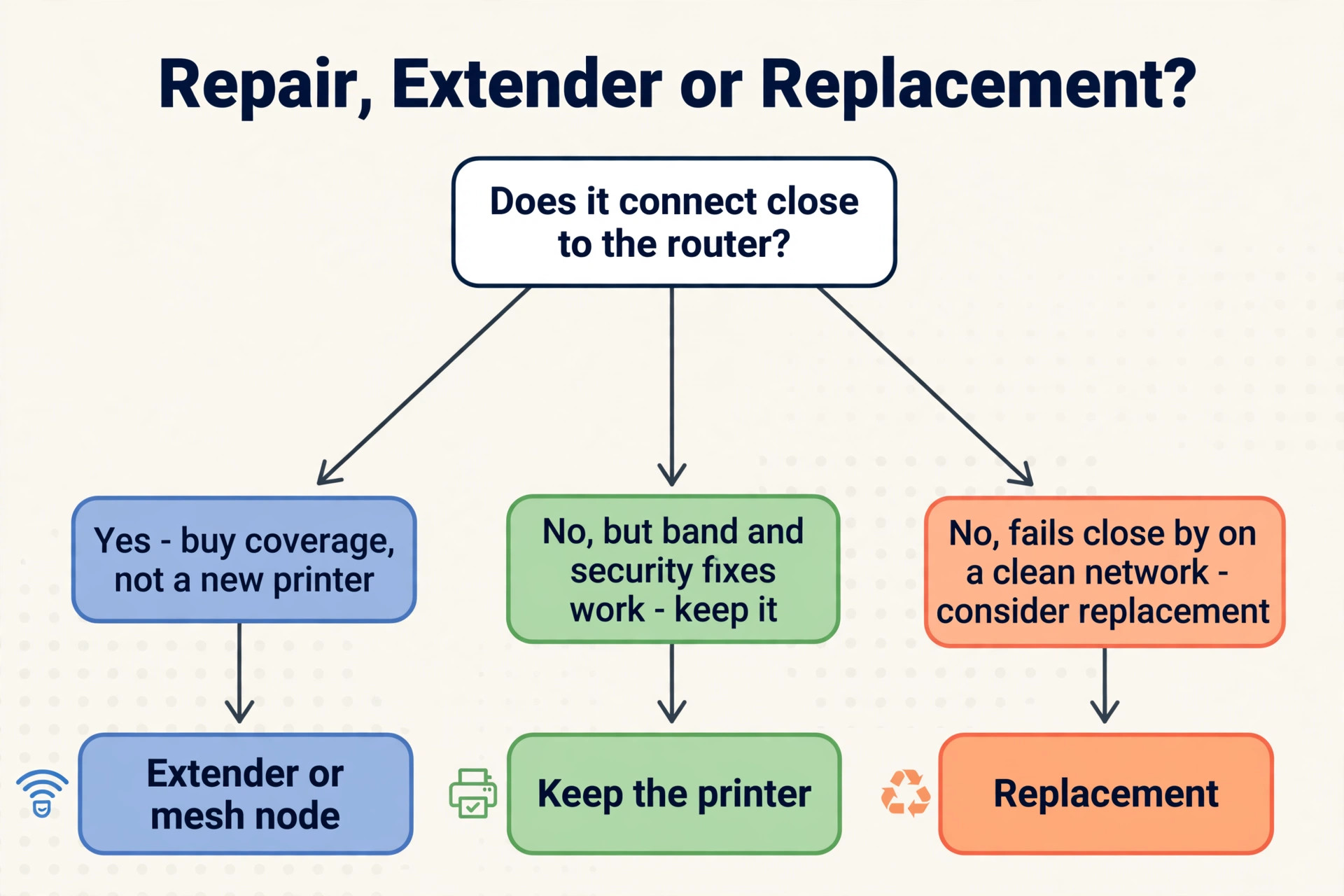
Do not replace a printer for a Wi-Fi fault until you have ruled out band, security, address and signal causes, because a new printer on the same router with the same settings will often fail in the same way. Replace the setup first, then the coverage, then the printer. If the printer connects close to the router but not in its normal spot, buy coverage, not a new printer. If the printer connects on 2.4 GHz after you fix the band and security settings, keep it, because the fault was in the network, not in the machine.
If the printer is more than eight years old, lacks current driver support for your computer and fails even close to the router on a clean 2.4 GHz network, replacement becomes a reasonable choice, and a newer model with dual band Wi-Fi and a current app will be easier to set up.
When you do shop for a replacement, check three facts before you pay. First, check that the model supports the band and security type your router uses, or that you are willing to change the router settings to match it. Second, check ink or toner running costs for your actual print volume, because a cheap printer with expensive cartridges can cost more in a year than a dearer printer with larger cartridges. Third, check that the brand app and driver support your phone and computer versions, because a printer that needs an old app can become hard to set up after a phone update.
Check the final price at checkout, including cartridges or a starter set if they are not included, because headline printer prices often exclude the first replacement cartridge. For a small business or a home office that prints every day, a wired Ethernet connection is worth considering if the printer and router are close enough for a cable.
Mistakes That Turn a Five Minute Fix Into an Afternoon
The first mistake is resetting everything at once. If you reset the printer, the router and the computer driver in the same hour, you will not know which reset fixed the problem or which one caused the next one, and the fault will return without a clear path back. Change one thing, test, and note the result. The second mistake is retyping the same password ten times on a merged network. If the band is wrong, the password can be perfect and still fail, so check the band before the third password attempt, not after the tenth.
The third mistake is using WPS on a network where it cannot work, such as a WPA3 only network or a network with AP isolation on.
The fourth mistake is ignoring the IP address change after a router reboot. If the printer worked last week and fails after a power cut, reserve its IP address before you reinstall drivers, because a new driver pointing at the same old address will fail in the same way. The fifth mistake is placing the printer where it cannot hold a signal and then blaming the brand. A printer inside a cabinet, next to a microwave or at the far end of a long house needs coverage help, not a new driver. The sixth mistake is leaving the firewall off or the router security lowered after a test.
Restore the security settings that you changed for testing, and add a proper exception or a mixed mode setting instead, so a quick test does not become a permanent weak spot. To fix printer not connecting to Wi-Fi without repeating the same loop, write down the working network name, band, security type and reserved IP address once you succeed, and keep that note with the printer manual.
For readers setting up a home office around a reliable printer, related reading includes how to automate a small business with AI for wider workflow ideas, best AI tools for print on demand sellers if printing is part of a selling workflow, and how to start a print on demand business with AI for the business side of regular printing. Each of those guides is on this site, and none of them replaces the brand steps above, which should come first when the printer itself will not join Wi-Fi.
Frequently Asked Questions
Why does my printer say the Wi-Fi password is wrong when it is correct?
The most common cause is the band, not the password. Many home printers use only 2.4 GHz, and a merged network name can send the printer to the 5 GHz band where it fails. Give the 2.4 GHz band its own name, enter the password again on that band, and check for a WPA3 only router setting, which older printers cannot use. Also check capital letters and symbols on the printer keyboard.
Should I use WPS or manual Wi-Fi setup for my printer?
Manual setup is the safer choice when you have time, because you choose the exact network name and band and you see any error at once. WPS is faster when it works, but it needs the router button and the printer button to be pressed within a short window, usually 2 minutes, and it may not work on a WPA3 network or when AP isolation is on. If WPS fails twice, switch to manual setup rather than repeating WPS.
Why does my printer keep going offline after it connects?
This usually means the router gave the printer a new IP address and the computer is still using the old one, or the signal is too weak to hold the connection. Reserve an IP address for the printer in the router, move the printer closer for a test, and check the signal strength on the network report. A printer that stays online close to the router but drops in its normal spot needs better coverage, not another driver reinstall.
Can my phone print if my computer cannot find the printer?
Yes, and that result is useful. If a phone on the same home network prints but a computer does not, the printer and router are working, and the fault is on the computer, often an offline setting, a driver, a firewall block or a VPN. Remove and re-add the printer on the computer, try adding it by IP address, and test with the VPN off. If no device prints, return to the brand reset and router band checks.
Do I need to reset my router to fix a printer Wi-Fi problem?
Not always, and a full router reset should be a later step, not the first one. A simple router restart often clears a stuck address or a failed handshake. Change router settings only for the band, security type, isolation and IP reservation steps in this guide, and note the original settings before you change them. A full factory reset of the router will disconnect every device in the house and should be left until brand and router checks have both failed.
When should I replace a printer that will not connect to Wi-Fi?
Replace it only after it fails close to the router on a clean 2.4 GHz network with WPA2 or mixed mode security, a reserved IP address and a fresh brand setup, and after USB and Wi-Fi Direct tests point to a hardware or driver support problem rather than a network problem. To fix printer not connecting to Wi-Fi by replacement alone is a costly guess if the same router settings will block the new printer too, so rule out the network first and keep the working note from the successful setup for the new machine.
Print Again Without Another Reset Loop
A printer Wi-Fi fault looks messy because four systems meet in one job, namely the printer, the router, the computer and the app, and any one of them can block the rest. The order in this guide keeps that mess manageable. Restart in the right order, test close to the router, read the network report, run the brand reset for your family, fix the band and security type on the router, reserve the IP address, and only then reinstall a driver or consider a replacement.
That sequence solves most home cases in under half an hour, and it leaves you with a note of the settings that worked, so the next router change does not send you back to the start.
Official Brand Support Pages to Bookmark
Save the official page for your brand before you need it again, because model menus and app names change and the official page for your exact model is the safest source for a button combination.
- HP wireless setup help. HP support community thread on reconnecting a printer with new Wi-Fi
- Brother wireless help. Brother support page on wireless connection problems
- Canon wireless help. Canon support article on reconnecting a printer to a wireless network
- Epson wireless help. Epson support page on a product that cannot connect to a wireless router