
Compare two beginner podcasts. One sounds like a conversation recorded in a quiet room, with voices clear, consistent, and easy to follow for an hour. The other sounds like the same conversation recorded in a bathroom, with echo, hiss, and volume that rises and falls with every head turn. The difference is rarely the microphone price. It is usually positioning, gain, and room treatment, three setup choices that cost little and matter more than any upgrade. This guide explains how to set up USB microphone for podcast beginners in the order that fixes sound before it becomes a habit, from choosing a spot and placing the mic to gain, software settings, and the first recording routine.
A USB microphone connects directly to a computer with a USB cable, with the analogue to digital conversion built into the microphone itself, so no separate audio interface is needed. That simplicity is why USB microphones dominate beginner podcasting, since a single purchase plus free recording software is enough to start. The trade off is less flexibility than a professional XLR setup, since USB microphones offer fewer upgrade paths and less control over preamps, but for a first podcast, simplicity beats flexibility, and a well set up USB microphone sounds professional enough for most listeners.
Choose a Spot and Treat the Room First
Room sound matters more than microphone choice for beginners, because a microphone records the room as faithfully as it records the voice, and a reflective room adds echo that no software fully removes. Choose the smallest, softest room available for recording, preferably one with carpet, curtains, bookshelves, and soft furniture, and avoid kitchens, bathrooms, and large empty rooms with hard floors and bare walls, since those spaces echo strongly. A walk in closet full of clothes is a surprisingly good recording space for a beginner, though it is rarely comfortable for long sessions, so a small bedroom with curtains drawn and a rug on the floor is the more sustainable choice.
Treat the room cheaply before buying acoustic panels. Hang a thick blanket or duvet behind you, since the wall behind the speaker reflects sound back into the microphone, and close curtains over windows, which reflect sound as well as light. Place a rug under the recording chair if the floor is hard, and keep the door closed during recording, since hallway noise, appliances, and traffic all enter through an open door. These free treatments reduce echo noticeably, and they often improve sound more than a microphone upgrade, which is why experienced podcasters treat the room first and the gear second.
Remove noise sources before recording, not during editing. Switch off fans, air conditioning, and noisy refrigerators nearby where safe, silence phone notifications, and warn household members that recording is in progress, since a doorbell, a washing machine spin, and a conversation in the next room all appear on the recording and distract listeners. A simple recording in progress sign on the door prevents most interruptions, and a consistent recording time, when the house is quietest, turns noise control from a daily battle into a habit. Note the quietest hour in your home for a week before fixing a recording schedule, since a schedule built on real quiet beats a schedule built on hope.
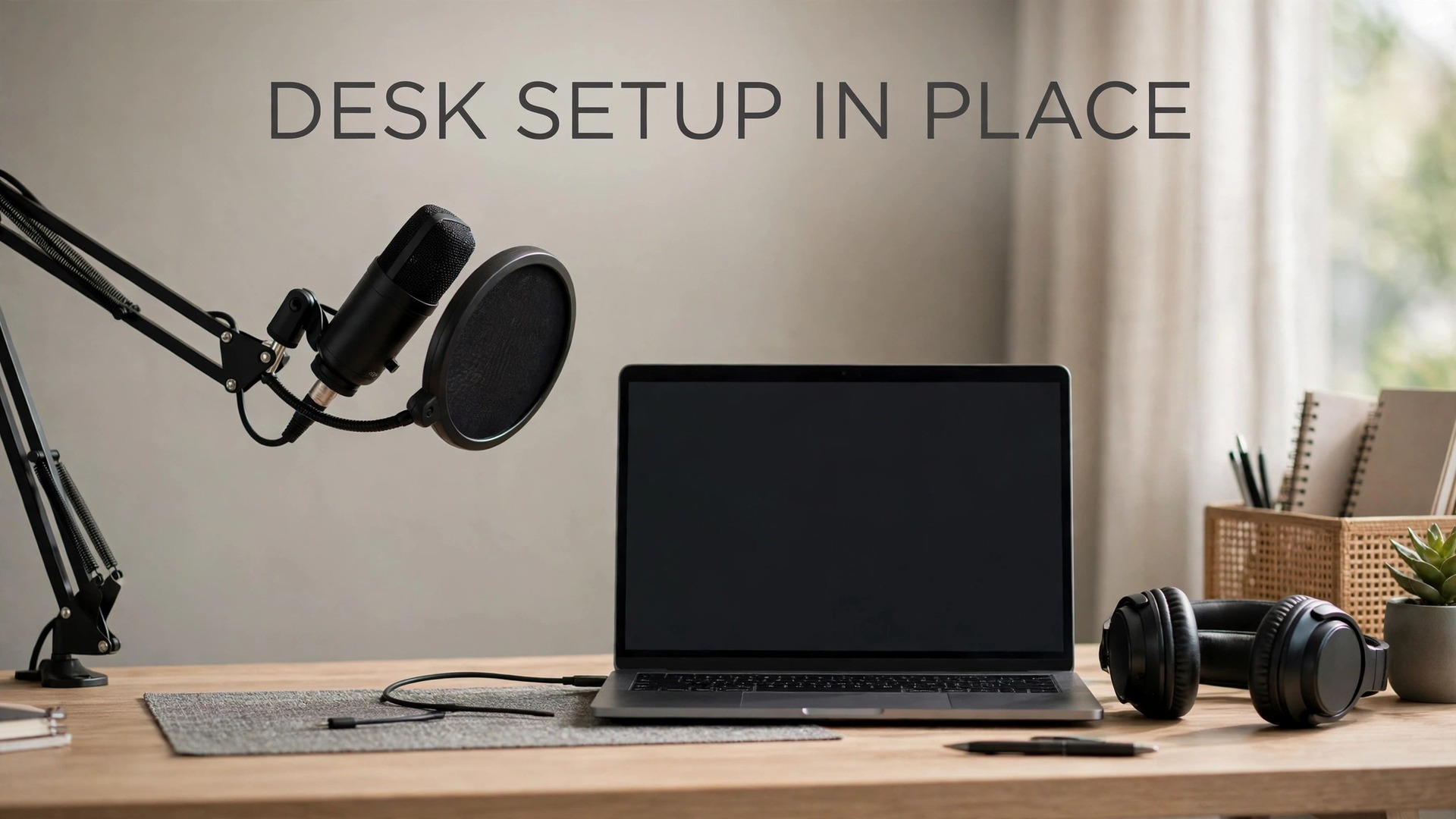
Position the desk and chair for stable recording posture. Sit upright, with feet flat and the microphone at mouth height, so you do not hunch over the mic or stretch upward to reach it, since posture affects both voice quality and comfort over an hour. A boom arm that clamps to the desk holds the microphone at the right height and angle without a stand that transmits desk bumps, and a shock mount, often included or sold separately, isolates the microphone from desk vibrations such as typing, foot tapping, and mouse clicks.
If a boom arm is not in the budget yet, a stable desk stand at the right height works for a first season, though it picks up more desk noise and needs a quieter desk habit.
How to set up USB microphone for podcast beginners
The steps below cover physical connection, positioning, gain, and software settings in order, since each step builds on the last, and gain set before positioning is wasted when positioning changes. Keep headphones on throughout setup, since monitoring your own voice through headphones reveals faults that speakers hide, and a headphone that leaks sound into the microphone creates echo that is hard to remove later. To set up USB microphone for podcast beginners well, test with a real recording, not just a level meter, because a meter shows loudness while a recording shows tone, echo, and mouth noise together.
- Connect the microphone directly to the computer. Plug the USB cable into the microphone and into a computer USB port directly, not through an unpowered hub, since hubs can cause dropouts and power problems that sound like microphone faults. If the microphone has a headphone socket, plug headphones into the microphone, not the computer, so you monitor the microphone signal directly with minimal delay.
- Select the microphone in system settings. On a computer, open sound settings, choose the USB microphone as input, and choose the microphone headphone output or computer output as appropriate for monitoring. Confirm the system recognises the microphone by name, since a system that shows a generic USB audio device may still work, but a named device confirms the correct driver loaded.
- Position the microphone correctly. Place the microphone 15 to 20 centimetres, roughly a fist with thumb extended, from your mouth, slightly off axis, meaning angled so your breath does not hit the microphone directly, and at mouth height or slightly below, tilted up toward your mouth. Speak into the front of the microphone, usually the side with the logo or indicator light on a side address microphone, not the top, since speaking into the wrong side produces a thin, distant sound that beginners mistake for a faulty microphone.
- Add a pop filter or foam windscreen. Place a pop filter 5 to 10 centimetres in front of the microphone, between your mouth and the mic, to soften plosive sounds, meaning the bursts of air on P and B sounds that cause loud pops. A foam windscreen on the microphone itself helps less with plosives but reduces breath noise, and using both is common for beginners who struggle with pops. Test plosives by saying words with strong P sounds at normal volume and listening for pops, adjusting filter distance until pops fade without muffling the voice.
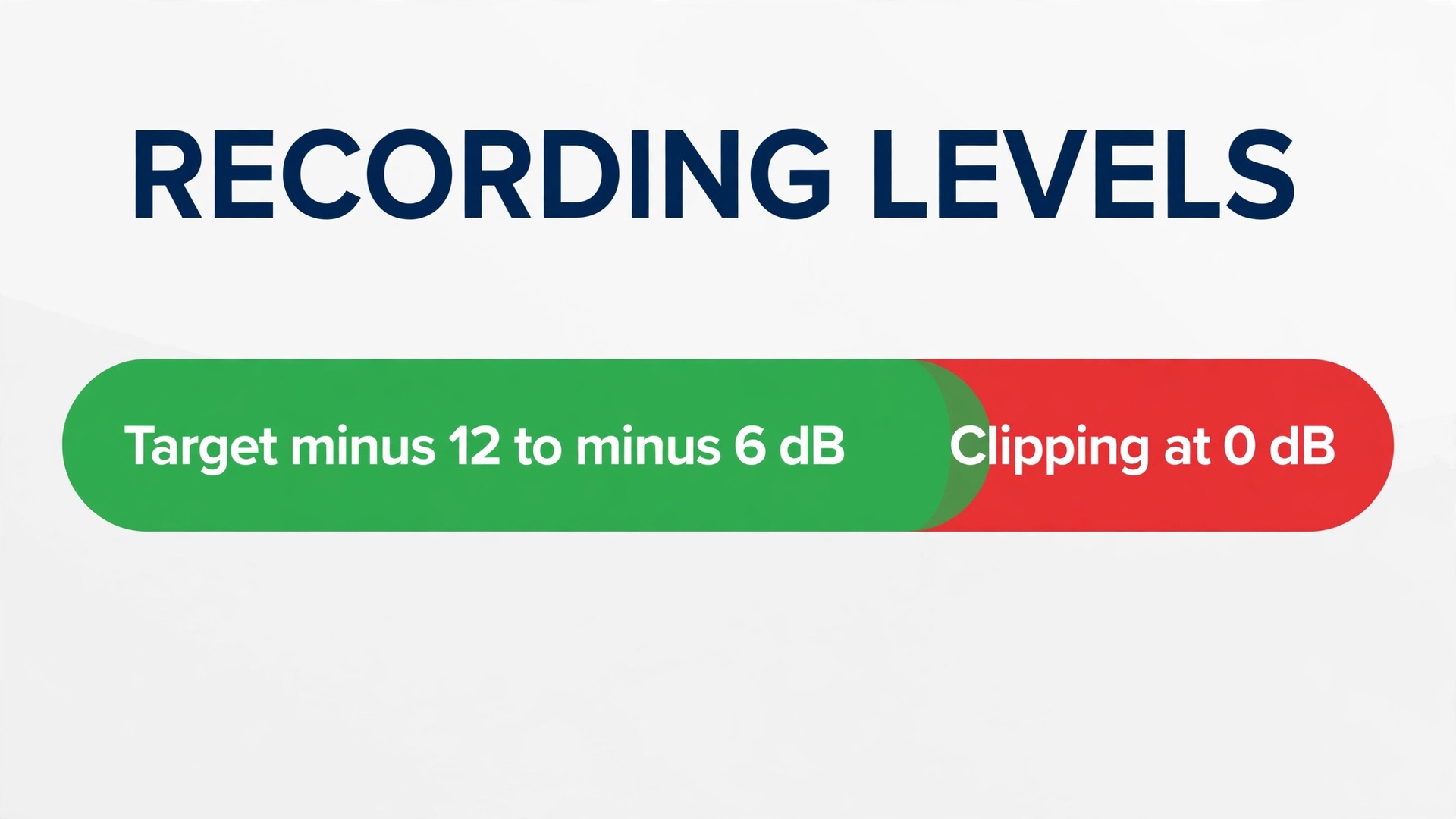
- Set gain in the microphone and software. If the microphone has a gain knob, start with it low, speak at normal podcast volume, and raise gain slowly until recording peaks reach around minus 12 to minus 6 decibels on the meter, leaving headroom for louder laughter or emphasis without clipping at zero decibels. Set system input level high, often near full for USB microphones, and control level mainly with the microphone gain knob where one exists, since software level alone cannot fix a signal clipped at the microphone.
Record a test sentence at normal volume, then laugh loudly, and confirm the loud test does not clip, since a gain that works for calm speech but clips on laughter will ruin the liveliest moments of an episode.
- Choose recording software and set the project. Open a free recorder such as Audacity or GarageBand, select the USB microphone as input, set the project to mono or stereo as your show needs, usually mono for a single voice podcast, and set sample rate to 44100 Hertz, which is standard for podcast distribution. Create a test project, record thirty seconds of normal speech, and listen back on headphones, checking for echo, hiss, pops, and volume consistency, since a test listen reveals more than any meter reading.
- Set monitoring and headphone level. Turn on direct monitoring if the microphone offers it, so you hear yourself without delay, and set headphone volume to a comfortable level that does not leak into the microphone. Headphone leak is a common beginner fault, where loud monitoring bleeds into the recording and creates a faint echo, so keep headphone volume moderate and use closed back headphones, which leak far less than open back headphones designed for music listening.
Once a test recording sounds clear, consistent, and free of pops and echo, the setup is done, and the remaining work is routine, editing, and habit, covered in the sections below. A setup that sounds good on a test usually sounds good on an episode, provided the room, position, and gain stay the same, which is why consistency matters more than perfection. To set up USB microphone for podcast beginners in full, treat the test recording as the proof, not the settings numbers, since numbers guide you to good sound but only listening confirms it.
Mic Positioning Diagram and Gain Checklist
Positioning and gain together form the overview proof element for this guide, in diagram form here and checklist form below, since a microphone placed well but gained badly still sounds poor, and a microphone gained well but placed badly still sounds distant. The diagram description below maps the recording position from the side, so you can recreate it at your desk without guessing distances or angles.
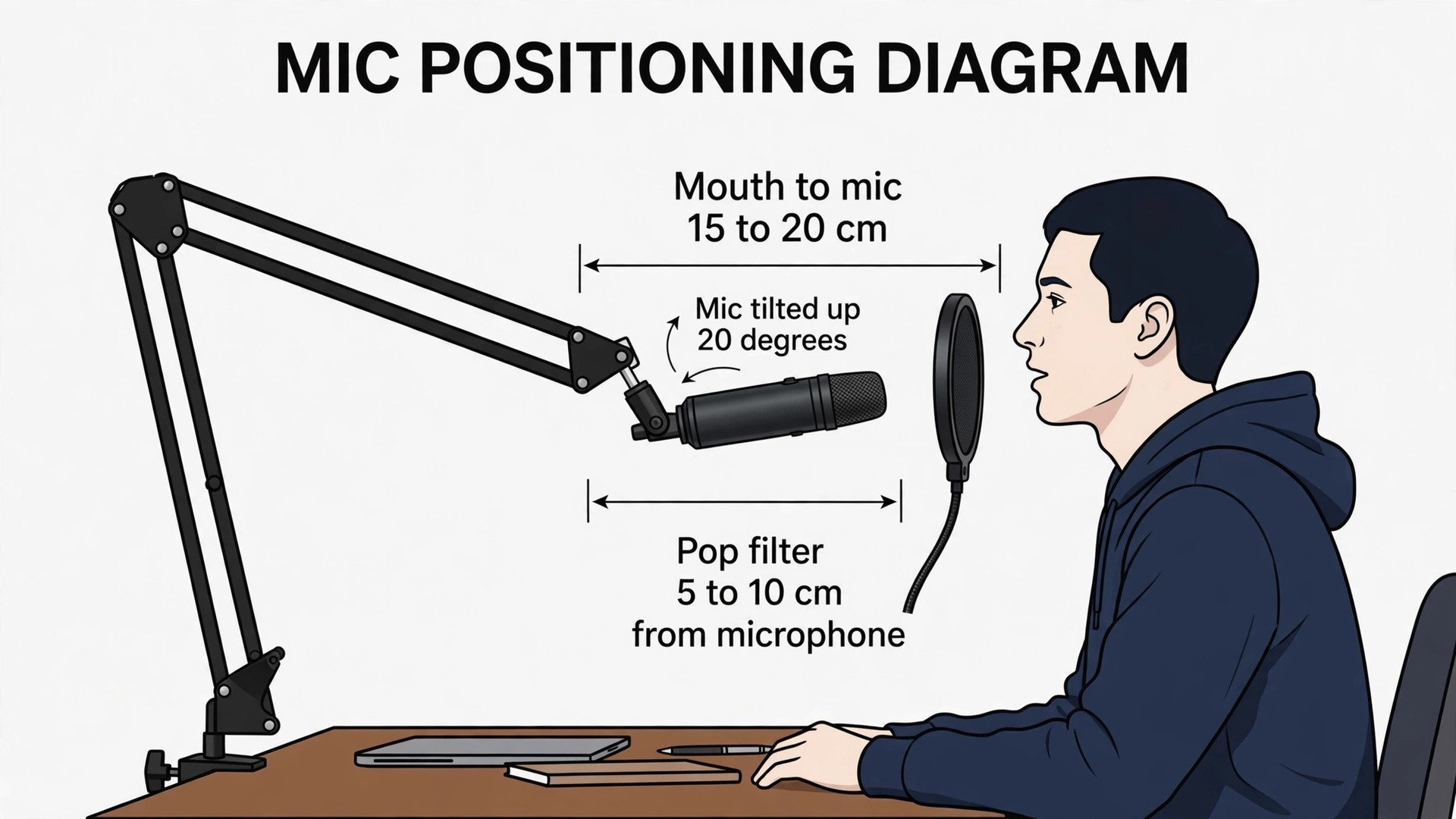
Imagine a side view of a seated speaker, facing right, with the microphone on a boom arm in front. The mouth sits about 15 to 20 centimetres from the microphone grille, with the microphone slightly below mouth height and tilted up about 20 degrees toward the mouth, so breath passes over the microphone rather than directly into it. The pop filter sits halfway between mouth and microphone, about 5 to 10 centimetres from the microphone, forming a barrier that softens plosives without touching the microphone. Headphones sit on the ears, closed back, with the cable routed behind the desk to avoid brushing the microphone stand, since cable bumps transmit as thuds.
The speaker sits upright, shoulders relaxed, with the script or notes on a stand or screen at eye level, so head movement stays small and distance to the microphone stays consistent throughout the episode.
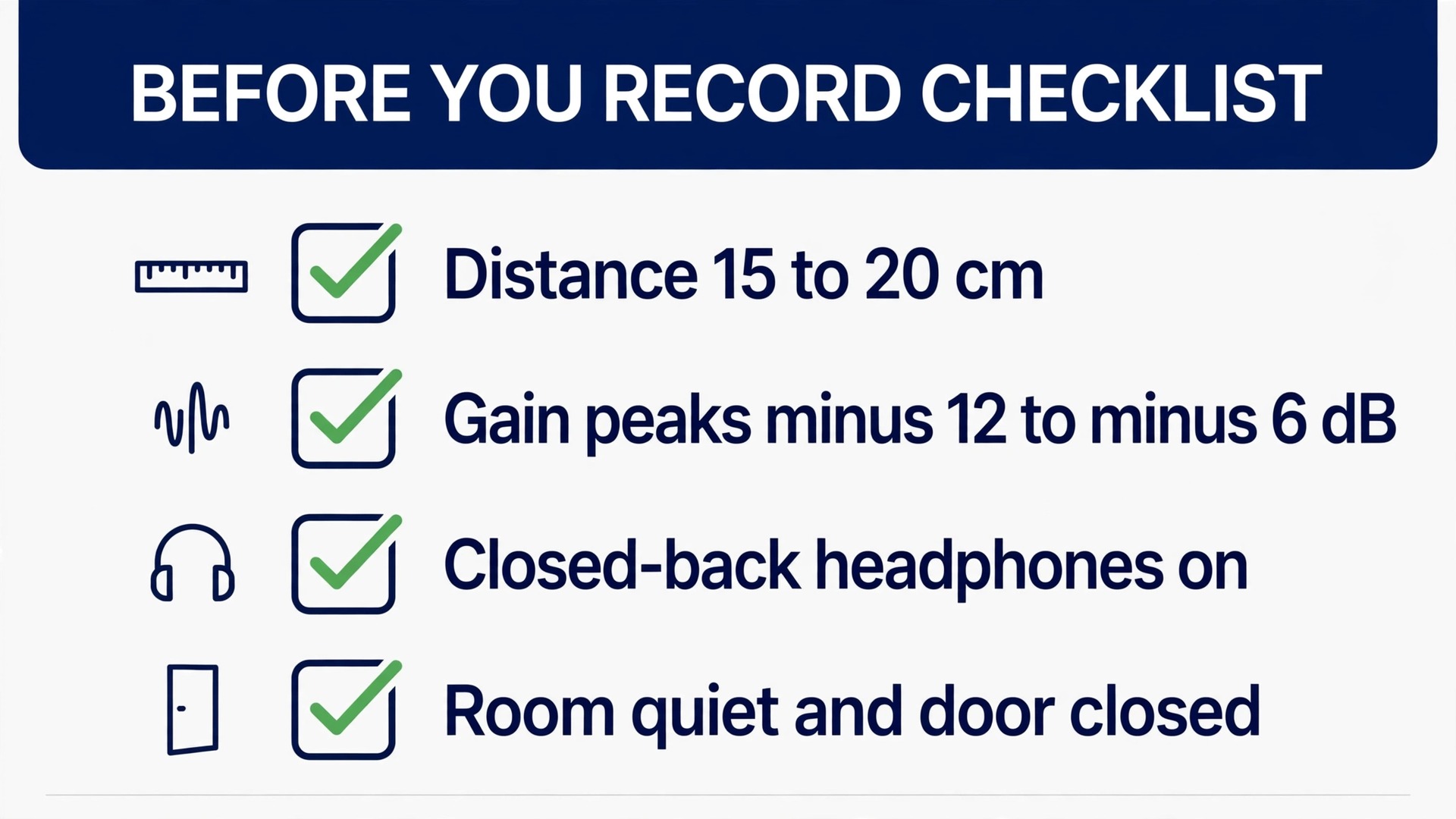
The gain and recording checklist below turns that diagram into a pre recording routine, run before every episode, since gain drifts when microphones move, rooms change, or voices tire, and a checklist catches drift before it reaches listeners.
- Microphone distance checked at 15 to 20 centimetres, with pop filter in place and microphone angled off axis from direct breath.
- Gain set so normal speech peaks around minus 12 to minus 6 decibels, with a loud laugh test confirming no clipping at zero decibels.
- Headphones on, closed back, monitoring through the microphone where offered, at a moderate volume that does not leak.
- Room quiet, with fans and appliances off, door closed, phone silenced, and household warned that recording is in progress.
- Recording software input set to the USB microphone by name, project set to 44100 Hertz, and a thirty second test recorded and listened back.
- Water nearby, script or outline at eye level, and chair adjusted so posture stays upright without hunching over the microphone.
- Backup recording considered, such as a phone voice memo running as a safety track, for important interviews or episodes that cannot be re-recorded.
Distance consistency deserves emphasis, because it is the most common reason a single episode varies in volume. A speaker who leans in for emphasis and leans back to read notes creates volume swings that editing can only partly fix, so keep head position steady, use a script stand to avoid leaning, and mark the floor or desk with a small tape marker for chair position if needed. A consistent distance produces a consistent volume, and consistent volume is what listeners experience as professional, even before any editing or processing.
Recording Settings and Simple Processing
Recording settings beyond gain are few for beginners, and that simplicity is a strength. Record in WAV format for editing, since WAV is uncompressed and survives editing without quality loss, then export the finished episode as MP3 at 128 kilobits per second or higher for distribution, since MP3 is the standard podcast format and balances quality with file size. Record in mono for a single voice show, since mono halves file size and suits voice perfectly, and record in stereo only for shows with music, sound design, or two voices panned for effect, where stereo adds real value.
Simple processing after recording improves consistency without requiring advanced skills, and three tools cover most beginner needs. A high pass filter, cutting frequencies below 80 to 120 Hertz, removes low rumble from traffic, handling noise, and room vibration without affecting voice. A compressor, set gently, reduces the gap between loud and quiet speech, so listeners do not adjust volume constantly, and a limiter, set just below zero decibels, prevents any remaining peaks from clipping on export. Apply processing in that order, filter, then compressor, then limiter, and listen after each step, since over processing sounds worse than no processing, and a gentle touch preserves the natural voice that listeners trust.
Noise reduction tools deserve caution. A noise reduction effect can remove steady hiss or hum, but aggressive settings make voices sound underwater or robotic, which listeners notice immediately. Use noise reduction only for a steady background noise that cannot be removed at source, apply it lightly, and always compare before and after on headphones, keeping the version that sounds more natural, even if the meter looks cleaner on the processed version. A quiet room recorded well needs little noise reduction, which is another reason room treatment outranks software fixes.
Editing habits matter as much as processing settings, and they are part of how you set up USB microphone for podcast beginners for a sustainable show, since a recording routine that is easy to edit is a routine you will repeat weekly. Edit in a quiet environment on headphones, remove long pauses and mistakes without cutting natural breaths entirely, since a podcast with no breaths sounds rushed and unnatural, and keep episode length consistent with your show format, since listeners build habits around predictable lengths.
Save the project frequently, keep a backup of raw recordings until the episode publishes, and export a final listen through phone speakers as well as headphones, since many listeners use phones, and a mix that sounds good only on studio headphones will disappoint the largest audience.
Two Voices, Guests and Remote Interviews
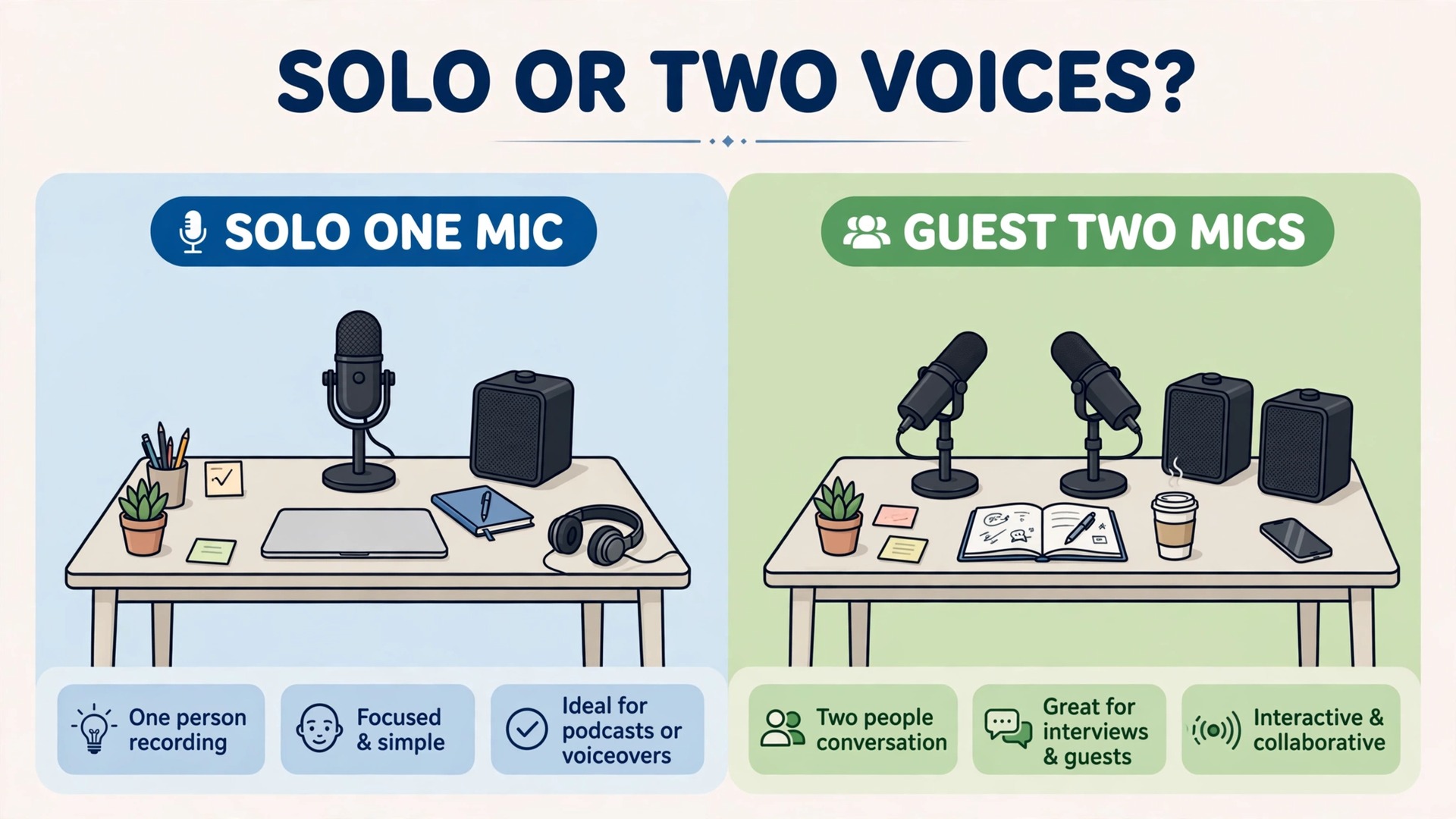
Two voices in one room need a different setup from a solo show, and USB microphones offer two paths, each with trade offs. The simplest path is one microphone shared between two speakers sitting close together, which works for casual conversation but produces uneven volume when speakers sit at different distances, and it captures room echo more strongly. The better path for regular two voice shows is two USB microphones, one per speaker, recorded on separate tracks if software allows, though many computers struggle with two USB microphones at once, and aggregate device settings or a small mixer may be needed, which moves beyond beginner simplicity.
Remote guests, meaning guests recorded over the internet, are now the norm for many podcasts, and the setup there is about the guest sound as much as your own. Ask guests to use headphones, to record in a quiet room, and to use the best microphone they have, even a phone headset, rather than laptop speakers and built in microphones, since a guest on speakers creates echo that ruins both voices. Record each voice on a separate track where the calling software allows, using a double ender, meaning the guest records locally while you record the call, since local recordings sound far better than call audio, and syncing them in editing is a standard podcast skill worth learning early.
Guest briefing is a setup step, not a courtesy, and a short message before recording saves editing time afterwards. That briefing habit belongs in how you set up USB microphone for podcast beginners for interview shows, since a guest who arrives prepared sounds better than any processing can make an unprepared guest sound. Tell guests the recording time, the quiet room request, the headphone request, and the file format if they record locally, and ask them to stay on the call for a minute after recording ends, so files save fully before anyone disconnects.
A guest who understands the setup produces usable audio, while a guest who discovers the setup mid call produces an episode that needs rescue editing, and rescue editing rarely sounds as good as a clean recording.
Problems and Fixes for Beginner Recordings
Echoey recordings usually mean room, not microphone. Add soft treatment behind the speaker, close curtains, add a rug, and move closer to the microphone, since closer distance increases voice relative to room echo. If echo persists, record in a smaller room or a closet for a test, since a test in a treated space proves whether the room or the settings cause the echo, and that proof guides the fix faster than changing microphones. A microphone upgrade in an echoey room still records echo, just more clearly, which is not an improvement.
Hiss or hum usually means gain, cable, or electrical interference, in that order. First, check gain, since gain set too high amplifies the microphone self noise along with the voice, and lowering gain while moving closer often reduces hiss without losing volume. Next, try a different USB port and cable, since a noisy port or a damaged cable adds hiss that sounds like a microphone fault. Next, move away from power adapters, monitors, and fluorescent lights, since electrical interference hums at a steady pitch that a high pass filter can reduce but not fully remove, and distance from the source helps more than software.
Pops and breath noise usually mean position and filtering, not a faulty microphone. Move the microphone slightly off axis, increase pop filter distance slightly, and speak across the microphone rather than directly into it, since a small angle change removes most pops without changing tone. If pops persist on strong P and B words, practise softening those consonants slightly, since technique and position together solve pops that equipment alone cannot, and a pop filter is an aid, not a cure for speaking directly into the grille at close range.
Clipping, meaning harsh distortion on loud moments, means gain too high at the microphone, and software cannot undo true clipping, since the waveform is already flattened at zero decibels. Lower gain, re-record the clipped section, and accept that a re-recorded sentence sounds better than a clipped sentence saved by software, since listeners forgive a pause but not distortion. Set gain for the loudest moment, not the average moment, and the rest of the episode will sit comfortably below clipping, which is the safe rule for every recording.
When you set up USB microphone for podcast beginners with problems in mind, remember that most faults have a room, position, or gain cause, and a checklist run before recording catches them while they are still fixable. A test recording listened back on headphones is the fastest diagnostic tool in podcasting, and a beginner who tests every time will sound better than a beginner with a more expensive microphone who never tests.
First Episodes, Publishing and Growth Habits
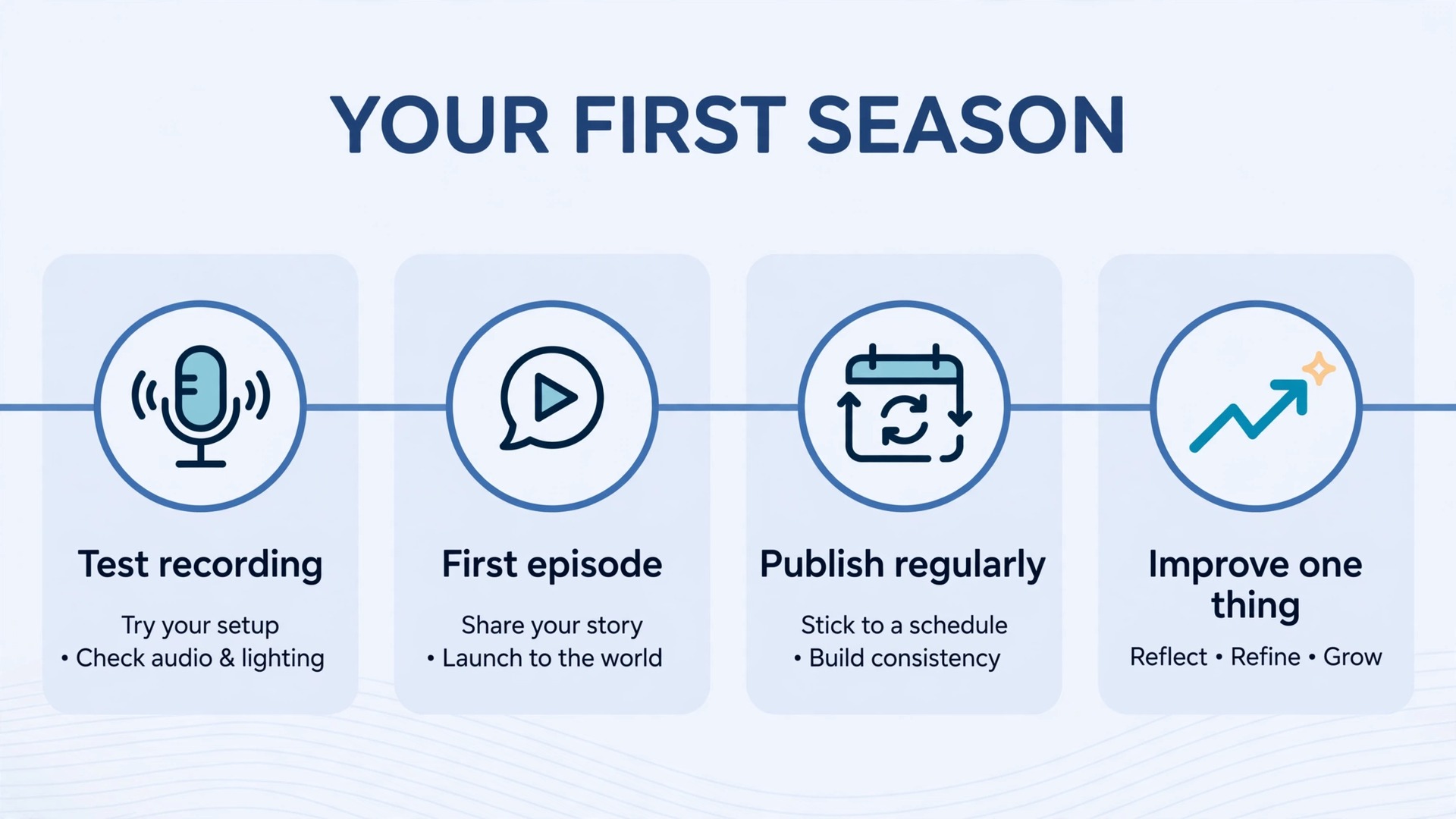
First episodes should be short, simple, and published, rather than long, perfect, and endlessly edited, since a published short episode teaches more than an unpublished perfect episode. Aim for fifteen to twenty minutes for a first solo episode, with a clear topic, a simple outline, and one idea per section, and record it twice if needed, choosing the better take rather than editing a single take into perfection. A first episode that sounds clear and feels human beats a first episode that sounds over edited and stiff, because listeners connect with people, not with production polish alone.
Publishing needs a host, a feed, and a cover, and beginners should choose a host that handles distribution to major platforms automatically, since manual distribution to each platform wastes time better spent recording. Upload the MP3, write a clear episode title and description with the topic in plain words, add show notes with links mentioned in the episode, and publish on a consistent day and time, since consistency builds listener habits faster than irregular brilliance. Check the published episode on a phone, since that is how most listeners will hear it, and note any volume or clarity issue for the next recording, closing the feedback loop that improves every episode.
Growth habits for a beginner show are recording regularly, improving one thing per episode, and asking listeners for feedback on sound and topic, not just on promotion. Improve room treatment one week, gain the next, editing the next, and processing after that, since one improvement per episode compounds across a season without overwhelming the host. Keep a simple log of settings per episode, including microphone distance, gain, room, and processing, so a great sounding episode can be repeated and a poor sounding episode can be diagnosed, since a log turns luck into a repeatable setup.
More Reading on Stratilyze
More Reading on Stratilyze. Podcast setup connects to wider creator topics, so the guides on best microphones for podcast beginners and cost of starting a podcast setup cover gear and budget choices, and the guide on starting a podcast with AI tools covers newer production workflows. Read the microphone guide first if you have not bought a microphone yet, since microphone choice and setup interact closely.
Frequently Asked Questions
Do I need an audio interface for a USB microphone?
No, a USB microphone has the interface built in, connecting directly to a computer with a USB cable and appearing as an audio device in system settings. An interface becomes useful when you move to XLR microphones, multiple microphones, or professional preamps, but for a first podcast, a USB microphone plus free recording software is a complete setup. Spend the interface budget on room treatment and a boom arm first, since those improve sound more for beginners.
How far should I sit from a USB microphone?
About 15 to 20 centimetres, roughly a fist with thumb extended, with the microphone slightly off axis so breath does not hit it directly, and a pop filter halfway between mouth and microphone. Closer than 10 centimetres boosts bass and pops, while farther than 30 centimetres sounds distant and picks up more room echo. Keep distance consistent throughout an episode, since volume swings from moving closer and farther are hard to fix in editing.
Why does my recording sound echoey even with a good microphone?
Because the microphone records the room as well as your voice, and a hard, empty room adds echo that no microphone can ignore. Add soft treatment behind you, close curtains, add a rug, move closer to the microphone, and record in a smaller, softer room for a test. A microphone upgrade in an echoey room records echo more clearly, which is not an improvement, so treat the room before upgrading gear.
What gain level should I aim for when recording?
Aim for normal speech peaks around minus 12 to minus 6 decibels, with loud laughter or emphasis staying below zero decibels to avoid clipping. Set system input high for USB microphones and control level mainly with the microphone gain knob where one exists, testing with a loud laugh as well as normal speech. Gain set for the loudest moment keeps the whole episode safe, while gain set for average speech clips on excitement.
Can I record two people with one USB microphone?
Yes, for casual conversation, with both speakers close to the microphone and at similar distances, though volume will vary if speakers sit unevenly. For regular two voice shows, two microphones on separate tracks sound far better, though many computers need extra setup to handle two USB microphones at once. Start with one shared microphone for occasional guests, and plan a two microphone upgrade when two voices become regular.
What software should a beginner use to record a podcast?
Free software such as Audacity on Windows, Mac, and Linux, or GarageBand on Mac, covers recording, editing, and simple processing for beginners, with ample tutorials available. Choose the software you find easiest to learn, set the project to 44100 Hertz, record in WAV for editing, and export as MP3 for publishing. Software choice matters less than room, position, and gain, so do not delay recording while searching for perfect software.
Your First Episode Starts With a Test Recording
A good podcast setup ends with a test recording that sounds like you, clear, steady, and comfortable to listen to for twenty minutes. That test is the proof that room, position, gain, and software all work together, and it is worth repeating whenever anything changes, from a new desk to a new room to a new microphone. A setup tested regularly stays good, while a setup assumed good slowly drifts as rooms, chairs, and habits change.
Record your test today, listen back on headphones, and fix one thing before you record for real, whether that thing is distance, gain, room echo, or pops. Small, tested improvements compound across episodes, and a show that improves audibly each week keeps listeners in a way that a show recorded perfectly once and never again cannot. To set up USB microphone for podcast beginners and keep improving, the rule is simple. Position carefully, gain for the loudest moment, test every time, and publish regularly, letting each episode teach the next.
