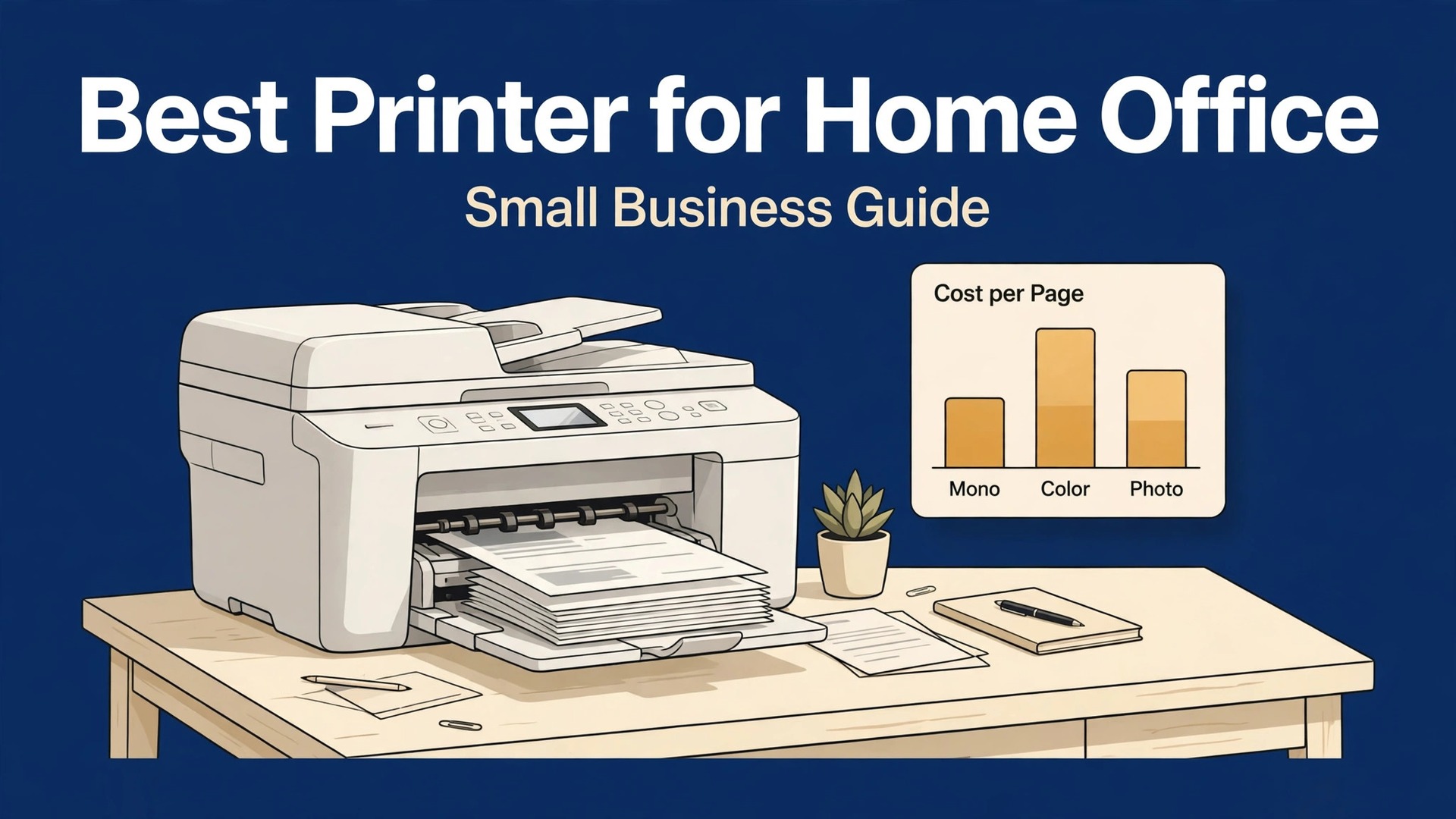
Most home office printer advice starts with the wrong question. Buyers compare sticker prices, then discover that toner and ink cost more than the printer within a year. Published 2026 roundups put mono laser cost near 3.1 cents per black page on Brother models, while color laser pages run 10 to 17 cents and ink tank pages run near 1 cent black and 5 cents color. The best printer for home office small business is therefore a running-cost decision first and a hardware decision second.
This guide compares six printers across mono and color, cost per page, ADF and duplex, and gives an honest rejection reason for each one. Prices were checked against published 2026 roundups in October 2026. Confirm current street prices before you buy, since printer prices move with promotions and bundle deals.
How to Choose in Five Minutes
Start with what you print. If almost every page is black text, a mono laser wins on cost and reliability. If color appears weekly, a color laser or an ink tank makes sense. If you scan and copy often, an all-in-one with an automatic document feeder saves more time than any print speed figure. The best printer for home office small business for your desk is the one that matches your real page mix, not the one with the longest feature list.
Count pages honestly. A printer rated for 4,000 pages a month is wasted on 100 pages a month, and a cheap printer with expensive cartridges punishes a 1,000-page month. Check the duty cycle, the included starter cartridge yield, and the high-yield cartridge price before judging any sticker price.
The best printer for home office small business Shortlist, Compared
The table below compares the six shortlisted printers on the lines that decide running cost and daily comfort. The best printer for home office small business comparison rewards low cost per page and a full scan workflow, not the lowest purchase price alone.
| Printer | Type | Approx price | Black cost per page | ADF and duplex | Best for |
|---|---|---|---|---|---|
| Brother MFC-L2900DW | Mono laser all-in-one | 320 to 340 dollars | About 3.1 cents | Single-pass duplex ADF, auto duplex | Home office scanning and text |
| Brother HL-L2460DW | Mono laser printer | 170 to 190 dollars | About 3.1 cents | No scan, auto duplex print | Pure text printing on a budget |
| Brother MFC-L3780CDW | Color laser all-in-one | 560 to 580 dollars | About 2 cents black, 10 cents color | ADF, auto duplex | Small business color and volume |
| HP LaserJet Pro M404n | Mono laser printer | 250 to 300 dollars | Low, 9,000-page high-yield toner | No scan, auto duplex print | High-volume text only |
| HP OfficeJet Pro 9120e | Inkjet all-in-one | About 199 dollars | Very low with subscription ink | ADF, auto duplex | Everyday color office printing |
| Epson EcoTank ET-5850 | Ink tank all-in-one | 550 to 600 dollars | About 1 cent black, 5 cents color | ADF, auto duplex | Heavy color volume |
The Specs That Matter Most, Explained
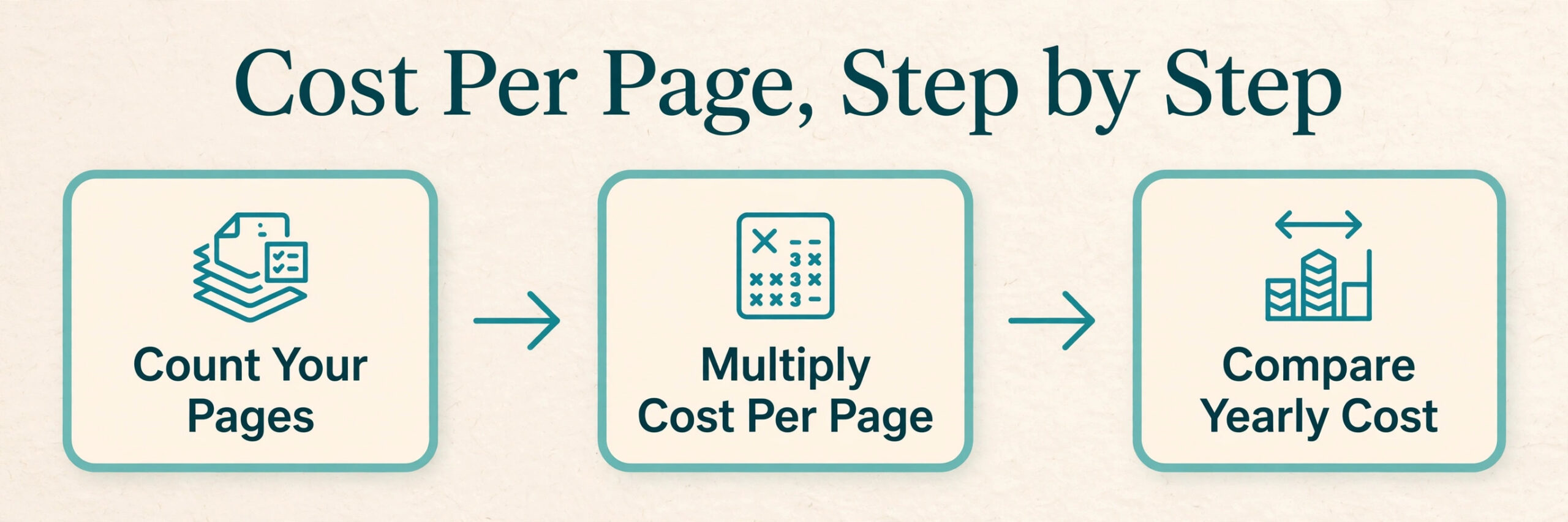
Cost per page is the number that decides the yearly bill. That math is the core of the best printer for home office small business. Multiply your monthly pages by the per-page cost, then multiply by twelve, and compare that figure with the purchase price. A printer that saves 2 cents a page on 1,000 pages a month saves 240 dollars a year, which dwarfs most sticker price gaps.
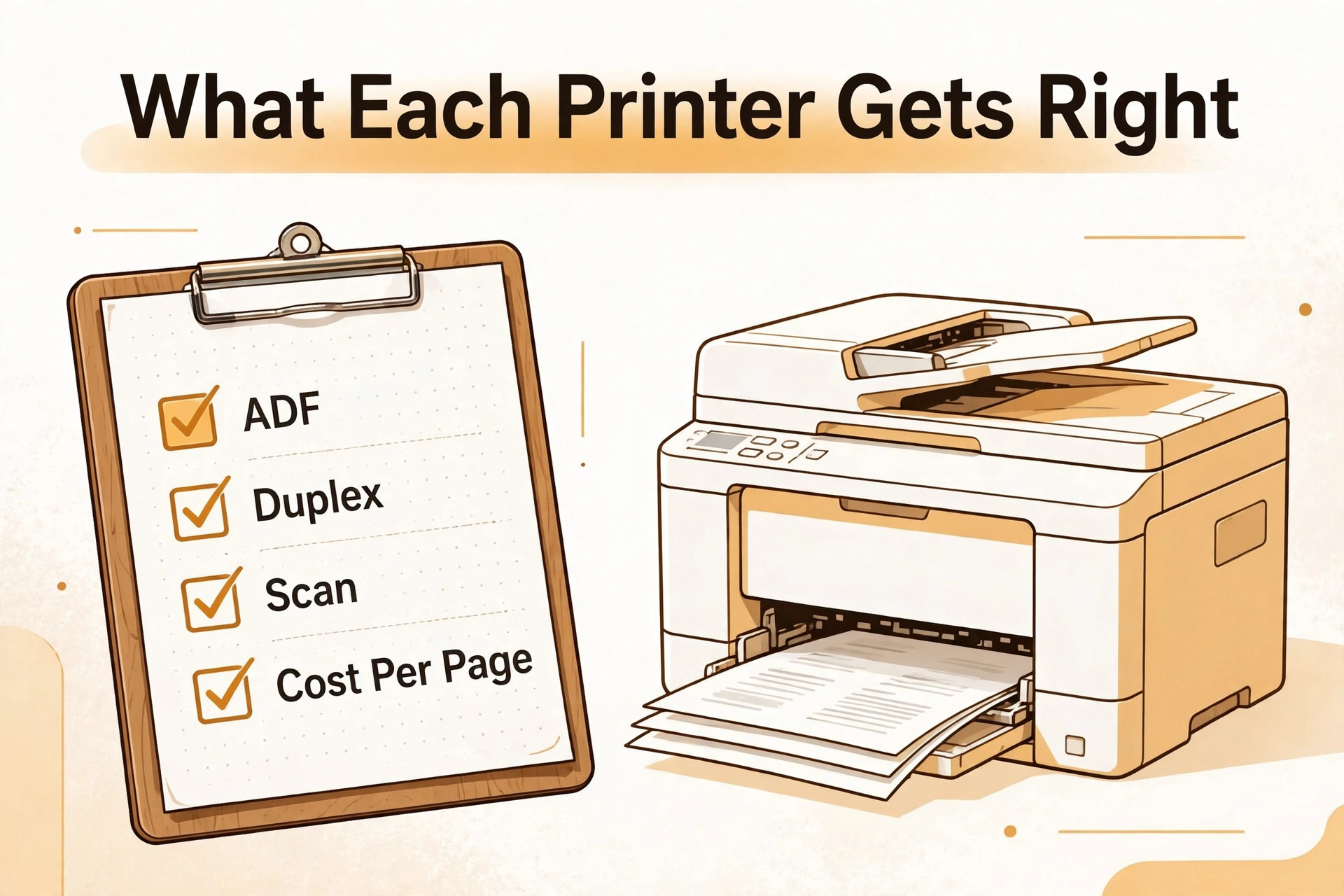
ADF means the printer feeds a stack of pages for scanning or copying without manual page swaps, and single-pass duplex ADF scans both sides in one pass. For a home office that scans contracts, receipts, and forms, a good ADF saves more weekly time than a faster print engine. Duplex printing, which prints both sides automatically, halves paper use on drafts and reports.
Duty cycle is the maximum monthly volume the maker rates the machine for, not a target. A machine rated for 4,000 pages a month will handle 500 pages comfortably for years, while a machine rated for 1,000 pages will wear faster at the same load. Buy duty cycle headroom, not duty cycle bragging rights.
The Six Printers in Detail
Brother MFC-L2900DW
The MFC-L2900DW is the balanced mono all-in-one in this guide, pairing a reliable print engine with a flatbed scanner and a single-pass duplexing ADF, plus a color touchscreen that simplifies setup. It holds the same low 3.1-cent black cost per page as its print-only sibling, so scanning and copying cost nothing extra in supplies. Why you might skip it. If you never scan or copy, the print-only HL-L2460DW delivers the same engine for roughly half the price.
Brother HL-L2460DW
The HL-L2460DW is the value pick for text-only printing, with extremely low cost per page near 3.1 cents, a compact body that fits a bookshelf or desk, and reliable Wi-Fi after setup. It does one job well and nothing else, which is exactly right for a desk that prints documents and scans nothing. Why you might skip it. There is no scanner or copier, so any scanning need means a second device or a phone app workaround.
Brother MFC-L3780CDW
The MFC-L3780CDW is the premium color all-in-one for a busy home office, with sharp text, strong color graphics, security features including NFC badge authentication, and a 4,000-page monthly duty cycle. With XXL cartridges it reaches near 2 cents black and 10 cents color per page, which is strong for color laser. Why you might skip it. The 560 to 580 dollar price and the cost of four color toner cartridges make it poor value if color pages are rare.
HP LaserJet Pro M404n
The M404n is the focused high-volume text printer, running near 40 pages per minute with excellent text quality and a 9,000-page high-yield cartridge that keeps cost per page among the lowest in its class. For law, accounting, and text-heavy offices, it is a workhorse with no distractions. Why you might skip it. There is no scanning, no color, and no Wi-Fi on the base n model, so check connectivity needs before buying.
HP OfficeJet Pro 9120e
The OfficeJet Pro 9120e is the everyday color inkjet all-in-one, printing up to 22 pages per minute with a full scan and copy workflow at a 199 dollar price. For a home office that prints mixed documents with occasional color, it is the cheapest route to a complete workflow. Why you might skip it. Inkjet running costs and cartridge or subscription dependence punish heavy print months, so high-volume buyers should prefer laser or ink tank.
Epson EcoTank ET-5850
The EcoTank ET-5850 solves the inkjet cost problem with refillable tanks, delivering near 1 cent black and 5 cents color per page, with ink in the box rated near 14,000 black and 11,200 color pages. It is a full all-in-one with auto duplex, ADF, Wi-Fi, Ethernet, and a touchscreen. Why you might skip it. The 550 to 600 dollar upfront cost only pays back at real color volume, so light printers should not buy tank capacity they never use.
What to Check Before You Buy
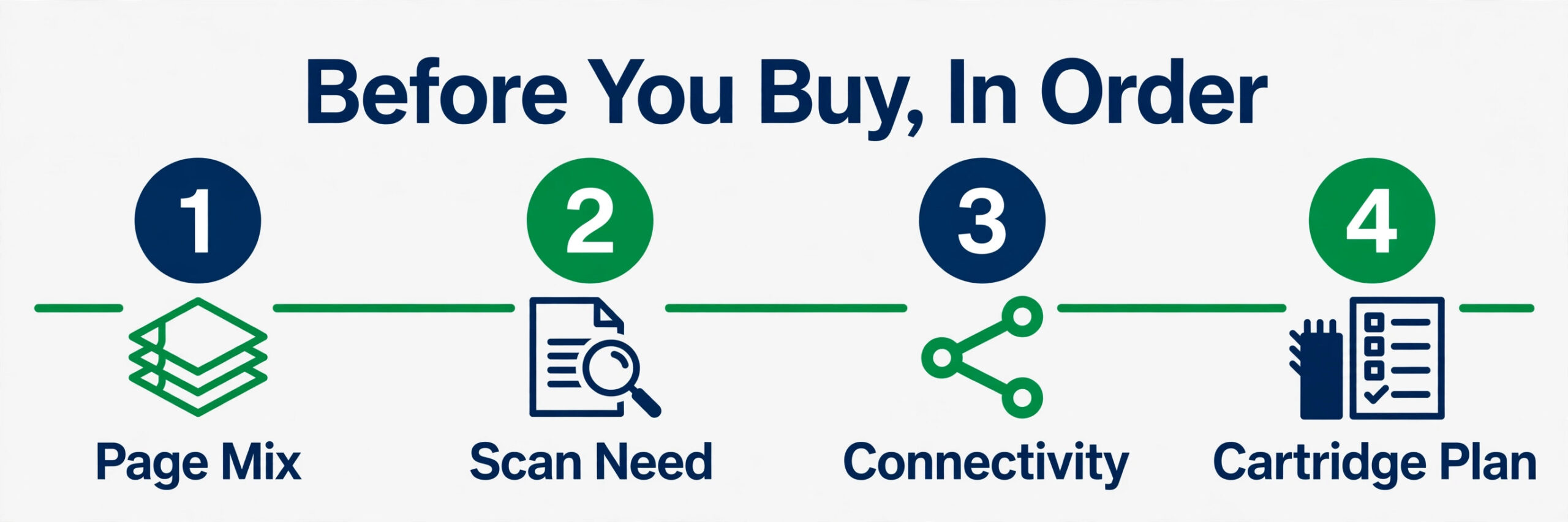
Run this checklist before ordering, because the best printer for home office small business decision is easy to reverse on paper and annoying to reverse after unboxing. Confirm the page mix, the scan need, the connectivity, and the cartridge plan in writing, even if the writing is just a note to yourself.
- Monthly page count, split into black and color, because the mix picks laser, inkjet, or tank.
- Scan and copy frequency, including whether an ADF and duplex scanning matter weekly or rarely.
- Connectivity, including Wi-Fi, Ethernet, and mobile printing for every device in the house.
- Starter cartridge yield, since starter cartridges print fewer pages than standard ones.
- High-yield cartridge price and availability, because that price sets the real cost per page.
- Paper capacity and size, including whether 250 sheets suffice or a second tray is needed.
- Space and noise, since a business-class laser is larger and louder than a compact inkjet.
- Return window and warranty, because a printer that jams weekly should go back, not be tolerated.
Mistakes That Waste Money
The most expensive mistake is buying color capacity for a black-and-white workload, because color toner expires, clogs, and costs four cartridges instead of one. The best printer for home office small business for a text-only desk is a mono laser, and every color feature beyond that is money waiting to be wasted.
- Buying the cheapest printer without checking cartridge prices, which reverses the saving within months.
- Ignoring starter cartridge yields, which makes the first replacement arrive far sooner than expected.
- Choosing a printer without an ADF when scanning is weekly, which costs hours of manual page feeding.
- Paying for a business duty cycle on a 100-page month, which buys durability that never gets used.
- Skipping the high-yield cartridge math, which hides the true cost per page behind a low sticker price.
The fix is a page-count note and a cartridge-price check before any purchase. Ten minutes of arithmetic beats a year of expensive printing, and it turns a confusing market into a short, defensible shortlist.

Setup Costs Beyond the Box
Budget beyond the printer itself, because the best printer for home office small business total includes the first year of supplies. A spare high-yield black cartridge, a ream or two of paper, and a USB cable if the box omits one are the usual extras. For ink tank buyers, the included ink covers months, so the extra budget is smaller, while color laser buyers should price one full toner set before judging value.
Placement matters too. A laser printer needs ventilation space and a stable surface, and a scanner workflow needs clear desk space beside it for document stacks. Measure the desk before ordering, not after, since business-class all-in-ones are wider than compact inkjets and do not fit every home office shelf.
Prices checked against published 2026 roundups in October 2026. Confirm current street prices and cartridge prices before you buy, since promotions change the value order quickly.
How to Read Reviews Without Getting Misled
Reviews are the most useful and the most misleading source in any buying decision, because they mix genuine experience with launch hype, sponsored enthusiasm, and competitor noise. The trick is not to ignore reviews, but to read them in a way that filters for the information that actually predicts your experience. Start by reading the three-star and four-star reviews first, since they usually contain both praise and complaint, while five-star reviews often describe arrival condition and one-star reviews often describe shipping damage rather than product quality.
Look for failure reports and long-term updates, because they reveal what breaks and when. A product with many reviews mentioning the same failure after six months has a pattern, while a product with scattered, unrelated complaints usually has normal variance. Updates that say still working after a year, or battery faded after eight months, are worth more than ten launch-week reviews combined, since durability only shows with time.
Check sample size and timing before trusting any average. A product with fifty reviews averaging 4.8 stars tells you less than a product with two thousand reviews averaging 4.4 stars, because small samples swing wildly. Reviews clustered around a launch or a sale often reflect excitement and discounting rather than settled opinion, so weight recent, steady reviews more heavily than a launch spike.
Treat sponsored and affiliate content as advertising with useful information inside, not as independent testing. A creator paid through affiliate links can still give an honest review, but their incentive favors enthusiasm, and their testing rarely covers months of use. Cross-check any single glowing review against two independent sources, and be suspicious when every review uses the same phrases, which often signals a shared brief.
End with three questions for any product you are considering. What breaks first, and how did support handle it. Would the reviewer buy it again at full price. And does the complaint pattern match your own use case, or does it describe a use you will never attempt. A product whose complaints all concern a feature you will never use is a better buy than its average suggests, while a product whose praise all concerns a feature you will never use is worse.
Matching the Pick to Your Real Week
Most buying regret comes from choosing for an imagined week rather than a real one. The imagined week is busy, demanding, and full of advanced use, while the real week is usually lighter, with a few heavy days and several quiet ones. A product bought for the imagined week costs more, weighs more, or complicates more than the real week ever needs, while a product bought for the quiet week fails on the first busy day. Buy for the typical week with room for the busy one, and the choice usually becomes obvious.
Sketch the real week before shopping, in three lines. The typical day, including hours of use and the main task. The busy day, including what peaks and how often it happens. And the travel or shared-use day, including whether the product leaves the desk or serves more than one person. That sketch takes five minutes and prevents the most common error, which is buying a heavy, expensive solution for a light, stationary routine.
Light users should buy for comfort and simplicity, since an advanced product adds settings and weight they will never use. Heavy users should buy for durability and repairability, since daily use finds every weak point within months. Travelers should buy for size, battery, and toughness, since a product that stays home during trips is a wasted purchase. Shared users should buy for adjustability and easy handover, since a product tuned for one person frustrates everyone else.
Skill growth changes the answer over time, and the honest question is how fast you will grow. A beginner who will practice weekly outgrows a starter product within a year, while a casual user may never outgrow it. Buy a product with one step of headroom above your current skill, not three steps, since three steps of headroom usually means a year of paying for features you cannot yet use.
The decision rule that ties this together is simple. List the three tasks you will do most, check each shortlisted product against those three tasks only, and ignore every other feature until the top three are satisfied. A product that wins on your real tasks and loses on imaginary ones is the right buy, while a product that wins on imaginary tasks and loses on real ones is a regret waiting for delivery day.
Longevity, Warranty, and Support
Purchase price is only the first cost of any product, because batteries fade, buttons wear, moving parts loosen, and software support ends. A cheap product that lasts one year costs more per year than a pricier product that lasts four, and the difference grows when replacement means relearning settings, migrating data, or rebuying accessories. Longevity deserves the same attention as launch specs, even though it rarely appears in a headline comparison.
Batteries are the most common wear item, and their decline follows a predictable curve. A battery rated for hundreds of cycles will hold less charge after a year of daily use, and a product with a sealed battery becomes a replacement decision when the battery fades. Check whether the battery is replaceable, what a replacement costs, and whether the product remains usable while plugged in, since those answers decide the real lifespan.
Warranty terms reveal what a maker expects to break. A one-year warranty covering defects is standard, while longer warranties on specific parts suggest confidence in those parts. Read the exclusions, since wear items, batteries, and accidental damage are commonly excluded, and check whether warranty service is local, mail-in, or depot-based, because a three-week mail-in repair feels very different from a local swap.
Software and firmware support matter as much as hardware, especially for connected products. A product whose app stops receiving updates loses features, security fixes, and compatibility with new phones and operating systems, even while the hardware still works. Check the maker’s update history for older models, since a maker that supports three-year-old products will likely support yours, while a maker that abandons last year’s model will abandon yours too.
Total cost over the expected lifespan is the number that settles most comparisons. Add purchase price, likely accessories, and one probable repair or replacement, then divide by expected years of service. A product that looks expensive at purchase often wins that calculation, while a product that looks cheap often loses it. Buy the lowest yearly cost that meets your real needs, not the lowest sticker price on the page.
What to Buy Next When You Outgrow This Pick
Outgrowing a product is a good sign, because it means skills or needs grew, but the upgrade decision still deserves care. The signs are consistent. You hit the same limit weekly, you work around the product rather than with it, or you spend more time compensating than creating. A single frustrating day is not outgrowth, but a weekly pattern is, and confusing the two leads to premature upgrades that solve nothing.
Before upgrading, list what carries over, since ecosystem lock-in changes the upgrade math. Accessories, mounts, batteries, software settings, and learned skills may transfer to the next tier or may not, and a product line that preserves accessories is cheaper to upgrade within than a line that replaces everything. Check compatibility before assuming the upgrade path is smooth, because a new connector or mount standard can erase the saving.
The next tier usually buys one of three things, namely more capacity, more precision, or more durability, and the right one depends on which limit you hit. Capacity upgrades suit growing volume, precision upgrades suit growing quality demands, and durability upgrades suit growing daily use. An upgrade that buys a different strength than the one you lack is an expensive sideways move, so name the limit before shopping for the solution.
Sometimes the bottleneck is not the product at all, and upgrading it wastes money. A slow workflow may need better lighting, better audio, better organization, or more practice rather than better hardware, and those fixes cost less and help more. Test the bottleneck by borrowing or renting the upgrade first, or by fixing the surrounding setup, and upgrade only when the product itself remains the limit after those fixes.
When the upgrade is justified, plan the old product’s next life rather than binning it. A starter product makes a good travel spare, a shared household backup, or a gift to a beginner, and selling it recovers part of the upgrade cost. A product that serves a second life was a better purchase than its price suggested, and that framing makes the original buy feel wiser in hindsight.
Accessories Worth Buying on Day One
Every product in this guide works out of the box, but a few small accessories decide whether day one feels smooth or frustrating. The pattern is consistent across categories. Power, protection, storage, and connection are the four accessory groups that matter, and buying the right one from each group beats buying a drawer full of gadgets that never get used.
Power comes first, because a dead battery or a missing charger ends use at the worst moment. A spare battery, a longer cable, or a charger that lives where the product is used will prevent more frustration than any other accessory. Check what the box includes before ordering extras, since many products ship with a short cable or no spare, and the missing item is usually cheap.
Protection and storage come second, especially for products that travel or sit in shared spaces. A case, a cover, or a screen protector costs little and prevents the damage that leads to early replacement. For desk products, protection means a mat, a stand, or a mount that keeps the product stable and clean, which extends life just as surely as a case does.
Connection accessories come third, including cables, adapters, and mounts that link the product to the rest of your setup. A product that cannot connect to your laptop, your speaker, or your wall is a product that gathers dust, so confirm every connection in advance and buy the one adapter that closes the gap. One well-chosen adapter beats three speculative ones.
Buy accessories in that order, namely power, protection, then connection, and stop when the product works smoothly for a full week. Accessories bought after a week of real use solve real problems, while accessories bought before delivery solve imagined ones. The cheapest accessory strategy is patience plus a short list written from experience.
Common Setup Errors in the First Week
The first week decides whether a new product earns its place or gathers dust, and the errors that spoil it are rarely about the product itself. Skipping updates is the first, because makers ship fixes for known issues in the first months, and an unpatched product misbehaves in ways that look like hardware faults. Update firmware and software on day one, then test again before judging anything.
Wrong settings are the second error, because default settings suit a general buyer, not your specific use. Display modes, audio profiles, sensitivity levels, and power settings all ship at middle values that please nobody fully. Spend twenty minutes adjusting the three settings you will use most, and the product often feels like a different, better device afterward.
Poor placement is the third error, and it affects every category, from a monitor at the wrong height to a speaker facing a wall to a sensor blocked by a case. Placement decides comfort, accuracy, and sound more than most buyers expect, so test two or three positions before settling, and measure rather than guessing where the product should sit.
Ignoring the manual is the fourth error, not because manuals are exciting, but because they contain the one feature that changes daily use, such as a shortcut, a mode, or a maintenance step. Skim the manual for headings, note the three features you did not know existed, and try each one during the first week. That habit alone rescues many products from an unfair early verdict.
Judging too fast is the final error, because hands, ears, and eyes need days to adjust to a new shape, sound, or screen. A product that feels strange on day one often feels natural by day seven, while a product that feels perfect on day one can reveal flaws by day fourteen. Use the full return window, test in real conditions, and decide on evidence from a week of use rather than an hour of unboxing.
More Reading on Stratilyze
More Reading on Stratilyze. Read the printer Wi-Fi connection fix guide and the home office monitor guide under 300 dollars for the rest of the desk setup.
Frequently Asked Questions
What is the best printer for a home office small business?
For most text-heavy home offices, the Brother MFC-L2900DW is the balanced pick, with low cost per page and a full scan workflow. The best printer for home office small business depends on your page mix, so a text-only desk should consider the cheaper HL-L2460DW, and a color-heavy desk should consider ink tank.
Is laser or inkjet better for a home office?
Laser wins for text volume, reliability, and cost per page on mono work, while inkjet wins for occasional color at a low purchase price. Ink tank models beat both on color running cost, but only pay back at real color volume.
What does cost per page really mean?
It is the cartridge or toner price divided by the rated page yield. A 3.1-cent black page costs 31 dollars per 1,000 pages, while a 10-cent color page costs 100 dollars per 1,000 pages, so the gap compounds fast at volume.
Do I need an automatic document feeder?
If you scan or copy multi-page documents weekly, yes, and a single-pass duplex ADF is worth paying for. If scanning is rare, a flatbed or a phone app covers it, and the money is better spent on lower running costs.
Are starter cartridges really smaller?
Yes, starter cartridges typically print fewer pages than standard cartridges, so the first replacement arrives sooner than buyers expect. Check the starter yield and price a high-yield replacement before judging the printer price.
How many pages a month justify a business printer?
Above roughly 500 pages a month, a business-class laser or ink tank usually beats a cheap inkjet on running cost. Below that, a compact model with low purchase price is often cheaper overall, even with higher per-page costs.
Match the Printer to the Page Mix
Count your black and color pages, check the cartridge price, and buy the machine whose running cost fits that mix. That order keeps the best printer for home office small business honest, because the yearly supplies bill matters more than the box price.
For most home offices, a mono laser all-in-one is the safe default, a color laser or ink tank earns its place only at real color volume, and a print-only model wins when scanning never happens. Buy on that logic and the printer stops being a monthly surprise.