
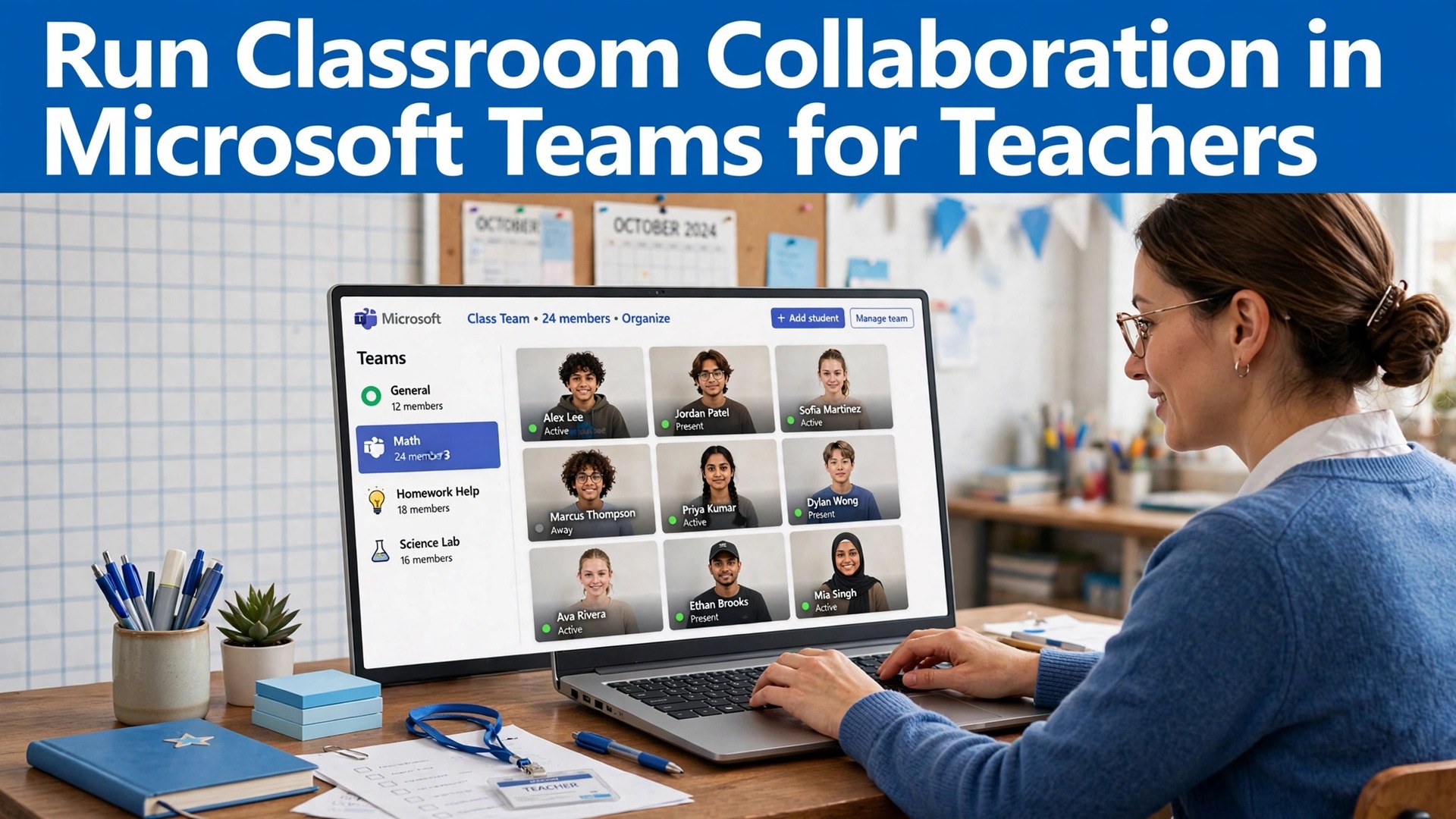
Verdict first. A class team in Microsoft Teams earns its keep when it becomes the one place where announcements, resources, assignments, and feedback live, instead of one more app competing with email, paper, and half a dozen other tools. The setup matters more than the features, because a team with a clear channel structure and a consistent assignment routine saves hours every week, while a team set up in a hurry becomes another inbox students ignore. This guide shows how teachers use Microsoft Teams for classroom collaboration teachers can sustain, with a class team template, an assignment tracking routine, and the checks that keep resources findable through the term.
Microsoft Teams is a collaboration platform that combines chat, video meetings, file sharing, and task management, and its education version adds class teams designed for teaching. A class team comes with channels for organizing discussions, an Assignments tool for distributing and grading work, a Grades view for tracking progress, and integration with the document tools students already use for writing and presenting. Teachers create the team, add students, organize channels by topic or project, and run the class from that single space, whether students are in the room, at home, or split between both.
For schools already using Microsoft accounts, setup is fast, because students sign in with existing credentials and join with a code or an invitation, without new accounts to manage.
This guide builds a class team that students actually use. You will set up the team structure before term starts, organize channels so discussions stay findable, run assignments and feedback in a way that saves marking time, use meetings and breakout rooms for live collaboration, manage group work without chaos, and keep the whole system maintainable across a term. By the end, your class team will be the place students check first, because everything they need lives there, and that single habit is what turns a platform into a classroom.
One Place Versus Five Apps
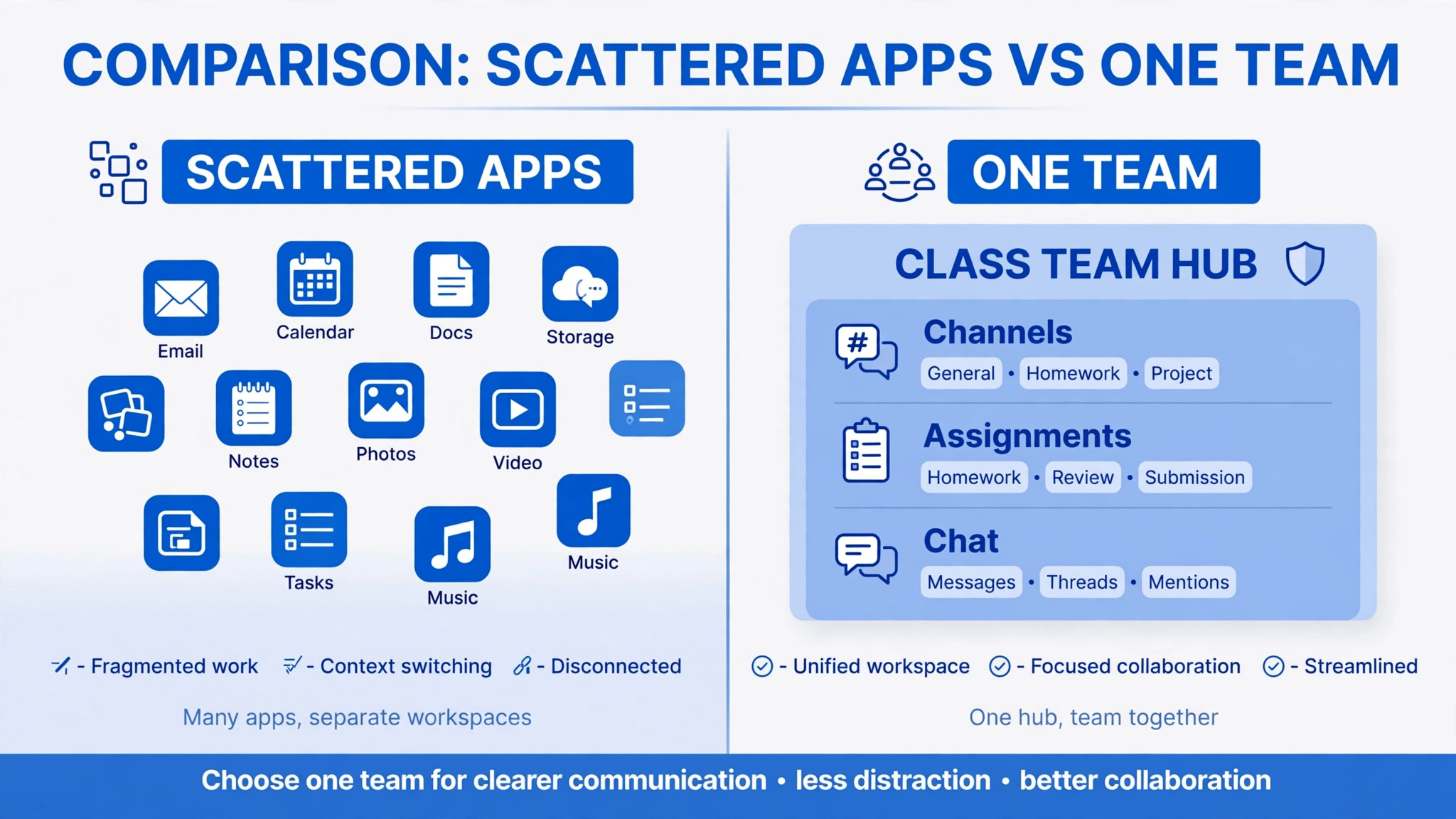
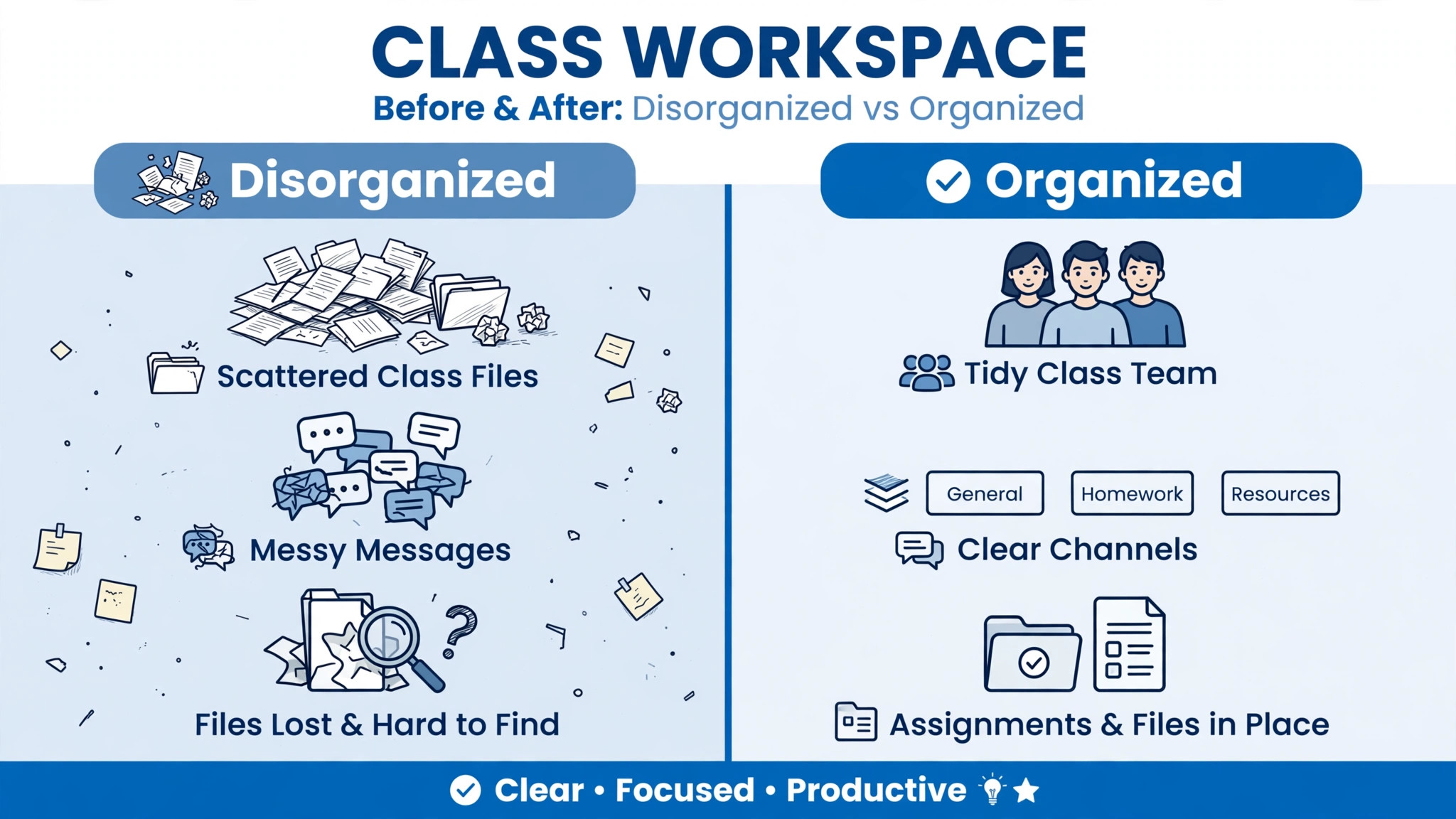
The cost of scattered classroom tools is easy to miss because each tool feels small. Announcements live in email, resources live in a shared drive, discussions live in a chat app, assignments live in a separate portal, and feedback lives in yet another inbox. Students must remember five locations, five logins, and five habits, and the students who struggle most are often those with the least support at home, who cannot afford to lose a resource to a forgotten location. Teachers pay the same cost in reverse, repeating announcements across tools, answering “where is the worksheet” messages, and hunting for submissions across systems. Scattered tools do not just waste time.
They create unequal access, because organized students cope and disorganized students fall behind for reasons unrelated to learning.
A single class team changes that structure. Announcements go to the General channel, where every student sees them. Resources live in the Files tab of the relevant channel, where students expect them. Discussions happen in channel posts, with replies threaded under the original question, so answers stay findable. Assignments live in the Assignments tab, with due dates, instructions, and feedback in one place. Meetings happen in the team, with recordings available afterward for absent students. When a student asks where something is, the answer is almost always the same, which is in the team, in the channel for that topic, and that consistency is what makes the system learnable, especially for younger students and those new to digital learning.
| Classroom task | Scattered tools method | Teams class team method |
|---|---|---|
| Announcements | Email, easily buried | General channel post, visible to all |
| Resources | Shared drive, hard to navigate | Files tab in the topic channel |
| Discussion | Separate chat app, unthreaded | Channel posts with threaded replies |
| Assignments | Separate portal, separate login | Assignments tab with due dates and feedback |
| Group work | Private chats, invisible to teacher | Private channels, visible and supported |
| Live lessons | Separate meeting link, lost afterward | Team meeting, recording saved in team |
| Grades and progress | Spreadsheet, shared late | Grades tab, visible to teacher and student |
The table shows the structural advantage, but one caution belongs here. A single platform can become a single mess if channels multiply without discipline, if files pile up without naming, or if announcements bury discussion. The setup discipline in this guide, which is few channels, clear names, pinned resources, and consistent assignment habits, is what keeps the single place usable. When you use Microsoft Teams for classroom collaboration teachers succeed when students can find things without asking, and that findability is designed, not accidental.
Setting Up a Class Team Before Term Starts
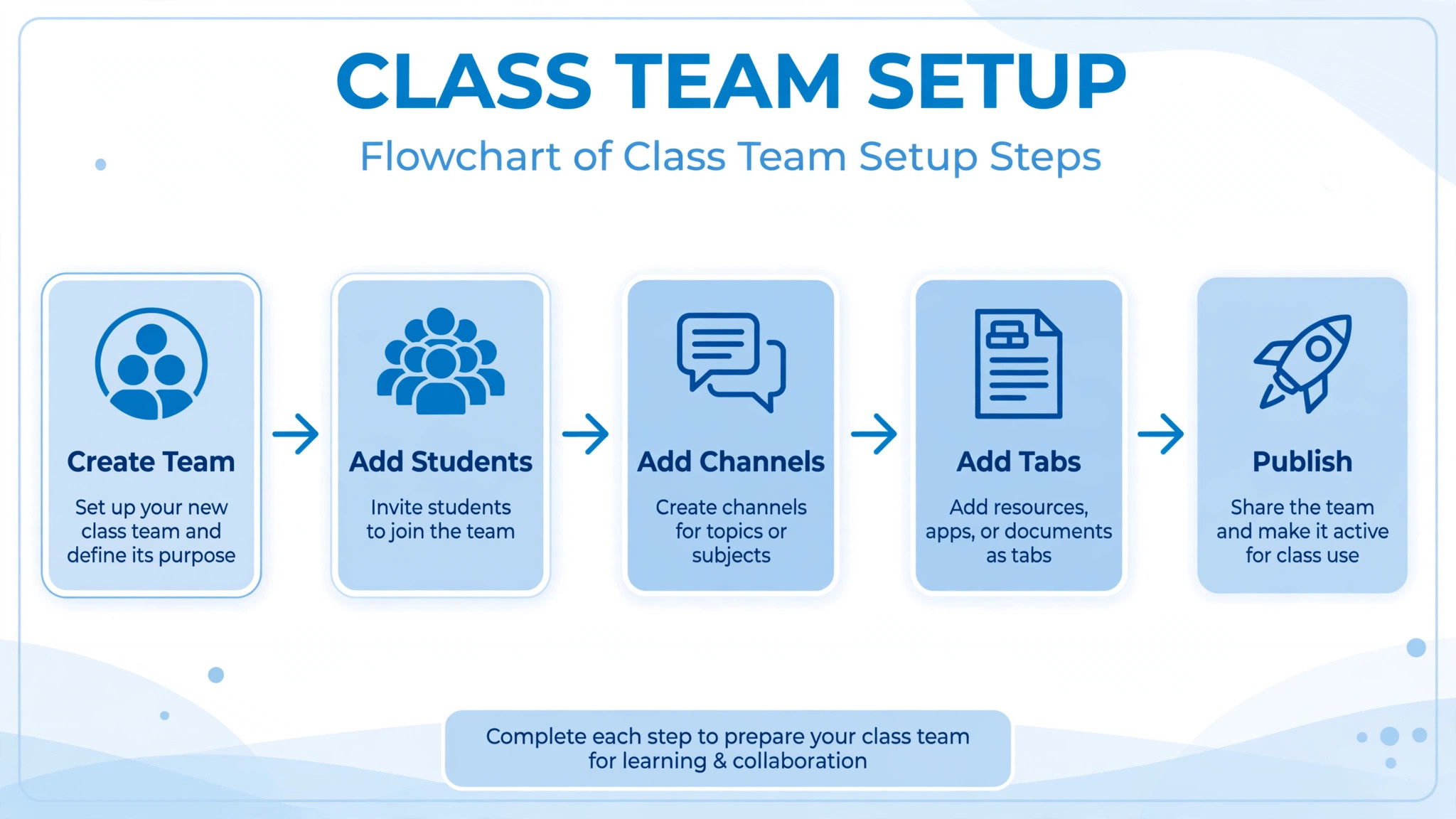
Create the team from the education class template where available, because it provides a sensible starting structure, including a General channel and starter channels that you can rename to fit your subject. Name the team clearly, including subject, class, and term, so students with multiple teams can tell them apart at a glance. Set privacy to private, so only enrolled students and co-teachers can join, and add co-teachers as owners, so another adult can manage the team when you are away. Add students by class list, group, or join code, and test the join process yourself with a student account or a colleague’s help, because a join failure on the first day creates a support queue that overshadows the lesson.
Organize channels by how students think, not by how the syllabus is filed. Start with General for announcements and whole-class discussion, then add a small number of topic channels, such as one per unit or per major project, and add private channels only for group work that needs separation. A common mistake is creating a channel for every lesson, which produces dozens of channels that students cannot navigate, and discussion fragments across them. Start with three to five channels, and add more only when a real need appears, such as a long project that deserves its own space. Fewer channels, used well, beat many channels used rarely, and students learn the structure in days rather than weeks.
Pin the essentials where students look first. In the General channel, pin a welcome post that explains the team’s purpose, the channel structure, where assignments live, and how to ask for help. In each topic channel, pin key resources in the Files tab, and post a short channel guide as the first message, so students arriving mid-term can orient themselves without asking. Set channel moderation thoughtfully, deciding whether students may post freely or whether new posts need teacher approval in announcement channels, and explain the rule to students, so moderation feels like classroom management rather than censorship.
A team that is set up before term starts, with clear names and pinned guides, saves weeks of “where do I find” questions later.
Class Notebook, Forms, and Planner Tabs
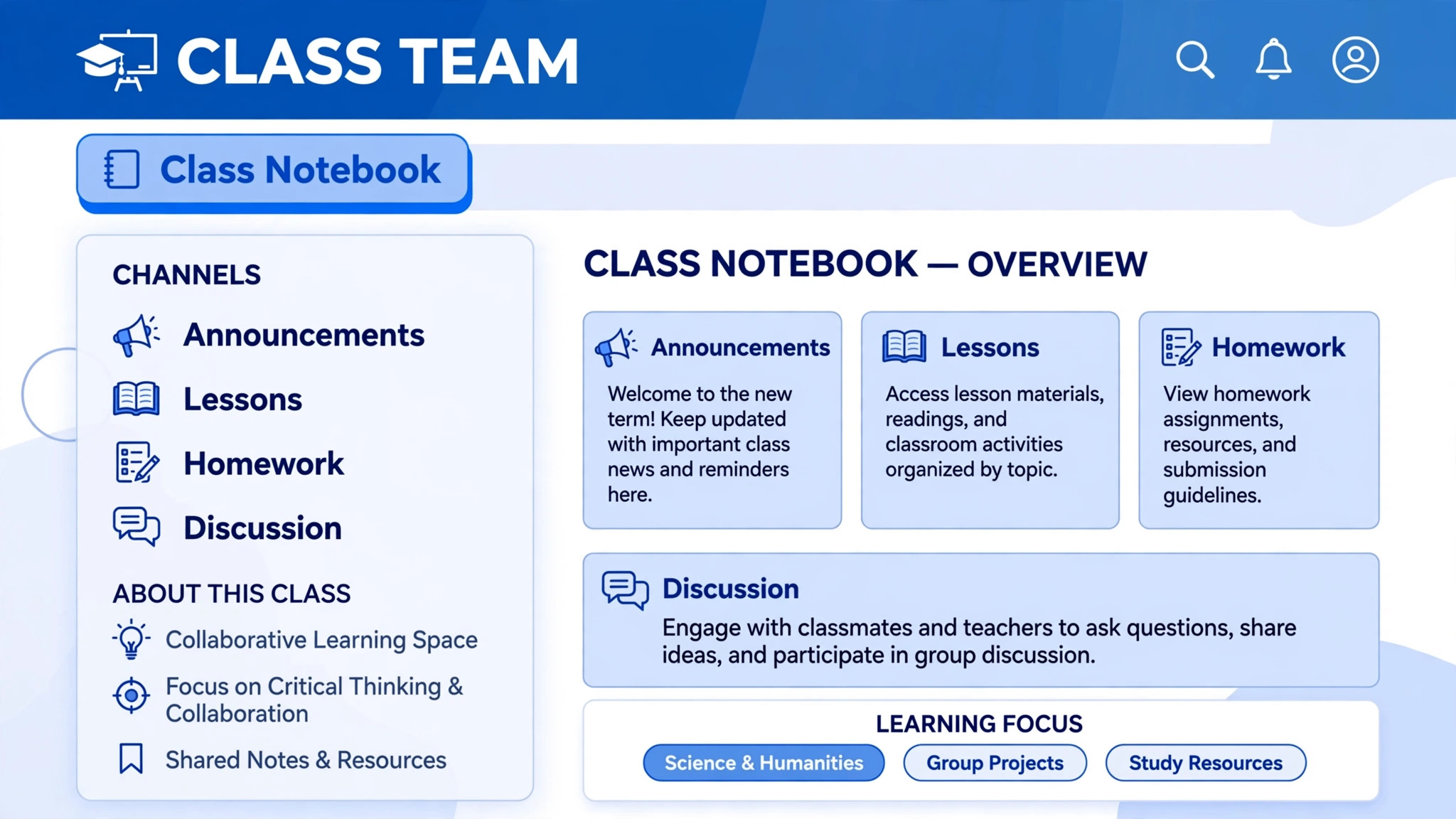
Teams lets you add tabs to channels, pinning frequently used tools at the top of the channel where students can reach them in one click. A Class Notebook tab gives every student a personal notebook section, a collaboration space for group work, and a content library controlled by the teacher, which suits subjects where notes, drafts, and shared resources grow over a term. A Forms tab lets you run quick polls, quizzes, or feedback surveys without leaving the team, which suits exit tickets and understanding checks. A Planner tab lets you track group project tasks visually, which suits longer assignments where students need to see who is doing what.
Add tabs sparingly, one per genuine need, and explain each tab’s purpose in the channel guide, because a tab nobody understands is just another place for students to get lost.
Running Assignments and Feedback That Save Time
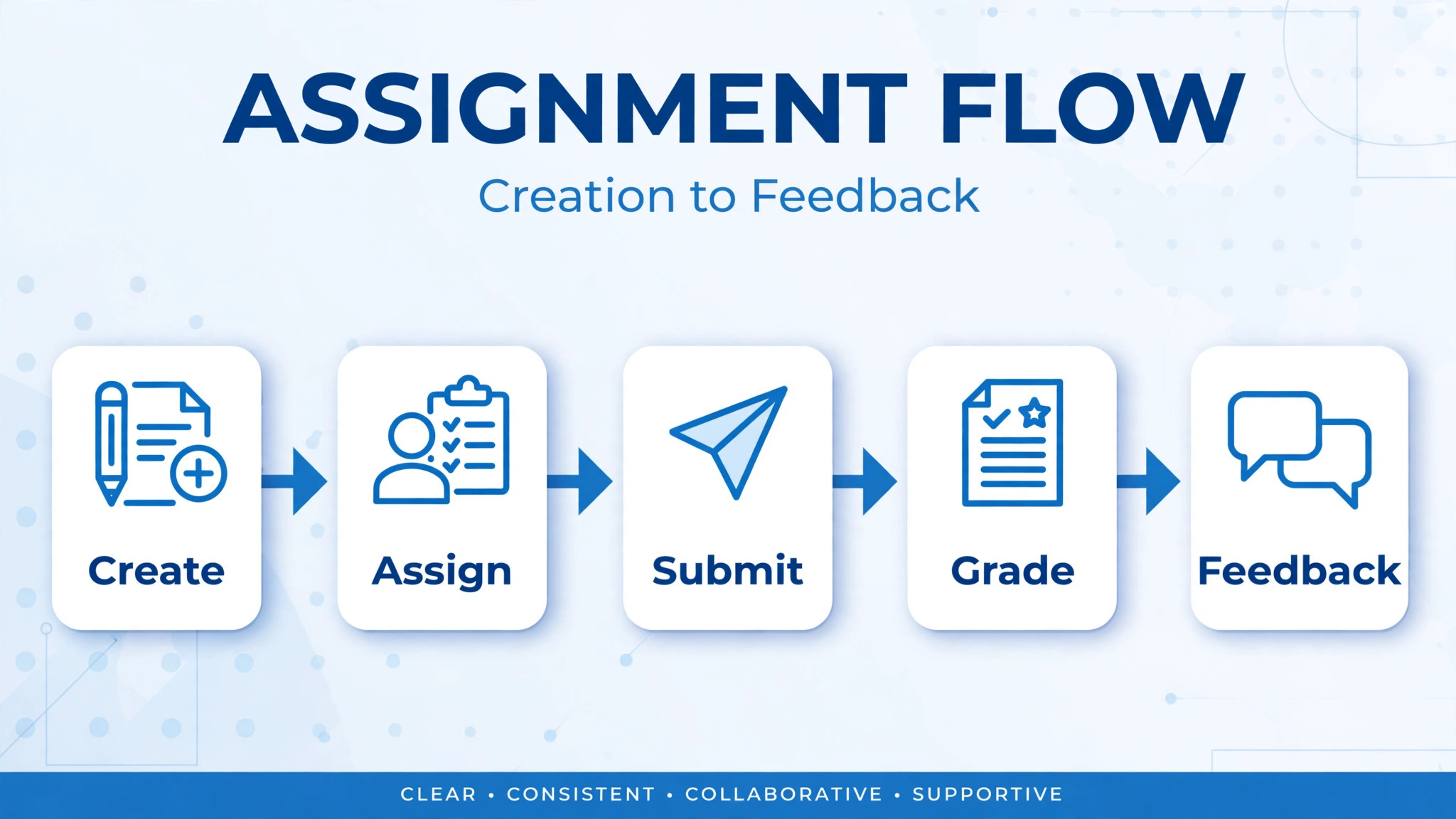
Assignments in Teams let you create work, attach resources, set due dates and points, assign to the whole class or to individual students, and collect submissions in one place. Write instructions that a student can follow without asking, including what to submit, in what format, and what success looks like, because unclear instructions generate the same questions from twenty students, and answering them individually costs more time than writing clearly once. Attach exemplars or checklists where helpful, and set due dates that match your marking capacity, since a pile of submissions arriving the same day as a pile from another class helps nobody.
Use the assignment’s channel notification setting to post announcements to the right channel, so students see new work where they already look.
Feedback is where Teams saves the most teacher time, when used well. Grade and comment directly on submissions, return work with feedback attached, and use rubrics where your school supports them, so students see exactly where marks were gained and lost. Keep feedback specific and actionable, naming one strength and one next step, rather than writing long general comments that students skim. For common errors, write the explanation once and reuse it across submissions, adapting the student’s name and example, because repeated individual explanations of the same error waste marking time without helping students more.
Students can see their grades and feedback in the Grades tab, which means they do not need to ask, and you do not need to chase them to collect marked work.
Differentiation is easier in Teams than on paper, because you can assign work to individual students or small groups without singling anyone out publicly. A private channel for a support group, an extension assignment for advanced students, and a modified task for a student who needs it can all live in the same team, visible only to those involved. Use that capability thoughtfully, and check privacy settings before assigning sensitive work, because a differentiation strategy that accidentally exposes who receives support defeats its own purpose. When used carefully, Teams lets every student get work at the right level, without the stigma of visibly different paper in a classroom.
Meetings, Breakout Rooms, and Live Collaboration
Live lessons in Teams work best when the team structure already exists, because students join from a familiar place and return to familiar channels afterward. Schedule meetings in the relevant channel, so the meeting, its chat, and its recording stay attached to the topic, rather than floating in a separate calendar that students forget. Start with a clear agenda posted in the channel, use screen sharing and the digital whiteboard for explanation and brainstorming, and use polls during the lesson to check understanding without waiting for hands. Record lessons where your school policy allows, and post the recording link in the channel afterward, so absent students and revising students can catch up without asking you for notes.
Breakout rooms transform group work in live lessons, by splitting the class into small rooms for discussion, problem solving, or peer review, then bringing everyone back to share. Set the room task clearly before splitting, including what each group should produce and how long they have, because an unclear breakout task produces silent rooms and wasted time. Visit rooms during the activity, as you would walk around a physical classroom, and use the broadcast message to warn groups when time is nearly up. Afterward, bring groups back and ask each to share one finding in the main room, so the work connects to the whole class rather than staying isolated.
Breakout rooms work when the task is clear, the time is short, and the sharing is structured, and they fail when any of those three is missing.
Chat during live lessons needs ground rules, just like classroom talk. Decide whether students may post freely, use reactions, or raise hands, and teach the rule explicitly in the first lesson, with examples of helpful chat and distracting chat. Moderate kindly and consistently, and use the chat itself as a teaching tool, by highlighting good questions and answers in the main discussion. Students who are shy in speech often thrive in chat, and a well-managed chat channel can surface understanding from students who would never raise a hand. The goal is a live lesson where every student has a way to participate, not just the confident speakers.
The Class Team Setup Template
This template is the overview-proof element for this guide. Use it when creating a new class team, and adapt channel names to your subject, but keep the structure and the setup order, because the order prevents the common failure of adding students to an unfinished team. When you use Microsoft Teams for classroom collaboration teachers who follow this template start term with a team students can navigate on day one.
| Setup item | What to configure | Check before students join |
|---|---|---|
| Team name and privacy | Subject, class, and term in the name, private setting | Name clear to students with many teams |
| Owners and members | Co-teachers as owners, students added by list or code | Join process tested by a colleague |
| General channel | Announcements, welcome post, and team guide pinned | Students can state the team’s purpose |
| Topic channels | Three to five channels by unit or project | Each channel has a pinned guide post |
| Private channels | One per group project, only for genuine need | Privacy checked, members correct |
| Files organization | Key resources in each channel’s Files tab | Files named clearly and pinned where key |
| Assignments setup | First assignment drafted, due date and points set | Instructions clear without teacher help |
| Tabs added | Notebook, Forms, or Planner only where needed | Each tab’s purpose explained in channel guide |
| Meeting defaults | Lessons scheduled in topic channels | Recording and chat location explained to students |
| Help route | How students ask for help, and response time | Help route posted in General channel |
After setup, run a first-week orientation lesson inside the team itself, where students practice posting, replying in threads, finding a file, and opening an assignment. That practice lesson feels slow, but it prevents weeks of confusion, because students learn the system by using it with guidance, rather than by failing alone at homework time. Repeat the orientation briefly for students who join mid-term, by pointing them to the pinned guides and pairing them with a confident classmate for their first week. A team that students can navigate is a team they will use, and use is what makes collaboration happen.
Managing Group Work Without Chaos
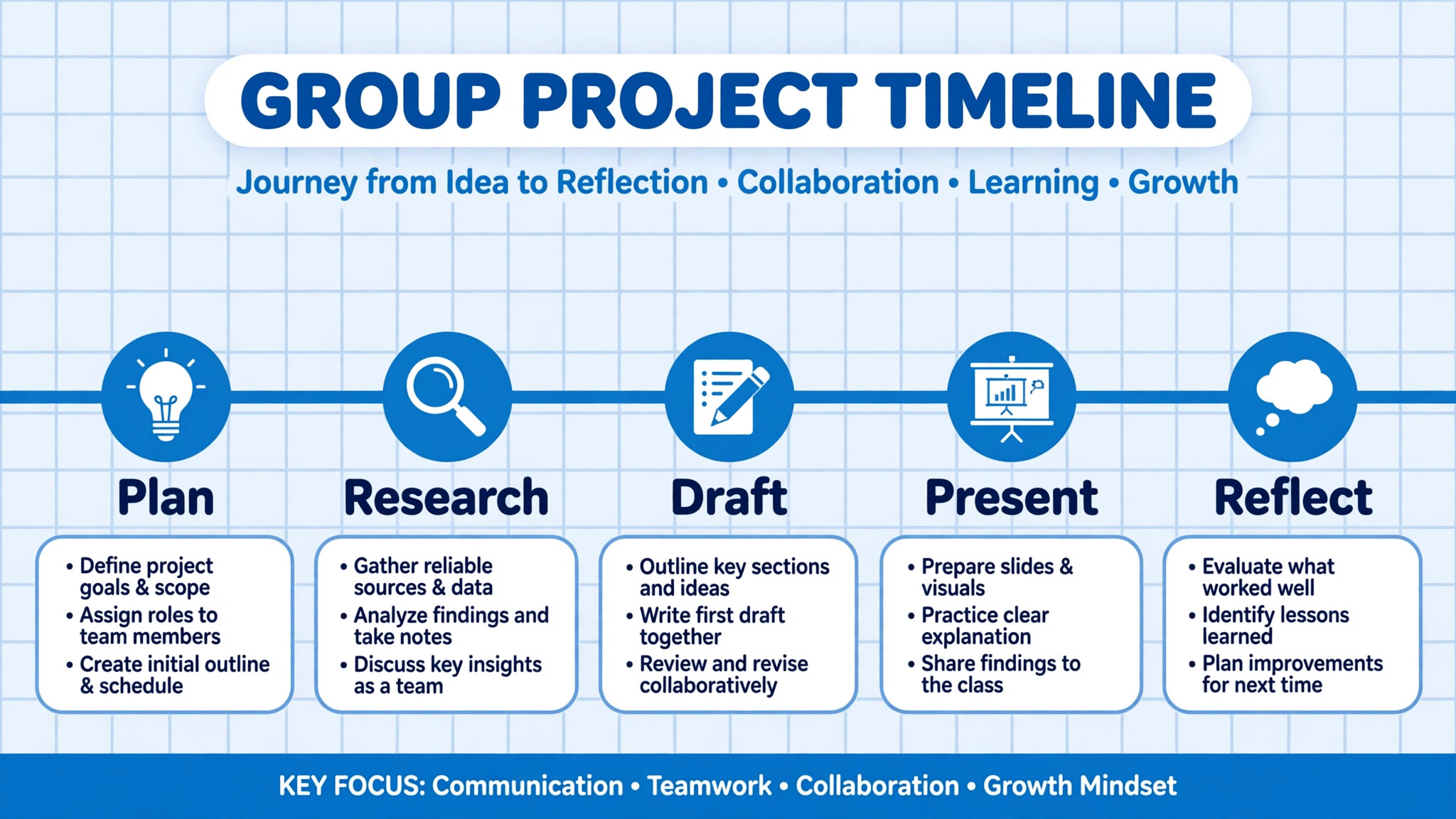
Group work fails in digital spaces for predictable reasons, which are unclear tasks, invisible progress, unequal contribution, and no place for the teacher to see problems early. Private channels solve the visibility problem, because each group gets a space where discussion, files, and meetings live, and the teacher can visit without intruding on private chats. Assign clear roles within groups, such as researcher, writer, presenter, and checker, and rotate roles across projects, so every student practices each skill and no student always does the easy job. Set milestones, not just a final deadline, with a short check-in at each milestone, so groups that are stuck surface early, when help still matters, rather than at submission time, when it does not.
Peer feedback inside Teams strengthens group work, when structured. Ask groups to share drafts in their channel and comment on another group’s draft using a short feedback guide, such as one strength, one question, and one suggestion, which keeps feedback kind and useful. Use the collaboration space in the Class Notebook for joint drafting, so every student can contribute and the teacher can see the revision history. When contribution is unequal, the evidence is in the channel and the notebook, which lets you intervene with facts rather than accusations, and lets you coach the group on fairer working rather than simply penalizing the outcome.
Group work teaches collaboration only when the process is visible, and Teams makes the process visible by design.
The Assignment Tracking Checklist
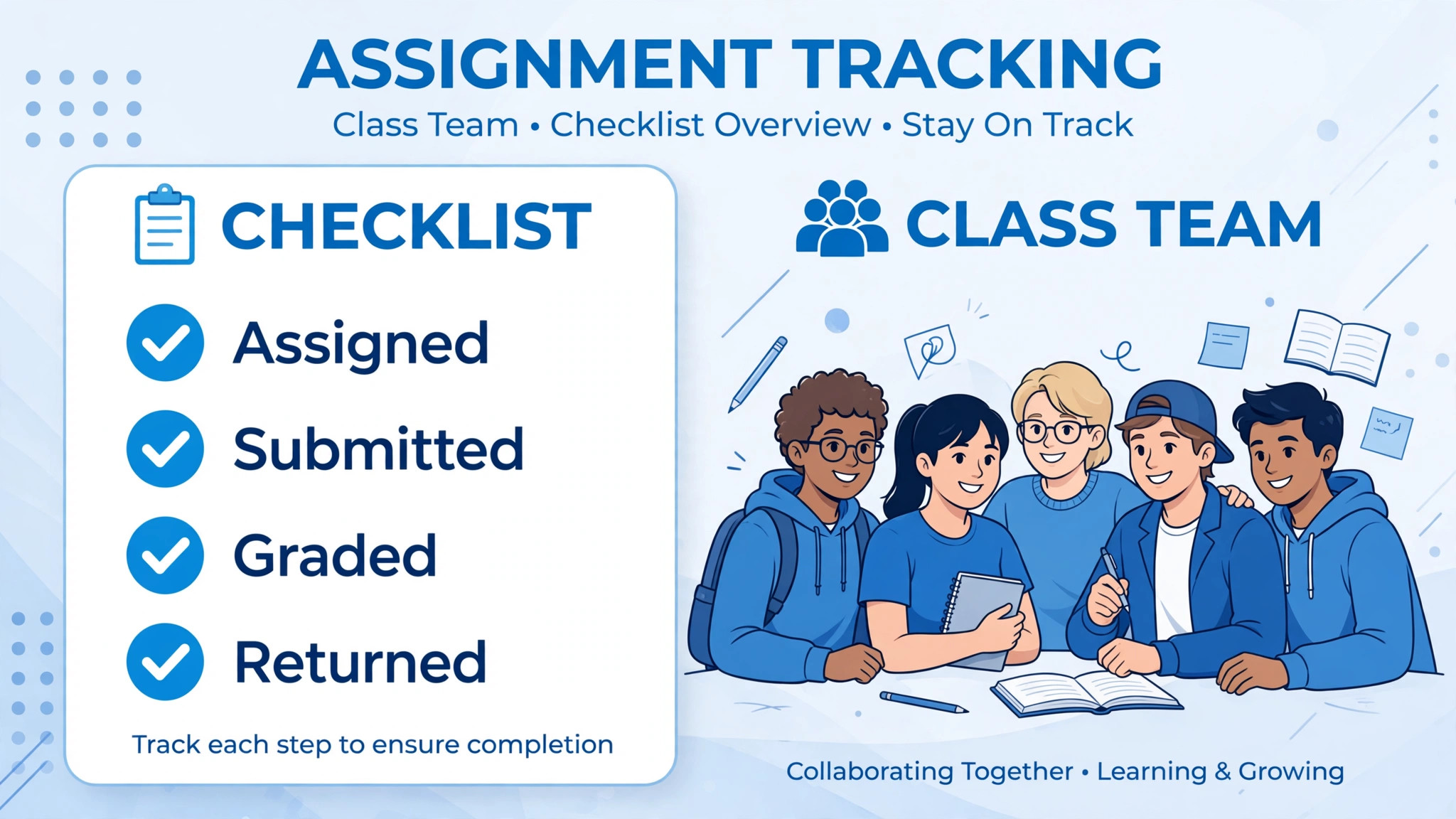
Use this checklist weekly, to keep assignments, feedback, and student progress under control across a term. When you use Microsoft Teams for classroom collaboration teachers who run this checklist catch missing work, overdue feedback, and struggling students early, while intervention still helps, rather than at report time, when it is too late.
- Review the Assignments tab for work due this week, and confirm instructions, resources, and due dates are clear.
- Check submissions received, and follow up privately with students who have not submitted, before the deadline passes.
- Grade and return feedback within your promised window, and note any feedback still outstanding.
- Check the Grades tab for students with falling patterns, and plan a supportive check-in with each one.
- Review channel discussions for unanswered student questions, and answer or redirect them promptly.
- Confirm group project milestones for the week, and visit private channels where progress looks stalled.
- Update pinned resources for the coming unit, and archive outdated files so students find current ones first.
- Post a weekly announcement summarizing what is due, what is new, and where to find help.
- Record any technical problems students reported, and raise them with school support before they affect more students.
- Reflect briefly on what worked this week, and adjust next week’s channel or assignment habits accordingly.
Weekly tracking sounds administrative, but it is the habit that turns Teams from a filing system into a teaching system, because it keeps the teacher’s attention on students, not on tools. A teacher who checks assignments, grades, and discussions weekly knows which students need help before they ask, and that early knowledge is what good teaching has always depended on. The tool makes early knowledge easier to get, but only the weekly habit turns it into action.
How to Use Microsoft Teams for Classroom Collaboration Teachers Can Sustain All Term
A class team that works in week one can still collapse by week ten, because files pile up, channels drift, and habits loosen under marking pressure. When you use Microsoft Teams for classroom collaboration teachers should schedule a short mid-term tidy, where outdated files are archived, inactive channels are hidden, and pinned posts are refreshed for the coming unit. That tidy takes thirty minutes and prevents the slow decay that turns a good team into a confusing one, and it models good digital habits for students, who see that organization is maintained, not just declared at the start of term.
Sustainability also depends on sharing the load. Co-teachers should share ownership of announcements, assignment setup, and channel moderation, so the team survives one teacher’s absence without stalling. Student helpers can take on defined roles, such as posting weekly summaries, maintaining a resource index, or welcoming new students to the team, which builds student ownership and reduces teacher workload at the same time. When you use Microsoft Teams for classroom collaboration teachers who distribute ownership keep the team alive through busy periods, because the system does not depend on one person’s energy alone.
End-of-term closure matters as much as start-of-term setup. Archive the team or its channels clearly, export grades and key feedback for school records, and write a short note for next term’s teacher or for yourself, recording what channel structure worked, which assignment habits helped, and what to change. When you use Microsoft Teams for classroom collaboration teachers who close a term deliberately start the next term stronger, because they inherit lessons instead of rediscovering them. A class team is a teaching asset that improves across terms, but only if each term ends with reflection rather than just with relief.
Mistakes That Make Class Teams Unusable
The most common mistake is too many channels, which fragments discussion and confuses students. Start small, add channels only for real needs, and archive or hide channels that are no longer active, so the team stays navigable all term. The second mistake is dumping files without organization, which turns the Files tab into a pile where nothing can be found. Name files clearly, pin key resources, and archive outdated ones, because findability is a teaching responsibility, not a student skill to assume. The third mistake is inconsistent assignment habits, where some work lives in Teams and some lives elsewhere, which teaches students that Teams is optional. Put all assignments in Teams, consistently, so students learn one habit that always works.
The fourth mistake is ignoring the chat, which teaches students that posting questions is pointless. Check channel discussions regularly, answer promptly, and highlight good questions, so students learn that the team is a living classroom, not a noticeboard. The fifth mistake is forgetting absent and struggling students, who need the team most and use it least when they fall behind. Use the Grades tab and assignment data to spot struggling students early, reach out privately, and point them to recordings, resources, and help routes, rather than waiting for them to ask.
A class team serves equity only when the teacher actively uses it to reach the students who are hardest to reach, and that active use is what separates a good Teams classroom from a digital filing cabinet.
More Reading on Stratilyze
Readers building classroom systems may also enjoy running daily standup updates in Slack for remote teams, planning lessons in Miro for teachers, and running remote onboarding in Microsoft Teams. Each one covers a different part of the coordination work around teaching, from daily check-ins to long-term resource management.
Frequently Asked Questions
Do students need special accounts to join a class team?
No, students join with their existing school Microsoft accounts, either through a class list, a group, or a join code provided by the teacher. Schools using Microsoft education accounts can set this up quickly, and teachers should test the join process before term starts, so first-day problems are caught early rather than during a lesson.
How many channels should a class team have?
Start with three to five channels, including General plus a small number of topic or project channels, and add more only when a real need appears. Too many channels fragment discussion and confuse students, while too few channels mix unrelated topics. Let student use and project needs drive expansion, and archive channels that are no longer active.
Can I differentiate assignments for individual students in Teams?
Yes, assignments can be given to the whole class, to selected students, or to small groups, without singling anyone out publicly. Private channels support group-specific work, and teachers should check privacy settings before assigning sensitive or support work, so differentiation helps students without exposing who receives it.
How do breakout rooms work for group activities?
Breakout rooms split a live meeting into small rooms for discussion or group work, then bring everyone back to share. Set a clear task and time limit before splitting, visit rooms during the activity, warn groups before time ends, and structure the sharing afterward, so group work connects to the whole class. Clear tasks, short times, and structured sharing make breakouts work.
What if students do not check Teams regularly?
Build the habit deliberately, by posting a weekly announcement, putting all assignments in Teams consistently, and answering questions in channels promptly, so students learn that Teams is where class life happens. Pair new or struggling students with confident classmates for their first week, and follow up privately with students who miss work, rather than assuming they chose to ignore it.
Can parents see their child’s work in Teams?
Parent access depends on school policy and setup, and teachers should follow their school’s guidance on parent communication. In many schools, parents receive summaries or updates through school systems rather than direct team access. Teachers should confirm the school’s approach before promising parents direct access, and keep parent communication in approved channels.
One Team, One Habit, Better Collaboration
Classroom collaboration fails when students must hunt across tools, and it succeeds when everything lives in one place they check daily. When you use Microsoft Teams for classroom collaboration teachers create that place deliberately, through a clear team structure, consistent assignment habits, live lessons that connect to channels, and a weekly tracking routine that keeps struggling students visible. Set up your next class team before term starts, run the orientation lesson in the first week, and hold the weekly checklist for a month. Students will stop asking where things are, and start asking about the work itself, which is the moment a platform becomes a classroom.