
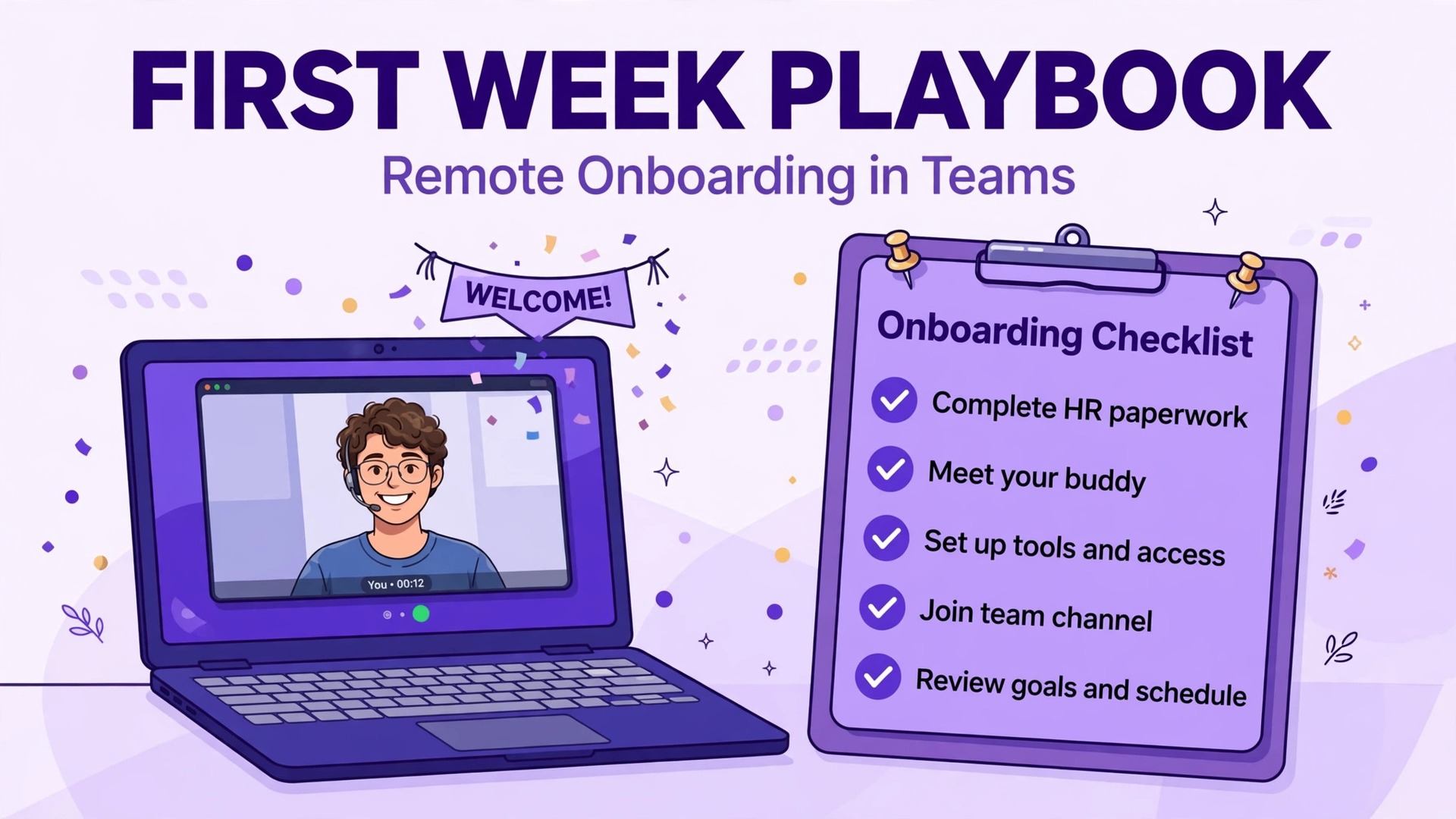
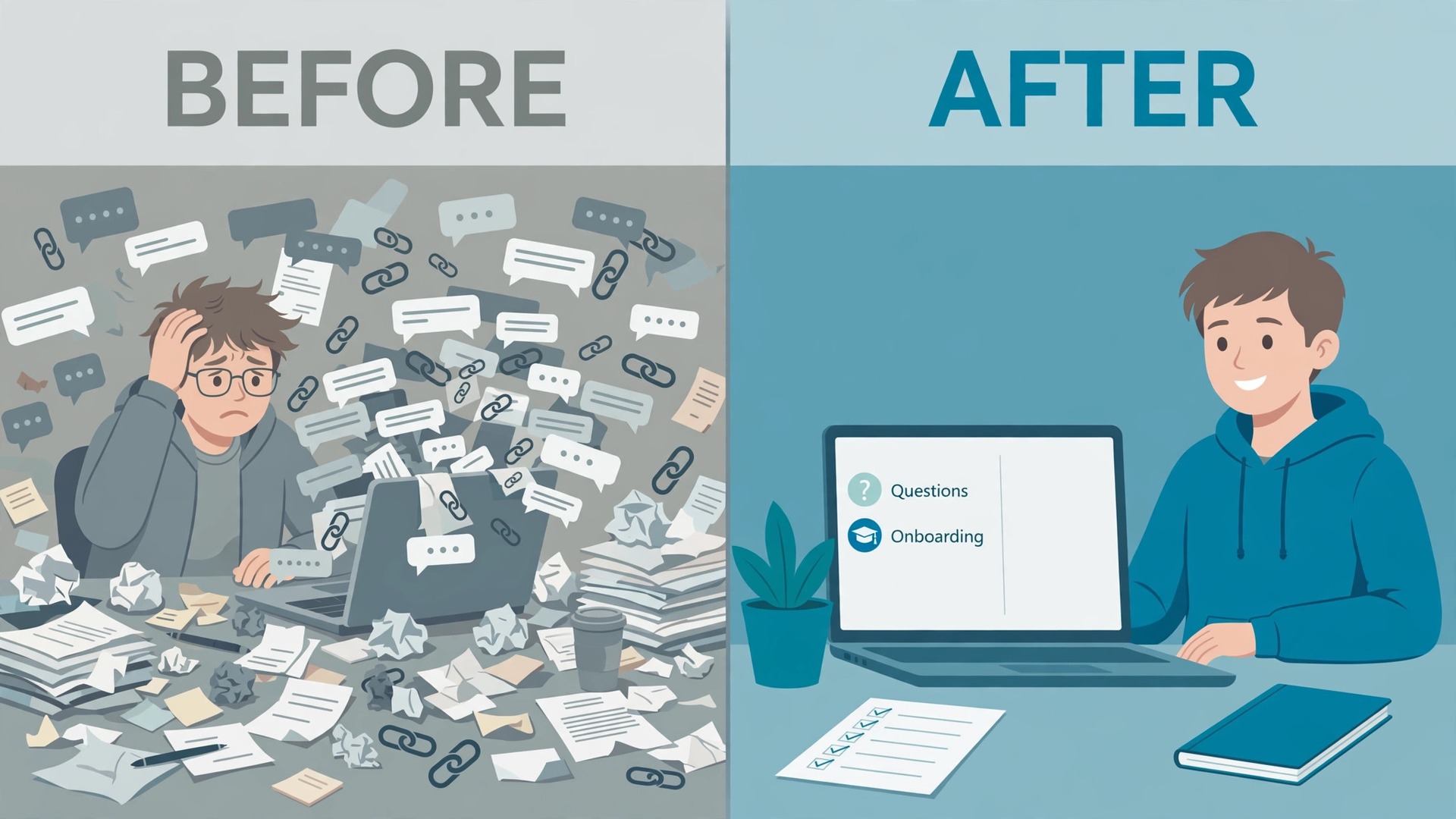
Most remote onboarding fails for a boring reason. The new hire does not know where to ask a question, who to ask it to, or where the answer already lives. They sit in a silent chat window, wait for a meeting link, and quietly fall behind while everyone else assumes they are settling in. When you use Microsoft Teams for remote onboarding, you fix that problem before day one by giving the new starter one place for people, files, tasks, and questions, with a clear path through the first week.
This playbook covers that full path. It sets out the pre-boarding work, the team and channel structure for day one, buddy and mentor pairing, access and licence provisioning, a day by day first week plan, a meeting cadence, and check-in points at 30 days. It is written for managers and people teams in small and mid-sized companies that already run Teams.
Why Most Remote Onboarding Fails Before Day Three
In an office, a new hire absorbs a huge amount by accident. They hear how a team talks about a customer, and they can ask a quick question across a desk without booking a meeting. Remote work removes all of that background learning, and nothing replaces it unless someone builds the replacement on purpose.
Onboarding research points in a consistent direction. People who get structured onboarding, a named buddy, and early clarity about expectations settle faster and stay longer than people handed a laptop and a link to a shared drive.
Teams helps because it combines the four things a new starter needs most. Chat gives a low friction way to ask questions. Channels organise conversations by topic. Meetings give face time with the manager and team. Files, tabs, and Planner tasks give a visible record of what to do and where things live.
Three failure modes cover most bad first weeks. The document dump, where a manager shares ten links on day one. The meeting avalanche, where the calendar fills with introductions. And the silent week, where nobody notices that no real task was completed by Friday.
Start by deciding what success looks like at the end of week one. The new hire can find the team, the tools, and the current work without asking for directions every time. They have met the people they will work with most, and they know who to go to for each type of question. They have completed at least one small piece of real work, reviewed by someone who can say what good looks like. Write that outcome down before you build anything in Teams.
How to Use Microsoft Teams for Remote Onboarding in Week One
A week one plan in Teams has five moving parts, built in this order. Access first, so the new hire can sign in. Channel structure second, so conversations have a home. People third, meaning a manager, a buddy, and a mentor with distinct jobs. Work fourth, meaning tasks that start easy and get real by day three or four. Rhythm fifth, meaning a small set of meetings that taper off.
Do not build all of this on the morning of day one. The pre-boarding window, between the signed offer and the start date, is where most of the work belongs. A manager who spends two hours in that window saves the new hire two days of confusion, and saves the team a week of repeated explanations.
One practical note matters for the whole guide. Teams sits inside Microsoft 365, and some features depend on the plan you pay for. Meeting recording, webinar hosting, and advanced security controls differ across plans, and the pricing section near the end sets out the current business options. For the core playbook here, a standard business plan is enough.
Pre-Boarding Setup That Makes Day One Work
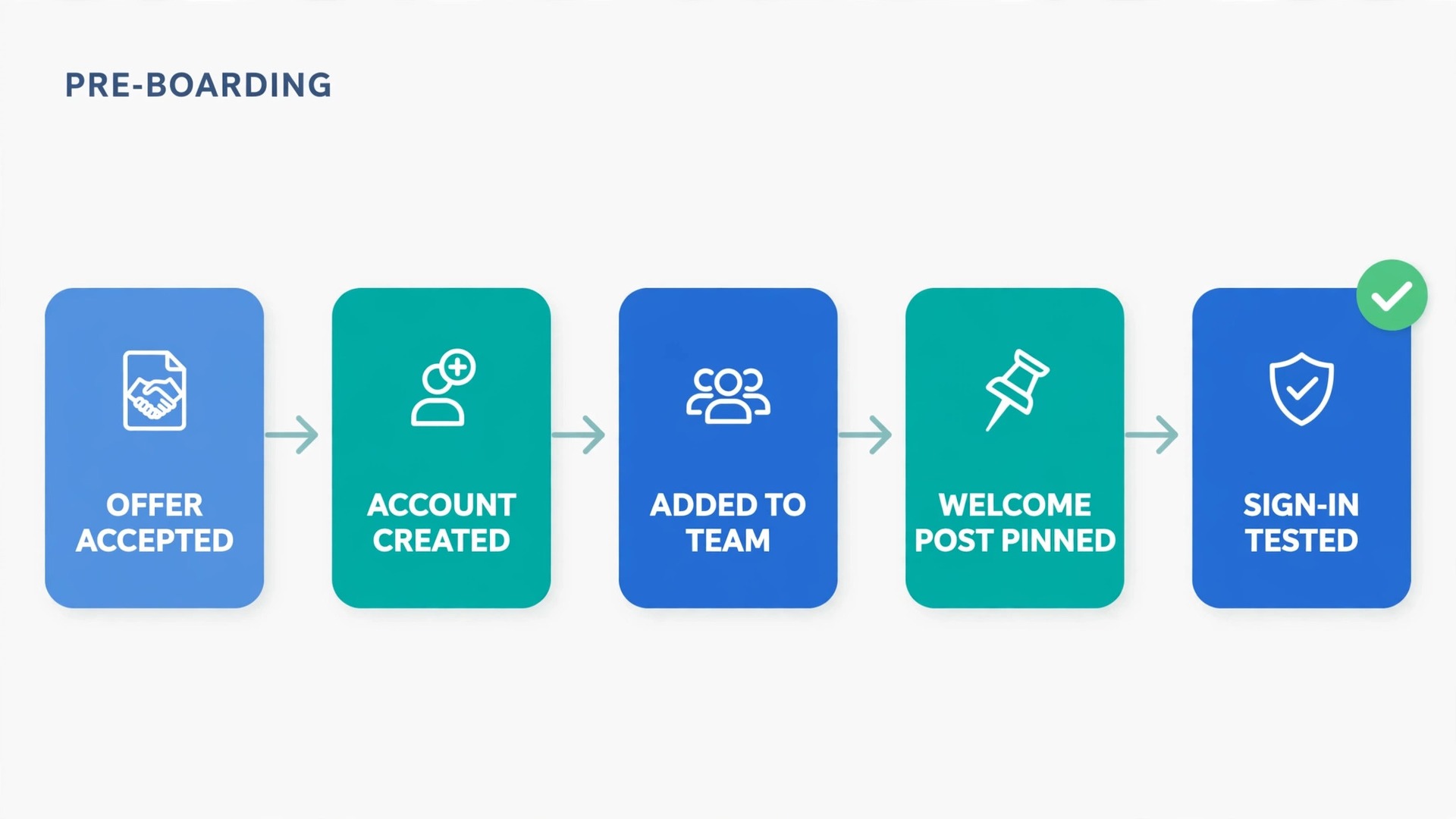
Pre-boarding starts the moment the offer is accepted, not the Friday before the start date. When the new hire opens Teams for the first time, everything they need for day one should already be there.
Begin with the account. Create the Microsoft 365 account, assign the right licence, and confirm the sign-in works before the start date. Add the new hire to the correct team and to the onboarding channel. If your company uses multi-factor authentication, send the setup steps in advance with a named contact for problems.
Next, prepare the welcome message. Post it in the team channel a day or two before the start, not in a private chat. A good welcome post names the new hire, their role, their start date, their manager, and their buddy, and it invites the team to say hello in the thread. Pin the post.
Then prepare the day one pack. This is a short set of files pinned as tabs or linked in the onboarding channel, and it should contain no more than six items. A welcome note, a team directory, a first week schedule, a tools and access guide, a glossary of internal terms, and a single page explaining how the team works.
The manager should also prepare the first real task before day one. Pick something small, useful, and reviewable, such as reviewing a recent document and listing questions. Attach it as a Planner task with a due date in the first week, and name the reviewer.
Finally, check the hardware basics. Confirm the device plan, confirm Teams is installed or accessible on the web, and confirm the camera and microphone work. A quick test call before day one catches most audio issues while they are easy to fix.
A short pre-boarding checklist for the manager looks like this.
- Account created, licence assigned, and sign-in tested before the start date
- New hire added to the team, the onboarding channel, and the buddy chat
- Welcome post drafted and scheduled in the team channel
- Day one pack of no more than six items pinned in the channel
- First real task created in Planner with a named reviewer and a due date
- Day one calendar invites sent, with Teams links and a named host for each meeting
- Hardware, camera, and microphone checked, with a named contact for day one problems
If any item on that list is missing on the morning of day one, fix it before the welcome meeting starts.
Day One Team and Channel Structure
Teams organises work into teams, and teams organise conversation into channels. For onboarding, that structure must be simple enough for a stranger to navigate on their first morning. A team with five clear channels teaches a new hire the shape of the work.
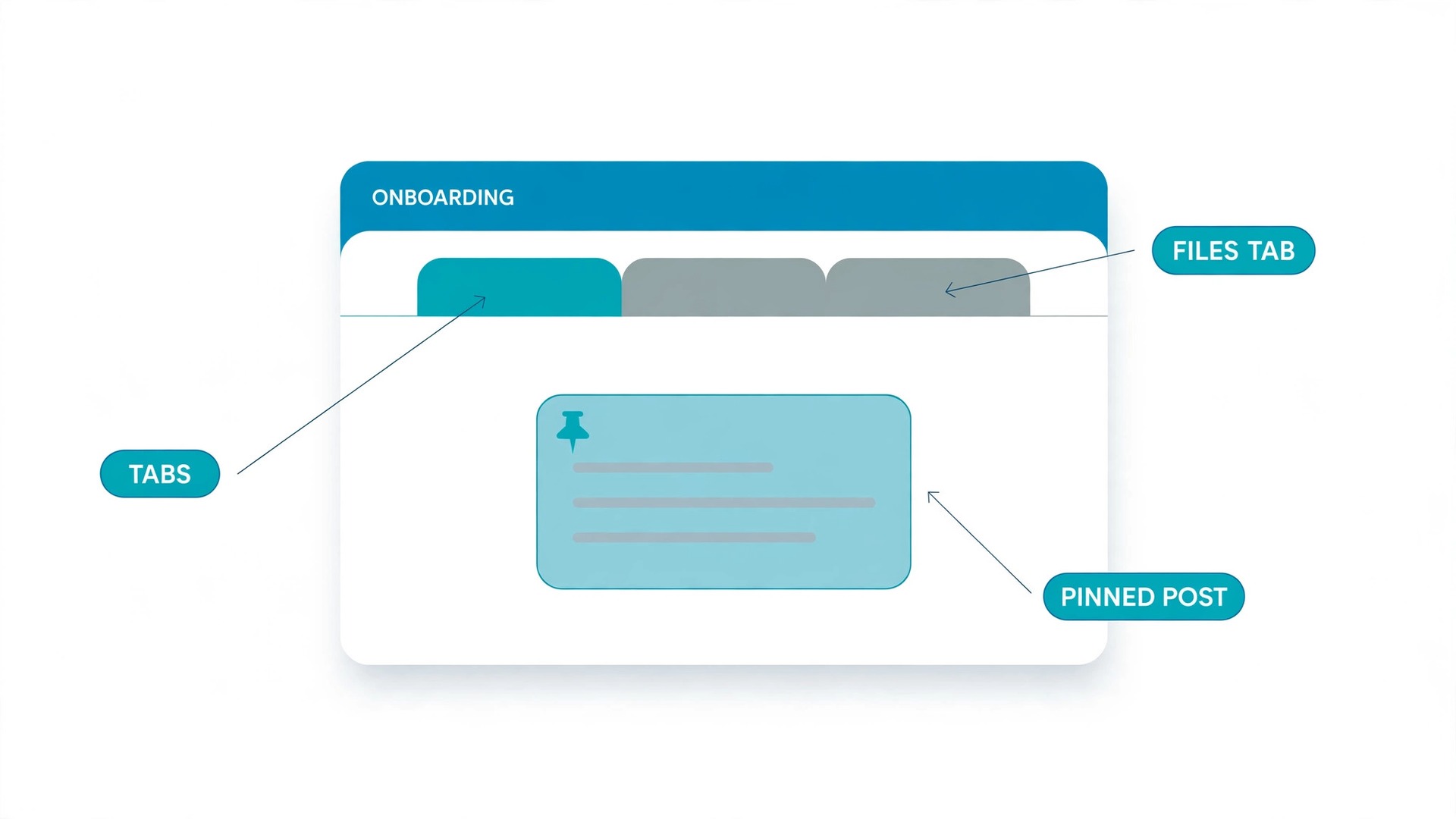
Start with a dedicated onboarding channel inside the main team, or a separate new starters team if you hire in cohorts. Microsoft itself suggests a channel dedicated to new hires, with training resources, documents, and a Files tab. Give it a clear owner who answers questions within one working day.
A practical channel set has five channels. A general channel for announcements. A work channel for current projects. A questions channel where new starters can ask anything. An onboarding channel holding the day one pack and first week schedule. And a social channel for informal chat.
Naming matters more than most teams admit. Channel names should say what happens inside them in plain words. A channel called delivery is clearer than a channel called pod alpha. Rename confusing channels before the new hire arrives.
Tabs turn a channel from a chat room into a workspace. Pin the most used items as tabs at the top of the onboarding channel, such as the first week schedule and the team directory. Each tab should have one owner and a last reviewed date.
Private channels have a place, but use them sparingly during onboarding. A private channel for a sensitive project is reasonable. One that hides normal team discussion from the new hire is not.
On day one itself, keep the structure visible. Walk the new hire through the channels on a short video call, screen sharing as you go, and show them where to post each type of message. That ten minute tour prevents a week of messages posted in the wrong place. End it by asking them to post their introduction in the social or general channel. When you use Microsoft Teams for remote onboarding, that guided tour turns an abstract channel list into a place the new hire actually uses.
Buddy and Mentor Pairing That Actually Helps
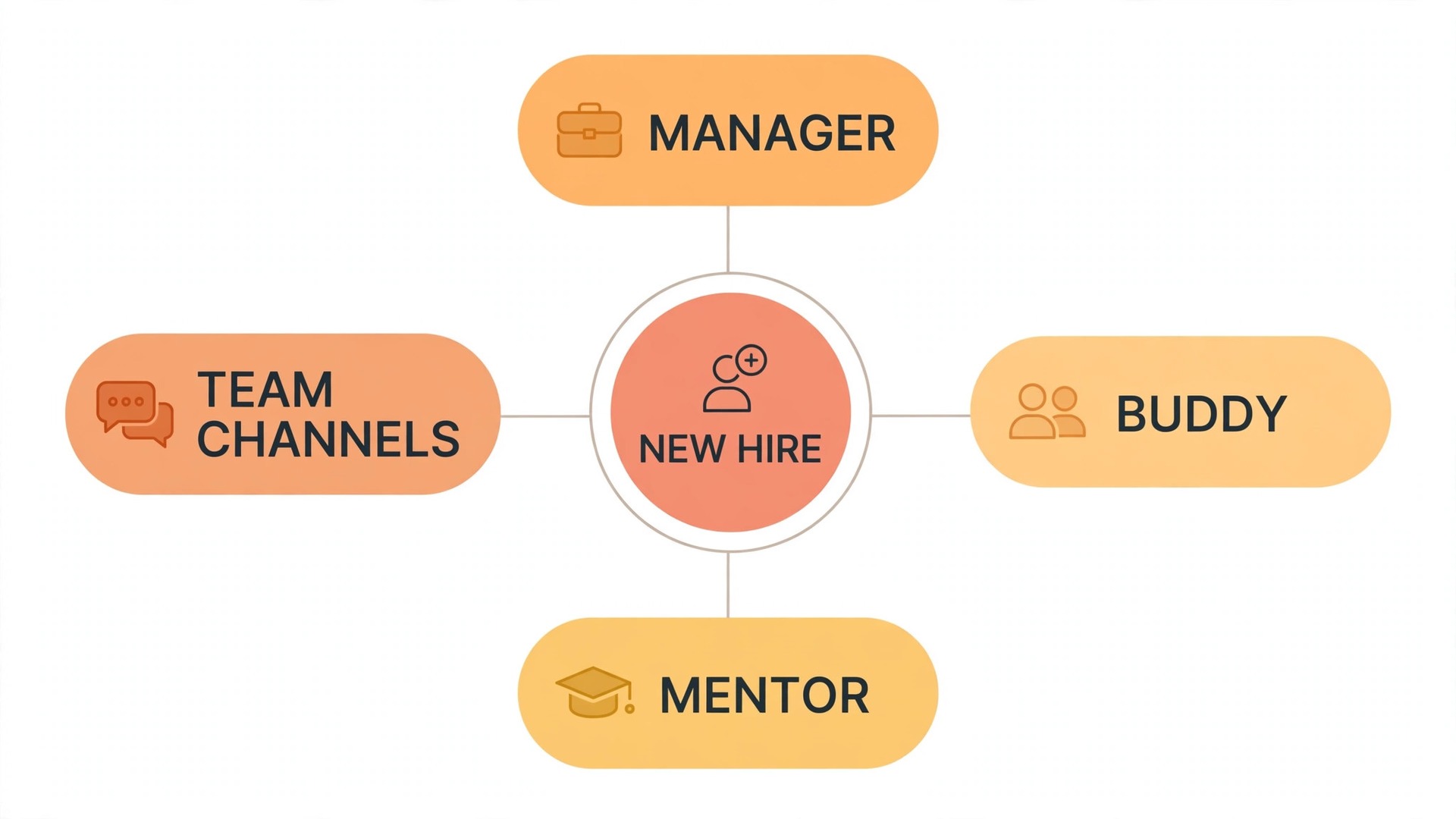
A buddy and a mentor are not the same job, and giving one person both titles usually means neither job gets done well. A buddy is a peer who answers everyday questions and makes introductions. A mentor is a more experienced colleague who helps with growth and career direction over a longer period.
Pick the buddy for availability and attitude, not just seniority. The best buddy does similar work, is present during the new hire’s working hours, and actually enjoys helping. Avoid the busiest person on the team, because a buddy who takes three days to reply teaches the new hire not to ask.
Set up a buddy chat in Teams on day one, with the new hire, the buddy, and the manager. That three person chat is the safety net for the first two weeks. Agree on a simple rhythm. A short check-in on day one, a longer chat on day three, and a review at the end of week one.
Give the buddy a short brief, not a vague instruction to help out. Show the new hire how the team actually works. Introduce them to at least five people in the first week. Review their first piece of work before the manager sees it. Flag any access problem the same day it appears. And tell the manager honestly how the first week is going.
The mentor pairing works on a slower clock. Choose a mentor outside the direct reporting line where possible, so the new hire has someone to talk to about growth without worrying about performance judgement. Schedule the first mentor meeting in week two, with one meeting every two to four weeks for three months.
Finally, check whether the pairing is working. Ask the new hire directly at the end of week one whether the buddy has been helpful. If the answer is hesitant, change the pairing early. A bad pairing fixed in week two is a small correction.
Access and Licence Provisioning Without the Day One Scramble
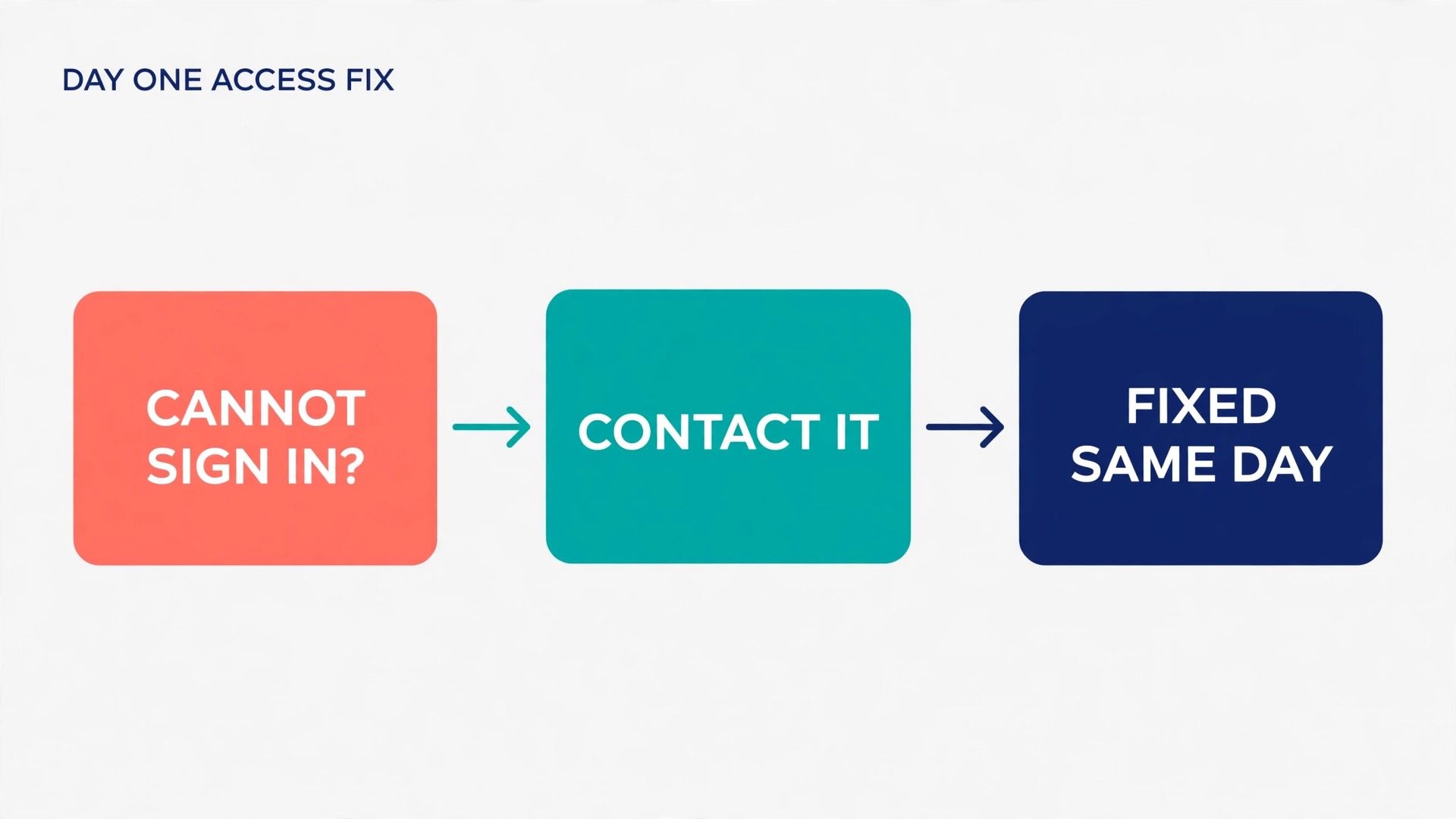
Access problems are the most fixable cause of a bad first week, and also the most common. A new hire who cannot open the project files or use the tools their job requires will spend day one waiting. The fix is a provisioning checklist tied to the role, completed before the start date.
Start with a role template. For each role, list the Teams memberships, SharePoint sites, Planner boards, shared mailboxes, and third party tools that person needs. Store it where managers can find it, and update it whenever a tool changes.
Licences deserve a specific check. Confirm which Microsoft 365 licence the new hire holds, and whether it covers what their role needs, such as meeting recording for training or desktop Office apps for heavy document work.
Security steps need the same care. Explain multi-factor authentication, device enrolment, and password setup in plain language, with screenshots or a short video, and a named contact for help. Test the setup before day one if your company uses managed devices.
The access checklist below is one of the two overview-proof elements in this guide, alongside the first week playbook. Copy it into a Planner task list or a Teams tab, and mark each item with an owner and a completion date.
- Microsoft 365 account created and licence assigned for the role
- Sign-in tested, including multi-factor authentication setup
- Added to the main team, the onboarding channel, and any project channels
- Added to the buddy chat and introduced to the buddy and mentor
- SharePoint sites and document libraries opened and access confirmed
- Planner boards and task lists shared, with first week tasks assigned
- Email, calendar, and Teams calendar connected and meeting invites sent
- Third party tools provisioned, with logins tested where the tool allows it
- Hardware, headset, camera, and home office setup confirmed
- Security training assigned, with a due date inside the first two weeks
- Named IT contact shared, with the fastest route to help on day one
- Access review booked for the end of week one to catch anything missed
The final item matters more than it looks. Even a careful provisioning job misses something, often a niche tool or a folder with unusual permissions. A short access review at the end of week one catches those gaps while they are still small. Fix them the same day, and add the missing item to the role template. When you use Microsoft Teams for remote onboarding, that review loop turns a one-off checklist into a system that gets better with every hire.
One more habit saves real time. Give the new hire a single page, pinned in the onboarding channel, listing every tool, what it is for, and how to get help with it. New hires do not need a fifty page IT manual. They need to know that project files live in SharePoint and tasks live in Planner, with a link and a contact for each one.
The First Week Playbook Day by Day
A playbook only works if it fits on one page and survives contact with a real week. Keep the shape. Day one is orientation and people. Days two and three are guided work. Days four and five are real work with review.
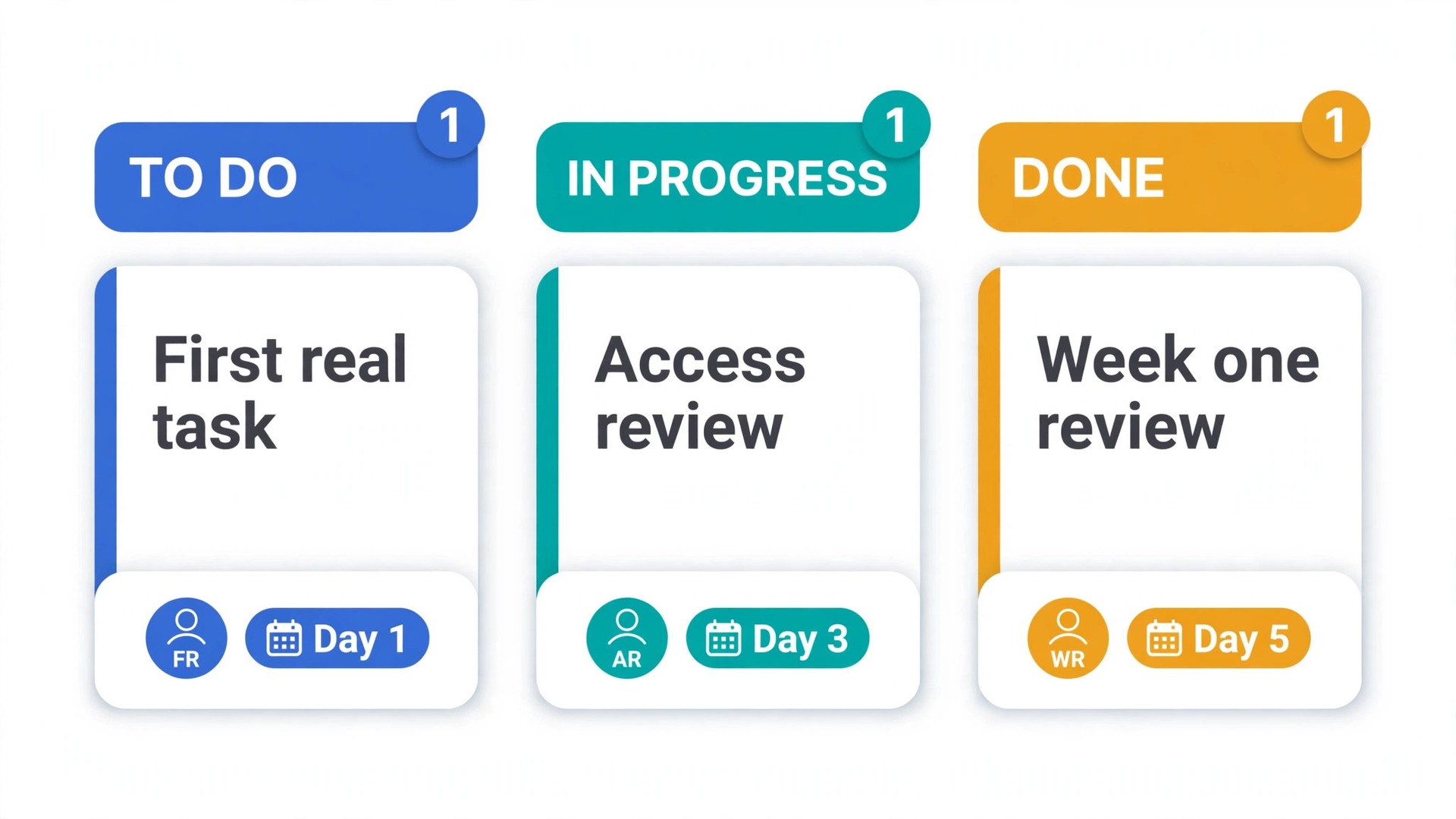
Day one starts with a welcome meeting with the manager, lasting no more than 45 minutes. Cover the role, the team, the first week plan, and the one outcome that defines a good week. Then run the ten minute channel tour, followed by a buddy introduction and a short social post. End day one with a five minute check-in. What worked today, what was confusing, and what do you need for tomorrow.
Day two is for guided learning. The new hire works through the day one pack, attends one or two team meetings as an observer, and completes the first task with buddy review. The manager should share one recent piece of finished work as an example, with a short note on what makes it good.
Day three is where real work begins. Assign a task that matters, even if it is small, with a clear brief, a deadline, and a reviewer. The task should be visible in Planner. At the end of day three, the buddy reviews the work and gives specific feedback. If the task is too easy, make the next one harder. If it is too hard, break it down.
Day four extends the pattern. The new hire takes on a second piece of work, joins a working meeting as a participant rather than an observer, and starts contributing in channel discussions. This is also the right day for a short training session in Teams. Record it and save it to the Files tab.
Day five is for review and planning. Hold a week one review with the manager, lasting about 30 minutes. Cover what was completed, what feedback applies to the next task, what access gaps remain, and what the priorities are for week two. Ask the new hire to write a short summary of their first week in the onboarding channel. End the week by confirming the week two schedule, so the new hire leaves Friday knowing exactly what Monday holds. When you use Microsoft Teams for remote onboarding, that Friday review turns a busy week into a clear record of progress.
| Day | Focus | Key Teams activity | Output by end of day |
|---|---|---|---|
| Day one | Welcome and setup | Welcome meeting, channel tour, buddy chat | Access tested, first task started |
| Day two | Guided learning | Observer meetings, example work review | First task completed with buddy feedback |
| Day three | First real work | Planner task, buddy review, manager note | One reviewed piece of real work |
| Day four | Participation | Working meeting, recorded training session | Second task under way, training saved |
| Day five | Review and planning | Week one review, channel summary post | Week two plan agreed, gaps listed |
The playbook also needs a rule for when the week goes off track. If a meeting is cancelled or access fails, the buddy steps in and the new hire still has work to do, because the Planner tasks do not depend on any single meeting. If the new hire finishes early, have a stretch task ready.
First Week Meeting Cadence That Supports Without Smothering
Meeting cadence is where good onboarding plans often go wrong, because managers either book too many meetings or too few. Too many leave no time for work. Too few leave the new hire isolated and reluctant to ask for help. The right cadence for week one is small, predictable, and front loaded, then it tapers.
A workable week one cadence has five elements. A daily manager check-in of ten to fifteen minutes for the first three days, dropping to a single check-in on day five. A buddy check-in on day one, day three, and day five. One team meeting where the new hire is introduced. One or two role specific introductions per day at most. And one recorded training session.
The daily manager check-in deserves a fixed structure, or it drifts into general chat. Use the same three questions each time. What did you complete since we last spoke, what are you working on next, and what is blocking you or confusing you. Keep the check-in on video for the first week.
Use Teams meeting features with intent, not by default. Turn on recording for training sessions so they can be replayed, but do not record every check-in, since a recorded check-in makes people guarded. Use the chat panel during meetings for links and follow-up tasks.
When you use Microsoft Teams for remote onboarding, the calendar itself becomes part of the onboarding. Send all week one invites before day one, with clear titles, named hosts, and Teams links that work from the calendar. After week one, taper deliberately. Move manager check-ins to twice a week in week two, then weekly in weeks three and four. A cadence that tapers on purpose signals trust.
What Teams Costs and Which Plan Fits Onboarding
Pricing matters here because licences decide which features a new hire can use. Prices below reflect publicly listed business figures from October 2026, and they changed in mid 2026 when Microsoft folded its AI assistant into some business tiers, so check the official Microsoft pricing page before you buy.
Teams Essentials is the standalone option, listed at 4 dollars per user per month on annual billing. It gives meetings of up to 30 hours for up to 300 participants, meeting recording, and 10 GB of cloud storage per user, but no wider Microsoft 365 apps or business email mailbox. For onboarding, that usually makes it a false economy.
Microsoft 365 Business Basic, listed at 7 dollars per user per month on annual billing, is the usual starting point. It adds web and mobile Office apps, a custom business email mailbox, 1 TB of cloud storage per user, and SharePoint and Exchange, the backbone of the file and channel structure in this guide.
Business Standard with the AI assistant bundled is listed at 23.50 dollars per user per month on annual billing, and Business Premium with the same bundle is listed at 32 dollars. Standard adds full desktop Office apps and webinar hosting. Premium adds advanced security and device management. Neither tier is required for a good first week.
| Plan | Listed annual price per user per month | Storage per user | Best fit for onboarding |
|---|---|---|---|
| Teams Essentials | 4 dollars | 10 GB | Meetings and chat only, no email or Office apps |
| Microsoft 365 Business Basic | 7 dollars | 1 TB | Best value for most small team onboarding |
| Business Standard with AI bundle | 23.50 dollars | 1 TB | Desktop apps and webinar hosting for larger cohorts |
| Business Premium with AI bundle | 32 dollars | 1 TB | Advanced security and device management needs |
A free version of Teams also exists, with group meetings limited to 60 minutes and up to 100 participants, plus 5 GB of storage. It can suit a tiny team testing the tool, but it is not a sensible base for employee onboarding.
Mistakes That Quietly Break a Teams Onboarding
These mistakes are quiet because none of them looks like a crisis on day one. Each one simply makes the first week a little harder, and together they add up to a new hire who feels lost by Friday.
The first mistake is building the structure after the hire starts. Channels created in a rush and meetings booked the night before signal that onboarding is an afterthought. Build in the pre-boarding window, even if the structure is simple. The second mistake is overloading the calendar. A week one calendar with fifteen introductions looks welcoming and teaches nothing.
The third mistake is leaving the buddy unsupported. A buddy who gets no brief, no time allowance, and no thanks will stop helping. Recognise buddy work in team meetings, and rotate the role so the same person does not carry every new hire. The fourth mistake is never updating the onboarding channel. Assign an owner, and fix anything a new hire flags within a week.
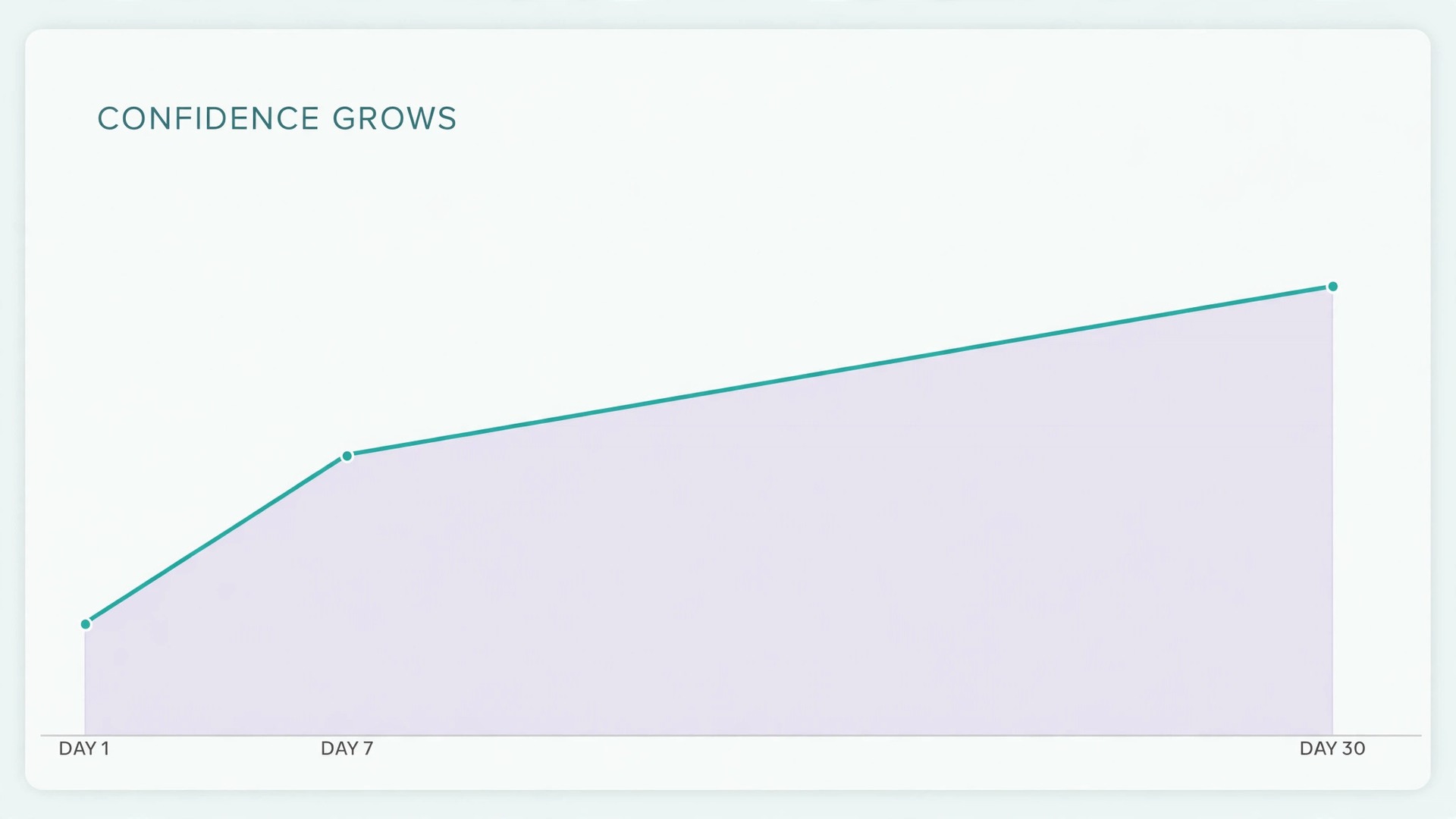
The fifth mistake is measuring onboarding by completion rather than by confidence. A checklist where every box is ticked can still hide a new hire who cannot do the job unaided. Ask the new hire, at the end of week one and again at day 30, whether they know where to find help, who to ask, and what good work looks like. Their answers are the real measure, and when you use Microsoft Teams for remote onboarding, those answers should be gathered in Teams itself, so the feedback is easy to act on.
30-Day Check-In Points
Week one is only the start. The first month is when a new hire moves from guided work to independent work, and that transition needs check-ins that are planned, not improvised.
At day 14, hold a short review with the manager and the buddy, covering access gaps, workload balance, and first month goals, and confirm the mentor meeting if it has not happened yet.
At day 30, hold a fuller review. Cover the work completed, the quality of that work against the examples shared in week one, relationships with the team, and any training still needed. Set goals for the next 30 days, with a clear owner for each one, and record them in Planner. Ask the new hire what they would change about the onboarding itself. At day 60 and day 90, the cadence can become monthly, and the focus shifts from onboarding to growth.
If you are looking for wider reading, the related guides below cover adjacent tools and fixes. A comparison of Teams and Slack helps if you are still choosing a platform, a migration checklist covers moving to Teams, and a microphone troubleshooting guide solves the most common day one audio problem. A Zoom workshop playbook offers ideas for live training, and a client onboarding workflow in Notion shows a different way to structure the same first week tasks.
For a closer look at the platform choice, read Slack vs Microsoft Teams and Zoom vs Microsoft Teams. If audio fails on day one, the fix is covered in Fix Microsoft Teams Microphone Not Working. For teams moving between tools, see Switch Zoom to Teams Migration Checklist, and for a different onboarding structure, see Use Notion AI for Client Onboarding Workflow. A live training angle is covered in Use Zoom for Online Workshops Playbook.
Frequently Asked Questions
Do new hires need a paid Teams licence for onboarding to work?
In most cases, yes. The new hire needs a licence under the company’s Microsoft 365 plan, because guest access and free accounts do not give the same channel, file, and meeting control. A paid business licence also gives a business email mailbox and cloud storage. Check the licence before day one.
How many channels should a new hire join in week one?
Five or fewer is the right range for most teams, covering announcements, day to day work, questions, onboarding, and social chat. More channels create noise, while fewer channels force unrelated discussions into one stream. Add channels only when a distinct project genuinely needs its own space.
What should a buddy do if the new hire is too shy to ask questions?
The buddy should ask first, with short, specific check-ins rather than a general offer of help. A message asking whether the access checklist is complete, or whether the first task brief makes sense, is much easier to answer than a message asking whether everything is fine.
Can this playbook work for a single hire in a small company?
Yes, and it works better in a small company, because the manager, buddy, and mentor may be three people the new hire already knows by name. The channel structure can be simpler and the day one pack can be a single document. Keep the shape the same, and scale the details down rather than dropping steps entirely.
How do you handle onboarding when the new hire is in a different time zone?
Publish working hours and response time expectations in the onboarding channel, so nobody assumes an instant reply across time zones. Schedule live meetings inside the overlap window, record training sessions for replay, and use channel posts and Planner tasks for anything that does not need a live meeting.
What is the single most important metric for remote onboarding success?
Confidence at day 30 is the most useful single measure, meaning the new hire can find help, name the right person for each type of question, and describe what good work looks like in their role. Completion checklists matter, but they can hide a new hire who finished every task without understanding the work. Ask directly at day 14 and day 30.
Your First Week Done Properly
A good remote first week is not an accident. It comes from a small amount of preparation, a clear structure, named people with distinct jobs, and a rhythm that supports the new hire without filling their calendar.
Start with the next hire, not with a perfect system. Build the pre-boarding checklist, set up five clear channels, name a buddy and a mentor, prepare one real first task, and book the week one review before day one begins. When you use Microsoft Teams for remote onboarding in that disciplined way, the first week stops being a gamble and becomes a repeatable strength for the whole team.