
Most Mac users do not lose files because they never thought about backup. They lose files because backup was a task for next weekend, and next weekend never arrived before a spilled drink, a failed drive, a stolen laptop, or an update that went wrong. The uncomfortable truth is that a Mac without a separate backup is one accident away from losing photos, documents, and years of work, even though the built-in tool you need to set up external SSD for Mac backup is free and takes less than an hour.
If you want to set up external SSD for Mac backup properly, buy a drive with at least twice the capacity of your Mac internal storage, format it correctly, connect it to Time Machine, let the first backup finish, and then test a restore before you trust it. This guide follows that order, with a Time Machine setup checklist, a backup-schedule table, drive choices, encryption advice, restore practice, and the habits that keep a backup useful rather than merely present.
Choose the Right SSD Size, Speed, and Connection
Apple recommends a backup drive with at least twice the capacity of your Mac internal drive, and that guidance is worth following even though it sounds generous. A drive that is only just larger than your internal storage will fill quickly, because Time Machine keeps hourly backups for a day, daily backups for a month, and weekly backups beyond that, and a full drive deletes the oldest backups to make room for new ones. A 512 GB Mac needs at least a 1 TB backup drive, and a 1 TB Mac needs at least a 2 TB drive, with larger drives giving a longer history and more room for growth.
Choose a portable SSD with a USB-C or Thunderbolt connection that matches your Mac ports, and check the speed rating in real terms rather than headline numbers, because a drive that claims very high speeds over Thunderbolt may run slower over a standard USB-C port. For Time Machine, sustained write speed and reliability matter more than peak speed, because the first backup writes a large amount of data continuously and a drive that throttles under sustained load will take far longer than expected.
Buy from a known maker with a warranty you can actually use, and avoid bargain drives from unknown sellers, because a backup drive is the one drive where a failure costs you everything it was meant to protect. Choosing a trusted drive is a basic step when you set up external SSD for Mac backup.
Samsung T7 Portable SSD and Everyday Mac Backup
The Samsung T7 is a common choice for Mac backup because it is compact, fast over USB-C, and widely available in 1 TB and 2 TB sizes that suit many Macs. Its size makes it easy to keep connected on a desk or to carry in a laptop bag, and its speed keeps the first backup time reasonable for a typical Mac. The trade off with any portable SSD is that it is small enough to lose and light enough to knock off a desk, so keep it in a fixed place on a desk when it serves as your main backup drive, rather than carrying it loose in a bag every day.
Use the cable supplied with the drive or a cable rated for the same speed, because a slow cable can limit a fast drive without any warning. Check that the drive is recognised in Disk Utility before you start Time Machine setup, and note the drive capacity and connection type in a simple note, so you can compare it later if backup times change suddenly. A known, well reviewed portable SSD, bought in the right size, is a better backup choice than a larger, slower, or unknown drive that saves a little money up front.
SanDisk Extreme Portable SSD and Rugged Use
SanDisk Extreme portable SSDs suit Mac users who travel or work outdoors, because many models offer water and dust resistance and a rugged case that survives knocks better than a bare drive. That toughness matters if your backup drive travels with your laptop, because a drive that lives in a bag faces drops, rain, and pressure that a desk drive never sees. Check the exact resistance rating for your model, because ratings differ between versions and a marketing claim of ruggedness does not guarantee the same protection across a whole product line.
Keep the drive in a padded pocket even when it is rugged, and avoid exposing it to extreme heat in a car, because heat and physical shock together shorten drive life. For a desk only backup, ruggedness matters less than capacity and price, so do not pay a large premium for toughness you will never use. Choose the drive that fits where it will actually live, and treat any portable drive, rugged or not, as a device that still needs a second copy for truly irreplaceable files.
Time Machine Setup Checklist
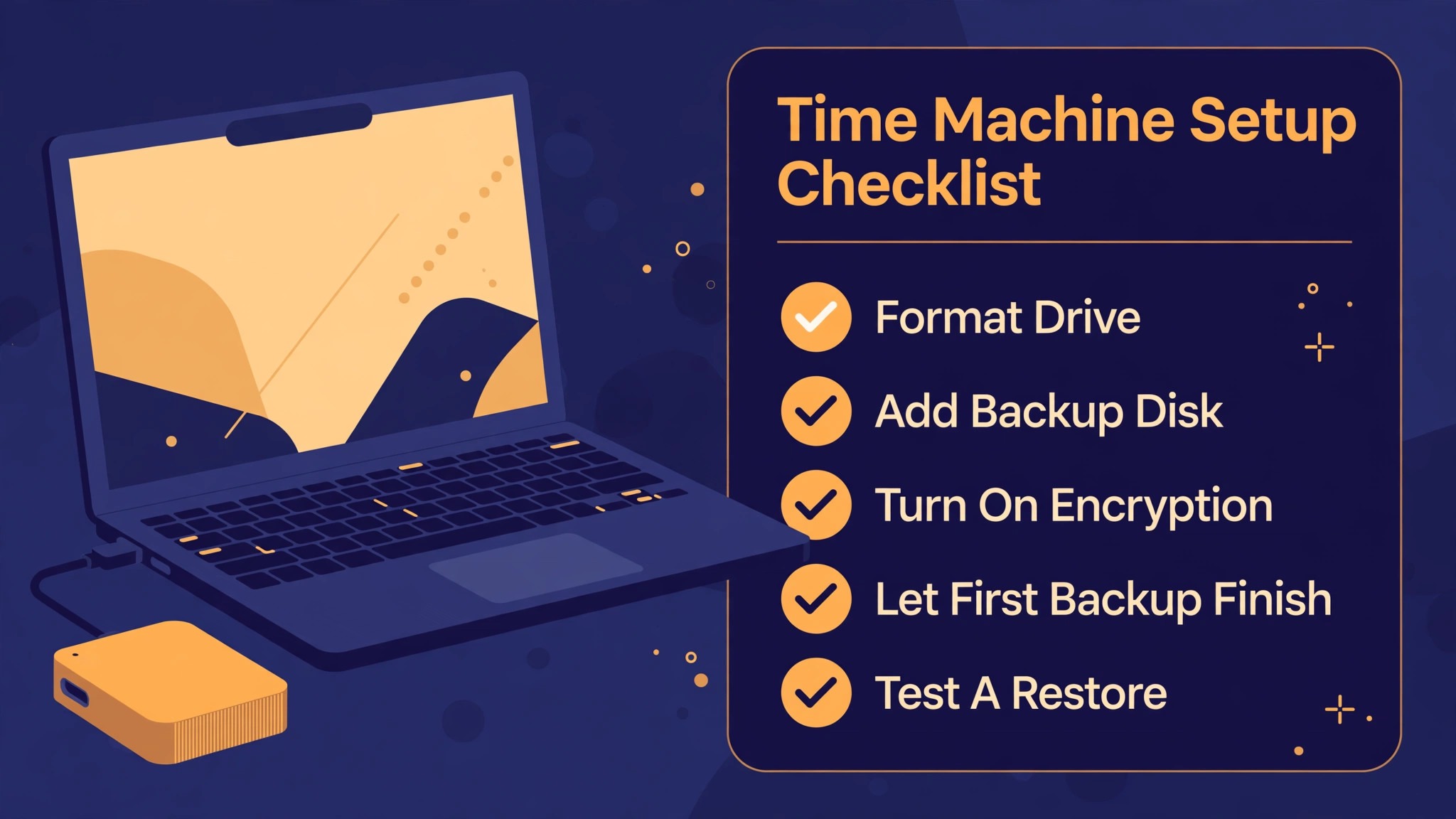
Use this checklist in order, and do not skip the test restore at the end, because a backup you have never restored from is only a hope, not a proven safety net. A tested checklist is central to how you set up external SSD for Mac backup reliably.
- Buy a drive with at least twice your Mac internal capacity, and move any files already on the drive elsewhere, because Time Machine setup may erase the drive.
- Connect the drive directly to your Mac with a good cable, avoiding a hub for the first setup, so a hub fault cannot confuse the initial backup.
- Open Disk Utility, select the external drive, and erase it to APFS with a GUID Partition Map scheme, naming it clearly such as Time Machine Backup.
- Open System Settings, go to General, then Time Machine, and click Add Backup Disk, selecting your newly formatted drive.
- Decide on encryption now, choosing an encrypted backup if the drive will travel or hold sensitive files, and store the password somewhere safe outside the Mac.
- Confirm the backup disk, leave automatic backups on, and let the first full backup start while the Mac is plugged into power and connected to the drive.
- Keep the drive connected and the Mac awake until the first backup finishes, because interrupting the first backup repeatedly can lengthen the total time greatly.
- Check backup progress in the Time Machine panel, and note how long the first backup takes, so you can judge later whether a backup is unusually slow.
- Test a restore by finding a small file in Time Machine, restoring it to a test folder, and confirming the restored file opens correctly.
- Set a weekly reminder to check that recent backups exist, that the drive has free space, and that no backup error has appeared unnoticed.
Format, Partition, and Encryption Choices Explained
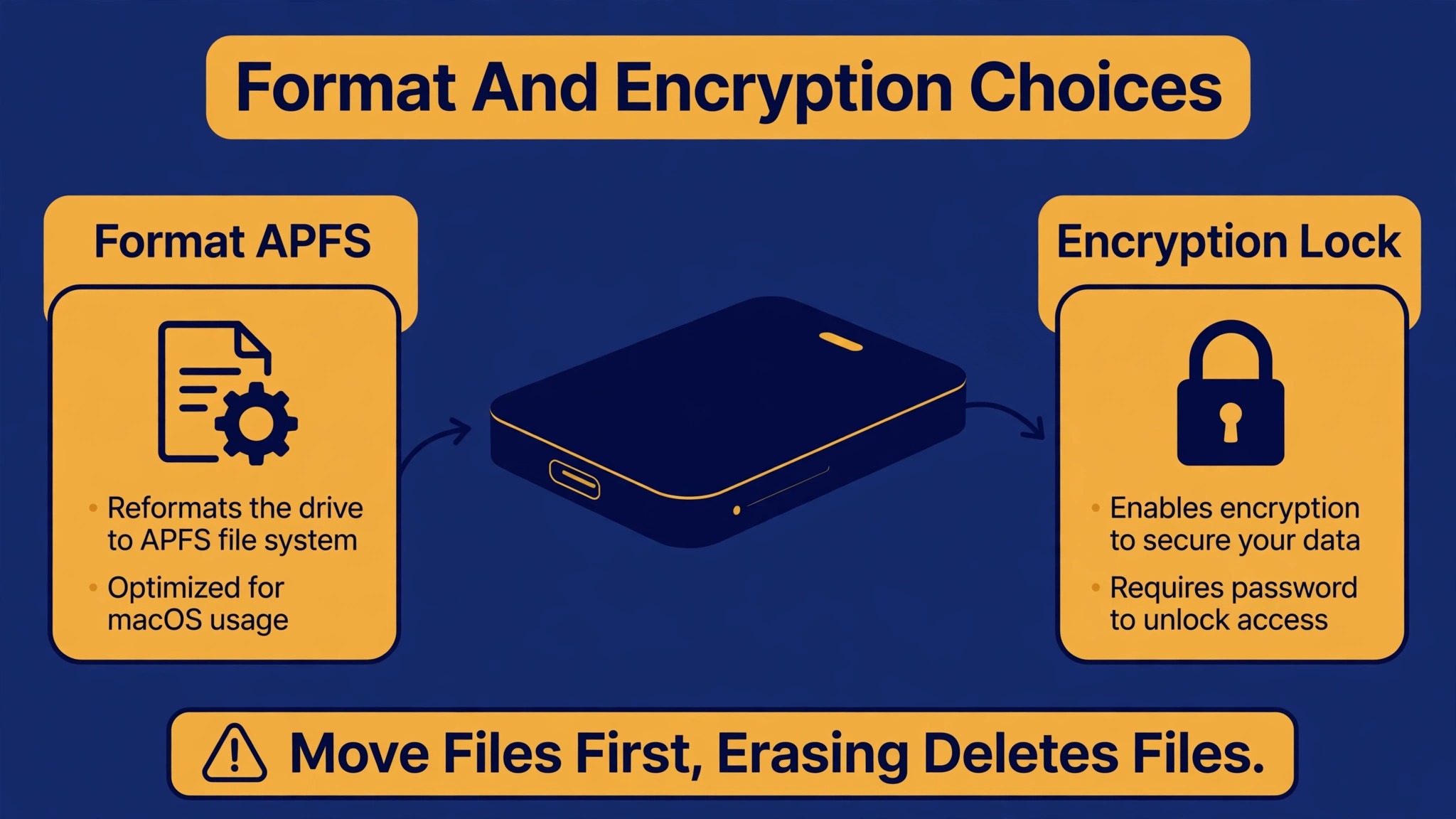
Formatting is the step beginners fear most, because erasing a drive sounds destructive, and it is destructive for any files still on that drive. That is why the first step is always to move files elsewhere, and to double check that the drive you are erasing is the external drive, not your Mac internal drive. APFS is the correct format for a modern Time Machine backup disk, and Time Machine will prompt to erase and reformat a non-APFS drive when you add it as a backup destination.
Use a GUID Partition Map scheme, which is the standard for Macs with Apple Silicon and modern Intel Macs, and give the drive a clear name that you will recognise in a list of disks. Partitioning is useful only if you need the same physical drive for two purposes, such as Time Machine plus general file storage, but Apple guidance and most backup advice recommend dedicating a drive to Time Machine alone, because sharing a drive complicates space management and increases the chance of accidentally deleting backups. If you must share a drive, create a separate APFS volume or partition for Time Machine and keep the backup volume large enough to hold a long history.
Encryption protects backups if the drive is lost or stolen, because an encrypted backup cannot be read without its password, but it also means a forgotten password can lock you out of your own backups, so store the password in a password manager and in a second safe place.
Apple Time Machine and APFS Snapshot Behaviour
Time Machine on modern macOS uses APFS snapshots and a retention pattern that keeps hourly backups for the past day, daily backups for the past month, and weekly backups for older periods, deleting the oldest backups when the disk fills. That pattern gives you many restore points for recent changes, such as a document edited yesterday, and fewer but still useful points for older changes, such as a file from three months ago. Understanding retention helps anyone who wants to set up external SSD for Mac backup with realistic expectations.
Snapshots on your Mac internal drive can also help you recover a recently deleted file even when the external drive is not connected, but snapshots are not a replacement for an external backup, because they live on the same drive that can fail or be stolen. Understand that Time Machine backs up your Mac system, apps, and files, but it does not back up every external drive by default, and it may exclude some system files and caches. Check the Time Machine options for excluded items, and remove an exclusion only if you understand why it was there, because excluding a large folder you actually need is a common cause of a restore that looks complete but misses important data.
Backup Schedule Table for Different Mac Users
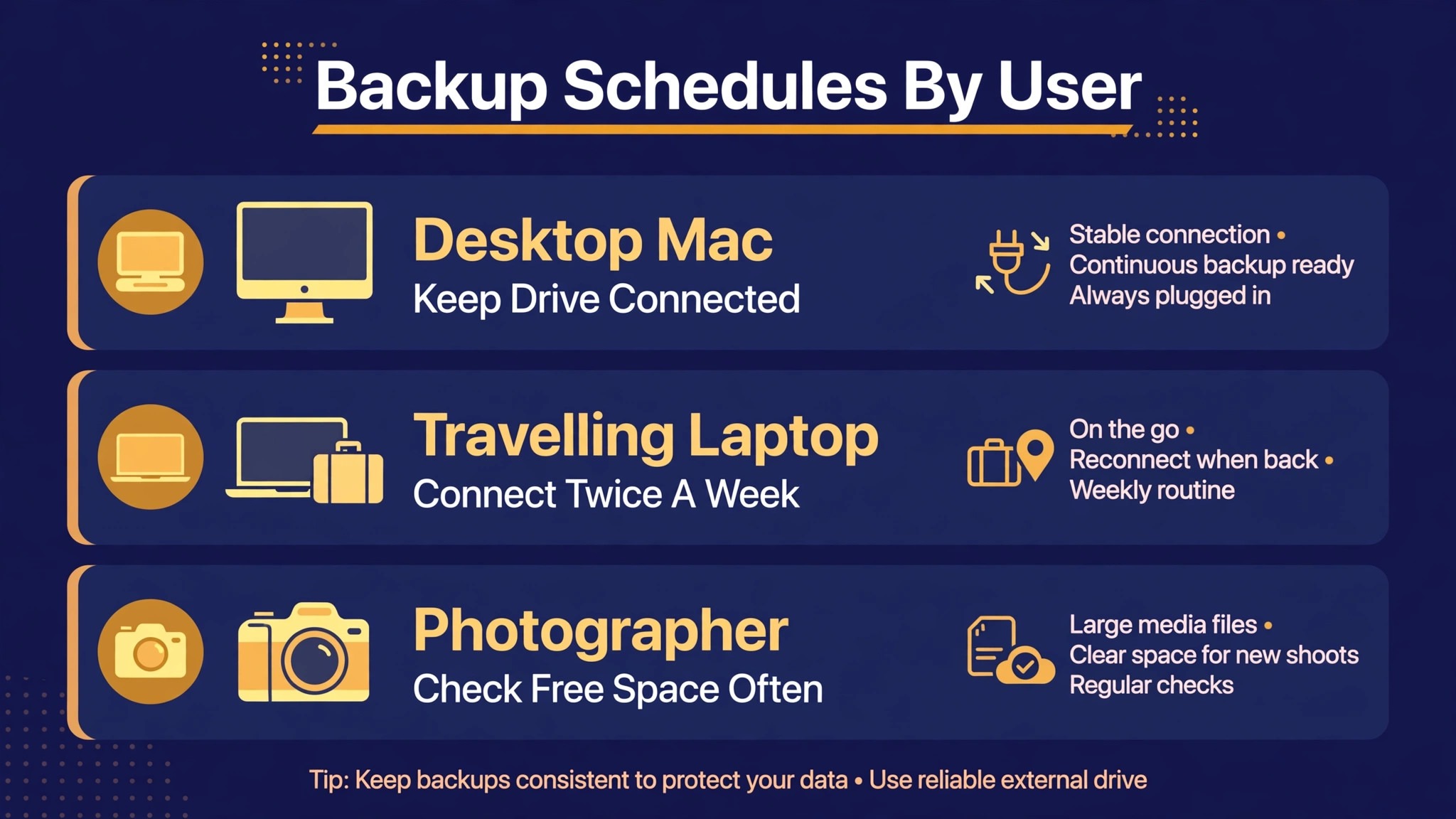
Time Machine runs automatically when the drive is connected, but your habits decide whether automatic actually means recent. Use the schedule below as a planning guide, and adjust it to how often your files change and how much you can afford to lose.
| Mac user type | How often to connect the drive | What to check each time |
|---|---|---|
| Desktop Mac that stays on a desk | Keep the drive connected always | Weekly check that backups are recent and no error shows |
| Laptop used at a desk daily | Connect the drive each workday | Daily glance at last backup time in Time Machine settings |
| Laptop used on the move often | Connect the drive at least twice a week | Check that the last backup is no older than a few days |
| Student with frequent essay changes | Connect the drive after major writing sessions | Restore a test file once a month to prove backups work |
| Photographer or video editor | Keep the drive connected during editing | Check free space often, because large projects fill a drive fast |
| Family Mac shared by several people | Keep the drive connected always | Monthly check that each user folder appears in backups |
| Travelling worker with no desk | Connect the drive every evening when possible | Carry a second backup method for trips longer than a week |
| Mac with large media library | Keep a large drive connected always | Plan drive size for growth, not just current library size |
If you cannot keep a drive connected, set a calendar reminder for your chosen backup days, and treat a missed backup like a missed bill, because the risk grows quietly with each missed session. A reminder system is useful when you set up external SSD for Mac backup on a laptop that travels often. A laptop user who connects a drive only once a month has a backup, but it is a backup that can lose a month of work, which is too much for most people.
For irreplaceable files, such as family photos or a thesis, add a second copy in cloud storage or on a second drive kept elsewhere, because Time Machine on one drive protects against Mac failure but not against fire, theft of both devices, or a drive failure that happens at the same time as a Mac problem. That second copy does not need to be complicated. A cloud folder for your most important documents, updated weekly, plus a Time Machine drive for everything, gives a level of safety that a single backup cannot match.
First Backup, Incremental Backups, and What Slows Them Down
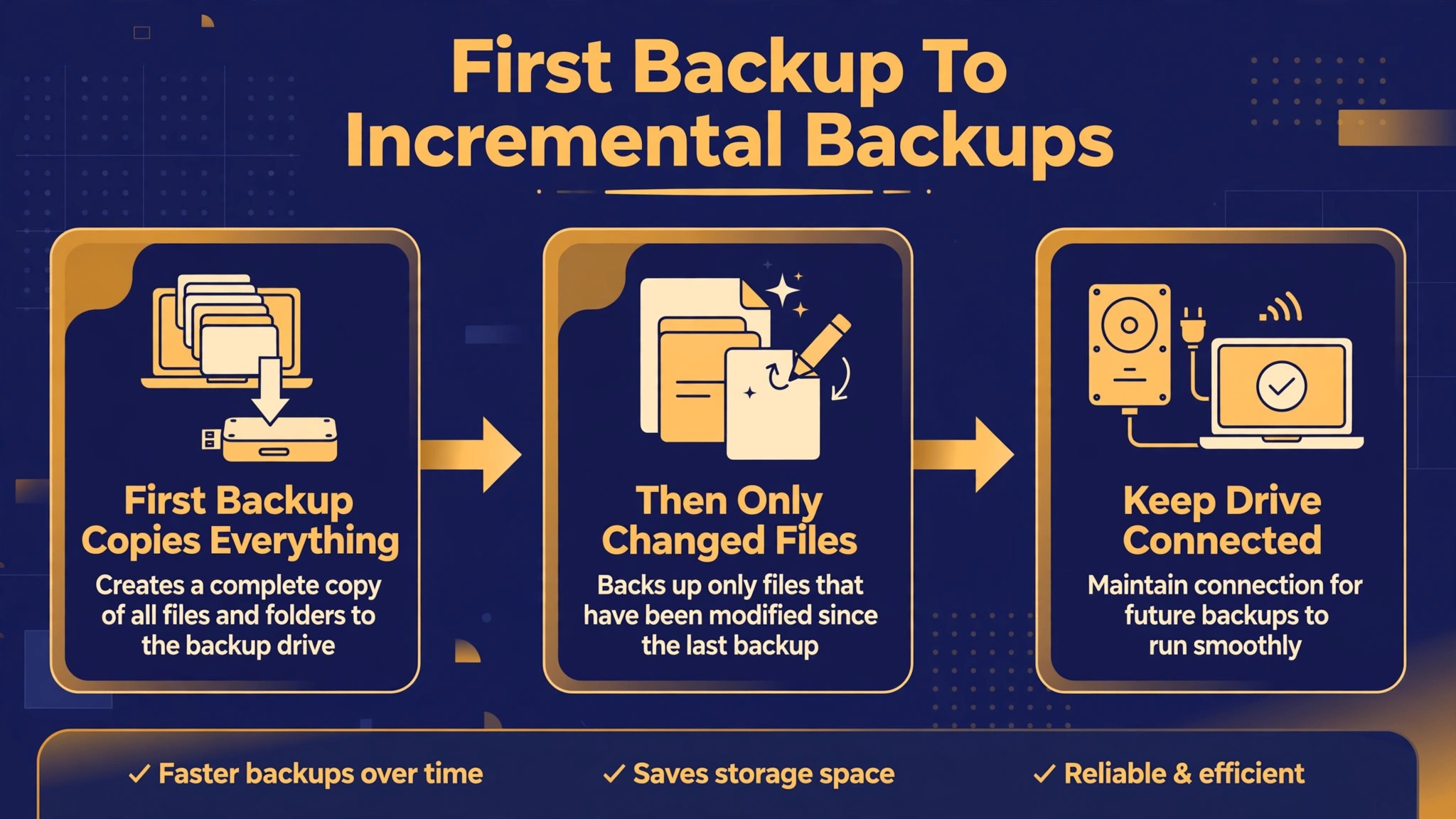
The first backup copies almost everything on your Mac, so it takes the longest and needs the most patience. As a planning range, a first backup of a few hundred gigabytes to a USB-C SSD can take an hour or two in good conditions, while the same backup to a slower drive or over a hub can take far longer, and a very large library can take most of a day. Keep the Mac plugged into power, keep the drive connected, prevent the Mac from sleeping during the first backup if your settings allow it, and avoid heavy work during the first backup, because heavy work competes for drive and processor time.
After the first backup, Time Machine copies only changed files, so later backups are much faster and often finish in minutes when the drive is connected regularly. If later backups suddenly slow down, check for a large new file, such as a video export or a downloaded library, check drive free space, and check whether the drive is connected through a slow hub or a damaged cable. Do not unplug the drive during a backup unless you must, and if you do, reconnect it soon and let Time Machine resume, because repeated interruptions can leave a backup in a state that needs a longer verification pass.
How to Restore a File, a Folder, and a Whole Mac
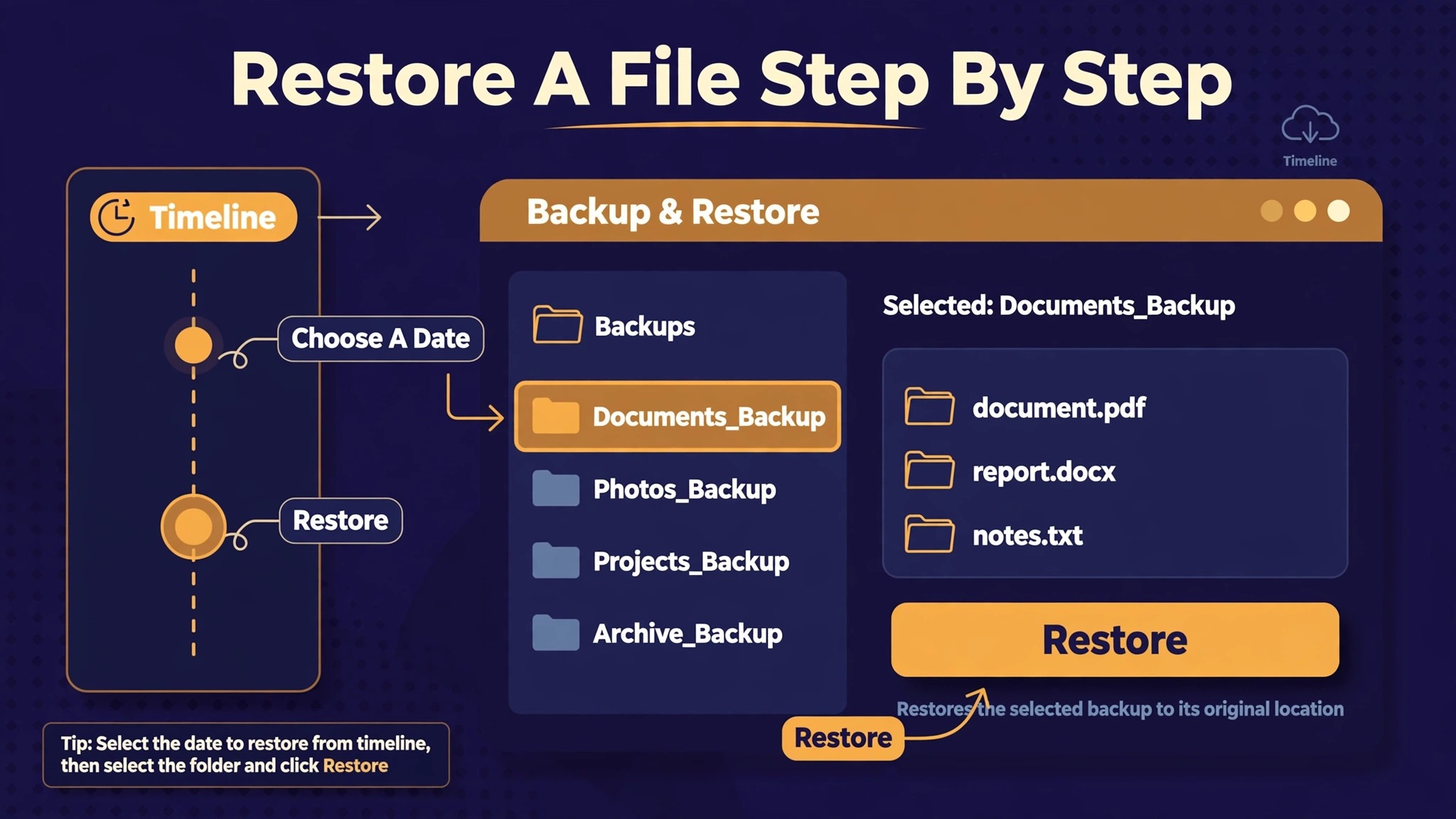
Restoring a single file is the skill you will use most, so practise it before you need it under stress. Open the folder where the file lived, enter Time Machine from the menu bar or System Settings, and use the timeline on the side to go back to a date when the file existed in the form you want. Select the file, click Restore, and check that the restored file opens correctly and sits in the right place. For a folder, the same steps apply, but check the folder contents carefully after restore, because a folder restore can overwrite newer files in the same folder if you are not careful.
Restore to a test location first when the stakes are high, such as a folder with many edited files, so you can compare versions before committing. For a whole Mac restore, you will usually start from macOS Recovery, choose Restore from Time Machine, select the backup disk, and follow the prompts, a process that takes longer and needs the Mac plugged into power and the drive connected throughout. Practise the single file restore monthly, because a backup system you have practised feels calm in a crisis, while a system you have never used feels frightening even when it works perfectly. Regular practice is a key habit when you set up external SSD for Mac backup for real protection.
Apple Migration Assistant and a New Mac From Backup
Migration Assistant lets you set up a new Mac from a Time Machine backup, transferring user accounts, apps, files, and settings in one process. When you first turn on a new Mac, choose the option to transfer from a Time Machine backup, connect the backup drive, and select the most recent backup that you trust. The transfer can take hours for a large backup, so start it when you have time and power available, and do not interrupt it. After migration, check that your most important files, photos, and documents opened correctly, and check that apps you rely on launch and sign in as expected.
Keep the old Mac and its backup until you are confident the new Mac is complete, because a migration that looks finished can still miss a file or a setting that you discover days later. A Time Machine backup used through Migration Assistant turns a new Mac setup from a day of manual copying into a mostly automatic process, which is one of the strongest reasons to keep backups current.
Common Backup Mistakes That Leave Mac Users Unprotected
The most common backup mistake is believing a backup exists when it does not, because the drive was unplugged, full, or showing an error that no one noticed. Check the last backup date regularly, because a date that is weeks old is a warning even if no error message appeared. Another common mistake is using the backup drive for general storage, which fills the drive with files that are not backed up elsewhere and forces Time Machine to delete old backups sooner. Keep the backup drive dedicated to Time Machine, and use a separate drive or cloud folder for general storage.
A third mistake is never testing a restore, which leaves you discovering a corrupted backup or a forgotten encryption password at the worst possible moment. Test a restore monthly, store encryption passwords safely, and keep a note of the drive name and format. A fourth mistake is keeping the backup drive next to the Mac permanently, which protects against drive failure but not against theft or fire that takes both devices. For irreplaceable files, keep a second copy elsewhere, even if that second copy is only your most important documents in cloud storage. Avoid these four mistakes, and your backup system will be far stronger than most.
Choosing Between SSD, Hard Drive, and Cloud for Mac Backup
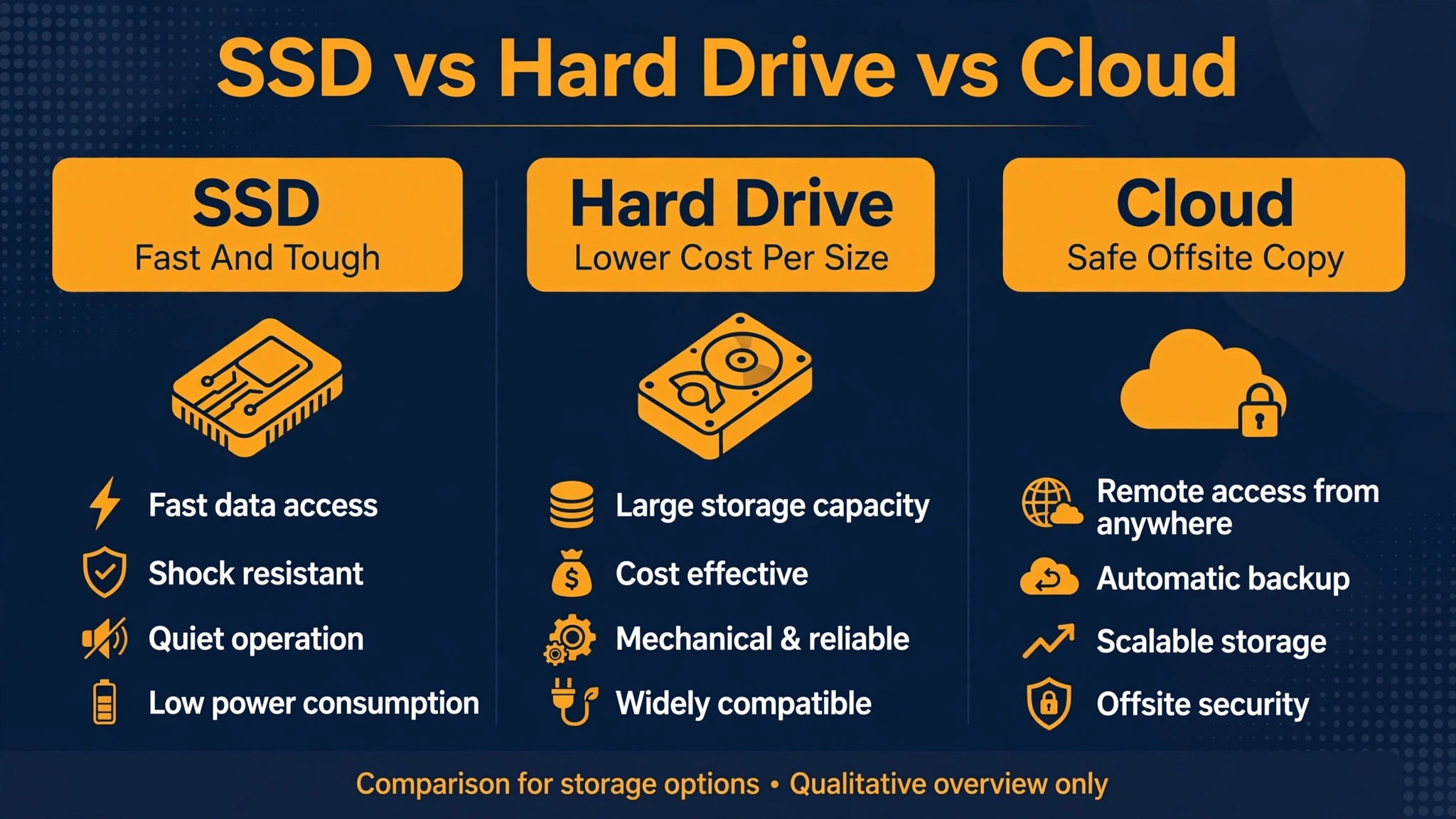
An external SSD gives the fastest Time Machine backups and restores, uses less power, and survives knocks better than a spinning hard drive, which makes it the best choice for most Mac users today. A spinning hard drive costs less per gigabyte and can be a good choice for a very large, desk only backup where speed matters less, but its first backup and restore times are much longer, and it is more vulnerable to drops. Cloud backup protects against theft and fire at home, because copies live elsewhere, but it depends on internet speed and a subscription, and a full restore over the internet can take days for a large library.
The strongest setup for most people combines an external SSD for fast, local Time Machine backups with a cloud copy for the most important files, because each method covers a weakness of the other. Compare total cost over two years, including drive price and any cloud subscription, rather than comparing a one time drive price with a monthly fee alone. Choose the combination you will actually maintain, because a perfect system that you abandon after a month protects nothing, while a simple system that you check weekly protects a great deal.
How to Set Up External SSD for Mac Backup as a Monthly Habit
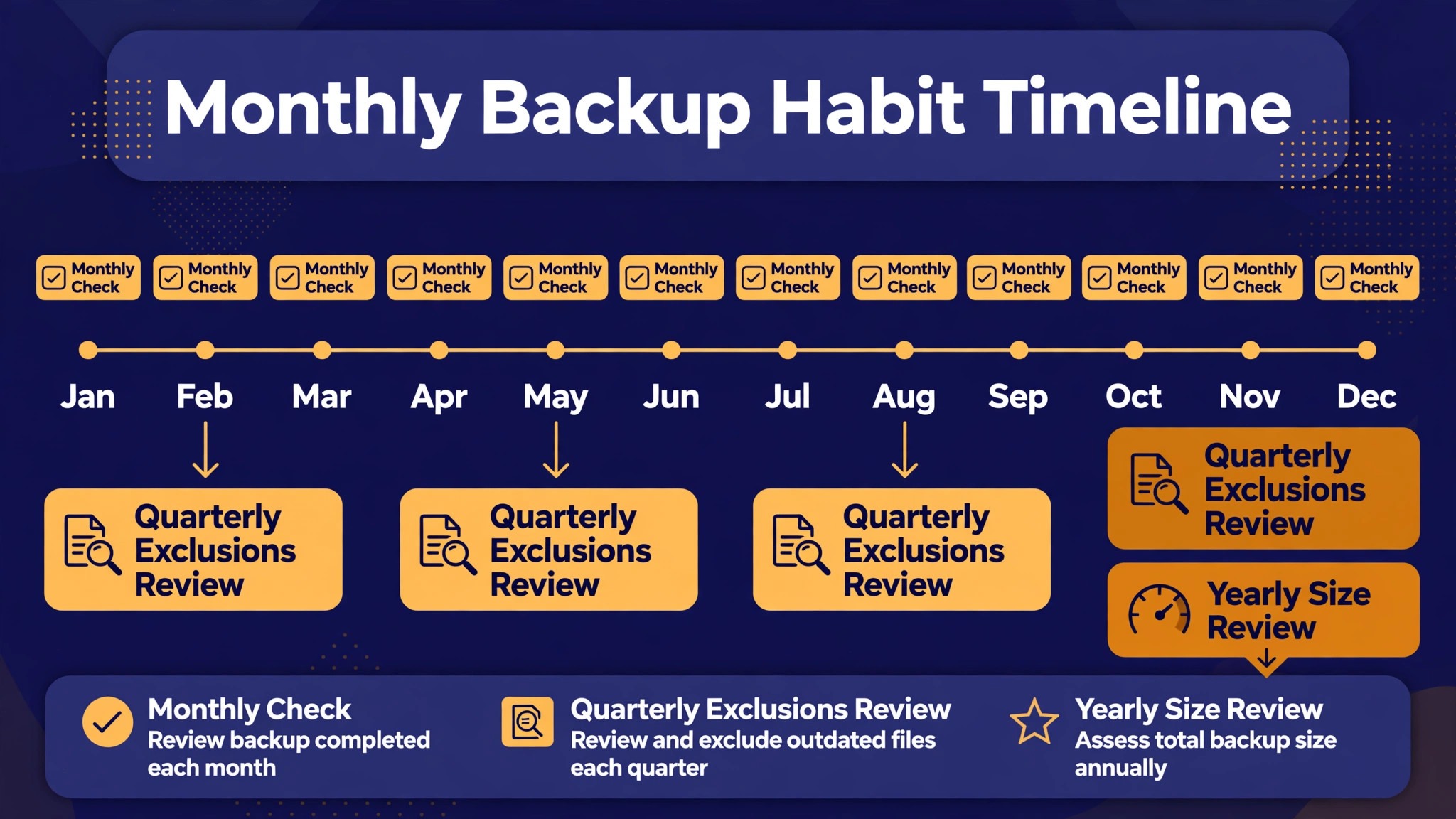
A backup habit is simple to describe and easy to forget, so tie it to a routine you already have. Check Time Machine on the first day of each month, confirming the last backup date, free space, and any error message, and test restore one small file on the same day. Clean the drive area, check the cable for wear, and confirm the drive still appears in Disk Utility with the correct name and format. Review excluded items once a quarter, because a folder you excluded during a space crisis may later hold files you want backed up.
Review drive size once a year, comparing used space on your Mac with backup drive capacity, and buy a larger drive before the backup drive fills, rather than after it starts deleting old history aggressively. People who set up external SSD for Mac backup as a monthly habit, rather than as a one time project, tend to discover problems while they are still small, such as a failing cable or a full drive, and their backups remain trustworthy year after year. That trust is the whole point of backup, because a backup you doubt is almost as stressful as no backup at all.
Frequently Asked Questions
How large should an external SSD for Mac backup be?
Apple recommends at least twice the capacity of your Mac internal drive, so a 512 GB Mac needs at least a 1 TB drive and a 1 TB Mac needs at least a 2 TB drive. A larger drive gives a longer backup history and more room for growth, which matters if your photo library or project folders grow each year. Buy the largest drive your budget allows within that guidance, because running out of backup space is a common reason people stop backing up.
Do I need to format a new SSD before using it with Time Machine?
Yes, in most cases you should format the drive to APFS with a GUID Partition Map scheme before adding it to Time Machine, and Time Machine will prompt to erase a non-APFS drive anyway. Move any files on the drive elsewhere first, because formatting erases everything on that drive. Use Disk Utility to erase the external drive, double checking that you selected the external drive and not your Mac internal drive, and name it clearly for Time Machine.
Should I encrypt my Time Machine backup?
Encrypt your backup if the drive will travel, if it holds sensitive work or personal files, or if it could be lost or stolen, because encryption prevents others from reading the backup without the password. Store that password in a password manager and in a second safe place, because a forgotten encryption password can lock you out of your own backups. If the drive stays on a secure desk at home and holds no sensitive data, encryption is still useful, but the password risk matters more, so weigh both sides before you choose.
How long does the first Time Machine backup take?
The first backup copies almost everything on your Mac, so it can take an hour or two for a few hundred gigabytes to a fast USB-C SSD, and far longer for a very large library or a slower drive. Keep the Mac plugged into power, keep the drive connected, and avoid heavy work during the first backup to keep the time as short as possible. Later backups copy only changed files and usually finish much faster when the drive is connected regularly.
Can I use the same SSD for Time Machine and general file storage?
You can, by partitioning the drive or creating a separate volume, but dedicating the drive to Time Machine is simpler and safer for most users. Sharing a drive complicates space management, increases the chance of accidentally deleting backups, and can force Time Machine to delete old history sooner. If you must share, keep the Time Machine portion large, keep general files in a separate volume, and never delete backup files manually to make room for general storage.
What should I do if Time Machine says the backup disk is full?
A full disk is normal over time, because Time Machine deletes the oldest backups to make room for new ones, so a full disk alone is not an error. Check whether recent backups still exist and whether the oldest backups you need are still available, and buy a larger drive if you need a longer history. Do not delete backup files manually in Finder, because that can corrupt the backup set, and use Time Machine settings or a larger drive instead if space becomes a real problem.
A Simple Closing Promise to Your Future Self
Backup is a gift to the person you will be after an accident, a theft, or a failed drive, and that person will be grateful for an hour you spend today. Buy the right size drive, format it to APFS, connect it to Time Machine, let the first backup finish, test a restore, and check it monthly. That short routine is the whole method to set up external SSD for Mac backup and keep it trustworthy. That short routine protects photos, documents, and work that cannot be recreated, and it turns a stressful loss into a minor inconvenience.
Do it this week, before the next weekend becomes another missed backup, because the best time to set up a backup is before you need it, and the second best time is today.
More Reading on Stratilyze
Readers who enjoyed this Mac backup guide often continue with the laptop docking station guide for a home office, the webcam setup guide for remote work, and the GoPro setup guide for beginners, because those guides share the same practical approach of choosing the right hardware first, following a short checklist, and testing the setup before relying on it.