
A phone can control a smart home, but a phone is usually in a pocket, on charge in another room, or in the hands of someone else when you need the lights on. A smart speaker can answer from across the room, but it cannot show you the weather, a recipe step, a video call face or a camera view. A Nest Hub sits between those two options, and when you set up Google Nest Hub for smart home beginners you get a screen you can glance at, a voice assistant you can talk to, and touch controls for the moments when speaking aloud feels awkward.
If you want to set up Google Nest Hub for smart home beginners, the real question is not whether the screen is nice, it is where the Hub earns its place in your home and which jobs you give it first.
This guide treats the Hub as a household helper, not as a gadget to collect. You will choose a room where it will actually be used, connect it through the Google Home app, link the devices that matter, build two or three routines that save time every day, and set privacy controls that match how comfortable your household is with microphones and cameras. By the end, the Hub should do a small number of jobs reliably, rather than a large number of jobs half heartedly.
Kitchen Counter, Bedroom Table or Living Room Shelf
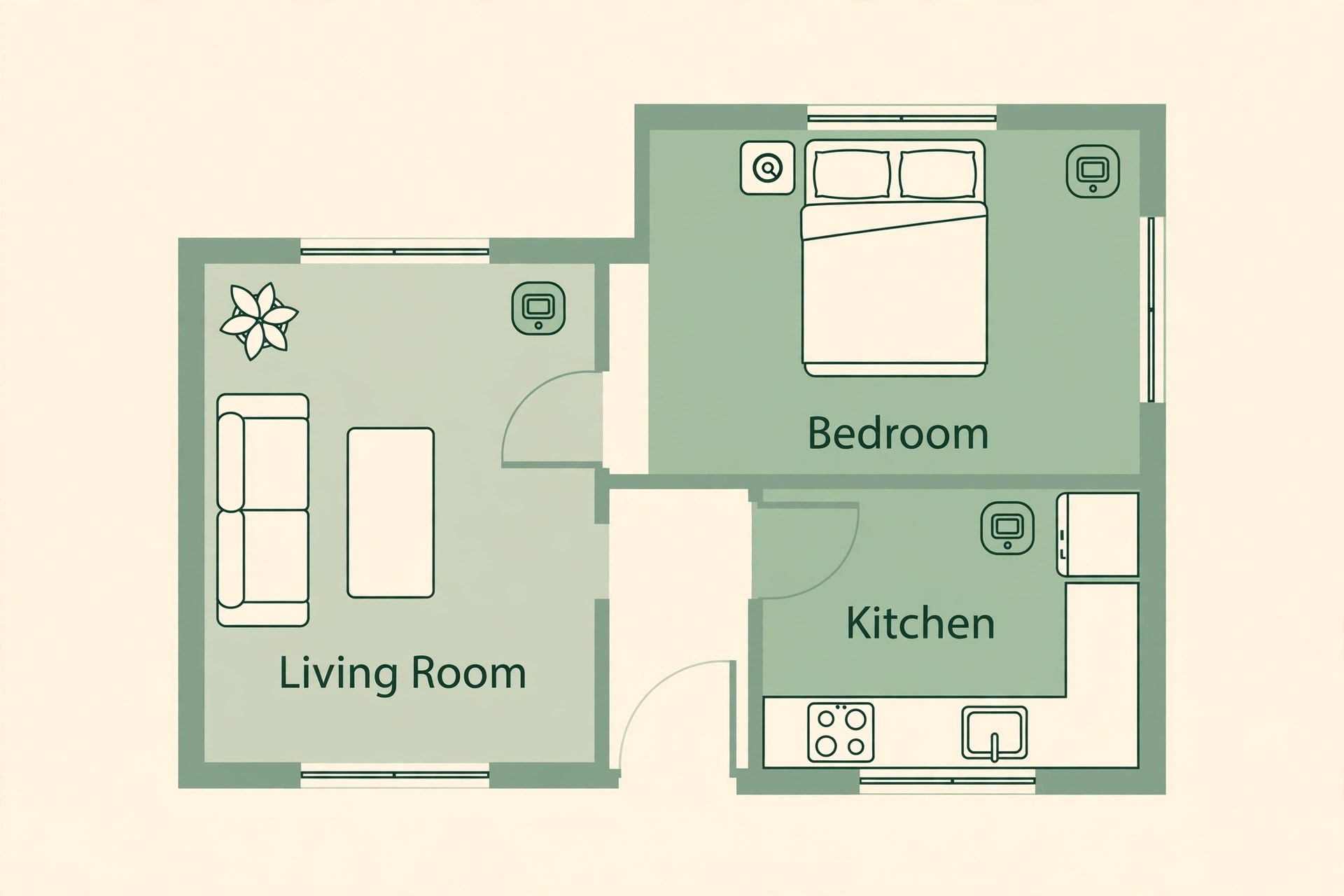
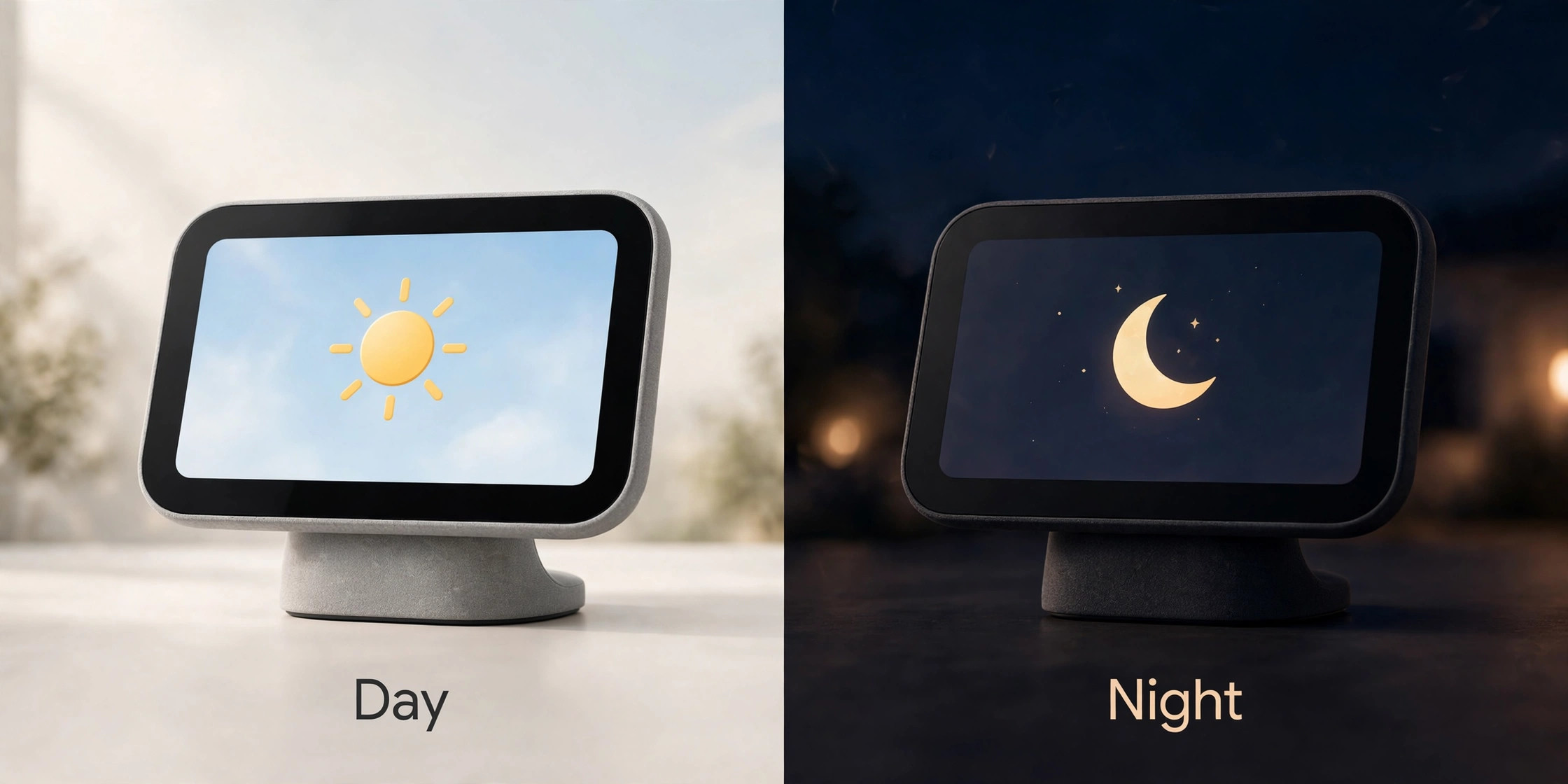
Placement decides half the value of a smart display. A Hub in a kitchen helps with timers, recipes, shopping lists and hands free music while cooking, but it must sit away from the sink splash zone and away from direct heat from a hob or oven. A Hub in a bedroom helps with alarms, sleep sounds, morning briefings and gentle wake up routines, but it needs night mode settings that dim the screen and quieten notifications. A Hub in a living room helps with controlling lights, showing photos and playing video, but it competes with the television for attention, so it works best on a side table rather than directly beside the screen.
Think about three practical factors before you choose when you set up Google Nest Hub for smart home beginners. First, power. The Hub needs a wall outlet and its supplied adapter, and a trailing cable across a walkway is a trip hazard, so choose a spot with an outlet nearby. Second, voice distance. The microphones work best within a normal room distance, with a clear path for sound, so avoid placing the Hub inside a cabinet, behind a tall plant or facing a wall. Third, screen glare.
A screen facing a bright window can be hard to read at midday, while a screen facing a dark corner can feel too bright at night, so angle the Hub slightly and test it at different times of day before fixing its position.
The placement map below summarises the trade offs for the three most common rooms, including the jobs each room suits and the problem to watch for. Use it to choose a first room, and remember that you can move the Hub later and change its room assignment in the Google Home app, so the first choice is not permanent.
| Room | Best jobs for a Hub there | Watch out for |
|---|---|---|
| Kitchen | Timers, recipes, shopping lists, music while cooking | Splashes, steam, heat, and greasy hands on the screen |
| Bedroom | Alarms, sleep sounds, morning briefing, gentle wake up | Bright screen at night and notifications that disturb sleep |
| Living room | Lights, photo frame, video, music, camera views | Competition with the television and voice confusion |
| Hallway or office | Reminders, calendar, intercom style announcements | Limited seating and less frequent glances at the screen |
| Bathroom | Music and news during a morning routine | Humidity, splashes and a lack of safe outlet placement |
A second Hub, if you ever add one, should go where the first Hub cannot hear you, such as upstairs if the first is downstairs, rather than in the next room where both devices may answer at once. Google Home can usually sort out which device should respond, but physical distance is a simpler solution than relying on software to guess. Start with one Hub, learn its strengths in one room, and expand only when a clear second job appears.
What Comes in the Box and What You Need Before Setup
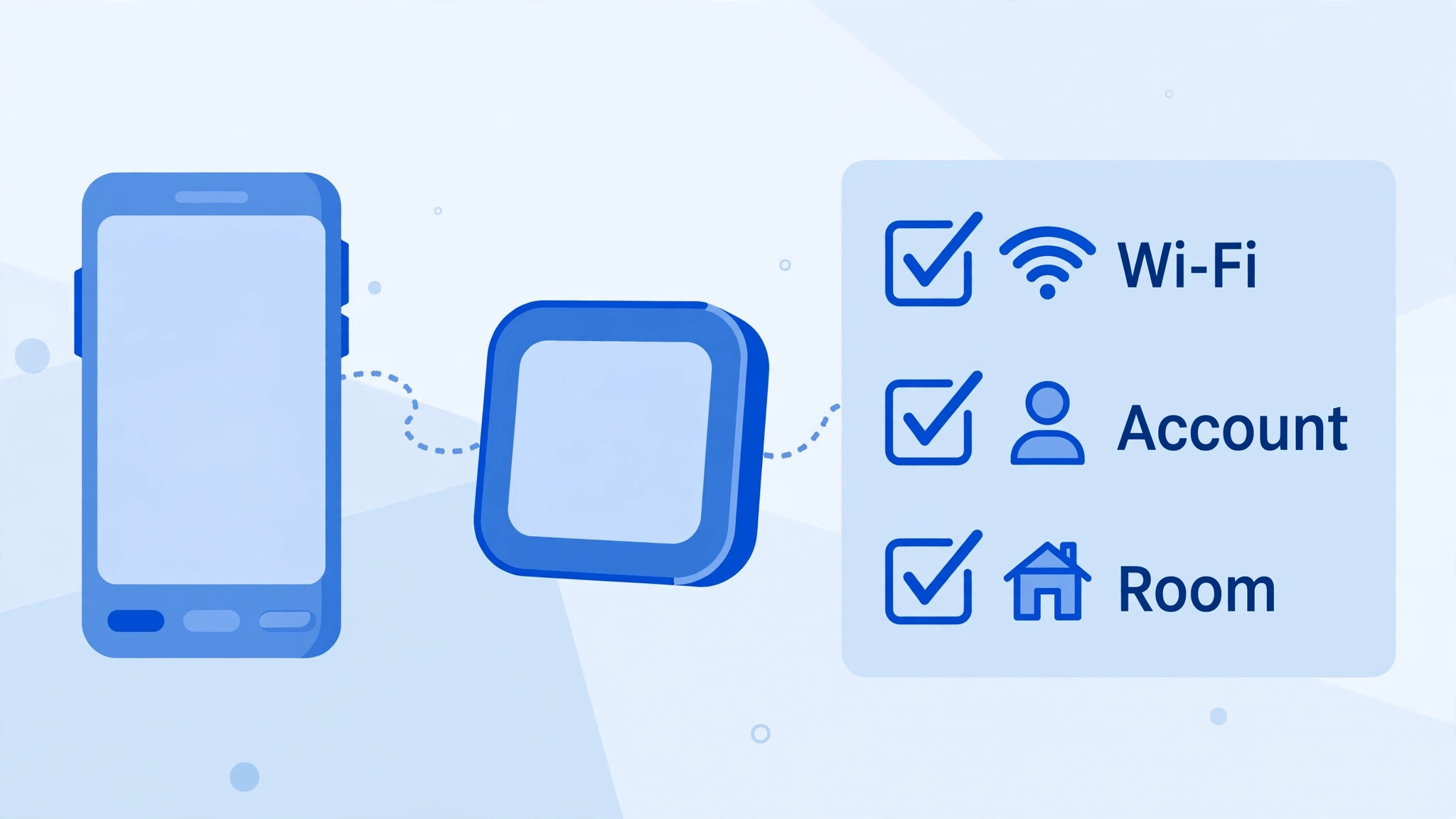
Unbox the Hub, its power adapter and any quick start material, and keep the box until setup is complete. You will need a phone or tablet with the Google Home app installed, a Google account you want to link to the Hub, your Wi-Fi password, and a power outlet near the chosen spot. The phone should stay within a few metres of the Hub during setup, because the app connects to the Hub over Bluetooth during the early steps and a phone in another room can cause pairing to fail for no obvious reason.
Decide on the Google account before you start when you set up Google Nest Hub for smart home beginners. This account controls calendars, reminders, photos for the photo frame, music preferences and voice match profiles, so it should be the account of the person who will use the Hub most, or a shared household account if the family agrees on that approach. A personal account gives personal calendar and message results, which is convenient for one person but may expose private information when guests ask questions. A shared account avoids that exposure but loses personalisation. There is no universally right answer, only a choice that should be made deliberately and explained to everyone in the home.
Check your Wi-Fi band if setup struggles. Most modern routers broadcast both 2.4GHz and 5GHz networks, sometimes under one name and sometimes under two. If the Hub cannot connect, try the other band or move closer to the router for the first connection, then move the Hub to its final spot and test again. A Hub that works beside the router but fails in the kitchen tells you about Wi-Fi coverage, not about a faulty Hub, and a mesh node or a Wi-Fi extender in that area may be the real fix.
Connecting the Hub Through the Google Home App
Plug in the Hub using the supplied adapter and wait about a minute for the welcome screen. Open the Google Home app on your phone, sign in with the chosen Google account, and tap Add, then Device, to start adding a new device. When prompted, point the phone camera at the QR code shown on the Hub screen, or choose the setup code option and type the code shown if scanning fails. Confirm any code or sound the app asks you to match, because that check ensures you are setting up the correct device and not a neighbour’s device with a similar name.
Next, choose the home and room for the Hub. If this is your first Google device, the app will ask you to create a home, with a name such as Home and an optional address for location features like local weather. Choose a room name that matches where the Hub physically sits, such as Kitchen or Bedroom, because room names are how voice commands work later. Saying turn off the kitchen lights only works reliably if the lights and the Hub share a clear room assignment, and vague names such as Room 1 create confusion within weeks.
Connect the Hub to Wi-Fi when prompted, choose whether to turn on Voice Match, and decide on photo frame and personal results settings. Voice Match trains the Hub to recognise individual voices, so personal calendar results go to the right person, but it requires each household member to complete a short voice training step. Photo Frame turns the idle screen into a slideshow from chosen Google Photos albums, which many families love, but it should only use albums you are happy to display when guests visit. Personal results control whether the Hub reads out calendar events and messages, and turning them off for a shared Hub in a living room is often the safer choice.
Linking Lights, Plugs, Thermostats and Other Devices
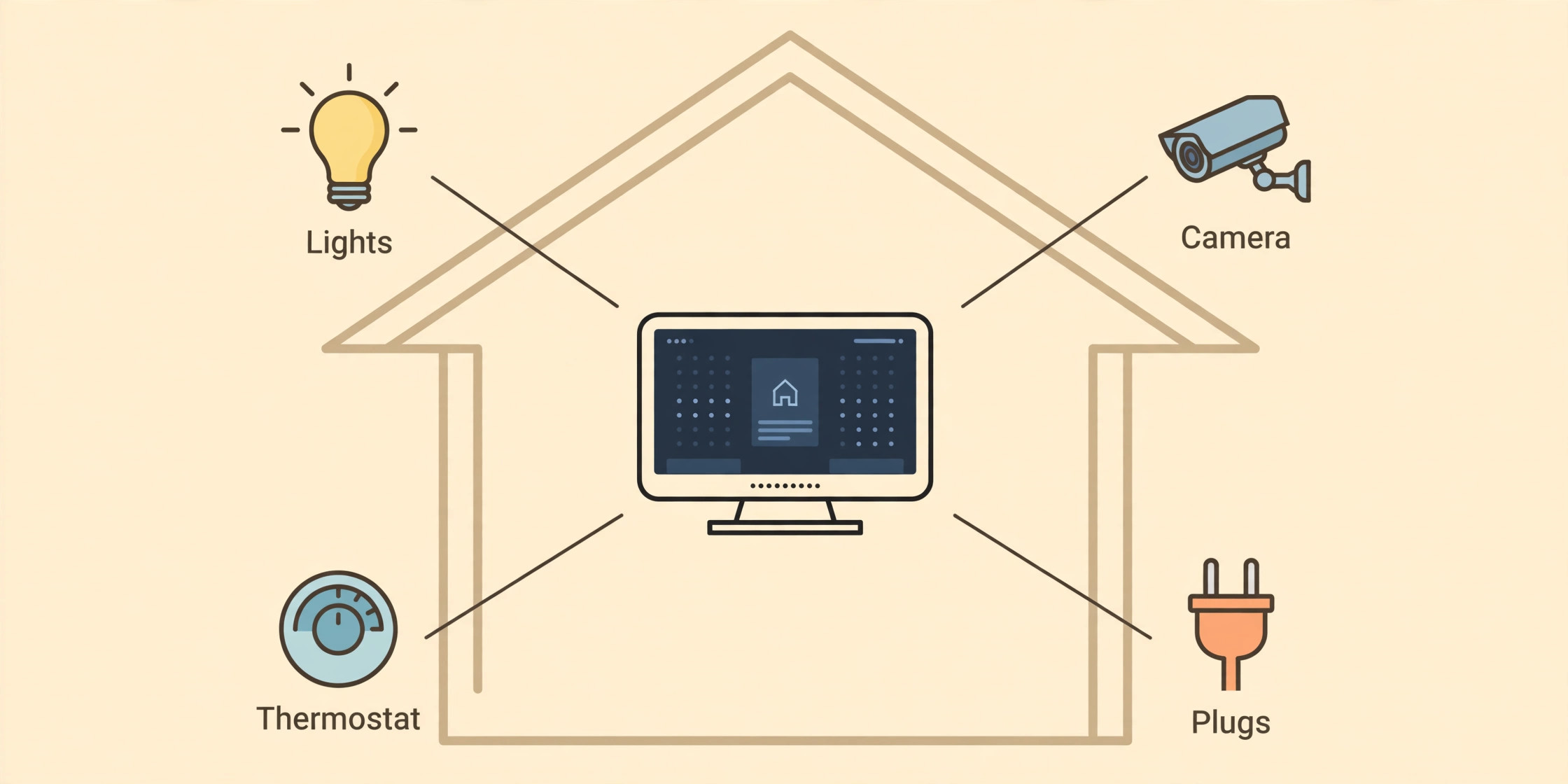
A Hub becomes a smart home controller only when other devices are linked to the same Google Home structure. Start with the devices you already own or plan to buy first, typically smart bulbs, smart plugs, a thermostat or a camera, and link them one category at a time rather than all at once. For each brand, open the Google Home app, tap Add, then Works with Google, search for the brand, sign in with that brand’s account and authorise Google Home to control its devices. The linked devices then appear in the app, where you assign each one to a room.
Room assignment is the step beginners rush when you set up Google Nest Hub for smart home beginners, and it causes most later voice failures. A bulb called Light in the app, with no room, cannot be controlled by turn on the kitchen lights, because the system does not know which room it belongs to. Assign every device to the room where it physically sits, rename devices to simple distinct names such as Kitchen Ceiling and Bedroom Lamp, and avoid duplicate names across rooms. If two devices share a name, voice commands become a guessing game, and family members will stop using voice control rather than learn the exact phrasing needed to disambiguate.
Test each device by voice and by touch after linking. Ask the Hub to turn the device on and off, then open the device tile on the Hub screen and tap it, so you know both methods work. If a device responds in the app but not by voice, check its room assignment and its name first, before assuming a network problem. If a device does not respond at all, check that it is powered, that its own brand app can control it, and that it is on the same Wi-Fi network as the Hub. A device on a guest network or a different band can appear linked but remain unreachable, which is a common and fixable cause of frustration.
| Device type | Linking path in general terms | First test after linking |
|---|---|---|
| Smart bulb | Add, Works with Google, brand account, assign room | Turn on and off by voice and by Hub tile |
| Smart plug | Add, Works with Google, brand account, assign room | Switch a lamp or fan on and off |
| Thermostat | Add, Works with Google, brand account, assign room | Ask for the current temperature and set a new one |
| Smart camera | Add, Works with Google, brand account, assign room | View the camera feed on the Hub screen |
| Smart lock | Add, Works with Google, brand account, assign room | Check status without unlocking from a distance |
| Speaker or display | Add, Device, follow prompts, assign room | Play music and adjust volume by voice |
| Vacuum robot | Add, Works with Google, brand account, assign room | Start and stop a cleaning run by voice |
| Television or streamer | Add, Works with Google or Device, assign room | Play, pause and change volume by voice |
Routines That Save Time Every Day
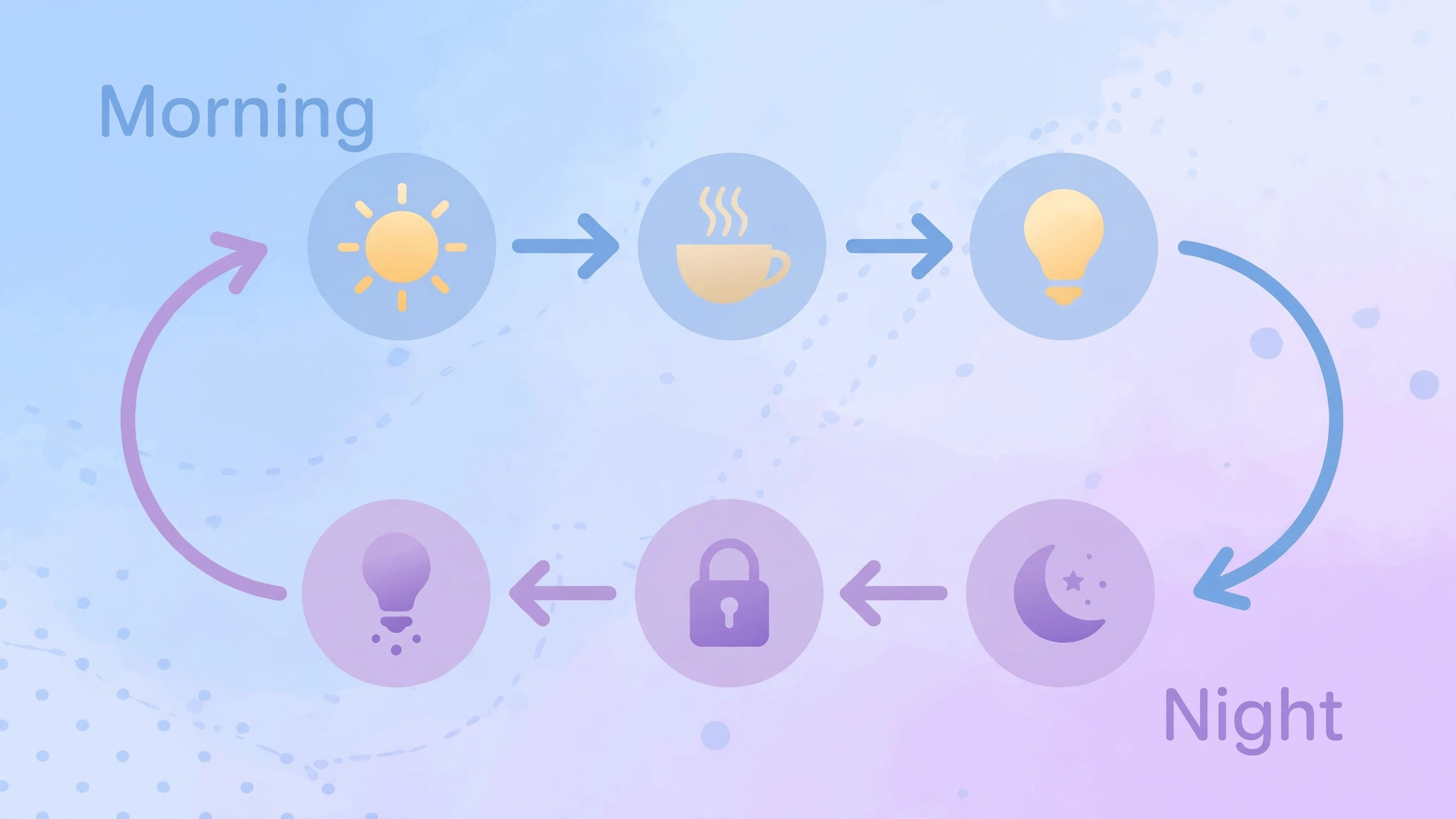
Routines are the feature that turns a smart display from a novelty into a habit when you set up Google Nest Hub for smart home beginners. A routine is a set of actions triggered by a single phrase, a time of day, or an event such as sunrise. A good morning routine might turn on kitchen lights, read the weather and calendar, and play news or music. A good night routine might turn off lights, lock doors where supported, set an alarm and play sleep sounds. A leaving home routine might turn off lights and plugs and arm a camera. Start with one routine that solves a real daily friction, rather than building five routines that nobody remembers to trigger.
Create a routine in the Google Home app under Automations or Routines, depending on the app version you see. Choose a starter, such as a voice phrase like Good morning or a scheduled time, then add actions in the order you want them to happen, then choose which Hub or speaker should respond. Test the routine at a time when a failure does not matter, such as a weekend afternoon, and adjust the actions before relying on it for a workday morning. A routine that reads a long news briefing before you have had coffee may need shortening, while a routine that turns on lights but forgets the kettle plug may need one more action.
Household routines work only if everyone knows the trigger phrase. Write the phrases on a small card near the Hub for the first month, such as Good morning, Good night, Movie time and Dinner time, and practise them together. If a phrase is too long or too similar to another phrase, change it to something short and distinct. Children in particular benefit from a simple phrase they can remember, and a routine that a child can trigger successfully builds confidence in the whole smart home far faster than a complex automation that only one adult understands.
The routine and device linking checklist below covers the full journey from first plug in to a working daily routine, and it is the checklist to return to if a later step fails, because most failures trace back to a missed item here rather than to a new fault.
| Checklist stage | Action | Done when |
|---|---|---|
| Hub connected | Plug in, add in Google Home app, assign room | Hub responds to a test question |
| Wi-Fi stable | Confirm connection in the final room location | Hub streams music without dropping out |
| Voice Match set | Each regular user completes voice training if desired | Hub greets each user by the right context |
| First device linked | Link one bulb or plug through Works with Google | Device appears in the correct room |
| Device tested | Control by voice and by Hub tile | Both methods work reliably twice |
| All devices assigned | Every device has a room and a distinct name | No duplicate device names remain |
| First routine built | Create a morning or night routine in Automations | Routine runs fully in a test run |
| Routine phrases shared | Household knows the trigger phrases | Another person can trigger the routine unaided |
| Privacy checked | Microphone, camera and personal results reviewed | Settings match household comfort level |
| Night mode set | Screen dimming and quiet hours configured | Hub does not disturb sleep at night |
Display, Sound and Photo Frame Settings
Display settings on the Hub control brightness, night mode and what the screen shows when idle. Swipe up from the bottom of the Hub screen or open device settings in the Google Home app to adjust brightness, and enable night mode or a scheduled dimming period for a bedroom Hub, so the screen does not glow all night. Choose a photo frame source deliberately, such as a family album or a curated art album, and avoid using an entire photo library that may include screenshots, documents or images you would not want guests to see on a living room screen.
Sound settings matter because a Hub is often the kitchen or bedroom speaker. Set a sensible default volume for music, alarms and voice responses, and test the volume from the far side of the room, not just from beside the device. If the Hub is linked to a larger speaker or a television sound system, decide which device should play music by default, because music sent to the wrong speaker is a frequent minor annoyance. Voice responses can be set to a lower volume than music in many households, so announcements do not shout over a conversation.
Accessibility settings on the Hub include options for captions, screen magnification and voice control alternatives that can help household members with different needs. Explore these in device settings with the person who will benefit, rather than enabling everything at once. A larger text option on the Hub screen, for example, helps a grandparent reading a recipe from across the kitchen, while a simpler home screen layout helps a visitor who only needs lights and music. Small display changes often have a larger daily impact than adding another smart device.
Privacy, Microphones, Cameras and Guests
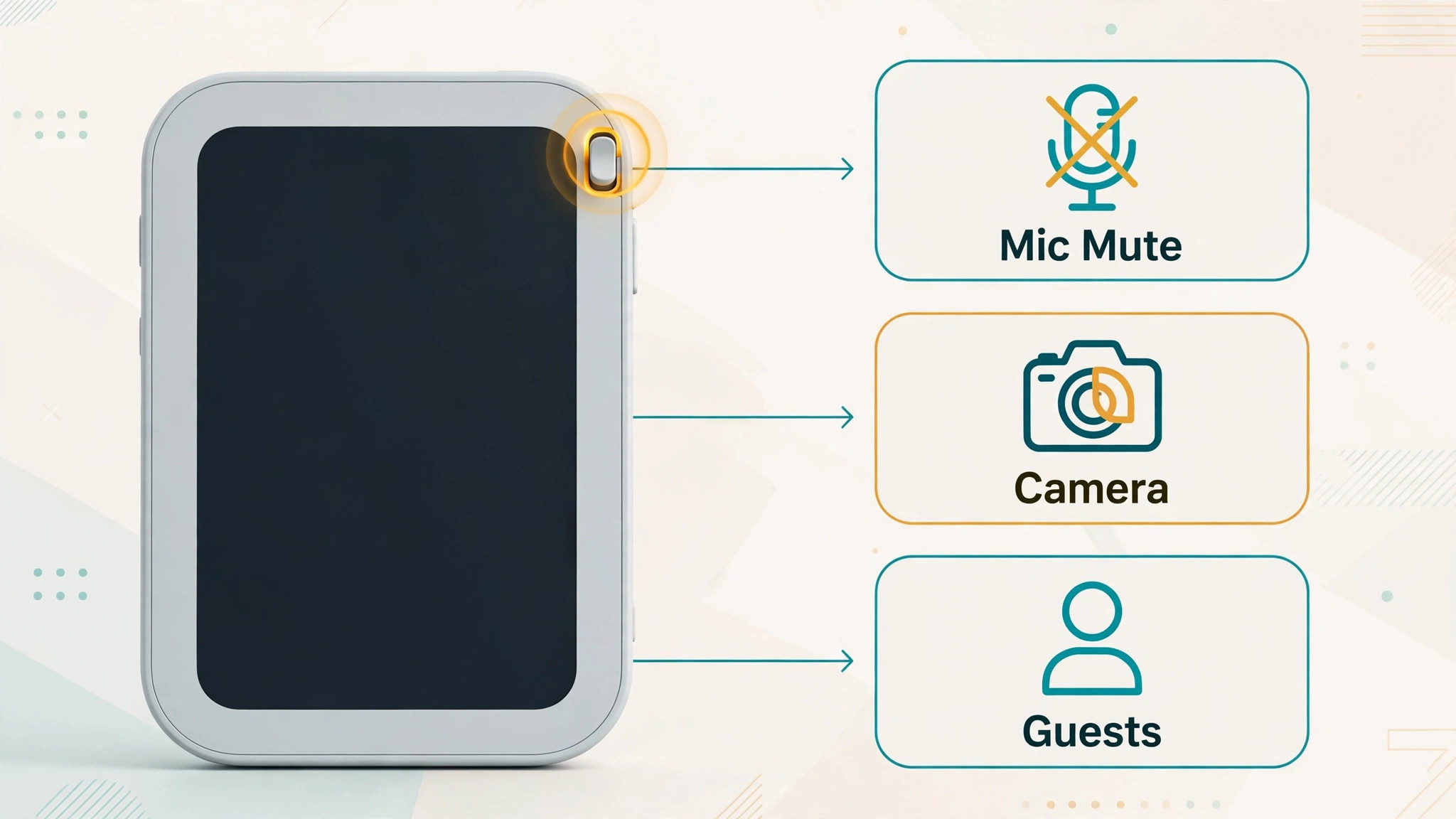
Privacy on a smart display is a household conversation, not a single toggle. The Hub has a physical microphone mute switch, which is the clearest privacy control available, because when it is on, the Hub will not listen for voice commands until it is switched off again. Learn where that switch sits and practise using it, especially before sensitive conversations or when guests are uncomfortable with an always listening device. On Hub Max models with a camera, there are additional camera controls and a physical camera shutter or indicator, and video calling and Face Match features should only be enabled if the household actively wants them.
Review personal results, search history and activity controls in the Google account linked to the Hub. Personal results allow calendar and message readouts, which are convenient for a private bedroom Hub but risky for a shared living room Hub. Activity controls determine whether voice recordings and interactions are saved, and you can review and delete activity from the Google account activity page. Set a household rule for guests, such as muting the microphone when visitors arrive if they prefer, and explain the rule in one sentence rather than launching into a technical explanation that makes guests more uneasy.
Children and smart displays need a brief set of rules too. Explain that the Hub can answer questions and play music, but that purchases, messages and calls should go through an adult, and that shouting a command repeatedly does not make it work better. Use Digital Wellbeing or family controls where available to limit late night use in a bedroom, and place a bedroom Hub where an adult can see the screen if needed. A calm set of rules, agreed in advance, prevents the Hub from becoming a source of arguments about screen time or accidental orders.
How to Set Up Google Nest Hub for Smart Home Beginners on a Budget
A smart home does not need to be bought all at once. A sensible budget path starts with the Hub and one smart bulb or plug, learns the routine system with those two items, and adds a device only when a clear job appears. A smart plug controlling an existing lamp is often cheaper than replacing every bulb, and a single smart bulb in the most used room teaches room assignment and voice control without a large outlay. Avoid buying a drawer full of devices on day one, because unlinked devices in a box teach nothing and create a setup backlog that feels overwhelming.
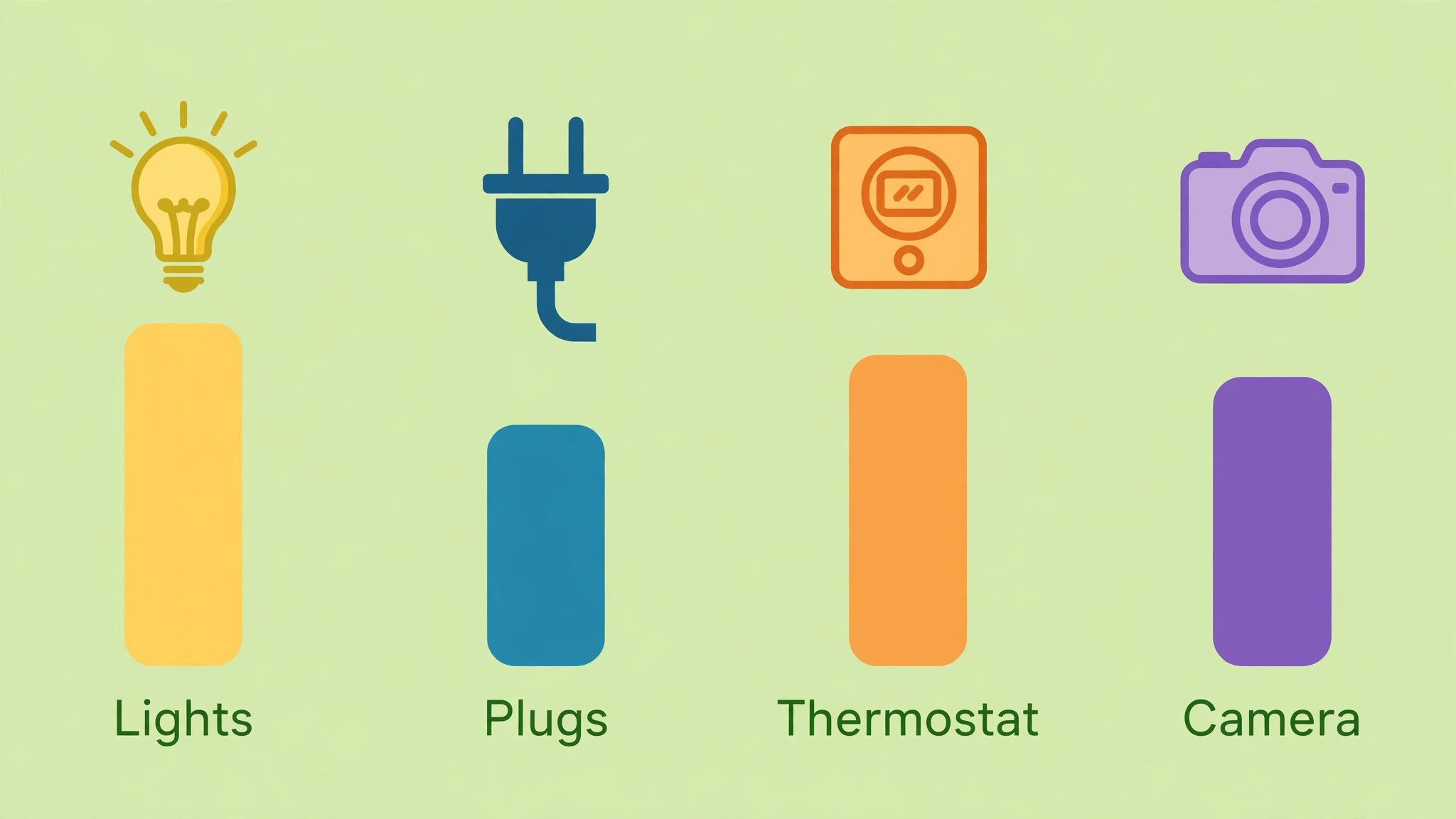
Compare device types by job, not by brand excitement. A bulb suits a light you dim or change colour often, a plug suits a lamp, fan or kettle with a simple on and off need, a thermostat suits a home with variable heating patterns, and a camera suits a doorway or a room you want to check remotely. Buying the wrong type for a job, such as a bulb for a lamp that is controlled by a wall dimmer, creates flicker or control conflicts that no software setting fully fixes. Read the compatibility note for your chosen brand in the Google Home app before buying, and check whether the device needs its own hub or bridge in addition to Wi-Fi.
Second hand or older devices can work well if they still receive updates and link through Works with Google, but check that the brand account still works and that the device firmware is current before relying on it for security related jobs such as locks or cameras. For locks and cameras, prefer current models with clear update support, because a bargain that stops receiving security updates is a poor saving. For lights and plugs, older models are often perfectly adequate, and they are a good way to expand a home gradually without a large bill.
Troubleshooting a Hub That Will Not Listen, Connect or Control
If the Hub does not respond to voice when you set up Google Nest Hub for smart home beginners, check the microphone mute switch first, then check that the Hub is powered and connected to Wi-Fi, then try a command from closer range with a clear phrase. If the Hub responds but cannot control a device, check the device room assignment and name, then check whether the device works in its own brand app. If the Hub cannot connect during setup, move the phone closer, restart the Hub by unplugging it for a few seconds, and try the QR code or setup code again.
If music drops out, test Wi-Fi coverage in the Hub room, because a weak signal causes dropouts that look like a Hub fault.
If a routine fails, open it in the Google Home app and run it manually to see which action stops. Often one action, such as a device that is offline or a media service that needs reauthorisation, blocks the rest of the routine. Remove or replace that action and test again, rather than deleting the whole routine. If a device disappears from the app, relink its brand account under Works with Google, because brand authorisations can expire after a password change or a service update. Keep a note of which brand accounts are linked, so relinking after a password change is a five minute job rather than a mystery.
More Reading on Stratilyze
Readers building a simpler home may also enjoy the iPad setup guide for seniors and beginners, the smart TV streaming setup guide for the living room screen that often sits near a Hub, and the noise cancelling headphones travel guide for personal audio when a shared speaker is not the right choice.
Frequently Asked Questions
Do I need a Google account to set up Google Nest Hub for smart home beginners?
Yes, a Google account is needed to complete setup in the Google Home app, to link devices, to use calendars and to create routines. Choose the account deliberately, because it controls personal results and photo frame content. A shared household account suits a shared living room Hub, while a personal account suits a private bedroom Hub.
Where is the best room for a first Nest Hub?
The kitchen suits many first time owners, because timers, recipes and music are used daily and hands are often busy. A bedroom suits owners who want alarms and morning briefings, while a living room suits photo frame and media control. Choose the room where you spend the most awake time and where a power outlet sits near the spot you will actually glance at the screen.
Can a Nest Hub control devices from different brands together?
Yes, provided each brand links through Works with Google and each device is assigned to a room in the Google Home app. Once linked, a routine can mix brands freely, such as turning on a bulb from one brand and a plug from another with a single phrase. The key is room assignment and distinct names, not buying everything from one brand.
How do I stop the Hub screen glowing all night in a bedroom?
Enable night mode or a scheduled dimming period in device settings, reduce brightness, and set quiet hours so notifications do not disturb sleep. Test the settings on the first night and adjust brightness further if the screen still feels bright in a dark room. Moving the Hub slightly away from the bed or angling it away can also help.
Is the microphone always listening, and can I turn it off?
The Hub listens for a wake phrase, and a physical microphone mute switch turns that listening off until you switch it back on. Use the switch before sensitive conversations or when guests prefer it, and explain the switch to household members so everyone knows how to control it. Review personal results and activity controls in the linked Google account for additional privacy choices.
What should I do if a linked device stops responding?
Check the device room assignment and name first, then check whether the device works in its own brand app, then check Wi-Fi coverage in that room. Relink the brand account under Works with Google if authorisation has expired after a password change. Most failures are assignment, power or network problems, not a faulty Hub.
A Small, Reliable Smart Home Beats a Large, Fragile One
The measure of a good Hub setup is not how many devices you own, it is whether the Hub does its chosen jobs without thought on a normal morning. One room, a few well named devices, one morning routine and one night routine, plus privacy settings everyone understands, is a complete smart home for most beginners. If you set up Google Nest Hub for smart home beginners in that spirit, you can add devices slowly, keep routines short and useful, and let the home grow around real habits rather than around a shopping list. Start small, test everything twice, and let reliability earn the right to expand.