
The best first GoPro setup is a simple one. Charge one battery fully, use a fast microSD card from the approved list for your model, start at 4K at 30 frames per second with HyperSmooth on, and film your first clips before you touch any advanced menu. That combination gives you sharp, steady footage that edits easily on a phone or a laptop, and it avoids the two mistakes that spoil most first outings, which are a dead battery and a card that is too slow to keep up with high resolution video. If you want to set up GoPro for beginners in the right way, resist the urge to copy a professional preset on day one.
Professionals build their settings around a planned edit, a specific light level, and a mount they already trust. You do not have that information yet, and you do not need it. Your job on the first day is to learn how the camera feels in your hand, how the touchscreen responds, how long a battery really lasts in your conditions, and what your footage looks like when you watch it back on a bigger screen. This guide walks through that whole first setup in order, from unboxing and charging to mounts, settings, sound, storage, and the small habits that keep a small action camera working well for years.
Set Up GoPro for Beginners in One Afternoon
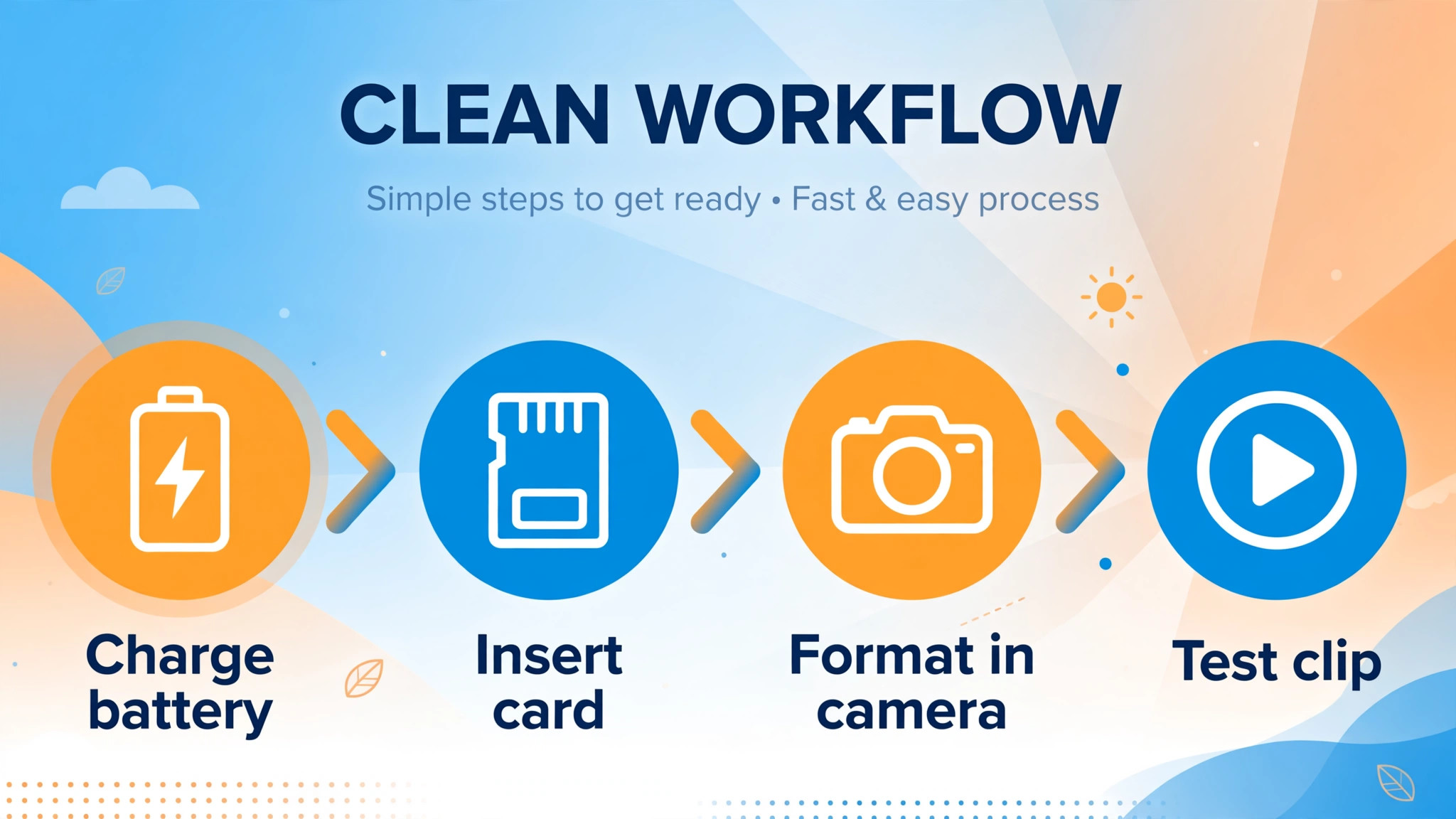
Start with the box open on a table, not on a trailhead or a beach. Take out the camera, the battery, the mounting buckle, the curved and flat adhesive mounts, and the USB cable, and set the small parts in a bowl so nothing rolls away. Put the battery in the camera and connect the cable to a wall charger that can deliver a proper charge, because a laptop port often charges slowly and leaves you guessing about the level. While the battery charges, download the GoPro Quik app on your phone and create or sign in to your account, since the app handles firmware updates, remote control, and easy transfers.
Check for a firmware update before your first shoot, because updates often fix battery behaviour, stabilisation, and card compatibility. Read the quick start card that comes in the box for your exact model, because button positions and menu names differ between older and newer cameras, and a minute spent here saves a fumbled menu later. When the battery shows full, format the card inside the camera rather than on a computer, because in-camera formatting creates the folder structure the camera expects and reduces the chance of a recording error part way through a clip.
GoPro HERO Models and the Quik App
Most current beginner cameras belong to the GoPro HERO family, and the Quik app is the companion that ties them together. The app lets you preview the frame, change resolution and frame rate without hunting through touchscreen menus, and move clips to your phone for a quick edit. It also shows battery level and remaining card space, which matters when you are deciding whether one more long clip is a good idea. Keep Bluetooth and Wi-Fi on only while you are pairing or transferring, because leaving both radios on between shoots drains the battery faster than most people expect.
If the app cannot find the camera, turn the camera Wi-Fi off and on again, restart the app, and check that your phone is not already connected to a different camera or accessory. Name your camera something clear in the app if you own more than one, so you do not accidentally control the wrong unit on a busy shoot day. Spend ten minutes tapping through the app at home, because learning its layout on a sofa is far easier than learning it with cold hands on a mountainside.
GoPro Battery and microSD Card Choices
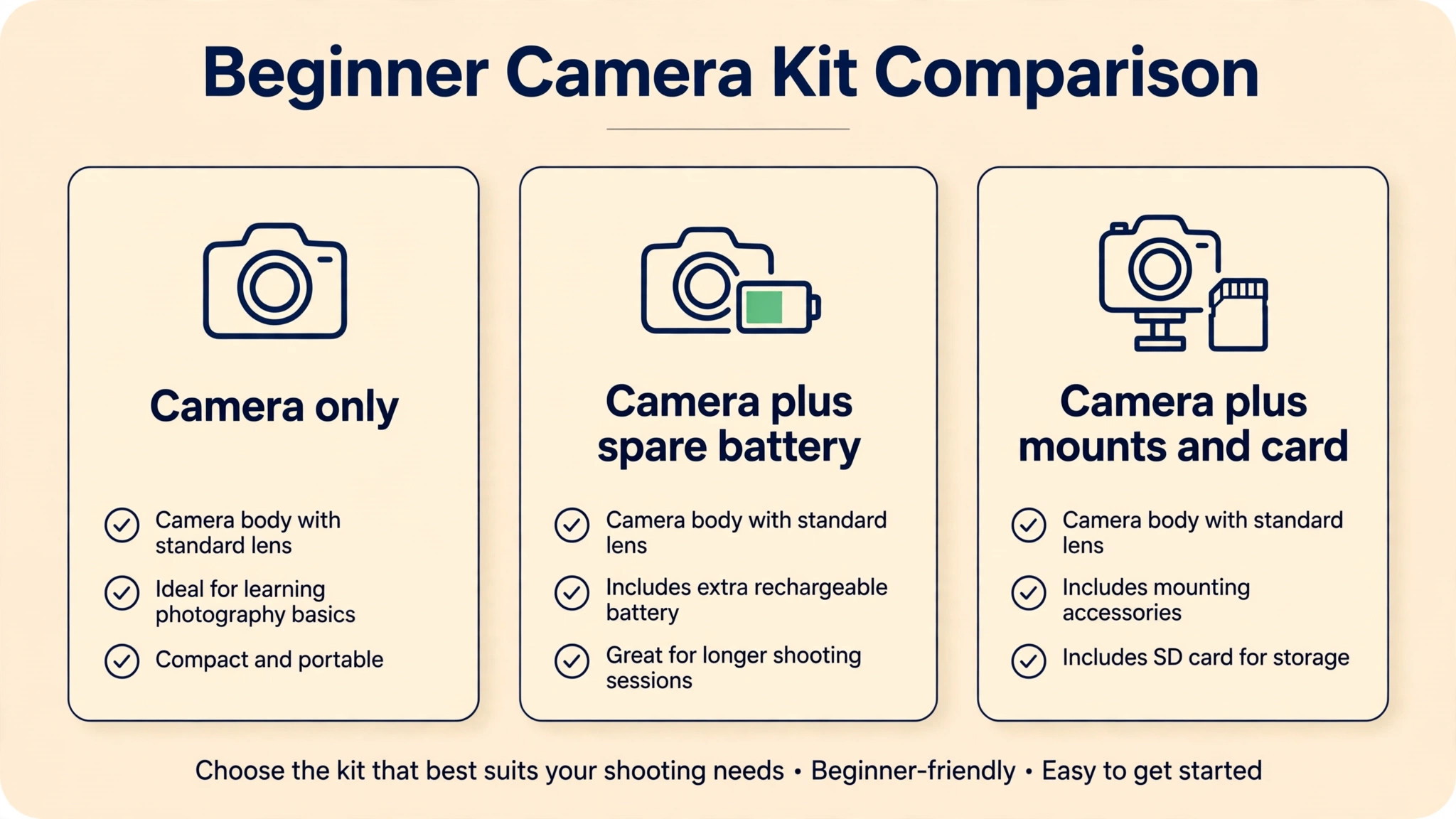
Battery and card choices decide whether your first day feels smooth or frustrating. Buy at least one spare battery from GoPro or a maker with a proven record for your model, and label each battery with a small piece of tape so you can track which one you have used. Charge both batteries the night before a shoot, and carry the spare in a pocket or a small case rather than loose in a bag where its contacts can short against keys or coins. For cards, choose a microSD card rated for video recording, with a speed class that matches your camera manual, and buy from a trusted retailer rather than a bargain listing that may sell a counterfeit card.
A card that looks cheap can record normally for a few minutes and then fail on a long 4K clip, which is exactly the clip you most want to keep. Format the card in the camera, test it with a one minute 4K recording, and play that clip back before you leave home. That sixty second test catches most card problems while you still have time to swap the card. It is a small step that helps anyone who wants to set up GoPro for beginners without losing a first clip.
What to Check Before You Press Record
A short pre-shoot check beats a long rescue edit. Look at the lens for fingerprints, water spots, and dust, and clean it with a soft cloth or a lens cloth rather than your shirt, because fabric can carry grit that scratches the protective cover. Check that the lens cover is seated correctly and that the battery door and port door are fully closed, especially if you plan to take the camera near water. Even a camera rated for water use needs its doors closed properly, and a door that looks closed but is not latched can let in enough moisture to fog the lens or damage the internals.
Check the mount by tugging it firmly after you attach it, and check it again after the first few minutes of movement, because adhesive mounts need a clean surface and time to bond, and a mount that feels firm at first can loosen as it warms up. Finally, record a five second test clip and play it back with sound, because that test confirms the lens is clean, the mount is steady, the microphone is not blocked by a finger or a case, and the exposure looks right for the light you are actually in.
GoPro Mounts for Hands Free Filming
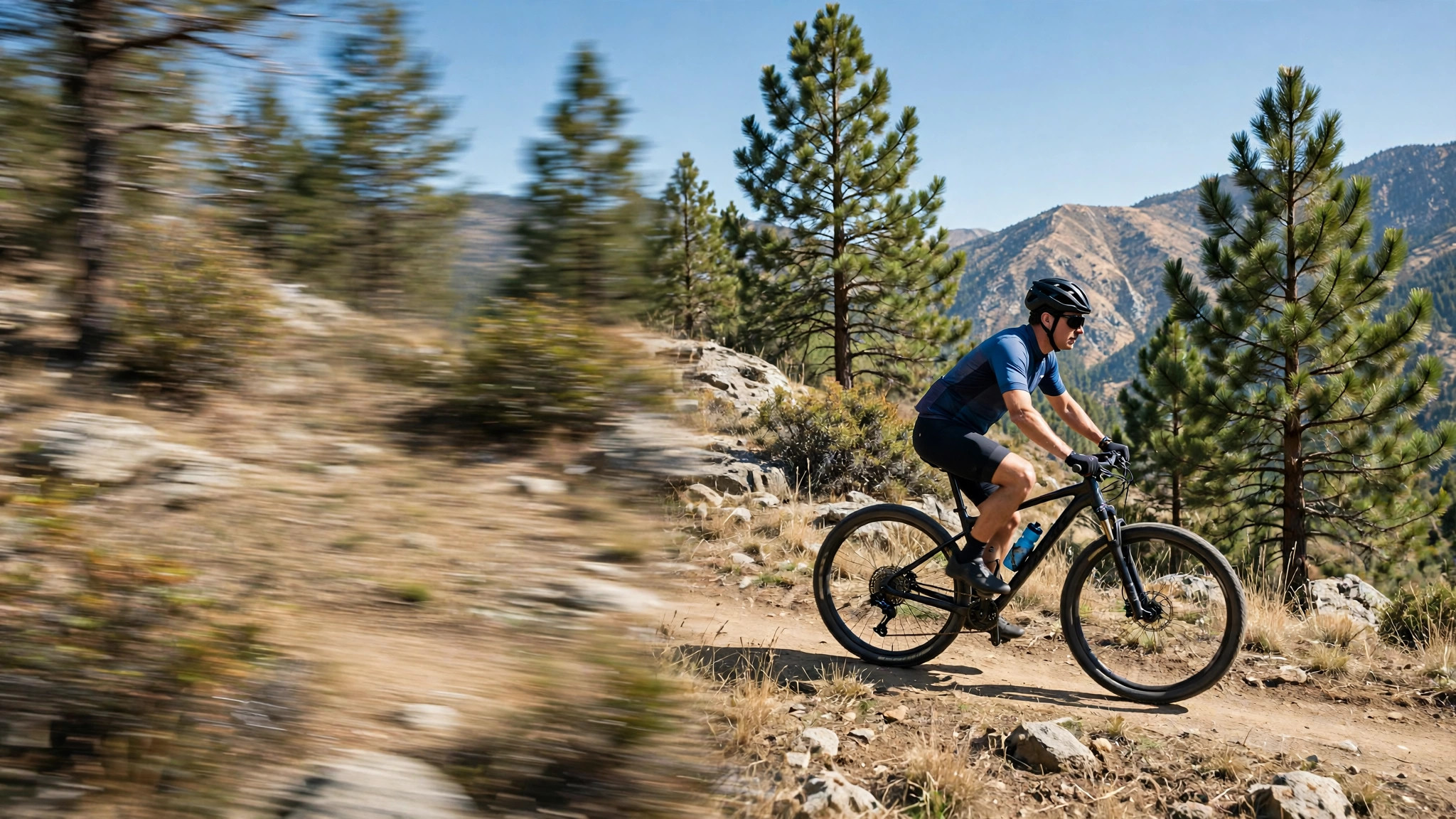
Mounts change what your footage can show, and beginners often buy too many of them before they know what they like to film. Start with three mounts that cover most situations. A chest mount gives a stable first person view for cycling, hiking, and skiing, and it keeps your hands free while keeping the horizon fairly level. A short handle or grip works for walking shots, talking to camera, and low angles, and it doubles as a way to hold the camera steady when you are not wearing it.
A clamp mount or a small tripod lets you set the camera down for a time lapse, a cooking shot, or a static scene, and it is the easiest way to film yourself without asking someone else to hold the camera. Attach adhesive mounts to a clean, dry, flat or gently curved surface, press firmly for about thirty seconds, and then wait a full day before you trust the bond with a fast or high movement, because adhesive reaches full strength slowly. Always use a tether or a floaty grip near water, since a camera that slips from a mount in a river or the sea is gone in seconds.
GoPro Water and Weather Habits
Water is where action cameras earn their reputation, and it is also where small mistakes cost the most. Rinse the camera in fresh water after salt water use, dry it with a soft cloth, and leave the doors open for a while so any trapped moisture can escape before you store it. Do not open the battery door while the camera is wet, because water on the seal can drip inside when the door moves. In cold weather, keep spare batteries in an inside pocket close to your body, because cold reduces usable battery life and a warm spare can rescue a winter shoot.
In very hot weather, avoid leaving the camera on a dashboard or in direct sun between clips, because heat can trigger a shutdown to protect the electronics and you may miss the moment you went out to film. Fogging inside the lens cover happens when warm, humid air meets a cold lens, so keep the camera at the temperature of your shooting location for a few minutes before you start, and carry anti-fog inserts if you film in humid conditions often. These habits sound fussy, but they are the difference between a camera that lasts for years and one that develops a foggy lens or a sticky door after one season.
A careful routine is part of how you set up GoPro for beginners for lasting use, not just for one shoot.
First Use Checklist That Prevents Lost Footage
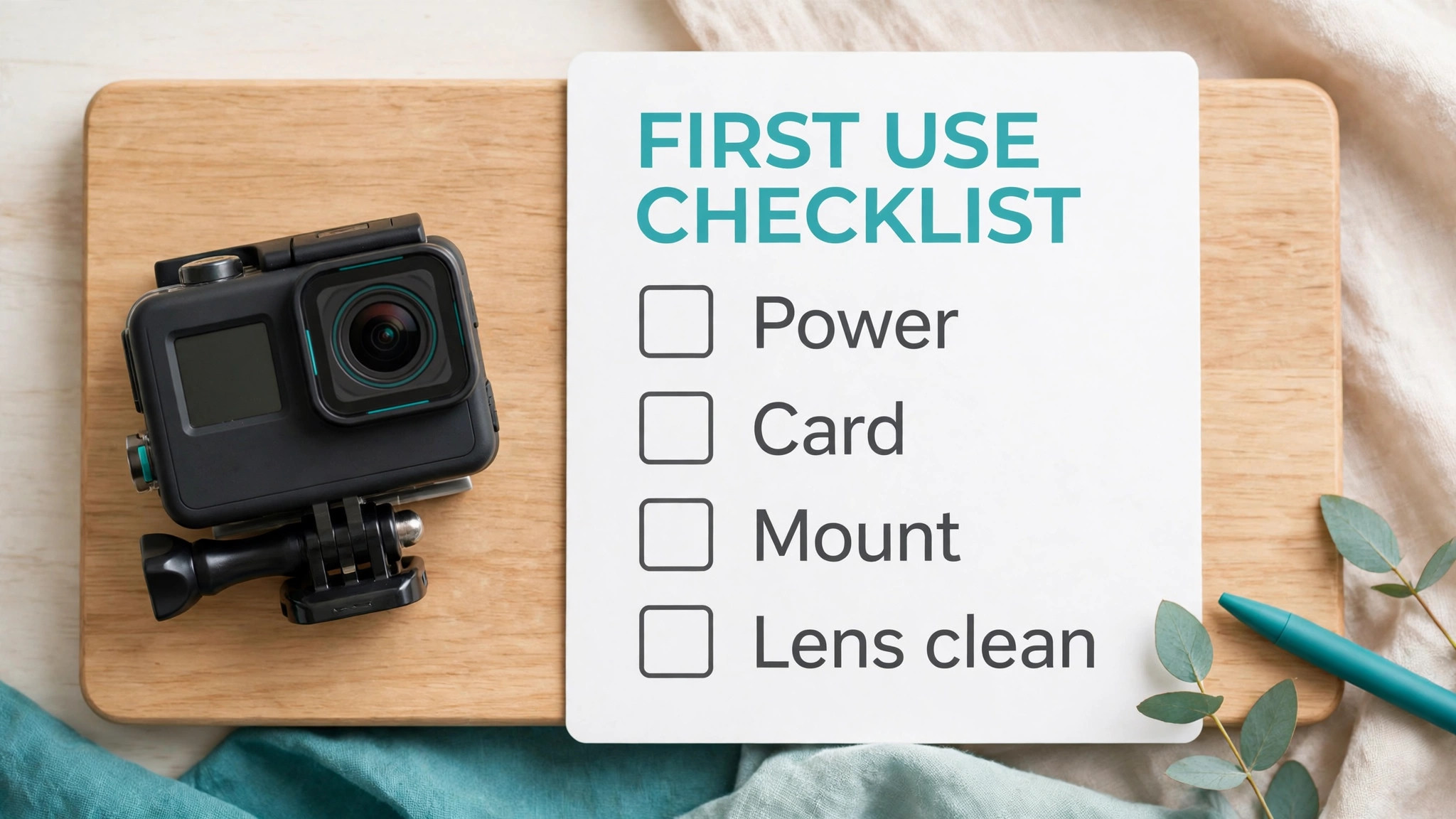
Use this checklist on your first three outings, and then keep using the parts that save you from repeat mistakes. It covers power, storage, mounts, sound, and settings in the order you will actually need them, and it takes less than two minutes once the steps become familiar.
- Charge the main battery to full and charge a spare battery as well, then confirm both show a full icon before you pack them.
- Format the microSD card inside the camera, record a one minute test clip at your planned setting, and play it back to confirm picture and sound.
- Clean the lens and the lens cover with a soft cloth, check the cover seating, and confirm the battery door and port door are latched.
- Attach the mount to a clean surface, press firmly, tug hard to test the bond, and add a tether when filming near water or at height.
- Set the date, time, and time zone correctly, because correct timestamps make it far easier to find clips later and to match footage with photos from your phone.
- Turn on HyperSmooth stabilisation for handheld and mounted action, and turn it off only when the camera sits on a tripod or a gimbal.
- Record a five second test clip in the actual light, check exposure and sound, and adjust brightness or microphone settings before the real action starts.
- Confirm the camera mode is video rather than photo or time lapse, because it is easy to press record in the wrong mode and miss a moving moment.
- Check remaining card space and battery percentage together, and plan your longest clips for the start of the outing when both are at their best.
- Pack a small cloth, a spare card in a case, and a cable for a top up charge, because those three small items solve most field problems.
Resolution and Frame Rate Settings Explained in Plain Terms
Resolution describes how many pixels make up each frame, and frame rate describes how many frames the camera records each second. Higher resolution gives you more detail and more room to crop, but it also uses more card space, more battery, and more processing power when you edit. Higher frame rate gives you smoother motion and the option to slow footage down, but it also needs more light and more storage. The right choice depends on what you will do with the clip, not on the highest numbers your camera can reach.
A clip destined for a phone screen and social media does not need the same setting as a clip you plan to project or to crop heavily in an edit. Think of settings as a trade between detail, smoothness, light, storage, and editing effort, and choose the combination that fits the job in front of you rather than the combination that looks most impressive on a spec sheet.
| Setting | Best use | Trade off to expect |
|---|---|---|
| 1080p at 30 frames per second | Everyday clips, long days, easy editing | Less detail for heavy cropping |
| 1080p at 60 frames per second | Smooth walking, cycling, and family action | Needs more light and more storage than 30 |
| 4K at 30 frames per second | Sharp travel and outdoor clips for later editing | Larger files and shorter battery life |
| 4K at 60 frames per second | Fast action with detail and smooth motion | Largest files and warmest camera in long takes |
| 2.7K at 120 frames per second | Slow motion for jumps, splashes, and tricks | Lower resolution and needs bright light |
| 1080p at 240 frames per second | Very slow motion for short moments | Much lower detail and needs strong light |
| 5.3K at 30 frames per second on supported models | Maximum detail for cropping and large screens | Very large files and heavier editing load |
| Photo mode at full resolution | Still images for prints and thumbnails | No motion and needs a steady hand or mount |
For most beginners, 4K at 30 frames per second is the safest starting point for travel and outdoor clips, and 1080p at 60 frames per second is the safest starting point for long days, indoor clips, and anything you will edit on a phone. Switch to a higher frame rate only for a specific slow motion moment, and switch back afterwards, because leaving the camera at a very high frame rate all day fills the card and drains the battery without improving ordinary clips.
If your footage looks dark or noisy, drop the resolution or the frame rate before you blame the camera, because a lower setting in good light often looks better than a higher setting struggling in dim light. Save your chosen setting as a preset once you like it, so you can return to it with one tap after experimenting. Many people who set up GoPro for beginners keep that preset untouched for a month while they learn framing.

GoPro Field of View and Horizon Lock
Field of view controls how much of the scene the lens captures and how much distortion appears at the edges. Wide captures the most, which suits action and tight spaces, but it bends straight lines near the edges and can make faces look stretched if they sit close to the frame edge. Linear corrects much of that distortion and gives a more natural look for walking, talking, and travel clips, at the cost of a slightly narrower view. SuperView stretches the vertical space, which can suit chest mounted cycling and skiing, but it looks unusual for ordinary scenes.
Horizon lock, where your model offers it, keeps the horizon level even when the camera tilts, which helps running and mountain biking footage look calm rather than seasick. Try each field of view on the same walk and compare the clips side by side, because the difference is easier to judge on your own footage than on a description. For beginners, Linear with stabilisation on is a dependable default for most non-action clips, and Wide is the better choice when you need to capture everything around you in a fast scene.
Sound, Light, and Colour Without Extra Gear
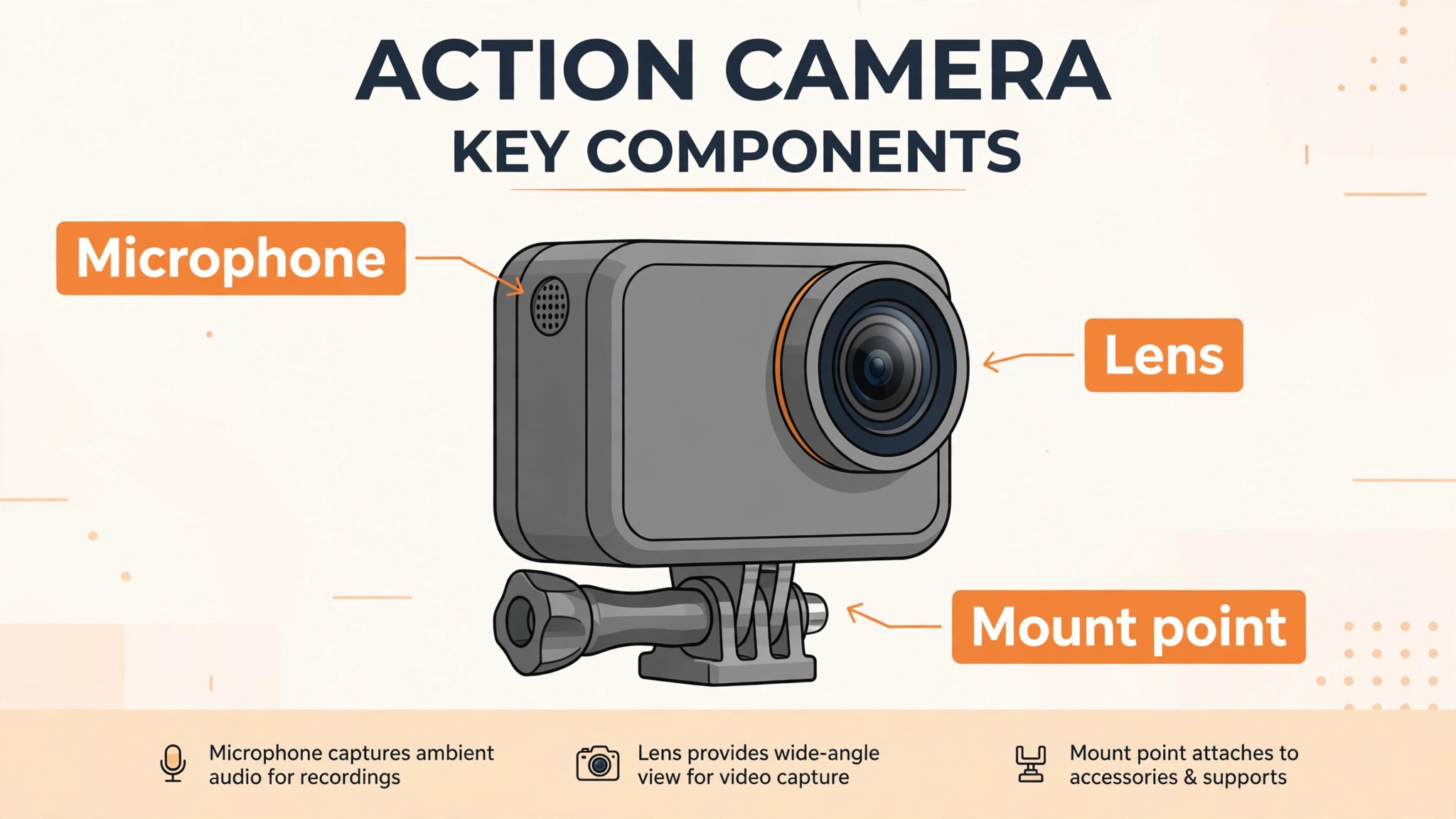
Good sound matters more than a small jump in resolution, because viewers forgive a slightly soft picture far more easily than they forgive wind noise or muffled speech. The built-in microphones on a modern action camera handle calm outdoor speech and ambient sound well, but wind is their main enemy. Use the wind noise reduction setting when you film outside, and shield the camera with your body or a hand for a few seconds if a gust hits during an important line. If you plan to talk to camera often, a small external microphone or a media mod for your model makes a large difference, and it is worth buying before you buy a fourth mount.
Keep the microphone port clear of fingers, straps, and case edges, and test speech at arm’s length before you record a full talking segment. For light, face your subject toward the main light source when you can, and avoid filming a person with a bright sky directly behind them unless you want a silhouette. Early morning and late afternoon light flatters outdoor footage, while midday sun creates harsh shadows under hats and helmets. Indoors, move closer to a window or turn on a room light rather than relying on the camera to brighten a dark room, because brightening in the camera adds noise that looks worse than a slightly darker but cleaner clip.
GoPro Colour Profiles and Protune for Later
Colour profiles decide whether footage looks ready to share straight from the camera or ready to grade in an edit. The standard GoPro colour profile gives bright, punchy colour that looks good without editing, and it is the right choice for most beginners. The flat profile preserves more detail in bright and dark areas for editing, but it looks dull straight from the camera and needs work in an app to look its best. Protune opens manual controls for white balance, ISO limits, sharpness, and exposure, and it rewards careful use while punishing random changes.
If you turn Protune on, change one setting at a time and compare the result, because changing five settings at once makes it impossible to know which one helped or hurt. Set a maximum ISO limit for low light filming, since a capped ISO keeps noise under control at the cost of a darker picture, and that trade usually looks better than a bright but grainy clip. Leave sharpness at medium or low if you plan to edit, because extra in-camera sharpening can create harsh edges that are hard to remove later. When in doubt, leave Protune off for your first month and learn framing, light, and sound first, because those three skills improve footage more than any colour menu.
Editing and Storing Clips So You Can Find Them Again
A filming habit is only half the job, because unorganised footage quickly becomes footage you never watch. Transfer clips to your phone or computer on the same day you film, while you still remember which clip matters and which one was a test. The Quik app can create a quick edit with music and cuts, which is a good way to share a day trip without learning a full editor. For longer projects, move clips to a computer, copy them into a folder named by date and place, and rename the best clips with a short description, because a folder full of files named with camera codes is hard to search a month later.
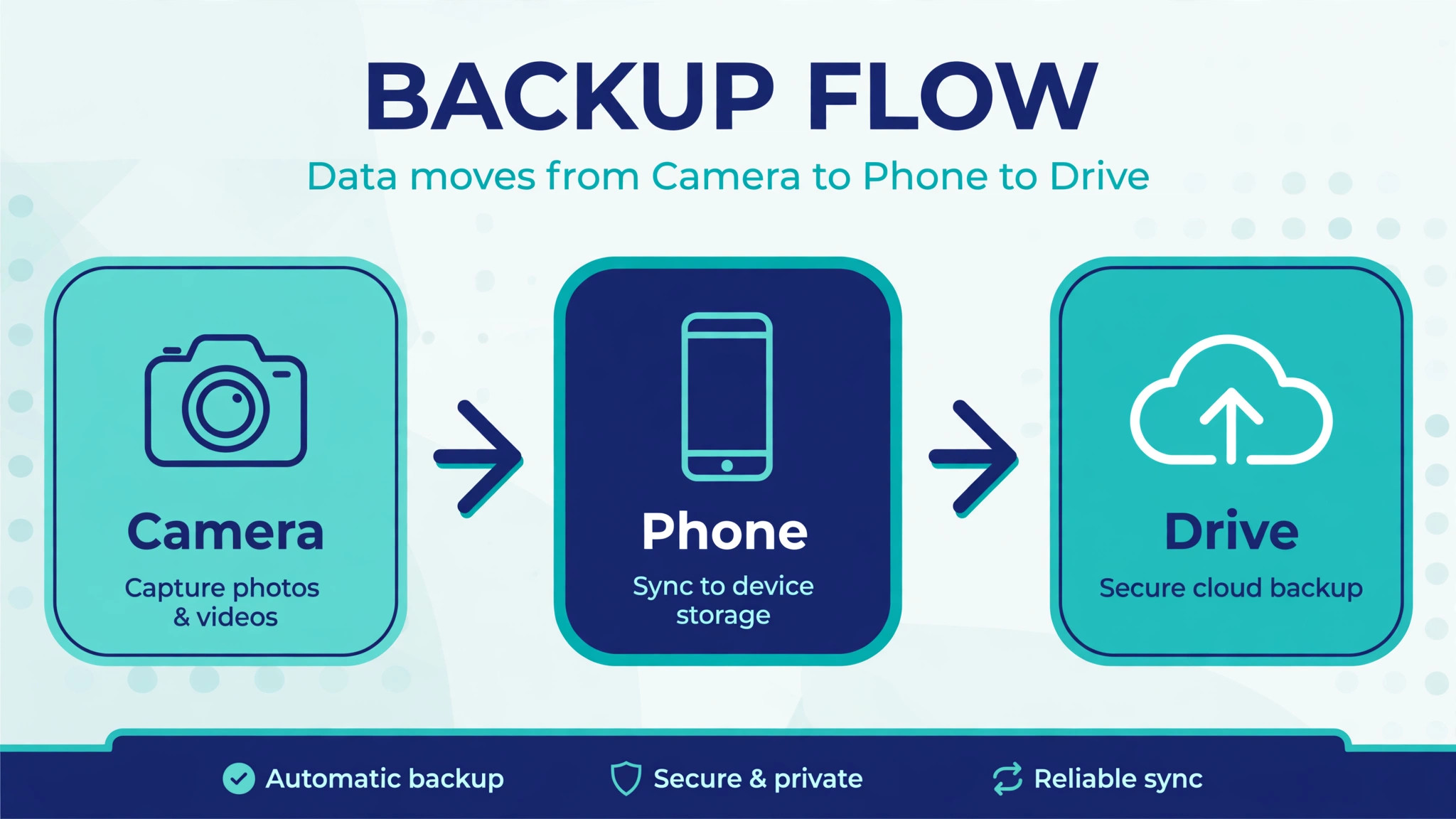
Back up the original clips before you edit, and keep at least two copies of anything you cannot film again, such as a trip or an event. A simple rule works well for most people. Keep one copy on your computer or phone, keep a second copy on an external drive or a cloud service, and delete from the camera card only after both copies are confirmed. Check a backed up clip by playing a few seconds of it, because a copy that was interrupted can look complete in a file list while missing its ending.
Common First Week Problems and Fixes
Most beginner problems have simple causes, and a calm check saves a wasted outing. If the camera will not record, check card space, card speed, and battery level first, because those three causes cover most failures. If footage looks shaky despite stabilisation being on, check whether the mount itself is loose, because stabilisation can smooth hand movement but cannot fix a mount that wobbles on its base. If footage looks dark indoors, move closer to a light source or lower the frame rate, because both changes give the sensor more light per frame.
If the camera feels hot and stops recording, let it cool in the shade, shorten your clips, and lower the resolution for the next session, because long high resolution takes generate heat that builds up in a small sealed body. If the app will not transfer a clip, try a wired transfer to a computer, because a large file over a wireless link can time out in a way that a cable transfer avoids. If the lens fogs, dry the camera, let it reach the local temperature, and check the lens cover seal before the next water session.
Write down any problem and its fix in your phone notes, because the same issue often returns in similar conditions and a note turns a repeat failure into a quick fix. Keeping notes is a useful habit when you set up GoPro for beginners and keep learning from each outing.
How to Set Up GoPro for Beginners on a Real Trip
A real trip tests every part of a setup at once, so plan the filming around the trip rather than planning the trip around filming. Before you leave, charge all batteries, format the card, update firmware, and pack the camera, mounts, cloth, spare card, and cable in one pouch that you can grab without unpacking a bag. On the first morning, film a short test clip in the local light and check it on your phone, because light, colour, and sound differ from place to place and a test catches a wrong setting early.
Film in short bursts rather than one very long take, because short clips are easier to transfer, easier to edit, and less likely to be lost if a battery dies or a card fills up mid clip. Vary your shots by mixing wide action, close detail, and a few static scenes, because a film made only of first person action quickly feels repetitive. At the end of each day, transfer and back up the clips, charge the batteries, clean the lens, and check the mount bonds, so the next morning starts ready rather than rushed. This daily routine takes about fifteen minutes and protects a whole trip worth of footage.
Frequently Asked Questions
Do I need a special card for a GoPro, or will any microSD card work?
You need a card rated for video recording and listed as compatible with your model, because ordinary cards can be too slow for high resolution video even when they work fine for photos. Buy from a trusted retailer, format the card in the camera, and test it with a one minute clip at your planned setting before an important shoot. If the camera shows a card error or stops recording early, swap the card before you change any other setting, because the card is the most common cause of interrupted recordings.
How long does a GoPro battery last on a typical outing?
Battery life depends on resolution, frame rate, stabilisation, temperature, and how often the screen stays on, so a single number can mislead. As a planning range, expect roughly an hour or so of recording from one battery at common settings in mild weather, with less time at high resolution, high frame rate, or in cold conditions. Carry a spare battery for any outing longer than a short walk, turn the screen off between clips, and keep spare batteries warm in cold weather to get closer to the best case result.
Should a beginner film in 4K or 1080p?
Film in 4K at 30 frames per second if you have card space, battery headroom, and a device that edits 4K without struggling, because the extra detail helps when you crop or watch on a large screen. Film in 1080p at 60 frames per second if you want smooth motion, longer recording time, easier editing on a phone, and more forgiving low light performance. Either choice beats leaving the camera at a very high setting that fills the card and drains the battery before the best moment arrives.
Can I use a GoPro underwater without extra housing?
Many current models are rated for water use without extra housing when all doors are closed correctly, but you should check the depth rating and door instructions for your exact model before you swim with it. Rinse the camera in fresh water after salt water, dry it before opening any door, and use a floaty grip or tether so a slip does not become a loss. If you dive deep, film in rough surf, or use an older model, an extra housing adds protection and peace of mind that is worth its cost.
Why does my GoPro footage look shaky even with stabilisation on?
Stabilisation smooths hand and body movement, but it cannot fix a loose mount, a very rough surface, or a camera held at arm’s length with a locked elbow. Tighten the mount, shorten the lever arm by holding the grip closer to your body, bend your knees slightly when walking, and take shorter steps on rough ground. If the mount itself moves, no software setting will save the clip, so fix the physical connection first and then retest with a short walking clip.
How do I stop the camera overheating on long recordings?
Shorten your clips, lower the resolution or frame rate for long static takes, keep the camera out of direct sun between takes, and turn off Wi-Fi and the screen when you do not need them. Heat builds up fastest during long high resolution recordings in warm weather, so a camera that records fine for five minute clips may still shut down on a thirty minute take in the same conditions. Plan long scenes as several shorter clips with cooling breaks, and edit them together later.
A Calm Verdict for First Time Owners
Start simple, film often, and let your own footage teach you what to change next. That patient approach is the best way to set up GoPro for beginners and grow skill without frustration. A charged battery, a fast card, a clean lens, a firm mount, and a sensible setting will carry you through your first month better than any advanced preset copied from a stranger. Review your clips honestly after each outing, keep the settings that made your best clips, and change one thing at a time when something disappoints you. Within a few weeks you will know which mount you reach for first, which setting suits your light, and which accessory actually earns its place in your pouch.
That personal knowledge is the real setup, and it grows with every clip you shoot, review, and keep.
More Reading on Stratilyze
Readers who enjoyed this first camera guide often continue with the drone setup guide for beginners, the webcam setup guide for remote work, and the security camera guide for apartment renters, because those guides share the same practical approach of a short checklist, clear settings, and field tested habits that work on the first day rather than after weeks of trial and error.