
The problem is not that an iPad is hard to use. The problem is that it arrives set up for a confident young adult who reads small text quickly, remembers where every app lives, and never worries about tapping the wrong button. For an older beginner, that default setup creates squinting, accidental taps, a crowded home screen and a fear of breaking something expensive. If you want to set up iPad for seniors beginners in a way that actually sticks, you must change the iPad to fit the person, not ask the person to adapt to the iPad.
That means larger text, fewer apps on the first screen, a simple way to call family, and a safety net for passwords and purchases.
This guide is written for two readers at once, the new iPad owner and the family member helping them. Each section gives the exact menu path, explains what the setting changes in plain language, and says what to test together before moving on. Take it slowly. A setup finished in one calm afternoon, with breaks for tea and practice, will last far longer than a rushed setup where everything is changed at once and nothing is remembered the next morning.
Start With the Person, Not the Device
Before you touch a setting, ask what the iPad is for. Most senior beginners want a short list, such as video calls with family, photos from grandchildren, reading news, checking email, watching videos and perhaps playing a simple game. Write that list down. It becomes the home screen plan, the app installation list and the test for every later decision. If an app does not serve an item on that list, it does not belong on the first home screen, no matter how popular it is.
Also ask about eyesight, hearing, hand steadiness and previous experience with phones or computers. These answers choose the settings, not guesswork. Someone who wears reading glasses needs larger text and bold text. Someone with hearing loss needs louder alerts, captioned video and perhaps a hearing device connection. Someone with shaky hands needs larger touch targets, a longer time to register a long press, and protection against accidental swipes. Someone who has never used a touchscreen needs a slower introduction, with one skill practised at a time, starting with unlocking, then opening an app, then returning home.
Agree on a support plan too. Who will the owner call when something looks wrong. Write that person’s name and number on paper near the iPad, and add their contact to the iPad itself. Agree that no one will ask for a password by phone or email, and that unexpected pop ups asking for payment should be ignored until the helper checks them. A few minutes on this conversation prevents most of the scams and panic calls that worry families far more than any technical setting.
The First Setup Checklist From Box to Home Screen
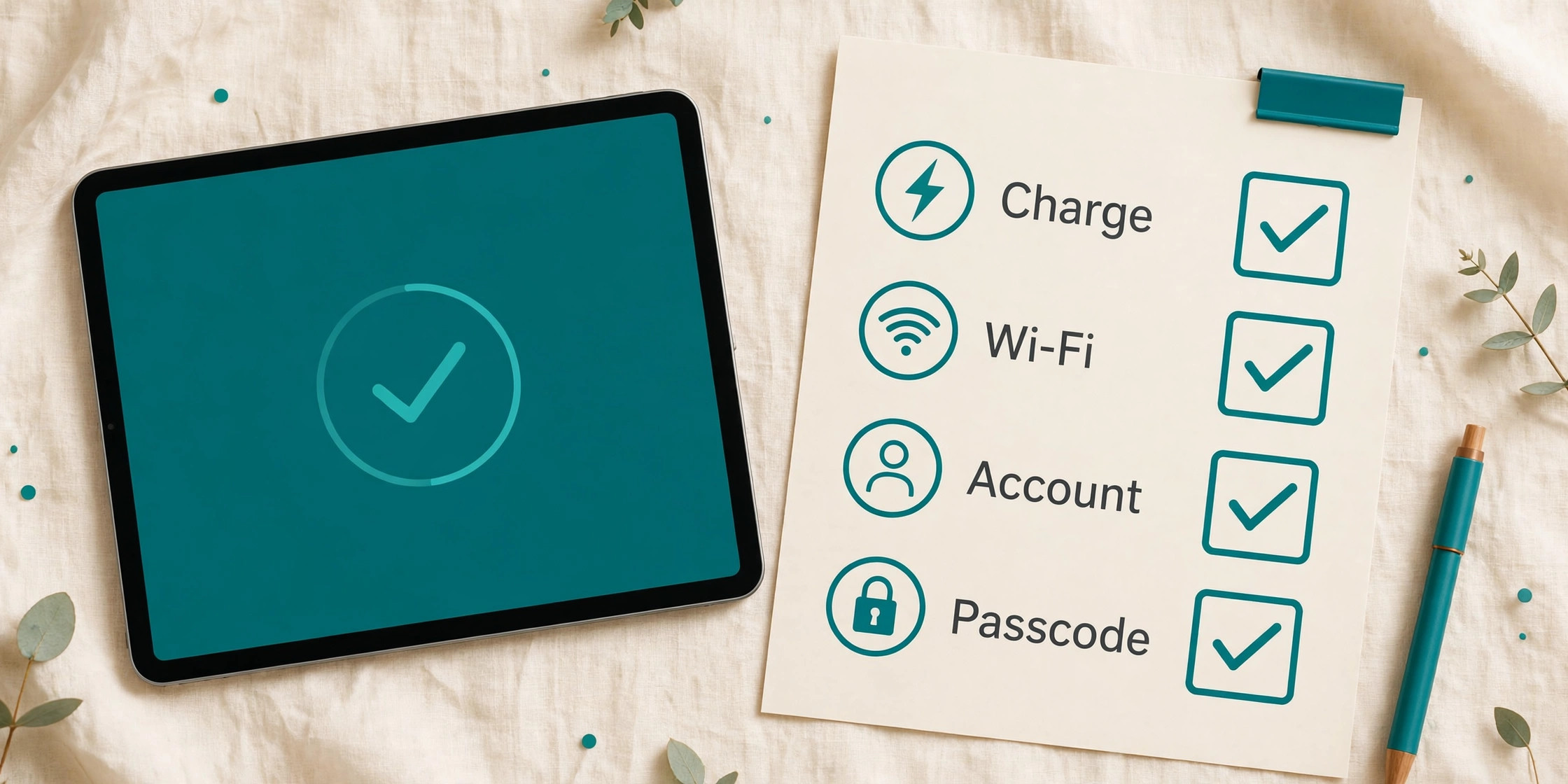
Charge the iPad fully or at least to a comfortable level before setup, because a device that dies mid setup can interrupt account creation and leave a half finished profile. Press and hold the top button to switch it on, then follow the on screen prompts for language, region, Wi-Fi and Apple ID sign in. If the owner already has an Apple ID, sign in with it. If not, create one with an email address the owner or a trusted helper can access, and write the password in a safe place that is not stuck to the iPad itself.
During setup, the iPad offers choices about data sharing, Siri, screen time and appearance. Accept the defaults for now except for appearance, where light or dark mode can be chosen by comfort, and return to the finer settings later in this guide. The goal of the first pass is a working home screen, a working Wi-Fi connection and a working Apple ID, not a perfect configuration. Perfection comes in the second pass, when text size and accessibility settings are adjusted with the owner watching and choosing what feels comfortable.
| First setup step | What to do | Test together before moving on |
|---|---|---|
| Charge and switch on | Charge, then press and hold the top button | Lock screen appears and responds to a swipe or button |
| Choose language and region | Pick the language the owner reads best | Menus read clearly in the chosen language |
| Connect to Wi-Fi | Select the home network and enter the password | A web page or app store page loads |
| Sign in with Apple ID | Use an existing ID or create a new one | App Store opens without asking to sign in again |
| Set a passcode | Choose a memorable four or six digit code | Owner can lock and unlock unaided twice |
| Set up Face ID or Touch ID | Follow prompts if the model supports it | Owner can unlock with face or finger reliably |
| Choose appearance | Pick light or dark mode by comfort | Text remains readable in both bright and dim rooms |
| Add a trusted contact | Add the helper as a favourite contact | Owner can find and call that contact alone |
| Install only list apps | Install apps from the written purpose list | Each needed app is on the first home screen |
| Practise the basics | Unlock, open an app, return home | Owner repeats all three steps without help |
If Face ID or Touch ID fails repeatedly, do not force it. A passcode alone is perfectly acceptable, and a fingerprint or face scan that works only sometimes creates more frustration than security. Similarly, if Wi-Fi setup fails, check the password carefully, including capital letters, and move closer to the router for the first connection. A setup that works slowly is better than a setup that is abandoned because the first attempt felt like a test.
Making Text, Icons and the Screen Easier to Read
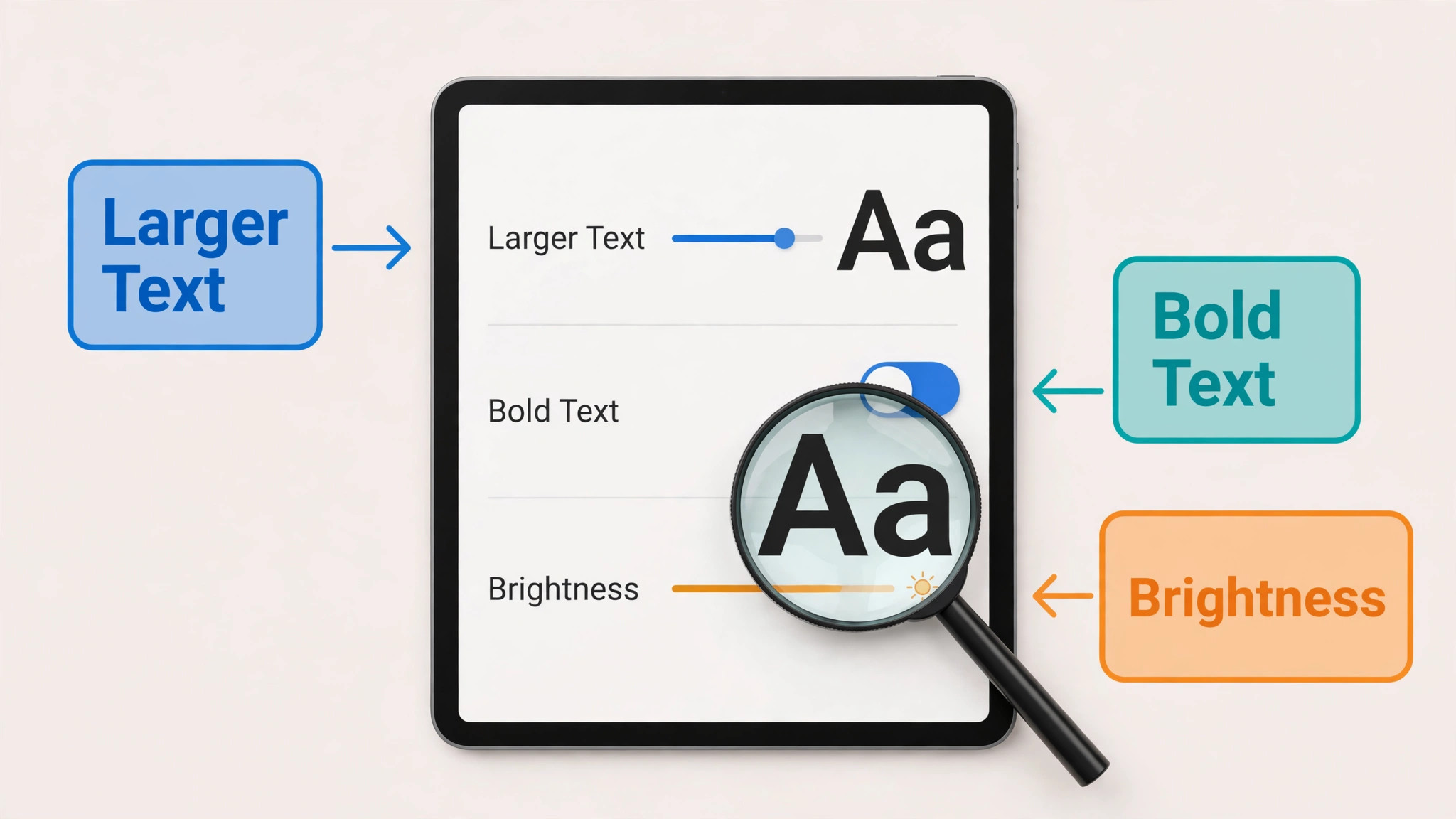
Open Settings, then Accessibility, then Display and Text Size to find the most important readability controls in one place, and these controls are central when you set up iPad for seniors beginners. Tap Larger Text and drag the slider to the right until messages and menus feel comfortable, and turn on Larger Accessibility Sizes if the standard range is still too small. Turn on Bold Text to make letters thicker and easier to distinguish, especially in longer reading sessions. Try the combination together with the owner, rather than choosing the largest size automatically, because the largest size can push too much content off screen and make navigation harder rather than easier.
Increase Contrast and Reduce Transparency, both in the same Display and Text Size menu, can help when text sits over a busy wallpaper or a bright photo. Choose a plain, calm wallpaper if the default image makes icons hard to see, and consider dark mode if bright white screens cause glare in the evening. Auto brightness, under Settings, then Accessibility, then Display and Text Size, or under Display and Brightness, helps the screen adapt to room light, but a manual brightness setting that the owner can adjust from Control Centre is often more predictable. Show the owner how to swipe down from the top right corner to reach Control Centre and adjust brightness with one finger.
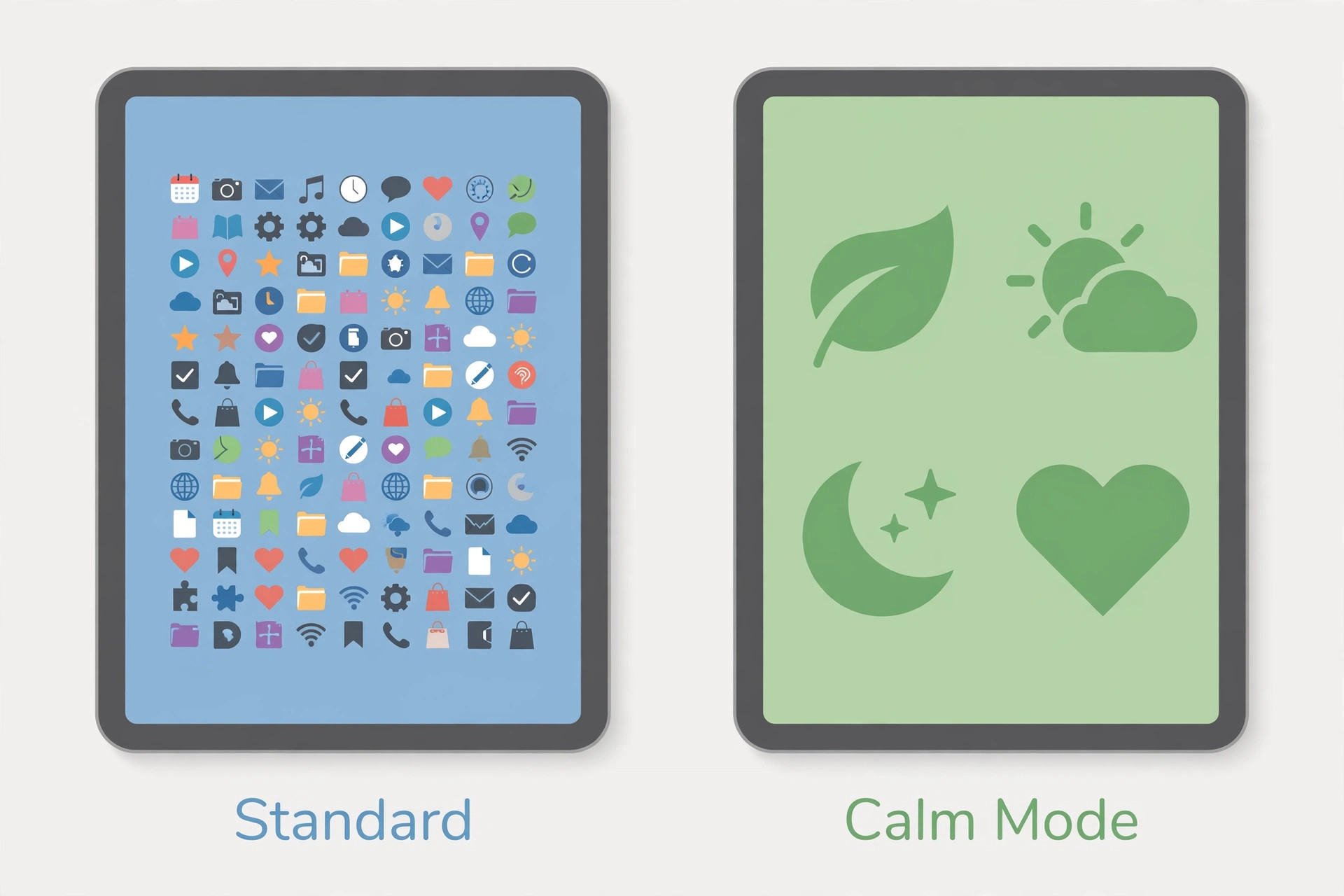
Home screen icon size is controlled under Settings, then Home Screen and App Library, or through the Home Screen customisation options on newer versions, where larger icons can be chosen. Larger icons help tapping accuracy, but they can hide app names underneath, so test both sizes with the owner and keep the version where the owner can both recognise the picture and read the name. Remove apps from the first home screen that are not on the purpose list, and move them to the App Library, where they remain available without cluttering daily use. A first screen with six to eight familiar apps beats a screen with thirty apps every time.
Assistive Access, Guided Access and a Calmer iPad
Assistive Access is a simplified experience designed for people who find the standard interface overwhelming. When it is on, the iPad shows large rows or grids of chosen apps, with big buttons, simplified app layouts and a clear Back button, and it hides many of the gestures and menus that cause accidental exits. Set it up under Settings, then Accessibility, then Assistive Access, where you choose which apps appear, whether they use a row or grid layout, and what passcode protects the settings. This is not a child mode and it is not a punishment, it is a legitimate way to make a powerful device match the owner’s current confidence, and it can be turned off later as confidence grows.
Guided Access serves a different purpose. It locks the iPad to a single app for a session, which is useful when the owner is on a video call or reading a book and does not want an accidental swipe to close the app. Turn it on under Settings, then Accessibility, then Guided Access, set a passcode, then open the chosen app and triple click the top button or Home button to start a session. Triple click again and enter the passcode to end it. Practise starting and ending a Guided Access session together twice, because a feature that traps the owner in one app without a known exit will quickly be feared rather than used.
Other accessibility tools deserve a brief tour, even if they are not needed on day one. VoiceOver reads the screen aloud for low vision users, Speak Screen reads selected content when swiped down with two fingers, Magnifier uses the camera to enlarge print on paper, and AssistiveTouch can add an on screen button for gestures that are hard to perform. Introduce only one of these at a time, and only if it solves a problem the owner has actually mentioned. A tour of every accessibility feature in one sitting overwhelms the very person it is meant to help.
| Accessibility setting | Where to find it | Who it helps most |
|---|---|---|
| Larger Text | Settings, Accessibility, Display and Text Size | Readers who squint at messages and menus |
| Bold Text | Settings, Accessibility, Display and Text Size | Readers who find thin letters faint |
| Larger Accessibility Sizes | Settings, Accessibility, Display and Text Size, Larger Text | Readers who need text beyond the standard range |
| Increase Contrast | Settings, Accessibility, Display and Text Size | Readers who struggle with text over images |
| Reduce Motion | Settings, Accessibility, Motion | Owners bothered by animations and zoom effects |
| Assistive Access | Settings, Accessibility, Assistive Access | Owners who want a simplified large button home screen |
| Guided Access | Settings, Accessibility, Guided Access | Owners who want to stay in one app during a call or book |
| Speak Screen | Settings, Accessibility, Spoken Content | Readers who prefer to listen to articles and messages |
| Magnifier | Settings, Accessibility, Magnifier | Owners reading small print on bills and labels |
| Touch Accommodations | Settings, Accessibility, Touch | Owners with shaky hands or accidental taps |
How to Set Up iPad for Seniors Beginners With Family Help
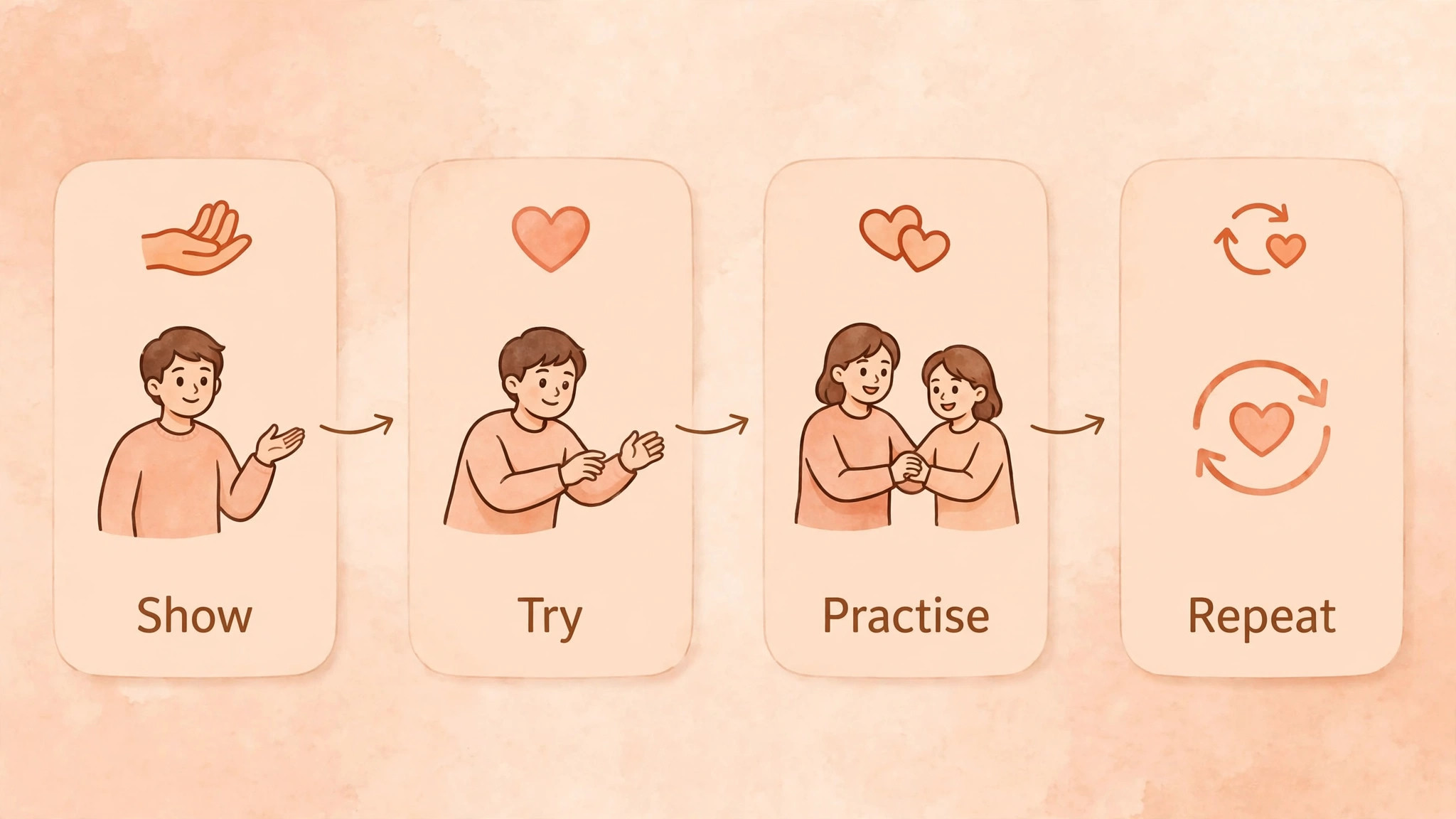
Family help works best when it is structured, not improvised. Sit beside the owner rather than taking the iPad away and doing everything yourself, because watching someone else tap quickly teaches nothing. Narrate each step in short sentences, pause after each tap, and let the owner repeat the step immediately. If the owner makes a mistake, treat it as useful information, not a failure, and ask what they expected to happen, because that answer reveals which gesture or label needs practice.
Set up video calling as the first success, because a successful call with family motivates every later lesson. Install or open FaceTime, add family members as favourites, and make a test call together while you are still in the same room, so the owner can see both ends of the call. Then step into another room and call again, so the owner practises answering alone. Do the same for photos, by opening Photos, finding a recent picture, and practising enlarging it with a pinch gesture and returning to the grid. Two successes on day one matter more than ten half learned features.
Agree on a weekly practice rhythm. Short sessions of twenty minutes, two or three times a week, beat a single long session that ends in fatigue. Each session should revisit one old skill and add one new skill, and end with something enjoyable, such as looking at photos or watching a favourite video. Keep a simple paper notebook beside the iPad with steps written in the owner’s own words, because a notebook in familiar handwriting is often more reassuring than a printed manual. Update it together as confidence grows, and cross out steps that are now automatic.
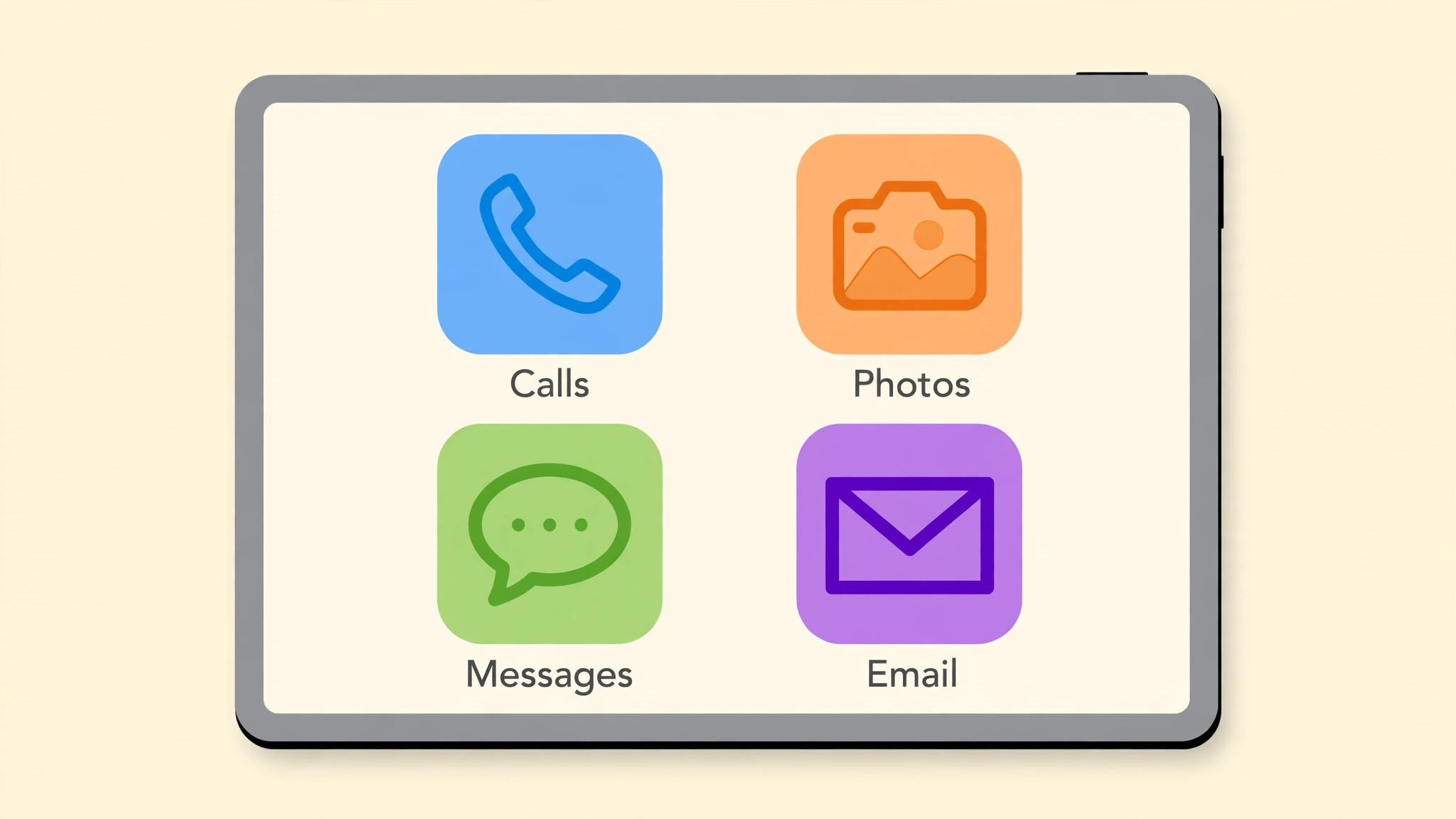
Calls, Photos, Messages and Email Without the Clutter
Simplify each communication app separately when you set up iPad for seniors beginners. In FaceTime, keep favourites to the people the owner calls most, and remove contacts who are rarely called. In Messages, pin the most frequent conversations to the top so they are easy to find, and show the owner how to dictate a message by tapping the microphone on the keyboard, which helps owners who find typing slow or painful. In Mail, set up only the main email account at first, turn on a large text preview if available, and practise opening, replying and deleting one message together.
Photos deserves its own routine, because it quickly becomes the most loved app and the most confusing one. Show the owner how to open Photos, view the Library by days or months, find favourites, and share a photo with a family member. Turn on iCloud Photos only after discussing storage, because a large photo library can fill the free storage allowance and generate confusing warnings. If storage warnings appear, explain in plain terms that photos are safe on the device and that the warning relates to online backup space, then help the owner decide whether to buy more storage or keep photos only on the device.
Notifications need pruning before they become noise. Open Settings, then Notifications, and turn off notifications for apps that do not need to interrupt the owner, keeping alerts only for calls, messages and calendar reminders. Show the owner how to silence the iPad with the side switch or Control Centre, and how to use Do Not Disturb or a Focus mode overnight, so the iPad does not wake the owner with news alerts at night. A quiet iPad is a trusted iPad, while a noisy iPad is often switched off and left in a drawer.
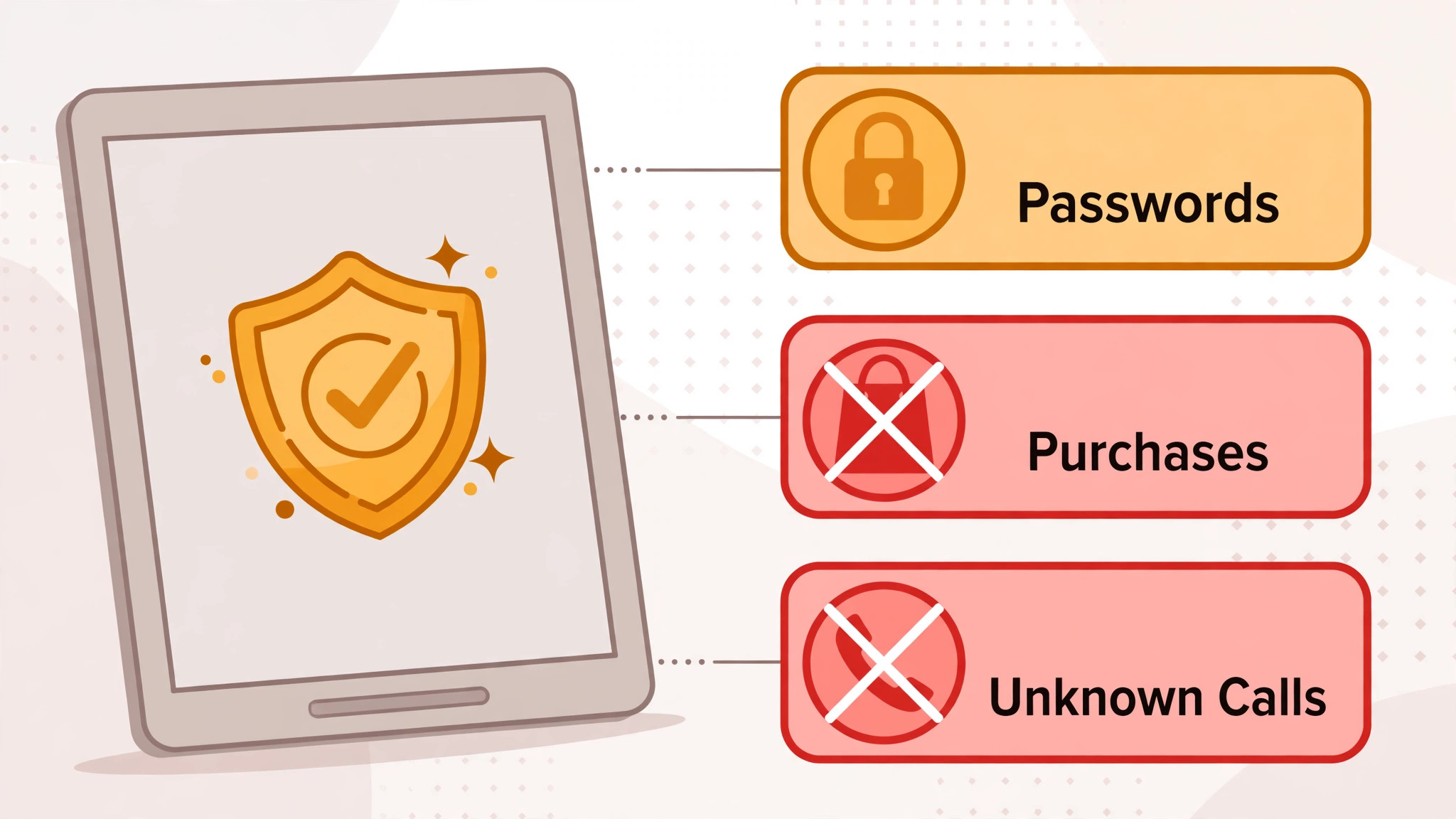
Safety, Scams, Purchases and Passwords in Plain Language
Safety on an iPad is mostly about purchases and messages, not about viruses in the traditional sense, and this distinction matters when you set up iPad for seniors beginners. Turn on Ask to Buy for child accounts if grandchildren use the device, and require a password for purchases on the main account, so a stray tap cannot buy an app or a subscription. Show the owner where subscriptions live under Settings, then the account name, then Subscriptions, and review them together every few months, because free trials that roll into paid plans are a common source of surprise bills.
Teach three scam rules in simple words. First, no genuine company will call or message asking for an Apple ID password or a payment code, so any such request should be ignored and reported to the helper. Second, a pop up that claims the iPad is infected and demands payment is a web page trick, not a real warning, and closing the browser tab removes it. Third, links in unexpected messages should not be tapped until the helper has checked them, even if they appear to come from a known name, because names can be faked. Practise closing a browser tab and returning home, so the owner has a safe exit from any confusing screen.
Passwords should be written down securely, not memorised under pressure. Use a paper notebook kept in a safe place at home, or a password manager if the helper can support it, and never share the Apple ID password with a caller or a website that asks for it unexpectedly. Turn on two factor authentication for the Apple ID, and make sure the trusted phone number belongs to the owner or a trusted helper, so recovery is possible if the password is forgotten. If the owner forgets a passcode, the helper should use official Apple support steps rather than third party unlocking tools, which can erase data or compromise the device.
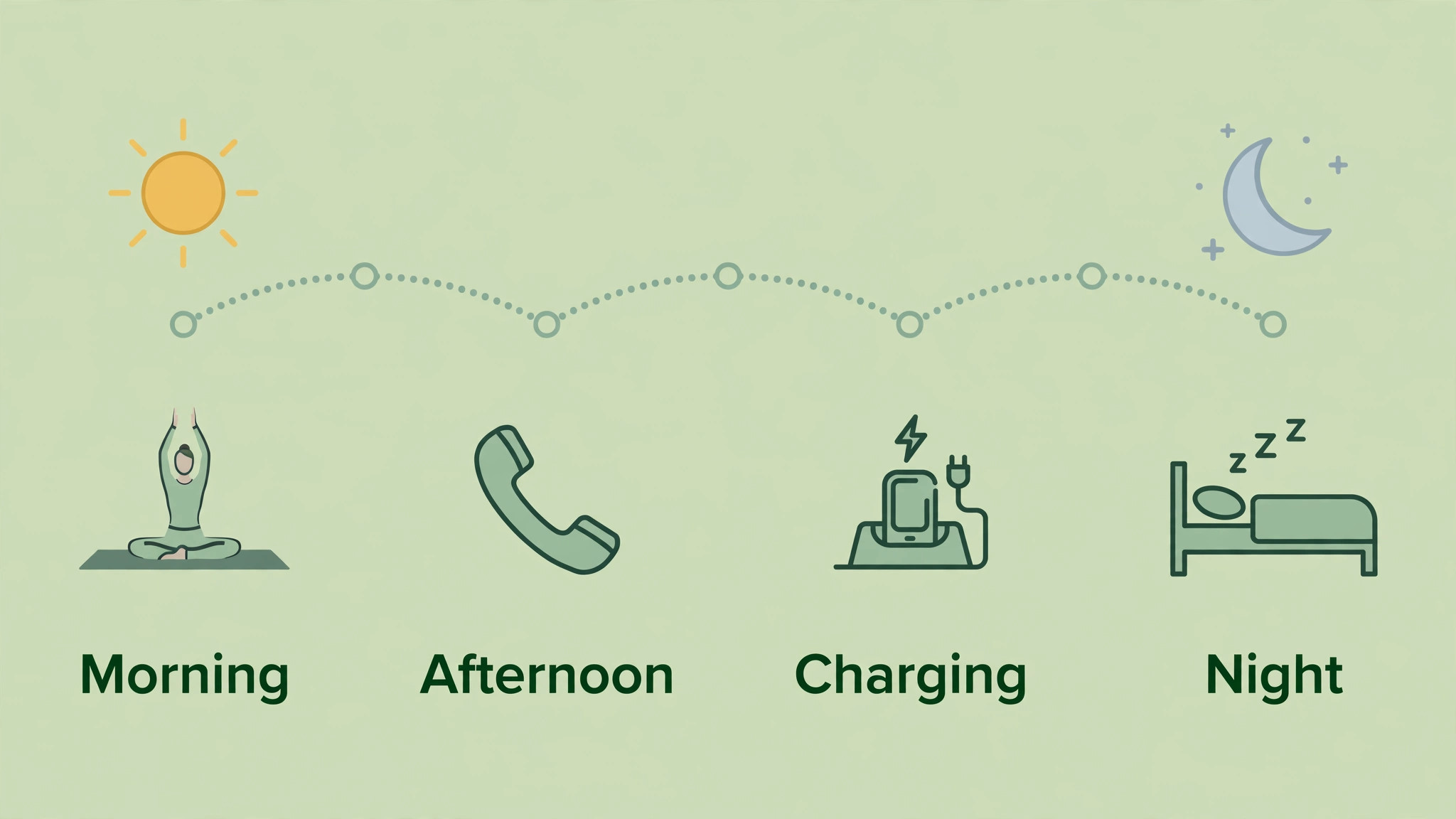
Charging, Battery Care and Everyday Habits
Charging should have a fixed home when you set up iPad for seniors beginners. Choose one spot, such as a bedside table or a kitchen counter, keep the cable there, and plug the iPad in at the same time each day, for example while watching the evening news. This routine prevents the common problem of a flat battery discovered just before a video call. Use the cable and charger supplied with the iPad or a reputable replacement, and avoid cheap chargers that feel hot or loose, because a reliable charger is a safety item, not just a convenience.
Battery health is less mysterious than it sounds. The iPad battery lasts longest when it is not left completely flat for long periods and not left charging at full heat for days, but normal daily use with overnight charging is perfectly acceptable for most owners. If battery life drops sharply, check Settings, then Battery, to see which apps use the most power, and close apps that run in the background unnecessarily. Reduce screen brightness slightly and shorten the auto lock time under Settings, then Display and Brightness, if the iPad often sits with the screen on and unused.
Create a daily habit sheet for the first month. Morning, check for messages and calendar events. Afternoon, practise one new skill or look at photos. Evening, charge the iPad and check that it is on Wi-Fi. This rhythm turns the iPad from a special occasion device into a normal household tool, and it gives the helper a natural moment each week to ask what worked and what felt confusing. When a habit is missed for a day, it does not matter, because the next day’s routine picks it up again without any sense of failure.
When Something Goes Wrong and How to Recover Calmly
Most problems have a calm first step when you set up iPad for seniors beginners, which is to return to the home screen. Swipe up from the bottom or press the Home button, depending on the model, and start again from a known place. If an app freezes, close it by swiping up and away from the app switcher, then reopen it. If the iPad will not respond, press and hold the top button until the power slider appears, then slide to switch off, wait a few seconds, and switch on again.
If Wi-Fi stops working, toggle Wi-Fi off and on in Settings, then check whether other devices in the home are also offline, because a router problem affects everything, not just the iPad.
If text suddenly becomes tiny again, someone may have changed a setting or the iPad may have updated and reset a preference. Return to Settings, then Accessibility, then Display and Text Size, and restore the larger text size together, then note the correct slider position in the paper notebook. If an app disappears from the home screen, check the App Library before assuming it was deleted, because apps moved off the home screen remain installed and searchable. Teach the owner to swipe down on the home screen and type the app name to search, which is often faster than hunting through screens.
Know when to ask for help. If the Apple ID password is forgotten, if a purchase the owner did not make appears, or if the iPad asks for a passcode the owner does not recognise, stop and contact the trusted helper or official Apple support. Do not enter passwords into unfamiliar websites, do not pay for unlocking services, and do not factory reset the device without a backup, because a reset erases photos and settings that may be precious. A patient pause and a call to a trusted person solves more iPad problems than any hurried fix.
More Reading on Stratilyze
Readers helping an older relative with technology may also enjoy the Google Nest Hub smart home beginner guide for voice controlled help around the house, the smart TV streaming setup guide for making television simpler as well, and the Apple Watch sleep tracking guide for health features that pair well with a calmer daily routine.
Frequently Asked Questions
Is Assistive Access the right choice for every senior beginner?
No, it suits owners who find the standard home screen overwhelming or who tap the wrong app frequently. Many senior beginners do well with a simplified standard home screen, larger text and fewer apps, without needing Assistive Access. Try the standard setup first, and add Assistive Access if the owner still feels lost after a few practice sessions, because a simpler screen chosen together feels supportive rather than restrictive.
How do I set up iPad for seniors beginners if the owner has never used a touchscreen?
Start with three skills only, unlocking, opening one app, and returning home, and practise them until they feel automatic. Add video calling next, because a successful call motivates further learning. Keep sessions short, use a paper notebook for steps, and introduce one new app or gesture per session. Patience in the first week matters more than covering every feature quickly.
What should I do if the owner forgets the passcode?
Do not guess repeatedly, because too many wrong attempts can disable the device temporarily. Contact the trusted helper and follow official Apple support steps for a forgotten passcode, which may involve restoring the device from a backup. This is why a written record of the passcode in a safe place at home, and a recent backup, are worth setting up on day one.
Should I buy more iCloud storage for a senior beginner?
Only if the photo library or backups genuinely need it. Check Settings, then the account name, then iCloud, to see how much storage is used and by what. If photos are the main use, the owner may prefer to keep photos on the device and share selected pictures with family, rather than paying for online storage. Decide together after a month of real use, not on day one.
Can a senior beginner use an iPad without an Apple ID?
An Apple ID is needed to download apps, back up data and use FaceTime and Messages fully, so setup is much smoother with one. If the owner does not have an email address, help them create a simple one they can access, and keep the password recorded safely. Without an Apple ID, the iPad still works for browsing and some built in apps, but many of the features families value most will be limited.
How often should accessibility settings be reviewed?
Review them after the first week, after the first month, and whenever eyesight, hearing or hand steadiness changes. Needs change over time, and a text size that felt perfect in bright daylight may feel small in the evening. A short review together, adjusting one slider at a time and testing it in a real message or article, keeps the iPad matched to the owner rather than frozen at day one settings.
A Gentle Closing Note for Helpers and Owners
The best iPad setup for an older beginner is the one the owner can use alone the next morning without fear. Large text, a tidy home screen, a working video call, a trusted contact and a written notebook together create that confidence far more reliably than any single advanced feature. If you set up iPad for seniors beginners with patience, practice and a focus on the few things that matter most, the device stops being a source of worry and becomes a daily connection to family, photos, news and entertainment.
Revisit the settings gently as confidence grows, add features one at a time, and celebrate each new skill, because confidence is the real setup goal, and it builds one calm success at a time.