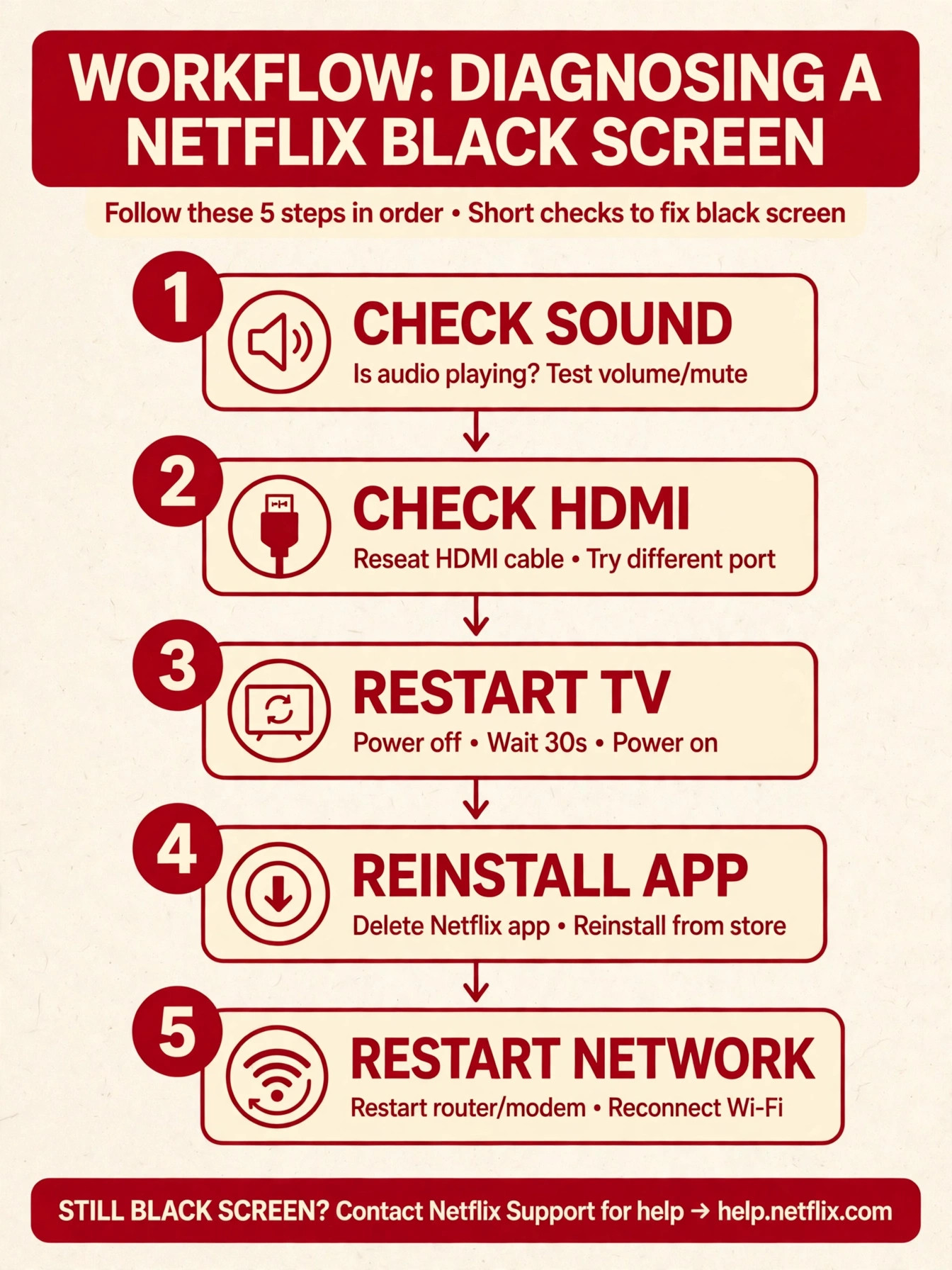
Fifteen megabits per second is the speed Netflix recommends for 4K streaming, with about five megabits per second for high definition, and those numbers matter for a black screen because a television that cannot sustain the required speed, decode the video stream, or complete the copy protection handshake will show black while audio sometimes continues normally. A black screen is therefore not a single fault, and to fix Netflix black screen smart TV you must first work out which fault you have. It can mean the app crashed while loading, the video decoder failed, the HDMI copy protection check failed, the network stalled, or the television firmware and the Netflix app disagree after an update.
To fix Netflix black screen smart TV problems, you need to separate an app fault from a display fault and from a network fault, and this guide does that in tested order, starting with a proper power cycle and ending with the display and account checks that resolve the stubborn cases.
Start by describing the black screen precisely, because different black screens have different causes. If the screen is black but you hear Netflix audio, the video decoder or the display path has failed while audio continues, which points to app, HDMI, or display settings. If the screen is black with no audio and no Netflix menus, the app may have crashed on launch or the television may have lost its video signal entirely. If the screen goes black only when a title starts playing, while Netflix menus and previews work normally, copy protection, display format, or network delivery for that title is more likely.
If the screen goes black for a second or two when a title starts and then recovers, that brief blackout is often a normal HDMI resynchronisation when the display switches frame rate or colour format, and it is not a fault at all unless it persists.
Test whether the television itself works normally outside Netflix. Open another app, switch to a live television channel, or open the television settings menu. If every source shows black, the television or its display panel is at fault, not Netflix, and television support becomes the priority. If only Netflix shows black, the fault is confined to the Netflix app, its data, or its interaction with the television display settings. Note when the black screen began, whether it followed a television firmware update, a Netflix app update, a new HDMI device, or a network change, because that timing often identifies the trigger.
A black screen that began after adding a soundbar, an HDMI switch, or a splitter points to the HDMI chain, while a black screen that began after a firmware update points to a software conflict that a reinstall or settings change may resolve.
| Black screen pattern | Likely cause | First action to try |
|---|---|---|
| Black screen with sound, menus work | Video decoder crash or display format fault | Close and reopen app, then reinstall app |
| Black screen with no sound, app never loads | App crash or corrupted app data | Power cycle TV, then clear cache or reinstall |
| Menus work, titles go black on play | Copy protection or display format fault | Reseat HDMI, test direct connection, adjust format |
| Brief black flash at title start only | Normal HDMI resync on format change | Disable match content settings on external device |
| Black screen only through HDMI device | HDMI cable, port, or splitter fault | Test direct TV app and swap cable and port |
| Black screen on all apps and inputs | Television display fault | Test other inputs and contact TV support |
| Black screen after firmware update | App and firmware conflict | Reinstall Netflix app and update firmware again |
| Black screen only on one title | Title specific encoding or network fault | Test another title and check network speed |
Netflix itself recommends a full device restart for black screen symptoms on television platforms, and that recommendation aligns with the power cycle step below, because a proper power cycle clears the app memory and the display handshake in a way that a simple standby does not. Many owners mistake standby for a restart, pressing the power button once to put the television to sleep and pressing it again to wake it, which preserves the faulty app state. A true power cycle means unplugging the television, waiting, and plugging it back in, and that distinction matters for almost every black screen fix that follows.
Fix Netflix Black Screen Smart TV With This Ordered Checklist
Work through this checklist in order, testing Netflix after each group. Do not factory reset the television until app, HDMI, network, and settings steps have failed, because a factory reset wipes every television setting and app sign-in for a fault that usually lives in one app.
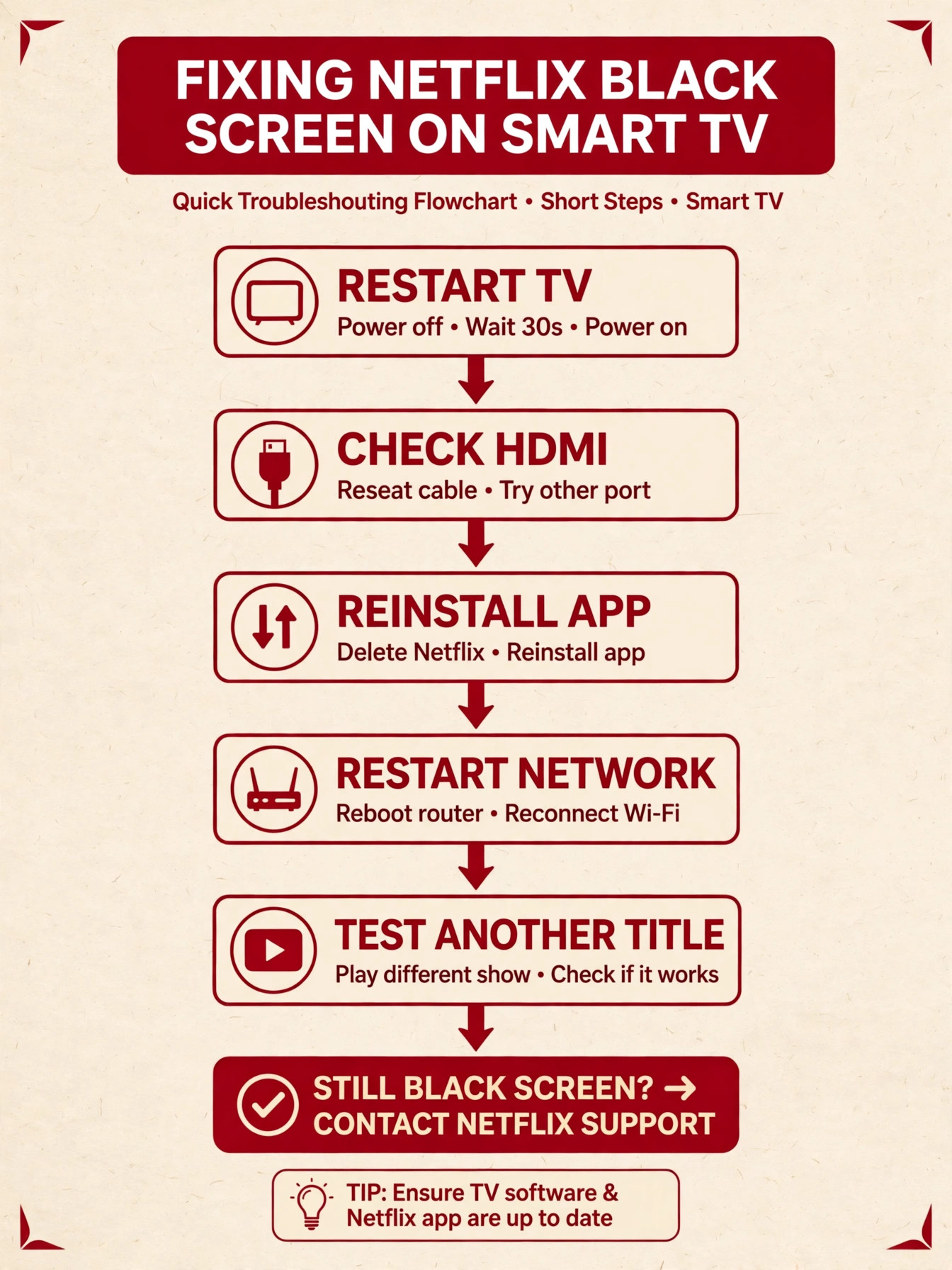
1. Netflix Smart TV Power Cycle Done Properly
Perform a true power cycle, not a standby cycle. Unplug the television power cord from the outlet, and if the television has a power button on the body, press and hold it for about five seconds while unplugged to discharge residual power. Leave the television unplugged for at least one minute, or for three minutes if you cannot access a body power button, then plug it back in and turn it on. Open Netflix and test a title. This step clears temporary app memory, resets the display handshake, and resolves many black screens caused by a crashed video decoder or a stale app session.
For Samsung televisions, a cold boot through the remote is an equivalent shortcut. With the television on, press and hold the remote power button for about five to seven seconds until the screen goes dark and the Samsung logo appears on restart. That cold boot restarts the television system properly, unlike a brief power press that only enters standby. For other brands, the unplug method remains the most reliable universal power cycle, since remote behaviour varies by manufacturer. After a power cycle, test with a title you know well, rather than a new title, so you can tell whether the fault is general or title specific.
If the power cycle fixes the black screen but it returns after a day, the underlying cause is likely app data, HDMI, or firmware related, and the following sections address those recurring triggers.
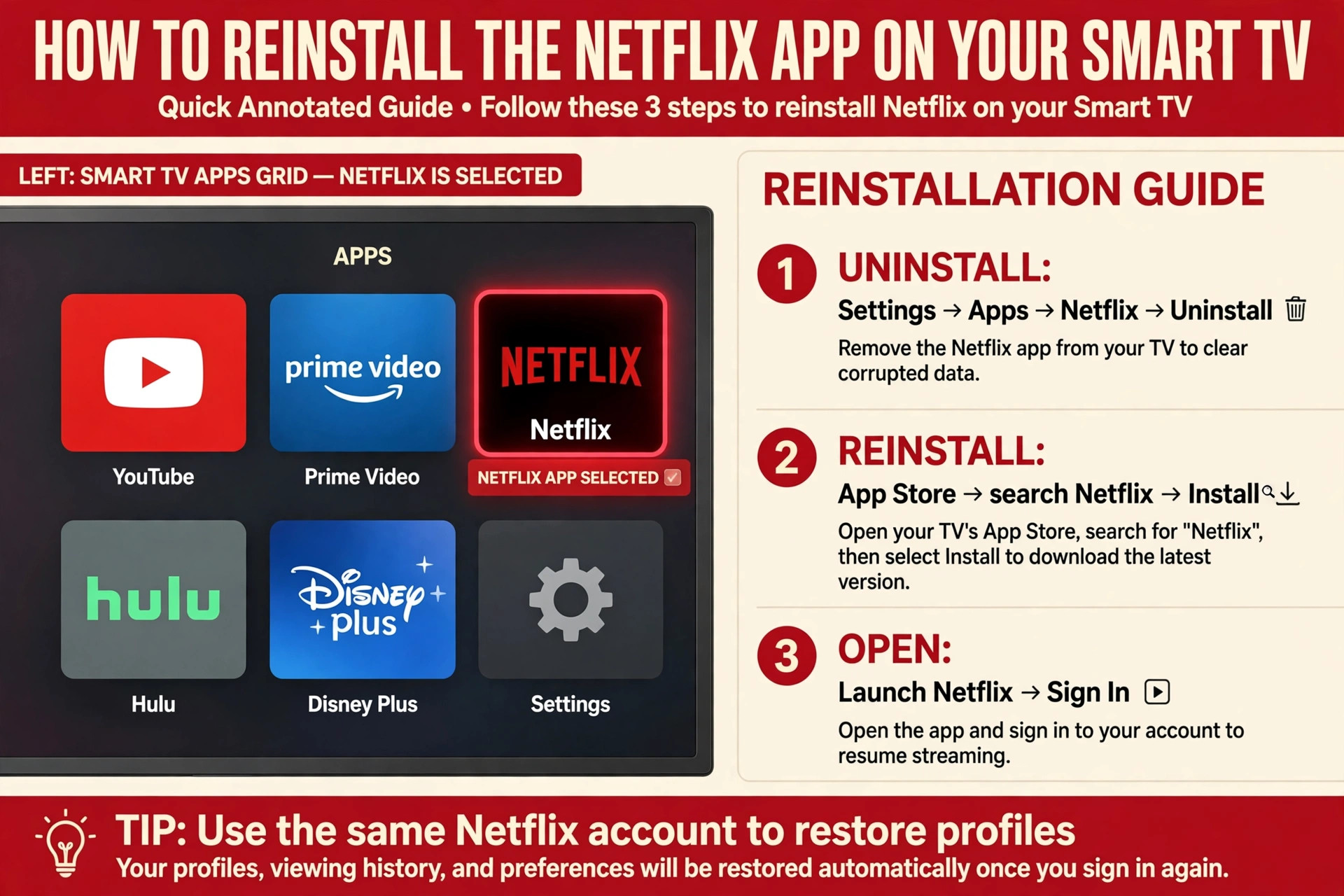
2. Netflix App Close, Cache Clear, and Reinstall
Close Netflix fully and reopen it, waiting about ten seconds between closing and reopening, since a video decoder crash often clears with a fresh app session. If the black screen persists, clear the Netflix app cache where the television platform allows it. On Android TV and Fire TV, open Settings, open Apps, find Netflix, and choose Clear cache. Note that clearing cache is different from clearing data, and clearing data signs you out, so use cache first where the option exists.
On Samsung Tizen and LG webOS televisions, there is no dedicated cache option for Netflix in the same way, so reinstalling the app is the equivalent step, and it rewrites the app data and security components that can cause a black screen.
Reinstall Netflix by deleting the app from the television home screen or apps menu, restarting the television with a power cycle, then downloading Netflix again from the television app store and signing in. On Samsung televisions, the apps menu gear icon offers a reinstall option for Netflix that achieves the same result without a full delete in some models. After reinstalling, test a title before changing display settings, so you know whether the reinstall alone fixed the problem. If reinstalling fixes the black screen, the fault was corrupted app data or a damaged security component, and no HDMI or network change is needed.
If reinstalling does not help, the fault lies in the HDMI chain, the network, or the display settings, and those sections become the priority. To fix Netflix black screen smart TV faults that survive a power cycle, reinstalling is the most effective app level step, and it should come before any television factory reset.
3. Netflix HDMI Cable, Port, and Device Chain Tests
HDMI faults cause a distinctive black screen pattern, especially when Netflix plays through an external streaming device, a soundbar, or an HDMI switch. Unplug the HDMI cable from both ends, wait about ten seconds, and plug it back in firmly, ensuring the connector sits fully in both the source device and the television. Try a different HDMI cable, preferably one known to work with another device, and try a different HDMI port on the television, preferably one labelled for high bandwidth or copy protection support where the television marks ports that way.
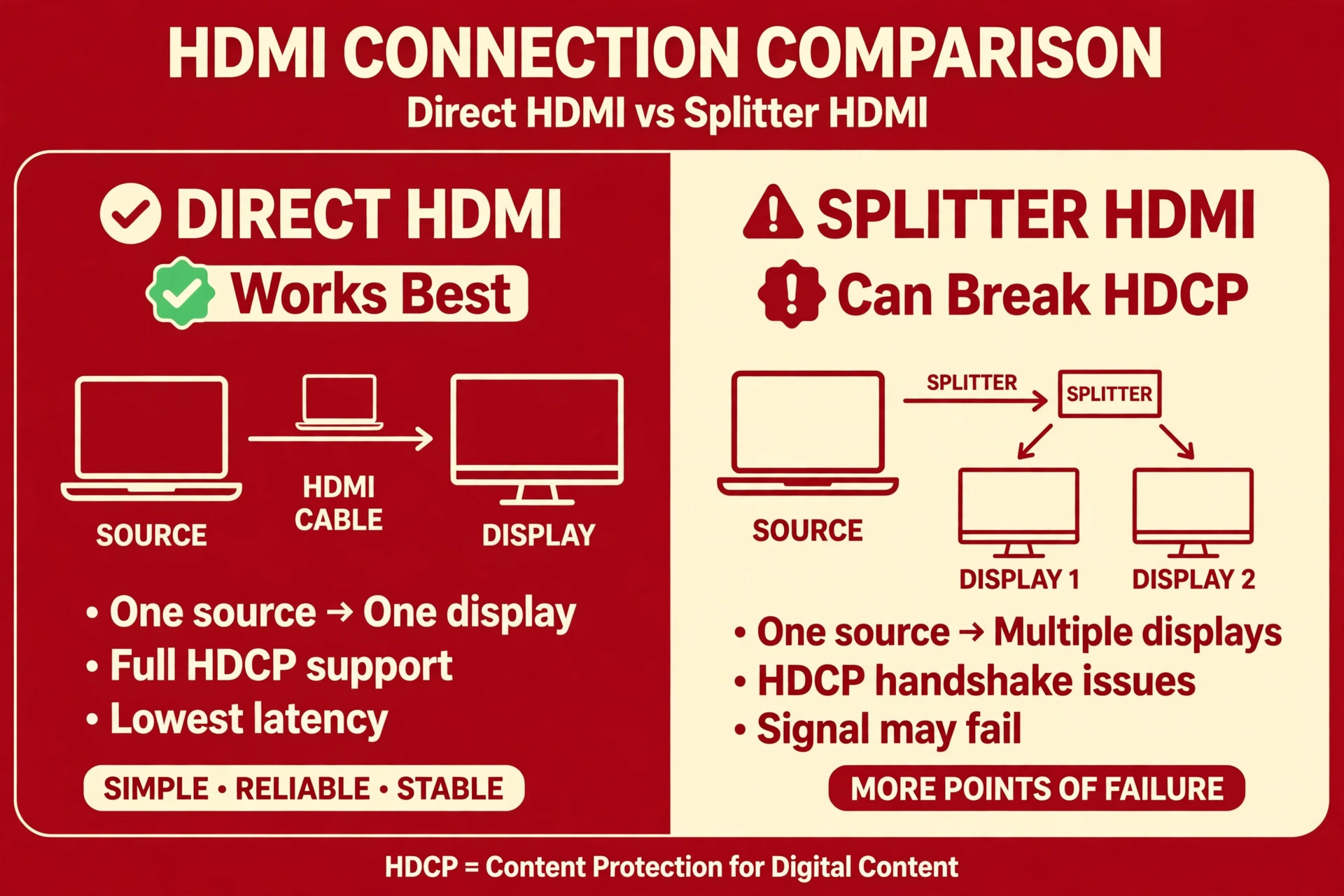
Remove any HDMI splitter or switch from the chain temporarily and connect the source device directly to the television, because splitters and switches can break the copy protection handshake that Netflix requires, resulting in a black screen with audio continuing normally.
Test the built in Netflix app on the television itself, if the television has one, as a comparison with an external device. If the built in app works while the external device shows black, the HDMI chain or the external device settings are at fault, not the Netflix account or network. If both the built in app and the external device show black, the fault is more likely app, network, or television display related. Check for a faulty HDMI port by testing the same device and cable on another television if one is available, since a port fault on one television will not follow the device to another television.
These HDMI tests take a few minutes and they prevent a television factory reset for a cable that simply needed reseating or replacing.
4. Netflix Network, Speed, and Home Network Restart
Network problems can cause a black screen when the video stream stalls before the first frame appears, especially for high definition and 4K titles that need sustained speed. Test the network speed on the television or on a nearby device during normal viewing hours, comparing the result with the speeds Netflix recommends, about three megabits per second for standard definition, five for high definition, and fifteen for 4K. If the measured speed falls well below the requirement for the title quality, the stream may never start, and the screen stays black while the app waits for data.
Switch the television from Wi-Fi to Ethernet where possible, or move the router closer to the television, to stabilise delivery, since a weak Wi-Fi link causes stalls that appear as black screens rather than as buffering messages.
Restart the home network as a group, following the sequence Netflix recommends for network faults. Turn off the television, unplug the modem and router for about thirty seconds, plug the modem back in and wait until its lights stabilise, then plug the router back in and wait again, then turn the television back on and test Netflix. That ordered restart clears stale network sessions that can block streaming even when web browsing works. Test Netflix on a mobile hotspot as a comparison if the home network test is inconclusive, since a hotspot test separates a home network fault from a television fault in one step.
If Netflix works on a hotspot but not on home broadband, the home network, router settings, or internet service deserves attention, and a DNS change or router firmware update may be worth testing with guidance from the internet provider.
5. Netflix Display Format, Match Settings, and Television Settings
Display format settings cause black screens when the television and the source device disagree about resolution, frame rate, or colour format. On Apple TV, the match content settings cause the device to switch colour format and frame rate dynamically when a title starts, and that switching can trigger a copy protection deadlock that leaves the screen black. Turning match dynamic range and match frame rate off, and setting the output format to a standard format such as 4K SDR at sixty hertz or 1080p SDR at sixty hertz, often resolves black screens on Apple TV.
On other external devices, look for similar match or auto format settings and test with a fixed output format, since a fixed format removes the resynchronisation that triggers the black screen.
On the television itself, check picture settings that affect HDMI input handling, such as HDMI enhanced format, input signal plus, or similar high bandwidth modes, and confirm the setting matches the source device capability. A high bandwidth mode enabled for a port that receives a standard device, or disabled for a port that receives a 4K device, can cause a black screen for protected content while menus display normally. Test by toggling the enhanced format setting for the relevant HDMI port and retesting Netflix. Also check whether autoplay previews cause repeated brief black screens while browsing, since each preview triggers a format switch, and disabling autoplay previews in Netflix playback settings can stop that browsing flicker.
These display settings are often overlooked, yet they resolve black screens that survive app reinstalls, because the app itself was never faulty.
6. Netflix Sign Out, Account, and Television Firmware Checks
Sign out of Netflix on the television and sign back in, since a stale account session can cause launch and playback faults that survive an app reinstall if the session data persists. Use the Netflix settings menu to sign out, or use the remote sequence for the Netflix app where the settings menu is unreachable, following the app guidance for your platform. After signing out, sign in again with the correct account and test a title. If you recently changed your password, plan, or profile PIN, signing out everywhere from the Netflix account page in a browser and then signing in fresh on the television can clear a session conflict that a local sign out alone does not resolve.
Update the television firmware, since firmware updates fix display, copy protection, and app compatibility faults, and a black screen that began after a firmware update may need a further firmware update or an app reinstall to restore compatibility. Check the television settings for a software update, install any available update while the television is plugged in and stable, and restart the television after updating. If the television is an older model that Netflix no longer supports, the app may show a permanent unavailable message rather than a black screen, and no software fix will restore the built in app.
In that case, plugging a current streaming stick into an HDMI port gives a fully updated Netflix app without replacing the television, and setup takes only a few minutes. To fix Netflix black screen smart TV faults that survive app, HDMI, network, and display steps, account and firmware checks are the remaining software layers before a factory reset.
Netflix Black Screen on Different Television Brands
Television brands handle Netflix app data, cache, and system restarts differently, and knowing your brand path saves time when you need to fix Netflix black screen smart TV trouble on a specific brand. On Samsung Tizen televisions, the cold boot through the remote, the apps menu reinstall option, and the Smart Hub reset are the brand specific tools, with Smart Hub reset refreshing the entire app framework when a single app reinstall fails. On LG webOS televisions, app deletion and reinstallation from the content store, plus a television restart, serve the same purpose, and the webOS app manager handles app data differently from Android TV.
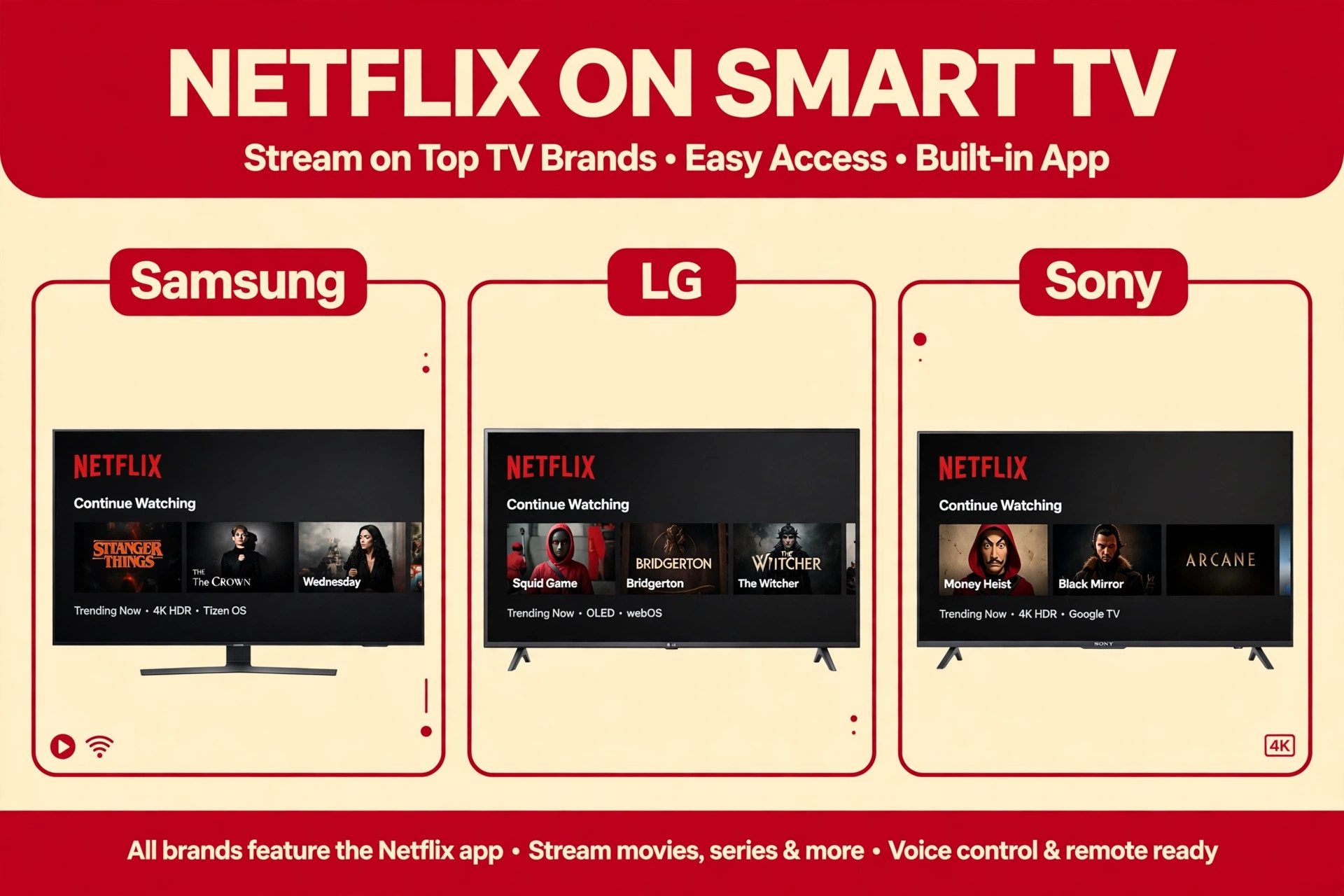
On Android TV and Google TV devices, the Settings Apps path gives explicit cache and data clearing options, which makes app data faults easier to test without a full reinstall. On Fire TV devices, the same Settings Applications path applies, with the added step of checking for Fire TV system updates that affect app compatibility.
On Roku, Apple TV, and other external streaming devices, the television itself is less involved, and the device restart, app removal, and display format settings matter more than television firmware. Restart an Apple TV through its Settings System Restart option or by unplugging it for thirty seconds, and adjust its match content settings as described above. Restart a Roku through its Settings System Power System Restart option, and reinstall the Netflix channel if the restart fails. For any external device, testing the built in television Netflix app, where available, remains the most useful comparison, because it tells you whether the fault follows the external device or lives in the television or network.
Brand differences change the menu names, but the underlying fix order remains the same, power cycle, app reinstall, HDMI test, network test, display settings, account check, and only then a deeper reset.
When a Television Factory Reset Is Justified
A factory reset wipes every television setting, every app sign-in, and every custom picture calibration, so it should be the last step, not an early guess. Justify a factory reset only when a black screen survives a proper power cycle, a Netflix reinstall, HDMI cable and port tests, a network restart and hotspot comparison, display format adjustments, and a fresh sign-in. Before resetting, note your picture settings, Wi-Fi password, and app sign-in details, since you will need them to set the television up again. On most televisions, the reset path is through Settings, General, and Reset, often requiring a default PIN, and the television will restart and present its first time setup screens afterwards.
Set up the television again, install Netflix first, and test a title before restoring other apps, so you can tell whether the reset fixed Netflix or whether another app or setting reintroduces the fault.
If a factory reset does not fix the black screen, the fault is likely hardware, involving the television display panel, its main board, or an HDMI port that has failed physically. At that point, contact the television manufacturer with the results of the other input test, the built in app test, and the external device test, since those results prove the fault is not app or network related. A television that shows black on every input, including live television and settings menus, has a display fault that no Netflix fix can address, and manufacturer support or repair becomes the correct path.
Knowing when to stop software troubleshooting and seek hardware support prevents a cycle of resets that wastes time and erases settings without changing the outcome.

Preventing Netflix Black Screens From Returning
Once Netflix plays normally again, habits that prevent recurrence are straightforward, and they also help the next time you need to fix Netflix black screen smart TV trouble quickly. Keep the television firmware and the Netflix app updated, but install updates at a time when you can test a title afterwards, so a conflict is caught immediately rather than during a family movie night. Keep HDMI cables firmly seated and avoid moving the television or devices while they are connected, since a partially seated HDMI cable can cause intermittent black screens that appear and vanish without a clear pattern.
Avoid HDMI splitters and switches for Netflix where possible, preferring a direct connection for the main viewing device, since each additional device in the HDMI chain adds a copy protection handshake that can fail. Keep the home network stable, with the television on Ethernet where possible, so high definition and 4K streams receive sustained speed without stalls.
Review display settings after any firmware update, since updates can reset HDMI enhanced format or match content settings to defaults that reintroduce a black screen. Disable autoplay previews if browsing flicker bothers you, since that setting reduces format switching during browsing. These habits take minutes and they turn a black screen from a recurring frustration into a rare event with a known fix, because the common triggers, app data corruption, HDMI seating, and display format disagreement, are all kept under control. When you need to fix Netflix black screen smart TV trouble again, start by checking which of these habits slipped, since the cause is often a cable moved during cleaning or a setting reset by an update.

More Reading on Stratilyze
Streaming faults on a smart TV usually arrive as a cluster, with a black screen appearing next to a crashing app or a dead remote, so readers often check the neighbouring TV guides next. The guide to a Netflix app that keeps crashing on a smart TV covers the app-side version of the same failure, the guide to smart TV apps that keep crashing explains the TV-side checks that affect every streaming app at once, and the guide to a smart TV remote that will not work walks through the control checks that matter once the picture returns.
Frequently Asked Questions
Why does Netflix show a black screen with sound on my smart TV
A black screen with sound usually means the video decoder crashed or the display format handshake failed, while audio continues normally. Close Netflix, wait ten seconds, and reopen it. If the problem repeats, power cycle the television properly, then reinstall the Netflix app. Check HDMI cables and display format settings if you watch through an external device, since a copy protection or format fault produces exactly this pattern of sound without video.
Why does Netflix work on my phone but show a black screen on my TV
That pattern confines the fault to the television, its Netflix app, its HDMI chain, or its display settings, rather than to your account or network. Power cycle the television, reinstall the Netflix app, and test the built in app against an external device. If the phone works and the television app fails after those steps, check television firmware and display format settings, since the television display path is the remaining variable that the phone does not share.
Why does Netflix go black only when a title starts playing
Titles going black while menus work normally points to copy protection, display format switching, or network delivery for the title stream. Reseat HDMI cables, remove splitters from the chain, test a direct connection, and set a fixed display format on external devices instead of automatic matching. Test another title as well, since a single title fault points to that title encoding or network delivery, while every title failing points to the display or copy protection path.
Why does my TV show a brief black flash when I start Netflix
A brief black flash of a second or two when a title starts is often normal HDMI resynchronisation as the display switches frame rate or colour format for that title. It becomes a fault only when the screen stays black or when playback fails to start. Disabling match content settings on external devices and using a fixed output format reduces that flash, as does disabling autoplay previews, which trigger a format switch for every preview while browsing.
Should I factory reset my TV to fix a Netflix black screen
Factory reset only after power cycle, app reinstall, HDMI tests, network restart, display settings, and fresh sign-in have all failed, since a reset wipes every television setting and app sign-in. A reset is justified when the black screen survives every earlier step, because it clears deep system faults that app level fixes cannot reach. After resetting, install Netflix first and test before restoring other apps, so you can tell whether the reset fixed the problem or another setting reintroduces it.
Can an old smart TV lose Netflix support entirely
Yes, Netflix ends support for some older television models, and those televisions may show a permanent unavailable message rather than a black screen. No software fix restores the built in app on an unsupported model, but plugging a current streaming stick into an HDMI port gives a fully updated Netflix app without replacing the television. That external device route is faster and cheaper than replacing a television whose display still works well, and it also brings newer app features that the old built in app lacked. When you need to fix Netflix black screen smart TV trouble on a very old television, check support status before spending time on app fixes that cannot succeed on an unsupported platform.
A Final Decision Tree for Your Next Black Screen
When the next black screen appears, do not start with a factory reset or a new HDMI cable purchase. First, check whether sound continues and whether menus work, because that answer separates a decoder fault from a total app crash. Next, power cycle the television properly by unplugging it, since standby does not clear the faulty state. Then test another app and another title, to separate a Netflix fault from a television fault and a title fault. Then test the built in app against an external device, to separate an HDMI fault from an app fault.
Only after those tests should you reinstall the app, adjust display settings, or consider a factory reset, and by then you will know exactly which layer failed. That disciplined order turns a blank screen from a panic into a short diagnostic routine, and it usually restores viewing in the first few steps without ever reaching a reset. A black screen looks total, but it is almost always one link in a short chain, and finding that link is faster than replacing the chain.