
Your printer works, but it crawls. A single page takes minutes, a multi page document becomes an afternoon project, and a printer that once finished a report in seconds now pauses between every line. That is the problem, stated plainly, and it is rarely a sign that the printer is dying. More often, a quality setting, a spooler fault, an outdated driver, a weak network link, or an oversized file is forcing the printer to work far harder than the job requires. To fix printer printing too slow problems, you identify which of those causes matches your job, change the setting that matters, and test with a simple page before tackling a complex document.
This guide follows that order, from the fastest setting changes to the deeper driver and network fixes.
Diagnose Slowness From the Job and the Printer Behaviour
Slow printing is not one fault, and the pattern tells you where to look. If only photo heavy or graphics heavy documents print slowly, file complexity and print quality are the likely causes. If every job, including a plain text page, prints slowly, a driver, spooler, connection, or printer setting is more likely. If the printer pauses for long periods between pages, it may be processing each page slowly, cooling down to prevent overheating, or waiting for data over a slow network link. If the first page arrives quickly but later pages slow down, the printer may be throttling itself after continuous use, a protective behaviour that manufacturers build in to prevent damage.
Note which pattern matches yours, and test with a one page plain text document as a baseline, because that test separates a document fault from a printer fault in under a minute.
Also note the printer type, because inkjet and laser printers slow down for different reasons. Inkjet printers slow dramatically at high quality settings, because they must place many more droplets per inch, and they slow further when printing in colour or on photo paper. Laser printers slow when processing complex graphics, when printing duplex, or when the printer memory is limited for a large job. Both types slow when connected over a weak Wi-Fi link, because data arrives in fits and starts and the printer waits between bursts. The table below turns common patterns into likely causes, so you can skip sections that do not match your situation and focus on the ones that do.
| Slowness pattern | Likely cause | First action to try |
|---|---|---|
| Only photos and graphics print slowly | High quality setting or large file size | Switch to Normal quality and compress images |
| Every job prints slowly, even plain text | Driver, spooler, or connection fault | Update driver and restart spooler |
| Printer pauses long between pages | Network delay or page processing load | Test USB connection and simplify document |
| First pages fast, later pages slow | Overheating protection after continuous use | Let printer rest powered on for 30 minutes |
| Colour jobs slow, black jobs normal | Colour processing and inkjet droplet density | Print in grayscale where colour is not needed |
| Wi-Fi jobs slow, USB jobs normal | Weak or congested wireless link | Move printer closer to router or use Ethernet |
| Jobs slow after a system or driver update | Driver regression or new default setting | Roll back driver or reset printing preferences |
| Printer slow only from one computer | That computer driver or spooler fault | Test same job from another computer |
Microsoft support guidance for slow printing in Windows starts with print quality and paper settings, and that advice is sound, because quality is the single biggest speed variable most owners control. Open the printer preferences, check the quality level, and confirm the paper type matches the paper actually loaded, since a mismatch can force the printer into a slower mode designed for a different paper. A printer set to best quality on photo paper will crawl through a plain text document that would fly through on normal quality and plain paper settings. That one setting change often restores normal speed instantly, which is why it belongs at the top of the fix order.
Fix Printer Printing Too Slow With This Ordered Checklist
Work through this checklist in order, testing with a one page plain text document after each group. That baseline test tells you whether the printer itself has recovered, separate from any particular document complexity.

1. Printer Quality, Paper, and Mode Settings
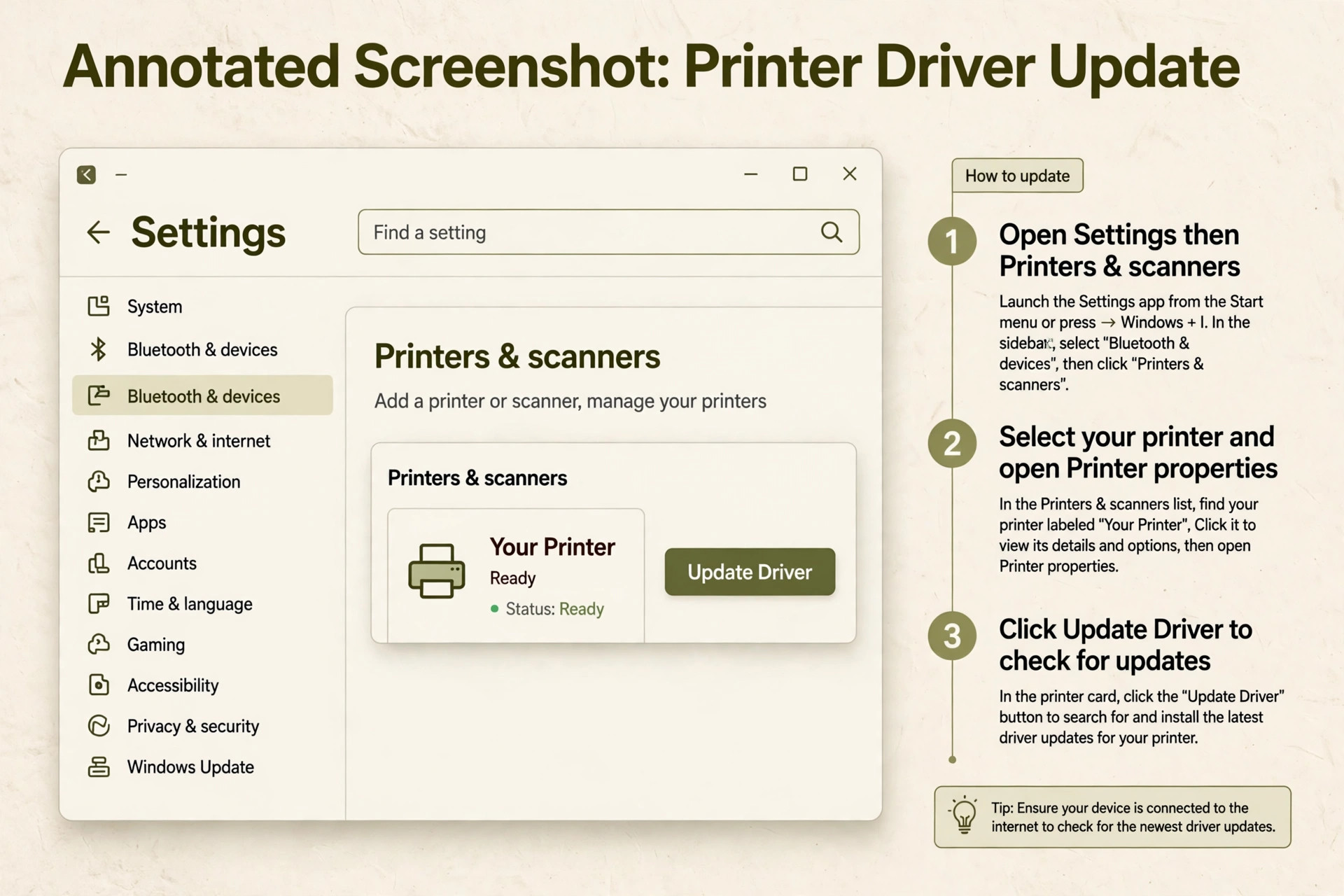
Open the printer preferences from the system settings or from the print dialog. On Windows, open Settings, open Bluetooth and devices, open Printers and scanners, select the printer, choose Manage, then Printing preferences. Under the Paper or Quality section, choose Normal or Standard quality for everyday documents, reserving Best or High quality for photos and final copies that truly need it. Draft quality prints fastest and is suitable for internal drafts, although text may look lighter, so test it on a sample page before using it for important documents. Confirm the paper type matches the loaded paper, choosing Plain Paper for ordinary office paper, because a photo paper setting slows printing even when plain paper is loaded.
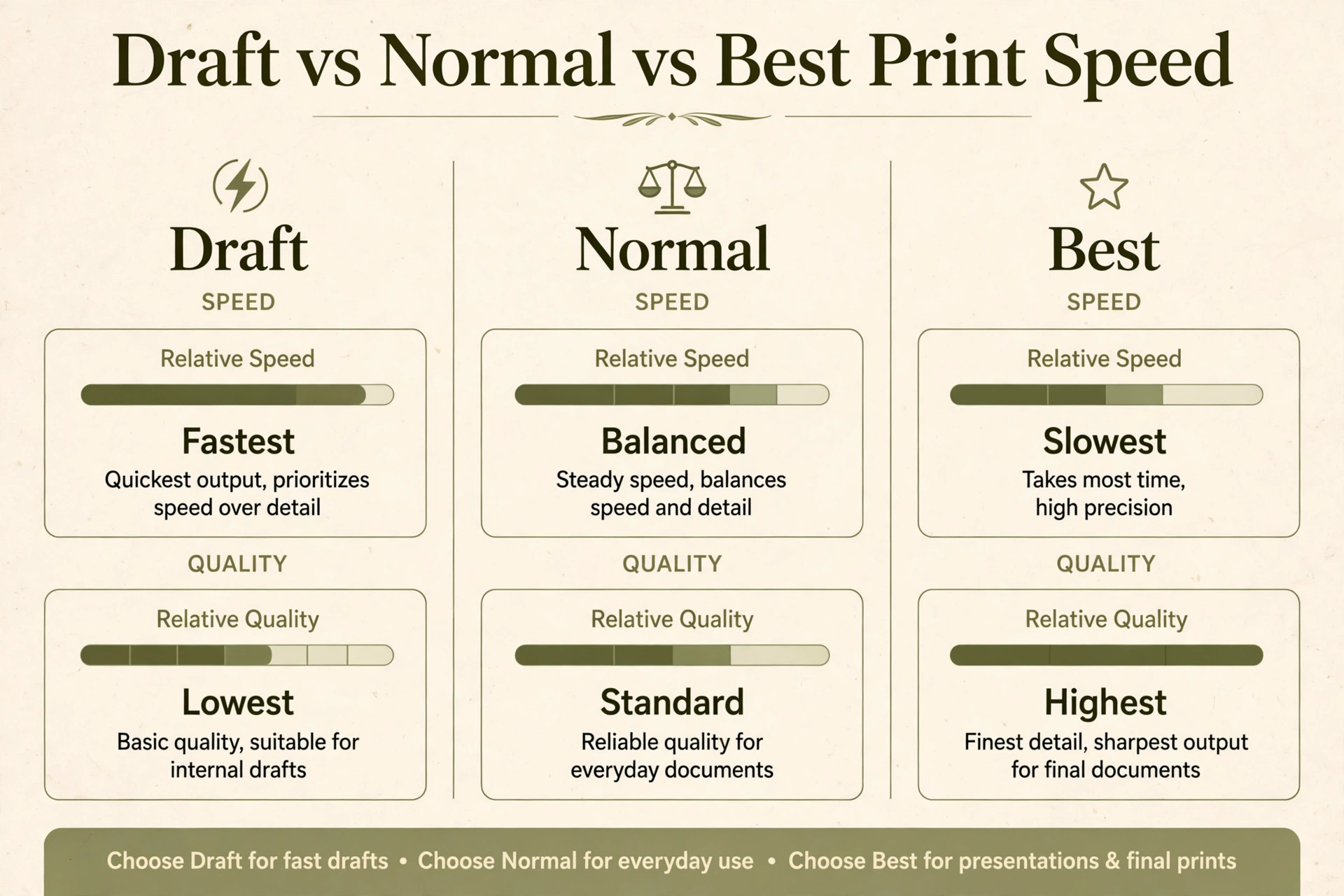
Check for quiet mode, silent mode, or slow mode settings, since many printers include a quiet mode that reduces noise by slowing the print mechanism. Epson guidance specifically notes that turning quiet mode off increases speed, and similar modes exist under different names across brands. Turn quiet mode off for testing, and only re-enable it if noise matters more than speed for a particular job. Also check duplex settings, because printing on both sides adds a drying and flipping delay for each sheet, and single sided printing is faster for urgent jobs.
Check colour settings as well, choosing black and grayscale for documents that do not need colour, since colour printing requires more passes and more processing than black printing on most inkjet models.
2. Printer Document Size and Complexity Reduction
Large files print slowly because the printer must process every image, font, and graphic before it can put ink or toner on paper. Compress images in a document before printing, reducing high resolution photos to a resolution suitable for printing, since a photo stored at camera resolution contains far more data than a printed page can show. Convert a complex document to PDF before printing, because PDF conversion often simplifies font and layout processing and gives the printer a cleaner file to work with. Remove unnecessary background images, watermarks, and full page graphics from drafts, and print a test page with those elements removed to confirm they were the cause.
Split very large jobs into smaller batches, especially for jobs over fifty pages, because a smaller job lets the printer process and print continuously without holding a huge job in memory. Print in sections and check speed for each section, noting whether a particular section, such as a page with a large chart, causes the slowdown. If one page type causes the problem, that page can be simplified or printed separately at a lower quality, while the rest of the document prints normally. This approach also helps with overheating protection, because a pause between batches lets the printer cool without triggering a forced slowdown mid job.
To fix printer printing too slow faults that only affect large documents, file reduction is often more effective than any driver change, because the document itself is the bottleneck.
3. Printer Spooler Clearing and Restart
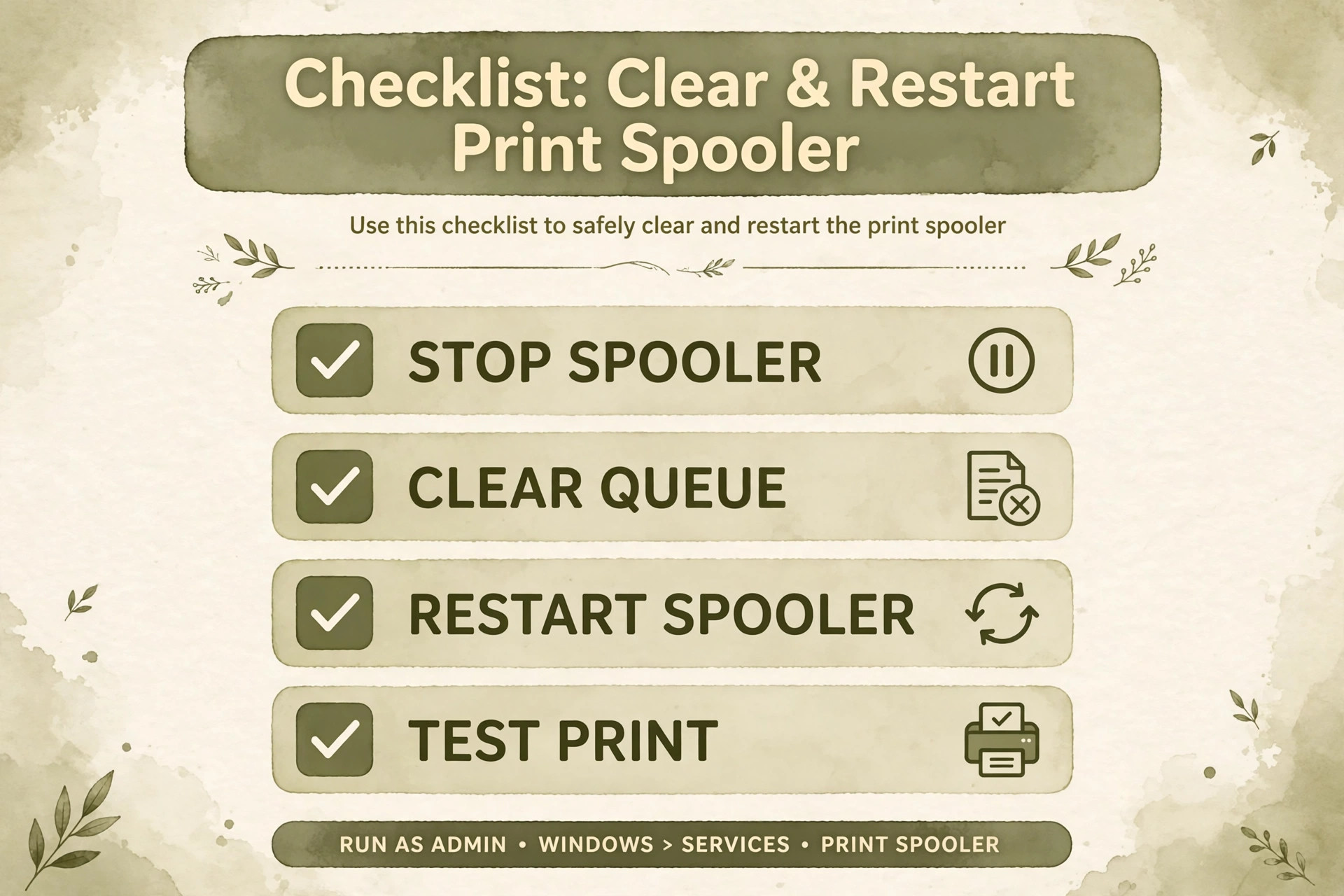
The print spooler is the Windows service that queues print jobs and feeds them to the printer, and a stuck or corrupted spooler queue can slow every job to a crawl. Clear it deliberately when jobs queue slowly or when a job seems stuck. Open the Services window, find Print Spooler, stop it, then delete the files in the spool printer folder, then start the spooler again. Only delete spool files while the spooler is stopped, and only delete files inside that folder, since deleting other system files can cause wider problems.
After restarting the spooler, test with a simple one page job before sending a large document, because a clean queue should process a simple job quickly if the spooler was the cause.
Check the spooler settings as well, since they affect how jobs are fed to the printer. In the printer properties, under the Advanced tab, Microsoft guidance suggests enabling the options to spool documents so programs finish faster, to start printing after the last page is spooled, and to print spooled documents first, particularly for shared or slower network connections. Those settings change the balance between waiting for the whole job and starting early, and for slow networks, waiting for the full spool can actually produce steadier printing than starting early and pausing for data.
Test both configurations with a typical job if the first setting does not help, because the best spooler behaviour depends on whether your bottleneck is processing or network delivery.
4. Printer Driver and Firmware Updates
Outdated drivers are a common cause of slow printing, because drivers translate documents into printer instructions, and an old driver may use an inefficient translation or may conflict with a system update. Update the driver from the printer manufacturer website for your exact model, rather than relying solely on automatic Windows driver search, since manufacturer drivers often include performance fixes that generic drivers lack. Uninstall the old driver completely before installing the new one if the manufacturer advises it, and restart the computer after installation. Test with a simple job first, then with a typical complex job, to confirm the update helped rather than assuming it did.
Update the printer firmware as well, through the manufacturer support site or the printer built in update function, since firmware updates often resolve performance delays and fix bugs that affect speed. Check the firmware version before and after updating, and note any setting changes the update makes, because firmware updates sometimes reset quality or network settings to defaults. If printing became slow immediately after a driver or firmware update, consider rolling back to the previous driver version as a test, since updates occasionally introduce a regression for a specific model. That rollback test is valuable evidence for manufacturer support, because it proves the update, not the printer hardware, caused the change.
5. Printer Connection, From Wi-Fi Weakness to Wired Reliability
Wireless printing is convenient, but it is also a frequent cause of slow printing, because Wi-Fi data arrives unevenly and the printer pauses while waiting for the next burst. Test with a USB cable directly between the computer and the printer, bypassing the network entirely. If USB printing is fast while Wi-Fi printing is slow, the wireless link is the bottleneck, and the fix is to improve that link rather than to change printer settings. Move the printer closer to the router, remove obstacles, switch the printer to the 5 GHz network where supported, or connect the printer with Ethernet if it has a port.
For network printers, an Ethernet connection to the router gives the most stable data delivery and often restores full speed immediately.
Check the network load as well, because other devices streaming video or downloading large files during a print job can starve the printer of bandwidth, especially on a busy home network. Pause large downloads during important print jobs, and consider whether the printer shares a network with many devices that compete for airtime. If the printer is connected through a USB hub, connect it directly to the computer instead, since hubs can reduce data speed and power delivery. If printing is slow from one computer but fast from another on the same network, the slow computer driver or spooler is the fault, not the network, and the driver and spooler sections above become the priority.
To fix printer printing too slow faults that follow the connection rather than the document, a wired test is the decisive diagnostic, because it separates network delivery from printer processing in one step.
6. Printer Overheating, Maintenance, and Hardware Checks
Printers slow down deliberately after continuous use to protect the print mechanism from overheating, and Epson guidance notes that a printer that has printed continuously for a long time may need to rest powered on for about thirty minutes before returning to normal speed. If slowness appears only after a long print run, let the printer rest with power on, rather than turning it off, since the cooling and recovery behaviour is designed around the powered on state. Check for paper jams, low ink or toner warnings, and maintenance alerts, because a printer that is low on ink, needs cleaning, or has a partially blocked nozzle may slow down or pause to compensate.
Run the printer cleaning or alignment utility only when print quality shows a problem, since unnecessary cleaning wastes ink, but do not ignore a maintenance warning that coincides with slowness.
Check the printer memory and processing limits for very large jobs, since a printer with limited memory must process a large job in chunks, pausing between chunks. Simplifying the job, as described above, helps more than adding memory in most home cases, but for office printers, a memory upgrade may be a legitimate option where the manufacturer supports it. Inspect paper loading as well, because curled, damp, or incorrect paper can cause feed pauses that look like slowness, and using fresh, flat paper of the correct type and size removes that variable.
If the printer remains slow for a simple text page on USB, with a fresh driver, a clean spooler, normal quality, and no maintenance warnings, a hardware fault becomes more likely, and manufacturer support with those test results is the next step.
Printer Speed on Different Brands and Operating Systems
Printer settings live in different places by brand, but the speed variables are the same. HP, Canon, Brother, and Epson printers all offer quality levels, paper type settings, quiet modes, and duplex options, although the names and menu locations differ. On HP printers, look for print quality and quiet mode in the printer preferences or the HP app. On Canon printers, check quality and paper type in the printing preferences dialog. On Brother printers, check the print quality and paper settings in the driver dialog, and note whether a toner save mode affects speed.
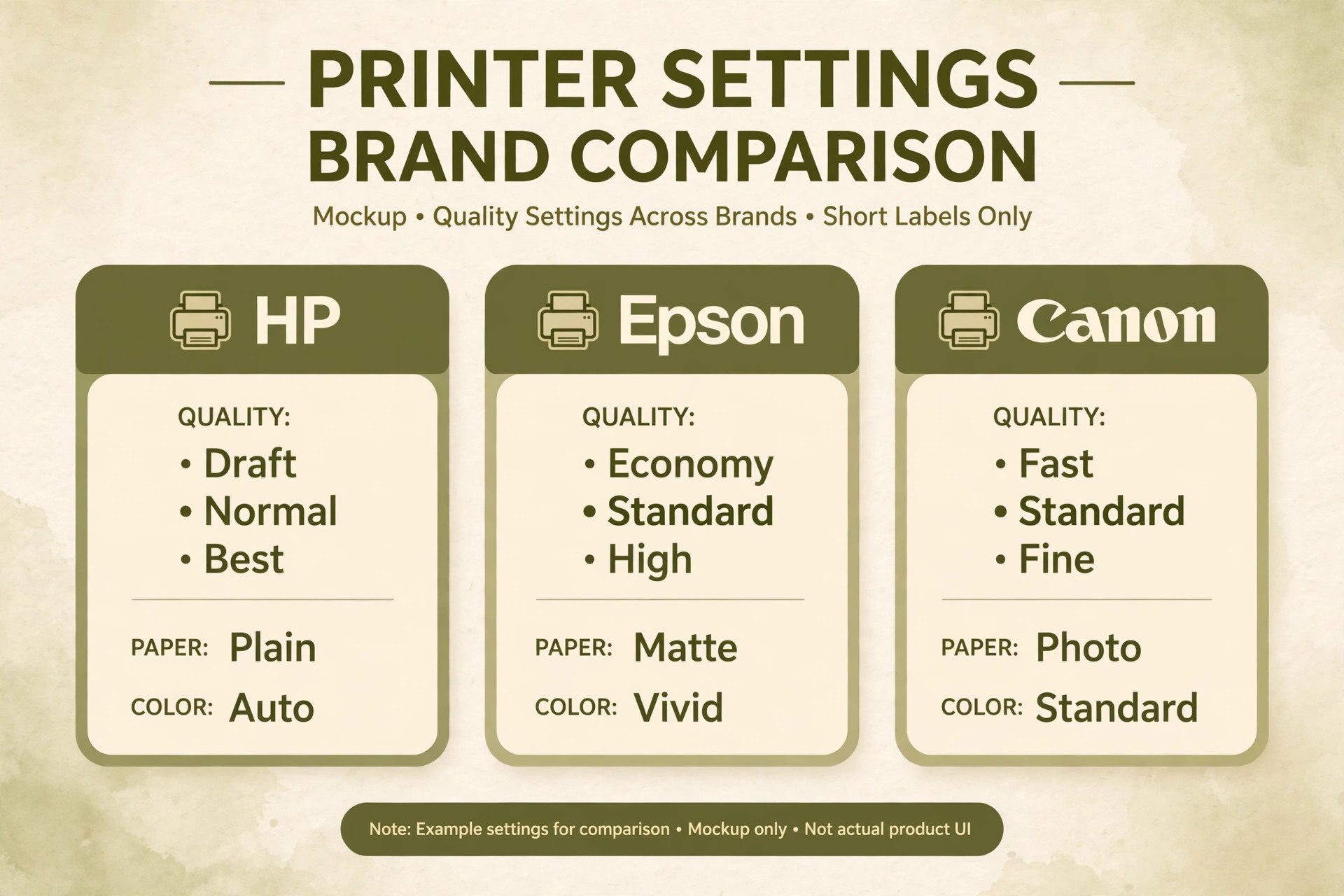
On Epson printers, check quality, high speed settings, and quiet mode, and note the bidirectional printing option, which can increase speed by printing in both directions of the print head travel. Learning the equivalent setting names for your brand matters, because searching for a generic setting name that your brand does not use wastes time.
Operating system differences matter as well. On Windows, driver and spooler fixes are central, as described above. On Mac, printer drivers come through system updates and manufacturer downloads, and the equivalent spooler reset involves pausing and resuming the printer in Printers and Scanners settings, or resetting the printing system where appropriate. On Mac, check the printer options in the print dialog, including quality, paper type, and duplex, since Mac print dialogs sometimes hide advanced options under a dropdown that defaults to a basic view. On Chromebooks, printing usually goes through a cloud or network path, and speed depends more on network delivery than on local driver settings, so the connection section matters most.
When you need to fix printer printing too slow trouble on a non Windows system, translate the Windows steps into their local equivalents rather than skipping them, because the underlying causes remain the same.
Choosing Speed Settings for Different Job Types
Not every job deserves the same settings, and choosing per job type saves time without sacrificing quality where it matters. For internal drafts, meeting notes, and test prints, use draft or normal quality, single sided printing, and grayscale where colour is not needed, since those settings maximise speed. For client documents and final reports, use normal quality with correct paper type, which looks professional without the crawl of best quality. For photos and marketing materials, use best quality and the correct photo paper, accepting slower printing as the price of image quality, and print photos in smaller batches to avoid overheating slowdowns.

For labels and envelopes, use the correct media type setting, because a wrong media setting can force the printer into a slow mode designed for a different material.
Keep a note of your preferred settings for each job type, so you do not have to rediscover them each time. Many printer drivers allow saving presets, and creating a fast draft preset and a normal quality preset lets you switch in one click from the print dialog. That preset habit prevents the common problem where a printer stays on best quality from a photo job and then crawls through the next fifty text pages because nobody changed the setting back. If you share a printer with others, agree on a default preset of normal quality and plain paper, so one user photo job does not slow every subsequent job for everyone else.
These small workflow choices often matter more than any single technical fix, because they prevent the setting from drifting back to slow values after it has been corrected.
A Maintenance Routine That Keeps Printing Fast
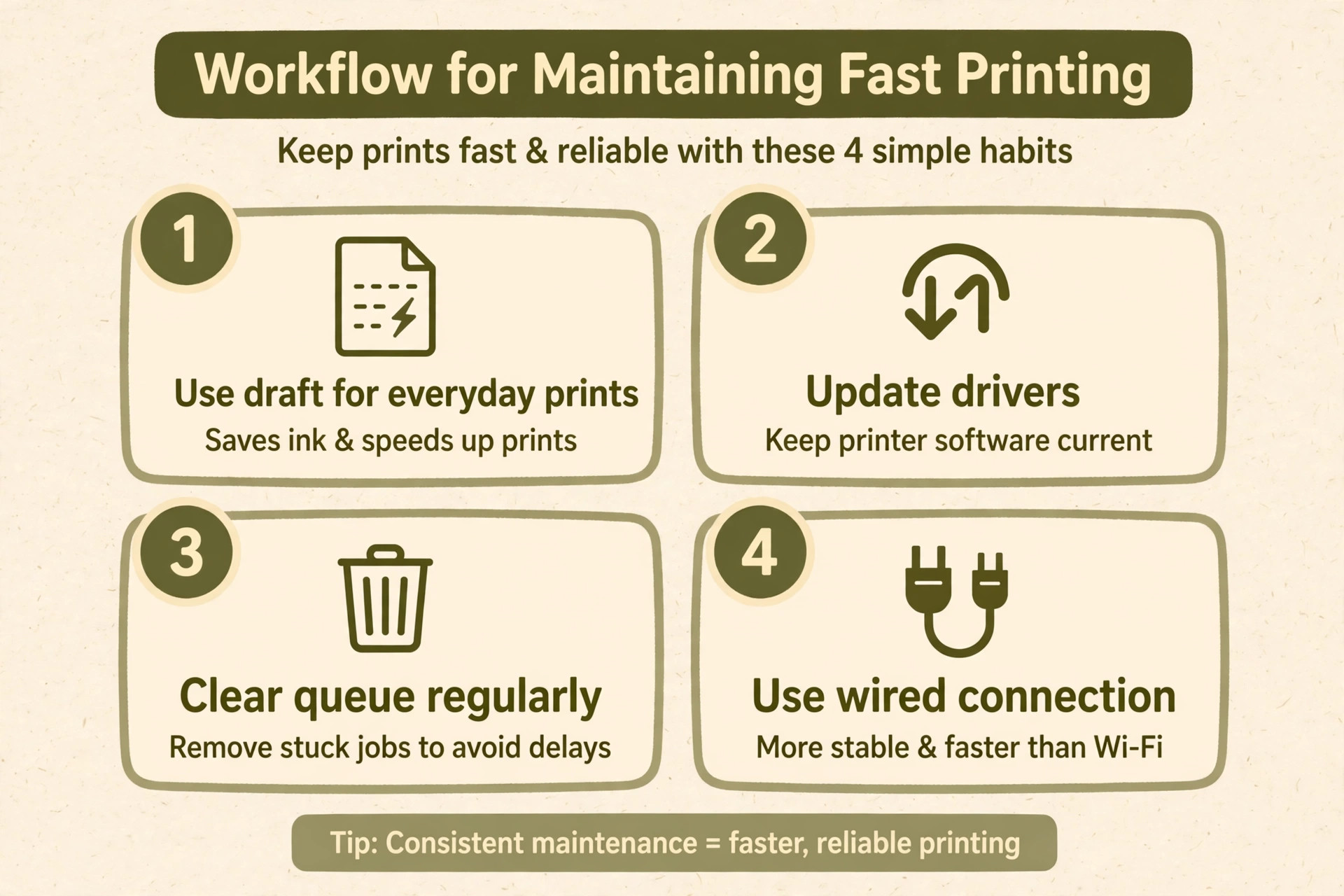
Once speed recovers, a short routine keeps it fast. Check print quality settings after any driver or firmware update, since updates can reset defaults to slower values. Clear the print queue promptly when a job fails, rather than letting failed jobs accumulate and slow the spooler. Keep the printer firmware and driver current, but install updates at a time when you can test a simple job afterwards, so a regression is caught immediately rather than during an urgent print. Keep paper fresh, flat, and correctly loaded, and keep the printer in a ventilated location where it can cool during long jobs.
Review network placement occasionally, especially if the router moves or new devices join the network, since a printer that was once close to the router may become a weak Wi-Fi client after a home rearrangement.
Log slow jobs briefly, noting the document type, the quality setting, the connection, and whether a simple text page was also slow. That log reveals patterns, such as slowness only for colour jobs, only over Wi-Fi, or only after long runs, and each pattern points to a different section of this guide. When you need to fix printer printing too slow trouble that returns, that log is more useful than a fresh round of guessing, because it shows whether the returning fault matches a previous cause or is genuinely new. Share the log with manufacturer support if the problem persists, since it gives them the pattern they need to recommend a driver, firmware, or hardware solution.
Shared printers slow down for reasons that single user printers do not, because many users send jobs at once and settings drift between users. A shared printer queue can hold dozens of jobs, and a single large job at the front can delay every job behind it, making every user report slowness even though the printer itself is healthy. Check the queue before troubleshooting the printer, and ask whether a large job is blocking smaller jobs, since pausing or reordering that job can restore speed for everyone. Agree on a default quality preset for shared use, as described above, so one user photo job does not leave the printer on best quality for the next fifty text jobs.
When you need to fix printer printing too slow trouble on a shared printer, start with the queue and the shared defaults, because those shared causes affect everyone and are invisible from any single computer.
More Reading on Stratilyze
Slow printing usually shares its cause with another printer fault on the same machine, so readers often check the neighbouring printer guides next. The guide to a printer that prints blank pages covers the cartridge and driver checks that also slow output, the guide to setting up a wireless printer for a home office explains the network setup that removes the bottlenecks behind slow queues, and the guide to the best printer for a home office small business helps readers whose old printer is simply past its useful speed.
Frequently Asked Questions
Why is my printer suddenly printing very slowly
Sudden slowness usually follows a setting change, a driver update, a new document type, or a network change. Check quality and paper type first, since a photo job can leave the printer on best quality. Then check the driver, spooler, and connection, testing with a simple text page on USB. If slowness began immediately after an update, a driver regression is likely, and rolling back the driver or resetting preferences is worth testing before assuming hardware failure.
Does print quality really affect speed that much
Yes, quality is the largest speed variable for most printers, especially inkjets. Best quality requires many more ink droplets per inch and more print head passes than normal quality, so a page that takes seconds at normal quality can take minutes at best quality. Draft quality is fastest, normal quality balances speed and appearance for everyday documents, and best quality should be reserved for photos and final copies where image detail matters more than time.
Why does my printer pause between pages
Pauses between pages usually mean the printer is waiting for data, processing a complex page, or cooling down after continuous use. Test with a USB connection to separate network waiting from processing waiting, and simplify the document to separate processing load from network load. If pauses appear only after long runs, overheating protection is likely, and letting the printer rest powered on for about thirty minutes should restore normal speed.
Why is Wi-Fi printing slower than USB printing
Wi-Fi data arrives unevenly, especially on a congested or distant wireless link, and the printer pauses while waiting for the next data burst. USB delivers data steadily and directly, so it prints faster on the same document. Moving the printer closer to the router, using Ethernet, or reducing network congestion during print jobs usually closes the gap. If USB printing is also slow, the fault is not the network, and quality, driver, or spooler checks become the priority.
Should I replace my printer because it prints slowly
Replace a printer for slowness only after quality, driver, spooler, connection, and document tests have failed for a simple text page. Most slow printing is a setting or software fault, not a hardware fault, and a new printer on the same slow settings will print slowly as well. Replace when the printer shows hardware warnings, fails maintenance, or remains slow on USB with a fresh driver and normal quality, since that pattern points to a genuine hardware limit or fault.
How can I print large documents faster without losing quality
Use normal quality instead of best quality for text heavy documents, compress images to print resolution, convert the document to PDF, and split the job into smaller batches. Print single sided for urgent jobs, use grayscale where colour is not needed, and use a wired connection for large jobs. Those steps together often halve printing time for large documents while keeping text sharp and professional, whereas best quality on a large graphics heavy document will always be slow regardless of other settings. When you need to fix printer printing too slow trouble for a recurring large report, saving those settings as a preset means you apply the fast configuration in one click every time.
When Slow Printing Means a Hardware Problem
Stop adjusting settings when the evidence points to hardware. A printer that prints slowly for a simple text page on USB, with normal quality, a fresh driver, a clean spooler, correct paper, and no maintenance warnings, has exhausted the software causes. A printer that makes unusual noises, shows repeated paper feed errors, or displays a maintenance warning alongside slowness also points to hardware. In those cases, contact manufacturer support with the results of the USB test, the driver version, and the simple page test, since that evidence proves the fault is not a setting.
A hardware fault may mean a repair, a maintenance service, or a replacement, depending on the printer age and cost, but making that decision on evidence prevents replacing a printer that only needed a quality setting changed, and it prevents endless setting changes for a printer that genuinely needs service. Slow printing is usually fixable, and the tests in this guide tell you which kind of slow printing you have before you spend money.