
Your MacBook shows full Wi-Fi bars one moment and nothing the next, or it sees your network, refuses the password you know is correct, and leaves you staring at a connection that never completes. When you need to fix MacBook wi-fi not connecting problems, the first job is not to fix anything. It is to decide whether the fault lives in the MacBook or in the network, because those two problems share identical symptoms and completely different solutions. A MacBook that cannot join any network has a MacBook problem. A network that no device can join has a router problem.
A MacBook that joins every network except yours has a problem in the relationship between that MacBook and that router, which is usually a saved password, a stale network profile, or a router setting. This guide starts with the test that separates those three cases, then works through the fixes in the order that solves the most cases first, from the thirty second checks to the deeper network resets.
The Two Device Test That Decides Everything
Before you change a setting, answer one question with evidence. Can another device connect to the same network right now. Pick up your phone, disconnect it from mobile data so it must use Wi-Fi, and try to join the same network and load a page. If the phone connects and loads pages while the MacBook cannot, the network is fine and the MacBook is the problem. If the phone also fails, the network or the router is the problem, and no MacBook setting will fix it.
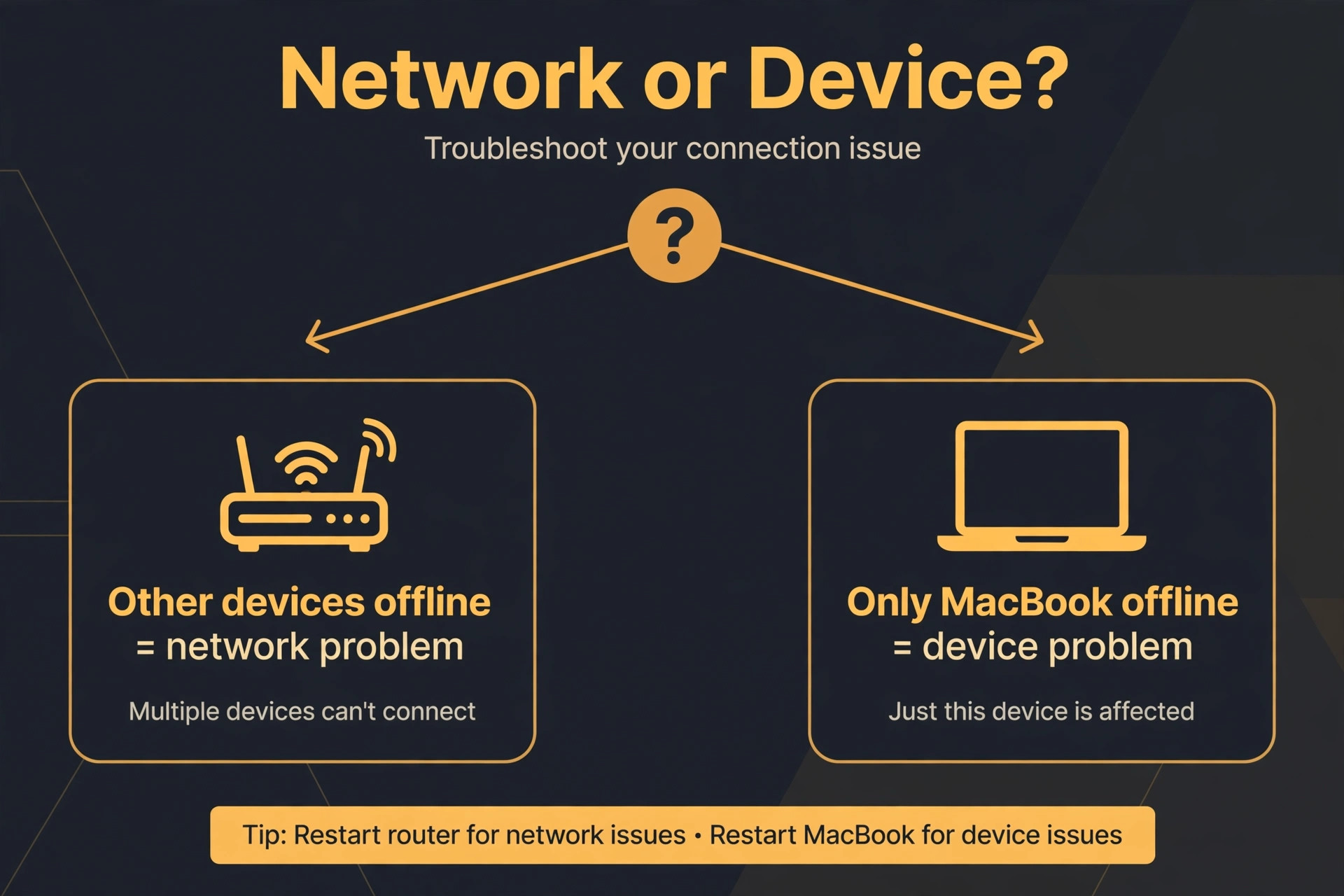
If the MacBook connects to a different network, such as a phone hotspot, but not to your home network, the problem sits between that MacBook and that router specifically, and the forget network and router steps later in this guide are the ones that matter.
Run a second test while you are at it. Move the MacBook close to the router, within a few feet and in the same room, and try again. Wi-Fi signal weakens through walls, floors, and metal objects, and a MacBook that connects beside the router but not from your desk has a range or interference problem rather than a configuration fault. Note both results before you proceed, because they decide which half of this guide you need, and they prevent the wasted hour of resetting MacBook network settings for a router that needed a restart.
| What you observe | Most likely cause | Check this first |
|---|---|---|
| No device can join the network | Router or internet outage | Router restart and ISP status |
| Other devices join but the MacBook cannot | MacBook network profile or system fault | Forget network and restart |
| MacBook joins other networks but not yours | Stale profile or router setting for this MacBook | Forget network and router firmware |
| MacBook connects but has no internet | DHCP, DNS, or captive portal problem | Renew DHCP lease and DNS change |
| MacBook connects beside the router only | Range, interference, or antenna issue | Router placement and band selection |
| Connection drops repeatedly | Interference, VPN, or unstable router | VPN off, band change, router restart |
| Network list is empty on the MacBook | Wi-Fi off, system fault, or hardware failure | Wi-Fi toggle, restart, Wireless Diagnostics |
| Password rejected though it is correct | Wrong network, caps lock, or router password change | Password check and forget network |
That table is the diagnostic core of this guide. Match your observation to a row, and you know whether to work on the MacBook, the router, or the link between them. The password row deserves a note. A password that worked yesterday can fail today if the router password was changed from another device, if caps lock is on, or if the MacBook is trying to join a neighbour’s network with a similar name. Confirm the exact network name and password from the router label or another connected device before you assume the MacBook is at fault.
What the Wi-Fi icon and error messages mean
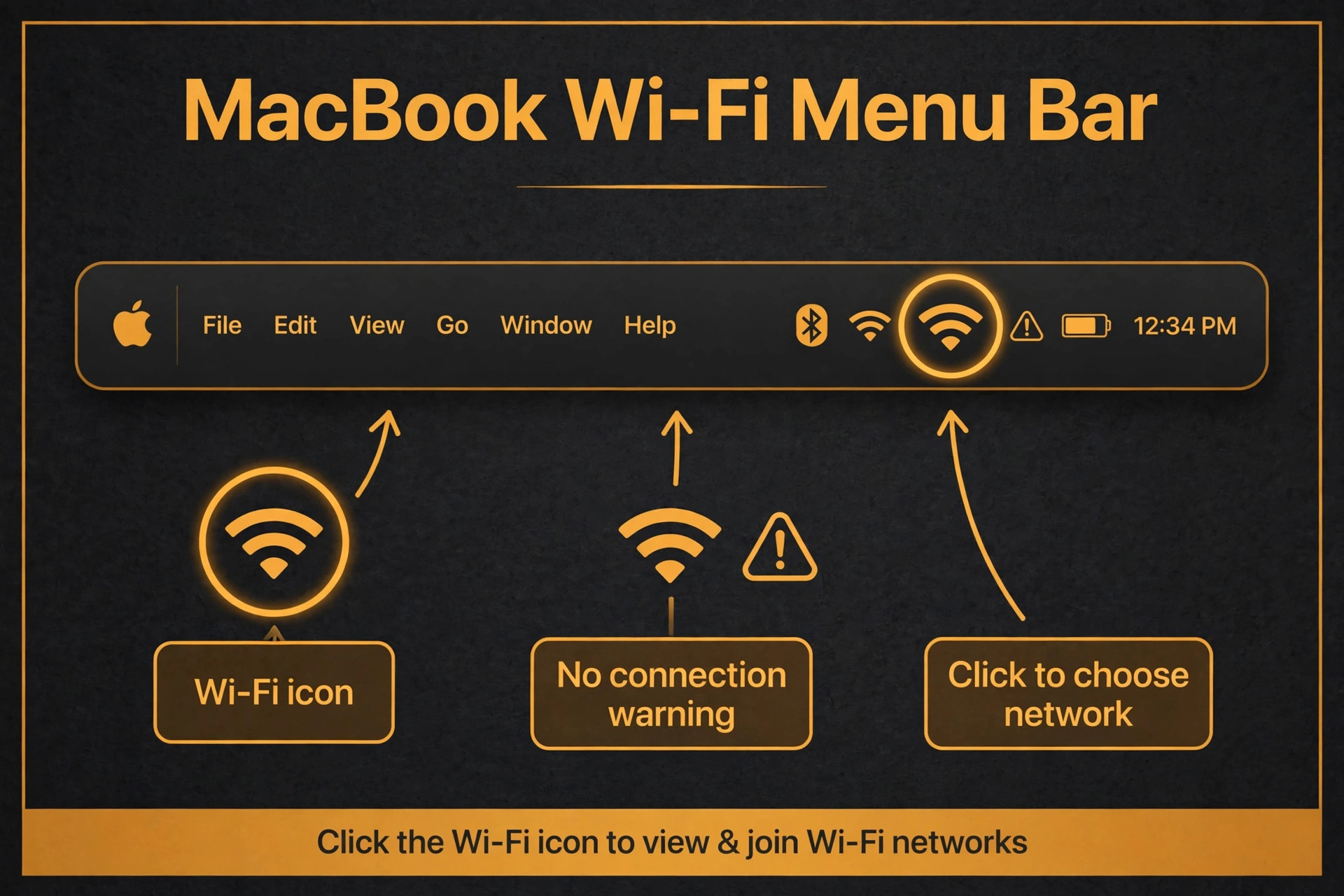
The Wi-Fi icon in the menu bar carries more information than a simple on or off. An empty or greyed icon with an exclamation mark usually means the MacBook is connected to a network but has no internet access, which points at DHCP, DNS, or a captive portal. A network name that appears and disappears from the list suggests interference or a router struggling under load. A message saying the Wi-Fi network could not be joined, or that a connection timeout occurred, often follows a stale saved profile or a router that has run out of addresses to hand out.
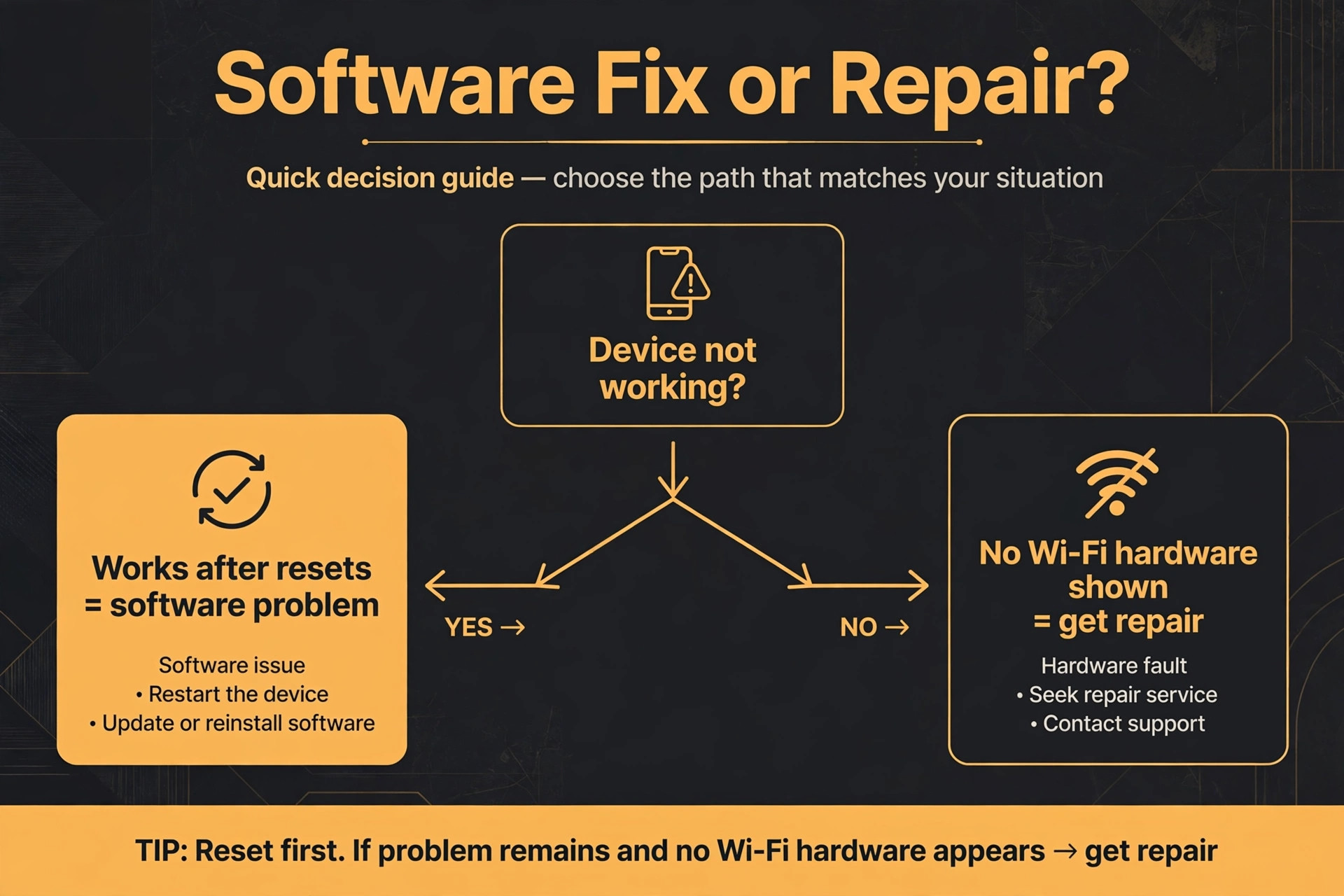
If System Settings shows no Wi-Fi hardware at all, or a message about no hardware installed, that is a hardware fault indicator, and the software steps in this guide are unlikely to help. Write down the exact message you see, because it is the clue a support technician will ask for first, and it often names the layer where the fault sits.
How to Fix MacBook Wi-Fi Not Connecting in Order
Work through this checklist from top to bottom and test the connection after each step. The order runs from the fastest checks to the deeper resets, and you should stop as soon as the MacBook connects and loads pages reliably.
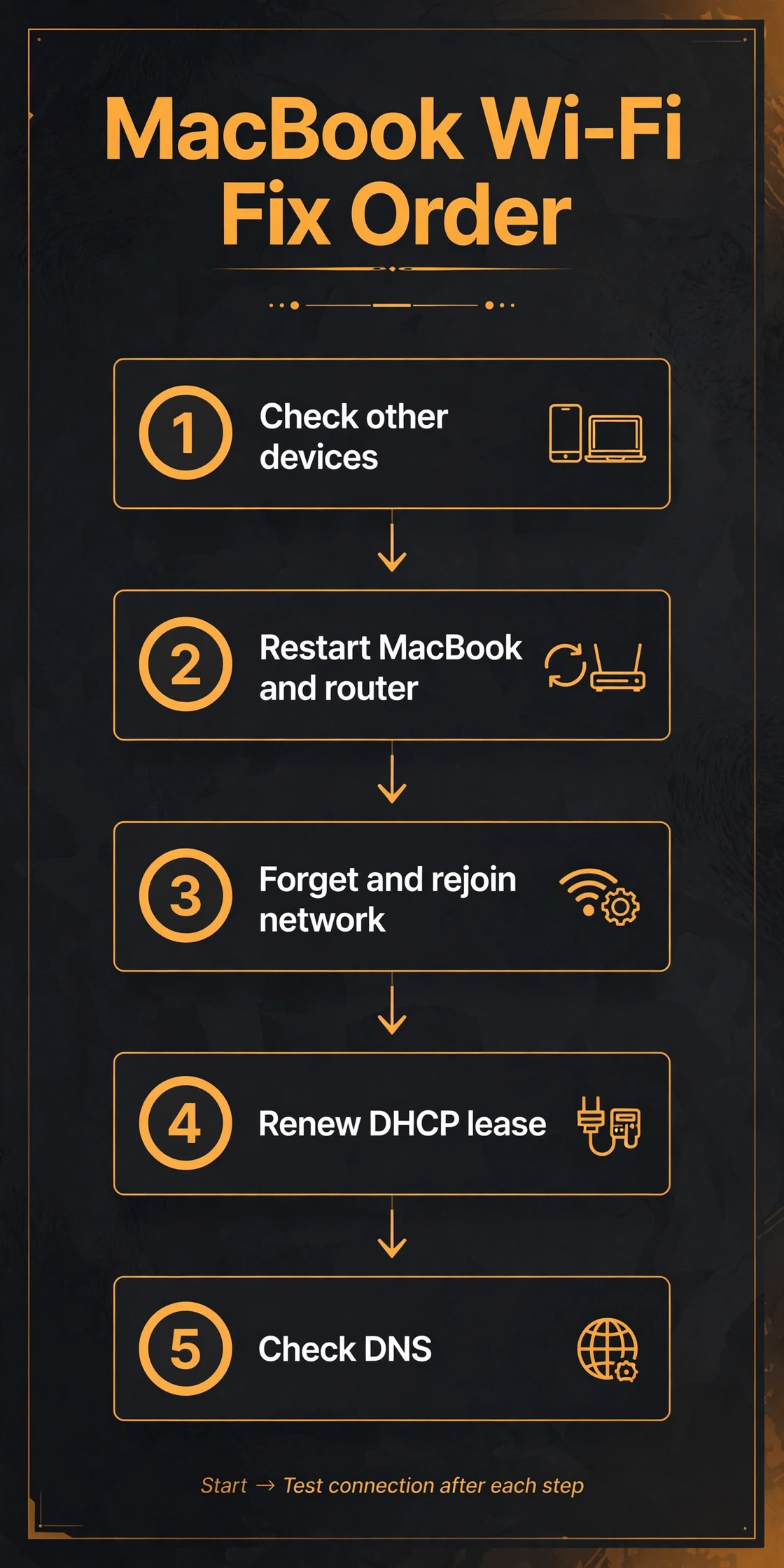
Step 1. Toggle Wi-Fi, restart the MacBook, and restart the router
Turn Wi-Fi off in the menu bar or Control Centre, wait ten seconds, and turn it back on. This clears a stuck wireless state without touching any saved network. If that fails, restart the MacBook from the Apple menu, because a restart clears stuck network processes and reloads the wireless system cleanly. Then restart the router by unplugging it for thirty to sixty seconds and plugging it back in, and wait two minutes for it to fully boot before testing. Restarting both ends of the connection resolves a large share of Wi-Fi complaints, because routers accumulate stale device tables and MacBooks accumulate stale network states, and a fresh start on both sides clears both at once.
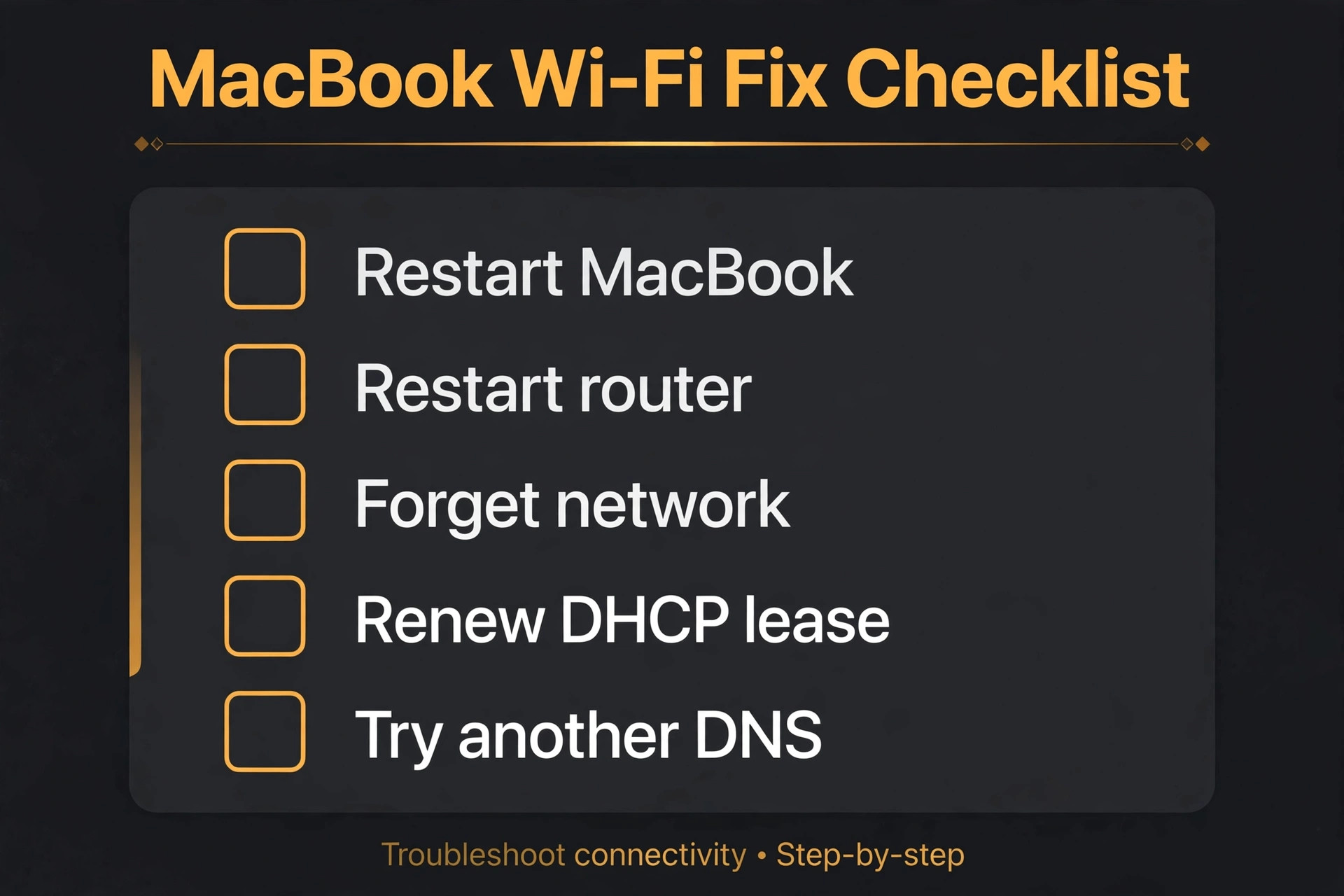
Test with the MacBook near the router for this step, so range does not confuse the result.
Step 2. Forget the network and rejoin it fresh
A saved network profile can corrupt silently, especially after a router password change or a macOS update, and the MacBook will keep failing with the old details no matter how many times you retry. Open System Settings, then Network, then Wi-Fi, and find your network in the list. Click the details button beside it and choose Forget This Network. Then select the network again from the Wi-Fi menu, enter the password carefully, and join. This forces the MacBook to negotiate a completely fresh connection, including a new DHCP lease and new security handshake, and it resolves a large number of stubborn refusals.
If the network does not appear in the list at all, check that Wi-Fi is on and that you are in range, and try the router restart again before moving on.
Step 3. Renew the DHCP lease and try different DNS servers
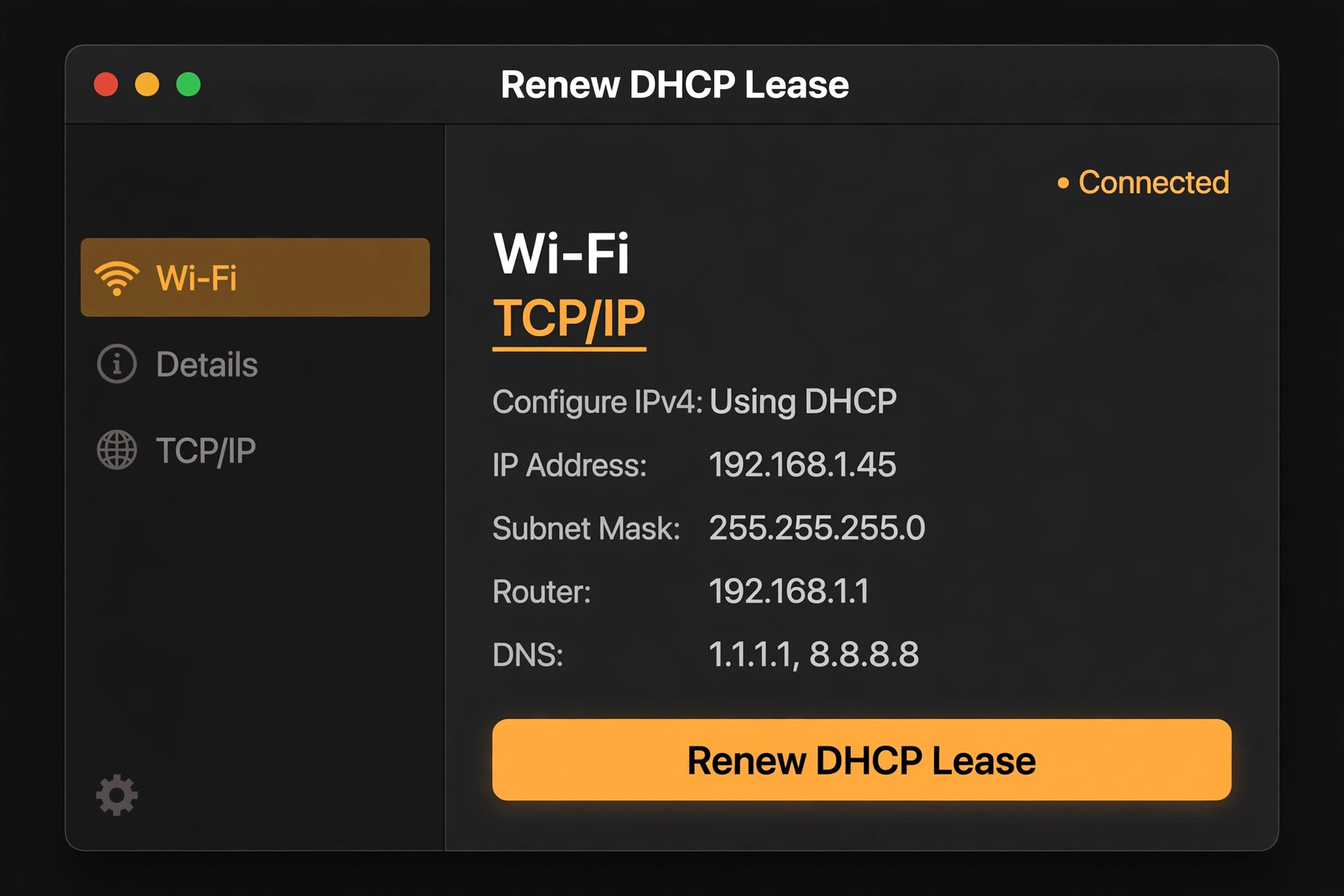
A MacBook that connects to Wi-Fi but cannot load anything often holds a bad or expired IP address. Open System Settings, then Network, then Wi-Fi, then Details beside your network, then the TCP/IP tab, and click Renew DHCP Lease. This asks the router for a fresh address and clears self-assigned addresses that go nowhere. If pages still fail to load, switch to the DNS tab and replace the current servers with public ones, such as Google’s 8.8.8.8 and 8.8.4.4 or Cloudflare’s 1.1.1.1 and 1.0.0.1, then apply and test. DNS failures look exactly like a dead connection, because the MacBook is online but cannot turn names into addresses, and a DNS change separates that fault from a real outage in seconds.
If public DNS fixes it, your router’s DNS forwarding is the underlying problem, and a router firmware update or a permanent DNS change on the router is the lasting fix.
Step 4. Turn off VPN, proxy, and firewall interference
VPN apps, proxy settings, and overzealous firewall rules can all block or reroute Wi-Fi traffic in ways that look like a connection failure. Disconnect any VPN completely, not just pause it, and test. Open System Settings, then Network, and check for any proxy configuration on the Wi-Fi connection, turning off proxies you do not specifically need. Then check the firewall under Network settings and consider turning it off briefly as a test, remembering to turn it back on afterwards. If the connection works with the VPN off, the VPN app or its configuration is the cause, and updating the app or changing its protocol usually resolves it.
Security software that filters network traffic can cause the same pattern, so note any such software and test without it if the VPN test points that way.
Step 5. Reduce interference and choose the right band
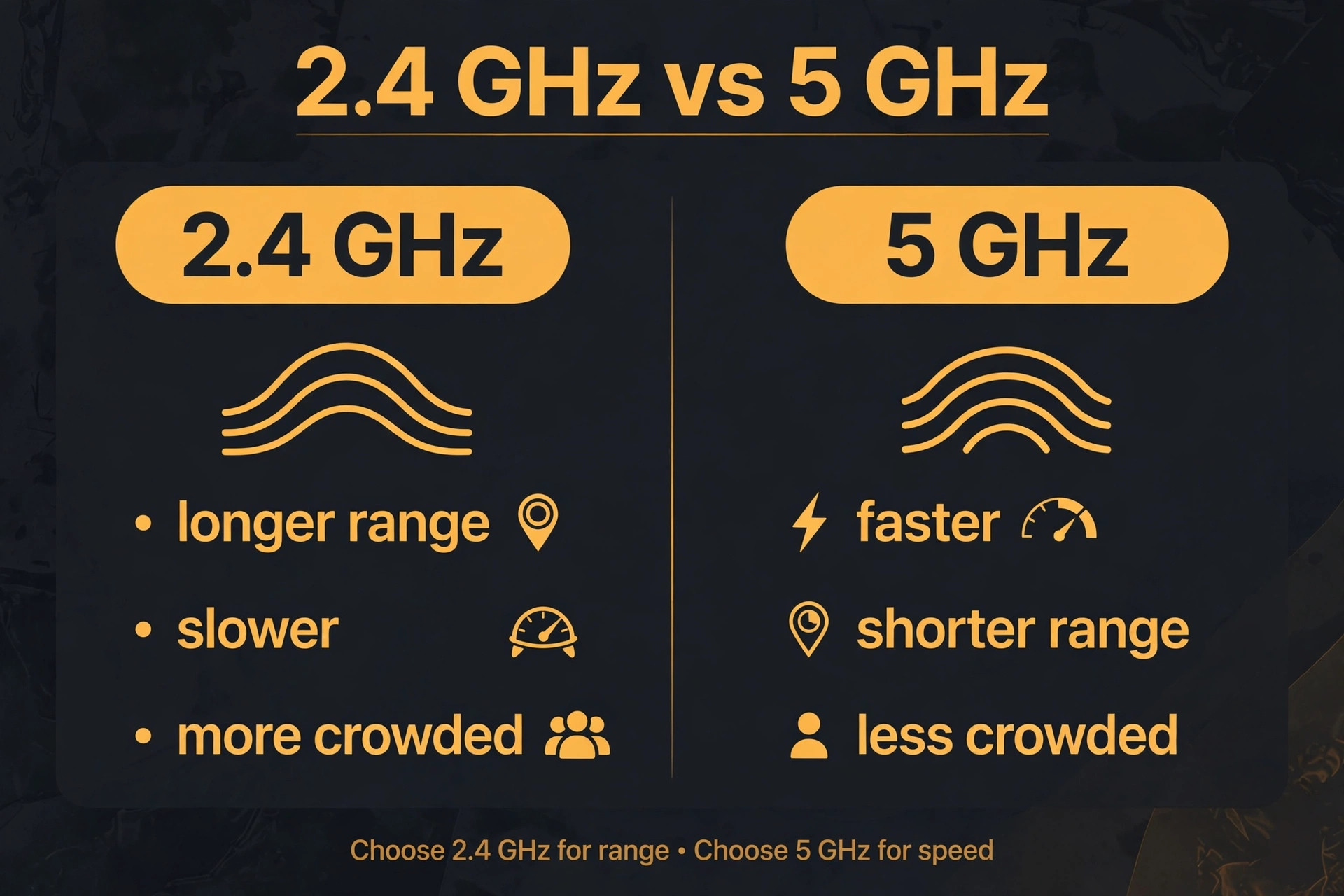
Wi-Fi shares crowded airspace, and interference is a real cause of drops and failures, especially on the 2.4 GHz band, which Bluetooth, microwaves, baby monitors, and neighbours all use. If your router broadcasts separate network names for 2.4 GHz and 5 GHz, try the 5 GHz network, which is faster and less crowded over short range. If it broadcasts one combined name, move closer to the router or away from thick walls and metal objects, and turn Bluetooth off temporarily as a test, because Bluetooth and 2.4 GHz Wi-Fi share spectrum and can interfere.
Unplug USB accessories, especially USB 3 hubs and drives, and test, because poorly shielded USB 3 devices are a documented source of 2.4 GHz interference on laptops. If the connection stabilises with Bluetooth off or a USB device removed, you have found an interference source, and the lasting fix is a different band, a different USB device, or a different desk layout.
Step 6. Run Wireless Diagnostics and check for macOS updates
Apple ships a built-in Wireless Diagnostics tool that examines your connection, your wireless environment, and your configuration together. Open it from Spotlight search, follow the prompts, and let it monitor the connection for a few minutes. It produces a report and specific recommendations, such as crowded channels or a weak signal, that guesswork cannot match. Then check for macOS updates under System Settings, then General, then Software Update, because Apple ships wireless fixes in ordinary updates, and a Wi-Fi bug introduced by one release is often patched in the next.
If the problem began right after an update, this step feels backwards, but the follow-up update is still the most likely patch, and skipping it leaves you troubleshooting a bug Apple has already fixed.
Step 7. Create a fresh network location and test in safe mode
When all else fails, a corrupted network configuration may be the cause, and a fresh network location bypasses it cleanly. Open System Settings, then Network, open the location menu, choose Edit Locations, add a new location with a fresh name, and apply it. Then rejoin your Wi-Fi network under that location. This gives the MacBook a clean set of network preferences without deleting your old ones, so you can switch back if it does not help. As a final software test, restart in safe mode, which loads only essential system extensions. If Wi-Fi works in safe mode, a third-party app or extension is interfering, and removing recently installed network tools, VPN apps, or security software is the next step.
If Wi-Fi fails in safe mode too, with a fresh location and a restarted router, the fault is likely hardware, and Apple Support or an authorised service provider is the honest next step.
Router Side Fixes That MacBook Owners Overlook
MacBook owners naturally focus on the MacBook, but the router controls half the connection, and several router settings cause MacBook-specific failures. Router firmware is the first check. Log in to the router admin page, usually through an address printed on the router label, and look for a firmware update. Outdated firmware can mishandle newer MacBook wireless features, and a firmware update often resolves failures that appear only on Apple devices. Next, check the router’s security setting. MacBooks expect modern WPA2 or WPA3 security, and a router set to an outdated or mixed mode can refuse newer MacBooks while older devices connect fine. Check the DHCP pool too.
A router configured to hand out only a small number of addresses can run out when many devices have connected over time, and the next device to join, often your MacBook, gets no address at all. Restarting the router clears that pool, which is one reason a router restart fixes so much.
MAC address filtering and device limits are quieter router causes. Some routers maintain an allow list of devices, and a MacBook whose private Wi-Fi address has rotated will appear as a new device and be blocked. macOS rotates the Wi-Fi address for privacy on some networks, and that rotation can break a router that only allows known addresses. If your router uses MAC filtering, either add the MacBook’s current address or turn filtering off, since it provides little real security and causes exactly this class of failure. Similarly, some routers limit the number of connected devices, and a house full of phones, TVs, and smart devices can hit that limit silently.
If the MacBook connects when other devices are disconnected, the router’s device limit is the cause, and the fix is a router setting or a newer router rather than a MacBook repair.
Captive portals, work networks, and school networks
Public, office, and school networks add a layer that home networks do not. Captive portals require you to accept terms or sign in through a web page before internet access opens, and a MacBook that connects to the Wi-Fi but cannot load anything may simply be waiting for that portal page. Open a browser and try to load any ordinary web page, which usually triggers the portal. If the portal page never appears, try turning Wi-Fi off and on, forgetting the network and rejoining, or using a private browsing window, because cached portal redirects sometimes loop.
Some portals also expire after a set time and require a fresh sign in each day, so a connection that worked yesterday and fails today may only need that sign in repeated. Work networks may also require certificates, specific security settings, or an IT-managed profile, and those are not faults you can fix from the MacBook alone. If the MacBook works on every home network but fails only on one managed network, contact that network’s IT support with the exact error message, because the fix lives in their configuration. The same logic applies to networks that block certain devices by policy, which no MacBook setting can override.
When the Wi-Fi Hardware Is the Problem
There is a clear line where software troubleshooting ends. If System Settings reports no Wi-Fi hardware installed, if the Wi-Fi menu is permanently greyed out across restarts and safe mode, or if the MacBook cannot see any network even beside a working router while other devices connect fine, the wireless module or its antenna connection is the likely fault. Antenna connections can loosen after a drop or a repair, and the wireless module itself can fail, though both are uncommon compared with settings and router faults.
Before you book a repair, confirm the pattern with the two device test and the near router test, and note whether Bluetooth also fails, since Wi-Fi and Bluetooth often share a module and a joint failure strengthens the hardware case. Check warranty and AppleCare coverage, back up the MacBook, and take your test notes to Apple Support or an authorised provider. A clear note saying the MacBook fails on all networks, in safe mode, beside the router, while other devices succeed, lets the technician skip the software checks and go straight to hardware diagnosis.
A word about the private Wi-Fi address feature is worth adding here, because it sits between software and hardware confusion. macOS offers a private address option per network, designed to prevent tracking, and on most home networks it causes no trouble. On networks with device allow lists, parental controls tied to addresses, or time limits tied to a device, a rotating address can break access in ways that look like random failures. If your MacBook connects on some days and not others on the same network, open the network details and check whether the private address setting is on.
Turning it off for a trusted home network gives the router a stable identity for your MacBook, and it often ends intermittent failures that no restart ever fixed. This is a legitimate privacy trade off on a network you own and trust, and it is reversible at any time. If you are still unsure after all software tests, a short visit to a service provider with your notes will settle the question far faster than another round of resets at home.
Mistakes People Make When They Try to Fix MacBook Wi-Fi Not Connecting
The most common mistake when you try to fix MacBook wi-fi not connecting problems is to reset the MacBook’s network settings before testing another device, which destroys useful saved networks for a router fault that a restart would have fixed. The second mistake is to test only in one spot, far from the router, and conclude the MacBook is broken when the real problem is range through two floors and a metal cabinet. The third mistake is to enter the password repeatedly without checking caps lock, the exact network name, or whether the router password changed, which locks some routers temporarily after repeated failures and makes the problem worse.
The fourth mistake is to ignore the VPN, because a VPN that is connected but failing blocks traffic while the Wi-Fi icon shows a healthy connection, and the owner troubleshoots Wi-Fi for an hour before noticing the VPN. Work the order in this guide, test after each step, and write down what changed, because a MacBook that fails again next month is usually repeating the same cause, and your notes will find it in minutes. Learning how to fix MacBook wi-fi not connecting issues properly is mostly learning to test before you reset, and to blame the router only after another device has proven it guilty.
A Routine That Keeps MacBook Wi-Fi Reliable
Reliable Wi-Fi is mostly router hygiene plus a few MacBook habits. Restart the router monthly, which clears stale device tables before they cause failures. Keep router firmware updated, and place the router centrally, elevated, and away from metal objects, microwaves, and thick walls. On the MacBook, keep macOS updated, forget networks you no longer use so the MacBook stops trying to join stale ones, and review the private address setting on networks with device controls. If you use a VPN daily, keep it updated and test the connection with it disconnected whenever Wi-Fi misbehaves, so you learn its failure pattern before it surprises you. Finally, keep a phone hotspot as a known good test network.
A hotspot that the MacBook joins instantly proves the MacBook’s wireless system works, and that single fact separates a MacBook fault from a router fault faster than any other test you own. Owners who know how to fix MacBook wi-fi not connecting faults quickly almost always have this hotspot test ready.
More Reading on Stratilyze
Wireless faults tend to repeat across the devices in a home, so readers whose MacBook will not connect usually test the same network from their other machines next. The guide to an iPhone that will not connect to Wi-Fi covers the same network from inside the Apple ecosystem, including the shared settings that can block both devices at once, the guide to an Android phone that will not connect to Wi-Fi shows the same diagnosis from the other major phone platform, and the guide to a Windows machine where Wi-Fi networks do not show up at all explains the driver and adapter checks that matter when the network list itself goes missing.
Frequently Asked Questions
Why does my MacBook say the Wi-Fi password is incorrect when it is right?
The usual causes are caps lock, the wrong network with a similar name, a router password changed from another device, or a corrupted saved profile. Confirm the password from the router label or another connected device, forget the network on the MacBook, and rejoin with the password typed carefully. If it still fails, restart the router, because a router that has run out of addresses or locked after repeated attempts can reject a correct password.
Why does my MacBook connect to Wi-Fi but have no internet?
This pattern points at DHCP, DNS, or a captive portal rather than at the wireless link itself. Renew the DHCP lease under the network details, switch to public DNS servers to test, and open a browser to trigger any captive portal page. If another device on the same network loads pages fine, the fault is in the MacBook’s network configuration, and forgetting the network or creating a fresh network location usually resolves it.
Should I turn off private Wi-Fi address on my home network?
On a trusted home network it is often sensible, especially if the router uses device allow lists, parental controls, or time limits tied to a device address. A rotating private address can break those controls and produce intermittent failures. On public networks, keep the private address on, because it protects your privacy. The setting is per network, so you can turn it off at home and keep it on everywhere else.
Why does my MacBook Wi-Fi work near the router but not in my room?
Signal weakens through walls, floors, metal objects, and interference from other electronics, and the 2.4 GHz band is especially crowded. Move the router to a more central and elevated position, try the 5 GHz network for short range speed, and consider a mesh system or extender for a large home. If the MacBook works beside the router and fails two rooms away while other devices manage, the MacBook’s antenna may also deserve a check, but range and interference are far more common.
What does Wireless Diagnostics actually do?
Wireless Diagnostics examines your Wi-Fi connection, the wireless environment around you, and your network configuration, then reports specific problems such as crowded channels, weak signal, or configuration faults. Open it from Spotlight, follow the prompts, and let it monitor for a few minutes. Its recommendations are based on measurements rather than guesses, which makes it far more useful than trying settings at random. If you need to fix MacBook wi-fi not connecting issues that resist the basic steps, its report is also the evidence Apple Support will want.
Is it worth reinstalling macOS to fix Wi-Fi?
Almost never as an early step. Reinstalling macOS is disruptive and rarely fixes a problem that a forget network, DHCP renewal, fresh network location, or router restart would not solve. Only consider it after safe mode, a fresh location, and router checks have all failed, and after you have backed up fully. If Wi-Fi fails in safe mode on all networks beside a working router, the fault is more likely hardware than software, and a reinstall will not help that either.
The Final Word on a MacBook That Will Not Connect
A MacBook that will not connect to Wi-Fi is usually not broken. It is confused, or its router is confused, or the two of them disagree about a password, an address, or a setting. The two device test tells you which one to blame, the checklist works the fixes in the order that solves the most cases first, and the battery of deeper steps, from fresh network locations to Wireless Diagnostics, covers the stubborn remainder. Keep the router healthy, keep macOS updated, and keep a hotspot ready as your known good test.
Do that, and the next time you need to fix MacBook wi-fi not connecting problems, you will find the cause in minutes rather than losing an evening to random resets. That method beats guessing every single time. Keep this guide bookmarked for the next outage you face.