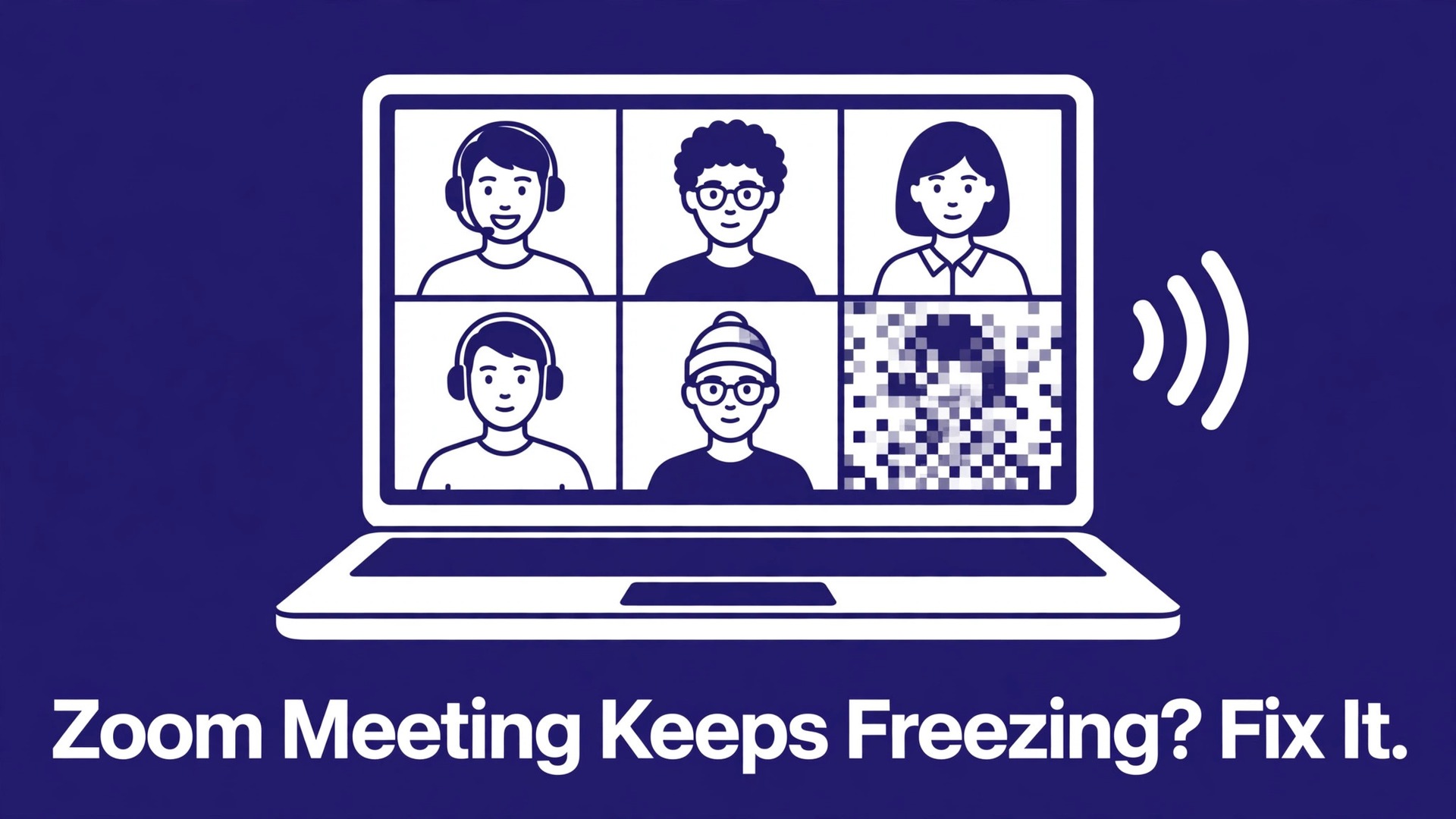
Group HD video on Zoom needs about 3 Mbps of upload and download speed, and that single number explains more frozen meetings than any other fact, which is why the first step to fix Zoom meeting keeps freezing is to test your connection speed. A connection that handles email, web browsing, and even streamed video can still fall short for live two way video, because a meeting cannot buffer ahead the way a streamed show can. Every lost packet shows up immediately as a frozen face, a stalled screen share, or a voice that breaks into fragments.
When you need to fix Zoom meeting keeps freezing trouble, the first job is therefore to find out whether the bottleneck is the network, the computer, or the Zoom settings, because each one demands a different fix and treating the wrong one wastes the whole meeting. This guide works through the causes in tested order, starting with the fastest checks and ending with the deeper changes that make future meetings stable.
Reading the Freeze Before You Touch a Setting
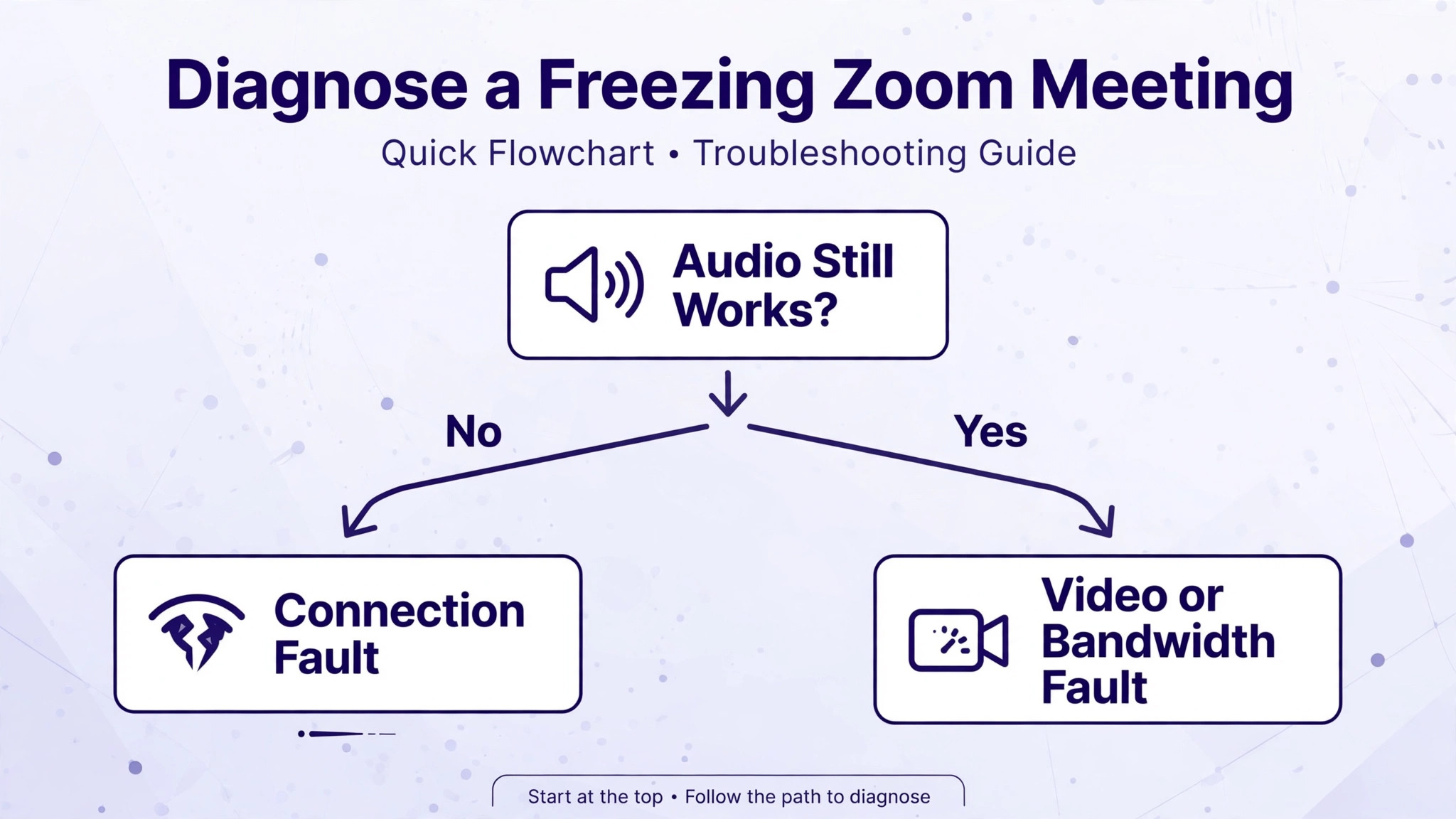
Not all freezing looks the same, and the pattern is diagnostic. If your own video freezes while other people keep moving, your upload connection or your camera processing is struggling. If everyone else freezes while you can still speak and be heard, your download connection or your computer decoding is the problem. If audio continues smoothly while video freezes, the video stream specifically is starved, which often means bandwidth or processor load rather than a total connection loss. If the whole meeting freezes and then catches up in a burst, the connection is suffering jitter, meaning packets arrive unevenly rather than slowly.
Write down which pattern you see, because it tells you where to focus and it stops you from upgrading an internet plan when the real problem is a laptop running too many heavy apps.
A second useful test takes thirty seconds. Turn your camera off and keep talking. If audio becomes stable and screen sharing smooths out, video load was the breaking point, and the settings fixes later in this guide will probably solve the problem. If audio still breaks with video off, the network itself is unstable, and you should focus on the connection section first. A third test is to join the same meeting from a phone on mobile data. If the phone runs smoothly while the computer freezes, the computer or its Wi-Fi link is at fault. If both freeze, the home network or the meeting host connection is more likely involved.
These three tests cost almost nothing and they prevent the most common troubleshooting error, which is changing Zoom settings when the router is the real problem.
| Freeze pattern | Likely cause | First action to try |
|---|---|---|
| Your video freezes, others move normally | Weak upload or camera load | Turn off HD video and move closer to the router |
| Everyone else freezes, your audio continues | Weak download or decoding load | Switch to Speaker view and close heavy apps |
| Video freezes but audio stays clear | Video bandwidth or processor strain | Disable virtual background and HD video |
| Whole meeting freezes then jumps ahead | Jitter or unstable Wi-Fi | Use Ethernet or test on mobile data |
| Freezing starts when screen sharing starts | Processor and bandwidth spike | Share a single window, not the full screen |
| Freezing only in large gallery meetings | Processor load from many video feeds | Hide non-video participants and use Speaker view |
| Freezing only at a certain time of day | Household bandwidth competition | Pause streaming and downloads during meetings |
| Freezing on one computer but not on a phone | Computer hardware or driver problem | Update drivers and test with video off |
A Fix Order to Fix Zoom Meeting Keeps Freezing in Stages
Work through this checklist in order and test with a short call after each group. Do not reinstall Zoom until the network and settings steps have failed, because a reinstall rarely fixes a bandwidth or processor problem and it costs you sign-in and configuration time.
1. Zoom Meeting Quick Checks in the First Two Minutes
Start inside the meeting itself. Mute yourself when you are not speaking, because an open microphone adds audio processing and can trigger noise suppression work on every participant feed. Turn your camera off briefly to confirm whether video load is the trigger, as described above. If you are presenting, stop screen sharing for a moment and see whether freezing eases, because sharing a full high resolution screen is one of the heaviest things Zoom does. Ask another participant whether they see you freeze, because their answer tells you whether the fault is on your sending side or your receiving side, and that distinction guides everything that follows.

Next, close the obvious competitors for processor and network resources. Browsers with many tabs, cloud storage syncing large files, video streaming on another device, and software updates downloading in the background can each consume enough bandwidth or processor time to freeze a meeting. Pause cloud sync during meetings, close unused browser tabs, and postpone large downloads until after the call. Check whether anyone else in the household is streaming video or gaming, because a single 4K stream can consume the headroom a group HD call needs. These steps feel mundane, but they resolve a large share of freezing complaints, especially in homes where the connection is adequate for one demanding task but not for several at once.
2. Zoom Network Fixes, From Wi-Fi Position to Ethernet
If the quick checks did not help, work on the connection itself. Move closer to the router or remove obstacles between the computer and the router, because walls and distance weaken Wi-Fi in ways that speed tests sometimes hide. If the router offers both 2.4 GHz and 5 GHz networks, try the 5 GHz network for meetings, since it is usually less crowded and faster over short distances, although its range is shorter. Restart the modem and router by unplugging them, waiting about thirty seconds, and plugging them back in, then wait for the connection to stabilise before rejoining. That restart clears temporary faults that build up over days of continuous operation.
The strongest network fix is also the simplest. Connect the computer directly to the router with an Ethernet cable, even temporarily, and test a meeting. If freezing vanishes on Ethernet, the Wi-Fi link was the problem, and the permanent solution may be a better router position, a mesh system, or a powerline adapter rather than any Zoom change. Run a speed test during a normal meeting time, not late at night when the network is quiet, and look at upload speed and jitter as well as download speed, because upload matters as much as download for two way video.
Zoom publishes about 3 Mbps up and down for group HD video, with lower figures for standard video, so a connection testing below those figures on upload needs attention before any settings change will help.
3. Zoom Video Settings That Reduce Load Without Ruining Quality
Open Zoom settings and open the Video section. Turn off HD video, because standard video needs far less bandwidth and processor power while remaining perfectly clear for most meetings. Turn off any virtual background or video filter, since replacing the background in real time is processor intensive, especially on older laptops. Use a plain background or a simple static image if a background is required, and avoid animated effects entirely during important calls. In the General settings, turn off the option to display many participants per screen in Gallery view if it is enabled, because decoding dozens of video feeds at once is one of the heaviest loads Zoom places on a computer.
Switch your view during large meetings. Speaker view shows only the active speaker in large format and dramatically reduces the number of video streams your computer must decode, while Gallery view asks it to decode many at once. Turn on the option to hide non-video participants, which removes blank tiles that still consume layout and processing resources. When screen sharing, share a single application window rather than the whole desktop when possible, and share only for as long as needed, because sharing adds encoding work on top of camera work. Each of these changes trades a small amount of visual richness for a large amount of stability, and for work meetings that trade is almost always worth making.
To fix Zoom meeting keeps freezing problems that only appear in large calls, these view and background changes are usually more effective than any network upgrade.
4. Zoom Computer Performance, Drivers, and Power Settings
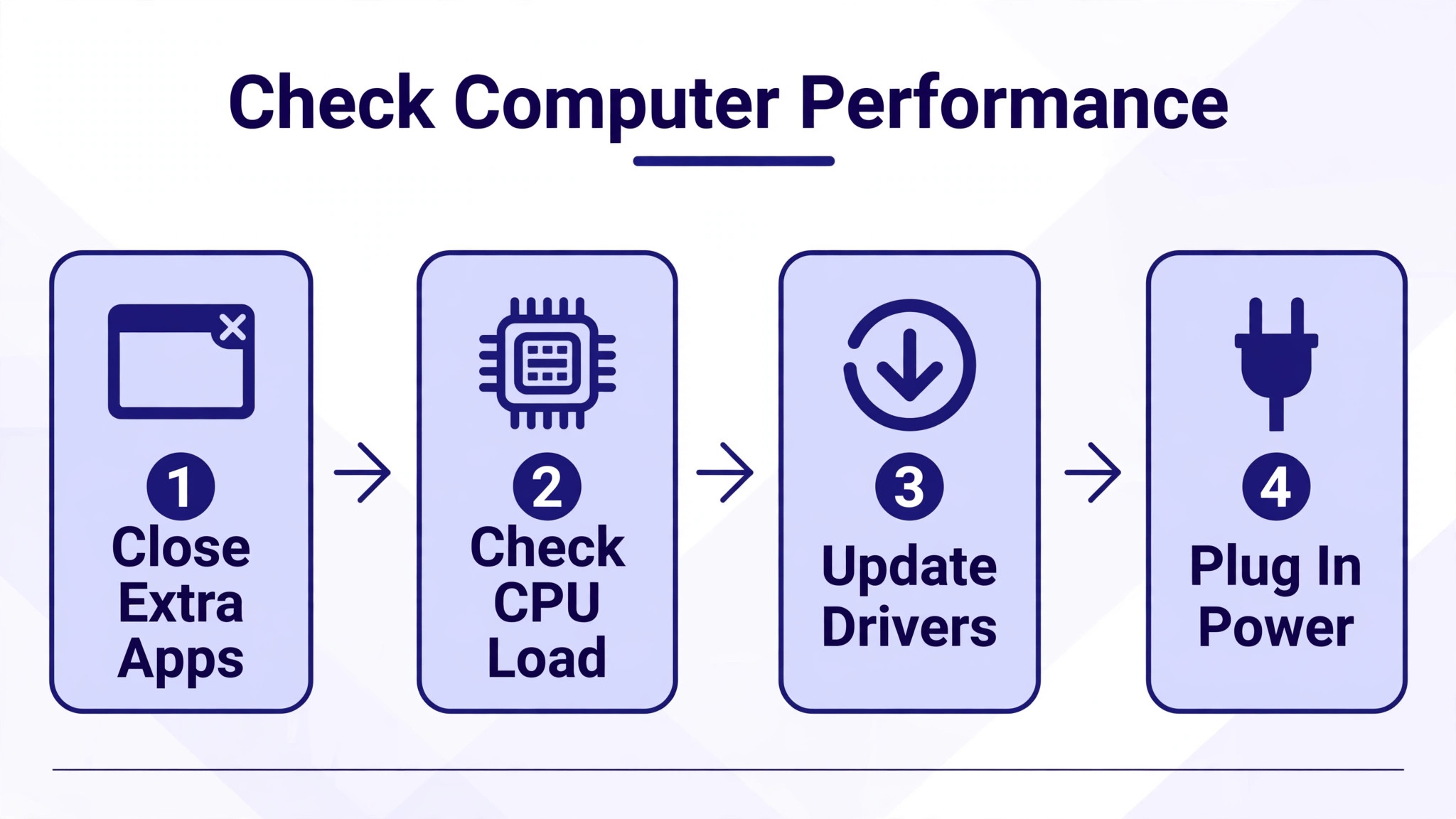
A computer that is struggling will freeze Zoom even on a fast connection. Open the task manager and look at processor and memory use during a meeting. If processor use sits near its maximum, close heavy apps and consider whether the computer is simply underpowered for HD video plus screen sharing plus a browser full of tabs. Update the graphics driver and the network adapter driver from the manufacturer website or through the operating system update tool, because outdated drivers are a known cause of video stutter in conferencing apps. Update Zoom itself as well, since Zoom releases performance fixes frequently and an old client can contain bugs that newer versions have removed.
Check the power settings on a laptop. A power saver or best efficiency mode limits processor speed to save battery, and that limit can starve real time video encoding. Switch to a balanced or best performance mode while plugged into power during meetings, and keep the laptop plugged in for long calls. Make sure the laptop can breathe, because a laptop that overheats will slow its processor to protect itself, and that slowdown appears exactly as freezing during video calls. Lift the laptop off soft surfaces, clear blocked vents, and avoid running a meeting with the laptop on a bed or cushion.
If freezing disappears when the laptop is cool and plugged in, heat and power limits were contributing, and a cooling stand or a change of working position may be a better long term fix than any software change.
5. Zoom Audio, Camera, and Device Checks
Sometimes the freeze is not in Zoom at all but in the camera or audio device feeding it. Test with a different camera if one is available, including a phone camera through a continuity feature or a basic USB webcam, and see whether freezing follows the camera or stays with the computer. Disconnect external monitors temporarily, because driving multiple high resolution displays adds graphics load that competes with video decoding. Test with a wired headset instead of Bluetooth audio, because Bluetooth audio can add latency and processing load and can interfere with Wi-Fi on some systems. If freezing eases with a wired headset, the Bluetooth link was part of the problem.
Check the camera privacy and device selection settings in Zoom as well. Open Settings, open Video, and confirm the correct camera is selected and shows a smooth preview. A camera selected at a higher resolution than the computer can handle comfortably will strain encoding, so choose a lower resolution where the settings allow it. Close other apps that might hold the camera, such as a browser tab using video, a recording tool, or another meeting app left running, because only one app can reliably control the camera at a time and contention can freeze the feed.
These device checks take a few minutes and they separate a failing webcam from a failing connection, which matters because the two faults have completely different solutions.
6. Zoom Reinstall and Network Tool Checks for Persistent Freezing
If freezing survives network, settings, and hardware checks, test Zoom network connectivity with the tools Zoom provides and consider a clean reinstall. Uninstall Zoom, restart the computer, and install the latest client from the official Zoom download page. Sign in again and test with a short meeting before restoring custom settings, so you can tell whether a corrupted setting or a corrupted install was involved. Reapply settings one group at a time, starting with video, and test after each group if freezing returns, because that identifies the setting that triggers it.
Also test from a different network entirely, such as a phone hotspot, to separate a home network fault from a computer fault. If Zoom runs smoothly on a hotspot but freezes on home Wi-Fi even on Ethernet, the router, the internet service, or a firewall rule deserves attention, and contacting the internet provider with speed test results taken during meetings gives them evidence they can act on. Check firewall and antivirus settings as well, because security software that inspects video traffic can add delays that appear as freezing, and temporarily testing with a different security configuration, where safe, can reveal whether inspection is the bottleneck.
To fix Zoom meeting keeps freezing faults that survive every local step, this network change test is the most valuable evidence you can gather, because it tells support staff exactly where the fault lives.
Zoom Freezing on Different Devices and Meeting Types
Freezing behaves differently across devices, and the fix should follow the device. On a Windows laptop, driver updates and power modes matter most, and the task manager gives a clear view of processor load. On a Mac, closing heavy browser tabs and checking for a macOS update often matters more, because macOS manages camera and graphics resources differently and a pending update can leave video frameworks in a strained state. On a Chromebook or a tablet, the device itself may simply lack the processor headroom for gallery video, so Speaker view and camera off are not optional optimisations but necessary settings for stable meetings.

On a phone, mobile data signal strength and battery saver modes are the usual suspects, and switching between Wi-Fi and mobile data quickly reveals which network is at fault.

Meeting type matters as well. A one to one call needs far less bandwidth and processing than a fifty person gallery meeting, so a setup that handles small calls perfectly can still freeze in large meetings. Webinars, where most participants have video off, behave differently again, because the load shifts to the presenters and to screen sharing rather than to dozens of incoming feeds. Breakout rooms can trigger a fresh burst of freezing when participants move, because Zoom must renegotiate video streams for the new room.
If freezing follows a specific meeting type, focus on the load that type creates, such as gallery decoding for large meetings or screen share encoding for presentations, rather than treating every freeze as a generic network fault. This distinction also helps when reporting the problem, because support staff can reproduce a large gallery freeze more easily than a vague report that Zoom sometimes freezes.
Hosting Meetings That Do Not Freeze for Anyone
If you host meetings, you can reduce freezing for participants as well as for yourself. Share slides as files or links where possible instead of sharing your screen for long periods, because a shared file lets participants view content without the continuous encoding load of live screen sharing. Keep your own video at standard resolution and avoid virtual backgrounds while presenting, since the host feed is the one everyone must decode. Mute participants on entry for large meetings, and encourage participants to stay muted when not speaking, because open microphones add audio streams and processing for everyone. Record to the cloud rather than locally if your computer is already struggling, since local recording adds encoding work during the meeting itself.
Schedule and preparation matter too. Restart the computer before an important meeting, close everything except Zoom and the documents you need, and join a few minutes early to test video and audio before participants arrive. If you present regularly from home, invest in the connection before investing in a new camera, because a stable Ethernet link improves every meeting more than a sharper image that freezes. Keep a phone with the Zoom app ready as a backup audio route, so that if video freezes during a critical meeting you can continue by audio while you fix the computer, rather than losing the meeting entirely.
Hosts who prepare this way rarely lose meetings to freezing, because they have removed the common triggers before the call starts and they have a fallback when an unexpected trigger appears.
A Weekly Routine That Keeps Zoom Stable
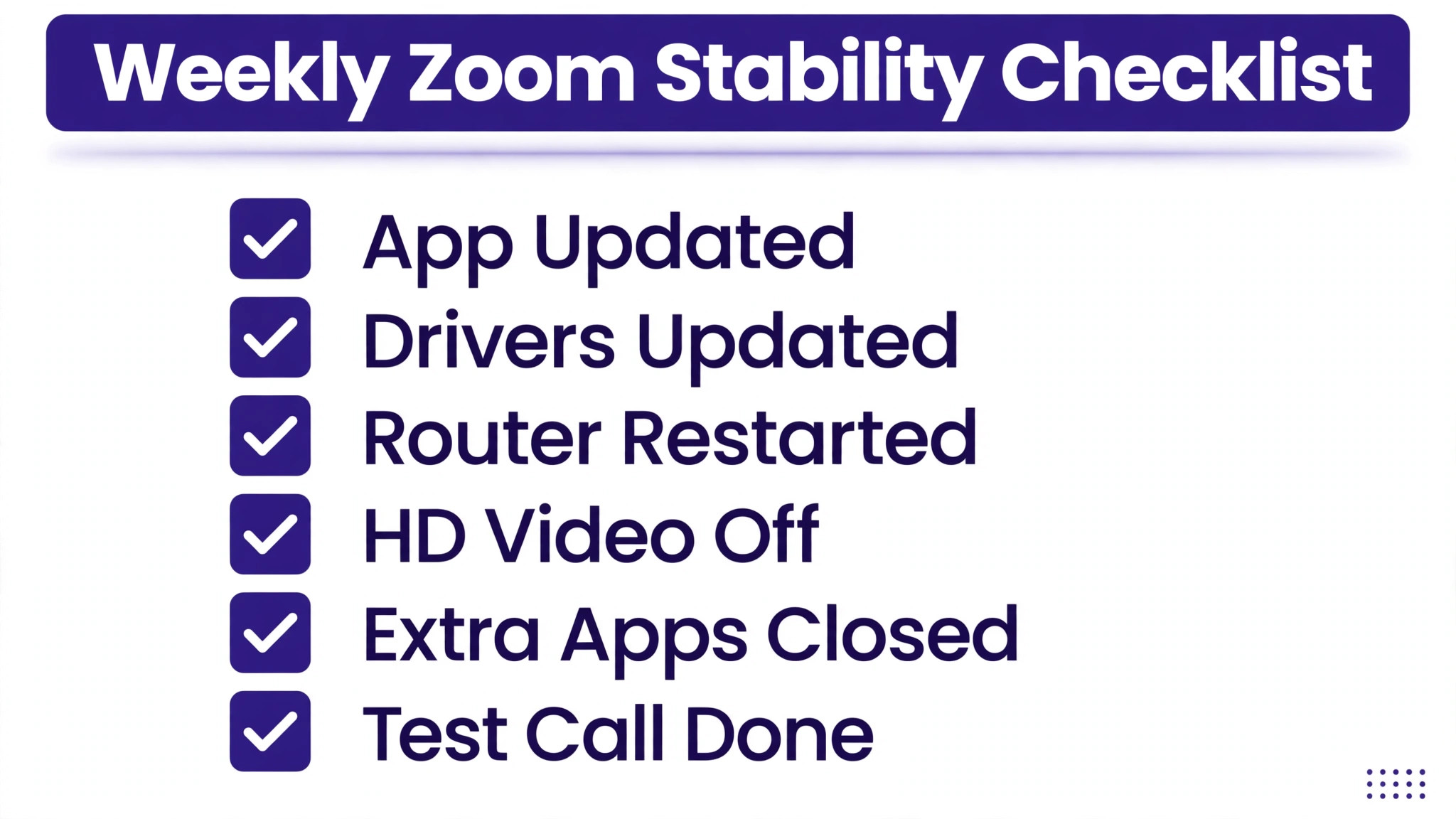
Stability is easier to maintain than to restore under pressure. Once a week, check for Zoom updates and operating system updates, and install them outside meeting hours so a restart never interrupts a call. Once a month, restart the router and check the speed test during a typical meeting time, so gradual network decline shows up before it ruins an important call. Review the apps set to start with the computer and remove anything that consumes processor time in the background, because a computer that starts clean stays responsive longer into a long meeting day.
Clean the laptop vents and check that the power mode returns to a performance setting after any battery saving change, since system updates sometimes reset power preferences silently.
Keep a short personal log of freezing incidents, noting the time, the meeting size, whether video or audio failed, and whether Ethernet helped. Patterns in that log are more useful than any single speed test, because they reveal whether freezing follows large meetings, a time of day, a particular room, or a particular device. When you need to fix Zoom meeting keeps freezing trouble that keeps returning, that log is the evidence that turns a vague complaint into a specific diagnosis, whether the diagnosis is household bandwidth at peak hours, an overheating laptop, or a Wi-Fi dead zone in one room.
Share the log with your internet provider or IT team if the problem persists, because it gives them the pattern they need to act on rather than asking them to guess.
Freezes That Return After a First Fix
A freeze that returns days after a successful fix usually means the original trigger is still present but was masked by a temporary change. A router restart helps for a day and then the fault returns when household traffic peaks again. A settings change helps until a Zoom update resets it. A laptop that worked while plugged in freezes again on battery when power saver mode returns. When you need to fix Zoom meeting keeps freezing trouble for the second time, look for the change that did not stick rather than repeating the whole checklist blindly.
Check whether an update reset video settings, whether a new app joined the startup list, whether the router moved, and whether someone in the household started a new streaming habit at meeting times. Each of those changes explains a return without requiring a new diagnosis.
The lasting answer is usually structural rather than a setting tweak. A permanent Ethernet link, a mesh node in the meeting room, a laptop cooling stand, or a scheduled restart routine each remove a recurring trigger instead of suppressing it for a day. If you work from the same room every day, test that room specifically, because a single weak Wi-Fi spot can cause months of intermittent freezing that no software update will solve. Treat a returning freeze as a signal to fix Zoom meeting keeps freezing trouble at the level of the room, the connection, or the device, and the problem stops returning.
More Reading on Stratilyze
Meeting freezes usually share their cause with another Zoom fault on the same machine, so readers often check the neighbouring Zoom guides next. The guide to Zoom audio that will not work in a meeting covers the device and permission checks behind garbled calls, the guide to a Zoom camera that will not work on a laptop explains the video-side version of the same setup problem, and the guide to Zoom screen sharing that will not work walks through the sharing checks that fail alongside a freezing call.
Frequently Asked Questions
Why does Zoom freeze only when I turn my camera on
Camera video adds upload encoding and download decoding load at the same time, so a connection or processor that handles audio easily can still fail when video starts. Turn off HD video, disable virtual backgrounds, and test on Ethernet. If the freeze vanishes with the camera off but returns the moment it goes on, video load is the trigger, and the settings in this guide are the correct fix. If freezing continues with the camera off, focus on the network itself, because audio alone should not freeze on a healthy connection.
Is my internet speed too slow for Zoom
Compare your measured upload and download speeds with the figures Zoom publishes for your meeting type. Group HD video needs about 3 Mbps in each direction, while standard video needs less. A connection that tests well below those figures, especially on upload, will freeze during video calls even if web browsing feels fast. Test during meeting hours, test on Ethernet, and look at jitter as well as speed, because an uneven connection freezes more than a steadily slow one. If speeds are adequate on Ethernet but poor on Wi-Fi, the Wi-Fi link, not the internet plan, is the bottleneck.
Why does Zoom freeze in large meetings but not in small calls
Large gallery meetings force the computer to decode many video feeds simultaneously, which stresses the processor and the graphics system far more than a one to one call. Switch to Speaker view, hide non-video participants, turn off HD video, and close heavy apps. If large meetings still freeze after those changes, the computer may lack the headroom for gallery video, and keeping video off or using a more powerful device for large calls may be the practical answer. The network matters too, but processor load is the more common cause when meeting size alone triggers the freeze.
Should I use Wi-Fi or Ethernet for Zoom
Ethernet is more stable for Zoom whenever it is available, because it removes Wi-Fi interference, distance loss, and contention with other wireless devices. Wi-Fi can work well for meetings when the signal is strong and the network is quiet, but it degrades unpredictably when neighbours, household devices, or physical obstacles interfere. Test both during a real meeting, not just with a speed test, and prefer Ethernet for important presentations. If Ethernet is impractical, a mesh system or a better router position is a better investment than repeatedly adjusting Zoom settings to compensate for a weak wireless link.
Screen sharing adds encoding work on top of camera work, and sharing a full high resolution screen is heavier than sharing a single window. Share one application window instead of the whole desktop, close unnecessary windows, and pause your camera while sharing if the meeting allows it. Lower the shared content resolution where possible, and avoid sharing video playback inside a screen share, because video inside a share must be encoded twice. If screen sharing alone triggers freezing, processor load is the likely cause, and the power mode and background app checks in this guide deserve attention first.
When should I contact Zoom support or my internet provider
Contact Zoom support when freezing survives a clean reinstall, a different device, and a different network, because that pattern points to an account or service issue that local steps cannot fix. Contact your internet provider when speed tests during meetings show upload speeds below the published needs, when jitter is high, or when Zoom works on a mobile hotspot but not on home broadband. Bring your log of freeze times, meeting sizes, and Ethernet test results, because that evidence helps either team identify the fault without asking you to repeat steps you have already completed.
If you still need to fix Zoom meeting keeps freezing trouble after both contacts, a hardware check on the computer itself is the remaining step, since a failing network adapter or overheating processor can mimic a network fault.
A Decision Tree for Your Next Frozen Meeting
When the next freeze happens, do not start by reinstalling or by changing every setting at once. First, turn the camera off and see whether audio recovers. If it does, the fix lives in video settings and processor load. If it does not, switch networks or connect Ethernet and see whether the meeting recovers. If it does, the fix lives in the home network. If neither helps, restart the computer, close heavy apps, and rejoin, because a fresh system state removes temporary faults that accumulate during a long workday.
Only after those three tests should you reinstall Zoom or contact support, and by then you will be able to describe exactly which test failed, which is the information support needs most. That disciplined order turns a panicked meeting into a short diagnostic routine, and over time it also reveals the pattern behind repeated freezes, whether that pattern is a room with weak Wi-Fi, a laptop that overheats, or a household that streams video at the same hour every day. Fix the pattern, not just the single freeze, and meetings become stable rather than merely rescued.