
The verdict is reassuring for most owners. To fix Kindle not charging, start with the cable, charger, port, or deeply drained battery, not a dead device, because each of those causes has a straightforward test you can run at home in a few minutes. The mistake is to assume the battery has failed after a single failed charge attempt, because a Kindle left unused for months can take a long time to show any sign of life, and a cable that charges a phone can still fail with a Kindle.
To fix Kindle not charging problems, you test the power path from the outlet inward, give a drained battery enough time, and use the restart steps only after power tests have had a fair chance. This guide follows that verdict, so you avoid replacing a reader that only needed a better cable and enough patience.
What the Kindle Screen and Light Tell You
Kindle models differ in their charging indicators, so reading yours correctly matters. Many Kindles show an orange or amber light near the charging port while charging, which turns green when the battery is full. A solid orange light usually means charging is proceeding normally. No light when plugged in usually means no power is reaching the device, or the battery is so drained that the indicator circuit has no power yet. A light that blinks once and then goes off can mean a very low battery that needs a long charge before it shows normal behaviour.
A screen showing a battery icon with a lightning bolt, or a USB symbol, usually means the device recognises power but has too little charge to start normally, and it needs to stay plugged in rather than being restarted repeatedly.
Do not judge a drained Kindle after five minutes. A Kindle that has been unused for weeks or months may need thirty minutes or more on a wall charger before it shows a normal charging light or a usable screen, and repeatedly unplugging it to test different cables during that window resets the recovery each time. Choose one known good cable and wall charger, plug the Kindle in, and leave it undisturbed for at least thirty minutes before changing anything. Note the light and screen state at the start and after thirty minutes, because a change, even a small one, proves power is flowing.
A Kindle that shows no change at all after an hour on a known good setup has a stronger case for a cable, port, or battery fault, and the tests below will narrow it further.
| Symptom pattern | Likely cause | First action to try |
|---|---|---|
| Solid orange light, screen normal | Charging normally | Leave plugged in until light turns green |
| No light at all when plugged in | No power or deeply drained battery | Try known good cable and wall charger for 30 minutes |
| Light blinks once then goes off | Very low battery recovery | Leave plugged in undisturbed for an hour |
| Light blinks repeatedly | Charging error or faulty cable | Try another cable and charger |
| Solid orange light but device never turns on | Failed battery or system fault | Charge for hours then restart by holding power button |
| Battery icon with lightning bolt only | Too little charge to start | Leave charging for several hours before restarting |
| Charges only at a certain cable angle | Loose or damaged port | Try another cable and inspect port for damage |
| Charges from computer but not wall charger | Faulty wall adapter | Test another wall adapter and outlet |
Model differences matter for cable choice. Newer Kindles, including recent base Kindle, Paperwhite, and Scribe models, use USB-C, while older Kindles and older Paperwhite models use Micro-USB. Using the wrong cable obviously fails, but a subtler problem is a worn Micro-USB cable that fits loosely, since Micro-USB connectors wear faster than USB-C and can lose contact while appearing connected. Check which connector your Kindle uses before buying a replacement cable, and test with a cable that is known to work with another device using the same connector type. A quality cable costs little and it eliminates the most common cause in one test.
Fix Kindle Not Charging With This Ordered Checklist
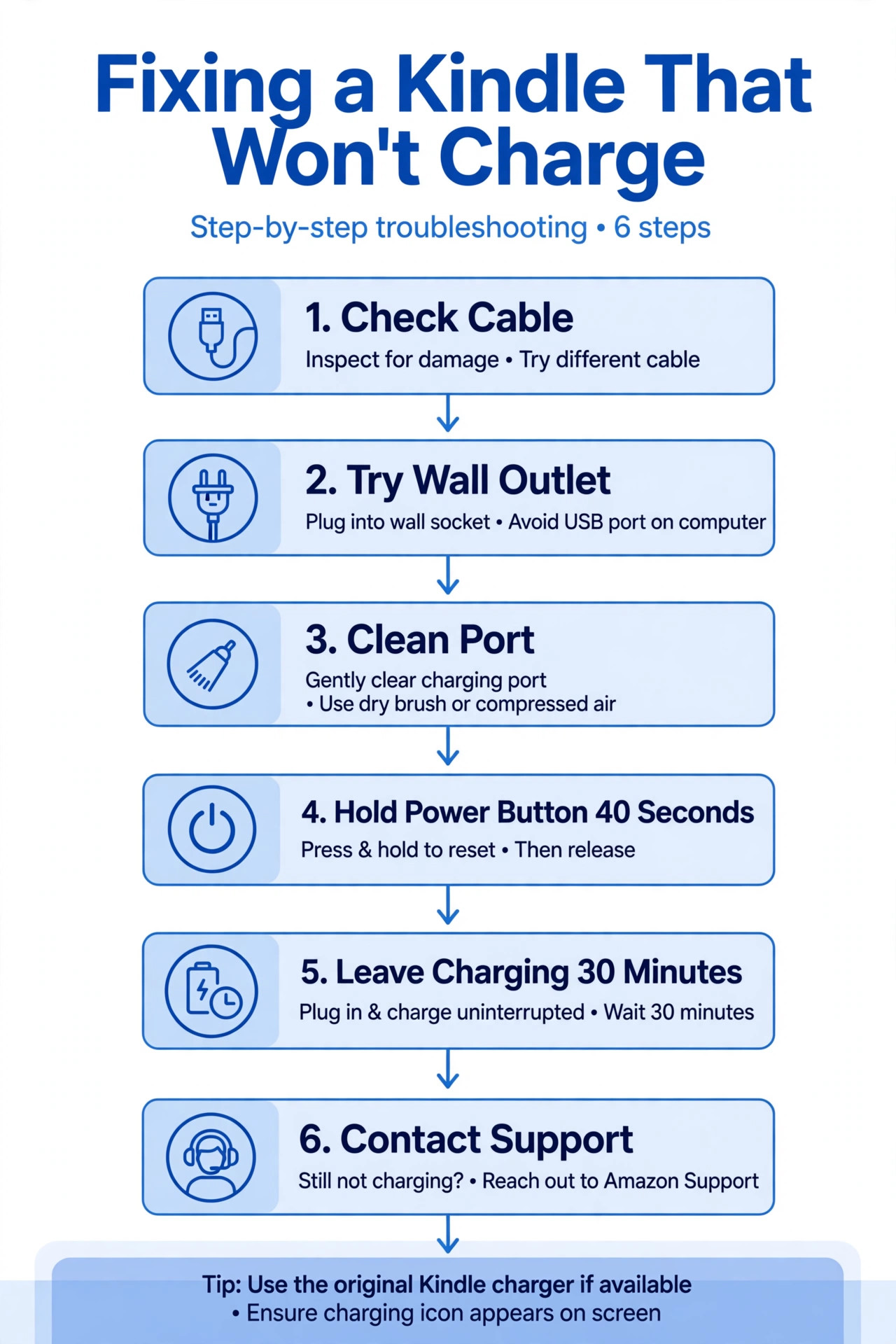
Work through this checklist in order, giving each charging test enough time. Do not restart repeatedly during a charging test, because a restart consumes the small charge a drained battery is trying to accumulate.
1. Kindle Outlet, Charger, and Cable Tests
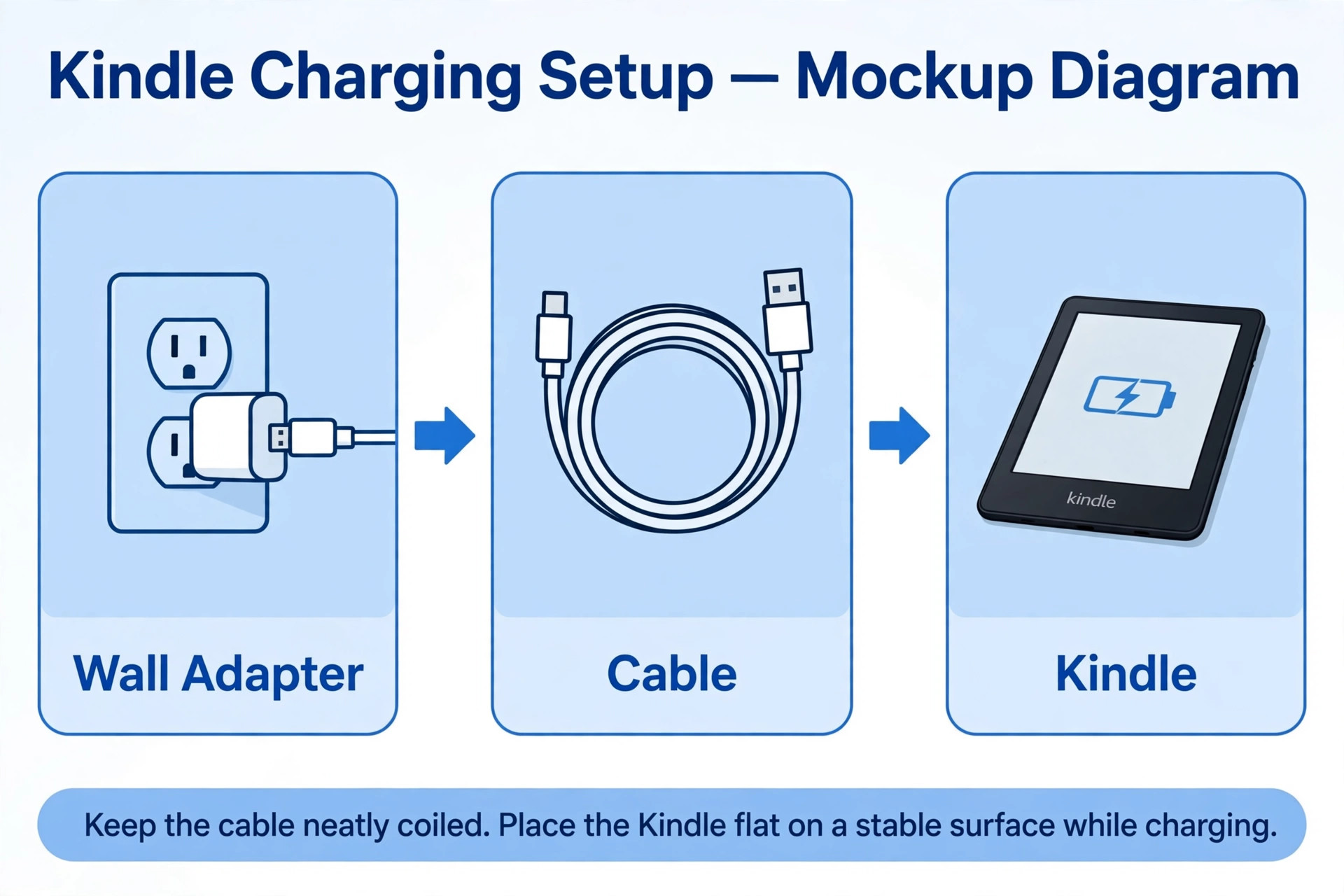
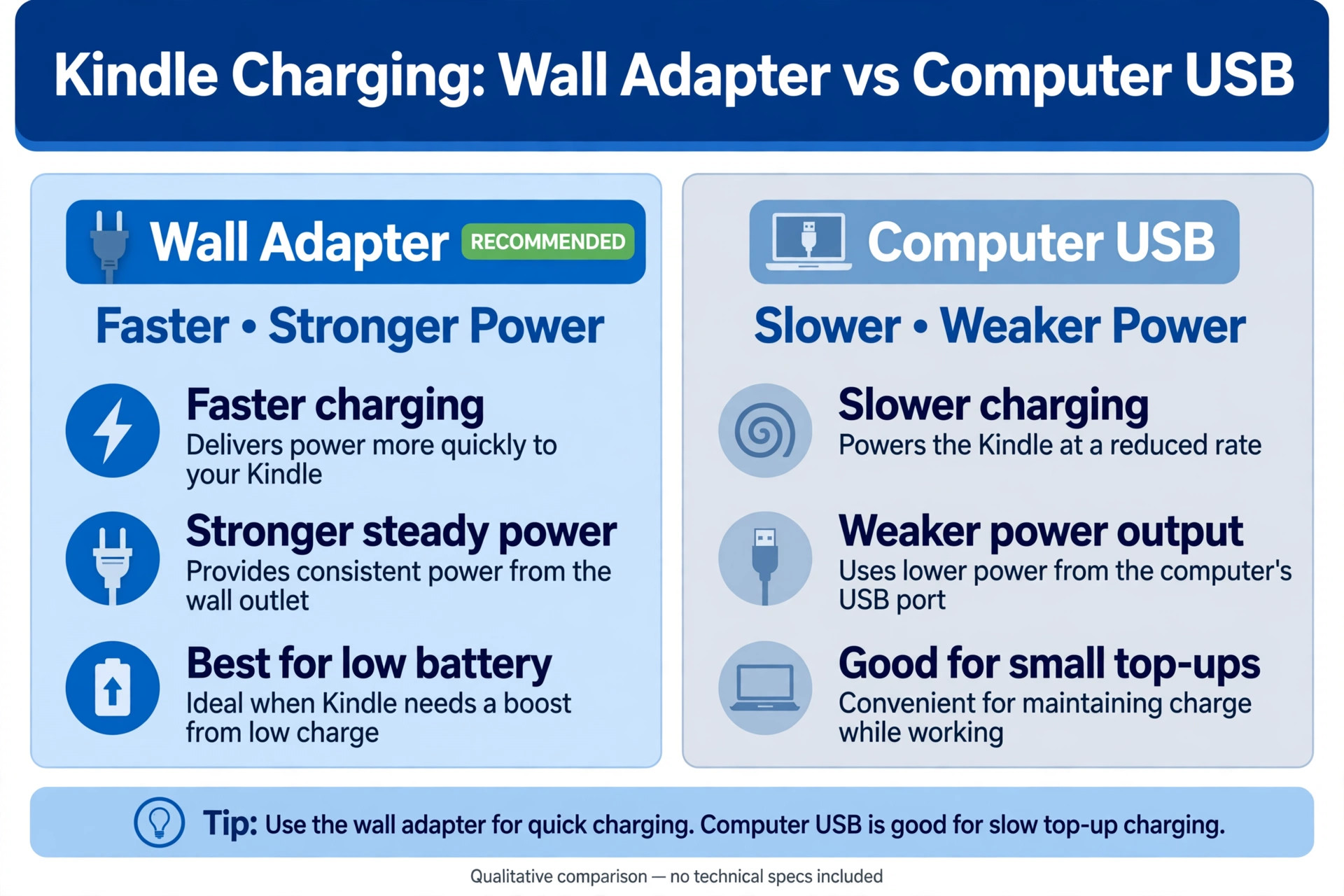
Start at the wall. Plug the charger into an outlet you know works, and test the charger with another device to confirm it delivers power. Try a second wall adapter, because adapters fail silently and a Kindle draws relatively little power, so a weak adapter may appear to work with a phone while failing to charge a Kindle reliably. Avoid testing with a television USB port or a computer in sleep mode as your only power source, since those sources may deliver too little power or may stop delivering power when the host sleeps. A wall adapter is the most reliable test source, and it should be your baseline for every other test in this guide.
Test with a second cable that matches your Kindle connector type, and test each cable with another device to confirm the cable itself works. Inspect the cable ends for bent pins, fraying, or a loose connector housing, since a cable that looks intact can still fail intermittently. Note whether the cable sits firmly in the Kindle port or wobbles, because a loose fit points to port wear or debris, addressed below. If a known good cable and adapter on a known good outlet produce no light and no screen change after thirty minutes, you have eliminated the external power path, and the fault lies in the port, the battery, or the device software, in that order.
2. Kindle Charging Port Inspection and Cleaning
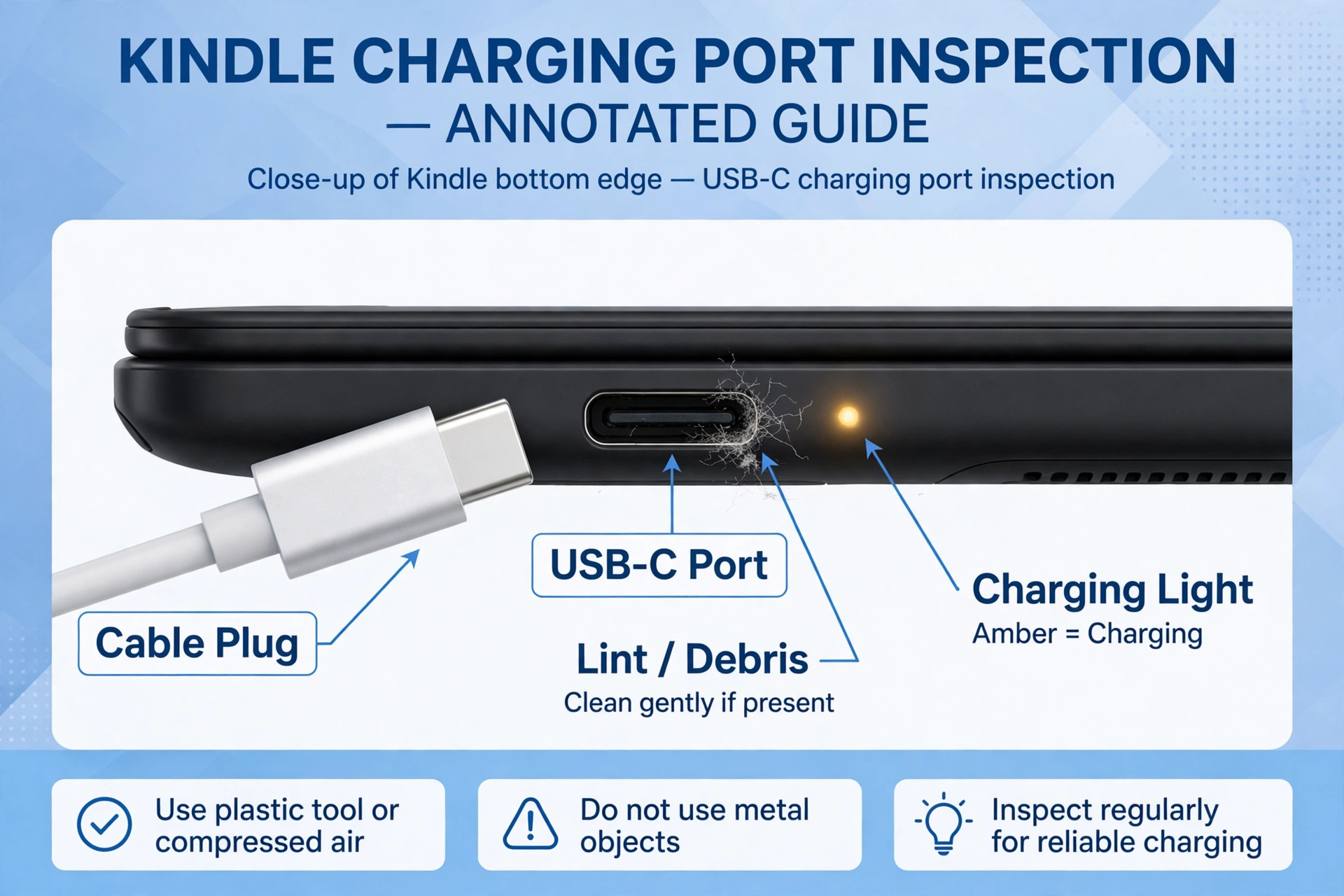
Look into the charging port with a bright light. Pocket and bag debris, dust, and lint can accumulate in a Kindle port, especially for a reader carried loose in a bag, and that debris can prevent the cable from seating fully. Use a dry soft brush or a wooden toothpick to remove visible debris gently, taking care not to bend the pins inside the port. Do not use metal tools, do not use liquids, and do not force the cable in, since forcing a cable into a blocked or damaged port can bend pins and turn a cleaning job into a repair.
After cleaning, test whether the cable now sits flush and firm, because a flush fit is the visible sign that the blockage is cleared.
Inspect the port for physical damage as well. A port that looks bent, pushed inward, corroded, or cracked indicates hardware damage rather than dirt, and cleaning will not fix it. A cable that only charges when held at a specific angle is another sign of port damage or wear, and it deserves a service decision rather than repeated cable purchases. If the port looks undamaged and the cable sits firmly after cleaning, but charging still fails on a known good setup, the battery or the internal charging circuit becomes the more likely fault.
To fix Kindle not charging trouble that involves a damaged port, the honest next step is to contact Amazon support or a repair service, because port replacement on a Kindle is not a simple home repair for most owners.
3. Kindle Restart Steps for a Frozen Charging State
A Kindle can enter a state where it appears dead but is actually frozen in software, with a battery that still holds some charge. The standard restart, often called a hard restart, addresses that state. Hold the power button down for about forty seconds, or until the device powers off and the screen changes, then release the button. After the device powers off, press the power button briefly to turn it back on. Amazon support guidance for a Kindle that will not charge often includes charging for thirty minutes first, then performing this restart, because restarting a deeply drained device before it has accumulated charge can fail and can mislead you into thinking the restart did not work.
Use the restart deliberately, not repeatedly. Perform one restart after a fair charging period, then plug the Kindle back in and leave it charging again. If the Kindle restarts and shows a normal screen, the fault was a frozen state, and normal charging should resume. If the Kindle restarts and then shuts down again quickly, the battery may be too weak to sustain operation, and a longer charge before the next restart is needed. If the Kindle never responds to the power button at all, even after hours of charging on a known good setup, the battery or hardware fault becomes more likely, and the service section below applies.
Restarting is a useful tool, but it is not a substitute for a power test, and using it too early is a common reason owners conclude a recoverable Kindle is dead.
4. Kindle Computer Charging and Software Update Checks
Charging from a computer USB port is a useful diagnostic test, even though a wall adapter is better for normal charging. Connect the Kindle to a computer that is powered on and awake, using a known good cable, and leave it for thirty minutes. If the computer recognises the Kindle as a device, the cable and port are at least partly functional, which narrows the fault to the wall adapter or to battery behaviour. If the computer does not recognise the Kindle at all, the cable, port, or device may be at fault, and you should test another cable before concluding.
Note that some computers deliver less power from certain USB ports, so test a rear port on a desktop or a main port on a laptop rather than a hub port.
Check for software updates once the Kindle powers on and connects to Wi-Fi, because outdated software can occasionally affect battery reporting and charging behaviour, although it rarely causes a total charging failure on its own. Open the Kindle settings, check for a software update, and install any available update while the Kindle is plugged in. Also check storage and content, because a Kindle with a failing storage system can behave strangely, although storage faults rarely present as a pure charging failure.
The main value of the computer test is diagnostic, separating a wall adapter fault from a device fault, and it should be used as evidence rather than as a permanent charging method, since wall charging is faster and more reliable for daily use.
5. Kindle Battery Age and Long Term Storage Effects
Kindle batteries, like all lithium batteries, lose capacity with age and with time spent fully drained. A Kindle that is four or five years old with its original battery may charge slowly, drain quickly, or fail to hold a charge, even when the cable and port work perfectly. Signs of battery age include a Kindle that charges to full quickly but drains within a day of light reading, a Kindle that shuts down at a reported charge level well above empty, and a Kindle that only works while plugged in.
A Kindle left unused for months with a fully drained battery can also suffer deeper battery degradation, because lithium batteries dislike long periods at zero charge, and recovery may take several hours of undisturbed charging or may never fully succeed.
Test battery behaviour over a full cycle once the Kindle powers on. Charge it fully on a wall adapter, note how long a full charge takes, then use it normally and note how quickly the percentage falls. A battery that drops rapidly under normal reading, with Wi-Fi off and brightness moderate, is aged, even if it technically charges. Compare that behaviour with the expected battery life for your model, which for many Kindles is measured in weeks of light reading, not days, so a Kindle that needs charging every day or two under light use has a battery problem.
To fix Kindle not charging trouble caused by battery age, the decision becomes whether battery service, replacement, or upgrade offers better value, since no cable or restart will restore a worn battery to new capacity.
6. Kindle Service, Warranty, and Replacement Decisions
Contact Amazon support when the Kindle shows no charging after known good cable, adapter, outlet, cleaning, and restart tests, or when the port shows physical damage. Amazon support can check warranty status, offer troubleshooting confirmation, and in some cases offer a replacement or a discount on a new Kindle, even outside warranty. Have your model, serial number where available, and the results of your tests ready, because that evidence speeds up the conversation and prevents support from asking you to repeat tests you have already completed. Note whether the Kindle is under the standard one year warranty or covered by an extended plan, since coverage changes the options available.
Weigh repair against replacement honestly for older Kindles. Battery or port repair on an older model can cost a significant fraction of a new Kindle, and a new model brings a better screen, USB-C charging, and longer battery life, which may be better value than repairing a device that is already several generations old. If the Kindle still holds some charge and works while plugged in, it may remain usable as a bedside reader while you decide, whereas a Kindle that holds no charge at all needs a prompt decision.
Keep your books safe during this decision, because Kindle books live in your Amazon account and return to a new device when you sign in, so replacing the device does not mean losing your library. That account based library is a comfort when a device fails, and it makes the replacement decision easier than it would be for a device that stored content only locally.
Kindle Charging Habits That Protect the Battery
Once charging works again, habits that protect the battery reduce future failures. Charge the Kindle with a wall adapter for the main charge, and avoid leaving it plugged in for weeks at a time, although modern Kindles manage charging to avoid overcharging. Avoid letting the battery sit fully drained for months, since that state accelerates degradation, and top up a Kindle you are not using every few weeks to keep the battery in a healthy range. Store the Kindle at room temperature, away from hot cars and cold windows, because temperature extremes harm lithium batteries and can cause charging pauses that look like faults.
Use a case that does not press on the charging port or trap heat during charging, and remove the Kindle from a tight bag pocket where debris can enter the port.
Reading habits affect battery life as well. High screen brightness, Wi-Fi left on constantly, and frequent indexing of large new book collections all drain the battery faster, and a Kindle that seems to need charging constantly may simply be used heavily rather than suffering a battery fault. Lower brightness to a comfortable level, turn Wi-Fi off when you are not downloading books, and allow a new Kindle time to index a large library before judging battery life, since indexing is a one off drain that settles after a day or two. These habits do not fix a failed battery, but they prevent a healthy battery from appearing faulty, and they extend the useful life of the battery you have.
Kindle Models, Cables, and Cover Confusion
Cover and cable confusion causes a surprising number of reported charging failures. A cover that fits poorly can prevent the cable from seating fully, especially if the cover opening around the port is tight or misaligned. Test charging with the cover removed if the cable does not sit flush, because a cover that blocks the plug by a millimetre is enough to break contact intermittently. Similarly, a magnetic cover that holds the Kindle closed can hide a screen that is actually on and draining, making the battery appear to fail when the device was simply left awake.

Remove the cover for testing, confirm the cable seats flush, and only then reattach the cover and test again, so you know whether the cover contributes.

Cable confusion between USB-C and Micro-USB also deserves a deliberate check. A Micro-USB cable will not fit a USB-C port, but a worn USB-C cable can fit loosely and fail intermittently, and a cheap cable with a thin connector can sit too shallow to make reliable contact. Buy a cable from a reputable source, test it with another device, and keep a known good Kindle cable separate from general household cables, so you always have a trusted test cable available. That trusted cable turns future charging troubleshooting from guesswork into a single test, because you can immediately separate a cable fault from a device fault.
When you need to fix Kindle not charging trouble in future, the first question should always be whether the trusted cable works, since that answer eliminates the most common cause instantly.
Kindle Charging Failures in Cold, Heat, and Travel
Temperature and travel conditions create Kindle charging faults that disappear at home, which makes them confusing to diagnose. A Kindle charged in a cold car, a cold cabin, or an unheated room may charge very slowly or pause charging to protect the battery, and it will resume normal charging once it returns to room temperature. Similarly, a Kindle charged in direct sunlight or in a hot car may pause charging for heat protection, and the correct response is to move it to a cool shaded place and retry, rather than to buy a new cable.
When you need to fix Kindle not charging trouble that only appears while travelling, check temperature first, because a Kindle that charges normally at home but not in extreme conditions is protecting itself rather than failing.
Travel adds cable and adapter variables as well. A travel adapter that works for a phone may deliver too little power for a Kindle that is also trying to index books and connect to Wi-Fi, and a hotel USB port may stop delivering power when the room key card is removed. Test with your trusted home wall adapter before concluding the Kindle has failed on a trip, and carry that adapter as your diagnostic baseline. Also check whether the Kindle is trying to download a large book collection or update software while charging, since that background work consumes power and can make charging appear slower than normal.
To fix Kindle not charging trouble on the road, simplify to one trusted cable, one trusted wall adapter, a room temperature location, and Wi-Fi off, and that simplified setup usually reveals whether the fault is environmental or device related. Keep a short travel note of which adapter and cable worked at home, so you can recreate that exact setup anywhere without guessing, and test the travel setup before a long journey rather than discovering a problem at the destination.
More Reading on Stratilyze
E-reader charging faults share their checks with every other small device on the same charger, so readers often compare notes with the neighbouring charging guides next. The guide to an iPad that will not charge covers the same cable, port and adapter tests on a larger tablet, the guide to an Android phone that will not charge explains the same tests from the phone side, and the guide to a MacBook battery that will not charge shows the laptop version, for readers whose whole desk of devices refuses power.
Frequently Asked Questions
Why does my Kindle show an orange light but never turn on
An orange light with no startup usually means the Kindle is charging but has too little battery to start, or it is frozen in a state that needs a restart after charging. Leave it plugged into a wall charger for at least an hour, then hold the power button for about forty seconds to restart it, and plug it back in. If it still never turns on after several hours of known good charging and a restart, the battery or hardware is likely at fault, and service becomes the next step.
How long should I charge a Kindle that has been unused for months
Allow at least thirty minutes before judging, and up to several hours for a Kindle unused for months. A deeply drained battery recovers slowly, and repeatedly unplugging to test cables resets that recovery. Choose one known good cable and wall charger, leave the Kindle undisturbed, and check the light and screen after thirty minutes and again after an hour. A change in light or screen state proves power is flowing, even if the device is not yet ready to use.
Why does my Kindle charge from a computer but not from a wall charger
That pattern points to a faulty wall adapter or outlet, since the computer test proves the cable, port, and device can accept power. Try another wall adapter and another outlet, and test the original adapter with another device to confirm it has failed. Use a wall adapter for normal charging once you find one that works, since wall charging is faster and more reliable than computer charging for daily use.
Why does my Kindle only charge when I hold the cable at an angle
Charging only at a specific angle usually means a loose or damaged port, a worn cable connector, or debris preventing a firm seat. Clean the port gently, test a different cable, and check whether the cable sits flush without holding it. If the angle trick remains necessary after cleaning and cable tests, the port is likely damaged or worn, and service or replacement is more sensible than continuing to hold the cable, since the connection will only worsen.
Will a factory reset fix a Kindle that will not charge
A factory reset rarely fixes a charging failure, because charging is primarily a power path issue involving cable, port, adapter, and battery. A reset can help a software frozen state, but the restart step addresses that state without erasing your content and settings. Only consider a reset after the Kindle powers on and charging works, and only for a software problem that persists after restart, since a reset on a device that cannot charge risks leaving it erased and still unable to charge.
Should I replace the battery or buy a new Kindle
That decision depends on the Kindle age, the repair cost, and the value of newer features. For a Kindle under warranty, seek service first. For an older Kindle, compare the repair or replacement cost with the price of a new model, remembering that your books live in your Amazon account and transfer to a new device. If the Kindle is several generations old and the battery has failed, a new Kindle often offers better value than a repair, bringing a better screen, USB-C charging, and longer battery life. When you need to fix Kindle not charging trouble caused by battery age, that value comparison is the final step, not another cable test.
A Patient Final Test Before You Replace Your Kindle
Before you replace a Kindle that appears dead, run one patient final test. Choose a known good cable and wall adapter, clean the port, plug the Kindle in, and leave it completely undisturbed for several hours, ideally overnight, in a room temperature location. In the morning, check the light and screen, perform one restart by holding the power button for about forty seconds, and plug it back in for another hour. If the Kindle shows any sign of life during that sequence, it was deeply drained or frozen rather than dead, and normal charging may resume with patience.
If it shows nothing at all after that sequence, you have strong evidence for service or replacement, and you can make that decision confidently without wondering whether a longer charge would have saved it. Patience is the final diagnostic tool for a Kindle, because its low power design and long battery life mean recovery is slower than for a phone, and rushing the test is the most common reason a recoverable reader gets replaced unnecessarily. A calm overnight test costs nothing at all and gives the clearest possible answer every time.
