
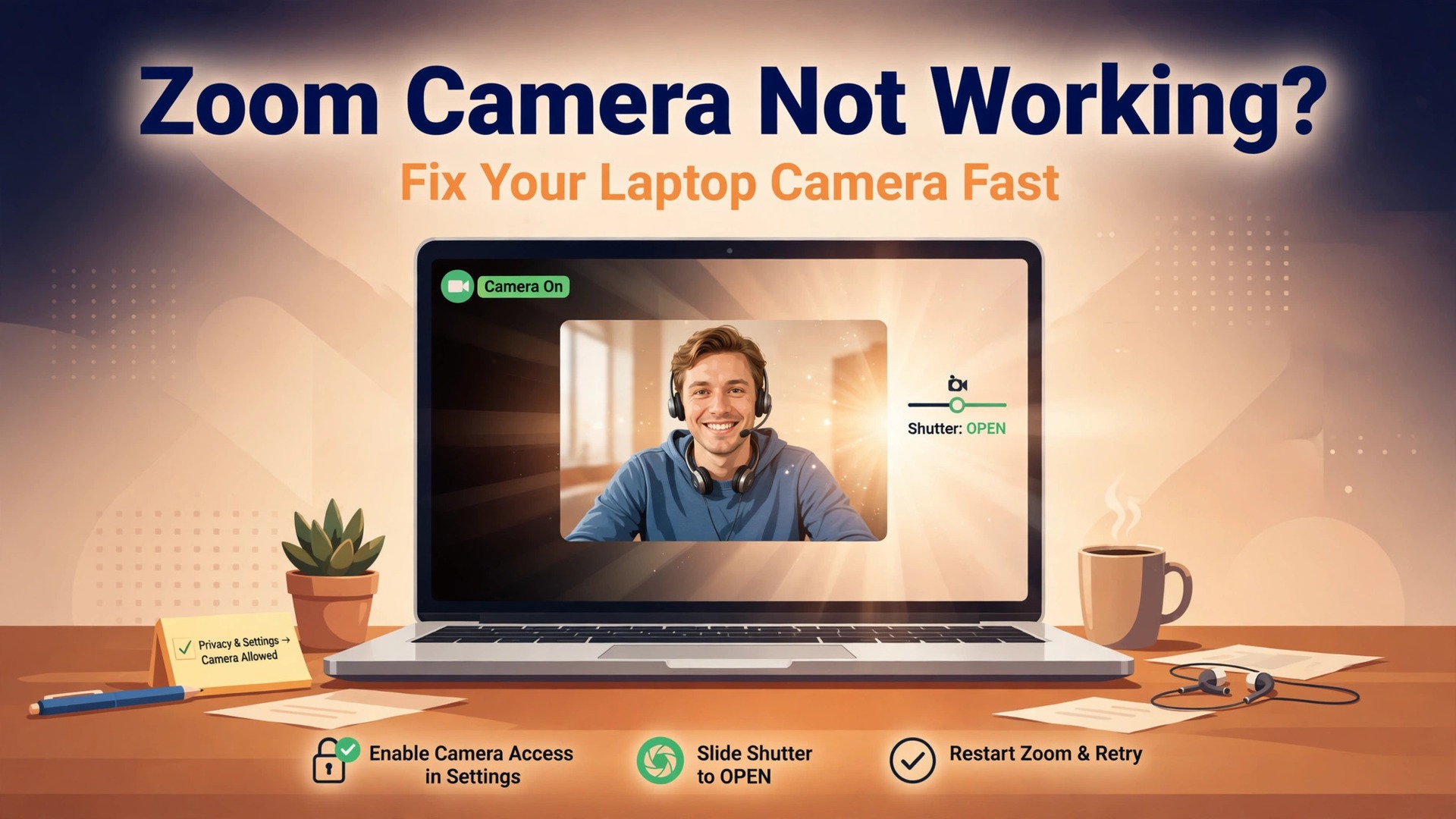
Your camera works in the Windows Camera app or in FaceTime, yet Zoom shows a black screen, a frozen frame, or no camera at all. That split is good news, because it points to a permission, a setting, or a conflict inside Zoom rather than a dead camera. To fix Zoom camera not working on laptop setups like this, work from the fastest checks to the deepest ones, and test after each step so you know exactly which change fixed it.
This guide follows that order, from the checks that rescue most meetings to permissions, drivers, Zoom settings, and the external webcam fallback. Each section says what the step rules out, so you stop as soon as the cause is found.
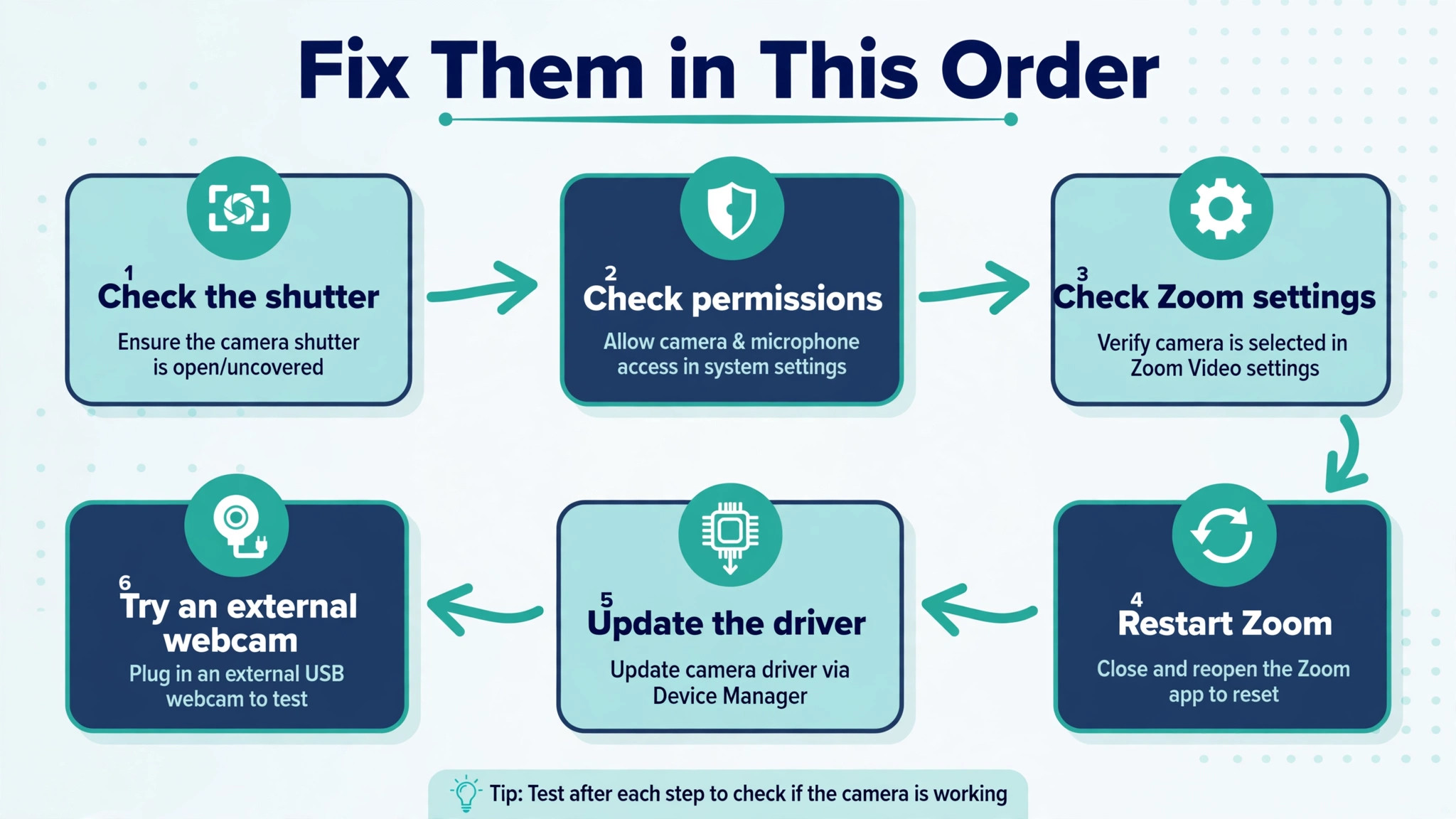
How to Fix Zoom Camera Not Working on Laptop Problems in Order
Work down this checklist and stop as soon as your preview returns.
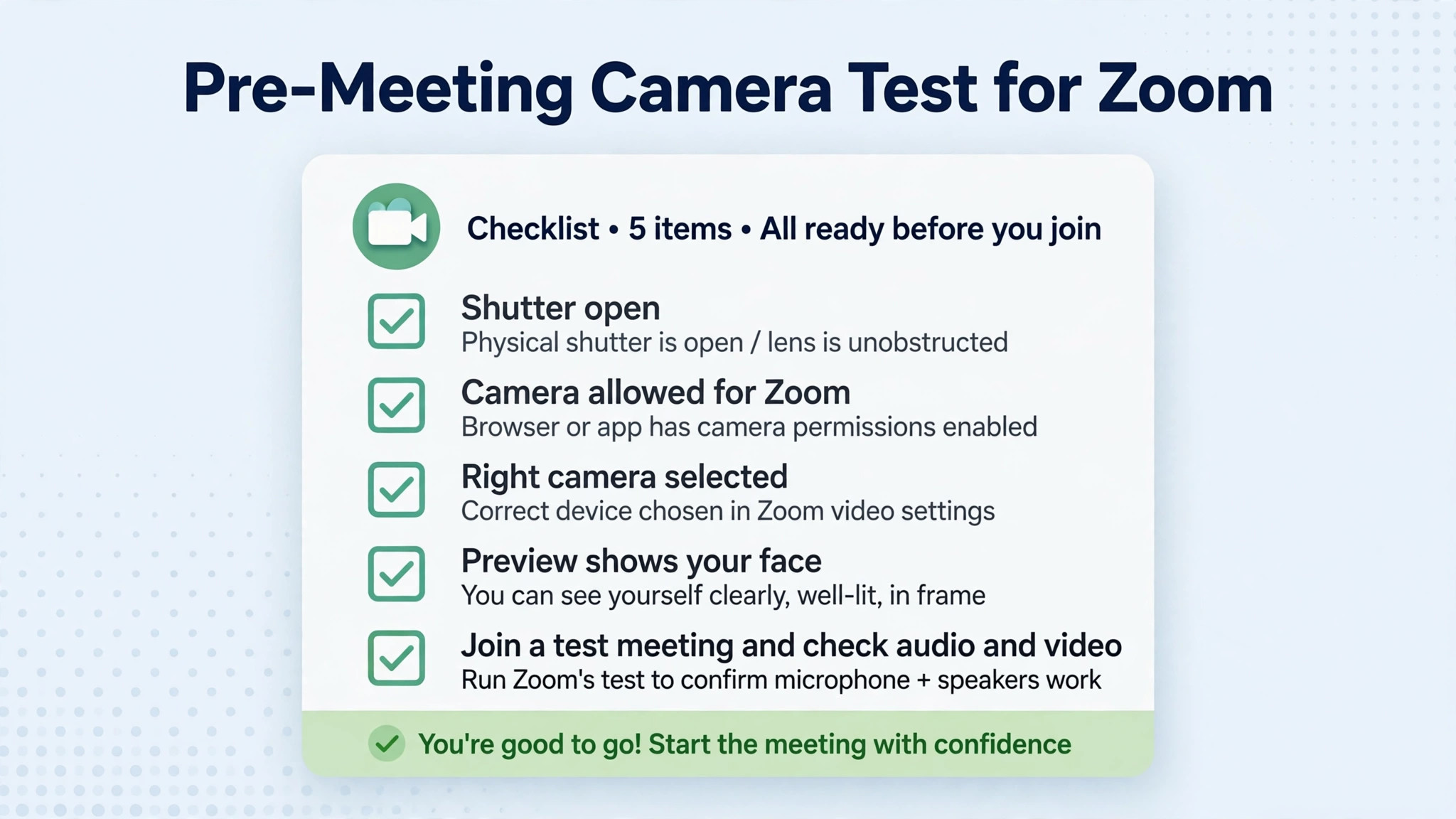
- Open the privacy shutter or remove anything covering the lens. This rules out a physical block, which no setting can override.
- Click Start Video in the meeting, then click the arrow beside it and confirm the right camera is selected. This rules out a muted feed and a wrong camera choice.
- Close every other app that can use a camera, including Teams, Skype, FaceTime, Photo Booth, the Camera app, and any browser tab in a video call. This rules out another app holding the camera, since most laptop cameras serve only one app at a time.
- Quit Zoom fully and reopen it. On Windows, check the system tray for a lingering Zoom icon. On a Mac, quit with Command Q rather than just closing the window. This rules out a stuck Zoom session.
- Check camera permission for Zoom in your operating system, then restart Zoom. This rules out the most common silent cause, a permission denied once and never asked about again.
- Test the camera outside Zoom. Open the Camera app on Windows or FaceTime on a Mac. If it works there but not in Zoom, the problem is Zoom or its permission. If it fails everywhere, the problem is the driver or the hardware.
- Update Zoom from the profile menu, then test again. This rules out a bug in an older Zoom build.
- Update or reinstall the camera driver in Device Manager on Windows, or install pending macOS updates on a Mac. This rules out a corrupt or outdated driver.
- Turn off virtual backgrounds and hardware acceleration in Zoom Video settings, then test again. This rules out a processing feature that breaks the preview on some machines.
- Try an external webcam on a different USB port. If the external camera works while the built in camera does not, you have isolated the fault to the built in camera or its driver, and you have a working setup for your next meeting.
Test in one place only after each change. Open Zoom Settings, then Video, and watch the preview. If it appears, you are done.
Diagnose It Before You Change Anything
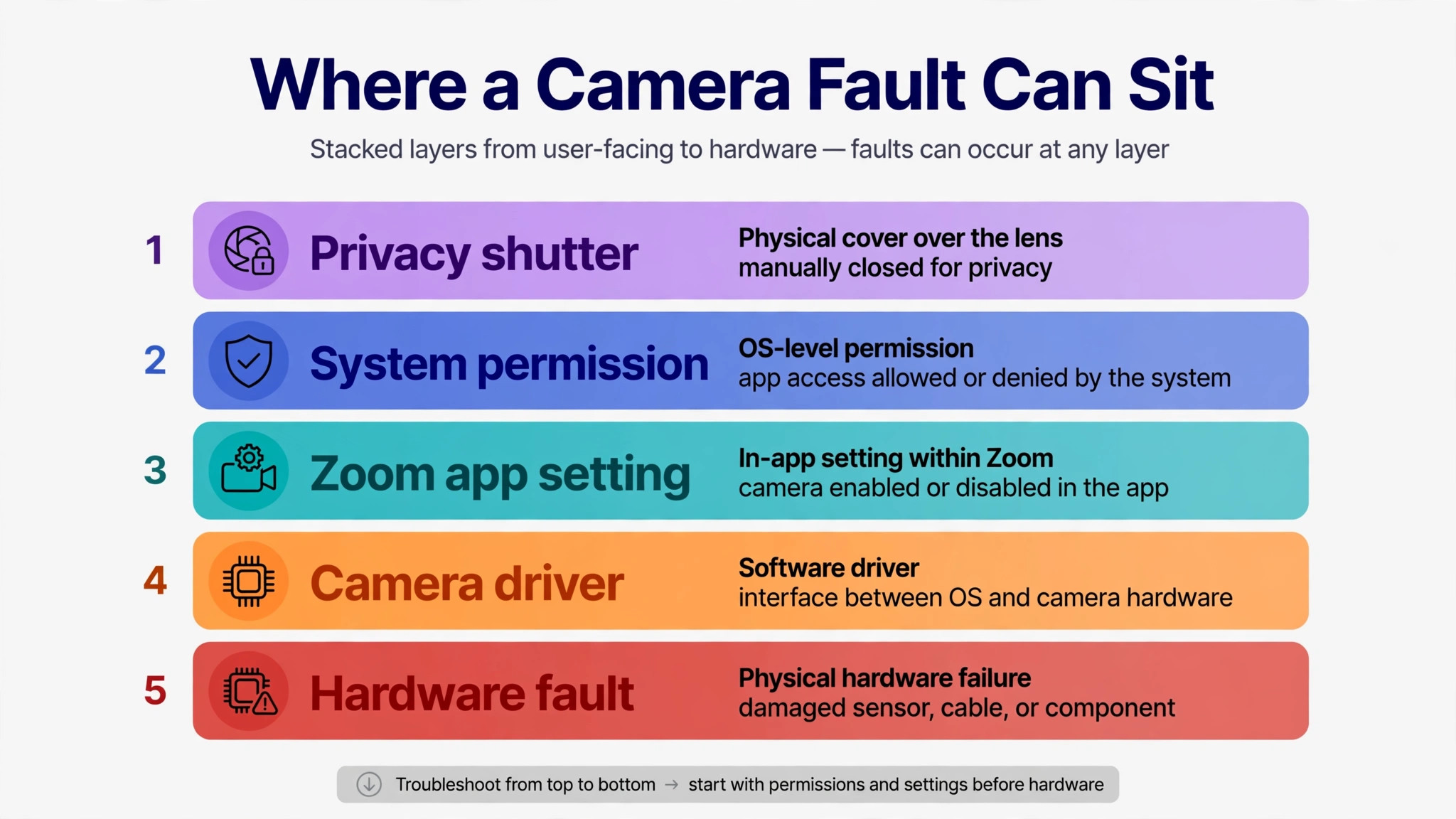
Spend one minute on diagnosis, because the symptom narrows the cause sharply. A black screen, a missing camera name, a frozen frame, and an error about another app are four different problems.
| What you see | Most likely cause | First move |
|---|---|---|
| Black screen, but Zoom lists a camera | Shutter closed, permission off, or another app holding it | Open the shutter, close other video apps, check permission |
| No camera listed in Zoom at all | Driver missing, camera disabled, or hardware not detected | Check Device Manager on Windows or test in FaceTime on a Mac |
| Frozen frame that never updates | Overloaded machine, unstable USB, or a stuck Zoom session | Quit Zoom fully, close heavy apps, try another USB port |
| Message that another app is using the camera | Teams, a browser call, or a camera utility still running | Quit the other app fully, then restart Zoom |
| Camera works in the Camera app but not in Zoom | Zoom permission or Zoom video setting | Check the system permission, then the Camera dropdown in Zoom |
| Camera fails in every app | Driver fault, disabled camera, or hardware fault | Update or reinstall the driver, then try an external webcam |
| Camera worked yesterday and failed after an update | Update reset a permission or replaced a driver | Recheck permissions, then roll back or update the driver |
| Camera works in the desktop app but not the browser | Browser site permission blocked | Allow camera access for the Zoom site in the browser, then refresh |
If your symptom is not in the table, start with the fast checks anyway. Only move to driver work when the camera fails outside Zoom as well.

Fast Checks That Rescue Most Meetings
Start here when a meeting is about to begin. These checks need no downloads and, in most cases, no restart.
First, check the shutter and the lens. Many laptops have a sliding privacy shutter above the screen, and some have a switch on the side or a function key that disables the camera. Slide the shutter open and wipe the lens with a soft cloth. An LED that lights up when Zoom opens suggests the camera is powered, which points to a permission or app conflict rather than a dead sensor.
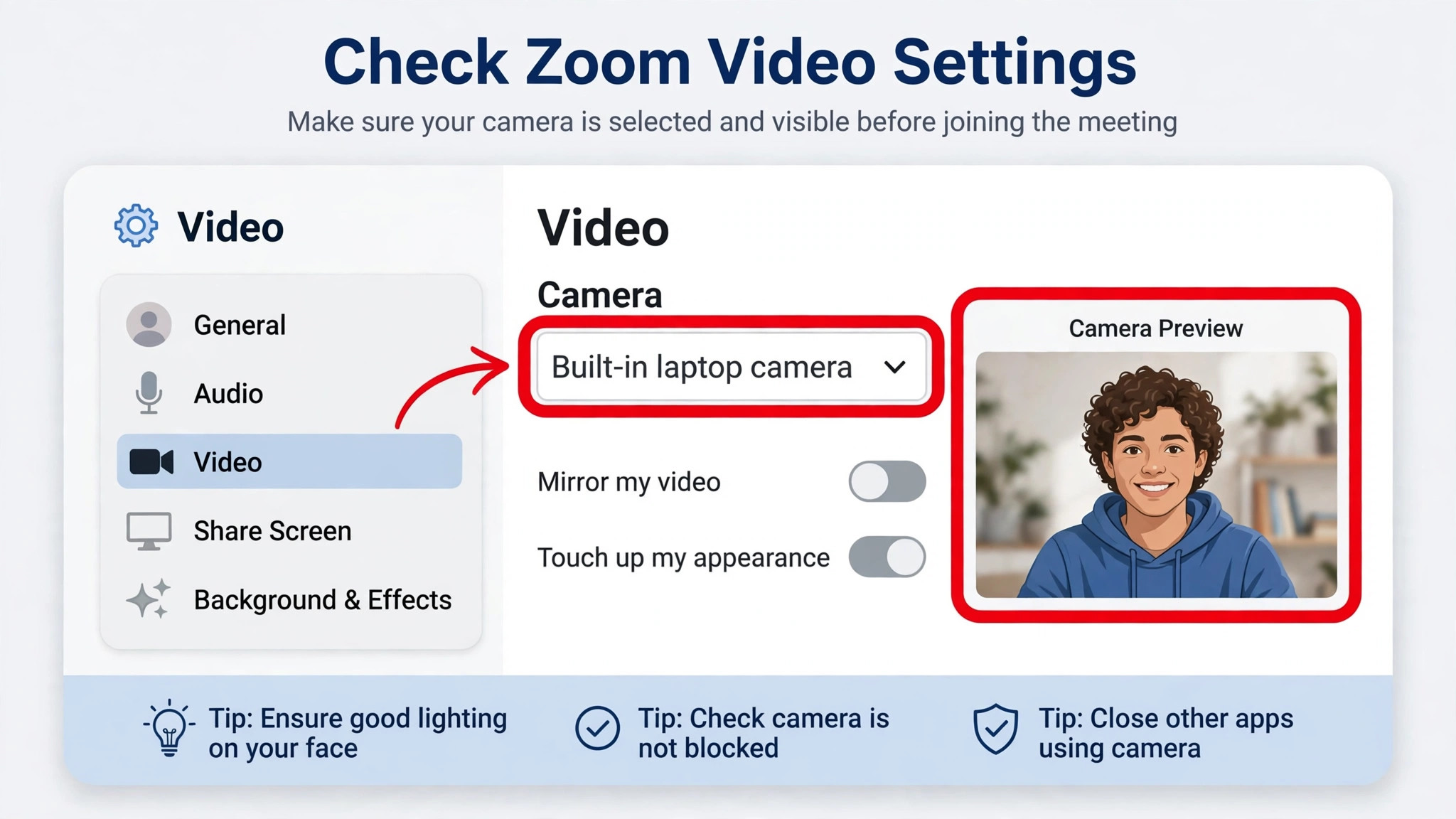
Second, confirm the video state inside the meeting. Click Start Video if it is off. If the button already shows Stop Video, your video is on, and the problem is the feed itself. Click the small arrow beside Start Video or Stop Video and look at the camera list. On a laptop with a connected monitor or dock, Zoom may have picked a monitor camera or an old webcam that is no longer plugged in. Pick the built in camera by name and watch the preview.
Third, close the apps that compete for the camera. This is the cause people miss most often, because the competing app may be hidden. A browser tab left in a Meet or Teams call, a recording tool, a virtual camera app, or a previous Zoom window can all hold the camera. Quit those apps fully, using Task Manager on Windows or the Dock on a Mac, then quit Zoom and reopen it.
Fourth, restart Zoom before you restart the laptop. A full quit clears a stuck video session and a camera that Zoom opened in a bad state. If it does not help, restart the laptop next. As a private test, join the Zoom test meeting at zoom.us/test.
Windows Permission Checks, Step by Step
On Windows, Zoom needs two layers of permission, the system layer and the app layer, and both must be on. The system layer is the master switch. If it is off, no app can use the camera. This is the step most people need when they try to fix Zoom camera not working on laptop machines running Windows, so restart Zoom afterwards, because permission changes often take effect only when the app relaunches.
- Press Windows key plus I to open Settings.
- Go to Privacy and security, then Camera. On Windows 10, the path is Privacy, then Camera.
- Turn on Camera access, and turn on Let apps access your camera. These are the master switches.
- Scroll to the app list and turn on Zoom if it appears. If Zoom does not appear, that is normal on some Windows builds, because the desktop app is covered by the separate Let desktop apps access your camera switch further down the page. Turn that switch on as well.
- Check that no toggle is greyed out by your organisation. On a work laptop, a greyed out switch means an IT policy controls it, and only your IT team can change it.
- Quit Zoom fully, reopen it, and check the preview in Settings, then Video.
If the preview still fails, test the camera in the Windows Camera app from the Start menu. A working Camera app with a failing Zoom points back to Zoom permission or Zoom settings. A failing Camera app points to the driver or hardware sections below.
Two Windows details catch people out. Windows updates sometimes reset privacy toggles, so a camera that worked last month can fail after an update. Some security software also adds its own webcam protection layer, so confirm Zoom is allowed there as well.
Mac Permission Checks, Step by Step
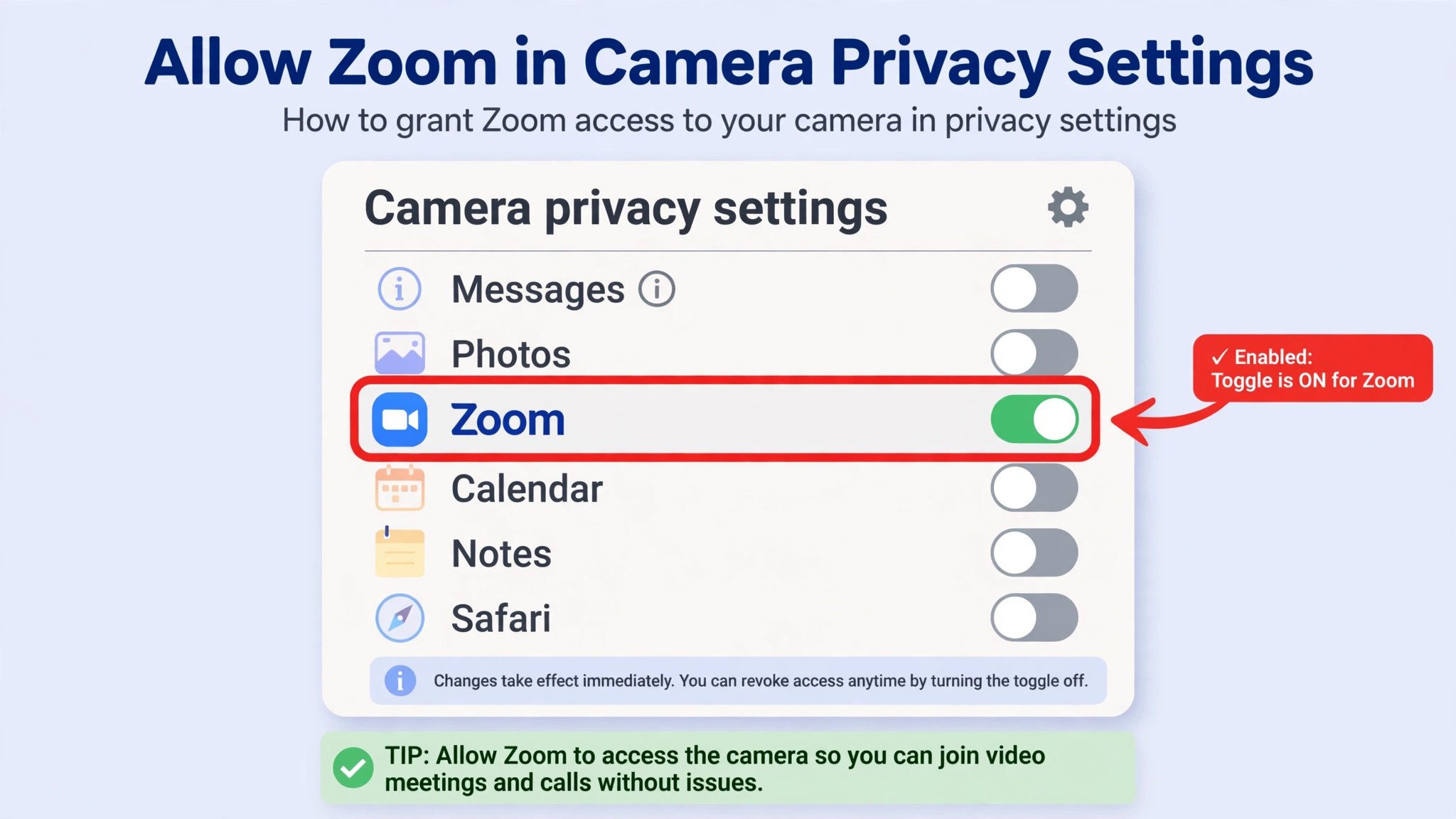
For Mac users trying to fix Zoom camera not working on laptop setups, camera permission is granted per app, and macOS asks the first time an app requests the camera. If you clicked Deny once, or if the prompt never appeared because Zoom was already running, Zoom will silently show no video until you fix the setting by hand.
- Click the Apple menu, then System Settings. On older macOS versions, this is System Preferences.
- Go to Privacy and Security, then Camera. On older versions, the path is Security and Privacy, then the Privacy tab, then Camera.
- If the pane is locked, click the lock icon and enter your administrator password.
- Find Zoom in the list and turn its switch on. If Zoom is not listed, open Zoom and start a video preview to trigger the permission prompt, then return to this pane.
- Quit Zoom with Command Q and reopen it, then open Zoom Settings, then Video, to check the preview.
If Zoom still shows no video, test the camera in FaceTime or Photo Booth. A working FaceTime camera with a failing Zoom points to Zoom permission or a Zoom setting.
Mac users should also check the Camera dropdown for virtual devices. If you previously used a virtual camera app or a video filter, macOS may still route Zoom to that virtual device. In Zoom Video settings, pick the built in FaceTime HD Camera directly, and disable virtual camera tools you no longer use.
When You Use Zoom in a Browser Instead of the App
The desktop app is the more reliable path, but many people join from Chrome, Edge, or Firefox on a shared or work machine where they cannot install software. In a browser, there are two permission layers, the browser site permission and the operating system permission.
In Chrome or Edge, join the meeting, then click the lock or site settings icon beside the web address. Find Camera in the site permissions and set it to Allow, then refresh the page. If the camera was previously set to Block, the browser remembers that choice, and you must change it here, because Zoom cannot override a browser block. In Firefox, click the camera icon in the address bar during a meeting, or go to Settings, then Privacy and Security, then Permissions, then Camera.
Also check the camera choice inside the Zoom web client, because browser versions sometimes default to the first device the browser sees. If the browser path keeps failing, try the desktop app as a test. If the app works while the browser does not, the fault is browser permission. If both fail the same way, the cause is at the operating system or driver level.
Browser users should also check for extensions that block camera access, such as privacy extensions or meeting tools that inject a virtual camera. Disable extensions one at a time, refresh the meeting page, and test. This is an easy layer to miss when you fix Zoom camera not working on laptop calls from a shared machine.
Camera Driver Steps on Windows
Driver work is the deepest software fix in this guide, and it belongs after permission and app checks, not before them. A driver is the software that lets Windows talk to the camera hardware. When it is corrupt or outdated, Windows may still list the camera but fail to show a picture, or it may not list the camera at all. Anyone working to fix Zoom camera not working on laptop hardware on Windows should reach this section only after the camera has also failed in the Windows Camera app, because that failure is what points to the driver.
- Right click the Start button and select Device Manager. You can also press Windows key plus R, type devmgmt.msc, and press Enter.
- Expand Cameras. On older Windows builds, the category may be Imaging devices instead, and some webcams appear under Sound, video and game controllers.
- Right click your camera, which may be named Integrated Camera, USB Camera, or a maker name such as HP Wide Vision, and select Properties.
- Look at Device status on the General tab. A message saying the device is working properly points away from the driver and back to permission or app settings. Note any error code before you change anything, because it helps support later.
- Right click the camera again and select Update driver, then Search automatically for drivers. Restart the laptop and test in the Camera app.
- If the update does not help, right click the camera and select Uninstall device. On the first attempt, leave the driver removal checkbox unchecked, so Windows removes the device entry but keeps the driver package. Click Uninstall, then restart, and Windows should detect the camera and reinstall the driver automatically.
- If the camera still fails, repeat the uninstall, this time checking the box to delete the driver software if it appears. Restart again, and let Windows reinstall from scratch.
If Device Manager shows no Cameras category at all, click View, then Show hidden devices. Right click a greyed out entry and select Enable device if that option appears. If no entry appears, the camera may be disabled in firmware or disconnected.
When Windows drivers do not solve it, go to your laptop maker support page and search for your exact model plus camera driver. The maker driver is often more reliable than the generic Windows driver. Download only from the maker site. Install it, restart, and test in the Camera app before you test in Zoom.
If the camera stopped working right after an update, a roll back may help. In Device Manager, right click the camera, select Properties, open the Driver tab, and click Roll Back Driver if the button is available. It is greyed out when Windows has no previous driver to return to.

Mac Driver and System Steps
Macs do not have a Device Manager equivalent for camera drivers, because Apple ships camera support inside macOS itself. That means there is no separate driver to download for a built in Mac camera. The repair path is macOS updates, restarts, and ruling out third party software.
First, install pending macOS updates. Go to System Settings, then General, then Software Update, and install anything offered. Apple bundles camera and firmware fixes into system updates, so an outdated build can carry a camera bug that no Zoom setting will fix. Restart, then test in FaceTime before you test in Zoom.
Second, restart the Mac fully rather than just closing the lid. A full restart clears camera states held by background apps, including video tools that keep a session open after they look closed. After the restart, open FaceTime first.
Third, check for third party camera software. Virtual camera apps, video filters, and screen recorders can install extensions that intercept the camera. Open System Settings, then General, then Login Items and Extensions, and disable camera extensions you no longer use. As a diagnostic step, try a different user account. If the camera works there but not in your main account, the cause is tied to your main account.
Zoom App Settings That Break Video
Once permission and drivers are ruled out, the fault often sits inside Zoom itself. Zoom Video settings control which camera Zoom uses and how it processes the picture. A wrong choice here can produce a black screen even when the camera works everywhere else, which is why this section matters when you try to fix Zoom camera not working on laptop setups where the Camera app already works.
Open Zoom, click your profile picture, select Settings, then Video, and work through these checks.
- Confirm the Camera dropdown names the camera you actually want. Zoom may keep the last used device, which could be a webcam you unplugged. Pick the right one and watch the preview.
- Turn off HD video temporarily and test again. HD mode needs more processing and bandwidth, and on an older laptop it can freeze the preview. If standard video works and HD does not, your machine or connection is the limit, not the camera.
- Turn off virtual backgrounds and video filters, and set the background to None. A failing background engine can turn the whole preview black, so test with no background before you blame the camera.
- Open the Advanced button at the bottom of the Video tab and look at hardware acceleration. Try turning off Video Processing and Receiving video, then restart Zoom and test. On some machines, hardware acceleration conflicts with the graphics driver and breaks the preview.
- Check for Zoom updates from the profile menu, then Check for Updates. Install any update offered and test again, because an old build can fail on a new operating system version.
- If updates do not help, uninstall Zoom fully and reinstall the latest version from the Zoom download centre. A clean reinstall clears corrupt Zoom settings and cached video components that an update leaves in place. After reinstalling, test the preview in Video settings before you join a meeting.
Also check the in meeting video controls. During a meeting, the arrow beside Start Video lists cameras under Select a Camera. Switching cameras mid meeting tells you whether the problem is one camera or Zoom video as a whole. If no camera works in the meeting but the preview works in Settings, leave and rejoin.
Do not enable Original Sound in the hope of fixing video. It affects audio processing, not video. The companion guide on Zoom audio echo covers the audio side in the same step by step style.
Privacy Shutter, Other Apps, and Security Software
A surprising number of camera failures are not Zoom faults at all, but conflicts with software that guards or shares the camera.
Start with the physical shutter again, because it is easy to close by accident. A laptop sleeve or a cleaning cloth can move one. Some business laptops also have a camera kill switch, a small slider on the side that cuts power to the camera, and a function key combination that toggles the camera. Check your laptop manual or maker support page for the exact key. If the camera LED never lights up in any app, a kill switch or a firmware disable is more likely.
Next, hunt for apps that hold the camera in the background. Video conferencing apps, recording tools, streaming software, and even a browser tab can keep the camera open after you think you closed them. Check Task Manager on Windows or Activity Monitor on a Mac. Quit every video related app, then quit Zoom and reopen it.
Security software is the third blocker. Antivirus and endpoint protection tools often include a webcam protection feature that blocks apps from using the camera until you allow them. Open your security software, find the webcam or privacy section, and confirm Zoom is allowed.
Also check camera utilities from your laptop maker or webcam maker. Some include a privacy mode that disables the camera or a background blur that can freeze the picture if it fails. Open the utility, turn off privacy mode and extra processing, and test again.
Finally, check for a second Zoom instance. If Zoom is running as a desktop app and in a browser at once, the two instances can fight over the camera. Close one of them.
The External Webcam Fallback
When the built in camera resists every fix, an external webcam is both a diagnostic tool and a practical fallback. It costs less than a repair and tells you whether the problem is the built in camera or the whole video system. For a reader who needs to fix Zoom camera not working on laptop meetings today, this is the step that gets the next meeting covered while the deeper fix continues.
Plug the external webcam into a USB port directly on the laptop, not through an unpowered hub, and wait for Windows or macOS to recognise it. Open Zoom Settings, then Video, and pick the external camera from the Camera dropdown. If the preview appears, your meeting problem is solved for now. If it does not, try a different USB port, because a single faulty port can mimic a camera failure. Try a port on the opposite side of the laptop if you have one.
Avoid a long chain of adapters for this test. A webcam plugged into a hub, which plugs into a dock, which plugs into the laptop, has three places to fail. Test with a direct connection first, then add the hub or dock back in once you know the camera works.
When you pick an external webcam, match it to your actual use. A basic 1080p webcam is enough for ordinary meetings, and it avoids the processing load of a higher resolution model on an older laptop. Install any maker software only if you need its features, and only after you confirm the basic camera works in Zoom.
When It Is Hardware, Not Software
Some camera failures survive every software fix, and recognising that point saves you from endless reinstalls. The strongest hardware sign is a camera that fails in every app, on every account, after a driver reinstall and a system restart, while an external webcam works fine on the same laptop. That pattern isolates the fault to the built in camera module or its cable. A second sign is a camera that disappears from Device Manager entirely, even with hidden devices shown, and never reappears after a restart.
Before you book a repair, check your warranty and your maker support page. Many laptop makers offer a built in diagnostic tool that tests the camera and reports a hardware code. Also check whether the camera is disabled in firmware. Some business laptops have a BIOS or UEFI setting for the camera, so follow the maker guide for your model.
Weigh repair against replacement honestly. A built in camera repair on an older laptop can cost a large share of the laptop value, because the camera cable runs through the display and the labour is significant. An external webcam is a fraction of that cost and works immediately. Do not open the laptop yourself to reseat the camera cable unless you have repair experience.
Camera trouble rarely travels alone. If your picture is fixed but your sound is not, the step by step echo guide covers the audio loop that makes voices repeat. If your laptop runs hot during calls, the overheating guide covers cooling steps that also help video stay smooth.
For a direct comparison of meeting platforms, read Zoom versus Microsoft Teams. For audio problems on the same calls, read how to fix Zoom audio echo. For a laptop that overheats during video calls, read how to fix laptop overheating during video calls.
Frequently Asked Questions
Why does my camera work in other apps but not in Zoom?
This pattern points to Zoom permission or a Zoom video setting, not to a dead camera, and it is the most common case when you fix Zoom camera not working on laptop problems. Check the operating system camera permission for Zoom first, restart Zoom, then open Zoom Settings, then Video, and confirm the Camera dropdown names the right device. Also close other video apps, because one of them may still hold the camera.
How do I allow Zoom to use my camera on Windows 11?
Open Settings with Windows key plus I, go to Privacy and security, then Camera, and turn on Camera access and Let apps access your camera. Scroll down and turn on Zoom if it appears, and also turn on Let desktop apps access your camera, because the desktop app is covered by that switch on many builds. Quit Zoom fully and reopen it, then check the preview in Zoom Settings, then Video.
How do I allow Zoom to use my camera on a Mac?
Click the Apple menu, then System Settings, then Privacy and Security, then Camera, and turn on the switch beside Zoom. If the pane is locked, click the lock and enter your administrator password. If Zoom is not listed, open Zoom and start a video preview to trigger the permission prompt, then return to the pane. Quit Zoom with Command Q and reopen it before you test.
Why does Zoom say another app is using my camera?
That message means a different app already holds the camera, and most laptop cameras serve only one app at a time. Close Teams, Skype, FaceTime, the Camera app, recording tools, and any browser tab in a video call. Quit Zoom as well, then reopen Zoom alone and test. If the message persists, check Task Manager or Activity Monitor for a video app still running, and end it there.
Should I update or reinstall my camera driver first?
Update first, because it is faster and keeps your settings. In Device Manager, right click the camera, select Update driver, then Search automatically for drivers, restart, and test. Reinstall only if the update does not help. For a reinstall, right click the camera, select Uninstall device, restart, and let Windows detect and reinstall the camera.
Will an external webcam fix my Zoom camera problem?
An external webcam fixes the meeting problem in most cases where the built in camera is at fault, because it replaces the camera and its driver path. Plug it directly into a laptop USB port, pick it in Zoom Settings, then Video, and test the preview. If the external camera works while the built in camera does not, the fault is isolated to the built in camera or its driver. If it also fails, the cause is more likely a Zoom permission, a Zoom setting, or a system level block.
Get Back on Camera Without Repeating the Whole List
The fix that matters is the one that matches your symptom, not the longest list you can find. If the shutter was closed, you are done in five seconds. If a permission was off, you are done after a restart. If a driver was corrupt, you are done after a reinstall and a test in the Camera app. Keep a short note of what fixed it this time, whether it was the shutter, a permission, another app, a driver, or a Zoom setting. When the camera fails again, that note turns a long search into a two minute check. If the built in camera never returns, an external webcam is a respectable permanent setup.