
You join a meeting, everyone else is talking, and your microphone picks up nothing, or you hear nothing while everyone else nods along. That failure is uniquely stressful, because it happens live, in front of colleagues, and the usual troubleshooting time is measured in seconds before the meeting moves on. When you fix Zoom audio not working meeting, the first distinction is whether the fault is yours alone or affects the whole meeting, and whether it is a microphone fault, a speaker fault, or a connection fault, because each points to a different fix that must be tried quickly and in order.
This guide works through host and guest fixes in order, from the fastest in meeting checks, through device and Zoom settings, to driver, permission, and network steps, plus the host controls that can mute a guest without the guest realising. It covers both directions of audio, which are speaking and hearing, because a meeting where you can hear but not speak has a different cause from a meeting where you can speak but not hear. Follow the steps in order, test with Zoom’s own audio test after each step, and keep a backup plan, such as phone audio, ready for important meetings.
Diagnosis Table for Hosts and Guests
Diagnosis in a live meeting must be fast, so use this table first, before changing settings, because it separates the three most common patterns in seconds. Ask one question, which is whether others can hear you, whether you can hear others, or whether neither works, and check whether the problem affects one person or everyone, because those two answers together point to the cause more reliably than any single setting.
| Pattern | Who is affected | Most likely cause | First check |
|---|---|---|---|
| Nobody can hear you | One guest | Mic muted, wrong mic, or mic permission | Unmute, check mic selection, check permission |
| You cannot hear anyone | One guest | Wrong speaker, volume, or audio route | Check speaker selection, volume, Bluetooth route |
| Nobody can hear anyone | Whole meeting | Host muted all, or host audio fault | Host checks mute all and host audio |
| You hear echo or feedback | One guest or whole meeting | Speaker feeding back into mic, or open mic | Use headphones, mute when not speaking |
| Audio cuts in and out | One guest | Weak network or overloaded system | Check connection, close heavy apps |
| Audio works in test, fails in meeting | One guest | Meeting audio settings or host control | Rejoin with computer audio, check host mute |
| Audio fails after an update | One guest | Changed device, permission, or driver | Recheck device selection and permissions |
| Audio fails on one device only | One device | That device’s mic, speaker, or driver | Test the other device, update driver |
A host has extra controls that guests do not, and a guest who is muted by the host may not realise it, because the host’s mute all, or a mute on entry setting, can silence a guest who believes they unmuted themselves. If you are a guest and unmuting does not work, check whether the host has muted you, by asking in chat, because a host mute overrides a guest unmute until the host releases it. If you are a host and nobody can hear anyone, check your own audio first, then check whether mute all is on, and whether participants are allowed to unmute themselves, because those host settings decide whether guests can fix their own audio at all.
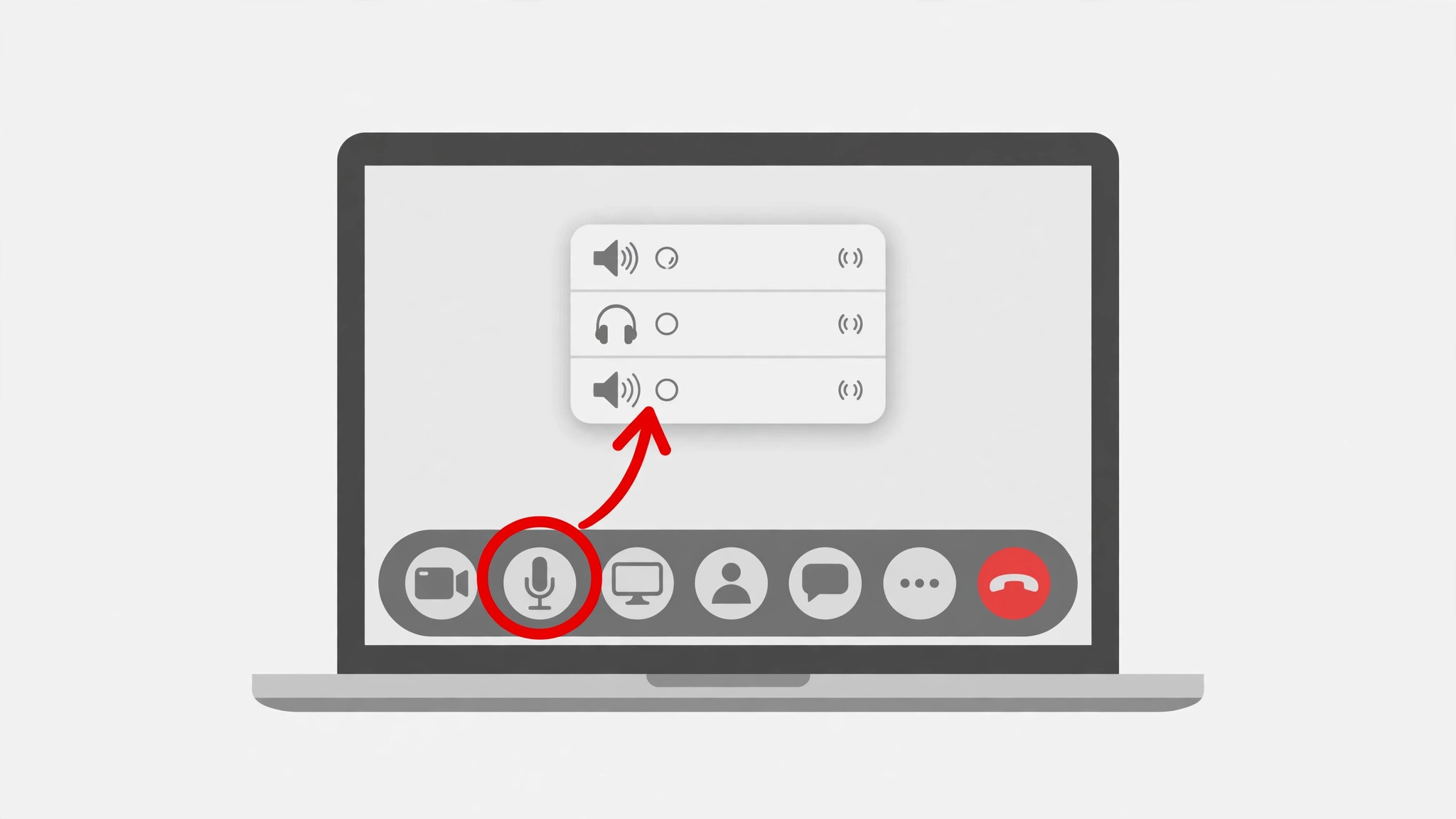
Also check the audio route, because Bluetooth headphones, a headset, a monitor speaker, and a laptop speaker can each claim audio, and Zoom may be sending sound to a device you are not listening to. A guest who hears nothing while others speak often has Zoom audio routed to a Bluetooth device that is off, in another room, or connected to a phone instead of the computer, and switching the speaker in Zoom settings to the correct device fixes it instantly. That route check, done before any driver work, solves a large share of live meeting audio failures in seconds. Check the route first when you fix Zoom audio not working meeting with a hearing failure, before driver work.

How to fix Zoom audio not working meeting in Order
Work through this order during a meeting if possible, starting with in meeting checks that take seconds, and moving to settings and system steps only if the fast checks fail. Keep phone audio as a backup, by joining audio by phone where the meeting offers it, so a computer audio failure does not remove you from an important meeting entirely. Test after each step with Zoom’s audio test or by speaking briefly, and stop as soon as audio works in both directions.
- Check that you are unmuted in Zoom, and that the host has not muted you, asking in chat if unmuting does not work.
- Check that you joined with computer audio, not phone audio or no audio, and join audio again from the meeting controls if needed.
- In Zoom audio settings, confirm the correct microphone and speaker are selected, and that volume is up for both.
- Use Zoom’s test microphone and test speaker controls, and speak and listen, to confirm each device actually works in Zoom.
- Check the computer volume, including any mute button on the keyboard, headset, or speaker, and disconnect Bluetooth audio temporarily to test built in audio.
- Check app permissions, so Zoom is allowed to use the microphone, and on Mac also check system microphone permission in privacy settings.
- Restart Zoom fully, rejoin the meeting, and test again, because a restart clears temporary audio states that settings cannot.
- Update Zoom to the latest version, restart, and test again, because updates fix known audio bugs.
- Update the audio driver from Device Manager on Windows, or check for a system update on Mac, restart, and test again.
- Try a different microphone or headset, and try a different USB port, to separate a device fault from a computer fault.
- Restart the computer fully, rejoin, and test again, as a stronger step when Zoom restarts have failed.
- If audio still fails on every device and network, test with another meeting app, and contact Zoom support or IT, with a note of steps tried.
That order runs from in meeting to system level, so a mute, a wrong device, or a Bluetooth route can be fixed without leaving the meeting, while driver and restart steps, which need more time, come only after fast checks have failed. The test controls in Zoom settings deserve emphasis, because they prove whether a device works in Zoom specifically, as opposed to working in the system generally, and a device that works in the system but fails in Zoom points to a Zoom setting, permission, or version fault, rather than to the device itself.
A device that fails in Zoom’s test and in the system points to the device, its driver, or its connection, and trying another device becomes the fastest next step.
When you fix Zoom audio not working meeting, do not change several settings at once during a live meeting, because a guest who changes mic, speaker, and permissions together cannot tell which change helped, and may introduce a new fault while fixing the old one. Change one setting, test briefly, and note the result, even in a live meeting, because that discipline fixes audio faster than frantic clicking. If the meeting is important and audio resists quick fixes, switch to phone audio immediately, contribute by phone, and troubleshoot computer audio after the meeting, because staying in the meeting matters more than fixing the perfect setup live.
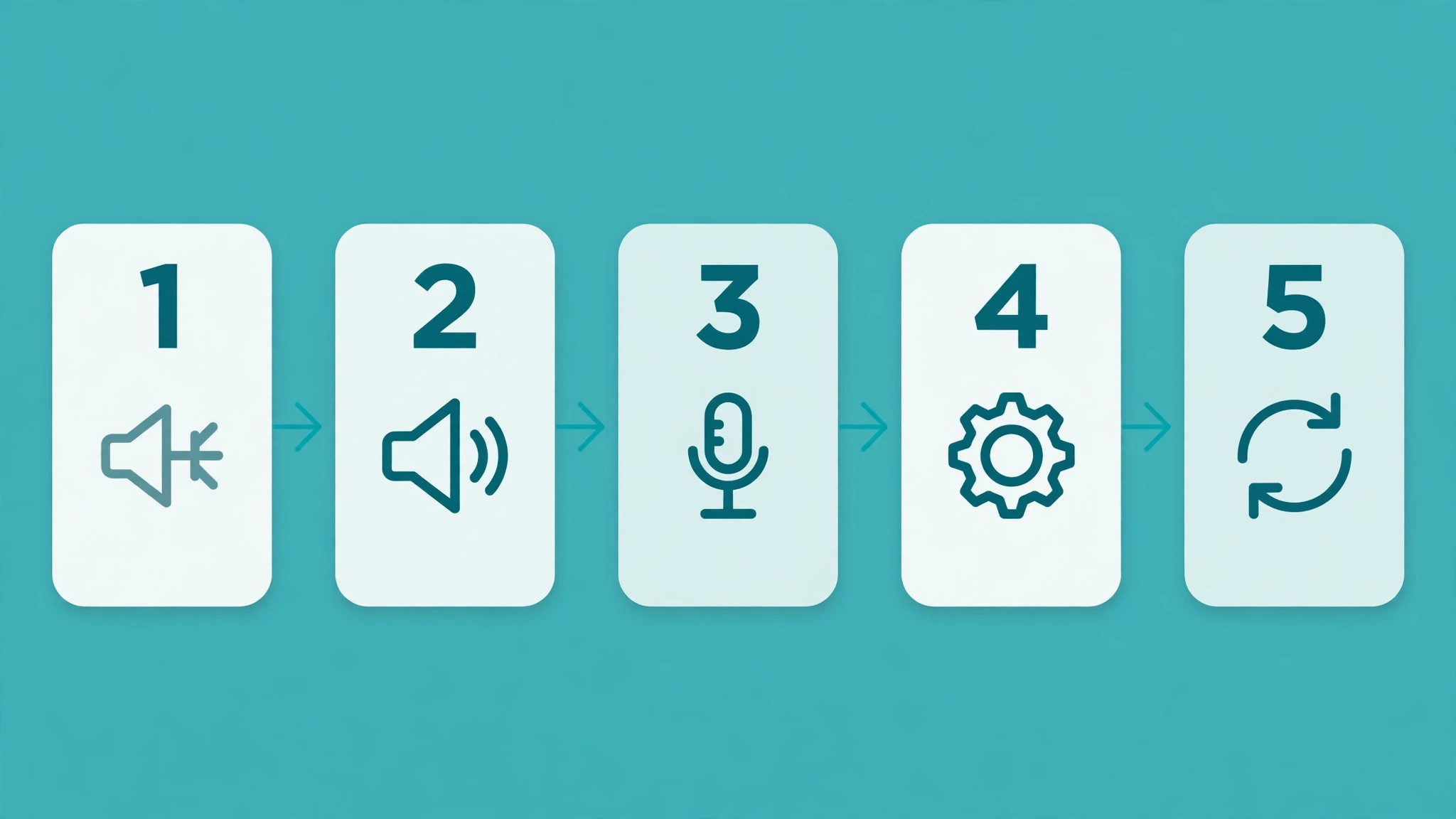
Host Fixes in Detail
Hosts carry responsibilities guests do not, because host settings can silence a whole meeting, and a host who does not know those settings can leave guests muted without understanding why. Before a meeting, check that participants are allowed to unmute themselves, unless the meeting design requires otherwise, because a meeting where guests cannot unmute will generate repeated audio complaints that guests cannot fix themselves. During a meeting, check the participants panel for muted icons, and use mute all sparingly, because mute all silences everyone at once, and guests who rejoin or arrive late may remain muted until the host releases them individually or allows self unmute.
Hosts should also check their own audio first when the whole meeting reports no sound, because a host with a faulty mic or speaker can make a healthy meeting seem broken, and guests will troubleshoot their own devices for a host fault they cannot fix. Test host audio with Zoom’s test controls before the meeting, and keep a backup audio device, such as a headset, ready, because a host who can switch devices quickly saves the meeting’s time.
If the host uses a room system, a conference microphone, or an external mixer, check that system’s mute, volume, and input selection as well, because room systems add a layer of audio controls beyond Zoom itself, and a muted room microphone looks exactly like a Zoom fault.
For recurring meetings, hosts should set a simple audio routine, which is to open with a sound check, asking one guest to speak and confirming everyone hears, and to keep chat open for audio reports, so a guest who cannot speak can still report the fault in writing. That routine catches audio problems in the first minute, when they are cheapest to fix, rather than ten minutes in, when the meeting has already lost momentum. A host who runs that routine, and who knows how to release a host mute quickly, prevents most meeting wide audio confusion before it starts. Run a sound check first when you fix Zoom audio not working meeting as a host, before the meeting starts.
Guest Fixes in Detail
Guests should start with the three fastest checks, which are mute status, audio join status, and device selection, because those three explain most guest audio failures and take seconds to verify. Confirm you are unmuted, and that the host has not muted you, by checking the mute icon and asking in chat if needed, because a host mute overrides a guest unmute. Confirm you joined with computer audio, by checking the audio controls, and rejoin audio if the meeting shows you as audio disconnected, because a guest who never joined audio cannot hear or speak, no matter how good their devices are.
Confirm the correct mic and speaker are selected in Zoom audio settings, because Zoom may default to a monitor, a webcam mic, or a Bluetooth device you are not using.
Next, check permissions and system settings, because a Zoom that cannot access the microphone will show a mic that never moves, even when the hardware is healthy. On Windows, check microphone privacy settings to confirm Zoom is allowed, and on Mac check system privacy settings for microphone access, because an update can revoke a permission that previously worked. Check the computer’s own sound settings to confirm the correct input and output devices are selected at system level, because Zoom follows system defaults when its own selection is set to system default, and a system default pointing to the wrong device will mislead Zoom as well.
Test the mic in another app, such as a voice recorder, to separate a Zoom fault from a device fault, because a mic that works elsewhere but not in Zoom points to Zoom settings or permissions.
If those checks fail, try a different device, a different USB port, and a Zoom restart, in that order, because a device swap is the fastest hardware test, and a port swap rules out a faulty port. Update Zoom and audio drivers only after fast checks, because updates take time and should not interrupt a live meeting unless the meeting allows it.
When you fix Zoom audio not working meeting as a guest, keep chat open as a backup channel, so you can report audio faults, ask the host to unmute you, and follow the meeting in writing while audio is fixed, because a guest who disappears silently helps nobody, while a guest who reports clearly in chat stays part of the meeting.
Cause Table for Meeting Audio
Use this table to match what you see with the most likely cause and the first fix, so a live meeting fault leads straight to the relevant check without working blindly. The table does not replace the full order, but it speeds diagnosis when time is short and the meeting is waiting.
| Symptom | Most likely cause | First fix to try |
|---|---|---|
| Muted icon, cannot unmute | Host muted you or self unmute off | Ask host in chat to unmute or allow unmute |
| No audio joined at all | Joined without computer audio | Join audio from meeting controls |
| Can hear, cannot speak | Mic muted, wrong mic, or permission | Unmute, check mic selection, check permission |
| Can speak, cannot hear | Wrong speaker, volume, or Bluetooth route | Check speaker, volume, disconnect Bluetooth test |
| Echo or feedback | Speaker feeding mic, open mic | Use headphones, mute when not speaking |
| Audio cuts in and out | Weak network or overloaded system | Close heavy apps, check connection, use phone audio |
| Works in test, fails in meeting | Meeting setting or host control | Rejoin audio, check host mute, rejoin meeting |
| Fails on one device only | That device, driver, or port fault | Try another device, port, driver update |
A symptom that changes after a step is useful, even when the step does not fully fix the problem, so note what changed. If switching speakers restores hearing but speaking still fails, the speaker was one problem and the mic is a separate problem, and the next step should focus on mic selection and permission. Use the table first when you fix Zoom audio not working meeting and time is short. If a Zoom restart restores audio briefly and it fails again, a driver, permission, or network cause is more likely than a simple temporary state, and system steps become the priority after the meeting.
Troubleshooting is narrowing, not magic, and a short note of symptoms, steps, and changes makes that narrowing fast, especially if you later seek IT help.
Audio Settings, Drivers and Permissions Explained
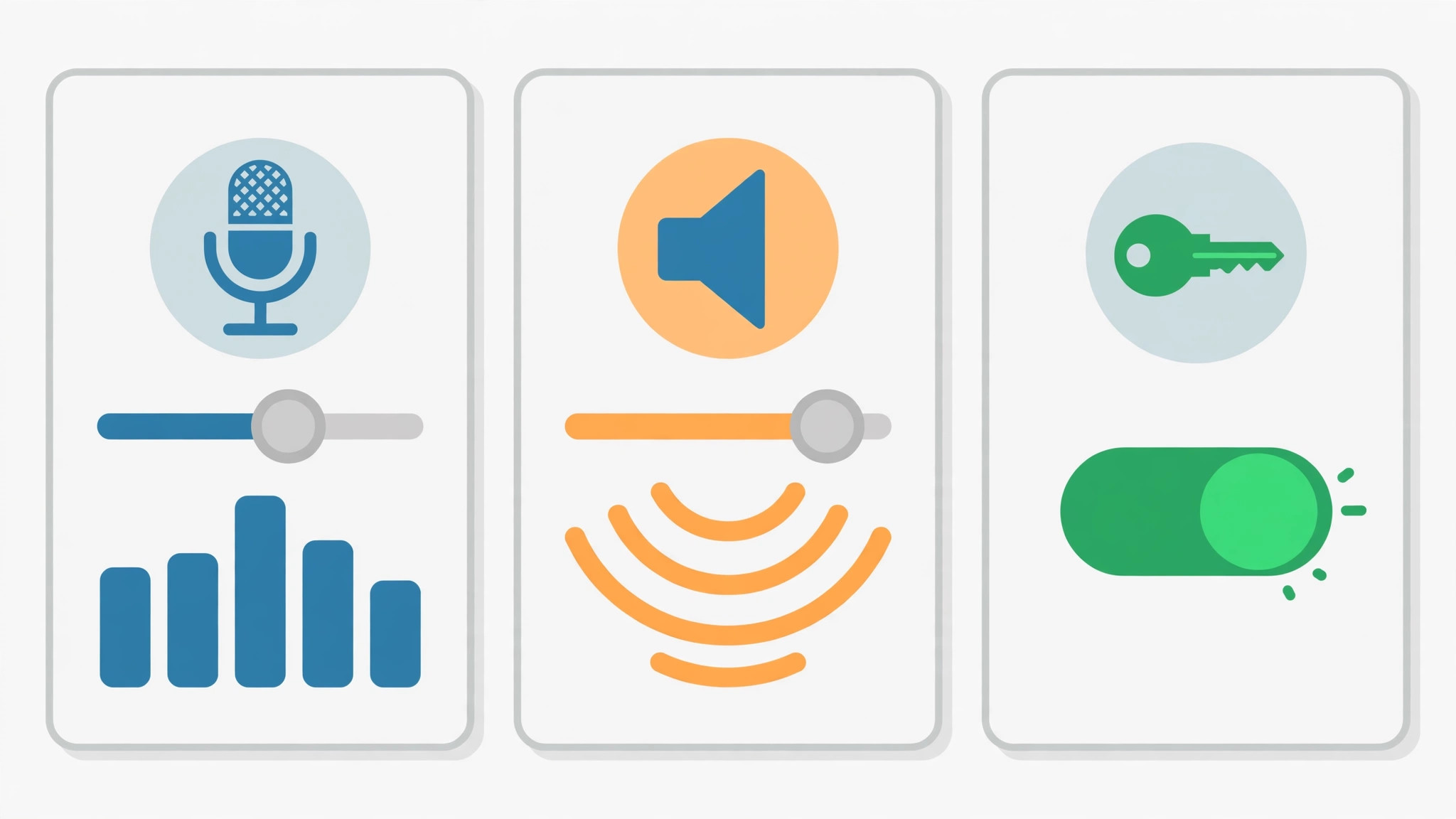
Audio settings in Zoom contain several options that can silently break sound, and checking them fully takes only a few minutes. Open Zoom settings, go to Audio, and confirm the speaker and microphone selections, because a selection of system default can point to a wrong device if system defaults changed. Check the volume sliders for speaker and microphone, and test both with Zoom’s test controls, because a volume set to zero looks exactly like a device failure. Check the option to automatically adjust microphone volume, and consider turning it off if volume fluctuates wildly, because automatic adjustment can overcorrect in noisy rooms.
Check the option to suppress background noise, because aggressive noise suppression can clip quiet speech, especially in a noisy home, and a lower suppression level may restore natural speech.
Drivers and permissions complete the system picture, because Zoom cannot use a device the system has not allowed or a driver has not loaded correctly. Test with Zoom’s controls when you fix Zoom audio not working meeting, not just in the meeting. On Windows, update the audio driver from Device Manager, under Sound, Video and Game Controllers, or under Audio Inputs and Outputs, and restart after updating, because a driver update without a restart may not take effect. On Mac, check for a system update, because audio drivers are part of the system, and check privacy settings for microphone access, because a revoked permission blocks Zoom completely while other apps may still work if they hold separate permissions.
Also check whether another app is using the microphone exclusively, because some audio software locks the mic, and closing that app frees it for Zoom.
Network audio faults deserve a brief note, because a weak connection causes cutting, delay, and robotic sound that feels like a device fault but is actually a network fault. Close heavy uploads, downloads, and video streams on the same network, move closer to the router or use a wired connection if possible, and consider phone audio as a backup, because phone audio uses a separate network path and often stays stable when computer audio falters. A meeting that sounds clear on phone audio but broken on computer audio has a computer network or device problem, not a Zoom server problem, and that distinction saves a support ticket aimed at the wrong cause.
Mistakes That Waste Time on Meeting Audio
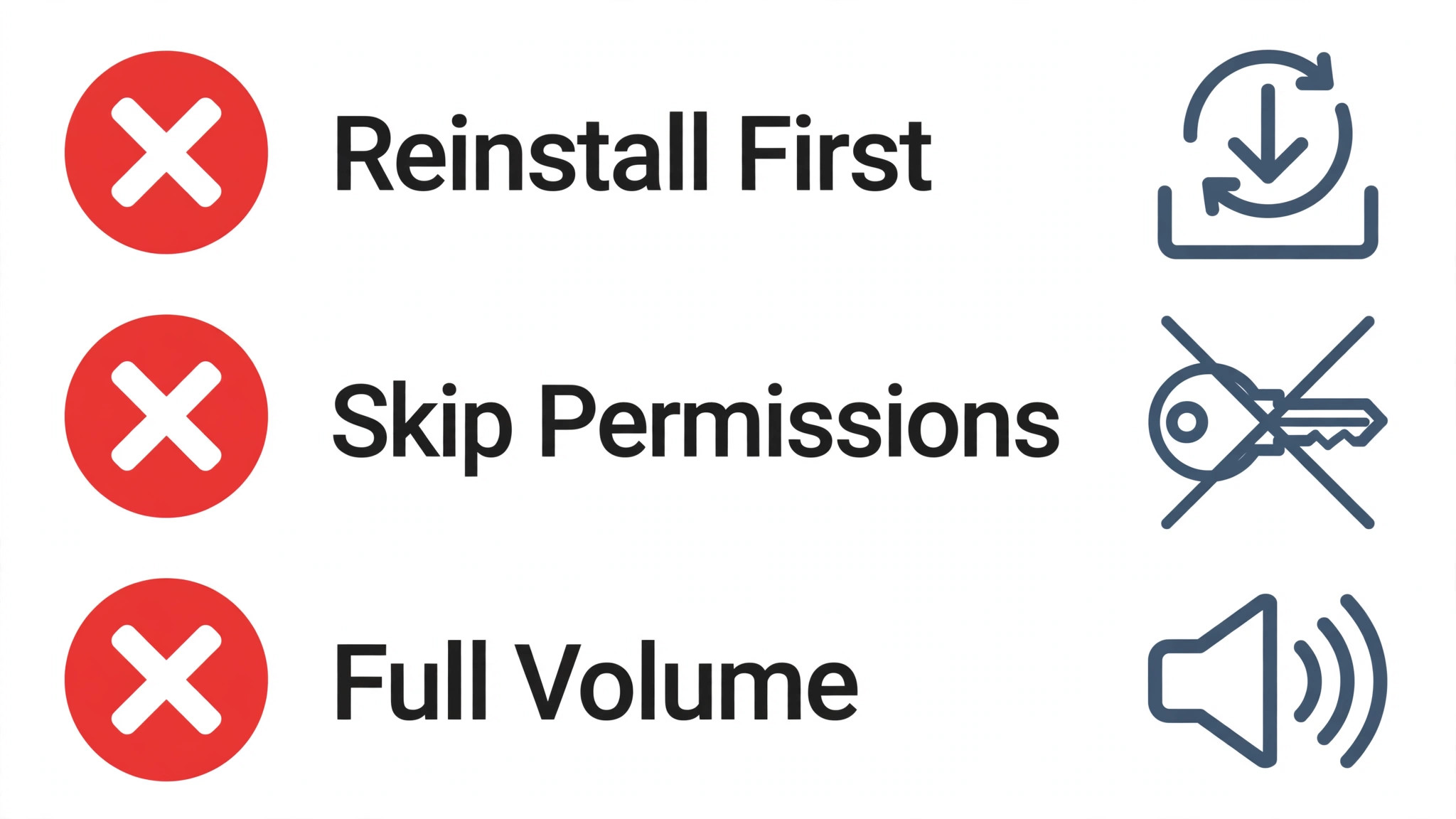
The first mistake is changing several audio settings at once during a live meeting, which makes it impossible to know which change helped, and can introduce a new fault while fixing the old one. The second mistake is ignoring the host mute, because a guest who troubleshoots devices for a host mute wastes the meeting’s time on a fault only the host can release. The third mistake is ignoring the audio route, because a Bluetooth device in another room can claim Zoom audio silently, and no driver update will fix a speaker selection pointing to the wrong room.
The fourth mistake is reinstalling Zoom before checking mute, device selection, permissions, and a restart, which costs a download and a sign in for a problem that often needs only a device switch. The fifth mistake is testing only in the meeting, instead of with Zoom’s test controls, because a test that proves a device works in Zoom separates Zoom faults from device faults in seconds. The sixth mistake is staying silent about an audio fault, instead of reporting it in chat, because a host and other guests cannot help a fault they do not know about, and a guest who reports clearly stays part of the meeting while audio is fixed.
Preventing the Next Meeting Audio Failure
Prevention for meeting audio is mostly about pre meeting checks, device consistency, and backup plans, because most failures come from a changed default, a revoked permission, or a device swap that was never tested. Before an important meeting, run Zoom’s audio test, confirm mic and speaker selections, and speak a test sentence, because a two minute check before a meeting prevents a ten minute fault during it. Test before important meetings when you fix Zoom audio not working meeting through a prevention routine. Keep one trusted headset or microphone as the default, and avoid switching devices between meetings without testing, because each new device brings new selections, permissions, and driver behaviour that can fail unexpectedly.
Keep Zoom and audio drivers updated, but test audio after any update, because an update can change defaults or revoke permissions, and a quick test after an update catches that change while it is still easy to fix. Keep phone audio as a known backup, by knowing how to join audio by phone for your usual meetings, so a computer audio failure becomes a switch, not a disappearance. For hosts, keep the opening sound check routine, and keep participant unmute allowed unless the meeting design requires otherwise, because a host who prevents audio faults saves every guest’s time.
A few minutes of pre meeting audio care keeps meetings sounding clear, which is exactly how remote work should feel, and it means the next audio failure, if it comes, will be a quick device switch instead of a lost meeting.
More Reading on Stratilyze
If this guide helps your meeting audio work, the wider Stratilyze guides cover the meeting problems around it. The guide to Zoom camera not working on a laptop helps when video fails next, the guide to Zoom screen share not working covers the other sharing direction, and the guide to Zoom audio echo step by step helps when echo, not silence, is the fault. Read the echo guide next if sound works but feeds back, because echo needs different settings.
Frequently Asked Questions
Why can nobody hear me on Zoom when you fix Zoom audio not working meeting?
The most common causes are that you are muted, the host muted you, the wrong microphone is selected, or Zoom lacks microphone permission. Check the mute icon, ask the host in chat if unmuting does not work, confirm the correct mic in Zoom audio settings, and test the mic with Zoom’s test control. If the mic works in another app but not in Zoom, permission or Zoom settings are the likely cause, while a mic that fails everywhere points to the device, its port, or its driver.
Why can I hear others but they cannot hear me?
That pattern means your speaker and connection work, while your microphone path fails, so focus on mic mute, mic selection, mic permission, and mic hardware, in that order. Unmute, select the correct mic in Zoom settings, confirm system microphone permission for Zoom, and test the mic in Zoom’s test control and in another app. If the mic works elsewhere but not in Zoom, Zoom settings or permissions are at fault, while a mic that fails everywhere needs a device, port, or driver check.
Why can I speak but not hear anyone on Zoom?
That pattern means your mic works while your speaker path fails, so focus on speaker selection, volume, and audio route, in that order. Confirm the correct speaker in Zoom audio settings, check computer volume and any mute button, and disconnect Bluetooth temporarily to test built in audio, because Zoom audio routed to an off or distant Bluetooth device is a common silent cause. If built in audio works but Bluetooth does not, the Bluetooth device, its pairing, or its battery is the fault.
How do I test my mic and speakers in Zoom?
Open Zoom settings, go to Audio, and use the test speaker and test microphone controls, speaking and listening to confirm each device actually works in Zoom. A device that passes Zoom’s test but fails in a meeting points to meeting settings, host controls, or network causes, while a device that fails Zoom’s test points to device selection, permission, driver, or hardware causes. Run that test before important meetings, because a two minute check prevents a ten minute live fault.
What should a host do if nobody can hear anyone?
A host should check their own audio first, then check whether mute all is on and whether participants are allowed to unmute themselves, because host settings can silence a whole meeting. Open the participants panel, look for muted icons, release mutes or allow self unmute, and ask one guest to speak as a sound check, confirming everyone hears. If host audio itself fails, switch to a backup headset and test again, because a host fault makes a healthy meeting seem broken.
Can a weak internet connection cause Zoom audio to fail?
Yes, a weak or unstable connection causes cutting, delay, robotic sound, and dropouts that feel like device faults, especially when video and screen sharing compete for bandwidth. Close heavy uploads, downloads, and streams on the same network, move closer to the router or use a wired connection if possible, and switch to phone audio as a backup, because phone audio uses a separate path and often stays stable. A meeting that sounds clear on phone audio but broken on computer audio has a computer network or device problem, not a Zoom server problem.
Sound Back in the Meeting
A Zoom audio failure resolves fastest when the pattern is read first, because a mute, a wrong device, or a Bluetooth route can be fixed in seconds, while a driver or permission fault needs more time. Check mute and host mute, confirm computer audio is joined, select the correct mic and speaker, and test both with Zoom’s test controls, before restarting Zoom, updating drivers, or trying another device. Hosts should keep self unmute allowed and run an opening sound check, while guests should report faults in chat and switch to phone audio for important meetings when computer audio resists quick fixes.
Test audio before the next important meeting, keep one trusted headset as the default, and the next audio failure will be a quick device switch instead of a lost meeting.