

Software waste surveys keep finding the same pattern, which is that businesses pay for two tools that do the same job, or keep paying for a tool nobody loves, because switching feels riskier than staying. That is why a plan to switch Slack to Microsoft Teams small business needs to start with evidence, not enthusiasm. This guide sets out what actually moves, what must be rebuilt, and what breaks, so you can judge whether the move saves money and time, or whether it simply trades one set of limits for another.
Read this guide with your current Slack workspace open beside it, because the mapping and rebuild sections only become useful when you can check them against your own lists, boards, and automations. Tick off each row as you verify it, and by the end you will have a migration plan with real numbers and real owners, rather than a general impression that switching might be a good idea. That detail is exactly why the switch Slack to Microsoft Teams small business question deserves a careful answer.
Why businesses consider moving from Slack to Microsoft Teams
Businesses rarely switch because a competitor ran a better advertisement. They switch because a bill jumped at renewal, because a feature they need sits behind a tier they cannot justify, because the team outgrew a limit, or because support stopped answering in a useful way. Each of those reasons points to a different test for the new tool. A price-driven switch must beat the old total, including migration time. A feature-driven switch must prove the feature works for your exact workflow, not just that it exists on a feature list.
Before you commit, write down the three reasons for the move in order of importance, and the one reason that would make you stay. If the new tool does not clearly beat the old one on the top reason, pause. Switching costs are real even when the software is cheap, because every hour spent exporting, mapping, testing, and retraining is an hour not spent serving customers. A switch that saves fifty dollars a month but costs forty hours of staff time takes most of a year to break even, and that arithmetic should be done before anyone exports anything.
It also helps to check whether the problem is the tool or the setup. Many teams switch when a cleanup, a tier change, or a different configuration would have fixed the pain for free. Audit your current workspace first, remove dormant users and duplicate data, and test the feature you think is missing with a trial or a support question. If the pain survives that cleanup, the case for moving is much stronger, and you will migrate a tidy workspace instead of carrying years of clutter into a new system.
What Slack and Microsoft Teams cost side by side
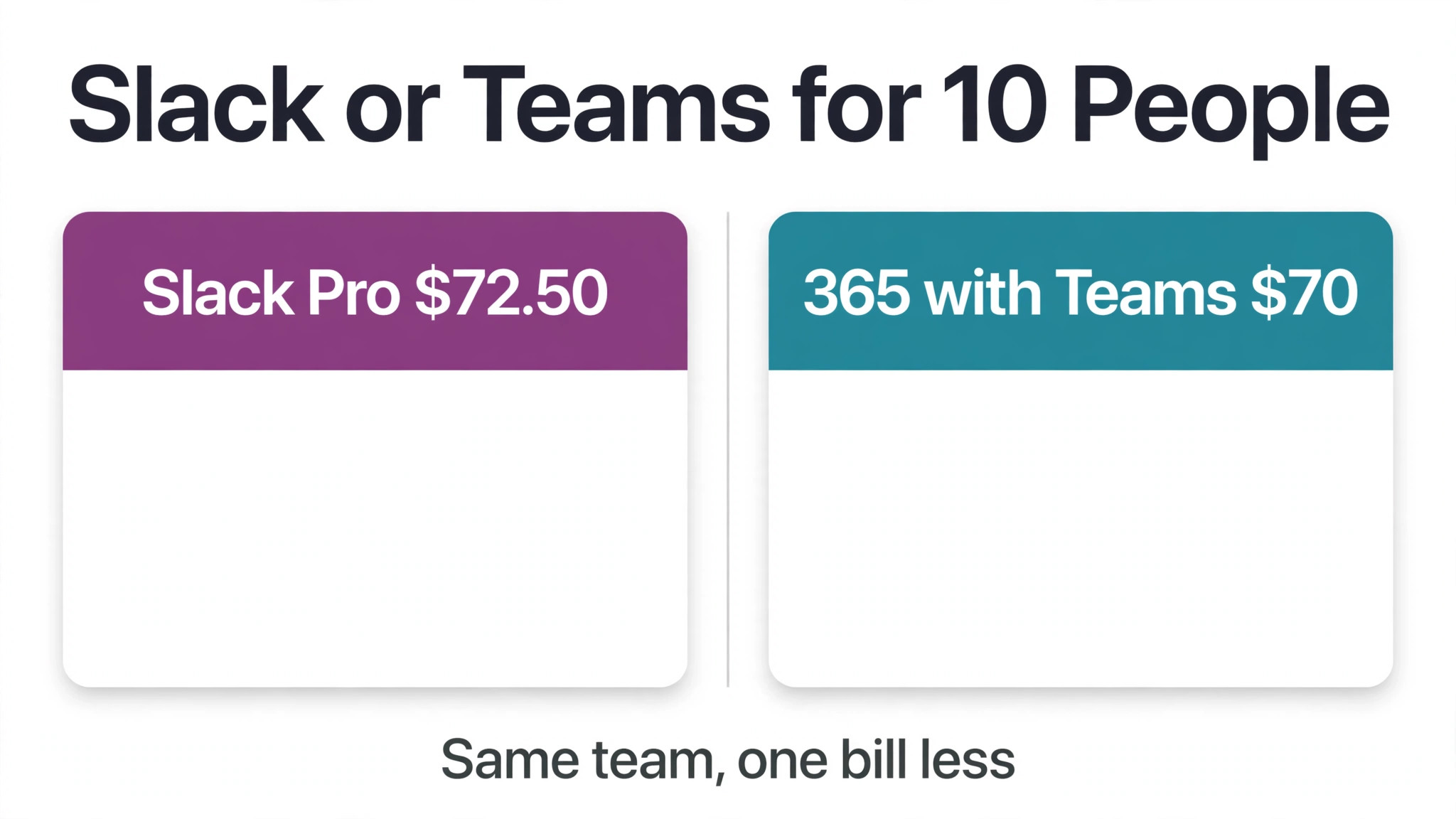
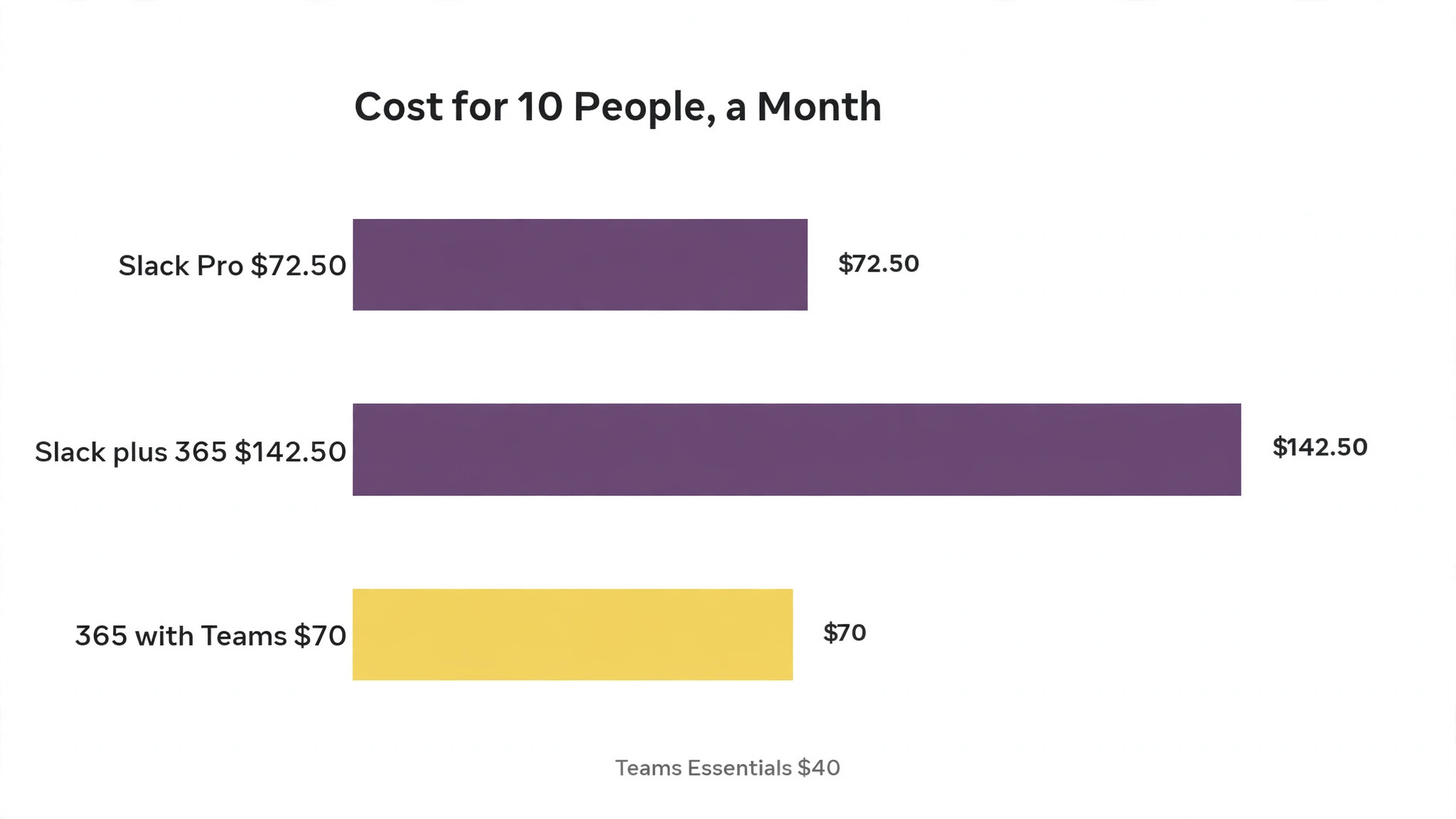
For a team already paying for Microsoft 365, Teams is included in Business Basic at $7 per user a month, so switching from Slack Pro at $7.25 per user billed annually can save the entire Slack subscription, not just the price difference. A ten-person team on Slack Pro pays $72.50 a month, while the same team on Microsoft 365 Business Basic pays $70 a month for email, Office apps, storage, and Teams together. The saving is therefore the Slack bill itself, provided the team already needs Microsoft 365 for other reasons.
Do not compare starting prices alone. Compare the tier each business actually needs, priced for the same team size and the same volume, over twelve months. Include add-ons, migration help if you pay for it, and the overlap month when both tools are running, because a safe migration always overlaps. The overlap month is not waste. It is insurance, and it is far cheaper than discovering a missing report or a broken automation after the old account has closed. Keep the switch Slack to Microsoft Teams small business in mind as you compare the numbers in the next section.
| Setup | Monthly cost for 10 people | What is included |
|---|---|---|
| Slack Pro alone | $72.50 billed annually | Chat, history, apps, huddles |
| Slack Pro plus Microsoft 365 Basic | $142.50 | Slack plus email, Office web apps, storage |
| Microsoft 365 Basic with Teams | $70 | Email, Office web apps, storage, Teams chat and meetings |
| Teams Essentials alone | $40 | Teams chat and meetings, 10 GB storage per user |
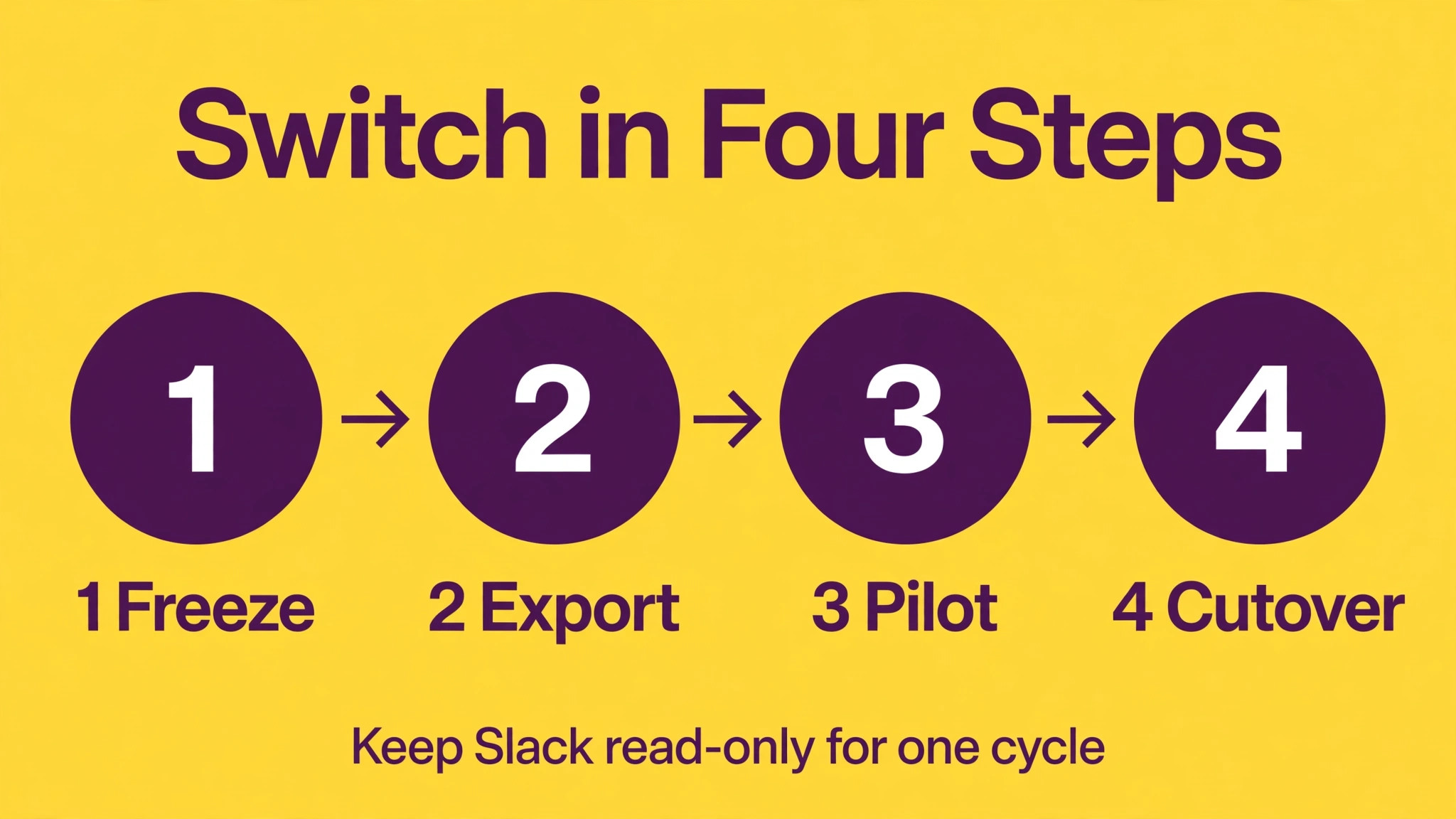
How to switch Slack to Microsoft Teams small business without losing work
Start with a freeze date and a named owner. Pick a quiet week, tell the team that no new automations or templates will be built in the old tool after that date, and give one person responsibility for the migration checklist. Without a freeze date, the old system keeps changing while you migrate it, and you end up chasing a moving target. Without an owner, tasks slip between team members and nobody notices until a campaign, an invoice, or a board goes missing.
Next, export everything before you import anything, and keep those exports somewhere safe outside both tools. That means contacts, lists, boards, deals, invoices, templates, and automation rules, even the ones you plan to rebuild rather than import. Exports are your rollback plan. If an import fails, if a field maps wrongly, or if the new tool turns out to be a poor fit, a complete export lets you return to the old tool without reconstructing months of work from memory.
Then run a pilot with a small slice of real data, not a demo dataset. Import one list, one board, or one pipeline, send a test message or create a test record, and check the result field by field. Pilots catch the mapping errors that a full import hides, such as dates in the wrong format, tags that did not transfer, or permissions that left a colleague locked out. Fix the mapping on the pilot, document the correct settings, and only then run the full import with the same steps.
What maps where from Slack to Microsoft Teams
The mapping table below is the heart of this migration. Read it row by row and mark each item as moves cleanly, needs hand mapping, or must be rebuilt. That marking exercise turns a vague worry about switching into a concrete task list with an owner and a time estimate for each row. Anything marked as rebuild needs a decision, which is whether to rebuild it as it was, improve it while you rebuild, or drop it because nobody uses it any more. Dropping dead automations is a genuine benefit of switching, if you do it deliberately. A clear view of the switch Slack to Microsoft Teams small business makes the next decision much easier.
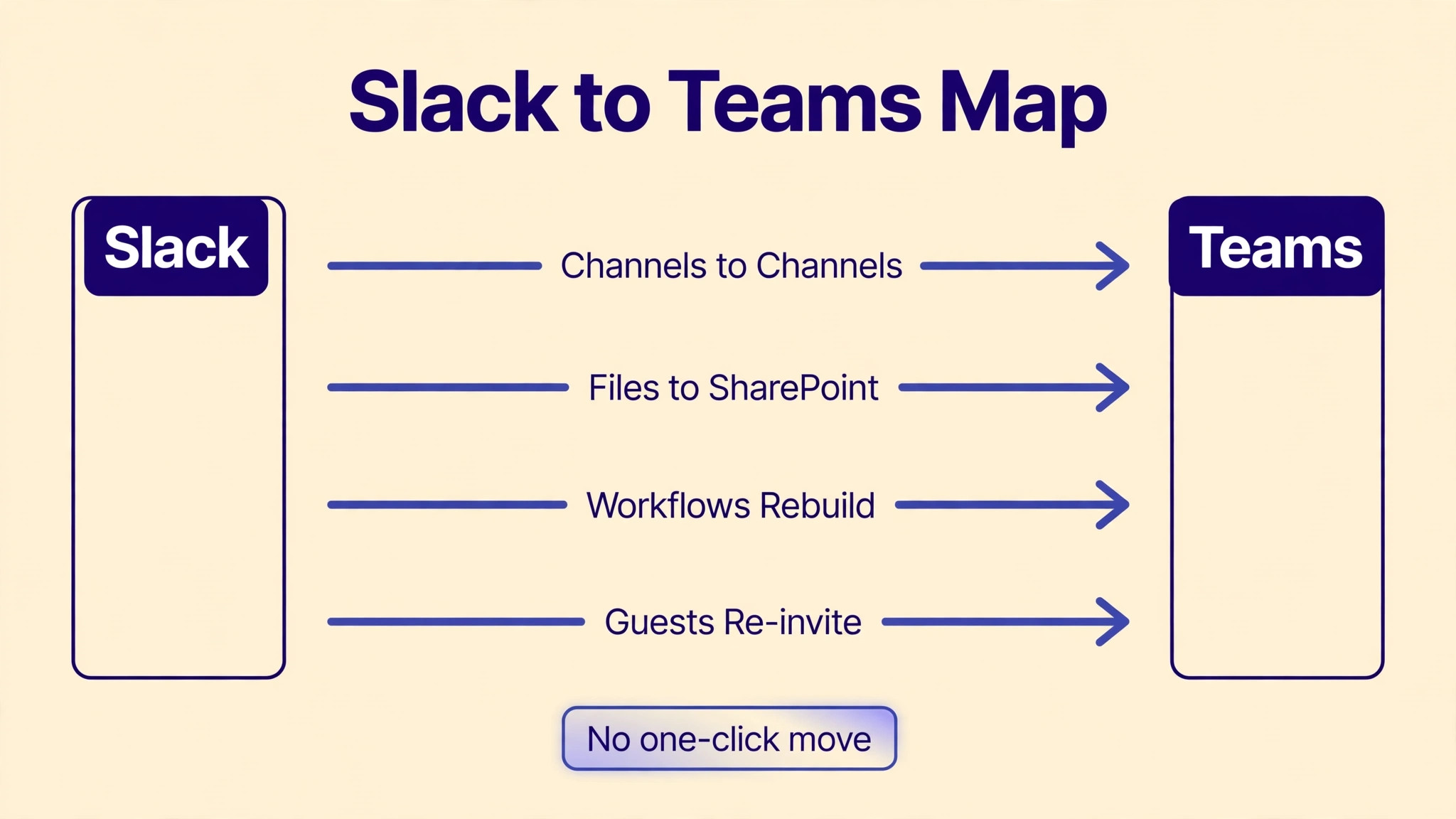
There is no one-click Slack to Teams migration inside either product, so most migrations use a third-party migration tool, a manual export and import, or a phased move where history is archived rather than transferred. Slack exports vary by plan, with free workspaces limited in what can be exported, while paid workspaces can export more complete data. Check your Slack plan export rights before you promise the team that history will move, because a free workspace export will disappoint if it was never tested.
| Item in Slack | What happens in Microsoft Teams | Action |
|---|---|---|
| Channels | Map to Teams channels within a team | Design team and channel structure first |
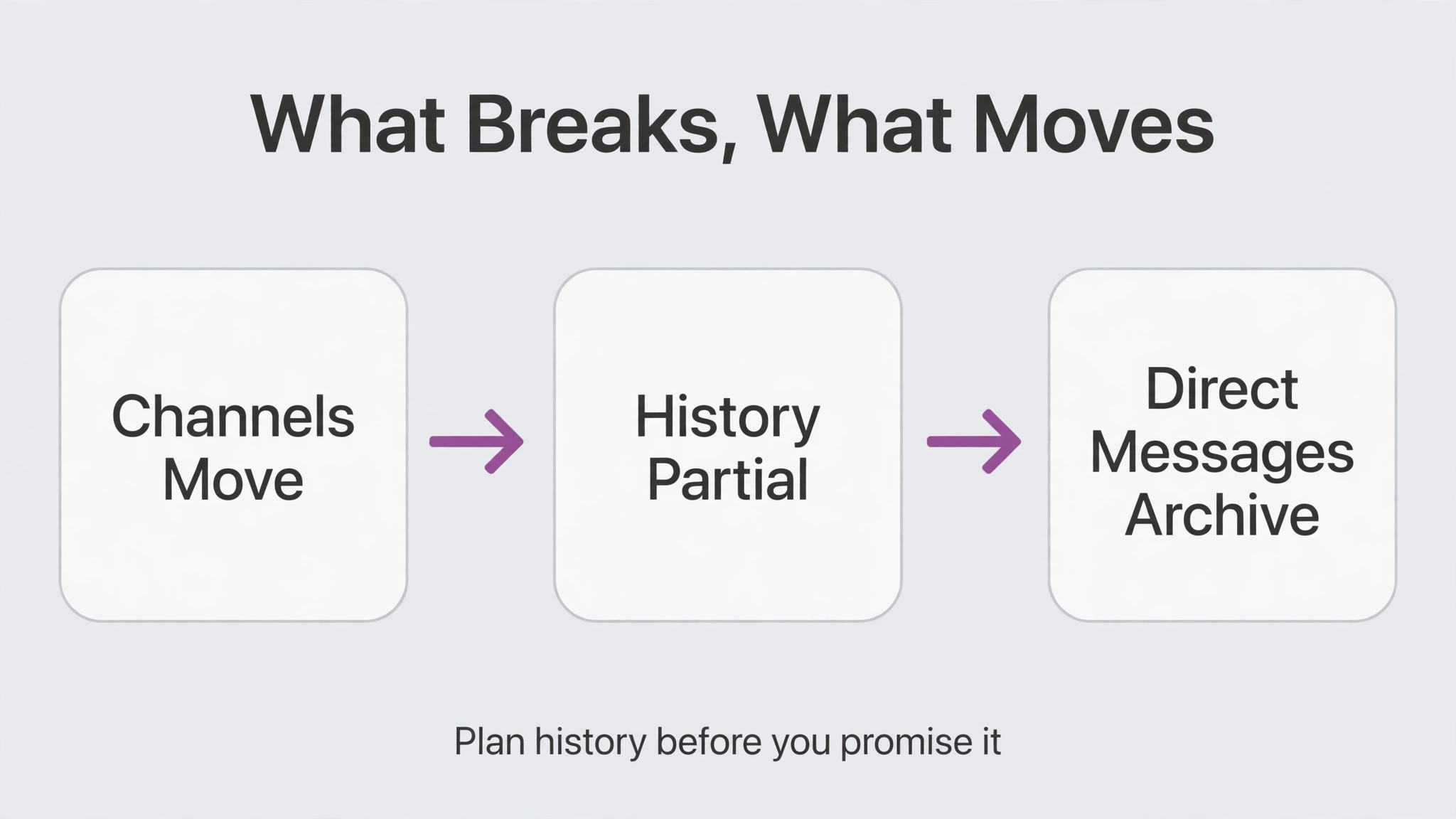
| Direct messages | Do not transfer as a conversation history | Archive important direct messages separately |
| Message history | Partial, depending on migration tool and plan | Use a migration tool or archive history |
| Files | Must be moved to SharePoint or OneDrive | Move files before channel migration |
| Apps and integrations | Must be reconnected in Teams | List every app, check Teams equivalent |
| Workflows | Must be rebuilt with Power Automate or Teams workflows | Document workflows before migration |
| Guests and external channels | Must be re-invited as guests in Teams | Plan guest access with IT policies |
| Emojis and custom reactions | Do not transfer fully | Accept loss, or recreate key custom emojis |
Breakages to Plan For
Message history is the break that surprises teams most, because Slack history feels permanent while Teams migration tools vary widely in how much history they preserve. A migration tool can move channels and messages for a price, but direct messages, threads, and reactions often transfer imperfectly, and a free Slack workspace may not export history at all. Decide before migration whether history must move, whether an archive is enough, or whether the team can start fresh with an archived export for reference, and communicate that decision clearly so nobody expects a complete transfer that was never promised.
Workflows, bots, and integrations are the second rebuild layer, because Slack Workflow Builder automations, custom bots, and third-party apps do not convert to Teams equivalents automatically. Power Automate can recreate many workflows, but each one must be rebuilt and tested, and bots that post to Slack channels need new Teams webhooks or app registrations. List every workflow and integration before migration, rank them by daily use, and rebuild the daily ones first, because a migration that breaks a daily standup bot will feel like a failure even if the chat itself works perfectly.
Rebuilding is also a chance to simplify, and most migrations benefit from a rule that nothing is rebuilt exactly as it was without a reason. Ask for each automation, template, and report whether it is still used, whether it still matches how the team works, and whether the new tool offers a simpler way to get the same outcome. Teams that rebuild everything blindly carry old clutter into a new system and lose half the benefit of switching. Teams that prune as they rebuild arrive with a cleaner workspace and a team that actually understands it.
Budget time for retraining as carefully as you budget time for data work. A new tool that the team does not trust will be worked around, with spreadsheets and side channels recreating the old workflow in secret. Short, task-based training sessions beat long overview videos, because people learn a tool by doing their own job in it, not by watching someone else do a demo job. Give each person one real task in the new tool during the pilot week, and most resistance fades before go-live. That detail is exactly why the switch Slack to Microsoft Teams small business question deserves a careful answer.
The migration week plan for Slack to Microsoft Teams
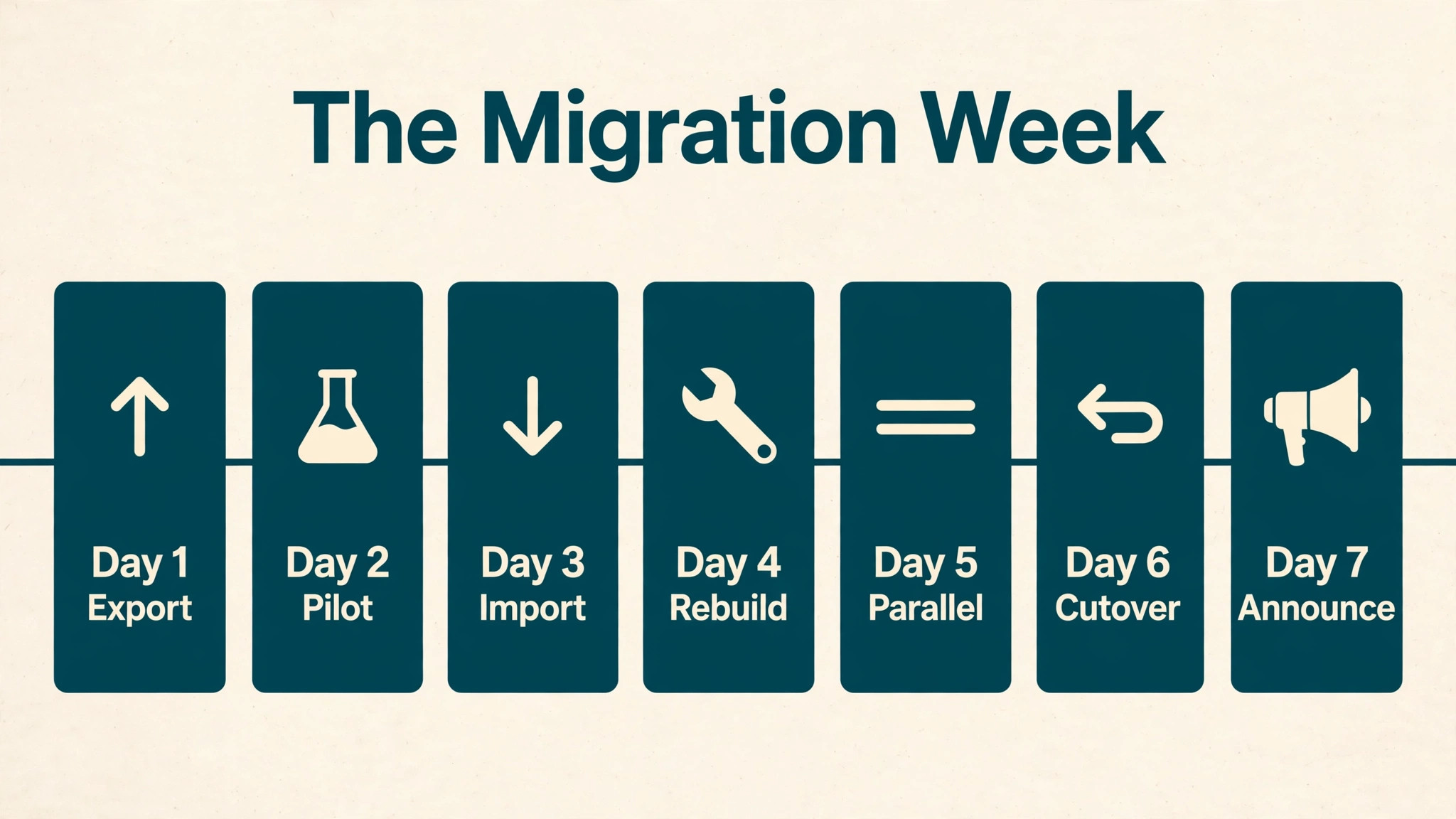
Day one is preparation, meaning exports, a field-mapping sheet, and a pilot import with test data. Day two is the pilot review, where the team checks the imported data field by field and signs off the mapping. Day three is the full import, run outside peak hours, followed by a second check of counts, meaning the number of contacts, boards, or deals imported should match the number exported, with any difference explained before you proceed.
Day four is rebuilding, meaning templates, automations, and reports are recreated in priority order, starting with the ones the business uses daily. Day five is parallel running, where the team uses the new tool for real work while the old tool remains available for reference. Day six is the cutover decision, made only if the parallel day went cleanly, and day seven is the announcement, with new links, new login instructions, and a clear statement that the old tool is now read-only. If any day fails, repeat it. A delayed cutover costs a week. A failed cutover costs trust.
Keep the old account open, in read-only or downgraded form, for at least one full billing cycle after cutover. History, old campaign results, and closed records are often needed for tax, audit, or customer questions long after the switch, and recovering them from a closed account is slow or impossible. Set a calendar reminder for the date when the old account will finally close, and export a final archive before that date, so the decision to close is deliberate rather than accidental.
How to test Microsoft Teams before you commit
Test the new tool with real work, not with a demo dataset, because demo data hides the awkward cases that real businesses live with every day. Import a small, real slice of your data, run the tasks your team does daily, and check whether the tool handles your edge cases, such as a customer with two email addresses, a board with many labels, or a deal that moved backwards through the pipeline. A tool that handles real work in a pilot will handle it live, while a tool that only handles demo work will disappoint on the first real week.
Test with the people who will actually use the tool, not just with the person who chose it, because adoption lives or dies with daily users. Give each team member one real task in the new tool during the pilot week, watch where they get stuck, and note whether the sticking point is training, setup, or a genuine missing feature. Training problems can be fixed in an afternoon. Missing features cannot, and discovering them during a pilot is far cheaper than discovering them after cutover, when returning to the old tool feels like failure.
Test integrations during the pilot as well, because a tool that works alone but fails to connect to your website, payment system, calendar, or email is not a working tool for your business. Connect the integrations that daily work depends on, send a test record through each one, and check that it arrives in the right place with the right fields. An integration that fails in the pilot can be fixed with help from support. An integration that fails on go-live day blocks real customers, and that is a very different problem. Keep the switch Slack to Microsoft Teams small business in mind as you compare the numbers in the next section.
Finally, test the exit as well as the entry, by checking how you would export your data from the new tool if you ever needed to leave it. A tool with a clean, complete export is a tool you can trust, because you are not locked in by data hostage-taking. A tool with a poor export should be treated with caution, however attractive its features look, because every business eventually switches again, and the cost of leaving is set by the export quality you accept on day one.
The First 30 Days After Switching
The first month after cutover is a verification period, not a celebration period, and it should be treated as part of the migration, not as business as usual. Check weekly whether counts match, meaning contacts, boards, deals, or orders in the new tool should reconcile with the old tool, with any difference explained rather than ignored. Check whether automations fired correctly, whether reports show the expected figures, and whether the team is using the new tool for real work or quietly working around it with spreadsheets and side channels.
Ask the team directly, in a short meeting at the end of week one and again at the end of week four, what is working, what is slower than before, and what is broken. People will report problems in a meeting that they would not report in a ticket, especially if they fear looking slow for struggling with a new tool. Fix the reported problems quickly, even if the fix is only a training note or a shortcut, because early fixes build trust, while ignored early complaints harden into resistance that lasts for months.
Review costs at the end of the first month as well, because the first invoice often reveals add-ons, seat counts, or usage charges that the pilot did not surface. Compare the first invoice with the budget you set before migration, query any line you do not recognise, and adjust seats or tiers before the second invoice, while changes are still cheap. A migration that saves money on paper but costs more on the first invoice has a problem that should be found in month one, not at renewal. A clear view of the switch Slack to Microsoft Teams small business makes the next decision much easier.
At the end of the first month, make the formal decision to close the old account, or to extend read-only access for another cycle, and record that decision with reasons. Closing too early risks losing history that is still needed, while keeping the old account open indefinitely costs money and confuses new starters about where work lives. A deliberate close, with a final export archived and the team told clearly where the single source of truth now lives, is the clean end that a careful migration deserves.
Negotiating the new contract for Microsoft Teams
Negotiate before you migrate, not after, because your bargaining power is highest while the vendor still needs to win your business, and lowest once your data is already inside their system. Ask for a price lock for the first year or two, for a discount on additional seats as you grow, or for an add-on to be included at no extra charge, and compare the offer with a competitor quote at the same size so the vendor knows the comparison is real. A vendor that will not negotiate before you sign is unlikely to negotiate generously at renewal, when switching costs are higher.
Read the contract for auto-renewal, notice periods, data export rights, and price-rise clauses, and do not assume that standard terms are non-negotiable for a small business. Ask specifically whether prices can rise mid-term, how much notice is required to cancel, and whether your data can be exported in a usable format at any time. If a clause worries you, ask for it to be amended or clarified in writing, because a contract signed in haste will govern the relationship for years, long after the excitement of a new tool has faded.
Finally, keep the total cost in view during negotiation, including seats, add-ons, migration help, and the overlap month when both tools run. A discount on the subscription that is offset by a mandatory onboarding fee or a paid migration service is not a discount at all, and a low first-year price that jumps at renewal is a delayed bill rather than a saving. Negotiate the twelve-month total, get it in writing, and set a renewal reminder the day you sign, so the next negotiation starts from a position of preparation rather than surprise.
The verdict on moving to Microsoft Teams
Switch to Teams when your business already pays for Microsoft 365, because in that case Teams is effectively free and paying for Slack as well is duplicate spending. The switch also makes sense when meetings, file collaboration, and phone features need to live in one Microsoft-centred system, rather than across separate chat, meeting, and storage tools. For a Microsoft 365 team, the financial case is unusually clear, and it does not depend on Teams being better than Slack in every detail.
Do not switch if your team, clients, or partners live in Slack Connect channels that cannot easily move, if your workflows depend on Slack-specific apps without Teams equivalents, or if the team will resist Teams so strongly that productivity falls for months. In those cases, keep Slack and audit its seat list instead, or run a pilot team on Teams for a month before deciding. A pilot that fails is cheap information. A forced migration that fails is expensive resentment. That detail is exactly why the switch Slack to Microsoft Teams small business question deserves a careful answer.
Communication during a migration matters as much as data mapping, because a team that does not know what is changing, when it is changing, and where to get help will invent its own answers, usually by keeping the old tool alive in secret. Send a short announcement before the pilot, another before cutover, and a final note when the old tool becomes read-only, each one stating the new login link, the person to ask for help, and the date the old system closes. Short, factual updates beat long explanatory emails, because people read the first paragraph and act on it, while they skim the rest.
Training should be task-based and short, because nobody learns a new tool from a two-hour overview video. Give each person one real task to complete in the new tool during the pilot week, such as sending a test campaign, creating a test deal, or moving a real card through a board, and let them ask questions while the task is fresh. People remember the tool by doing their own job in it, not by watching someone else do a demo job, and a team that has completed one real task before cutover arrives at go-live with confidence instead of anxiety.
Data quality in the new tool depends on decisions made before import, not on cleanup after it, because duplicates and outdated records imported in bulk are far harder to remove than they were to prevent. Clean contacts, archive dead lists, close stale deals, and delete test boards in the old tool before you export, and set a rule that no record is imported without an owner and a status. A clean import gives the team a workspace they trust, while a dirty import teaches the team that the new tool is just as messy as the old one, which undermines the whole migration.
Finally, measure whether the switch worked, by comparing the reasons you switched against reality after one month. If you switched to save money, compare the first invoice with the old bill. If you switched for a feature, check whether that feature is actually used weekly. If you switched for simplicity, ask the team whether daily work feels simpler. A switch that cannot pass its own test after a month deserves a frank review, because the honest answer might be to fix the new setup, to add training, or in rare cases to return to the old tool while you still can.
Frequently Asked Questions
How long does it take to move from Slack to Microsoft Teams
A small workspace with clean data can move in a week, including a pilot, a full import, and a day of parallel running. Larger workspaces with many automations, templates, and integrations need two to four weeks, because rebuilding and testing take longer than the import itself. The import is usually the fastest part. Rebuilding, retraining, and verifying are where the time goes, and rushing those stages is how data errors survive into the new system.
Does message history transfer from Slack to Teams
Message history transfers only partially, depending on your Slack plan, your export rights, and whether you use a third-party migration tool. Free workspaces have limited export options, while paid workspaces can export more, and even paid migrations often handle channels better than direct messages or threads. Test the export and the migration tool with one channel first, and keep a Slack archive available for reference, rather than promising a complete history transfer before it is proved.
Will you lose your history when you switch from Slack to Microsoft Teams
You will lose some history unless you plan for it, because history, activity logs, and past campaign or deal records rarely transfer completely. Exports preserve the raw data, but the timeline view inside the old tool does not move with it. Keep the old account open in read-only form for at least one billing cycle, export a final archive, and note which historical reports the team still needs before you close anything.
Should you run both tools at the same time
Yes, for a short overlap, and that overlap should be planned rather than accidental. Run the new tool for real work while the old tool remains available for reference, compare results for a day or two, and cut over only when the new tool has proved itself on real tasks. An overlap month costs one extra subscription payment. A failed cutover without a fallback costs far more in lost work and lost confidence.
What is the most common migration mistake
The most common mistake is importing everything without cleaning it first, which carries duplicates, dead contacts, and outdated automations into the new system. The second most common mistake is forgetting integrations, meaning the new tool is live but disconnected from the website, the payment system, or the calendar it must talk to. Clean first, map integrations second, and import third, and most migration failures disappear.
When should you not switch at all
Do not switch when the pain is caused by a messy setup rather than the tool itself, when the saving is smaller than the migration time, or when a contract, an integration, or a team dependency makes the timing wrong. Switching is a project, not a purchase, and it deserves a project decision. If the case cannot survive a twelve-month cost comparison including migration time, staying and cleaning up is the better choice.
More Reading on Stratilyze
For wider context, read moving from Teams back to Slack, then compare it with Slack versus Microsoft Teams and finish with using Microsoft Teams for remote onboarding before you sign a contract or start a migration.