
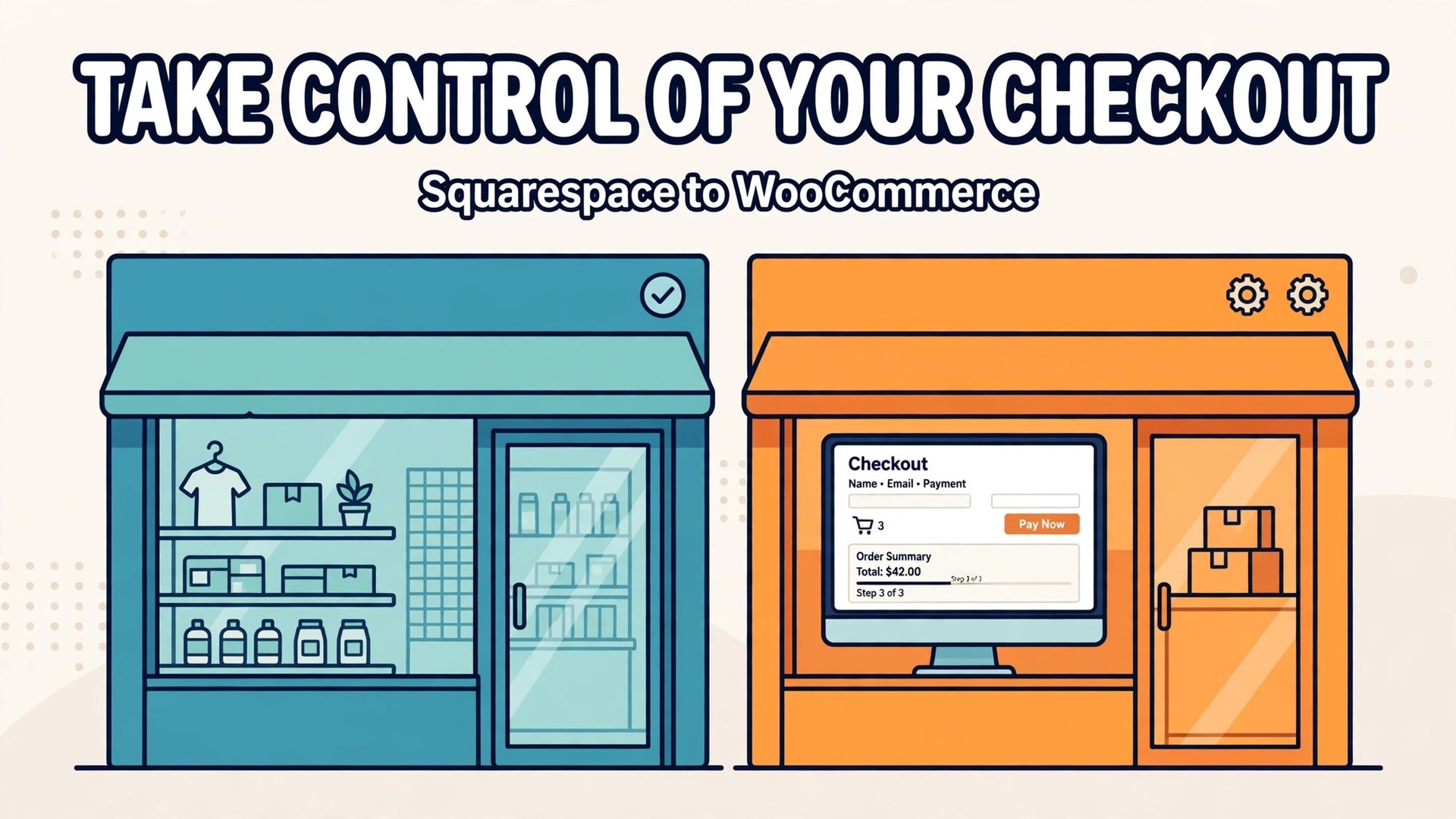
WooCommerce charges no platform fee on a sale. A hosted store, by contrast, bundles hosting, checkout and support into one monthly bill, and the difference grows with every order a small store ships. When you switch Squarespace to WooCommerce small store owners usually cite the same trigger, which is control. They want to own the checkout, choose any payment provider, add any plugin and stop paying a platform tax on growth. That control has a price of its own, in setup time and maintenance, so the move only pays when the store is ready to run it.
This guide is written for a store with a small catalogue, a few hundred orders a year and one person or a tiny team doing most of the work. It walks through the full move in order, from export to launch, and names the parts that do not move on their own. Prices here are ranges drawn from published guides at writing time, so confirm on the vendor page before you buy. WooCommerce itself is free, but hosting, a theme and a few paid plugins are not, and the honest total sits below most hosted bills only when the store keeps its plugin list short.
Why Small Stores Leave Squarespace
Squarespace earns its keep when a store wants a beautiful site with almost no setup. Templates look polished out of the box, hosting and security updates are handled, and a small team can publish a store in a weekend. The trade shows up later. Checkout options are limited, the app and plugin range is narrower than WordPress, and deep custom work often needs a workaround rather than a setting. A store that sells standard products in standard ways may never feel those limits. A store that needs a specific shipping rule, a custom product builder or a checkout flow of its own will feel them every week.
Cost is the second push, and it is worth stating plainly. Squarespace commerce plans are billed monthly or annually, and published guides place typical small store hosting for WooCommerce in the range of 10 to 30 dollars a month. The WooCommerce route can therefore look cheaper on paper, but only if the store counts hosting, backups, security and the time spent updating plugins. A store that hires a developer for every small fix can wipe out the saving in a month. The saving is real for stores that are comfortable inside WordPress or willing to learn it.
The third push is ownership. On Squarespace the store lives inside one system, and leaving means exporting what the system allows and rebuilding the rest. On WooCommerce the store lives on hosting the owner controls, with a database the owner can back up and move. That ownership matters most to stores that plan to grow, add wholesale, sell subscriptions or connect tools that Squarespace does not support well. If none of those plans exist, the move may be effort without reward, and staying put is the better business call.
What Moves Cleanly and What Must Be Rebuilt
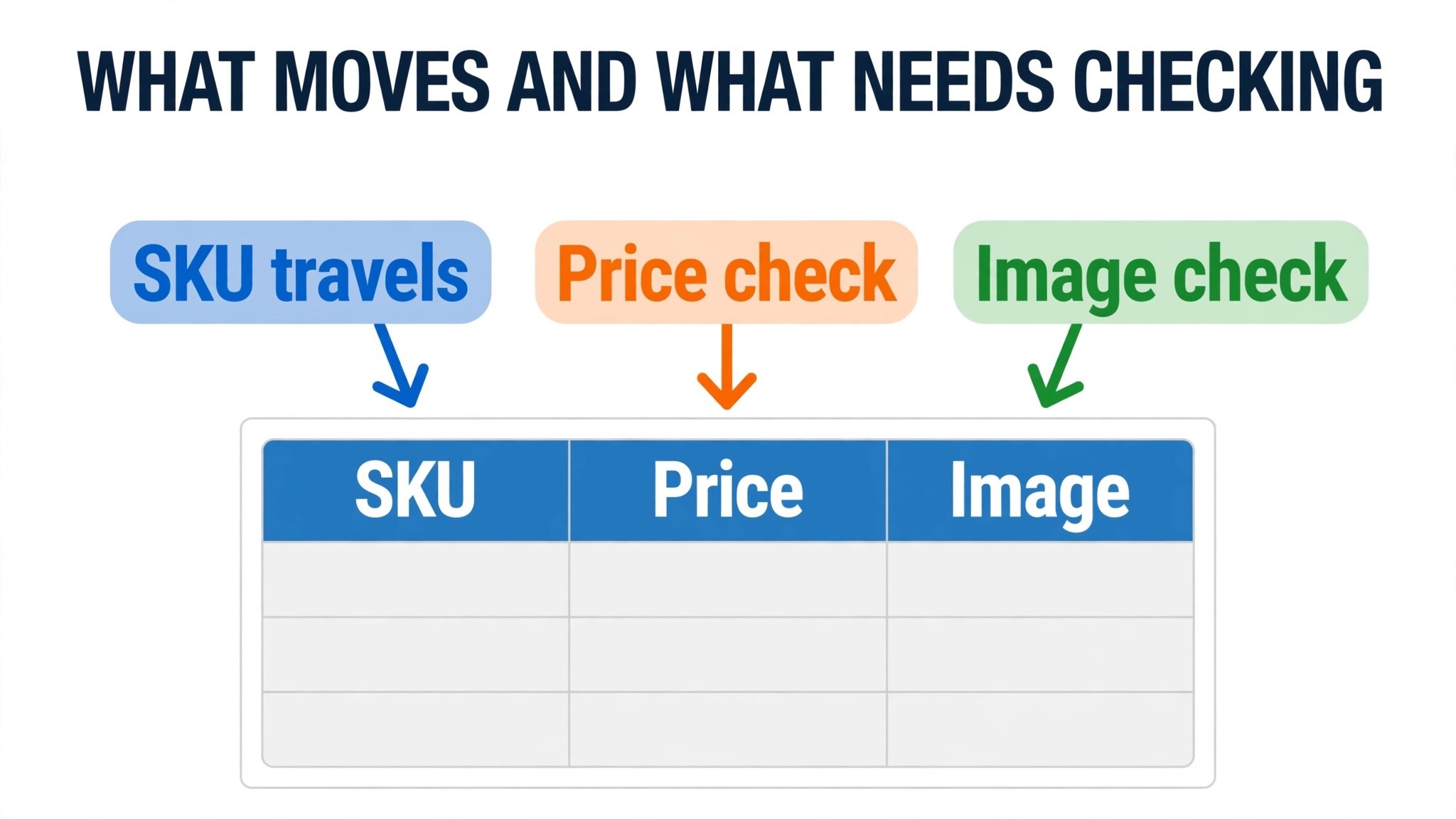
A clear inventory before any export saves the most time in the whole project. Products, categories, customer names and email addresses and order records are the core data, and most of it can travel by CSV file or with a migration tool. Blog posts and pages can travel through the WordPress export that Squarespace provides, though formatting often needs a tidy pass after import. Images need separate attention, because a product CSV can point at images without carrying them, and a store that assumes images moved with the file will find blank product pages at launch.
Discount codes, gift card balances, custom product fields and subscription rules do not travel in the same clean way. Discount codes usually need to be recreated by hand in WooCommerce, and gift card balances need a manual transfer or a dedicated plugin. Custom fields map to WooCommerce attributes or custom fields only with deliberate setup, and subscriptions need a subscriptions plugin plus a plan for moving active subscribers, which often means asking customers to re enter payment details. None of this blocks a move, but each item needs a named owner and a slot in the schedule, or it will surface as a launch week surprise.
Theme and design never move. A Squarespace template cannot become a WordPress theme, so the new store needs a fresh theme and a fresh design pass. Treat that as an opportunity rather than a loss. A small store can pick a fast WooCommerce theme, keep the layout close to the old store for returning customers, and fix the two or three pages that never worked well. Budget a full day for design alone, and resist the urge to redesign everything during a migration, because a redesign plus a platform move in one launch doubles the things that can go wrong.
| Item | Moves by export or tool | Needs rebuilding |
|---|---|---|
| Products and variants | Yes, by CSV or tool | Price and image checks |
| Customers and orders | Yes, with a tool | Passwords, see below |
| Blog posts and pages | Yes, by WordPress export | Formatting tidy pass |
| Discounts and gift cards | Rarely | Manual recreation |
| Theme and design | No | New theme required |
Customer passwords deserve a line of their own. Passwords are stored in encrypted form on the old platform and cannot be carried across, so customers will need a password reset on the new store. Plan a short, honest email for launch week that explains the new site and links to the reset page. Stores that warn customers in advance get far fewer support messages than stores that let customers discover a dead password at checkout.
How to Switch Squarespace to WooCommerce Small Store in Nine Steps
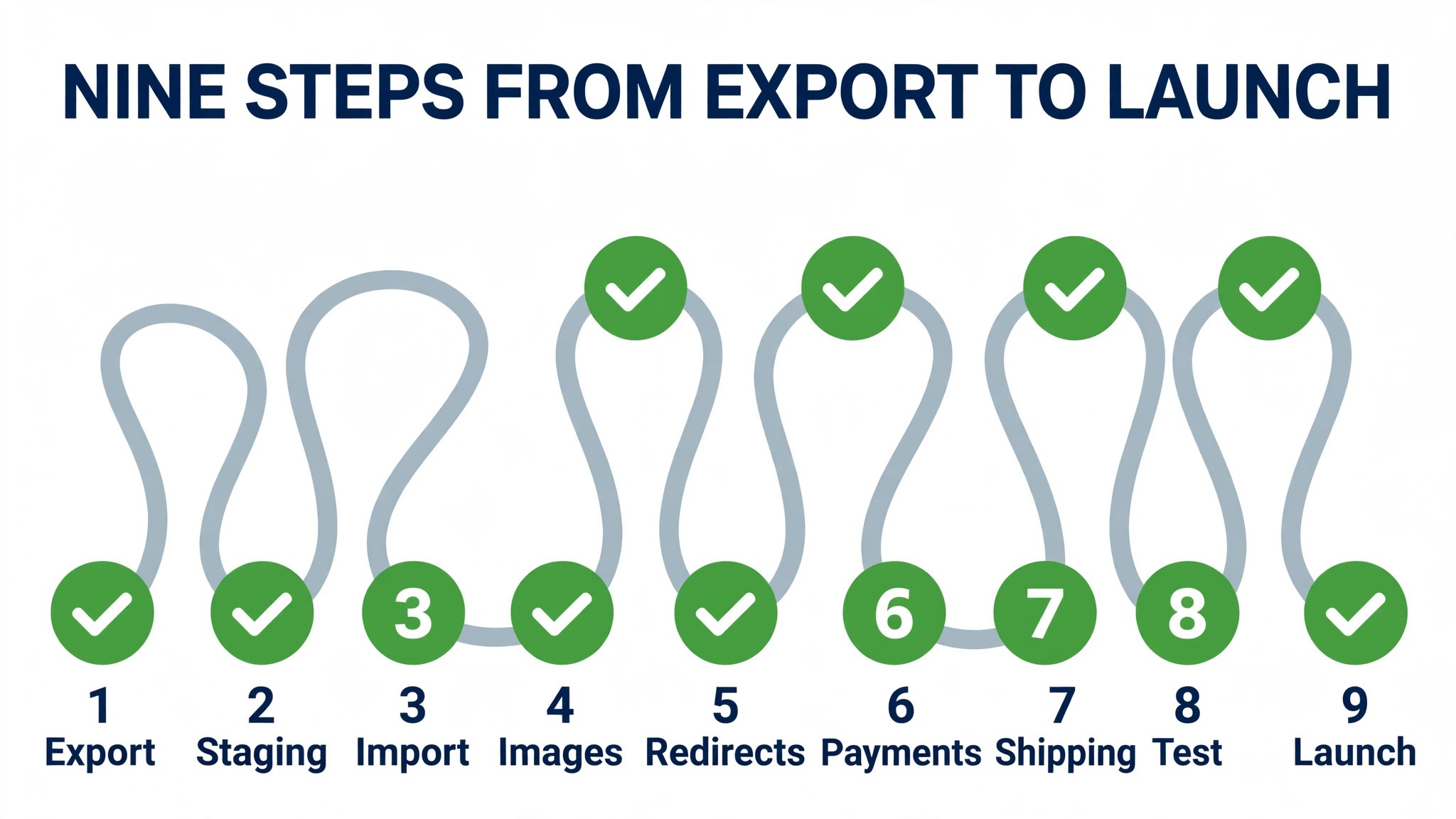
Step one is to freeze the old store in a useful sense. Stop adding new products, discount codes and page edits that will not be exported, and write down the current state, meaning product count, category list, active discounts, shipping zones and payment settings. A one page snapshot taken now becomes the checklist that proves the new store matches the old one later.
Step two is to set up hosting and install WordPress with WooCommerce before touching live data. Choose hosting that meets WooCommerce requirements, install WordPress, add the WooCommerce plugin and run its setup wizard for store address, currency, shipping and tax basics. Keep this new store on a staging address or a private setting while it is built, so customers keep buying from the old store until the new one is proven.
Step three is to export from Squarespace. Use the commerce export for products as a CSV file, use the WordPress export for pages and blog content, and export customer and order records in whatever form Squarespace offers. Save every file in one dated backup folder, and download product images separately if the export does not carry them. When you switch Squarespace to WooCommerce small store data checks matter more than speed, so open each CSV file and look at it before importing anything.
Step four is to clean the product file. Fix inconsistent names, missing descriptions, stray characters in prices and variant options that no longer match the live catalogue. Remove discontinued products rather than importing clutter, and confirm that every SKU is unique. A clean file imports in minutes. A dirty file imports in minutes and then costs days of fixes on live product pages.
Step five is to import into WooCommerce with its built in product importer. Map CSV columns to WooCommerce fields, run a small test import of ten products first, and check titles, prices, images, categories and stock on the front end. Only then run the full import. If the catalogue is large or order history matters, a migration tool such as Cart2Cart or WP All Import can carry more data in one pass, and its price is usually a fair trade against manual hours.
Step six is to rebuild what the import cannot carry. Recreate discount codes, set up shipping zones and rates, rebuild product attributes and custom fields, and add the plugins the store actually needs, such as a forms plugin, an SEO plugin and a backups plugin. Keep the plugin list short. Every plugin is a future update, a future conflict and a small drag on speed, so a plugin that serves one rare need is a candidate for removal.
Step seven is to build the redirect map, covered in full in the next section. No store should launch without it, and no redirect should be guessed. Every old product, category and blog URL needs a destination on the new store, and the map should be tested before the domain moves.
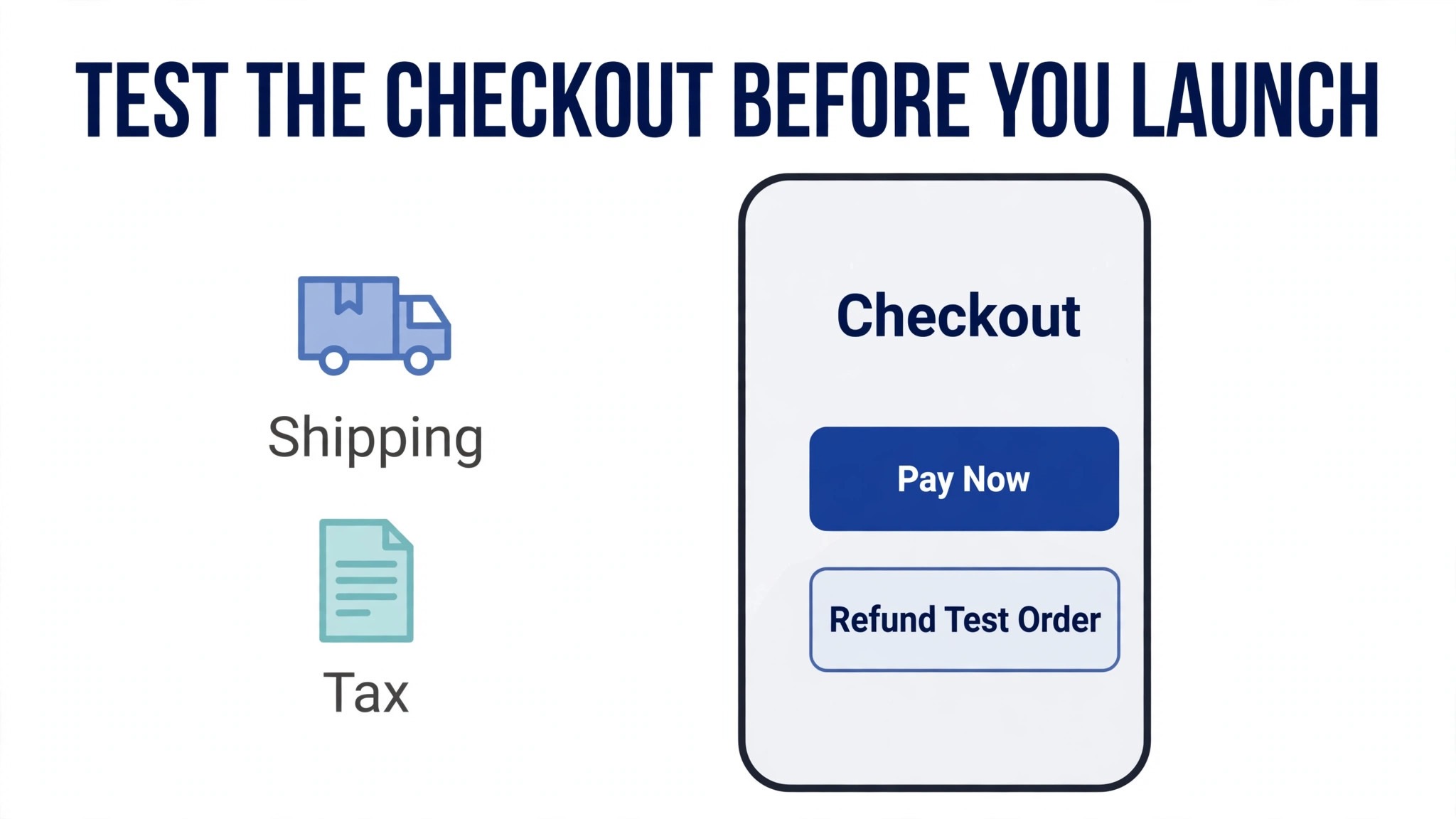
Step eight is to swap payments and test checkout end to end. Connect the payment provider, run test orders for a physical product, a digital product if the store sells one, a discount code and a refund, and check that order emails reach the buyer and the store owner. Test on a phone as well as a desktop, because most small store traffic now arrives on a phone and a checkout that only works on desktop is a broken checkout.
Step nine is the launch sequence itself. Point the domain to the new hosting, check the site from a fresh browser, run the launch checklist in the later section, and keep the old Squarespace site and its exports untouched for at least a month. A store that deletes the old site on launch day has thrown away its only fallback, and a fallback that costs one extra month of the old plan is cheap insurance.
Building the Redirect Map That Protects Rankings
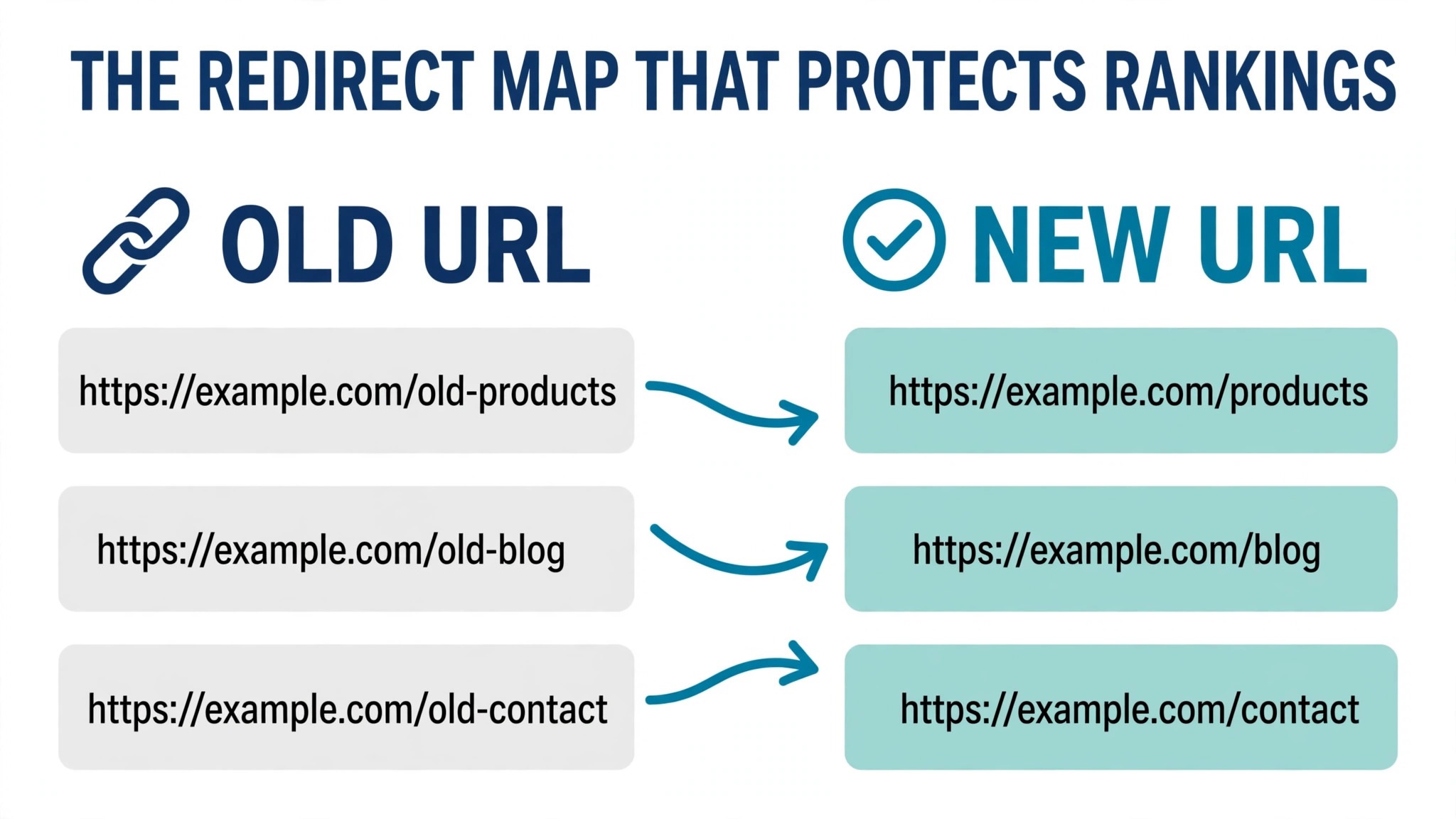
Redirects are the least glamorous part of a migration and the part that most directly protects revenue. Search engines treat a new URL as a new page, so a product page that moves without a redirect loses the ranking it spent months earning. A 301 redirect tells search engines and visitors that the page has moved permanently, and it passes most of that ranking value to the new address. Skipping this step is the single most common way a migration costs a store traffic it never fully recovers.
Start by listing every URL that receives traffic or holds a ranking. Pull the list from Squarespace analytics, from Google Search Console and from any backlink report the store can access, then add every product, category and blog URL from the catalogue even if it shows no recent traffic. A page with no traffic today can still hold a link from another site, and a link that lands on a missing page helps nobody. Aim for a complete list, not a list of best sellers only.
Map each old URL to its new WooCommerce equivalent in a spreadsheet with three columns, meaning old URL, new URL and status. Where a product is discontinued, map to the closest live category rather than the home page, because a visitor who lands on a relevant category can still buy, while a visitor dumped on the home page usually leaves. Where a blog post has no equivalent, map to the closest related post or a useful guide page, and note the choice so it can be revisited later.
Implement the map with a redirect plugin such as Redirection, or at server level for a larger store, and test every entry before launch. Click through the top twenty URLs by hand, and run the full list through a redirect checker if the store has hundreds of pages. After launch, watch Search Console for 404 errors daily for two weeks and add redirects for any missed URL the moment it appears. A redirect map is not a launch day task that ends at launch. It is a living list for the first month.
Rebuilding Payments, Shipping and Tax
Payment setup on WooCommerce is a fresh connection, not a transfer. The old payment settings do not carry across, so the store connects its provider again, whether that is Stripe, PayPal, Square or another gateway available in its region. WooCommerce itself charges no platform transaction fee, but the gateway still charges its own processing fee, and published guides commonly cite card rates around 2.9 percent plus a small fixed fee per order. Confirm the exact rate on the provider page, because rates vary by region, volume and card type.
Test payments with real test transactions in the gateway sandbox before launch, and confirm that refunds, partial refunds and failed payments behave sensibly. A store that only tests a successful order will discover its refund flow at the worst possible moment, which is when an unhappy customer is already waiting. Write down who handles refunds and chargebacks on the new setup, because a platform move is also a moment when support habits need a named owner.
Cost After the Move, Stated Honestly
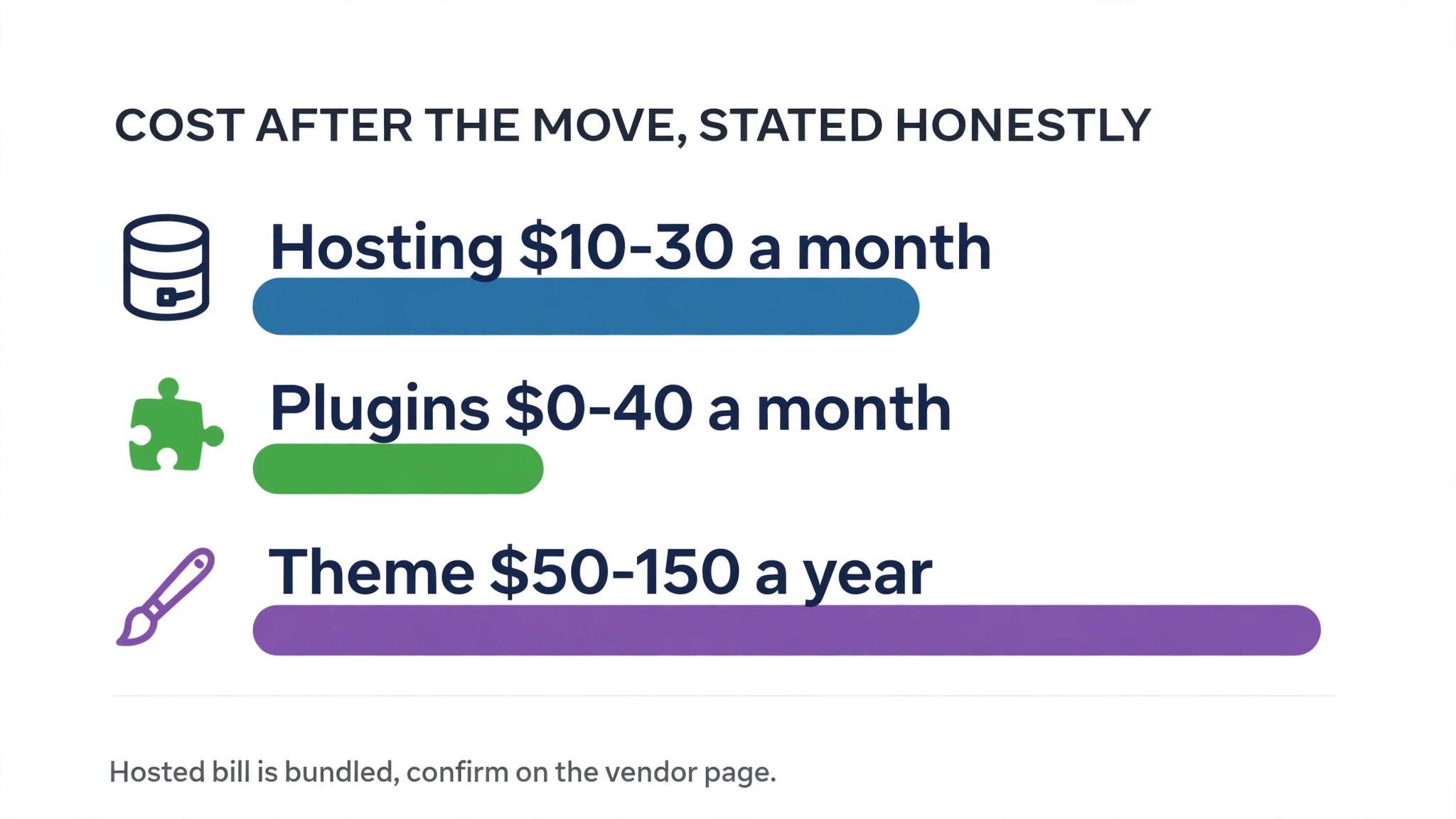
The honest monthly picture for a small WooCommerce store has four lines. Hosting commonly runs 10 to 30 dollars a month for a small store on shared or entry managed hosting, with higher tiers for stores with heavy traffic. A premium theme is usually a one time or annual cost in the range of 50 to 150 dollars, and essential paid plugins can add a few dollars to a few tens of dollars a month depending on what the store genuinely needs. Payment processing sits on top at the gateway rate, and it applies on every platform, so it should not be counted as a WooCommerce cost alone.
Against that, a hosted store bundles hosting, security updates and support into one bill, and the store owner never thinks about plugin updates. The WooCommerce saving comes from avoiding a platform fee and from choosing cheaper tools, and it is partly repaid in owner time. A store that values its time at a real hourly rate should count two to four hours a month for updates, backups and small fixes. When that time is priced in, some small stores find the two routes cost about the same, and they move for control rather than savings. That is still a good reason, as long as it is the stated reason.
Budget also for the migration itself. A do it yourself move costs mainly time, meaning one to two weeks of part time work for a small catalogue. A migration tool costs a one time fee that published guides place roughly in the range of 70 to 300 dollars depending on catalogue size and options. A developer led move costs more, but it suits stores with subscriptions, complex variants or custom checkout logic. Pick the route that matches catalogue complexity, not the cheapest route on offer.
| Cost line | Typical small store range | Notes |
|---|---|---|
| Hosting | 10 to 30 dollars a month | Entry managed hosting costs more |
| Theme | 50 to 150 dollars a year | Many good themes are free |
| Paid plugins | 0 to 40 dollars a month | Keep the list short |
| Payment processing | Gateway rate per order | Applies on every platform |
Launch Checklist for a Small Store
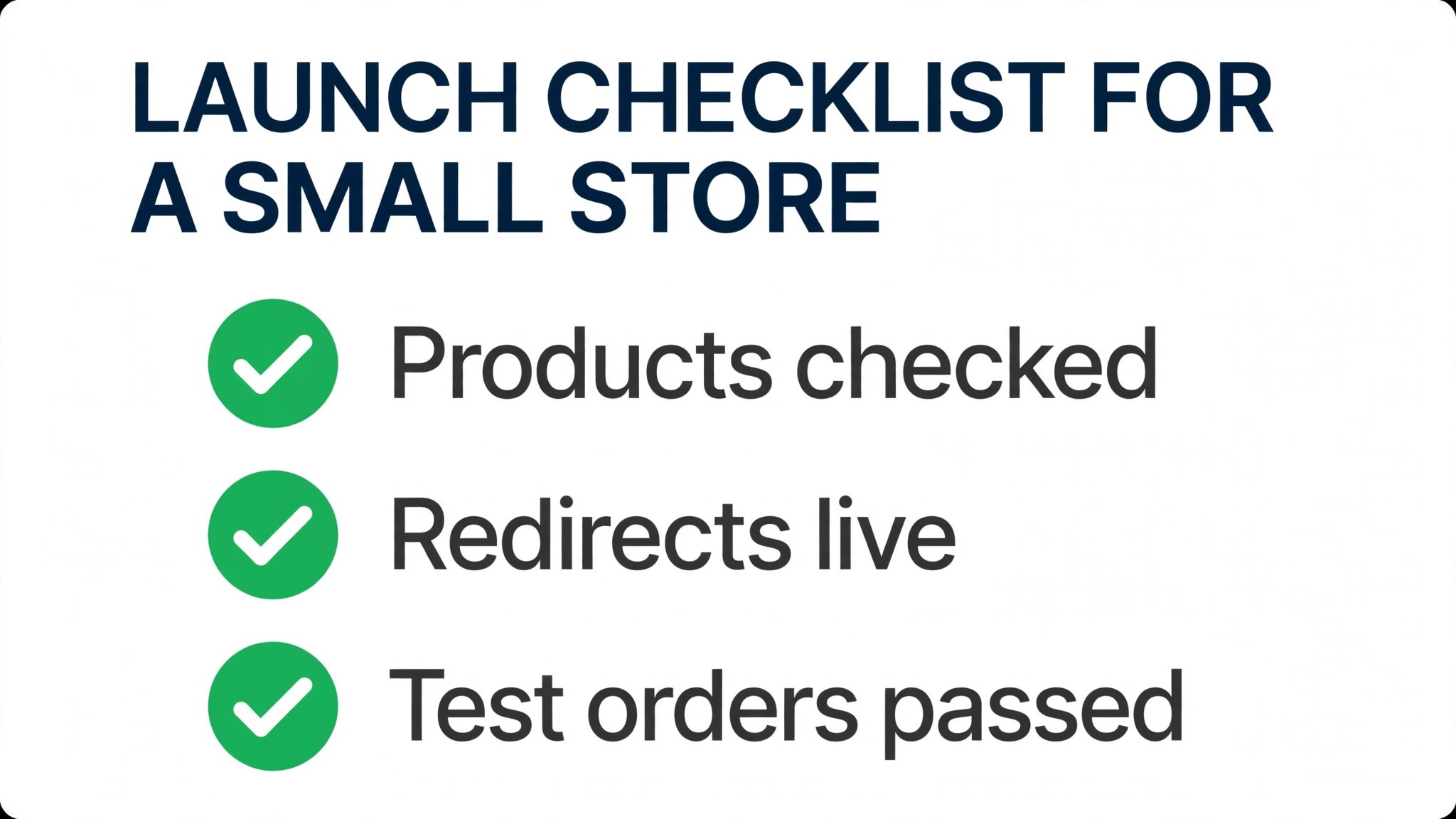
A launch checklist turns a nervous launch day into a routine. Run it on staging first, then again on the live site after the domain moves, because a setting that worked on staging can behave differently once the real domain and real payment keys are in place. Every item below should have a tick and a name beside it, not a vague sense that somebody checked it.
First, confirm that every product shows the right title, price, image and stock status, and that no test product remains visible. Second, confirm that categories, search and filters return sensible results, and that a visitor can reach any product in three clicks from the home page. Third, place test orders on desktop and on a phone, with a discount code and without one, and confirm that order emails arrive and stock falls correctly.
Fourth, confirm that redirects work for the top product, category and blog URLs, and that no important page returns a missing page error. Fifth, confirm that contact forms, newsletter signup and any enquiry form deliver to a monitored inbox. Sixth, confirm that analytics, Search Console and any ad tracking are firing on the new site, because a launch without measurement is a launch flying blind. Seventh, send the customer password reset email and the short announcement that the store has a new home, and monitor support messages closely for the first week.
Keep the old site live but private for a month, and keep every export file in the dated backup folder. If a product description or an old order record turns out to be wrong on the new store, the old export is the fastest way to fix it. After a month of clean trading, cancel the old plan with confidence rather than hope.
Mistakes That Undo a Good Migration
The first mistake is importing everything without cleaning it. Old product names, duplicate SKUs, discontinued lines and test products all travel faithfully if nobody removes them, and they clutter the new store for months. A migration is the one moment when a catalogue tidy costs nothing extra, because the data is already in a spreadsheet in front of somebody. Use it.
The second mistake is launching without redirects, or with redirects only for best sellers. Rankings live on product pages, category pages and old blog posts alike, and a store that redirects only its top ten pages will watch the rest of its search traffic fade over the following weeks. The redirect map is tedious and it is non negotiable, and it should be tested before the domain moves, not after traffic falls.
The third mistake is treating payments as a copy of the old setup. Gateways need fresh connections, test transactions and a refund test, and a store that assumes payments work because the plugin is installed will find out otherwise from a customer. The fourth mistake is redesigning everything at once. A new theme is expected, but a new navigation, new category names and new product names in the same launch make it harder to tell whether a traffic change came from the platform, the design or the URLs. Change the platform first, then improve design in measured steps.
The fifth mistake is deleting the old store too soon. Keep it for a month, keep the exports, and keep the login. When you switch Squarespace to WooCommerce small store owners who keep a fallback sleep better in launch week, and the one extra month of the old plan is the cheapest insurance in the whole project. A fallback that was deleted cannot be bought back at any price.
After Launch, What to Watch in the First Month
The first month on WooCommerce tells a store whether the move worked, and the signs show up in places a busy owner can easily miss. Traffic is the first signal. Compare search traffic, top landing pages and conversion rate with the same period before the move, and look for a specific pattern rather than a single total. A small dip in the first two weeks is normal while search engines reindex the new URLs. A steady fall on product pages, or a rise in missing page errors, points to a redirect gap that needs fixing now, not at the next quarterly review.
When you switch Squarespace to WooCommerce small store support load is the second signal, and it usually rises before it settles. Customers who need a password reset, shoppers who bookmarked an old category page and buyers who notice a changed checkout layout will all write in during week one. Answer those messages fast, and keep a short list of the questions that repeat. If the same question appears five times, the fix belongs on the site, meaning a clearer reset link, a better category page or a checkout note, rather than in five separate replies.
The fourth check is money. Reconcile the first month of gateway payouts against WooCommerce order totals, and confirm that refunds, discounts and tax all land where the accounts expect them. When you switch Squarespace to WooCommerce small store owners sometimes discover a small gap here, such as a discount code that still applies where it should not, or a shipping rate that undercharges one zone. Finding those gaps in month one costs a few corrections. Finding them in month six costs a restatement and a set of awkward customer conversations.
Use the same discipline for plugins and updates. Update plugins on staging first, check the shop front after each update, and only then update the live store. Keep a one page log of what was updated and when, so a fault that appears on a Tuesday can be traced to the change made on Monday. When you switch Squarespace to WooCommerce small store maintenance becomes a routine rather than an event, and routines only work when they are written down and owned by one person.
Finally, plan the first improvement after the move, and keep it small. Pick the page with the highest traffic and the lowest conversion, and improve one thing on it, such as clearer shipping information, better product photos or a simpler related products block. Measure the result for two weeks before changing anything else. When you switch Squarespace to WooCommerce small store growth comes from that cycle of one change and one measurement, repeated month after month, rather than from a grand redesign that nobody can attribute to a result. A store that holds that rhythm for a year will look very different from the store that launched, and it will know exactly which change earned the difference.
Frequently Asked Questions About Moving to WooCommerce
Will I lose my search rankings if I move?
Not if redirects are done properly. A tested 301 redirect for every old URL passes most ranking value to the new address, and Search Console monitoring in the first month catches any missed page quickly. Rankings may wobble for a few weeks during reindexing, which is normal, but a store that launches without redirects should expect a lasting fall rather than a wobble.
How long does a small store migration take?
A small catalogue with standard products usually takes one to two weeks of part time work, including setup, import, testing and launch. Stores with subscriptions, complex variants, custom fields or hundreds of products should allow three to four weeks, and a developer led move should be quoted on catalogue complexity rather than a flat promise. Rushing a migration to hit a sale weekend is a reliable way to launch with broken checkout or missing redirects.
Do my customers keep their accounts and passwords?
Customer names, email addresses and order history can move with a migration tool or careful CSV work, but passwords cannot, because they are stored encrypted on the old platform. Customers will need to reset their passwords on the new store, so send a clear reset email at launch and keep the reset page easy to find for the first month.
What happens to my Squarespace domain?
The domain can stay where it is and point to the new hosting, or it can transfer to the new host or registrar. Pointing the domain by DNS is usually the fastest route, and DNS changes can take up to 48 hours to spread fully, so plan the switch for a quiet period and avoid launching on a sale day. Keep the old site reachable until DNS has settled everywhere.
Is WooCommerce really cheaper than Squarespace?
It can be, but the honest answer depends on plugin count and owner time. WooCommerce software is free and hosting commonly runs 10 to 30 dollars a month, yet paid plugins, a premium theme and two to four hours a month of maintenance add real cost. A store that keeps plugins few and handles updates itself usually saves money. A store that hires help for every fix may not, and should move for control rather than savings.
Should I hire a developer or do it myself?
Do it yourself if the catalogue is small, products are standard and the owner is comfortable inside WordPress. Hire a developer if the store runs subscriptions, complex variants, custom checkout logic or a large order history, because those cases carry the highest risk of silent data loss. Either way, insist on a staging site, a redirect map and a test checkout before launch, and keep the old exports for a month.
More Reading on Stratilyze
– Shopify or WooCommerce, Which Fits a Small Store – Cost of Squarespace for a Small Business Monthly – Cost of Running a Shopify Store Monthly – Moving a Handmade Store Between Platforms Without Losing Sales, plain text title, link not verified at writing time