
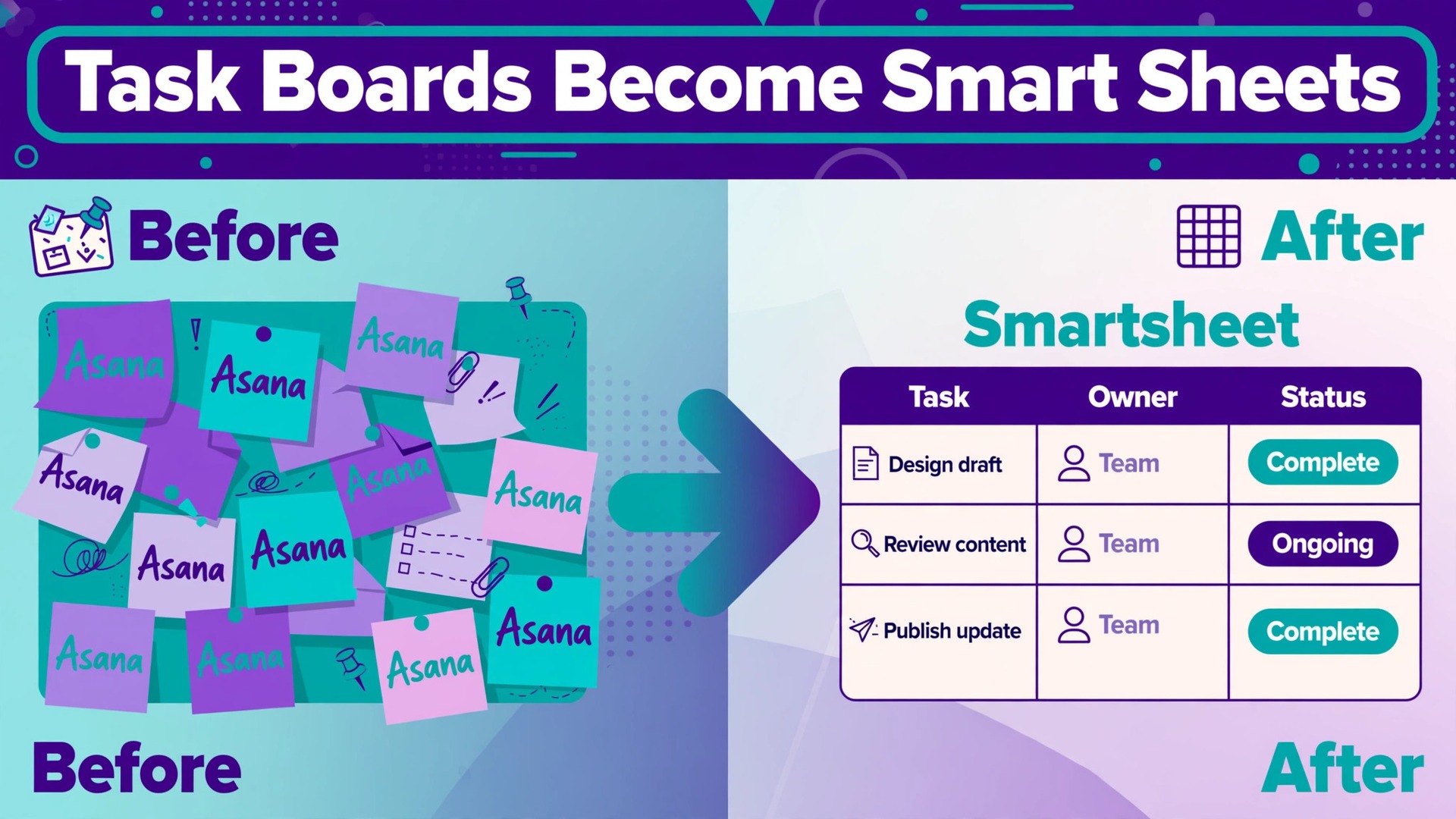
Verdict first. A small team should switch Asana to Smartsheet small team projects only when its work already lives in rows, dates, and formulas, and when reporting matters more than task chat. Smartsheet rewards teams that think in sheets, dependencies, and rollups. Asana rewards teams that think in tasks, conversations, and quick assignment. If your team opens a project and asks for a Gantt view, a critical path, and a budget rollup before it asks for anything else, Smartsheet is probably the better home. If your team lives in task comments and likes to reassign work in seconds, stay with Asana and revisit the question in a year.
That verdict needs testing against your own projects, not taken on trust. This guide gives you the test. It covers what transfers from Asana, what must be rebuilt in Smartsheet, what the move costs at last published list prices, and a first week cutover plan that keeps deadlines visible throughout. It also covers the honest downside. Smartsheet has no native Asana importer, so the move runs through spreadsheet files or a third party sync service. That single fact shapes the whole project, and any guide that hides it will waste your week.
Asana and Smartsheet Compared for a Small Team
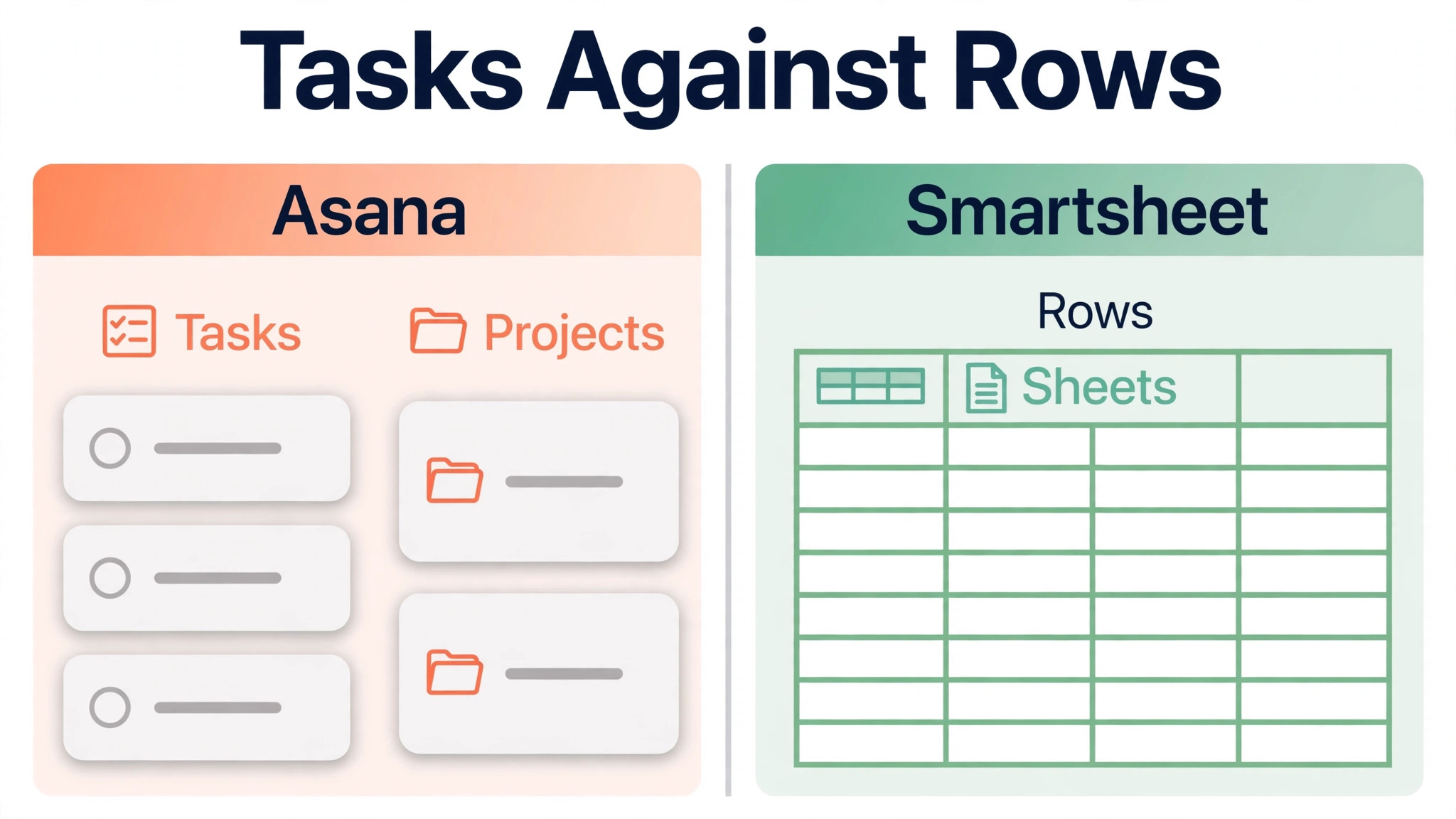
Asana organises work as tasks inside projects, with sections, assignees, due dates, and comments close at hand. Its Timeline and Board views suit teams that move work forward in conversation. Smartsheet organises work as rows inside sheets, with columns, formulas, dependencies, and reports built on top. Its Grid and Gantt views suit teams that plan work as a schedule with owners, dates, and costs attached to each row.
The difference shows up in daily habits. An Asana user opens a task, reads the comments, and changes the assignee. A Smartsheet user opens a sheet, filters rows by owner, and updates dates and status in place. Neither habit is wrong. The switch works when the team wants the second habit and is willing to learn it. A team that wants Smartsheet reporting but keeps Asana habits will fight the new tool every day, because sheets reward structured data and punish freeform notes.
| Area | Asana | Smartsheet |
|---|---|---|
| Core unit | Task inside a project | Row inside a sheet |
| Best views | List, Board, Timeline, Calendar | Grid, Gantt, Card, Calendar |
| Comments | Central to each task | Attached to rows, less central |
| Dependencies | Supported on paid plans | Strong, with critical path tools |
| Formulas | Limited | Strong, sheet native |
| Reporting | Dashboards and portfolios on higher plans | Reports and rollups built from sheets |
| Entry paid plan | Starter, 10.99 dollars per user per month billed annually | Pro, 9 dollars per member per month billed annually |
| Mid plan | Advanced, 24.99 dollars per user per month billed annually | Business, 19 dollars per member per month billed annually |
Smartsheet pricing needs a qualifier. Several guides list Business at 19 dollars per member per month billed annually with a three member minimum, while other guides list a higher figure near 32 dollars for larger bundles. Confirm the current Business price at checkout for your exact member count. Asana prices are also list prices that change with promotions. The comparison that matters is the plan with the features your team uses, at your real headcount, with taxes included.
Asana Habits That Transfer Well
Task ownership, due dates, and section structure transfer well in spirit, even though the mechanics change. A section in Asana becomes a grouping or a hierarchy level in Smartsheet. An assignee becomes a contact column value. A due date becomes a date column value. Teams that already use consistent naming, real due dates, and one owner per task will find the move far easier than teams with vague tasks and shared ownership.
Smartsheet Habits to Learn Early
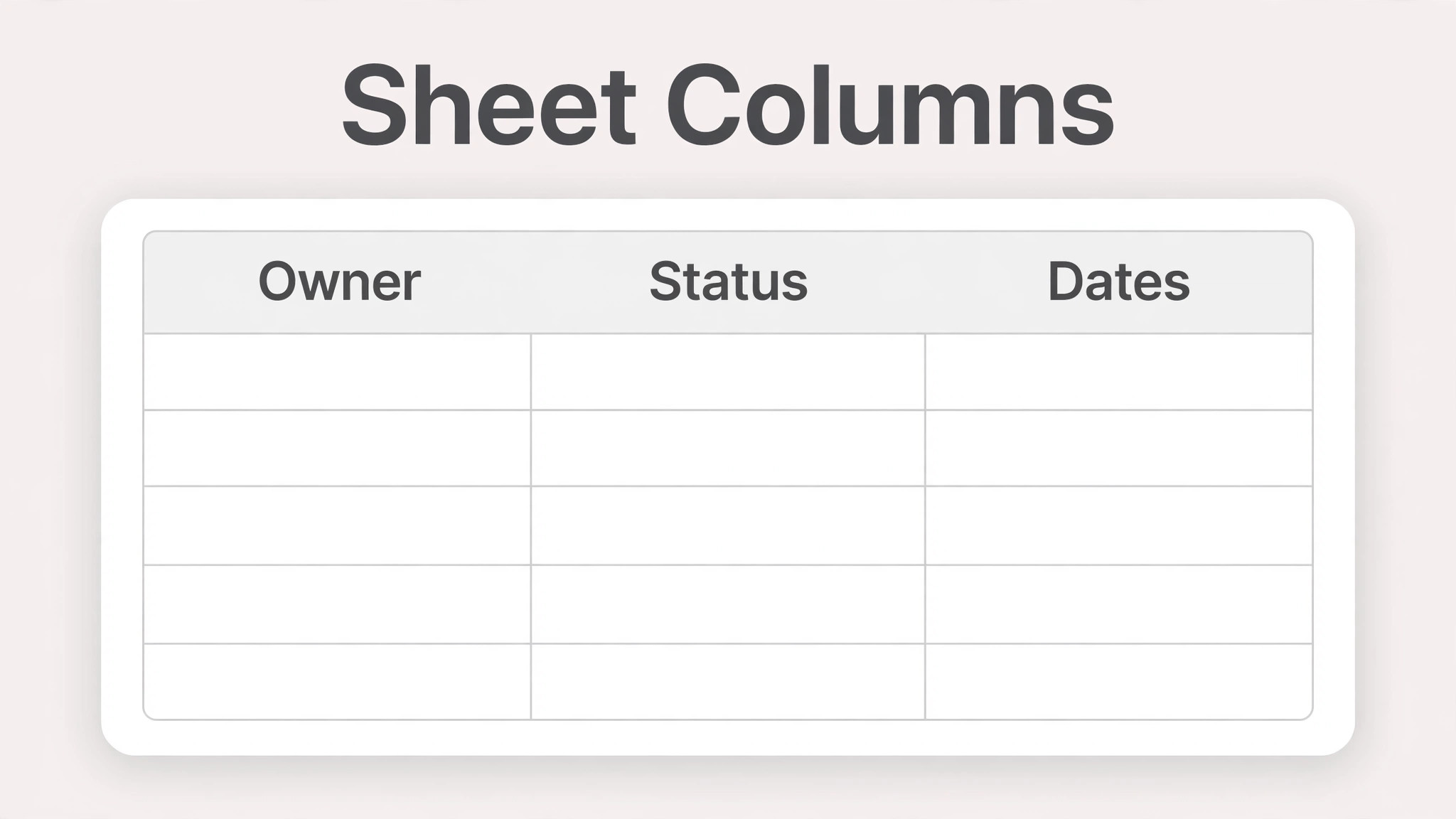
Smartsheet rewards column discipline. Every row should have an owner, a status, a start date, and a due date, or the Gantt view and the reports will look broken. Teach the team to update the row, not to add a note elsewhere. A status change in a comment helps nobody. A status change in the status column updates every report at once. That single habit decides whether Smartsheet feels powerful or feels like extra admin.
What Transfers From Asana and What Smartsheet Rebuilds
Asana projects export to CSV or JSON formats from the project menu. The practical path for most small teams is a CSV export per project, cleaned in a spreadsheet, then imported into Smartsheet as a new sheet. Asana help pages describe the reverse path, importing a spreadsheet into Asana, with a strict column order that starts with task name. The same discipline applies in reverse. Smartsheet imports work best when the file has clean headers, one task per row, and dates in a consistent format.
No file import carries everything. Task names, descriptions, assignees, dates, and custom field values usually survive a careful CSV move. Task comments, attachments, likes, and project conversations usually need separate handling, and some of them will not transfer at all through a file. Plan for that gap from the start. Export a readable archive of the old projects, keep Asana readable during cutover, and move critical attachments into a shared folder before the first import.
| Item | What happens in the move | Action for your team |
|---|---|---|
| Projects and sections | Become sheets with grouped rows | Map each project to one sheet first |
| Tasks and subtasks | Become rows and child rows | Check hierarchy depth in the pilot |
| Assignees and dates | Map to contact and date columns | Match email addresses before import |
| Custom fields | Map to Smartsheet columns by type | Match dropdown values exactly |
| Descriptions | Usually survive as a text column | Check long text in the pilot |
| Comments | Often lost in a file move | Archive them, move key decisions by hand |
| Attachments | Often need separate handling | Store critical files in a shared folder |
| Dashboards and portfolios | Do not transfer | Rebuild only the reports used weekly |
| Automations and rules | Do not transfer | Rebuild from a written spec |
A third party sync service can keep Asana and Smartsheet in step during a longer transition, with field mapping between tasks and rows. That route suits teams that cannot freeze Asana for a week, or teams with many projects that must move in waves. It adds a subscription cost and a mapping project of its own, so use it only if the phased move justifies the extra work. For most small teams, a clean file move in waves, project by project, is simpler and easier to audit.
How to Switch Asana to Smartsheet Small Team Projects Without Losing Task History
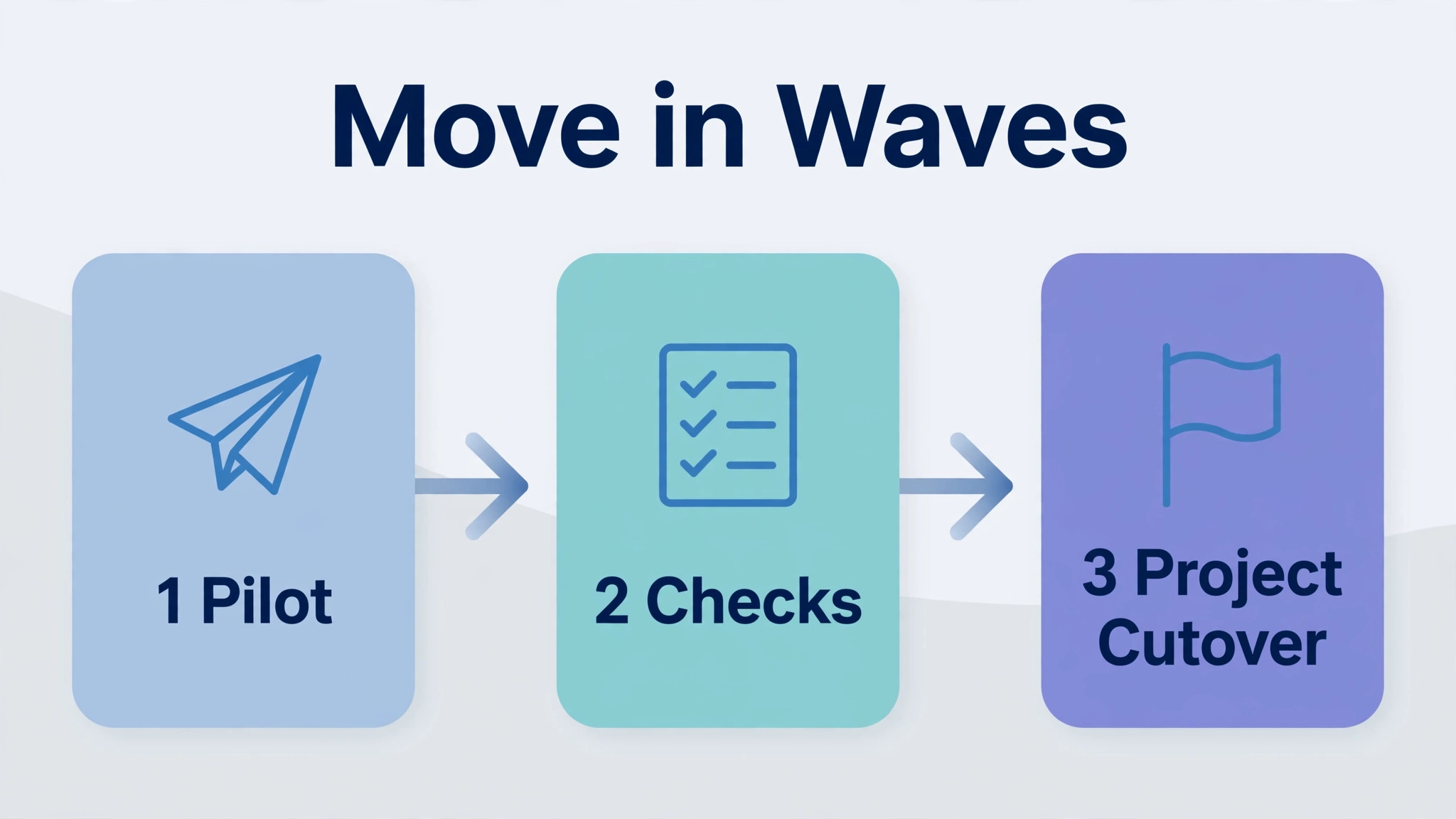
Work in waves, one project at a time, and never import a project you have not inspected. Start with the smallest live project, not the most important one. A small pilot catches mapping errors while the blast radius is tiny, and it gives the team a working Smartsheet example to learn from before the important work moves.
Build the Smartsheet structure before importing anything. Create the sheet, define the columns, set the dropdown values, and decide how hierarchy works. Parent rows hold phases or deliverables, child rows hold tasks, and indenting must be checked after import. Import the pilot file, then compare counts. Task counts, assignee counts, and open task counts must match Asana. Check ten tasks end to end, including description text, dates, and custom field values. Fix the mapping, then import the next project.
Freeze edits in the project being moved once its final import begins. A task edited in Asana after its import will exist in two versions, and nobody will know which one is true. Announce the freeze per project, not for the whole workspace at once, so other projects keep moving while one project crosses over. Keep Asana readable for the whole transition, and keep a dated archive export for every project, even the ones that move cleanly.
Asana Export Steps That Keep Data Clean
Export one project at a time, in CSV format, and inspect the file before it goes near Smartsheet. Check for blank task names, tasks with no owner, dates stored as text, and subtasks whose parent rows sit below them in the file. Parent rows should sit above their subtasks, or the hierarchy will import flat. Clean those rows in the file, and keep a copy of the raw export untouched, so a bad cleanup can be undone without re-exporting.
Smartsheet Import Steps That Protect Hierarchy
In Smartsheet, create the destination sheet and columns first, then import the cleaned file and map each column deliberately. Do not accept default mappings without reading them. A date column mapped as text will break the Gantt view, and a dropdown mapped as text will break filters. After import, check hierarchy, dates, and owners, then save a copy of the sheet as the pilot record. Only then should the team start updating live work in Smartsheet for that project.
Projects, Tasks, and Custom Fields in the New Shape
The shape change is the real migration, not the file import. Asana projects hold tasks with rich descriptions and long comment threads. Smartsheet sheets hold rows with structured columns and short notes. A task description that ran to five paragraphs in Asana should become a short row description plus structured columns for the facts inside it, such as budget, vendor, and approval status. If the facts stay buried in prose, Smartsheet reports cannot use them.
Custom fields need a mapping sheet of their own. Asana custom fields include date, single select, multi select, number, people, and text types. Smartsheet columns include similar types, and most map cleanly when the type matches. Multi select values need care, because a value that differs by one character will land as a separate value. Date fields need a single format across the file. Number fields need real numbers, not numbers stored as text with currency symbols attached. Test one field heavy task in the pilot, and check every value before importing the rest.
Subtasks deserve a decision, not a default. Asana subtasks can nest several levels deep. Smartsheet hierarchy supports parent and child rows, but very deep nesting becomes hard to read in a sheet. Flatten anything deeper than two levels into a phase row plus task rows, and keep the detail in the description column. A hierarchy that looks clever in a migration plan and unreadable in daily use will be abandoned within a month.
Asana Custom Fields to Audit Before Export
Audit Asana custom fields by use, not by age. List every custom field, count how many tasks actually use it, and mark each one as keep, merge, or drop. Fields used on fewer than five percent of tasks usually belong in the description column or in the archive. Fields with near duplicate names should merge into one field with a written definition. This audit takes an afternoon for most small teams, and it stops the new sheets from inheriting years of field drift.
Smartsheet Columns to Define Before Import
Define Smartsheet columns in the order the team reads them. Task name first, then owner, status, start date, due date, and priority, followed by project specific columns. Lock dropdown values where the team should choose from a list, and leave text columns only where free text is genuinely needed. A sheet with twenty free text columns is a document pretending to be a database, and its reports will prove it.
Dashboards and Reports Your Team Will Miss First
Dashboards are the second migration, after the data. Asana dashboards and portfolios do not transfer to Smartsheet, so the team will miss its weekly overview first, often on the first Monday after cutover. Rebuild the weekly overview before cutover, not after, and check its numbers against Asana for one full week while both systems are still readable.
Smartsheet reports pull rows from multiple sheets into one view, and rollups summarise dates, counts, and sums across projects. That power depends on column discipline. If one project uses a status value called Done and another uses Complete, the rollup will count them separately. Agree status values across all sheets before building reports, and write the agreed list where the whole team can see it. A report built on inconsistent values looks authoritative and misleads confidently, which is worse than no report at all.
Start with three reports. The first shows overdue tasks by owner across all live projects. The second shows work due in the next two weeks by project. The third shows project health by phase, with counts of open, blocked, and complete rows. Managers can request more reports after a month of live use, with evidence that the existing three miss something. Most teams find three reports cover the weekly meeting, and the rest of the old dashboard was decoration.
The Migration Checklist for a Small Team Project Switch
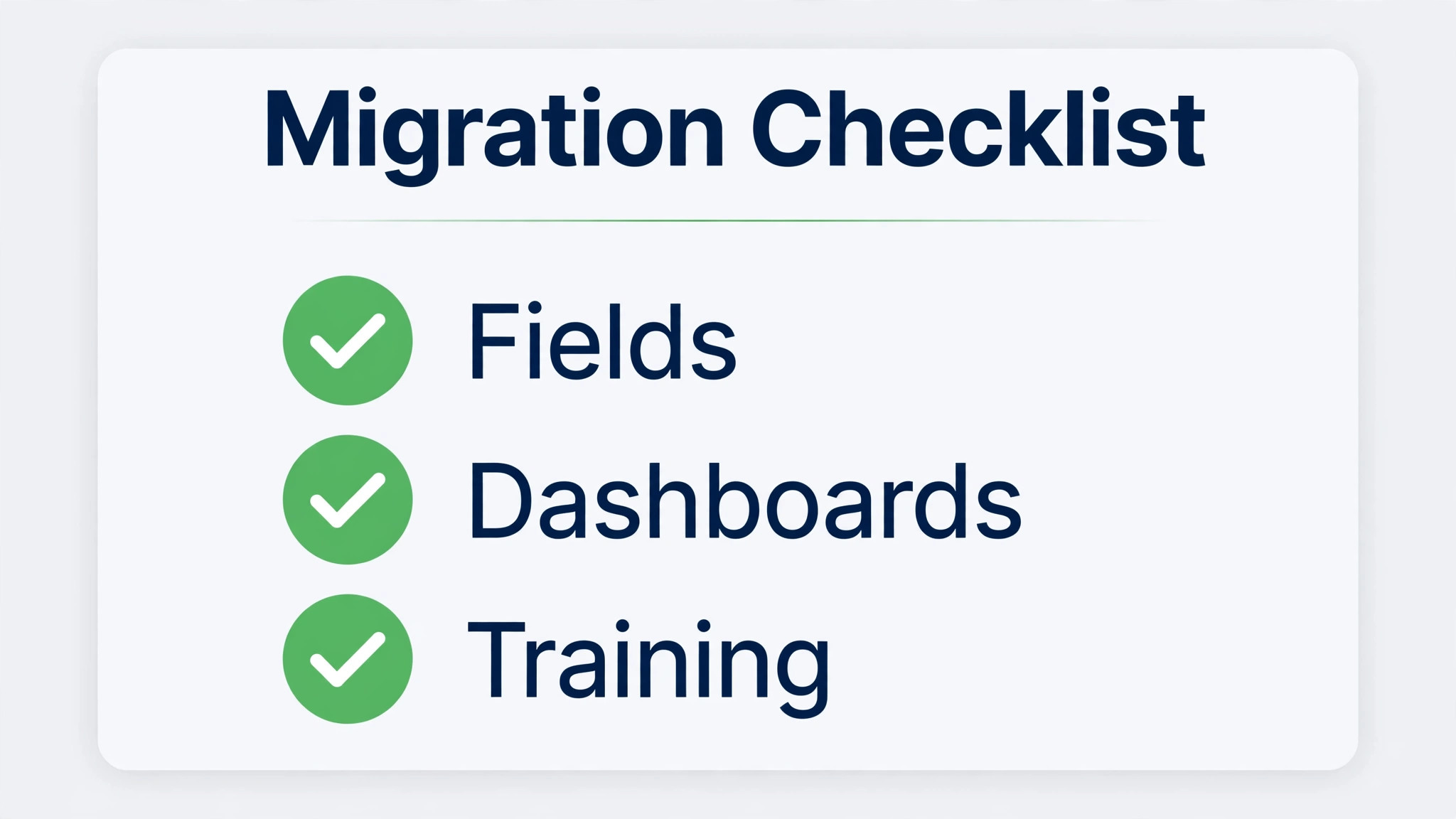
Use this checklist as the project plan, and check each item only when there is evidence, such as matching counts or a tested report. The checklist covers projects, tasks, custom fields, and dashboards, plus the surrounding work that keeps a switch safe. A team that decides to switch Asana to Smartsheet small team projects should treat the checklist as a contract, not as background reading.
– Confirm the reason for the switch and the Smartsheet plan that covers Gantt views, reports, and automation needs – List every Asana project, dashboard, automation rule, and custom field used in the last ninety days – Audit Asana custom fields and mark each one as keep, merge, or drop, with a written definition for each kept field – Agree Smartsheet status values across all projects, and write them down where the team can see them – Build the Smartsheet sheet structure first, with columns, dropdown values, and hierarchy rules defined – Export Asana projects one at a time in CSV format, and keep a dated archive copy of each raw export – Clean blank task names, missing owners, text formatted dates, and broken subtask hierarchy before import – Run a pilot import on the smallest live project, and compare task, assignee, and open task counts – Inspect ten pilot tasks end to end, including descriptions, dates, and custom field values – Archive task comments and move key decisions by hand where the file move cannot carry them – Store critical attachments in a shared folder, and link them from the new rows where needed – Rebuild automation rules from a written spec, starting with the rule that fires most often – Rebuild the three weekly reports first, and check their numbers against Asana for a full week – Train the team on row updates, status discipline, and where to find the old projects during week one – Freeze edits per project at final import, verify open work, and keep Asana readable for thirty days
What Smartsheet Costs After Asana
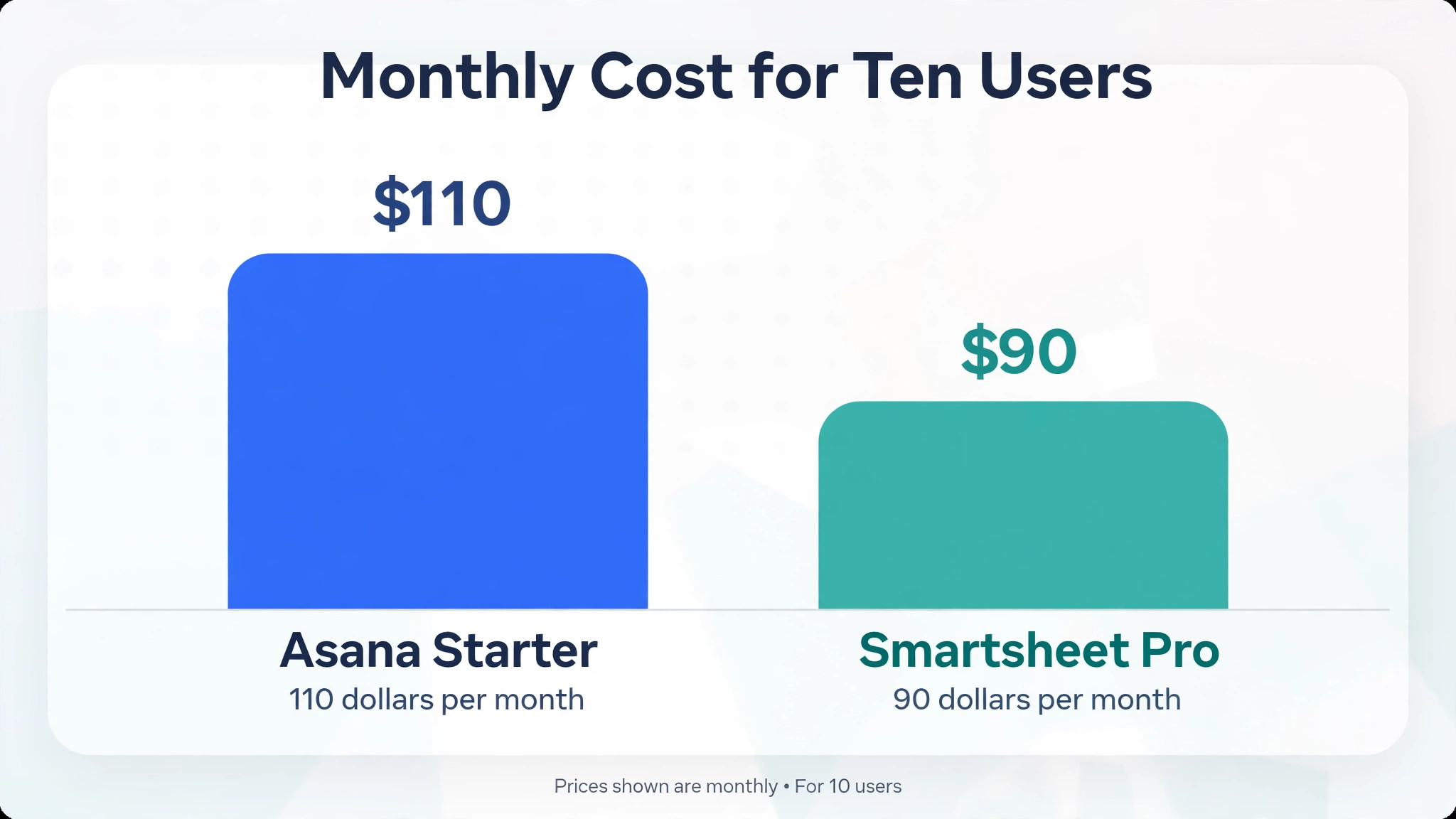
Cost is rarely the reason to leave Asana, and the numbers show why. Asana Starter is listed at 10.99 dollars per user per month billed annually, and Advanced at 24.99 dollars. Smartsheet Pro is listed at 9 dollars per member per month billed annually, and Business at 19 dollars, with a three member minimum on Business. For a ten person team, Asana Starter costs about 110 dollars a month, while Smartsheet Pro costs about 90 dollars a month. The saving is real but modest, and it can vanish once premium apps or extra automation are added.
The cost question that matters is not the seat price. It is whether the team needs Smartsheet Business for its reports and automation, or whether Pro covers the work. Pro includes 20 gigabytes of attachment storage and 250 automations a month on last published lists. A team that runs daily status automations across many sheets can hit that ceiling faster than expected. Confirm automation limits and storage on your own quote, because third party guides differ on the exact Business price and on which features sit behind premium apps.
A team that decides to switch Asana to Smartsheet small team budgets should price the move at the plan that holds its reports, not the cheapest plan on the page. Add the cost of a third party sync service if the move runs in phases, and add training time for the first month. A modest seat saving paired with a large training cost is still a good deal if the reporting saves a manager several hours a week. It is a bad deal if the team never adopts row discipline and keeps its real plan in chat messages.
The First Week Cutover Plan for a Small Team
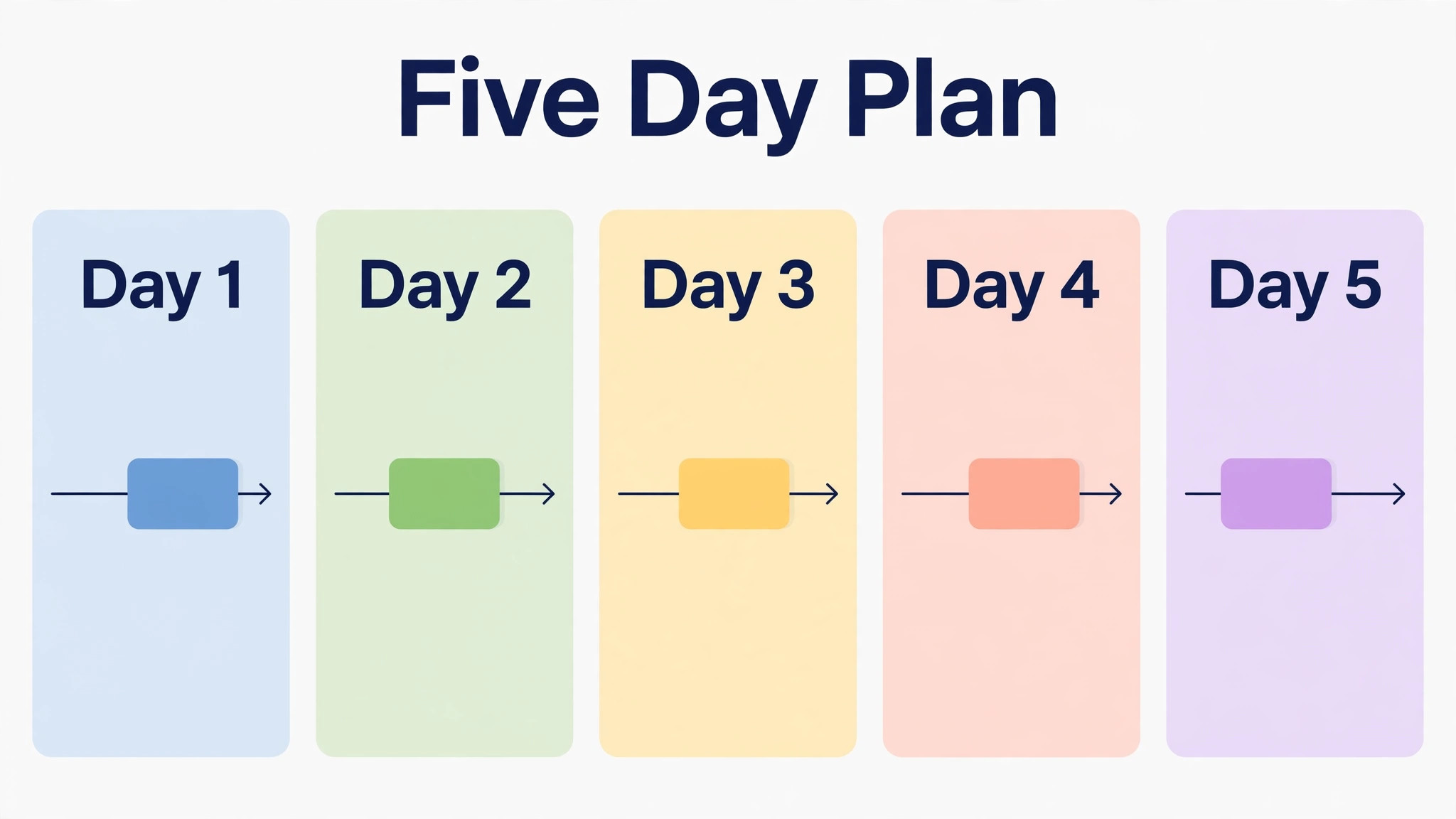
To switch Asana to Smartsheet small team cutovers work best as a five day plan with one project crossing each day, rather than a single big bang weekend. Day one is pilot proof day. The pilot project goes live in Smartsheet, the team updates rows instead of tasks, and the evening check compares open work counts with Asana. Any mismatch stops the next project until it is explained. Day two moves the second project, and the team repeats the count check with more confidence.
Day three is the first day with two live projects in Smartsheet and the rest still in Asana. Hold a short morning check in on row discipline, and fix the most common error on the spot, which is usually a status updated in a comment instead of the status column. Day four moves the remaining projects in batches, and rebuilds the weekly overview report from live Smartsheet data. Day five is decision day. Review the friction list, confirm overdue counts match, and agree whether Asana stays readable for another month or moves to archive only.
Keep Asana readable for at least thirty days after the last project crosses. Deadlines get disputed, old decisions get questioned, and a comment that did not transfer will be needed at least once. The rule stays simple throughout. New updates go in Smartsheet, old work is read in Asana, and nobody updates both places. A team that breaks that rule for one urgent task will break it for every urgent task, and the migration will end with two half true systems.
Rolling Back Without Losing the Week
Rollback starts before cutover, with triggers agreed in writing. Useful triggers include a hierarchy import that flattens critical subtasks, a report that cannot match Asana numbers after a week of checks, or a team adoption failure where most updates still happen in Asana after five days. If a trigger fires, pause the next project wave, return live updates to Asana for the affected project, and fix the Smartsheet structure without time pressure.
Never delete Asana projects during week one, and never cancel billing until every live project has run for a full cycle in Smartsheet. Teams that switch Asana to Smartsheet small team projects should keep the dated archive exports and the pilot import records, so a rollback means returning to a known state. Most teams never roll back a full move, but a partial rollback of one badly shaped project is common and healthy. Fix the shape, reimport cleanly, and move on. A migration that cannot admit a bad sheet will keep the bad sheet forever.
Errors That Slow a Smartsheet Move
The most common error is importing messy data and hoping Smartsheet will tidy it. It will not. Blank owners, text dates, and duplicate status values import faithfully and then break every view built on them. Clean the file first, and treat the pilot as a data quality test, not as a formality. The second error is rebuilding every dashboard on day one. Rebuild three reports, use them for a month, and let managers earn the fourth report with evidence.
The third error is training on features instead of habits. A session that tours every Smartsheet view teaches nothing the team will remember. A session that walks through one real project, updates five rows, and builds one filter teaches the habit that matters. The fourth error is letting comments carry status. Every status hidden in a comment is a row that reports will count wrong. Teams that switch Asana to Smartsheet small team habits successfully are the teams that move status into columns on day one and keep it there.
Who Should Move and Who Should Stay
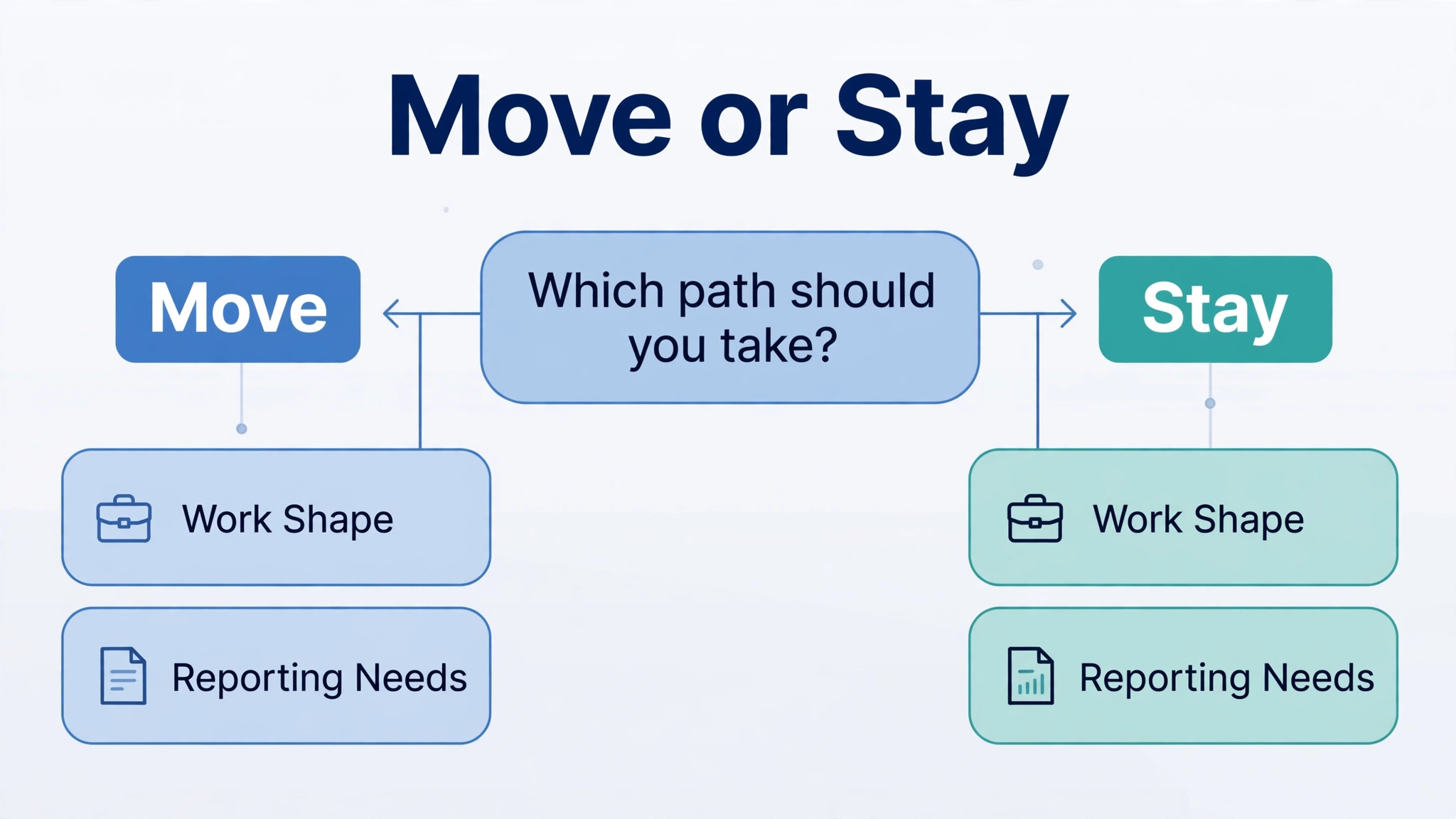
Move when the work is schedule shaped, when reporting drives decisions, and when the team will accept column discipline. Stay when the work is conversation shaped, when tasks change hands many times a day, and when Asana comments are the real record of decisions. Both tools are strong, and the wrong move costs more than the seat saving. A team that moves for reporting and adopts row discipline will feel the benefit within a month. A team that moves for a small saving and keeps old habits will feel only friction.
Frequently Asked Questions About This Switch
Teams that switch Asana to Smartsheet small team projects usually ask about history, comments, and cost first, so the answers below start there.
Does Smartsheet have a native Asana importer
No native one click Asana importer is published for Smartsheet. The practical path is a CSV export per Asana project, cleaned in a spreadsheet, then imported into Smartsheet as a new sheet. A third party sync service can map tasks to rows for a phased move, but it adds cost and its own mapping work. For most small teams, a careful file move in waves is simpler and easier to audit.
What happens to Asana comments and attachments in the move
Comments and attachments often do not survive a file import cleanly, so plan for them separately. Export a readable archive of each project, move key decisions by hand into the new rows, and store critical attachments in a shared folder linked from Smartsheet. Keep Asana readable for at least thirty days, because a comment that seemed unimportant during migration often turns out to hold the reason behind a deadline.
Do Asana custom fields transfer to Smartsheet columns
Most custom field values transfer when the type matches and dropdown values match exactly. Date, number, single select, and text fields map well with a clean file. Multi select values need care, because a one character difference creates a separate value. Test one field heavy task in the pilot and check every value before importing the rest of the project.
How long does an Asana to Smartsheet migration take
A small team with five to ten projects usually needs two to four weeks. One week covers cleanup and mapping, one week covers the pilot and report rebuilds, and one week covers the wave cutover. A team that decides to switch Asana to Smartsheet small team projects in waves usually finishes within that window. Teams with many custom fields or deep subtask nesting should allow an extra week, because hierarchy and field cleanup take longer than the import itself.
What does Smartsheet cost compared with Asana
Using last published list prices, Asana Starter costs 10.99 dollars per user per month billed annually, and Smartsheet Pro costs 9 dollars per member per month billed annually. For ten people, that is about 110 dollars a month against about 90 dollars a month. Business pricing differs across guides, with 19 dollars and higher figures both published, so confirm your exact quote at checkout, including automation limits and premium app costs.
Can the team keep using Asana during the move
Yes. Move one project at a time, freeze edits only in the project being imported, and keep the rest of Asana live. Keep Asana readable for thirty days after the last project crosses, with new updates going in Smartsheet and old work read in Asana. That per project freeze is what lets a small team migrate without stopping delivery for a week.
Do Smartsheet reports replace Asana dashboards
Smartsheet reports can replace the weekly overview, but they must be rebuilt from sheets, and they depend on consistent status values across projects. Rebuild three reports first, covering overdue work by owner, work due in two weeks, and project health by phase. Check their numbers against Asana for a full week before trusting them in a management meeting.
Can the team roll back to Asana if Smartsheet does not fit
Yes, if Asana projects and archive exports are kept. Do not delete Asana during week one, and do not cancel billing until every live project has run a full cycle in Smartsheet. A partial rollback of one badly shaped project is common and healthy. Fix the shape, reimport cleanly, and continue. Agree rollback triggers before cutover so the decision stays calm and evidence based.