
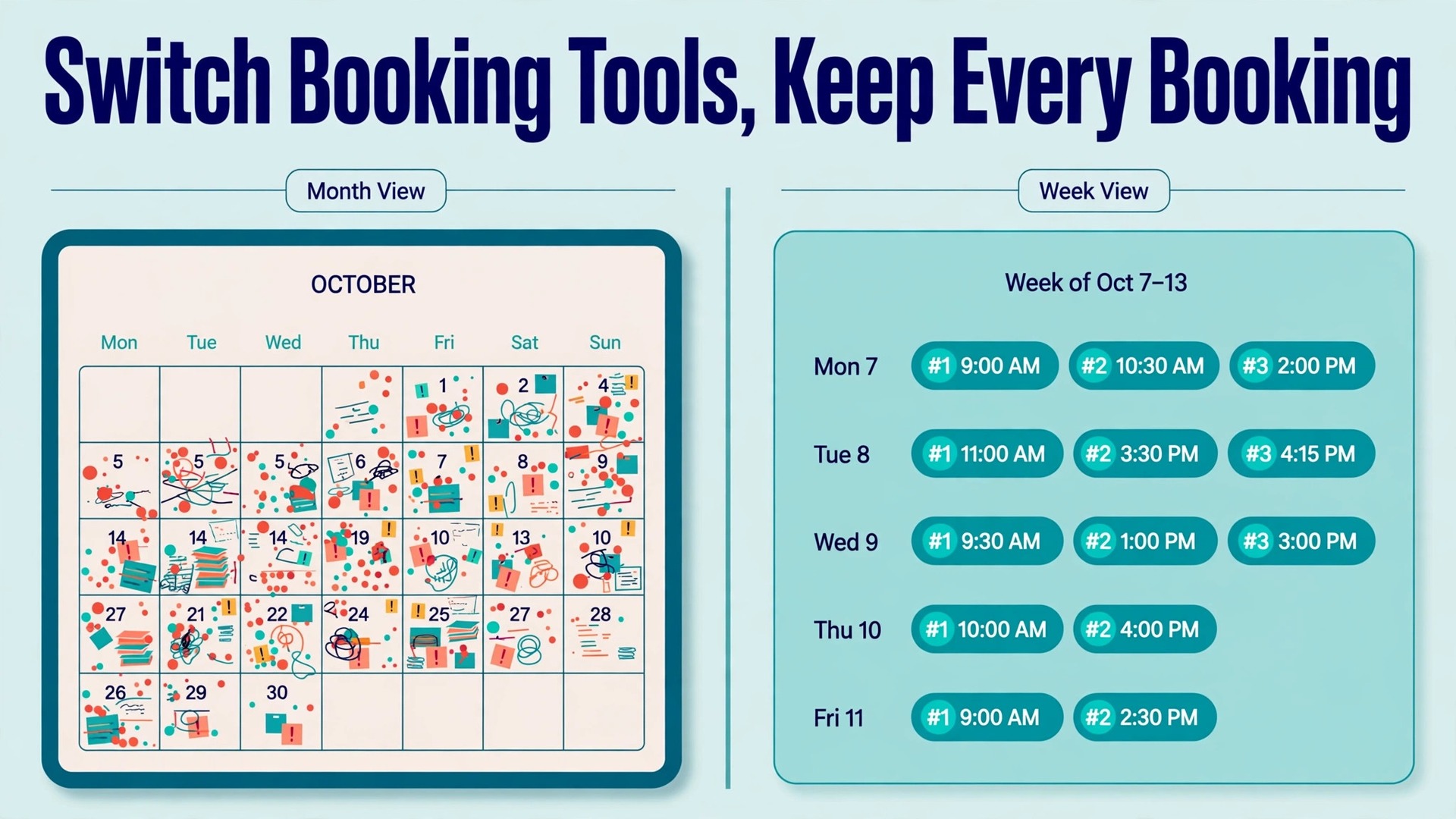
Put two booking pages side by side. One shows a month grid and a list of times, and every visitor must pick a day, scan the times, then check their own calendar in another tab to see whether that slot actually works. The other shows a week view with a calendar overlay, so the clash check happens on the page itself. SavvyCal reports that its week view plus overlay removes that second step, and small businesses that switch Calendly to SavvyCal small business booking pages often cite the overlay as the reason. The gain is real for teams that book by email, but it is not automatic, and trade offs matter before you move a live booking page.
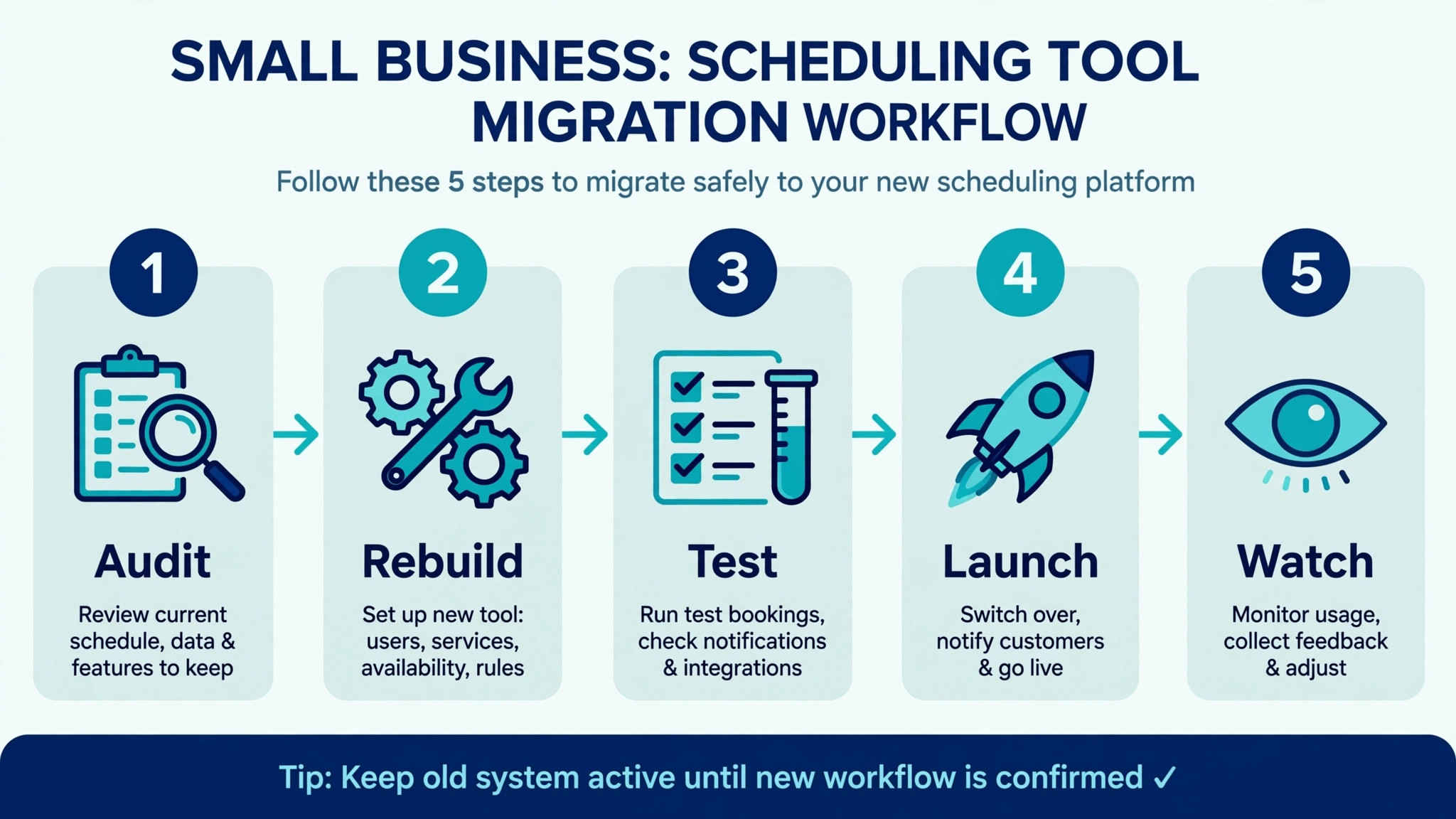
This guide walks through the move in the order a small business should do it. You will audit what you have, rebuild what does not transfer, test the new pages with real bookings, and only then point visitors at SavvyCal. Prices quoted here are last published list prices, so confirm at checkout before you commit, because vendors change plans without notice.
The short version is that a move is worth it when your bookings are mostly one to one or small group meetings, your team values a week view with ranked availability, and you do not depend on text reminders or routing forms. It is a poor move when text reminders are load bearing, when you need a free live link, or when paid bookings and a custom domain matter and you are unwilling to pay for the higher plan.
How to Switch Calendly to SavvyCal Small Business Owners Can Follow
Start with an inventory, not a signup. List every booking page you own, where each link appears, who owns it, and how many bookings it took in the last ninety days. A link buried in an email signature, a proposal template, or a support article is easy to forget, and a forgotten link keeps sending visitors to the old tool after you believe the move is done.
Next, export your booking history from the old tool. SavvyCal lets you export upcoming, past, and cancelled events to a comma separated file, and keeping a copy of your old history matters for the same reason. If a client disputes a meeting time or asks when a session was booked, that record answers the question without a search through old inboxes.
Then rebuild one page at a time, starting with the page that books least often. A quiet page gives you room to learn the new settings, spot a mistake in availability or questions, and fix it before the page that fills your calendar goes live. Rushing every page across in one afternoon is how a team discovers a broken link on a Monday morning.
What Actually Moves and What You Must Rebuild
There is no one click import from the old tool to the new one in the way some scheduling tools offer. Treat the move as a rebuild with a checklist, not a transfer. Your meeting history, your page settings, and your reminder rules do not arrive on their own. What you carry across is your knowledge of what each page must do, plus any exported history you save yourself.
The table below separates the two groups so you can estimate the work honestly. Anything in the rebuild column needs a person, a test booking, and a second look before it goes live.
| Item | Moves with you | Must be rebuilt |
|---|---|---|
| Booking history | Exported file you save yourself | No automatic history import |
| Event types and durations | Your notes on what each page offered | Each link recreated by hand |
| Availability windows | Your working hours and rules | Ranked availability set fresh |
| Custom questions | The wording you already use | Questions added to each new link |
| Reminder wording | Text you copy across | Reminder rules set fresh |
| Calendar connections | Your calendar accounts | Each connection linked again |
| Video meeting links | Your meeting provider account | Location chosen per link |
| Website embeds | The pages where links live | Embed code swapped on each page |
Availability deserves special attention because it works differently here. SavvyCal lets you rank availability windows so visitors see your preferred times first, rather than every open slot looking equal. That is a genuine improvement for a consultant who prefers mornings for discovery calls and afternoons for delivery work. It also means a careless ranking can hide the times you actually want to sell, so test with a fresh eye before launch.
Custom questions transfer only as wording. SavvyCal shows answers on the event page, in the calendar invite, and in the confirmation email, which keeps intake visible wherever the team looks. Copy your questions exactly, then ask whether each one still earns its place. A question that made sense when the page was created may now only add friction.
Calendly and SavvyCal Compared on Price and Features
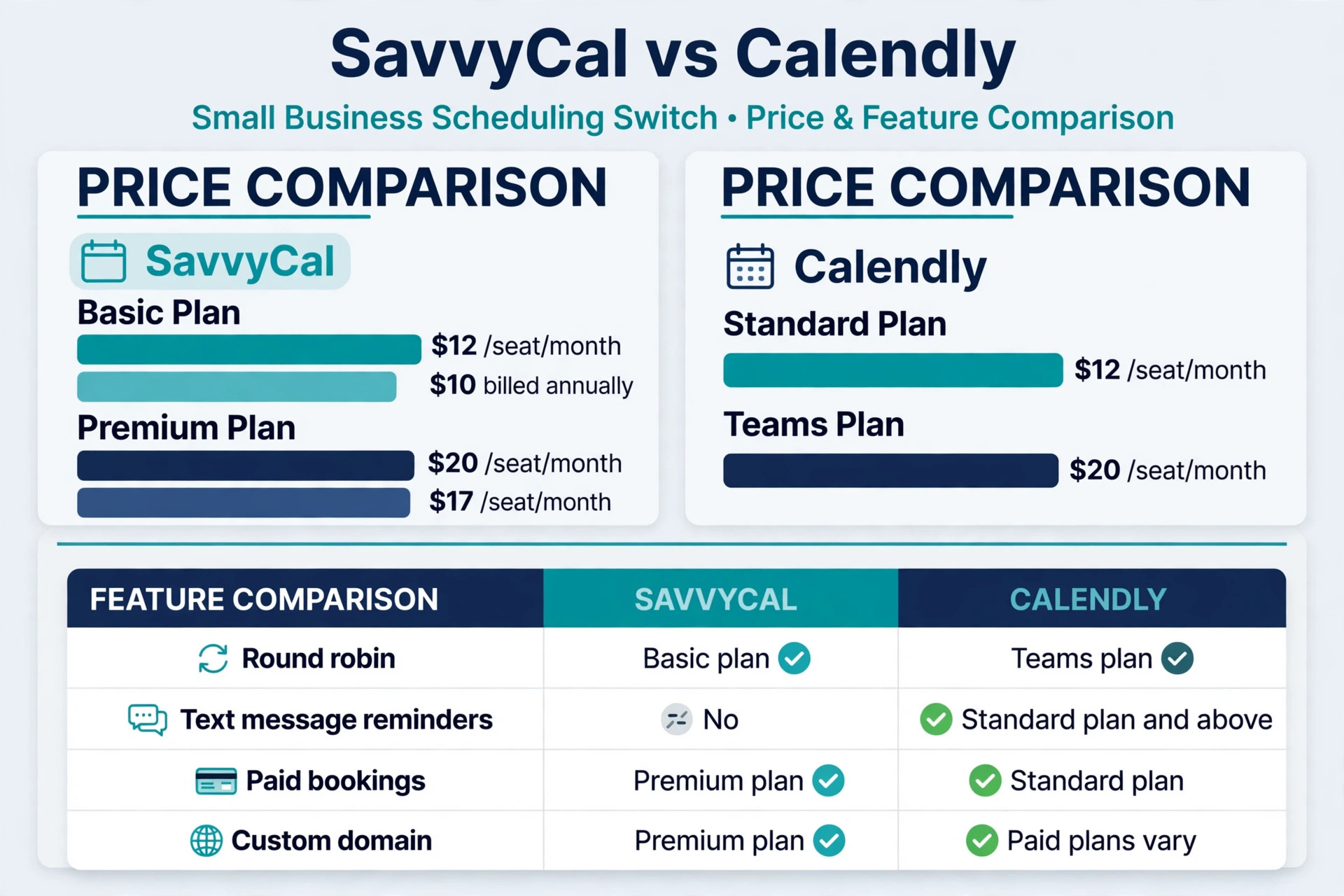
Price is where the two tools look similar and differ in the details. SavvyCal Basic is listed at 12 dollars per seat per month billed monthly, or 10 dollars per seat per month billed annually, while Premium is listed at 20 dollars per seat per month billed monthly, or 17 dollars billed annually. Those are last published list prices, so confirm at checkout. Calendly Standard is listed at 12 dollars per seat per month and Teams at 20 dollars per seat per month in the same comparison, so the headline rates are close.
The difference sits in which plan holds which feature. Round robin booking sits on SavvyCal Basic, while the same capability on Calendly sits on the Teams plan. For a team of five, that gap alone can change the monthly bill in a visible way. Paid bookings through a payment provider sit on SavvyCal Premium, while Calendly offers payment collection on its Standard plan, so a business that charges at booking may find the cheaper headline plan is not the cheaper real plan.
| Feature | SavvyCal | Calendly |
|---|---|---|
| Week view booking page | Yes | Month view with time list |
| Calendar overlay for visitors | Yes | Only for signed in visitors |
| Ranked availability | Yes | No |
| Round robin | Basic plan | Teams plan |
| Text message reminders | No | Standard plan and above |
| Routing forms | No | Teams plan and above |
| Free live booking link | No, polls are free | Yes, one event type |
| Paid bookings | Premium plan | Standard plan |
| Custom domain | Premium plan | Paid plans vary, confirm at checkout |
Two gaps decide more moves than any other feature. SavvyCal has no native text message reminders, so a business whose no show rate depends on texts must replace that job another way, for example with a calendar invite plus an email reminder and a manual text for high value meetings. SavvyCal also has no free live link, since links need a paid plan, while polls remain free. A business that only needs an occasional poll may be fine, but a business that needs a live page must budget for a seat.
The refund window softens the test. SavvyCal offers a 30 day refund when you cancel within 30 days of starting a subscription, which means a real trial with real bookings fits inside the window. Plan the test so that it includes a full week of live bookings, not just a setup afternoon, because availability mistakes only show up when strangers use the page. A fair test of whether to switch Calendly to SavvyCal small business budgets should compare the honest seat total, not a single seat headline.
Your SavvyCal Setup in Order
Work through these steps in order, and do not skip the test bookings. Each step is short on its own, but the order prevents the common failure where a page goes live before its calendar, questions, or reminders are right.
- Connect every calendar that holds real commitments, and choose which calendar receives each link’s bookings. A link that checks only one calendar will happily offer a time you already promised elsewhere.
- Set working hours and buffers, including a buffer after long meetings so back to back calls do not stack without a break. Buffers are where a tidy calendar survives contact with a real week.
- Recreate your highest value link first in draft form, with its duration, location, and questions copied from the old page. Keep the old page live while you build.
- Rank your availability windows so preferred times appear first, then view the page as a visitor would and ask whether the first times shown are the times you want to sell.
- Set meeting limits per day, week, or month where a popular link could otherwise fill every hour. Limits protect delivery time, preparation time, and plain recovery time.
- Write reminder emails in plain language, with the meeting purpose, the time in the visitor’s zone, and what to bring. Since there are no native texts, make the email do more work.
- Test with three bookings that cover the awkward cases, a reschedule, a cancellation, and a booking from another time zone. Fix whatever breaks before you touch a second link.
- Swap the link on one low traffic surface first, watch it for a week, then roll the swap across your website, email signatures, and templates in one pass.
Single use links deserve a note of their own. When you switch Calendly to SavvyCal small business schedulers often find single use links useful for sensitive introductions that should not stay open. SavvyCal can generate a link that archives itself after one booking, which suits a sensitive introduction or a one off interview slot. Use them where a permanent link would keep attracting bookings after the need has passed, and keep permanent links for services you always sell.
Calendar Connections and Availability Rules
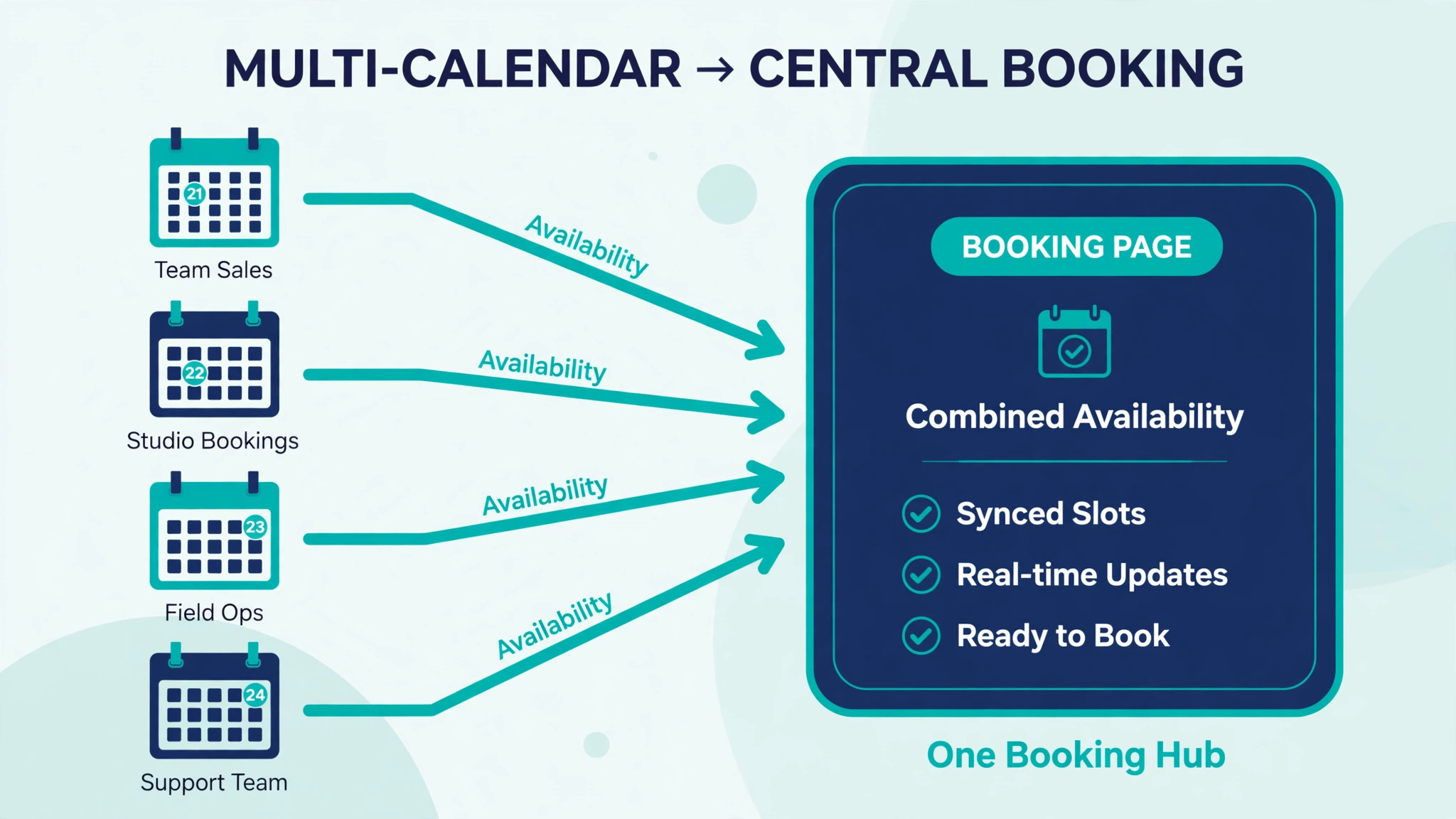
Connect calendars before you design pages, because availability rules only make sense once the tool can see your real commitments. SavvyCal checks across connected calendars for conflicts, and you can choose the destination calendar per link, so a sales link can land on a sales calendar while a delivery link lands elsewhere. That per link choice is a quiet advantage over a setup where every booking lands on one account calendar.
Minimum notice is the rule most teams set too low. A notice window of a few hours invites bookings that arrive faster than preparation allows, especially for calls that need reading beforehand. Set notice by the preparation each meeting type needs, not by a single global default, and raise it for the meetings that suffer most from short notice.
Date range limits matter just as much. Letting visitors book months ahead fills a calendar with commitments that will move, while a shorter window keeps the diary honest. A common pattern is a rolling window of three to four weeks for discovery calls and a longer window for paid programs with fixed dates. Review the window quarterly, because a window set during a quiet season can quietly strangle a busy one.
Booking Pages, Questions, and Reminders
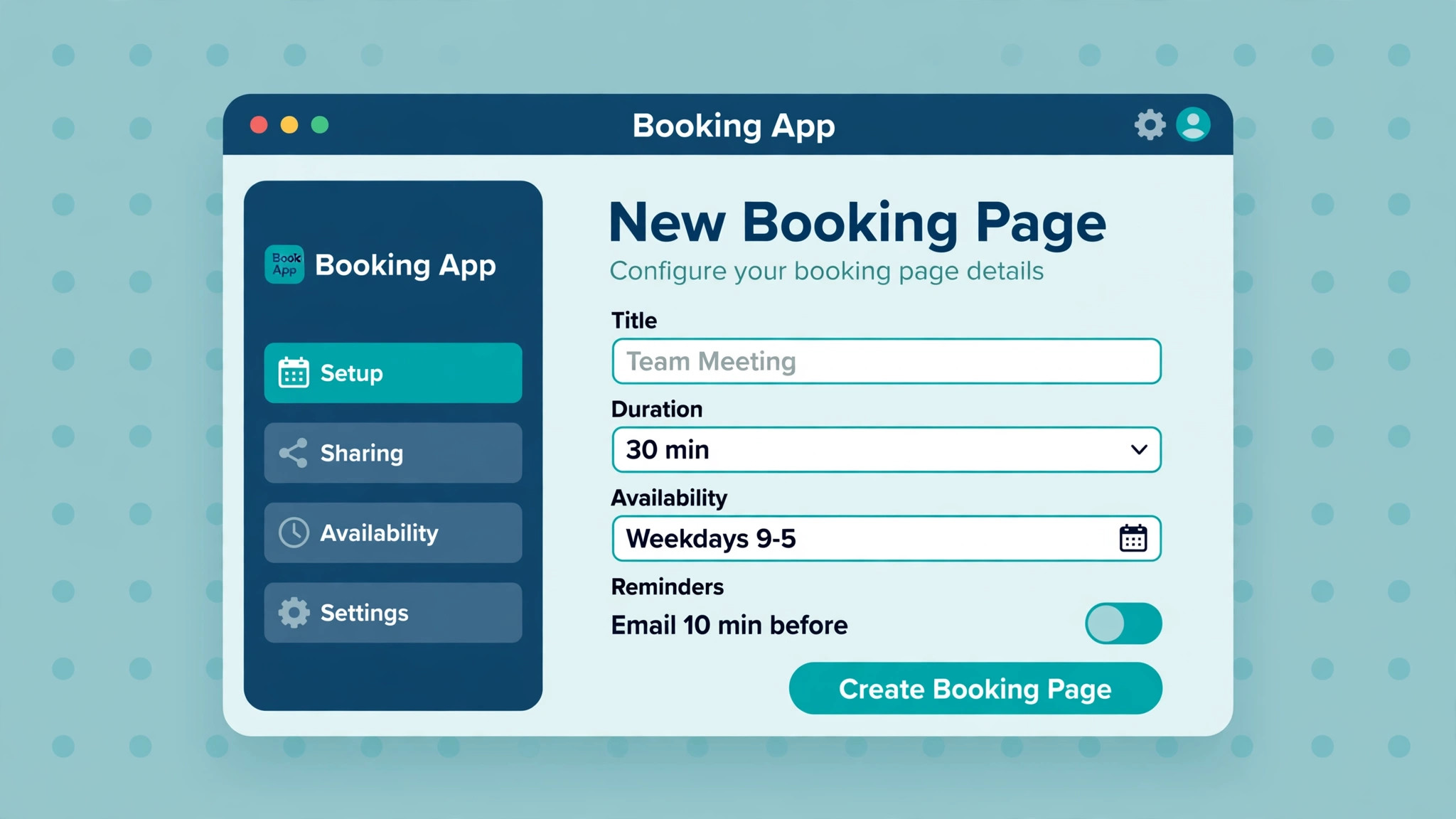
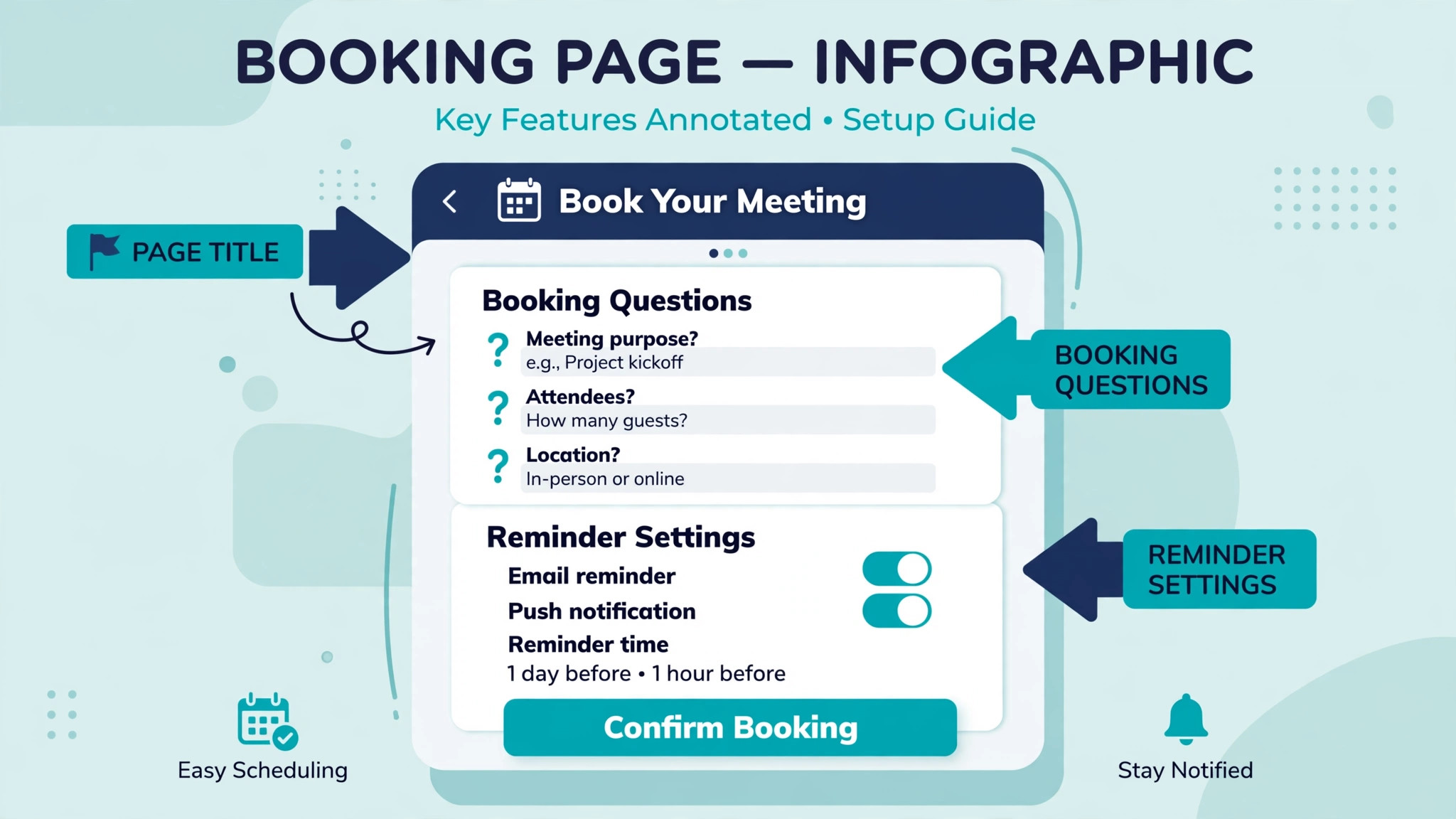
A booking page should answer three questions before a visitor picks a time. What is this meeting for, how long does it take, and what happens after booking. SavvyCal pages show a week of availability, which helps the visitor, but the page still needs a clear title and a short description. A vague title invites the wrong meeting, and no overlay can fix a booking that should never have been made.
Questions should be short, ordered by importance, and optional wherever possible. Required questions reduce bookings, and every required field should justify itself by changing how you prepare. Ask for a phone number only if you will actually call it, and ask for a company size only if it changes the agenda. Two good questions beat six careless ones.
Reminders need a plan that accepts the text message gap. Email reminders still reduce no shows when they arrive at useful intervals, for example a day before and again a few hours before. For high value meetings, add a manual message from the person running the meeting, because a personal note carries weight that an automated email does not. Track no shows for a month after the move and compare them with the month before, so the decision rests on numbers rather than feelings.
Integrations Worth Setting Up
Google Calendar
Google Calendar is the most common destination for small business bookings, and it works well as both a conflict source and a destination calendar. Connect it first, confirm that test bookings land where you expect, and check that reschedules move the event rather than duplicating it.
Outlook
Outlook matters for teams whose clients live in that world, and it also serves as a conflict source so meetings booked elsewhere still block your page. If your team splits across two calendar providers, connect both before you publish, because a missing connection is invisible until a double booking proves it.
Zoom
Zoom is the default video location for many small businesses, and each booking can carry its own meeting link. Turn off any personal meeting room setting that would reuse one room for every guest, and test that the link in the invite opens cleanly for a visitor who has never met you.
Stripe
Stripe handles paid bookings on the Premium plan, so a business that charges at booking must price the plan, not just the headline seat. Test a paid booking end to end with a real card flow in test mode where available, and confirm that a cancellation or reschedule behaves the way your refund policy promises.
Migration Checklist for a Small Business
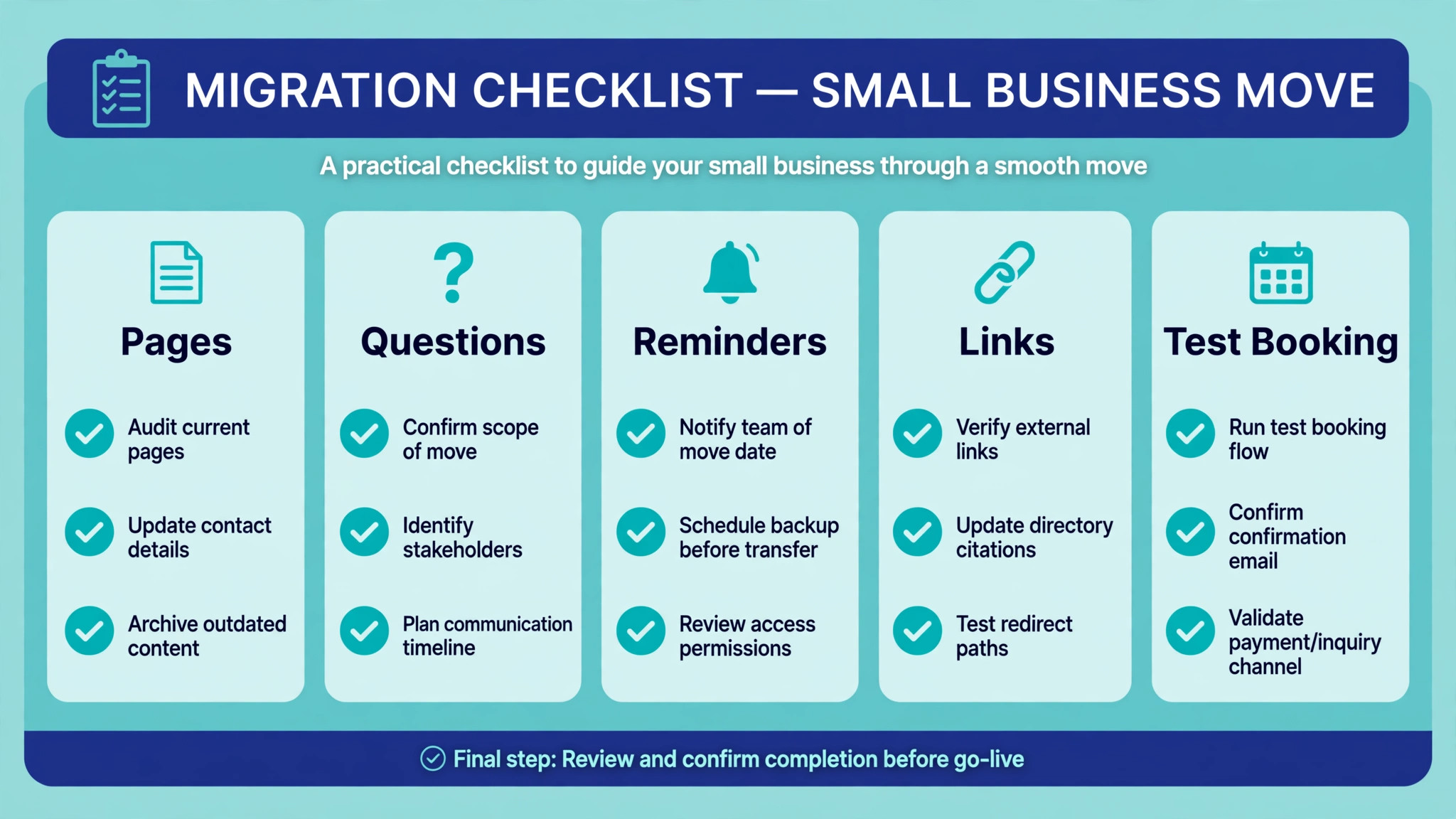
Use this checklist as the working document for the move, and do not mark an item done until a test proves it. A checklist that is ticked from memory is how a broken reminder or a stale link survives launch. When you switch Calendly to SavvyCal small business teams should work through this list in order, because each item protects the next one.
- Inventory every live booking page, its owner, and where the link appears
- Export booking history and save it somewhere the team can find later
- Record durations, questions, limits, and notice rules for each page
- Connect all calendars and set a destination calendar per link
- Recreate links one at a time, starting with the quietest page
- Rank availability windows and view each page as a visitor
- Rewrite reminder emails to cover the missing text message step
- Test a booking, a reschedule, a cancellation, and another time zone
- Swap links on the website, signatures, proposals, and support pages
- Watch no show rates and booking volume for four full weeks
- Confirm billing, seats, and renewal date on the new account
- Keep the old account until every booking made on it has passed
The checklist also protects the team from a second kind of loss, which is knowledge loss. When one person holds the whole setup in their head, a holiday or a departure turns a small fix into a mystery. Write the new setup down in the same document, including which calendar each link uses and why each limit exists.
First Week Cutover Plan
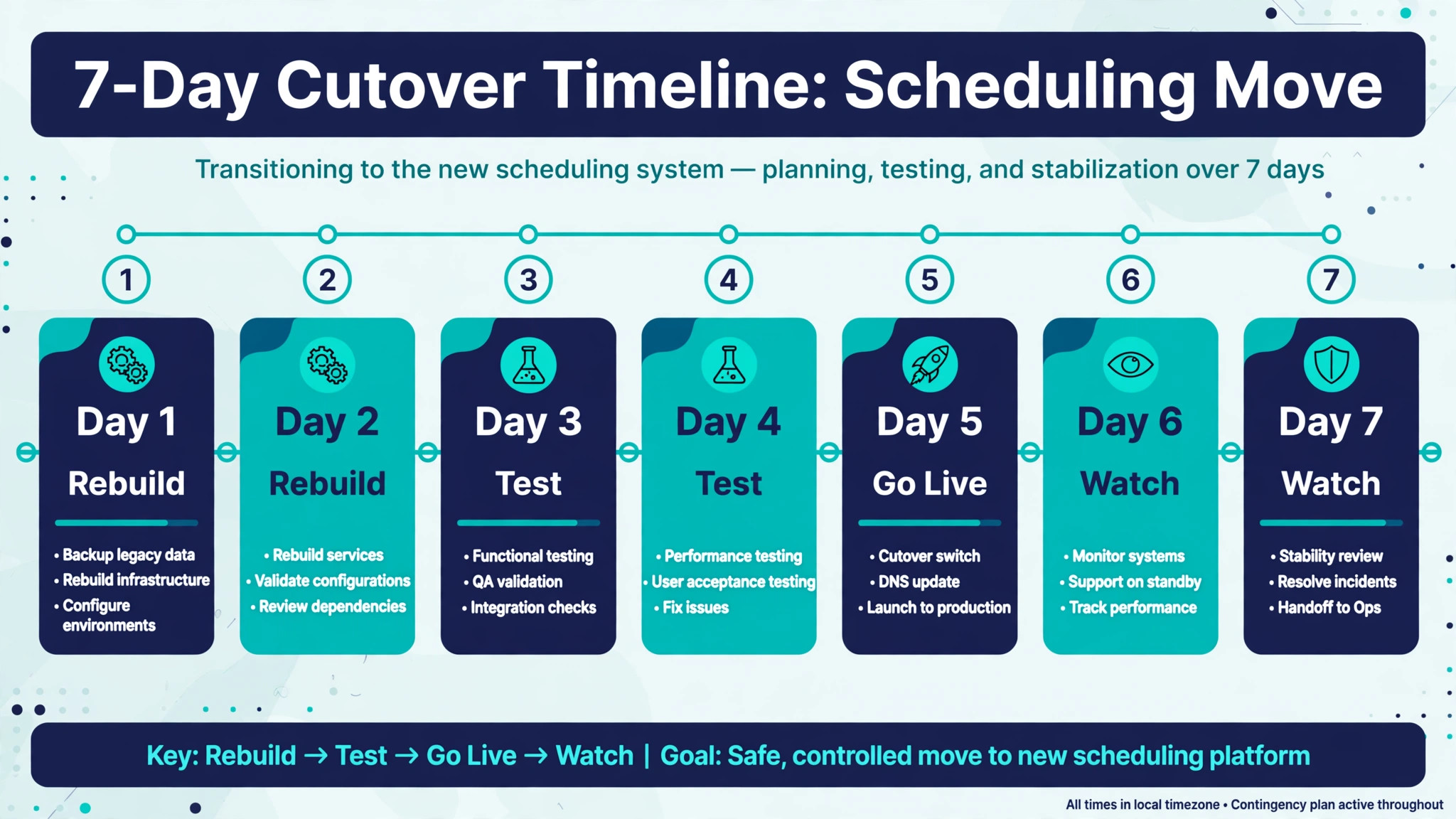
Cutover week is deliberately boring, because boring means nothing broke. Day one is the quiet page swap plus a test booking from a colleague outside the team. Day two is a review of that booking, its invite, its reminder, and its calendar event, with fixes applied before anything else moves.
| Day | Action | Check |
|---|---|---|
| Day one | Swap the quietest page | Test booking lands correctly |
| Day two | Review invite, reminder, calendar event | Fix wording and timing gaps |
| Day three | Swap the next two pages | Watch for double bookings |
| Day four | Swap remaining pages and embeds | Search the site for old links |
| Day five | Review the week in numbers | Compare bookings with the prior week |
| Day six | Message recent bookers if anything changed | Confirm no one is confused |
| Day seven | Decide whether the old account closes | Keep it until old bookings pass |
Do not close the old account on day seven unless every booking made through it has already happened. Old links in old emails will keep working for a while, and a closed account turns those links into dead ends. The safer close date is the day after the last old booking passes, plus a small margin for reschedules.
Communication during cutover week matters as much as configuration. Tell the team which pages moved, what changed for visitors, and where to report a problem. A shared note with the new links and the known gaps, including the text reminder gap, stops colleagues from promising visitors something the new setup cannot do.
Rollback Advice if the Move Goes Wrong
Rollback is not failure, it is a plan, and a move without one is a gamble. Keep the old pages live but unlinked during the first month, so a rollback means swapping links back rather than rebuilding pages under pressure. Keep the old reminder rules untouched, because a rollback that restores pages but not reminders will still lose bookings.
Decide the rollback triggers before launch. A sensible set is a double booking caused by the new setup, a no show rate that rises sharply for two consecutive weeks, or a feature gap that blocks a revenue page, such as paid bookings landing on the wrong plan. Write the triggers down, and name the person who can call the rollback without a meeting.
If you roll back, keep the new account for its refund window and note what failed, because a second attempt with the same settings will fail the same way. Most failed moves fail on availability, reminders, or a missed link location, and all three are fixable before a second try. Teams that switch Calendly to SavvyCal small business pages a second time usually fix the availability ranking first, because that is where visitors feel the change most. A rollback that teaches the team something is still progress.
Mistakes Small Businesses Make on This Move
The most common mistake is moving every page at once. A single page move teaches you how the tool behaves, while a whole account move teaches you everything at once, usually on a busy day. The second mistake is forgetting a link location, especially proposal templates and old email sequences that keep sending visitors to a page you thought you retired.
The third mistake is copying reminder settings without adapting them. A reminder schedule designed for a tool with texts will underperform on a tool without them, so the email copy and timing need fresh thought. The fourth mistake is skipping the time zone test, which is how a team discovers that a visitor in another zone saw a confusing time only after a missed meeting.
A fifth mistake is underestimating seats. Teams that switch Calendly to SavvyCal small business plans sometimes price one seat and forget that every person with a live link needs one. Each person who needs a live link needs a seat, and a team that shares one login to save money will quickly hit confusion over whose calendar a booking checks. Price the seats honestly, and compare the honest total with the old bill, not the single seat headline.
Client Communication During the Move
Clients rarely care which scheduling tool you use, and they care a great deal when a familiar link stops working or a confirmation looks different without warning. Tell regular clients that booking pages are changing, that existing meetings are unaffected, and that the new page shows a week view with their own calendar alongside yours. That single sentence prevents most confusion, because it tells them what is different and why it helps them.
Send the note from a person, not from a generic account, and keep it short. A long explanation of features invites questions you do not need, while a short note with the new link and a line about existing meetings staying put covers the real worry. For clients with recurring bookings, confirm the next meeting by hand during cutover week, even if the calendar already holds it, because a personal confirmation catches the one case where something did move.
Internal communication needs the same care. Reception staff, sales staff, and anyone who sends a booking link must know the new links, the old links that still work, and the text reminder gap, so nobody promises a text that will never arrive. When you switch Calendly to SavvyCal small business front desks should have a one page note with the new links and the answers to the three questions clients ask most, which are where the link went, whether old meetings stand, and how to reschedule.
Watch the first fortnight of messages for patterns. If several clients ask the same question, the booking page or the announcement needs a fix, not the clients. A move that listens in its first two weeks ends with a page visitors trust, while a move that ignores early questions ends with a team answering the same email for months.
Frequently Asked Questions
Does SavvyCal import event types from Calendly automatically?
No automatic import is documented for this pair in the way some tools offer a one click import, so plan on recreating each link by hand. That sounds slow, and it is, but it also forces a useful review of pages that may have been stale for months. Copy durations, questions, and limits from the old page, then test the new page before it goes live.
Will my old bookings still happen after I switch?
Yes, provided you do not close the old account before those bookings pass. Meetings already on calendars are calendar events, not links, so they survive a link swap. The risk is not old meetings vanishing, it is old links in old emails sending new visitors to a retired page, which is why the cutover plan keeps the old account alive.
How do I handle the missing text message reminders?
Lean on email reminders at useful intervals, add a personal message for high value meetings, and measure no shows for a month before judging the gap. Some teams add a separate messaging step for their most valuable meeting type only, rather than paying for texts on every booking. If texts are load bearing for your whole diary, that is a reason to stay put.
Is SavvyCal cheaper than Calendly for a small team?
It depends on which features your team actually uses. Round robin on the lower plan can make SavvyCal cheaper for a team that needs it, while paid bookings on the higher plan can make it dearer for a team that charges at booking. Model the honest seat count and the plan each feature requires, then confirm at checkout, because headline rates hide those differences.
Can visitors overlay their own calendar on my booking page?
Yes, visitors can overlay their own calendar on a SavvyCal page to find a mutual time, and that overlay is the feature most often cited by teams that move. It helps most when visitors juggle busy calendars and would otherwise pick a slot and then reschedule. It helps least for simple bookings where any open slot will do.
What happens to my booking history when I cancel?
SavvyCal keeps your data until you reactivate after cancelling, and the events page exports history as a comma separated file, so export before you cancel and keep your own copy. A business should never rely on a vendor account as the only record of client meetings, because accounts close, plans change, and exports take minutes.
Should I move during a busy season?
No, move during a quieter stretch, or move one page at a time through the busy season if waiting is not an option. A migration is a change to the front door of the business, and front doors should not be rebuilt during the rush. If a busy season move is unavoidable, move the quietest page first and leave revenue pages until the rush passes.
How long does a small business migration usually take?
A business with a handful of pages can rebuild and test in a week of part time work, while a business with many pages, embeds, and templates should allow two to three weeks. The rebuild itself is fast, and the slow part is finding every link location, testing awkward cases, and watching a full week of real bookings before calling the move done.
Verdict for a Small Business
Move when the week view, the calendar overlay, and ranked availability solve a real booking problem your team feels every week, and when the missing text reminders and the paid link requirement do not break anything load bearing. Stay when texts carry your diary, when a free live link is essential, or when paid bookings on the lower plan are the reason your current setup pays for itself.
If you move, move slowly, test awkward cases, and keep the old account until the last old booking has passed. Owners who switch Calendly to SavvyCal small business booking pages usually judge the move after a full month of real bookings, not after setup day. A careful migration costs a week of attention and buys a booking page that visitors find easier to use. A rushed migration costs the same week plus the bookings it loses, and the difference is entirely in the order of the steps.