
Teachable makes selling a first course simple. Thinkific makes running a growing course catalogue simpler. That contrast drives most switches. Teachable suits a creator who wants quick setup, built in tax handling for many countries and student apps from the start. Thinkific suits a business that wants unlimited courses, stronger quizzes and certificates, communities beside courses and no added platform fee when using its own payment system. Neither choice is wrong in general. The right choice depends on how many courses you sell, and for a team ready to switch Teachable to Thinkific small business pricing and access control often tip the balance.
This guide is for a small business that has outgrown its current setup, or that faces fees and product limits that no longer fit its catalogue. It covers what exports cleanly, what must be rebuilt by hand, how to move students without losing access, and how to cut over without breaking sales pages or enrolments. It also flags the points where figures change often. Confirm current plan limits, fees and tax handling on the vendor pages before you commit, because a single fee change can alter the maths for a small catalogue.
Teachable or Thinkific. Which Trade Off Fits a Small Business
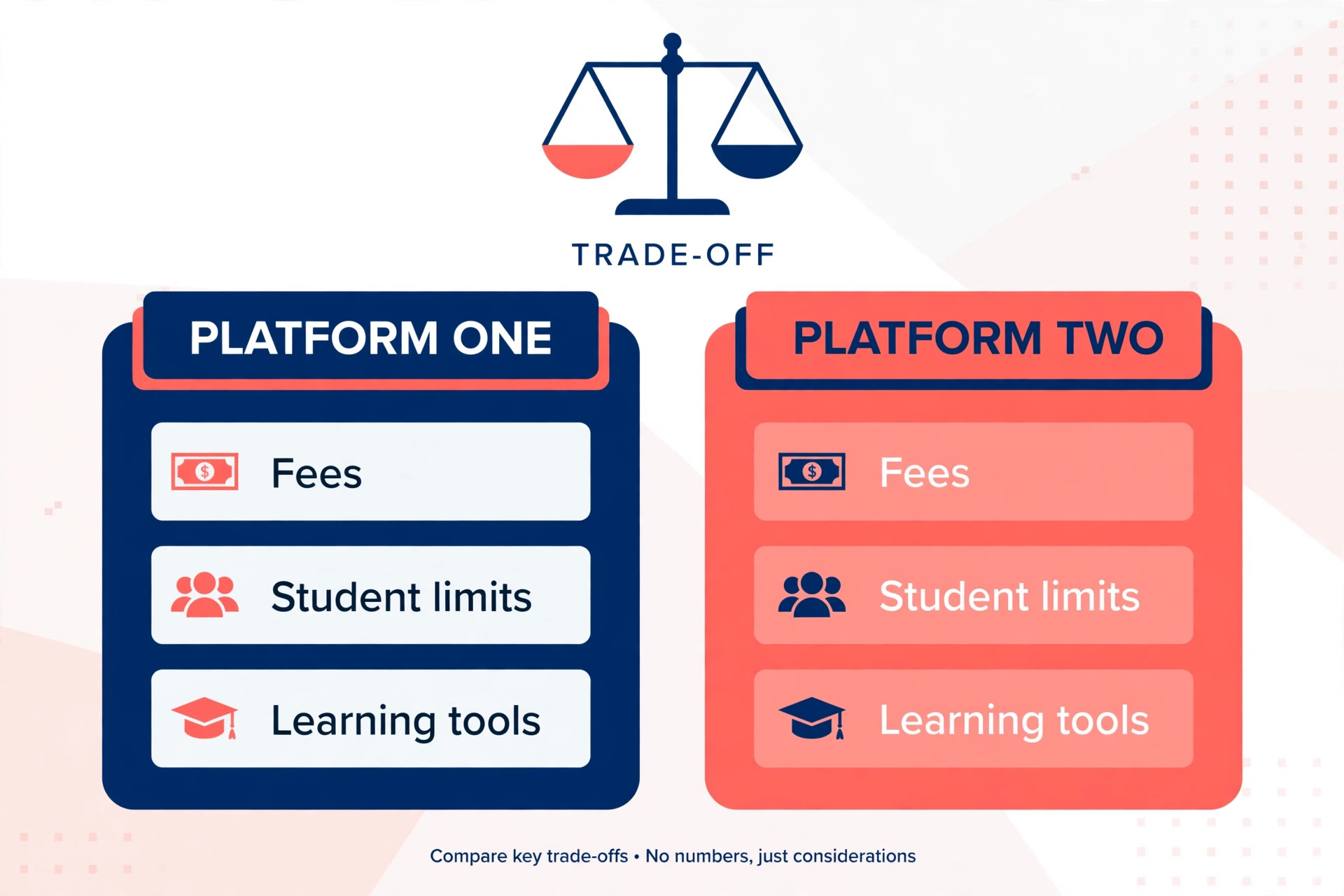
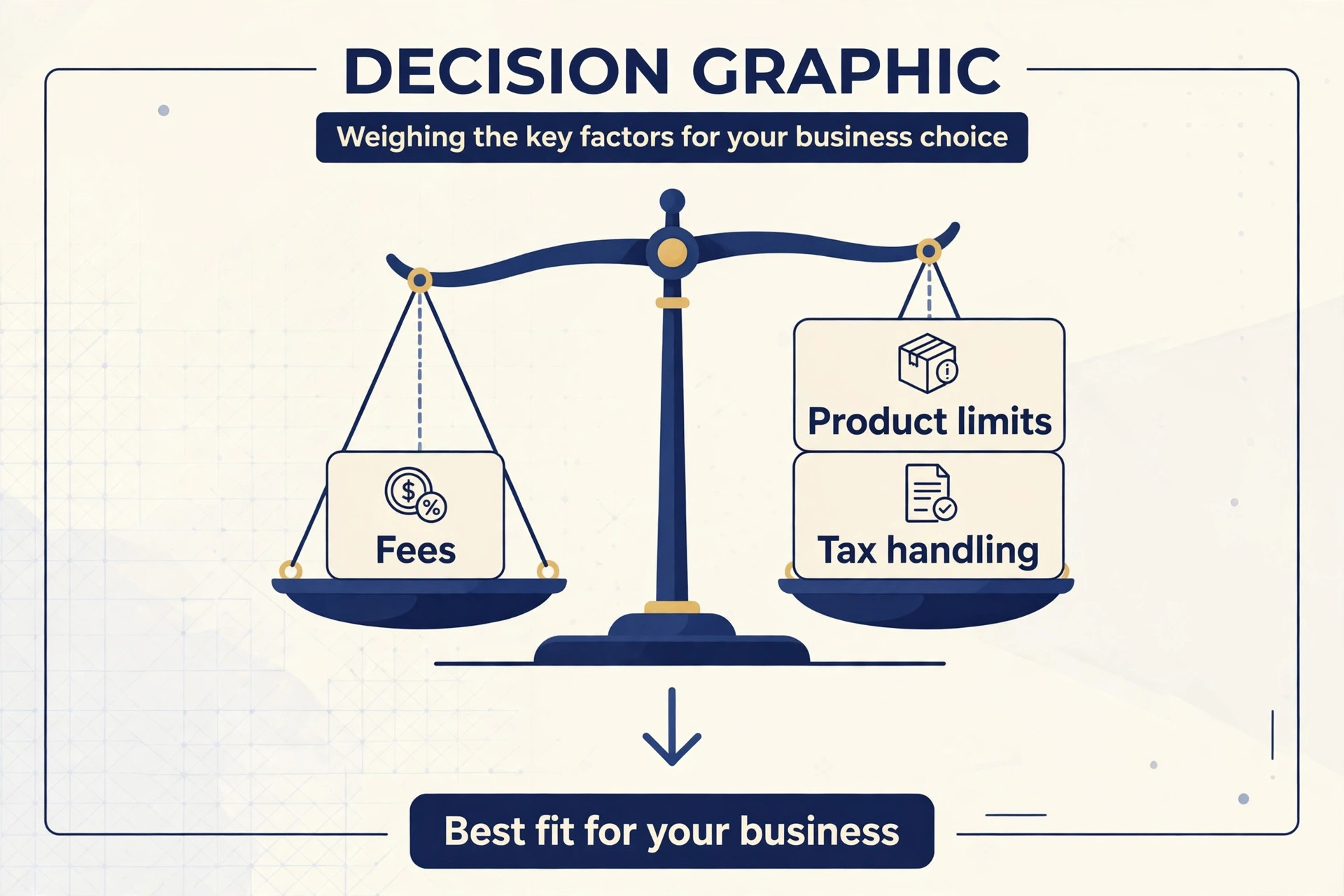
Start with the trade off, not with a feature list. Teachable, on some plans, adds a transaction fee and caps products, while handling VAT and GST remittance across many countries for you. That tax help is valuable if you sell internationally and do not want to manage filings yourself. Thinkific, on paid plans, generally charges no added platform fee through its own payment system and allows unlimited courses, but tax responsibility differs by region. For some businesses, that difference alone decides the move. For others, it is a reason to stay.
Course structure is the second trade off. Thinkific is often praised for structured learning, with quizzes, assessments, certificates and progress tracking that suit coaches, trainers and professional educators. Teachable is often praised for simplicity and for getting a course live fast. If your courses are short video lessons with a sales page, simplicity may matter most. If your courses carry assessments, cohorts or compliance checks, structure may matter more.
Student experience is the third trade off. Both platforms offer student apps and mobile access in different forms, so check current app details on the vendor pages rather than assuming parity. Thinkific communities let discussion live beside courses on the same platform. Teachable also supports student interaction, but the community and course experience may feel more separate. Visit both as a test student before you decide. A demo as an admin hides friction that a student will feel on lesson three.
Cost comparison needs care. Entry prices listed in reviews often mix monthly and annual billing, and older plans may no longer be on sale. The cost of Teachable for small business gives a baseline for your current spend. Use it beside current Thinkific pricing, and model three cases. Low sales months, average months and a launch month with high volume. A plan that looks cheap at low volume can become expensive when transaction fees scale with sales, and a plan that looks dear at entry can become cheaper as sales grow.
How to Switch Teachable to Thinkific Small Business Courses Without Losing Enrolments
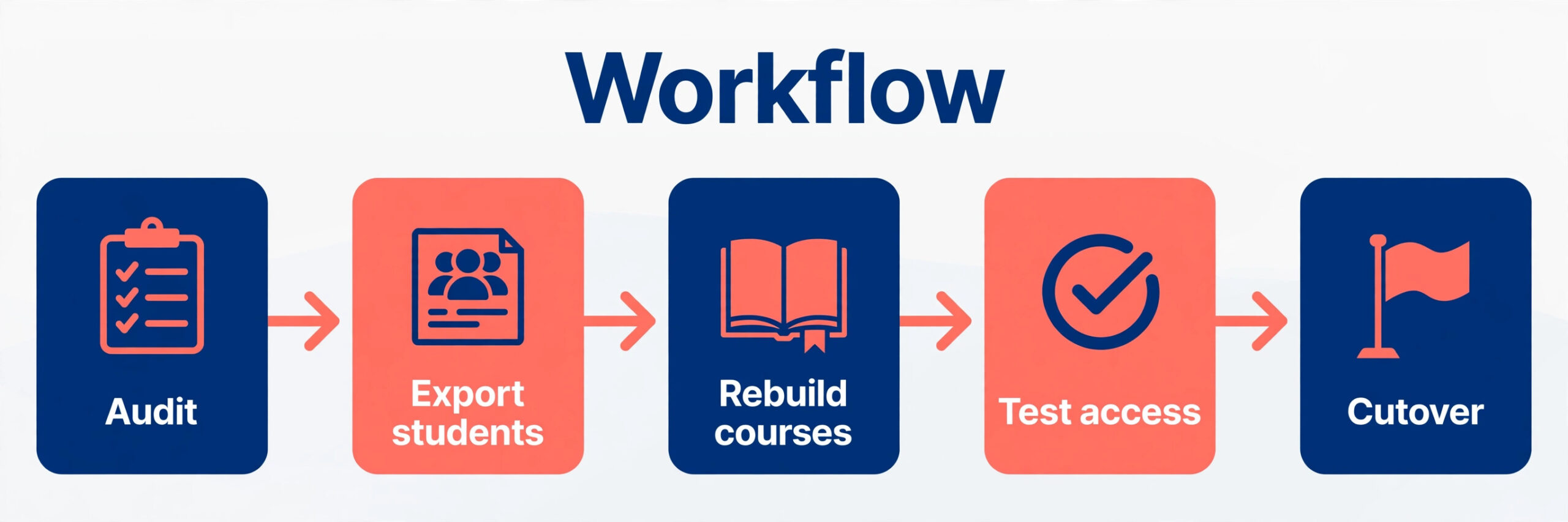
A safe switch has five stages. First, audit courses, students and sales pages. Second, export students and reports, and download course media. Third, rebuild courses in Thinkific in the right structure, not as a copy of Teachable screens. Fourth, test payments, access and progress with a small cohort. Fifth, cut over with redirects, clear student messages and a support plan. Teams that skip testing discover payment or access problems from real buyers, which is the worst time to learn.
Name a migration owner and a support contact for cutover week. The owner rebuilds courses and checks access. The support contact answers student messages fast during the first week. Students forgive a platform change when messages are answered quickly and access is restored fast. They lose trust when messages sit unanswered while a course they paid for will not open.
Do not close Teachable on the day you open Thinkific. Run both during rebuild and testing, and keep Teachable live until every active student can open their course in Thinkific. Announce the change to students early, with dates and a simple explanation of what changes for them. Most students only care about three things. Will my login still work. Will my progress stay. Where do I click now. Answer those three questions in the first message, and repeat them on the new login page.
Start With a Course and Student Audit
List every course, bundle, coaching product and membership on Teachable. For each product, note its price, payment plan, coupon use, enrolment count and last sale date. Products with no sales for a year are candidates for archive, not rebuild. Products with steady sales belong in the first rebuild wave. A small business often finds that two or three courses drive most revenue, while a long tail of old products adds rebuild work with little return.
Audit lessons inside each active course. Note video length, file type, quiz type, download files and drip settings. Drip courses need special care, because release timing must be rebuilt in Thinkific, not just copied as a lesson list. Note any lessons hosted outside Teachable, for example on Vimeo, because those videos are already portable and only need re embedding. Note lessons with large files, because upload limits and bandwidth rules differ by plan.
Audit students next. Export student lists and enrolment reports to CSV, and keep backups in two places. Count active students, completed students, refunded students and students on payment plans separately. Payment plan students need the most care, because their billing must continue without interruption or double charging. List students by product, not just as one large list, so you can re enrol them product by product and verify each group.
Audit sales pages and links. List every sales page URL, every link in emails, social bios and ads, and every affiliate link that points to Teachable. Those links will need redirects or updates after cutover. A forgotten ad link that points to a closed school will waste ad spend and confuse buyers. Keep this link list beside the course list, and check it again on go live day.
Export What You Can, Rebuild What You Cannot
There is no one click course import from Teachable to Thinkific that moves full course structure, videos, quizzes and student progress in one step. Thinkific offers migration help and bulk enrolment import, but course content itself needs manual rebuild in most cases. That fact should shape your timeline. Budget days for rebuild, not hours for import, and start with your highest revenue course.
When you switch Teachable to Thinkific small business owners should download all course media first, even before they start rebuilding. Download videos, PDFs, worksheets and audio files from Teachable, and store them in folders by course and lesson. If a video is hosted elsewhere, record its embed link and access setting. Media download is slow and boring, but it is the safety net for the whole move. Without local media, a rebuild stalls every time a file cannot be retrieved.
Export student and sales reports as CSV. Student exports give you names, emails and enrolment data. Sales reports give you order history for support and tax checks. Keep those exports with your business records, even after Thinkific enrolments are verified. They are useful if a student disputes access later, and they help you reconcile payment plan balances during the move.
Check what does not export. Course progress, quiz scores, certificates and discussion posts often do not move cleanly between platforms. Decide how to handle each gap before cutover. For progress, you may re enrol students at their current lesson, or grant full access and let them resume where they left off by memory. For certificates, you may need to reissue them in Thinkific or keep old certificates as PDF records. Tell students plainly what carries over and what does not, so they are not surprised after login.
Rebuild Courses Lesson by Lesson in Thinkific
Rebuild in Thinkific with a clean structure, not a screenshot copy of Teachable. When you switch Teachable to Thinkific small business courses benefit from consistent lesson naming from the start. Start with course settings, then chapters, then lessons. Use consistent lesson naming, so students can scan a course and find their place. A lesson named Video 3 helps nobody. A lesson named Pricing Your First Offer, with a short description, helps a student resume after a week away. Good naming is a small rebuild cost with a large student benefit.
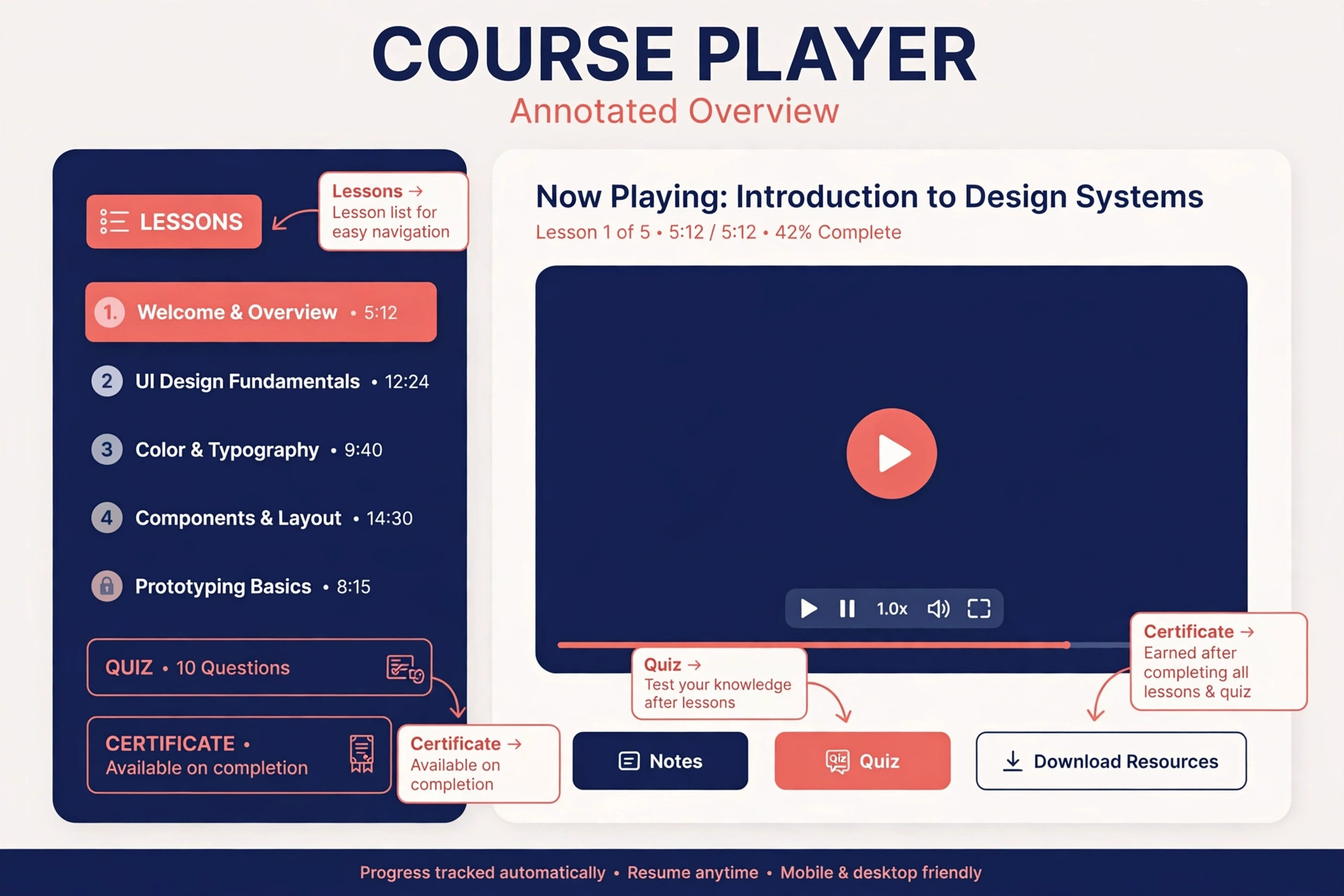
Rebuild quizzes and assessments with care. Check question types, pass marks and retake rules in Thinkific before you copy quiz content. A quiz that allowed multiple attempts in Teachable may need a different setting in Thinkific. Test each quiz as a student, including a fail and a retake, so you catch setting errors before real students do. Certificates should also be tested end to end, from course completion to certificate download, because a broken certificate is a visible failure for a paying student.
Rebuild drip and prerequisite rules explicitly. If a lesson unlocks after seven days, set that rule in Thinkific and test it with a test student. If a module unlocks only after a quiz pass, test that path too. Drip errors are hard to spot in admin view, because the admin can see all lessons. Only a test student view shows what a real student sees on day one, day seven and after a quiz pass.
Use the rebuild as a chance to improve, but do not rewrite every course at the same time. Fix obvious errors, update outdated links and tighten lesson titles, but save a full course rewrite for after cutover. A migration plus a rewrite is two projects at once, and both will slip. Ship the rebuilt course close to the original first, gather student feedback, then improve in the next update cycle.
For coaches planning a catalogue, the guide to the best online course platform for coaches helps place Thinkific beside other options. Use it to check whether your course model, coaching products and community needs fit Thinkific, or whether a different platform mix would serve you better. That check is worth doing before rebuild, not after.
Move Students, Progress and Access Correctly
Student migration is the highest risk part of the switch, so treat it as a separate workstream. If you switch Teachable to Thinkific small business student groups should be imported product by product, with counts verified before the next group. Import students into Thinkific in product groups, and verify each group before importing the next. Check counts after each import. If Teachable shows 120 active students for a course and Thinkific shows 112 after import, find the eight missing students before you move on. Small count gaps become large support problems after go live.
Handle payment plan students with a written plan. Decide whether billing moves to Thinkific payments, stays with the original processor during a transition, or pauses with student consent. Never assume billing moves automatically with a student list import. Test billing with a small group, including a successful payment, a failed payment notice and a cancellation path. A billing error affects trust more than a lesson layout error, so test billing twice.
Decide how to handle progress honestly. If progress cannot be imported, give students a clear resume path. That may mean opening all lessons they had already unlocked, or enrolling them at a named checkpoint lesson with a note explaining the change. Some businesses offer a short catch up guide for students mid course. That guide costs an hour to write and saves many support messages in week one.
Send students a migration message before cutover, not after. The message should state the new login link, whether they need a password reset, what happens to progress, and where to get help. Send a second message on go live day with the same links. Keep both messages short and plain. Students should not need to read a long platform announcement to find a login button.
For a related migration view, the guide to migrate Teachable to Thinkific for course creators covers the same move from a creator angle. Compare its steps with your own checklist, and add any step you missed, especially around student lists and sales page redirects. A second checklist often catches a link or report you overlooked.
Replace Payments, Coupons and Pricing
Set up payments in Thinkific before you rebuild sales pages. Teams that switch Teachable to Thinkific small business billing first avoid the most common cutover error. Connect the payment provider you plan to use, test a purchase with a real card in test mode where available, and confirm receipts, tax handling and refund paths. Confirm whether Thinkific charges an added platform fee on your plan when using its payment system, and confirm how tax is handled for your main student countries. If you sell heavily in the EU, UK or Australia, tax handling may affect your decision more than headline price.
Rebuild pricing, bundles and payment plans one product at a time. Check each price, each instalment count and each trial period against the Teachable original. A single wrong digit in a payment plan can overcharge students or undercharge for months before anyone notices. Have a second person check prices before go live. That second check is cheap insurance for a revenue system.
Rebuild coupons with the same care. List every active coupon, its discount, its expiry and its product scope. Expired coupons should not be rebuilt, but active affiliate coupons must be rebuilt exactly, or affiliates will report broken links and lost commissions. Test one coupon per product with a test purchase, and confirm the discount applies correctly at checkout.
Check subscription and membership products separately. A one time course sale is simple to rebuild. A membership with monthly billing, member only lessons and community access needs a full test of billing, access and cancellation. Test membership signup, member login, member only lesson access and cancellation in that order. If any step fails, fix it before you invite real members to move.
Rebuild Sales Pages, Email and Integrations
Sales pages need rebuilding, not just relinking. Thinkific themes and page builders differ from Teachable, so copy, testimonials and pricing tables must be placed and checked by hand. Test each sales page on mobile, because many buyers first see a sales page on a phone. Check headline fit, button visibility, price clarity and checkout flow on a small screen. A sales page that looks fine on desktop can hide its buy button on mobile.
Update every external link that pointed to Teachable. That includes website buttons, email footers, social bios, ad destinations and affiliate links. Where possible, set redirects from old Teachable URLs to new Thinkific pages, so old links do not break. Where redirects are not possible, update the link at its source. Work through the link list from the audit, and tick each link as updated. Do not rely on memory for link updates.
Reconnect email marketing and automation. Thinkific integrates with common email tools, but lists, tags and automations must be checked. A welcome sequence that fired on Teachable enrolment must now fire on Thinkific enrolment. Test the full sequence with a test student, from purchase to welcome email to lesson reminder. Email is often the first thing a new student sees after payment, so a broken welcome sequence feels like a broken course.
For email planning, the guide to the best email marketing software for online course creators helps you compare tools that pair well with a course platform. Use it to check whether your current email tool still fits, or whether the migration is a good time to simplify your email setup. Do not change email tool and course platform on the same day unless you have tested both changes together.
Reconnect other integrations one by one. That includes analytics, community tools, webinar tools, CRM tools and any automation platform. For each integration, test a real event, not just a connection status. A green connected status does not prove that a purchase triggers the right tag or that a lesson completion updates the CRM. Test events with a test student, and log the result for each integration.
Test With a Small Cohort Before Full Cutover
Choose a test cohort of five to ten real students, ideally a mix of new buyers, mid course students and payment plan students. Before you switch Teachable to Thinkific small business testing should use real students, not only admin accounts. Give them Thinkific access, ask them to complete a lesson, take a quiz and check their progress. Ask them to report anything confusing, not just errors. A confused student who still completes a lesson has found a design problem, even if nothing technically broke.
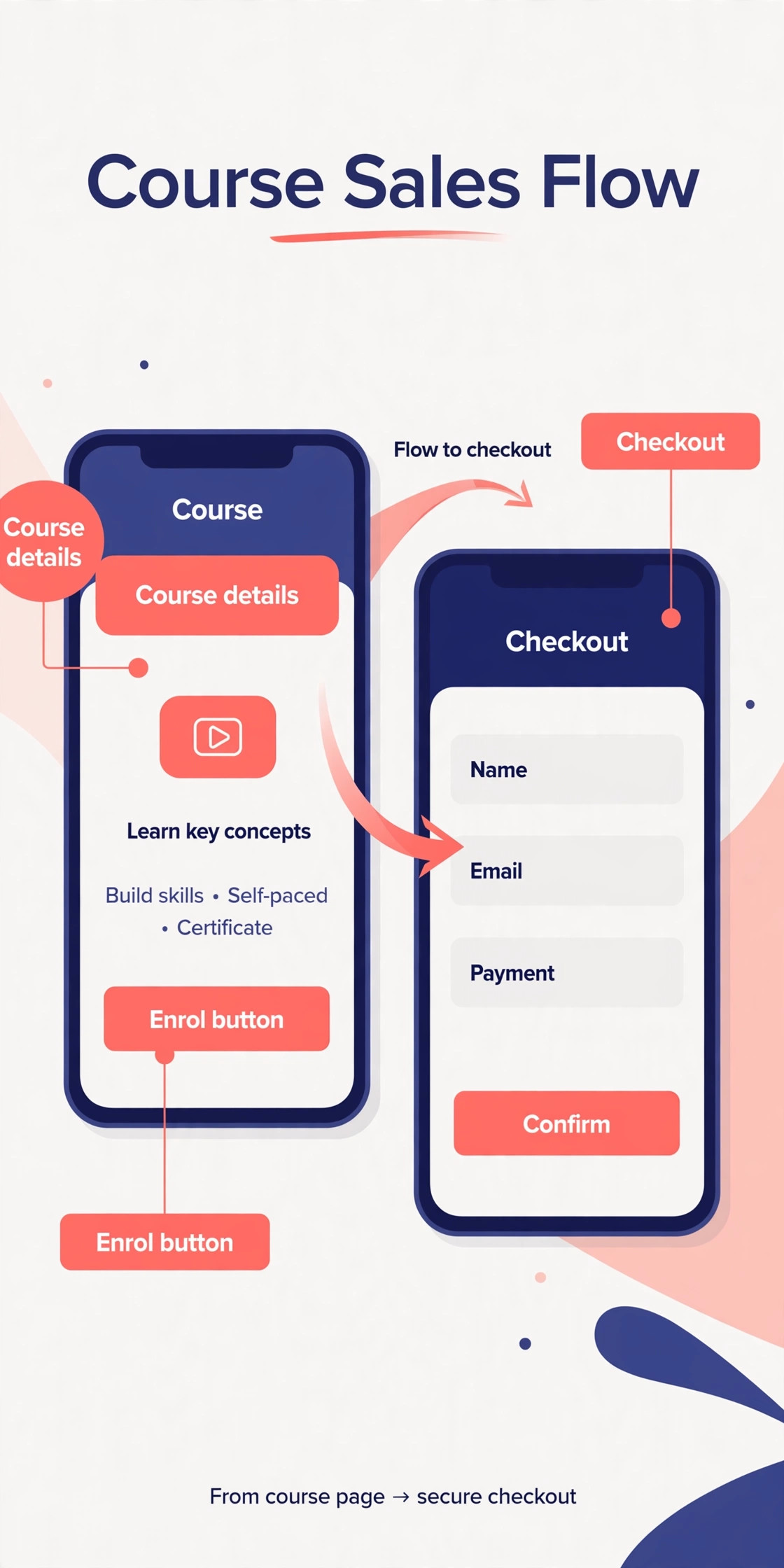
Test the full buyer journey with a test purchase. Start from a sales page, complete checkout, receive confirmation, log in, open lesson one, complete a quiz and check progress. Repeat the journey on mobile. Repeat it for a bundle and for a payment plan product. Each journey test takes minutes, and each one catches a different class of error. A journey that only tests admin view will miss student view problems.
Test support paths during the pilot. Ask test students to send a help message through the new support channel, and time your reply. Check that support staff can see enrolment status, payment status and progress for a test student. Support staff need those views to solve problems fast in week one. If they cannot see enrolment status, they will guess, and guesses create second messages.
Hold a pilot review before full cutover. List every problem found, fix the problems that block purchase or access, and schedule the rest for after go live. Do not expand to all students while a purchase or access blocker remains open. A small cohort test that finds no problems is a warning sign, not a success. It usually means testing was too light, so add a mobile test and a payment plan test before you proceed.
Cutover Week and the Day by Day Plan
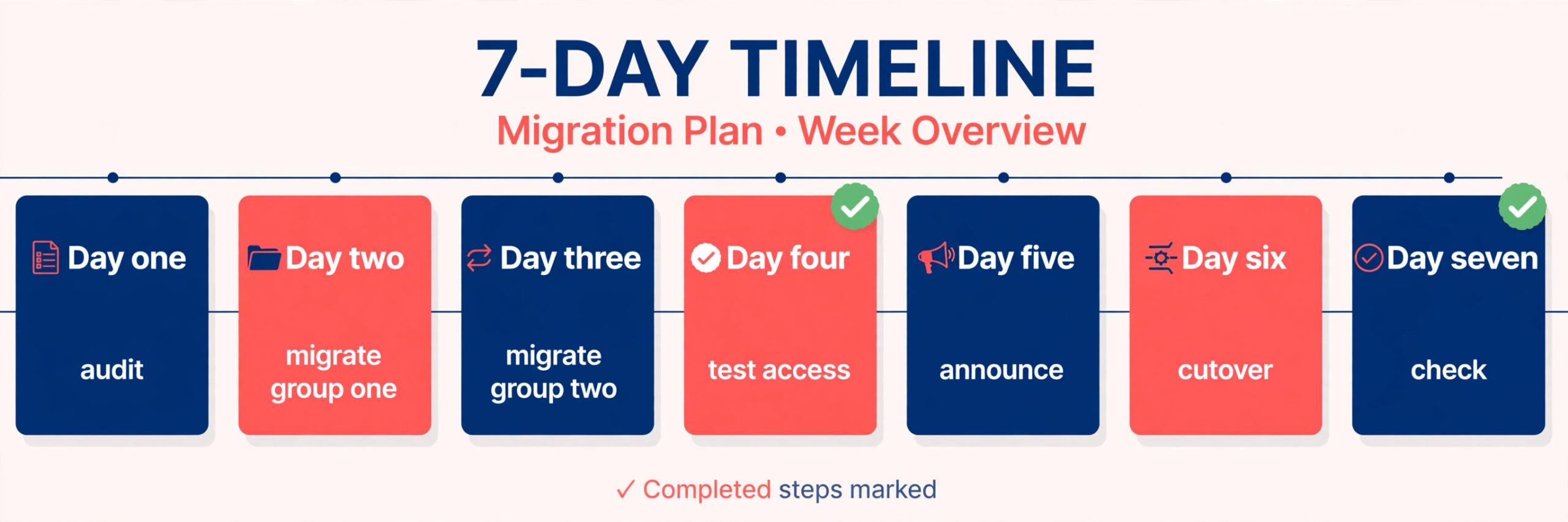
Cutover week should follow a written plan, not a series of ad hoc messages. Day one is the announcement and new student onboarding in Thinkific. New buyers go to Thinkific from day one, while existing students receive migration instructions. Day two is the first student group migration, usually your smallest active course, with count checks after import. Day three is the next group, plus fixes from day two support messages.
Day four moves the largest active course, after the smaller groups have proven the process. Day five is a support and link check day. Check sales page links, ad links, email links and affiliate links again. Check that old Teachable pages redirect or show a clear move notice. Day six is a quiet monitoring day, with support staff watching for login and payment messages. Day seven is a review, with a decision on when Teachable becomes read only.
Use this cutover checklist before you announce Thinkific as the main school.
– Active courses rebuilt and tested as a student, including quizzes and certificates – Student groups imported and counts verified product by product – Payments tested, including payment plans, coupons and refunds – Sales pages rebuilt and checked on mobile, with links updated or redirected – Email welcome and lesson sequences tested with a test student – Support staff briefed, with access to enrolment and payment views – Student migration messages ready, with login link and help contact – Teachable backup exports stored, with media folders by course
During cutover week, send one update per day to the migration owner, not to all students. The owner update should list students migrated, support messages received, problems fixed and problems still open. That daily update keeps the migration visible without spamming students. Students should receive only two messages in cutover week, the migration notice and the go live notice, unless they contact support directly.
Keep Teachable Live Until Students Are Safe
Keep Teachable live as a safety net for at least a month after cutover. Some students will return after a break and try their old login first. A clear notice on Teachable, pointing to the new school, will guide them without a support message. Keep old course content accessible in read only form where possible, so a student who needs an old certificate or download can still retrieve it during the transition.
Decide what to do with old student data after the safety period. Keep exports and reports with your business records, as required by your record keeping rules. Delete or archive data in Teachable only after you confirm that Thinkific holds the active student records you need. Check data rules for your student countries before deletion, because some rules require keeping sales records for a set period even after a platform change.
Close Teachable accounts only after integrations are checked one last time. An analytics tool, an affiliate tracker or an email automation may still point to Teachable. Closing the school before those links are updated will break tracking and reporting. Work through the integration list again, update each link, then close. That final check takes an hour and prevents a month of broken reports.
Pricing and Fee Traps to Check Twice
The most expensive trap is comparing headline monthly prices without fees. A lower monthly price with a transaction fee can cost more than a higher monthly price with no added fee, once sales pass a threshold. Model your actual sales volume, not a generic example. Use your last three months of sales, including launch spikes, to test both pricing models. That model is more useful than any review table.
The second trap is product limits. A plan that allows only a small number of products may force an upgrade as soon as you add bundles, coaching products and memberships. Count products the way the platform counts them, including bundles and coaching offers, not just courses. A catalogue that looks small in course count can be large in product count, and that difference can force a plan change mid year.
The third trap is tax and payout handling. Teachable tax remittance across many countries is a real operational saving for international sellers. Thinkific tax handling differs by region, so check your top five student countries specifically. If tax handling adds manual work or third party cost, add that cost to your Thinkific model. A platform switch that saves on fees but adds tax admin may not save money overall.
For a wider alternatives check before you commit, the guide to Teachable alternatives places Thinkific beside other course platforms. Use it to confirm that Thinkific is the right move for your catalogue, rather than the first alternative you considered. A short alternatives check before rebuild is far cheaper than a second migration a year later.
Final Call for Small Course Businesses
Thinkific fits a small business that wants room to grow its catalogue, stronger learning tools and control over pricing without an added platform fee on its own payment system. It fits coaches, trainers and educators who sell multiple courses, bundles and memberships, and who want communities beside their courses. It fits businesses that are willing to rebuild courses by hand in exchange for a cleaner long term structure.
Thinkific fits less well if international tax remittance is your main reason for choosing a platform, or if you want the simplest possible setup for a single course with no plans to expand. In those cases, staying on Teachable, or choosing a platform with stronger tax handling, may be the better business decision. A switch should solve a real constraint, like product limits, fees at your sales volume or weak learning tools. A switch for novelty alone will cost rebuild time without a clear return.
When you switch Teachable to Thinkific small business owners should judge the move after one full sales cycle, not after go live week. Check student completion, support volume, refund rate and time spent on course admin. If completion holds, support falls and admin time drops, the move is working. If support rises and completion falls, check student onboarding and lesson structure before blaming the platform. Most post move problems are onboarding problems, and onboarding is fixable.
Frequently Asked Questions
How long does it take to switch Teachable to Thinkific small business courses?
A single course with a small student list can move in one to two weeks, including rebuild and testing. A catalogue of several courses with payment plan students usually takes three to six weeks, because course rebuild and student verification take longer than media download. Start with your highest revenue course, and do not set a go live date before testing is complete.
Can student progress move from Teachable to Thinkific automatically?
In most cases, no. Student lists and enrolments can be imported, but lesson progress, quiz scores and certificates often need manual handling. Plan a resume path for mid course students, such as unlocking lessons they had already reached, and tell students plainly what carries over before cutover.
Will students need new logins after the move?
Students will log in through Thinkific, and many will need a password reset or a new account setup, depending on how accounts are created during import. Send a clear login message with the new link and a password reset path, and staff support for login help in week one. Test the login path with a test student before you invite real students.
What happens to payment plans during the switch?
Payment plans need a written billing plan, because billing does not move automatically with a student list. Test billing for a small group first, including successful payments, failed payment notices and cancellations. Do not move all payment plan students until the test group billing runs cleanly for at least one cycle.
Do sales page links and affiliate links keep working?
Only if you update them or set redirects. List every sales page, ad link, email link and affiliate link before cutover, and update each one to its new Thinkific page. Check links again on go live day, because a single forgotten ad link can send buyers to a closed school.
Should we keep Teachable after moving to Thinkific?
Yes, for at least a month as a safety net. Keep Teachable live with a move notice, keep backup exports and media folders, and check integrations before closing. Close Teachable only after Thinkific enrolments are verified, links are updated and support volume has returned to normal.