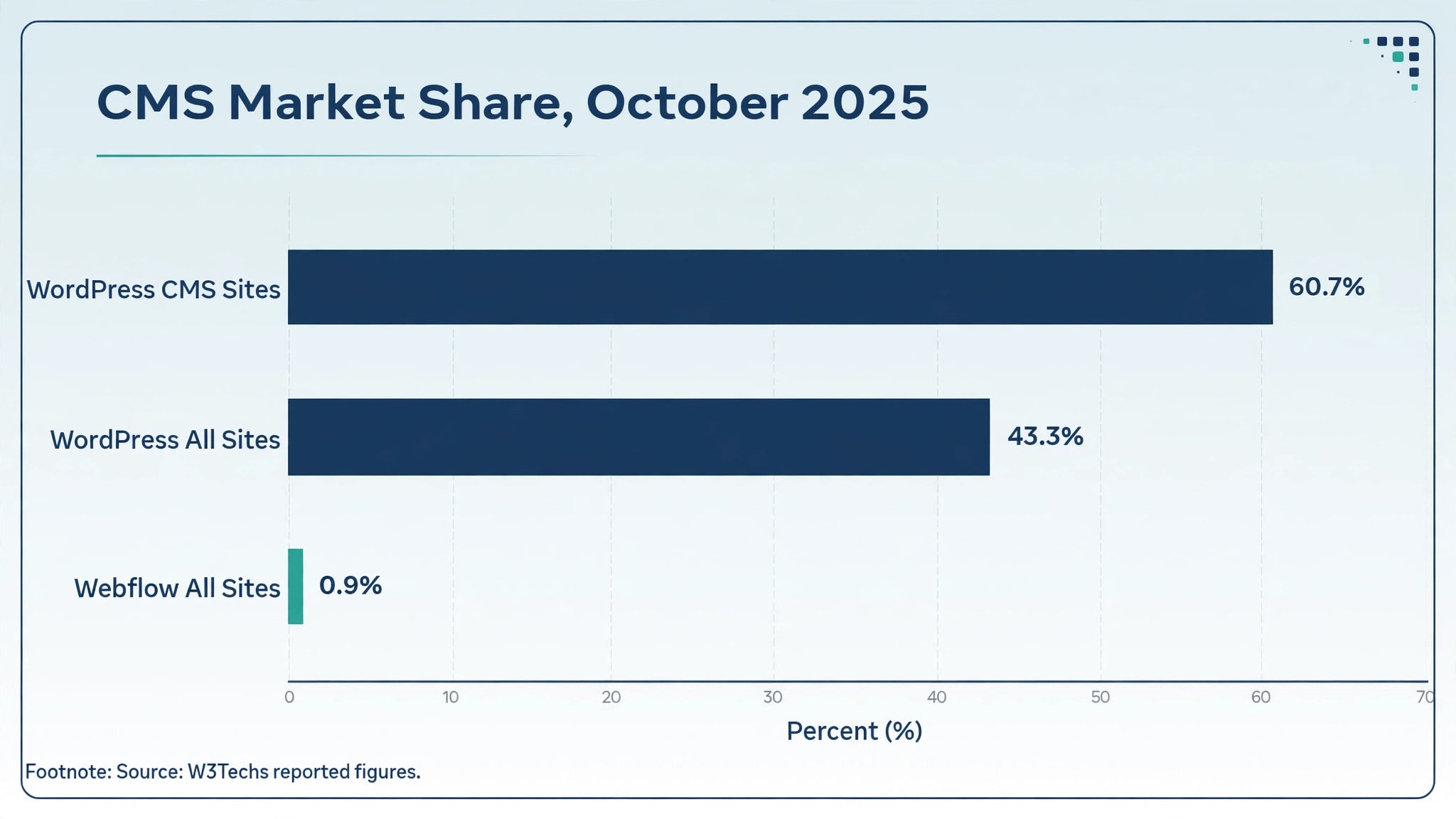
W3Techs figures reported in October 2025 put WordPress on 43.3 percent of all websites and 60.7 percent of sites that use a content system, while Webflow sat near 0.9 percent of all websites. Popularity alone is a weak reason to move, and any guide that tells you otherwise is selling comfort, not strategy. What those numbers really measure is ecosystem depth, meaning more hosts, more plugins, more freelancers, and more tutorials when something breaks. This guide shows how to switch Webflow to WordPress small business sites for that depth, rebuilding your design system, content, and integrations step by step, without losing the rankings and bookings the old site earned.
Why Teams Switch Webflow to WordPress Small Business Sites
The first reason is hiring. A Webflow build often depends on one designer who knows the class structure, and replacing that person means finding another specialist. WordPress skills are far more common, so a small business can hire a freelancer, an agency, or a part-time editor without a long search. That breadth matters most when the original builder moves on, because a site nobody on the team can edit slowly rots, however beautiful it looked at launch.
The second reason is ownership of the stack. Webflow bundles hosting, CMS, and design tools into one subscription, which is convenient until you want a different host, a different checkout, or a feature the platform does not offer. WordPress separates those choices, so you can change hosts without rebuilding pages, swap a form tool without touching the theme, and keep your database as your own asset. Separation adds responsibility, and it also removes a single point of control over your business asset.
The third reason is cost control over time. Webflow plans bundle a great deal, and the bill grows with traffic, CMS items, and seats. WordPress splits cost across hosting and plugins, and a lean setup can stay modest while a heavy setup can grow expensive. Confirm current prices on each vendor page before you budget, because both sides change plans regularly. The honest case for WordPress is choice and hiring depth, not a guaranteed saving, and owners who move for choice tend to stay happy longer than owners who move for a price guess.
The Numbers Behind the Move
Treat market share as context, not as proof. A large ecosystem helps you hire and extend the site, but it does not make your pages rank, your forms convert, or your customers book. The table below states the reported figures plainly, then states what each figure cannot tell you, so the numbers inform the decision without making it for you.
| Measure | Reported figure | What it does not prove |
|---|---|---|
| WordPress share of all sites | 43.3 percent, October 2025 | That your pages will rank |
| WordPress share of CMS sites | 60.7 percent, October 2025 | That your plugins will be good |
| Webflow share of all sites | About 0.9 percent, October 2025 | That Webflow is weak for your niche |
| Sites with any CMS | About 71 percent, October 2025 | Which system fits your team |
Figures move over time, so confirm the latest W3Techs numbers if you quote them in a business case. The decision question stays practical. Can your team edit the site, can you hire help quickly, and can you change one part of the stack without rebuilding the rest. If Webflow already answers yes to all three, the numbers alone are not a reason to move. If it answers no to two of them, the ecosystem gap is real and worth acting on.
What Webflow Lets You Export
Webflow exports come in pieces, and each piece needs its own plan. CMS collections can export as CSV files, which carry your structured content but not the design that displayed it. Code export, available on paid plans, gives you HTML, CSS, and JavaScript for static pages, which is useful as a design reference but is not a WordPress theme. Images and assets need downloading, and interactions, animations, form logic, membership rules, and store logic do not travel as working features. They must be rebuilt with WordPress tools.
Start by listing every collection and every piece of logic on the site. Note which collections hold services, posts, team members, or products, and which pages depend on filters, search, or conditional display. Note every form, every automated email, every membership gate, and every store rule. That list becomes the rebuild specification, and a contractor or team member can price and plan from it without guessing. Owners who skip the list discover missing logic at launch, when a form that looked rebuilt turns out to send nothing anywhere.
Keep the Webflow site live throughout the rebuild. Export files are copies, and the live site remains your reference for design details, wording, and behaviour. Screenshot key pages, interaction states, and form confirmations before you change anything, because memory is a poor specification. A screenshot of a working checkout or a filtered list saves an hour of debate later about what the old site actually did.
Map Content Before You Touch a Theme
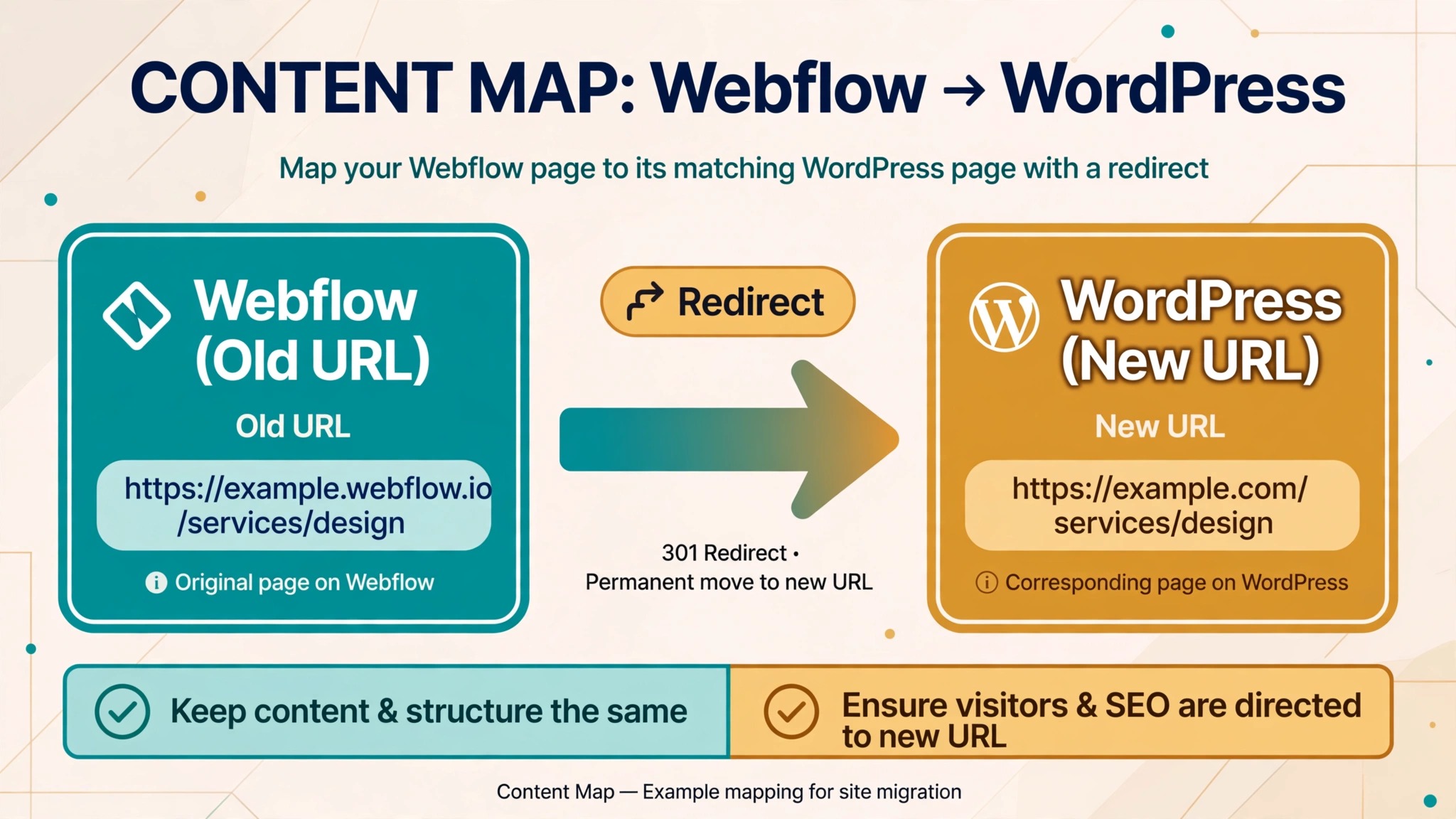
Do not install a theme on day one. Map first, because the map decides the theme, the plugins, and the page structure. List every Webflow URL, its purpose, its collection if any, and its new WordPress home, meaning a page, a post, a custom post type, or a redirect to a matching page. Mark the pages that earn money and the pages that draw search traffic, and rebuild those first. Everything else follows in priority order, and some of it will not make the trip at all, which is a benefit, not a loss.
Decide how collections translate before you import anything. A services collection may become pages, a custom post type, or standard posts with categories, and each choice shapes URLs, templates, and editing. Blog posts map to WordPress posts with categories and tags, but check author names, publish dates, and featured images during import, because CSV imports often scramble one of those fields. Team members and testimonials can become a custom post type or simple reusable blocks, depending on how often they change and where they appear.
| Webflow item | WordPress home | Check during import |
|---|---|---|
| CMS blog collection | Posts with categories and tags | Authors, dates, and featured images |
| Services collection | Pages or a custom post type | URLs, headings, and calls to action |
| Team collection | Custom post type or blocks | Photos, roles, and bio formatting |
| Static pages | Pages in the main hierarchy | Layout rebuilt with blocks |
| Forms | A form plugin | Notifications and confirmation messages |
| Store products | WooCommerce products | Prices, variants, and images |
| Membership gates | A membership plugin | Access rules tested per role |
When you switch Webflow to WordPress small business owners often import first and map later, then spend weeks untangling URLs and duplicate content. Reverse that order and the import becomes a routine task instead of a rescue project. A map written in a spreadsheet takes an afternoon, and it prevents the class of errors that search engines punish most, meaning broken URLs, missing pages, and thin duplicates.
Rebuild the Design System in Blocks
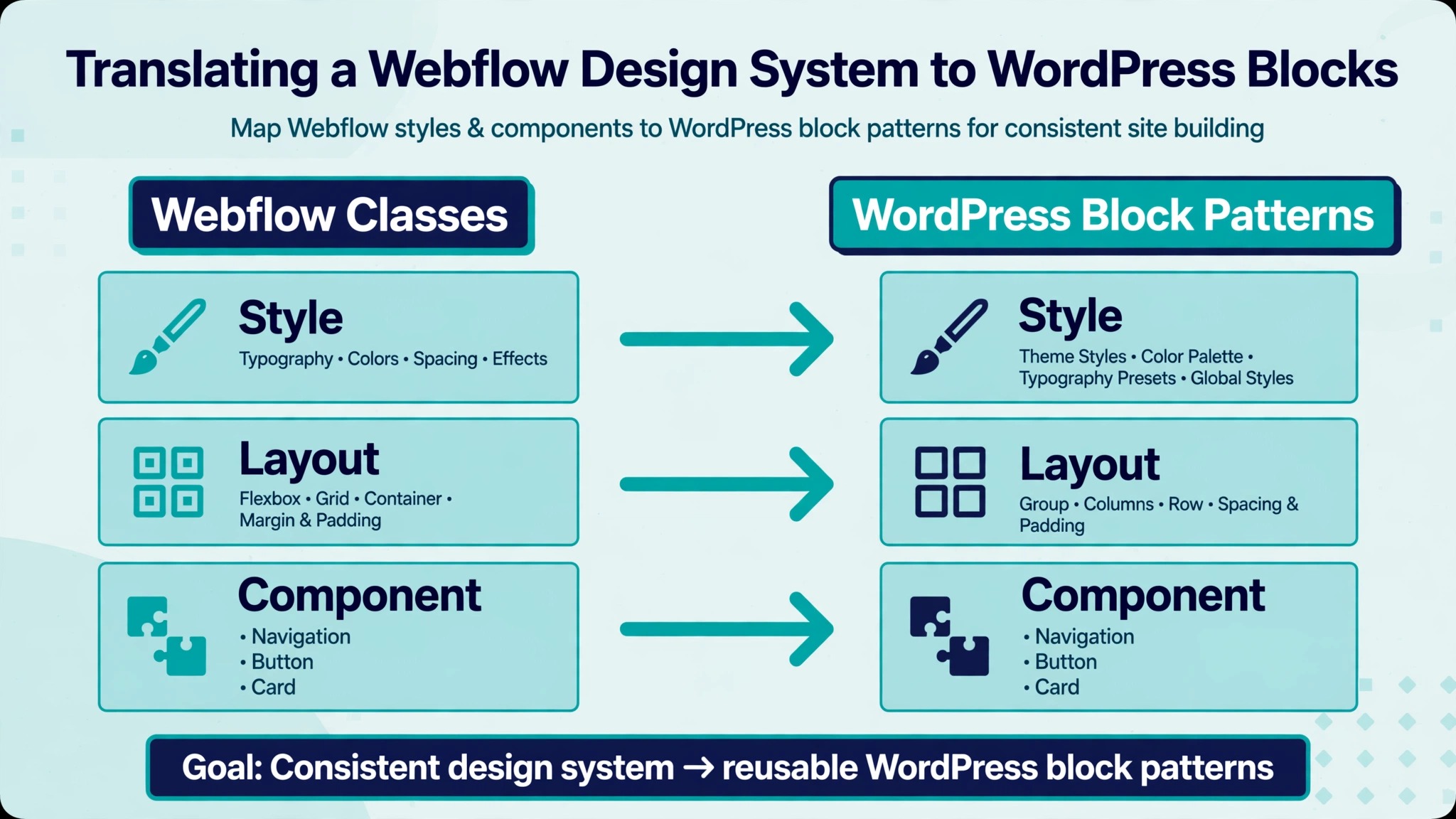
Webflow classes do not become WordPress styles automatically. Your design system must be translated, meaning colors, type scale, spacing, buttons, and section patterns get rebuilt as theme settings and block patterns. Start from brand assets, not from exported code. Code export shows you what the old site looked like, but rebuilding from it directly produces a fragile theme that no one on the team understands. A block-based rebuild with a small set of patterns is easier to edit, faster to load, and simpler to hand over.
Build the homepage and one inner page first, and test them on phone, tablet, and desktop before building the rest. Check that headings keep their hierarchy, that buttons stay visible, and that images load at sensible sizes. Shops with visual catalogues should pay special attention to product images and category pages, because those pages carry the sale. Vintage and antique sellers, for example, can compare presentation standards in best POS system for vintage and antique shops, which shows how product detail and trust signals sit together on a working page. Borrow the structure of good pages, meaning the order of proof and action, not their exact look.
Keep the pattern library small. Ten well-made patterns beat forty overlapping ones, because every extra pattern is a future inconsistency waiting to happen. Document each pattern with a name, a purpose, and a screenshot, so a new editor can choose the right one without inventing a new variation. A design system that fits on one page of notes will survive staff changes. A system that lives only in one designer’s head will not.
Replace Interactions and Animations With Restraint
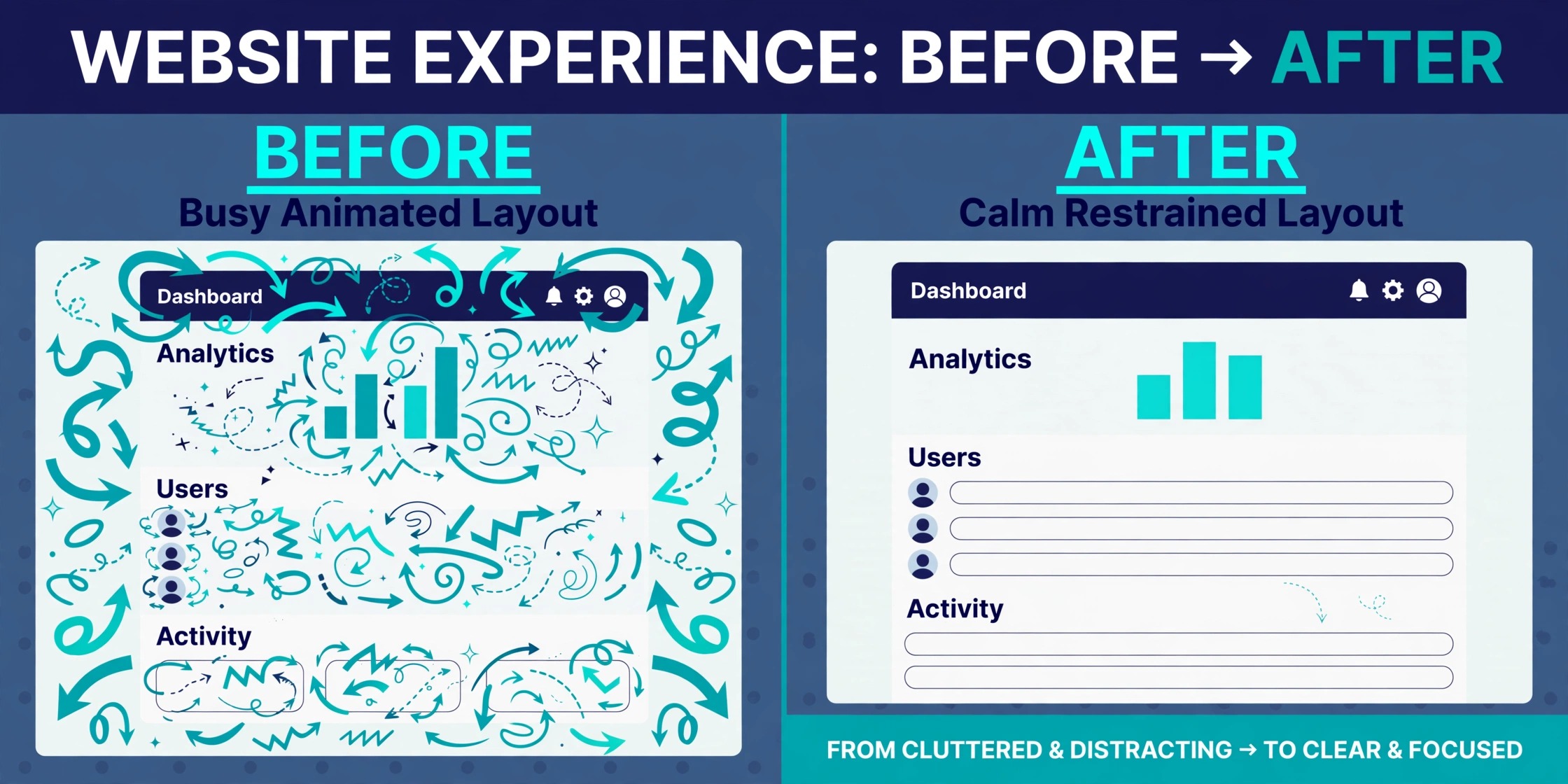
Webflow interactions are the hardest part to replace faithfully, and the good news is that most of them should not be replaced at all. Scroll animations, hover effects, and page transitions often add motion without adding bookings, and they cost performance on older phones. List every interaction on the old site, mark which ones guide attention toward a booking or purchase, and rebuild only those, using simple CSS, a lightweight animation plugin, or a short custom script where truly needed.
Test the rebuilt motion on a mid-range phone, not just on a fast office computer. If an animation stutters, delays content, or distracts from the main action, cut it. A site that feels instant will outperform a site that feels theatrical, because customers judge a business site by how quickly they can book, call, or buy. Keep one or two signature touches if they genuinely carry brand character, and let the rest go. Restraint here is not a compromise. It is the performance budget working as intended.
Swap the Stack for Forms, Store, and Members
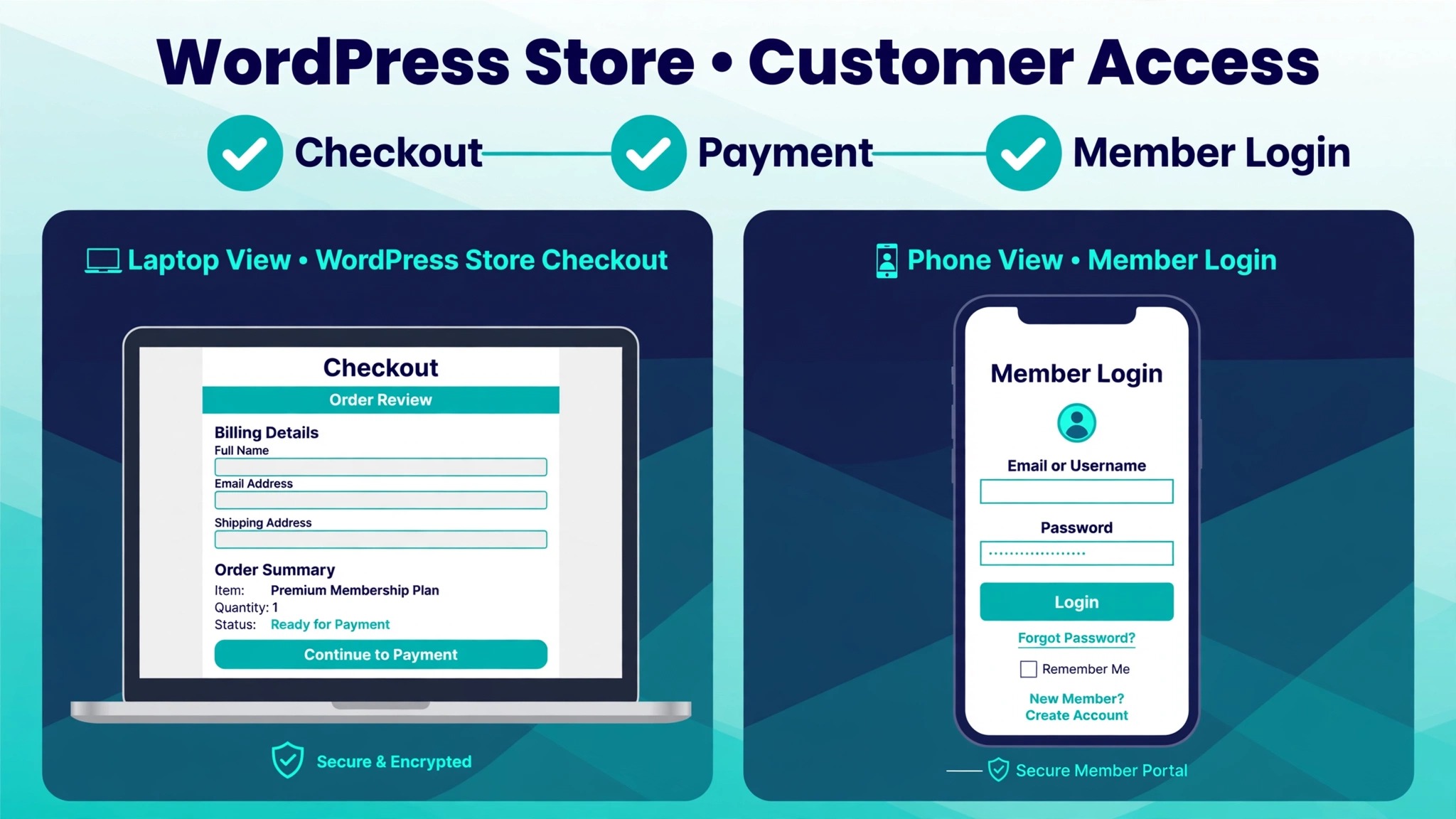
Every Webflow feature needs a WordPress answer, and the answers come from different tools, so plan them as one stack rather than a pile of plugins. Forms need a form plugin with notifications and spam control. Search and filtering need either theme support or a dedicated plugin. Stores need WooCommerce plus a payment gateway. Memberships need a membership plugin with clear access rules. Booking needs a booking plugin or an embedded scheduler. Choose the smallest set that covers real needs, and test each tool against the behaviour the old site offered.
Work through money and lead paths first. A contact form that sends to the wrong inbox, a booking flow that double-books, or a checkout that fails on mobile will cost more in a day than any plugin saves in a year. Test each path on a phone with real submissions, real payments in test mode, and real confirmation messages.
Membership sites should test every access level, including expired members and new signups, because a gate that fails open gives away paid content and a gate that fails closed locks out paying customers. Clubs that run memberships can see how access and renewal should feel in best membership software for pickleball clubs, which covers the member journey a rebuilt gate must match.
| Webflow feature | WordPress approach | Test before launch |
|---|---|---|
| Forms and logic | A form plugin with conditional rules | Every branch and notification |
| CMS filters and search | Theme support or a filter plugin | Filter combinations on mobile |
| Store checkout | WooCommerce plus a gateway | Order, refund, and confirmation email |
| Membership gates | A membership plugin | Each role, signup, and expiry |
| Booking and scheduling | A booking plugin or embed | Book, reschedule, and cancel |
| Email capture | An email plugin or embed | List placement and welcome message |
| Analytics | An analytics plugin or tag | Visits, forms, and key goals |
When you switch Webflow to WordPress small business teams often install a plugin for every small wish and end up with a slow, fragile site. Install what launch needs, test it hard, and add the rest only when a real customer need appears. A lean stack is easier to update, easier to secure, and easier to hand to the next person who maintains the site.
Keep Rankings Through the Rebuild
Search engines judge the new site on continuity. Keep slugs close to the originals where pages still exist, set a permanent redirect for every URL that changes, and redirect retired pages to the closest live match rather than the homepage. Keep titles and main headings stable on top pages, submit the new sitemap after launch, and check coverage in Search Console. Do not rewrite all copy during the move, because a redesign plus a rewrite plus a platform change is three risky changes at once, and a rankings fall afterwards will have no clear cause.
Images need the same care. Re-upload originals with descriptive file names and alt text, and check that galleries and product images are not loading at oversized dimensions on phones. Test mobile speed on the homepage and the top three landing pages, and fix the slowest elements before launch. When you switch Webflow to WordPress small business sites sometimes wobble for a week while search engines re-crawl, and a short wobble is normal. A broad fall across many pages points to broken redirects or missing pages, so keep a list of your top twenty pages and check each one weekly until traffic settles.
Plan the Redirects Like a Separate Project
Redirects deserve their own day on the calendar, not a rushed hour before launch. Build the redirect sheet from the content map, with one row per old URL, the new URL it should reach, and a test result. When you switch Webflow to WordPress small business redirects deserve that discipline because URL patterns change between systems, and a guessed redirect is barely better than none. Test every row on staging with a crawler or a careful manual pass, and fix failures before the domain moves, when fixes are still cheap.
Give retired pages a genuine new home. A service you no longer offer should redirect to the closest live service or to a category page that explains the current offer, not to the homepage. Category and tag archives need attention too, because blog and collection URLs often change shape in the move, and archive pages can quietly return errors while individual posts work fine. Check pagination on long archives, because page two of a blog index is exactly the kind of URL no one tests until a visitor reports it.
Keep watching redirects after launch. Search Console will surface crawl errors for weeks as search engines revisit old addresses, and each error is a small repair job, not a crisis. Fix them weekly for the first month, then monthly, and keep the redirect sheet as a living document. A redirect map that is maintained stays an asset. A redirect map that is abandoned becomes a mystery the next time anyone redesigns the site.
Staging, Testing, and Go-Live
Never rebuild on the live domain. Build on a staging copy, run the full check list there, and point the domain only when staging passes. A staging site is a private copy where mistakes cost nothing, and every serious migration uses one. Keep the Webflow site live as the reference and the fallback until the new site has proven itself on real traffic, not just on test clicks.
1. Confirm every redirect from the URL map returns the correct new page. 2. Test forms, bookings, memberships, and checkout on phone and desktop. 3. Run a test store order, including payment, confirmation email, and refund. 4. Check email signups, welcome messages, and notification inboxes end to end. 5. Proofread the homepage, top service pages, and pricing page on a phone. 6. Confirm business details, hours, phone number, and service area everywhere. 7. Check that the site loads over a secure connection on every page. 8. Back up the new site fully before changing any DNS record. 9. Record logins, plugin licences, and DNS settings in one document. 10. Tell staff who edits what, and who approves pricing changes.
When you switch Webflow to WordPress small business owners should also protect email during the DNS change. Record mail records before touching domain settings, move only the website records where possible, and test sending and receiving afterwards. A website that looks perfect while mail silently fails is a broken launch wearing a good disguise, and customers will notice the missing replies before you notice the missing mail.
The First Seven Days After Launch
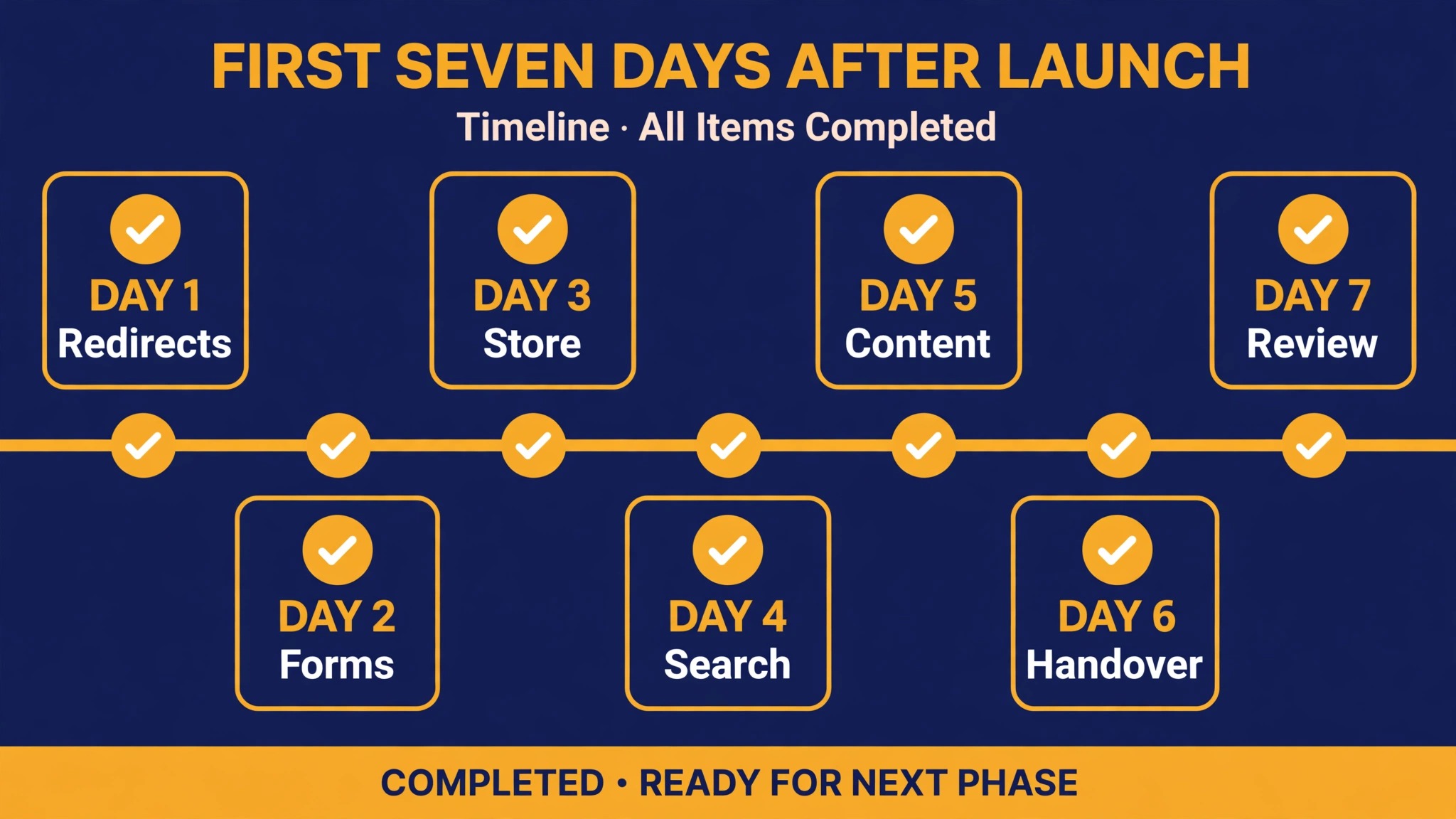
Launch week is supervised, not celebratory. Customers will test paths your checklist missed, and search engines will re-crawl at their own pace. Check forms, bookings, orders, and traffic every day, fix problems the same day, and keep the Webflow site available as a reference until the week ends. Assign one owner for the week, because a migration with no named owner drifts, and drift turns small breakages into lost customers.
| Day | Focus | Done when |
|---|---|---|
| Day 1 | Redirects and top pages | Old URLs resolve and top pages load cleanly |
| Day 2 | Forms and bookings | Enquiries and bookings complete on mobile |
| Day 3 | Store and members | Orders, refunds, logins, and gates all pass |
| Day 4 | Search and speed | Sitemap live, errors logged, slow pages fixed |
| Day 5 | Content gaps | Missing pages and images restored |
| Day 6 | Team handover | Staff can edit pages and collection content |
| Day 7 | Review | Leads, orders, and traffic normal for three days |
When you switch Webflow to WordPress small business booking flows deserve a second test in week one, under real conditions rather than test mode. Mobile services that take bookings on the road should compare their rebuilt flow against best scheduling software for mobile pet groomers, which shows how a short mobile booking path should behave when the customer is standing outside, not sitting at a desk. A flow that works in the office and fails on a phone is not finished, because the phone is where the booking happens.
Tell customers the site has a fresh look and the same services, in plain language, and point them to the booking page. A short welcome message to your list, following the structure of how to write a welcome email sequence small business, prevents confusion when regulars meet a changed layout. Do not announce a platform migration. Customers care about booking easily and finding your number, not about which software renders the page.
Build In-House or Hire Help
The build decision turns on team skill, not on budget alone. An owner who already edits Webflow collections can usually learn block editing quickly, and a small brochure site is a realistic in-house project. A store, a membership site, or a booking-heavy site usually justifies hired help for the theme, the data import, and the testing, while routine editing stays in-house afterwards. Be honest about the team’s week. A project that needs twenty focused hours from an owner who has five will stall, and a stalled migration costs more than a hired one.
If you hire, hire against the map and the stack list, not against a vague brief. Ask candidates how they handle redirects, CSV imports, and staging, and ask to see a migrated site they maintain, not just one they launched. Agree on who owns updates, backups, and fixes after launch, and get that in writing. If you build in-house, budget learning time for the editor, the theme settings, and the backup routine, because those three skills decide whether the site stays healthy after launch month.
When you plan the ongoing stack, compare bundled suites against separate tools with current prices, including cost of Zoho One for small business monthly, which shows how an all-in-one subscription is structured. The point is not to pick that suite, but to see the bundled price clearly next to the split WordPress bill of hosting plus plugins. Owners who compare the two shapes, rather than two headline numbers, budget more accurately and avoid surprise renewals.
Errors That Undo a Good Migration
The first error is importing before mapping, which creates duplicate pages, tangled URLs, and a redirect mess that takes weeks to clean. The second is cancelling Webflow before the new site is proven, which removes both the fallback and the reference for anything the export missed. The third is plugin overload, meaning a plugin for every small wish, which slows the site and complicates every update. Install what launch needs and add the rest only when a real need appears.
The fourth error is rebuilding every interaction, which burns the budget on motion that never books anything. The fifth is forgetting images, because galleries and product photos carry much of a site’s trust, and missing or stretched images make a new site look unfinished even when the text is perfect. Re-upload originals, check galleries on a phone, and fix broken images before launch day. The sixth error is silence after launch, meaning no one watches traffic, forms, or orders in week one, so a broken booking flow runs for days before anyone notices.
The seventh error is treating launch as the end of maintenance. WordPress needs updates, backups, and occasional fixes, and a site with no routine slowly drifts into slowness and risk. Set a monthly habit of updates, a backup check, and a speed glance, and name the person who owns it. That habit takes under an hour once learned, and it is the difference between a site that stays fast and a site that quietly decays.
Frequently Asked Questions
Does Webflow code export give me a WordPress theme?
No. Code export gives you static HTML, CSS, and JavaScript that show how the old site looked, but it is not a WordPress theme and it does not carry CMS behaviour, forms, or logic. Use it as a design reference, then rebuild the design as theme settings and block patterns. A rebuilt theme your team understands will serve you longer than converted code nobody can maintain.
Will my CMS content move cleanly?
CMS collections export as CSV files, which carry structured content but need mapping to WordPress posts, pages, or custom post types. Check authors, publish dates, featured images, and category assignments after import, because CSV imports commonly scramble one of those fields. Import a small sample first, verify it page by page, and only then import the full set.
How long does a Webflow to WordPress move take?
A small brochure site often takes two to four weeks of focused work, while a store, membership, or booking-heavy site takes longer because each money path and access rule needs its own test pass. Mapping and design system work take the first stretch, building follows, and testing takes the final stretch. Rushing testing to hit a date is the most common cause of launch failures.
Will my animations and interactions survive?
Most will not transfer as working features, and most should not be rebuilt. List every interaction, keep the few that guide attention toward booking or purchase, and rebuild those simply. Cut the rest for performance, especially on phones. A fast site with restrained motion will outperform a theatrical site that loads late and distracts from the main action.
Can I keep my Webflow hosting and use WordPress?
No, the two do not combine that way. WordPress needs its own hosting, whether a managed host or a general host with WordPress support, and the domain points at that host after staging passes. Keep Webflow live only as a reference and fallback until the new site has run clean for a full week, then cancel it.
When should I cancel Webflow?
When you switch Webflow to WordPress small business owners should keep Webflow live until the new site has run clean for at least a full week, with forms, bookings, orders, memberships, and email all proven on real traffic. Cancelling early removes your fallback and your reference for anything the export missed. Cancel only after the first-week review shows normal leads, orders, and traffic.
A Closing Checklist, Not a Speech
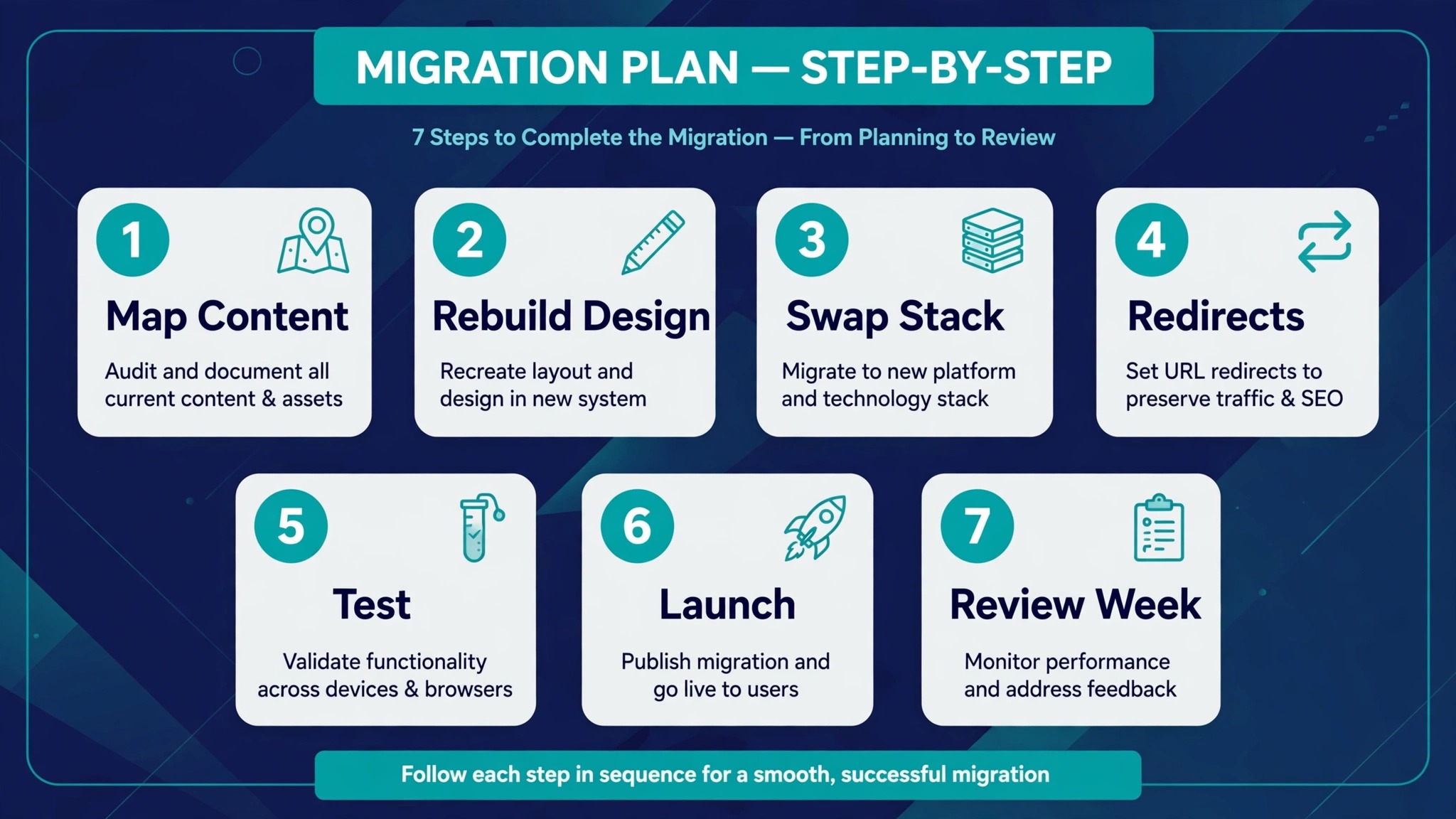
Map the content, then rebuild the design system, then swap the stack, then test on staging, then launch, then watch week one daily. If any step tempts you to skip ahead, that step is the one that needed the time. Keep the old site live until the review passes, keep the plugin set lean, and keep one named owner for launch week. A migration done in that order is unglamorous, and it is the kind customers never notice, which is exactly the point.
Judge success after thirty days, not on launch day. Traffic should match the old baseline, bookings and orders should run without manual rescue, and at least one team member should edit pages confidently without calling the builder. If those three hold, the move paid for itself. If any one fails, fix that one thing before starting the next project, because a migration that no one maintains will quietly undo itself.