
Your booking page shows no times available, but your calendar looks open. That contradiction is the whole problem, and it is the place to start when you try to fix Calendly availability not showing small business trouble. The page is not guessing about your availability. It is applying a set of rules from your availability schedule, your connected calendars, your event type limits, and your time zone settings, and one of those rules is hiding the times you expect to see. Find that rule, and the times return.
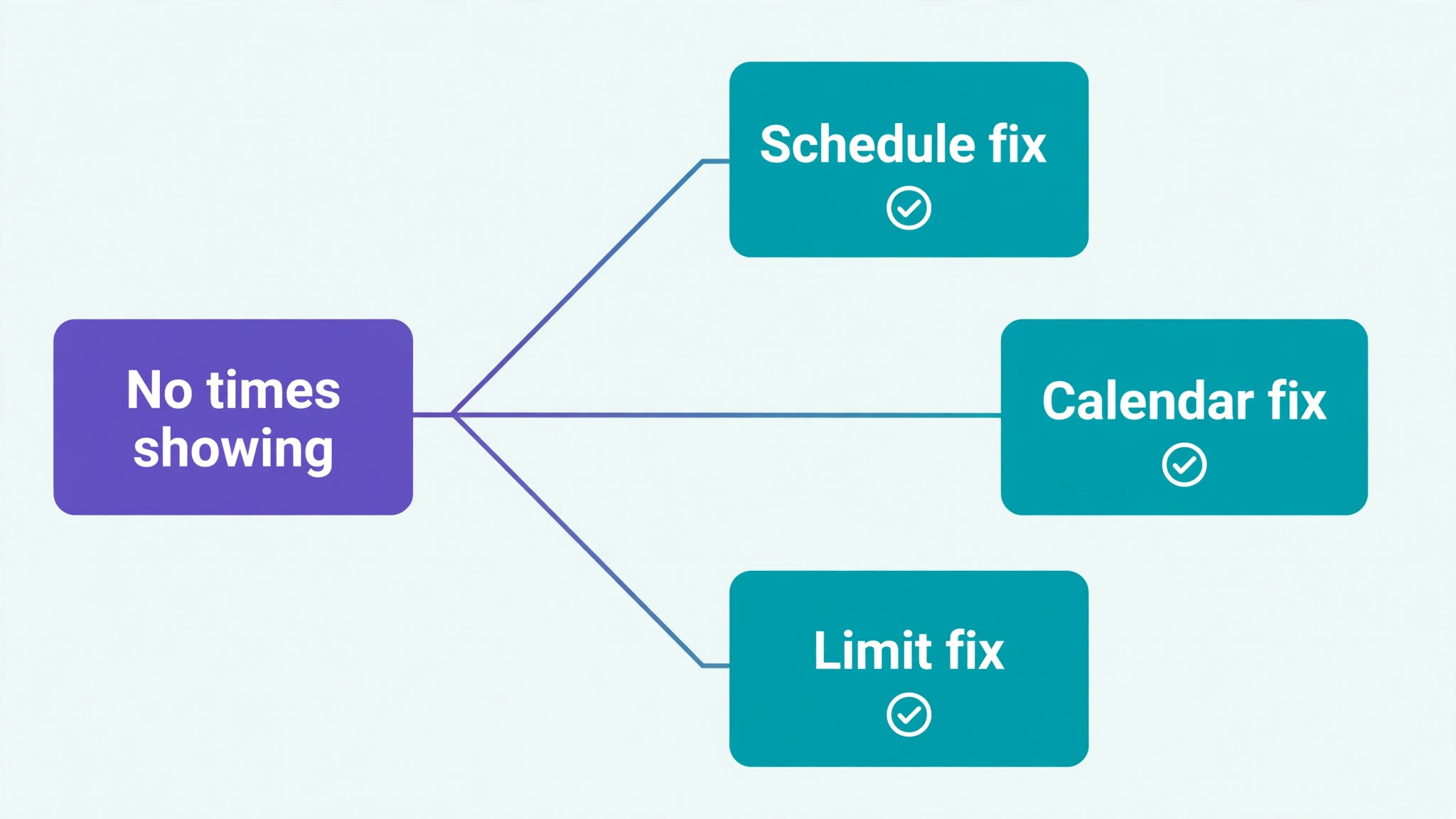
This guide works in the order that finds the rule fastest. It starts with the event type and its schedule, because that is where most hidden times live, then moves to calendar conflicts, buffers, limits, date ranges, and time zones, and finally to team rules and connection problems. Test the page as an invitee would, in a private window and on more than one date, before you change anything, so you know exactly which times are missing and which times still show.
How to Fix Calendly Availability Not Showing Small Business
First, prove the problem is real and narrow it down. Open the public booking link in a private window, try several dates across the next few weeks, and try more than one time of day. Note which dates show times, which dates show nothing, and whether the problem affects one event type or every event type on the account. A problem on one event type points to that event type settings. A problem on every event type points to a schedule, a calendar connection, or an account level setting.
Next, use the troubleshooting tool that Calendly provides on the scheduling page. Open the event type, open its preview, and use the troubleshoot option to check a specific date and time that should be available. The tool reports a code for each blocked time, and each code names the rule that blocked it. A calendar code means a busy calendar event is blocking the time. A buffer code means a buffer around another meeting is removing it. A range code means the date falls outside the allowed window. Learning those codes turns a blank page into a named cause, and the rest of this guide maps each code to its fix.

Step Diagnosis in Order for Missing Availability
Work through the steps below in order to fix Calendly availability not showing small business trouble, and test the booking page after each fix. Changing several settings at once makes it impossible to know which one restored the times, and it can create a new problem while solving the old one. Each step names the setting to check, the place to find it, and the result that tells you the step is complete.

Step 1. Confirm the Event Type Uses the Right Availability Schedule
Open the affected event type and check which availability schedule it uses. Calendly allows more than one schedule, and an event type can easily be attached to the wrong one after a duplication, an edit in a hurry, or a change of working hours that was made to a different schedule with a similar name. If you changed your hours recently, confirm that you changed the schedule actually attached to the event, not a spare schedule that no event uses.
Open the schedule itself and check the weekly hours day by day. Confirm that each day you intend to offer is selected, that the hours cover the times you want to show, and that the schedule is marked as active for the event types you are sharing. A schedule that looks correct in the list but is not applied to the event will not produce any times, no matter how generous its hours are. Save the event type after any change, and test the public link again before moving on.
Step 2. Check Connected Calendars and Conflict Rules
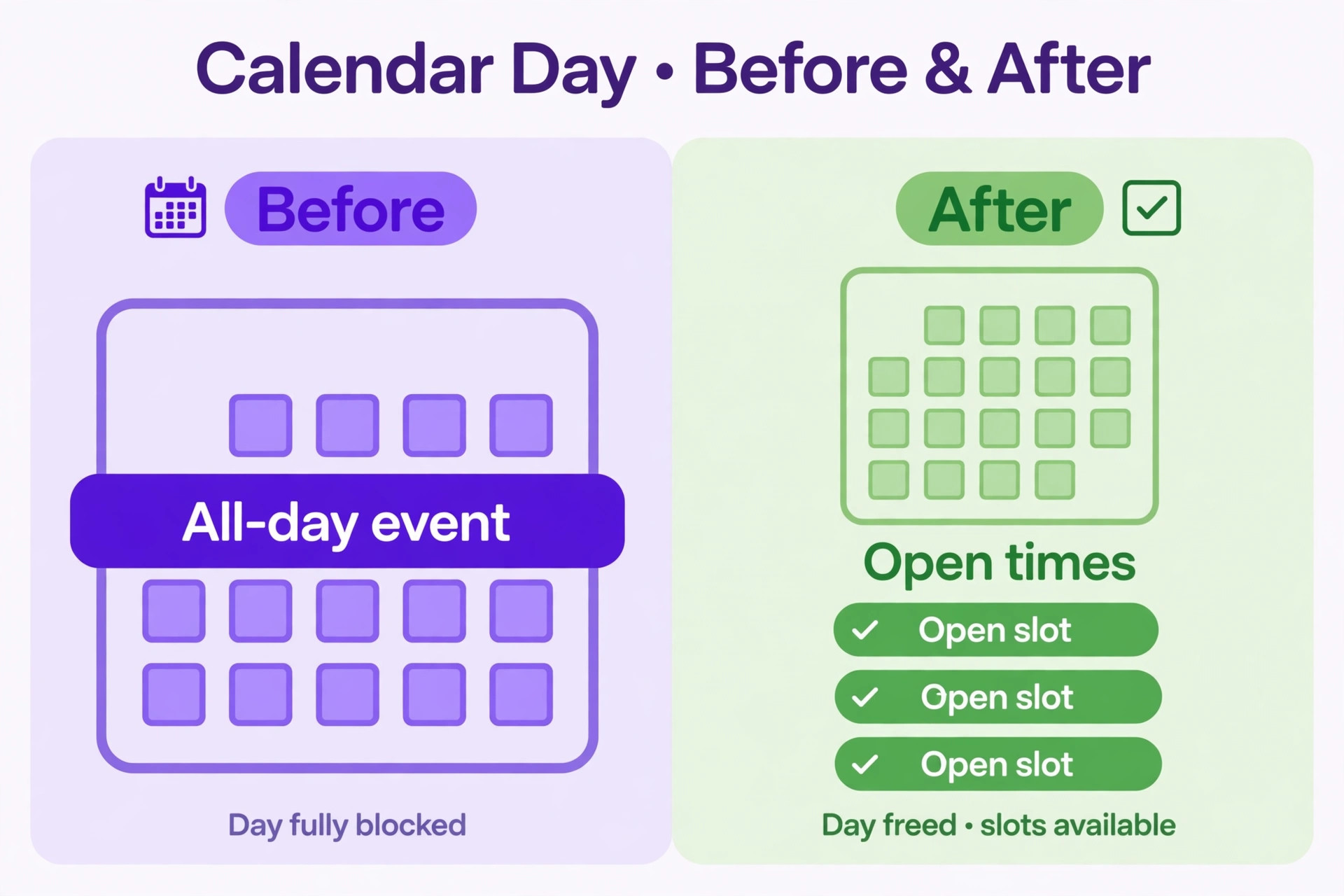
Open the calendar settings under Availability and review which calendars Calendly checks for conflicts. Any event marked busy on a selected calendar will remove the corresponding time from the booking page, including all day events, travel placeholders, and recurring holds that you may have forgotten. One all day event marked busy on a conflict calendar can wipe out an entire day, and a recurring hold can wipe out the same day every week without any visible warning on the booking page.
Check which calendars are selected, and check whether a second calendar was added later and marked as a conflict calendar by mistake. A work calendar, a shared team calendar, or a personal calendar imported as a feed can all block times if they are selected for conflict checking. Remove calendars that should not block bookings, or change the blocking events on those calendars from busy to free where appropriate. Also confirm that Calendly can still access the calendar at all, because a broken connection can leave the tool unable to read availability correctly.
Step 3. Reconnect a Calendar That Has Lost Permission
Calendar permissions can lapse after a password change, an admin policy change, or a long period without use, and a lapsed permission can show up as missing availability rather than as a clear error. If the troubleshoot tool reports that Calendly cannot access the calendar, or if busy events on the connected calendar no longer block times as expected, disconnect and reconnect the calendar from the calendar settings screen. Choose the correct provider, sign in with the account that owns the calendar, and confirm the connection completes.
After reconnecting, choose the calendars to check for conflicts and the single calendar where new bookings should be added. Calendly can publish new bookings to only one connected calendar at a time, so that destination choice matters for where appointments land. Test the booking page again, and also test that a new test booking appears on the chosen calendar and is removed from availability afterwards. A connection that looks successful but does not block or add events correctly needs to be checked again, because a partial connection is worse than an obvious failure.
Step 4. Check Buffers, Minimum Notice, and Event Duration
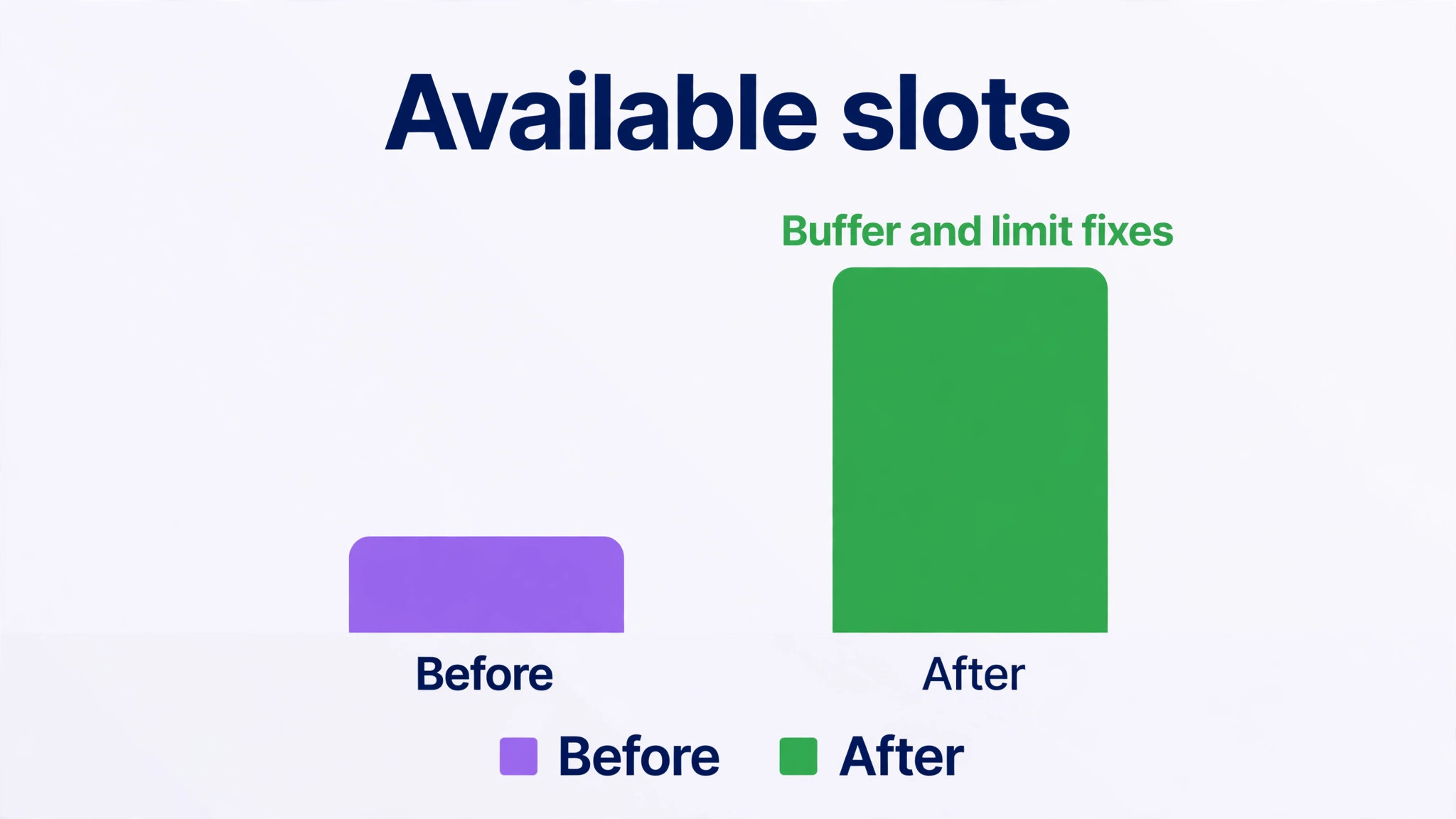
Buffers are the quietest cause of missing times. A buffer before and after each meeting removes time around existing bookings, so a thirty minute meeting with a fifteen minute buffer on each side occupies a full hour of availability. When several meetings sit close together, buffers can remove the gaps between them entirely, leaving no slot long enough for a new booking. Open the event type limits and buffers settings and read the buffer values, then compare them with a day that shows no times to see whether buffers explain the gaps.
Minimum scheduling notice works in a similar way. If the notice period is set to a day or more, times inside that window will not show, even though the calendar is empty. A notice period that made sense for a service needing preparation can become a problem when it is applied to a simple consultation. Duration matters too, because a long event needs a long uninterrupted gap, and a day broken into short free periods may contain no gap long enough for it. Shorten the buffer, reduce the notice period, or shorten the event where the business allows, and test the same day again.
Step 5. Check Date Range, Daily Limits, and Monthly Limits
Open the availability settings for the event type and check the date range it covers. A range that starts in the future, ends in the past, or limits bookings to a small number of days ahead will hide times outside that window, even on days that look open. The troubleshoot tool reports this as a range problem, and the fix is to widen the range to cover the period you actually want to offer. Also check whether the event is limited to certain days of the week, because a day that is not selected will never show times.
Daily and monthly limits can hide times just as completely. An event type with a daily limit of two meetings will show no times once two meetings are booked that day, even if the rest of the day is free. A monthly limit works the same way across the month. The troubleshoot tool reports these as daily maximum and monthly maximum problems. Check the limits and buffers section, compare the limits with the bookings already on the calendar, and raise or remove a limit that no longer matches how the business works.
Step 6. Check Time Zones From Both Sides of the Booking
Time zone settings can shift availability across the edge of the day, so a time that looks open to you can fall outside the invitee view entirely. Calendly can display times in the invitee time zone, in the event time zone, or in a time zone detected from the invitee browser, depending on the settings. A morning slot in one time zone can become a late night slot in another, and a slot near midnight can disappear from the date the invitee is viewing. Test the booking page with the viewer time zone changed, and test dates near the start and end of the day.
Check the time zone on the event type, on the availability schedule, and on the connected calendar, and make sure they agree. A calendar set to one time zone and an event set to another will produce a consistent offset that is easy to miss, because every time will be wrong by the same amount. After fixing a time zone, test with a booking from a different time zone if you can, or ask a colleague in another region to open the link and report what they see. That external test catches offset problems that a local test cannot.
Step 7. Check Team Rules, Round Robin, and Group Limits
Team event types add rules that a single host event does not have, and those rules can hide times even when every host looks free. Round robin rules distribute bookings across hosts to keep workloads fair, and they can hide a host from the booking page in order to keep the distribution balanced. Collective events require all hosts to be free at the same time, so one busy host can block a time for everyone. Group events have a maximum number of invitees per time, and a full group will show no times for that slot.
Open the team event settings and check the assignment rules, the host list, and the group limits. Use the troubleshoot tool for a team event and look for codes that point to host availability, fairness rules, or overlap rules. If a host has left the team, has a broken calendar connection, or has hours that do not overlap with the others, that host can block the whole event. Fix the host list, the calendar connections, and the distribution rules, and test the team link again with a fresh invitee view.
An event type that is turned off, hidden, or set to a location that requires extra steps will not show availability in the way you expect. Confirm that the event type is active and that the link you are sharing is the current link for that event, not an old link from a duplicated or deleted event. A duplicated event can carry old availability, old limits, or an old schedule, and sharing the duplicate by mistake will show the old behaviour while the corrected event sits unused elsewhere in the account.
Also check the location and question settings for anything that could block a booking, such as a required question that invitees cannot answer, or a location that needs a manual step before times appear. Test the full booking flow, not just the calendar view, by completing a test booking to the confirmation step. A page that shows times but fails at confirmation has a different problem from a page that shows no times, and the test booking will reveal which one you are dealing with. For a related double booking problem, see our guide to the Calendly double booking fix.
Calendar Settings Checklist for Calendly
Use this checklist in order to fix Calendly availability not showing small business trouble whenever availability goes missing, and tick each item only after testing the public link. It is designed to be copied into a staff document for the person who manages bookings.
Confirm the affected event type uses the availability schedule you intend, and that the schedule is active for that event.
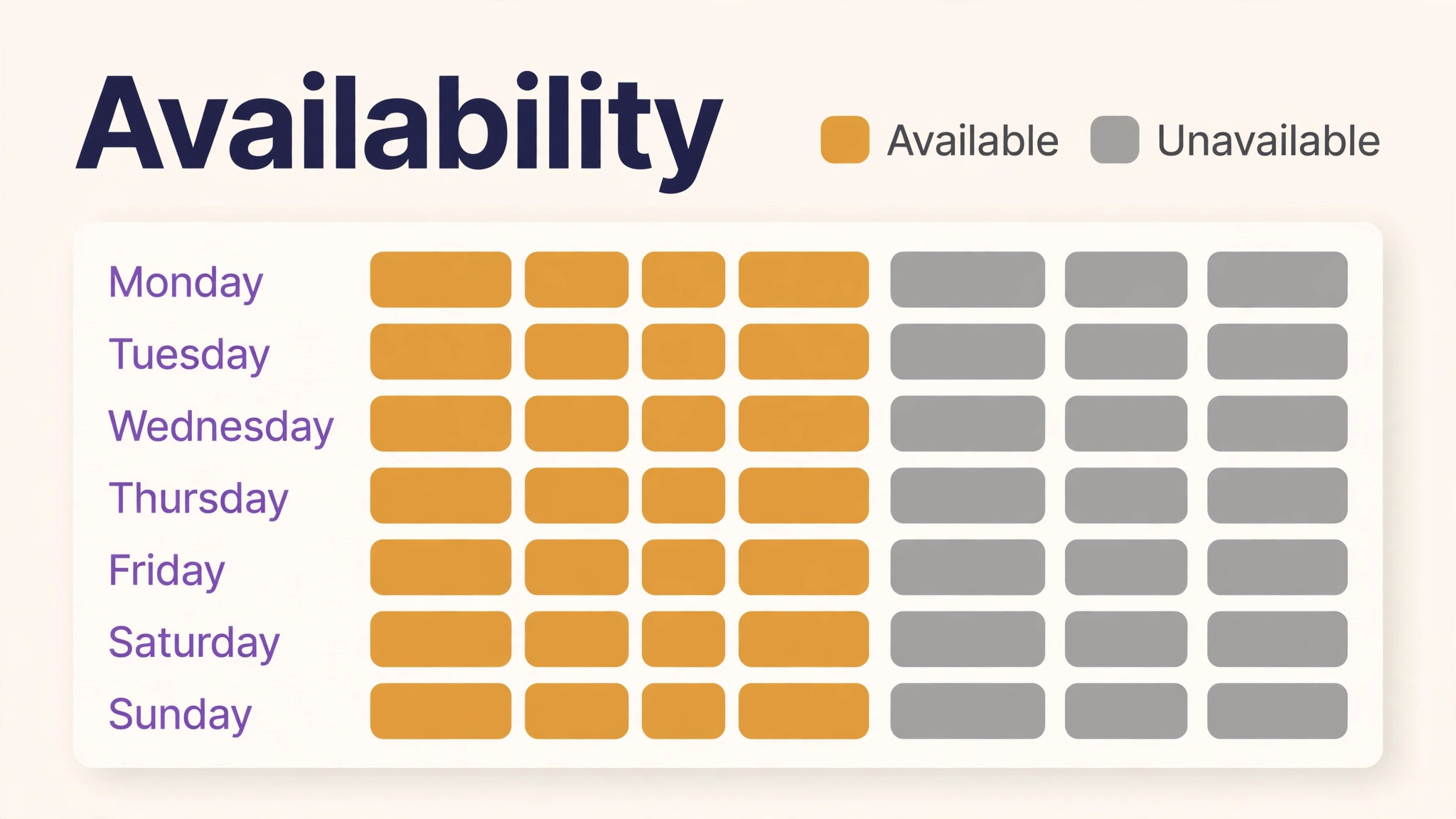
Confirm the weekly hours in that schedule cover the days and times you want to offer, with no day left unselected by mistake.
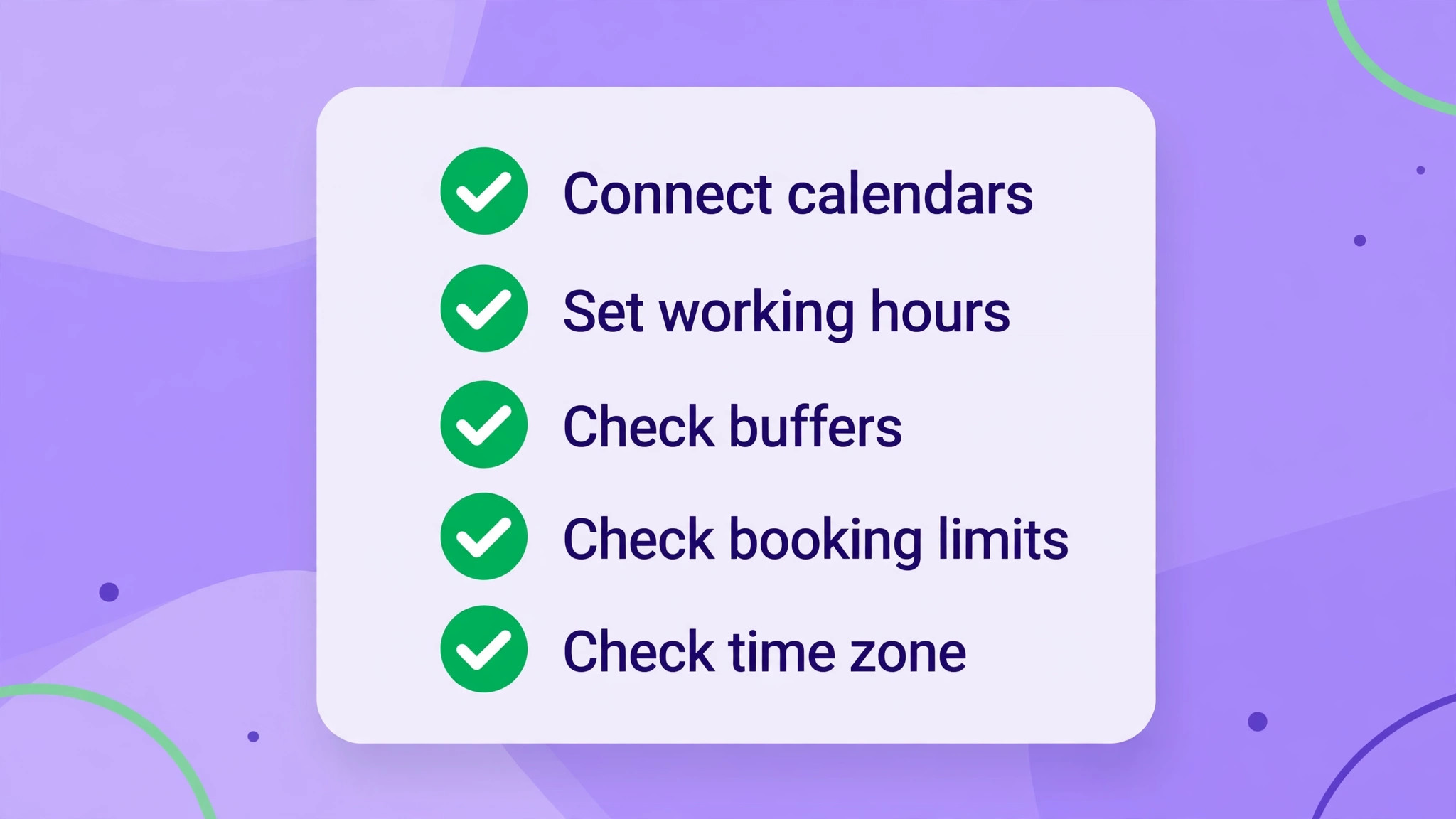
Confirm the calendars selected for conflict checking are the right calendars, and that no extra calendar is blocking times.
Confirm no all day event, travel placeholder, or recurring hold marked busy is wiping out a whole day on a conflict calendar.
Confirm the calendar connection is live, and reconnect it if permission has lapsed after a password or admin change.
Confirm the single calendar where new bookings are added is the calendar you actually use day to day.
Confirm buffers before and after meetings match real preparation and follow up needs, and do not remove every gap in the day.
Confirm minimum scheduling notice does not hide times you want to offer at short notice.
Confirm the date range covers the period you want to offer, and that daily and monthly limits have not been reached.
Confirm time zones agree across the event type, the schedule, and the connected calendar, and test from another time zone if possible.
Confirm team assignment rules, host lists, and group limits are not hiding times for a team event.
Confirm the event type is active, the shared link is the current link, and a full test booking reaches confirmation.
Read the Troubleshoot Codes Without Guessing
The troubleshoot tool is the fastest way to move from a blank page to a named cause when you fix Calendly availability not showing small business problems, and it deserves a section of its own. Open the event preview, choose a date and time that should be available, and read the code the tool returns for that slot. A calendar code means a busy event is blocking the time, so check the connected calendar for that exact period. A buffer code means a buffer around a neighbouring meeting is removing the slot, so check the limits and buffers settings. A range code means the date is outside the allowed window, so widen the date range.
Other codes point to limits and team rules. A daily maximum or monthly maximum code means a limit has been reached, so check the limits for the event type. A too soon code means the minimum notice period is hiding the time, so reduce the notice where the business allows. A group code means a group event is full at that time, so check the maximum invitees for the group. Host and fairness codes for team events mean a host rule or a distribution rule is hiding the time, so check the team settings and the host calendars. Writing the code down before you change anything prevents a second round of guessing after the first fix fails.
Use the tool on more than one date and time, because a single slot can be blocked by a single calendar event while the wider problem is a schedule or a limit. Test a morning slot, an afternoon slot, and a slot on a different day, and compare the codes. If every slot returns the same code, that code is the main cause. If different slots return different codes, the problem has more than one layer, and you should fix the widest layer first, which is usually the schedule, the calendar connection, or the date range, before fixing individual calendar events.
Prevent Missing Availability From Returning
Most availability problems return because a setting changes without anyone noticing, which is why the routine matters when you fix Calendly availability not showing small business trouble. A new calendar is added and marked for conflict checking, a schedule is edited for a holiday and never restored, a team member leaves and their calendar keeps blocking a collective event, or a limit set for a busy month is never raised again. Preventing a return is therefore a matter of routine checks rather than a single fix, and a monthly check takes only a few minutes.
Put a monthly booking check on the calendar of the person who manages appointments. Open the public link in a private window, check the next two weeks for times, and complete a test booking to confirmation. Check that the booking appears on the right calendar and that the time disappears from availability afterwards. That routine catches a broken connection, a lapsed permission, or a schedule change before customers do, and it costs far less than a week of missed bookings. For a wider comparison of booking tools, see our guides to Calendly alternatives and to Calendly versus Cal.com, and for booking system planning, see the online booking software guide.
After a holiday, a staff change, or a calendar migration, run the full checklist again rather than assuming the settings survived the change. Calendar migrations are a common source of availability loss, because a new calendar account may be connected without the old conflict calendars, or with extra calendars that should not block bookings. A deliberate check after every such change, with a test booking from an outside view, will catch the problem on the day of the change rather than in a week of customer messages asking why no times are available.
A booking page that is checked only when a customer complains will always be checked too late. Build the monthly check into the same routine as invoicing or stock checks, so it happens whether or not anyone reports a problem. When you fix Calendly availability not showing small business trouble once, write down which rule caused it, because that rule is the one most likely to cause the next incident as well. A short note in a shared document, naming the schedule, the calendar, or the limit involved, turns a one time fix into a known weakness that the next person can check first.
What to Tell Customers While Availability Is Missing
Customers who cannot book will not always report the problem. Many will simply leave and book elsewhere, which is why a missing availability problem is more costly than it looks in a support inbox. While you fix the settings, add a clear note to the booking page or to the website contact page giving an alternative way to book, such as an email address or a phone number, and a promise of a reply time. That alternative keeps the enquiry alive while the automated booking is down, and it tells customers the business is still operating.
When a customer reports the problem, thank them plainly and ask for three details. Ask which event link they used, which dates they tried, and what time zone they are in. Those three details let you reproduce the problem exactly, including any time zone offset, and they avoid a long exchange about browsers and devices. Once the fix is live, reply to those customers and invite them to try again, because a customer who took the time to report a booking problem is already showing intent to book, and a quick follow up often converts that intent into an appointment.
Do not promise a fix time you cannot keep. Say what you have checked, what you are checking next, and when you will update the customer, even if the update is simply that the check is still in progress. A customer who hears nothing will assume the business is closed or careless, while a customer who hears a plain progress update will usually wait. Keep the list of affected customers from the incident, because a second availability problem will hit the same bookers first, and an early message to them can prevent a repeat of the same complaints.
Frequently Asked Questions About Calendly Availability
Why does Calendly show no times available when my calendar is empty
The booking page applies more rules than the calendar view shows, including the availability schedule, buffers, minimum notice, date range, limits, and conflict calendars. An empty calendar does not guarantee a free slot if a buffer, a limit, or a schedule rule removes it. Use the troubleshoot tool on a specific date and time to see which rule blocked it, and check the event type settings for that rule before assuming the calendar connection is broken.
Why do some dates show times while others show nothing
Different dates are affected by different rules. A date with an all day busy event will show nothing, a date beyond the allowed range will show nothing, and a date that has reached a daily limit will show nothing, while neighbouring dates remain open. Check the troubleshoot tool for a missing date and for a working date, and compare the results. The difference between the two will usually name the rule, whether it is a calendar event, a limit, or a day that is not selected in the schedule.
Why does availability look different for invitees in another time zone
Calendly can display times in the invitee time zone, and a slot near the start or end of the day can shift to a different date in another time zone. Check that the event time zone, the schedule time zone, and the calendar time zone agree, and test the link with the viewer time zone changed. A consistent offset across all times points to a time zone mismatch, while a single missing time points to a calendar event or a buffer on that day.
How do I stop an all day event from blocking my whole day
Change the all day event on the connected calendar from busy to free if it should not block bookings, or remove that calendar from the calendars checked for conflicts if it should never block bookings. All day events marked busy are treated as conflicts for the entire day, including travel placeholders and out of office holds that were meant as reminders rather than blocks. After changing the event, test the booking page for that day again to confirm the times return.
Why did availability disappear after I changed my working hours
The most likely cause is that the hours were changed on a schedule that is not attached to the event type being shared. Calendly allows more than one schedule, and an event can use a different schedule from the one you edited. Open the event type, confirm which schedule it uses, and edit that schedule. Also check that the new hours were saved on the event type itself, and test the public link after the change rather than trusting the schedule list view.
Should I disconnect and reconnect my calendar to fix availability
Reconnecting is worth trying when permission has lapsed, when the troubleshoot tool reports that the calendar cannot be accessed, or when busy events no longer block times as expected. Reconnecting will not fix a schedule error, a buffer problem, or a limit problem, so use it after those settings have been checked, not before. After reconnecting, confirm the conflict calendars and the booking destination calendar are set correctly, and complete a test booking to confirm the connection works end to end.
A booking link is a promise that times are available, and a link that shows nothing breaks that promise on first contact. Before you share the link again after a fix, open it in a private window, check the next two weeks, and complete a test booking to confirmation. Confirm that the booking lands on the right calendar, that the time disappears from availability, and that the confirmation reaches the invitee. That short test is the practical way to fix Calendly availability not showing small business trouble for good, because it checks the whole flow rather than a single setting.
Keep the calendar settings checklist from this guide beside the booking account, and run it after every schedule change, calendar change, or team change. Availability problems are rarely dramatic, and they rarely announce themselves. They appear as a quiet drop in bookings, a few customer messages, and a calendar that looks open while the booking page says otherwise. The steps here turn that quiet problem into a named rule, a clear fix, and a tested link, which is all a small business needs to keep bookings flowing. For a related scheduling problem, see our guide to switching from Calendly to Acuity.