
A video stalls in the same place every time. The footage is shot, the story is clear, but the edit takes a weekend, the captions need typing, the colour looks flat, and the export fails at 90 percent, and that is the exact pain the best ai video editors for mac are built to remove. The tools do not replace the editor. They remove the mechanical work between good footage and a finished video.
This guide compares twelve tools that Mac editors actually use in 2026, judged on editing speed, AI features, export quality, and price. Prices here come from vendor pages and comparisons checked in late 2026, so confirm the current price before you commit, because video tool pricing changes often.
The twelve tools split into four jobs. Final Cut Pro, DaVinci Resolve, Premiere Pro and iMovie are full timeline editors. CapCut, Filmora and Wisecut are fast editors for social and YouTube. Descript, Runway, Pictory and InVideo turn text and long video into finished clips. Opus Clip cuts the clips that grow an audience.
Why Editing Takes Ten Times Longer Than Shooting
Shooting a ten minute video takes an hour. Editing it takes a day, because every cut, caption, colour fix and export is a separate job. Most new YouTubers quit in the first twenty videos, and the edit is usually the reason.
The second problem is the Mac lock in. Final Cut Pro and iMovie only run on Apple hardware, and a project built in one editor rarely moves cleanly to another. The choice of editor is a choice of platform, and switching later costs the project library.
The third problem is the subscription pile. A timeline editor, a caption tool, a clip cutter and a stock library each charge monthly, and the total passes a hundred dollars before the channel earns anything. This guide works out which single tool covers the most jobs for the least money.
The best ai video editors for mac below are judged on the job each tool does, not on the demo it shows.
The 12 AI Video Editors for Mac at a Glance
The table below is the short version. Read it to narrow the list to two or three tools, then read the detail section before you pay for anything. Use it to shortlist the best ai video editors for mac worth testing on your own work.
| Tool | Main job | Best for | Starting paid price |
|---|---|---|---|
| Final Cut Pro | Pro Mac editor | Mac creators who buy once | about 300 dollars one time |
| DaVinci Resolve | Pro editor, free | Colour and free pro work | free |
| CapCut | Fast social editor | Short form video | free |
| Adobe Premiere Pro | Pro team editor | Teams and agencies | about 23 dollars a month |
| iMovie | Free Mac editor | Simple Mac projects | free |
| Filmora | Template rich editor | Beginners and YouTubers | about 62 dollars a year |
| Descript | Transcript based editing | Talking head video | about 16 dollars a month billed yearly |
| Runway | Generative video AI | AI generated footage | about 12 dollars a month billed yearly |
| Pictory | Script to video | Faceless channels | about 19 dollars a month |
| InVideo | Prompt to video | Social and explainer video | about 15 dollars a month |
| Opus Clip | AI clip finder | Short form growth | about 15 dollars a month |
| Wisecut | Automatic video editing | Talking head auto edits | about 10 dollars a month |
The table above narrows the field, but the right answer for most readers is a pair of tools, not one. The detail section shows what each tool actually does, what it costs, and where it falls short, so the choice follows the job rather than the marketing.
Best Pick by Job
| Job type | First pick | Second tool | Why this pair works |
|---|---|---|---|
| Pro work, buy once | Final Cut Pro | DaVinci Resolve | One time purchase plus the best free pro editor cover both routes |
| Free pro editing | DaVinci Resolve | CapCut | Full pro tools free, plus fast social editing at no cost |
| Short form social daily | CapCut | Opus Clip | Fastest short edits plus AI clips that find the best moments |
| Team and agency work | Adobe Premiere Pro | Final Cut Pro | Collaboration and Creative Cloud against Mac speed |
| Talking head and tutorials | Descript | Filmora | Edit by transcript plus templates that make a clean video fast |
| Text to video | Pictory | InVideo | Blog to video plus prompt to video for faceless channels |
A Mac editor running the best ai video editors for mac as a small stack gets further than one running a single editor hard. DaVinci Resolve edits and grades, CapCut cuts the shorts, and Opus Clip finds the moments worth posting. That combination covers the three jobs that decide whether a channel ships weekly, and two of the three are free.
Price changes the answer. Final Cut Pro at 300 dollars once is cheaper than two years of any subscription, DaVinci Resolve is free with no watermark, and CapCut is free for the basics. Pay a subscription only for the job the free tools cannot do.
How to Judge the Best AI Video Editors for Mac
Judge every option on editing speed on your own footage first. The best ai video editors for mac are only fast if they are fast on your files, so edit one real video in each tool you shortlist and time it. A tool that flies on 1080p and crawls on 4K will cost you every week.
Next, test AI features that save real hours on your own work. A tool that looks strong on a feature list but stumbles on AI features that save real hours will cost more time than it saves, so run it on a real task before you compare anything else. The test should use your files, your audience and your deadline, not the vendor demo data.
Then weigh export quality and format options against total cost over two years. A tool that wins on export quality and format options but fails on total cost over two years is a bad buy, and a tool that handles both is worth paying for. Check the export quality and format options first, because a failure there shows up in the first week, while a failure on total cost over two years shows up in the first month.
Finally, check the Mac fit. Final Cut Pro sings on Apple silicon and exports faster than nearly anything else, while DaVinci Resolve runs everywhere and moves with you if you ever leave the Mac. Choose the editor that fits the machine you have and the platform you will still use in two years.

The 12 AI Video Editors for Mac in Detail
1. Final Cut Pro
Final Cut Pro is the pro Mac editor, with a magnetic timeline, fast Apple silicon exports and a one time price of 300 dollars. It is the best value in pro editing for anyone who stays on a Mac.
It costs 300 dollars once on the Mac App Store, or 13 dollars a month inside Apple Creator Studio. A 30 day trial comes with the Creator Studio subscription, so you can test it before buying.
Final Cut Pro fits Mac creators who edit daily.
Cut a real project in Final Cut Pro on the magnetic timeline with an Apple silicon export at the end, and time the job. If the export flies and the timeline never fights you, the one time price of three hundred dollars is the best value in pro editing for a Mac user. If you edit rarely, thirteen dollars a month inside Apple Creator Studio, with a thirty day trial, is the cheaper way to find out.
2. DaVinci Resolve
DaVinci Resolve is the best deal in professional video. The free edition includes the full edit page, the most respected colour grading toolset, Fusion effects and Fairlight audio, with no watermark and 4K exports.
The free edition costs nothing, and Studio costs 295 dollars once for AI tools, noise reduction and HDR extras. The free version alone covers professional work for most editors.
DaVinci Resolve fits any editor who wants pro tools without a subscription.
Grade a project in the DaVinci Resolve free edition and export in 4K without a watermark. If the grade looks better than anything you have produced elsewhere, keep it free and pay the two hundred ninety five dollars for Studio only when the AI tools, noise reduction and HDR extras solve a real problem. If the learning curve eats the week, the price is still free, but your time is not.
3. CapCut
CapCut owns short form video, with a multi track timeline, keyframes, chroma key, auto captions and 1080p watermark free export at no cost. It is the fastest route from footage to a finished short.
The free tier covers the full basic editor, and Pro costs about 20 dollars a month for 4K export, the full AI toolkit and the commercial asset library. Most creators never need Pro.
CapCut fits short form creators and beginners.
Take raw footage and make a finished short in CapCut with the free 1080p watermark free export. If the short ships in an evening and looks good, the free tier has done the job and Pro at twenty dollars a month only matters for 4K export and the full AI toolkit. If the short needs the depth of a pro timeline, you have outgrown the tool.
4. Adobe Premiere Pro
Premiere Pro is the industry standard timeline editor, with the deepest integration into Creative Cloud, After Effects and Audition. It is the safest choice for teams that collaborate and share projects.
It costs about 23 dollars a month on an annual plan as a single app. Over two years that is about 552 dollars, which is the number to compare against the one time tools.
Premiere Pro fits teams and agency pipelines.
Edit a project in Premiere Pro that two or more people touch, sharing projects through Creative Cloud. If the shared workflow holds and nobody waits on a file, twenty three dollars a month is the price of the standard. If you edit alone, compare the number honestly. About five hundred fifty two dollars over two years buys a lot of a one time tool.
5. iMovie
iMovie is free on every Mac, with a simple timeline, trailers, titles and basic colour tools. It is the best starting point for anyone who has never edited video before.
It costs nothing, and it is already installed on most Macs. The trade off is a ceiling on features, so growing editors outgrow it within a few months.
iMovie fits beginners and simple family projects.
Edit your first video in iMovie and see how far it takes you. If the video comes out well and the tool is already installed on your Mac, it costs nothing and is the best starting point for anyone who has never edited video before. If you hit the ceiling within a few months, that is the signal to graduate, and the free start cost you nothing.
6. Filmora
Filmora is built for creators who want guided, template rich editing without pro complexity, with AI media analysis, text based rough cuts, auto captions and a huge asset library. A beginner can learn it in an afternoon.
The annual plan costs about 62 dollars a year, with a monthly option at about 20 dollars and a perpetual licence at about 90 dollars. Free exports carry a watermark until you pay.
Filmora fits YouTubers who want to look good on day one.
Make a YouTube video in Filmora as a beginner and see whether you look good on day one. If the video ships and the templates carry the polish, the annual plan at about sixty two dollars a year is the sensible buy, since free exports carry a watermark until you pay. If the templates start feeling like a cage, you have learned enough to want a pro tool.
7. Descript
Descript edits video by editing a transcript, so a talking head video is cut by deleting sentences in the text. Filler removal, Studio Sound and clip making run in the same workspace.
The free plan covers limited transcription hours, and Hobbyist costs about 16 dollars a month billed yearly. Plans are metered by media hours, so long videos hit the ceiling fast.
Descript fits talking head creators and podcasters who also make video.
Edit a talking head video in Descript by deleting sentences in the transcript. If the cut ships in half the time, sixteen dollars a month is fair for a talking head creator. If long videos hit the media hour ceiling fast, the meter is the problem, and a flat rate timeline tool fits a long video channel better.
8. Runway
Runway generates video from text and images, with AI tools for inpainting, motion and green screen that no timeline editor offers. It is the most creative AI video tool in this list.
Plans start at about 12 dollars a month billed yearly, with credits that meter generation. The cost depends on how much footage you generate, not on how long you edit.
Runway fits creators who need footage that does not exist yet.
Give Runway the one shot your video needs and cannot film. If the shot lands and the credits stretch far enough, twelve dollars a month buys creativity no other tool in this list offers. If the footage looks generated and the credit meter burns fast, a stock library may be cheaper.
9. Pictory
Pictory turns scripts, blog posts and long videos into finished short videos with stock footage, voiceover and captions. It is the best tool in this list for faceless channels that publish from text.
Plans start at about 19 dollars a month, with a free trial of three videos. The value is in volume, since one script becomes a video in minutes.
Pictory fits faceless YouTube and content repurposing.
Give Pictory a script or a blog post and let it build a finished short video, then publish it. The free trial of three videos covers the test, so there is no reason to pay before you know. If one script becomes a video in minutes, nineteen dollars a month is fair for volume. If the stock footage feels generic beside your own material, a tool that uses your own footage is the better home for your channel.
10. InVideo
InVideo turns a text prompt into a full video draft with stock footage, voiceover, transitions and music, which you then edit by hand. It is the fastest route from an idea to a watchable draft.
The free tier covers watermarked exports, and paid plans start at about 15 dollars a month. The credit system meters generation, so heavy users need a higher tier.
InVideo fits marketers and creators who need video fast.
Type a text prompt into InVideo and see how fast a full video draft appears. If the draft saves you an afternoon and the free tier watermark is the only thing in the way, paid plans from fifteen dollars a month are fair. If heavy use burns through credits, the credit system is the real price, and a flat rate editor may cost less.
11. Opus Clip
Opus Clip watches a long video and cuts the strongest moments into short vertical clips with captions, scored for how well they will perform. It turns one video into a week of social content.
Plans start at about 15 dollars a month, with more clip credits on higher tiers. The time saved against manual clip cutting is the whole value.
Opus Clip fits creators who grow through short video.
Feed Opus Clip a long video and see what it cuts into short vertical clips. If two or three clips are genuinely worth posting, fifteen dollars a month is fair, and the time saved against manual clip cutting is the whole value. If the AI picks moments that fall flat and you end up recutting them all, the clip credits bought you nothing.
12. Wisecut
Wisecut edits talking head videos automatically, cutting silences, adding background music and punching in on the speaker. It is the simplest auto editor in this list, and the fastest for a single speaker video.
Plans start at about 10 dollars a month, with a free tier for testing. The price is low enough to keep for a channel that publishes talking head videos weekly.
Wisecut fits talking head creators who want a fast auto edit.
Give Wisecut a single speaker video and let it cut silences and punch in on the speaker automatically. If a talking head video edits itself in minutes, ten dollars a month is low enough to keep for a channel that publishes weekly. If the auto cuts feel wrong and you fix them all by hand, the simplicity is the limit, and a timeline editor you control is the better tool.
A Video Workflow From Footage to Publish
The order matters. Rough cut first, captions second, colour third, and clips last. A tool used out of order creates rework, so run the steps in sequence. The best ai video editors for mac that fit your work are the ones that survive this order.
| Step | Job | Best tool | What good looks like |
|---|---|---|---|
| 1 | Rough cut the story | DaVinci Resolve | Cut page editing that finds the story fast |
| 2 | Edit by transcript | Descript | Filler words and false starts cut by deleting text |
| 3 | Add captions | CapCut | Auto captions in minutes, styled for short form |
| 4 | Grade the colour | DaVinci Resolve | Industry standard colour tools in the free version |
| 5 | Export the master | Final Cut Pro | Fast Apple silicon export at full quality |
| 6 | Cut clips and publish | Opus Clip | Short clips with captions for every feed |
Run the workflow on one video before you commit to it. Rough cut, edit, caption, grade, export and clip a single video, and time each step. The workflow that finishes a video in an afternoon will ship weekly. The workflow that takes a weekend will slip within a month.
What a Mac Editing Stack Costs at Real Volume
Prices below use annual billing where it is cheaper. One time purchases are shown as a single figure, and the two year cost is the number that matters for subscriptions. The best ai video editors for mac below are priced at real volume, not at headline rates.
| User type | Volume | Tool stack | Monthly cost |
|---|---|---|---|
| Beginner, free stack | 4 videos a month | DaVinci Resolve free plus CapCut free | 0 dollars |
| YouTuber, weekly videos | 4 videos a month | Final Cut Pro once | About 300 dollars once |
| YouTuber, subscription route | 4 videos a month | Premiere Pro | About 23 dollars a month |
| Short form daily | 20 shorts a month | CapCut Pro plus Opus Clip | About 35 dollars a month |
| Pro studio, full stack | 10 videos a month | Final Cut Pro plus Descript Creator | About 300 dollars once plus 24 dollars a month |
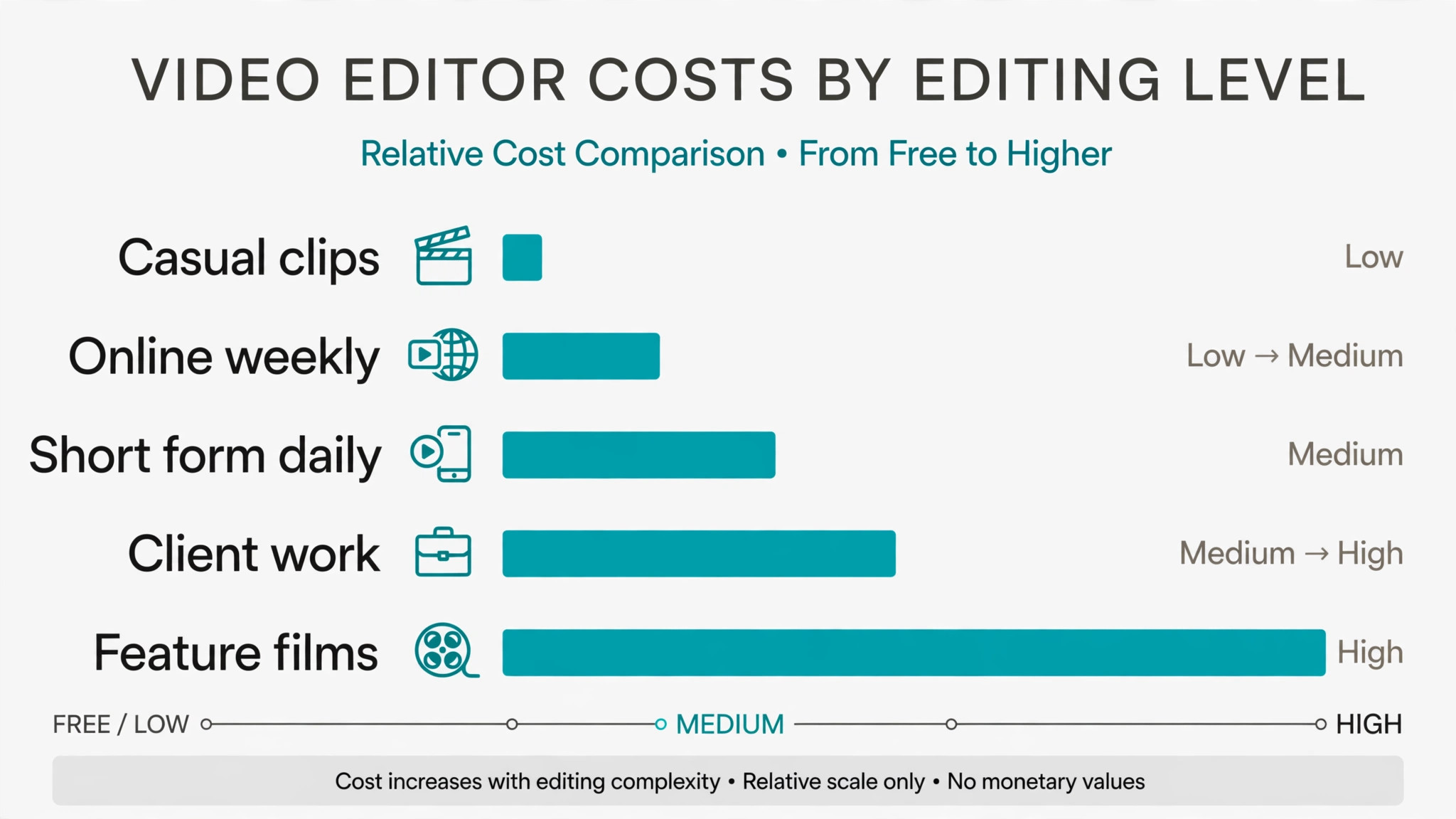
Start on DaVinci Resolve and CapCut and pay nothing while you learn the craft. A beginner can publish good videos on that pair alone. Upgrade only when export speed and editing time start breaking your upload schedule, because that is the moment a paid tool earns its fee, and until then the free stack does the job.
Three Mac video editors Setups That Actually Work
A single tool rarely covers the whole job, and the setups below are the pairs that readers actually run. Each one costs less than a single enterprise platform, and each one is easier to learn than a tool that tries to do everything.
Setup 1 fits pro work, buy once. Final Cut Pro does the heavy work, and DaVinci Resolve covers the gap it leaves. One time purchase plus the best free pro editor cover both routes. Run this setup for a month before you add anything else, because most readers never need a third tool, and the money saved is better spent on the work itself.
Setup 2 fits free pro editing. DaVinci Resolve does the heavy work, and CapCut covers the gap it leaves. Full pro tools free, plus fast social editing at no cost. Run this setup for a month before you add anything else, because most readers never need a third tool, and the money saved is better spent on the work itself.
Setup 3 fits short form social daily. CapCut does the heavy work, and Opus Clip covers the gap it leaves. Fastest short edits plus AI clips that find the best moments. Run this setup for a month before you add anything else, because most readers never need a third tool, and the money saved is better spent on the work itself.
The common thread across all three setups is the same. Buy the pair that matches the job you do most often, learn it properly, and add a third tool only when a real gap appears. A stack that grows with the work beats a stack bought all at once.
Mistakes to Avoid With Mac Video Editors
The best ai video editors for mac fail in the same few ways, and each mistake below costs time or money. Avoid them and the stack works.
Buying a subscription before testing the free tools. DaVinci Resolve is free with no watermark and covers professional editing, colour and audio. Test it for a month before paying for Premiere Pro or Final Cut Pro, because the free tool may already do everything your channel needs.
Editing 4K on a machine that cannot handle it. A Mac that struggles with 4K will turn every edit into a wait. Use proxy media for the edit and full resolution only for the export, or shoot in 1080p until the machine catches up. The audience sees the story, not the resolution.
Skipping captions on every video. Most social video is watched without sound, and a video without captions loses those viewers in seconds. CapCut and Descript add auto captions in minutes, and the captioned version always outperforms the silent one.
Locking a project library into one editor. A project built in Final Cut Pro does not move cleanly to Premiere Pro, and the library grows harder to move every month. Pick the editor you will still use in two years, and keep the original footage outside the project library so it survives a switch.

First Week Setup Checklist for Mac Editors
Use this checklist when you set up your stack, and keep a copy with your project notes. It turns the best ai video editors for mac into a working setup in a week.
- Install DaVinci Resolve free and edit one real video in it.
- Test Final Cut Pro on the 30 day trial with the same footage.
- Set up proxy media so 4K footage edits smoothly.
- Add auto captions to one video in CapCut and compare the result.
- Edit one talking head video in Descript by transcript.
- Cut three clips from one video with Opus Clip and post them.
- Export one video at full quality and check it on a phone and a TV.
- Publish one video end to end before you plan the next four.
Related Guides
Keep exploring with these guides on Stratilyze:
- Best Free Video Editors for Mac (12 Tools)
- Best AI Video Editors for Real Estate Agents (15 Tools)
- Best Photo Editors for Mac (12 Tools)
Frequently Asked Questions
Which video editor is best for Mac in 2026?
DaVinci Resolve is the best pick for most Mac editors, because the free version includes the full editor, industry standard colour grading, effects and audio post, with no watermark and 4K exports. Final Cut Pro at 300 dollars once is the best value for Mac only editors who want the fastest Apple silicon performance.
Is Final Cut Pro or DaVinci Resolve better on Mac?
Final Cut Pro is faster on Apple silicon and simpler to learn, with a magnetic timeline that closes gaps automatically. DaVinci Resolve is free, runs on any platform, and has deeper colour tools. A Mac only editor who buys once should pick Final Cut Pro, and anyone who might switch platforms should pick Resolve.
Can I edit videos on a Mac for free?
Yes. DaVinci Resolve is free with no watermark, CapCut is free for basic editing, and iMovie is free on every Mac. That stack covers professional editing, social video and simple projects without spending anything, and the only reason to pay is speed or a specific AI feature.
Is Adobe Premiere Pro worth it on Mac?
Yes, for teams and agency work, because Premiere Pro is the safest choice for collaboration and Creative Cloud integration. For a solo creator, Final Cut Pro at 300 dollars once is cheaper than two years of Premiere Pro at about 23 dollars a month, and DaVinci Resolve is free.
What is the best AI video editor for YouTube on Mac?
Descript is the best pick for talking head YouTube, because transcript editing cuts the edit from hours to minutes, and Studio Sound cleans the audio. CapCut is the best pick for short form YouTube, because auto captions and templates make a finished short in minutes.
How do I make short clips from a long Mac video?
Opus Clip watches the full video and cuts the strongest moments into short vertical clips with captions, scored for how well they will perform. CapCut can do the same job by hand, but Opus Clip finds moments a human editor would miss, and it does it in minutes.
Our Call for Mac Editors, and When the Runner-Up Wins
Our call is DaVinci Resolve for most Mac editors, because it is free, professional, and complete, with colour grading no other free tool matches. Pair it with CapCut for shorts and Opus Clip for clips, and the stack covers the whole job from footage to publish without a subscription. That is what the best ai video editors for mac are for, a stack that ships rather than a list that impresses.
The runner-up is Final Cut Pro, and it wins when the job is speed on Apple silicon. If you edit on a Mac every day and never plan to switch, the 300 dollar one time purchase pays for itself in export time alone. Start there when the Mac is your permanent platform.