
A podcaster used to record an episode, publish the audio, and hope listeners found it. That way still works, and it is also the reason a good show can sit at a few hundred downloads a month while a weaker show grows on short video. The newer way records the episode on camera, cuts the best moments into captioned clips, and posts them where new listeners actually discover shows. This roundup of the top 10 ai video editors for podcasters compares the ten tools that turn a long recording into publishable video, judged on how fast they work and how good the clips look.
The shift is not about vanity. Short vertical video is now the main way people discover podcasts, and a single episode can produce ten or twenty clips that reach listeners who would never open a podcast app on a recommendation alone. The editor that does that work in minutes, rather than hours, changes what a podcaster can publish each week. The editor that needs a full afternoon per episode will be abandoned by the third week, no matter how good its features look in a demo.
Price is the second filter, and the spread is friendly. Most tools on this list start between 12 and 25 dollars a month, with free tiers that are genuinely usable for a podcaster testing the workflow. The price quoted in each entry is the vendor’s published starting rate, and every figure should be confirmed on the vendor page before you pay.
Why Podcasters Edit Video Differently Now
Podcasters do not edit like filmmakers. A filmmaker cuts for story, pacing and visual rhythm, while a podcaster cuts for the moment a guest says something worth sharing, and that moment is usually found in the transcript, not on a timeline. The top 10 ai video editors for podcasters therefore live or die on how they find those moments, whether by transcript search, AI scoring or automatic highlight detection. A tool that makes the podcaster scrub through an hour of footage by hand is solving the wrong problem.
The second difference is the output. A podcaster needs vertical clips with captions, a square version for some feeds, and a full-length horizontal version for YouTube, all from the same recording. The editor has to reframe automatically, keep the speaker in frame, and burn in captions that are accurate enough to read without sound. A tool that only exports horizontal video forces the podcaster to redo the work in another app, which defeats the purpose of buying an AI editor at all.
The third difference is the recording itself. Many podcasters record remotely, with guests in different cities, and the editor has to handle separate audio tracks, uneven internet and the occasional guest who records on a laptop microphone. Tools that combine recording and editing, like Riverside and Descript, have a real advantage here, because the recording quality decides how good the final clip can look.
The 10 Tools at a Glance
| Tool | Main job | Best for | Starting price |
|---|---|---|---|
| OpusClip | Long video into ranked short clips | Turning episodes into many clips | From 15 dollars a month |
| Descript | Transcript-based audio and video editing | Editing by deleting text | From 16 dollars a month |
| Riverside | Remote recording plus clipping | Interview shows with remote guests | From 24 dollars a month |
| Captions | Phone-first AI video editing | On-camera creators who edit on a phone | From 25 dollars a month |
| CapCut | Full editor with AI captions | Hands-on editing on phone and desktop | Free, Pro from 20 dollars a month |
| Submagic | Caption-led short video editing | Animated captions for short clips | From 19 dollars a month |
| Vizard | Clipping podcasts and webinars | Free-tier clipping for new shows | Free, paid plans quoted |
| VEED | Browser-based editing and captions | Quick browser edits without installs | From 12 dollars a month |
| Runway | AI video generation and editing | Creating new footage and effects | From 12 dollars a month |
| Adobe Premiere Pro | Professional timeline editing | Shows that need full manual control | From 23 dollars a month |
Best Pick by Job
| Job type | First pick | Second tool | Why this pair works |
|---|---|---|---|
| Interview show, many clips | OpusClip | Descript | OpusClip finds the clips and Descript refines the edit |
| Solo show, transcript editing | Descript | Riverside | Descript edits by text and Riverside records cleanly |
| Remote guests, two cameras | Riverside | OpusClip | Riverside records separate tracks and OpusClip cuts the clips |
| Phone-first creator | Captions | CapCut | Captions edits fast on a phone and CapCut adds depth |
| Zero budget, starting out | Vizard | CapCut | Vizard clips free and CapCut covers the rest |
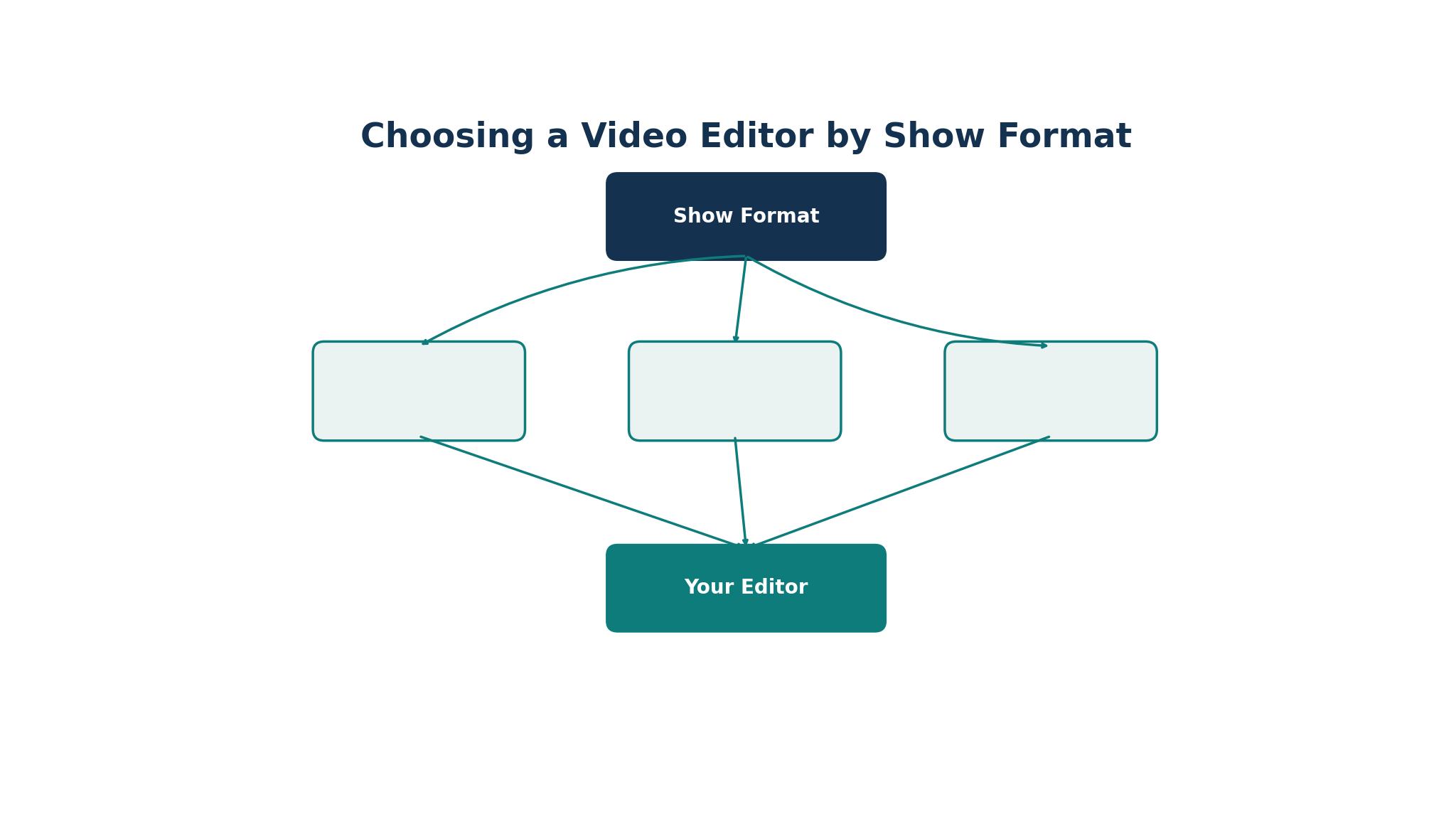
The top 10 ai video editors for podcasters reward a buyer who matches the tool to the show’s format. An interview show needs clip-finding above all, while a solo show needs transcript editing and a remote show needs clean recording first. The pairing above works because the first pick covers the main job and the second covers the step the first pick handles less well.
How to Judge the top 10 ai video editors for podcasters
Start with the clip-finding. Upload a real episode, or paste a link, and see what the tool returns. A good tool finds five to ten usable moments, ranks them, and gives each a caption and a reframe that keeps the speaker in shot. A weak tool returns clips that start mid-sentence, cut off the punchline or frame the guest badly. Judge the output, not the marketing, and count how many clips you would actually post.
Next, check the captions. Most listeners watch short video without sound, so the captions carry the message, and an error in the first three seconds will cost the viewer. Test the accuracy on a fast speaker, a guest with an accent and a moment with overlapping speech. If the tool lets you fix a caption quickly, a few errors are acceptable, but if fixing takes longer than retyping, the tool is slowing you down.
Finally, look at the export limits. Free plans often watermark clips, cap the resolution at 720p, or delete files after a few days, and paid plans meter credits per minute of source video. Confirm the number on the vendor page before you pay, and calculate the monthly cost against the number of episodes and clips the show actually produces, since a credit-based plan can get expensive fast.
A Closer Look at the 10 Tools
1. OpusClip
OpusClip takes a long video and finds the moments worth posting, which is exactly the job a podcaster needs done. A podcaster pastes a link or uploads a file, and OpusClip returns clips with animated captions, a Virality Score from 0 to 99 based on hook, flow and trend, and AI reframing to vertical, square and horizontal formats. The free plan offers 60 credits a month with a watermark, Starter costs 15 dollars a month with 150 credits, and Pro costs 29 dollars a month, or 14 dollars 50 a month billed annually, with 300 credits.
The clip-finding is the strength. OpusClip watches the whole episode, identifies the strongest moments, and cuts them into captioned verticals that are ready to post, with brand templates, custom fonts and speech enhancement on paid plans. The Pro plan adds dubbing into 25 languages in a clone of the speaker’s own voice, a social scheduler and export to Premiere Pro and DaVinci Resolve.
The limits are the credit meter and the editing control. Each credit covers a minute of source video, so a weekly two-hour episode burns through the Starter plan quickly, and the free plan does not allow editing. The clips are also a starting point rather than a finished product, and a podcaster who wants precise control will still refine them elsewhere. The watermark on the free plan makes it unsuitable for publishing.
OpusClip fits a podcaster who already records long episodes and wants a pipeline of short clips without hiring an editor. Among the top 10 ai video editors for podcasters, it is the fastest route from a long recording to a clip library, though a show that records short solo videos may find a simpler editor enough.
2. Descript
Descript turns a recording into a transcript and lets the editor cut video by deleting text, which is the most natural editing model for a podcaster. Delete a sentence in the transcript and the matching video disappears, move a paragraph and the video follows, and filler words can be removed with one click. The free plan covers 60 media minutes a month, Hobbyist costs 16 dollars a month billed annually, Creator 24 dollars a month billed annually, and Business 50 dollars a month billed annually.
The transcript workflow is the reason podcasters love Descript. Editing a two-hour interview feels like editing a document, and the AI features add studio sound, overdub voice correction and automatic clip creation. The multitrack editor handles remote recordings well, and the publishing tools export audio and video together.
The trade-off is the credit system and the learning curve. AI credits are metered, the free plan is limited to 720p export, and the interface has a lot to learn, with features spread across several panels. The video editing is also less precise than a professional timeline, so a podcaster who needs frame-accurate cuts will still use Premiere Pro for the final polish.
Descript fits a podcaster who edits dialogue-heavy shows and wants to cut by transcript rather than by timeline. Of the top 10 ai video editors for podcasters, it is the best single editor for a show that publishes both audio and video, and the free plan is enough to test the workflow properly.
3. Riverside
Riverside is built for recording remote podcasts and interviews in high quality, then clipping the result. It records each participant locally in up to 4K video, so a guest’s bad internet does not ruin the recording, and the separate tracks make editing and mixing straightforward. The Pro plan starts at 24 dollars a month billed annually, with a 14-day free trial, and the platform includes AI clipping, captions and a text-based editor.
The recording quality is the main advantage. Local recording means the audio and video are clean even when the live call stutters, and the separate tracks let the editor isolate a guest who coughed or a host who talked over an answer. The AI clips feature turns the recording into short videos, the transcription is accurate, and the live audience and producer tools suit shows that record with a team.
The weaker side is the editing depth. Riverside’s editor is good for quick cuts and clips, but it is not a full replacement for Descript or Premiere Pro, and the clip features are less developed than OpusClip. The price is also higher than the pure editors, since the buyer is paying for recording infrastructure as well as editing. A solo podcaster who records alone will not use half the features.
Riverside fits an interview show with remote guests, where recording quality and separate tracks matter most. A solo podcaster should start with Descript, but a show that lives on guest conversations will get its best results from Riverside.
4. Captions
Captions is a phone-first AI video editor built for on-camera creators who film themselves talking and post to short-form feeds. It offers one-tap AI editing, automatic captions, dubbing, eye contact correction and AI-generated B-roll, all from a phone. Pricing is listed at 25 dollars a month for the Max plan on iOS, with a free tier available, and the vendor notes that web pricing should be checked separately.
The speed is the strength. A podcaster can film a short video on a phone, let Captions cut the pauses, add animated captions, correct eye contact and export a vertical clip in minutes, without opening a laptop. The dubbing feature translates a clip into other languages, and the AI B-roll adds visual variety to a talking-head video.
The limits are the phone-first design and the price. Captions is less suited to long episodes, multi-track interviews or precise editing, and the pricing is tied to iOS plans, which makes the cost less transparent for desktop users. The free tier is limited, and the tool is built for short videos rather than full episodes, so a podcaster still needs another editor for the long form.
Captions fits a podcaster who films short solo videos on a phone and posts them daily. A show built on long interviews should look at OpusClip or Descript instead, since Captions is a short-form tool, not an episode editor.
5. CapCut
CapCut, from ByteDance, is the default editor for short-form social video, available on phone, desktop and web, with a free plan that is genuinely usable and a Pro plan at 20 dollars a month or 180 dollars a year. It offers a full timeline editor, AI captions, background removal, templates and effects, and it is the tool most creators already know how to use.
The breadth is the advantage. A podcaster can edit a clip, add captions, remove a background, insert B-roll and export to every format from one app, without paying for anything on the free plan. The template library speeds up recurring formats, the desktop version handles longer edits, and the mobile app is the fastest way to finish a clip on the go.
The trade-off is that CapCut is a general editor, not a podcast tool. It has no transcript editing, no automatic clip-finding and no recording features, so the podcaster has to find the moments by hand. The AI features are good but shallow compared with OpusClip, and the free plan exports carry a watermark on some templates. A podcaster who wants the AI to do the finding will need another tool alongside it.
CapCut fits a podcaster who likes to edit by hand and wants a full editor for free, especially a creator who already posts short video. Pair it with OpusClip for clip-finding, and the combination covers both the discovery and the polish.
6. Submagic
Submagic is an AI editor built around animated captions for short videos, aimed at creators who post talking-head clips and want them to look polished. It adds animated captions, AI B-roll, transitions and sound effects automatically, with pricing from 19 dollars a month billed monthly and no free plan listed on the pricing page. The tool is simple by design, with a short learning curve.
The captions are the strength. Submagic produces the kind of animated, word-by-word captions that perform well on short-form feeds, and the AI B-roll adds visual interest without the creator having to find stock footage. The workflow is fast, upload a clip, let the tool caption and enhance it, and export, and the result looks more produced than a raw phone video. For a podcaster who posts clips daily, that polish matters.
The limits are scope and price. Submagic is a short-form tool, not an episode editor, with no transcript editing, no recording and no clip-finding from long videos. The lack of a free plan means a podcaster has to pay to test it, and the monthly price is higher than CapCut Pro for a narrower feature set. A podcaster who needs to find clips in a long episode will still need OpusClip or Descript.
Submagic fits a podcaster who already has clips and wants them captioned and polished quickly, especially a creator who posts daily and values the animated caption style. A show that needs to find the clips first should start with OpusClip, then use Submagic for the finish.
7. Vizard
Vizard is an AI video editor built for clipping podcasts and webinars, with a free plan that offers 60 credits a month at 720p, which makes it the best free starting point on this list for a new show. It finds highlights in a long recording, adds captions, reframes to vertical and lets the podcaster publish the clips directly. Paid plans are available, with pricing on the vendor page.
The free tier is the main draw. A new podcaster can turn an episode into clips without paying anything, test whether short video grows the show, and only upgrade when the volume justifies it. The clipping is solid, the captions are accurate, and the interface is simple enough to learn in an afternoon. For a show with no budget, Vizard is the easiest way to start publishing clips.
The weaker side is depth and limits. The free plan caps resolution at 720p, the paid pricing is less transparent than the rivals, and the feature set is narrower than OpusClip, with fewer brand templates and no dubbing. A growing show will eventually want the Virality Score and the brand controls that OpusClip offers, or the transcript editing that Descript provides.
Vizard fits a new podcaster with no budget who wants to test short video before spending money. It is a genuine free tool, not a trial, and a show that outgrows it can move to OpusClip without losing its workflow.
8. VEED
VEED is a browser-based video editor that runs without installs, offering AI captions, translations, background removal and simple editing from any computer. The free plan is watermarked, and paid plans start from about 12 dollars a month, which makes it one of the cheapest paid options on this list. It suits quick edits rather than deep production.
The browser access is the strength. A podcaster can edit on any machine, including a borrowed laptop, without installing software, and the collaboration features let a producer and a host work on the same project. The captions are accurate, the translation covers many languages, and the templates speed up recurring formats.
The trade-off is depth. VEED is a light editor, with no transcript-based cutting, no automatic clip-finding from long episodes, and fewer advanced features than Descript or Premiere Pro. The free plan watermarks exports, and the paid tiers meter usage, so a heavy user will pay more than the headline suggests. A podcaster who edits long interviews will find it too thin on its own.
VEED fits a podcaster who needs quick browser edits, captions and translations, especially a small team working from different machines. Pair it with OpusClip for clip-finding, and the combination covers the whole workflow without any installs.
9. Runway
Runway is an AI video platform that goes beyond editing into generation, offering tools that create new footage, remove backgrounds, extend clips and apply effects that a traditional editor cannot. Pricing starts at 12 dollars a month for the Standard plan, with higher tiers adding more credits and faster generation. It is the most experimental tool on this list.
The generation features are the draw. A podcaster can create an intro sequence, generate B-roll, extend a clip that ends too soon, or remove an unwanted object from the frame, all with a text prompt. The editing tools are solid, with a timeline, captions and colour controls, and the platform is constantly adding new models.
The limits are fit and cost. Runway is built for video creators, not podcasters, so it has no transcript editing, no clip-finding and no recording features. The credit meter means heavy generation gets expensive, and the learning curve is steeper than the simpler tools. A podcaster who only needs clips and captions will find Runway overpowered and overpriced for the job.
Runway fits a podcaster who wants to create distinctive visuals, intros and B-roll, and who enjoys experimenting with AI generation. A show that needs fast clip production should choose OpusClip, but a show that wants a unique look will find Runway worth the learning curve.
10. Adobe Premiere Pro
Adobe Premiere Pro is the professional timeline editor that every other tool on this list is measured against, and it remains the choice when a podcaster needs full manual control. Pricing starts at 23 dollars a month, with a trial available, and the platform offers frame-accurate editing, advanced colour, audio mixing, motion graphics and integration with After Effects and Audition.
The control is the strength. A podcaster can cut frame by frame, mix multiple audio tracks, colour grade the video, add motion graphics and export to any format, with no AI deciding what to keep. The ecosystem is unmatched, with templates, plugins and a huge community, and the integration with Audition means the audio can be polished to broadcast standard.
The trade-off is time and skill. Premiere Pro has the steepest learning curve on this list, and editing a two-hour episode by hand takes hours, not minutes. It has no transcript editing, no automatic clip-finding and no AI scoring, so the podcaster does all the creative work. The subscription is also a recurring cost for a tool that many podcasters will only use for a few hours a week.
Premiere Pro fits a podcaster who already knows professional editing, or a show with an editor on the team, and who wants the final product to look broadcast-ready. A solo podcaster who needs speed should start with Descript or OpusClip, and use Premiere Pro only for the episodes that deserve the extra polish.
What a Podcaster Pays for AI Video Editing in a Year
The monthly fee is the smallest part of the real cost. A podcaster comparing the top 10 ai video editors for podcasters should add the credit cost, since most AI tools meter by the minute of source video, and a weekly two-hour episode can burn through a Starter plan in days. A 15 dollar plan that needs a 29 dollar upgrade after two episodes is not a 15 dollar plan.
The second cost is time. An AI editor that saves three hours a week is worth far more than its subscription to a podcaster who charges for their time, while an editor that needs an hour of fixing per episode is a cost, not a saving. Trial each finalist with a real episode and time the whole process, from upload to published clip, before committing to an annual plan.
Finally, watch the renewal and the export limits. Free plans often watermark clips or delete files after three days, and paid plans can cap resolution or the number of exports. Confirm the number on the vendor page before you pay, and pay monthly for the first two months, switching to annual only once the tool has proven itself on real episodes.
Turning One Episode Into a Week of Clips
Monday is for the episode. Record the show, upload the recording to the chosen editor from the top 10 ai video editors for podcasters, and let the AI find the moments while the audio is being mixed. A two-hour interview usually yields eight to twelve usable clips, and the podcaster should pick the five strongest, not publish all of them.
Tuesday and Wednesday are for the clips. Refine the captions, fix any errors in the first three seconds, check the framing on vertical, and add the show’s branding. Each clip should stand alone, with a hook in the first line and a clear point, so a viewer who has never heard the show understands it.
Thursday and Friday are for the full video. Publish the full episode on YouTube, link the clips back to it, and reply to the comments the clips generate. The clips are the discovery engine, and the full episode is where a new listener becomes a subscriber.
– Upload the episode and let the AI find the moments first. – Pick the five strongest clips, not every clip the tool returns. – Fix captions in the first three seconds before publishing. – Schedule clips across the week instead of posting them all at once. – Link every clip back to the full episode on YouTube.

Frequently Asked Questions
Do I need video if my show is audio-first?
No, but video helps discovery more than any other single change a podcaster can make. Short clips reach listeners who would never find an audio-only show, and the full video on YouTube adds a second audience. A podcaster can start with clips only, using a tool like OpusClip or Vizard, and add full video later once the workflow is proven.
Which tool makes clips the fastest?
OpusClip is the fastest for turning a long episode into many clips, because it finds the moments, captions them and reframes them without the podcaster scrubbing through footage. Vizard is the fastest free option, and Descript is the fastest for a podcaster who wants to refine the clips by editing the transcript. The right choice depends on whether the show needs finding, refining or both.
Can Descript edit audio as well as video?
Yes, Descript is an audio and video editor in one, and many podcasters use it for the audio edit first, then export the video from the same project. The transcript editing works on both, the studio sound feature improves the audio, and the publishing tools handle the audio feed and the video export together. That combination is why it is the best single editor for a show that publishes both formats.
How accurate are AI captions?
Accuracy is good on clear speech, usually above 95 percent, but it drops on fast speakers, overlapping voices and strong accents. The first three seconds matter most, since a caption error there will cost the viewer, so always check the opening lines. Tools like Descript, OpusClip and VEED all let the podcaster fix captions quickly, and that editing step is part of the workflow, not a flaw.
Is CapCut safe for professional use?
CapCut is a legitimate editor from ByteDance, and it is widely used by professional creators, but a podcaster should know that the free plan carries watermarks on some templates and that the company is subject to the same data concerns as other ByteDance products. For most shows the risk is low, but a podcaster handling sensitive interviews may prefer a tool with clearer data handling, like Descript or Riverside.
How many clips should I make from one episode?
Five is a good target for a weekly show, with two or three strong clips and two that test a different angle. A two-hour interview can yield eight to twelve usable moments, but publishing all of them dilutes the feed and tires the audience. Pick the clips with the clearest hook and the strongest point, and save the rest for a later week.
The Editor That Fits a Podcaster’s Publishing Rhythm
An interview show should start with OpusClip, because it turns long recordings into a pipeline of clips faster than any other tool here. A solo show should start with Descript, because editing by transcript is the most natural way to cut dialogue. A remote show should start with Riverside, because the recording quality decides everything after it. The top 10 ai video editors for podcasters all do the same job in different ways, and the right one is the one that fits the show’s format and the podcaster’s week.
Pick one tool, trial it with a real episode, and publish five clips before deciding. The first time a clip brings in a listener who has never heard the show, the value of video editing will be obvious.