
The best AI background removers in 2026 are not the ones that erase a plain white wall the fastest. Almost every tool on this list can do that in one click. The real difference shows up on hard edges: flyaway hair, a glass bottle, a sneaker sole against a busy street, or a video frame where the subject keeps moving. That is where cheap tools leave halos, chew up hair, or turn transparent objects into grey mush.
This guide tests the tools on that harder standard. Each tool below was judged on four jobs: product photos that must look clean enough to sell, portraits and headshots that must still look like the person, bulk batches that must stay consistent across hundreds of images, and video backgrounds that must hold steady frame to frame. Prices are October 2026 models. Where a vendor prices by credits, seats, or usage tiers, the entry says check checkout rather than quoting a figure that may already be out of date.
The 15 best AI background removers at a glance
| Tool | Best job | Free option | Paid model |
|---|---|---|---|
| remove.bg | Product photos | Yes, low resolution | Credits or subscription, check checkout |
| Photoroom | Product photos | Yes, limited | Subscription, check checkout |
| Pixelcut | Product photos | Yes, limited | Subscription, check checkout |
| Clipping Magic | Product photos | Trial | Subscription, check checkout |
| Adobe Express | Portraits and headshots | Yes, limited | Subscription, check checkout |
| Fotor | Portraits and headshots | Yes, limited | Subscription, check checkout |
| Cutout.pro | Portraits and headshots | Yes, limited | Credits or subscription, check checkout |
| Slazzer | Bulk batch editing | Yes, limited | Credits or subscription, check checkout |
| Removal.ai | Bulk batch editing | Yes, limited | Credits or subscription, check checkout |
| Erase.bg | Bulk batch editing | Yes, limited | Credits or subscription, check checkout |
| PicWish | Bulk batch editing | Yes, limited | Credits or subscription, check checkout |
| Unscreen | Video backgrounds | Yes, limited | Subscription, check checkout |
| Kapwing | Video backgrounds | Yes, limited | Subscription, check checkout |
| Runway | Video backgrounds | Yes, limited | Credits or subscription, check checkout |
| Canva | Video backgrounds | No, Pro only | Subscription, check checkout |

Start here: the right tool for your job
| Your job | Start with | Why it fits |
|---|---|---|
| One product photo for a listing | remove.bg | Fastest clean cutout on a single image |
| A whole shop catalogue | Photoroom | Templates and batch tools built for sellers |
| A headshot for LinkedIn | Adobe Express | Easy refine tools plus a full editor in one place |
| Hundreds of images at once | Slazzer | Batch uploads and API access for volume work |
| A short video clip | Unscreen | Automatic video cutout with no manual masking |
| A video that needs editing too | Kapwing | Cutout plus timeline editing in the same project |
| A product photo the auto tools keep failing on | Clipping Magic | Manual markers and a hair tool rescue hard edges |
| A large batch that also needs enhancement | PicWish | Batch removal plus unblur and upscaling in one pass |
| A cutout inside your design tool | Canva | One click removal for photos and video, no extra app |
The edge test: how to read the reviews below
Every tool below gets the same four checks. First, hair: does a portrait keep flyaway strands or turn them into a hard helmet edge? Second, transparency: does a glass bottle stay glassy or go cloudy? Third, shadows: does the tool keep a natural ground shadow or delete it and leave the product floating? Fourth, consistency: do ten similar images come back looking like they belong together, or does each one get a slightly different crop and edge? A tool that passes all four is rare. Most pass two or three, and the reviews say plainly which ones they fail.
Product photos
1. remove.bg
remove.bg is the baseline the rest of the market is measured against. Upload a photo, and within seconds you get a cutout with a transparent background, ready to drop onto white, a colour, or a new scene. On plain product shots it is remarkably accurate, and its edge handling on shoes, bags, and electronics is consistently among the best in this list.
Pricing: a free tier covers low resolution previews. Full resolution downloads use credits or a subscription, check checkout for current credit packs. Best for: sellers and designers who need one clean product cutout fast, with no learning curve. Watch out for: hair and fur still need manual touch ups, and the free tier resolution is too low for print or large listings. Try it at: https://www.remove.bg

2. Photoroom
Photoroom is built for sellers rather than general editors. Beyond the cutout itself, it offers studio style backgrounds, shadow controls, and batch processing aimed at shop catalogues. A seller photographing products on a kitchen table can turn them into consistent, marketplace ready images without opening a desktop editor.
Pricing: a free tier covers basic edits with limits. Full batch tools, high resolution exports, and premium backgrounds sit behind a subscription, check checkout. Best for: Etsy, Shopify, and marketplace sellers who need dozens of listings to look like one catalogue. Watch out for: the template heavy workflow can make different shops look alike, and fine hair detail is weaker than remove.bg on close portraits. For sellers planning their wider content, see also the guide to best AI tools for Instagram for turning those product shots into posts. Try it at: https://www.photoroom.com

3. Pixelcut
Pixelcut follows the same seller first logic as Photoroom, with a stronger mobile app and a useful AI background generator that invents a new scene behind your product instead of leaving it on plain white. That matters for social posts, where a plain white square gets scrolled past and a believable scene stops the thumb.
Pricing: a free tier covers basic cutouts with limits. Full resolution exports, batch tools, and background generation sit behind a subscription, check checkout. Best for: mobile sellers and social media managers who shoot, cut out, and post from a phone. Watch out for: generated backgrounds can look slightly artificial on close inspection, and desktop editing is thinner than the mobile app. Try it at: https://www.pixelcut.ai
4. Clipping Magic
Clipping Magic is the manual fallback when one click tools fail. Instead of accepting a single automatic result, you teach it with red and green markers: green for what to keep, red for what to drop. A scalpel tool refines tricky borders, smart edge controls handle feathering and halo cleanup, and a dedicated hair tool recovers strands that automatic cutouts flatten. A separate graphics mode preserves crisp edges on logos and illustrations, which auto tools often smear.
Pricing: a free trial lets you test the editor, while full downloads sit behind a subscription, check checkout. Best for: product photos with awkward edges, logos, and any image where the automatic result keeps failing. Watch out for: it takes longer than a one click remover, and casual users may find the controls more than they need for simple shots. Try it at: https://clippingmagic.com
Portraits and headshots
5. Adobe Express
Adobe Express bundles background removal into a full design editor, which is its real advantage. The cutout itself is solid, and the refine brush lets you paint back stray hair or erase a halo without switching apps. Once the cutout is clean, you can place it on a new background, add text, and export a finished LinkedIn banner or team page graphic in the same session.
Pricing: a free tier covers basic removal with limits. Premium features, including higher resolution exports and the full template library, sit behind a subscription, check checkout. Best for: professionals and small teams who want headshots plus finished graphics in one tool. Watch out for: it is heavier than a one click remover, and the free tier watermarks some exports. Try it at: https://www.adobe.com/express

6. Fotor
Fotor pairs background removal with portrait retouching, which makes it a natural pick for headshots. The cutout tool handles faces well, and the built in retouching lets you even out skin tone and lighting after the background is gone. For a team updating staff photos, that combination saves a second editing pass.
Pricing: a free tier covers basic cutouts with limits. Full resolution exports and advanced retouching sit behind a subscription, check checkout. Best for: headshots and profile photos where light retouching is part of the job. Watch out for: retouching defaults can be heavy handed, so dial them back before export, and product edges are less precise than the dedicated product tools above. Try it at: https://www.fotor.com
7. Cutout.pro
Cutout.pro is a specialist: it focuses on people, faces, and hair rather than trying to cover every image type. That focus shows in its portrait results, where it keeps more hair detail than most general tools and handles tricky edges like glasses frames and earrings with fewer artefacts. It also offers photo restoration and enhancement tools alongside removal.
Pricing: a free tier covers limited credits. Larger volumes use credits or a subscription, check checkout. Best for: portraits where hair detail matters, including team pages and dating profile photos. Watch out for: the interface feels dated next to Adobe Express, and product photography is not its strength. Try it at: https://www.cutout.pro
Bulk batch editing
8. Slazzer
Slazzer is built for volume. Upload a folder of images, or connect through its API, and it processes them in bulk with consistent settings. For a catalogue refresh, where five hundred product photos need the same white background and the same edge treatment, that consistency matters more than any single image being perfect.
Pricing: a free tier covers limited previews. Bulk processing and full resolution downloads use credits or a subscription, check checkout. Best for: catalogues, agencies, and developers processing images at scale. Watch out for: individual image controls are thinner than remove.bg, so odd images still need a manual pass, and API setup takes some technical comfort. Try it at: https://www.slazzer.com
9. Removal.ai
Removal.ai competes directly with Slazzer on bulk work, with a clean web uploader and API access. Its cutouts are strong on products and decent on people, and its pricing by credits suits teams whose volume varies month to month rather than staying flat.
Pricing: a free tier covers limited previews. Full resolution downloads use credits or a subscription, check checkout. Best for: teams with uneven monthly volume who prefer paying per image over a flat subscription. Watch out for: hair detail lags behind Cutout.pro, and there is no built in template library for sellers. Try it at: https://removal.ai
10. Erase.bg
Erase.bg is the simplest bulk option on this list, and that simplicity is the point. Upload images, get transparent cutouts, download them. It handles people, products, and animals competently, and its batch mode keeps the workflow to a few clicks. Teams that found Slazzer or Removal.ai overcomplicated often land here.
Pricing: a free tier covers limited downloads. Higher volumes use credits or a subscription, check checkout. Best for: small teams who want bulk removal without API setup or a learning curve. Watch out for: it lacks the template and shadow tools sellers get from Photoroom, and glass and transparent objects come back cloudier than remove.bg manages. Try it at: https://www.erase.bg
11. PicWish
PicWish pairs background removal with photo enhancement, which makes it a strong bulk choice when the images need more than a cutout. The batch mode processes up to 100 images online at once, with a desktop app for larger runs, and the same pass can unblur soft photos and upscale small ones. For a catalogue shot on a phone, that combination saves a second editing round.
Pricing: a free tier covers basic removal with limits. Full resolution downloads and larger batches use credits or a subscription, check checkout. Best for: sellers and teams processing large batches that also need sharpening or upscaling. Watch out for: free downloads are limited in resolution, so test the paid output before committing a whole catalogue to it. Try it at: https://picwish.com
Video backgrounds
12. Unscreen
Unscreen does for video what remove.bg does for photos: upload a clip, and it removes the background automatically, frame by frame, with no green screen and no manual masking. For short social clips, product demos, and talking head videos, it turns a job that once needed manual rotoscoping into a one click upload.
Pricing: a free tier covers short, watermarked previews. Full resolution, watermark free exports sit behind a subscription, check checkout. Best for: short clips where the subject stays mostly centred and the background is not too busy. Watch out for: fast movement and busy backgrounds cause flicker at the edges, and longer clips get expensive quickly. Try it at: https://www.unscreen.com
13. Kapwing
Kapwing combines background removal with a full browser based video editor, so the cutout is only the first step. Remove the background, drop in a new scene or a branded backdrop, add captions and music, and export a finished clip without leaving the tab. That matters because a cutout alone is rarely the finished product.
Pricing: a free tier covers basic removal with watermarks and limits. Watermark free, high resolution exports sit behind a subscription, check checkout. Best for: creators who need the cutout plus editing, captions, and publishing in one workflow. Watch out for: edge quality on fast motion trails Unscreen slightly, and heavy projects run best on a strong connection. Try it at: https://www.kapwing.com

14. Runway
Runway is the most powerful video tool on this list and the least beginner friendly. Its background removal is part of a wider AI video toolkit that includes object removal, motion tracking, and generative video. For professional editors, the control is unmatched: you can refine masks, track subjects through complex movement, and combine removal with other effects.
Pricing: a free tier covers limited credits. Serious video work uses credits or a subscription, check checkout. Best for: editors and studios who need precise control over video masks and movement. Watch out for: the learning curve is steep, rendering takes time, and casual users will find Unscreen or Kapwing faster for a single clip. Try it at: https://runwayml.com
15. Canva
Canva is the cutout for people who already design in Canva. Its one click background remover works on photos and on video clips, and sits inside the editor where the finished post, presentation, or ad is built. Remove the background, drop the subject onto a template or a brand backdrop, add text, and export, without moving files between apps.
Pricing: background removal is a Pro feature, so check checkout for the current Pro price; the free plan does not include it. Best for: creators and small teams who want the cutout inside the design tool they already use. Watch out for: edge quality on fast moving video trails dedicated video tools like Unscreen, and it is not a substitute for a batch pipeline at catalogue scale. Try it at: https://www.canva.com
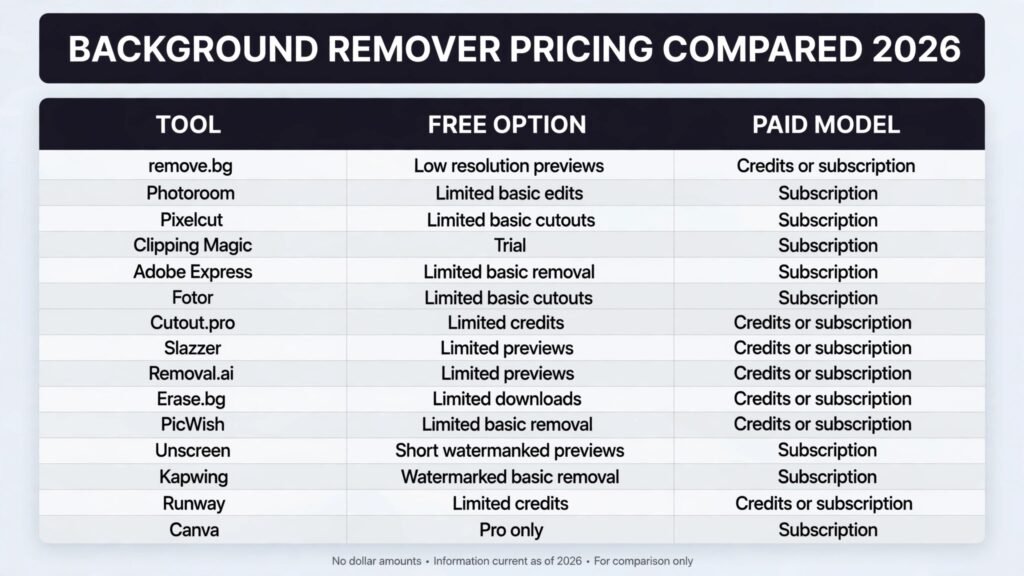
Pricing compared
| Tool | Free option | Paid model | Best value for |
|---|---|---|---|
| remove.bg | Low resolution previews | Credits or subscription, check checkout | Single product photos |
| Photoroom | Limited basic edits | Subscription, check checkout | Seller catalogues |
| Pixelcut | Limited basic cutouts | Subscription, check checkout | Mobile social sellers |
| Clipping Magic | Trial | Subscription, check checkout | Tricky edges and logos |
| Adobe Express | Limited basic removal | Subscription, check checkout | Headshots plus graphics |
| Fotor | Limited basic cutouts | Subscription, check checkout | Retouched headshots |
| Cutout.pro | Limited credits | Credits or subscription, check checkout | Hair detail portraits |
| Slazzer | Limited previews | Credits or subscription, check checkout | Large catalogues |
| Removal.ai | Limited previews | Credits or subscription, check checkout | Variable monthly volume |
| Erase.bg | Limited downloads | Credits or subscription, check checkout | Simple bulk jobs |
| PicWish | Limited basic removal | Credits or subscription, check checkout | Large batches with enhancement |
| Unscreen | Short watermarked previews | Subscription, check checkout | Short video clips |
| Kapwing | Watermarked basic removal | Subscription, check checkout | Edited video projects |
| Runway | Limited credits | Credits or subscription, check checkout | Professional video work |
| Canva | No, Pro only | Subscription, check checkout | Cutouts inside design projects |
Two pricing lessons run through the whole list. First, credit packs beat subscriptions when your volume spikes and dips, while subscriptions win when you process images every week. Second, the free tier is a trial, not a workflow: low resolution previews and watermarks mean free is for testing which tool handles your images, not for publishing finished work.
How to Choose
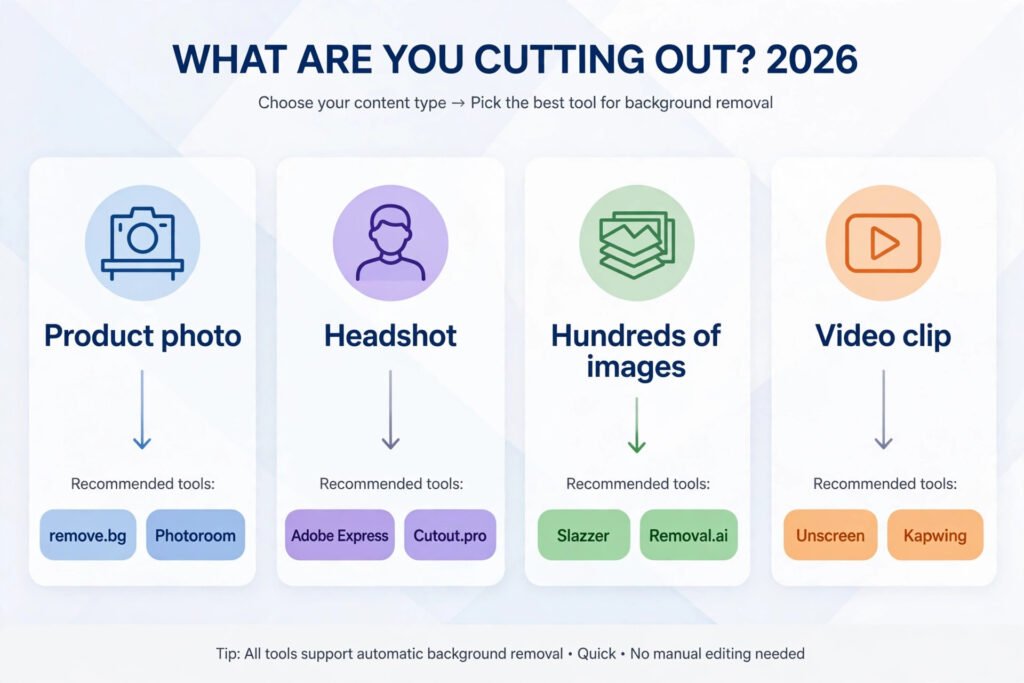
Start with the image type, not the tool. If most of your images are products on a table, pick from the product group and test remove.bg against Photoroom on ten of your own photos, not on the vendor demo images. If most are people, test Cutout.pro against Adobe Express on a portrait with flyaway hair, because that single test separates the good portrait tools from the average ones.
Next, count your volume honestly. Under twenty images a month, a one click tool with a small credit pack is cheapest and simplest. Over two hundred a month, a batch tool with API access or a bulk uploader pays for itself in saved hours, even if its single image quality is a notch below the best one click tool. Between those numbers, a subscription with batch features, like Photoroom or Kapwing, usually fits best.
Then check your output. A marketplace listing needs a pure white background at a specific size, and some tools export that in one click while others need a second step. A team page needs consistent headshot crops, so test whether the tool remembers your crop settings across a batch. A video needs steady edges across frames, so watch your test clip at full screen, not in a small preview, before committing.
Finally, test the hard cases before you pay. Run a glass bottle, a portrait with curly hair, and a photo with a shadow you want to keep. The tool that handles two of those three well is the right pick for most real work, and no tool on this list handles all three perfectly.
Mistakes to avoid
The most common mistake is judging a tool on its demo images. Vendors pick easy photos: a single subject, a plain background, even lighting. Your photos will not be that kind. Always test with your own worst images, the ones with cluttered backgrounds and awkward lighting, because those decide whether the tool saves time or creates cleanup work.
The second mistake is deleting the original. Keep the unedited photo. A cutout that looks fine on a white background can reveal a halo on a dark one, and re-cutting from the original is faster than patching a damaged export.
The third mistake is ignoring shadows. A product floating without any ground shadow looks pasted, not photographed. If your tool deletes shadows by default, check whether it offers a shadow keep or shadow add option before you switch tools, because a soft shadow often matters more than a perfect edge.
The fourth mistake is buying credits before testing batch consistency. Process ten similar images first and line them up. If the crops drift or the edges vary, that tool will cost you manual fixing time on every batch, whatever the per image price looks like.
The fifth mistake is expecting video cutouts to be perfect. Even the best video tools flicker on fast movement. Budget time for edge cleanup on important clips, and shoot with a simpler background when you can, because a clean shoot beats any amount of post processing.
The sixth mistake is over retouching headshots. A headshot that no longer looks like the person fails at its one job. Keep retouching light, keep skin texture, and ask a colleague whether the photo still reads as you before publishing it.
Frequently asked questions
Do AI background removers work on hair?
They work on hair better than they did two years ago, but flyaway strands remain the hardest case. Cutout.pro and Adobe Express handle hair best in this list, thanks to refine tools that let you paint back lost strands. For critical portraits, expect a short manual pass no matter which tool you pick.
Can I use these tools for commercial product listings?
Yes, in general, but check each vendor’s licence terms for your plan, because free tiers sometimes restrict commercial use. Paid plans normally cover commercial listings, and sellers on marketplaces use remove.bg, Photoroom, and Pixelcut daily for that purpose.
What resolution do free tiers give?
Usually low resolution previews, often too small for a marketplace listing or a print job. Treat free tiers as a way to test edge quality on your own images, then pay for full resolution exports on the images you actually publish.
Is batch processing worth it for a small shop?
It depends on volume. Under twenty images a month, one by one processing is fine. Above that, batch tools save real hours, and consistency across a catalogue is worth as much as speed, because a catalogue where every image matches looks more trustworthy to buyers.
Why does my cutout look fine on white but bad on dark backgrounds?
Dark backgrounds expose halos, the faint light fringe left around an edge when the original background was bright. Most editors include a decontaminate or edge refine option that reduces halos. If yours does not, re-cut the image with a refine pass, or place it on a mid tone background instead.
Should I shoot differently to get better cutouts?
Yes, and it helps more than switching tools. Shoot against a plain, contrasting background, keep the subject well lit and separated from the background, and avoid busy patterns directly behind hair or transparent objects. A clean shoot gives every tool on this list a much easier job.
Conclusion
There is no single best tool here, only the best tool for your image type and volume. For single product photos, remove.bg remains the benchmark. For seller catalogues, Photoroom earns its subscription. For portraits where hair matters, Cutout.pro or Adobe Express deserve the first test. For bulk work, Slazzer and Removal.ai turn a week of manual editing into an afternoon. For video, Unscreen is the fastest start and Runway the deepest toolkit. Clipping Magic is the fallback when an automatic cutout fails and you need manual control, PicWish suits large batches that also need enhancement, and Canva fits creators who want the cutout inside the design tool they already use.
Pick two tools from your group, test them on your hardest images, and let the edges decide. The tool that keeps hair, glass, and shadows intact on your photos is the one worth paying for, whatever its demo page promises.