It is Sunday evening, and a small creator named Ria has a phone full of clips and a week of blank squares on her content calendar. She filmed a cafe visit, a desk setup and a 40 second tip about pricing her handmade candles. By Tuesday, none of it is posted. Not because the content is bad, but because every clip needs cutting, captions, a thumbnail, a caption that sounds human, hashtags that are not spam, and a posting time she will forget by Wednesday.
That gap, between filming and publishing, is where Instagram accounts stall. The app itself gives you filters and a decent editor, but it does not write your week for you. The tools in this guide do the jobs around the filming: turning one long clip into Reels, writing captions in your voice, making a photo look like a brand shot, and posting while you are doing something else.
This is not a generic creator roundup. Every tool below is picked for a specific Instagram job, and the reviews say which job it does and where it falls short. If your main platform is video elsewhere, our best-ai-tools-for-youtubers guide covers that workflow, and our best-ai-tools-for-content-creators guide covers the wider toolkit. This one stays on Instagram.
Prices are US list prices found in October 2026 roundups. They change often, so check the vendor page before you pay. Where sources disagreed, this guide says so instead of picking one number and hoping.
Reels: cut the clip before the idea cools
Reels reward speed. A clip edited the same day it was filmed keeps its energy. A clip edited a week later often never ships. These three tools cover the three ways Reels get made: by hand, from long video, and from talking to camera.
CapCut: the everyday Reel editor
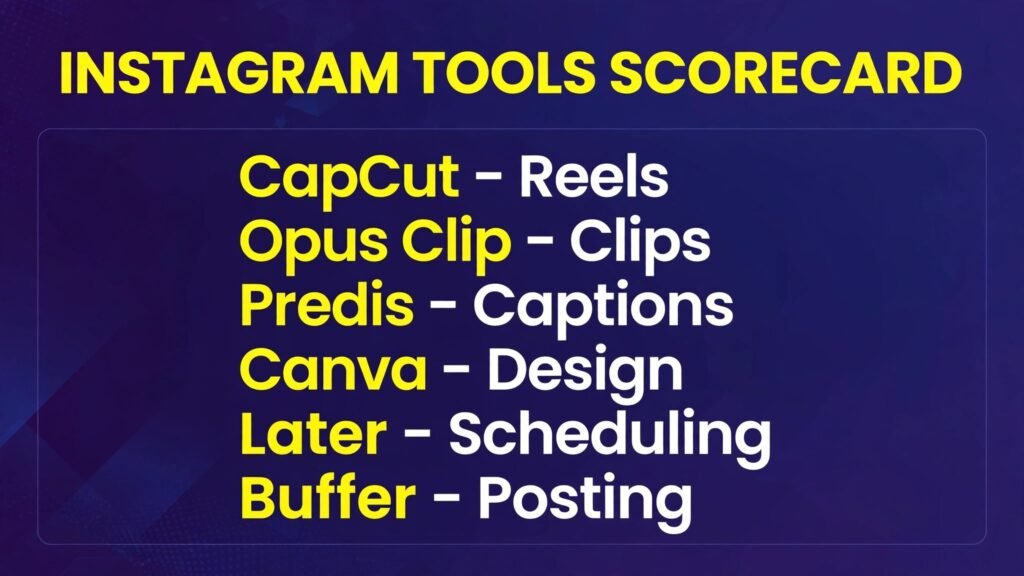
CapCut is where most Instagram editing happens, for one reason: it is fast on a phone. Trim, add auto captions, drop in trending audio, apply a template, export vertical. The free plan covers full manual editing and 1080p export, and a standard export stays watermark free. The catch, flagged in 2026 reviews, is that auto captions on free accounts now hit a usage cap, and some Pro templates add a watermark.
Paid plans changed in early 2026: Standard at $9.99 a month and Pro at $19.99 a month (or $179.99 a year), with 4K export and the full AI toolkit on Pro. App store prices run higher than buying on the web, so buy direct if you subscribe.
Pricing: Free plan with limits. Standard $9.99/mo, Pro $19.99/mo. Best for: Daily Reels edited on your phone. Watch out for: Free auto captions are capped, and it cannot pick your best moments from long footage. That job belongs to Opus Clip. Try it at:capcut.com
Opus Clip: turn one long video into a week of Reels
Opus Clip answers a different problem. You record a 30 minute talk, a podcast or a tutorial, and it finds the moments worth clipping, cuts them vertical, and adds captions with a virality score for each clip. In independent tests, most of its suggested cuts were usable with only small fixes, which is the whole point: you choose from good options instead of scrubbing footage yourself.
The free plan gives a small monthly credit allowance with a watermark. Starter is $15 a month billed monthly (about $9 a month on annual billing) and Pro runs higher, around $19 to $29 a month depending on billing. Uploads cap at 2 GB, so compress 4K raw files first.
Pricing: Free plan with credits and watermark. Starter $15/mo monthly, lower on annual billing. Best for: Creators with long videos who need many Reels from one recording. Watch out for: The built-in editor is basic. Export the clip, then polish it in CapCut. Try it at:opus.pro
Captions: talking-head Reels that look finished
Captions is a mobile app built for one shot: you talking to the camera. It adds word-by-word captions in the bold styles that dominate Reels, cleans up filler words, and can fix eye contact so it looks like you are looking at the lens even when you read notes. For coaches, sellers and anyone whose face is the brand, that polish is the difference between a draft and a post.
It is mobile only, and it is not a full editor. You will still want CapCut for multi-clip edits. But for a daily talking-head Reel, it is the shortest path from record to publish.
Pricing: Limited free use. Paid from $9.99/mo. Best for: Daily talking-head Reels and short tips. Watch out for: No desktop app, and heavy styling can look the same across accounts if you never change the template. Try it at:captions.ai
Captions and hashtags: sound like you, not like a template
A Reel gets watched for the first two seconds. A caption gets read when someone is deciding whether to follow. Both jobs are writing jobs, and they are where most creators either sound generic or run out of words by Wednesday.
Predis.ai: a whole post from one idea
Predis.ai takes a short prompt, a product, or a rough idea, and returns a post with an image or video draft, a caption, and hashtags in one workflow. It also schedules, analyses competitors, and manages multiple brands, which makes it the closest thing on this list to a one-tool Instagram department.
That breadth is also its price problem. Core is $32 a month billed monthly (about $19 a month on annual billing), and auto-posting starts on the higher Rise plan. Older articles quote lower entry figures, which now look like annual rates or retired plans, so trust the current checkout page. Solo creators should trial it on a real week before paying, because the value only shows when you use the scheduling and competitor features too.
Pricing: Core $32/mo monthly, about $19/mo billed yearly. Higher plans to $249/mo. Best for: Small teams and managers running several accounts who want creation plus scheduling in one place. Watch out for: The cheapest plan does not auto-post, and AI captions need a human edit or every post starts to sound the same. Try it at:predis.ai
Flick: hashtags that are researched, not guessed
Flick does two things well: it finds hashtags matched to your account size and niche, and it shows which ones actually brought reach. You build collections per topic, and its analytics tell you which tags to retire. For accounts under 10,000 followers, that matters more than a famous tag list, because a tag with millions of posts buries a small account in minutes.
Flick is not a design tool or an editor. Pair it with CapCut for the Reel and Predis or ChatGPT for the caption draft, and use Flick only for the hashtag decision. Pricing starts from $11 a month in older listings, so confirm the current figure on checkout before subscribing.
Pricing: From $11/mo (confirm on checkout; older listings vary). Best for: Small and growing accounts that want hashtag decisions backed by their own data. Watch out for: Hashtag tools help reach, they do not fix weak content. If a Reel gets no watch time, no tag saves it. Try it at:flick.social
ChatGPT: hooks, captions and a second brain for ideas
ChatGPT is the cheapest idea machine on this list because most creators already have it. Give it your last five captions, your niche, and a rough point, and ask for ten hooks in your voice, then pick one and rewrite it yourself. That last step is the rule: publish the AI draft unedited and your feed starts to read like everyone else’s.
The free tier is enough for caption drafts. Plus at $20 a month adds image generation and higher limits, which helps if you also want post visuals. For the wider assistant comparison, the batch’s first post covers the alternatives.
Pricing: Free tier for everyday use. Plus $20/mo. Best for: Hook ideas, caption drafts, and turning one idea into a week of angles. Watch out for: Unedited output is easy to spot. Always rewrite the hook in your own words before posting. Try it at:chatgpt.com
Photos and design: make the grid look like a brand
Instagram is still a visual feed. A carousel that looks designed gets saved. A photo with muddy colour gets scrolled past. These three tools cover templates, brand-safe design, and photo colour.
Canva: carousels, Stories and templates at speed
Canva is the default design tool for Instagram because the template library does the layout thinking for you. Carousel posts, Story frames, Reel covers and highlight icons all start from a template sized correctly, and the brand kit keeps colours and fonts consistent. Magic Resize turns one design into every format, which is the real time saver for a weekly batch.
The free plan is generous for single posts. Pro is $15 a month billed monthly (about $120 to $144 a year depending on region and billing), and it unlocks background removal, brand kits and the full AI tools. For a head-to-head with Adobe’s rival, our canva-vs-adobe-express post compares the two in depth.
Pricing: Free plan. Pro $15/mo monthly, or $120 to $144 a year. Best for: Carousels, Stories, and creators who batch a week of designs in one sitting. Watch out for: Template-heavy feeds look alike. Change fonts, colours and layouts enough that your grid is recognisable. Try it at:canva.com
Adobe Express: branded posts with commercial-safe AI
Adobe Express is Canva’s closest rival, and its edge is twofold: Firefly AI images trained on licensed content, which matters for client and business accounts, and one-click resize across formats with access to Adobe Fonts. It also schedules directly to Instagram, which Canva’s planner does too, but Express keeps the whole job inside one Adobe account.
Premium is $9.99 a month, cheaper than Canva Pro, with a free plan that already includes background removal. If you already pay for a Creative Cloud plan, Express is often bundled, which makes it effectively free.
Pricing: Free plan. Premium $9.99/mo. Best for: Business accounts that need licensed-safe AI images and brand consistency. Watch out for: The template library is smaller than Canva’s, and video editing is lighter than CapCut’s. Try it at:adobe.com/express
Lightroom: photo colour that builds a recognisable feed
Lightroom is not an Instagram tool, it is a photo editor, and that is why it belongs here. Presets give every photo the same colour treatment, so a feed shot on different days still looks like one account. Edit on mobile, sync to desktop, and batch apply a preset to a week’s photos in minutes.
The Photography plan, which bundles Lightroom and Photoshop, runs from $9.99 a month, though regional pricing varies, so confirm on checkout. If you only post phone photos and never print or edit on desktop, the mobile app with in-app purchases may be enough, and the free editor in your phone may already cover basic colour.
Pricing: Photography plan from $9.99/mo (confirm regional price on checkout). Best for: Photographers, food and travel accounts, and anyone whose feed depends on colour. Watch out for: It edits photos, it does not design posts. Pair it with Canva for text and layout. Try it at:lightroom.adobe.com
Scheduling and growth: post while you are offline
Consistency beats intensity on Instagram. Three Reels a week for three months beats twelve in one week and silence after. Scheduling tools protect that rhythm, and the analytics tell you what to repeat.
Later: visual planning for an Instagram-first feed
Later is built around the grid. Drag posts onto a visual calendar, preview how the next nine squares will look together, and schedule Reels, carousels and Stories. Its Link in Bio tool turns one link into a mini landing page, which matters because Instagram still gives you one bio link.
The free plan allows 12 posts per profile a month, enough to test the workflow. Paid plans start at $25 a month billed monthly (about $18.75 a month on annual billing). If your account is Instagram plus TikTok and little else, Later’s visual focus fits better than a generic scheduler.
Pricing: Free plan, 12 posts per profile a month. Paid from $25/mo monthly, about $18.75/mo annual. Best for: Visual planners and creators who care how the grid looks as a whole. Watch out for: Analytics are lighter than Metricool’s, and multi-network teams may outgrow it. Try it at:later.com
Buffer: the simplest scheduler that stays out of the way
Buffer is the tool you pick when you want scheduling to take five minutes. Paste the post, pick a time, done. The free plan covers 3 channels with 10 queued posts per channel, which suits a solo account posting a few times a week. Paid plans start at $6 a month per channel (about $5 on annual billing), and include AI help for drafting and posting time suggestions.
Buffer also has a unified inbox for replying to comments without switching apps, which is a quiet time saver for small accounts. For the wider scheduling comparison, our best-ai-social-media-management-tools guide covers more of this category.
Pricing: Free plan, 3 channels. Paid from $6/mo per channel. Best for: Solo creators who want the cheapest reliable scheduler. Watch out for: The free queue is small, so daily posters will refill it constantly. Try it at:buffer.com
Metricool: scheduling plus analytics that explain themselves
Metricool pairs scheduling with analytics that a non-analyst can actually read: best times to post, follower growth, and which formats earned saves and shares. The free plan allows 20 posts a month for one brand, and paid plans start from $20 a month on annual billing (about $25 month to month in some listings, so check checkout).
If you run Instagram for a business and report results to anyone, even yourself, Metricool’s reports justify the price over a bare scheduler. If you only need a calendar, Buffer is cheaper.
Pricing: Free plan, 20 posts a month. Paid from $20/mo annual billing. Best for: Business accounts that need scheduling and readable analytics in one place. Watch out for: The interface packs a lot in, so the first week feels busy. Try it at:metricool.com
Meta Business Suite: the free baseline everyone should try first
Before paying for any scheduler, try Meta’s own free tool. Business Suite schedules posts, Reels and Stories to Instagram and Facebook, shows basic analytics, and holds your inbox in one place. It costs nothing, it never breaks the Instagram connection, and it handles the core job.
Its limits are real: only Meta platforms, a clunkier interface than Later or Buffer, and no AI drafting. But as a baseline it tells you whether you even need a paid scheduler. Many solo accounts never do.
Pricing: Free. Best for: Solo accounts and small businesses on Instagram and Facebook only. Watch out for: No TikTok, no LinkedIn, and no content creation features beyond basic editing. Try it at:business.facebook.com
A weekly workflow that uses only four tools
Tools do not grow an account. A repeatable week does. Here is one that uses the picks above and takes about three hours a week.
Monday, film in one batch. Record three short tips or one longer talk. If it is a talk, run it through Opus Clip and pick the three best clips. If it is talking head, open Captions and finish the captions there.
Tuesday, design. Build the carousel or cover images in Canva, apply your Lightroom preset to any photos, and write captions with ChatGPT as a draft, then rewrite the hook yourself. Check hashtags in Flick and keep the three that fit your account size.
Wednesday, schedule. Load everything into Later or Buffer for the week, set the first comment with extra hashtags if that is your habit, and leave Thursday and Friday free for Stories and replies, which should never be fully automated.
Sunday, review. Open Metricool or Business Suite, note the one format that earned the most saves, and make two more of that format next week. Repeat the winner, retire the loser, and the account compounds.
How to choose: start from your bottleneck
Nothing gets edited: CapCut first. Editing is your bottleneck, and a phone editor removes it.
Long videos sit unpublished: Opus Clip first. Repurposing is your bottleneck.
Captions take forever: Predis.ai for full posts, or ChatGPT plus Flick if you want it cheaper.
The grid looks random: Canva for layout and Lightroom for colour. Fix the look before buying reach.
Posting is irregular: Buffer if you want cheap, Later if you care about the grid, Metricool if you need reports.
Budget is zero: CapCut, ChatGPT, Canva, Business Suite. That stack costs nothing and covers editing, writing, design and scheduling.
One more practical point. Do not buy five tools in week one. Pick the tool that fixes your current bottleneck, use it for a month, and only add the next one when the first bottleneck is gone. Most creators need three paid tools at most, and many need only one.
Before you pay: Prices in this guide are October 2026 roundup figures. CapCut restructured its plans in early 2026, Predis.ai’s older listings quote lower entry figures, and scheduler prices vary by billing period and region. Open the vendor’s pricing page and confirm the figure on the checkout screen before subscribing. A two minute check beats a surprise on the first bill.
Frequently Asked Questions
What is the best all-in-one AI tool for Instagram?
Predis.ai comes closest, because it generates posts, captions and hashtags and schedules them. But it is also the priciest pick here, and its cheapest plan does not auto-post. Most creators do better with a small stack: CapCut for editing, Canva for design, and Buffer or Business Suite for scheduling.
Can I grow on Instagram using only free tools?
Yes, at the start. CapCut, Canva, ChatGPT and Meta Business Suite all have free plans that cover editing, design, caption drafts and scheduling. Pay when a free limit actually blocks you, for example when CapCut caps your auto captions or Buffer’s queue runs dry every week.
Do AI captions hurt reach?
No evidence says AI-written text itself hurts reach. What hurts is generic text that nobody saves or comments on. Use AI for the draft and the hook options, then rewrite in your own voice and add a specific detail only you could write. That combination reads human because the final pass is human.
Are hashtags still worth using in 2026?
They still help discovery, especially for small accounts, but they are not the growth lever they were. Use a small set of researched tags matched to your niche and account size, which is Flick’s job, and spend the saved time on the hook and the first two seconds of the Reel.
Should I schedule Reels or post them live?
Schedule the planned posts and keep Stories and replies live. Scheduling protects consistency, and the algorithm does not punish scheduled posts from approved tools. What it does punish is a dead account, so never automate the conversation itself.
Which tool is best for Instagram Stories?
Canva for designed Story frames and templates, and CapCut for quick video Stories. Later and Business Suite both schedule Stories, though interactive stickers and music can fall back to a reminder instead of auto-publishing, depending on the tool and the Story type.
Is it safe to connect these tools to my Instagram account?
Stick to tools that use Instagram’s official API and login, which all the scheduling tools here do, and never hand your password to an unofficial growth service. Avoid any tool that promises followers or automated likes, since those violate Instagram’s rules and risk the account.
Conclusion: pick three, post for a month, then judge
Instagram growth is not a tool problem, it is a shipping problem. The creators who grow are the ones who publish three times a week for three months, learn which format earns saves, and repeat it. Tools only remove the friction between filming and publishing.
So start small. Take the bottleneck from the list above, pick the one tool that fixes it, and add the free stack around it: CapCut for the edit, Canva for the design, Business Suite for the schedule. Run that for a month of real posts. Then look at your saves, your follows and your replies, and let those numbers choose your next tool.